
VIEW 4.1.1 - Logiciel de traitement d'images NIKON - Notice d'utilisation et mode d'emploi gratuit
Retrouvez gratuitement la notice de l'appareil VIEW 4.1.1 NIKON au format PDF.


| Type de produit | Logiciel de traitement d'images |
| Marque | NIKON |
| Modèle | VIEW 4.1.1 |
| Version | 4.1.1 |
| Fonctions principales | Transfert d'images, navigation par vignettes, rotation, impression, enregistrement, visualisation plein écran, gestion des métadonnées, support des formats JPEG/TIFF/NEF/MOV |
| Caméras compatibles | Nikon D1, D1x, D1H, COOLPIX995, COOLPIX775 |
| Systèmes d'exploitation (Windows) | Windows 98, 98 SE, Millennium Edition, 2000 Professional |
| Systèmes d'exploitation (Mac) | Mac OS 8.6, 9.0, 9.1 |
| Processeur requis (Windows) | MMX Pentium ou supérieur |
| Mémoire vive requise | 32 Mo (64 Mo recommandé) |
| Espace disque requis | 15 Mo pour l'installation, plus l'équivalent du double de la capacité de la carte mémoire lors de l'utilisation |
| Résolution vidéo minimale | 640 × 480 pixels, couleurs 16 bits |
| Interfaces supportées | IEEE 1394 (FireWire) pour D1, USB pour COOLPIX995/775 |
| Formats de fichiers image | JPEG, TIFF, NEF (RAW), QuickTime Movie (MOV) |
| Entretien | Désinstallation et réinstallation via le programme fourni. Redémarrage nécessaire après désinstallation. |
| Réparabilité | Réinstallation complète du logiciel en cas de dysfonctionnement |
| Sécurité | Ne pas débrancher ou éteindre l'appareil pendant le transfert pour éviter les pertes de données. Sauvegarder régulièrement les images. |
| Informations générales | Manuel de référence disponible au format PDF. Mise à jour et support en ligne sur les sites Nikon. |
FOIRE AUX QUESTIONS - VIEW 4.1.1 NIKON
Questions des utilisateurs sur VIEW 4.1.1 NIKON
0 question sur cet appareil. Repondez a celles que vous connaissez ou posez la votre.
Poser une nouvelle question sur cet appareil
Téléchargez la notice de votre Logiciel de traitement d'images au format PDF gratuitement ! Retrouvez votre notice VIEW 4.1.1 - NIKON et reprennez votre appareil électronique en main. Sur cette page sont publiés tous les documents nécessaires à l'utilisation de votre appareil VIEW 4.1.1 de la marque NIKON.
MODE D'EMPLOI VIEW 4.1.1 NIKON
Nikon View 4 Reference Manual
For Version 4.1.1
| Overview | (pp. 2-3) |
| Getting Started | (pp. 4-12) |
| Tutorial | (pp. 13-32) |
| Preferences | (pp. 33-42) |
| Appendices | (pp. 43-51) |
Overview
About This Manual
Welcome to Nikon View 4! Using Nikon View 4, you can connect your Nikon digital camera to a computer or insert the camera memory card in a card reader or PC card slot and browse photographs or save them to disk. Images can be transferred directly from the camera to the computer via an IEEE I394 or USB connection, or you can insert the camera memory card in a card reader or PC card slot and copy images to disk. The photographs to be viewed or copied to disk can be chosen from a list of thumb-nail images (note that NikonView 4 can not be used to browse images after they have been transferred to disk; to browse images on disk, use FotoStation Easy or the full version of Cumulus 5.0 or similar software).
Nikon View 4 version 4.1.1 can be used with the following Nikon digital cameras: D1, D1x, D1H and COOLPIX995/775. For information on using these cameras, see the documentation provided with the devices.
Please read all instructions in this manual thoroughly to ensure that you get the most from Nikon View 4 and your Nikon digital camera.
Trademark Information
Microsoft and Windows are registered trademarks of Microsoft Corporation in the United States of America and other countries. IBM is a registered trademark of International Business Machines. Adobe and Adobe Photoshop are trademarks or registered trademarks of Adobe Systems, Inc. Pentium, and Celeron are trademarks of Intel Corporation. Macintosh, Mac OS, and QuickTime are trademarks of Apple Computer, Inc. Cumulus is a registered trademark of Canto Software, Fotostation Easy and Fotostation are registered trademarks of Fotoware A/S. All other trade names mentioned in this manual or other documentation provided with your Nikon product are trademarks or registered trademarks of their respective holders.
Reading This Manual
This manual describes how to work with the images stored on your camera's memory card. It is divided into the following four main chapters:
Getting Started
Read this chapter for information on the type of system required to use Nikon View and for complete installation instructions.
- Tutorial
The tutorial provides all the information needed to browse the images on the camera memory card and copy them to disk.
- Preferences
This chapter describes the options available in the Nikon View Preferences dialog.
- Appendices
Included in the appendices are instructions for uninstalling and reinstalling Nikon View, together with a visual index to the program's principle windows, menus, and dialogs.
This reference manual has been written for users of both the COOLPIX series and DI series of cameras. We ask for your understanding that certain parts of this manual may not apply to your camera.
To make it easier to find the information you need, the following symbols and conventions are used:

This icon marks cautions, information that you should read before use to prevent damage to your Nikon product.

This icon marks notes, information that you should read before using Nikon View.

This icon marks tips, information that you may find helpful when using Nikon View.

This icon indicates that more information is available elsewhere in this manual or in other documentation.

This symbol indicates that the cross-reference marked with the icon is to the Nikon View 4 Reference Manual (this manual).


Blue text indicates a link to another part of this manual or to the World-Wide Web. Click the text to follow the link.

Background Knowledge
This manual assumes familiarity with operations common to the Macintosh and Windows operating systems. If you are in doubt about the meaning of any of the terms used here, refer to the documentation provided with your operating system.

Illustrations
This manual is for use with both the Windows and Macintosh versions of Nikon View. While the majority of the illustrations are taken from the Windows version of the product (Windows Millennium Edition), save where otherwise noted the operations described apply to both the Macintosh and Windows versions.

Printing This Manual
If desired, portions of this manual can be printed for ease of reference using the Print... command in the Adobe Acrobat Reader File menu.

Life-Long Learning
As part of Nikon's "Life-Long Learning" commitment to ongoing product support and education, continually-updated information is available on-line at the following web-sites:
For users in the United States of America: http://www.nikonusa.com/
For users in Europe: http://www.nikon-euro.com/
- For users in Asia, Oceania, the Middle East, and Africa: http://www.nikon-asia.com/
Visit these sites to keep up-to-date with the latest product information and general advice on digital imaging and photography. For more information, please contact your nearest Nikon representative.
http://www.nikon-image.com/eng/
Getting Started
Installing Nikon View 4
Before You Begin (pp. 5-6)
Installation (p. 7)
Starting Nikon View 4 (pp. 8-12)
About This Chapter
This chapter takes you step-by-step through the process of installing Nikon View 4 and supporting software.
Windows
Before installing Nikon View 4, make sure that your computer system satisfies the following requirements:
| CPU | MMX Pentium or better |
| OS | Windows 98 1,2 / Windows 98 Second Edition (SE)1,Windows Millennium Edition (Me)1,Windows 2000 Professional1 |
| Memory (RAM) | 32 MB (64 MB or more recommended) |
| Hard disk space | 15 MB required for installation, with an additional amount equivalent to twice the capacity of the camera memory card required when Nikon View 4 is running |
| Video resolution | 640 × 480 pixels with 16-bit color (High Color) (800 × 600 pixels or greater with 24-bit color [True Color] recommended) |
| IEEE I394 interface (D1 series cameras) | Only boards compliant with Open Host Controller Interface (OHCI) are supported3,4 |
| USB (COOLPIX995/775) | Only built-in USB ports supported3 |
| Miscellaneous | CD-ROM drive required for installation |
1 Only pre-installed versions supported.
2 Windows 98 does not support IEEE I394 connection of D1 series cameras.
3 The camera may not function as expected when connected to IEEE I 394 or USB hubs.
4 Please see the web page address below for support information concerning compatible boards.

Software updates
For the latest information and updates, visit the following web-sites:
For users in the United States of America: http://www.nikonusa.com/
For users in Europe: http://www.nikon-euro.com/
For users in Asia, Oceania, the Middle East, and Africa: http://www.nikon-asia.com/
Macintosh
Before installing Nikon View 4, make sure that your computer system satisfies the following requirements:
| Model | iMac¹, iMacDV¹, Power Mac G3 (Blue & White)¹, Power Mac G4 or later¹, iBook¹, Power Book G3 or later¹ |
| OS | Mac OS 8.6², Mac OS 9.0, Mac OS 9.1 |
| Memory (RAM) | 32 MB (64 MB or more recommended) |
| Hard disk space | 15 MB required for installation, with an additional amount equivalent to twice the capacity of the camera memory card required when Nikon View 4 is running |
| Video resolution | 640 × 480 pixels with 16-bit color (thousands of colors) (800 × 600 pixels or greater with 24-bit color [millions of colors] recommended) |
| Firewire interface (DI series cameras) | Only built-in Firewire ports supported³ |
| USB (COOLPIX995/775) | Only built-in USB ports supported³ |
| Miscellaneous | CD-ROM drive required for installation |
1 Built-in Firewire (IEEE I 394) or USB interface required.
2 Users of Mac OS 8.6 will need to upgrade to version 1.3.5 of the Apple Computer USB driver, and version 2.3.3 of the Apple Firewire driver.
3 The camera may not function as expected when connected to IEEE I 394 or USB hubs.

Software updates
For the latest information and updates, visit the following web-sites:
For users in the United States of America: http://www.nikonusa.com/
For users in Europe: http://www.nikon-euro.com/
For users in Asia, Oceania, the Middle East, and Africa: http://www.nikon-asia.com/
Windows / Macintosh
If you have already completed installation, click here for information on starting Nikon View 4.
The procedure for installing Nikon View 4 varies according to your operating system, make of camera, and the image database software you are using. Click the links below for complete installation instructions. After reading these instructions, you will be returned to the present manual.
FotoStation
| Camera | Operating system |
| COOLPIX995 | Windows Millennium Edition (Me) |
| Windows 98 / 98 Second Edition (SE) | |
| COOLPIX775 | Windows 2000 Professional |
| Mac OS |
Other image database software (such as Cumulus)
| Camera | Operating system |
| COOLPIX995 | Windows Millennium Edition (Me) Windows 98/98 Second Edition (SE) Windows 2000 Professional |
| COOLPIX775 | |
| Mac OS |
Starting Nikon View 4
Starting Nikon View 4
Once installation is complete, Nikon View 4 will start whenever your Nikon digital camera is turned on and connected to the computer, or when the camera memory card is inserted in a card slot or in a CompactFlash card reader connected to the computer. Note that for the program to start on insertion of a memory card, the memory card must be from one of the following cameras: COOLPIX995, 775, 900s, 900, 950, 700, 800, 990, 880, or a camera in the D1 series. The program will not start on insertion of memory cards from cameras other than those listed above. Note too that only one camera can be connected to the computer at a time.
If you would prefer that Nikon View 4 not start automatically, select Disable auto start in the Auto Start tab of the Preferences dialog (34).

Auto Start
Nikon View 4 will confirm that a camera is connected or a memory card inserted in a card reader or card slot and start automatically when:
- A supported camera is connected while on and with a memory card in place
- A supported camera with a memory card in place is connected and then turned on
- A memory card from a Nikon digital camera supported under Nikon View 4 is inserted in a CompactFlash card reader or card slot
Before connecting your camera to a computer (Windows only)
When the camera is first connected to a computer, the computer must "register" the camera. If you have been using a DI camera with NikonView DX or Nikon Capture, you will need to update the device drivers for the DI before you can use NikonView 4.
For more information about device registration or updating the device drivers for the D1, click here
Connecting the Camera to a Computer
Turn the camera on and connect it to the computer. For more information on connecting your camera and on the cables required, see the documentation provided with your camera.
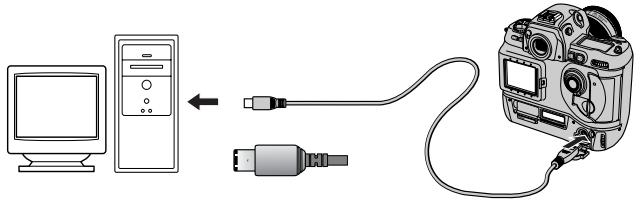
DI/DIX/D1H (IEEE 1394/Firewire interface)
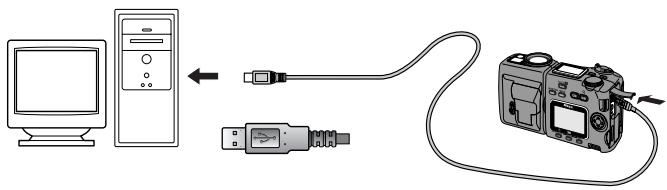
COOLPIX995/775 (USB interface)
Using a Card Slot
When inserted in a PC-card adapter (available separately), the camera memory card functions as a Type II PCMCIA ATA card, allowing images to be read from the card.
Inserting a Memory Card
After removing the memory card from the camera, insert it in the adapter as shown below.
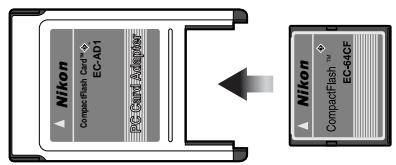
Insert the adapter in a computer that supports ATA-RAM memory cards and is equipped with a PCMCIA Type II-compatible card slot.
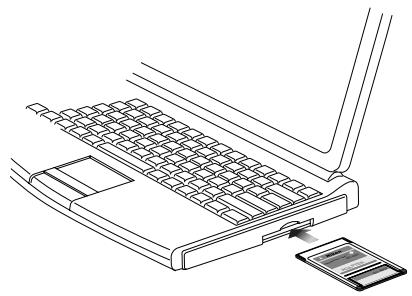
For more information, see the documentation for your computer. Depending on your operating environment, it may be necessary to install drivers, register the card with the system, or adjust settings to configure the computer to read CompactFlash memory cards. For details, see the documentation provided with your computer or operating system.
Using a Card Reader
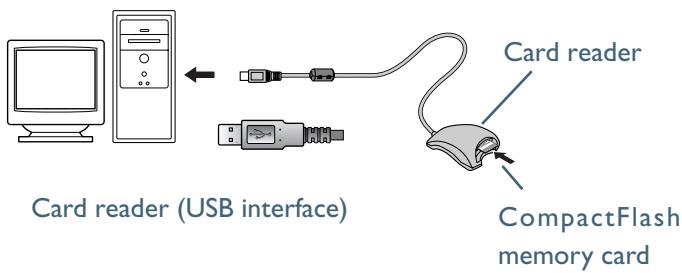
Images on the memory card can also be viewed using a card reader.
Inserting a Memory Card
After removing the memory card from the camera, insert it in the card reader and connect the reader to the computer. For information on connecting the card reader, see the documentation provided with the device.
The Camera or Memory Card Drive or Volume
Connecting the Camera and Inserting Memory Cards
When a COOLPIX995/775 digital camera is connected or a memory card inserted in a card reader or card slot:
Windows
The computer will show the camera or memory card as a new drive in the My Computer window. Opening the drive will reveal the folder "DCIM," which holds further folders ("100NIKON" or other folders with names assigned by the user or automatically by the camera) containing images taken with the camera. Note that when first connecting a camera to the computer, the camera must be registered as a device with Windows.
Macintosh
The camera or memory card will appear on the desktop as an untitled volume. Opening this volume will reveal the folder "DCIM," which holds further folders ("100NIKON" or other folders with names assigned by the user or automatically by the camera) containing images taken with the camera. (Note that memory cards formatted on a DI series camera will appear on the desktop not as an untitled volume, but as a folder labeled "NIKON DIX".)
Disconnecting the Camera and Removing Memory Cards
Before disconnecting or turning a COOLPIX995/775 digital camera off or removing a memory card from a card reader or card slot:
Windows
Click the "Unplug or Eject Hardware" icon in the taskbar and remove the camera or memory card from the system.
Macintosh
Drag the untitled volume corresponding to the camera or memory card into the Trash.(Note that memory cards formatted on a DI series camera will appear not as an untitled volume, but as a folder labeled "NIKON DIX".)
Unexpected Termination
-
Nikon View 4 (version 4.1.1) will terminate and a warning will appear if any of the operations listed below are performed while Nikon View 4 is in use. Click OK to close the warning and exit Nikon View 4.
-
If you turn the camera off while data transfer is in progress, or disconnect the cable connecting the camera and computer, the warning shown at right will be displayed.
- If you remove the memory card from the card slot or card reader while data transfer is in progress, the warning shown at right will be displayed.
- If you reformat the memory card while NikonView 4 is in use, the warning shown at right will be displayed.
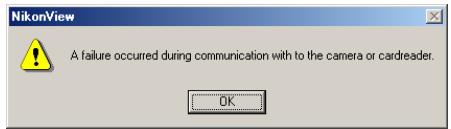
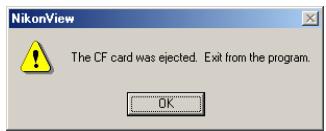
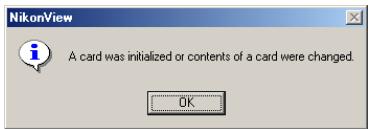
To avoid unexpected termination, we recommend that you exit NikonView 4 either by selecting Exit from the File menu or by clicking the Exit button in the Transfer window (15). Make sure that data transfer is complete before exiting NikonView 4.
Restarting Nikon View 4
Nikon View 4 can be restarted automatically or manually.
Automatic Restart
- If you have turned the camera off, disconnected the interface cable, or removed the memory card from the card reader or card slot, you can restart the program by:
reconnecting the camera
turning the camera on
- re-inserting the memory card
- If you exited NikonView 4 while the camera and computer were connected, you can restart the program by:
turning the camera off and then on again
- removing and then re-inserting the memory card
- disconnecting and then reconnecting the camera
Manual Restart
When Nikon View 4 is started manually the Thumbnail List window will be displayed if NikonView 4 can detect the same memory card that was in the camera, card reader, or card slot when the program last was shut down. (Note that detection will only occur if the card is in the same camera, card reader or card slot as on the previous occasion.) If the same card that was present when NikonView 4 was last shut down can not be detected, (i.e. is not present or has been moved to another device), a message will be displayed and the Thumbnail List will appear with no thumbnails showing. The only operations that can be performed are adjustments to Preferences.
Windows
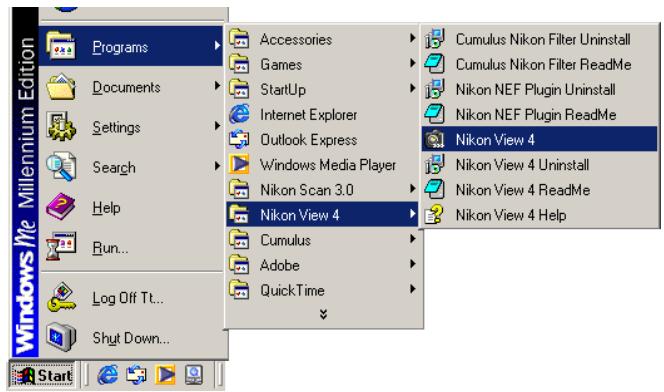
To start Nikon View 4 manually, select Programs > Nikon View 4 > Nikon View 4 from the Windows Start menu.
Macintosh
To start Nikon View 4 manually, double click the Nikon View 4 icon, which may be found in the folder Nikon Software : Nikon View 4.

Nikon View 4
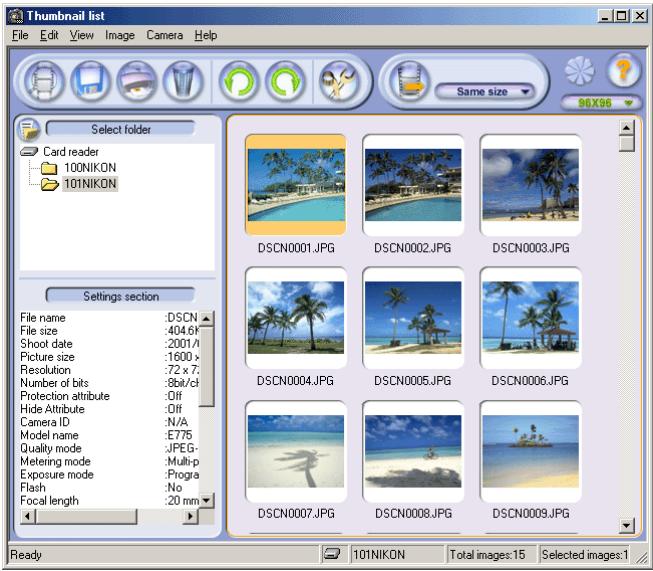
If Nikon View 4 can detect the memory card that was in the camera, card reader, or card slot when the program was shut down, the Thumbnail List window will be displayed when Nikon View 4 is started manually.
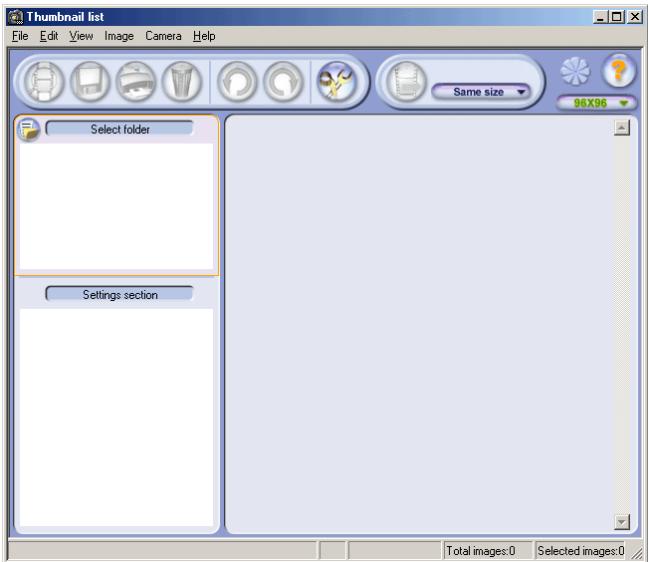
If the card that was present when NikonView 4 was shut down can not be detected when the program is started manually, the following warning will be displayed. (Note that detection will not occur if the card is not in the same camera, card reader or card slot as on the previous occasion.)

Click OK to close the error message. The,Thumbsail List window will open,but no thumbnails will be displayed.Only the options in the Preferences dialog can be adjusted; no other operations can be performed.
Tutorial
Transferring Images to the Computer
The Image Transfer Window (pp. 15-18)
The Thumbnail List Window (pp. 19-32)
About This Chapter
This chapter describes how to transfer images to the computer from the camera, card reader, or card slot, and outlines the operations that can be performed in the Image Transfer and Thumbnail List windows.
When the camera is connected to the computer and turned on, or a memory card from the camera inserted in a card reader or card slot, Nikon View 4 will start automatically and the Image Transfer or Thumbnail List window will appear. You can choose which window appears at start-up in the Auto Start tab of the Preferences dialog (34). Images can be transferred to the computer from either window.
The Image Transfer window provides a convenient tool for transferring all images, or all images of a specified type, to the computer in a single operation. The,Thumbsail List window gives you the opportunity to view images before transfer and select the images that will be copied to your computer.
The Image Transfer Window
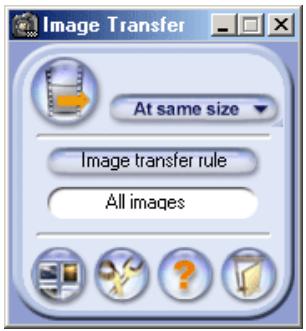
The Image Transfer window provides a simple tool for transferring images to the computer from a memory card inserted in a camera, card reader, or PC card slot. It also allows access to the Thumbnail List, Preferences, and Help windows.

Using the Transfer Button (COOLPIX775)
Users of the COOLPIX775 can also transfer or upload images using the TRANSFER button on the camera itself. Click here for more information.
The,ThumbsailListWindow
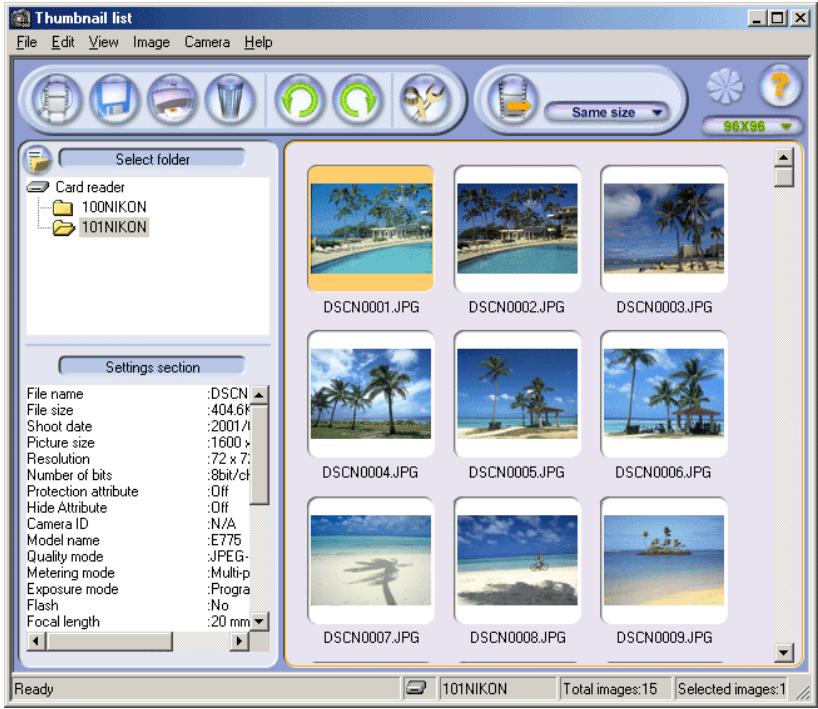
The,Th弹簧Listwindow can be used to browse images or view photo information.This window can be used to view as small thumbnail previews the images on the memory card inserted in the camera,card reader,or card slot and select the images to be transferred to the computer,or to preview selected images at full size.

Viewing Images on the Hard Disk
The,Thumbsail list window can not be used to preview images that have already been transferred to the hard disk.

Pg. For more information on:

34 Preferences:Auto Start
The following controls are available in the Image Transfer window (shown below):
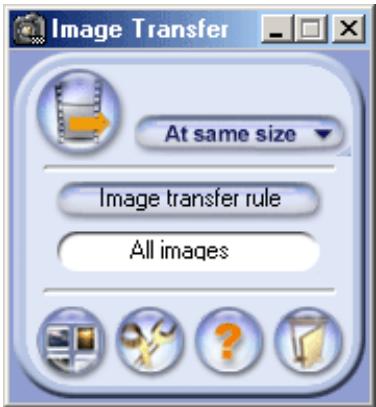
The Macintosh version of Nikon View 4 has a menu bar that duplicates the functions of the tool buttons (the Windows version does not have a menu bar). Most operations can be performed using the tool buttons and, in the case of the Macintosh version, the menus in the menu bar. In the case of operations that can be performed by means both of menus and tool buttons, the explanation in this manual gives priority to the tool buttons.
| Button | Function |
| At same size Transfer size | Specify the size of the image after transfer. (18) |
| Image transfer rule Image transfer rule | Choose the type of image that will be transferred. The type of image selected appears in the text box below the button. (17) |
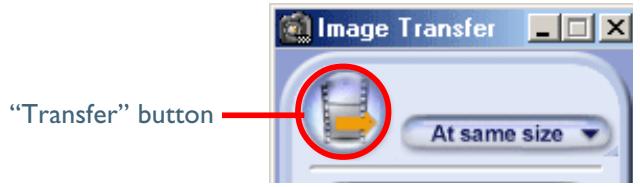
| Transfer | Transfer images of the selected type to the computer. (18) |
| Thamburger list | Open the Thamburger List window. (21) |
| Preferences | Open the Preferences dialog. (34) |
| Help | Display help for Nikon View 4. (32) |
| Exit | Exit Nikon View 4. (10) |
Transferring Images Using the Image Transfer Window
This section describes how to use the Image Transfer window to transfer images to your computer from a memory card inserted in a camera, card reader, or card slot.
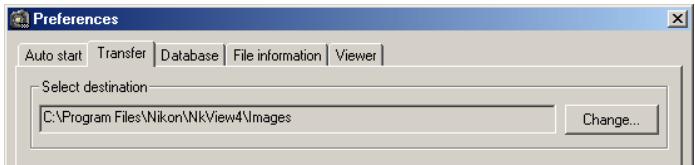
Step I—Choose a destination
In this step, you will choose the destination folder for the images that will be transferred from the memory card. Users who intend to transfer images to the default destination can proceed to Step 3 (unless you have selected a new default, the default destination is the Images folder in the folder to which you installed Nikon View 4). To change the destination, choose a new folder from the Transfer tab of the Preferences dialog (35).
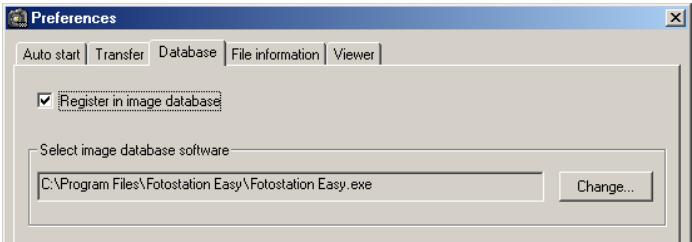
Step 2—Choose an image database
If you will not be using image database software, proceed to Step 3.
Confirm that an image database application has been selected in the Database tab of the Preferences dialog (40).

SubFolders
When images are transferred to the computer, a sub folder is created within the selected folder and all images transferred to the sub folder. The sub folder is named according to the current date and time (YYYYMMDD-HHMMSS).

Image Database Applications
The following applications are supported under Nikon View 4:
Windows
Cumulus 5 (Canto Software): images registered in catalog
- FotoStation Easy (FotoWare): images can be found no matter where they are located on your hard disk
PC-Archive (Nikon): images registered in folder
Macintosh
Cumulus 5 (Canto Software): images registered in catalog
- FotoStation Easy (FotoWare): images can be found no matter where they are located on your hard disk
- iViewMediaPro (iView Multimedia): images registered in catalog

Uploading Images to Nikon FotoShare
If your computer is connected to the internet, and you choose FotoStation as your image database application, images that have been transferred to the computer can be uploaded to Fotoshare, Nikon's on-line photo album service. If you want to upload images to Fotoshare, click here after choosing FotoStation Easy as the image database application in Step 2. After reading Uploading Images to Nikon Fotoshare (pages 17B-20B) you will be linked back to page 19 of this manual.

FotoStation Easy
The FotoStation Easy 'Coolpix' folder is preset to browse to the default folder to where NikonView 4 transfers images. If you change the folder in NikonView 4 you may have to quit NikonView 4 and FotoStation and then relaunch both programs for FotoStation to find the new transfer destination folder.

Pg. For more information on:

35 Preferences:Transfer
40 Preferences: Database
Step 3—Choose the images to be transferred
In this step, you will choose the images to be transferred. This allows you to select only a specific type of image, for example protected images, for transfer. Click the Image transfer rule button in the Transfer Image window.
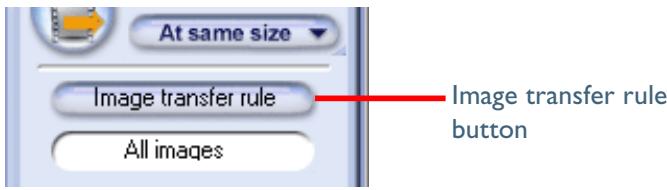
The dialog shown below will be displayed, where you can select the type of image to be transferred.
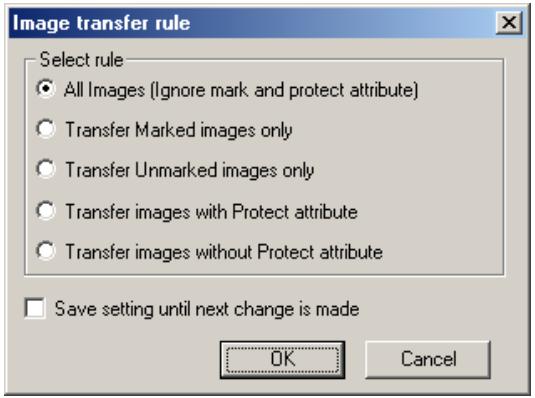
Check Save setting until next change is made to save the selected type as the default setting for subsequent sessions of Nikon View 4. If this box is not checked, the default setting will be Ignore mark and protect attribute, and all images will be transferred.
After selecting an image type, click OK to return to the Transfer Image window. The selected image type will be indicated by an icon in the text box below the Image transfer rule button.
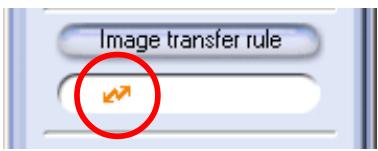
| Selection | Description | Icon |
| All Images (Ignore mark and protect attribute) | All images will be transferred. This is default setting at installation. | All images |
| Transfer Marked images only | Only marked images will be transferred. | |
| Transfer Unmarked images only | Only unmarked images will be transferred. | |
| Transfer images with Protect attribute | Only protected images will be transferred. | |
| Transfer images without Protect attribute | Only unprotected images will be transferred. |

Marked Images
Some cameras do not allow images to be marked for transfer. Note that the COOLPIX 995/775 does allow you to mark images for transfer. For more information, see the documentation provided with your camera.
Step 4—Choose an image size
Choose a size suited to the task at hand from the Transfer size menu.
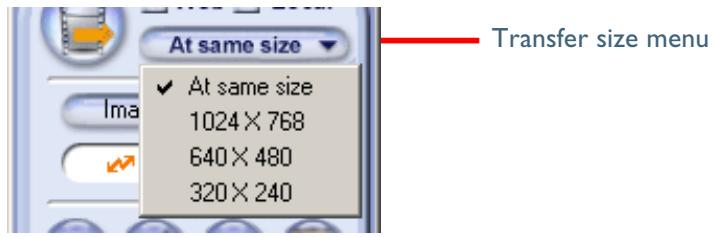
If you choose At same size, image size will not change during transfer. At other settings, all images larger than the selected size will be converted to the new size during transfer. Images smaller than the selected size are transferred at their original size. All photo information apart from the "image size" field will be unaffected by the conversion. Converted images are saved using JPEG compression at a ratio equivalent to a camera setting of NORMAL.
The following options are available
| Option | Description |
| At same size | Images will be saved at their original dimensions. |
| 1024 × 768 | Images will be converted to XGA (suitable for display on most computer monitors). |
| 640 × 480 | Images will be converted to VGA (suitable for Web distribution). |
| 320 × 240 | Images will be converted to QVGA size (suitable for distribution by e-mail). |

Aspect Ratio
If the original image does not have an aspect ratio of 4:3 (note that photographs taken with the D1, D1x or D1H have an aspect ratio of 3:2 ), the vertical dimension will be adjusted to match the horizontal dimension without changing the original aspect ratio.
Step 5—Transfer the images
To transfer images of the selected type, click the "Transfer" button.
A progress indicator will be displayed while the images are being transferred. A thumbnail preview of the image currently being transferred will also be displayed. When multiple images are transferred, the Transferring... window will include a progress meter showing the number of images copied to disk and the number of images remaining.
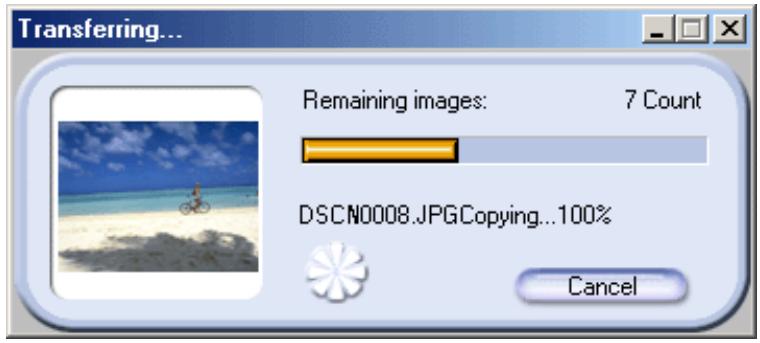
No other operations can be performed while the Transferring... window is displayed.

Transferring Images
The original image remains on the memory card.
The Thumbnail list window includes a menu bar, toolbar, a folder tree area and camera settings section, and a thumbnail list area.
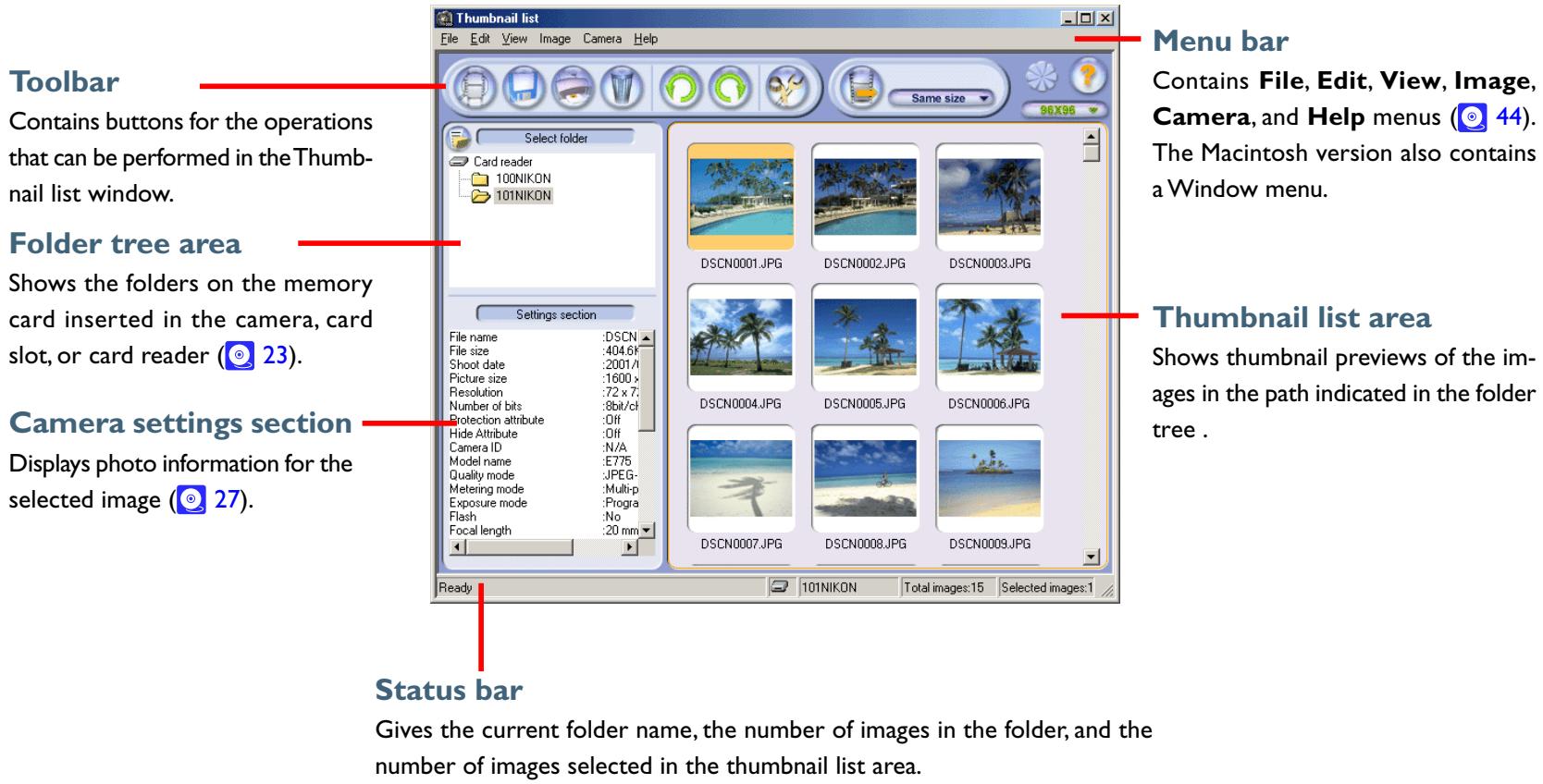
The majority of operations in the Thumbnail list window are performed using the menu bar and tool buttons. In the case of operations that can be performed by means both of menus and tool buttons, the explanation in this manual gives priority to the tool buttons.
The Thumbnail list window contains the following buttons:
| Button | Function |
| Open | Opens the selected image(s) in the built-in viewer or an external application. (29) |
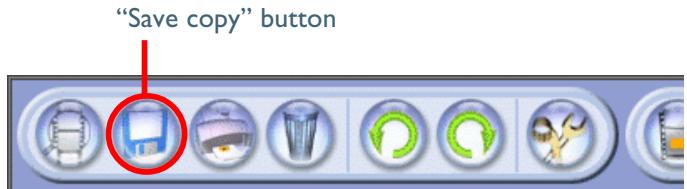
| Save copy | Save a copy of each of the selected images. (26) |
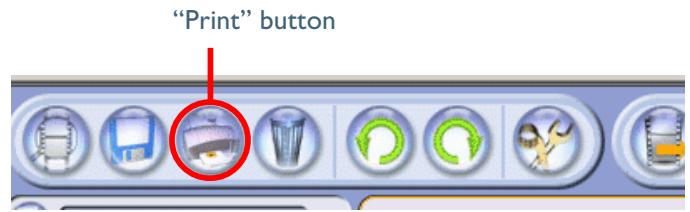
| Print the selected images. (26) | |
| Delete | Delete the selected images (28) or folders. (31) |
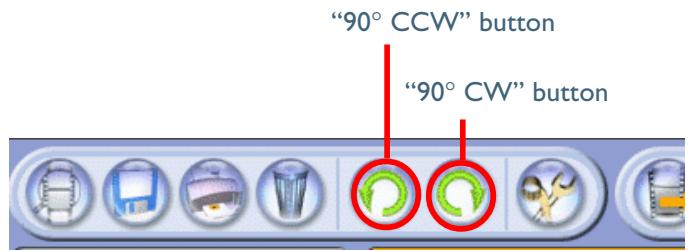
| 90° CCW | Rotate the selected image ninety degrees to the left. (27) |
| 90° CW | Rotate the selected image ninety degrees to the right. (27) |
| Preferences | Open the Preferences dialog. (34) |
| Button | Function |
| Transfer | Transfer the selected images to the computer. (18) |
| Same size | Specify the size of the image after transfer. (18) |
| Transfer size | |
| Progress indicator | This display is active when an operation is in progress. (32) |
| Help | Open help for Nikon View 4. (32) |
| Thamburger size | Choose the size at which thumbnails will be displayed. (24) |
| Toggle view | View or hide the folder tree area and/or camera settings section. (23) |
Transferring Images Using the Thumbnail list window
Using the Thumbnail list window, you can select images to be transferred to the computer from the memory card inserted in the camera, card slot, or card reader.
The following explanation assumes that you have completed steps 1-2 of "Transferring Images Using the Image Transfer Window." See "Tutorial: Transferring Images Using the Image Transfer Window" steps 1-2 (16).
Step I—Open the Thumbnail list window
When the camera is connected to the computer and turned on, or a memory card from the camera inserted in a card reader or card slot, Nikon View 4 will start automatically and the Transfer Images or Thumbnail list window will appear. You can choose which window appears at start-up in the Auto start tab of the Preferences dialog (34). Images can be transferred to the computer from either window.
If the Transfer Images window is displayed, you can open the Thumbnail list window by clicking the "Thumbnail list" button.
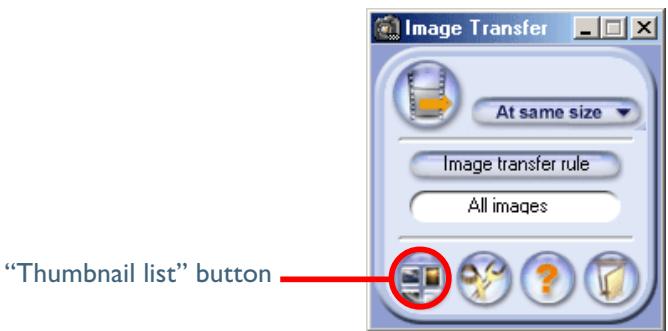

Pg. For more information on:

34 Preferences:Auto start
Step 2—Choose a folder
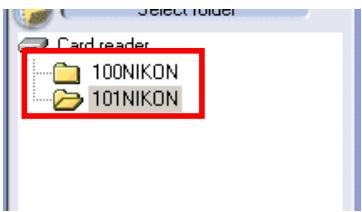
The folders on the memory card are shown in the folder tree area. Click the folder containing the desired images; thumbnail previews of the images in the folder, including hidden images, will be displayed in the thumbnail list area.
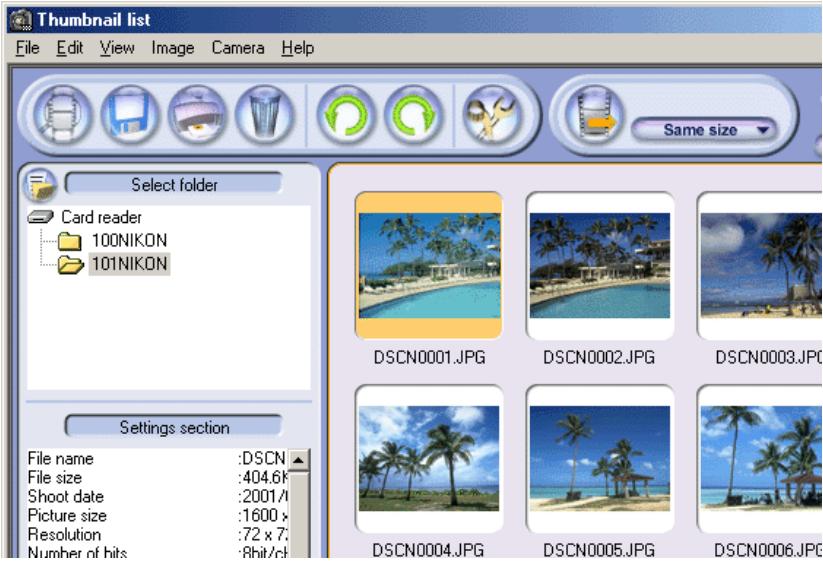

TheThumbnail list
If the memory card contains only one folder with images, the Thumbnail list will automatically open with that folder selected and thumbnails of the images in the folder displayed. Where there is more than one folder, the images in the first folder will be previewed automatically.
Step 3—Select images
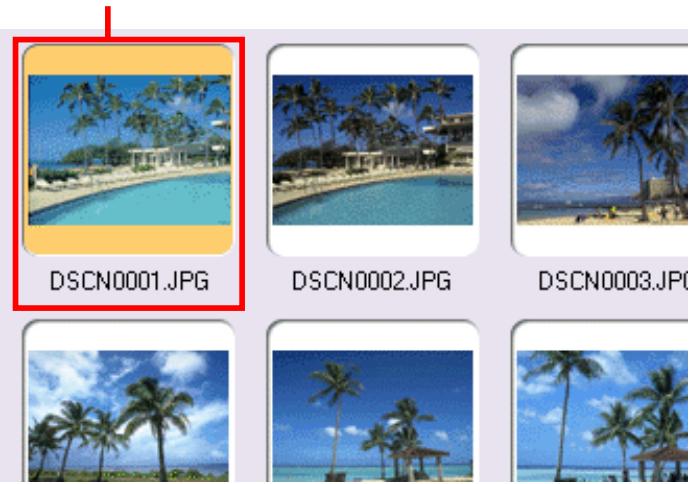
Select the images that you wish to transfer to the computer. Selected images are highlighted with a yellow border.
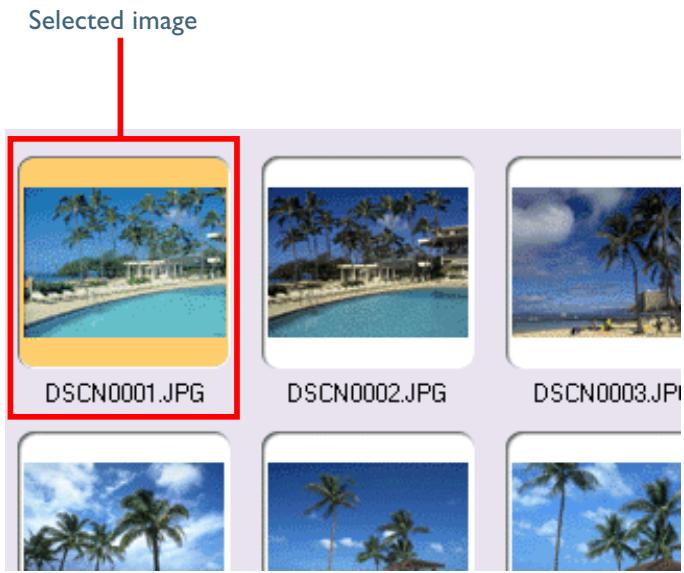
To select multiple images, press the Ctrl (Windows) or Command (Macintosh) key while clicking each image in turn. A group of images can be selected by dragging the mouse. Press the shift key while clicking two images to select the images and all images between them.
Step 4—Transfer the images
To transfer the selected images to the computer, click the "Transfer" button.
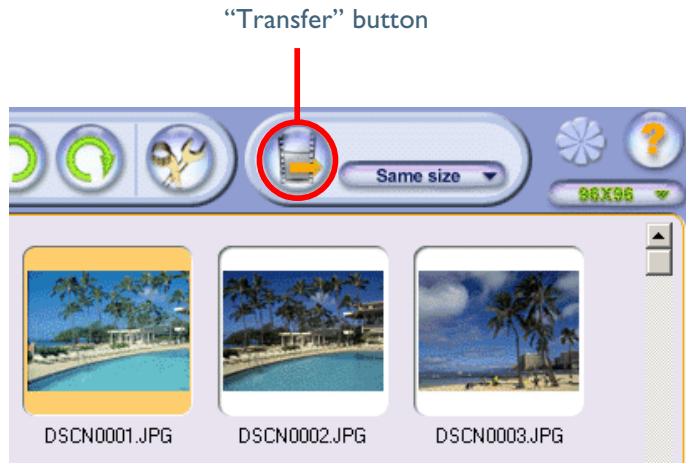
A progress window will be displayed as described above under Step 5 of "Transferring Images Using the Image Transfer Window" (18).
Working with-Thumbsnails
This section describes the operations that can be performed on thumbnails.
Choosing a Folder
The folders on the memory card are shown in the folder tree area. Click the folder containing the desired images; thumbnails of the images in the folder will be displayed in the thumbnail list area.
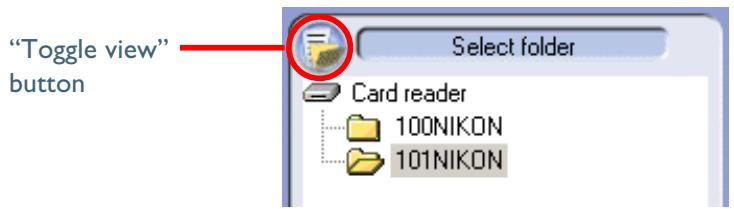
By clicking the "Toggle view" button in the folder tree area, you can display or hide the folder tree area and camera settings section. The display will cycle through views as follows: both folder tree area and camera settings section displayed folder tree area displayed, camera settings section hidden folder tree area hidden, camera settings section displayed both folder tree area and camera settings section hidden both folder tree area and camera settings section displayed.
If only one folder is present on the memory card and you do not need to view photo information, you can hide both the folder tree and camera settings section to increase the size of the thumbnail list area and the number of thumbnails visible.
Selecting Thumbs nails
Thumbnail previews of the images in the selected folder are shown in the thumbnail list area. To select multiple images, press the Ctrl (Windows) or Command (Macintosh) key while clicking each image in turn. A group of images can be selected by dragging the mouse. Press the shift key while clicking two images to select the images and all images between them.
Selected image

Selecting Multiple Images
The commands in the Select sub-menu of the Edit menu can be used to select all images of a specified type (marked or unmarked, protected or unprotected).
Specifying Thumbnail Size
The pull-down menu at the right side of the Thumbnail list window can be used to specify the dimensions of the thumbnails displayed in the thumbnail list area. When a new size is chosen, any images that were selected or rotated before the change will still be selected or rotated at the new size.
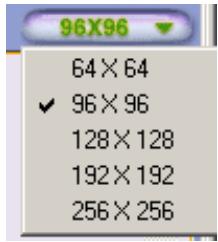
The following five sizes are available:
64× 64 pixels
96× 96 pixels
128×128 pixels
192×192 pixels
256× 256 pixels
The default size at installation is 96 × 96 . At sizes of 96 × 96 and 64 × 64 , no file-status icons are displayed. At a size of 64 × 64 , the file type extension is not displayed.
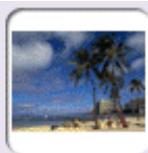
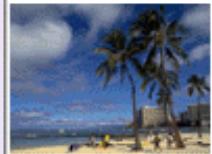
Examples of the thumbnail list at different thumbnail sizes are shown below.
DSCN0001

DSCN0002
DSCN0003

DSCN0004
64 × 64 (file name only—no extension or file-status icon displayed)

DSCN0001.JPG

DSCN0002.JPG
DSCN0003.JPG
96 × 96 (file name and extension only—no file-status icon displayed)

DSCN0001.JPG

DSCN0002.JPG
128 × 128 or more (file name, extension, and file-status icon displayed)
File Status
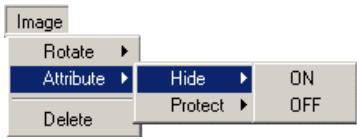
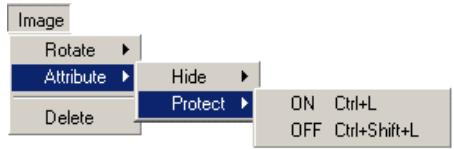
Hidden and protect status can be assigned to or removed from images using the Attribute sub-menu, which may be found in the Image menu. The Macintosh version of NikonView 4 can be used to change the protect status of images, but not their hidden status.
Hide sub-menu
Protect sub-menu
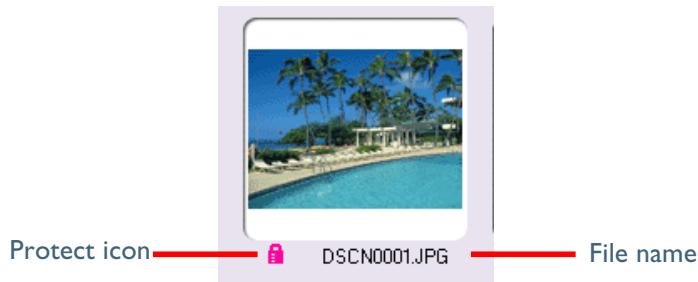
When a thumbnail size of 128 × 128 or more is selected, icons indicating marked and protected status appear to the left of the file name. A movie icon appears in the case of movie files. No icon appears in the case of hidden images. Hidden image status can be confirmed in the settings section of the,Thumbsail List window (Windows only).
| Icon | Description |
| Marked file | |
| Protected file | |
| Movie file |
Printing the,Thumbsail list and Saving It to Disk
To print the currently selected thumbnails, choose PrintThumbnail list from the File menu. The file name and date and time of recording will be printed below each thumbnail. Any rotations will be reflected when the thumbnail is printed. If desired, this output can be saved to disk as a JPEG file by selecting Copy thumbnail list to file from the File menu. The file will automatically be assigned the name Sheet+(page number).JPG.
Displaying the Image Transfer Window
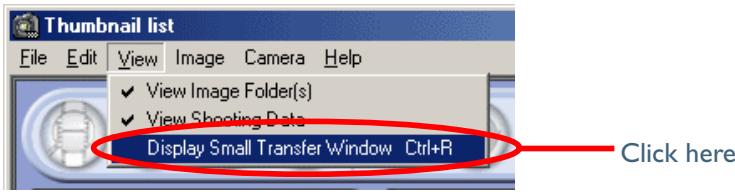
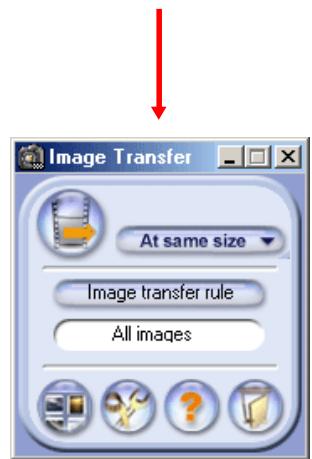
In Nikon View 4 version 4.1.1, the Image Transfer window can be opened from the Thumbnail list window by selecting Display Small Transfer Window from the View menu.
Working with Images
This section describes the operations that can be performed on images.
Transferring Images to the Computer
In the thumbnail list area, select the image or images you wish to transfer. Copies of the images will be transferred to the computer when the "Transfer" button is clicked. Transfer does not affect the originals on the memory card inserted in the camera, card slot, or card reader.
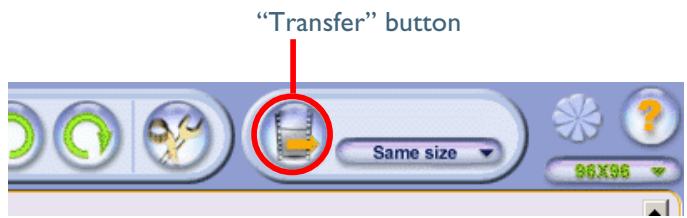
A progress window will be displayed as described above under Step 5 of "Transferring Images Using the Image Transfer Window" (18). Depending on user settings, any rotations and size changes may apply when the images are transferred, and transferred images may be catalogued using the selected image database software.
Printing Images
In the thumbnail list area, select the image or images you wish to print. Click the "Print" button to print the images at their original size.
Saving Images
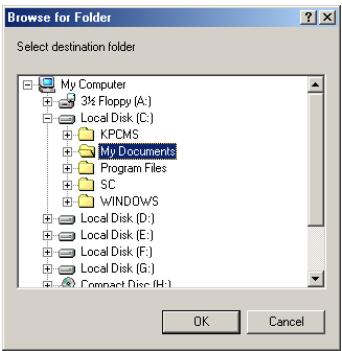
After selecting the image or images you wish to save from the thumbnail list, click the "Save copy" button. A dialog will appear where you can navigate to the volume (disk) and folder to which you wish to save copies of the images. The original image will remain on the memory card inserted in the camera, card slot, or card reader.
Select the folder to which you wish to save the copies and click OK. Copies of the selected images will be saved in the selected folder.
In the Macintosh version, select the desired folder and click Save.
The copies created by this operation are identical to the original images on the memory card, and do not reflect rotations or size changes made in the Thumbnail list window. Captions and keywords are not included, and the images will not be catalogued or registered in a database as they are saved. In the Macintosh version of Nikon View 4, a thumbnail icon will be created for display in the Finder.

Copying Images to Disk by Drag and Drop
Images can also be copied to disk by dragging and dropping the selected thumbnails onto the desktop or another folder.
Rotating Images
Select the image or images you want to rotate from the thumbnail list and click the “ 90^ CCW” or “ 90^ CW” button.
Any rotations will be reflected in the thumbnail images.
DSCN0001
Image rotated counter-clockwise

DSCN0001
Image rotated clockwise
Rotations do not apply to the original images on the memory card inserted in the camera, card slot, or card reader, but will be visible in images opened in the still-image viewer. The image will also be rotated when transferred to the computer. Movie files and their associated thumbnails can not be rotated.

Pg. For more information on:

29 Viewing Still Images
Viewing Photo Information
When a single thumbnail is selected, photo information will be displayed in the camera settings section. Photo information is not displayed when no thumbnail is highlighted or when multiple thumbnails are selected.
The camera settings section can be displayed or hidden using the "Toggle view" button. The information in the camera settings section can be selected and copied to the clipboard.
Settings section
| File name | : DSCN |
| File size | : 404.6K |
| Shoot date | : 2001/ |
| Picture size | : 1600 x |
| Resolution | : 72 x 7; |
| Number of bits | : 8bit/ch |
| Protection attribute | : Off |
| Hide Attribute | : Off |
| Camera ID | : N/A |
| Model name | : E775 |
| Quality mode | : JPEG- |
| Metering mode | : Multi-p |
| Exposure mode | : Progr |
The information displayed includes the following items. If no information is available for a given setting, "N/A" will be displayed.
- File name
File size - Date and time
- Image size
Resolution
Number of bits
Protection - Hide attribute (Windows only)
- Camera ID
- Model name
- Quality mode
- Metering mode
- Exposure mode
- Flash
- Focal length
- Shutter speed
- Aperture
-
Exposure compensation
-
White Balance
- Lens
- Flash sync mode
- Exposure difference
- Flexible program
- Sensitivity (ISO equivalency)
- Image sharpening
- Image type
Color Mode
Hue adjustment - Saturation Control
- Tone compensation
Latitude (GPS) - Longitude (GPS)
- Altitude (GPS)
Deleting Images
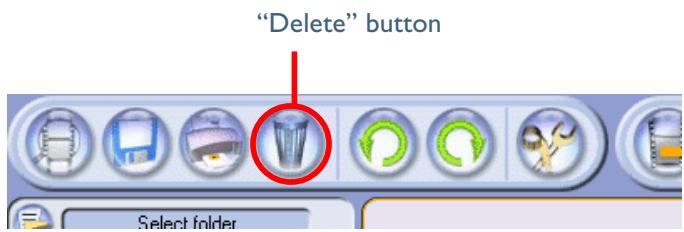
After selecting the image or images you want to delete in the thumbnail list area, click the "Delete" button.
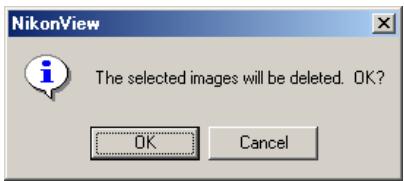
If the selection does not include any protected images, the following dialog will be displayed. Click OK to delete the selected images.
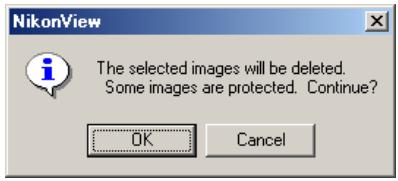
If the selection includes protected images, the following dialog will be displayed. Click OK to delete all selected images, including those that are protected.

Deleted Images
Images selected for deletion are permanently erased from the memory card inserted in the camera, card slot, or card reader, and can not be recovered.
Viewing Images
Viewing Still Images
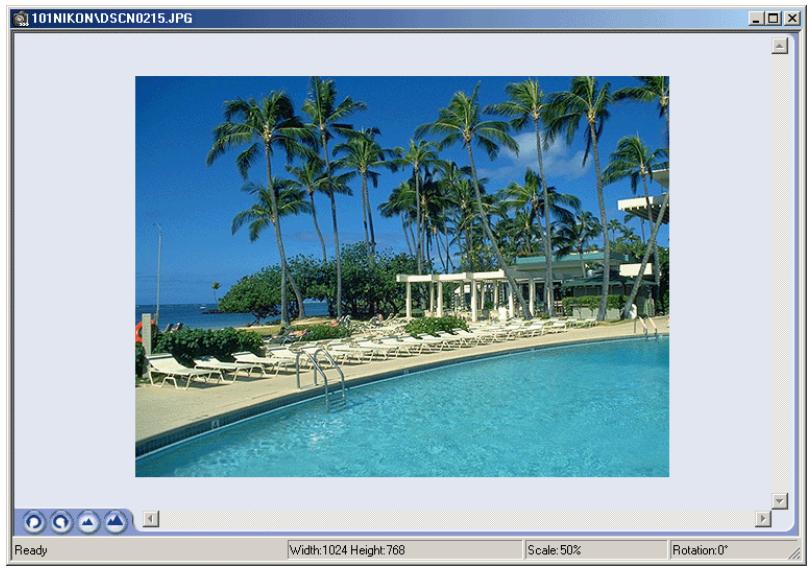
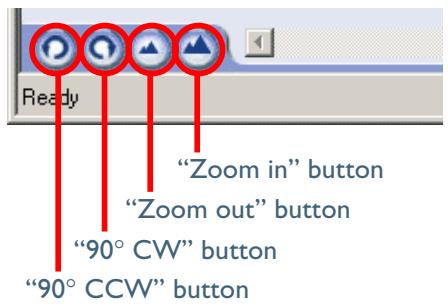
Double-click any of the highlighted images to open each of the selected images in a separate window. The folder and file name will be displayed in the title bar, separated by a backslash (Windows) or colon (Macintosh). The following buttons are located at the bottom left corner of the window: "90° CCW," "90° CW," "Zoom out," and "Zoom in." The status bar shows the width and height of the image in pixels, the current zoom ratio, and the amount of rotation currently applied to the image.

Selecting a Still-Image Viewer
The application used to view still images can be selected from the Viewer tab in the Preferences dialog.
Scrolling Images
Areas of the image that do not fit in the window can be viewed by dragging the image with the hand cursor (s) or by scrolling the image with the scroll bars at the bottom and right side of the window.
Rotating Images
Images can be rotated ninety degrees at a time in either direction using the rotate buttons at the bottom left corner of the window.
Zooming the Image in or Out
Use the zoom in and zoom out buttons to zoom the image in or out. If you press the ALT (Windows) or option (Macintosh) key while the cursor is over the image window, the cursor will change to the zoom-out cursor (圆) . Click anywhere in the window while the zoom-out cursor is displayed to zoom out. To zoom in, press the Ctrl (Windows) or command (Macintosh) key while the cursor is over the image window (the zoom-in cursor (圆) will be displayed) and click anywhere on the image. The minimum zoom ratio is 1:8, the maximum ratio 8:1.

Pg. For more information on:

42 Preferences:Viewer
Viewing Movies
Movies can be played back by clicking the associated thumbnail.
Windows
Movies can be played back using any application that supports Quick Time movie files with the“.MOV” extension, such as the QuickTime Player included on the NikonView 4 CD. For details, see the documentation provided with the movie player application.
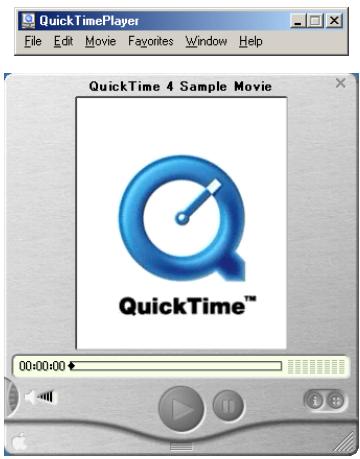

Choosing a Movie Player
The application used for playing movies can be selected using the Viewer tab of the Preferences dialog.

Pg. For more information on:

42 Preferences:Viewer
Macintosh
In the Macintosh version of Nikon View 4, movies can be played back using the built-in player or in any external application that supports Quick Time movies. At installation, the default external application is the Quick Time Player. For details, see the documentation provided with the movie player application.
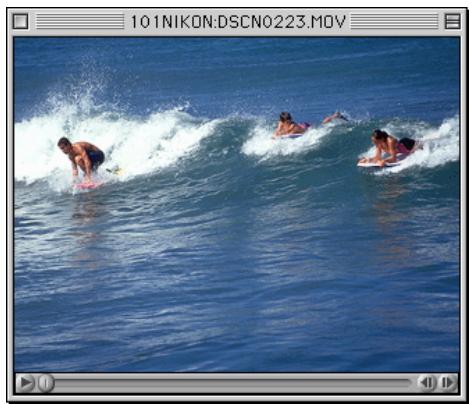

Choosing a Movie Player
The application used for playing movies can be selected using the Viewer tab of the Preferences dialog.

Pg. For more information on:

42 Preferences:Viewer
Other Operations
This section describes the other operations that can be performed in the Thumbnail list window.
Formatting Memory Cards
Memory cards inserted in a card reader or card slot, or in a COOLPIX995/775 connected via USB, can be formatted by selecting the card reader icon in the folder tree area and choosing Format card from the Camera menu. Depending on your operating system, one of the following dialogs will appear. Click Start (Windows) or OK (Macintosh) to format the memory card. The procedure for formatting memory cards inserted in cameras in the DI series is the same as that when formatting cards from the camera.
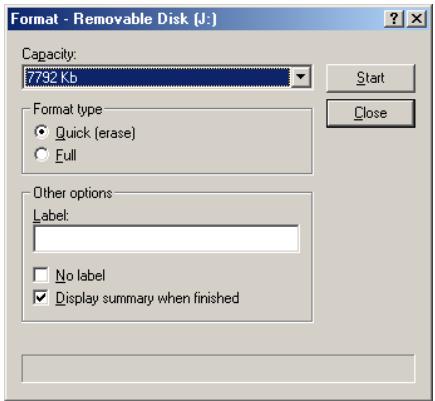
Windows
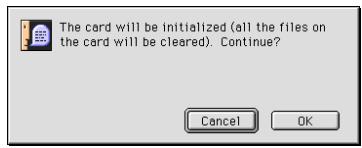
Macintosh

Formatting Memory Cards
Formatting memory card permanently deletes all data they contain. Note that clicking OK in the dialog that is displayed when formatting is complete will exit Nikon View 4.
Deleting Folders
To delete a folder and all images it contains, select the folder in the folder tree area and click the "Delete" button.
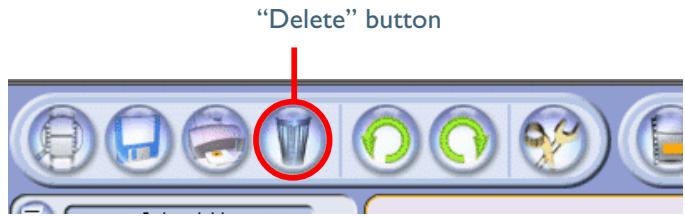
If the folder contains no protected images, the following dialog will be displayed. Click OK to delete the selected folder.
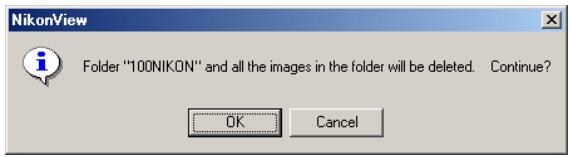
If the folder contains protected images, the following dialog will be displayed.
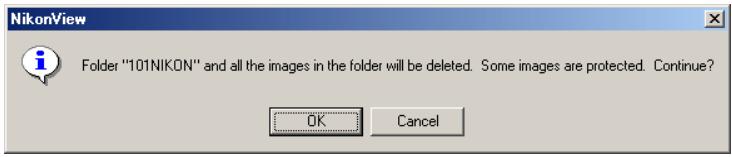
Clicking OK deletes the folder and all images it contains (including protected images).

Deleted Folders
Once deleted, folders and their contents can not be recovered.
Task Confirmation
When a task is in progress, the segments of the progress indicator light up in sequence. Do not perform any other operations until the current task is complete.
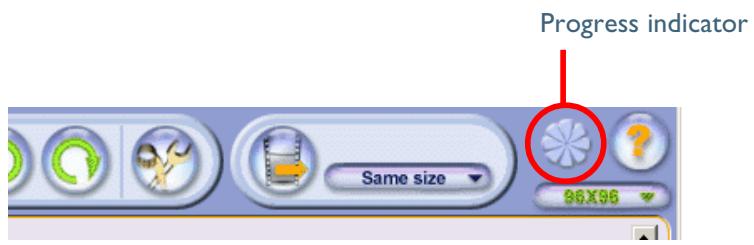
Viewing Help
For information on using Nikon View 4, click the "Help" button. The help file will be displayed.
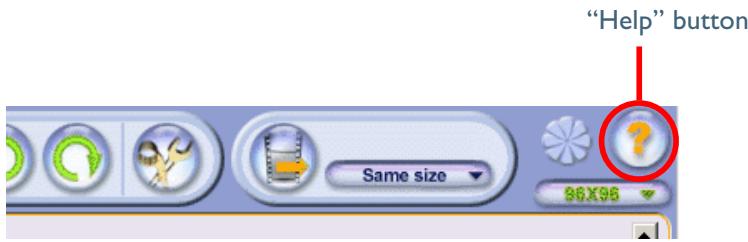
The help file can be viewed using basic Windows or Macintosh operations. For details, refer to the documentation provided with your operating system.
Preferences
Fine-Tuning Nikon View 4
The Preferences Dialog (p. 34)
The Auto Start Tab (p. 34)
The Transfer Tab (pp. 35-39)
The Database Tab (p. 40)
The File Information Tab (p. 41)
The Viewer Tab (p. 42)
About This Chapter
This chapter describes the options available in the NikonView 4 Preferences dialog.
The Preferences Dialog
Adjusting Preferences
The Preferences dialog can be opened by clicking the "Preferences" button in the Transfer Images and Thumbnail List windows.
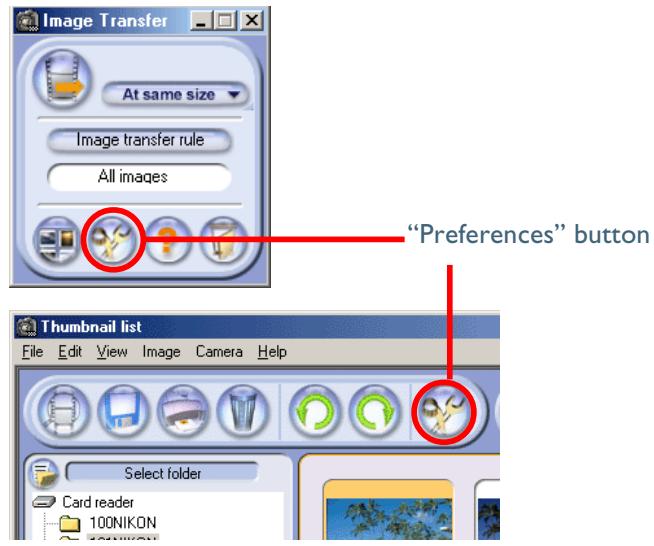
The Preferences dialog contains the following five tabs: Auto Start, Transfer, Database, File information and Viewer. Changes to settings take effect not as they are made, but only when the OK button at the bottom of the Preferences window is clicked. Clicking Cancel closes the Preferences dialog and returns settings to the values in effect when the dialog was opened.
The Auto start Tab
Start-up Options for Nikon View 4
The Auto start tab is where you specify the window that will open when Nikon View 4 starts automatically. You can also turn the auto start option on and off.
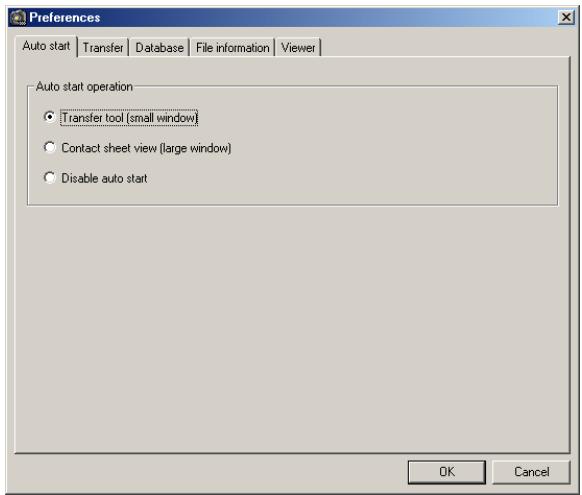
The Auto Start tab contains the following options:
| Option | Description |
| Transfer tool (small window) | The Image Transfer Image window will open when Nikon View 4 starts automatically. This is the default option at installation. |
| Contact sheet view (large window) | The,Thumbsail List window will open when Nikon View 4 starts automatically. |
| Disable auto start | Nikon View 4 does not start automatically. To enable auto start after selecting this option, start Nikon View 4 manually and adjust settings in the Preferences dialog. |
Specifying a Destination and File Names for Transferred Images
The Transfer tab is where you specify the destination and file names for images transferred to the computer. There are a few differences between Transfer tabs for the Windows and Macintosh versions of Nikon View 4.
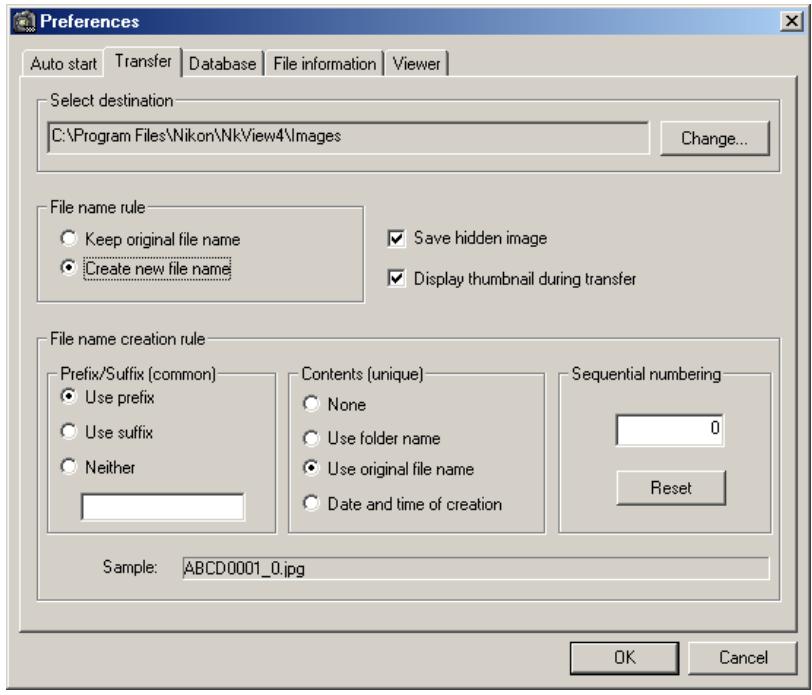
Windows
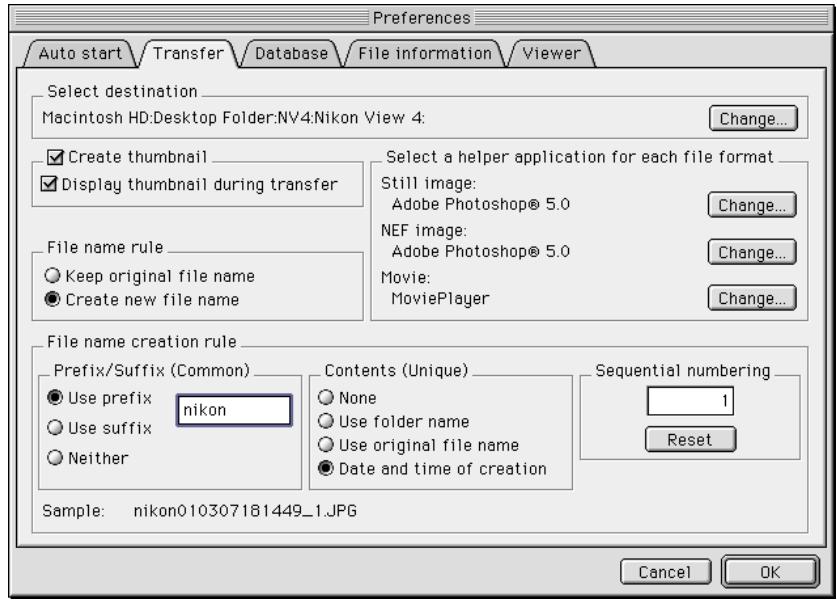
Macintosh
Select Destination
This area of the Transfer tab is used to specify the destination folder for images transferred to the computer.
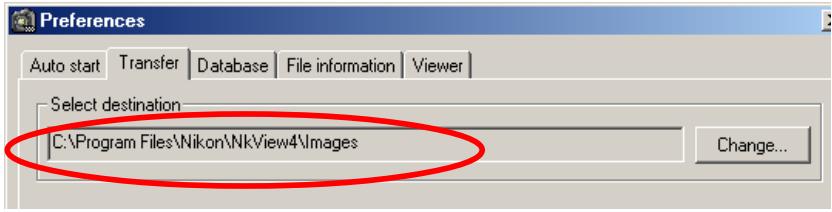
If the image database software selected in the Database tab uses a registration folder, rather than a catalogue or index to track images, the Change... button will be grayed out and unavailable. The default destination at installation is the Images folder in the folder to which Nikon View 4 has been installed. If the destination folder does not exist when the Preferences dialog is opened, the destination will automatically be changed to the Images folder and the following warning will be displayed.

File Naming
This area of the Transfer tab is where you specify how files will be named when transferred to the computer. You can opt to use either the file name assigned automatically by the camera when the image was taken (Keep original file name) or a name automatically generated by the computer as images are transferred to disk (Create new file name). If Create new file name is selected, you can specify how file names will be assigned using the options in the File name creation rule section.

File Name Creation Rules
File names created automatically by the computer consist of a prefix or suffix (optional), content, and file numbers assigned automatically in ascending order. An extension is assigned automatically according to the file type.
File names
File names generated by Nikon View 4 take the form shown below. File names may include either a prefix or a suffix, but not both (you can also opt to use neither a prefix nor a suffix). Note also that an underscore is added before the file number.
(prefix +) content + _ + file number + (suffix + ) extension
File name creation options
Prefix/Suffix
You can choose one of Use prefix, Use suffix, and Neither. If Use prefix or Use suffix is selected, you can enter a prefix or suffix of up to eight characters in the text box. The prefix is added to the beginning of the file name (before the content), the suffix at the end (before the extension).
Contents
You can select one of None, Use folder name, Use original file name, and Date and time of creation. If Use original file name is selected, the Sequential numbering option will be grayed out and unavailable.
Sequential numbering
You can enter a starting number of up to 999999 for sequential file numbering. The specified number will be assigned to the first file transferred to the computer after the setting is made, after which the file number will be incremented by one for each file transferred. File numbering will automatically return to zero after 999999 has been reached. File numbering also returns to zero whenever the Reset button is clicked.
Sample
The sample reflects the results of the selected file-naming options. The example below shows the sample that will be generated when NIKON is selected as the prefix and Date and time of creation chosen for the content.


Extensions
Depending on the file type, one of the following extensions will be assigned:
| File type | Extension | File type | Extension |
| JPEG | .JPG | NEF (RAW data) | .NEF |
| TIFF | .TIF | Quick Time movie | .MOV |

File-Naming Conventions
The maximum length for file names varies with the operating system. If the file name exceeds the limit for your operating system, characters will be trimmed from the right end of the prefix or suffix.
Windows
The following options are available only in the Windows version of Nikon View 4.
Save hidden image
If this box is checked (the default setting at installation), hidden images will be saved together with other images when files are transferred to the computer using the transfer window. If the box is not checked, hidden images will not be transferred to the computer when files are transferred to the computer using the Image Transfer window. The Save hidden image option has no effect on transfer and save operations performed in the Thumbsail List window; all images, including hidden images, selected in the Thumbsail list window will be transferred whether or not the Save hidden image box is checked.
Save hidden image
Display thumbnail during transfer
When this box is checked (the default setting at installation), a thumbnail preview of each of the images transferred will be displayed while the file is copied to the computer.
Display thumbnail during transfer

Pg. For more information on:

17 Image transfer rule
Macintosh
The following options are available only in the Macintosh version of Nikon View 4.
Create thumbnail
When this box is checked (the default setting at installation), a thumbnail icon is generated for each image as it is transferred. This icon will be shown when Icon is selected in the Finder View menu.
Display thumbnail during transfer
When this box is checked (the default setting at installation), a thumbnail preview of each of the images transferred will be displayed while the file is copied to the computer.
Create thumbnail
Display thumbnail during transfer

File Icons
If Create thumbnail is not checked, image files will automatically be assigned a file icon for the application associated with other files of the same type. If no application is associated with files of the appropriate type, the file will have an empty icon.
Macintosh
The following options are available only in the Macintosh version of Nikon View 4.
Select a helper application for each file format
The buttons in this area are used to select the applications associated with files transferred to the computer. The selected applications will start when files are double-clicked in the Finder after transfer. Separate options are available for still images (JPEG and TIFF files), NEF image (RAW data), and movies. Click the Change... button to choose the associated application.
Select a helper application for each file format
Still image:
Adobe Photoshop® 5.0
NEF image:
Adobe Photoshop@ 5.0
Movie:
MoviePlayer
Change...
Change...
Change...
During installation, Nikon View 4 will search for existing applications and automatically associate the above file types with the following defaults:
Still images (JPEG/TIFF)
Photoshop present at installation?
Yes
No
Default viewer selected at installation
Photoshop
Quick Time Picture Viewer
NEF images (RAW data)
Application present at installation
Photoshop
Present
Present
Not Present
Not Present
Nikon Capture
Present
Not Present
Present
Not Present
Default viewer selected at installation
Nikon Capture
Photoshop
Nikon Capture
Nikon Capture
Movie
Quick Time Player
The Database Tab
Choosing an Image Database Application
The Database tab contains options for choosing an image database application and the catalog file or registration folder used to catalog images as they are transferred. When the Register in image database box is checked, you can select an image database application by clicking the Change... button next to the Select image database software textbox.
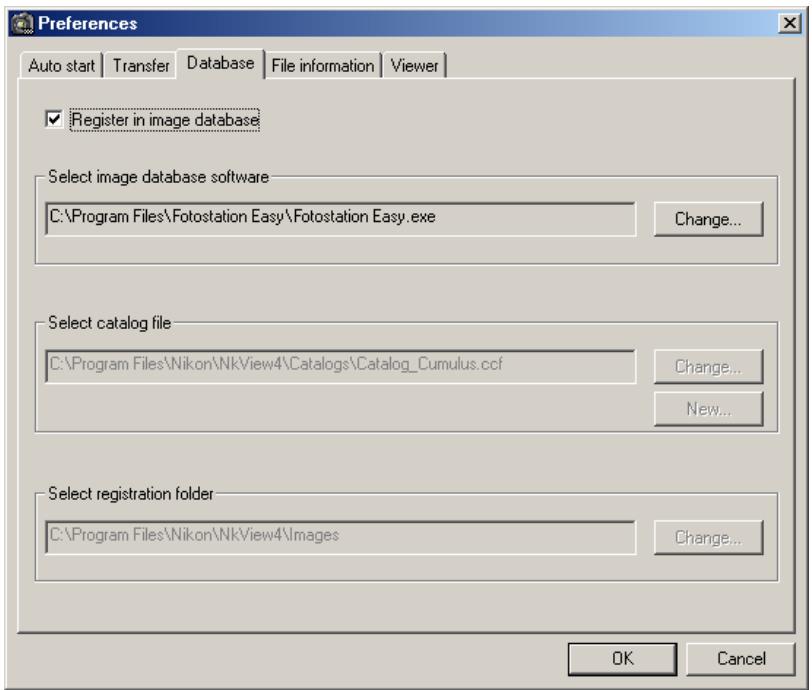
Select image database software
If the selected image database application catalogs images in a file, you will be prompted to select the catalog file used. If it instead catalogs images in a folder, you will be prompted to select a registration folder. Be sure that the application selected is supported under Nikon View 4 (16).
Select catalog file
This option is available if the selected image database application creates a catalog file containing image information supplied by Nikon View 4 as the images are transferred to the computer (Cumulus 5.0 and iView MediaPro 1.0 are examples of this type of database application). To specify the file used to catalog transferred images, click the Change... button. To create a new catalog file containing no image data, click New....
Select registration folder
This option is available if the selected application creates an image database by copying images to a folder (PC-Archive is an example of this type of database application). To select the folder used, click the Change... button.

Registration Folders
If a registration folder is selected, the Select destination text box in the Transfer tab of the Preferences dialog will show the folder selected. The destination folder can not be changed from the Transfer tab.
The File Information Tab
Including Information with Transferred Images
Copy camera settings to caption
When this box is checked (the default setting at installation), photo information is included in the photo caption. Photo information will only be added to the database if this box is checked.
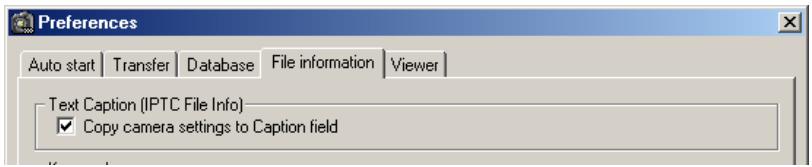
When Copy camera settings to Caption field is checked, photo information for still images is copied to the caption. The caption can be viewed in the file information or file properties windows of applications such as Photoshop (version 5.0 or later). Captions can also be viewed with image database software.
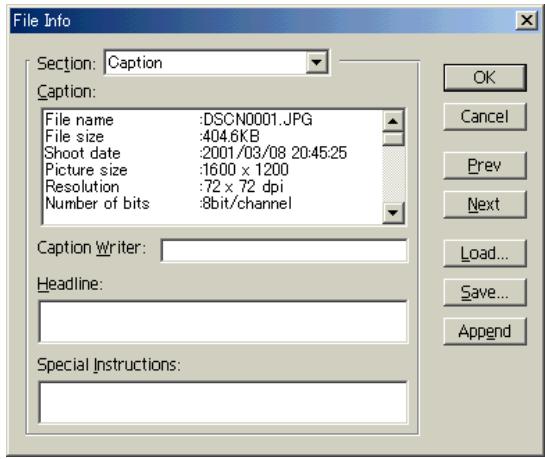
A caption is not created in the case of movie files.
Keywords
You can specify up to ten keywords of up to thirty-one characters in length to be included with the files transferred to the computer. Enter a keyword in the text box after checking the box to its left.
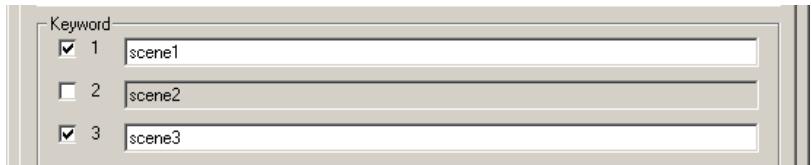
Keywords are added to the file information when the image is transferred, and are visible in the file information or file properties windows of applications such as Photoshop (version 5.0 or later). Keywords can also be viewed with image database software.
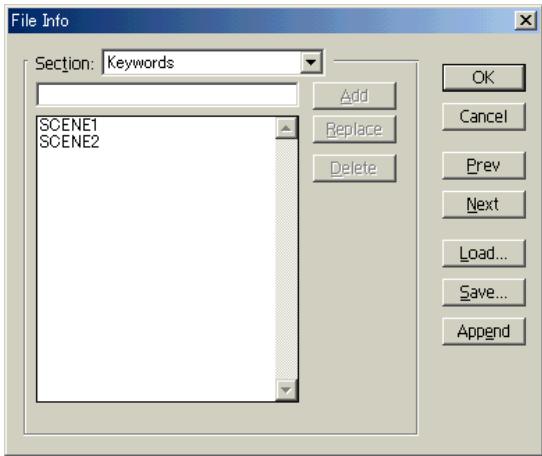
Keywords are not included with movie files.
Options for the Thumbnail List Window
Create large thumbnails from image data
When this box is checked, a large thumbnail preview will be generated when data for such a thumbnail does not exist in the original file. Note that this will increase the amount of time needed to display thumbnails. The default for this option is off.
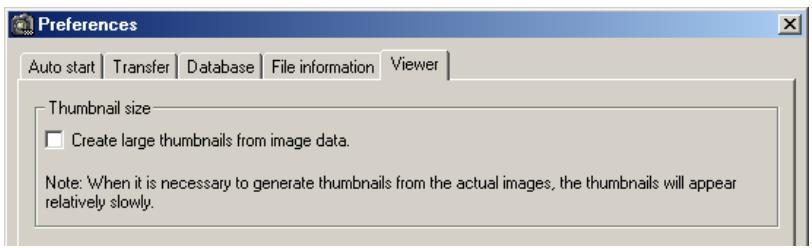
When data for a large thumbnail exists in the original image file, standard size thumbnails will be generated from the large thumbnail, irrespective of the above setting.

Large Thumbsils
Large thumbnails for high-resolution thumbnail display are included in still images taken with the DIx, DIH, or COOLPIX995. Large thumbnails are not included in images taken with the DI or COOLPIX775.
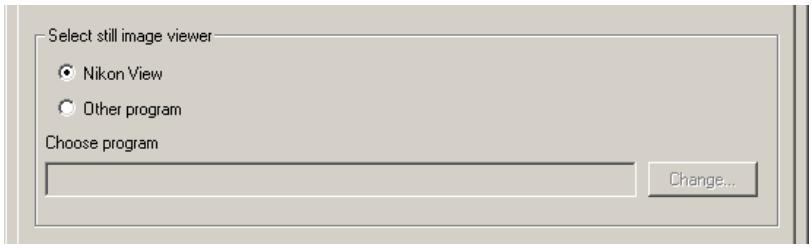
Select still image viewer
You can choose the viewer for still images from the viewer included with Nikon View 4 (Nikon View) or a third-party application such as Adobe Photoshop (Other program). When Other program is selected, the application used to view still images can be chosen by clicking the Change... button. The default option at installation is Nikon View.
Select movie player
The options in this section are used to select the player for viewing movies.
Windows
Click the Change... button next to the Choose program text box to choose the application used to play movie files.
Macintosh
You can choose a movie player from the player included with Nikon View 4 (Built-in player) or a third-party application (External application). When External application is selected, the application used to play movies can be chosen by clicking the Change... button. The default option at installation is Built-in player.
Appendices
Nikon View 4 Visual Index (pp. 44-47)
Troubleshooting (p. 48)
Reinstall (pp. 49-51)
About This Section
The appendices provide:
- A clickable index to Nikon View 4's menus
A guide to what to do when Nikon View 4 does not function as expected
Instructions on reinstalling Nikon View 4
The following pages provide a visual index to the Nikon View 4 menus.
The Transfer Images Window Menu Bar (Macintosh Only)

About Nikon View 4...
About Nikon View 4...
Display version information for Nikon View 4.
File
| Open | 0 |
| Close | W |
| Transfer | T |
| Save copy of image | S |
| Print Setup... | |
| Copy thumbnail list to file | |
| Print-Thumbsail List... | P |
| Print... | P |
| Quit | $Q |
Transfer
Transfer images from the memory card to the computer.
Quit
Quit Nikon View 4.
The other commands in this menu are grayed out and unavailable when the Image Transfer window is active.
Edit
| Cannot Undo | Z |
| Cut | X |
| Copy | C |
| Paste | V |
| Clear | |
| Select | ▲ |
| Select All | A |
| Preferences... | K |
Preferences...
Open the Preferences dialog.
The other commands in this menu are grayed out and unavailable when the Image Transfer window is active. They can be used in the Preferences and other dialogs to cut, copy, paste, clear, and select text, and to undo cut, paste, and clear commands.
Help
| Help Center |
| Show Balloons |
| Nikon View 4 Help ?? |
Help Center
Displays the help menu.
Show Balloons
Displays "Balloon Help".
Nikon View 4 Help
Open the Nikon View 4 help file.
The,Thumbsail List Window Menu Bar (Windows)
| File | |
| Open... | Ctrl+O |
| Transfer | Ctrl+T |
| Save copy of image | Ctrl+Shift+S |
| Copy thumbnail list to file | |
| Print-Thumbsail List | |
| Print Image | Ctrl+P |
| Exit | Alt+F4 |
Open...
Open the selected image(s).
Transfer
Transfer the selected image(s) to the computer.
Save copy of image
Save a copy of the selected image(s) to disk.
Copy thumbnail list to file
Output the thumbnail list to disk as a JPEG file.
Print-Thumbsail List
Print the thumbnail list.
Print Image
Print the selected image(s).
Exit
Exit Nikon View 4.
| Edit | |
| Copy | Ctrl+C |
| Select | |
| Select All | Ctrl+A |
| Preferences... | Ctrl+K |
Copy
Copy to the clipboard text selected in the camera settings section or in a text box.
Select
Select all marked or unmarked, protected or unprotected images.
Select All
Select all thumbnails.
Preferences...
Open the Preferences dialog.
View
View Image Folder(s)
View Shooting Data
Display Small Transfer Window Ctrl+R
View Image Folder(s)
When this item is checked, the folder tree area will be displayed.
View Shooting Data
When this item is checked, the camera settings section will be displayed.
Display Small Transfer Window
Closes the Thumbnail list window and opens the Image Transfer window.
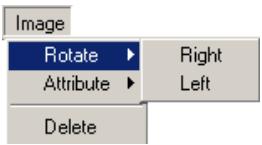
Rotate
Rotate the selected image(s) ninety degrees clockwise or counter-clockwise.
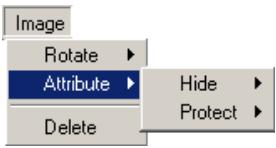
Attribute
Change the protected or hidden status of the selected image(s).
Delete
Delete the selected image(s) or folder.
Camera
Format card
Format card
Format the memory card inserted in the camera, card slot, or card reader.
Help
Help Topics
F
About Nikon View 4...
Help Topics
Display Nikon View 4 help topics.
About Nikon View 4...
Display version information for Nikon View 4.
The,Th弹簧ListWindowMenuBar(Macintosh)

About Nikon View 4...
About Nikon View 4...
Display version information for Nikon View 4.
Print Setup...
Display the print setup dialog for the printer selected in the Chooser.
Copy thumbnail list to file
Output the thumbnail list to disk as a JPEG file.
Edit
| Cannot Undo | Z |
| Cut | X |
| Copy | C |
| Paste | V |
| Clear | |
| Select | ▲ |
| Select All | A |
| Preferences... | K |
View
| ✓View Image Folder(s) | |
| ✓View Shooting Data | |
| Zoom In | + |
| Zoom Out | - |
| Display Small Transfer Window | R |
File
| Open | 0 |
| Close | W |
| Transfer | T |
| Save copy of image | S |
| Print Setup... | |
| Copy thumbnail list to file | |
| Print-Thumbsail List... | P |
| Print... | P |
| Quit | $Q |
PrintThumbsail List...
Print the thumbnail list.
Print...
Print the selected image(s).
Quit
Quit Nikon View 4.
Undo/Cut/Copy/Paste/Clear
These commands are only active during text entry in dialogs such as the Preferences dialog, when they allow you to use keyboard shortcuts to cut, copy, paste, and clear text and undo cut, copy, paste, and clear commands.
View Image Folder(s)
When this item is checked, the folder tree area will be displayed.
View Shooting Data
When this item is checked, the camera settings section will be displayed.
Zoom In/Zoom Out
Zoom images displayed in the built-in viewer in or out.
Select
Select all marked or unmarked, protected or unprotected images.
Display Small Transfer Window
Closes the,Thumbsail List window and opens the Image Transfer window.
Open
Open the selected image(s).
Close
Close the active image window.
Transfer
Transfer the selected image(s) to the computer.
Save copy of image
Save a copy of the selected image(s) to disk.
The,Thumbsail List Window Menu Bar (Macintosh—continued)
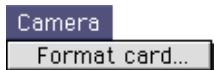
Format card...
Format the memory card inserted in the camera, card slot, or card reader.
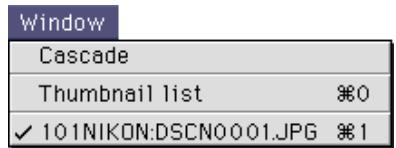
Cascade
Arrange the Thumbnail List window and image windows so that they overlap.
Thumbnail list
Activate the Thumbnail List window and bring it to the front.
Open files
The files open in the built-in viewer are listed at the end of the menu.

Help Center
Display Mac OS help.
Show/Hide Balloons
Turn Balloon Help on and off.
Nikon View 4 Help
Open the Nikon View 4 help file.
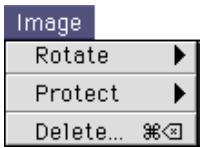
Rotate
Rotate the selected image(s) ninety degrees clockwise or counter-clockwise.
Protect
Change the protected status of the selected image(s).
Delete...
Delete the selected image(s) or folder.
Should you encounter any problems using Nikon View 4, check the list below before contacting your retailer or Nikon representative.
| Problem | Possible Cause | |
| Nikon View 4 does not start automatically when a camera or card reader is connected. | ·A memory card is not inserted in the camera or card reader. ·The images on the memory card were taken with a make of camera not supported under Nikon View 4. ·The camera is not properly installed ·Disable auto start is selected in the Auto start tab of the Preferences dialog. | 9 8 8 34 |
| The thumbnail list is not displayed. | ·No memory card is inserted in the camera, card slot, or card reader ·No camera or card reader is selected in the folder tree. ·The card does not contain images taken with a Nikon digital camera. | 9 23 8 |
| Movies can not be played back (Windows only) | ·No movie player is selected in the Viewer tab of the Preferences dialog. | 42 |

Life-Long Learning
As part of Nikon's "Life-Long Learning" commitment to ongoing product support and education, continually-updated information is available on-line at the following web-sites:
For users in the United States of America: http://www.nikonusa.com/
For users in Europe: http://www.nikon-euro.com/
- For users in Asia, Oceania, the Middle East, and Africa: http://www.nikon-asia.com/
Visit these sites to keep up-to-date with the latest product information and general advice on digital imaging and photography. For more information, please contact your nearest Nikon representative.
http://www.nikon-image.com/eng/
When Nikon View 4 does not function as expected (see Appendix B, "Troubleshooting"), it may indicate that you need to reinstall the program. This appendix describes how to uninstall and reinstall Nikon View on both the Macintosh and Windows platforms.
Reinstalling Nikon View 4
Before reinstalling Nikon View 4, you will need to uninstall the program.
Windows
Step I—Uninstall Nikon View 4
From the Start menu, select Programs > NikonView 4 > NikonView 4 Uninstall.
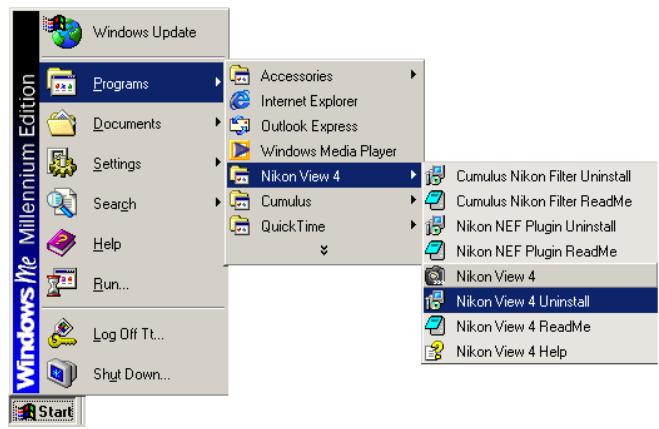
Click here to proceed to the next step.

Windows 2000 Professional
Log on as the Administrator when uninstalling Nikon View 4.
Macintosh
Step I—Start the installer
After inserting the Nikon View 4 CD into the CD-ROM drive, click Install Nikon View 4 in the Basic Software tab of the Welcome dialog. The license agreement and ReadMe windows will be displayed; click Accept and Continue... to proceed to the installer dialog shown in Step 2.
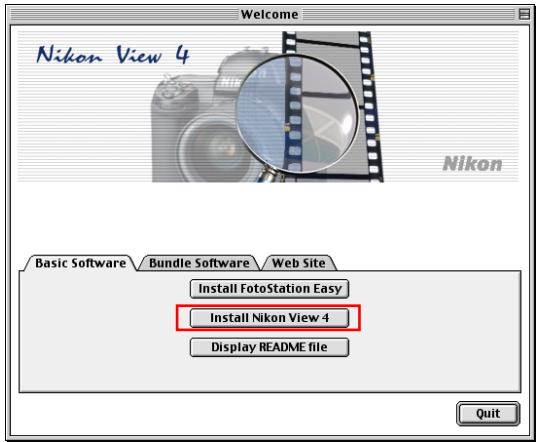
Windows
Step 2—Confirmation
When the message, "Do you want to completely remove the selected application and all of its components?" appears, click OK to begin the process of uninstalling Nikon View 4.
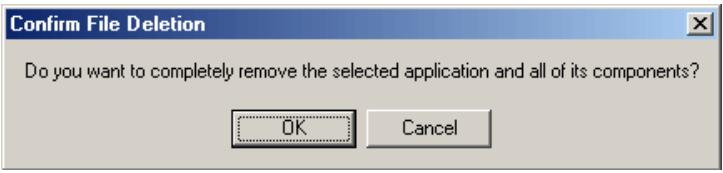
Step 3—Shared components
If any of the components used by Nikon View 4 are also used by another program, a confirmation dialog will be displayed. Follow the instructions in the dialog to remove the component or leave it untouched.
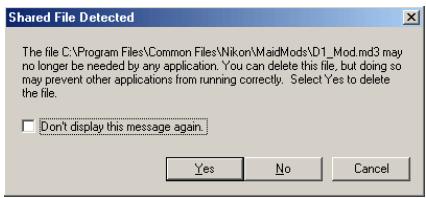
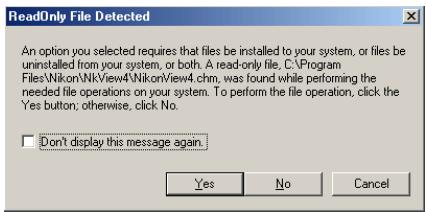
Click here to proceed to the next step.
Macintosh
Step 2—Select the uninstall option
To start the process of uninstalling Nikon View 4, select Uninstall from the pop-up menu in the top left corner of the installer dialog and then click the Uninstall button at the bottom right corner of the dialog.
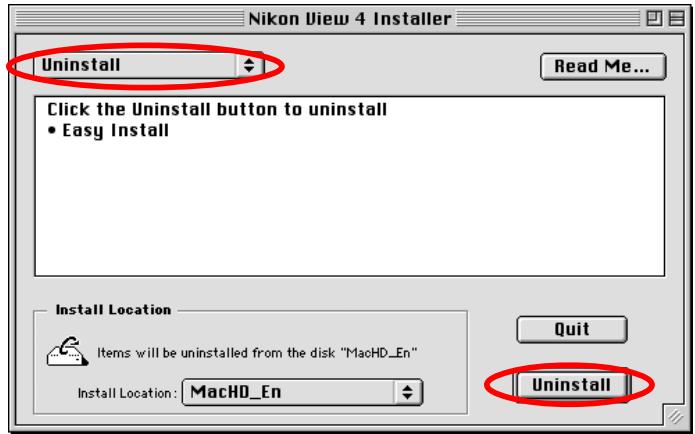
Step 3—Exit other applications
The dialog shown below will be displayed. Click Continue to automatically quit all other applications and continue the process of uninstalling Nikon View 4.

No other applications can be running during this operation. Click Continue to automatically quit all other running applications. Click Cancel to leave your disks untouched.
Cancel
Continue
Click here to proceed to the next step.
Windows
Step 4—Restart your computer
The dialog shown below will be displayed when the process of uninstalling NikonView 4 is complete. Confirm that Yes, I want to restart my computer now is selected and click Finish to restart your computer.
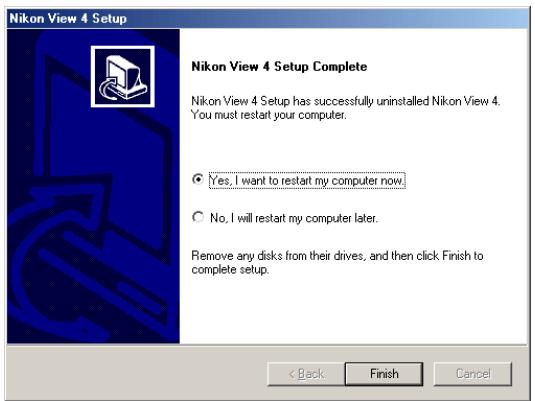
Step 5—Reinstall Nikon View 4
Reinstall Nikon View 4 as described in "Getting Started: Installation" (7).

Pg. For more information on:

7 Installing Nikon View 4
Macintosh
Step 4—Exit the installer
Once the process of uninstalling Nikon View 4 is complete, the following message will be displayed. Click OK to exit the uninstaller.
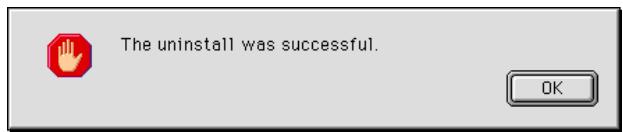
Step 5—Restart your computer
Please restart your computer.
Step 6—Reinstall Nikon View 4
Reinstall Nikon View 4 as described in "Getting Started: Installation" (7).

Pg. For more information on:

7 Installing Nikon View 4
- Nikon View 4 Reference Manual
- Overview
- About This Manual
- Trademark Information
- Reading This Manual
- Getting Started
- - Tutorial
- - Preferences
- - Appendices
- Background Knowledge
- Illustrations
- Printing This Manual
- Life-Long Learning
- About This Chapter
- Windows
- Software updates
- Macintosh
- Windows / Macintosh
- Starting Nikon View 4
- Auto Start
- Before connecting your camera to a computer (Windows only)
- Connecting the Camera to a Computer
- Using a Card Slot
- Inserting a Memory Card
- Using a Card Reader
- The Camera or Memory Card Drive or Volume
- Connecting the Camera and Inserting Memory Cards
- Disconnecting the Camera and Removing Memory Cards
- Unexpected Termination
- Restarting Nikon View 4
- Automatic Restart
- Manual Restart
- Tutorial
- The Image Transfer Window
- Using the Transfer Button (COOLPIX775)
- The,ThumbsailListWindow
- Viewing Images on the Hard Disk
- Pg. For more information on:
- Preferences:Auto Start
- Transferring Images Using the Image Transfer Window
- Step I—Choose a destination
- Step 2—Choose an image database
- SubFolders
- Image Database Applications
- Uploading Images to Nikon FotoShare
- FotoStation Easy
- Step 3—Choose the images to be transferred
- Marked Images
- Step 4—Choose an image size
- Aspect Ratio
- Step 5—Transfer the images
- Transferring Images
- Transferring Images Using the Thumbnail list window
- Step I—Open the Thumbnail list window
- Step 2—Choose a folder
- TheThumbnail list
- Step 3—Select images
- Step 4—Transfer the images
- Working with-Thumbsnails
- Choosing a Folder
- Selecting Thumbs nails
- Selected image
- Selecting Multiple Images
- Specifying Thumbnail Size
- File Status
- Printing the,Thumbsail list and Saving It to Disk
- Displaying the Image Transfer Window
- Working with Images
- Transferring Images to the Computer
- Printing Images
- Saving Images
- Copying Images to Disk by Drag and Drop
- Rotating Images
- Viewing Photo Information
- Deleting Images
- Deleted Images
- Viewing Images
- Viewing Still Images
- Selecting a Still-Image Viewer
- Scrolling Images
- Zooming the Image in or Out
- Viewing Movies
- Choosing a Movie Player
- Other Operations
- Formatting Memory Cards
- Deleting Folders
- Deleted Folders
- Task Confirmation
- Viewing Help
- Preferences
- Fine-Tuning Nikon View 4
- The Preferences Dialog
- Adjusting Preferences
- The Auto start Tab
- Start-up Options for Nikon View 4
- Specifying a Destination and File Names for Transferred Images
- Select Destination
- File Naming
- File Name Creation Rules
- File names
- File name creation options
- Prefix/Suffix
- Contents
- Sequential numbering
- Sample
- Extensions
- File-Naming Conventions
- Save hidden image
- Display thumbnail during transfer
- Create thumbnail
- File Icons
- Select a helper application for each file format
- Still images (JPEG/TIFF)
- NEF images (RAW data)
- Movie
- The Database Tab
- Choosing an Image Database Application
- Select image database software
- Select catalog file
- Select registration folder
- Registration Folders
- The File Information Tab
- Copy camera settings to caption
- Keywords
- Options for the Thumbnail List Window
- Create large thumbnails from image data
- Large Thumbsils
- Select still image viewer
- Select movie player
- Appendices
- About This Section
- The Transfer Images Window Menu Bar (Macintosh Only)
- About Nikon View 4...
- File
- Transfer
- Quit
- Edit
- Preferences...
- Help
- Help Center
- Show Balloons
- Nikon View 4 Help
- The,Thumbsail List Window Menu Bar (Windows)
- Open...
- Save copy of image
- Copy thumbnail list to file
- Print-Thumbsail List
- Print Image
- Exit
- Copy
- Select
- Select All
- View
- View Image Folder(s)
- View Shooting Data
- Display Small Transfer Window
- Rotate
- Attribute
- Delete
- Camera
- Format card
- Help Topics
- The,Th弹簧ListWindowMenuBar(Macintosh)
- Print Setup...
- PrintThumbsail List...
- Print...
- Undo/Cut/Copy/Paste/Clear
- Zoom In/Zoom Out
- Open
- Close
- The,Thumbsail List Window Menu Bar (Macintosh—continued)
- Format card...
- Cascade
- Thumbnail list
- Open files
- Show/Hide Balloons
- Protect
- Delete...
- Reinstalling Nikon View 4
- Step I—Uninstall Nikon View 4
- Windows 2000 Professional
- Step I—Start the installer
- Step 2—Confirmation
- Step 3—Shared components
- Step 2—Select the uninstall option
- Step 3—Exit other applications
- Step 4—Restart your computer
- Step 5—Reinstall Nikon View 4
- Step 4—Exit the installer
- Step 5—Restart your computer
- Step 6—Reinstall Nikon View 4
Marque : NIKON
Modèle : VIEW 4.1.1
Catégorie : Logiciel de traitement d'images