
SCAN 3.1.2 - Logiciel de numérisation d'images NIKON - Notice d'utilisation et mode d'emploi gratuit
Retrouvez gratuitement la notice de l'appareil SCAN 3.1.2 NIKON au format PDF.


| Type de produit | Scanner à film et diapositives |
| Résolution maximale | 3200 x 3200 dpi |
| Type de capteur | Capteur CCD |
| Formats supportés | 35 mm, diapositives, films négatifs |
| Connectivité | USB 2.0 |
| Système d'exploitation compatible | Windows, macOS |
| Dimensions approximatives | 25 x 10 x 15 cm |
| Poids | 1,5 kg |
| Alimentation électrique | Alimentation par USB |
| Fonctions principales | Numérisation de films et diapositives, correction des couleurs, réduction du bruit |
| Entretien et nettoyage | Nettoyer le capteur avec un chiffon doux, éviter l'humidité |
| Pièces détachées et réparabilité | Disponibilité limitée des pièces, consulter le service après-vente |
| Sécurité | Utiliser dans un environnement sec, éviter les chocs électriques |
| Informations générales | Idéal pour les amateurs de photographie souhaitant numériser leurs archives |
FOIRE AUX QUESTIONS - SCAN 3.1.2 NIKON
Questions des utilisateurs sur SCAN 3.1.2 NIKON
0 question sur cet appareil. Repondez a celles que vous connaissez ou posez la votre.
Poser une nouvelle question sur cet appareil
Téléchargez la notice de votre Logiciel de numérisation d'images au format PDF gratuitement ! Retrouvez votre notice SCAN 3.1.2 - NIKON et reprennez votre appareil électronique en main. Sur cette page sont publiés tous les documents nécessaires à l'utilisation de votre appareil SCAN 3.1.2 de la marque NIKON.
MODE D'EMPLOI SCAN 3.1.2 NIKON
WindowsXP Home Edition/WindowsXP Professional
Nikon Scan(Ver.3.1.2)
This manual is for those users who are running Nikon Scan (Ver. 3.1.2) under Windows XP Home Edition / Professional.
Registering a Scanner with Windows XP
(SUPER COOLSCAN 8000 ED / SUPER COOLSCAN 4000 ED /COOLSCAN IV ED / LS-2000 / COOLSCAN III)
The screenshots in this manual show the registration procedure for the SUPERCOOLSCAN 4000ED. The scanner must be registered as a hardware device when it is connected to the computer for the first time.
You will need to log on as the "Computer Administrator" when registering a scanner. Note that you should also log on as the "Computer Administrator" when using, installing or uninstalling Nikon Scan.
Step I
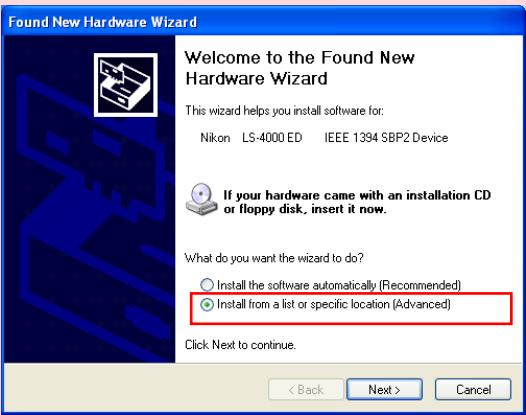
The first time the scanner is connected to the computer, the "Found New Hardware Wizard" will be displayed. Select Install from a list or specific location and click Next.
Caution (LS-2000 / COOLSCAN III Users)
You will need the Windows XP compatible ASPI layer for your SCSI board or SCSI card in order to use the LS-2000 and the COOLSCAN III with Windows XP.
Step2
The dialog shown below will be displayed. Select Search for the best driver in these locations, then check Include this location in the search.
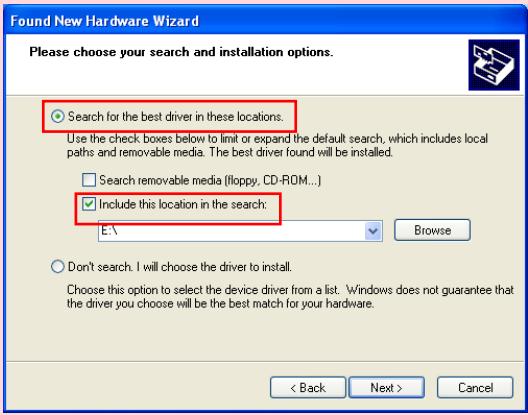
If, for example, the Inf Folder created when you ran the downloaded nsinfxp.exe file is inside "New Folder", click the Browse button, and select "C:\New Folder\Inf".
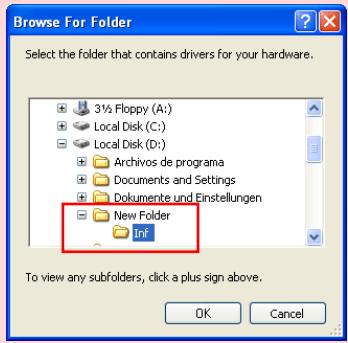
Click OK; the dialog shown below will be displayed.
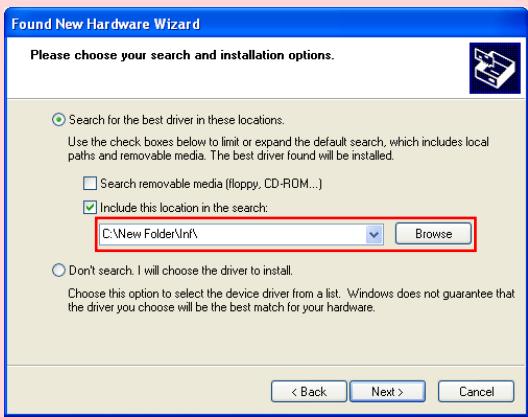
As an example, the above screenshot shows the driver location as "C:\New Folder\Inf".
Step 3
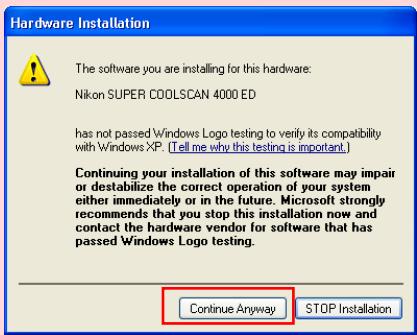
During the driver installation, the dialog shown at right will appear; click Continue Anyway, and carry on with the installation.
Step4
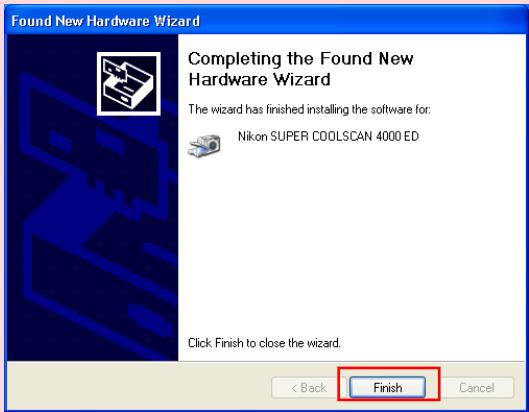
When the driver installation has been completed, the dialog shown below will be displayed; click Finish to close the wizard.
Step5
Once registration is complete, follow the steps below to check that the scanner has been correctly registered with the system.
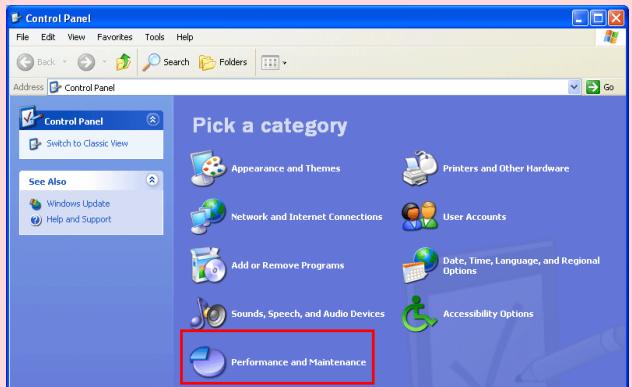
Select Control Panel from the Start menu to display the window shown below. Click Performance and Maintenance.
Step6
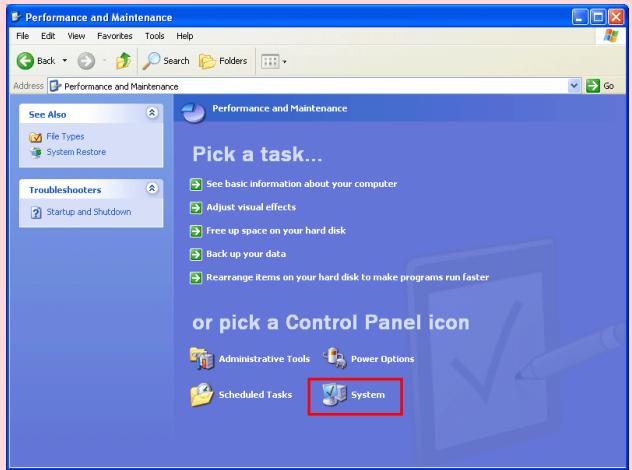
The Performance and Maintenance window will be displayed. Click System.
Step7
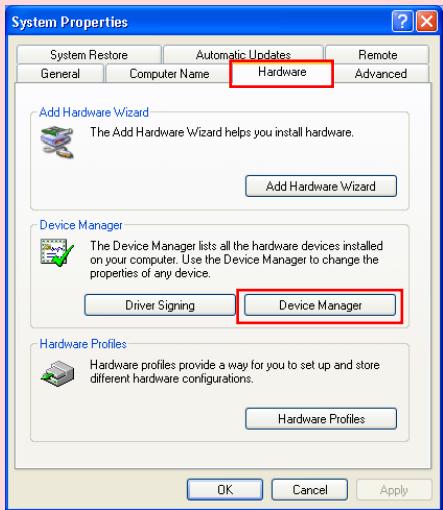
The System Properties window will be displayed. Select the Hardware tab and click the Device Manager button in the Device Manager section.
Step8
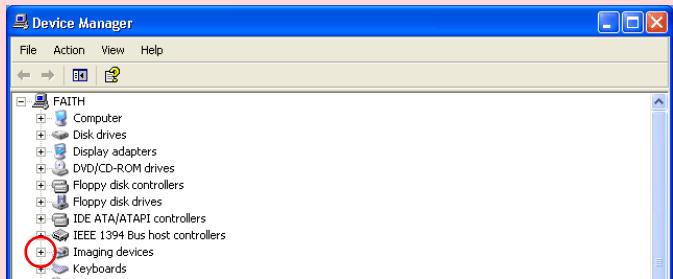
The Device Manager window will appear. Confirming that "Imaging Device" is listed in the Device Manager window, and click the "+" next to the listing.
Step9
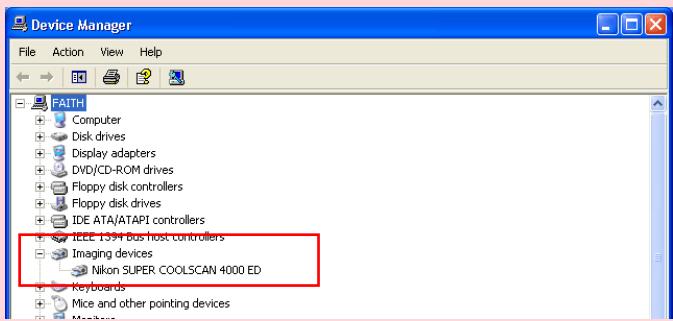
After confirming that "(the name of your scanner)" is listed under "Imaging Device," double-click the listing to open the Properties window.
Step 10
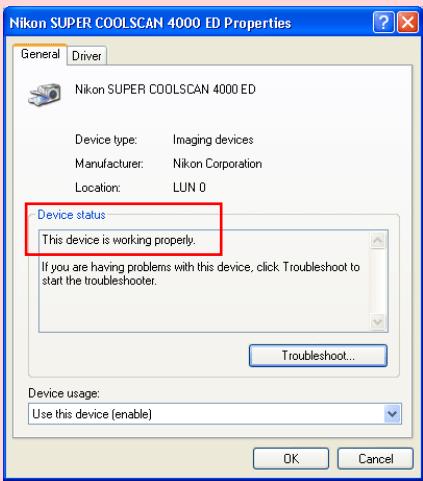
The Properties dialog for your scanner will be displayed. Click the General tab and confirm that "This device is working properly" appears under "Device status". Click OK.
Close the Device Manager, then click OK to close the System Properties window. Device registration is now complete
Marque : NIKON
Modèle : SCAN 3.1.2
Catégorie : Logiciel de numérisation d'images