
SCHT441W - Système audio PANASONIC - Notice d'utilisation et mode d'emploi gratuit
Retrouvez gratuitement la notice de l'appareil SCHT441W PANASONIC au format PDF.
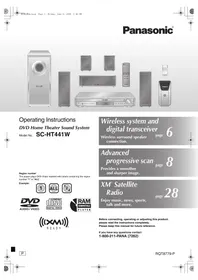


| Type de produit | Système audio home cinéma avec lecteur DVD et radio |
| Marque | Panasonic |
| Modèle | SCHT441W |
| Dimensions (L x H x P) | 430 x 70 x 439,2 mm |
| Poids du boîtier principal | 4,7 kg |
| Alimentation | 120 V~, 60 Hz |
| Consommation électrique | 125 W (veille : 0,5 W) |
| Puissance totale RMS | 850 W (Dolby Digital) |
| Nombre d'enceintes | 5.1 canaux (avant gauche/droite, centrale, surround gauche/droite, caisson de basses) |
| Type d'enceintes | Avant et surround : 1 voie, 6,5 cm ; centrale : 2 voies, 6,5 cm ; caisson : 16 cm |
| Connectivité sans fil | Système sans fil pour enceintes surround (2,4 GHz) |
| Lecteur de disques | DVD-Video, DVD-Audio, DVD-RAM, DVD-R/RW, +R/+RW, CD, CD-R/RW, MP3, WMA, JPEG |
| Changeur de disques | 5 disques |
| Radio | FM/AM avec 15 présélections |
| Fonctions supplémentaires | Radio XM® Satellite, port Music Port (avant et arrière), effets sonores (SFC), Dolby Pro Logic II, balayage progressif |
| Entretien | Nettoyer avec un chiffon doux et sec ; ne pas utiliser de solvants |
| Sécurité | Ne pas ouvrir le boîtier ; ne pas exposer à la pluie ou à l'humidité ; utiliser uniquement les enceintes fournies |
| Accessoires fournis | Télécommande, piles, câble vidéo, antenne AM boucle, antenne FM intérieure, 2 cordons d'alimentation, autocollants pour câbles d'enceintes |
| Garantie | 1 an pièces et main-d'œuvre |
FOIRE AUX QUESTIONS - SCHT441W PANASONIC
Questions des utilisateurs sur SCHT441W PANASONIC
0 question sur cet appareil. Repondez a celles que vous connaissez ou posez la votre.
Poser une nouvelle question sur cet appareil
Téléchargez la notice de votre Système audio au format PDF gratuitement ! Retrouvez votre notice SCHT441W - PANASONIC et reprennez votre appareil électronique en main. Sur cette page sont publiés tous les documents nécessaires à l'utilisation de votre appareil SCHT441W de la marque PANASONIC.
MODE D'EMPLOI SCHT441W PANASONIC
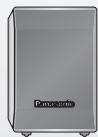
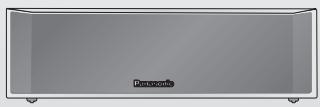
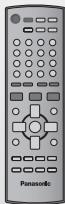
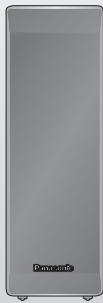
Instructions d'utilisation
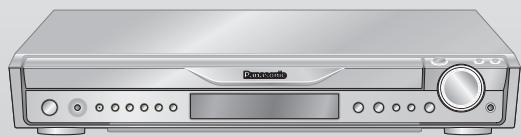
Système de cinéma maison DVD
Modèle n° SC-HT441W
Numéro de région
Le lecteur lit les DVD-Vidéo portant des étiquettes contenant le numéro de région "1" ou "ALL".
Exemple :


AUDIO/VIDÉO
VIDÉO NUMÉRIQUE

LECTEUR COMPATIBLE
PRÊT
Système sans fil et émetteur-récepteur numérique
Connexion des enceintes surround sans fil.
page
6
Avancé
balayage progressif
page
8
Fournit une image plus fluide et plus nette.
Radio XM®
Satellite
page
28
Profitez de la musique, des informations, du sport, des talk-shows et plus encore.
Avant de connecter, d'utiliser ou de régler ce produit, veuillez lire attentivement les instructions.
Veuillez conserver ce manuel pour référence future.
Si vous avez des questions, contactez
1-800-211-PANA (7262)
Merci d'avoir acheté ce produit. Pour des performances et une sécurité optimales, veuillez lire attentivement ces instructions.
Les opérations décrites dans ces instructions sont principalement effectuées avec la télécommande, mais vous pouvez également les effectuer sur l'appareil principal si les commandes sont identiques.
| System | SC-HT441W |
| Main unit | SA-HT441 |
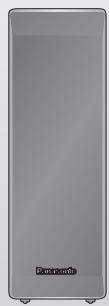
| Front speakers | SB-FS440 |
| Center speaker | SB-PC640 |
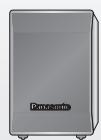
| Surround speakers | SB-FS441 |
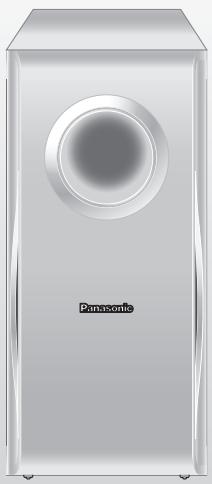
| Subwoofer | SB-W440 |
| Wireless system | SE-FX60 |
| Digital transceiver | SH-FX60T |
ATTENTION !
CE PRODUIT UTILISE UN LASER. L'UTILISATION DE COMMANDES, DE RÉGLAGES OU DE PROCÉDURES AUTRES QUE CEUX SPÉCIFIÉS ICI PEUT ENTRAÎNER UNE EXPOSITION DANGEREUSE AUX RADIATIONS. N'OUVREZ PAS LES CAPOTS ET NE RÉPAREZ PAS VOUS-MÊME. CONFIEZ TOUTE RÉPARATION À UN PERSONNEL QUALIFIÉ.
AVERTISSEMENT :
POUR RÉDUIRE LE RISQUE D'INCENDIE, DE CHOC ÉLECTRIQUE OU DE DOMMAGE MATÉRIEL, N'EXPOSEZ PAS CET APPAREIL À LA PLUIE, À L'HUMIDITÉ, AUX GOUTTES OU AUX ÉCLABOUSSURES ET NE PLACEZ AUCUN OBJET REMPLI DE LIQUIDE, COMME DES VASES, SUR L'APPAREIL.
ATTENTION !
N'INSTALLEZ PAS CET APPAREIL DANS UNE BIBLIOTHÈQUE, UNE ARMOIRE ENCASTRÉE OU UN AUTRE ESPACE CONFINÉ. ASSUREZ-VOUS QUE L'APPAREIL EST BIEN VENTILÉ. POUR PRÉVENIR TOUT RISQUE DE CHOC ÉLECTRIQUE OU D'INCENDIE DÛ À UNE SURCHAUFFE, ASSUREZ-VOUS QUE LES RIDEAUX ET TOUT AUTRE MATÉRIAU N'OBSTRUENT PAS LES OUVERTURES DE VENTILATION.

ATTENTION
RISQUE DE CHOC ÉLECTRIQUE - NE PAS OUVRIR

ATTENTION : POUR RÉDUIRE LE RISQUE DE CHOC ÉLECTRIQUE, NE RETIREZ PAS LES VIS. AUCUNE PIÈCE RÉPARABLE PAR L'UTILISATEUR À L'INTÉRIEUR. CONFIEZ TOUTE RÉPARATION À UN PERSONNEL QUALIFIÉ.

Le symbole de l'éclair avec une flèche, dans un triangle équilatéral, a pour but d'alerter l'utilisateur de la présence d'une « tension dangereuse » non isolée à l'intérieur du boîtier du produit, qui peut être d'une ampleur suffisante pour constituer un risque de choc électrique pour les personnes.

Le point d'exclamation dans un triangle équilatéral a pour but d'alerter l'utilisateur de la présence d'instructions importantes de fonctionnement et de maintenance (réparation) dans la documentation fournie avec l'appareil.
La prise de courant doit être installée à proximité de l'équipement et être facilement accessible. La fiche secteur du cordon d'alimentation doit rester facilement utilisable.
Pour déconnecter complètement cet appareil du secteur, débranchez la fiche du cordon d'alimentation de la prise secteur.
IMPORTANTES CONSIGNES DE SÉCURITÉ
Lisez attentivement ces instructions d'utilisation avant d'utiliser l'appareil. Suivez les consignes de sécurité sur l'appareil et les consignes de sécurité applicables énumérées ci-dessous. Conservez ces instructions d'utilisation à portée de main pour référence future.
1) Lisez ces instructions. 2) Conservez ces instructions. 3) Respectez tous les avertissements. 4) Suivez toutes les instructions. 5) N'utilisez pas cet appareil près de l'eau. 6) Nettoyez uniquement avec un chiffon sec. 7) Ne bloquez aucune ouverture de ventilation. Installez conformément aux instructions du fabricant. 8) N'installez pas près de sources de chaleur telles que radiateurs, bouches de chaleur, poêles ou autres appareils (y compris les amplificateurs) qui produisent de la chaleur. 9) Ne neutralisez pas la fonction de sécurité de la fiche polarisée ou de mise à la terre. Une fiche polarisée a deux lames, l'une plus large que l'autre. Une fiche de mise à la terre a deux lames et une troisième broche de mise à la terre. La lame large ou la troisième broche sont fournies pour votre sécurité. Si la fiche fournie ne correspond pas à votre prise, consultez un électricien pour remplacer la prise obsolète.
10) Protégez le cordon d'alimentation afin qu'il ne soit pas piétiné ou pincé, en particulier au niveau des fiches, des prises de courant et de l'endroit où il sort de l'appareil. 11) Utilisez uniquement les accessoires spécifiés par le fabricant. 12) Utilisez uniquement avec le chariot, le support, le trépied, la fixation ou la table spécifiés par le fabricant ou vendus avec l'appareil. Lorsqu'un chariot est utilisé, soyez prudent lors du déplacement de l'ensemble chariot/appareil pour éviter les blessures en cas de basculement. 13) Débranchez cet appareil pendant les orages ou lorsqu'il reste inutilisé pendant de longues périodes. 14) Confiez toute réparation à un personnel qualifié. Une réparation est nécessaire lorsque l'appareil a été endommagé de quelque manière que ce soit, par exemple si le cordon d'alimentation ou la fiche est endommagé, si du liquide a été renversé ou si des objets sont tombés dans l'appareil, si l'appareil a été exposé à la pluie ou à l'humidité, s'il ne fonctionne pas normalement ou s'il est tombé.
Pour commencer

IMPORTANTES INSTRUCTIONS DE SÉCURITÉ .2
Installation simple
ÉTAPE 1 Positionnement des enceintes 4
Options d'installation des enceintes 5
ÉTAPE 2 Connexions des enceintes 6
Connexion des câbles des enceintes surround au système sans fil 6
ÉTAPE 3 Connexions radio et transcepteur numérique
Connexion du transcepteur numérique 7
ÉTAPE 4 Connexions audio et vidéo. . . . . .8
Connexion audio de base. 8
Connexion vidéo de base. 8
ÉTAPE 5 Connexions des cordons d'alimentation. 9
Étape 6 : Préparation de la télécommande....10
Étape 7 : Exécution de la configuration rapide (QUICK SETUP) 10
Guide de référence de la télécommande 11
Disques pouvant être lus. 12
Précautions concernant les disques 12
Entretien. 12
Service après-vente 13
Glossaire 13
Lecture de disques

Lecture de base. 14
Utilisation de l'unité principale. 14
Utilisation de la télécommande 15
Fonctions pratiques 16
Vérification du type de disque dans chaque plateau 16
Affichage des conditions de lecture actuelles. 16
Lecture séquentielle des CD 16
Lecture programmée et aléatoire 17
Lecture de disques de données à l'aide des menus de navigation 18
Lecture de disques de données 18
Sélection d'une plage à l'aide du texte CD 18
Lecture de disques HighMAT™ 19
Lecture de disques RAM 19
Utilisation des menus à l'écran 20
Menu principal 20
Autres réglages 21
Modification des réglages du lecteur 23
Modification du délai des enceintes 25
Autres opérations

Utilisation de la radio AM/FM 26
Préréglage automatique des stations 26
Sélection des canaux préréglés 26
Réglage manuel 26
Utilisation d'une antenne extérieure (en option) 27
Utilisation de la radio satellite XM© 28
Affichage de l'identifiant de la radio satellite XM 28
Positionnement du système XM Connect & Play ou XMPassport pour une réception optimale 28
Sélection des canaux XM par saisie directe 29
Sélection des canaux XM par catégorie 29
Préréglage de vos canaux XM favoris 29
Affichage des informations sur les canaux XM 29
Utilisation des effets sonores 30
Modification de la qualité sonore : Contrôle du champ sonore 30
Amélioration du son du haut-parleur central : Focus central 30
Amélioration du son stéréo : Dolby Pro Logic II 30
Réglage de la quantité de basses : Niveau du caisson de basses 30
Réglage du volume de chaque enceinte : Réglages du niveau des enceintes 31
Utilisation d'autres équipements 31
Utilisation du téléviseur 31
Utilisation d'autres fonctions utiles 32
Réglage de la minuterie de mise en veille 32
Coupure du son 32
Utilisation du casque 32
Utilisation du port Music Port 32
Référence

Guide de dépannage 33
Spécifications 36
Garantie limitée 38
Accessoires. Couverture arrière
ÉTAPE 1
Positionnement des enceintes
La configuration de vos enceintes peut affecter les graves et la scène sonore. Tenez compte des points suivants :
- Placez les enceintes sur des supports plats et stables.
- Placer les enceintes trop près des sols, des murs et des coins peut entraîner un excès de graves. Couvrez les murs et les fenêtres avec des rideaux épais.
- Les enceintes gauche et droite sont interchangeables, mais les enceintes avant et surround ne le sont pas.
Exemple de configuration
Placez les enceintes avant, centrale et surround à peu près à la même distance de la position d'écoute.
Les angles sur le schéma sont approximatifs.
1 AVANT (G, D)
2 SURROUND (G, D)
3 CENTRALE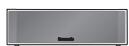
4 CAISSON DE GRAVES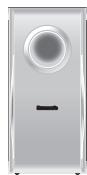
5
SYSTÈME SANS FIL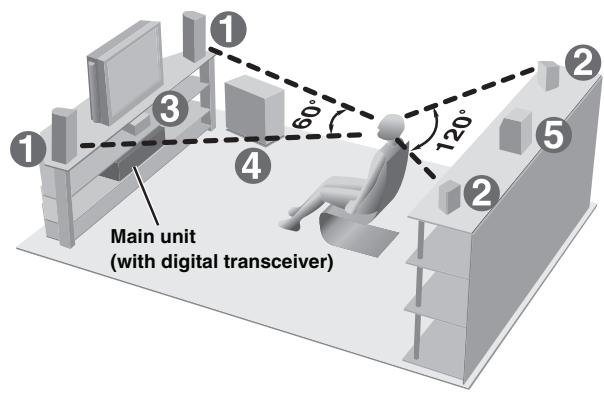
- Utilisez uniquement les enceintes fournies. L'utilisation d'autres enceintes peut endommager l'appareil et la qualité sonore sera négativement affectée. - Installez les enceintes sur une surface plane pour éviter qu'elles ne tombent. Prenez les précautions appropriées pour empêcher les enceintes de tomber si vous ne pouvez pas les installer sur une surface plane.
L'utilisation d'autres enceintes peut endommager l'appareil et la qualité sonore en sera affectée négativement. - Installez les enceintes sur une surface plane pour éviter qu'elles ne tombent. Prenez les précautions nécessaires pour empêcher les enceintes de tomber si vous ne pouvez pas les installer sur une surface plane.
Unité principale
Remarque
- Maintenez vos enceintes à au moins 10 mm (13/32 pouce) du système pour une ventilation adéquate.
- Pour permettre une ventilation adéquate et maintenir une bonne circulation d'air autour de l'unité principale, placez-la avec au moins 5 cm (2 pouces) d'espace sur tous les côtés.
- Ne bloquez pas les orifices de ventilation de l'unité principale.
Enceinte centrale
- Les vibrations causées par l'enceinte centrale peuvent perturber l'image si elle est placée directement sur le téléviseur. Placez l'enceinte centrale sur un support ou une étagère.
- Pour éviter que les enceintes ne tombent, ne les placez pas directement sur le téléviseur.
Système sans fil
- Placez le système sans fil à environ 10 m (33 pi) de l'unité principale.
- N'utilisez pas le système sans fil ou l'émetteur-récepteur numérique dans une armoire métallique ou une bibliothèque.
Caisson de basses
Placez-le à droite ou à gauche du téléviseur, sur le sol ou sur une étagère robuste afin qu'il ne provoque pas de vibrations. Laissez environ 30 cm (11 13/16 pouces) du téléviseur.
Attention
Ne touchez pas la zone grillagée des enceintes.
par exemple, enceinte surround
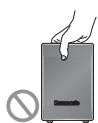
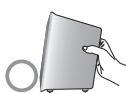
Remarques sur l'utilisation des enceintes
- Vous pouvez endommager vos enceintes et réduire leur durée de vie si vous écoutez à des niveaux élevés pendant de longues périodes.
- Réduisez le volume dans les cas suivants pour éviter tout dommage :
- Lorsque le son est distordu.
- Lorsque les enceintes vibrent à cause d'une platine vinyle, de bruits de fond de la FM, ou de signaux continus provenant d'un oscillateur, d'un disque de test ou d'un instrument électronique.
- Lors du réglage de la qualité sonore.
- Lors de la mise sous ou hors tension de l'appareil.
Si des couleurs irrégulières apparaissent sur votre téléviseur
Les enceintes avant et centrale sont conçues pour être utilisées près d'un téléviseur, mais l'image peut être affectée avec certains téléviseurs et certaines configurations.
Si cela se produit, éteignez le téléviseur pendant environ 30 minutes.
La fonction de démagnétisation du téléviseur devrait corriger le problème.
Si le problème persiste, éloignez les enceintes du téléviseur.
| ! | Caution ·The main unit and supplied speakers are to be used only as indicated in this setup. Failure to do so may lead to damage to the amplifier and/ or the speakers, and may result in the risk of fire. Consult a qualified service person if damage has occurred or if you experience a sudden change in performance. ·Do not attempt to attach these speakers to walls using methods other than those described in this manual. |
Éviter les interférences
Pour éviter toute interférence possible, ne placez pas le système sans fil à proximité des appareils suivants. Le système sans fil utilise les mêmes fréquences radio que d'autres appareils qui peuvent être présents dans votre maison.
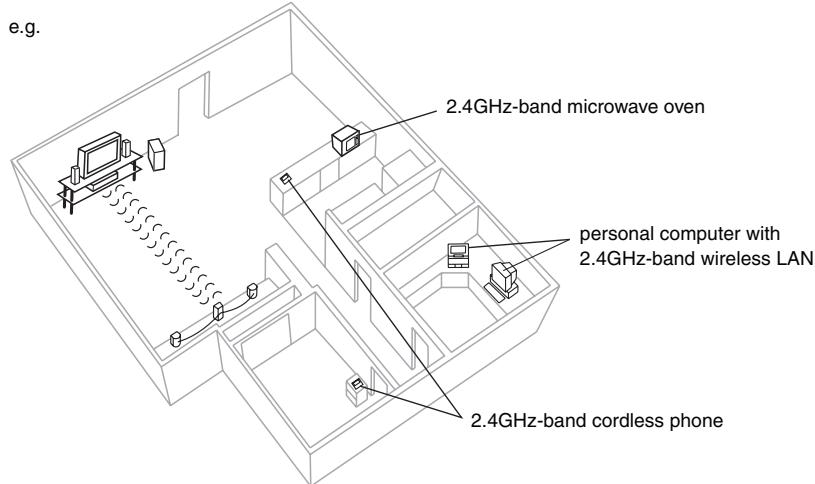
Le système sans fil recherchera automatiquement un canal libre si l'un de ces autres appareils interfère avec sa communication. Lorsque cela se produit, l'indicateur de liaison sans fil ("W") clignote sur l'unité principale, et il y a une brève interruption de l'audio provenant des enceintes surround.
C'est le fonctionnement normal du produit qui assure la meilleure performance possible de votre système home cinéma. Si les interférences persistent, essayez de déplacer les autres appareils vers un autre endroit hors de portée du système sans fil.
Options d'installation des enceintes
■ Fixation au mur
Vous pouvez fixer toutes les enceintes au mur.
- Le mur ou le pilier sur lequel les enceintes doivent être fixées doit pouvoir supporter 10 kg (22 lb) par vis. Consultez un entrepreneur en bâtiment qualifié lors de la fixation des enceintes au mur. Une fixation incorrecte peut entraîner des dommages au mur et aux enceintes.
① Vissez une vis (non fournie) dans le mur.
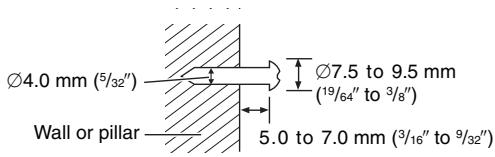
② Fixez solidement l'enceinte sur la ou les vis avec les trous.
Enceinte avant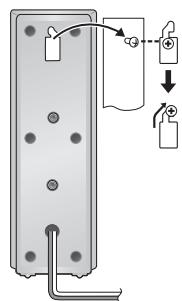
Enceinte centrale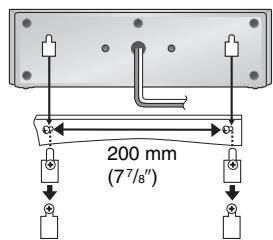
Enceinte surround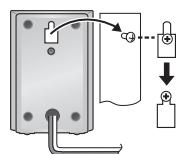
par exemple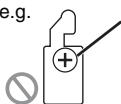
Dans cette position, l'enceinte risque de tomber si elle est déplacée vers la gauche ou la droite.
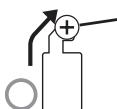
Déplacez l'enceinte de manière à ce que la vis soit dans cette position.
Installation des supports d'enceinte (non fournis)
Assurez-vous que les supports répondent à ces conditions avant de les acheter. Notez le diamètre et la longueur des vis ainsi que la distance entre les vis, comme indiqué sur le schéma.
- Les supports doivent pouvoir supporter plus de 10 kg (22 lb).
- Les supports doivent être stables même si les enceintes sont en position élevée.
Par exemple, enceinte centrale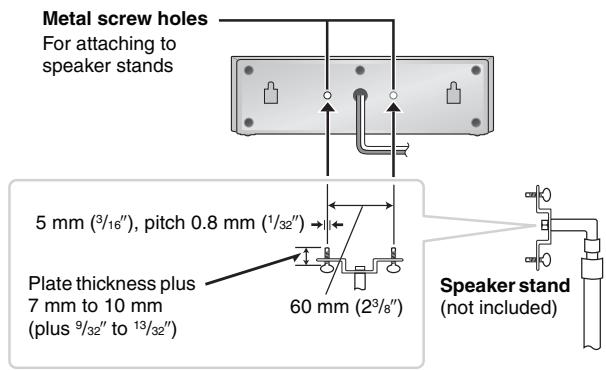
2 feuilles d'autocollants pour câbles d'enceinte
- Fixez les autocollants pour câbles d'enceinte afin de faciliter le raccordement.
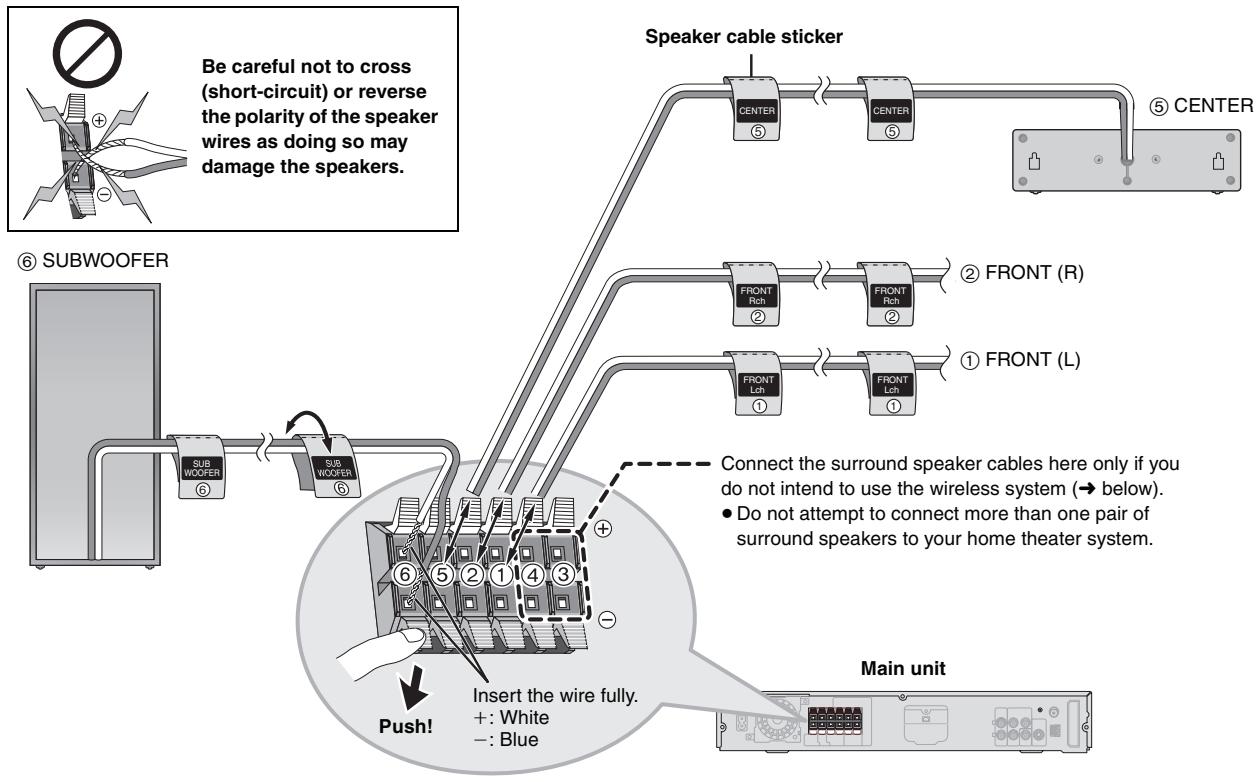
Connexion des câbles d'enceinte surround au système sans fil
Système sans fil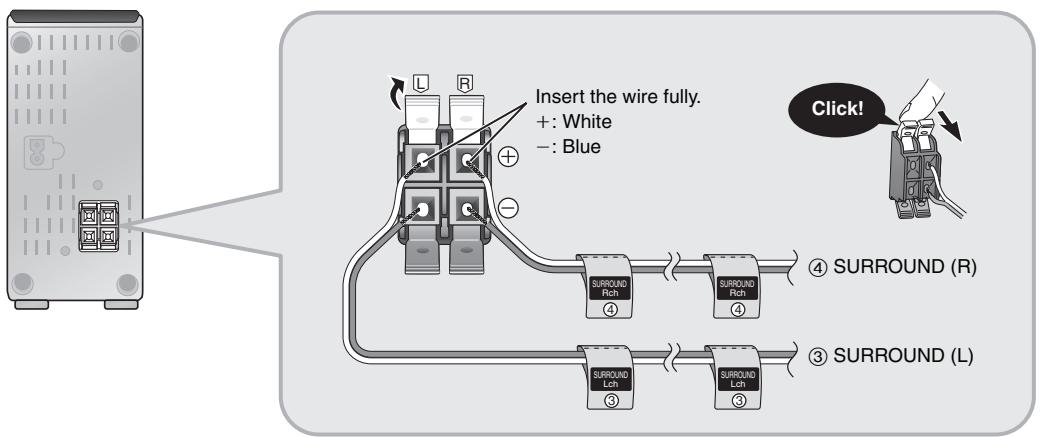
Antenne cadre AM
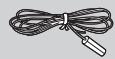
Antenne intérieure FM
Émetteur-récepteur numérique


- Utilisation d'une antenne extérieure (en option) (→ page 27).
Antenne cadre AM
Dressez l'antenne sur sa base. Placez l'antenne à l'endroit où la réception est la meilleure. Éloignez le câble d'antenne des autres fils et câbles.
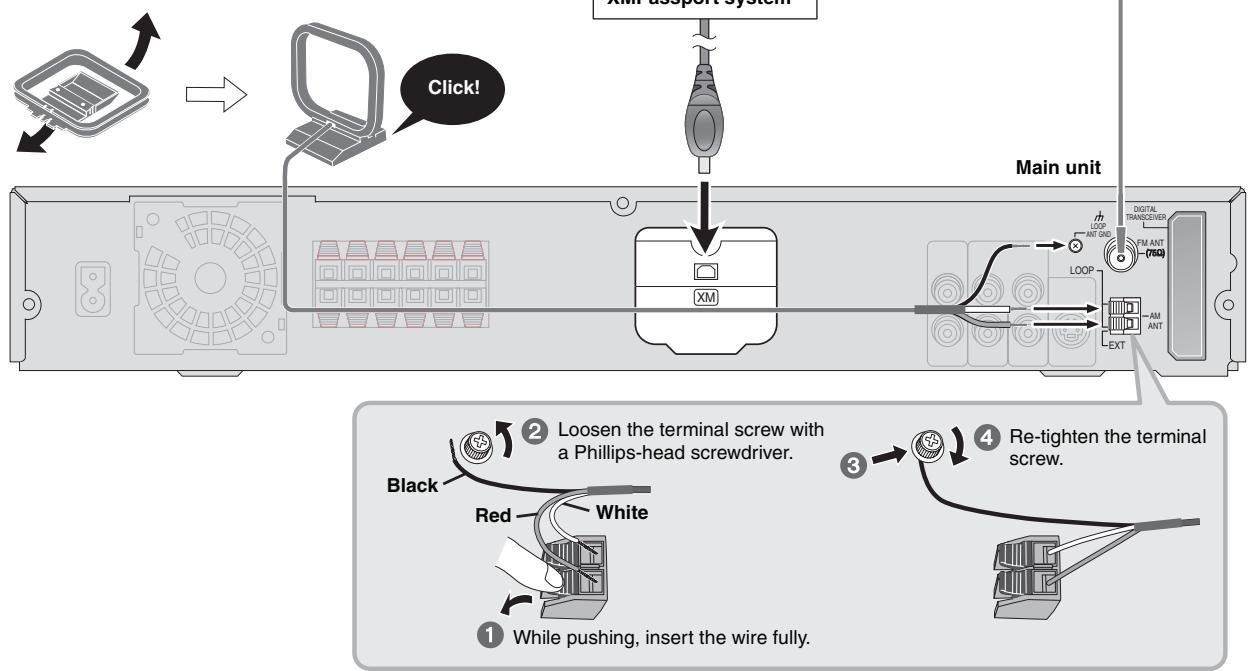
Antenne FM intérieure
Fixez cette extrémité de l'antenne à l'endroit où la réception est la meilleure.
Ruban adhésif
Unité principale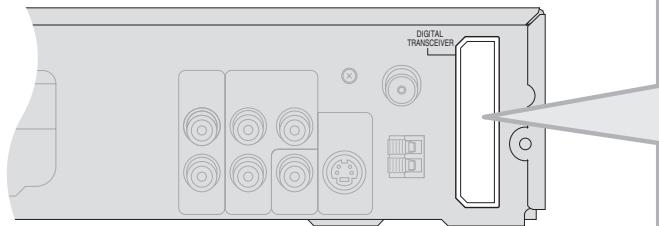
Desserrez la vis de borne avec un tournevis cruciforme.
Tout en poussant, insérez le fil complètement.
Insérez l'émetteur-récepteur numérique dans la fente.
Ne pas insérer ou retirer pendant que l'unité principale est allumée.
Émetteur-récepteur numérique
Insérez complètement jusqu'à ce que vous entendiez un clic.
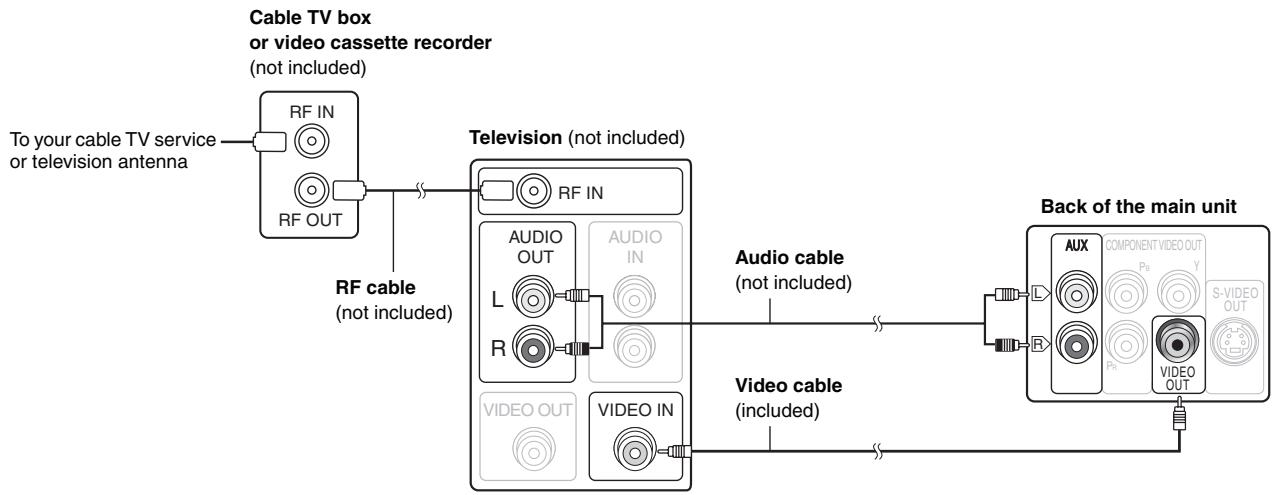
- Ne connectez pas via le magnétoscope. En raison de la protection contre la copie, l'image peut ne pas s'afficher correctement.
- Éteignez le téléviseur avant de connecter, et consultez le mode d'emploi du téléviseur.
Câble vidéo
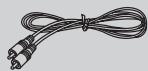
Connexion audio de base
Téléviseur (non fourni) - Cette connexion audio vous permettra de lire l'audio de votre téléviseur via votre système home cinéma. Reportez-vous à « Utilisation d'autres équipements » (→ page 31).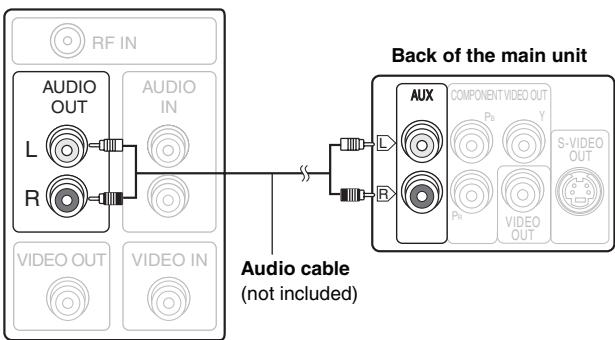
Connexion vidéo de base
Téléviseur (non fourni) Reportez-vous également à « Autres connexions vidéo pour une meilleure qualité d'image » (→ ci-dessous).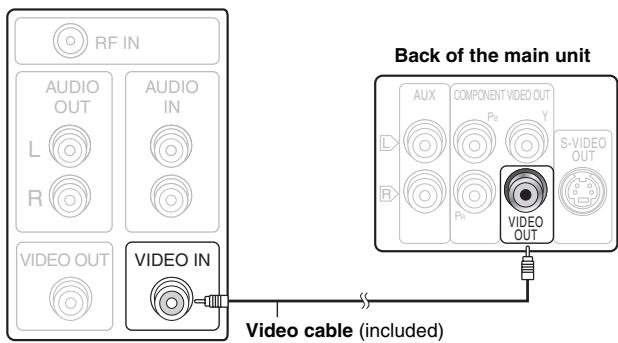
Autres connexions vidéo pour une meilleure qualité d'image
S-VIDEO OUT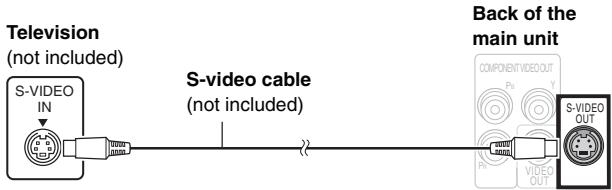
Utilisation de la borne S-VIDEO OUT
La borne S-VIDEO OUT produit une image plus vive que la borne VIDEO OUT en séparant les signaux de chrominance (C) et de luminance (Y). (Les résultats réels dépendent du téléviseur.)
COMPONENT VIDEO OUT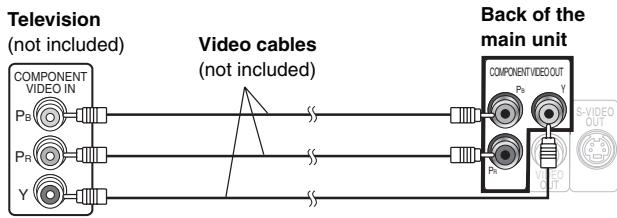
Utilisation des bornes COMPONENT VIDEO OUT
Les bornes COMPONENT VIDEO OUT fournissent une image plus pure que la borne S-VIDEO OUT. Ces bornes peuvent être utilisées pour la sortie entrelacée ou progressive. La connexion via ces bornes émet séparément les signaux de différence de couleur (P_B / P_R) et le signal de luminance (Y) afin d'obtenir une haute fidélité dans la reproduction des couleurs.
- La description des bornes d'entrée vidéo composante dépend du téléviseur ou du moniteur (par exemple Y / P_B / P_R, Y/B-Y/R-Y, Y/C_B/C_R). Connectez aux bornes de la même couleur.
- Après avoir effectué cette connexion, sélectionnez « Plus sombre » dans « Contrôle du niveau de noir » sous l'onglet « Vidéo » (→ page 24).
Pour profiter de la vidéo progressive
- Connectez à un téléviseur compatible avec la sortie progressive.
- Réglez « Mode de sortie vidéo » sur « 480p », puis suivez les instructions à l'écran du menu (→ page 21, Menu Image).
- Tous les téléviseurs Panasonic équipés de connecteurs d'entrée 480p sont compatibles. Consultez le fabricant si vous possédez un téléviseur d'une autre marque.
Connexion du décodeur câble ou du magnétoscope
ÉTAPE 5 : Connexion des cordons d'alimentation secteur
2 cordons d'alimentation secteur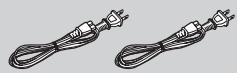
Unité principale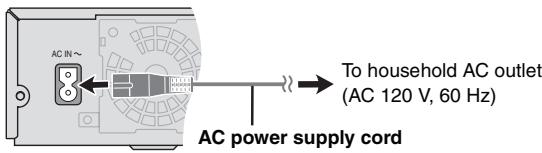
Système sans fil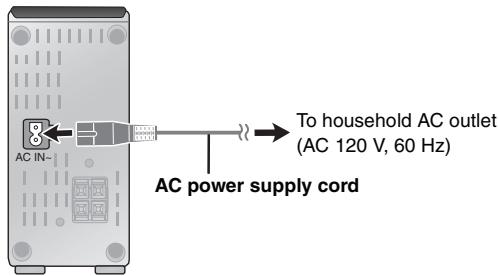
Économie d'énergie
L'unité principale et le système sans fil consomment une petite quantité d'énergie en mode veille [unité principale : environ 0,5 W, système sans fil : 0,5 W (en mode émission), 1,2 W (en mode réception)]. Pour économiser l'énergie lorsqu'ils ne sont pas utilisés pendant une longue période, débranchez-les de la prise secteur.
Vous devrez réinitialiser certains éléments de mémoire après avoir branché l'unité principale.
Remarque
Les cordons d'alimentation secteur fournis sont destinés à être utilisés uniquement avec l'unité principale et le système sans fil. Ne les utilisez pas avec d'autres équipements. De même, n'utilisez pas de cordons d'autres équipements avec l'unité principale ou le système sans fil.
ÉTAPE 6
Préparation de la télécommande
Télécommande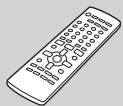
Piles
Insérez les piles en respectant les polarités (+ et -) indiquées sur la télécommande.
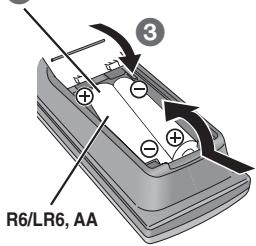
- Ne pas utiliser de piles rechargeables.
Ne pas :
- mélanger des piles neuves et usagées.
- utiliser différents types de piles en même temps. Chauffer ou exposer au feu.
- démonter ou court-circuiter.
- tenter de recharger des piles alcalines ou au manganèse.
- utiliser des piles dont le revêtement est endommagé.
Une mauvaise manipulation des piles peut provoquer une fuite d'électrolyte qui peut gravement endommager la télécommande.
Retirez les piles si la télécommande n'est pas utilisée pendant une longue période. Rangez-la dans un endroit frais et sombre.
Utilisation
Visez l'écran (voir page 11), en évitant les obstacles, à une distance maximale de 7 m (23 pieds) directement devant l'appareil.
ÉTAPE 7
Exécution de la CONFIGURATION RAPIDE
L'écran de CONFIGURATION RAPIDE vous aide à effectuer les réglages nécessaires.
Pour afficher l'image de l'unité principale, allumez votre téléviseur et changez son mode d'entrée vidéo (par exemple, VIDEO 1, AV 1, etc.).
- Pour changer le mode d'entrée vidéo de votre téléviseur, reportez-vous à son mode d'emploi.
- Cette télécommande peut effectuer certaines opérations de base du téléviseur (voir page 31).
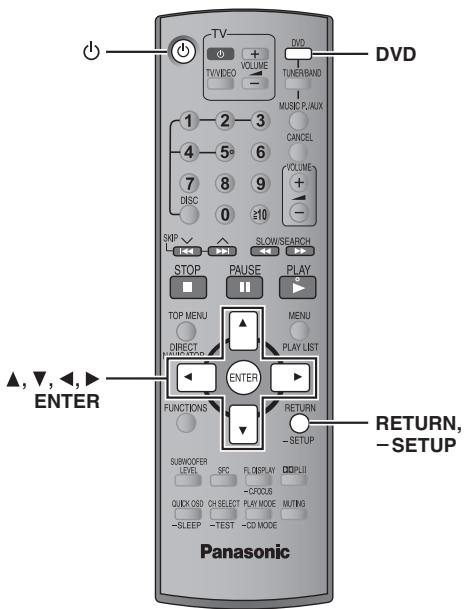
| 1 | Turn on the unit. |
| 2 | Select “DVD/CD”. |
| 3 | Press and hold to show the QUICK SETUP screen. |
| 4 | Follow the messages and make the settings. |
| 5 | Press to finish QUICK SETUP. |
| 6 | Press repeatedly to exit. |
Voir les références de pages entre parenthèses.
Pour utiliser les fonctions marquées d'un « — » : maintenez le bouton enfoncé pendant au moins 2 secondes.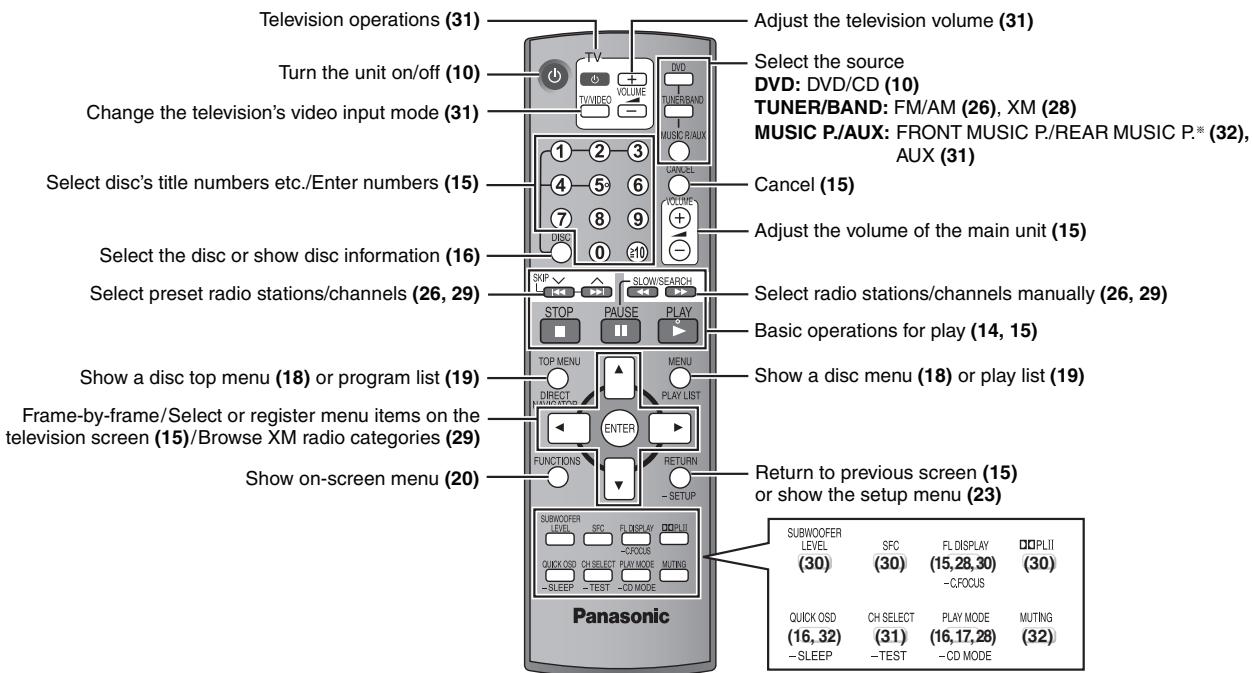
Interrupteur veille/marche [POWER 山 / 山]
Appuyez pour faire passer l'unité du mode marche au mode veille ou vice versa. En mode veille, l'unité consomme toujours une petite quantité d'énergie. (14)
OUVRIR/FERMER
Ouvrir/Fermer le tiroir à disque (14)
▸ /MEMORY Lecture des disques (14)/Mémoriser les stations de radio/canaux reçus (26, 29)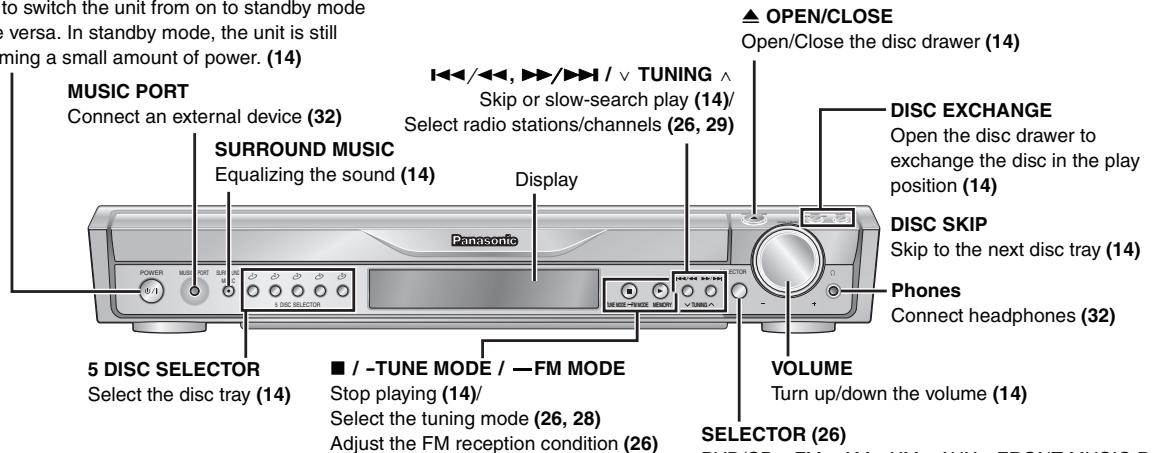
SÉLECTEUR (26)
DVD/CD → FM → AM → XM → AUX → FRONT MUSIC P. → REAR MUSIC P.* → Retour à DVD/CD
Voyant d'alimentation secteur [AC IN]
Ce voyant s'allume lorsque l'unité est branchée sur le secteur.
L'unité est en mode veille lorsque le cordon d'alimentation secteur est branché. Le circuit primaire est toujours « sous tension » tant que le cordon d'alimentation est branché sur une prise électrique.
![PANASONIC SCHT441W - Voyant d'alimentation secteur [AC IN] - 1](/content/2019/08/105234/images/0cabd9c5b8edef58408dd63ff49e2240fef951ab544d6c9c22e07870546b1165.jpg)
MUSIC PORT
Connectez un appareil externe (32).
Anneau lumineux
S'allume lorsque la liaison sans fil est active.
Les opérations décrites dans ces instructions sont principalement illustrées avec des formats. Des icônes telles que DVD-V indiquent les formats.
| DVD VIDEO | DVD-Video DVD-V |
| AUDIO | DVD-Audio DVD-A DVD-V DVD-V Some DVD-Audio discs contain DVD-Video content. To play DVD-Video content, select "Play as DVD-Video" in Other Menu (→ page 22). |
| COMPACT DISC DIGITAL VIDEO | Video CD VCD Including SVCD (Conforming to IEC62107) |
| RAM RAM4.7 | DVD-RAM DVD-VR JPEG DVD-VR Recorded with devices using Version 1.1 of the Video Recording Format (a unified video recording standard), such as DVD video recorders, DVD video cameras, personal computers, etc. JPEG Recorded with Panasonic SD multi cameras or DVD video recorders using the DCF (Design rule for Camera File system) Standard Version 1.0. |
| DVD R R4.7 | DVD-R (DVD-Video)/DVD-RW (DVD-Video) DVD-V Discs recorded and finalized* on DVD video recorders or DVD video cameras. |
| - | +R (Video)/+RW (Video) DVD-V Discs recorded and finalized* on DVD video recorders or DVD video cameras. |
| COMPACT DISC DIGITAL AUDIO | CD CD WMA MP3 JPEG VCD This unit can play CD-R/RW recorded with the above formats. Close the sessions or finalize* the disc after recording. CD This unit is compatible with HDCD, but does not support the Peak Extend function (a function which expands the dynamic range of high-level signals). HDCD-encoded CDs sound better because they are encoded with 20 bits, as compared with 16 bits for all other CDs. WMA MP3 JPEG This unit also plays HighMAT discs. WMA This unit does not support Multiple Bit Rate (MBR: an encoding process for audio content that produces an audio file encoded at several different bit rates). |
- Un processus qui permet la lecture sur des équipements compatibles. Il se peut que tous les disques mentionnés ci-dessus ne puissent pas être lus dans certains cas en raison du type de disque ou de l'état de l'enregistrement.
Disques non lisibles
DVD-RW version 1.0, DVD-ROM, CD-ROM, CDV, CD-G, SACD, disques vidéo DivX et Photo CD, DVD-RAM ne pouvant pas être retirés de leur cartouche, DVD-RAM de 2,6 Go et 5,2 Go, et « Chaoji VCD » disponibles sur le marché, y compris CVD, DVCD et SVCD qui ne sont pas conformes à la norme CEI 62107.
Remarque concernant l'utilisation d'un DualDisc
- Le côté contenu audio numérique d'un DualDisc ne répond pas aux spécifications techniques du format Compact Disc Digital Audio (CD-DA), la lecture peut donc être impossible.
- N'utilisez pas de DualDisc dans cet appareil car il pourrait ne pas être inséré correctement et risquerait d'être rayé ou éraflé.
Précautions concernant les disques
Nettoyage des disques
Essuyez avec un chiffon humide, puis séchez.


Précautions de manipulation des disques
- N'apposez pas d'étiquettes ou d'autocollants sur les disques. Cela pourrait les déformer et les rendre inutilisables.
- N'écrivez pas sur la face étiquetée avec un stylo à bille ou un autre instrument d'écriture.
- N'utilisez pas de sprays de nettoyage pour disques, de benzine, de diluant, de liquides antistatiques ou tout autre solvant.
- N'utilisez pas de protecteurs ou de couvercles anti-rayures.
- N'utilisez pas les disques suivants :
- Disques avec de l'adhésif exposé provenant d'étiquettes ou d'autocollants retirés (disques loués, etc.).
- Disques fortement déformés ou fissurés.
- Disques de forme irrégulière, comme en forme de cœur.
Entretien
Nettoyez cet appareil avec un chiffon doux et sec.
- N'utilisez jamais d'alcool, de diluant à peinture ou de benzine pour nettoyer cet appareil.
- Avant d'utiliser un chiffon traité chimiquement, lisez attentivement les instructions fournies avec le chiffon.
N'utilisez pas de nettoyeurs de lentilles commerciaux car ils peuvent provoquer un dysfonctionnement. Le nettoyage de la lentille n'est généralement pas nécessaire, bien que cela dépende de l'environnement d'utilisation.
Avant de déplacer l'appareil, assurez-vous que les plateaux à disques sont vides. Dans le cas contraire, vous risquez d'endommager gravement les disques et l'appareil.
- Dommages nécessitant une réparation—L'appareil doit être réparé par un personnel qualifié si :
(a) Le cordon d'alimentation secteur ou l'adaptateur secteur est endommagé ; ou (b) Des objets ou des liquides ont pénétré dans l'appareil ; ou (c) L'appareil a été exposé à la pluie ; ou (d) L'appareil ne fonctionne pas normalement ou présente un changement notable de performance ; ou (e) L'appareil est tombé ou le boîtier est endommagé.
- Réparation—Ne tentez pas de réparer l'appareil au-delà de ce qui est décrit dans ce mode d'emploi. Confiez toute autre réparation à un personnel de service agréé.
- Pièces de rechange—Lorsque des pièces doivent être remplacées, assurez-vous que le réparateur utilise des pièces spécifiées par le fabricant ou des pièces ayant les mêmes caractéristiques que les pièces d'origine. Des substituts non autorisés peuvent provoquer un incendie, une décharge électrique ou d'autres dangers.
- Vérification de sécurité—Après une réparation ou un entretien, demandez au réparateur d'effectuer des vérifications de sécurité pour confirmer que l'appareil est en bon état de fonctionnement.
Le réparateur aura besoin de tous les composants pour réparer votre système.
Par conséquent, si une réparation est nécessaire, assurez-vous d'apporter l'ensemble du système.
Informations sur le produit
Pour des informations sur le produit ou de l'aide concernant son fonctionnement, reportez-vous à l'« Annuaire des services clients » à la page 38.
Glossaire
Décodeur
Un décodeur restaure les signaux audio codés des DVD en signaux normaux. C'est ce qu'on appelle le décodage.
Dolby Digital
Il s'agit d'une méthode de codage des signaux numériques développée par Dolby
Laboratoires. Outre l'audio stéréo (2 canaux), ces signaux peuvent également être de l'audio multicanal. Une grande quantité d'informations audio peut être enregistrée sur un seul disque en utilisant cette méthode.
DTS (Digital Theater Systems)
Ce système surround est utilisé dans de nombreuses salles de cinéma à travers le monde. Il y a une bonne séparation entre les canaux, ce qui permet des effets sonores réalistes.
Plage dynamique
La plage dynamique est la différence entre le niveau sonore le plus bas qui peut être entendu au-dessus du bruit de l'équipement et le niveau sonore le plus élevé avant l'apparition de distorsion.
Image fixe et champ fixe
Les images fixes sont les images fixes qui, ensemble, forment une image animée. Il y a environ 30 images affichées chaque seconde.
Une image est composée de deux champs. Un téléviseur ordinaire affiche ces champs l'un après l'autre pour créer des images.
Une image fixe est affichée lorsque vous mettez en pause une image animée. Une image fixe est composée de deux champs alternés, donc l'image peut sembler floue, mais la qualité globale est élevée.
Un champ fixe n'est pas flou, mais il ne contient que la moitié des informations d'une image fixe, donc la qualité d'image est inférieure.
I/P/B
MPEG 2, la norme de compression vidéo adoptée pour une utilisation avec DVD-Vidéo, code les images en utilisant ces 3 types d'images.
I : image codée intra
Cette image a la meilleure qualité et est la meilleure à utiliser lors du réglage de l'image.
P : image codée prédictive
Cette image est calculée à partir d'images I ou P passées.
B : image codée par prédiction bidirectionnelle
Cette image est calculée en comparant les images I et P passées et futures, elle a donc le volume d'informations le plus faible.
JPEG (Joint Photographic Experts Group)
Il s'agit d'un système utilisé pour compresser/décoder des images fixes en couleur. Si vous sélectionnez JPEG comme système de stockage sur les appareils photo numériques, etc., les données seront compressées à 1/10-1/100 de leur taille d'origine. L'avantage du JPEG est une moindre détérioration de la qualité d'image compte tenu du degré de compression.
PCM linéaire (modulation par impulsions et codage)
Ce sont des signaux numériques non compressés, similaires à ceux des CD.
MP3 (MPEG Audio Layer 3)
Une méthode de compression audio qui compresse l'audio à environ un dixième de sa taille sans perte considérable de qualité audio.
Contrôle de lecture (PBC)
Si un Video CD dispose d'un contrôle de lecture, vous pouvez sélectionner des scènes et des informations à l'aide de menus.
Progressif/Entrelacé
NTSC, la norme de signal vidéo, a 480 lignes de balayage entrelacées (i), tandis que le balayage progressif utilise deux fois plus de lignes de balayage. C'est ce qu'on appelle 480p.
En utilisant la sortie progressive, vous pouvez profiter de vidéos haute résolution enregistrées sur des supports tels que le DVD-Vidéo.
Votre téléviseur doit être compatible pour profiter de la vidéo progressive.
Fréquence d'échantillonnage
L'échantillonnage est le processus qui consiste à convertir les hauteurs d'un signal sonore (signal analogique) prélevées à intervalles réguliers en nombres (encodage numérique).
La fréquence d'échantillonnage est le nombre d'échantillons prélevés par seconde ; plus ce nombre est élevé, plus la reproduction du son original est fidèle.
WMA (Windows Media™ Audio)
WMA est un format de compression développé par Microsoft Corporation. Il offre la même qualité sonore que le MP3 avec une taille de fichier inférieure à celle du MP3.
Pour afficher l'image de l'unité principale, allumez votre téléviseur et changez son mode d'entrée vidéo (par exemple VIDEO 1, AV 1, etc.). - Pour changer le mode d'entrée vidéo de votre téléviseur, reportez-vous à son mode d'emploi.

Utilisation de l'unité principale
| Equalizing the sound | SURROUND MUSIC | ● The sound fills the room, and comes from all directions with equal intensity, regardless of your orientation within the room. ● The indicator on the button lights. |
| Skipping to the next disc tray | DISC SKIP | ● While the drawer is closed Each time you press the button, the carousel moves counter-clockwise by one tray. |
| Exchanging the disc in the play position | DISC EXCHANGE | ● The drawer opens and the disc in the play position comes to the front-left position. ● Press the button again to play the disc after changing the disc in the front-left position. |
| OPEN/CLOSE ▲ ↓ DISC SKIP ○ ↓ Change the discs ↓ OPEN/CLOSE ▲ |

LES DISQUES CONTINUENT DE TOURNER PENDANT L'AFFICHAGE DES MENUS. Pour préserver le moteur de l'unité et l'écran de votre téléviseur, appuyez sur [■] (Arrêt) lorsque vous avez terminé avec les menus. - Le nombre total de titres peut ne pas être affiché correctement sur les disques +R/+RW.
Utilisation de la télécommande
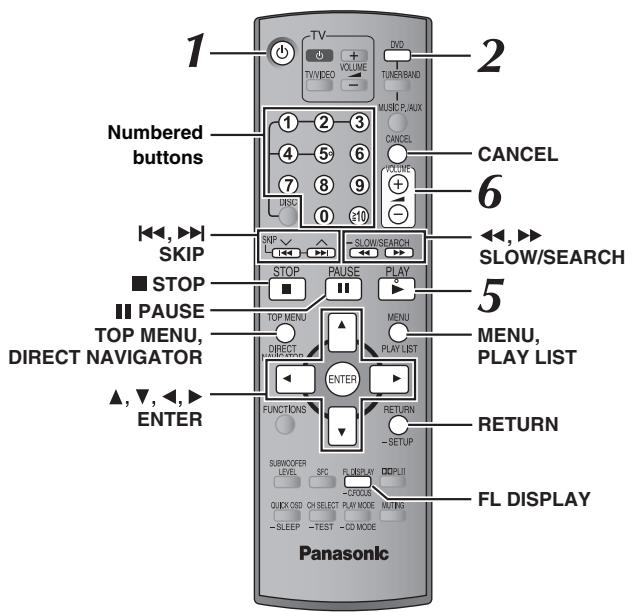
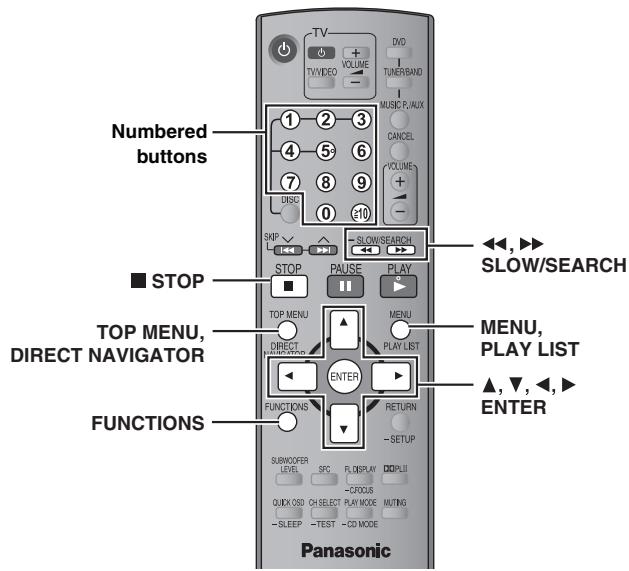
| Stop | STOP | The position is memorized while “RESUME” is on the display. • Press [▶ PLAY] to resume. • Press [■ STOP] again to clear the position. |
| Pause | PAUSE | ● Press [▶ PLAY] to restart play. |
| Skip | SKIP | — |
| [←] | [WMA MP3 JPEG] | |
| [ENTER] | [This feature does not work during program and random play (→ page 17).] | |
| [←] | [▲,▼]: Group skip [←,▶]: Content skip |
| Search (during play) | SLOW/SEARCH | ● Up to 5 steps. ● Press [▶ PLAY] to start normal play. |
| Slow-motion (during pause) | ● VCD Slow-motion: forward direction only. |
| Frame-by-frame(during pause) | DVD-A (Motion picture part) DVD-VR DVD-V VCD ENTER ▼● VCD Forward direction only. |
| ① | ② | ③ | DVD-VR | DVD-A | DVD-V | VCD | CD |
| ④ | ⑤ | ⑥ | e.g. To select 12: [≥10] → [1] → [2] | ||||
| ⑦ | ⑧ | ⑨ | VCD with playback control Press [■ STOP] to cancel the PBC function, and then press the numbered buttons. | ||||
| Enter number | ⑩ | ⑪ | |||||
| ENTER | WMA | MP3 | JPEG | e.g. To select 123: [1] → [2] → [3] → [ENTER] | |||
| CANCEL | ● Press [CANCEL] to cancel the number(s). | ||||||
| Disc menu | TOP MENU DIRECT NAVIGATOR | DVD-A DVD-V Shows a disc top menu. DVD-VR Press the button to show the programs (→ page 19). |
| MENU PLAY LIST | DVD-V Shows a disc menu. DVD-VR Press the button to show a play list (→ page 19). | |
| RETURN ○ | VCD with playback control Shows a disc menu. |
| Return to previous screen | RETURN | - |
| Main unit display | FL DISPLAY | DVD-VR | DVD-A | DVD-V | VCD | CD |
| WMA | MP3 | |||||
| Time display | ||||||
| ↔Information display (e.g. DVD-VR Program number) | ||||||
| JPEG | ||||||
| When Slideshow (→page 20) is on: | ||||||
| SLIDE↔Contents number | ||||||
| When Slideshow is off: | ||||||
| PLAY↔Contents number | ||||||
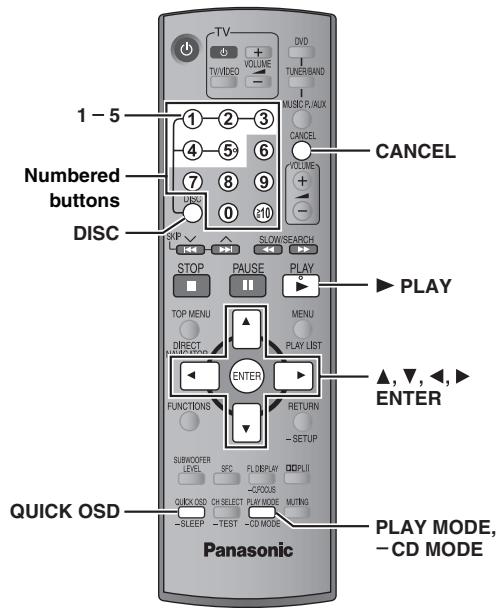
Vérification du type de disque dans chaque plateau

Vous pouvez sélectionner le disque après avoir vérifié les disques chargés à l'aide de l'écran d'informations sur les disques.
- Vous pouvez également sélectionner le disque directement avec les boutons 5 DISC SELECTOR de l'unité principale.
1 Appuyez sur [DISC] pour afficher l'écran d'informations sur les disques.
- Pour quitter l'écran, appuyez sur [DISC].
par exemple
![PANASONIC SCHT441W - Appuyez sur [DISC] pour afficher l'écran d'informations sur les disques. - 1](/content/2019/08/105234/images/500eb674a7392c2392c7fd8a918d371e8153484fe43b2b6a0ff29fa3034a5298.jpg)
2 Appuyez sur les touches numérotées ([1] - [5]) pour sélectionner le disque.
Affichage de l'état de lecture en cours
OSD RAPIDE

Appuyez sur [QUICK OSD].
- Pour quitter l'écran, appuyez sur [QUICK OSD].
ex. DVD-V
![PANASONIC SCHT441W - Appuyez sur [QUICK OSD]. - 1](/content/2019/08/105234/images/537ee7bcafd636491c57ed8a0fc6a624b3d6a3d00cde54063589216ab80ec12d.jpg)
Lecture séquentielle de CD
VCD CD WMA MP3

-MODE CD
Cette fonction est très pratique si vous souhaitez lire plusieurs CD musicaux en séquence. Assurez-vous que le disque approprié est en position de lecture avant la lecture (voir Vérification du type de disque dans chaque plateau, à gauche).
En mode arrêt
1 Maintenez enfoncée la touche [—CD MODE].
![PANASONIC SCHT441W - Maintenez enfoncée la touche [—CD MODE]. - 1](/content/2019/08/105234/images/74487712d00f06927561bcb5f3ce707315aa548464abbc2e0163a0c50b463509.jpg)
2 Appuyez sur [▶ LECTURE].
- Si tous les disques chargés sont des DVD ou si d'autres disques ne sont pas vérifiés, le mode CD ne fonctionne pas.
- Les menus HighMAT et le contrôle de lecture Video CD sont désactivés.
- Vous ne pouvez pas activer ou désactiver le mode CD pendant la lecture programmée ou aléatoire.
- Si vous souhaitez lire un DVD, maintenez enfoncée la touche [—CD MODE] pour annuler le mode CD. (Le mode CD est également annulé lorsque vous mettez l'appareil en veille, sélectionnez une autre source ou changez le disque en position de lecture.) Les DVD et les JPEG sont ignorés sans être lus.
Lecture programmée et aléatoire
MODE DE LECTURE

Appuyez sur [PLAY MODE] à l'arrêt.
Les écrans de lecture programmée et aléatoire apparaissent séquentiellement.
Programme Aléatoire* arrêt (lecture normale)
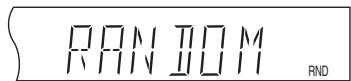
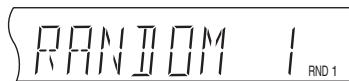
*« RANDOM 1 » et « RANDOM 2 » ( ⇒ à droite) sont affichés sur l'écran de l'unité principale lorsque le mode CD est activé ( ⇒ page 16).
Pour quitter le mode programme et aléatoire
Appuyez plusieurs fois sur [PLAY MODE] à l'arrêt.
- La sélection de « Lire comme disque de données » dans le menu Autre ( → page 22) sera efficace si les fonctions suivantes ne sont pas disponibles pour lire des fichiers WMA, MP3 ou JPEG.
- DVD-V Certains éléments ne peuvent pas être lus même s'ils ont été programmés.
- DVD-A Certains disques contiennent des groupes bonus. Si un écran de mot de passe apparaît après la sélection d'un groupe, saisissez le mot de passe avec les touches numérotées pour lire le groupe bonus. Reportez-vous également à la pochette du disque.
Lecture programmée (jusqu'à 32 éléments)
Lorsque le mode CD est désactivé
DVD-A, DVD-V, VCD, CD, WMA, MP3, JPEG
Vous pouvez programmer tous les éléments d'un disque dans la position de lecture.
① VCD CD Passez à l'étape ②
Appuyez sur les touches numérotées pour sélectionner un groupe ou un titre.
(WMA, MP3, JPEG : appuyez sur [ENTER] pour valider la sélection.)
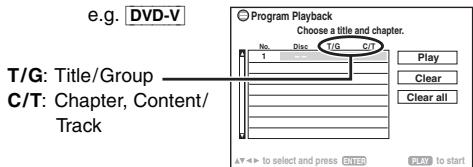
Pour sélectionner un nombre à deux chiffres
Ex. pour sélectionner 12 : [≥10] → [1] → [2]
WMA, MP3, JPEG : [1] → [2] → [ENTER]
② Appuyez sur les touches numérotées pour sélectionner un chapitre ou une piste.
(WMA, MP3, JPEG : appuyez sur [ENTER] pour valider la sélection.)
- Répétez les étapes ① et ② pour programmer d'autres éléments.
③ Appuyez sur [▶ LECTURE].
Lorsque le mode CD est activé (→ page 16)
VCD, CD, WMA, MP3
Vous pouvez programmer tous les éléments de tous les disques.
① Appuyez sur les touches numérotées ([1] - [5]) pour sélectionner un disque. ② WMA MP3 Appuyez sur les touches numérotées pour sélectionner un groupe. (Appuyez sur [ENTER] pour valider la sélection.)
Pour sélectionner un nombre à 2 chiffres
Ex. pour sélectionner 12 : [1] → [2] → [ENTER]
③ Appuyez sur les touches numérotées pour sélectionner une plage.
(WMA MP3 Appuyez sur [ENTER] pour valider la sélection.)
Pour sélectionner un nombre à 2 chiffres
Ex. pour sélectionner 12 : [≥10] → [1] → [2]
WMA MP3 [1] → [2] → [ENTER]
- Répétez les étapes ① à ③ pour programmer d'autres éléments.
④ Appuyez sur [▶ LECTURE].
Pour sélectionner un élément à l'aide des touches de curseur
Appuyez sur [ENTER] et [△, ▽] pour sélectionner un élément, puis appuyez à nouveau sur [ENTER] pour valider.
Pour modifier le programme sélectionné
1 Appuyez sur [△, ▽] pour sélectionner le numéro de programme. 2 Appuyez sur les touches numérotées pour modifier chaque élément. (WMA MP3 Appuyez sur [ENTER] pour valider la sélection.)
Pour effacer le programme sélectionné
1 Appuyez sur [Δ,] pour sélectionner le numéro du programme. 2 Appuyez sur [ANNULATION] (ou appuyez sur [▲,▼,▲], [ENTRÉE]).
Pour effacer tout le programme
Sélectionnez « Tout effacer » avec [, , ,] et appuyez sur [ENTRÉE].
Le programme entier est également effacé lorsque le disque est retiré de la position de lecture, que l'appareil est éteint ou qu'une autre source est sélectionnée.
Lecture aléatoire
Lorsque le mode CD est désactivé
VCD CD
Vous pouvez lire tous les éléments d'un disque en position de lecture dans un ordre aléatoire.
DVD-A DVD-V WMA MP3 JPEG
Vous pouvez lire les éléments sélectionnés d'un disque en position de lecture dans un ordre aléatoire.
① DVD-A DVD-V WMA MP3 JPEG
Appuyez sur les touches numérotées pour sélectionner un groupe ou un titre.
(WMA MP3 JPEG Appuyez sur [ENTRÉE] pour enregistrer la sélection.)
par exemple DVD-V
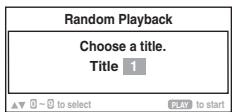
DVD-A
- Pour entrer tous les groupes, sélectionnez "Tous" avec [<,▶] et appuyez sur [ENTER].
- Pour désélectionner un groupe, appuyez sur les touches numérotées correspondant au groupe à effacer.
② Appuyez sur [▶ LECTURE].
Lorsque le mode CD est activé (→ page 16)
VCD CD WMA MP3
Vous pouvez sélectionner "ALÉATOIRE 1" ou "ALÉATOIRE 2".
ALÉATOIRE 1
Vous pouvez lire tous les éléments de tous les disques dans un ordre aléatoire.
ALÉATOIRE 2
Vous pouvez lire tous les disques dans l'ordre, mais tous les éléments de chaque disque sont lus dans un ordre aléatoire.
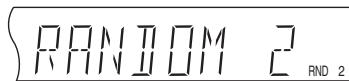
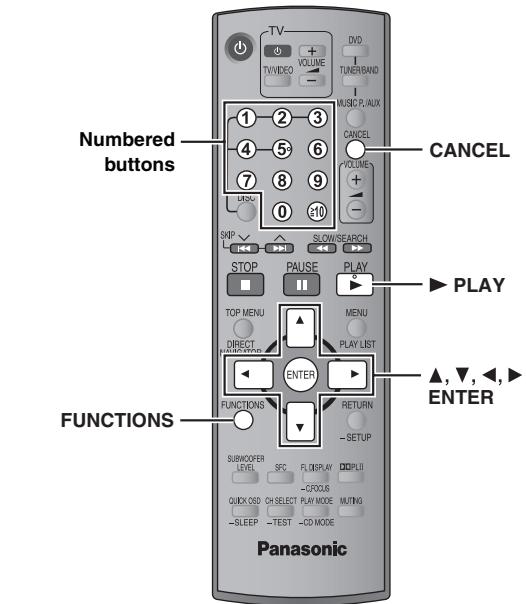
Appuyez sur [LECTURE].
ex. CD
Lecture aléatoire
Appuyez sur LECTURE pour démarrer
Lecture de disques de données
WMA MP3 JPEG

Sélectionner « Lire comme disque de données » dans le menu Autre (→ page 22) sera efficace si les fonctions suivantes ne sont pas disponibles pour lire les fichiers WMA, MP3 ou JPEG.
- Lecture de disques HighMAT™ (→ page 19)
Lecture des éléments dans l'ordre (menu Lecture)
(Sauf fichiers JPEG sur DVD-RAM)
1 Appuyez sur [TOP MENU].
- Pour quitter l'écran, appuyez sur [TOP MENU].
![PANASONIC SCHT441W - Appuyez sur [TOP MENU]. - 1](/content/2019/08/105234/images/3eb73c46a316d64d90b3705a4bb4fb4a717b97cd7b18d6fd52dc9323c1528c99.jpg)
2 Appuyez sur [Δ, ] pour sélectionner « Tous », « Audio » ou « Image », puis appuyez sur [ENTER].
Lecture à partir de l'élément sélectionné (menu Navigation)
1 Appuyez sur [MENU].
- Pour quitter l'écran, appuyez sur [MENU].
![PANASONIC SCHT441W - Appuyez sur [MENU]. - 1](/content/2019/08/105234/images/72e4cc90c32d805184ecabef8550ba0af56e9ea4160664b733c6e1842e22d3da.jpg)
2 Appuyez sur [, , , ] pour sélectionner le groupe, puis appuyez sur [ENTER].
3 Pour lire le contenu du groupe dans l'ordre, appuyez sur [ENTER].
Pour démarrer la lecture à partir du contenu sélectionné
Appuyez sur [Δ, ] pour sélectionner, puis sur [ENTER].
Pour écouter des contenus WMA/MP3 tout en affichant une image JPEG à l'écran, sélectionnez d'abord un fichier JPEG, puis sélectionnez le contenu audio.
(L'ordre inverse n'est pas efficace.)
Utilisation du sous-menu
① Pendant que le menu de navigation est affiché, appuyez sur [FONCTIONS]. ② Appuyez sur [▲,▼] pour sélectionner un élément et appuyez sur [ENTRÉE]. Les éléments affichés varient selon le type de disque.
| √Multi | Groups and contents are displayed. |
| List | Contents only |
| Tree | Groups only |
| Thymbnail | Thumbnail images JPEG |
| Next group | To go to next group WMA MP3 |
| Previous group | To go to previous group WMA MP3 |
| All | WMA/MP3 and JPEG |
| Audio | WMA/MP3 only |
| Picture | JPEG only |
| Help display | To switch between guide messages and the elapsed play time indicator |
| Find | To search by content or group title (→ below) |
Recherche par titre de contenu ou de groupe
Mettez en surbrillance un titre de groupe pour rechercher le groupe, ou un titre de contenu pour rechercher son contenu.
① Pendant que le sous-menu est affiché (→ ci-dessus)
Appuyez sur [▲,▼] pour sélectionner "Rechercher" et appuyez sur [ENTRÉE].

② Appuyez sur [▲,▼] pour sélectionner un caractère et appuyez sur [ENTRÉE].
- Répétez pour saisir un autre caractère.
- Les caractères minuscules sont également recherchés. Appuyez sur [RECHERCHE LENTE/RAPIDE] pour passer entre A, E, I, O et U.
- Appuyez sur [▲] pour effacer un caractère.
- Laissez l'astérisque (*) lorsque vous recherchez des titres contenant le caractère saisi.
- Effacez l'astérisque (*) pour rechercher les titres commençant par le caractère saisi. Pour ajouter à nouveau l'astérisque (*), affichez à nouveau le sous-menu et sélectionnez "Rechercher".
③ Appuyez sur [▶] pour sélectionner "Rechercher" et appuyez sur [ENTRÉE].
L'écran des résultats de recherche s'affiche.
4 Appuyez sur [▲,▼] pour sélectionner le contenu ou le groupe, puis appuyez sur [ENTER].
Sélection d'une plage à l'aide du texte CD
CD
TOP MENU / MENU

Les titres apparaissent lors de la lecture d'un disque avec texte CD.
1 Appuyez sur [TOP MENU] ou [MENU].
- Pour quitter l'écran, appuyez sur [TOP MENU] ou [MENU].
Ex. : texte CD
![PANASONIC SCHT441W - Appuyez sur [TOP MENU] ou [MENU]. - 1](/content/2019/08/105234/images/37cdb6f301c407c7a4015c0da089de303f1ca7c0e5903ecf7a62ce7e878f9079.jpg)
2 Appuyez sur [▲,▼] pour sélectionner la plage, puis appuyez sur [ENTER].
- Appuyez sur [FUNCTIONS] pour afficher les conditions de lecture et la position actuelle.
Lecture de disques HighMAT™
WMA MP3 JPEG

1 Appuyez sur [TOP MENU].
- Pour quitter l'écran, appuyez sur [■ STOP].
- Pour changer le fond d'écran du menu pour celui enregistré sur le disque, appuyez sur [FONCTIONS].
2 Appuyez sur [▲, ▼, ◀, ▶] pour sélectionner l'élément, puis appuyez sur [ENTRÉE].
- Répétez cette étape si nécessaire.
par exemple.
![PANASONIC SCHT441W - Appuyez sur [▲, ▼, ◀, ▶] pour sélectionner l'élément, puis appuyez sur [ENTRÉE]. - 1](/content/2019/08/105234/images/9e2ede2e7c17ca62189a647fc2a38e5c11c9f6c5ed58d29e7a760b0adae5e110.jpg)
Sélection dans la liste
1 Pendant la lecture
Appuyez sur [MENU].
- Pour quitter l'écran, appuyez sur [MENU].
par exemple.
![PANASONIC SCHT441W - Appuyez sur [MENU]. - 1](/content/2019/08/105234/images/48f368ace9f1f04b6550c725be2584063c3b2dffd9f8c0f2e4b7a8fabbbdfa4d.jpg)
2 Appuyez sur [4] puis sur [▲, ▼] pour basculer entre les listes "Liste de lecture", "Groupe" et "Contenu".
3 Appuyez sur [▶] puis sur [▲, ▼] pour sélectionner un élément et appuyez sur [ENTRÉE].
Lecture de disques RAM
DVD-VR

- Les titres n'apparaissent que s'ils sont enregistrés sur le disque.
- Vous ne pouvez pas modifier les programmes, les listes de lecture et les titres de disque.
Lecture des programmes
1 Appuyez sur [DIRECT NAVIGATOR].
- Pour quitter l'écran, appuyez sur [DIRECT NAVIGATOR].
Ex. :
![PANASONIC SCHT441W - Appuyez sur [DIRECT NAVIGATOR]. - 1](/content/2019/08/105234/images/7b44574f3fb713d6110ceb3bfb63cf752f2737756469d21fefe103b8d0ddccc2.jpg)
2 Appuyez sur [▲, ▼] ou sur les touches numérotées pour sélectionner le programme.
- Pour sélectionner un nombre à 2 chiffres, par exemple 12 : [≥10] → [1] → [2]
- Appuyez sur [▶] pour afficher le contenu du programme et du disque.
3 Appuyez sur [ENTER].
Lecture d'une liste de lecture
Cette fonction ne fonctionne que si le disque contient une liste de lecture.
1 Appuyez sur [PLAY LIST].
- Pour quitter l'écran, appuyez sur [PLAY LIST].
Ex. :
![PANASONIC SCHT441W - Appuyez sur [PLAY LIST]. - 1](/content/2019/08/105234/images/d8217da62af8064d034673e64f8cc194e92f0997704c8a30ce5bdc071241db7c.jpg)
2 Appuyez sur [▲, ▼] ou sur les touches numérotées pour sélectionner la liste de lecture.
- Pour sélectionner un nombre à 2 chiffres
ex. : 12 : [≥10] → [1] → [2]
3 Appuyez sur [ENTER].
Conseils pour créer des disques de données
- Lorsqu'il y a plus de 8 groupes, le huitième groupe et les suivants s'affichent sur une seule ligne verticale à l'écran du menu.
- L'ordre d'affichage peut différer entre l'écran du menu et l'écran de l'ordinateur.
- Cet appareil ne peut pas lire les fichiers enregistrés à l'aide de l'écriture par paquets.
DVD-RAM
- Les disques doivent être conformes à la norme UDF 2.0.
CD-R/RW
- Les disques doivent être conformes à la norme ISO9660 niveau 1 ou 2 (à l'exception des formats étendus).
- Cet appareil prend en charge la multisession, mais si le nombre de sessions est élevé, le démarrage de la lecture prend plus de temps. Pour éviter cela, réduisez au minimum le nombre de sessions.
Nommer les dossiers et les fichiers
(Sur cet appareil, les fichiers sont traités comme des contenus et les dossiers comme des groupes.)
Lors de l'enregistrement, préfixez les noms de dossiers et de fichiers avec des nombres ayant le même nombre de chiffres, et ce, dans l'ordre de lecture souhaité (cela peut parfois ne pas fonctionner).
Les fichiers doivent avoir l'extension (voir ci-dessous).
WMA (Extension : « .WMA » ou « .wma »)
- Vous ne pouvez pas lire les fichiers WMA protégés contre la copie.
- Cet appareil ne prend pas en charge le débit multiple (MBR).
MP3 (Extension : « .MP3 » ou « .mp3 ») - Cet appareil ne prend pas en charge les balises ID3. - Fréquences d'échantillonnage compatibles : 8, 11,02, 12, 16, 22,05, 24, 32, 44,1 et 48 kHz.
JPEG (Extension : « .JPG », « .jpg », « .JPEG » ou « .jpeg ») - Pour afficher des fichiers JPEG sur cet appareil :
- Prenez-les avec un appareil photo numérique conforme à la norme DCF (Design rule for Camera File system) version 1.0. Certains appareils photo numériques ont des fonctions non prises en charge par la norme DCF version 1.0, comme la rotation automatique des images, qui peut rendre une image illisible.
- Ne modifiez pas les fichiers de quelque manière que ce soit et ne les enregistrez pas sous un nom différent.
- Cet appareil ne peut pas afficher les images animées, le MOTION JPEG et autres formats de ce type, ni les images fixes autres que JPEG (par exemple TIFF), ni lire les images avec audio associé.
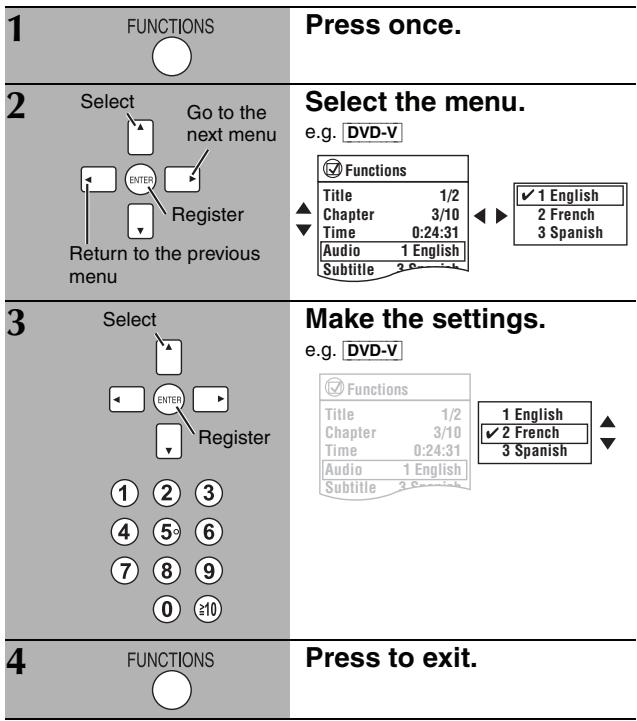
Menu principal
Les éléments affichés diffèrent selon le type de disque.
| Program Group Title Chapter Track Playlist Content | To start from a specific item e.g. DVD-VR To select Program 12 Press the numbered buttons: [1] → [2] → [ENTER] Functions Program 2/16 Time 0:34:15 Audio | Program Search ← 12 |
| Time | (Time Slip and Time Search do not work with +R/+RW discs.) To skip incrementally or decrementally (Time Slip for play only) 1 Press [ENTER] twice to show the Time Slip indicator. 2 Press [▲,▼] to select the time and press [ENTER]. •To change the steps more quickly, press and hold [▲,▼]. To start from a specific time (Time Search) To change remaining/elapsed time display | |
| Audio | DVD-A DVD-V (with multiple soundtracks) To select audio soundtrack DVD-VR VCD To select “L”, “R” or “LR” DVD-V (Karaoke disc) To select “On” or “Off” for vocals •Read the disc's instructions for details. Signal type/data LPCM/PPCM/Digital/DTS/MPEG: Signal type kHz (Sampling frequency)/bit/ch (Number of channels) e.g. 3/2 .1ch .1: Low frequency effect (not displayed if there is no signal) 0: No surround 1: Mono surround 2: Stereo surround (left/right) 1: Center 2: Front left+Front right 3: Front left+Front right+Center | |
| WMA MP3 To display the current bitrate or sampling frequency | ||
| Still Picture | To switch still pictures |
| Thumbsail | To show thumbnail images |
| Subtitle | DVD-V (with multiple subtitles) VCD (SVCD only) To select subtitle language • On +R/+RW, a subtitle number may be shown for subtitles that are not displayed. • DVD-VR “On” or “Off” appears only with discs that contain subtitle on/off information (Subtitle on/off information cannot be recorded using Panasonic DVD Recorders). |
| Marker (VR) | DVD-VR To recall a marker recorded on DVD-Video recorders Press [▲,▼] → Press [ENTER]. |
| Angle | (with multiple angles) To select a video angle |
| Rotate Picture | To rotate a picture |
| Slideshow | To turn on/off slideshow On ←→ Off To change the slideshow timing 0 - 30 sec |
| Other Settings | (→ page 21) |
| Play Speed | DVD-A (Motion picture part) DVD-VR DVD-V To change play speed - from “×0.6” to “×1.4” • Press [▶ PLAY] to return to normal play. • After you change the speed - Dolby Pro Logic II and Sound Enhancement have no effect. - Audio output switches to 2-channel stereo (except when Surround Music is on). - Sampling frequency of 96 kHz is converted to 48 kHz. • This function may not work depending on the disc's recording. |
Menu de lecture
Cette fonction ne fonctionne que lorsque le temps de lecture écoulé peut être affiché. Elle fonctionne également avec tout contenu JPEG.
| Repeat | DVD-VR: Program→Disc→Off • During play list play: Scene→Playlist→Off DVD-A: Track→Group*→Off DVD-V: Chapter→Title*→Off VCD CD: Track→Disc*→Off • When CD Mode is on: Track→Disc→All CD's→Off • When CD Mode is on during program or random play: Track→All CD's→Off WMA MP3: Content→Group*→Off • When CD Mode is on: Content→Group→All CD's→Off • When CD Mode is on during program or random play: Content→All CD's→Off JPEG: Group*→Off *“All” is displayed during program and random play. |
| A-B Repeat | Except JPEG DVD-VR (Still picture part) To repeat a specified section Press [ENTER] at the starting and ending points. Press [ENTER] again to cancel. |
| Marker | Except DVD-VR To mark up to 5 positions to play again Press [ENTER] (The unit is now ready to accept markers.) To mark a position: Press [ENTER] (at the desired point). To mark another position: Press [▲, ▲] to select “*” → Press [ENTER]. To recall a marker: Press [▲, ▲] → Press [ENTER]. To erase a marker: Press [▲, ▲] → Press [CANCEL]. • This feature does not work during program and random play. • Markers you add are cleared when you change the disc in the play position or switch the unit to standby. |
| Advanced Disc Review | DVD-VR (Except still picture part) DVD-V (Except +R/+RW) Allows you to browse the disc contents and start playing from the selected position. You can select either “Intro Mode” or “Interval Mode” in “Advanced Disc Review” in the “Disc” tab (→ page 23). When you find a title/program to play Press [▲ PLAY]. • This may not work depending on the disc and the play position. • DVD-VR This does not work when playing a playlist (→ page 19). |
Menu d'images
| Picture Mode | Normal Cinema1: Mellows images and enhances detail in dark scenes. Cinema2: Sharpens images and enhances detail in dark scenes. Animation: Suitable for animation. Dynamic: Enhances the contrast for powerful images. User: Press [ENTER] to select “Picture Adjustment” (→ below). |
| Picture Adjustment Contrast: Increases the contrast between light and dark parts of the picture. Brightness: Brightens the picture. Sharpness: Adjusts the sharpness of the edges of horizontal lines. Color: Adjusts the shade of the picture's color. Gamma: Adjusts the brightness of dark parts. Depth Enhancer: Reduces the rough noise in the background to give a greater feeling of depth. | |
| Video Output Mode | To select suitable picture quality with your television 480i (interlaced) ←→ 480p (progressive) When you select “480p”, a confirmation screen appears. Select “Yes” only if connecting to a progressive output compatible television. |
| Transfer Mode | If you have chosen “480p” (→ above), select the method of conversion for progressive output to suit the type of material. Auto1 (normal): Detects 24 frame-per-second film content and appropriately converts it. Auto2: Compatible with 30 frame-per-second film content in addition to 24 frame-per-second film content. Video: Select when using Auto1 or Auto2, and the video content is distorted. |
Autres réglages
Les éléments affichés diffèrent selon le type de disque.
Menu audio
| Dolby Pro Logic II | (→ page 30, Enhancing the stereo sound: Dolby Pro Logic II) |
| Dialogue Enhancer | To make the dialogue in movies easier to hear DVD-V (Dolby Digital, DTS, 3-channel or higher, with the dialogue recorded in the center channel) On ←→ Off |
| Sound Enhancement | Enhances audio output to reduce noise and improve clarity. On ←→ Off |
Menu affichage
| Information | JPEG Off, Date, Details |
| Subtitle Position | 0 to -60 (in 2 unit steps) |
| Subtitle Brightness | Auto, 0 to -7 |
| 4:3 Aspect | To select how to show images made for 4:3 aspect screens on a 16:9 aspect television Normal: Laterally stretches images. Auto: Expands 4:3 letterbox images to fill more of the screen. Other images appear in full in the center of the screen. Shrink: Images appear in the center of the screen. Zoom: Expands all images to fill the screen. If your television has a similar feature, use it instead for a better effect. |
| Just Fit Zoom | To select the appropriate screen size to fit your television screen DVD-A (Motion picture part) DVD-VR DVD-V VCD Auto, 4:3 Standard, European Vista, 16:9 Standard, American Vista, Cinemascope1, Cinemascope2 e.g. ←4:3 Standard (4:3)→ ←European Vista (1.66:1)→ ←16:9 Standard (16:9)→ ←American Vista (1.85:1)→ ←Cinemascope1 (2.35:1)→ ←Cinemascope2 (2.55:1)→ |
| Manual Zoom | To zoom in and out manually - in 0.01-unit steps from “×1.00” to “×1.60” - in 0.02-unit steps from “×1.60” to “×2.00” • To change the steps more quickly, press and hold [▲,▼]. |
| Bit Rate Display | DVD-A (Motion picture part) DVD-VR DVD-V VCD On ←→ Off |
| GUI See-through | To make the on-screen menu transparent Off, On, Auto |
| GUI Brightness | To adjust the on-screen menu brightness -3 to +3 |
Autre menu
| Setup | (→ page 23) |
| Play as DVD-Video or Play as DVD-Audio | To play DVD-Video contents of DVD-Audio Select “Play as DVD-Video”. |
| Play as DVD-VR, Play as HighMAT or Play as Data Disc | To use functions for data discs (→ page 18) Select “Play as Data Disc”. |
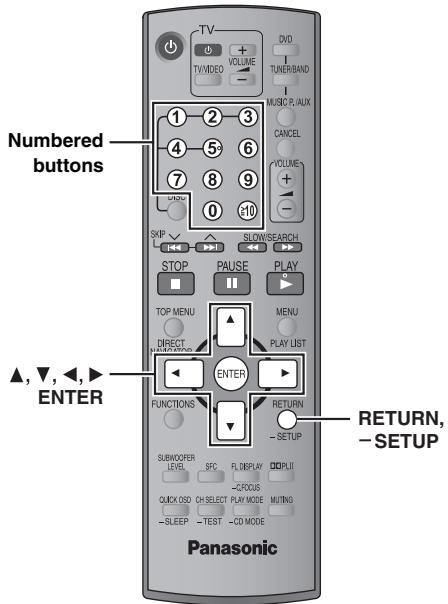
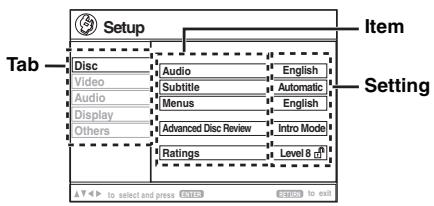
- Les réglages restent intacts même si vous mettez l'appareil en veille.
- Les éléments soulignés sont les réglages d'usine dans le tableau suivant.
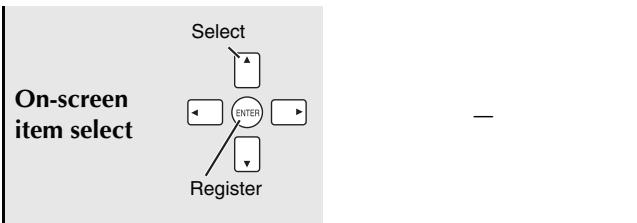
| 1 | -SETUP | Press and hold to show the Setup menu. If you have not performed QUICK SETUP (→ page 10), the QUICK SETUP screen appears. | |
| 2 | Select | Select the tab. | |
| Enter | Go right | ||
| 3 | Select | Select the item. | |
| Enter | Register | ||
| 4 | Select | Make the settings. | |
| Enter | Register | ||
| 1 | 2 | 3 | |
| 4 | 5 | 6 | |
| 7 | 8 | 9 | |
| 0 | ≥10 | ||
| 5 | RETURN | Press repeatedly to exit. |
La configuration rapide permet de régler successivement les éléments de la zone ombrée.
Onglet « Disque »
| Audio Choose the audio language. | • English | • French | • Spanish | • Original*1 | • Other*********2 |
| Subtitle Choose the subtitle language. | • Automatic*3 | • English | • French | • Spanish | • Other*********2 |
| Menu Choose the language for disc menus. Changing the menu language in QUICK SETUP also changes this setting. | • English | • French | • Spanish | • Other*********2 | |
| Advanced Disc Review (→ page 21) | • Intro Mode: Reviews each title/program. • Interval Mode: Reviews not only each title/program but also each 10-minute interval within a title/program. | ||||
| Ratings Set a rating level to limit DVD-Video play. | Setting ratings (When level 8 is selected) • 8 No Limit | • 1 to 7 | • 0 Lock All: To prevent play of discs without rating levels. | ||
| When you select your ratings level, a password screen is shown. Follow the on-screen instructions. Do not forget your password. A message screen will be shown if a DVD-Video disc exceeding the rating level is inserted in the unit. Enter your password and then follow the on-screen instructions. | |||||
1 La langue d'origine désignée sur le disque est sélectionnée. 2 Saisissez le code approprié à partir de la liste des codes de langue (→ page 25). *3 Si la langue sélectionnée pour « Audio » n'est pas disponible, les sous-titres apparaissent dans cette langue (si elle est disponible sur le disque).
La configuration rapide permet de régler successivement les éléments de la zone ombrée.
Onglet « Vidéo »
| TV Aspect Choose the setting to suit your television and preference. | ●4:3 Pan&Scan: Regular aspect television (4:3) The sides of the widescreen picture are cut off so it fills the screen (unless prohibited by the disc). |
| ●4:3 Letterbox: Regular aspect television (4:3) Widescreen picture is shown in the letterbox style. | |
| ●16:9: Widescreen television (16:9) | |
| TV Type Select to suit the type of television. | ●Standard (Direct View TV) ●Projection TV ●CRT Projector ●LCD TV/Projection |
| Time Delay When connected with a Plasma display, adjust if you notice the audio is out of sync with the video. | ●0ms ●20ms ●40ms ●60ms ●80ms ●100ms |
| Still Mode Specify the type of picture shown when paused. | ●Automatic ●Field*: The picture is not blurred, but picture quality is lower. ●Frame*: Overall quality is high, but the picture may appear blurred. |
| Black Level Control Change the black level of the picture if you connected a television through the COMPONENT VIDEO OUT terminals. | ●Lighter: When connected through VIDEO OUT or S-VIDEO OUT. ●Darker: When connected through COMPONENT VIDEO OUT (Y/Pb/PR). |
- Reportez-vous à « Image fixe et image fixe par champ » (→ page 13, Glossaire).
Onglet « Audio »
| Dynamic Range Compression | • Off • On: Adjusts for clarity even when the volume is low by compressing the range of the lowest sound level and the highest sound level. Convenient for late night viewing. (Only works with Dolby Digital) |
| Speaker Settings (→ page 25) Set the delay time for your center and surround speakers. | • Center: 0.0/1.0/2.0/3.0/4.0/5.0 ms • Surround (L/R): 0.0/5.0/10.0/15.0 ms |
Onglet « Affichage »
| Menu Language | • English | • Français | • Espanol |
| On-Screen Messages | • On | • Off |
Onglet « Autres »
| FL Dimmer Change the brightness of the unit's display. | • Bright • Dim • Auto: The display is dimmed, but brightens when you perform some operations. |
| QUICK SETUP | • Yes • No |
| Re-initialize Setting Return all values in the Setup menus to the default settings. | • Yes: The password screen is shown if “Ratings” (→ page 23) is set. Please enter the same password. After “INIT” on the display disappears, turn the unit off and on again. • No |
Modification du délai de temporisation des enceintes
(Effectif lors de la lecture audio multicanal)
(Enceintes centrale et surround uniquement)
Pour une écoute optimale avec un son 5.1 canaux, toutes les enceintes, à l'exception du caisson de basses, doivent être à la même distance de la position d'écoute. Si vous devez placer les enceintes centrale ou surround plus près de la position d'écoute, ajustez le temps de retard pour compenser la différence.
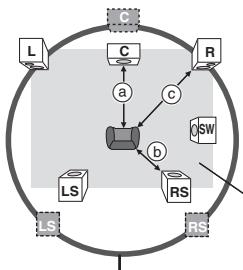

Position réelle des enceintes

: Position idéale des enceintes

b : Distance d'écoute principale
Dimensions approximatives de la pièce
Cercle de distance d'écoute principale constante
Si la distance a ou b est inférieure à c, trouvez la différence dans le tableau et passez au réglage recommandé.
| a) Center speaker | b) Surround speaker | ||
| Difference (Approx.) | Setting | Difference (Approx.) | Setting |
| 30 cm (1 foot) | 1.0 ms | 150 cm (5 feet) | 5.0 ms |
| 60 cm (2 feet) | 2.0 ms | 300 cm (10 feet) | 10.0 ms |
| 90 cm (3 feet) | 3.0 ms | 450 cm (15 feet) | 15.0 ms |
| 120 cm (4 feet) | 4.0 ms | ||
| 150 cm (5 feet) | 5.0 ms | ||
1 Appuyez sur [, ] pour sélectionner la case du temps de retard et appuyez sur [ENTER]. 2 Appuyez sur [Δ, ] pour ajuster le temps de retard et appuyez sur [ENTER].
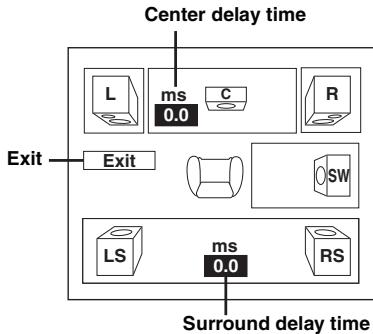
Pour terminer le réglage des enceintes
Appuyez sur [ ] pour sélectionner "Exit" et appuyez sur [ENTER].
Lorsque vous modifiez le réglage des enceintes surround pour Dolby Digital, le réglage change également pour Dolby Pro Logic II. Par exemple, les réglages pour Music sont les mêmes que ceux pour Dolby Digital.
| Dolby Digital | Dolby Pro Logic II | |
| Music | Movie | |
| 0 ms | 0 ms | 10 ms |
| 5 ms | 5 ms | 15 ms |
| 10 ms | 10 ms | 20 ms |
| 15 ms | 15 ms | 25 ms |
Liste des codes de langue
| Abkhazian: | 6566 | Danish: | 6865 | Italian: | 7384 | Norwegian: | 7879 | Swedish: | 8386 |
| Afar: | 6565 | Dutch: | 7876 | Japanese: | 7465 | Oriya: | 7982 | Tagalog: | 8476 |
| Afrikaans: | 6570 | English: | 6978 | Javanese: | 7487 | Pashto, Pushto: | 8083 | Tajik: | 8471 |
| Albanian: | 8381 | Esperanto: | 6979 | Kannada: | 7578 | Persian: | 7065 | Tamil: | 8465 |
| Ameharic: | 6577 | Estonian: | 6984 | Kashmiri: | 7583 | Polish: | 8076 | Tatar: | 8484 |
| Arabic: | 6582 | Faroese: | 7079 | Kazakh: | 7575 | Portuguese: | 8084 | Telugu: | 8469 |
| Armenian: | 7289 | Fiji: | 7074 | Kirghiz: | 7589 | Punjabi: | 8065 | Thai: | 8472 |
| Assamese: | 6583 | Finnish: | 7073 | Korean: | 7579 | Quechua: | 8185 | Tibetan: | 6679 |
| Aymara: | 6589 | French: | 7082 | Kurdish: | 7585 | Rhaeto-Romance: | 8277 | Tigrinya: | 8473 |
| Azerbaijani: | 6590 | Frisian: | 7089 | Laotian: | 7679 | Romanian: | 8279 | Tonga: | 8479 |
| Bashkir: | 6665 | Galician: | 7176 | Latin: | 7665 | Russian: | 8285 | Turkish: | 8482 |
| Basque: | 6985 | Georgian: | 7565 | Latvian, Lettish: | 7686 | Samoan: | 8377 | Turkmen: | 8475 |
| Bengali, Bangla: | 6678 | German: | 6869 | Lingala: | 7678 | Sanskrit: | 8365 | Twi: | 8487 |
| Bhutani: | 6890 | Greek: | 6976 | Lithuanian: | 7684 | Scots Gaelic: | 7168 | Ukrainian: | 8575 |
| Bihari: | 6672 | Greenlandic: | 7576 | Macedonian: | 7775 | Serbian: | 8382 | Urdu: | 8582 |
| Breton: | 6682 | Guarani: | 7178 | Malagasy: | 7771 | Serbo-Croatian: | 8372 | Uzbek: | 8590 |
| Bulgarian: | 6671 | Gujarati: | 7185 | Malay: | 7783 | Shona: | 8378 | Vietnamese: | 8673 |
| Burmese: | 7789 | Hausa: | 7265 | Malayalam: | 7776 | Sindhi: | 8368 | Volapuk: | 8679 |
| Byelorussian: | 6669 | Hebrew: | 7387 | Maltese: | 7784 | Singhalese: | 8373 | Welsh: | 6789 |
| Cambodian: | 7577 | Hindi: | 7273 | Maori: | 7773 | Slovak: | 8375 | Wolof: | 8779 |
| Catalan: | 6765 | Hungarian: | 7285 | Marathi: | 7782 | Slovenian: | 8376 | Xhosa: | 8872 |
| Chinese: | 9072 | Icelandic: | 7383 | Moldavian: | 7779 | Somali: | 8379 | Yiddish: | 7473 |
| Corsican: | 6779 | Indonesian: | 7378 | Mongolian: | 7778 | Spanish: | 6983 | Yoruba: | 8979 |
| Croatian: | 7282 | Interlingua: | 7365 | Nauru: | 7865 | Sundanese: | 8385 | Zulu: | 9085 |
| Czech: | 6783 | Irish: | 7165 | Nepali: | 7869 | Swahili: | 8387 |
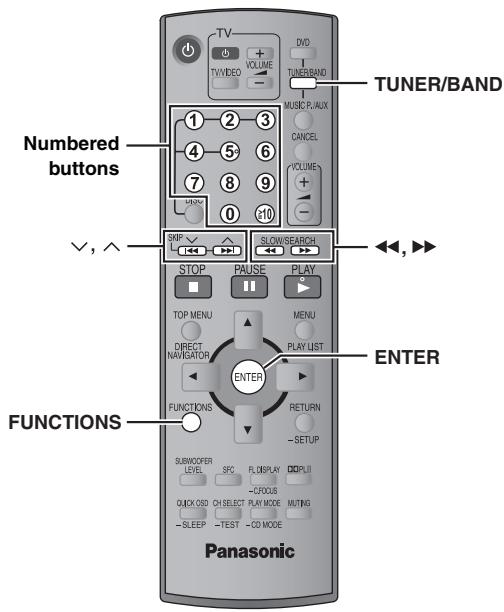
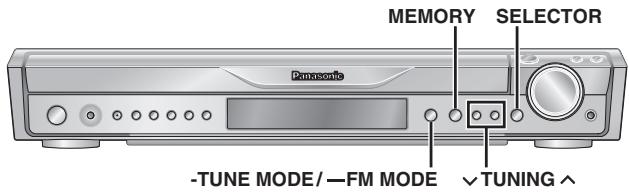
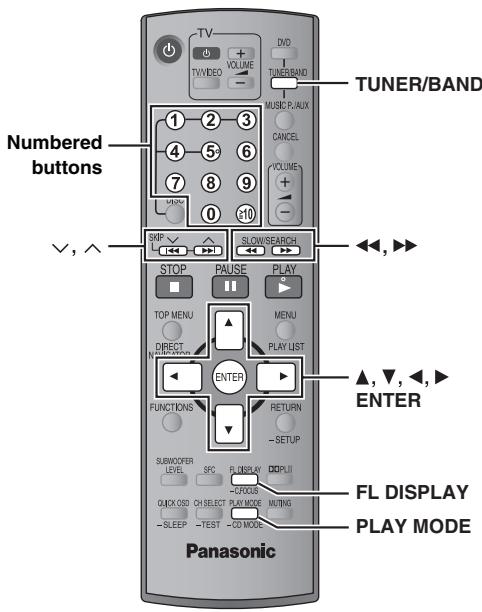
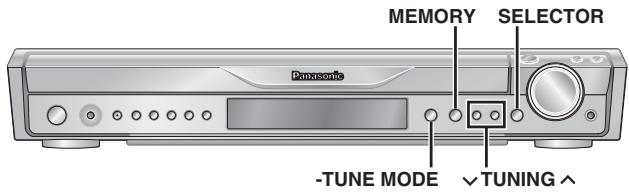
Les opérations radio sont décrites principalement avec la télécommande. Vous pouvez également utiliser les boutons correspondants sur l'unité principale. 1 [SELECTOR] 2 [TUNING ] *3 [MEMORY]
Préréglage automatique des stations
Jusqu'à 15 stations peuvent être mémorisées dans chaque bande, FM et AM.
1 Appuyez sur [TUNER/BAND]* pour sélectionner "FM" ou "AM".
2 Appuyez sur [, ]*2 pour syntoniser la fréquence la plus basse (FM : 87,9 ou 87,5, AM : 520).
- Pour effectuer cette étape sur l'unité principale, appuyez d'abord sur [-TUNE MODE] pour sélectionner "MANUAL", puis appuyez sur [√ TUNING ∧] pour syntoniser la fréquence la plus basse (FM : 87,9 ou 87,5, AM : 520).
3 Maintenez enfoncé [ENTER]*3.
Relâchez la touche lorsque "FM AUTO" ou "AM AUTO" s'affiche.
Le tuner prérègle toutes les stations qu'il peut recevoir sur les canaux dans l'ordre croissant.
- "SET OK" s'affiche lorsque les stations sont mémorisées, et la radio se règle sur la dernière station préréglée.
- "ERROR" s'affiche si le préréglage automatique échoue. Préréglez les canaux manuellement (→ à droite).
Sélection des canaux préréglés
1 Appuyez sur [TUNER/BAND]*1 pour sélectionner "FM" ou "AM". 2 Appuyez sur les touches numériques pour sélectionner le canal.
- Pour sélectionner un nombre à deux chiffres, par exemple "12", appuyez sur [≥ 10] → [1] → [2].

Vous pouvez également appuyer sur [ , ] pour sélectionner le canal.
- Pour effectuer cette étape sur l'unité principale, appuyez d'abord sur [-TUNE MODE] pour sélectionner "PRESET", puis appuyez sur [v TUNING ] pour sélectionner le canal.
Lors de la réception d'une émission FM stéréo, « ST » s'allume à l'écran.
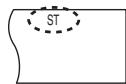
Si le bruit est excessif
Lorsque « FM » est sélectionné
Maintenez enfoncé [—FM MODE] sur l'unité principale pour afficher « MONO ».
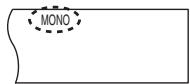
Maintenez à nouveau enfoncé [—FM MODE] pour annuler le mode. - Le mode est également annulé lorsque vous changez de fréquence.
Lorsque « AM » est sélectionné
Appuyez sur [FUNCTIONS] sur la télécommande.
Chaque pression sur le bouton : BP 2←→BP 1
Accord manuel
1 Appuyez sur [TUNER/BAND]*1 pour sélectionner « FM » ou « AM ». 2 Appuyez sur [, ]*2 pour sélectionner la fréquence.
- Lorsque vous effectuez cette étape sur l'unité principale, appuyez d'abord sur [-TUNE MODE] pour sélectionner « MANUAL », puis appuyez sur [√ TUNING ∧] pour sélectionner la fréquence.
- Pour démarrer l'accord automatique, maintenez enfoncé [, ]*2 jusqu'à ce que la fréquence commence à défiler. L'accord s'arrête lorsqu'une station est trouvée.
■ Préréglage des canaux
Jusqu'à 15 stations peuvent être mémorisées dans chaque bande, FM et AM.
① Pendant l'écoute de la radio, appuyez sur [ENTER] 3 fois. ② Pendant que la fréquence et « PGM » clignotent à l'écran, appuyez sur les touches numérotées pour sélectionner un canal.
- Pour sélectionner un nombre à deux chiffres, par exemple pour sélectionner "12", appuyez sur [≥ 10] → [1] → [2].
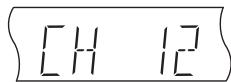
Vous pouvez également appuyer sur [ , ], puis sur [ENTER] 3.
La station occupant un canal est effacée si une autre station est préréglée sur ce canal.
Pas de fréquence FM
Unité principale uniquement
Le pas est réglé en usine sur 0,2 MHz, mais vous pouvez le modifier pour recevoir des émissions allouées par pas de 0,1 MHz.
① Appuyez sur [SELECTOR] pour sélectionner "FM". ② Appuyez sur [SELECTOR] et maintenez-le enfoncé.
Après quelques secondes, l'affichage change pour montrer la fréquence minimale actuelle. Continuez à maintenir le bouton enfoncé. La fréquence minimale change et le pas est modifié.
Pour revenir au pas d'origine, répétez les étapes 1 et 2.
Remarque
Après avoir modifié le réglage, les fréquences préréglées précédemment seront effacées. Préréglez-les à nouveau.
Utilisation d'une antenne extérieure (en option)
Utilisez des antennes extérieures si la réception radio est mauvaise.
- Débranchez l'antenne lorsque l'appareil n'est pas utilisé.
- N'utilisez pas l'antenne extérieure pendant un orage électrique.
Antenne FM extérieure
[Utilisation d'une antenne de télévision (non fournie)]
- Déconnectez l'antenne FM intérieure.
- L'antenne doit être installée par un technicien compétent.
Adaptez le câble coaxial de 75 Ω de votre antenne extérieure comme suit.
![PANASONIC SCHT441W - [Utilisation d'une antenne de télévision (non fournie)] - 1](/content/2019/08/105234/images/bb5274a20ee66774753a8aaf4c034fa8ca0f698499d40d4c6173b693d94a87b2.jpg)
Laissez l'antenne cadre AM connectée.
Antenne AM extérieure
[Utilisation d'un fil en vinyle (non fourni)]
Faites passer un fil en vinyle horizontalement à travers une fenêtre ou à un autre endroit pratique.
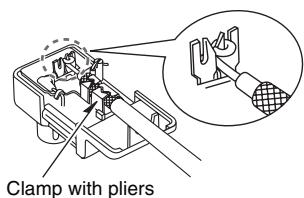
③ Installez le câble coaxial.
Fixez le conducteur du câble et enroulez-le de manière à ce qu'il ne touche rien d'autre.
④ Fixez le couvercle.
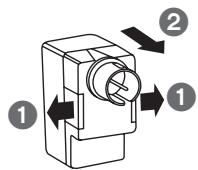
① Retirez un morceau de l'isolant extérieur en vinyle. ② Tirez délicatement sur les languettes pour retirer le couvercle.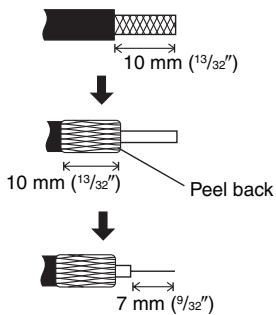
Les opérations radio sont décrites principalement avec la télécommande.
Vous pouvez également utiliser le bouton correspondant sur l'unité principale.
1 [SELECTOR] 2 [v TUNING ∧] 3 [MEMORY] 4 [-TUNE MODE]
Présentation de XM Satellite Radio
XM Satellite Radio est le fournisseur de radio satellite avec plus de 6 millions d'abonnés. XM propose plus de 170 chaînes de radio numérique avec musique, talk-shows, actualités, sports, comédie, trafic et météo.
Pour plus d'informations, visitez XM sur le Web à www.xmradio.com.
Comment s'abonner
L'abonnement mensuel XM est vendu séparément. Le système XM Connect & Play ou XMPassport est requis pour recevoir le service XM (vendu séparément). Des frais d'installation et d'autres frais et taxes, y compris des frais d'activation uniques, peuvent s'appliquer. Les frais d'abonnement sont uniquement pour le consommateur. Tous les frais et programmes sont sujets à modification. Les chaînes avec un langage fréquemment explicite sont indiquées par XL. Le blocage de chaînes est disponible pour les récepteurs XM en appelant le 1-800-XMRADIO (1-800-967-2346). Les abonnements sont soumis à l'accord client disponible sur xmradio.com. Le service XM est uniquement disponible dans les 48 États contigus des États-Unis. XM Ready est une marque de commerce de XM Satellite Radio Inc. © 2006 XM Satellite Radio Inc. Tous droits réservés.
- Pour vous abonner, visitez XM sur le Web à www.xmradio.com ou appelez le service client XM au 1-800-XMRADIO (1-800-967-2346). Vous devez avoir votre identifiant radio prêt ; l'identifiant radio peut être trouvé en sélectionnant la chaîne 0 sur la radio.
Exemples d'affichage XM
| 2 ⇒ 2 (two) | A | K ⇒ K |
| 5 ⇒ 5 (five) or S | B | M ⇒ M |
| 6 ⇒ 6 (six) | D | Q ⇒ Q |
| 8 ⇒ 8 (eight) | G | R ⇒ R |
| 0 ⇒ 0 (zero) or O | H | Z ⇒ Z |
Affichage de l'identifiant XM Satellite Radio
Vous pouvez confirmer votre identifiant XM Satellite Radio nécessaire pour activer XM Satellite Radio comme suit.
1 Connectez le système XM Connect & Play ou XMPassport (voir page 7). 2 Appuyez sur [TUNER/BAND]*t pour sélectionner "XM". 3 Appuyez sur [PLAY MODE]*4 pour sélectionner "MANUAL". Chaque fois que vous appuyez sur le bouton : MANUAL ↔ PRESET 4 Appuyez sur [0] pour sélectionner "XM 0" (canal XM 0). "RADIO ID" est affiché brièvement, suivi d'un identifiant alphanumérique à 8 chiffres.
Les indications sont affichées en alternance.
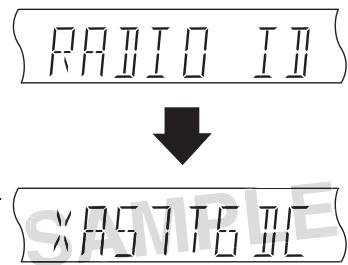
5 Notez votre identifiant XM Satellite Radio ici.
- Pour éviter toute ambiguïté, les lettres I, O, S et F ne sont pas utilisées dans l'identifiant.

- Pour quitter, appuyez sur [▲▼, ▲▶]*2 pour sélectionner un autre canal.
Positionnement du système XM Connect & Play ou XMPassport pour une réception optimale
L'unité principale dispose d'une fonction d'indicateur d'intensité du signal qui vous permet d'optimiser la réception du signal XM.
1 Appuyez sur [TUNER/BAND]* 1 pour sélectionner "XM".
- Assurez-vous que l'antenne est connectée (→ page 7).
2 Maintenez enfoncé [FL DISPLAY] jusqu'à ce que l'état du signal XM soit affiché.
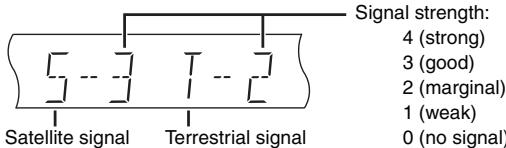
3 Positionnez l'antenne pour obtenir la meilleure réception possible du signal satellite.
Pendant que vous positionnez l'antenne, l'affichage change en fonction de l'intensité du signal.
- Si le signal satellite est faible ou indisponible, vous pouvez optimiser la réception du signal terrestre (là où il est disponible).
4 Appuyez sur [FL DISPLAY] pour revenir à l'affichage précédent.
Conseils pour optimiser la réception
- Pour éviter les interférences avec les équipements sans fil, placez l'antenne loin de cet appareil, du système audio sans fil Panasonic SH-FX80, du système sans fil Panasonic SH-FX50/SH-FX60 et d'autres équipements émettant des ondes radio (tels que les équipements radio et les fours à micro-ondes).
- Placez l'antenne près d'une fenêtre orientée au sud avec une vue dégagée sur le ciel pour une meilleure réception du signal satellite.
- Reportez-vous également au mode d'emploi de votre système XM Connect & Play ou XMPassport.
Sélection des chaînes XM par saisie directe
Les chaînes XM peuvent être sélectionnées manuellement en saisissant directement le numéro de chaîne XM.
1 Appuyez sur [TUNER/BAND] pour sélectionner "XM". 2 Appuyez sur [PLAY MODE] 4 fois pour sélectionner "MANUAL". Chaque pression sur le bouton alterne entre MANUAL et PRESET. 3 Appuyez sur les boutons numériques pour sélectionner le canal XM.
- Pour sélectionner un nombre à 2 ou 3 chiffres, appuyez d'abord sur [≥10] une ou deux fois respectivement, puis sur les boutons numériques. Par exemple, pour sélectionner "125", appuyez sur [≥10] → [≥10] → [1] → [2] → [5].
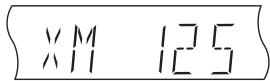
Vous pouvez également appuyer sur [◀, ▶] pour sélectionner le canal XM souhaité. - Maintenez enfoncé [◀, ▶] pour parcourir rapidement.
Sélection des canaux XM par catégorie
Les canaux XM sont organisés en catégories telles que Rock, Classique, Country et Dance pour faciliter la navigation et la sélection du contenu diffusé.
1 Appuyez sur [TUNER/BAND] pour sélectionner "XM". 2 Appuyez sur [▲, ▼, ◀, ▶] pour entrer en mode de recherche par catégorie. "CAT ON" (CATEGORY ON) s'affiche brièvement, puis la catégorie du canal XM actuel clignote à l'écran.
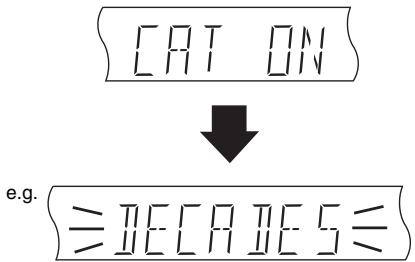
3 Pendant que la catégorie clignote à l'écran, appuyez sur [▲, ▼] pour sélectionner une catégorie.
- Maintenez enfoncé [▲, ▼] pour parcourir rapidement.
4 Pendant que la catégorie sélectionnée clignote à l'écran, appuyez sur [◀, ▶] pour sélectionner un canal dans la catégorie actuelle.
- Maintenez enfoncé [◀, ▶] pour parcourir rapidement. Le numéro et le nom du canal XM s'affichent brièvement, puis la catégorie actuelle clignote à l'écran.
5 Appuyez sur [ENTER] pour quitter le mode de recherche par catégorie.
Après l'affichage de "CAT OFF" (CATEGORY OFF), le numéro et le nom du canal XM s'affichent brièvement, suivis des informations sur le canal XM.
- Les informations sur le canal XM affichées dépendent du réglage du mode d'affichage (→ à droite).
Remarque
- Le mode de recherche par catégorie sera automatiquement annulé après environ 15 secondes si aucune action de l'utilisateur n'est effectuée.
- Le réglage du mode d'affichage (→ à droite) ne peut pas être modifié en mode syntonisation par catégorie.
- La fonction d'indicateur d'intensité du signal (→ page 28) ne peut pas être activée en mode syntonisation par catégorie.
- La sélection de canaux XM par catégorie vous permet de réduire vos choix aux canaux appartenant à une catégorie de diffusion de votre choix, puis de sélectionner un canal favori dans la catégorie choisie. Les catégories disponibles varient selon les heures de diffusion. L'appareil n'affiche pas les catégories sans canal XM en diffusion.
- Certains canaux XM appartiennent à deux catégories : une catégorie principale et une catégorie secondaire, chacune pouvant être utilisée pour la sélection de canaux XM. Bien que vous ayez pu sélectionner un canal XM à partir de sa catégorie secondaire (par exemple DANCE), après avoir quitté puis réintégré le mode syntonisation par catégorie, la catégorie principale du canal XM est affichée (par exemple DECADES).
Préréglage de vos canaux XM favoris
Les préréglages de canaux vous permettent de sélectionner rapidement et facilement vos canaux XM favoris. Jusqu'à 15 canaux XM peuvent être mémorisés comme préréglages de canaux.
1 Sélectionnez le canal XM souhaité. 2 Pendant l'écoute de la radio XM, appuyez sur [ENTER]*3. 3 Pendant que le canal XM et « PGM » clignotent à l'écran, appuyez sur les touches numérotées pour sélectionner un préréglage de canal.
- Lors de la sélection d'un nombre à deux chiffres, par exemple pour sélectionner « 12 », appuyez sur [≥10] → [1] → [2].
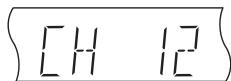
Vous pouvez également appuyer sur [∨, ∧] pour sélectionner le préréglage de canal, puis appuyer sur [ENTER]*3 pour confirmer.
- Un canal XM précédemment mémorisé dans un préréglage de canal est écrasé lorsqu'un autre canal XM est mémorisé dans le même préréglage.
- Le canal XM 0 (RADIO ID) ne peut pas être mémorisé comme préréglage de canal.
Sélection des préréglages de canaux
① Pendant l'écoute de la radio XM, appuyez sur [PLAY MODE]*4 pour sélectionner « PRESET ». Chaque fois que vous appuyez sur le bouton : MANUAL ←→ PRESET ② Appuyez sur les touches numérotées pour sélectionner le préréglage de canal souhaité.
- Lors de la sélection d'un nombre à deux chiffres, par exemple pour sélectionner « 12 », appuyez sur [≥10] → [1] → [2].
Vous pouvez également appuyer sur [∨, ∧] pour sélectionner le préréglage de canal souhaité.
Affichage des informations de la chaîne XM
Le mode d'affichage peut être modifié pour afficher des informations sur le contenu diffusé, telles que la catégorie, le titre de la chanson ou le nom de l'artiste.
Pendant l'écoute de la radio XM, appuyez sur [FL DISPLAY].
Chaque pression sur la touche :
Numéro de chaîne XM Nom de la chaîne XM (réglage d'usine) NOM DE L'ARTISTE ← TITRE DE LA CHANSON ← CATÉGORIE ←
- Le numéro et le nom de la chaîne XM s'affichent brièvement à chaque changement de chaîne XM.
- Si le texte informatif dépasse 8 caractères (uniquement TITRE DE LA CHANSON ou NOM DE L'ARTISTE), les 8 premiers caractères s'affichent brièvement, puis le reste du texte défile sur l'écran (jusqu'à 16 caractères au total).
Remarque
- S'il n'y a pas d'informations textuelles pour la diffusion XM en cours, « —— » s'affiche.
- Pour un texte informatif de plus de 8 caractères (uniquement TITRE DE LA CHANSON ou NOM DE L'ARTISTE), après le défilement du texte, appuyez sur [FL DISPLAY] pour le faire défiler à nouveau. Appuyez sur [FL DISPLAY] pendant le défilement pour changer le mode d'affichage.
- Chaque fois que l'unité principale est éteinte ou qu'une autre source est sélectionnée, le mode d'affichage revient au réglage d'usine (nom de la chaîne XM).
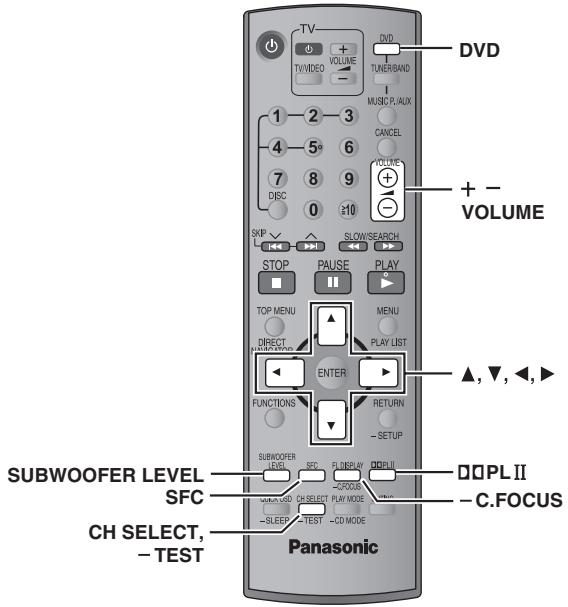
Remarque
- En cas de connexion avec un casque ou le port musique arrière (voir page 32), le son surround et les effets sonores suivants peuvent ne pas être disponibles ou n'avoir aucun effet. (À l'exception du contrôle du champ sonore : HEAVY, CLEAR ou SOFT)
- Vous pouvez constater une réduction de la qualité sonore lorsque ces effets sonores sont utilisés avec certaines sources. Si cela se produit, désactivez les effets sonores.
- Si vous activez Dolby Pro Logic II, le contrôle du champ sonore (MOVIE, SPORT ou MUSIC) est annulé.
Modification de la qualité sonore : Contrôle du champ sonore
Pour profiter des réglages de qualité sonore suivants, assurez-vous que Surround Music (→ page 14) est désactivé.
Appuyez sur [SFC].
Chaque pression sur la touche :
FLAT : Annule (aucun effet ajouté) (réglage d'usine).
MOVIE : Utilisez ce mode lors de la lecture de logiciels de films.
SPORT : Simule le son pour vous donner l'impression d'assister à un événement sportif.
MUSIC : Ajoute des effets surround aux sources stéréo.
HEAVY : Ajoute du punch au rock.
CLEAR : Clarifie les sons aigus.
SOFT : Pour la musique de fond.
- Pour vérifier le réglage actuel, appuyez sur [SFC]. MOVIE, SPORT et MUSIC ne sont pas disponibles lorsque Dolby Pro Logic II est activé, ou lors de la lecture d'un disque enregistré avec une source multicanal.
- Vous pouvez régler le volume des enceintes surround pour obtenir le meilleur effet surround (→ page 31, Réglage du volume de chaque enceinte : Réglages du niveau des enceintes).
Amélioration du son de l'enceinte centrale : Center Focus

Ceci s'applique aux disques où le dialogue est enregistré dans le canal central.
Vous pouvez faire en sorte que le son du haut-parleur central semble provenir de l'intérieur du téléviseur.
Maintenez enfoncée la touche [-C.FOCUS].
Chaque fois que vous maintenez la touche enfoncée :
C FOCUS ON C FOCUS OFF
- Cette fonction ne fonctionne pas lorsque Surround Music ( → page 14) ou Sound Field Control (MOVIE, SPORT ou MUSIC) est activé.
- Cette fonction fonctionne également lorsque Dolby Pro Logic II est activé.
Amélioration du son stéréo : Dolby Pro Logic II

Dolby Pro Logic II est un décodeur avancé qui dérive un son surround 5 canaux (avant gauche et droit, central, surround gauche et droit) à partir de sources sonores stéréo, qu'elles soient ou non spécifiquement encodées en Dolby Surround.
Appuyez sur [DPLII].
Chaque fois que vous appuyez sur la touche :
Movie : logiciels de films, enregistrés en Dolby Surround.
Music : sources stéréo
Off : annuler

- Cette fonction ne fonctionne qu'en mode DVD/CD.
- "DPLLII" s'allume lorsqu'il y a un effet.
- Dolby Pro Logic II est annulé lorsque Surround Music est activé.
Réglage de la quantité de basses : niveau du caisson de graves

Vous pouvez régler la quantité de basses. L'appareil sélectionne automatiquement le réglage le plus approprié en fonction du type de source en cours de lecture.
Appuyez sur [SUBWOOFER LEVEL].
DVD-V DVD-VR
SUBW4 (préréglage d'usine) → SUBW1 → SUBW2 → SUBW3
- Lorsqu'une autre source est sélectionnée
SUB W 2 (préréglage d'usine)* → SUB W 3 → SUB W 4 → SUB W 1
- Pour vérifier le réglage actuel, appuyez sur [SUBWOOFER LEVEL].
- Le réglage que vous effectuez est conservé et rappelé à chaque fois que vous lisez le même type de source, sauf lorsque Sound Field Control (MOVIE, SPORT ou MUSIC) est activé.
- Lorsque Sound Field Control (MOVIE, SPORT ou MUSIC) est activé, les préréglages d'usine sont les suivants :
-MOVIE : SUBW4 - SPORT : SUB W 2 - MUSIC : SUBW1
Réglage du volume de chaque enceinte : réglages du niveau des enceintes

C'est l'un des moyens d'obtenir des effets surround appropriés.
Préparation
Appuyez sur [DVD].
1 En mode arrêt et sans affichage à l'écran
Maintenez enfoncé [—TEST] pour émettre un signal de test.
- Pour arrêter le signal de test, maintenez enfoncé [—TEST] à nouveau.
L : Avant gauche
C : Centre
R : Avant droit
RS : Surround droit
LS : Surround gauche
- Aucune sortie sur le canal SW (caisson de basses).
2 Appuyez sur [VOLUME, +] ou [-] pour régler le niveau de volume habituel d'écoute. 3 Appuyez sur [▲] (augmenter) ou [▼] (diminuer) pour ajuster le niveau de chaque enceinte.
- Réglez les niveaux des enceintes au même niveau que les enceintes avant.
C, RS, LS : -6 dB à +6 dB
Pour ajuster le niveau des enceintes pendant la lecture
[Efficace lors de la lecture de contenus multicanaux ou lorsque Dolby Pro Logic II ou Sound Field Control (MOVIE, SPORT ou MUSIC) est activé, et que Surround Music est désactivé.]
① Appuyez sur [CH SELECT] pour sélectionner le haut-parleur.
L → C → R → RS → LS → SW
SW : caisson de graves
- Vous ne pouvez régler le SW que si le disque comprend un canal de caisson de graves.
- "SW" n'apparaît pas à l'écran et n'est pas réglable lorsque "PLLI" est allumé.
- "S" apparaît à l'écran lorsque "MOVIE", "SPORT" ou "MUSIC" est sélectionné avec le contrôle du champ sonore (→ page 30). Dans ce cas, vous pouvez régler les niveaux des haut-parleurs surround en même temps à l'aide de [▲, ▽].
S : -6 dB à +6 dB
② Appuyez sur [▲] (augmenter) ou [▼] (diminuer) pour régler le niveau de chaque haut-parleur.
C, RS, LS, SW : -6 dB à +6 dB
(L, R : seul le balance est réglable.)
- Pour régler le balance des haut-parleurs avant, lorsque "L" ou "R" est sélectionné, appuyez sur [<, >].
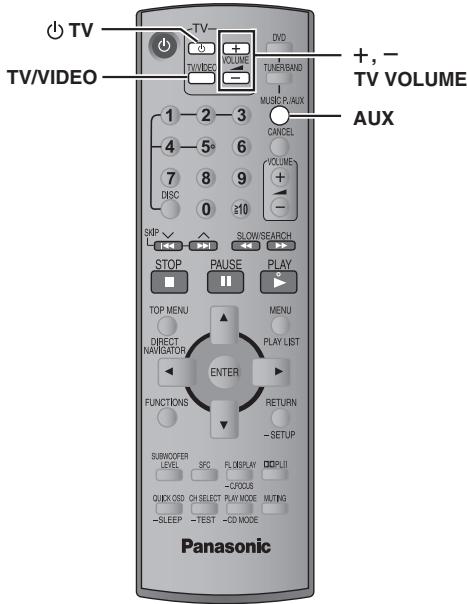
Vous pouvez utiliser la télécommande pour faire fonctionner un téléviseur Panasonic.
Connectez votre équipement en vous référant à "Connexion du décodeur câble ou du magnétoscope" (→ page 9).
Remarque
La télécommande peut ne pas fonctionner correctement avec certains modèles.
Utilisation du téléviseur
Pointez la télécommande vers le téléviseur.
Allumer/éteindre le téléviseur
Appuyez sur [TV].
Changement du mode d'entrée vidéo du téléviseur
Appuyez sur [TV/VIDEO].
Réglage du volume
Appuyez sur [VOLUME +/− TV].
Pour écouter l'audio de votre téléviseur via votre système home cinéma
Sélectionnez "AUX" comme source, réduisez le volume du téléviseur au minimum, et contrôlez le volume sur l'unité principale.
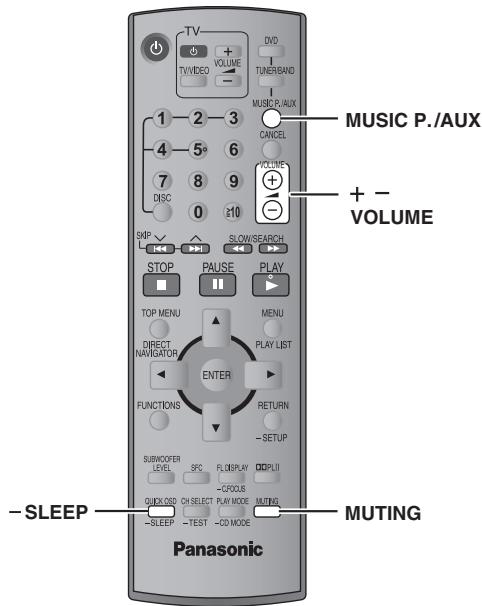
Réglage de la minuterie de mise en veille

1 Maintenez enfoncé [—SLEEP].
Pendant que l'heure est affichée
Appuyez sur [-SLEEP] pour sélectionner le temps (en minutes).

Pour annuler la minuterie
Pendant que l'heure est affichée, appuyez sur [—SLEEP] pour sélectionner "OFF".
Pour confirmer le temps restant
Appuyez de nouveau sur [—SLEEP] et maintenez-le enfoncé.
Pour modifier le réglage
Répétez la procédure depuis le début.
Couper le son

Appuyez sur [MUTING].
"MUTING" clignote sur l'écran de l'appareil.

Pour annuler
- Appuyez de nouveau sur [MUTING] ou réduisez le volume au minimum "VOL 0", puis augmentez-le au niveau souhaité.
- La coupure du son est annulée lorsque vous mettez l'appareil en veille.
Utilisation du casque
Unité principale uniquement
1 Réduisez le volume et connectez le casque (non fourni).
Type de fiche du casque : 3,5mm (1 / 8 ) fiche mini stéréo
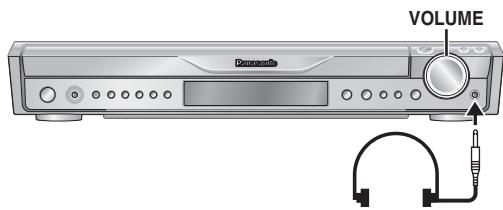
2 Réglez le volume du casque avec [VOLUME].
- Le son est automatiquement commuté sur le canal stéréo 2.
Remarque
Pour éviter tout risque de lésion auditive, évitez d'écouter pendant des périodes prolongées.
Utilisation de la prise MUSIC PORT
La prise MUSIC PORT vous permet de connecter et d'écouter de la musique provenant d'un appareil externe (par exemple, un lecteur MP3) via votre système home cinéma.
Préparation
Pour éviter une distorsion du son, assurez-vous que toute fonction d'égaliseur de votre appareil externe est désactivée.
1 Réduisez le volume et connectez l'appareil externe (non fourni).
Type de fiche : 3,5mm (1 / 8 ) mini fiche stéréo
Lors de l'utilisation de la prise MUSIC PORT avant Lors de l'utilisation de la prise MUSIC PORT arrière Appareil externe Réduisez le volume avant de connecter.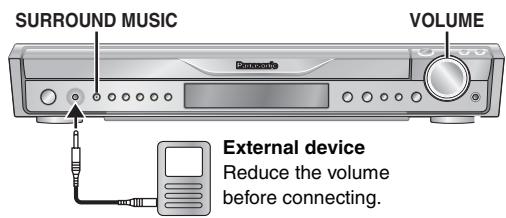
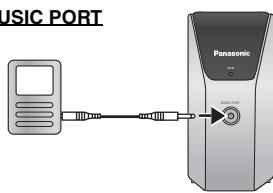
2 Appuyez sur [MUSIC P./AUX] pour sélectionner "FRONT MUSIC P." ou "REAR MUSIC P".
FRONT MUSIC P. REAR MUSIC P.* AUX

- "REAR MUSIC P." ne peut être sélectionné que lorsque la carte émettrice-réceptrice numérique est insérée dans l'unité principale (→ page 7).
3 Réglez le volume de l'appareil externe à un niveau d'écoute normal, puis réglez le volume de l'unité principale avec [VOLUME].
- Vous pouvez profiter d'un son surround en appuyant sur [SURROUND MUSIC] sur l'unité principale (sauf lorsque "REAR MUSIC P." est sélectionné).
Avant de demander une intervention, effectuez les vérifications suivantes. Si vous avez un doute sur certains points de contrôle, ou si les solutions indiquées dans le tableau ne résolvent pas le problème, reportez-vous au "Répertoire des services à la clientèle" à la page 38.
Alimentation Page
| No power. | • Insert the AC power supply cord securely. | 9 |
| The unit is automatically switched to standby mode. | • The Sleep timer was working and had reached the set time limit. | 32 |
Fonction sans réponse ou inopérante
| No response when any buttons are pressed. | ·This unit cannot play discs other than the ones listed in these operating instructions. ·The unit may not be operating properly due to lightning, static electricity or some other external factor. Turn the unit off and then back on. Alternatively, turn the unit off, disconnect the AC power supply cord, and then reconnect it. ·Condensation has formed. Wait 1 to 2 hours for it to evaporate. | 12 — |
| No response when remote control buttons are pressed. | ·Check that the batteries are installed correctly. ·The batteries are depleted. Replace them with new ones. ·Aim the remote control at the display and operate. | 10 10 11 |
| Cannot play DVDs. | ·CD Mode is on. Press and hold [—CD MODE] to turn CD Mode off. | 16 |
| No picture or sound. | ·Check the video or speaker connection. ·Check the power or input setting of the connected equipment. ·Check that the disc has something recorded on it. | 6,8 — — |
| You have forgotten your ratings password. Reset all the settings to Factory Preset. | ·While stopped and “DVD/CD” is the source, press and hold [■] (Stop) on the main unit and [≥10] on the remote control until “initialized” disappears from the television. Turn the unit off and on again. All settings will return to the default values. | — |
Opération spécifique indésirable ou inattendue
| It takes time before play starts. MP3 | ●Play may take time to begin when an MP3 track has still picture data. Even after the track starts, the correct play time will not be displayed. This is normal. | — |
| Folders on a data CD are not displayed correctly. WMA MP3 JPEG | ●Folders deeper than the eighth layer are displayed as the eighth layer. | — |
| A menu screen appears during skip or search. VCD | ●This is normal for Video CDs. | — |
| Playback control menu does not appear. VCD with playback control | ●Press [■ STOP] twice and then press [▶ PLAY]. | — |
| Program and Random play do not work. DVD-V | ●These functions do not work with some DVD-Videos. | — |
| Selecting audio soundtrack “2” does not change the audio. DVD-A | ●Even if a second soundtrack is not recorded, two numbers are normally shown. | — |
| Play restarts from the beginning when the soundtrack is changed. DVD-A | ●This is normal for DVD-Audio. | — |
| Scenes are skipped intermittently. DVD-VR DVD-V | ●If you change the volume or sound effects during Advanced Disc Review, the function continues without the on-screen display. Cancel the function. | 21 |
Sous-titres
| Subtitle position is wrong. | • Adjust the position. ("Subtitle Position" in Display Menu) | 22 |
| No subtitles. | • Display the subtitles. ("Subtitle" in Main menu) | 20 |
| Subtitles overlap the closed captions. | • Clear the subtitles. | 20 |
Marqueur
| Cannot add markers. | ● You cannot add markers with DVD-RAM. ● If the disc's elapsed play time does not appear on the unit's display, you cannot add markers. | — — |
Répétition A-B
| Point B is automatically set. | ● The end of an item becomes point B when it is reached. | — |
Son anormal ou inapproprié
| Sound is distorted. | • Noise may occur when playing WMA. | — |
| Effects do not work. | • Some audio effects do not work or have less effect with some discs. | — |
| Humming is heard during play. | • An AC power supply cord or fluorescent light is near the main unit or wireless system. Keep other appliances and cables away from the main unit and wireless system. | — |
| No sound | • There may be a slight pause in sound when you change the play speed. | — |
| The Setup menu cannot be accessed. | • Select “DVD/CD” as the source. • Cancel Program and Random play. | — 17 |
Image anormale ou non visualisable Page
| The picture on the television is not displayed correctly or disappears. | ·Ensure that the unit is connected directly to the television, and is not connected through a video cassette recorder. ·Mobile telephone chargers can cause some disturbance. ·If you are using an indoor television, change to an outdoor antenna. ·The television antenna wire is too close to the unit. Move it away from the unit. | 8 — — — |
| Picture size does not fit the screen. | ·Change “TV Aspect” in the “Video” tab. ·Use the television to change the aspect. If your television does not have that function, change “4:3 Aspect” in Display Menu. ·Change the zoom setting. (“Just Fit Zoom” or “Manual Zoom” in Display Menu) | 24 22 22 |
| Menu is not displayed correctly. | ·Restore the zoom ratio to “×1.00”. (“Manual Zoom” in Display Menu) ·Set “Subtitle Position” in Display Menu to “0”. ·Set “4:3 Aspect” in Display Menu to “Normal”. | 22 22 22 |
| Auto zoom function does not work well. | ·Turn off television's zoom function. ·Use the other preset aspect ratios or manual adjustment. ·Zoom function may not work well, especially in dark scenes and may not work depending on the type of disc. | — 22 — |
Vidéo progressive
| There is ghosting when progressive is on. | ·This problem is caused by the editing method or material used on DVD-Video, but should be corrected if you use interlaced output. Set “Video Output Mode” in Picture Menu to “480i”. (Alternatively, press and hold [CANCEL] to switch to “480i”). | 21 |
| Pictures not in progressive output. | ·Select “480p” in “Video Output Mode” in Picture Menu. ·The unit's VIDEO OUT or S-VIDEO OUT terminal outputs the interlaced signal even if “PRG” is displayed. | 21 8 |
| Closed captions not displayed. | ·When progressive output is on, closed captions will not be displayed. | — |
Écoute de la radio
| Distorted sound or noise is heard. “ST” flickers or does not light. | • Adjust the position of the FM or AM antenna. • Use an outdoor antenna. | — 27 |
| A beat sound is heard. | • Turn the television off or move it away from the unit. | — |
| A low hum is heard during AM broadcasts. | • Separate the antenna from other cables. | — |
Système sans fil
| No sound. | ·Ensure that the digital transceiver is fully inserted into the slot of the main unit. ·Ensure that the wireless system is plugged into the AC outlet, and “W” is displayed on the main unit's display. | 7 9 |
| Sound is mixed. | ·When the selected source on the main unit is not “REAR MUSIC P”, audio from an external device connected to the rear MUSIC PORT is mixed with audio from the main unit (e.g. listening to music from an MP3 player while playing a DVD). Select “REAR MUSIC P” as the source. Alternatively, disconnect the external device. | 11, 32 |
Affichages de l'unité
| The display is dark. | • Select “Bright” in “FL Dimmer” in the “Others” tab. | 24 |
| “NOPLAY” | • You inserted a disc the unit cannot play; insert one it can. • You inserted a blank disc. • You inserted a disc that has not been finalized. | 12 — — |
| “NODISC” | • You have not inserted a disc; insert one. • You have not inserted the disc correctly; insert it correctly. | — 14 |
| “F61” | • Check and correct the speaker cable connections. If this does not fix the problem, consult the dealer. | 6 |
| “DVD U11” | • Disc may be dirty. Wipe it clean. | 12 |
| “ERROR” | • Incorrect operation performed. Read the instructions and try again. | — |
| “DVD H□□” □□ stands for a number. | • Trouble may have occurred. The number following “H” depends on the status of the unit. Turn the unit off and then back on. Alternatively, turn the unit off, disconnect the AC power supply cord, and then reconnect it. • If the service numbers fail to clear, note the service number and contact a qualified service person. | — — |
| “W” is flashing. (When using the wireless system and digital transceiver) | • There is no link between the main unit and the wireless system. Check that the wireless system is plugged into the AC outlet. • Ensure that the digital transceiver is fully inserted into the slot of the main unit. | — — |
| “D.MIX” is flashing. DVD-A | • Down-mixing is the process of remixing the multiple-channel audio found on some discs into two channels. The disc contains single-channel or multiple-channel signals which may not be reproduced authentically. | — |
| “XM RADIO” | • It takes a short time for the XM radio to power up after turning on the main unit, during which time “XM RADIO” is displayed (only when the selected source is XM). Wait a few seconds for this process to complete. | — |
| “XM ERROR” | • An error in the XM radio module has been detected. Turn the main unit off, and then back on to clear the error. • If the error message persists, the XM radio module may need repair. For repair work, refer to “Customer Services Directory” in the limited warranty section of this manual. | — 38 |
Affichages du téléviseur Page
| “⊗” | ●The operation is prohibited by the unit or disc. | — |
| “Cannot display group xx, content xx” | ●You are trying to display incompatible contents. | — |
| “This disc may not be played in your region” | ●Only DVD-Video discs that include or have the same region number as the one on the rear panel of this unit can be played. | Cover page |
| No on-screen display. | ●Select “On” in “On-Screen Messages” in the “Display” tab. | 24 |
Messages d'avertissement XM Satellite Radio
| "ANTENNA" is flashing. | • The XM Connect & Play or XMPassport system is not properly connected. Check the connection and make sure the antenna cable is not damaged. | 7 |
| "UPDATING" is flashing. | • The XM Connect & Play or XMPassport system is being updated with the latest encryption code. Wait a few seconds for the update to complete. • You may have selected an XM channel that has been blocked, or is no longer available with your subscription package. If you want to inquire about receiving the channel, call XM's Listener Care at 1-800-XMRADIO (1-800-967-2346). | — — |
| "NO SIGNAL" is flashing. | • The XM signal is too weak. Reorient the XM Connect & Play or XMPassport system for better reception. | 28 |
| "LOADING" is flashing. | • The XM Connect & Play or XMPassport system is receiving and decoding the broadcast information. Wait a few seconds for loading to complete. | — |
| "OFF AIR" is flashing. | • The selected XM channel is not currently broadcasting. Select a different channel. | 29 |
| "XM ——" is displayed. | • The selected XM channel is not available. Select a different channel. | 29 |
| "——" is displayed. | • Supplemental text information, such as the song title or artist's name is not available for that particular broadcast. You can change the type of XM channel information that is displayed by pressing [FL DISPLAY]. | 29 |
| You can receive only promotional XM channels | • Your XM Connect & Play or XMPassport system has not been activated, or your subscription has expired. To activate your XM Connect & Play or XMPassport system, or to renew your subscription, visit XM on the Web at www.xmradio.com or call XM's Listener Care at 1-800-XMRADIO (1-800-967-2346). You should have your Radio ID ready. | 28 |
SECTION AMPLIFICATEUR
Puissance de sortie RMS : mode Dolby Digital
Voie avant 110 W par canal (3 Ω), 1 kHz, 10 % DHT
Voie surround 90 W par canal (4 Ω), 1 kHz, 10 % DHT
Voie centrale 225 W par canal (6 Ω), 1 kHz, 10 % DHT
Voie caisson de graves 225 W par canal (6 Ω), 100 Hz, 10 % DHT
Puissance RMS totale en mode Dolby Digital 850 W
Puissance de sortie FTC : mode Dolby Digital
Voie avant 40 W par canal (3 Ω), 120 Hz–20 kHz, 1 % DHT
Voie surround 70 W par canal (4 Ω), 120 Hz–20 kHz, 1 % DHT
Voie centrale 75 W par canal (6 Ω), 120 Hz–20 kHz, 1 % DHT
Voie caisson de graves 65 W par canal (6 Ω), 45 Hz–120 Hz, 1 % DHT
Puissance FTC totale en mode Dolby Digital 360 W
SECTION TUNER FM/AM, BORNES
| Preset Memory | FM 15 stations |
| AM/MW 15 stations |
| Frequency Modulation (FM) | |
| Frequency range | 87.9–107.9 MHz (200-kHz step) |
87.5-108.0 MHz (pas de 100 kHz)
Sensibilité 2,5 µV (IHF)
S/B 26 dB 2,2 µV
Bornes d'antenne 75 Ω (déséquilibré)
| Amplitude Modulation (AM/MW) | |
| Frequency range | 520–1710 kHz (10-kHz step) |
Sensibilité AM S/B 20 dB à 1000 kHz 560 µV/m
| Phone jack | |
| Terminal | Stereo, 3.5 mm (1/6") jack |
| Music Port (Front) | 2017 |
| Music Port (Back) | 2016 |
Sensibilité 100 mV, 4,7 kΩ
Borne stéréo, prise jack 3,5 mm (1/8 pouce)
SECTION DISQUE
Disques lus [8 cm (3 pouces) ou 12 cm (5 pouces)]
(1) DVD (DVD-Vidéo, DVD-Audio) (2) DVD-RAM (DVD-VR, JPEG 4,5) (3) DVD-R (DVD-Vidéo) (4) DVD-RW (DVD-Vidéo) (5) +R / +RW (Vidéo) (6) CD, CD-R/RW [CD-DA, Vidéo CD, SVCD 1, MP3 2,5, WMA 3,5, JPEG 4,5, HighMAT Niveau 2 (Audio et Image)] 1 Conforme à la norme IEC62107 2 MPEG-1 Layer 3, MPEG-2 Layer 3 3 Windows Media Audio Ver.9.0 Classe 2A Non compatible avec le débit multiple (MBR) 4 Exif Ver 2.1 Fichiers JPEG Baseline Résolution d'image : entre 320 × 240 et 6144 × 4096 pixels (sous-échantillonnage 4:2:2 ou 4:2:0). Les images extrêmement longues et étroites peuvent ne pas être affichées. 5 Le nombre maximal total combiné de contenus audio et image et de groupes reconnaissables : 4000 contenus audio et image et 400 groupes.
Lecture
Longueur d'onde (DVD/CD) 662/785 nm
Puissance laser (DVD/CD) CLASSE II/CLASSE I
Sortie audio (disque)
Nombre de canaux 5.1 canaux (FL, FR, C, SL, SR, SW)
SECTION VIDÉO
| Video system | NTSC |
Sortie vidéo composite
Niveau de sortie 1 Vc-c (75 Ω)
Borne Prise péritel (1 système)
Sortie S-vidéo
Niveau de sortie Y 1 Vc-c (75 Ω)
Niveau de sortie C NTSC ; 0,286 Vc-c (75 Ω)
Borne Connecteur S (1 système)
Sortie vidéo composante (480p/480i)
Niveau de sortie Y 1 Vc-c (75 Ω)
Niveau de sortie P 0,7 Vc-c (75 Ω)
Niveau de sortie PR 0,7 Vc-c (75 Ω)
Borne Prise péritel (Y : vert, Pb : bleu, PR : rouge) (1 système)
SECTION HAUT-PARLEURS
Haut-parleurs avant SB-FS440
Type
Haut-parleurs
Large bande
Puissance admissible (IEC)
Pression acoustique de sortie
Gamme de fréquences
Dimensions (L × H × P)
Masse
Enceintes surround SB-FS441
Type
Haut-parleurs
Large bande
Puissance admissible (IEC)
Pression acoustique de sortie
Gamme de fréquences
Dimensions (L × H × P)
Masse
Enceinte centrale SB-PC640
Type
Haut-parleur(s)
- Large bande
- Large bande
Puissance admissible (IEC)
Pression acoustique en sortie
Gamme de fréquences
Dimensions (L × H × P)
Masse
Caisson de graves SB-W440
Type
Haut-parleur(s)
Boomer
Puissance d'entrée (IEC)
Pression acoustique de sortie
Gamme de fréquences
Dimensions (L × H × P)
Masse
1 voie, 1 haut-parleur (Bass reflex)
Impédance 3 Ω
Cône de 6,5 cm (21 / 2^ )
110 W*6 (Max)
80 dB/W (1,0 m)
102 Hz-25 kHz (-16 dB)
113 Hz-22 kHz (-10 dB)
92 mm × 273 mm × 95,4 mm
(3 5/8 pouces × 10 3/4 pouces × 3 3/4 pouces)
0,84 kg (1,85 livres)
1 voie, système à 1 haut-parleur (bass reflex)
Impédance 4 Ω
Cône de 6,5 cm (2 1/2 pouces)
90 W*6 (max)
80 dB/W (1,0 m)
96 Hz - 25 kHz (-16 dB)
120 Hz - 22 kHz (-10 dB)
92 mm × 135 mm × 95,4 mm
(3 5/8 pouces × 5 5/16 pouces × 3 3/4 pouces)
0,75 kg (1,65 livres)
1 voie, système à 2 haut-parleurs (bass reflex)
Impédance 6 Ω
6,5 cm (2 1/2 pouces) Type cône
6,5 cm (2 1/2 pouces) Type cône
250 W*6 (Max)
84 dB/W (1,0 m)
105 Hz-25 kHz (-16 dB)
125 Hz-22 kHz (-10 dB)
270 mm × 92 mm × 95,4 mm
(10 5/8 pouces × 3 5/8 pouces × 3 3/4 pouces)
1,3 kg (2,9 livres)
1 voie, 1 haut-parleur (Bass reflex)
Impédance 6 Ω
16 cm (6 1/2 pouces) Type cône
250 W (Max)
80 dB/W (1,0 m)
32 Hz-220 Hz (-16 dB)
38 Hz-180 Hz (-10 dB)
183 mm×396 mm×267 mm
(7 7/32 pouces × 15 19/32 pouces × 10 1/2 pouces)
4 kg (8,8 livres)
GÉNÉRALITÉS
Alimentation
CA 120 V, 60 Hz
Consommation électrique
Unité principale 125 W
Dimensions (L × H × P)
430 mm × 70 mm × 439,2 mm
(16 15/16 pouces × 2 3/4 pouces × 17 19/64 pouces)
Masse
Unité principale 4,7 kg (10,36 livres)
Plage de température de fonctionnement
+5°C à +35°C (+41°F à +95°F)
Plage d'humidité de fonctionnement
5% à 90% HR (sans condensation)
Consommation électrique en mode veille
environ 0,5 W
SYSTÈME SANS FIL ET ÉMETTEUR-RÉCEPTEUR NUMÉRIQUE
SECTION AMPLIFICATEUR
Puissance de sortie RMS en mode stéréo
Canal Surround (les deux canaux pilotés) 65 W par canal (4 Ω), 1 kHz, 10 % DHT
Puissance totale RMS en mode stéréo 130 W
Puissance de sortie FTC en mode stéréo
Canal Surround (les deux canaux pilotés) 40 W par canal (4 Ω), 20 Hz-20 kHz, 1 % DHT
Puissance totale FTC en mode stéréo 80 W
SECTION RF
Module sans fil
Plage de fréquences : 2,402 à 2,480 GHz
Puissance de sortie RF : 19 dBm (max)
Impédance de sortie RF : 50 Ω
Port musique (arrière)
Sensibilité : 100 mV
Impédance d'entrée : 4,7 kΩ
Borne : stéréo, prise jack 3,5 mm (1/8 pouce)
GÉNÉRALITÉS
Alimentation
CA 120 V, 60 Hz
Consommation électrique
Émetteur-récepteur numérique : 0,85 W
Système sans fil : 30 W
Dimensions (L × H × P)
Émetteur-récepteur numérique : 97 mm × 47,5 mm × 8,5 mm
(3 13/16 po × 1 7/8 po × 1 11/32 po)
Système sans fil 89 mm × 189 mm × 180 mm
(3 1/2 po × 7 7/16 po × 7 3/32 po)
Masse
Émetteur-récepteur numérique 0,03 kg (0,07 lb)
Système sans fil 0,7 kg (1,5 lb)
Plage de température de fonctionnement
+5 °C à +35 °C (+41 °F à +95 °F)
Plage d'humidité de fonctionnement
5 % à 90 % HR (sans condensation)
Consommation électrique en mode veille
Mode émission 0,5 W
Mode réception 1,2 W
Remarque
- Les spécifications sont sujettes à modification sans préavis.
La masse et les dimensions sont approximatives.
- La distorsion harmonique totale est mesurée à l'aide d'un analyseur de spectre numérique.
Panasonic Consumer Electronics Company, Division de Panasonic Corporation of North America One Panasonic Way Secaucus, New Jersey 07094
Panasonic Puerto Rico, Inc. Ave. 65 de Infantería, Km. 9.5 San Gabriel Industrial Park, Carolina, Puerto Rico 00985
Garantie limitée des produits audio Panasonic
Couverture de la garantie limitée
Si votre produit ne fonctionne pas correctement en raison d'un défaut de matériaux ou de fabrication, Panasonic Consumer Electronics Company ou Panasonic Puerto Rico, Inc. (collectivement désignés comme "le garant") réparera, pendant la durée indiquée dans le tableau ci-dessous, qui commence à la date d'achat initial ("période de garantie"), à sa discrétion, soit (a) réparera votre produit avec des pièces neuves ou remises à neuf, soit (b) le remplacera par un produit neuf ou remis à neuf. La décision de réparer ou de remplacer sera prise par le garant.
| Product or Part Name | Parts | Labor |
| Audio Products (except items listed below) | One (1) year | One (1) year |
| USB Reader-Writer, Personal Computer Card Adapters (in exchange for defective item) | One (1) year | Not Applicable |
| Accessories: Headphones, Cartridges, Microphones, Adapters | Ninety (90) days | Ninety (90) days |
| Rechargeable Batteries, DVD-R/-RAM Disks (in exchange for defective item) | Ten (10) days | Not Applicable |
| SD Memory Cards, Rechargeable Battery Packs (in exchange for defective item) | Ninety (90) days | Not Applicable |
Pendant la période de garantie "Main-d'œuvre", il n'y aura pas de frais de main-d'œuvre. Pendant la période de garantie "Pièces", il n'y aura pas de frais pour les pièces. Vous devez apporter ou envoyer votre produit pendant la période de garantie. Si des piles non rechargeables sont incluses, elles ne sont pas couvertes par la garantie. Cette garantie ne s'applique qu'aux produits achetés et entretenus aux États-Unis ou à Porto Rico. Cette garantie est étendue uniquement à l'acheteur initial d'un produit neuf qui n'a pas été vendu "en l'état". Un reçu d'achat ou une autre preuve de la date d'achat initiale est requis pour le service de garantie.
Service de dépôt ou d'envoi par la poste
Pour le service de dépôt ou d'envoi par la poste aux États-Unis, appelez le 1-800-211-PANA (1-800-211-7262) ou visitez le site Web de Panasonic : http://www.panasonic.com Pour obtenir de l'aide à Porto Rico, appelez Panasonic Puerto Rico, Inc. au (787)-750-4300 ou envoyez un fax au (787)-768-2910.
Limites et exclusions de la garantie limitée
Cette garantie COUVRE UNIQUEMENT les défaillances dues à des défauts de matériaux ou de fabrication, et NE COUVRE PAS l'usure normale ou les dommages esthétiques. La garantie NE COUVRE PAS NON PLUS les dommages survenus pendant le transport, ou les défaillances causées par des produits non fournis par le garant, ou les défaillances résultant d'accidents, d'une mauvaise utilisation, d'un abus, d'une négligence, d'une mauvaise manipulation, d'une application incorrecte, d'une altération, d'une installation défectueuse, de réglages d'installation, d'un mauvais réglage des commandes du consommateur, d'un entretien inapproprié, d'une surtension de ligne électrique, de dommages causés par la foudre, d'une modification, ou d'une utilisation commerciale (comme dans un hôtel, un bureau, un restaurant ou une autre entreprise), d'une location du produit, d'une réparation par une personne autre qu'un centre de service d'usine ou un autre réparateur agréé, ou de dommages attribuables à des actes de Dieu.
IL N'Y A AUCUNE GARANTIE EXPRESSE SAUF CELLES ÉNUMÉRÉES SOUS "COUVERTURE DE LA GARANTIE LIMITÉE". LE GARANT N'EST PAS RESPONSABLE DES DOMMAGES ACCESSOIRES OU INDIRECTS RÉSULTANT DE L'UTILISATION DE CE PRODUIT OU DÉCOULANT DE TOUTE VIOLATION DE CETTE GARANTIE. (Comme
Par exemple, cette garantie exclut les dommages pour perte de temps, déplacements vers et depuis le réparateur, perte de supports ou d'images, de données ou d'autres contenus mémoire. Les éléments listés ne sont pas exhaustifs, mais sont donnés à titre d'illustration. TOUTES LES GARANTIES EXPLICITES ET IMPLICITES, Y COMPRIS LA GARANTIE DE QUALITÉ MARCHANDE, SONT LIMITÉES À LA PÉRIODE DE LA GARANTIE LIMITÉE.
Certains États n'autorisent pas l'exclusion ou la limitation des dommages accessoires ou indirects, ni les limitations sur la durée d'une garantie implicite. Il est donc possible que ces exclusions ne s'appliquent pas à vous. Cette garantie vous confère des droits légaux spécifiques, et vous pouvez également bénéficier d'autres droits qui varient d'un État à l'autre. Si un problème survient avec ce produit pendant ou après la période de garantie, vous pouvez contacter votre revendeur ou le centre de service. Si le problème n'est pas résolu à votre satisfaction, écrivez au service des relations consommateurs du garant aux adresses indiquées pour le garant.
LES PIÈCES ET LES SERVICES NON COUVERTS PAR CETTE GARANTIE LIMITÉE SONT À VOTRE CHARGE.
Répertoire des services à la clientèle
Obtenez des informations sur les produits et de l'assistance à l'utilisation ; trouvez le revendeur ou le centre de service le plus proche ; achetez des pièces et des accessoires ; ou adressez vos demandes de service client et de documentation en visitant notre site Web à :
http://www.panasonic.com/consumersupport
ou contactez-nous via le Web à : http://www.panasonic.com/contactinfo
Vous pouvez également nous contacter directement au :
1-800-211-PANA (7262),
du lundi au vendredi de 9 h à 21 h ; le samedi et le dimanche de 10 h à 19 h (heure de l'Est).
Pour les utilisateurs malentendants ou souffrant de troubles de la parole, TTY : 1-877-833-8855
Achat d'accessoires
Achetez en ligne des pièces, des accessoires et des manuels d'instructions pour tous les produits Panasonic en visitant notre site Web à : http://www.pasc.panasonic.com
ou envoyez votre demande par courriel à : npcparts@us.panasonic.com
Vous pouvez également nous contacter directement au :
1-800-332-5368 (téléphone) 1-800-237-9080 (fax uniquement) (du lundi au vendredi, de 9 h à 20 h, heure de l'Est)
Panasonic Services Company
20421 84th Avenue South, Kent, WA 98032
(Nous acceptons Visa, MasterCard, Discover Card, American Express et les chèques personnels)
Pour les utilisateurs malentendants ou sourds, TTY : 1-866-605-1277
Service à Porto Rico
Panasonic Puerto Rico, Inc.
Ave. 65 de Ingeniería, Km. 9.5, San Gabriel Industrial Park, Carolina, Porto Rico 00985 Téléphone (787) 750-4300, Fax (787) 768-2910
DATE D'ACHAT
NOM DU REVENDEUR
ADRESSE DU REVENDEUR
NUMÉRO DE TÉLÉPHONE
Le numéro de modèle et le numéro de série de ce produit se trouvent à l'arrière ou en dessous de l'appareil.
Veuillez les noter dans l'espace prévu ci-dessous et les conserver pour référence future.
NUMÉRO DE MODÈLE SC-HT441W
NUMÉRO DE SÉRIE

Choisir un équipement audio de qualité comme celui que vous venez d'acheter n'est que le début de votre plaisir musical. Il est maintenant temps de réfléchir à la manière de maximiser le plaisir et l'excitation que votre équipement peut vous offrir. Ce fabricant et le groupe de l'industrie électronique (Consumer Electronics Group) veulent que vous tiriez le meilleur parti de votre équipement en l'écoutant à un niveau sûr. Un niveau qui laisse le son passer clairement et fort, sans grésillement ni distorsion gênants, et surtout sans affecter votre audition sensible.
Mise en garde concernant l'écoute
Nous vous recommandons d'éviter une exposition prolongée à un bruit excessif.
Le son peut être trompeur. Avec le temps, votre « niveau de confort » auditif s'adapte à des volumes plus élevés. Ainsi, ce qui semble « normal » peut en réalité être fort et nuisible à votre audition.
Protégez-vous en réglant votre équipement à un niveau sûr AVANT que votre audition ne s'adapte.

Pour établir un niveau sûr :
- Commencez avec le volume à un niveau bas.
- Augmentez lentement le son jusqu'à ce que vous l'entendiez confortablement et clairement, sans distorsion.
Une fois que vous avez établi un niveau de confort : - Réglez le bouton et laissez-le à cette position.
Prendre une minute pour faire cela maintenant aidera à prévenir des dommages auditifs ou une perte d'audition à l'avenir. Après tout, nous voulons que vous écoutiez toute votre vie.
Fabriqué sous licence de Dolby Laboratories.
« Dolby », « Pro Logic » et le symbole double-D sont des marques de commerce de Dolby Laboratories.
« DTS » et « DTS Digital Surround » sont des marques déposées de Digital Theater Systems, Inc.
Revendications d'appareils des brevets américains n° 4 631 603, 4 577 216 et 4 819 098, concédés sous licence pour des utilisations de visualisation limitées uniquement.
Ce produit intègre une technologie de protection des droits d'auteur protégée par des revendications de procédé de certains brevets américains et d'autres droits de propriété intellectuelle détenus par Macrovision Corporation et d'autres titulaires de droits. L'utilisation de cette technologie de protection des droits d'auteur doit être autorisée par Macrovision Corporation et est destinée à un usage domestique et à d'autres utilisations de visualisation limitées, sauf autorisation contraire de Macrovision Corporation. Le rétro-ingénierie ou le désassemblage est interdit.
Technologie de décodage audio MPEG Layer-3 sous licence de Fraunhofer IIS et Thomson multimedia.
Le nom XM et le logo associé XM Ready sont des marques déposées de XM Satellite Radio Inc. Tous droits réservés.
Windows Media et le logo Windows sont des marques ou des marques déposées de Microsoft Corporation aux États-Unis et/ou dans d'autres pays.
WMA est un format de compression développé par Microsoft Corporation. Il atteint la même qualité sonore que le MP3 avec une taille de fichier inférieure à celle du MP3.
Windows MediaTM
AUDIO·IMAGE
HighMAT™ et le logo HighMAT sont des marques ou des marques déposées de Microsoft Corporation aux États-Unis et/ou dans d'autres pays.


, HDCD®, High Definition Compatible Digital® et
Pacific Microsonics™ sont des marques déposées ou des marques de Pacific Microsonics, Inc. aux États-Unis et/ou dans d'autres pays.
Système HDCD fabriqué sous licence de Pacific Microsonics, Inc. Ce produit est couvert par un ou plusieurs des brevets suivants : aux États-Unis : 5,479,168, 5,638,074, 5,640,161, 5,808,574, 5,838,274, 5,854,600, 5,864,311, 5,872,531, et en Australie : 669114, avec d'autres brevets en instance.
Veuillez vérifier et identifier les accessoires fournis. Utilisez les numéros indiqués entre parenthèses lors de la demande de pièces de rechange. (Les numéros de produits sont corrects en juin 2006. Ils peuvent être sujets à modification.) Pour commander des accessoires, reportez-vous à la section « Achat d'accessoires » à la page 38.
1 Télécommande (N2QAYZ000001)

2 Piles de télécommande

1 Câble vidéo (K2KA2BA00001)

1 antenne cadre AM (N1DAAAA00002)

1 antenne intérieure FM (RSA0007-L)

2 cordons d'alimentation CA (K2CB2CB00018)
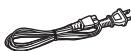
2 feuilles d'autocollants pour câbles d'enceintes
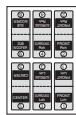
Note FCC :
Cet équipement a été testé et déclaré conforme aux limites d'un appareil numérique de classe B, conformément à la partie 15 des règles de la FCC. Ces limites sont conçues pour fournir une protection raisonnable contre les interférences nuisibles dans une installation résidentielle. Cet équipement génère, utilise et peut émettre de l'énergie radiofréquence et, s'il n'est pas installé et utilisé conformément aux instructions, peut causer des interférences nuisibles aux communications radio.
Cependant, il n'y a aucune garantie que des interférences ne se produiront pas dans une installation particulière. Si cet équipement cause des interférences nuisibles à la réception radio ou télévision, ce qui peut être déterminé en éteignant et en allumant l'équipement, l'utilisateur est encouragé à essayer de corriger les interférences par une ou plusieurs des mesures suivantes :
- Réorienter ou déplacer l'antenne de réception.
- Augmenter la distance entre l'équipement et le récepteur.
- Brancher l'équipement sur une prise située sur un circuit différent de celui auquel le récepteur est connecté.
- Consulter le revendeur ou un technicien radio/TV expérimenté pour obtenir de l'aide.
Avertissement FCC : Pour maintenir la conformité avec les réglementations de la FCC, des câbles d'interface blindés doivent être utilisés avec cet équipement. L'utilisation avec des équipements non approuvés ou des câbles non blindés peut entraîner des interférences avec la réception radio et TV. Toute modification non approuvée par la partie responsable de la conformité pourrait annuler le droit de l'utilisateur à faire fonctionner cet équipement.
Cet appareil est conforme à la partie 15 des règles de la FCC. Son fonctionnement est soumis aux deux conditions suivantes :
(1) Cet appareil ne doit pas causer d'interférences nuisibles, et (2) cet appareil doit accepter toute interférence reçue, y compris les interférences susceptibles de provoquer un fonctionnement indésirable.
Partie responsable : Panasonic Corporation of North America
One Panasonic Way Secaucus, NJ 07094
Téléphone : 1-800-211-7262

AVERTISSEMENT :
Pour satisfaire aux exigences de la FCC en matière d'exposition aux radiofréquences pour les dispositifs de transmission mobiles, une distance de séparation de 20 cm ou plus doit être maintenue entre l'antenne de cet appareil et les personnes pendant son fonctionnement. Pour garantir la conformité, il n'est pas recommandé de fonctionner à une distance plus proche. L'antenne utilisée pour cet émetteur ne doit pas être colocalisée avec une autre antenne ou un autre émetteur.
Cet appareil est conforme à la partie 15 des règles de la FCC. Son fonctionnement est soumis aux deux conditions suivantes :
(1) Cet appareil ne doit pas causer d'interférences nuisibles. (2) Cet appareil doit accepter toute interférence reçue, y compris les interférences susceptibles de provoquer un fonctionnement indésirable.
-Si vous voyez ce symbole
Informations sur l'élimination dans les pays hors Union européenne

Ce symbole n'est valable que dans l'Union européenne. Si vous souhaitez vous débarrasser de ce produit, veuillez contacter les autorités locales ou votre revendeur et demander la méthode d'élimination correcte.
| CAUTION - LASER RADIATION WHEN OPEN,DO NOT STARE INTO BEAM. FDA Z1 CFR / Class | |
| CAUTION - CLASS 1M VISIBLE AND INVERSE LAR SAR OADNATION WHEN OPEN,DO NOT VIEW DIRECTLY WITH OPTICAL INSTRUMENTS,IEC68825-1 + A2/ Class 1M | |
| VARNING - KCLASS 1M SYNGLICH OCH OSYNGLER SLABRIMALING NAR DENNALE DEL APROPND.BETRAKTA E/J STRALLEN DIRECT GENOM OPTIKSTP INDICATOR | |
| FORSIGT - SYNGLICH OSYNGLER SLABRIMALING KLASSE 1M, NAR LAGET ER.ABSENT, UNOVA AT SE LEGE PÄM ÖDICE INSTRUMENTER. | |
| VARIO - AVATTEASA LEOT ALTTINA LOUKAN 1M NAKYAVMA TONTA.LASERSETA AVELA, ALKATO OPESIIKA LAITTELLA SUORIANA SATESEEN. | |
| VORSICT - Sichtschaft 1M UNDSCHTARE LABERSTRAHLING KLASSE 1M, WEN BAEDEXCOGNEDGEOFFNET. NICKET DIRECT MIT OPUSCHEN INSTRUMENTEN BETRachten. | |
| ATTENTION - RANCOEMENT LAYER VISIBLE IME ET BIVISIBLE, CLASSE 1M, EN CAS DOVATURE.NE PAS REGRADER DIRECTEMENT AL AIDE INSTRUMENTEN D'OPTIQUE. | |
| 注意 - ご二を開く上ご見及及び可视しレーダけを出産む。Hizu一見たり、触はりしおてはい快捷だ。 | |
| 注意 - 打开时有可见及不可见激光辐射,避免光束照射射程。GB7241_1,2001/3B 类 ROYLSS0075 |
(À l'intérieur du produit)
Panasonic Consumer Electronics Company, Division de Panasonic Corporation of North America
One Panasonic Way Secaucus,
New Jersey 07094
http://www.panasonic.com
Panasonic Puerto Rico, Inc.
Ave. 65 de Infantería, Km. 9.5
San Gabriel Industrial Park, Carolina,
Puerto Rico 00985
En
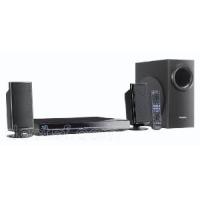


- INSTRUCTIONS D'UTILISATION
- SYSTÈME SANS FIL ET ÉMETTEUR-RÉCEPTEUR NUMÉRIQUE
- AVANCÉ
- RADIO XM®
- ATTENTION
- AVERTISSEMENT
- RISQUE DE CHOC ÉLECTRIQUE - NE PAS OUVRIR
- IMPORTANTES CONSIGNES DE SÉCURITÉ
- INSTALLATION SIMPLE
- ÉTAPE
- POSITIONNEMENT DES ENCEINTES
- EXEMPLE DE CONFIGURATION
- UTILISEZ UNIQUEMENT LES ENCEINTES FOURNIES. L'UTILISATION D'AUTRES ENCEINTES PEUT ENDOMMAGER L'APPAREIL ET LA QUALITÉ SONORE SERA NÉGATIVEMENT AFFECTÉE. - INSTALLEZ LES ENCEINTES SUR UNE SURFACE PLANE POUR ÉVITER QU'ELLES NE TOMBENT. PRENEZ LES PRÉCAUTIONS APPROPRIÉES POUR EMPÊCHER LES ENCEINTES DE TOMBER SI VOUS NE POUVEZ PAS LES INSTALLER SUR UNE SURFACE PLANE
- UNITÉ PRINCIPALE
- REMARQUE
- ENCEINTE CENTRALE
- SYSTÈME SANS FIL
- CAISSON DE BASSES
- REMARQUES SUR L'UTILISATION DES ENCEINTES
- SI DES COULEURS IRRÉGULIÈRES APPARAISSENT SUR VOTRE TÉLÉVISEUR
- ÉVITER LES INTERFÉRENCES
- OPTIONS D'INSTALLATION DES ENCEINTES
- FIXATION AU MUR
- INSTALLATION DES SUPPORTS D'ENCEINTE (NON FOURNIS)
- FEUILLES D'AUTOCOLLANTS POUR CÂBLES D'ENCEINTE
- CONNEXION DES CÂBLES D'ENCEINTE SURROUND AU SYSTÈME SANS FIL
- ANTENNE CADRE AM
- ANTENNE FM INTÉRIEURE
- ÉMETTEUR-RÉCEPTEUR NUMÉRIQUE
- CONNEXION AUDIO DE BASE
- CONNEXION VIDÉO DE BASE
- AUTRES CONNEXIONS VIDÉO POUR UNE MEILLEURE QUALITÉ D'IMAGE
- UTILISATION DE LA BORNE S-VIDEO OUT
- UTILISATION DES BORNES COMPONENT VIDEO OUT
- POUR PROFITER DE LA VIDÉO PROGRESSIVE
- CONNEXION DU DÉCODEUR CÂBLE OU DU MAGNÉTOSCOPE
- ÉTAPE 5 : CONNEXION DES CORDONS D'ALIMENTATION SECTEUR
- ÉCONOMIE D'ÉNERGIE
- PRÉPARATION DE LA TÉLÉCOMMANDE
- NE PAS
- UTILISATION
- EXÉCUTION DE LA CONFIGURATION RAPIDE
- INTERRUPTEUR VEILLE/MARCHE [POWER 山 / 山]
- OUVRIR/FERMER
- SÉLECTEUR (26)
- VOYANT D'ALIMENTATION SECTEUR [AC IN]
- MUSIC PORT
- ANNEAU LUMINEUX
- DISQUES NON LISIBLES
- REMARQUE CONCERNANT L'UTILISATION D'UN DUALDISC
- PRÉCAUTIONS CONCERNANT LES DISQUES
- NETTOYAGE DES DISQUES
- PRÉCAUTIONS DE MANIPULATION DES DISQUES
- ENTRETIEN
- NETTOYEZ CET APPAREIL AVEC UN CHIFFON DOUX ET SEC
- INFORMATIONS SUR LE PRODUIT
- GLOSSAIRE
- DÉCODEUR
- DOLBY DIGITAL
- DTS (DIGITAL THEATER SYSTEMS)
- PLAGE DYNAMIQUE
- IMAGE FIXE ET CHAMP FIXE
- I/P/B
- JPEG (JOINT PHOTOGRAPHIC EXPERTS GROUP)
- PCM LINÉAIRE (MODULATION PAR IMPULSIONS ET CODAGE)
- MP3 (MPEG AUDIO LAYER 3)
- CONTRÔLE DE LECTURE (PBC)
- PROGRESSIF/ENTRELACÉ
- FRÉQUENCE D'ÉCHANTILLONNAGE
- WMA (WINDOWS MEDIA™ AUDIO)
- UTILISATION DE L'UNITÉ PRINCIPALE
- UTILISATION DE LA TÉLÉCOMMANDE
- VÉRIFICATION DU TYPE DE DISQUE DANS CHAQUE PLATEAU
- APPUYEZ SUR [DISC] POUR AFFICHER L'ÉCRAN D'INFORMATIONS SUR LES DISQUES
- AFFICHAGE DE L'ÉTAT DE LECTURE EN COURS
- APPUYEZ SUR [QUICK OSD]
- LECTURE SÉQUENTIELLE DE CD
- EN MODE ARRÊT
- MAINTENEZ ENFONCÉE LA TOUCHE [—CD MODE]
- APPUYEZ SUR [▶ LECTURE]
- LECTURE PROGRAMMÉE ET ALÉATOIRE
- APPUYEZ SUR [PLAY MODE] À L'ARRÊT
- POUR QUITTER LE MODE PROGRAMME ET ALÉATOIRE
- LECTURE PROGRAMMÉE (JUSQU'À 32 ÉLÉMENTS)
- LORSQUE LE MODE CD EST DÉSACTIVÉ
- LORSQUE LE MODE CD EST ACTIVÉ (→ PAGE 16)
- POUR SÉLECTIONNER UN ÉLÉMENT À L'AIDE DES TOUCHES DE CURSEUR
- POUR MODIFIER LE PROGRAMME SÉLECTIONNÉ
- POUR EFFACER LE PROGRAMME SÉLECTIONNÉ
- POUR EFFACER TOUT LE PROGRAMME
- LECTURE ALÉATOIRE
- ALÉATOIRE
- LECTURE DE DISQUES DE DONNÉES
- LECTURE DES ÉLÉMENTS DANS L'ORDRE (MENU LECTURE)
- APPUYEZ SUR [TOP MENU]
- LECTURE À PARTIR DE L'ÉLÉMENT SÉLECTIONNÉ (MENU NAVIGATION)
- APPUYEZ SUR [MENU]
- APPUYEZ SUR [, , , ] POUR SÉLECTIONNER LE GROUPE, PUIS APPUYEZ SUR [ENTER]
- UTILISATION DU SOUS-MENU
- RECHERCHE PAR TITRE DE CONTENU OU DE GROUPE
- SÉLECTION D'UNE PLAGE À L'AIDE DU TEXTE CD
- APPUYEZ SUR [TOP MENU] OU [MENU]
- APPUYEZ SUR [▲,▼] POUR SÉLECTIONNER LA PLAGE, PUIS APPUYEZ SUR [ENTER]
- LECTURE DE DISQUES HIGHMAT™
- APPUYEZ SUR [▲, ▼, ◀, ▶] POUR SÉLECTIONNER L'ÉLÉMENT, PUIS APPUYEZ SUR [ENTRÉE]
- SÉLECTION DANS LA LISTE
- PENDANT LA LECTURE
- APPUYEZ SUR [4] PUIS SUR [▲, ▼] POUR BASCULER ENTRE LES LISTES "LISTE DE LECTURE", "GROUPE" ET "CONTENU
- APPUYEZ SUR [▶] PUIS SUR [▲, ▼] POUR SÉLECTIONNER UN ÉLÉMENT ET APPUYEZ SUR [ENTRÉE]
- LECTURE DE DISQUES RAM
- LECTURE DES PROGRAMMES
- APPUYEZ SUR [DIRECT NAVIGATOR]
- APPUYEZ SUR [▲, ▼] OU SUR LES TOUCHES NUMÉROTÉES POUR SÉLECTIONNER LE PROGRAMME
- APPUYEZ SUR [ENTER]
- LECTURE D'UNE LISTE DE LECTURE
- APPUYEZ SUR [PLAY LIST]
- APPUYEZ SUR [▲, ▼] OU SUR LES TOUCHES NUMÉROTÉES POUR SÉLECTIONNER LA LISTE DE LECTURE
- CONSEILS POUR CRÉER DES DISQUES DE DONNÉES
- DVD-RAM
- CD-R/RW
- NOMMER LES DOSSIERS ET LES FICHIERS
- (SUR CET APPAREIL, LES FICHIERS SONT TRAITÉS COMME DES CONTENUS ET LES DOSSIERS COMME DES GROUPES.)
- WMA (EXTENSION : « .WMA » OU « .WMA »)
- MENU PRINCIPAL
- MENU DE LECTURE
- AUTRES RÉGLAGES
- LA CONFIGURATION RAPIDE PERMET DE RÉGLER SUCCESSIVEMENT LES ÉLÉMENTS DE LA ZONE OMBRÉE
- MODIFICATION DU DÉLAI DE TEMPORISATION DES ENCEINTES
- (EFFECTIF LORS DE LA LECTURE AUDIO MULTICANAL)
- POUR TERMINER LE RÉGLAGE DES ENCEINTES
- PRÉRÉGLAGE AUTOMATIQUE DES STATIONS
- SÉLECTION DES CANAUX PRÉRÉGLÉS
- ACCORD MANUEL
- PAS DE FRÉQUENCE FM
- UNITÉ PRINCIPALE UNIQUEMENT
- UTILISATION D'UNE ANTENNE EXTÉRIEURE (EN OPTION)
- ANTENNE FM EXTÉRIEURE
- [UTILISATION D'UNE ANTENNE DE TÉLÉVISION (NON FOURNIE)]
- ANTENNE AM EXTÉRIEURE
- [UTILISATION D'UN FIL EN VINYLE (NON FOURNI)]
- ③ INSTALLEZ LE CÂBLE COAXIAL
- PRÉSENTATION DE XM SATELLITE RADIO
- COMMENT S'ABONNER
- EXEMPLES D'AFFICHAGE XM
- AFFICHAGE DE L'IDENTIFIANT XM SATELLITE RADIO
- NOTEZ VOTRE IDENTIFIANT XM SATELLITE RADIO ICI
- POSITIONNEMENT DU SYSTÈME XM CONNECT & PLAY OU XMPASSPORT POUR UNE RÉCEPTION OPTIMALE
- POSITIONNEZ L'ANTENNE POUR OBTENIR LA MEILLEURE RÉCEPTION POSSIBLE DU SIGNAL SATELLITE
- CONSEILS POUR OPTIMISER LA RÉCEPTION
- SÉLECTION DES CHAÎNES XM PAR SAISIE DIRECTE
- SÉLECTION DES CANAUX XM PAR CATÉGORIE
- PRÉRÉGLAGE DE VOS CANAUX XM FAVORIS
- SÉLECTION DES PRÉRÉGLAGES DE CANAUX
- AFFICHAGE DES INFORMATIONS DE LA CHAÎNE XM
- PENDANT L'ÉCOUTE DE LA RADIO XM, APPUYEZ SUR [FL DISPLAY]
- CHAQUE PRESSION SUR LA TOUCHE
- MODIFICATION DE LA QUALITÉ SONORE : CONTRÔLE DU CHAMP SONORE
- APPUYEZ SUR [SFC]
- AMÉLIORATION DU SON DE L'ENCEINTE CENTRALE : CENTER FOCUS
- AMÉLIORATION DU SON STÉRÉO : DOLBY PRO LOGIC II
- RÉGLAGE DE LA QUANTITÉ DE BASSES : NIVEAU DU CAISSON DE GRAVES
- RÉGLAGE DU VOLUME DE CHAQUE ENCEINTE : RÉGLAGES DU NIVEAU DES ENCEINTES
- UTILISATION DU TÉLÉVISEUR
- RÉGLAGE DE LA MINUTERIE DE MISE EN VEILLE
- COUPER LE SON
- UTILISATION DU CASQUE
- UTILISATION DE LA PRISE MUSIC PORT
- SECTION AMPLIFICATEUR
- PUISSANCE DE SORTIE RMS : MODE DOLBY DIGITAL
- PUISSANCE DE SORTIE FTC : MODE DOLBY DIGITAL
- SECTION TUNER FM/AM, BORNES
- SECTION DISQUE
- DISQUES LUS [8 CM (3 POUCES) OU 12 CM (5 POUCES)]
- LECTURE
- SORTIE AUDIO (DISQUE)
- SECTION VIDÉO
- SORTIE VIDÉO COMPOSITE
- SORTIE S-VIDÉO
- SORTIE VIDÉO COMPOSANTE (480P/480I)
- SECTION HAUT-PARLEURS
- GÉNÉRALITÉS
- GARANTIE LIMITÉE DES PRODUITS AUDIO PANASONIC
- COUVERTURE DE LA GARANTIE LIMITÉE
- SERVICE DE DÉPÔT OU D'ENVOI PAR LA POSTE
- LIMITES ET EXCLUSIONS DE LA GARANTIE LIMITÉE
- IL N'Y A AUCUNE GARANTIE EXPRESSE SAUF CELLES ÉNUMÉRÉES SOUS "COUVERTURE DE LA GARANTIE LIMITÉE". LE GARANT N'EST PAS RESPONSABLE DES DOMMAGES ACCESSOIRES OU INDIRECTS RÉSULTANT DE L'UTILISATION DE CE PRODUIT OU DÉCOULANT DE TOUTE VIOLATION DE CETTE GARANTIE. (COMME
- RÉPERTOIRE DES SERVICES À LA CLIENTÈLE
- HTTP://WWW.PANASONIC.COM/CONSUMERSUPPORT
- ACHAT D'ACCESSOIRES
- SERVICE À PORTO RICO
- MISE EN GARDE CONCERNANT L'ÉCOUTE
- NOTE FCC
- SI VOUS VOYEZ CE SYMBOLE
- INFORMATIONS SUR L'ÉLIMINATION DANS LES PAYS HORS UNION EUROPÉENNE
- PANASONIC CONSUMER ELECTRONICS COMPANY, DIVISION DE PANASONIC CORPORATION OF NORTH AMERICA
- PANASONIC PUERTO RICO, INC
Marque : PANASONIC
Modèle : SCHT441W
Catégorie : Système audio