300910 - Tarjeta de captura de vídeo CSL - Manual de uso y guía de instrucciones gratis
Encuentra gratis el manual del aparato 300910 CSL en formato PDF.


Elija su idioma y proporcione su correo: le enviaremos una version traducida especificamente para usted.
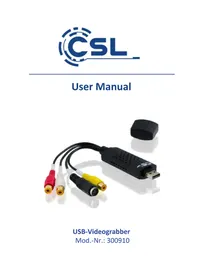
| Tipo de producto | Caja de captura de video externa USB |
| Marca y modelo | CSL 300910 |
| Interfaz de PC | USB 2.0 |
| Entradas de video | 1x S-Video (Mini-DIN 4 pines), 1x Compuesto CVBS (RCA) |
| Entradas de audio | 2x RCA (canal izquierdo y derecho) |
| Software incluido | Honestech VHS to DVD 2.0 SE (licencia integrada) |
| Sistemas operativos compatibles | Windows 7 / 8 / 8.1 / 10 |
| Formatos de video compatibles | VCD (MPEG1), SVCD (MPEG2), DVD (MPEG2), DVD de larga duración (MPEG2) |
| Resoluciones (PAL) | VCD: 352x288, SVCD: 480x576, DVD: 720x576 |
| Resoluciones (NTSC) | VCD: 352x240, SVCD: 480x480, DVD: 720x480 |
| Alimentación | Mediante puerto USB (5V) |
| Dimensiones (estimadas) | Aproximadamente 7 x 4 x 2 cm |
| Peso (estimado) | Aproximadamente 50 g |
| Contenido del paquete | Caja de captura, CD de instalación, manual de instrucciones |
| Funciones principales | Digitalización de señales de audio/video analógicas (VCR, cámara) a disco duro o DVD |
| Mantenimiento y limpieza | Proteger de la humedad, el agua y las altas temperaturas. Limpiar con un paño seco y sin pelusa. |
| Seguridad | No abrir el dispositivo. Usar solo en un lugar seco. Desconectar en caso de tormenta o de no uso prolongado. |
| Piezas de repuesto y reparabilidad | No hay piezas desmontables. Cualquier reparación no autorizada anula la garantía. Contactar con el soporte técnico en caso de problema. |
| Información general | Cumple con la directiva RAEE 2012/19/UE. Número de registro WEEE: DE 67896761. Declaración de conformidad disponible en WD Plus GmbH. |
Preguntas frecuentes - 300910 CSL
¿Cómo instalar el controlador de la caja de captura CSL 300910?
Inserte el CD de instalación y ejecute AUTORUN.EXE (clic derecho 'Ejecutar como administrador'). Haga clic en 'Install Drivers' y confirme las indicaciones de seguridad. El controlador se instala después de hacer clic en 'Finalizar'.
¿Dónde encontrar la clave de licencia del software Honestech VHS to DVD 2.0 SE?
La clave de licencia se registra automáticamente al iniciar el software por primera vez. Debe confirmar la ventana de seguridad haciendo clic en 'Sí'. Si la ignoró, desinstale y luego reinstale el software.
No aparece ninguna señal de video en la vista previa, ¿qué hacer?
Verifique los cables y que la entrada de video (Compuesto o S-Video) esté correctamente seleccionada en el software (icono de engranaje). Asegúrese de que los controladores de la tarjeta gráfica estén actualizados. Si es necesario, compatibilidad: clic derecho en el acceso directo > Compatibilidad > marque 'Modo de color reducido' y seleccione 16 bits.
¿Cómo ajustar el sonido en la vista previa en Windows 7?
Haga clic derecho en el icono de audio en la barra de tareas > 'Dispositivos de grabación'. Seleccione 'Interfaz de audio digital (USB Audio Interface)', vaya a la pestaña 'Escuchar' y marque 'Usar este dispositivo como fuente de audio'. Aplique y cierre.
La imagen grabada está en blanco y negro, ¿por qué?
Verifique la configuración del estándar de video (PAL/NTSC) en el software (menú de engranaje). En Europa, seleccione generalmente PAL_B o PAL/BDGHI. Asegúrese también de que los cables estén correctamente conectados.
¿Cuál es la mejor calidad de grabación disponible?
Seleccione 'DVD' en el campo 'Calidad' (mejor opción). La resolución es 720x576 (PAL) con una tasa de bits más alta que 'DVD de larga duración', pero los archivos son más grandes.
¿Puedo conectar mi VCR a través de un conector Peritel?
Sí, puede usar un adaptador Peritel (se vende por separado) para conectar el VCR a la entrada Compuesta o S-Video de la caja de captura.
El software Honestech no detecta la caja, ¿qué hacer?
Asegúrese de que el controlador esté instalado (ver pregunta 1). Verifique en el software que los campos 'Dispositivo' indiquen 'USB2.0 Grabber' y 'USB Audio Interface'. Si no, selecciónelos manualmente a través del icono de engranaje.
Los archivos grabados son de mala calidad, ¿cómo mejorar?
Use cables de buena calidad y lo más cortos posible. Prefiera la conexión S-Video sobre la Compuesta (RCA) si su fuente lo permite. La calidad también depende de la fuente original (cinta VHS, cámara).
¿Cómo limpiar y mantener la caja de captura?
Desconecte el dispositivo antes de limpiar. Use un paño suave y seco. No use productos líquidos o abrasivos. Proteja el dispositivo de la humedad, el calor y los golpes.
Preguntas de los usuarios sobre 300910 CSL
0 pregunta sobre este aparato. Responde a las que conoces o haz la tuya.
Hacer una nueva pregunta sobre este aparato
Aún no hay preguntas. Sé el primero en hacer una.
Descarga las instrucciones para tu Tarjeta de captura de vídeo en formato PDF gratis! Encuentra tus instrucciones 300910 - CSL y toma tu dispositivo electrónico nuevamente en la mano. En esta página están publicados todos los documentos necesarios para el uso de su dispositivo. 300910 de la marca CSL.
MANUAL DE USUARIO 300910 CSL
The first time you start this software, a security message might be shown again. Please remember to click on the "Yes" button, so that the licence code of the digitalisation software can be entered automatically by the programm.  Then restart your computer to complete the installation and to enable the device.8. Software settings
Please select an output directory for your digital videos. Ensure that the drive has sufficient space.  Then enter the name of the link to the input device in the software. To do this, click on the cogwheel symbol next to the top drop-down field. Choose the input and click on "Control".  Enter the video standard of your input device. The PAL\_B standard is most commonly used in Europe. Select the required standard (usually PAL /BDGHI) and click on the "OK" button.  Then confirm the interface-selection by clicking on the "OK" button.  Your device will already play a video in the preview window. If this should not be the case, please check whether the two fields shown in the following diagram contain the words "USB2.0 Grabber" and "USB Audio Interface". If this is not the case, please select the corresponding inputs or proceed as described in section 11 of this user manual.9. Setting up the sound using Windows 7
Depending on your operating version, the installed software and the settings, the preview of the recording software may not include any sound. This only applies to the preview. The videos you have recorded will ultimately contain the desired audio track. Windows 7 is used as an example below to explain to you how to include the audio track in the preview. Open the settings menu for the recording devices by right-clicking on the audio symbol in the task bar and then by left-clicking "Recording Devices".  In the list shown, select the "Digital Audio Interface" with the description "USB Audio Interface" and click on "Properties".  Change to the "Listen" tab and check the box next to "Use this device as a play-back source". Confirm this change by clicking on "Apply" and then use the "OK" button to close the window.  After this the sound being fed to the Video Grabber will be played back via your speakers or head set. To deactivate the function, once again proceed as described, but remove the tick in the box next to “Use this device as a playback source”.10. Available file formats and video types
The following options will be available if the best quality is selected in the respective field.| Video format PAL resolution NTSC resolution | |||
| VCD MPEG1 | 352x288@25FPS | 352x240@29,97FPS | |
| SVCD MPEG2 | 480x576@25FPS | 480x480@29,97FPS | |
| DVD MPEG2 | 720x576@25FPS | 720x480@29,97FPS | |
| Long DVD MPEG2 | 720x576@ | 25FPS 720x480@29,97FPS | |
11. Fault search
| Where do I find the licence code for the VHS to DVD software? | The licence code will be automatically entered once the software has been installed. To do this, you must confirm to the security message that appears when you first start the software by answering “Yes”. If you have inadvertently skipped this step, you will need to uninstall and subsequently re-install the digitalisation software. |
| No video signals are transmitted. | Please check the cable link and whether the correct input signal was selected in the digitalisation software. You should also make sure that the graphics card drivers of your computer are up to date. |
| No audio signals are transmitted. | Please check the cable link. Then check whether the correct input signal has been chosen in the software. |
| The quality of the video files recorded is poor. | The quality of the recorded videos primarily depends on the source material used. The cable connection and the input signal used also play an important role. Please use high-quality cables in order to avoid aloss of quality. If your device has a S-Video output, this should be connected to the S-video input of the Video Grabber. The S-Video signal quality is higher by contrast with composite connections (Cinch). |
| The pictures are shown in black and white. | Check whether the correct settings regarding PAL/NTSC have been made in the software. Also ensure that the signal cables are properly connected and functional. |
12. Safety instructions and disclaimer
Do not attempt to service this product by yourself as opening or removing covers may result in fire, electric shock or equipment damage. The product is only disconnected from the voltage system when the plug has been removed from the socket. Please avoid any contact to the electric current. Disregard of this warning could lead to contact with the operating voltage, or could generate a short circuit. Pull out the plug before a lightning storm or if you do not regularly use this product, to prevent a short-circuit. This device is only licensed for indoor use and dry areas. Please protect it from water, rain, snow or high humidity and keep it away from high temperatures and direct sunlight. Do not expose this product to extreme and sudden changes of temperature or heavy vibrations; this may lead to damage to the electronic part of this unit. Check the product for signs of damage before putting it in operation. In case the device is damaged, it should not be used. Please contact our customer support. Please observe the relevant national provisions and legal restrictions. Do not use the device for anything other than intended and as described in the manual. Any attempt of repairs or alterations by someone other than the original supplier will invalidate the guarantee and result in refusal of warranty claims. The machine may only be used by persons who are familiar with the operating manual and the applicable regulations concerning working safety and accident prevention. This device is not intended to be used by persons (including children) with limited physical, sensory or mental aptitude or lack of experience and/or knowledge unless they are supervised by a person responsible for their safety or have received instructions as to how the device is used properly. The technical specifications of this product may change without prior notice13. Disposal Instructions
The European Directive (WEEE) requires that old electrical and electronic appliances shall be disposed of separately from normal household garbage for optimal recycling. The component parts must be separated, collected and sent for recycling or disposal in an environment-friendly manner. Otherwise, toxic and dangerous substances could cause enduring damage to the environment by an in- correct disposal. As a consumer you are legally obligated (Electrical and Electronic Equipment Act-ElektroG) to return end-of-life electrical and electronic equipment to their manufacturer, point of sale, public collection points or importer of charge. The relevant local laws apply here. The symbol on the product, in the instructions or on its packing points out these regulations. The reuse or recycling of materials and old units makes an important contribution towards protecting the environment.  WEEE guideline: 2012/19/EU WEEE register number: DE 67896761 WD Plus GmbH, herewith declares that this product 300910 conforms to the principle requirements and other relevant stipulations. The complete Declaration of Conformity can be obtained from: WD Plus GmbH, Wohlenbergstraße 16, 30179 Hanover Nous vous remercions d'avoir choisi un produit de CSL. Afin que vous puissiez profiter durablement de votre nouvel achat, veuillez lire attentivement le guide de démarrage rapide ci-dessous. Avant de mettre en service les marchandises livrées, vérifiez qu'elles sont complètes, exemptes de défauts et non endommagées.1. Contenu de la livraison
- Boîtier d'acquisition vidéo - CD d'installation - Mode d'emploi2. Caractéristiques techniques
| Interface PC USB 2.0 | |
| Entrées vidéo | Fiche S-vidéo (Mini-DIN 4)Fiche CVBS Composite (RCA) |
| Entrées audio • Fiche du canal gauche (RCA)Fiche du canal droit (RCA) | |
| Logiciel de numérisation H | Honestech VHS to DVD 2.0 SE (la clé de licence est enregistrée automatiquement avant le premier démarrage de l'application) |
| Compatibilité système Microsoft Windows 7 / 8 / 8.1 / 10 | |
3. Détails du produit
4. Fonctions
Le Boîtier d'acquisition vidéo permet l'enregistrement de signaux audio et vidéo analogiques d'un lecteur externe, tel que, par exemple, un magnétoscope ou une caméra vidéo analogique, pour la numérisation à travers d'un ordinateur. Avec le logiciel livré, vous transférez vos films enregistrés facilement sur votre disque dur ou sur un DVD.5. Mise en service
Vérifiez l'intégrité du produit et les composants, ainsi que le fonctionnement lors de la première mise en service de l'appareil. Retirez le boîtier d'acquisition vidéo de l'emballage et connectez-le à votre ordinateur et dispositif de reproduction analogique tel que, par exemple, un magnétoscope ou une caméra vidéo. Pour le signal vidéo, le boîtier dispose, auc choix, d'une connexion composite ou S-vidéo. Attention: Si votre lecteur supporte les deux variantes de connexion, vous obtiendrez en général une meilleure qualité de signal à travers du S-vidéo. Pour la transmission du signal audio, le dispositif de reproduction est connecté à la fiche RCA du numériseur vidéo. Attention: Si vous voulez connecter le boîtier à votre magnétoscope, vous pouvez également le connecter à travers d'un adaptateur Péritel vendu séparément à l'interface Péritel du magnétoscope.6. Installation du pilote
Effectuez l'installation par un clic droit et "exécuter en tant qu'administrateur". Introduisez le CD d'installation dans votre lecteur et refermez le lecteur. La fonction d'autodémarrage appelle automatiquement « Autorun.exe », qui se trouve dans le dossier racine sur le CD. En fonction du système d'exploitation utilisé, vous le devez confirmer en cliquant sur « exécuter AUTORUN.EXE ».  Le menu d'installation s'ouvre. Cliquez en premier sur « Installer pilotes », afin de permettre l'installation des pilotes de dispositif sur votre ordinateur.  Si une demande de confirmation s'affiche, veuillez confirmer avec « Oui ». Ensuite l'assistant d'installation démarre. Cliquez sur le bouton « Installer ». Möchten Sie zulassen, dass durch das folgende Programm Änderungen an diesem Computer vorgenommen werden?
 Programmname: Verifizierter Herausgeber: Dateiursprung: Setup.exe Syntek Semiconductor Co., Ltd. Wechselmedien auf diesem Computer  Details anzeigen   Anzeigezeitpunkt für die Benachrichtigungen ändern  Pour terminer l'installation des pilotes, cliquez sur le bouton « Terminer ».  Le pilote a été installée avec succès sur votre ordinateur. Continuez maintenant avec l'installation du logiciel de numérisation.7. Installation du logiciel
Dans le menu d'installation, sélectionnez « Installer VHS à DVD ».  Comme pour l'installation des pilotes, une demande de confirmation apparaît. Veuillez confirmer aussi avec « Oui ».  Le logiciel peut être installé dans différentes versions de langue. Sélectionnez votre langue préférée et cliquez sur le bouton « Suivant ».  Cliquez dans la suivante fenêtre aussi sur le bouton « Suivant ».  Pour lancer l'installation, vous devez maintenant accepter les conditions de l'accord de licence et cliquer sur le bouton « Suivant ».Lizenzvereinbarung
Bitte lesen Sie die nachfolgende Lizenzvereinbarung sorgfältig durch natural_image
Close-up of a curled paper corner with soft shading (no text or symbols visible)8. Configuration du logiciel
Veuillez sélectionner le dossier de sortie pour vos vidéos numériques. Assurez-vous que le disque dispose d'un espace e mémoire suffisant.  Enregistrez ensuite la connexion liée au dispositif de reproduction dans le logiciel. Pour cela, cliquez sur les la roue dentée à côté du champ déroulant supérieur. Sélectionnez la connexion et cliquez sur « Pilotage ».  Indiquez le standard vidéo de votre dispositif de reproduction. En Europe, la norme PAL-B est principalement utilisée. Sélectionnez la norme  requise (le plus souvent PAL / BDGHI) et cliquez sur le bouton « OK ». Confirmez ensuite l'interface utilisée avec un clic sur le bouton « OK ». L'image de votre dispositif de reproduction est affichée dans la fenêtre de prévisualisation.  Si cela n'est pas le cas, veuillez vérifier si les deux champs montrés dans la figure qui suit contiennent les valeurs « Numérisseur USB 2.0 » et « Interface audio numérique (USB Audio Interface) ». Si cela n'est pas le cas, veuillez sélectionner les valeurs correspondantes ou procéder comme décrit dans la section 11 de cet aide-mémoire.9. Réglage du son dans la prévisualisation sous Windows 7
En fonction de la version du système d'exploitation, des programmes installés et des réglages effectués, il est possible que vous n'obteniez pas de son dans la prévisualisation du programme d'enregistrement. Cela se réfère en général seulement à la prévisualisation. Les vidéos enregistrées contiennent finalement la piste de son souhaitée. Ci-dessous est expliqué, à l'aide de Windows 7, de forme exemplaire comment vous pouvez ne pas avoir à renoncer à la piste audio. Ouvrez les paramètres relatifs aux dispositifs d'enregistrement par un clic droit sur le symbole audio dans la barre des tâches et ensuite un clic gauche sur « Dispositifs d'enregistrement ».  Sélectionnez dans la liste affichée le dispositif « Interface audio numérique », avec en dessous l'identifiant « Interface audio USB » et cliquez sur « Propriétés ».  Changez à l'onglet « Écouter » et cochez « Utiliser ce dispositif comme source ». Confirmez ensuite les modifications par un clic sur « Reprendre » et fermez la fenêtre à l'aide du bouton « Oui ».  Le son qui est intégré dans le boîtier vidéo est reproduit ensuite à travers de vos haut-parleurs ou de votre casque. Pour désactiver de nouveau la fonction, procédez comme décrit, mais supprimez la coche de « Utiliser ce dispositif comme source ».10. Formats de fichiers et types de vidéos disponibles
Veuillez noter que les valeurs présentées dans le suivant tableau ne valent que si dans le champ « Qualité » l'option « La meilleure » a été sélectionnée.| Format vidéo Résolution PAL Résolution NTSC | |||
| VCD MPEG1 | 352x288@25FPS | 352x240@29,97FPS | |
| SVCD MPEG2 | 480x576@25FPS | 480x480@29,97FPS | |
| DVD MPEG2 | 720x576@25FPS | 720x480@29,97FPS | |
| DVD longue durée | MPEG2 720x576 | @25FPS 720x480@29,97FPS | |
11. Recherche d'erreurs
| Où puis-je trouver la clé de licence pour le logiciel de numérisation? | La clé de licence est enregistrée automatiquement après l'installation du logiciel. Pour cela, il est nécessaire de confirmer avec « Oui » la question de sécurité qui apparaît lors du premier démarrage de l'application. Si vous avez sauté cette étape par inadvertance, il est nécessaire de désinstaller puis réinstaller le logiciel de numérisation. |
| Aucun signal vidéo n'est transmis. | Veuillez vérifier la connexion par câbles et que l'entrée de signal correcte est sélectionnée dans le logiciel. Assurez-vous par ailleurs que les pilotes de carte vidéo de votre ordinateur sont mis à jour. |
| Aucun signal audio n'est transmis. | Veuillez vérifier la connexion par câbles. Vérifiez ensuite que l'entrée de signal correcte est sélectionnée dans le logiciel. |
| La qualité des fichiers vidéo enregistrés est médiocre. | La qualité des vidéos enregistrées dépend en premier lieu du matériel initial utilisé. De plus, les propriétés de la connexion par câbles ainsi que de l'entrée de signal utilisée jouent un rôle important. Utilisez des câbles de connexion aussi courts et de bonne qualité que possible, afin d'éviter une perte de qualité par la transmission du signal analogique. Si le lecteur dispose d'une sortie S-vidéo, celle-ci devrait être connectée à l'entrée S-vidéo du numérisur vidéo. La qualité de signal du S-vidéo est supérieure à celle du composite (RCA). |
| L'image présentée est en noir et blanc | Vérifiez si le réglage correct en ce qui concerne PAL/NTSC a été effectué dans le logiciel. Assurez-vous aussi que les câbles de signaux fonctionnent correctement et sont dûment connectés. |
12. Consignes de sécurité et clause de non responsabilité
N'essayez jamais d'ouvrir l'appareil pour le réparer ou le modifier. Évitez tout contact avec la tension du secteur. Ne court-circuitez pas l'appareil. L'appareil n'est pas étanche, veuillez l'utiliser uniquement dans un endroit sec. Protégez-le d'un taux d'humidité élevé, de l'eau et de la neige. N'exposez pas l'appareil à des températures élevées. N'exposez pas l'appareil à des changements de température soudains ou à de fortes vibrations, car cela pourrait endommager les éléments électroniques. Vérifiez que l'appareil n'est pas endommagé avant de l'utiliser Ne pas utiliser l'appareil s'il a subi un choc ou qu'il a été endommagé d'une quelconque autre manière. Veillez à respecter les dispositions et les restrictions nationales. N'utilisez pas l'appareil dans un autre but que celui indiqué dans les instructions. Cet appareil n'est pas un jouet. Conservez-le hors de portée des enfants ou des personnes atteintes de troubles mentaux. Toute modification ou réparation qui n'a pas été effectuée par le fournisseur d'origine entraîne l'annulation de la garantie et des droits de recours en garantie. L'utilisation de l'appareil est réservée aux personnes qui ont lu et compris les présentes instructions. Les spécifications de l'appareil peuvent être modifiées sans notification préalable.13. Indications de recyclage
Les appareils électriques et électroniques ne doivent pas être jetés avec les ordures ménagères, conformément à la directive DEEE. Leurs éléments doivent être recyclés ou éliminés séparément, car une élimination inappropriée d'éléments toxiques et dangereux pourrait porter préjudice à l'environnement. Conformément à la loi relative aux appareils électroniques, en tant que consommateur, vous êtes obligé de ramener gratuitement les appareils électriques et électroniques arrivés en fin de vie au fabricant, au point de vente ou dans un point de collecte prévu à cet effet. La loi de chaque pays règle les détails connexes. Le symbole sur le produit, le manuel d'utilisation et/ou l'emballage indique lesdites dispositions. Avec ce type de séparation des matières, de recyclage et d'élimination des appareils usagés, vous prenez part activement à la protection de notre environnement.  Directive DEEE: 2012/19/EU EUN° d'enregistrement DEE: 67896761 Par la présente, la société WD Plus GmbH déclare que l'appareil300910 est conforme aux exigences essentielles et aux autres dispositions pertinentes. Pour obtenir une déclaration de conformité dans son intégralité, contactez: WD Plus GmbH, Wohlenbergstraße 16, 30179 Hanovre Grazie per aver scelto un prodotto CSL. Perché possa giovarsi a lungo del prodotto appena acquistato, legga completamente ed attentamente le seguenti brevi istruzioni. Prima di mettere in servizio il prodotto consegnato, la preghiamo di verificare che esso sia completo, privo di difetti e non danneggiato.1. Contenuto della confezione
- Scheda di acquisizione video USB • CD di installazione - Guida introduttiva2. Dati tecni
| Interfaccia PC USB 2.0 | |
| Ingressi video | • Presa S-Video (Mini DIN 4)• Presa composita CVBS (RCA) |
| Ingressi audio • Presa canale | le sinistro (RCA)• Presa canale destro (RCA) |
| Software di digitalizzazione | Honestech VHS to DVD 2.0 SE (la chiave di licenza verrà inserita automaticamente durante il primo avvio del programma) |
| Compatibilità di sistema M | microsoft Windows 7 / 8 / 8.1 / 10 |