
IMAGERUNNER ADVANCE 8085 - Laser MFP CANON - Free user manual and instructions
Find the device manual for free IMAGERUNNER ADVANCE 8085 CANON in PDF.



| Product Type | Laser black and white multifunction printer |
| Brand | Canon |
| Model | imageRUNNER ADVANCE 8085 |
| Dimensions (H x W x D) | 1,040 mm x 645 mm x 770 mm (on platen glass) |
| Weight | Approx. 242 kg (including color duplex reader and control panel) |
| Power Supply | 220 - 240 V AC, 50/60 Hz, 10 A |
| Maximum Power Consumption | 2.2 kW or less |
| Print Resolution | 1,200 x 1,200 dpi |
| Copy Speed (A4) | 85 copies/minute |
| Standard Memory Capacity | 1.5 GB |
| Standard Hard Disk Drive Capacity | 80 GB |
| Supported Paper Sizes | A3, A4, A4R, A5R, SRA3, custom sizes (100 x 148 mm to 330.2 x 487.7 mm) |
| Paper Weight | 52 g/m² to 256 g/m² depending on tray |
| Maximum Total Paper Capacity | Up to 10,500 sheets with options |
| Main Functions | Copy, print, scan, send (email, I-Fax), fax (optional) |
| Finishing Functions (optional) | Stapling, folding (Z, parallel), punching, trimming, saddle stitch |
| Network Interface | 10Base-T/100Base-TX/1000Base-T (RJ-45) |
| Print Languages | PCL5e, PCL6, PostScript 3 |
| Maintenance and Cleaning | Clean the exterior surfaces with a soft, dry cloth. Do not use alcohol, benzene, or thinner. Disconnect before cleaning. |
| Safety | Laser safety device (Class 1), test the protective circuit breaker monthly. |
| Spare Parts and Repairability | Consumables available: toner cartridges, staples. Repairs by a Canon authorized technician. |
| General Information | Limited warranty. ENERGY STAR compliant. Electronic manual provided on CD-ROM. |
Frequently Asked Questions - IMAGERUNNER ADVANCE 8085 CANON
User questions about IMAGERUNNER ADVANCE 8085 CANON
0 question about this device. Answer the ones you know or ask your own.
Ask a new question about this device
Download the instructions for your Laser MFP in PDF format for free! Find your manual IMAGERUNNER ADVANCE 8085 - CANON and take your electronic device back in hand. On this page are published all the documents necessary for the use of your device. IMAGERUNNER ADVANCE 8085 by CANON.
USER MANUAL IMAGERUNNER ADVANCE 8085 CANON
Read this guide first.
Please read this guide before operating this product.
After you finish reading this guide, store it in a safe place for future reference.
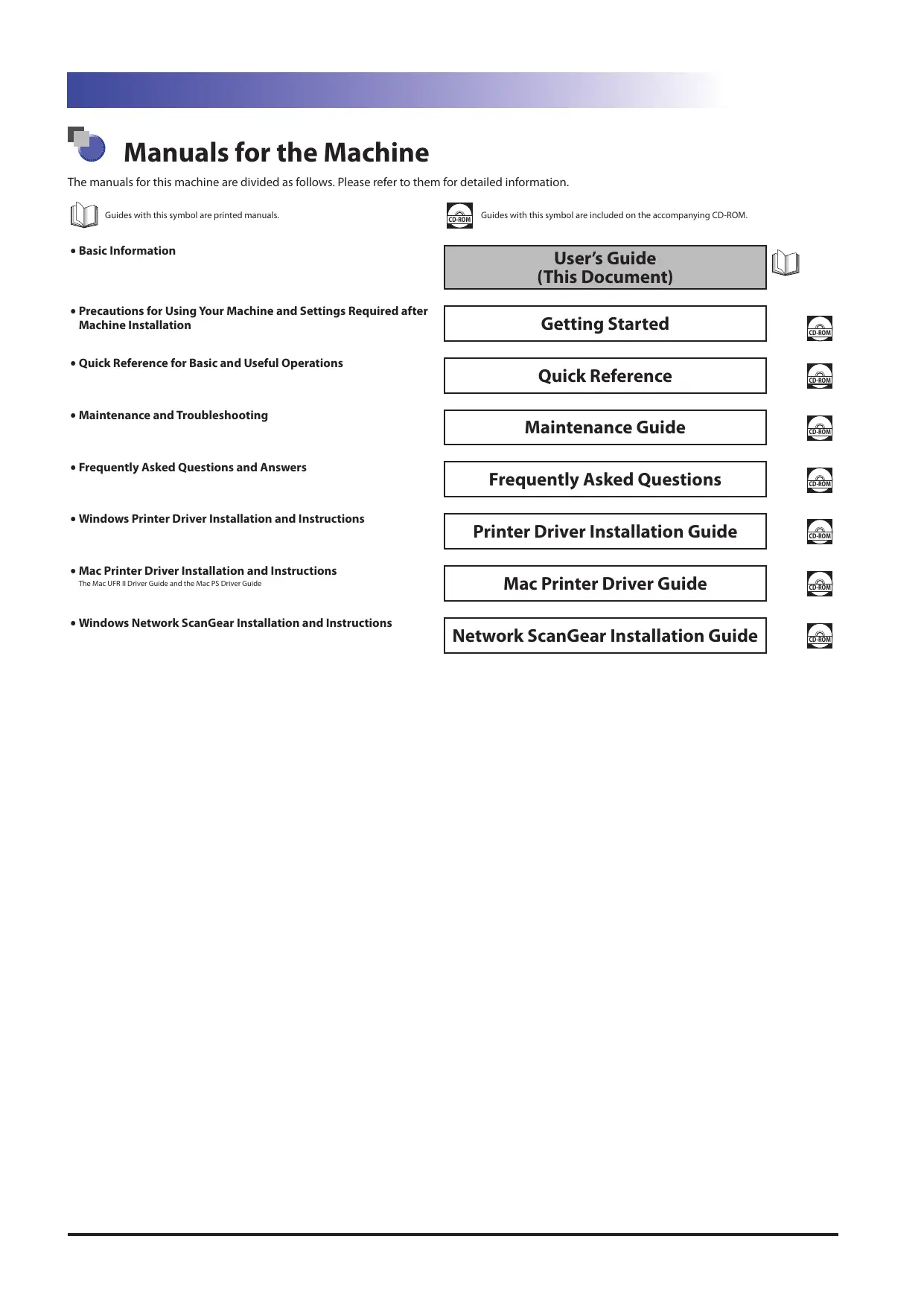
The manuals for this machine are divided as follows. Please refer to them for detailed information.

Guides with this symbol are printed manuals.

Guides with this symbol are included on the accompanying CD-ROM.
Basic Information - Precautions for Using Your Machine and Settings Required after Machine Installation - Quick Reference for Basic and Useful Operations - Maintenance and Troubleshooting - Frequently Asked Questions and Answers - Windows Printer Driver Installation and Instructions Mac Printer Driver Installation and Instructions The Mac UFR II Driver Guide and the Mac PS Driver Guide - Windows Network ScanGear Installation and Instructions
User's Guide (This Document)
Getting Started
Quick Reference
Maintenance Guide
Frequently Asked Questions
Printer Driver Installation Guide
Mac Printer Driver Guide
Network ScanGear Installation Guide


- Comprehensive Manual for Basic Operations and Handling Your Machine
e-Manual

- Before You Start Using This Machine
- Basic Operations
- Optional Products/Software
- Settings/Registration
- Paper Type Management Settings
- Problem Solving
- Maintenance
- Practical Workflows
- Copy
- Scan and Send
- Scan and Store
- Access Stored Files - Fax/I-Fax Inbox
- Secured Print - WebAccess
- Scanner - Quick Menu
- Status Monitor/Cancel - Print
- Network
- Remote UI - MEAP
- Security
Includes the specifications of the main unit and optional equipment.
Contents
Preface. vi
How To Use This Manual vi
Symbols Used in This Manual vi Keys and Buttons Used in This Manual . vii Displays Used in This Manual . vii Illustrations Used in This Manual. viii Abbreviations Used in This Manual viii Trademarks ix
Operations and Terms Used in This Manual xi
Legal Notices xiii
Product Name xiii EMC Directive. xiii Laser Safety. xiii Additional Information xiv International ENERGY STAR Program. xiv IPv6 Ready Logo . xv WEEE Directive. xv Copyright. xvi Third Party Software . xvi The Software Subjected to the Other Conditions. xvi The Software Licensed under Open Source Licenses. xvii Disclaimers . xvii Legal Limitations on the Usage of Your Product and the Use of Images. xvii
Important Safety Instructions . xviii
Installation . xviii Power Supply . xx Handling . xxi Maintenance and Inspections . xxiv Consumables . xxvi Other Warnings . xxvi
Periodic Inspection of the Breaker . xxvii
Checking the Breaker . xxvii
Check Sheet for the Periodic Inspection of the Breaker . xxx
Instructions on Using This Manual (e-Manual) . xxxi
System Requirements . xxxi Installing e-Manual . xxxi Uninstalling the e-Manual . xxxii
Screen Layout of the e-Manual . xxxiii
TOP . xxxiii Topic Page . xxxiv Search Method . xxxv
Chapter 1 Appendix
Specifications 1-2
Main Unit 1-2 Duplex Color Image Reader Unit-C1 1-4 POD Deck Lite-A1 1-5 Paper Deck Unit-C1 1-5 Document Insertion Unit-K1 1-6 Professional Puncher Integration Unit-B1 1-6 Paper Folding Unit-H1 1-7 Staple Finisher-D1 1-7 Booklet Finisher-D1 1-9 Inner Booklet Trimmer-A1 1-11 Puncher Unit-BG1/BH1 1-12 Card Reader-C1 1-12 Send Function 1-13 Network Environment 1-14 Hardware Specifications 1-14 Software Specifications 1-14 Printer Settings 1-14 Software Specifications 1-14 Provide Adequate Installation Space 1-15
Preface
Thank you for purchasing the Canon imageRUNNER ADVANCE 8105/8095/8085. Please read this manual thoroughly before operating the machine to familiarize yourself with its capabilities, and to make the most of its many functions. After reading this manual, store it in a safe place for future reference.
How To Use This Manual
Symbols Used in This Manual
The following symbols are used in this manual to explain procedures, restrictions, handling precautions, and instructions that should be observed for safety.

WARNING

CAUTION

IMPORTANT

NOTE

Indicates a warning concerning operations that may lead to death or injury to persons if not performed correctly. To use the machine safely, always pay attention to these warnings.
Indicates a caution concerning operations that may lead to injury to persons if not performed correctly. To use the machine safely, always pay attention to these cautions.
Indicates operational requirements and restrictions. Be sure to read these items carefully to operate the machine correctly, and avoid damage to the machine or property.
Indicates a clarification of an operation, or contains additional explanations for a procedure. Reading these notes is highly recommended.
Indicates an operation that must not be performed. Read these items carefully, and make sure not to perform the described operations.
Keys and Buttons Used in This Manual
The following symbols and key/button names are a few examples of how keys and buttons to be clicked or pressed are expressed in this manual:
Control Panel Keys:
Example:
Key Icon (Key Name)


- Touch Panel Display Keys: [Key Name]
Example:
[Cancel]
[Close]
- Buttons on Computer Operation Screens: [Button Name]
Example:
[OK]
[Add]
Displays Used in This Manual
Screen shots of the touch panel display used in this manual are those taken when the optional Duplex Color Image Reader Unit is attached to the imageRUNNER ADVANCE 8105.
Note that functions that cannot be used depending on the model or options, are not displayed on the touch panel display.
Screen shots used in this manual may differ from the ones you actually see.
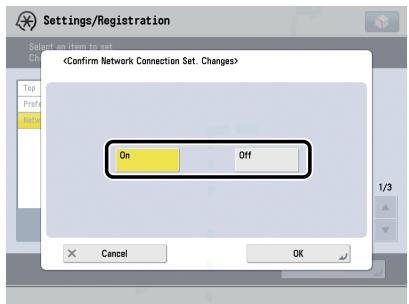
The keys or buttons which you should click or press are marked with a square, as shown below.
When multiple buttons or keys can be clicked or pressed, they will be highlighted and mentioned in the order in which they should be clicked or pressed.
Example:
1 On the Network screen, press [Confirm Network Connection Set. Changes] and specify the following.
Illustrations Used in This Manual
Illustrations used in this manual may differ from the one you actually use, because of the optional equipment and so on.
Abbreviations Used in This Manual
| Microsoft Windows 2000 operating system: | Windows 2000 |
| Microsoft Windows 2000 Professional operating system: | Windows 2000 Professional |
| Microsoft Windows 2000 Server operating system: | Windows 2000 Server |
| Microsoft Windows Server 2003 operating system: | Windows Server 2003 |
| Microsoft Windows Server 2003 R2 operating system: | Windows Server 2003 R2 |
| Microsoft Windows XP Professional operating system: | Windows XP Professional |
| Microsoft Windows XP operating system: | Windows XP |
| Microsoft Windows Vista operating system: | Windows Vista |
| Microsoft Windows Server 2008 operating system: | Windows Server 2008 |
| Microsoft Windows 7 operating system: | Windows 7 |
| Microsoft Windows operating system: | Windows |
| Novell NetWare: | NetWare |
| Apple Macintosh: | Macintosh |
| Apple Mac: | Mac |
Trademarks
MEAP and the MEAP logo are trademarks of Canon Inc.
Apple, AppleTalk, EtherTalk, LocalTalk, Macintosh, Mac, Mac OS, and Safari are trademarks of Apple Inc., registered in the U.S. and other countries.
Windows, Windows logo, Windows Vista, and Windows Vista logo are trademarks or registered trademarks of Microsoft Corporation in the U.S. and/or other countries.

Adobe® PostScript® 3™
Adobe, PostScript, and the PostScript logo are either registered trademarks or trademarks of Adobe Systems Incorporated in the United States and/or other countries.
Copyright © 2007 -08 Adobe Systems Incorporated. All rights reserved.
Protected by U.S. Patents 5,737,599; 5,781,785; 5,819,301; 5,929,866; 5,943,063; 6,073,148; 6,515,763; 6,639,593; 6,754,382; 7,046,403; 7,213,269; 7,242,415; Patents pending in the U.S. and other countries.
All instances of the name PostScript in the text are references to the PostScript language as defined by Adobe Systems Incorporated unless otherwise stated. The name PostScript also is used as a product trademark for Adobe Systems' implementation of the PostScript language interpreter.
Except as otherwise stated, any reference to a "PostScript printing device," "PostScript display device," or similar item refers to a printing device, display device or item (respectively) that contains PostScript technology created or licensed by Adobe Systems Incorporated and not to devices or items that purport to be merely compatible with the PostScript language.
Adobe, the Adobe logo, PostScript, the PostScript logo, and PostScript 3 are either registered trademarks or trademarks of Adobe Systems Incorporated in the United States and/or other countries.
Linux is a registered trademark of Linus Torvalds. Microsoft and Windows are either registered trademarks or trademarks of Microsoft Corporation in the United States and/or other countries.

The PDF logo is a trademark or registered trademark of Adobe Systems Incorporated in the United States and other countries.
Copyright © 2008 Adobe Systems Incorporated. All rights reserved.
Protected by U.S. Patents 6,185,684; 6,205,549; 7,213,269; 7,272,628; 7,278,168; Patents pending in the U.S. and other countries.
All instances of the name PostScript in the text are references to the PostScript language as defined by Adobe Systems Incorporated unless otherwise stated. The name PostScript also is used as a product trademark for Adobe Systems' implementation of the PostScript language interpreter.
Except as otherwise stated, any reference to a "PostScript printing device," "PostScript display device," or similar item refers to a printing device, display device or item (respectively) that contains PostScript technology created or licensed by Adobe Systems Incorporated and not to devices or items that purport to be merely compatible with the PostScript language.
Adobe, the Adobe logo, PostScript, the PostScript Logo, and PostScript 3 are either registered trademarks or trademarks of Adobe Systems Incorporated in the United States and/or other countries.
Other product and company names herein may be the trademarks of their respective owners.
Operations and Terms Used in This Manual
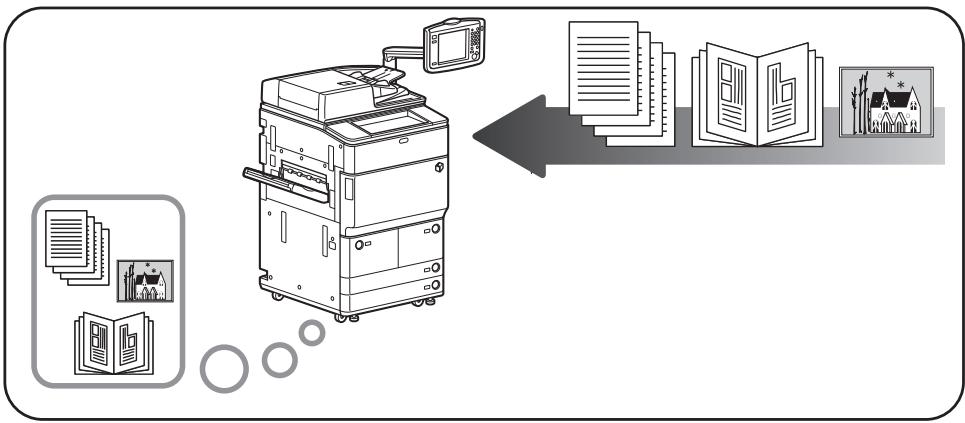
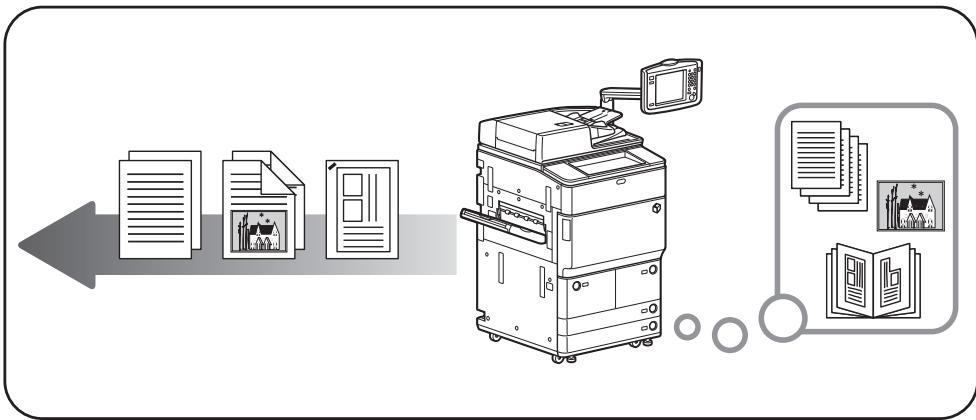
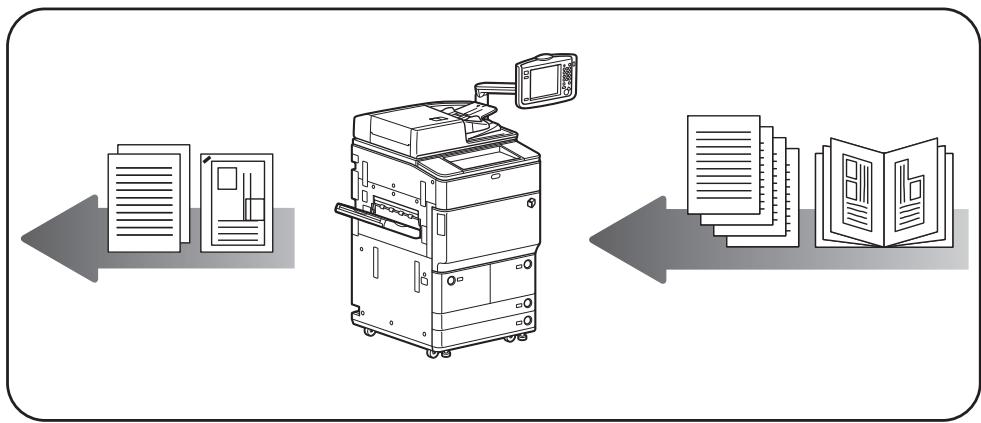
This machine makes effective use of memory to perform print operations efficiently. For example, as soon as the machine has scanned the original that you want to copy, it can immediately scan the next person's original. You can also print from this machine, using a function other than the Copy function. In this machine, these operations take place in a complex way, so that not only copies, but also various kinds of prints may sometimes have to wait their turn before they can be printed.
To avoid confusion when reading this manual, the terms "scanning," "printing," and "copying," used throughout this manual, are defined below. When making a copy, the process of scanning originals and printing copies may be described as separate functions.
Scanning
Scanning an original to be copied, scanning an original to be sent, or scanning an original to be stored as data in the machine.
■ Printing
Outputting a copy, outputting data stored in the machine, or outputting data sent from the computer to the machine.
Copyright
Printing data scanned from an original, followed by finishing options, such as stapling.
Product Name
Safety regulations require the product's name to be registered. In some regions where this product is sold, the following name(s) in parenthesis may be registered instead.
- imageRUNNER ADVANCE 8105/8095/8085 (F155400)
EMC Directive
This equipment conforms with the essential requirements of EC Directive 2004/108/EC. We declare that this product conforms with the EMC requirements of EC Directive 2004/108/EC at nominal mains input 230V, 50Hz although the rated input of the product is 220V-240V, 50/60Hz.
Use of shielded cable is necessary to comply with the technical requirements of EMC Directive.
Laser Safety
This Product is certified as a Class I laser product under IEC60825-1:1993 and EN60825-1:1994. This means that the product does not produce hazardous laser radiation.
Since radiation emitted inside the product is completely confined within protective housings and external covers, the laser beam cannot escape from the machine during any phase of user operation.
Do not remove protective housings or external covers, except as directed by the equipment's manual.
Additional Information
When servicing or adjusting the optical system of the product, be careful not to place screwdrivers or other shiny objects in the path of the laser beam. Also, accessories such as watches and rings should be removed before working on the product. The reflected beam, even though visible or invisible, can permanently damage your eyes.
The labels shown below are attached to the Main Unit's Upper Right Cover and Front Cover.
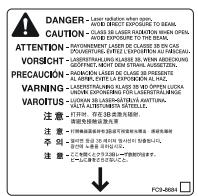
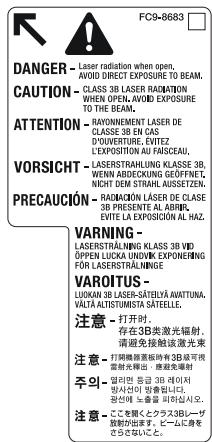
This Product has been classified under IEC60825-1:1993 and EN60825-1:1994, which conform to the following classes;
CLASS 1 LASER PRODUCT
LASER KLASSE 1
APPAREL Á LASER DE CLASSE 1
APPARECCHIO LASER DI CLASSE 1
PRODUCTO LAsER DE CLASE 1
APARELHO A LASER DE CLASSE 1
LUOKAN 1 LASER-TUOTE
LASERPRODUKT KCLASS 1

CAUTION
Use of controls, adjustments, or performance of procedures other than those specified in the manuals for this machine may result in hazardous radiation exposure.
International ENERGY STAR® Program

As an ENERGY STAR® Partner, Canon Inc. has determined that this machine meets the international ENERGY STAR® Program for energy efficiency.
The International ENERGY STAR® Office Equipment Program is an international program that promotes energy saving through the use of computers and other office equipment. The program backs the development and dissemination of products with functions that effectively reduce energy consumption. It is an open system in which business proprietors can participate voluntarily. The targeted products are office equipment, such as computers, displays, printers, facsimiles, and copiers. The standards and logos are uniform among participating nations.
IPv6 Ready Logo

The protocol stack included in this machine has obtained the IPv6 Ready Logo Phase-1 established by the IPv6 Forum.
WEEE Directive


European Union (and EEA) only.
These symbols indicate that this product is not to be disposed of with your household waste, according to the WEEE Directive (2002/96/EC), the Battery Directive (2006/66/EC) and/or your national laws implementing those Directives.
If a chemical symbol is printed beneath the symbol shown above, in accordance with the Battery Directive, this indicates that a heavy metal (Hg = Mercury, Cd = Cadmium, Pb = Lead) is present in this battery or accumulator at a concentration above an applicable threshold specified in the Battery Directive.
This product should be handed over to a designated collection point, e.g., on an authorized one-for-one basis when you buy a new similar product or to an authorized collection site for recycling waste electrical and electronic equipment (EEE) and batteries and accumulators. Improper handling of this type of waste could have a possible impact on the environment and human health due to potentially hazardous substances that are generally associated with EEE.
Your cooperation in the correct disposal of this product will contribute to the effective usage of natural resources.
For more information about the recycling of this product, please contact your local city office, waste authority, approved scheme or your household waste disposal service or visit
www.canon-europe.com/environment.
(EEA: Norway, Iceland and Liechtenstein)
Copyright
Copyright 2010 by Canon Inc. All rights reserved.
No part of this publication may be reproduced or transmitted in any form or by any means, electronic or mechanical, including photocopying and recording, or by any information storage or retrieval system without the prior written permission of Canon Inc.
Third Party Software
A. This product includes third-party software modules. Use and distribution of these software modules, including any updates of such software modules (collectively, the "SOFTWARE"), are subject to conditions (1) through (9) below.
(1) You agree that you will comply with any applicable export control laws, restrictions, or regulations of the countries involved in the event that this product, including the SOFTWARE, is shipped, transferred, or exported into any country. (2) Rights holders of the SOFTWARE retain in all respects the title, ownership, and intellectual property rights in and to the SOFTWARE. Except as expressly provided herein, no license or right, expressed or implied, is hereby conveyed or granted by rights holders of the SOFTWARE to you for any intellectual property of rights holders of the SOFTWARE. (3) You may use the SOFTWARE solely for use with the Canon product you purchased (the "PRODUCT"). (4) You may not assign, sublicense, market, distribute, or transfer the SOFTWARE to any third party without prior written consent of rights holders of the SOFTWARE. (5) Notwithstanding the foregoing, you may transfer the SOFTWARE only when (a) you assign all of your rights to the PRODUCT and all rights and obligations under the conditions to transferee and (b) such transferee agrees to be bound by all these conditions. (6) You may not decompile, reverse engineer, disassemble, or otherwise reduce the code of the SOFTWARE to human readable form. (7) You may not modify, adapt, translate, rent, lease, or loan the SOFTWARE or create derivative works based on the SOFTWARE. (8) You are not entitled to remove or make separate copies of the SOFTWARE from the PRODUCT. (9) The human-readable portion (the source code) of the SOFTWARE is not licensed to you.
B. In case this product includes software modules and/or related documentation made by Adobe Systems Incorporated, use and distribution of software modules and/or related documentation (the "ADOBE SOFTWARE") are subject to conditions below in addition to (1) through (9) above.
The ADOBE SOFTWARE is a "commercial item," as that term is defined at 48 C.F.R. 2.101 (Oct 1995), consisting of "commercial computer software" and "commercial computer software documentation," as such terms are used in 48 C.F.R. 12.212 (Sept 1995). Consistent with 48 C.F.R. 12.212 and 48 C.F.R. 227.7202-1 through 227.7202-4 (June 1995), all U.S. Government End Users shall acquire The ADOBE SOFTWARE with only those rights set forth herein.
C. Notwithstanding A and B above, in case the other conditions accompany third-party software modules including open source software, these software modules are subject to the other conditions.
The Software Subjected to the Other Conditions
Please refer to the e-Manual on a CD-ROM bundled with this product, for more detail and corresponding license conditions.
The Software Licensed under Open Source Licenses
If you need source code of certain open source, under respective Open Source Licenses, used for this product, please send email in English or Japanese at: oipossg@canonical.co.jp
Please refer to e-Manual on a CD-ROM bundled with this product, for more detail and corresponding license conditions.
Disclaimers
The information in this document is subject to change without notice.
CANON INC. MAKES NO WARRANTY OF ANY KIND WITH REGARD TO THIS MATERIAL, EITHER EXPRESS OR IMPLIED, EXCEPT AS PROVIDED HEREIN, INCLUDING WITHOUT LIMITATION, THEREOF, WARRANTY AS TO MARKETABILITY, MERCHANTABILITY, FITNESS FOR A PARTICULAR PURPOSE OR USE, OR NON-INFRINGEMENT. CANON INC. SHALL NOT BE LIABLE FOR ANY DIRECT, INCIDENTAL, OR CONSEQUENTIAL DAMAGES OF ANY NATURE, OR LOSSES OR EXPENSES RESULTING FROM THE USE OF THIS MATERIAL.
Legal Limitations on the Usage of Your Product and the Use of Images
Using your product to scan, print or otherwise reproduce certain documents, and the use of such images as scanned, printed or otherwise reproduced by your product, may be prohibited by law and may result in criminal and/or civil liability. A nonexhaustive list of these documents is set forth below. This list is intended to be a guide only. If you are uncertain about the legality of using your product to scan, print or otherwise reproduce any particular document, and/or of the use of the images scanned, printed or otherwise reproduced, you should consult in advance with your legal advisor for guidance.
- Paper Money Money Orders Certificates of Deposit
- Postage Stamps (cancelled or uncancelled)
- Identifying Badges or Insignias
- Selective Service or Draft Papers
- Checks or Drafts Issued by Governmental Agencies
- Motor Vehicle Licenses and Certificates of Title
Travelers Checks Food Stamps Passports - Immigration Papers - Internal Revenue Stamps (cancelled or uncancelled) - Bonds or Other Certificates of Indebtedness Stock Certificates Copyrighted Works/Works of Art without Permission of Copyright Owner
Please read these "Important Safety Instructions" thoroughly before operating the machine. As these instructions are intended to prevent injury to the user or other persons or destruction of property, always pay attention to these instructions. Also, since it may result in unexpected accidents or injuries, do not perform any operation unless otherwise specified in the manual. Improper operation or use of this machine could result in personal injury and/or damage requiring extensive repair that may not be covered under your Limited Warranty.
Installation

WARNING
- Do not install the machine near alcohol, paint thinner, or other flammable substances. If flammable substances come into contact with electrical parts inside the machine, it may result in a fire or electrical shock.
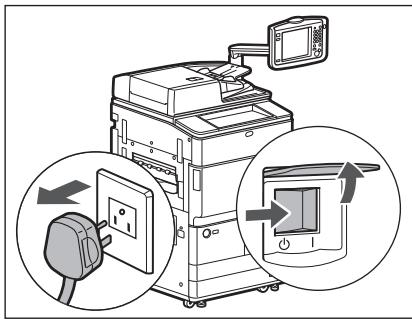
- Do not place the following items on the machine. If these items come into contact with a high-voltage area inside the machine, it may result in a fire or electrical shock. If these items are dropped or spilled inside the machine, immediately turn OFF the main power switch and disconnect the power cord from the power outlet. Then, contact your local authorized Canon dealer.
- Necklaces and other metal objects
- Cups, vases, flowerpots, and other containers filled with water or liquids

CAUTION
- Do not install the machine in unstable locations, such as unsteady platforms or inclined floors, or in locations subject to excessive vibrations, as this may cause the machine to fall or tip over, resulting in personal injury.
- Never block the ventilation slots and louvers on the machine. These openings are provided for proper ventilation of working parts inside the machine. Blocking these openings can cause the machine to overheat. Never place the machine on a soft surface, such as a sofa or rug.
- Do not install the machine in the following locations:
- A damp or dusty location
- A location near water faucets or water
- A location exposed to direct sunlight
- A location subject to high temperatures
- A location near open flames
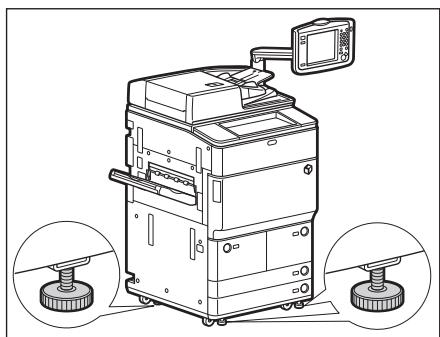
- Do not remove the machine's leveling feet after the machine has been installed, as this may cause the machine to fall or tip over, resulting in personal injury.
Power Supply

WARNING
- Do not damage or modify the power cord. Also, do not place heavy objects on the power cord, or pull on or excessively bend it, as this could cause electrical damage and result in a fire or electrical shock.
- Keep the power cord away from a heat source; failure to do this may cause the power cord coating to melt, resulting in a fire or electrical shock.
- Do not connect or disconnect the power cord with wet hands, as this may result in electrical shock.
- Do not connect the power cord to a multiplug power strip, as this may cause a fire or electrical shock.
- Do not bundle up or tie the power cord in a knot, as this may result in a fire or electrical shock.
- Insert the power plug completely into the power outlet, as failure to do so may result in a fire or electrical shock.
- Do not use power cords other than the power cord provided, as this may result in a fire or electrical shock.
- As a general rule, do not use extension cords. Using an extension cord may result in a fire or electrical shock.

CAUTION
- Do not use power supplies with voltages other than those specified herein, as this may result in a fire or electrical shock.
- Always grasp the power plug when disconnecting the power cord. Pulling on the power cord may expose or snap the core wire, or otherwise damage the power cord. If the power cord is damaged, this could cause current to leak, resulting in a fire or electrical shock.
- Leave sufficient space around the power plug so that it can be unplugged easily. If objects are placed around the power plug, you will be unable to unplug it in an emergency.

WARNING
- Do not attempt to disassemble or modify the machine. There are high-temperature and high-voltage components inside the machine which may result in a fire or electrical shock.
- If the machine makes strange noises, or gives off smoke, heat, or strange smells, immediately turn OFF the main power switch, and disconnect the power cord from the power outlet. Then, contact your local authorized Canon dealer. Continued use of the machine in this condition may result in a fire or electrical shock.
- Do not use highly flammable sprays near the machine. If gas from these sprays comes into contact with the electrical components inside the machine, it may result in a fire or electrical shock.
- To avoid damage to the power cord and creating a fire hazard, always turn OFF the main power switch, and unplug the interface cable when moving the machine. Otherwise, the power cord or interface cable may be damaged, resulting in a fire or electrical shock.
- Make sure that the power plug is firmly inserted into the power outlet if the machine was moved. Do not use the machine while the connection is loose, as doing so may cause a fire.
- Do not drop paper clips, staples, or other metal objects inside the machine. Also, do not spill water, liquids, or flammable substances (alcohol, benzene, paint thinner, etc.) inside the machine. If these items come into contact with a high-voltage area inside the machine, it may result in a fire or electrical shock. If these items are dropped or spilled inside the machine, immediately turn OFF the main power switch, and disconnect the power cord from the power outlet. Then, contact your local authorized Canon dealer.

CAUTION
- Do not place heavy objects on the machine, as they may tip over or fall resulting in personal injury.
- Close the feeder gently to avoid catching your hands, as this may result in personal injury.
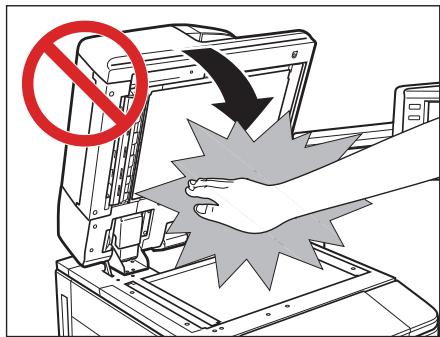
- Do not press down hard on the feeder when using the platen glass to make copies of thick books. Doing so may damage the platen glass and result in personal injury.
- Do not touch the finisher while the machine is printing, as this may result in personal injury.
- Paper that has just been output from the machine may be hot. Be careful when removing or aligning paper from the output tray. Touching paper right after it is output may result in low-temperature burns.
- Turn OFF the control panel power switch for safety when the machine will not be used for a long period of time, such as overnight. Also, turn OFF the main power switch, and disconnect the power cord for safety when the machine will not be used for an extended period of time, such as during consecutive holidays.
- Do not place your hands, hair, clothing, etc., near the exit and feed rollers. Even if the machine is not in operation, your hands, hair, or clothing may get caught in the rollers, which may result in personal injury or damage if the machine suddenly starts printing.
- Do not place your hands in the part of the tray where stapling is performed (near the rollers) when a finisher is attached, as this may result in personal injury.
Staple Finisher/Booklet Finisher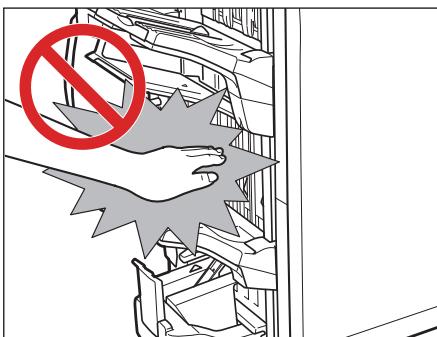
- The laser beam can be harmful to human bodies. Since radiation emitted inside the product is completely confined within protective housings and external covers, the laser beam cannot escape from the machine during any phase of user operation. Read the following remarks and instructions for safety.
- Never open covers other than those instructed in the manuals for this machine.
- Do not remove the following caution label which is attached to the machine. If the label has been removed, contact your local authorized Canon dealer.
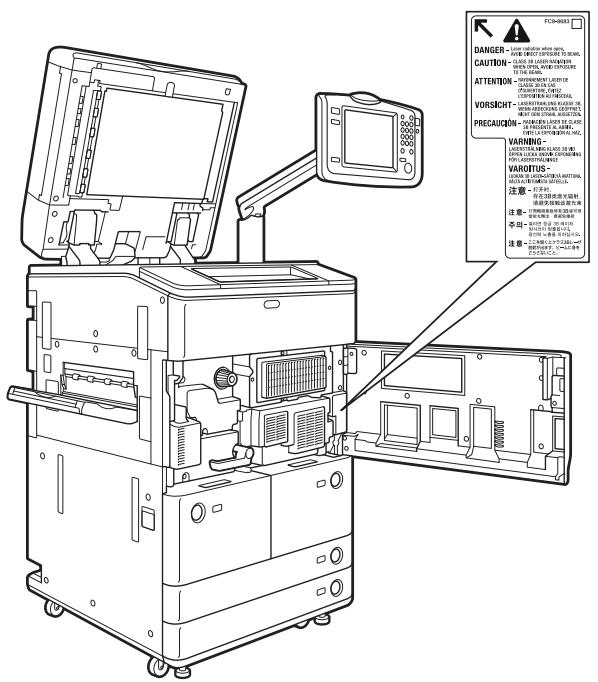
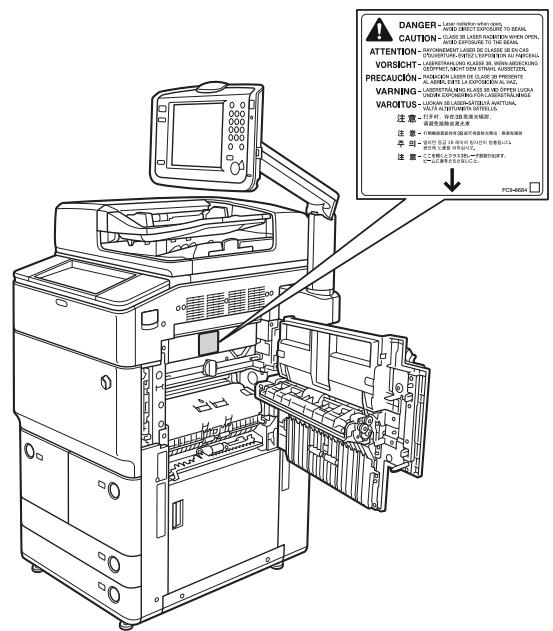
- If the laser beam escapes from the machine, exposure may cause serious damage to your eyes.
- Controlling, adjusting, or operating the machine in ways not mentioned in the manuals for this machine may cause dangerous radiation to escape from the machine.

WARNING
- When cleaning the machine, first turn OFF the main power switch, then disconnect the power cord. Failure to observe these steps may result in a fire or electrical shock.
- Disconnect the power cord from the power outlet regularly, and clean the area around the base of the power plug's metal pins and the power outlet with a dry cloth to ensure that all dust and grime is removed. If the power cord is connected for a long period of time in a damp, dusty, or smoky location, dust can build up around the power plug and become damp. This may cause a short circuit and result in a fire.
- Clean the machine using a slightly dampened cloth with a mild detergent mixed with water. Do not use alcohol, benzene, paint thinner, or other flammable substances. Check detergent for flammability prior to use. If flammable substances come into contact with a high-voltage area inside the machine, it may result in a fire or electrical shock.
- There are some areas inside the machine which are subject to high-voltages. When removing jammed paper or when inspecting the inside of the machine, do not allow necklaces, bracelets, or other metal objects to touch the inside of the machine, as this may result in burns or electrical shock.
- Do not burn or throw used toner cartridges into open flames, as this may cause the toner remaining inside the cartridges to ignite, resulting in burns or a fire.
- Make sure that the power plug is firmly inserted into the power outlet after cleaning the machine. Do not use the machine while the connection is loose, as doing so may cause a fire.
- Check the power cord and power plug regularly. If the following conditions occur, contact your local authorized Canon dealer, as the condition may cause a fire:
- There are burn marks on the power plug.
- The blade on the power plug is deformed or broken.
- The power goes OFF and ON when the power cord is bent.
- There are cuts, cracks, or indentations on the power cord.
- A part of the power cord becomes hot.
- Check the power cord and power plug regularly to make sure that they are not handled in the following manner, as this may result in a fire or electrical shock:
- The connection part of the power plug is loose.
- Stress is being applied to the power cord by a heavy object or by affixing it with staples.
- The power plug is loose.
- The power cord is tied in a bundle.
- The power cord protrudes into a walkway.
- The power cord is in front of a heater.

CAUTION
- The fixing unit and its surroundings inside the machine may become hot during use. When removing jammed paper or when inspecting the inside of the machine, do not touch the fixing unit and its surroundings, as doing so may result in burns or electrical shock.
- When removing jammed paper or when inspecting the inside of the machine, do not expose yourself to the heat emitted from the fixing unit and its surroundings for a prolonged period of time. Doing so may result in low temperature burns, even though you did not touch the fixing unit and its surroundings directly.
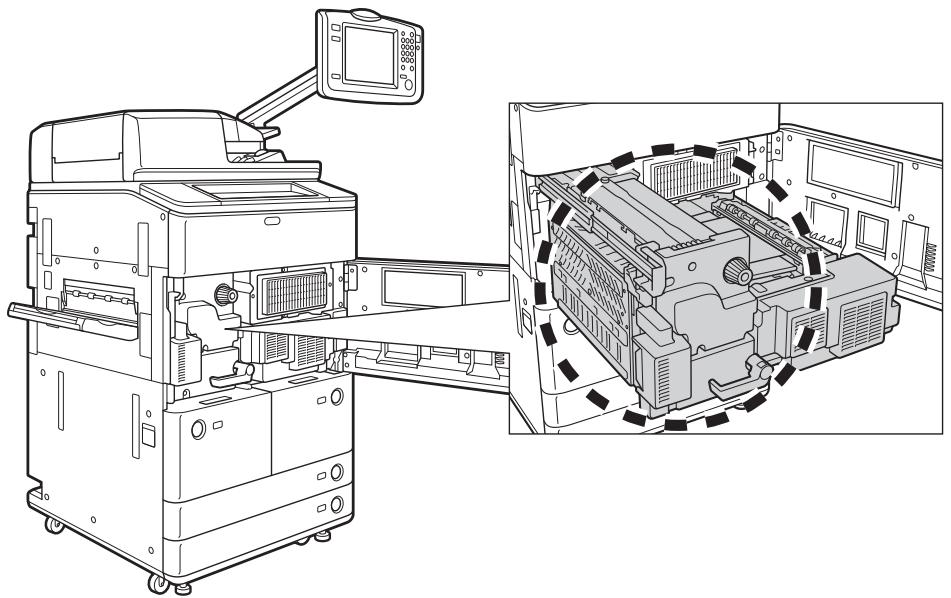
- If a paper jam occurs, follow the directions on the touch panel display to remove any jammed paper from inside the machine. Do not insert your fingers into any parts not indicated on the touch panel display, as doing so may result in personal injury or burns.
- When removing jammed paper or replacing the toner cartridge, take care not to allow the toner to come into contact with your hands or clothing, as this will dirty your hands or clothing. If they become dirty, wash them immediately with cold water. Washing them with warm water will set the toner, and make it impossible to remove the toner stains.
- When removing paper which has become jammed inside the machine, remove the jammed paper gently to prevent the toner on the paper from scattering and getting into your eyes or mouth. If the toner gets into your eyes or mouth, wash them immediately with cold water and immediately consult a physician.
- When loading paper or removing jammed originals or paper, take care not to cut your hands on the edges of the originals or paper.
- When removing paper which has become jammed inside the machine, take care not to cut your hands or injure yourself on the inside of the machine. If you cannot remove the paper, contact your local authorized Canon dealer.
- When removing a used toner cartridge, remove the cartridge carefully to prevent the toner from scattering and getting into your eyes or mouth. If the toner gets into your eyes or mouth, wash them immediately with cold water and immediately consult a physician.
- Do not dismantle the toner cartridge, as doing so may cause toner to fly out and enter your eyes or mouth. If toner gets into your eyes or mouth, wash them immediately with cold water and immediately consult a physician.
- If toner escapes from the toner cartridge, make sure not to ingest the toner or allow it to directly touch your skin. If toner touches your skin, wash it away with soap and water. If your skin still feels irritated after washing it, or you ingest toner, consult a doctor immediately.
Consumables

WARNING
- Do not burn or throw used toner cartridges into open flames, as this may cause the toner remaining inside the cartridges to ignite, resulting in burns or a fire.
- Do not store toner cartridges or copy paper in places exposed to open flames, as this may cause the toner or paper to ignite, resulting in burns or a fire.
- When discarding used toner cartridges, put the cartridges into a bag to prevent the toner remaining inside the cartridges from scattering, and dispose of them in a location away from open flames.

CAUTION
- Keep toner and other consumables out of the reach of small children. If these items are ingested, consult a physician immediately.
- Do not dismantle the toner cartridge, as doing so may cause toner to fly out and enter your eyes or mouth. If toner gets into your eyes or mouth, wash them immediately with cold water and immediately consult a physician.
- If toner escapes from the toner cartridge, make sure not to ingest the toner or allow it to directly touch your skin. If toner touches your skin, wash it away with soap and water. If your skin still feels irritated after washing it, or you ingest toner, consult a doctor immediately.
Other Warnings

WARNING
For cardiac pacemaker users:
This product emits low level magnetic flux. If you use a cardiac pacemaker and feel abnormalities, please move away from the product and consult your doctor.
This machine has a breaker that detects excess current or leakage current. Make sure to test the breaker once or twice a month using the following procedure.

IMPORTANT
- Make sure that the main power is turned OFF, before inspecting the breaker.
- If a malfunction occurs after an inspection, contact your local authorized Canon dealer.
Checking the Breaker
1 Push the test button on the rear of the machine with the tip of a ball-point pen, or a similar object.
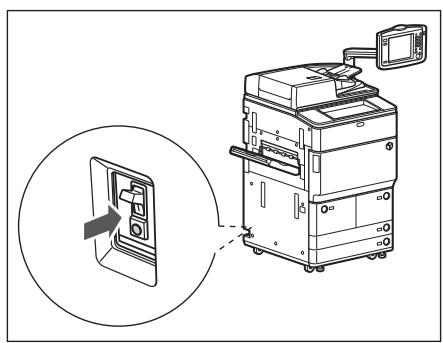

IMPORTANT
Briefly push the test button.

NOTE
- The breaker is located on the rear of the machine.
- For more information on the location of the breaker, see e-Manual > Before You Start Using This Machine.
2 Confirm that the breaker lever is switched to the OFF ("○" side) position.
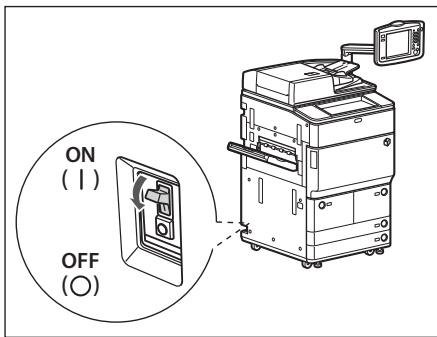
0 IMPORTANT
- Do not use the test button to turn the power ON and OFF.
- If the breaker lever does not switch to the OFF ("O" side) position, repeat step 1.
- If the breaker lever does not switch to the OFF ("O" side) position, despite carrying out the above procedure two or three times, contact your local authorized Canon dealer.
3 Switch the breaker lever to ON ("I" side).
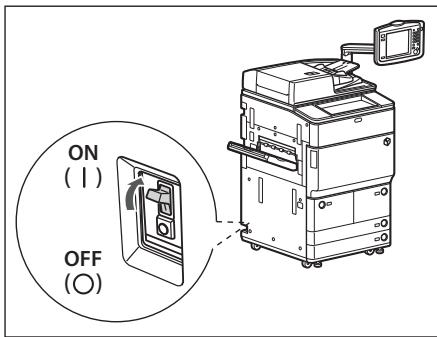
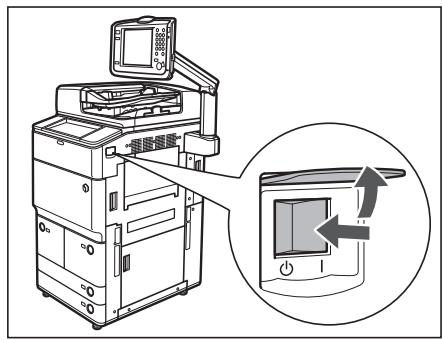
4 Press the main power switch to the ON ("l" side) position.
5 Fill in the check sheet, located on the next page, to document your periodic inspections of the breaker.
Check Sheet for the Periodic Inspection of the Breaker
Copy this page for future use, and store it in a safe place near the machine to document your periodic inspections of the breaker.
How to Inspect the Breaker Periodically
Follow the procedure described in "Periodic Inspection of the Breaker," on p. xxvii, once or twice a month.
How to Fill in This Check Sheet
Fill in the date of inspection and the name of the inspector.
When the inspection is completed successfully, write a check mark under "√."
If not, contact your local authorized Canon dealer. (Also, write a check mark under "X.")
| Date of Inspection | Inspector | Result | |
| ✓ | X | ||
| Date of Inspection | Inspector | Result | |
| ✓ | X | ||
| 23 | |||
The e-Manual (this manual) is an html manual.
You can use the e-Manual on your computer by following the items below.
System Requirements
You need a Web browser to use the e-Manual. Operation of the following Web browsers is guaranteed.
Windows:
Internet Explorer 6.0/7.0/8.0
FireFox 2.x/3.x
Mac OS:
Safari 2.x/3.x
FireFox 2.x/3.x

NOTE
Enabling the script function
Enable the script function for a Web browser before using the e-Manual.
Installing e-Manual
If you are using Windows:
- Insert the e-Manual CD-ROM in your computer.
- Select the language for the e-Manual.
- Select [Install] or [Display manual].
If [Install] is selected, the e-Manual is saved in the [My Documents] folder on your computer. If the shortcut icon created on the Desktop or if the [index.html] file is double-clicked, the e-Manual is displayed.
If [Display manual] is selected, the e-Manual is displayed.
If you are using Macintosh:
- Insert the e-Manual CD-ROM in your computer. 2. Double-click the [e-Manual] icon, then drag-and-drop the [uk_iRADV_8105_Manual] folder to the location where you want to save it.
- Double-click [index.html] in the [uk_iRADV_8105_Manual] folder, and the e-Manual is displayed.

NOTE
Depending on the operating system you are using, a security protection message may be displayed. In this case, allow the contents to be displayed.
Uninstalling the e-Manual
If you are using Windows:
- Open the My Documents folder, then select [uk_iADV_8105_Manual] from the Canon folder.
- Drag-and-drop the folder to the Recycle Bin, or right-click the folder and select [Delete]. Also, if you have a shortcut to the e-Manual on your Desktop, move the shortcut key to the Recycle Bin in the same way as the folder.
- Empty the Recycle Bin.
If you are using Macintosh:
- Drag-and-drop [uk_iRADV_8105_Manual] folder to the Trash icon.
- Empty the Trash.
This section describes the screen layout of the e-Manual.
The page displayed right after the e-Manual starts is called "Top" and the manual description is called "Topic Page" in this section.
The search dialog box is displayed from each page in another window.
The screen layout is different for each page, so see the following instruction.
TOP
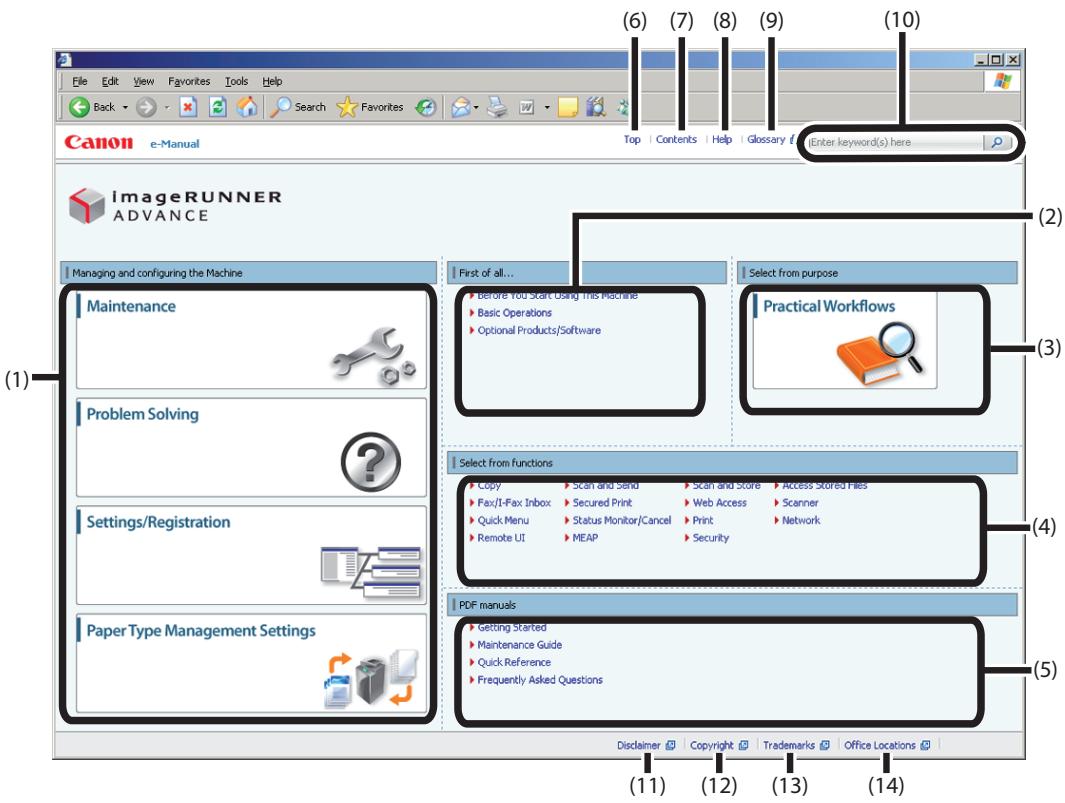
(1) Managing and configuring the Machine
This section describes how to solve a problem or maintenance method, and manage or configure the machine.
(2) First of all...
This section describes the required information to use the machine, and the information of optional equipment and software.
(3) Select from purpose
This section includes the introduction of functions of the machine for each purpose.
(4) Select from functions
The instructions of each function and operation method are described.
(5) PDF manuals
Click to display the Getting Started, Quick Reference, Maintenance Guide, and Frequently Asked Questions in the PDF format.
(6) [Top]
The top page of the e-Manual is displayed.
(7) [Contents]
The entire contents of the e-Manual are displayed.
(8) [Help]
The usage of the e-Manual is displayed.
(9) [Glossary]
The glossary is displayed.
(10) [Enter keyword(s) here]
The search dialog box is displayed by entering a keyword and clicking [ ]
For details, see "Search Method."
(11) [Disclaimer]
The disclaimers are displayed.
(12) [Copyright]
The information of copyrights is displayed.
(13) [Trademarks]
The trademarks are displayed.
(14) [Office Locations]
Inquiries for the machine are displayed.
Topic Page
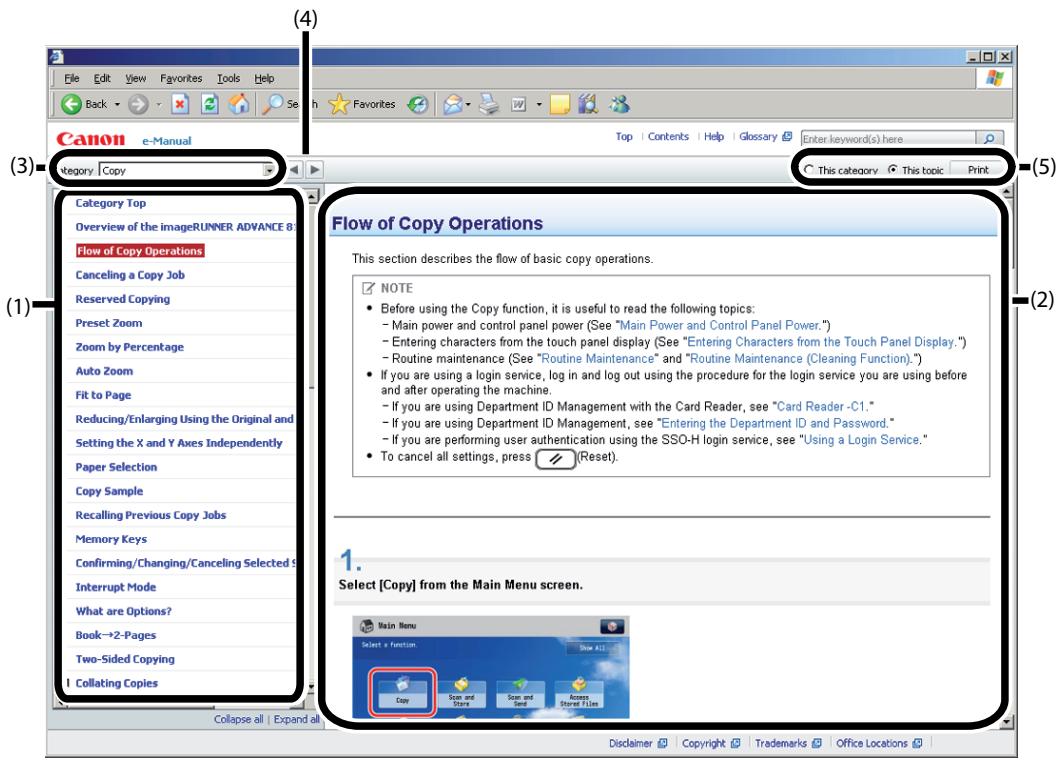
(1) Category contents
This is the list of the contents in the category. Clicking an item displays the description in the topic page. Clicking [+] opens the menu and clicking [ ] closes the menu.
(2) Topic page
The descriptions of each item are displayed.
(3) [Category menu]
You can select a different category from the pull-down menu.
![CANON IMAGERUNNER ADVANCE 8085 - [Category menu] - 1](/content/2020/05/99593/images/0c3bff8d77a55f661a5f262510c4ce39717c6c488bf01190b93030f609c2d5f3.jpg)
Click to move to the previous or next category.
(5) [Print]
Prints the manual.
Select either of the following when printing.
[This category]: Prints all the contents in a category.
[This topic]: Prints only the topic page currently displayed.
![CANON IMAGERUNNER ADVANCE 8085 - [Print] - 1](/content/2020/05/99593/images/67823de1e21f7f97a630ae933b82b321526c4ab22d88fca587aa671ceb8842ca.jpg)
(1) [Enter keyword(s) here]
Enter a keyword in the entry field which is located on the upper right of the "Top" or "Topic page", and then click [P].
The search dialog box is displayed.
You can also search by entering a keyword in the displayed dialog box.
Also, the AND search is available in the e-Manual so you can refine the search results by entering two or more keywords.
When entering keywords, enter a space between the keywords.
Example: "Toner Message" (if you want to display pages which include words, "Toner" and "Message")
(2) Search result
The search results for a keyword are displayed.
If the search results are more than 10 results, you can see the other results by clicking [<<Prev] , [Next>>] , or the number which is located below the result.
(3) [Show search scope]
If you want to specify a search scope, click here, and then select the check box for the category which you want to search.
Appendix
This chapter provides the specifications of the main unit and optional equipment.
Specifications 1-2
Main Unit 1-2 Duplex Color Image Reader Unit-C1 1-4
POD Deck Lite-A1 1-5
Paper Deck Unit-C1 1-5
Document Insertion Unit-K1 1-6
Professional Puncher Integration Unit-B1 1-6
Paper Folding Unit-H1 1-7
Staple Finisher-D1. 1-7 Booklet Finisher-D1. 1-9
Inner Booklet Trimmer-A1 1-11
Puncher Unit-BG1/BH1 1-12
Card Reader-C1 1-12
Send Function 1-13
Network Environment 1-14
Printer Settings 1-14
Provide Adequate Installation Space. 1-15
Specifications are subject to change without notice for product improvement or future release.
1
Main Unit
| Item | Specification | |||
| Name | Canon imageRUNNER ADVANCE 8105/8095/8085 | |||
| Type | Reader-Printer Separated, Console type | |||
| Resolution for Writing | 1,200 x 1,200 dpi | |||
| Paper Size/Weight/Type | Paper Printer 1, 2 (Left/Right) Weight: 52 g/m² to 220 g/m² Type: Thin, Plain, Heavy, Colour, Recycled, Pre-Punched, and Letterhead Paper Printer 3, 4 Weight: 52 g/m² to 220 g/m² Type: Thin, Plain, Heavy, Colour, Recycled, Pre-Punched, Tab, and Letterhead Multi-Purpose Tray Weight: 52 g/m² to 256 g/m² Type: Thin, Plain, Heavy, Colour, Recycled, Pre-Punched, Transparency, Tracing, Labels, and Letterhead The printing conditions may vary, depending on the paper type. For more information on paper types, see e-Manual > Basic Operations. | |||
| Paper Sizes | Paper Printer 1, 2 (Left/Right): A4 Paper Printer 3, 4: 330 x 483 mm, 320 x 450 mm (SRA3), 305 x 457 mm, A3, A4, A4R, A5R, Custom Size (139.7 x 182.0 mm to 330.2 x 487.7 mm) Multi-Purpose Tray: 330 x 483 mm, 320 x 450 mm (SRA3), 305 x 457 mm, A3, A4, A4R, A5R, Custom Size/Free Size (100.0 x 148.0 mm to 330.2 x 487.7 mm) | |||
| Warm-Up Time | After powering ON: 1 minute or less Returning from the Sleep mode: 1 minute or less Returning from the Energy Saver mode: Approximately 20 seconds * Activation time may vary, depending on the environment and conditions under which the machine is being used. | |||
| First Copy Time | 2.7 seconds or less | |||
| Item | Specification | |||
| Copy Speed(Except when paper is fed from the Multi-Purpose Tray) | 1:1 (sheet/minute) | |||
| imageRUNNERADVANCE 8105: | imageRUNNERADVANCE 8095: | imageRUNNERADVANCE 8085: | ||
| 330 x 483 mm | 47 | 43 | 38 | |
| 320 x 450 mm (SRA3) | 50 | 46 | 41 | |
| 305 x 457 mm | 50 | 45 | 40 | |
| A3 | 54 | 50 | 44 | |
| A4 | 105 | 95 | 85 | |
| A4R | 76 | 69 | 63 | |
| A5R | 105 | 95 | 85 | |
| Margin | Top: 2.5 mmLeft and Right: 2.5 mmBottom: 2.5 mm | |||
| Paper Feeding System/Capacity | Paper Printer 1, 2 (Left/Right):1,500 sheets x 2 paper decks (80 g/m2) | |||
| Paper Printer 3, 4:550 sheets x 2 cassettes (80 g/m2) | ||||
| Multi-Purpose Tray:100 sheets (80 g/m2) | ||||
| Multiple Copies | 1 to 9,999 sheets | |||
| Power Source | 220-240 V AC, 50/60 Hz, 10 A | |||
| Maximum Power Consumption | Maximum Power Consumption: 2.2 kW or lessWhen in the Sleep mode: 1.5 W or lessWhen in the Energy Saver mode: 240 Wh or less (-10 % is selected) | |||
| Memory Capacity | Standard: 1.5 GBMaximum: 2 GB | |||
| Hard Disk Capacity | Standard: 80 GBMaximum: 250 GB | |||
| Dimensions(H x W x D)(To the platen glass) | 1,040 mm x 645 mm x 770 mm | |||
| Dimensions(H x W x D)(With the Duplex Color Image Reader Unit-C1) | 1,252 mm*1 x 1,481 mm*2 x 770 mm*1 To the top of the Upright Control Panel in the standard position.*2 To the right edge of the Upright Control Panel in the rightmost position. | |||
| Weight | Approximately 242 kg(Including the toner bottle, the Duplex Color Image Reader Unit-C1 and the Upright Control Panel.) | |||
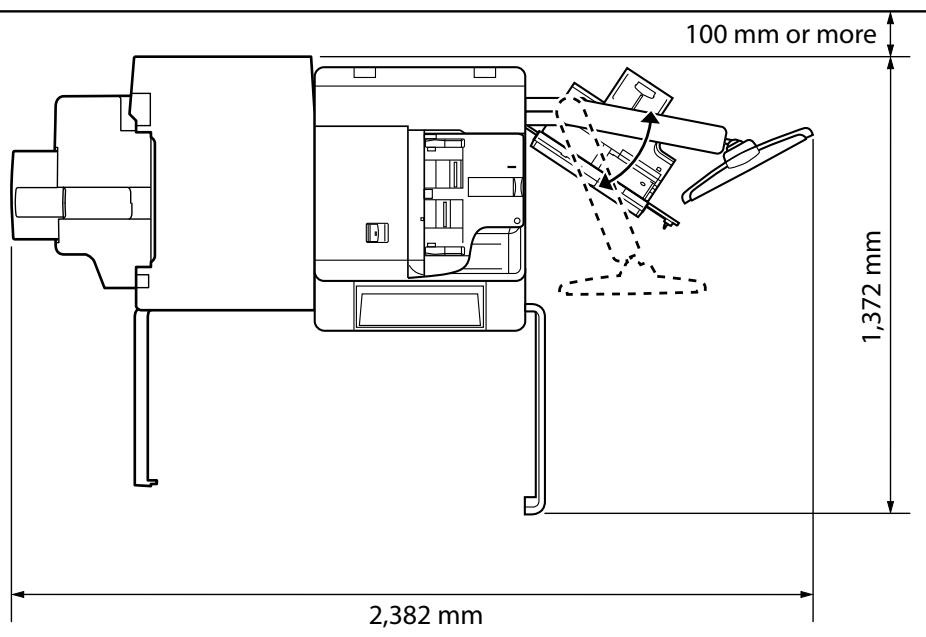
| Installation Space(W x D) | 2,382 mm*1 x 770 mm(when the Booklet Finisher-D1 is attached, and the multi-purpose tray and the auxiliary tray is extended.)*1 To the right edge of the Upright Control Panel in the rightmost position. | |||
Duplex Color Image Reader Unit-C1
| Item | Specification |
| Type | Printer separated, Stream feed (Feeder), No stream (Reader) |
| Resolution for Reading | 600 dpi x 600 dpi |
| Number of Tones | 256 |
| Acceptable Originals | sheet, book, three dimensional object (up to 2 kg) |
| Size and Weight of Originals | Size: A3, A4, A4R, A5, A5R Weight: One-sided scanning: 38 to 220 g/m² Two-sided scanning: Black and White Original: 50 to 220 g/m² Colour Original: 64 to 220 g/m² |
| Magnification | Regular paper size: Same Ratio 1:1 Reduction 1:0.70 (A3 → A4R) 1:0.50 (A3 → A5R) 1:0.25 Enlargement 1:1.41 (A4R → A3) 1:2.00 (A5R → A3) 1:4.00 Copy Ratio: 25 to 400 % (in 1 % increments) |
| Original Feeding Mechanism | Automatic Document Feeder |
| Original Tray Capacity | 300 sheets (80 g/m²) |
| Original Scanning Speed | Copying 1-sided scanning: 120 sheets/minute (A4 in Black-and-White at 600 dpi) 2-sided scanning: 60 sheets (120 pages)/minute (A4 in Black-and-White at 600 dpi) 1-sided scanning: 51 sheets/minute (A4 in Full Colour at 600 dpi) 2-sided scanning: 25.5 sheets (51 pages)/minute (A4 in Full Colour at 600 dpi) Scanning* 1-sided scanning: 120 sheets/minute (A4 in Black-and-White at 300 dpi) 2-sided scanning: 100 sheets (200 pages)/minute (A4 in Black-and-White at 300 dpi) 1-sided scanning: 85 sheets/minute (A4 in Full Colour at 300 dpi) 2-sided scanning: 50 sheets (100 pages)/minute (A4 in Full Colour at 300 dpi) * The scanning speed may vary depending on the scanning mode and original type. |
| Power Source/Consumption | From the main unit/180 W (feeder and reader) |
| Dimensions (H x W x D) | 253 mm x 635 mm x 605 mm (feeder and reader) |
| Weight | 39.4 kg (feeder and reader) |
POD Deck Lite-A1
| Item | Specification |
| Paper Size/Weight/Type | Size: 330 x 483 mm, 320 x 450 mm (SRA3), 305 x 457 mm, A3, A4, A4R |
| Weight: 52 to 256 g/m2 | |
| Type: Thin, Plain, Heavy, Colour, Recycled, Pre-Punched, Transparency, Labels, and Letterhead | |
| Paper Deck Capacity | 3,500 sheets (80 g/m2) |
| Power Source/Maximum Power Consumption | 220-240 V AC, 50/60 Hz, 1.2 A/276 W maximum |
| Dimensions (H x W x D) | 570 mm x 601 mm x 621 mm |
| Weight | Approximately 50 kg |
| Installation Space Including the Main Unit (W x D) | 2,382 mm x 789 mm (when the Booklet Finisher-D1 is attached, and the auxiliary tray is extended.) |
Paper Deck Unit-C1
| Item | Specification |
| Paper Size/Weight/Type | Size: A4 |
| Weight: 52 to 220 g/m2 | |
| Type: Thin, Plain, Heavy, Colour, Recycled, and Pre-Punched | |
| Paper Deck Capacity | 3,500 sheets (80 g/m2) |
| Power Source/Maximum Power Consumption | From the main unit/Approximately 44 W |
| Dimensions (H x W x D) | 570 mm x 323 mm x 583 mm |
| Weight | Approximately 37 kg |
| Installation Space Including the Main Unit (W x D) | 2,382 mm*1 x 789 mm (when the Booklet Finisher-D1 is attached, and the auxiliary tray is extended.) *1 To the right edge of the Upright Control Panel in the rightmost position. |
Document Insertion Unit-K1
| Item | Specifications |
| Paper Size/Weight/Type | Size: 330 x 483 mm, 320 x 450 mm (SRA3), 305 x 457 mm, A3, A4, A4R, Custom Size (182.0 x 182.0 mm to 330.2 x 487.7 mm) |
| Weight: 52 to 256 g/m² | |
| Type: Thin, Plain, Heavy, Colour, Recycled, Pre-Punched, Tracing, Tab, Letterhead, and Coated | |
| * Coated paper can be loaded from the insertion unit only. | |
| Paper Deck Capacity | Upper/Lower Tray: 200 sheets (80 g/m²) x 2 |
| Power Source/Maximum Power Consumption | 100-240 V AC, 50/60 Hz, 1.0 A/Approximately 104 W |
| Dimensions (H x W x D) | 1,407 mm x 746 mm x 793 mm |
| Weight | Approximately 61 kg |
| Installation Space Including the Main Unit (W x D) | 2,723 mm*1 x 789 mm |
| (when the Booklet Finisher-D1 is attached, and the multi-purpose tray and the auxiliary tray is extended. *1 To the right edge of the Upright Control Panel in the rightmost position. |
Professional Puncher Integration Unit-B1
| Item | Specification |
| Paper Size/Weight/Type | Size: A4 |
| Weight: 52 to 216 g/m² | |
| Type: Thin, Plain, Heavy, Colour, Recycled, Tab, Letterhead, and Coated | |
| * Coated paper can be loaded from the insertion unit only. | |
| Power Source | 120-127 V AC, 60 Hz, 5.5 A |
| Maximum Power Consumption | 130 W |
| Dimensions (H x W x D)/Weight | 1,040 mm x 250 mm x 792 mm Approximately 40 kg |
| Installation Space (W x D) | 2,947 mm x 792 mm when the Booklet Finisher-D1 is attached, and the multi-purpose tray and the auxiliary tray is extended.) |
Paper Folding Unit-H1
| Item | Specifications |
| Paper Size/Weight/Type | Size: Z-Fold: A3, A4R C-Fold: A4R Accordion Z-Fold: A4R Double Parallel Fold: A4R Half Fold: A4R |
| Weight: Z-Fold: 52 to 105 g/m² C-Fold: 52 to 105 g/m² Accordion Z-Fold: 52 to 105 g/m² Double Parallel Fold: 52 to 90 g/m² Half Fold: 52 to 105 g/m² | |
| Type: Thin, Plain, Colour, Recycled, and Coated | |
| * Coated paper can be loaded from the insertion unit only. * Select plain paper if you use 91 to 105 g/m² paper for Z-Fold, C-Fold, Accordion Z-Fold, and Half Fold. | |
| Power Source/Maximum Power Consumption | From the finisher/140 W |
| Dimensions (H × W × D) | 1,190 mm x 336 mm x 793 mm |
| Weight | Approximately 71 kg |
| Installation Space Including the Main Unit (W x D) | 2,723 mm*1 x 817 mm (when the Booklet Finisher-D1 is attached, and the multi-purpose tray and the auxiliary tray is extended.) *1 To the right edge of the Upright Control Panel in the rightmost position. |
Staple Finisher-D1
| Item | Specification |
| Paper Size/Weight/Type | Size: 330 x 483 mm, 320 x 450 mm (SRA3), 305 x 457 mm, A3, A4, A4R, A5R, Custom Size/Free Size (100.0 x 148.0 mm to 330.2 x 487.7 mm) |
| Weight: Tray A, Tray C: 52 to 256 g/m²¹ | |
| Tray B: 52 to 256 g/m² | |
| *1 Collating cannot be set for paper less than 60 g/m². | |
| Type: Thin, Plain, Heavy, Colour, Recycled, Pre-Punched, Transparency, Tracing, Labels, Tab, Letterhead, and Coated | |
| * Coated paper can be loaded from the insertion unit only. | |
| No CollatingTray A:A4, A5R:1,500 sheets (or 195 mm in height)*1330 x 483 mm, 320 x 450 mm (SRA3), 305 x 457 mm, A3, A4R:750 sheets (97 mm in height)Tray B:A4R, A5R:250 sheets (32 mm in height)A3, A4R:125 sheets (16 mm in height)Tray C:A4:2,500 sheets (325 mm in height)*1A5R:1,500 sheets (162 mm in height)*1330 x 483 mm, 320 x 450 mm (SRA3), 305 x 457 mm, A3, A4R:750 sheets (97 mm in height)Collate, Group modeTray A, Tray C:A4:1,500 sheets (or 195 mm in height)*1330 x 483 mm, 320 x 450 mm (SRA3), 305 x 457 mm, A3, A4R:750 sheets (or 97 mm in height)Staple modeTray A, Tray C:One point at front (diagonal)/One point at back (diagonal)/Two points in centre (parallel)A4:1,500 sheets/100 sets (or 195 mm in height)*1A3, A4R:750 sheets/50 sets (or 97 mm in height) | |
| Capacity Per Tray | No Collating mode with different paper sizesTray A:750 sheets (or 97 mm in height)Tray B:A3, A4R, A5R:125 sheets (or 16 mm in height)*2Tray C:750 sheets (or 97 mm in height)Collate/Group/Staple mode with different paper sizesTray A, Tray C:750 sheets (or 97 mm in height)Z-Fold mode (when the Paper Folding Unit-H1 is attached.)Tray A:A3:30 sheetsA4R:10 sheetsTray B:A3, A4:10 sheetsTray C:A3:30 sheetsA4R:10 sheetHalf Fold mode (when the Paper Folding Unit-H1 is attached.)Tray A:A4R:10 sheetsTray B:A4R:10 sheetsTray C:A4R:10 sheets*1 Up to 1,200 sheets (or 97 mm in height) when thin paper or custom paper lighter than 59 g/m2is selected.*2 Up to 30 sheets when printing on mixed paper sizes including any of the following: 330 x 483 mm, 320 x 450 mm (SRA3), 305 x 457 mm. |
| Max. Stapling Capacity/ Available Staple Size | When the standard staple cartridge is attached (The maximum stapling capacity may vary, depending on the paper type and weight.) A4: 100 sheets (80 g/m2) or below 11 mm in height A3, A4R: 50 sheets (80 g/m2) or below 5.5 mm in height Corner Stapling: A3, A4, A4R Double Stapling: A3, A4, A4R |
| Power Source/Maximum Power Consumption | 100-240 V AC, 50/60 Hz, 2.8 A/185 W |
| Dimensions (H x W x D) | 1,040 mm x 654 mm (782 mm*1) x 765 mm *1 When the auxiliary tray is extended. |
| Weight | Approximately 61 kg |
| Installation Space Including the Main Unit (W x D) | 2,268 mm*1 x 789 mm (when the multi-purpose tray and the auxiliary tray is extended.) *1 To the right edge of the Upright Control Panel in the rightmost position. |
Booklet Finisher-D1
| Item | Specification |
| Paper Size/Weight/Type | Size: 330 x 483 mm, 320 x 450 mm (SRA3), 305 x 457 mm, A3, A4, A4R, A5R, Custom Size/Free Size (100.0 x 148.0 mm to 330.2 x 487.7 mm) |
| Weight: Tray A, Tray C: 52 to 256 g/m²¹ Tray B: 52 to 256 g/m² | |
| *1 Collating cannot be set for paper less than 60 g/m². | |
| Type: Thin, Plain, Heavy, Colour, Recycled, Pre-Punched, Transparency, Tracing, Labels, Tab, Letterhead, and Coated | |
| * Coated paper can be loaded from the insertion unit only. | |
| Capacity Per Tray | No Collating Tray A: A4, A5R: 1,500 sheets (or 195 mm in height)*1 330 x 483 mm, 320 x 450 mm (SRA3), 305 x 457 mm, A3, A4R: 750 sheets (or 97 mm in height) Tray B: A4, A5R: 250 sheets (or 32 mm in height) A3, A4R: 125 sheets (or 16 mm in height) Tray C: A4: 2,500 sheets (or 325 mm in height)*1 A5R: 1,500 sheets (or 162 mm in height)*1 330 x 483 mm, 320 x 450 mm (SRA3), 305 x 457 mm, A3, A4R: 750 sheets (or 97 mm in height) |
| Collate, Group mode Tray A, Tray C: A4: 1,500 sheets (or 195 mm in height)*1 330 x 483 mm, 320 x 450 mm (SRA3), 305 x 457 mm, A3, A4R: 750 sheets (or 97 mm in height) | |
| Staple mode Tray A, Tray C: One point at front (diagonal)/One point at back (diagonal)/Two points in centre (parallel) A4: 1,500 sheets/100 sets (or 195 mm in height)*1 A3, A4R: 750 sheets/50 sets (or 97 mm in height) | |
| No Collating with different paper sizes Tray A: 750 sheets (or 97 mm in height) Tray B: A3, A4, A4R, A5R: 125 sheets (or 16 mm in height)*2 Tray C: 750 sheets (or 97 mm in height) | |
| Collate/Group/Staple mode with different paper sizes Tray A, Tray C: 750 sheets (or 97 mm in height) | |
| Z-Fold mode (when the Paper Folding Unit-H1 is attached.) Tray A: A3: 30 sheets A4R: 10 sheets Tray B: A3, A4R: 10 sheets Tray C: A3: 30 sheets A4R: 10 sheets | |
| Half Fold mode (when the Paper Folding Unit-H1 is attached.) Tray A: A4R: 10 sheets Tray B: A4R: 10 sheets Tray C: A4R: 10 sheets | |
| Saddle Stitch mode: 1 to 5 sheets/25 sets, 6 to 10 sheets/15 sets, 11 to 16 sheets/10 sets, 17 to 20 sheets/5 sets | |
| *1 Up to 1,200 sheets (or 97 mm in height) when thin paper or custom paper lighter than 59 g/m2is selected. *2 Up to 30 sheets when printing on mixed paper sizes including any of the following: 330 x 483 mm, 320 x 450 mm (SRA3), 305 x 457 mm. | |
| Max. Stapling Capacity/ Available Staple Size | When the standard staple cartridge is attached (The maximum stapling capacity may vary, depending on the paper type and weight.) A4: 100 sheets (80 g/m2) or below 11 mm in height A3, A4R: 50 sheets (80 g/m2) or below 5.5 mm in height Corner Stapling: A3, A4, A4R Double Stapling: A3, A4, A4R |
| Available Saddle Stitch Capacity/Size | Saddle Stitch: 20 sheets (80 g/m2) (including 1 cover sheet up to 256 g/m2) Saddle Folding: 5 sheets (80 g/m2) Size: 330 x 483 mm, 320 x 450 mm (SRA3), 305 x 457 mm, A3, A4R, Custom Size (210.0 x 279.3 mm to 330.2 x 487.7 mm) |
| Power Source/Maximum Power Consumption | 100-240 V AC, 50/60 Hz, 2.8 A/224 W maximum |
| Dimensions (H x W x D) | 1,040 mm x 767 mm (896 mm*1) x 765 mm *1 When the auxiliary tray is extended. |
| Weight | Approximately 108 kg |
| Installation Space (W x D) | 2,382 mm*1 x 789 mm (when the multi-purpose tray and the auxiliary tray is extended.) *1 To the right edge of the Upright Control Panel in the rightmost position. |
Inner Booklet Trimmer-A1
| Item | Specifications |
| Paper Size/Weight/Type | Size: 330 x 483 mm, 320 x 450 mm (SRA3), 305 x 457 mm, A3, A4R, Custom Size (210.0 x 279.3 mm to 330.2 x 487.7 mm) |
| Weight: 60 g/m² to 256 g/m² | |
| Type: Thin, Plain, Heavy, Colour, Recycled, Letterhead, and Coated | |
| * 210 to 256 g/m² paper can be used only for one cover sheet. * Coated paper can be loaded from the insertion unit only. | |
| Maximum Number of Sheets You Can Trim | 2 to 20 mm |
| 40 sheets | |
| Trimmer Booklet Waste Tray Capacity | Approximately 1,500 sheets of trimmed strip (width 20 mm, A4, 80 g/m²) |
| Power Source/Maximum Power Consumption | From the finisher/Included to the power consumption of the finisher. |
| Dimensions (H x W x D) | Inside the finisher (403 mm x 251 mm x 625 mm) |
| Weight | Approximately 32 kg |
Puncher Unit-BG1/BH1
| Item | Specifications |
| Paper Size/Weight/Type | Size: A3*, A4*, and A4R *1 When the Puncher Unit-BG1 is attached, four holes can be punched on A3 and A4. Weight: 52 to 256 g/m2 Type: Thin, Plain, Heavy, Colour, Recycled, Tab, Letterhead, and Coated * Coated paper can be loaded from the insertion unit only. |
| Punch Hole Quantity, Hole Diameter | Two holes: 6.5 mm Four holes: 6.5 mm |
| Distance between Punch Holes | Two holes: 80 mm Four holes: 80 mm (When the Puncher Unit-BH1 is attached) 21 mm/70 mm/21 mm (When the Puncher Unit-BG1 is attached) |
| Punch Waste Tray Capacity | Approximately 5,000 sheets (80 g/m2) |
| Power Source/Maximum Power Consumption | From the finisher/Approximately 56 W (When in operation) |
| Dimensions (H x W x D) | Inside the finisher (392 mm × 95 mm × 715 mm) |
| Weight | Approximately 3.7 kg |
Card Reader-C1
| Item | Specifications |
| Available Cards | Magnetic/Optical |
| Card Readout Method | Magnetic/Optical readout |
| Card Reading Direction | Inserting Direction |
| Store/Replay | Replay |
| Power Source | From the main unit |
| Dimensions (H x W x D) | 32 mm x 88 mm x 100 mm |
| Weight | Approximately 295 g |
Scan Features
| Item | Specifications |
| Communication Protocol | FTP (TCP/IP), SMB (TCP/IP), WebDAV |
| Data Format | TIFF, JPEG, PDF, XPS |
| Resolution | 100 x 100 dpi, 150 x 150 dpi, 200 x 100 dpi, 200 x 200 dpi, 200 x 400 dpi, 300 x 300 dpi, 400 x 400 dpi, 600 x 600 dpi |
| System Environment | Windows 2000 (SP1 or later), Windows XP, Windows Vista, Windows Server 2003, Windows Server 2008, Windows 7, Mac OS X, Red Hat Linux 7.2, Solaris Version 2.6 or later |
| Interface | 1000BASE-T, 100BASE-TX, 10BASE-T |
| Colour Mode | Automatic-Color Select (Full Color/Grayscale), Automatic-Color Select (Full Color/Black-and-White), Full Color, Grayscale, Black-and-White |
| Original Type | Text, Text/Photo, Photo |
| Others | Preview, Browse Windows (SMB) File Server |
| Optional PDF/XPS Functions | Compact, Trace and Smooth*1, Encryption*1, OCR, Device Signature, User Signature, Optimization for Web*1, PDF/A*1, Reader Extensions*1 |
*1 PDF only.
E-mail and I-Fax Features
| Item | Specifications | |
| Communication Protocol | SMTP, POP3 | |
| I-Fax Communication Mode | Simple, Full | |
| Resolution | For Sending E-mail | 100 x 100 dpi, 150 x 150 dpi, 200 x 100 dpi, 200 x 200 dpi, 200 x 400 dpi, 300 x 300 dpi, 400 x 400 dpi, 600 x 600 dpi |
| For Sending I-Fax | Black-and-White 200 x 100 dpi, 200 x 200 dpi, 200 x 400 dpi*, 300 x 300 dpi*, 400 x 400 dpi*, 600 x 600 dpi* * Available after setting RX conditions of the destination | |
| Format | TIFF, JPEG, PDF, XPS | |
| I-Fax | Black-and-White TIFF (MH, MR*, MMR*) * Available after setting RX conditions of the destination | |
| Original Size | A3, A4, A4R, A5, A5R | |
| I-Fax | A3, A4, A4R, A5*, A5R* * Sent as A4 | |
| Server Software | Microsoft Exchange Server 5.5 (SP1 or later), Sendmail 8.93, Lotus Domino R 4.6 or later | |
| Other | Searches a destination via the LDAP Server, Preview | |
| Optional PDF/XPS Functions (E-mail only) | Compact, Trace and Smooth*, Encryption*, OCR, Device Signature, User Signature, Optimization for Web*, PDF/A*, Reader Extensions* | |
*1 PDF only.
Network Environment
Hardware Specifications
| Network Interface | 10Base-T/100Base-TX/1000Base-T (RJ-45) |
Software Specifications
| Protocol Supported | ||
| TCP/IP | Frame type: | Ethernet II |
| Print applications: | LPD/Raw/IPP/IPPS/FTP/WSD | |
| IPX/SPX | Frame type: | Ethernet II/Ethernet 802.2/Ethernet 802.3/ |
| Print applications: | Ethernet SNAP/Auto Detect | |
| Print applications: | Bindery PServer/NDS PServer/RPrinter/ | |
| NPrinter | ||
| NetBIOS*1 | Frame type: | Ethernet II |
| Print application: | SMB | |
| AppleTalk | Frame type: | Ethernet SNAP |
| Print application: | PAP (Printer Access Protocol) | |
*1 IPv6 is not supported.
Printer Settings
Software Specifications
| Command Language | PCL5e, PCL6, PostScript 3 |
| Resident Fonts | PCL: 93 Scalable fonts, 2 OCR fonts, and 10 Bitmap fonts PS: 138 Scalable fonts |
| Printable Area | PCL5e, PCL6: Reduced to 4.23 mm from the top, bottom, left, and right edges of the paper. PostScript 3: Reduced to 4 mm from the top, bottom, left, and right edges of the paper. |
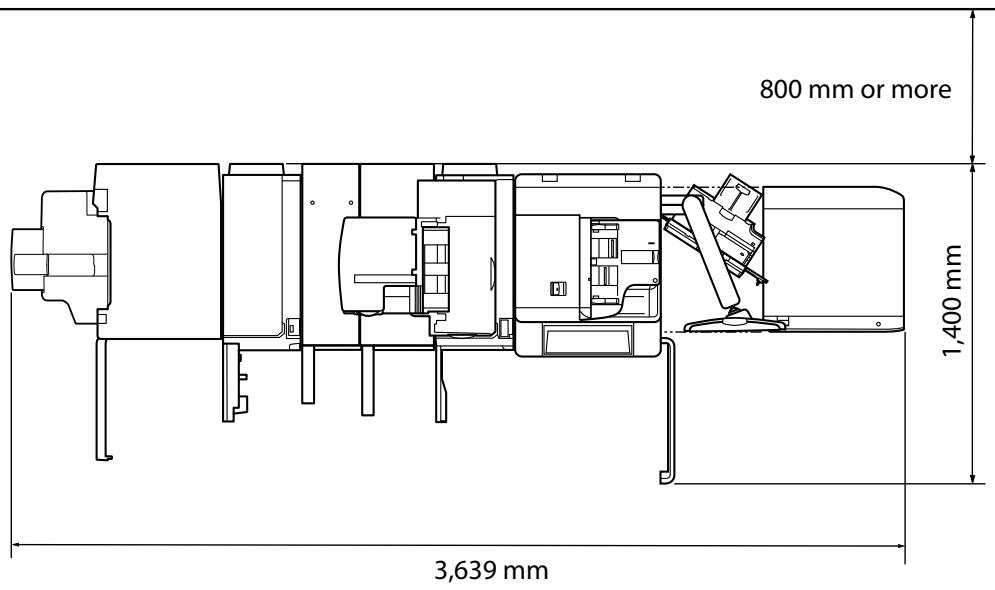
■ Provide enough space on each side of the machine for unrestricted operation.
The optional Duplex Color Image Reader Unit is attached.
The optional Booklet Finisher, Paper Folding Unit, Professional Puncher Integration Unit, Professional Puncher, Document Insertion Unit, Duplex Color Image Reader Unit, and POD Deck Lite are attached.
1
Appendix
imageRUNNER ADVANCE
8105/8095/8085
Legal mentions. xiii
Copyright © 2007-08 Adobe Systems Incorporated. All rights reserved.
Protected by U.S. Patents 5,737,599; 5,781,785; 5,819,301; 5,929,866; 5,943,063; 6,073,148; 6,515,763; 6,639,593; 6,754,382; 7,046,403; 7,213,269; 7,242,415; Patents pending in the U.S. and other countries.
All instances of the name PostScript in the text are references to the PostScript language as defined by Adobe Systems Incorporated unless otherwise stated. The name PostScript also is used as a product trademark for Adobe Systems' implementation of the PostScript language interpreter.
Except as otherwise stated, any reference to a "PostScript printing device," "PostScript display device," or similar item refers to a printing device, display device or item (respectively) that contains PostScript technology created or licensed by Adobe Systems Incorporated and not to devices or items that purport to be merely compatible with the PostScript language.
Adobe, the Adobe logo, PostScript, the PostScript logo, and PostScript 3 are either registered trademarks or trademarks of Adobe Systems Incorporated in the United States and/or other countries.
Linux is a registered trademark of Linus Torvalds. Microsoft and Windows are either registered trademarks or trademarks of Microsoft Corporation in the United States and/or other countries.

Copyright © 2008 Adobe Systems Incorporated. All rights reserved.
Protected by U.S. Patents 6,185,684; 6,205,549; 7,213,269; 7,272,628; 7,278,168; Patents pending in the U.S. and other countries.
All instances of the name PostScript in the text are references to the PostScript language as defined by Adobe Systems Incorporated unless otherwise stated. The name PostScript also is used as a product trademark for Adobe Systems' implementation of the PostScript language interpreter.
Except as otherwise stated, any reference to a "PostScript printing device," "PostScript display device," or similar item refers to a printing device, display device or item (respectively) that contains PostScript technology created or licensed by Adobe Systems Incorporated and not to devices or items that purport to be merely compatible with the PostScript language.
Adobe, the Adobe logo, PostScript, the PostScript Logo, and PostScript 3 are either registered trademarks or trademarks of Adobe Systems Incorporated in the United States and/or other countries.
CLASS 1 LASER PRODUCT
LASER KLASSE 1
APPAREIL A LASER DE CLASSE 1
APPARECCHIO LASER DI CLASSE 1
PRODUCTO LAsER DE CLASE 1
APARELHO A LASER DE CLASSE 1
LUOKAN 1 LASER-TUOTE
LASERPRODUKT KCLASS 1

ATTENTION
The ADOBE SOFTWARE is a "commercial item," as that term is defined at 48 C.F.R. 2.101 (Oct 1995), consisting of "commercial computer software" and "commercial computer software documentation," as such terms are used in 48 C.F.R. 12.212 (Sept 1995). Consistent with 48 C.F.R. 12.212 and 48 C.F.R. 227.7202-1 through 227.7202-4 (June 1995), all U.S. Government End Users shall acquire The ADOBE SOFTWARE with only those rights set forth herein.
Copyright © 2007-08 Adobe Systems Incorporated. All rights reserved.
Protected by U.S. Patents 5,737,599; 5,781,785; 5,819,301; 5,929,866; 5,943,063; 6,073,148; 6,515,763; 6,639,593; 6,754,382; 7,046,403; 7,213,269; 7,242,415; Patents pending in the U.S. and other countries.
All instances of the name PostScript in the text are references to the PostScript language as defined by Adobe Systems Incorporated unless otherwise stated. The name PostScript also is used as a product trademark for Adobe Systems' implementation of the PostScript language interpreter.
Except as otherwise stated, any reference to a "PostScript printing device," "PostScript display device," or similar item refers to a printing device, display device or item (respectively) that contains PostScript technology created or licensed by Adobe Systems Incorporated and not to devices or items that purport to be merely compatible with the PostScript language.
Adobe, the Adobe logo, PostScript, the PostScript logo, and PostScript 3 are either registered trademarks or trademarks of Adobe Systems Incorporated in the United States and/or other countries.
Linux is a registered trademark of Linus Torvalds. Microsoft and Windows are either registered trademarks or trademarks of Microsoft Corporation in the United States and/or other countries.

Copyright © 2008 Adobe Systems Incorporated. All rights reserved.
Protected by U.S. Patents 6,185,684; 6,205,549; 7,213,269; 7,272,628; 7,278,168; Patents pending in the U.S. and other countries.
All instances of the name PostScript in the text are references to the PostScript language as defined by Adobe Systems Incorporated unless otherwise stated. The name PostScript also is used as a product trademark for Adobe Systems' implementation of the PostScript language interpreter.
Except as otherwise stated, any reference to a "PostScript printing device," "PostScript display device," or similar item refers to a printing device, display device or item (respectively) that contains PostScript technology created or licensed by Adobe Systems Incorporated and not to devices or items that purport to be merely compatible with the PostScript language.
Adobe, the Adobe logo, PostScript, the PostScript Logo, and PostScript 3 are either registered trademarks or trademarks of Adobe Systems Incorporated in the United States and/or other countries.
CLASS 1 LASER PRODUCT
LASER KLASSE 1
APPAREIL A LASER DE CLASSE 1
APPARECCHIO LASER DI CLASSE 1
CLASS 1 LASER PRODUCT
CLASS 1 LASER APPARATUS
CLASS 1 LASER PRODUCT
CLASS 1 LASER PRODUCT

CAUTION
The ADOBE SOFTWARE is a "commercial item," as that term is defined at 48 C.F.R. 2.101 (Oct 1995), consisting of "commercial computer software" and "commercial computer software documentation," as such terms are used in 48 C.F.R. 12.212 (Sept 1995). Consistent with 48 C.F.R. 12.212 and 48 C.F.R. 227.7202-1 through 227.7202-4 (June 1995), all U.S. Government End Users shall acquire The ADOBE SOFTWARE with only those rights set forth herein.
This paper describes the application of a user interface to a system of embedded systems. The application is based on a user interface that is designed for a variety of applications, including the application of a computer program, the application of a mobile device, and the application of a computer network.
(3) Select function
Professional Punch Integration Unit-B1 1-6
Folding Unit H1. 1-7
Finisher A1. 1-7
Booklet Finisher D1. 1-9
Internet Booklet-Trimmer A1 1-11
Punch Unit BG1/BH1 1-12
Professional Punch Integration Unit-B1
Copyright © 2007-08 Adobe Systems Incorporated. All rights reserved.
Protected by U.S. Patents 5,737,599; 5,781,785; 5,819,301; 5,929,866; 5,943,063; 6,073,148; 6,515,763; 6,639,593; 6,754,382; 7,046,403; 7,213,269; 7,242,415; Patents pending in the U.S. and other countries.
All instances of the name PostScript in the text are references to the PostScript language as defined by Adobe Systems Incorporated unless otherwise stated. The name PostScript also is used as a product trademark for Adobe Systems' implementation of the PostScript language interpreter.
Except as otherwise stated, any reference to a "PostScript printing device," "PostScript display device," or similar item refers to a printing device, display device or item (respectively) that contains PostScript technology created or licensed by Adobe Systems Incorporated and not to devices or items that purport to be merely compatible with the PostScript language.
Adobe, the Adobe logo, PostScript, the PostScript logo, and PostScript 3 are either registered trademarks or trademarks of Adobe Systems Incorporated in the United States and/or other countries.
Linux is a registered trademark of Linus Torvalds. Microsoft and Windows are either registered trademarks or trademarks of Microsoft Corporation in the United States and/or other countries.

Copyright © 2008 Adobe Systems Incorporated. All rights reserved.
Protected by U.S. Patents 6,185,684; 6,205,549; 7,213,269; 7,272,628; 7,278,168; Patents pending in the U.S. and other countries.
All instances of the name PostScript in the text are references to the PostScript language as defined by Adobe Systems Incorporated unless otherwise stated. The name PostScript also is used as a product trademark for Adobe Systems' implementation of the PostScript language interpreter.
Except as otherwise stated, any reference to a "PostScript printing device," "PostScript display device," or similar item refers to a printing device, display device or item (respectively) that contains PostScript technology created or licensed by Adobe Systems Incorporated and not to devices or items that purport to be merely compatible with the PostScript language.
Adobe, the Adobe logo, PostScript, the PostScript Logo, and PostScript 3 are either registered trademarks or trademarks of Adobe Systems Incorporated in the United States and/or other countries.
CLASS I LASER PRODUCT
LASER KLASSE 1
APPAREIL A LASER DE CLASSE 1
APPARECCHIO LASER DI CLASSE I
CLASS 1 LASER PRODUCT
CLASS 1 LASER PRODUCT
CLASS 1 LASER PRODUCT
CLASS 1 LASER PRODUCT

WARNING
The ADOBE SOFTWARE is a "commercial item," as that term is defined at 48 C.F.R. 2.101 (Oct 1995), consisting of "commercial computer software" and "commercial computer software documentation," as such terms are used in 48 C.F.R. 12.212 (Sept 1995). Consistent with 48 C.F.R. 12.212 and 48 C.F.R. 227.7202-1 through 227.7202-4 (June 1995), all U.S. Government End Users shall acquire The ADOBE SOFTWARE with only those rights set forth herein.
Staple Finisher/Booklet Finisher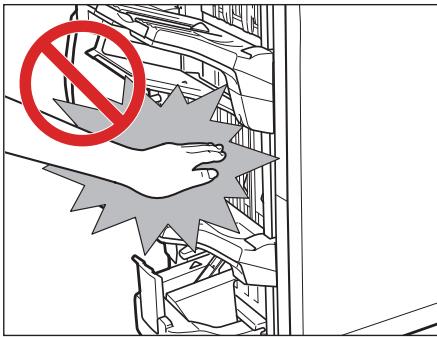
Professional Puncher Integration Unit-B1 1-6
Paper Folding Unit-H1 1-7
Staple Finisher-A1 1-7 Booklet Finisher-D1 1-9
Inner Booklet Trimmer-A1 1-11
Puncher Unit-BG1/BH1 1-12
Card Reader-C1 1-12
Paper Folding Unit-H1
Copyright © 2007-08 Adobe Systems Incorporated. All rights reserved.
Protected by U.S. Patents 5,737,599; 5,781,785; 5,819,301; 5,929,866; 5,943,063; 6,073,148; 6,515,763; 6,639,593; 6,754,382; 7,046,403; 7,213,269; 7,242,415; Patents pending in the U.S. and other countries.
All instances of the name PostScript in the text are references to the PostScript language as defined by Adobe Systems Incorporated unless otherwise stated. The name PostScript also is used as a product trademark for Adobe Systems' implementation of the PostScript language interpreter.
Except as otherwise stated, any reference to a "PostScript printing device," "PostScript display device," or similar item refers to a printing device, display device or item (respectively) that contains PostScript technology created or licensed by Adobe Systems Incorporated and not to devices or items that purport to be merely compatible with the PostScript language.
Adobe, the Adobe logo, PostScript, the PostScript logo, and PostScript 3 are either registered trademarks or trademarks of Adobe Systems Incorporated in the United States and/or other countries.
Linux is a registered trademark of Linus Torvalds. Microsoft and Windows are either registered trademarks or trademarks of Microsoft Corporation in the United States and/or other countries.

Copyright © 2008 Adobe Systems Incorporated. All rights reserved.
Protected by U.S. Patents 6,185,684; 6,205,549; 7,213,269; 7,272,628; 7,278,168; Patents pending in the U.S. and other countries.
All instances of the name PostScript in the text are references to the PostScript language as defined by Adobe Systems Incorporated unless otherwise stated. The name PostScript also is used as a product trademark for Adobe Systems' implementation of the PostScript language interpreter.
Except as otherwise stated, any reference to a "PostScript printing device," "PostScript display device," or similar item refers to a printing device, display device or item (respectively) that contains PostScript technology created or licensed by Adobe Systems Incorporated and not to devices or items that purport to be merely compatible with the PostScript language.
Adobe, the Adobe logo, PostScript, the PostScript Logo, and PostScript 3 are either registered trademarks or trademarks of Adobe Systems Incorporated in the United States and/or other countries.
CLASS 1 LASER PRODUCT
LASER KLASSE 1
APPAREIL A LASER DE CLASSE 1
APPARECCHIO LASER DI CLASSE 1
PRODUCTO LASER DE CLASE 1
CLASS 1 LASER APPARATUS
CLASS 1 LASER PRODUCT
CLASS 1 LASER PRODUCT

ATTENTION
The ADOBE SOFTWARE is a "commercial item," as that term is defined at 48 C.F.R. 2.101 (Oct 1995), consisting of "commercial computer software" and "commercial computer software documentation," as such terms are used in 48 C.F.R. 12.212 (Sept 1995). Consistent with 48 C.F.R. 12.212 and 48 C.F.R. 227.7202-1 through 227.7202-4 (June 1995), all U.S. Government End Users shall acquire The ADOBE SOFTWARE with only those rights set forth herein.
30-2, Shimomaruco 3-chome, Ohta-ku, Tokyo 146-8501, Japan
CANON U.S.A., INC.
One Canon Plaza, Lake Success, NY 11042, U.S.A.
CANON CANADA INC.
6390 Dixie Road Mississauga, Ontario L5T 1P7, Canada
CANON EUROPA N.V.
Bovenkerkerweg 59-61 1185 XB Amstelveen, The Netherlands
(See http://www.canon-europe.com/ for details on your regional dealer)
CANON LATIN AMERICA, INC.
703 Waterford Way Suite 400 Miami, Florida 33126 U.S.A.
CANON AUSTRALIA PTY. LTD
1 Thomas Holt Drive, North Ryde, Sydney, N.S.W. 2113, Australia
CANON CHINA CO., LTD
15F Jinbao Building No.89 Jinbao Street, Dongcheng District, Beijing 100005, China
CANON SINGAPORE PTE. LTD.
1 HarbourFront Avenue #04-01 Keppel Bay Tower, Singapore 098632
CANON HONGKONG CO., LTD
19/F., The Metropolis Tower, 10 Metropolis Drive, Hunghom, Kowloon, Hong Kong


- USER'S GUIDE (THIS DOCUMENT)
- GETTING STARTED
- QUICK REFERENCE
- MAINTENANCE GUIDE
- FREQUENTLY ASKED QUESTIONS
- PRINTER DRIVER INSTALLATION GUIDE
- MAC PRINTER DRIVER GUIDE
- NETWORK SCANGEAR INSTALLATION GUIDE
- CONTENTS
- PREFACE. VI
- HOW TO USE THIS MANUAL VI
- OPERATIONS AND TERMS USED IN THIS MANUAL XI
- LEGAL NOTICES XIII
- IMPORTANT SAFETY INSTRUCTIONS . XVIII
- PERIODIC INSPECTION OF THE BREAKER . XXVII
- CHECK SHEET FOR THE PERIODIC INSPECTION OF THE BREAKER . XXX
- INSTRUCTIONS ON USING THIS MANUAL (E-MANUAL) . XXXI
- SCREEN LAYOUT OF THE E-MANUAL . XXXIII
- CHAPTER 1 APPENDIX
- SPECIFICATIONS
- PREFACE
- HOW TO USE THIS MANUAL
- SYMBOLS USED IN THIS MANUAL
- KEYS AND BUTTONS USED IN THIS MANUAL
- DISPLAYS USED IN THIS MANUAL
- ILLUSTRATIONS USED IN THIS MANUAL
- ABBREVIATIONS USED IN THIS MANUAL
- TRADEMARKS
- ADOBE® POSTSCRIPT® 3™
- OPERATIONS AND TERMS USED IN THIS MANUAL
- SCANNING
- PRINTING
- COPYRIGHT
- PRODUCT NAME
- EMC DIRECTIVE
- LASER SAFETY
- ADDITIONAL INFORMATION
- CAUTION
- INTERNATIONAL ENERGY STAR® PROGRAM
- IPV6 READY LOGO
- WEEE DIRECTIVE
- THIRD PARTY SOFTWARE
- THE SOFTWARE SUBJECTED TO THE OTHER CONDITIONS
- THE SOFTWARE LICENSED UNDER OPEN SOURCE LICENSES
- DISCLAIMERS
- LEGAL LIMITATIONS ON THE USAGE OF YOUR PRODUCT AND THE USE OF IMAGES
- INSTALLATION
- WARNING
- POWER SUPPLY
- CONSUMABLES
- OTHER WARNINGS
- IMPORTANT
- CHECKING THE BREAKER
- PUSH THE TEST BUTTON ON THE REAR OF THE MACHINE WITH THE TIP OF A BALL-POINT PEN, OR A SIMILAR OBJECT
- NOTE
- CONFIRM THAT THE BREAKER LEVER IS SWITCHED TO THE OFF ("○" SIDE) POSITION
- SWITCH THE BREAKER LEVER TO ON ("I" SIDE)
- CHECK SHEET FOR THE PERIODIC INSPECTION OF THE BREAKER
- HOW TO INSPECT THE BREAKER PERIODICALLY
- HOW TO FILL IN THIS CHECK SHEET
- SYSTEM REQUIREMENTS
- WINDOWS
- MAC OS
- INSTALLING E-MANUAL
- IF YOU ARE USING WINDOWS
- IF YOU ARE USING MACINTOSH
- UNINSTALLING THE E-MANUAL
- TOP
- MANAGING AND CONFIGURING THE MACHINE
- FIRST OF ALL
- SELECT FROM PURPOSE
- SELECT FROM FUNCTIONS
- PDF MANUALS
- [TOP]
- [CONTENTS]
- [HELP]
- [GLOSSARY]
- [ENTER KEYWORD(S) HERE]
- [DISCLAIMER]
- [COPYRIGHT]
- [TRADEMARKS]
- [OFFICE LOCATIONS]
- TOPIC PAGE
- CATEGORY CONTENTS
- [CATEGORY MENU]
- [PRINT]
- SEARCH RESULT
- [SHOW SEARCH SCOPE]
- APPENDIX
- DUPLEX COLOR IMAGE READER UNIT-C
- POD DECK LITE-A
- PAPER DECK UNIT-C
- DOCUMENT INSERTION UNIT-K
- PROFESSIONAL PUNCHER INTEGRATION UNIT-B
- PAPER FOLDING UNIT-H
- STAPLE FINISHER-D
- BOOKLET FINISHER-D
- PUNCHER UNIT-BG1/BH
- CARD READER-C
- NETWORK ENVIRONMENT
- PRINTER SETTINGS
- IMAGERUNNER ADVANCE
- LEGAL MENTIONS. XIII
- ATTENTION
- PROFESSIONAL PUNCH INTEGRATION UNIT-B
Brand : CANON
Model : IMAGERUNNER ADVANCE 8085
Category : Laser MFP