
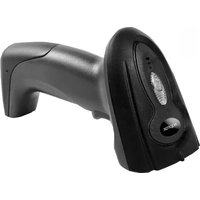
appLS06OMNI - Barcode scanners Approx - Free user manual and instructions
Find the device manual for free appLS06OMNI Approx in PDF.


| Product Type | Barcode Scanner |
| Brand | Approx |
| Model | appLS06OMNI |
| Dimensions (H x W x D) | 170 mm x 70 mm x 100 mm |
| Weight | 150 g |
| Power Supply | USB bus powered (5V DC) |
| Scanning Technology | Laser / CMOS (1D and 2D) |
| Interface | USB HID, USB Virtual COM |
| Scan Angle | ±40° |
| Scan Rate | 100 scans/second |
| Supported Barcodes | EAN, UPC, Code 39, Code 128, QR, Data Matrix, PDF417 |
| Operating Systems | Windows, macOS, Linux, Android (OTG) |
| Laser Class | Class 1 (eye-safe) |
| Housing Material | ABS plastic |
| Cable Length | 1.5 m |
| Maintenance | Clean lens with a soft, dry cloth. Avoid solvents. |
| Spare Parts Available | Replacement USB cable, stand |
| Repairability | User-replaceable cable; professional service for other issues. |
| Operating Temperature | 0°C to 40°C |
| Storage Temperature | -20°C to 60°C |
| Humidity | 5% to 95% (non-condensing) |
| Certifications | CE, FCC, RoHS |
Frequently Asked Questions - appLS06OMNI Approx
User questions about appLS06OMNI Approx
0 question about this device. Answer the ones you know or ask your own.
Ask a new question about this device
Download the instructions for your Barcode scanners in PDF format for free! Find your manual appLS06OMNI - Approx and take your electronic device back in hand. On this page are published all the documents necessary for the use of your device. appLS06OMNI by Approx.
USER MANUAL appLS06OMNI Approx
Omnidirectional Barcode Scanner
appLS06OMNI

natural_image
Red diagonal line on white background (no text or symbols)
natural_image
Solid red circular shape with no text or symbols
pie
| Category | Value | |---|---| | Red Circle | 100 |User Guide

natural_image
A solid red diagonal line on a white background (no text or symbols)1. Introducción
The scanning platform is high efficiency omnidirectional laser barcode scanning platform. Not only the shape is small and exquisite but also the property is stable and reliable. No matter how the POS environment it can do. Can be used as a fixed scanning platform, also be used as a handheld scanning platform.
2. Scanning range
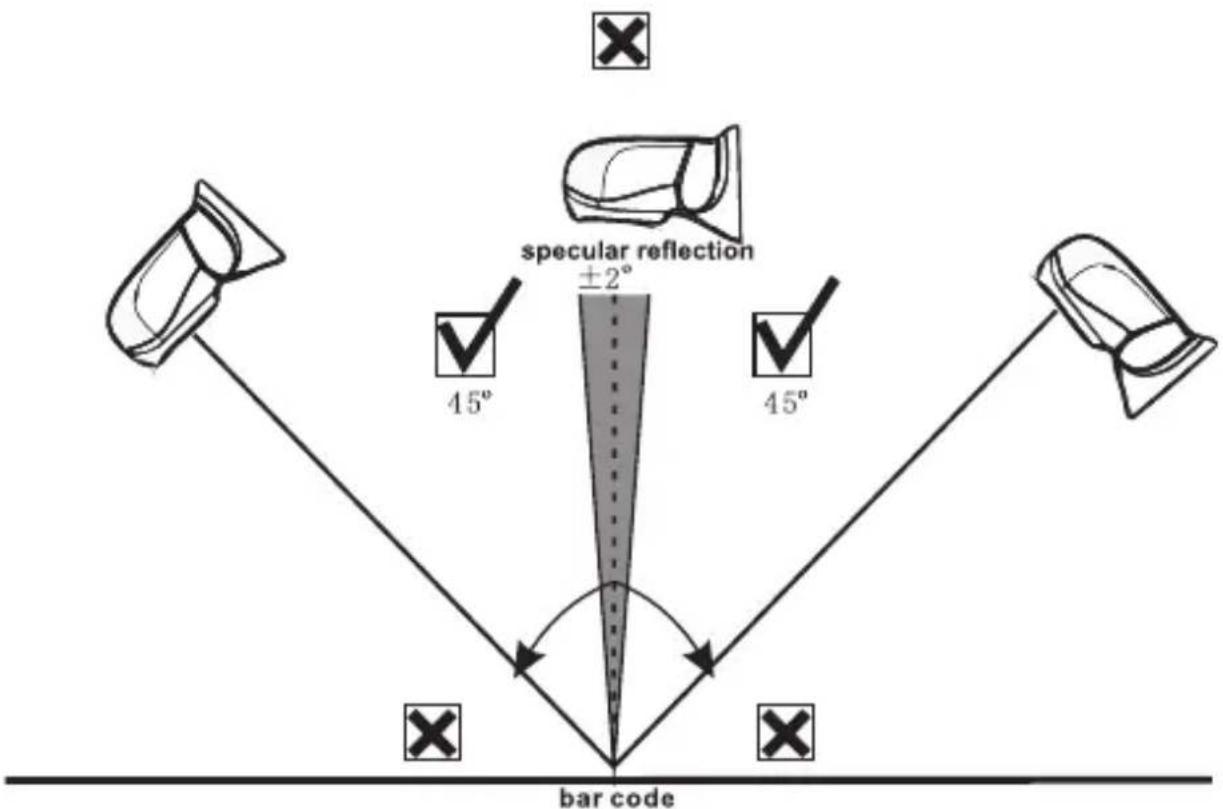
Please don't put the scanner 90 degrees on the barcode. If so, the laser will be reflected directly from the barcode scanner, which is specular reflection. It causes the scanner to be difficult to decode.
Correctly read the code as shown below:
Maximum tilt angle and dead angle
3. Parameter setting process
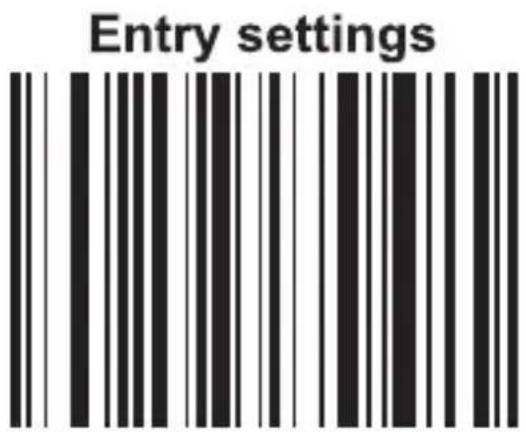
If need to modify the scanner settings parameters you can be achieved by scanning the settings.
Setting process as follows:
Step 1: entry settings
Step 2: related set code (can be set a number of settings at the same time)
Step 3: exist set up
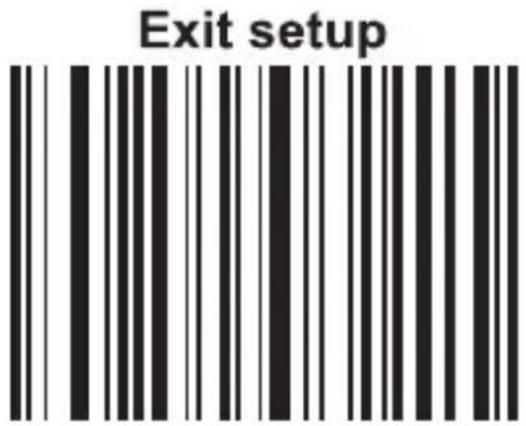
Note: in the manual setting, with an asterisk (*) represents the default settings.
4. Function settings
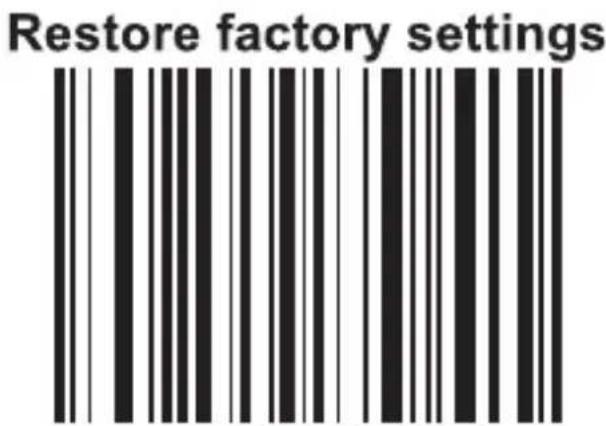
Restore factory settings don't need to scan and exit setup.
Warning: All parameters will be returned to factory settings.
5. Sound settings
Note: After closing the sound, reading the barcode is in the silent state, but reading the setting codes is in sound state.


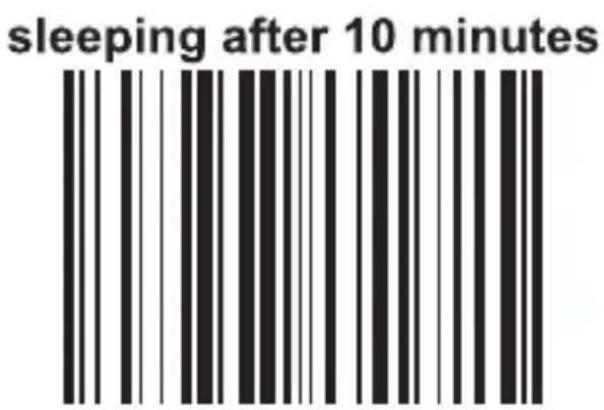
6. Sleep setting
When the scanner stops scanning time exceeds the setting time, the scanner will automatically enter the sleeping state. When something pass through the scanning window it will automatically wake up.


7. Terminator setting
* Open carriage return
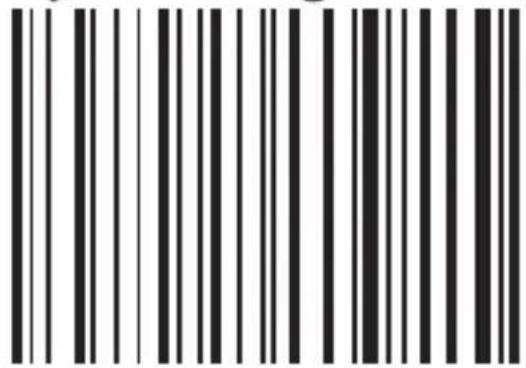
Open TAB end character

Closing data Terminator

8. EAN-13
* Enable EAN-13

Disable EAN-13

9. Keyboard language
In order to let the scanner upload the codes in a correct way, you have to set the keyboard language.
For example, if you use French keyboard, scan below barcode of "French keyboard", then the scanner will upload barcodes according to France keyboard layout. American keyboard is set by default, if you use a US keyboard you can skip this step.

American keyboard
Portugal keyboard

French keyboard
Spanish keyboard

Germany keyboard
Turkey keyboard

Italy keyboard
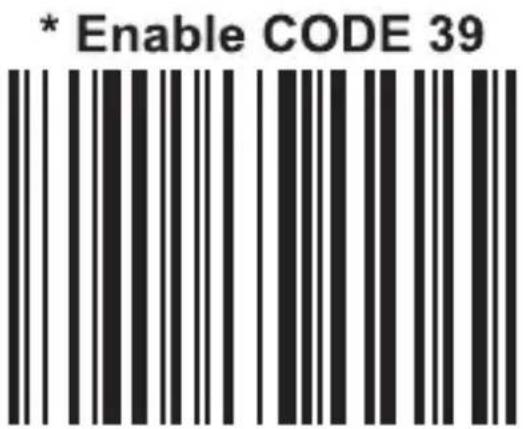
10. CODE 39

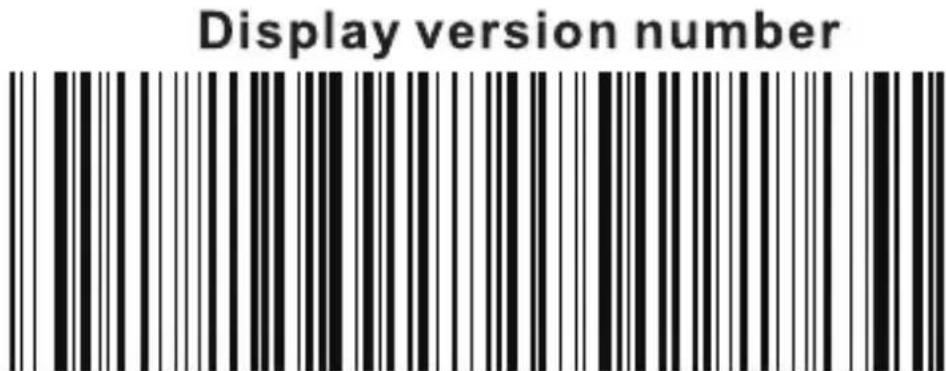
11. Version number
12. Maintenance
Cleaning up the window is the only need of maintenance because the dust particles on the window affects scanning accuracy.
- Please don't let any sharp, matte material contact the window.
- Wipe the dust particles with the glasses cloth.
13. Trouble shooting
| Problem | Possible reasons | Possible solutions |
| Properly install the interface cable, but did not show the full scan mode. | Scanner not energized. | Please ensure the host is energized and turned on, when using USB interface. Please insert the USB cable into the USB interface on the computer mainboard, don't use the extended USB interface and other USB extended line. |
| Connection of interface cable is abnormal. | Please check if the cable connection is loose. | |
| Scan line display but can not read. | This type of barcode system isn't open. | Open the code system by setting the code. |
| Barcode damage. | Try to scan other barcode with the same type. | |
| The barcode is too far from the scanner. | Move the barcode near the barcode scanner. | |
| The code height isn't enough, the laser line can't fully cover the code. | Please ensure laser line fully cover the code. | |
| Scanning data can't correctly display on the host computer. | Input method error. | The input method is converted into the standard English input method. |
| Other parameters are set for the scanner. | Please return the parameters of the scanner to the factory settings of contact vendor service center. |
14. Safety, maintenance and recycling instructions
- Caution: Never open the device, the internal parts are danger, electrical shock.
- Do not install this unit near water, for example, in a wet basement, in an unprotected outdoor installation or in any area classified as a wet.
- Do not insert objects of any kind into this unit through openings as they may touch voltage points and short out parts that could result in fire or electric shock.
- Do not spill any liquid on the unit. Danger of explosion!
- Do not crush power cables, danger of short circuit!
- Always connect to the manufacturer's recommended tension.
- Clean the product with a soft and dry cloth.
- Follow local regulations for disposing of the product.
15. Recycled
AEE REI-RAEE 5548 In this manual, the container (bin) symbol indicates that the product is subject to the European directive 2002/96 / EC, electrical and electronic products, batteries, and batteries and other accessories must necessarily be subject to a selective collection.
At the end of the life of the device, make use of the recycling bins. This ges-
ture Will help reduce the health risks and preserve the environment. Municipalities and distributors, Will provide essential details on recycling your old device. If this device carries an internal battery, it must be removed and deposited separately for proper management.

Importado por / Imported by:
APPROX IBERIA S. L.
CIF: B-91202499
APPROX TPV TLF: 954 323 886
soporte@approxpv.es
El contenido de esta guía está sujeto a errores tipográficos The content of this guide is subject to typographical errors
www.approx.es


Brand : Approx
Model : appLS06OMNI
Category : Barcode scanners