
APPLS00+ - Barcode scanners Approx - Free user manual and instructions
Find the device manual for free APPLS00+ Approx in PDF.


Pick your language and provide your email: we'll send you a specifically translated version.
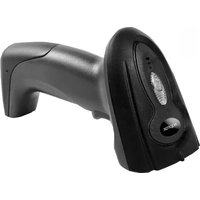
| Product Type | Handheld Barcode Scanner |
| Dimensions (H x W x D) | 170 mm x 70 mm x 100 mm |
| Weight | 150 g |
| Power Source | USB powered (5V, 500mA) with optional rechargeable battery |
| Battery Capacity | 1200 mAh lithium-ion |
| Scanning Technology | Laser or 2D imager (depending on variant) |
| Scanning Range | Up to 30 cm for 1D barcodes |
| Supported Barcode Types | 1D (UPC, EAN, Code 128, Code 39, etc.) and 2D (QR, Data Matrix, PDF417) |
| Interface | USB (HID keyboard emulation) and Bluetooth (optional) |
| Decode Speed | Up to 200 scans per second |
| Operating Temperature | 0°C to 40°C |
| Storage Temperature | -20°C to 60°C |
| Humidity | 5% to 95% non-condensing |
| Drop Resistance | 1.5 m onto concrete |
| Light Source | 650 nm visible laser diode (for laser models) or white LED (for imager) |
| Indicator | Buzzer and LED (green/red) |
| Maintenance | Clean lens with soft dry cloth; avoid liquids |
| Safety | Class 2 laser product (if laser); complies with IEC 60825-1 |
| Spare Parts | Replacement USB cable, battery (if applicable), and scanner cradle available |
| Repairability | Repairs should be performed by qualified personnel; no user-serviceable parts inside |
| General Information | Compatible with Windows, macOS, Linux; plug-and-play |
Frequently Asked Questions - APPLS00+ Approx
How do I connect the APPLS00+ scanner to my computer?
Connect the scanner via the provided USB cable. The scanner will be recognized as a keyboard device automatically. You may need to wait for driver installation on first use.
Can I use this scanner wirelessly?
The standard model is USB-wired. If you have a Bluetooth variant, pair it via your device's Bluetooth settings with the PIN 0000.
Which barcodes does the APPLS00+ support?
It supports 1D barcodes like UPC, EAN, Code 128, Code 39, and 2D codes like QR, Data Matrix, and PDF417.
How do I clean the scanner lens?
Use a soft, lint-free cloth slightly dampened with water or isopropyl alcohol. Do not spray directly onto the lens.
What should I do if the scanner does not read barcodes?
First, check that the barcode is not damaged. Clean the lens, ensure the scanner is within range (30 cm), and try scanning a different barcode. If issue persists, reset the scanner by unplugging it for 10 seconds.
Is the scanner compatible with Mac or Linux?
Yes, the scanner works as a HID keyboard and is compatible with Windows, macOS, and Linux without additional drivers.
How do I scan a QR code?
Point the scanner at the QR code and press the trigger. Ensure the scanner is in 2D mode (default). The decoded data appears as text.
Can I recharge the battery?
If your model has a rechargeable battery, charge it via the USB cable. The LED indicator turns green when fully charged.
What do the LED colors mean?
Green: successful scan; Red: scan failed or battery low (wireless model). Blinking red may indicate charging.
Where can I find spare parts or accessories?
Contact Approx support or check the product page for optional accessories like USB cables, replacement batteries, and stands.
User questions about APPLS00+ Approx
0 question about this device. Answer the ones you know or ask your own.
Ask a new question about this device
No questions yet. Be the first to ask one.
Download the instructions for your Barcode scanners in PDF format for free! Find your manual APPLS00+ - Approx and take your electronic device back in hand. On this page are published all the documents necessary for the use of your device. APPLS00+ by Approx.
USER MANUAL APPLS00+ Approx
| 1 | 2 | 3 | 4 | 5 | 6 | 7 | 8 | 9 | 10 | |
| 1 | 1 | 1 | 1 | 1 | 1 | 1 | 1 | 1 | 1 | 1 |


Manual assistant
Powered by Anthropic
Waiting for your message
Product information
Brand : Approx
Model : APPLS00+
Category : Barcode scanners