SPF-85V - Digital photo frame SAMSUNG - Free user manual and instructions
Find the device manual for free SPF-85V SAMSUNG in PDF.


User questions about SPF-85V SAMSUNG
0 question about this device. Answer the ones you know or ask your own.
Ask a new question about this device
Download the instructions for your Digital photo frame in PDF format for free! Find your manual SPF-85V - SAMSUNG and take your electronic device back in hand. On this page are published all the documents necessary for the use of your device. SPF-85V by SAMSUNG.
USER MANUAL SPF-85V SAMSUNG
natural_image
Close-up of two bees on a pink flower, labeled 'SAMSUNG' in the corner (no other text or symbols)... Safety Instructions
... Overview
... Connecting
Digital Photo Frame SPF-85V, SPF-86V


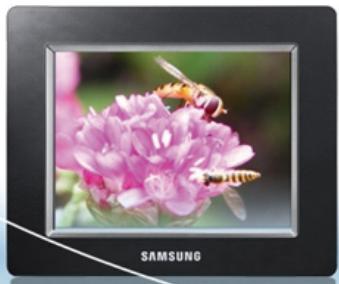
natural_image
Close-up of pink flowers with bees on top, labeled 'SAMSUNG' in bottom right corner (no other text or symbols)Safety Instructions
Overview
Connecting
Using
Applications
Specifications
Troubleshooting
Digital Photo Frame ○○○○○○○○○
SPF-85V, SPF-86V
Safety Instructions
Safety Symbols
Power
Installation
Using and Cleaning
Safety Symbols
※ Make sure to follow the directions below to prevent accidents and damage to the product.

Warning
Failure to follow the accompanying directions may lead to serious injury or death.

Attention
Failure to follow the accompanying directions may lead to minor personal injury or property damage.
Safety Symbols
Power
Installation
Using and Cleaning
Power
※ The images here are for reference only, and are not applicable in all cases (or countries).

Warning
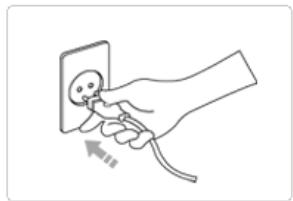
natural_image
Hand inserting a plug into an socket (no text or symbols visible)Insert the power plug correctly until it is firmly in place.
- Failing to do so, may cause fire.
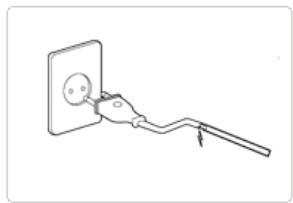
natural_image
Simple line drawing of a plug inserted into a socket (no text or symbols)Do not use a damaged power plug, cord or outlet, as this may cause electric shock or fire.
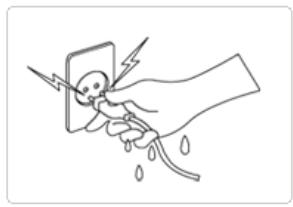
natural_image
Illustration of a hand holding a smartphone with lightning bolts and droplets, no text or symbols presentDo not touch the power plug with wet hands, as this may cause electric shock.

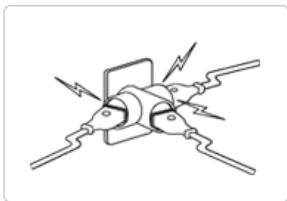
natural_image
Pure electrical circuit lines without any symbolsDo not connect more than one appliance to a single outlet, as an overheated outlet may cause fire.
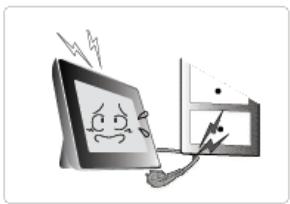
natural_image
Illustration of a sad computer monitor with a smiling face and lightning bolts, connected to a computer monitor (no text or symbols present)Do not use force to pull the power cord. Don't place anything heavy on the power cord, as this may cause electric shock or fire.
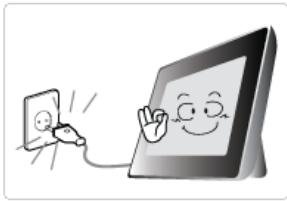
natural_image
Illustration of a smiling computer monitor with a hand holding a small electronic device connected to its screen (no text or symbols present)Make sure to turn the power off and disconnect the power plug from the outlet before moving the product. Make sure to disconnect the connection cables from other devices as well.
- Moving the product without disconnecting the power cord may damage it while moving, and may cause electric shock or fire.

Attention

natural_image
Line drawing of a hand holding an electrical socket (no text or symbols)Hold and pull out the plug by its body when disconnecting it from the outlet, as pulling the plug out by the cord may cause it to be damaged.
- Failing to do so, may cause fire, or the product may not turn on normally.
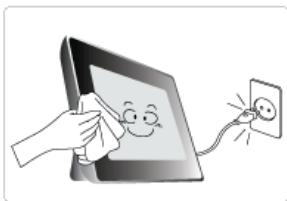
natural_image
Illustration of a hand cleaning a tablet with a smiling face and connected to an electrical outlet (no text or symbols)▶ Ensure that the power plug is disconnected before cleaning the product.
- Failing to do so, may cause electric shock or fire.
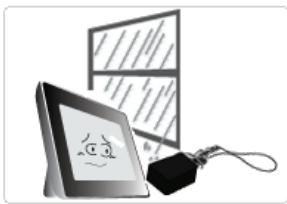
natural_image
Illustration of a cartoon-style computer monitor with a smiling face, next to a computer monitor displaying a grid and cable (no text or symbols present)Keep the product away from places exposed to oil, smoke or moisture; do not install inside a vehicle.
- This may cause a malfunction, electric shock or fire.
- In particular, avoid operating the monitor near water or outdoors where it could be exposed to snow or rain.
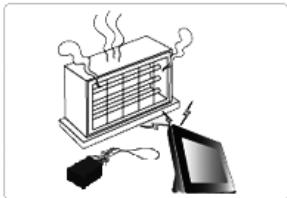
natural_image
Illustration of a steam heating system with a computer monitor and power adapter (no text or symbols)Do not install the product near any heating appliance.
- There is a risk of fire.
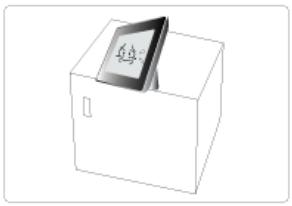
natural_image
Simple line drawing of a box with a card placed on top (no text or symbols)When installing the product on a cabinet or shelf, do not let the front end of the product project beyond its front edge.
- Failing to do so, may cause the product to fall, resulting in a product malfunction or personal injury.
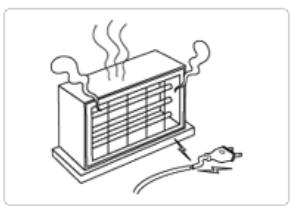
natural_image
Illustration of a heating appliance with steam rising and a plug inserted (no text or symbols)Do not place the power cord near a heater, as the power cord may melt, causing electric shock or fire.
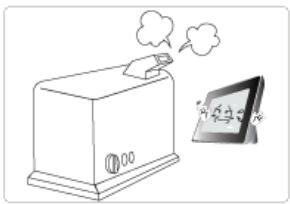
natural_image
Illustration of a steaming machine emitting smoke next to a tablet displaying a cartoon face (no text or symbols)Do not install the product in a car or a location exposed to oil, smoke, moisture, water, or rainwater.
- Any contact of these materials with the product may cause electric shock or fire.
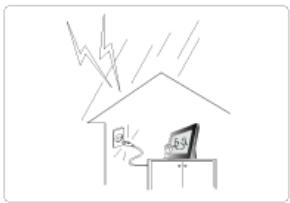
natural_image
Simple line drawing of a house with a monitor and lightning bolts above it (no text or symbols)- Disconnect the power plug when there is thunder or lightning.
- Failing to do so, may cause electric shock or fire.

Attention
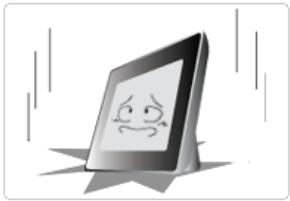
natural_image
Cartoon illustration of a smiling tablet with a sad face, standing on a star (no text or symbols)Place the product down gently when installing it.
- Failing to do so may cause product damage or personal injury.

natural_image
Illustration of a person holding a tablet device (no text or symbols visible)Avoid dropping the product when moving, as this may cause product damage or personal injury.
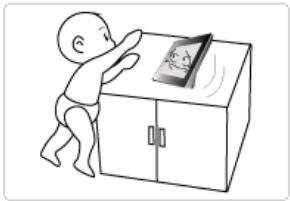
natural_image
Illustration of a baby reaching for a smartphone on a cabinet (no text or symbols)Do not install the product in a location easily reached by children.
- As the product may fall and cause personal injury.
| Safety Symbols
Power
Installation
Using and Cleaning
Using and Cleaning

Warning
Do not insert any metal objects such as forks, wire, or gimlets, or flammable items
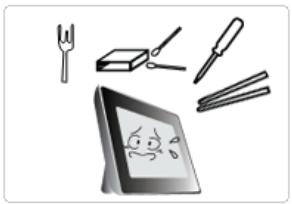
natural_image
Illustration of a tablet with cartoon eyes and tools, no text or symbols presentsuch as paper or matches into the ports at the back of the product, as this may cause electric shock or fire.
- If water or any foreign substance enters the product, make sure to turn the product off and disconnect the power plug from the outlet, and contact a service center.

natural_image
Cartoon illustration of a hand holding a pen above a smiling tablet with a sad face (no text or symbols)▶ Never disassemble, repair, or modify the product yourself.
- If you need to repair your product, contact a service center. An attempt at repairing this product may cause electric shock or fire.

Attention
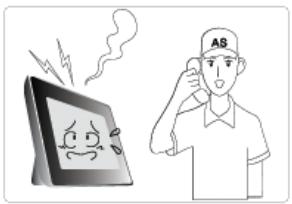
text_image
Illustration showing a sad face on a tablet and a person holding a phone with 'AS' logo, suggesting stress or help.If you hear a strange sound, smell anything burning, or see smoke, disconnect the power plug immediately and contact a service center.
- Failing to disconnect the power plug may cause electric shock or fire.
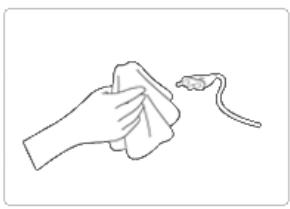
natural_image
Line drawing of a hand holding a cloth with a string attached (no text or symbols)Always remove dust and water from the pins and connections of the power plug.
- Failing to do so may cause electric shock or fire.
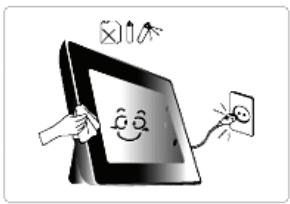
natural_image
Cartoon illustration of a smiling tablet with a hand holding a phone and a small icon above (no text or symbols)When cleaning the product, first disconnect the power plug and clean it with a soft, dry cloth.
- Do not use any chemicals such as benzene, alcohol, thinners, mosquito repellant, aromatic, lubricant, detergent or wax.
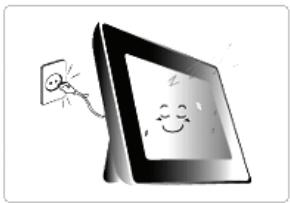
natural_image
Illustration of a smiling tablet connected to an electrical outlet (no text or symbols)When not using the product for a long time, make sure to disconnect the power plug.
- Heavy accumulated dust may cause electric shock or fire.
text_image
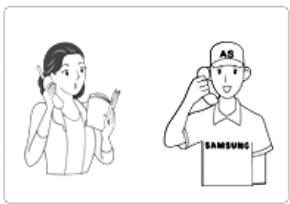
Illustration showing a woman holding a book and another person wearing a Samsung T-shirt with 'AS' logoIf the product needs to be installed in a location that doesn't satisfy general conditions, make sure to contact one of our service engineers about the installation as the product may encounter serious quality problems due to its environment.
- This refers to locations exposed to conditions such as heavy fine dust, chemicals, high or low temperature, moisture, or when the product needs to be used continually without a break over a long time.
text_image
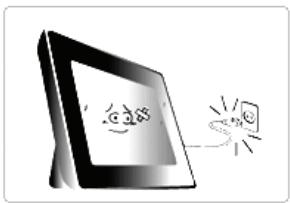
红点红If the product has been dropped or the product casing is damaged, turn it off and disconnect the power plug.
- Using the product without verifying that it has not been damaged may cause electric shock or fire. Please contact a service center.

natural_image
Symbol of a waste bin with crossed lines indicating no waste, and a solid black rectangle below (no text or labels)(Applicable in the European Union and other European countries with separate collection systems)
This marking shown on the product or its literature, indicates that it should not be disposed with other household waste at the end of its working life. To prevent possible harm to the environment or damage to health from uncontrolled waste disposal, please separate this from other types of waste and recycle it responsibly to promote the sustainable reuse of material resources.
Household users should contact either the retailer where they purchased this product, or their local government office, for details of where and how they can take this item for environmentally safe recycling.
Business users should contact their supplier and check the terms and conditions of the purchase contract. This product should not be mixed with other commercial wastes for disposal.
Correct disposal of batteries in this product- Europe only

natural_image
Symbol of a waste bin with crossed lines indicating no waste, and a solid black rectangle below (no text or labels)(Applicable in the European Union and other European countries with separate battery return systems.)
This marking on the battery, manual or packaging indicates that the batteries in this product should not be disposed of with other household waste at the end of their working life. Where marked, the chemical symbols Hg, Cd or Pb indicate that the battery contains mercury, cadmium or lead above the reference levels in EC Directive 2006/66. If batteries are not properly disposed of, these substances can cause harm to human health or the environment.
To protect natural resources and to promote material reuse, please separate batteries from other types of waste and recycle them through your local, free battery return system.
Using, copying or reproducing the whole or part of this manual without written permission from Samsung Electronics is prohibited. The content of this manual is subject to change without prior notice. ©2008 All rights reserved. Samsung Electronics.
Digital Photo Frame
natural_image
Close-up of pink flowers with bees on top, labeled 'SAMSUNG' in bottom right corner (no other text or symbols)Safety Instructions
Overview
Connecting
Using
Applications
Specifications
Troubleshooting
Overview
| Features | Components | Front | Back | Side |
Features
01 Expansion of built-in memory using memory cards. Instant view of stored images.
02 Background music function.
03 Can be used with the battery for a specific period of time without being connected to a power outlet.
04 Provides a Mini-Monitor function.
05 Stylish Design
A premium, stylish design that can be used as a decoration on a desk or table.
A rotating stand that allows vertical/horizontal placement.
| Features | Components | Front | Back | Side |
Please check that all components are contained in the delivered package.
If anything is omitted, contact the local distributor where the product was purchased. For optional items, contact a service center.
Never use a power adapter other than the adapter provided with the product.
Components
natural_image
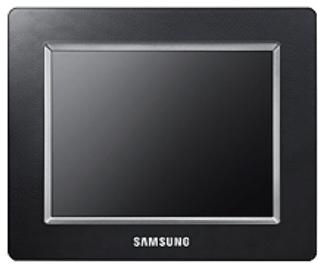
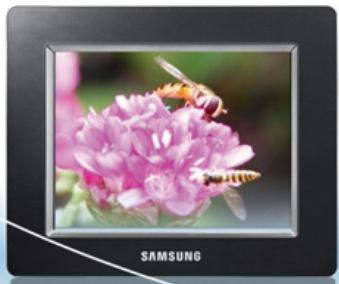
Black square display frame with 'SAMSUNG' text at bottom (no other visible text or symbols)Digital Photo Frame
(The product color and shape may vary depending on the model.)
→ Manual

Quick Start

Warranty
(Not available in all locations)

User Manual
Cables
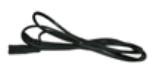
Power cord
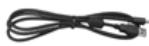
USB cable (A-mini B type)
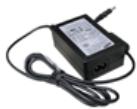
Power Adapter
| Features | Components | Front | Back | Side |
Front
※ The product color and shape may vary depending on the model.
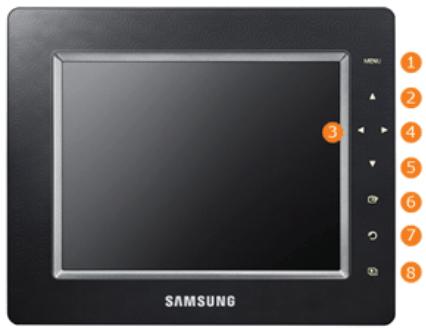
text_image
SAMSUNG MENU: 1 2 3 4 5 6 7 8This product is a touch type product. If you lightly touch the button on the right of the product, the button light is turned on. When the button light is turned on, you can then operate each button's menu.
1 [MENU] Menu Button Displays the menu window at the bottom left corner of the screen.
2 [▲] Up Button Adjusts the sound volume when playing music files or movies.
3 [◀] Left Button Used for moving left.
4 [▶] Right Button Used for moving right.
5 [▼] Down Button Used for moving down.
6 [+] Enter Button Used for selection.
7 [ ] Back Button Return to the previous menu.
8 [☐] Slideshow Button Play or pause a Slideshow.
※ When playing a slideshow by pressing the [☐] button, the photos in the folder of the last played photo are played. If the photos in the folder of the last played photo have been removed, they are automatically searched for and then played in a slideshow.
| Features | Components | Front | Back | Side |
Back
※ The product color and shape may vary depending on the model.
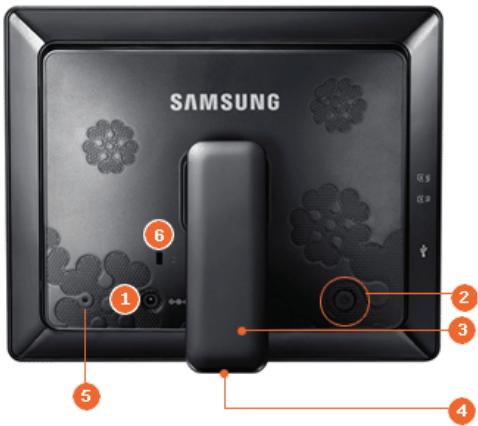
text_image
SAMSUNG 1 2 3 4 5 6
◇ ◎ ◆
DC –In Jack
Connect the power adapter to this jack.
Connect the power cord to the power terminal of the power adapter.


Power Button
Turns the product on or off.
Hold down the power button at the right of the product for about 2 seconds.

Stand
You can use the product in a vertical or horizontal direction by using the rotating stand.

Sliding Prevention Holder
Supports the product so that it stays firmly in place on slippery surfaces.

Service terminal
This is a terminal for servicing the product only. Do not operate it arbitrarily.


Kensington lock
The Kensington lock is a device used to physically secure the system when using it in a public place. (The locking device has to be purchased separately.)
| Features
Components
Front
Back
Side

Side
※ The product color and shape may vary depending on the model.
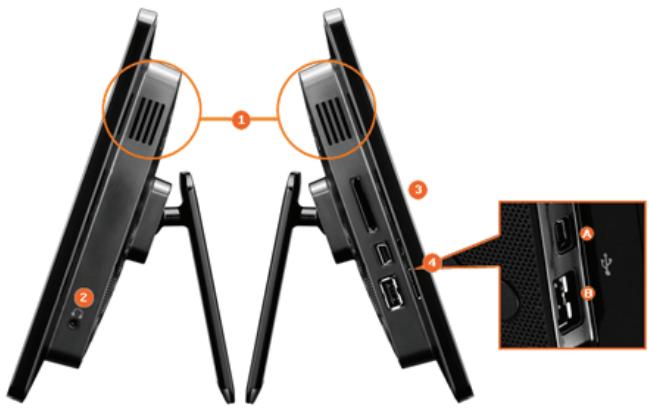
text_image
Diagram showing front and side views of a computer monitor with labeled ports and connectors
Speaker
You can listen to sound without connecting an additional speaker.


Headphone connection jack
You can listen to sound by connecting headphones or earphones to the product.

回
SD
回
MS


Allows you to insert an optional memory card. (Only applicable for SD/MS card)
Connect a PC or an external device using a USB cable.
A Up stream terminal
Connect your Digital Photo Frame to a PC's USB terminal with a USB cable.
※ Make sure to use the USB cable (A-mini B type) provided with the product when
connecting your digital photo frame to a PC through the up stream terminal.
B Down stream terminal Connect your Digital Photo Frame to a USB-supported storage device.
Using, copying or reproducing the whole or part of this manual without written permission from Samsung Electronics is prohibited. The content of this manual is subject to change without prior notice. ©2008 All rights reserved. Samsung Electronics.
Digital Photo Frame
natural_image
Close-up of pink flowers with bees on top, labeled 'SAMSUNG' in bottom right corner (no other text or symbols)Safety Instructions
Overview
Connecting
Using
Applications
Specifications
Troubleshooting
Connecting
Power | USB | Memory Card |
Connecting the Power
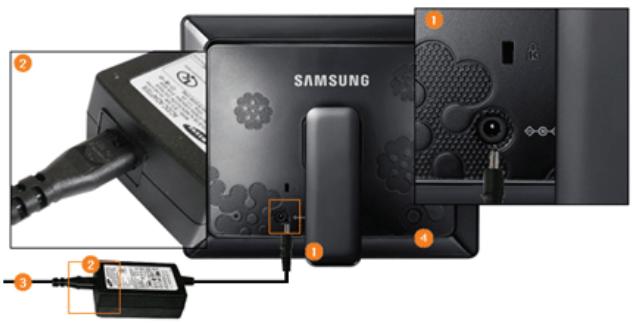
text_image
SAMSUNG ① ② ③ ④1 Connect the adapter cable to the power terminal on the back of the product.
2 Connect the power cord to the power adapter.
3 Plug the power cord for the product into a nearby outlet.
4 Press the [⏻] button to turn on the power.
Power | USB | Memory Card |
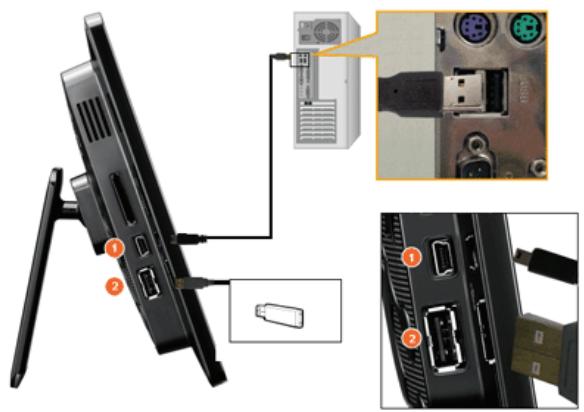
Connecting via USB
text_image
Diagram showing component insertion and assembly of a computer monitor, with labeled parts and close-ups of internal components.1 Up Stream Terminal
Used to connect your digital photo frame to a PC.
※ When connecting your digital photo frame to a PC through the up stream terminal, make sure to use
the USB cable provided with the product.
2 Down Stream Terminal
Used to connect an external USB-supporting device to your digital photo frame.
※ Some USB devices may not support Digital Photo Frame.
※ This product does not support USB card readers. Only USB storage is supported.
※ The external devices connected to your Digital Photo Frame are not recognized by your PC.
When connecting an external device to the down stream terminal, use the USB cable provided with the external device. (For more information on external devices and their cables, contact a relevant service center.)
Samsung carries no liability for external device malfunctions caused by using any cable except the standard cables specified for each device.
※ Some external products provide a cable that does not meet USB standards. Hence, they may cause a malfunction.
If an external storage device does not work normally when connected to your digital photo frame, try to connect it to your PC. If it still does not work normally when connected to your PC, contact a service center for that external device or your PC.
natural_image
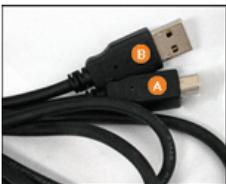
Close-up of two USB cables with labeled connectors (A and B), no visible text or symbols beyond labels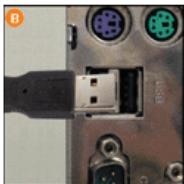
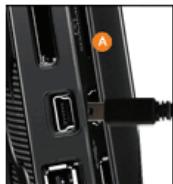
A Connect to the upstream jack of your digital photo frame.
B Connect the USB terminal of your PC.
→ Folder Structure
When connecting this product to your PC, it is displayed as a removable disk (E:), as shown in the figure below.
You can save and play all music and movie files in the following folders.
You can also add and delete folders as required. (However, if you delete the following default folders, they are automatically created when your product is turned on again.)
Desktop
My Document My Computer
3.5 Flopy (A:)
+ Local disk (C:)
+ Local disk (D:)
Removable disk(E:)
imagecache
01 imagecache
Web Photos (photos from Windows Live Space or RSS) are saved according to the remaining size of the Frame Memory. If you copy photos from a PC to the imagecache folder arbitrarily, they will not be displayed on the digital photo frame.
※ The capacity of this product is 64 MB.
If the capacity is exceeded, no further files can be stored.
※ Do not turn off the product while saving, playing, or deleting a file.
※ The volume name of the removable disk (for example, E:, F:, G:) may differ depending on your computer environment.
Power | USB | Memory Card |
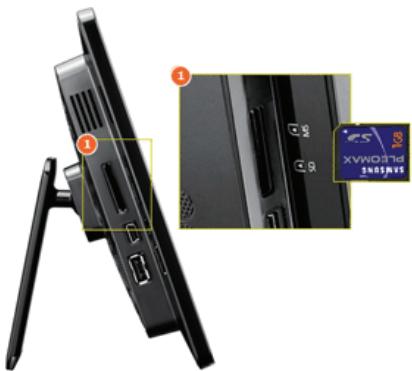
text_image
Technical diagram showing front and side views of a device with labeled ports and a card inset showing model number XVAN0746 2NOSRVS.


Slide the card in the direction marked on the top of the card.
※ Removing the memory card while playing MP3s, movies, or photos, may cause the product to operate abnormally. In this case, turn the product off and on.
Using, copying or reproducing the whole or part of this manual without written permission from Samsung Electronics is prohibited. The content of this manual is subject to change without prior notice. ©2008 All rights reserved. Samsung Electronics.
Digital Photo Frame
natural_image
Close-up of pink flowers with bees on top, labeled 'SAMSUNG' in bottom right corner (no other text or symbols)Safety Instructions
Overview
Connecting
Using
Applications
Specifications
Troubleshooting
Digital Photo Frame ○○○○○○○○○
SPF-85V, SPF-86V
Using
If no button is pressed for ten (10) minutes, Slideshow or Clock mode is activated. However, if a music file is being played, Clock mode is activated and the filename of that music file is displayed. You can switch to Clock mode even when the movie is paused. In some cases, you can switch to the Movie List screen.
This product is a touch type product. If you lightly touch the button on the right of the product, the button light is turned on. When the button light is turned on, you can then operate each button's menu.
|User Guide | Photo | Music | Movie | Clock & Alarm | InfoLink | Settings |
User Guide
→ Buttons
| Menu | Description |
| MENU | Enters or exits a menu.Hold the MENU button down for more than five (5) seconds. All the lights of the buttons will blink twice and the button lock function will be activated. To clear the button lock function, hold the MENU button down again for more than five (5) seconds. |
| ▲, ▼, ◀, ▶ | Moves around the items and adjusts the value. |
| Selects a function. | |
| Returns to the previous screen.※ Hold down this button for two (2) seconds to return to the Main screen. | |
| Play or pause a Slideshow.When playing a slideshow by pressing the [☐] button, the photos in the location of the last played photo are played. If the photos in the location of the last played photo have been removed, they are automatically searched for and then played in a slideshow. |
Screen Status Indications
| Display | Description |
| This is displayed differently according to the signal strength when connected to a network. If not connected to a network, is displayed. | |
| Displayed when a PC is connected or there is a PC which can be connected to. | |
| Displayed only when a network is connected and Internet access is available. You can only view RSS or Live Space photos if this icon is displayed. | |
| Displayed when a USB device is connected. | |
| Displayed when an SD/MS memory card is connected. |
Battery Indicators
| Display | Description |
| Displayed when the battery is being used with the power cable connected and the battery is being |

 | charged. |
 | Displayed when the battery is fully charged and the power cable is connected. |
 | Displayed when the battery is fully charged. |
 | Displayed when about 25% of the battery is consumed. |
 | Displayed when about 50% of the battery is consumed. |
 | Displayed when about 75% of the battery is consumed. |
 | Displayed when about 95% of the battery is consumed. When this occurs, the screen switches to the main screen immediately and the discharged battery icon blinks at the center of the screen and the power is turned off. While the discharged battery icon is blinking, you cannot enter a sub-menu. |
| ※ It takes about two (2) hours to charge the battery fully when it is completely discharged.※ Playing a movie can continue for about thirty (30) minutes and a slideshow for about forty (40) minutes in the default state (volume 70, brightness 70) when the battery is fully charged.※ The battery usage time may differ according to the settings (Brightness, Volume etc.).※ If the product is turned off automatically because the battery is fully discharged, the time previously set is erased after one hour. In this case you should set the time again. If you connect your product to a power outlet within one hour, the time information is retained.※ The battery lifetime decreases as the product usage time increases.※ Contact a service center to replace the battery. Do not replace the battery yourself.※ The rechargeable battery incorporated in this product is not user replaceable. For information on its replacement, please contact your service provider. | |
| User Guide | Photo | Music | Movie | Clock & Alarm | InfoLink | Settings |
Photos
→ When selecting a folder
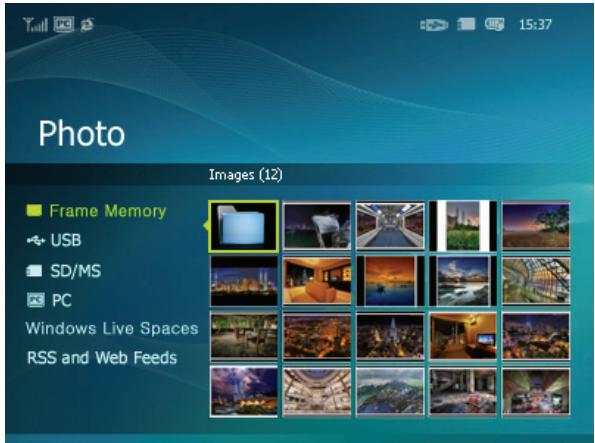
text_image
Photo Images (12) Frame Memory USB SD/MS PC Windows Live Spaces RSS and Web Feeds※ If you press the Menu button, the menu of the selected item is displayed on the screen.
| Menu | Description |
| Open | Opens the selected folder. |
| Copy | Copies the selected folder. |
| Delete | Deletes the selected folder. |
The menu displayed when selecting a thumbnail.
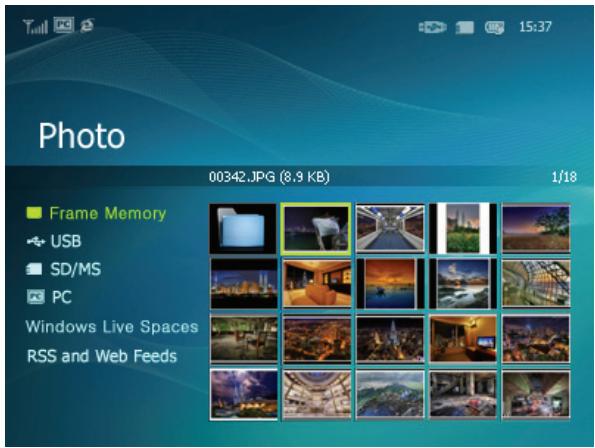
text_image
Photo 00342.JPG (8.9 KB) 1/18 Frame Memory USB SD/MS PC Windows Live Spaces RSS and Web Feeds※ If you press the Menu button, the menu of the selected item is displayed on the screen.
| Menu | Sub-Menu |
| Description | |
| Start Slideshow | Play or pause a Slideshow. |
| Copy | Copies the selected file to a different storage device. (Activated when a storage device is connected.) |
| Copy All Files | Copies all files to a different storage device. (Activated when a storage device is connected.) |
| Delete | Deletes the selected file. |
| Delete All Files | Deletes all files. |
| Set as Background | Sets the selected image as the background of the main screen.At this time the mode for the background is automatically changed to Custom mode. |
When copying a photo from an external memory storage device (SD/MS, USB memory) to the Frame Memory, if [Settings]-[Options]-[Frame Memory Copy] is set to [Resized], the size (screen quality) of the photo is automatically reduced before saving it, to fit it to the screen of your digital photo frame, and the EXIF (camera related information) saved in the photo is removed. Therefore, make sure to only use the photos saved on the Frame Memory with the digital photo frame.
※ It may take a long time if a lot of files are copied at the same time.
The menu displayed when selecting a thumbnail (PC, Live Space, RSS).
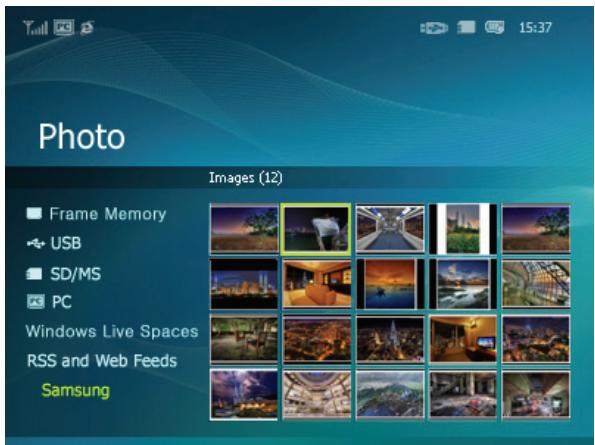
text_image
Photo Images (12) Frame Memory USB SD/MS PC Windows Live Spaces RSS and Web Feeds Samsung※ If you press the Menu button, the menu of the selected item is displayed on the screen.
| Menu | Sub-Menu |
| Description | |
| Start Slideshow | Play or pause a Slideshow. |
| Copy | Copies the selected file to a different storage device. (Activated when a storage device is connected.) |
| Copy All Files | Copies all files to a different storage device. (Activated when a storage device is connected.) |
| Set as Background | Sets the selected image as the background of the main screen.At this time the mode for the background is automatically changed to Custom mode. |
| All Photos, Folder, Playlist, Tags, Date, Rating | |
| Browsing Mode | Selects the category to arrange the photos by.※ [Browsing Mode] is only displayed on a PC.The sub-menus of a mode are subjected to each mode. |
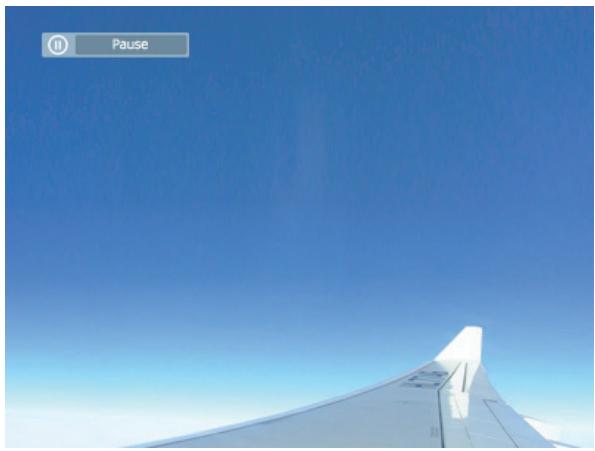
text_image
Pause| Menu | Sub-Menu | Detailed Menu |
| Description | ||
| Stop Slideshow | Pauses or resumes the slideshow. | |
| Slideshow Settings | Slideshow Effect | ◆ No Effect, Fade, Blind, Cross Comb, Checker, Slide, Wipe, Silk, Wheel, Circle, Box In/Out, Diamond, Plus, UnCover, Push, Stairs, Random |
| Selects a play effect. | ||
| Speed | ◆ Fast, Normal, Slow | |
| Selects a play speed. | ||
| Mode | ◆ All photos, Photos in Folder, Shuffle all photos, Shuffle photos in Folder, Repeat one photo | |
| Selects the play mode.※ This cannot be used during a PC, Live Space, or RSS photo slideshow. | ||
| Display Clock | ◆ Off, On | |
| Selects whether to play a slideshow and show the current time at the same time. | ||
| InfoLink | ◆ Off, On | |
| You can set the widget to appear in the slideshow screen. | ||
| Brightness | ◆ 0~100 | |
| You can adjust the brightness. | ||
| Rotation | You can rotate the monitor screen to 90°, 180° and 270°. | |
| Screen ratio | ◆ Original Fit, Auto Fit, Fit to Width, Fit to Screen | |
| You can select how to adjust the size of the photos when displaying them on the screen.Original Fit - When the photo size is larger than the screen size, it is displayed to fit the screen size.Auto Fit - Photos are fit to the screen size. A horizontal or vertical part of a photo may be cut but there is no distortion.Fit to Width - Photos are fit to the screen width. A horizontal or vertical part of a photo may be cut but there is no distortion.Fit to Screen - Photos are fit to a resolution of 800*600. (The photo image may be distorted) | ||
| Delete | Deletes a photo being displayed in the slideshow.※ This will not function during a PC, Live Space, or RSS photo slideshow. | |
| Set as Background | Sets the currently selected image as the background of the main screen. | |
| Background Music | ◆ On, Off, Music SettingsSelect [On] of [Background Music].Then select [Music Settings] of [Background Music] by pressing the MENU button and select a music file stored on the Frame Memory or a connected external memory device.When the product is used for the first time, the built-in music files are used as the background music.When the next slideshow is performed using the [Slideshow] button, the last played background music file is played as the background music.(The location priority of the music files to be played for the background music is: "Location of the last played background music file → [Frame Memory] → [USB] → [SD/MS]" . | |
Direct Functions
| Menu | Description |
| MENU | Opens the on-screen menu and exits from the menu. |
| ▶ | Plays the next file. |
| ◀ | Plays the previous. |
| ▲ ▼ | Adjusts the volume. |
| Plays and Pauses a file. | |
| Play or pause a Slideshow. |
| User Guide | Photo | Music | Movie | Clock & Alarm | InfoLink | Settings |
Music
The menu displayed when selecting a list.
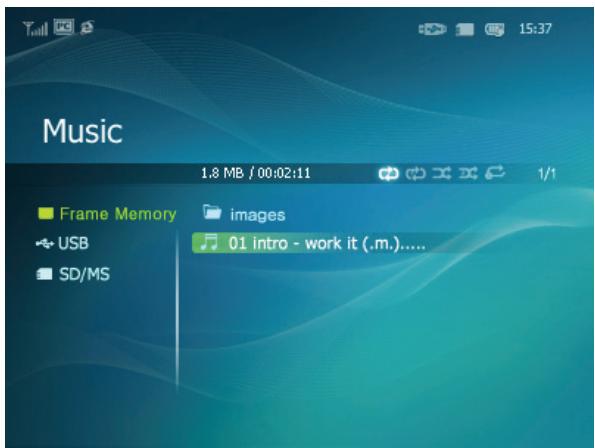
text_image
Music 1.8 MB / 00:02:11 Frame Memory images USB 01 intro - work it (.m.)...... SD/MS※ If you press the Menu button, the menu of the selected item is displayed on the screen.
| Menu | Sub-Menu |
| Description | |
| Play Music | Plays a file. |
| Play Mode | All Music Files, Music Files in Folder, Shuffle all Music Files, Shuffle Music Files in Folder, Repeat One Music |
| Selects the play mode. | |
| Copy | Copies the selected file to a different storage device. |
| Copy All Files | Copies all files to a different storage device. |
| Delete | Deletes the selected file. |
| Delete All Files | Deletes all files. |
The menu displayed while playing music.
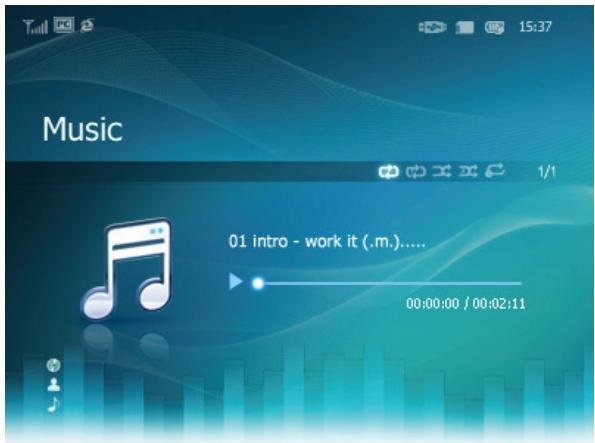
text_image
Music 01 intro - work it (.m.)...... 00:00:00 / 00:02:11※ If you press the Menu button, the menu of the selected item is displayed on the screen.
| Menu | Sub-Menu |
| Description | |
| Play Mode | All Music Files, Music Files in Folder, Shuffle all Music Files, Shuffle Music Files in Folder, Repeat One Music |
| Selects the play mode. |
Direct Functions
| Menu | Description |
| MENU | Opens the on-screen menu and exits from the menu. |
| ▶ | Plays the next file. |
| ◀ | Plays the previous. |
| ▲ ▼ | Adjusts the volume. |
| Plays and Pauses a file. | |
| Play or pause a Slideshow. |
| User Guide | Photo | Music | Movie | Clock & Alarm | InfoLink | Settings |
Movies
The menu displayed when selecting a list.
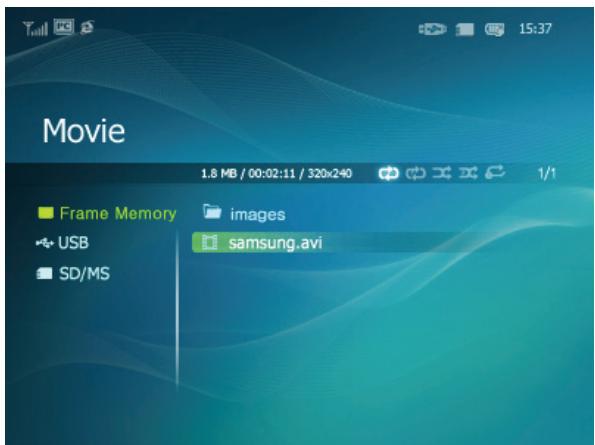
text_image
Movie 1.8 MB / 00:02:11 / 320x240 Frame Memory images USB samsung.avi SD/MS※ If you press the Menu button, the menu of the selected item is displayed on the screen.
| Menu | Sub-Menu |
| Description | |
| Play Mode | All Movies, Movies in Folder, Shuffle all Movies, Shuffle Movies in Folder, Repeat One Movie |
| Selects the play mode. | |
| Copy | Copies the selected file to a different storage device. |
| Copy All Files | Copies all files to a different storage device. |
| Delete | Deletes the selected file. |
| Delete All Files | Deletes all files. |
The menu displayed while playing a movie.
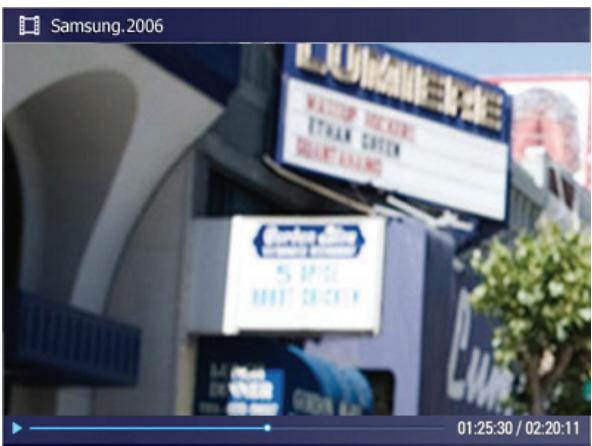
text_image
Samsung.2006 5 Pcs D center 01:25:30 / 02:20:11※ If you press the Menu button, the menu of the selected item is displayed on the screen.
| Menu | Sub-Menu |
| Description | |
| Play Mode | All Movies, Movies in Folder, Shuffle all Movies, Shuffle Movies in Folder, Repeat One Movie |
| Selects the play mode.0~100 | |
| Brightness | You can adjust the brightness. |
→ Direct Function
| Menu | Description |
| MENU | Opens the on-screen menu and exits from the menu. |
| ▶ | Plays the next file. |
| ◀ | Plays the previous. |
| ▲ ▼ | Adjusts the volume. |
| Plays and Pauses a file. | |
| Play or pause a Slideshow. |
|User Guide | Photo | Music | Movie | Clock & Alarm | InfoLink | Settings |
Clock & Alarm
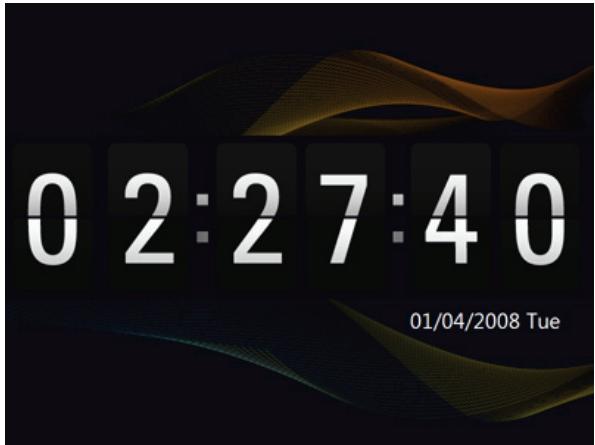
text_image
02:27:40 01/04/2008 Tue※ If you press the Menu button, the menu of the selected item is displayed on the screen.
| Menu | Sub-Menu | Detailed Menu |
| Description | ||
| Date and Time | Month, Day, Year, Hours, Minutes, am/pm (when the Time Format is set to 12 Hours). Month, Day, Year, Hours, Minutes (when the Time Format is set to 24 Hours). | |
| Sets the date and time. | ||
| Time Zone | You can select a time zone. | |
| Daylight Saving Time | Off, On | |
| You can enable or disable the daylight saving time. Auto, Manual, Update Time Now | ||
| Internet Time Update | Select whether to update the system time of your Digital Photo Frame with the time information received through the Internet. | |
| Time Format | 12 Hours, 24 Hours | |
| For the Time Format, you can select 12 Hours or 24 Hours. If you select 24 Hours, am/pm is not displayed. | ||
| Date Format | YYYY/MM/DD, MM/DD/YYYY, DD/MM/YYYY | |
| You can select the format in which the date is displayed. | ||
| Clock Type | Analog, Digital, Clock & Calendar, Clock&InfoLink | |
| You can select the clock type. | ||
| Alarm | Activation Yes, No | |
| Set time Manual, After 10min, After 20min, After 30min. | ||
| Hours 1~12 | ||
| Minutes 00~59 | ||
| am/pm am, pm | ||
| Repeat Once, Sat ~Sun, Mon~ Sat, Mon~ Fri, Everyday | ||
| Sound Sound 1, Sound 2, Sound 3 | ||
| Volume 0~100 | ||
| You can set an alarm. | ||
| User Guide | Photo | Music | Movie | Clock & Alarm | InfoLink | Settings |
InfoLink

text_image
Obama aims to wrest West from GOP 7:45 am USA TODAY InfoLink News Stocks Weather FrameChannel Report: Racial gap narrows, but what did No Child I... Math and reading test scores are up in most states since the No Child Left Behind law took effect in 2002, but it's impossible to know how much credit the law deserves, a new report says. In an exhaustive study released Tuesday, the Center on Education Policy also concluded that the historically wide achievement gap between black and white children has generally narrowed in many states -- exactly what NCLB supportersSetting (Widget On/Off)
※ If you press the Menu button, the menu of the selected item is displayed on the screen.
| Menu | Sub-Menu | Detailed Menu |
| Description | ||
| Widget Auto Display | Home | ♦ Off, On |
| You can set the widget to appear in the first screen. | ||
| SlideShow | ♦ Off, On | |
| You can set the widget to appear in the slideshow screen. | ||
| Clock | ♦ Off, On | |
| You can set the widget to appear in the clock screen. | ||
Direct Functions
| Menu | Description |
| Selects a function. | |
| ▲,▼,◀,▶ | Moves around the items. |
| Returns to the Main screen. |
News
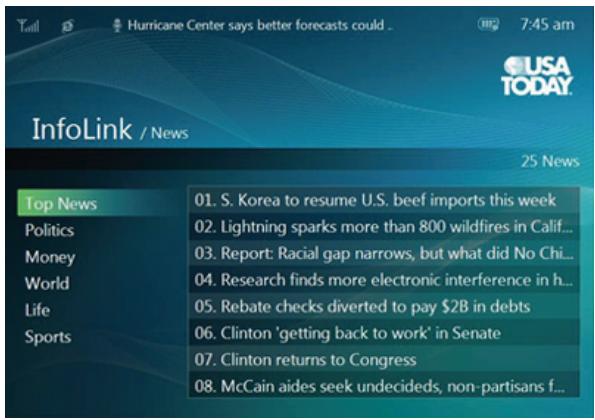
text_image
Hurricane Center says better forecasts could . 7:45 am InfoLink / News 25 News Top News Politics Money World Life Sports 01. S. Korea to resume U.S. beef imports this week 02. Lightning sparks more than 800 wildfires in Calif... 03. Report: Racial gap narrows, but what did No Chi... 04. Research finds more electronic interference in h... 05. Rebate checks diverted to pay $2B in debts 06. Clinton 'getting back to work' in Senate 07. Clinton returns to Congress 08. McCain aides seek undecideds, non-partisans f...| Menu | Sub-Menu |
| Description | |
| News | Top News, Politics, Money, World, Life, SportsYou can select the type of news topic to view. |
Direct Functions
| Menu | Description |
| ▲,▼ | Moves up/down. |
| ◀,▶ | Moves right/left. |
| ☐ | Moves the focus to the news list of the selected topic. |
| ⇨ | Returns to the upper menu screen. |
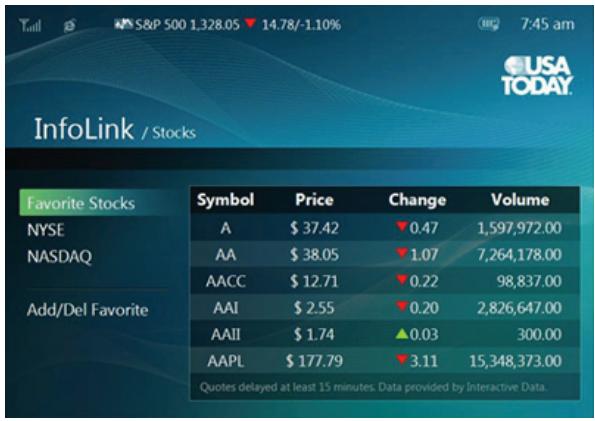
→ Stocks
Displays the stock information for the Favorite Stock Items, NYSE, and Nasdaq.
※ You can register up to 20 stock symbols in the [Favorite Stocks] list. If you try to register more than 20 stock symbols, the message [You've exceeded the maximum of 20 stock symbols] is displayed.
text_image
Total S&P 500 1,328.05 14.78/-1.10% 7:45 am USA TODAY InfoLink / Stocks Favorite Stocks Symbol Price Change Volume NYSE A $ 37.42 ▼0.47 1,597,972.00 NASDAQ AA $ 38.05 ▼1.07 7,264,178.00 AACC $ 12.71 ▼0.22 98,837.00 Add/Del Favorite AAI $ 2.55 ▼0.20 2,826,647.00 AAII $ 1.74 ▲0.03 300.00 AAPL $ 177.79 ▼3.11 15,348,373.00 Quotes delayed at least 15 minutes. Data provided by Interactive Data.| Menu | Sub-Menu | Detailed Menu | |
| Description | |||
| Stocks | Favorite Stocks | Displays the stock information for the stock symbols registered as your favorite stock symbols. If there are no stock symbols registered, the Add/Del Favorite menu screen is displayed. | |
| NYSE | Displays the NYSE stock information. | ||
| NASDAQ | Displays the NASDAQ stock information. You can add and delete a stock symbol to and from the Favorite Stocks list. | ||
| Add/Del Favorite | 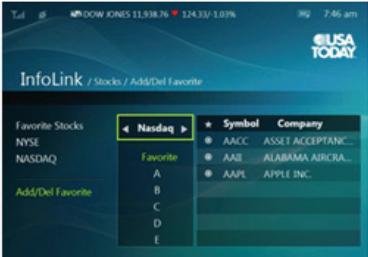 |  | |
| ◀,▶ | Moves to the stock information you want to view (NYSE/Nasdaq/Favorites). | ||
| ▲,▼ | Moves up/down. | ||
| ◎ | Adds or deletes the selected stock symbol. | ||
| ◎ | Returns to the upper menu screen. | ||
Direct Functions
| Menu | Description |
| Return to List | Returns to the list. |
| Add to Favorite Stocks | Adds the selected stock symbol to the Favorite Stocks. |
| Delete from Favorite Stocks | Deletes the selected stock symbol from the Favorite Stocks. |
| ▲,▼ | Moves up/down. |
| ◀,▶ | Moves right/left. |
| Moves right / Selects an item. | |
| Returns to the upper menu screen. |

Weather
text_image
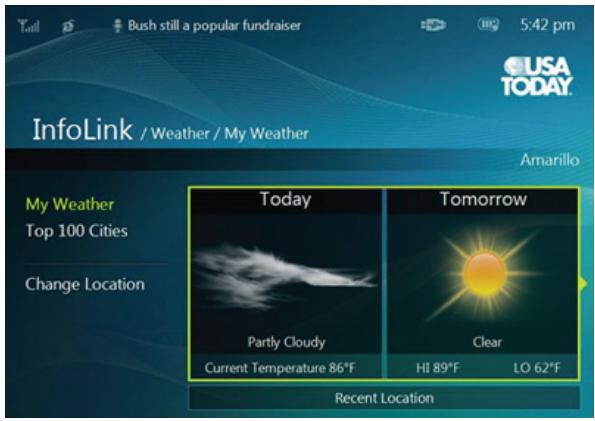
Bush still a popular fundraiser 5:42 pm USA TODAY InfoLink / Weather / My Weather Amarillo My Weather Top 100 Cities Change Location Today Tomorrow Partly Cloudy Clear Current Temperature 86°F HI 89°F LO 62°F Recent Location| Menu | Sub-Menu | Detailed Menu |
| Description | ||
| Weather | My Weather | Today, Tomorrow, Recent Location |
| Today, Tomorrow : Displays the weather forecast for today and tomorrow.When selected, you can view the six (6)-day weather information for the default location.Recent Location : Displays a list of locations for which you have recently viewed weather information. If you selected a location from the list, you can view the six (6)-day weather information for it. | ||
| Top 100 Cities | Displays a list of 100 cities. You can select a city and view the six (6)-day weather information for it. | |
| Change Location | Select a location manually by entering the zip code. You can register the selected location to My Weather. | |
Direct Functions
| Menu | Description |
| Return to my Weather | Returns to the My Weather screen. |
| Make this My Weather | Registers the selected item to My Weather. It becomes the default weather information to be provided and you are moved to the My Weather screen. |
| MENU | Sets Celsius/Fahrenheit. |
| ▲,▼ | Moves up/down. |
| ◀ | Moves left or returns to the previous screen. |
| ▶ | Selects the item. Moves right. |
| Selects the item. | |
| Returns to the previous screen. |
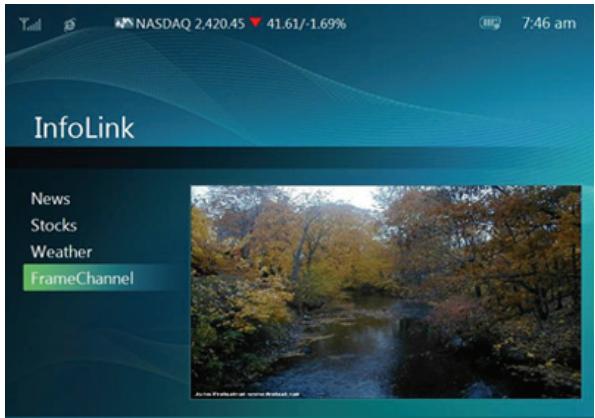
FrameChannel
※ If you do not have a FrameChannel account, create your account on the FrameChannel website (http://samsung.framechannel.com).
For information on how to configure the FrameChannel, refer to Applications > Setting up the FrameChannel.
text_image
InfoLink News Stocks Weather FrameChannelDirect Functions
| Menu | Description |
| ▶, ☑ | Enters FrameChannel. |
| ▲, ▼ | Moves up/down. |
| ◀, ☑ | Returns to the previous (Main) screen. |
|User Guide | Photo | Music | Movie | Clock & Alarm | InfoLink | Settings |
Settings
Settings
text_image
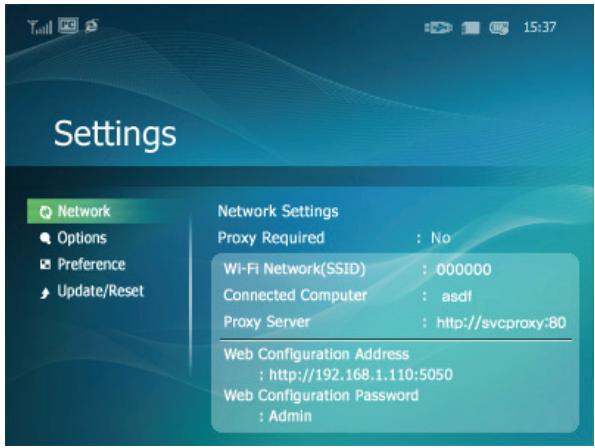
Settings Network Options Preference Update/Reset Network Settings Proxy Required : No Wi-Fi Network(SSID) : 000000 Connected Computer : asdl Proxy Server : http://svcproxy:80 Web Configuration Address : http://192.168.1.110:5050 Web Configuration Password : Admin| Menu | Sub-Menu | Detailed Menu |
| Description | ||
| Network | Network Settings | Sets the network. The network information you set is displayed at the bottom. |
| Proxy Required | ♦ Yes, No | |
| You can set whether to use a proxy server. | ||
| Language | ♦ English, Deutsch, Español, Français, Italiano, Nederlands, Polski, Русский, Português, Svenska, Türkçe, 한국어 | |
| You can select the language for the product. | ||
| Brightness | ♦ 0~100 | |
| Adjusts the brightness of the screen. | ||
| Auto Rotation | ♦ Off, On | |
| Off: If you set the frame on its edge during a SlideShow, even if the sensor detects the change, the picture does not rotate accordingly.On: If you set the frame on its edge, the sensor detects the change and rotates the picture automatically. | ||
| Button Sound | ♦ Off, Low, Medium, High | |
| You can turn the button operating sound heard when operating the product on or off. | ||
| Volume | ♦ 0~100 | |
| Adjusts the volume. | ||
| Frame Memory Copy | ♦ Original Size, Resized | |
| When copying a photo from an external memory storage device (SD/MS, USB memory) to the Frame Memory, if [Settings]-[Options]-[Frame Memory Copy] is set to [Resized], the size (screen quality) of the photo is automatically reduced before saving it, so that it can be fit to the screen of your digital photo frame, and the EXIF (camera related information) saved in the photo is removed.Therefore, make sure to only use the photos saved on the Frame Memory with the digital photo frame. | ||
| Starting Mode | ♦ Home, Last Mode, Slideshow | |
| You can select the first screen to be displayed when the power is turned on. | ||
| Screen Saver | ♦ Slideshow, Clock | |
| You can select the screensaver type.If no button is pressed for ten (10) minutes, the screensaver is activated.OSD Color Theme | ♦ Violet Style, Blue Style, Green Style, Orange Style | |
| Preferences | You can select a color theme for the menu background screen.The default color theme is Blue Style. | |
| Home Background | ♦ Default, Custom | |
| You can set the background of the main menu screen. | ||
| Auto Picture On/Off | ♦ Activation, Hours, Minutes, am/pm, RepeatWhen the [Off Time] is reached, other operations are stopped and the screen is turned off. When the [On Time] is reached, the screen is turned on and the previous operating status persists.If the screen is turned off as the time has reached the [Off Time], press any button except the Power button to display the screen again.※ If the product is being used as a Mini-Monitor or a Mass Storage device connected to your PC via a USB cable, the screen will not be turned off even if the Off Time is reached. | |
| Update/Reset | Firmware Update | You can update the product by using a USB memory stick or memory card (SD/MS).For the latest firmware file, visit www.samsung.com. |
| Reset Settings | ♦ Yes, No | |
| Initializes the settings to the factory defaults.Product Information | ♦ Model, Firmware Version, Copyright | |
| You can check the product information. | ||
→ Web Configuration
01 Connect to the address (URL) in the [Web Configuration Address] item on the [Settings]-[Network] page of the Digital Photo Frame using Internet Explorer.
02 If connected, the Welcome page is displayed.
Enter the password in the [Web Configuration Password] item of the [Settings]-[Network] page of the Digital Photo Frame in the [Password] item on the Welcome page. Then click the [sign in] button.
| Upper Menu | Sub Menu |
| Description | |
| WelcomePhoto Frame | ♦ Password |
| Enter the password displayed in Management Password.Enables case-sensitive mode.♦ Now Playing | |
| You can monitor the photos which are being displayed in the slide show at the same time. | |
| Web Photos | ♦ Photo Feeds, Photos Windows Live Spaces |
| You can add or remove a website address from which you can receive photos. | |
| StorageSettings | ♦ Photo Feeds, Photos Windows Live Spaces |
| You can check the size of the photos in the addresses listed in Web Photos.♦ Basic, Administrator Password, Date and Time, Network Settings | |
| You can enter and change the product name, administrator password, time, and network proxy server, etc. | |
| Help | Displays the help section for using Samsung Photo Frame Web Configuration. |
Using, copying or reproducing the whole or part of this manual without written permission from Samsung Electronics is prohibited. The content of this manual is subject to change without prior notice. ©2008 All rights reserved. Samsung Electronics.
Digital Photo Frame
natural_image
Close-up of pink flowers with bees on top, labeled 'SAMSUNG' in bottom right corner (no other text or symbols)Safety Instructions
Overview
Connecting
Using
Applications
Specifications
Troubleshooting
Digital Photo Frame ○○○○○○○○○
SPF-85V, SPF-86V
Applications
Initial Settings
Settings for Sharing Photos on your PC - Configuring Your Windows
Settings for Sharing Photos on your PC - Configuring Your Photo Frame
Viewing the Photos from Windows Live Space
Viewing the Photos via RSS
Setting up Rating and Tags (VISTA:Tags, XP:Labels) on a PC
Setting up the FrameChannel
I want to update firmware.
I want to connect to a monitor by using Mini-Monitor program.
Initial Settings
To use the wireless sharing function provided with this product, Windows Vista must be running on your computer and a wireless LAN access point (AP) must be in your vicinity.
Windows XP
01 Windows Media Player 11 or later must be installed.
02 Digital Image Library Starter Edition (DISE)
: This program allows you to change the ratings for the photos on your Digital Photo Frame via your PC.
03 Recommendations when using the Digital Photo Frame: Internet Explorer 7.0 or higher
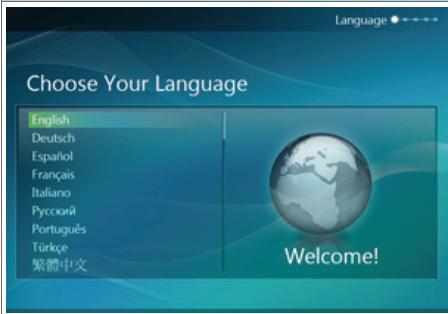
- Choose Your Language
text_image
Choose Your Language English Deutsch Español Français Italiano Pyccoriú Português Türkçe 繁體中文 Welcome!Turn on your Digital Photo Frame and select a language. You can change the language via Settings -> Language.
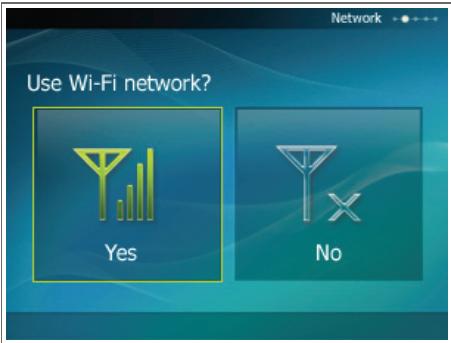
- Use Wi-Fi network?
Select whether to use a network.
text_image
Use Wi-Fi network? Yes No- Choose your Access Point
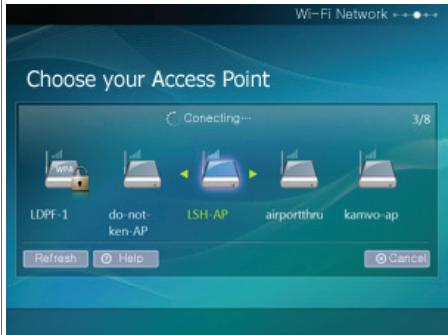
text_image
Choose your Access Point Connecting... 3/8 LDPF-1 do-not- ken-AP LSH-AP airportthru kamwo-ap Refresh Help Cancel Wi-Fi NetworkThe AP list is displayed.
Select the SSID you want to connect to in the [Choose your Access Point] screen. If the SSID you want to connect to is not displayed, refresh the SSID list by pressing [Refresh] and then select the SSID.
- Choose Computer
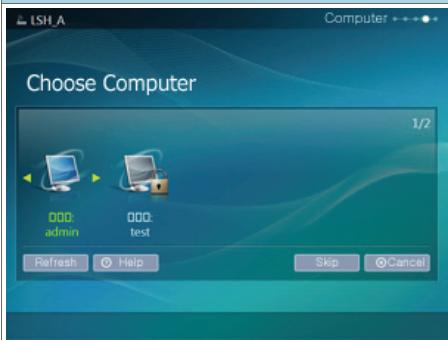
text_image
LSH_A Compute + + + + Choose Computer 1/2 000: admin 000: test Refresh Help Skip CancelThe PC list is displayed. If the PC you want to connect to is not in the list, refresh the PC list by pressing [Refresh] and then select the PC.
- Finish
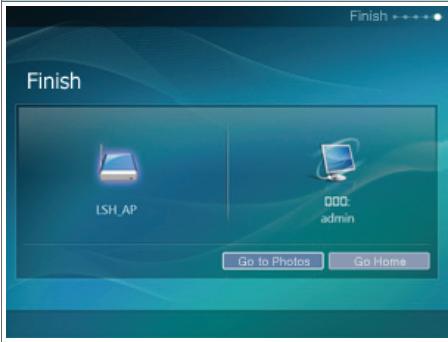
text_image
Finish LSH_AP OOC admin Go to Photos Go HomeThe selected network and PC are displayed.
You can select a menu after completing the operation.
※ Ensure that the Settings are configured as shown below.
Otherwise, your PC may not be displayed in the list or you may not be able to connect to it.
- In Vista, select Control Panel > Network and Sharing Center > Customize. Check whether the Location type is set to Private.
- Select Digital Photo Frame from the Windows Media Player > Library > Media Sharing list. Check whether it is set to Allow.
Settings for Sharing the Photos on your PC - Configuring Your Windows Vista

Adding Photos to the Library

Run Windows Media Player.
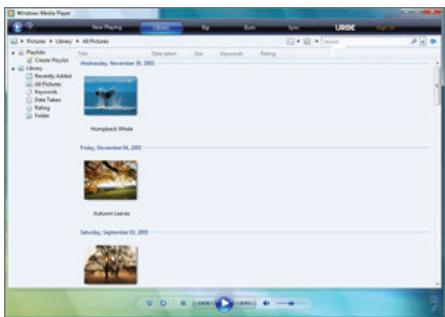
text_image
Windows Media Player Movie Playing File Edit View Insert Pictures > Library > All Pictures Photo Create Player Library Recently edited All Pictures Keywords Data Takes Rating Folder Wednesday, November 30, 2005 Humpback White Friday, November 24, 2005 Autumn Vacation Saturday, September 13, 2005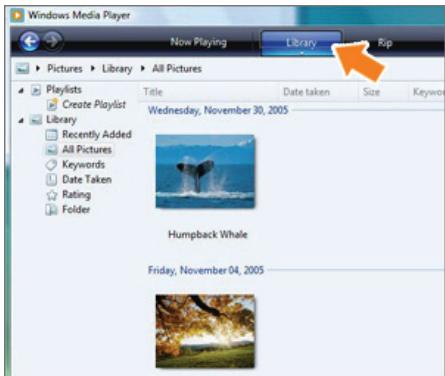
text_image
Windows Media Player Now Playing Library Rip Pictures > Library > All Pictures Playlists Create Playlist Library Recently Added All Pictures Keywords Date Taken Rating Folder Title Date taken Size Keyw Wednesday, November 30, 2005 Humpback Whale Friday, November 04, 2005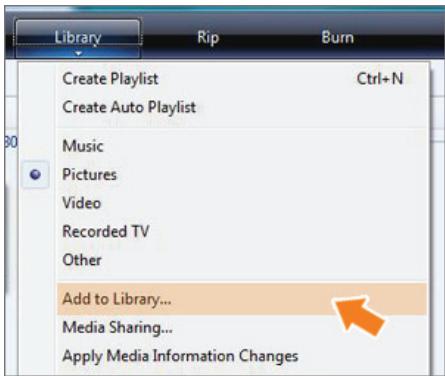
text_image
Library Create Playlist Create Auto Playlist Music Pictures Video Recorded TV Other Add to Library... Media Sharing... Apply Media Information Changes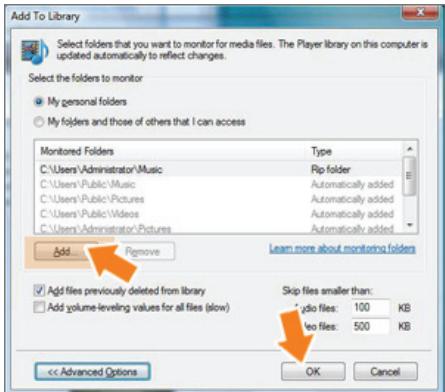
text_image
Add To Library Select folders that you want to monitor for media files. The Player library on this computer is updated automatically to reflect changes. Select the folders to monitor My personal folders My folders and those of others that I can access Monitored Folders Type C:\Users\Administrator\Music Rip folder C:\Users\Public\Music Automatically added C:\Users\Public\Pictures Automatically added C:\Users\Public\Videos Automatically added C:\Users\Administrator\Pictures Automatically added Add Remove Learn more about monitoring folders Add files previously deleted from library Skip files smaller than: Add volume-leveling values for all files (slow) skyo files: 100 KB level files: 500 KB << Advanced Options OK Cancel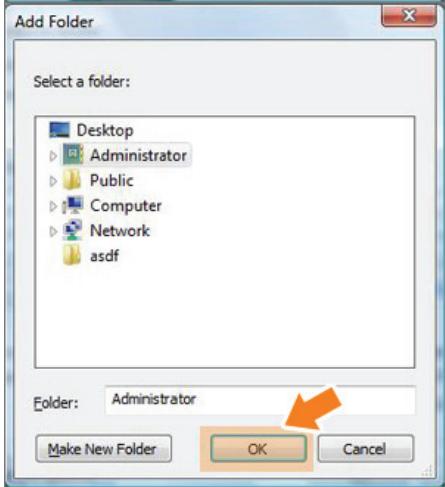
text_image
Add Folder Select a folder: Desktop Administrator Public Computer Network asdf Folder: Administrator Make New Folder OK Cancel02 Click the [Library] tab at the top.
03 Click [Add To Library] in the [Library] tab.
04 In the [Add To Library] window, select [My personal folders] under the [Select the folders to monitor] section and select the folder containing photos and click [Add].
Select the folder to share and click [OK] to add it.
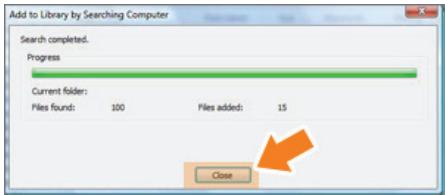
05 When you click [OK], the [Add To Library] window is closed and the [Add to Library by
text_image
Add to Library by Searching Computer Search completed. Progress Current folder: Files found: 100 Files added: 15 CloseSearching Computer] is displayed. Wait until it finishes the operation and click [Close] when it is completed.
02 Checking Shared Photos
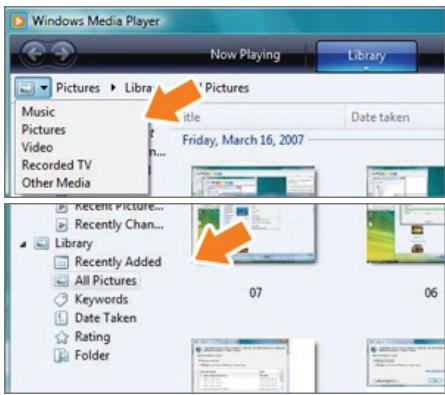
text_image
Windows Media Player Now Playing Library Pictures > Library > Pictures Music Pictures Video Recorded TV Other Media Title Date taken Friday, March 16, 2007 Recent Picture... Recently Chan... Library Recently Added All Pictures Keywords Date Taken Rating Folder 07 0601 In the Windows Media Player, set the Category, which is under the [💡,💡] symbol at the top left, to [Picture].
02 In the [Library], select Recently added, All Pictures, Keywords, Date Taken, Rating, or Folder Settings and check whether the added photos exist in the library.
03 Sharing Settings for Accepting Connections from Your Photo Frame
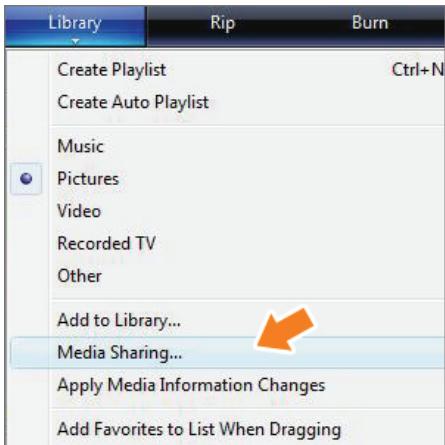
text_image
Library Create Playlist Create Auto Playlist Music Pictures Video Recorded TV Other Add to Library... Media Sharing... Apply Media Information Changes Add Favorites to List When Dragging01 In the [Library] tab, click on [Media Sharing].
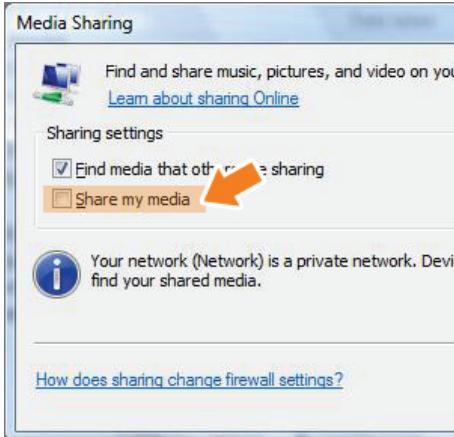
text_image
Media Sharing Find and share music, pictures, and video on you Learn about sharing Online Sharing settings ✓ Find media that other media sharing Share my media Your network (Network) is a private network. Devi find your shared media. How does sharing change firewall settings?02 In the [Media Sharing] window, check the [Share my media] checkbox under [Sharing Settings].
text_image
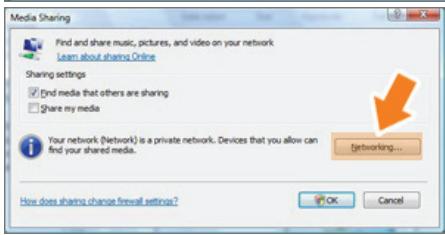
Media Sharing Find and share music, pictures, and video on your network Learn about sharing Online Sharing settings ✓ Find media that others are sharing Share my media Your network (Network) is a private network. Devices that you allow can find your shared media. Networking... How does sharing change firewall settings? OK Cancel03 If no [Available device] is displayed in the [Media Sharing] window, proceed to steps 4. If displayed, proceed to step 5.
04 In the [Media Sharing] window, click [Networking] and check whether the current network is set to [Private network]. If not, set it to [Private Network].
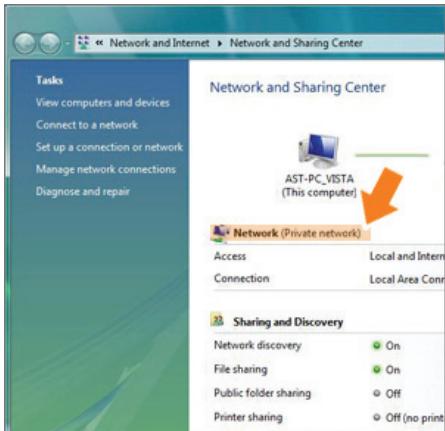
text_image
Network and Internet ▶ Network and Sharing Center Tasks View computers and devices Connect to a network Set up a connection or network Manage network connections Diagnose and repair Network and Sharing Center AST-PC_VISTA (This computer) Network (Private network) Access Local and Intern Connection Local Area Conn Sharing and Discovery Network discovery On File sharing On Public folder sharing Off Printer sharing Off (no print)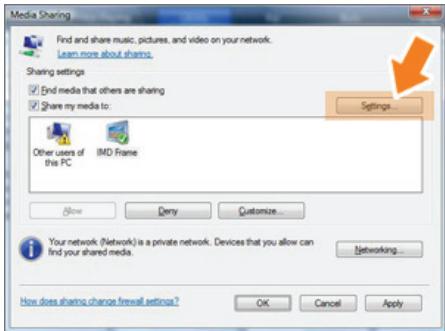
text_image
Media Sharing Find and share music, pictures, and video on your network. Learn more about sharing. Sharing settings ✓ End media that others are sharing ✓ Share my media to: Other users of this PC IMD Frame Settings... Allow Deny Customize... Your network (Network) is a private network. Devices that you allow can find your shared media. Networking... How does sharing change firewall settings? OK Cancel Apply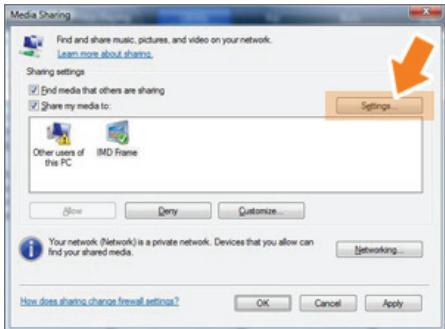
text_image
Media Sharing Find and share music, pictures, and video on your network. Learn more about sharing. Sharing settings ✓ End media that others are sharing ✓ Share my media to: Other users of the PC IMD Frame Settings... Allow Deny Customize... Your network (Network) is a private network. Devices that you allow can find your shared media. Networking... How does sharing change firewall settings? OK Cancel Apply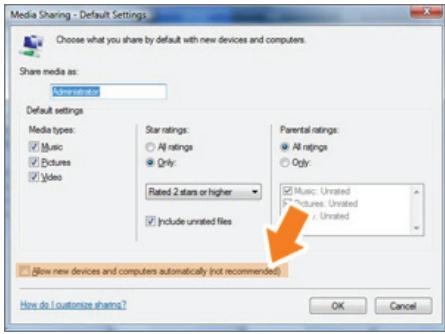
text_image
Media Sharing - Default Settings Choose what you share by default with new devices and computers. Share media as: Administrator Default settings Media types: Music Pictures Video Star ratings: All ratings Only: Rated 2 stars or higher Include unrated files Parental ratings: All ratings Ogly: Music: Unrated Pictures: Unrated Unrated Allow new devices and computers automatically (not recommended) How do I customize sharing? OK Cancel05 If your network is a Private network, the [Available Device] list and the [Settings] button are displayed in the [Media Sharing] window.
06 In the [Media Sharing] window, click [Settings]. The [Media Sharing-Default Settings] window is displayed.
07 In the [Media Sharing-Default Settings] window, set the [Media Type] to [Picture], both [Star ratings] and [Parental ratings] to [All ratings] or a required rating under the [Default Settings] section. If you want to add a device or computer which tries to connect to the library to the list automatically, check the [Add new devices and computers automatically] checkbox.
※ Only photos can be transmitted via PC sharing.
Settings for Sharing the Photos on Your PC - Configuring Your Photo Frame
01 Checking Network Connections
text_image
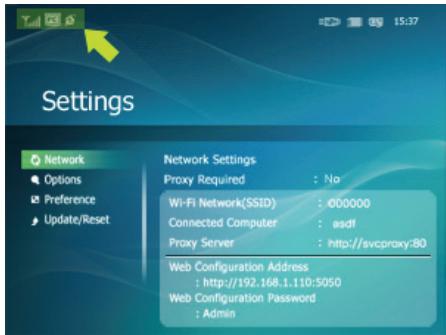
Settings Network Settings Proxy Required : No Wi-Fi Network(SSID) : ©00000 Connected Computer : asdf Proxy Server : http://avcproxy-80 Web Configuration Address : http://192.168.1.110:5050 Web Configuration Password : Admin01 Check whether the Network icon is displayed at the left top of the Main screen.
text_image
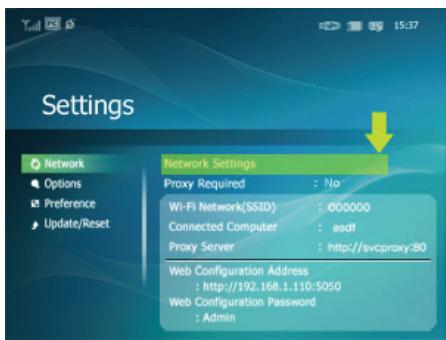
Settings Network Settings Proxy Required : No Wi-Fi Network(SSID) : ©00000 Connected Computer : asdf Proxy Server : http://svcproxy:80 Web Configuration Address : http://192.168.1.110:5050 Web Configuration Password : Admin02 If the Network icon is displayed, proceed to the Checking Computer Connections section described below. If it is not displayed, move to [Settings]-[Wireless Network(SSID)].
※ SSID : Service Set Identifier
text_image
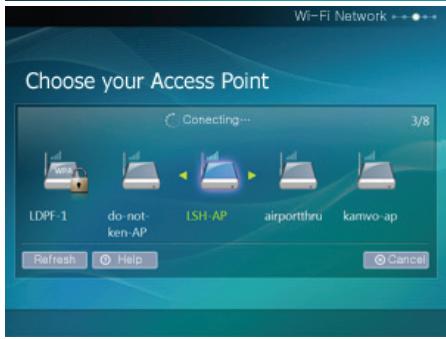
Choose your Access Point Connecting... 3/8 LDPF-1 do-not- ken-AP LSH-AP airportthru kamvo-ap Refresh Help Cancel Wi-Fi Network03 Select the SSID you want to connect to in the [Choose your Access Point] screen. If the SSID you want to connect to is not displayed, refresh the SSID list by pressing [Refresh] and then select the SSID.
If you select this when the SSID is encrypted, a password input window is displayed. You can only be connected to the network if you enter the correct password.
02 Checking Computer Connections
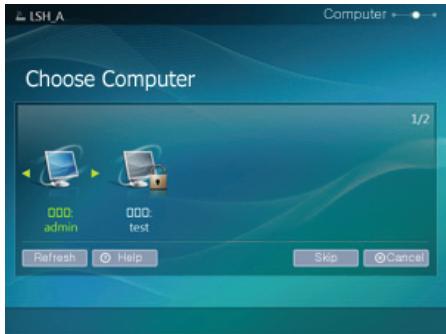
text_image
LSH.A Choose Computer 1/2 000: admin 000: test Refresh Help Skip Cancel01 The PC list is displayed. If the PC you want to connect to is not in the list, refresh the PC list by pressing [Refresh] and then select the PC.
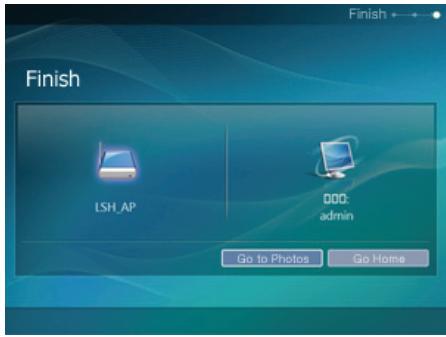
text_image
Finish LSH_AP 000: admin Go to Photos Go Home02 The configured network and computer are displayed. You can select a menu once the completion window is displayed.
Viewing the Photos from Windows Live Space
01 Checking Windows Live Space and Uploading Photos
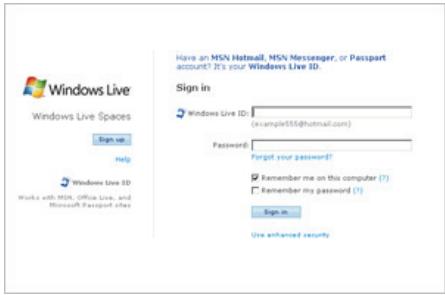
text_image
Windows Live Windows Live Spaces Sign in Help Windows Live ID Works with MSN, Office Live, and Microsoft Passport sites Have an MSN Hotmail, MSN Messenger, or Passport account? It's your Windows Live ID. Sign in Windows Live ID: (example555@hotmail.com) Password: Forgot your password? Remember me on this computer (7) Remember my password (7) Sign in Use enhanced security01 If you have no MSN account (MSN Hotmail, MSN Messenger, Passport account), please create one. Go to and login to Windows Live Space (http://spaces.live.com/) with your MSN account.
02 If you do not have a space, create a space and enter it.
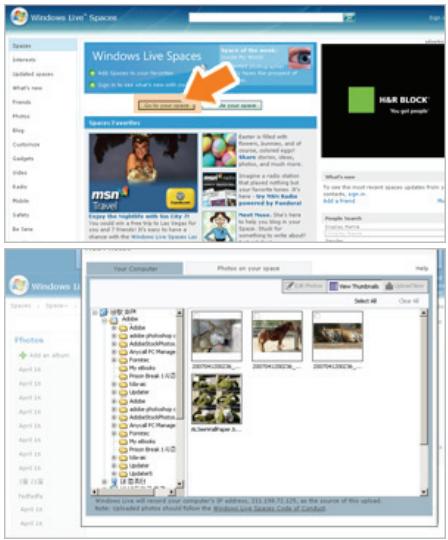
text_image
Windows Live Spaces Windows Live Spaces Add to access to your website Add to the next page Ask to add your website to your website Be a new website Be a new website Spaces Favorites Enter is filled with Google, Facebook, and all of games, shared pages Google, Facebook, and other games. Describe a radio station that also exists nothing but your favorite homes. It's has. Any Web Audio powered by Ponderal Next Home. Don't have any home. You can do Apply the next home. You can do Apply the next home. You can do Apply the next home. You can do Your Computer Photos on your space Select All Close All Windows Live Windows Live with record your computer's IP address: 211.236.702.219, as the source of this upload. Note: Reprinted phones should follow the Windows Live Spaces Guide of Discord.03 In your space, change to edit mode. Add albums and photos by clicking on Add under the Photos category.
02 Setting up the Web Configuration
text_image
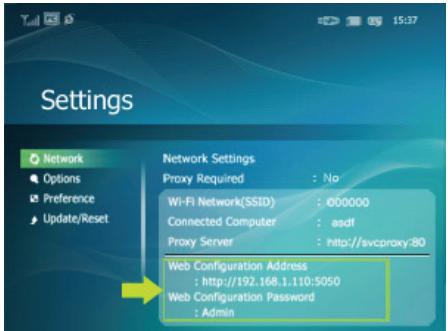
Settings Network Options Preference Update/Reset Network Settings Proxy Required : No Wi-Fi Network(SSID) : @00000 Connected Computer : asdf Proxy Server : http://svcproxy-80 Web Configuration Address : http://192.168.1.110:5050 Web Configuration Password : Admin01 Connect to the address (URL) in the [Web Configuration Address] item on the [Settings]-[Network] page of the Digital Photo Frame using Internet Explorer.
text_image
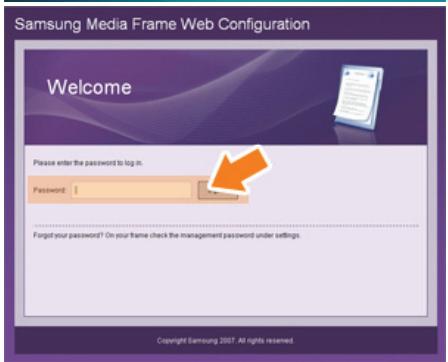
Samsung Media Frame Web Configuration Welcome Please enter the password to log in. Password | Forgot your password? On your frame check the management password under settings. Copyright Samsung 2007. All rights reserved.02 If connected, the welcome page is displayed. Enter the password in the [Remote Configuration Password] item of the [Settings]-[Network] page of the Digital Photo Frame in the [Password] item on the Welcome! page. Then click the [sign in] button.
※ You can change the password (default: Admin) in the Settings of the Samsung Photo Frame Web Configuration.
text_image
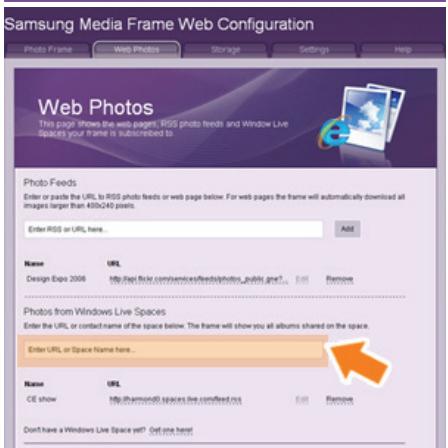
Samsung Media Frame Web Configuration Photo Frame Web Photos Storage Settings Help Web Photos This page! Shows the web pages; RSS photo feeds and Window Live Spaces your frame is subscribed to. Photo Feeds Enter or paste the URL to RSS photo feeds or web page below. For web pages the frame will automatically download all images larger than 400x240 posts. Enter RSS or URL here... Add Name URL Design Expo 2006 http://api.org/conspencs/feeds/photos_public yearly Edit Remove Photos from Windows Live Spaces Enter the URL or contact name of the space below. The frame will show you all albums shared on the space. Enter URL or Space Name here... Name URL CE show http://www.ni spaces-line.com/feed.rsc Edit Remove Don't have a Windows Live Space yet? Get one here!03 On the Samsung Photo Frame Web Configuration page, click the [Web Photos] tab and add the space address (for example, if it is 'http://test.space.live.com', you have only to type 'test'.) to the URL input box for the Photos From Windows Live Spaces list and click [Add].
03 Checking your Space Photos on your Digital Photo Frame
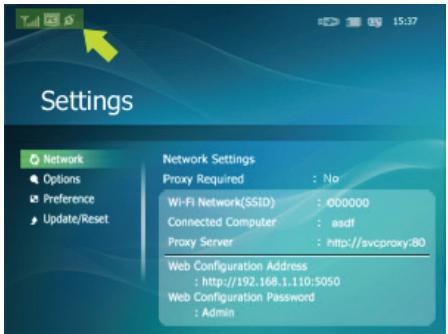
01 First check the network connections. (Refer to Viewing the Photos Shared from Vista Windows on your Digital Photo Frame - What You Should Do on Your Digital Photo Frame - Checking Network Connections.)
text_image
Settings Network Options Preference Update/Reset Network Settings Proxy Required : No Wi-Fi Network(SSID) : @00000 Connected Computer : asdf Proxy Server : http://avcproxy-80 Web Configuration Address : http://192.168.1.110:5050 Web Configuration Password : Admin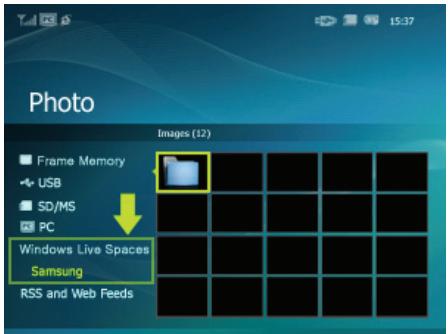
text_image
Photo Images (12) Frame Memory USB SD/MS PC Windows Live Spaces Samsung RSS and Web Feeds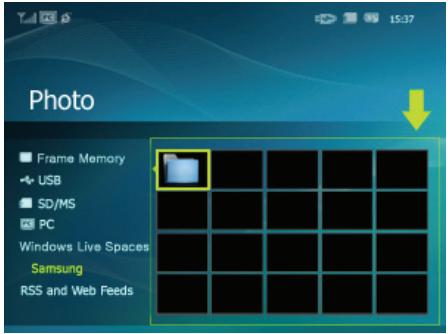
text_image
Photo Frame Memory USB SD/MS PC Windows Live Spaces Samsung RSS and Web Feeds02 In the Main screen of your Digital Photo Frame, go to [Photo]-[Windows Live Space]. A list of the spaces you have added to the Web Configuration will be displayed.
03 Select a space. A list of albums in the selected space will be displayed. Select an album, and thumbnails for the photos in the selected album will be displayed on the right.
Viewing the Photos via RSS
01 Web Configuration
text_image
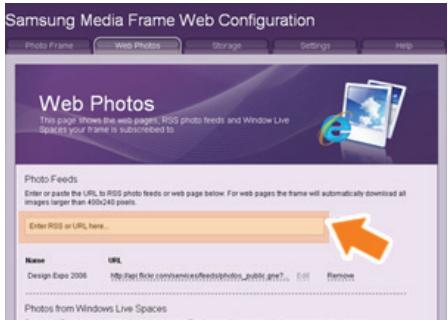
Samsung Media Frame Web Configuration Photo Frame Web Photos Storage Settings Help Web Photos This page shows the web pages, RSS photo feeds and Window Live Spaces your frame is subscribed to Photo Feeds Enter or paste the URL to RSS photo feeds or web page below. For web pages the frame will automatically download all images larger than 400x240 pixels. Enter RSS or URL here... Name URL Design Expo 2006 Mit Page for comments/express photos public info? Cancel Remove Photos from Windows Live Spaces01 Go to the Web Photos page by following the description in the Settings Web Configuration section for Windows Live Space. Click [Web Photo]-[Photo Feeds] for the RSS Input window. In the RSS Input window, enter the RSS address and click [Add].
What is an RSS Address?
It is the address that appears in the address box of the web page (XML) displayed when clicking the FEED icon on a RSS service site where photos are uploaded.
02 Checking the Photos from RSS on Your Digital Photo Frame
text_image
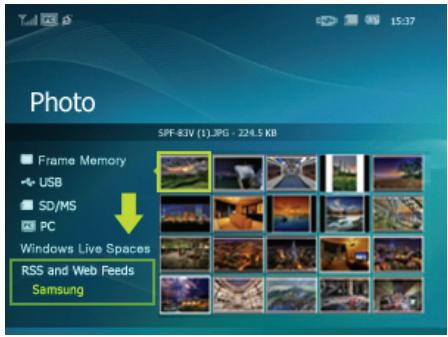
Photo SPF-$3V (1).jpg - 224.5 KB! Frame Memory USB SD/MS PC Windows Live Spaces RSS and Web Feeds Samsung01 In the Main screen of your Digital Photo Frame, go to [Photo]-[RSS and Web Feeds]. A list of feeds you have added to the Web Configuration will be displayed.
02 Select a feed from the list. Thumbnails for the photos in the selected feed will be
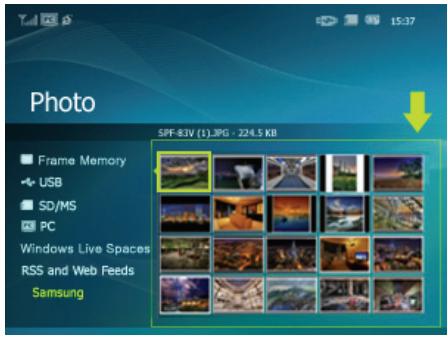
text_image
Photo SPF-83V (1).JPG - 224.5 KB! Frame Memory USB SD/MS PC Windows Live Spaces RSS and Web Feeds Samsungdisplayed to the right.
Setting up Rating and Tags (VISTA:Tags, XP:Labels) on a PC

Windows VISTA
text_image
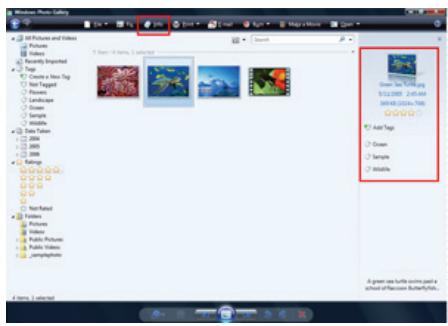
Windows Movie Editor Pictures and Videos Pictures Windows Recently Important Tags Create a New Tag New Tagged Pictures Landscape Mouse Untitled Data Letters 2004 2005 2006 Settings Public Pictures Public Videos Camphaphills 3 items 1 selected Search Show: Save True Images Add Tags Drawn Sample Untitled A green web turtle icon past a school of Facebook Butterflyfish...01 Click Start - All Programs - Windows Photo Gallery to launch the Windows Photo Gallery.
02 If you select Info at the top of the Windows Photo Gallery screen, the photo information pane appears on the right.
03 Select a photo and change the Rating or Tags in the right information pane.

Windows XP

01 Click Start - All Programs - Microsoft Digital Image Starter Edition 2006 - Microsoft Digital Image Starter Edition 2006 Library.
02 The Microsoft Digital Image Starter Edition 2006 Library window appears.
03 Select a photo and configure the Rating and Labels for the selected photo at the bottom of the screen.
I want to update firmware.

Windows VISTA
text_image
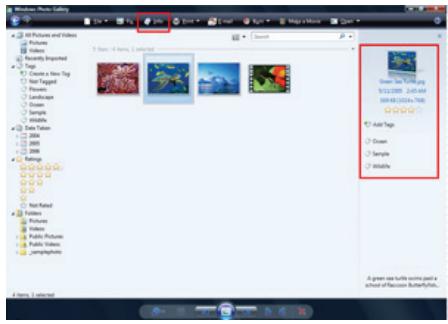
Windows Movie Editor 10 Pictures and Videos Pictures Video Recently Imported Tag Create a New Tag Not Targeted Patterns Landscape Samples Visuals Data Letters 2004 2005 2006 Settings Pictures Video Public Pictures Public Videos Lampfunctions 1 Store - 3 Items - Connected Show: 3.7 (1.8) AM $12,000 - 245.4M $90,000 - 215.4M - 700 Add Tags Drawn Sample Wildlife A green set turtle only past a school of Facebook Butterflyfish...01 Click Start - All Programs - Windows Photo Gallery to launch the Windows Photo Gallery.
02 If you select Info at the top of the Windows Photo Gallery screen, the photo information pane appears on the right.
03 Select a photo and change the Rating or Tags in the right information pane.

Windows XP

01 Click Start - All Programs - Microsoft Digital Image Starter Edition 2006 - Microsoft Digital Image Starter Edition 2006 Library.
02 The Microsoft Digital Image Starter Edition 2006 Library window appears.
03 Select a photo and configure the Rating and Labels for the selected photo at the bottom of the screen.
Setting up the FrameChannel
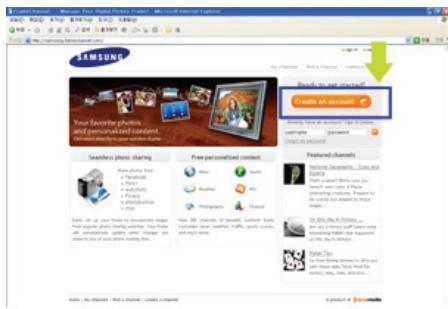
※ You must have a FrameChannel account to use the FrameChannel functions.
01
text_image
SAMSUNG Your favorite photos and personalized content. Created by the 2000s. You can't get started? Create an account Business photo sharing Free personal content Featured: channels Personal Company, Tools and Search What is what's you can you I have been used to create a new information that has been used to use the image. You can't get started? Make up your photo sharing You can't get started? Make up your photo sharing You can't get started? Make up your photo sharing You can't get started? Make up your photo sharing You can't get started? Make up your photo sharing You can't get started? Make up your photo sharing You can't get started? Make up your photo sharing You can't get started? Make up your photo sharing You can't get started? Make up your photo sharing You can't go out to your photo sharing You can't go out to your photo sharing You can't go out to your photo sharing You can't go out to your photo sharing You can't go out to your photo sharing You can't go out to your photo sharing You can't go out to your photo sharing You can't go out to your photo sharing You can't go out to your photo sharing You can't go out to your photo sharing You can't go out You can't go out to your photo sharing You can't go out to your photo sharing You can't go out to your photo sharing You can't go out to your photo sharing You can't go out to your photo sharing You can't go out to your photo sharing You can't go out to your photo sharing You can't go out to your photo sharing You can't go out to your photo sharing You can't go out to your photo share You can't go out to your photo share You can't go out to your photo share You can't go out to your photo share You can't go out to your photo share You can't go out to your photo share You can't go out to your photo share You can't go out to your photo share You can't go out to your photo share You can't go out to your photo share You can't go out to your photo shares You can't go out to your photo shares You can't go out to your photo shares You can't go out to your photo shares You can't go out to your photo shares You can't go out to your photo shares You can't go out to your photo shares You can't go out to your photo shares You can't go out to your photo shares You can't go out to your photo shares You can't go out to your photo share You can't go out to your photo share You can't go out to your photo share You can't go out to your photo share You can't go out to your photo share You can't go out to your photo share You can't go out to your photo share You can't go out to your photo share You can't go out to your photo share You can't go out to your photo show You can't go out to your photo show You can't go out to your photo show You can't go out to your photo show You can't go out to your photo show You can't go out to your photo show You can't go out to your photo show You can't go out to your photo show You can't go out to your photo show You can't go out to your photo show You can't go out to your photo shows You can't go out to your photo shows You can't go out to your photo shows You can't go out to your photo shows You can't go out to your photo shows You can't go out to your photo shows You can't go out to your photo shows You can't go out to your photo shows You can't go out to your photo shows You can't go out to your photo shows You can't go out to your photo show You can't go out to your photo show You can't go out to your photo show You can't go out to your photo show You can't go out to your photo show You can't go out to your photo show You can't go out to your photo show You can't go out to your photo show You can't go out to your photo show You can't go out to your photo share01
Visit the FrameChannel website (http://samsung.framechannel.com) and create your account by clicking the Create an Account button.
02
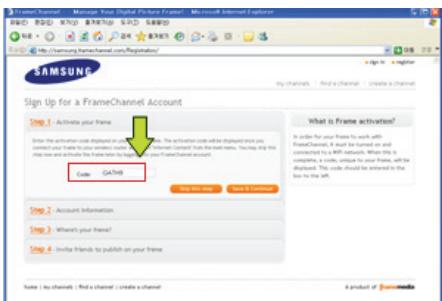
text_image
SAMSUNG Sign Up for a FrameChannel Account Step 1: Activate your frame Enter the activation code displayed in your website. The activation code which displayed now you cannot put any other code. Window Channel from the web menu. They play this step now to activate your frameChannel account. Code: GATHB What is Frame activation? Is also for your frame to work with FrameChannel, it must be hauled on and connected to a web account. When it is complete, a copy, unless to your frame, will be displayed. The code should be entered in the box to the left. Step 2: Account information Step 3: What's your frame? Step 4: Invite friends to publish on your frame Note: My channels: Find a channel; Create a channel.01
In the Code input box in the Activate your Frame page, enter the code in the [LinfoLink] - [FrameChannel] Preview screen.
02
Click Save & Continue to move to the next step.
※
If you enter a wrong code, your Digital Photo Frame cannot be connected to the FrameChannel. Each product has a different code. Make sure to check it and register it correctly.
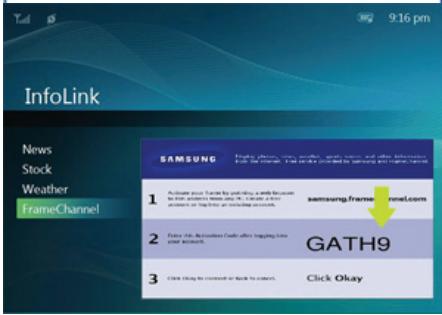
text_image
InfoLink News Stock Weather FrameChannel SAMSUNG Google, phone, news, weather, space, news and other information from the internet. The email provided by SAMSUNG and Google's website. 1 Subscribe your website for downloading a web page in the Internet. You can access to the website or any other content. 2 Select this information create after clicking from your website. 3 Click URL to comment or book to answer. GATH9 Click Okay03
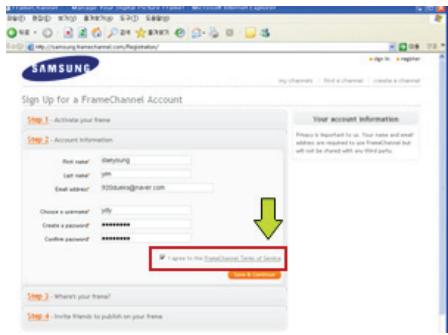
text_image
SAMSUNG Sign Up for a FrameChannel Account Step 1: Activate your frame Step 2: Account Information Port name: dshyung Last name: yf Email address: 900000@soer.com Choose a customer: yf Create a password: ********** Confine password: ******** ✓ Agree to the FrameChannel Terms of Service Your account information Please be required to us. Your name and email address are required to your FrameChannel but not be charged with any third party. Step 3: Where your frame? Step 4: Invite friends to publish on your frame01
Account information: Enter the required information. Then select the I agree to the FrameChannel Terms of Service checkbox and click Save & Continue.
02
Step 3, Step 4 !! Enter and save the required information.
03
Register channels using the Find a Channel and Create a Channel buttons.
I want to update firmware.
01
Preparations
01 Digital Photo Frame
02 Firmware update file.
03 USB memory card or external memory devices(SD/MS)
※ Please visit www.samsung.com for the latest firmware update.
02
Connect USB memory card to PC
01 If you are ready, connect the USB memory card to your PC.
02 Copy the firmware update file you downloaded to the USB memory card.
※ (Make sure to copy the firmware update file to the root directory.)
03
Connect USB Memory Card to Digital
01 Remove the USB memory card from your PC, and connect it to your Digital Photo Frame.
※ If your Digital Photo Frame is off, turn it on.

Updating
01 Select [Firmware Update] on the [Settings]-[Update/Reset] page.
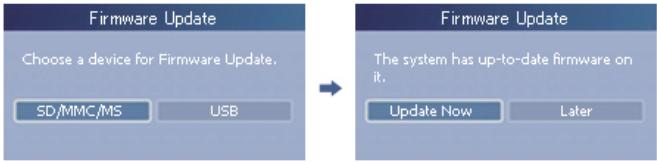
flowchart
graph LR
    A["Firmware Update"] --> B["Choose a device for Firmware Update."]
    B --> C["SD/MMC/MS USB"]
    D["Firmware Update"] --> E["The system has up-to-date firmware on it."]
    E --> F["Update Now Later"]
02 After boot-up, turn your Digital Photo Frame off, remove the USB memory card, and turn your Digital Photo Frame on again, for maximum safety.
※ Do not remove the USB, memory card during the update operation.
Do not press any key during the update operation.
Do not insert any other card during the update operation.
Do not turn your Digital Photo Frame off during the update operation.
You can identify whether the update operation has finished successfully or not by checking the firmware version of your Digital Photo Frame is changed to the version of the firmware update.
I want to connect to a monitor by using Mini-Monitor program.
The Digital Photo Frame not only allows you to appreciate photos but also provides an additional Mini-Monitor function. The Mini-Monitor is a function for using the Digital Photo Frame as an auxiliary monitor. Its usage is simple as the Digital Photo Frame connects to your PC via a USB cable. This function allows you to work more efficiently at your PC by using an additional monitor. To use your digital photo frame as a Mini-Monitor, first install the Frame Manager program. (However, please note that you can use only one digital photo frame as a Mini-Monitor.)
Installing Frame Manager
Frame Manager User's Manual
Using your digital photo frame as a Mini-Monitor.
Using your digital photo frame as Mass Storage.
Changing the current mode to another mode
Adjusting the brightness
Updating the firmware
※ System Requirements
• OS : Windows XP SP2, Vista (32bit)
• System Processor Speed : 1.5 GHz
• USB : Extended Host Controller (EHCT) for USB 2.0
• RAM : 256 MB or above
※ Caution
- When using Windows XP, Service Pack 2 must be installed.
It might not operate with any operating systems other than Windows XP SP2. We are not liable for problems that may occur when installing it on an operating system other than Windows XP SP2. - We recommend a CPU speed of 2.4 GHz or higher.
Your digital photo frame might not operate normally if the performance specifications of your PC are lower than the recommendations. - Make sure to install it correctly as directed in the Installation Guide.
- Do not use your Mini-Monitor as a primary monitor.
We are not liable for any problems that may occur if you do not follow the directions. If it is used as a primary monitor, the screen may be blank. - Make sure to use the provided USB cable.
- If it operates as a Mini-Monitor, none of the buttons will operate except for the power button and the ▲/▼ buttons.
- Move the programs displayed and used on the Mini-Monitor to the primary monitor after you have finished using it.
- For some video cards, the Mini-Monitor may not operate normally. In this case, set Hardware acceleration to None.
To set Hardware acceleration to None: Right-click on the Windows Desktop and select Properties from the displayed menu. The Display Properties window appears. Click Settings > Advanced > Troubleshoot tab. Move the Hardware acceleration slide to None.
- You cannot use the Aero effect of Windows Vista while using the Mini-Monitor.
- When using Windows Vista, some movies cannot be played using the Mini-Monitor.

- Limitation : Hardware graphics acceleration such as DirectX or OpenGL is not supported on the Mini-MonitorDisplay as it would require the emulation of a graphics processor by your standard CPU which would not be favourable. Media players which are using DirectX will not work properly on Mini-Monitor Display.
Example: GOM player, VLC Player
- Recommendation : Do not use/run directX or OpenGL application on Mini-Monitor display.
Using, copying or reproducing the whole or part of this manual without written permission from Samsung Electronics is prohibited. The content of this manual is subject to change without prior notice. ©2008 All rights reserved. Samsung Electronics.
Digital Photo Frame
natural_image
Close-up of pink flowers with bees on top, labeled 'SAMSUNG' in bottom right corner (no other text or symbols)Safety Instructions
Overview
Connecting
Using
Applications
Specifications
Troubleshooting
Digital Photo Frame ○○○○○○○○○
SPF-85V, SPF-86V
Specifications
Specifications | Supported Files
Specifications
| Items | Specifications | |
| Model Name | SPF-85V, SPF-86V | |
| Panel | Type | 8"(20 cm)TFT |
| Resolution | 800 x 600 | |
| Contrast Ratio | 400 : 1 | |
| Interface | Digital 6 bit | |
| Supported Formats | JPEG. MPEG4. WMV9JPEG max Image Resolution 3200x2400(8Mb)(Progressive,CMYK JPEG is not supported.) | |
| Built-in Memory | 64 MB | |
| Network | Wi-Fi 802.11b/g 2.4GHz 54MbpsWEP: Open (64bit, 128bit)WPA-PSK: TKIP, AES | |
| USB | USB 2.0(One up stream (device 2.0) and one down stream (host 1.1), External Memory Reader is not supported) | |
| Media (Memory Card) | 3 in 1(SD≤4GB / MS≤4GB)※ SDHC (High-Capacity) cards are not supported. | |
| Power | Rating | External Power Adapter (12 V, 2 A, 24 W) |
| Battery | 7.4V 770mAh | |
| Consumption | Normal 10W (But, 12 W for battery charging)Off mode(Power Switch Off) under 1W (Even if the power is turned off, up to 10W may be consumed while the battery is being charged.) | |
| Sound | 1W + 1W(Stereo), headphone | |
| Dimensions (WxHxD) | 228 x 187.5 x 46 mm | |
| Weight | 785 g | |

Class B Equipment (Information Communication equipment for residential use)
This product complies with the Electromagnetic Compatibility Directives for residential Use and can be used in all areas including common residential areas. (Class B equipment radiates less electromagnetic influences than class A equipment.)
Specifications | Supported Files
Supported Files
The Digital Photo Frame uses these modules:
WinCE 5.0
For more information, visit the following web sites:
RMI Alchemy Developer Support Site(http://209.254.132.52/RMI/EmbeddedDeveloper.nsf)
Using, copying or reproducing the whole or part of this manual without written permission from Samsung Electronics is prohibited. The content of this manual is subject to change without prior notice. ©2008 All rights reserved. Samsung Electronics.
Digital Photo Frame
natural_image
Close-up of pink flowers with bees on top, labeled 'SAMSUNG' in bottom right corner (no other text or symbols)Safety Instructions
Overview
Connecting
Using
Applications
Specifications
Troubleshooting
Digital Photo Frame ○○○○○○○○○
SPF-85V, SPF-86V
Troubleshooting
Troubleshooting
Terminology
Service Centers
Declaration of Conformity
Troubleshooting
This section lists various problems and solutions encountered by users while using the digital photo frame. When encountering a problem, first check the list below and follow the suggested action if one matches your problem. If the problem still persists, contact or visit the nearest service center.
| Symptoms | Causes and Actions |
| The power does not turn on. | ◆ Check the connections for the adapter cable and the power terminal of the product. |
| It takes time until an image is displayed after the power is turned on.It takes time to move to the next photo. | ◆ If the resolution is high or the file size is large, the photo may be displayed slowly on the screen. |
| I connected an external device but it is not operating. | ◆ Check the cable connections connecting the product and the external device.◆ The USB device must support Windows CE 5.0. Check whether your USB device supports Windows CE 5.0. |
| There is still space on the Frame Memory but I cannot copy any more photos. | ◆ Create a folder in the Frame Memory and copy your photos into the folder. |
| The screen color is too dim or dark. | ◆ Adjust the brightness in the Settings. |
| No slideshow is played automatically. | ◆ Set [Starting Mode] of [Settings-Preference] to [Slideshow]. |
| When playing a movie, the screen is displayed but there is no sound. | ◆ The screen is not displayed because the video codec of the file is not supported.Supported codecs are MPEG4 and WMV9. |
| The movie is played with the sound only.A blank screen is displayed. | ◆ Change the volume.Check whether the file contains sound information. |
| Auto On and Auto Off do not operate. | ◆ If Auto On and Auto Off are set to the same time, they will not operate.Check the time settings. |
| The [Button Sound] is set to On but there is no button operating sound. | ◆ The button operating sound will not be heard while a [Background Music, Music, or Movie file] is playing. |
| My digital photo frame is not accepting a photo from the Internet. | ◆ Check whether the AP connected to your digital photo frame can connect to the Internet.The maximum permitted file size of a web photo is 4.2 Mb.(The maximum permitted file size is 8.5 Mb.)Only JPEG files are available on the web or Feed (higher than 400X240 pixels). |
| I've tried to change an image rating in Windows Media Player but it does not | ◆ After changing the rating, turn Windows Media Player off and on. |

change.
| I've tried to change the name of my digital photo frame but it will not change. | Remove the product from Windows Media Player (Library/Media Sharing) and reboot your digital photo frame and computer. |
| I cannot connect my digital photo frame to Windows Media Player of my PC. | Check whether your PC and digital photo frame are connected to the same Access Point (AP).Vista: Check whether [Control Panel/Network and Sharing Center/Customize/Location Type/Personal] is selected.Vista/XP: Select the digital photo frame in the [Library/Media Sharing] of [Windows Media Player] and check whether it is set to [Allow]. |
| The FrameManager icon is not displayed. | Check whether the FrameManager program is installed.Select Start- Programs - Samsung - FrameManager to restart FrameManager.Reboot your computer. |
| I pressed a button, but it does not operate. | Check whether the button lock function is activated.If you hold down the MENU button for more than five (5) seconds, the button lock function is activated. If you press a button it will not operate.To clear the button lock function, hold down MENU button for more than five (5) seconds again. |
| Troubleshooting
Terminology
Service Centers
Declaration of Conformity
Terminology
| Terms | Description |
| MPEG4(Motion Picture Expert Group4) | ♦ MPEG4 is a movie compression technology for video communications which enables implementing bi-directional multimedia. It was developed to make it possible to transmit movies over low speed lines on the Internet or for mobile communications. It is used widely on PCs, TVs and cell phones. A movie file formatted in the MPEG4 format is called an MPG or MPEG file. |
| WMV9(Window Media Video9) | ♦ A video codec in the MPEG4 format developed by Microsoft |
| MP3(MPEG Audio Layer-3) | ♦ MP3 is a high quality audio compression technology. It provides a 50 times higher compression than CD. Because it provides high quality and a low size for its compression ratio, it is commonly used on the Internet and for FM radio transmissions, etc. An audio file formatted in the MP3 format is called an MP3 file. |
| JPEG(Joint Photographic Coding Expert Group) | ♦ JPEG is an image compression technology. It provides the smallest loss of all image compression technologies. It is used widely to transmit multimedia files on the Internet and for other uses. An image file formatted in the JPEG format is called a JPEG or JPG file. Usually, a JPEG file is created by taking a picture with a digital camera, by drawing on a computer, or by a graphic package and then by compressing the graphics image into the JPEG format. |
| SD Card(Secure Digital Card) | ♦ An SD card is a Flash memory card the size of a postage stamp. It provides high stability and high capacity. It is widely used in various digital products such as PDAs, digital cameras, MP3 players, cell phones, and notebook PCs. Its appearance is similar to that of MMC, but the number of pins and their thickness is different. It also has a password setting function for data security. |
| USB Cable1) A-mini B type | ♦ Use the up stream terminal when connecting to a PC. This product supports USB 2.0. An A-mini B type cable which is used to connect your digital photo frame to a PC is provided with the product. The A type is the USB connector used to connect to a PC. The B type is the USB connector used to connect to an external device. You can connect your digital photo frame to a PC using an A-mini B type USB cable. |
| USB Cable2) Cable for Connecting Other Devices | ♦ Use this type of cable when using the down stream terminal. This product supports USB 2.0. When connecting an external device to the down stream terminal, use the USB cable provided with the external device. |
| AP(Access Point) | When using a cell phone, you will hear frequently about a "repeater." In a wireless LAN, AP plays the same role as a repeater. That is, it a intermediate equipment through which wireless LAN cards receive signals. As a cell phone makes a call through a repeater, a wireless LAN card sends and receives data through an AP. |
| SSID(Universal Plug & Play) | SSID is a 32-bit unique identifier which is attached to each header of every packet being transmitted on a wireless LAN. It is used as a password when a wireless device connects to a Basic Service Set (BBS). Because SSID allows differentiating a wireless LAN from other wireless LANS, all APs and wireless devices that want to access to a wireless LAN must use the same SSID. If a device does not know the unique SSID of a certain BBS, it cannot connect to that BBS. |
Troubleshooting
Terminology
Service Centers
Declaration of Conformity
Service Centers
If you need a product service, contact or visit a Samsung service center. For services for network connection and the Server.
| Services | Contacts |
| Samsung Electronics web site | http://www.samsung.com |

If you have any questions or comments relating to Samsung products, please contact the SAMSUNG customer care center.
| North America | ||
| U.S.A | 1-800-SAMSUNG (726-7864) | http://www.samsung.com/us |
| CANADA | 1-800-SAMSUNG (726-7864) | http://www.samsung.com/ca |
| MEXICO | 01-800-SAMSUNG (726-7864) | http://www.samsung.com/mx |
| Latin America | ||
| ARGENTINE | 0800-333-3733 | http://www.samsung.com/ar |
| BRAZIL | 0800-124-4214004-0000 | http://www.samsung.com/br |
| CHILE | 800-SAMSUNG(726-7864) | http://www.samsung.com/cl |
| COLOMBIA | 01-8000112112 | http://www.samsung.com/co |
| COSTA RICA | 0-800-507-7267 | http://www.samsung.com/latin |
| ECUADOR | 1-800-10-7267 | http://www.samsung.com/latin |
| EL SALVADOR | 800-6225 | http://www.samsung.com/latin |
| GUATEMALA | 1-800-299-0013 | http://www.samsung.com/latin |
| HONDURAS | 800-7919267 | http://www.samsung.com/latin |
| JAMAICA | 1-800-234-7267 | http://www.samsung.com/latin |
| NICARAGUA | 00-1800-5077267 | http://www.samsung.com/latin |
| PANAMA | 800-7267 | http://www.samsung.com/latin |
| PUERTO RICO | 1-800-682-3180 | http://www.samsung.com/latin |
| REP. DOMINICA | 1-800-751-2676 | http://www.samsung.com/latin |
| TRINIDAD & TOBAGO | 1-800-SAMSUNG(726-7864) | http://www.samsung.com/latin |
| VENEZUELA | 0-800-100-5303 | http://www.samsung.com/latin |
| Europe | ||
| AUSTRIA | 0800-SAMSUNG(726-7864) | http://www.samsung.com/at |
| BELGIUM | 0032 (0)2 201 24 18 | http://www.samsung.com/be |
| CZECH REPUBLIC | 844 000 844 | http://www.samsung.com/cz |
| Distributor pro Českou republiku: Samsung Zrt., Česka organizační složka Vyskočilova 4, 14000 Praha 4 | ||
| DENMARK | 70 70 19 70 | http://www.samsung.com/dk |
| EIRE | 0818 717 100 | http://www.samsung.com/ie |
| FINLAND | 030-6227 515 | http://www.samsung.com/fi |
| FRANCE | 3260 SAMSUNG (€ 0,15/Min)08 25 08 65 65 (€ 0,15/Min) | http://www.samsung.com/fr |
| GERMANY | 01805 -SAMSUNG(726-7864)(€ 0,14/Min) | http://www.samsung.de |
| HUNGARY | 06-80-SAMSUNG (7267864) | http://www.samsung.com/hu |
| ITALIA | 800-SAMSUNG(726-7864) | http://www.samsung.com/it |
| LUXEMBURG | 02 261 03 710 | http://www.samsung.com/lu |
| NETHERLANDS | 0900 SAMSUNG(726-7864)(€ 0,10/Min) | http://www.samsung.com/nl |
| NORWAY | 815-56 480 | http://www.samsung.com/no |
| POLAND | 0 801 801 881022-607-93-33 | http://www.samsung.com/pl |
| PORTUGAL | 80820-SAMSUNG(726-7864) | http://www.samsung.com/pt |
| SLOVAKIA | 0800-SAMSUNG (7267864) | http://www.samsung.com/sk |
| SPAIN | 902 10 11 30 | http://www.samsung.com/es |
| SWEDEN | 0771-400 200 | http://www.samsung.com/se |
| SWITZERLAND | 0800-SAMSUNG(726-7864) | http://www.samsung.com/ch |
| U.K | 0845 SAMSUNG (7267864) | http://www.samsung.com/uk |
| CIS | ||
| ESTONIA | 800-7267 | http://www.samsung.ee/ |
| LATVIA | 8000-7267 | http://www.samsung.com/lv |
| LITHUANIA | 8-800-77777 | http://www.samsung.lt/ |
| KAZAKHSTAN | 8-10-800-500-55-500 | http://www.samsung.com/kz_ru |
| KYRGYZSTAN | 00-800-500-55-500 | |
| RUSSIA | 8-800-555-55-55 | http://www.samsung.ru |
| TADJIKISTAN | 8-10-800-500-55-500 | |
| UKRAINE | 8-800-502-0000 | http://www.samsung.ua |
| UZBEKISTAN | 8-10-800-500-55-500 | http://www.samsung.com/kz_ru |
| Asia Pacific | ||
| AUSTRALIA | 1300 362 603 | http://www.samsung.com/au |
| CHINA | 800-810-5858400-810-5858010-6475 1880HONG KONG : 3698-4698 | http://www.samsung.com/cnhttp://www.samsung.com/hk |
| INDIA | 3030 82821-800-3000-82821800 110011 | http://www.samsung.com/in |
| INDONESIA | 0800-112-8888 | http://www.samsung.com/id |
| JAPAN | 0120-327-527 | http://www.samsung.com/jp |
| MALAYSIA | 1800-88-9999 | http://www.samsung.com/my |
| NEW ZEALAND | 0800 SAMSUNG (0800 726 786) | http://www.samsung.com/nz |
| PHILIPPINES | 1800-10-SAMSUNG(726-7864) | http://www.samsung.com/ph |
| SINGAPORE | 1800-SAMSUNG(726-7864) | http://www.samsung.com/sg |
| THAILAND | 1800-29-323202-689-3232 | http://www.samsung.com/th |
| TAIWAN | 0800-329-999 | http://www.samsung.com/tw |
| VIETNAM | 1 800 588 889 | http://www.samsung.com/vn |
| Middle East & Africa | ||
| SOUTH AFRICA | 0860-SAMSUNG(726-7864) | http://www.samsung.com/za |
| TURKEY | 444 77 11 | http://www.samsung.com/tr |
| U.A.E | 800-SAMSUNG(726-7864)8000-4726 | http://www.samsung.com/ae |
Using, copying or reproducing the whole or part of this manual without written permission from Samsung Electronics is prohibited. The content of this manual is subject to change without prior notice. ©2008 All rights reserved. Samsung Electronics.
Digital Photo Frame