SPF-76H - Digital photo frame SAMSUNG - Free user manual and instructions
Find the device manual for free SPF-76H SAMSUNG in PDF.


User questions about SPF-76H SAMSUNG
0 question about this device. Answer the ones you know or ask your own.
Ask a new question about this device
Download the instructions for your Digital photo frame in PDF format for free! Find your manual SPF-76H - SAMSUNG and take your electronic device back in hand. On this page are published all the documents necessary for the use of your device. SPF-76H by SAMSUNG.
USER MANUAL SPF-76H SAMSUNG
× Make sure to follow the directions below to prevent accidents and damage to the product.

Warning
Failure to follow the accompanying directions may lead to serious injury or death.

Attention
Failure to follow the accompanying directions may lead to minor personal injury or property damage.
Power
Safety Symbols
Power
Installation
Using and
Cleaning
The images here are for reference only, and are not applicable in all cases (or countries).

Warning
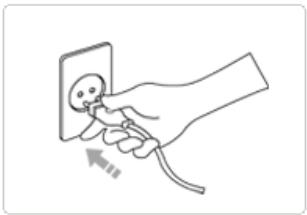
Insert the power plug correctly until it is firmly in place.
- Failing to do so, may cause fire.
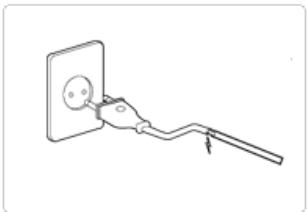
Do not use a damaged power plug, cord or outlet, as this may cause electric shock or fire.
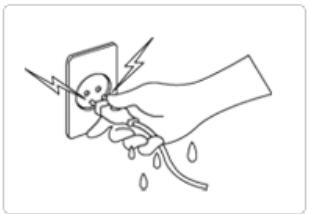
Do not touch the power plug with wet hands, as this may cause electric shock.
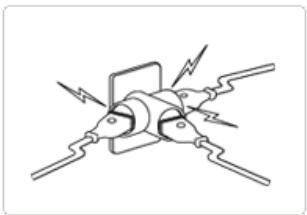
Do not connect more than one appliance to a single outlet, as an overheated outlet may cause fire.
-
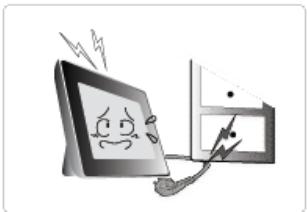
Do not use force to pull the power cord. Don't place anything heavy on the power cord, as this may cause electric shock or fire.
-
Failing to do so, may cause electric shock or fire.
-
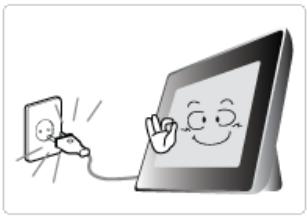
Make sure to turn the power off and disconnect the power plug from the outlet before moving the product. Make sure to disconnect the connection cables from other devices as well.
-
Moving the product without disconnecting the power cord may damage it while moving, and may cause electric shock or fire.

Attention
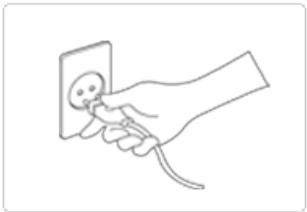
Hold and pull out the plug by its body when disconnecting it from the outlet, as pulling the plug out by the cord may cause it to be damaged.
- Failing to do so, may cause fire, or the product may not turn on normally.
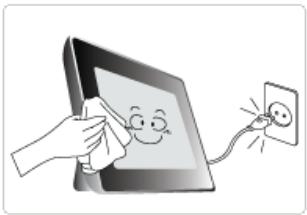
Ensure that the power plug is disconnected before cleaning the product.
- Failing to do so, may cause electric shock or fire.
-
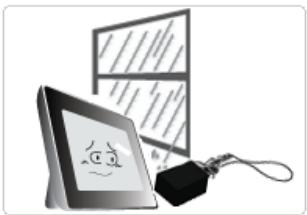
Keep the product away from places exposed to oil, smoke or moisture; do not install inside a vehicle.
-
This may cause a malfunction, electric shock or fire.
- In particular, avoid operating the monitor near water or outdoors where it could be exposed to snow or rain.
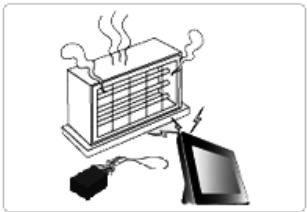
Do not install the product near any heating appliance.
There is a risk of fire.
Installation

Warning
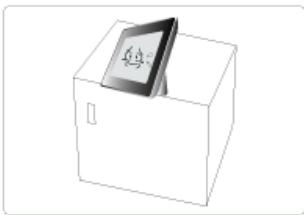
- When installing the product on a cabinet or shelf, do not let the front end of the product project beyond its front edge.
- Failing to do so, may cause the product to fall, resulting in a product malfunction or personal injury.

- Do not place the power cord near a heater, as the power cord may melt, causing electric shock or fire.
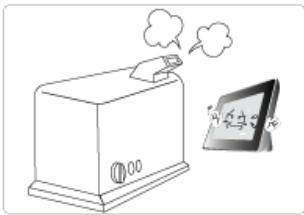
-
Do not install the product in a car or a location exposed to oil, smoke, moisture, water, or rainwater.
-
Any contact of these materials with the product may cause electric shock or fire.
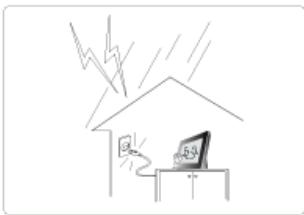
Disconnect the power plug when there is thunder or lightning.
- Failing to do so, may cause electric shock or fire.

Attention
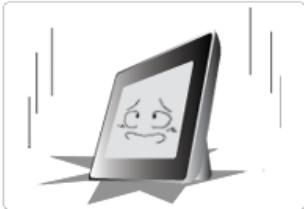
Place the product down gently when installing it.
- Failing to do so may cause product damage or personal injury.

- Avoid dropping the product when moving, as this may cause product damage or personal injury.
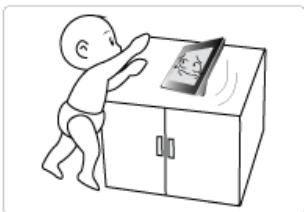
Do not install the product in a location easily reached by children.
- As the product may fall and cause personal injury.
Using and Cleaning

Warning
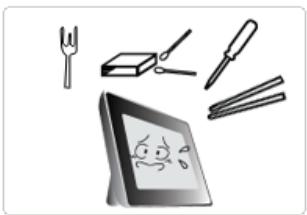
-
Do not insert any metal objects such as forks, wire, or gimlets, or flammable items such as paper or matches into the ports at the back of the product, as this may cause electric shock or fire.
-
If water or any foreign substance enters the product, make sure to turn the product off and disconnect the power plug from the outlet, and contact a service center.
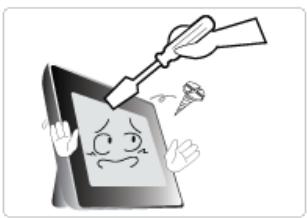
Never disassemble, repair, or modify the product yourself.
- If you need to repair your product, contact a service center. An attempt at repairing this product may cause electric shock or fire.

Attention
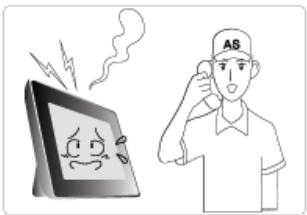
If you hear a strange sound, smell anything burning, or see smoke, disconnect the power plug immediately and contact a service center.
- Failing to disconnect the power plug may cause electric shock or fire.
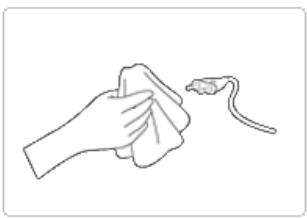
Always remove dust and water from the pins and connections of the power plug.
- Failing to do so may cause electric shock or fire.
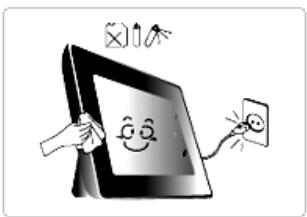
-
When cleaning the product, first disconnect the power plug and clean it with a soft, dry cloth.
-
Do not use any chemicals such as benzene, alcohol, thinals, mosquito repellant, aromatic, lubricant, detergent or wax.
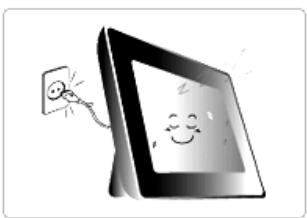
When not using the product for a long time, make sure to disconnect the power plug.
- Heavy accumulated dust may cause electric shock or fire.
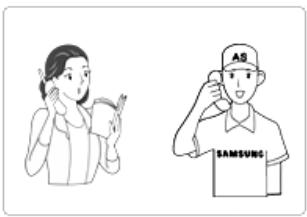
If the product needs to be installed in a location that doesn't satisfy general conditions, make sure to contact one of our service engineers about the installation as the product may encounter serious quality problems due to its environment.
- This refers to locations exposed to conditions such as heavy fine dust, chemicals, high or low temperature, moisture, or when the product needs to be used continually without a break over a long time.
If the product has been dropped or the product casing is damaged, turn it off and
Correct Disposal of This Product
(Waste Electrical & Electronic Equipment) - Europe only


(Applicable in the European Union and other European countries with separate collection systems)
This marking shown on the product or its literature, indicates that it should not be disposed with other household waste at the end of its working life. To prevent possible harm to the environment or damage to health from uncontrolled waste disposal, please separate this from other types of waste and recycle it responsibly to promote the sustainable reuse of material resources.
Household users should contact either the retailer where they purchased this product, or their local government office, for details of where and how they can take this item for environmentally safe recycling.
Business users should contact their supplier and check the terms and conditions of the purchase contract. This product should not be mixed with other commercial wastes for disposal.
Using, copying or reproducing the whole or part of this manual without written permission from Samsung Electronics is prohibited. The content of this manual is subject to change without prior notice. ©2008 All rights reserved. Samsung Electronics,
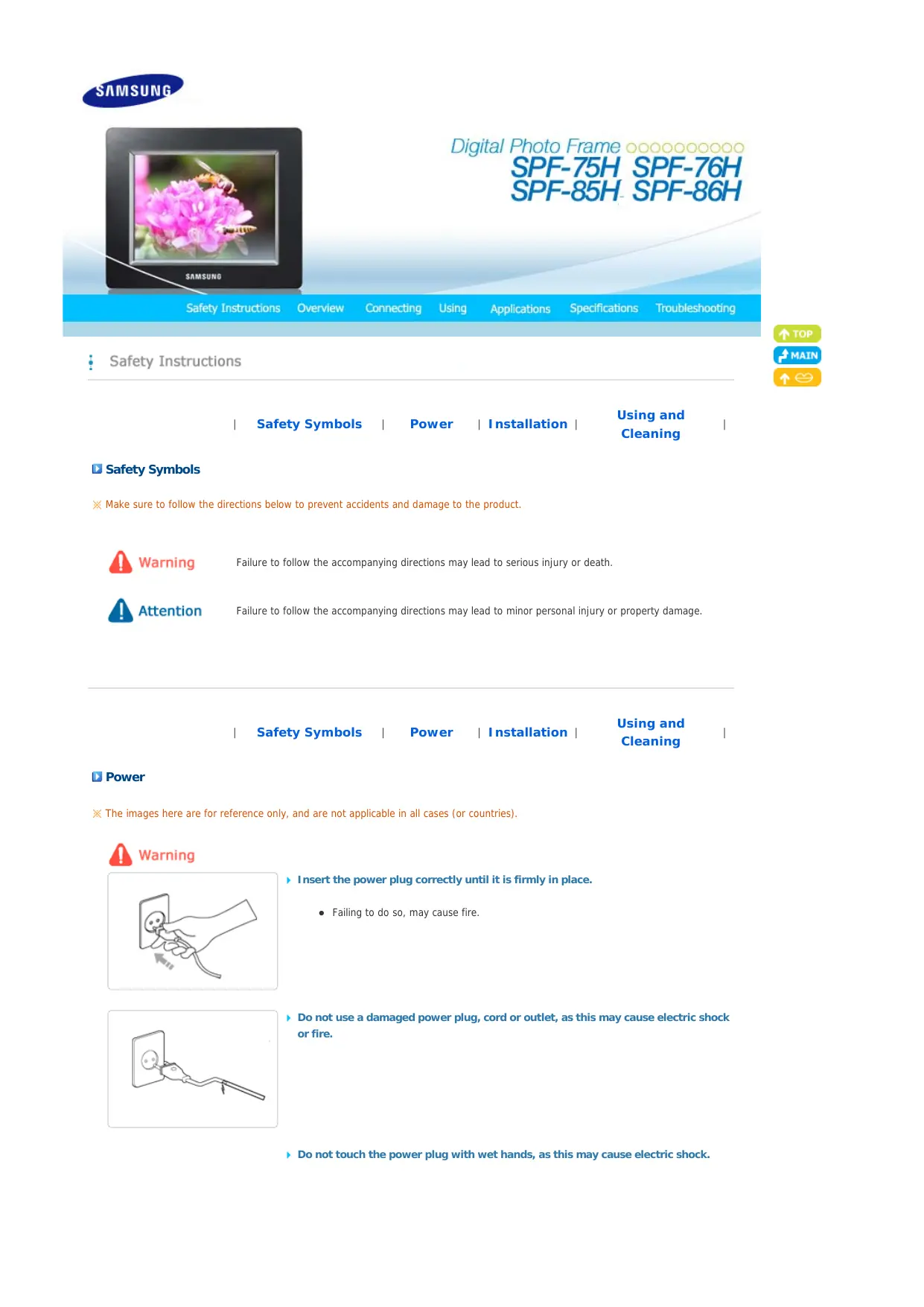
Digital Photo Frame
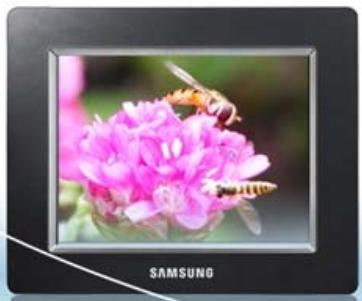
Digital Photo Frame
SPF-75H SPF-76H
SPF-85H SPF-86H
Safety Instructions
Overview
Connecting
Using
Applications
Specifications
Troubleshooting
Overview

Features Components Front Back Side
Features
01 Enjoy picture's by using memory card and USB.
02 Provides the Mini-Monitor function.
03 Stylish design
Premium stylish appearance design product that can be used a decoration on a desk or table
Rotating stand allowing vertical/horizontal placement
Features Components Front Back Side
Please check that all components are contained in the delivered package.
If anything is omitted, contact the local distributor where the product was purchased. For optional items, contact a service center.
Never use a power adapter other than the adapter provided with the product.
Components
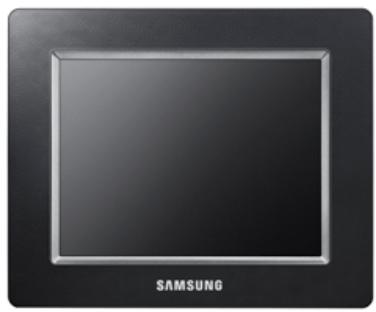
Digital Photo Frame
(The product color and shape may vary depending on the model.)
Manual
Quick Start

Warranty
Not available in all locations)

User Manual
Cables
Power cord
USB cable (A-B type)
Power Adapter
Features | Components | Front | Back | Side
Front
The product color and shape may vary depending on the model.
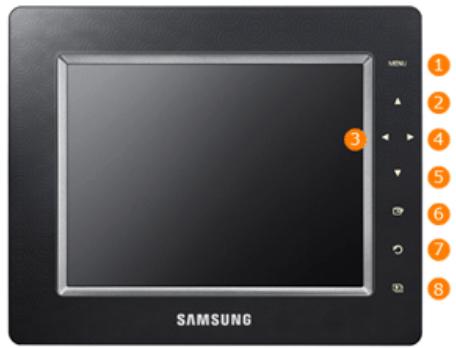
This product is a touch type product. If you lightly touch the button on the right of the product, the button light is turned on.
When the button light is turned on, you can then operate each button's menu.
1 [MENU] Menu Button Displays the menu window at the bottom left corner of the screen.
[▲] Up Button Used for moving up.
3 [ ] Left Button Used for moving left.
4 Right Button Used for moving right.
[▼] Down Button Used for moving down.
6 [G] Enter Button Used for selection
7 [D] Back Button Returns to the previous menu.
[ ] SlideShow Button Starts a slideshow.
Features | Components | Front | Back | Side
Back
The product color and shape may vary depending on the model.
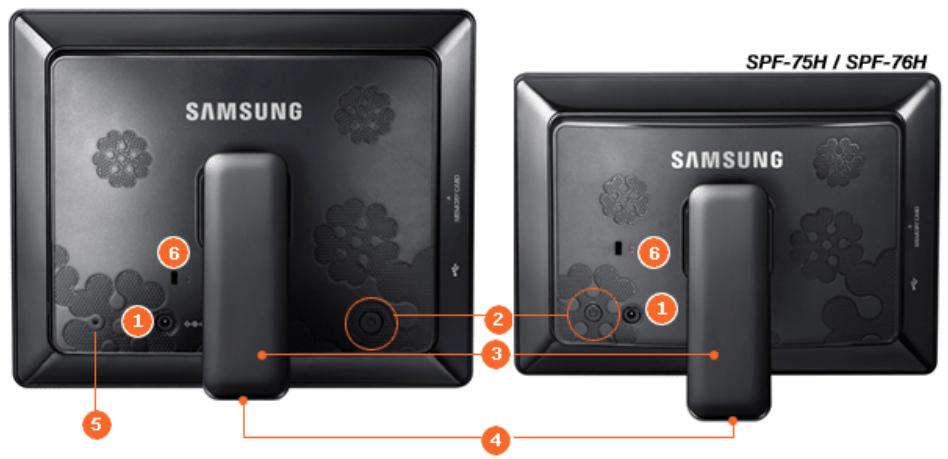


Power terminal
Connect the power adapter to this jack.
Connect the power cord to the power terminal of the power adapter.


Power Button
Turns the product on or off.

Stand
A stand allows both horizontal and vertical installation.
If your Digital Photo Frame is installed vertically, you can rotate your photos using the rotation function to fit the vertical installation.

Sliding Prevention
Supports the product so that it stays firmly in place on slippery surfaces.

Service terminal
This is a terminal for servicing only. Do not operate it arbitrarily.

Kensington lock
The Kensington lock is a device used to physically secure the system when using it in a public place. (The locking device has to be purchased separately.)
Features Components Front Back Side
Side
The product color and shape may vary depending on the model.
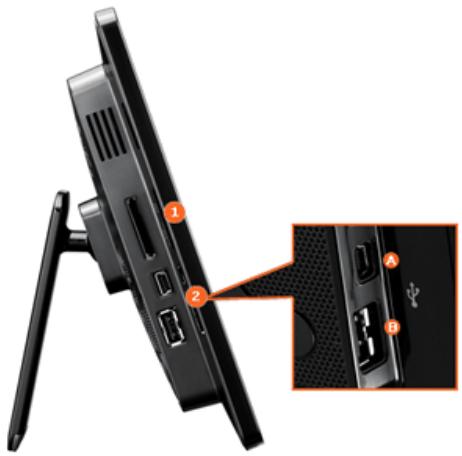

MEMORY CARD
Allows you to insert an optional memory card. (Only applicable for SD/MS card)


Connect a PC or an external device using a USB cable.

Up stream terminal
Connect your Digital Photo Frame to a PC's USB terminal with a
USB cable.
× Make sure to use the USB cable (A-mini B type) provided with the product when connecting your digital photo frame to a PC through the up stream terminal.

Down stream terminal Connect your Digital Photo Frame to a USB-supported storage device.
Using, copying or reproducing the whole or part of this manual without written permission from Samsung Electronics is prohibited. The content of this manual is subject to change without prior notice. ©2008 All rights reserved. Samsung Electronics,
Digital Photo Frame
Safety Instructions


Connecting

Applications
Troubleshooting
Connecting
TOP
MAIN

Power USB Memory Card
Power
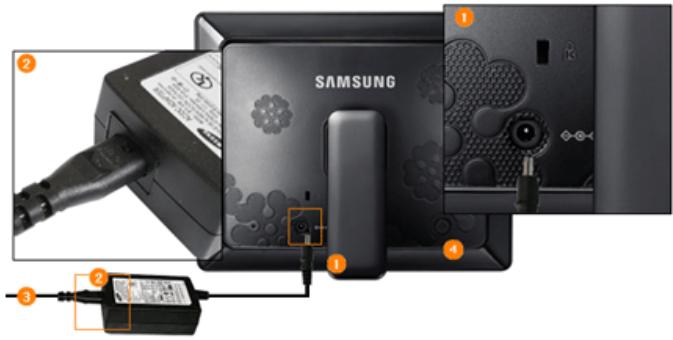
1 Connect the power adapter to the terminal at the back of the product.
2 Connect the power cord to the power adapter.
3 Plug the power cord for the product into a nearby outlet.
Press the button at the right of the product to turn the product on.
Power USB Memory Card
USB
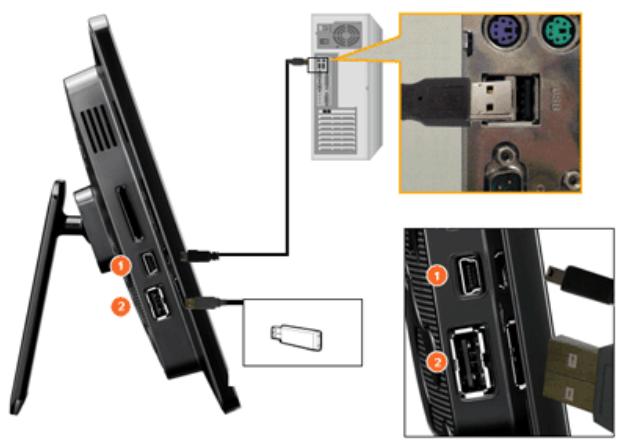
Up Stream Terminal
Used to connect your digital photo frame to a PC.
When connecting your digital photo frame to a PC through the up stream terminal, make sure to use the USB cable provided with the product.
2 Down Stream Terminal
Used to connect an external USB-supporting device to your digital photo frame.
If you connect your USB memory stick product to a USB hub or USB extension, it may not be recognized. Therefore, make sure that the USB memory stick is inserted directly into the USB port.
When connecting an external device to the down stream terminal, use the USB cable provided with the external device. (For more information on external devices and their cables, contact a relevant service center.)
Samsung carries no liability for external device malfunctions caused by using any cable except the standard cables specified for each device.
× Some external products provide a cable that does not meet USB standards. Hence, they may cause a malfunction.
If an external storage device does not work normally when connected to your digital photo frame, try to connect it to your PC. If it still does not work normally when connected to your PC, contact a service center for that external device or your PC.
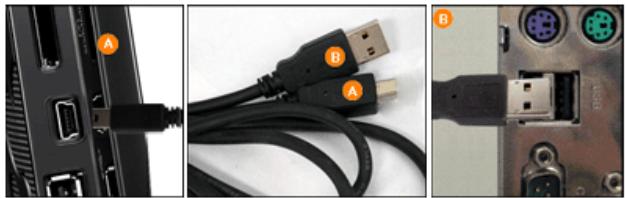
A Connect to the up stream terminal of your digital photo frame.
B Connect the USB terminal of your PC.
Power USB Memory Card
Memory Card
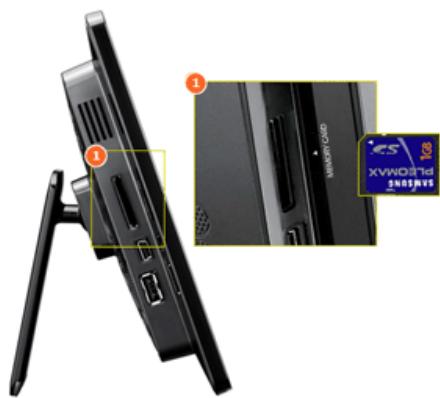
1 MEMORY CARD Slide the card in the direction marked on the top of the card.
Using, copying or reproducing the whole or part of this manual without written permission from Samsung Electronics is prohibited. The content of this manual is subject to change without prior notice. ©2008 All rights reserved. Samsung Electronics,
Digital Photo Frame
Safety Instructions
Overview
Connecting
Using
Applications
Specifications
Troubleshooting

Using
TOP
MAIN

If no button is operated for ten (10) minutes, the screenshot starts to protect the monitor. However, the screenshot does not start in the slideshow status.
This product is in a touch type. If you touch the button part on the right of the product lightly, the button light is turned on. When the button light is turned on, you can then operate each button's menu.
Usage Guide
Photo
Clock
Settings
Usage Guide
Direct Functions
| Button | Description |
| MENU | Enters or exits a menu.Hold the MENU button down for more than five (5) seconds. All the lights of the buttons will blink twice and the button lock function will be activated. To clear the button lock function, hold the MENU button down again for more than five (5) seconds. |
| ▲,▼,▲ | Moves around the items and adjusts a value. |
| ○ | Selects a function you want to use. |
| ○ | Returns to the previous screen.× Hold down this button for two (2) seconds to return to the Main screen. |
| ○ | Starts a slideshow.When playing a slideshow by pressing the [○] button, the photos in the location of the last played photo are played. If the photos in the location of the last played photo have been removed, they are automatically searched for and then played in a slideshow. |
Screen Status Indications
| Display | Description |
| Displayed when a USB device is connected. | |
| Displayed when an SD/MS memory card is connected. |
Usage Guide
Photo
Clock
Settings
1
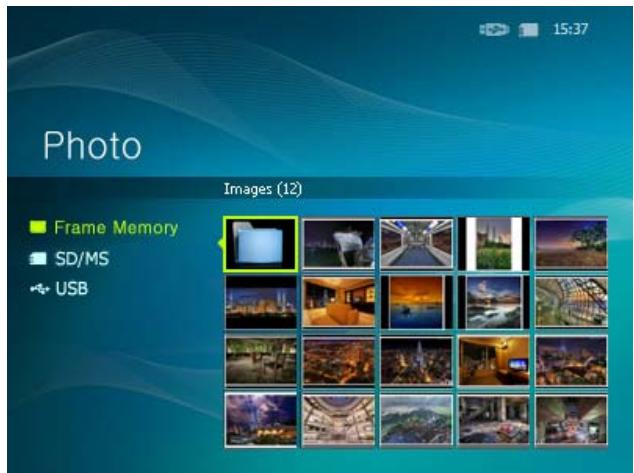
If you press the Menu button, the menu of the selected item is displayed on the screen.
| Menu | Description |
| Open | Opens the selected folder. |
| Copy | Copies the selected folder. |
| Delete | Deletes the selected folder. |
The menu displayed when selecting a thumbnail
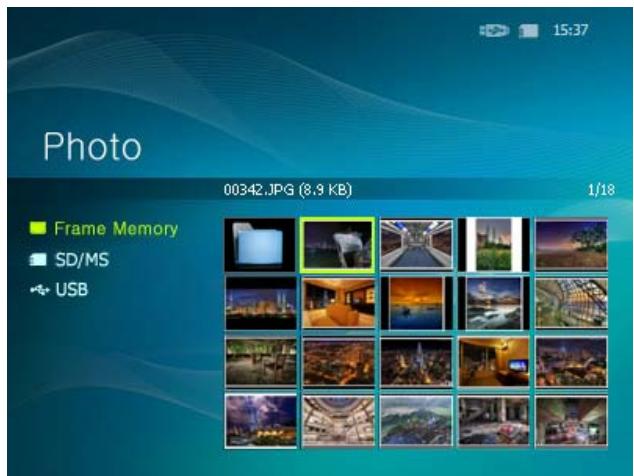
If you press the Menu button, the menu of the selected item is displayed on the screen.
| Menu | Sub Menu |
| Description | |
| Start Slideshow | Starts a slideshow |
| Copy | Copies the selected file to a different storage device. (Activated when a storage device is connected.) |
| Copy All Files | Copies all files to a different storage device. (Activated when a storage device is connected.) |
| Delete | Deletes the selected file. |
| Delete All Files | Deletes all files. |
| Set as Background | Sets the selected image as the background of the main screen. At this time the setting mode for the background is changed to Custom mode automatically. |
When copying a photo from an external memory storage device (SD/MS, USB memory) to the Frame Memory, if the [Settings]-[Options]-[Frame Memory Copy] is set to the [Resized], the size (screen quality) of the photo is automatically reduced before saving so that it can be displayed with fit to the screen of your digital photo frame and the EXIF (camera related information) saved in the photo is removed. Thus, make sure to use the photos saved in the Frame Memory only with the digital photo frame.
× It may take a long time if a lot of files are copied at a time.
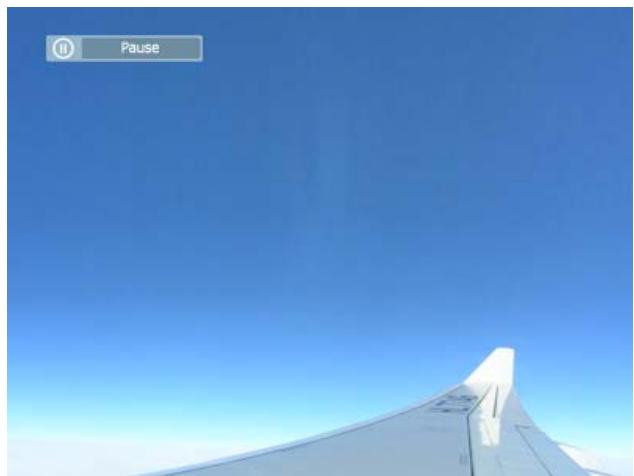
If you press the Menu button, the menu of the selected item is displayed on the screen.
× Only photos with a resolution of less than 8000 (width) * 8000 (height) pixels can be displayed on the screen.
This product can only support up to 4,000 pictures. If there are more than 4,000 pictures, slideshow will not be played for the remaining pictures.
| Upper OSD | Sub OSD | Detail OSD |
| Description | ||
| Slide Show Settings | Effect | • No Effect, Fade, Blind, Cross Comb, Mosaic, Checker, Dissolve, Wipe, Extend, Silk, Corner, Wheel, Ellipse, Random |
| Select an effect to give when displaying images on the screen. | ||
| Speed | • Fast, Normal, Slow | |
| Select a speed among Fast, Normal, and Slow. | ||
| Mode | • All photos, Photos in Folders, Shuffle photos in folders, Repeat one photo | |
| Select the Repeat for displaying images. | ||
| Display Clock | • On, Off | |
| Selects whether to play a slideshow and show the current time at the same time. | ||
| Brightness | 0~100 | |
| Adjust brightness from 0 to 100 levels. | ||
| Rotate | • Original, 90°, 180°, 270° Select one among Original, 90°, 180°, and 270°. | |
| Zoom | • x1, x2, x4 | |
| Select this if you want to zoom into a photo. You can magnify it to the x2 or x4 size. The x1 size is when the photo is set to Fit to Width. | ||
| Aspect Ratio | • Original Fit, Auto Fit, Fit to Width, Fit to Screen You can select how to adjust the sizes of photos when displaying them on the screen. Original Fit : When the photo size is larger than the screen size, it is displayed to fit the screen size. Auto Fit : If the photo size is larger or smaller than the screen size, it is resized to fit the screen size. Fit to Width : Photos are displayed with fit to the screen width. A horizontal or vertical part of a photo may be displayed cut but there is no distortion. Fit to Screen : Photos are displayed with fit to the resolution of 800*600. (There may be a distortion in photo image.) | |
| Delete Set as Background | Deletes a photo being displayed in the slideshow. Sets the currently selected image as the background of the main screen. | |
Direct Functions (Slide Show)
| Button | Description |
| MENU | Opens the on-screen menu and exits from the menu. |
| ▶ | Play the next file in the list. |
| < | Play the previous file in the list. |
| G | Stop/ Start playing file. |
| E | Starts a slideshow. |
Usage Guide Photo Clock Settings
Clock
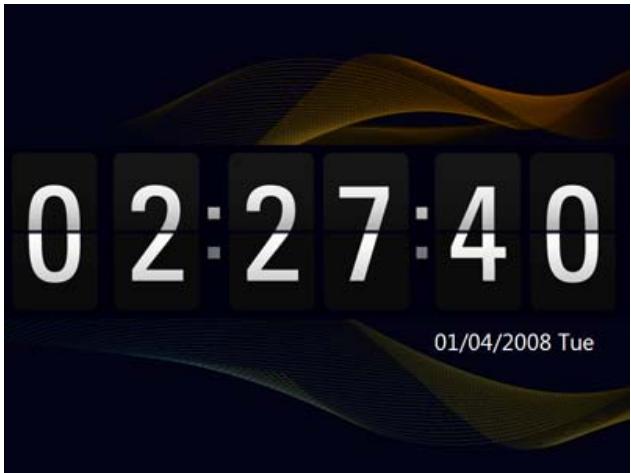
If you press the Menu button, the menu of the selected item is displayed on the screen.
| Menu | Sub Menu | Detailed Menu |
| Description | ||
| Date and Time | • Month, Day, Year, Hour, Minute, am/pm (When Time Format is set to 12 Hours.) • Month, Day, Year, Hour, Minute (When Time Format is set to 24 Hours.) | |
| Sets the date and time. | ||
| Time Format | • 12 Hours, 24 Hours | |
| For Time Format, you can select 12 Hours or 24 Hours. If you select 24 Hours, am/pm is not displayed. | ||
| Date Format | • YYYY/MM/DD, MM/DD/YYYY, DD/MM/YYYY You can select the format in which the date is displayed. | |
| Clock Type | • Analog, Digital, Clock & Calendar You can select a clock type. | |
Usage Guide Photo Clock Settings
Settings
Settings
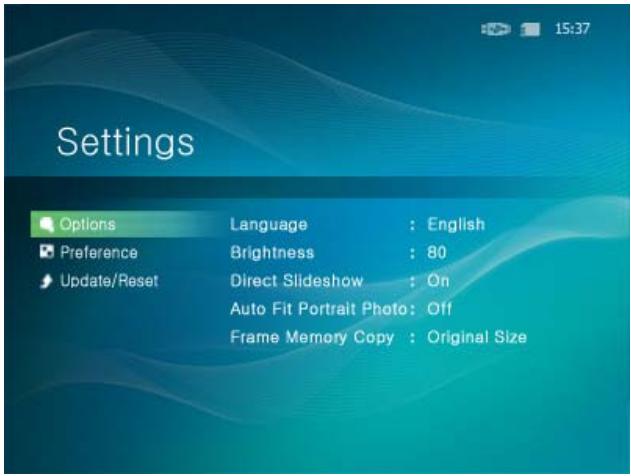
| Menu | Sub Menu | Detailed Menu |
| Description | ||
| Options | Language | • English, Deutsch, Espanol, Français, Italiano, Nederlands, Polski, P Czech, Português, Svenska, Türçê, 简体中文, 日本语,顺利完成 |
| You can select the product language. | ||
| Brightness | • 0~100 | |
| Adjusts the brightness of the screen. | ||
| Direct Slideshow | • Off, On | |
| Connect the external storage, and the slide-show starts with its pictures. | ||
| Auto Fit Portrait Photo | • Off, On | |
| If Digital photo frame is laid horizontally, the portrait picture automatically turns around to be able to show the whole picture in Digital photo frame. | ||
| Frame Memory Copy | • Original Size, Resized | |
| When copying a photo from an external memory storage device (SD/MS, USB memory) to the Frame Memory, if the [Settings]-[Options]-[Frame Memory Copy] is set to the [Resized], the size (screen quality) of the photo is automatically reduced before saving so that it can be displayed with fit to the screen of your digital photo frame and the EXIF (camera related information) saved in the photo is removed. Thus, make sure to use the photos saved in the Frame Memory only with the digital photo frame. | ||
| Starting Mode | • Home, Last Mode, Slideshow | |
| You can select the first screen to be displayed when power is turned on. | ||
| Screen Saver | • Slideshow, Clock | |
| You can select the screensaver type. | ||
| Preference | If no button is operated for ten (10) minutes, the screensaver starts to protect the monitor. | |
| Home Background | • Default, Custom | |
| You can set the background of the main menu screen. | ||
| Auto Picture On/Off | • Activation, Hour, Minute, am/pm, Repeat | |
| When the time reaches the [Off Time], other operations are stopped and the screen is turned off. When the time reaches the [On Time], the screen is turned on and the previous operating status persists. If the screen is turned off as the time has reached the [Off Time], press any button except the Power button to display the screen again.※ If the product is being used as a Mini-Monitor or a Mass Storage device connected to your PC via a USB cable, the screen will not be turned off even if the time reaches the Off Time. | ||
| Update/Reset | Firmware Update | You can update the product by using a USB memory stick or memory card (SD/MS).For the latest firmware file, visit www.samsung.com. |
| Reset Settings | • Yes, No | |
| Initializes the settings to the factory defaults. | ||
I want to update firmware.

Preparations
01
Digital Photo Frame
02
Firmware update file.
03
USB memory card or external memory devices(SD/MS)
04
Please visit www.samsung.com for the latest firmware update.

Connect USB memory card to PC
01
If you are ready, connect the USB memory card to your PC.
02
Copy the firmware update file you downloaded to the USB memory card.
※
(Make sure to copy the firmware update file to the root directory.)

Connect USB Memory Card to Digital Photo Frame
01
Remove the USB memory card from your PC, and connect it to your Digital Photo Frame.
※
If your Digital Photo Frame is off, turn it on.

Updating
01
Select [Firmware Update] on the [Settings]-[Update/Reset] page.
02
The update progression is displayed on the screen.
When the update finishes, turn your Digital Photo Frame off, remove the USB memory card, and turn your Digital Photo Frame on again, for maximum safety.
※
Do not remove the USB memory card during the update operation.
Do not press any key during the update operation.
Do not insert any other card during the update operation.
Do not turn your Digital Photo Frame off during the update operation.
You can identify whether the update operation has finished successfully or not by checking the firmware version of your Digital Photo Frame is changed to the version of the firmware update.

Applications
TOP
MAIN
The Digital Photo Frame not only allows you to appreciate photos but also provides an additional Mini-Monitor function. The Mini-Monitor is a function for using the Digital Photo Frame as an auxiliary monitor. Its usage is simple as the Digital Photo Frame connects to your PC via a USB cable. This function allows you to work more efficiently at your PC by using an additional monitor. To use your digital photo frame as a Mini-Monitor, first install the Frame Manager program. (However, please note that you can use only one digital photo frame as a Mini-Monitor.)
D Installing Frame Manager guide
Frame Manager User's Manual
Using your digital photo frame as a Mini-Monitor.
Using your digital photo frame as Mass Storage.
Changing the current mode to another mode
Adjusting the brightness
Updating the firmware
× System Requirements
- OS: Windows XP SP2, Vista (32bit)
- USB: Extended Host Controller (EHCT) for USB 2.0
RAM:256MBorabove
Caution
- When using Windows XP, Service Pack 2 must be installed.
It might not operate with any operating systems other than Windows XP SP2. We are not liable for problems that may occur when installing it on an operating system other than Windows XP SP2. - We recommend a CPU speed of 2.4 GHz or higher.
Your digital photo frame might not operate normally if the performance specifications of your PC are lower than the recommendations. - Make sure to install it correctly as directed in the Installation Guide.
- Do not use your Mini-Monitor as a primary monitor.
We are not liable for any problems that may occur if you do not follow the directions. If it is used as a primary monitor, the screen may be blank.
- Make sure to use the provided USB cable.
- When operated as Mini-Monitor, All buttons except "power, / don't operate.
- Move the programs displayed and used on the Mini-Monitor to the primary monitor after you have finished using it.
- The Mini-Monitor may not operate with some video cards. In this case, set the 'Hardware acceleration' value to 'None'.
To set Hardware acceleration to None: Right-click on the Windows Desktop and select Properties from the displayed menu. The Display Properties window appears. Click Settings > Advanced > Troubleshooting tab. Move the Hardware acceleration slide to None.
- You cannot use the Aero effect of Windows Vista while using the Mini-Monitor.
- When using Windows Vista, some movies cannot be played using the Mini-Monitor.
- If the video card's driver is updated while Frame Manager is installed, the Mini-Monitor function may not operate properly. In this case, remove Frame Manager and install it again.
- If the rotation function of Frame Manager is used, the current location setting of Mini-Monitor may be changed. Even if the rotation function is used, the screen will not be shown to be rotating in the [Display Properties] window.

Specifications
TOP


Specifications
| SPF-75H, SPF-76H | SPF-85H, SPF-86H |
| Items | Specifications | |
| Model Name | SPF-75H, SPF-76H | |
| Panel | Type | 7" (17 cm) TFT |
| Resolution | 800 x 480 | |
| Interface | RGB 6bit TTL | |
| Supported Formats | JPEG (Progressive,CMYK JPEG is not supported.) | |
| Built-in Memory | 1 GB | |
| USB | One upstream (device 2.0) and one downstream (host 1.1) | |
| Memory Card | SD/MS (FAT32) | |
| Power | Rating | External DC power adapter (12V, 2A, 24W) |
| Consumption | Normal mode : under 7W Power off mode : under 1W | |
| General | Dimensions (WxHxD) | 215.5 x 156.5 x 43 mm / 8.5 x 6.2 x 1.7 inch |
| Weight | 525 g / 1.2 lb | |
SPF-75H, SPF-76H | SPF-85H, SPF-86H
| Items | Specifications | |
| Model Name | SPF-85H, SPF-86H | |
| Panel | Type | 8" (20 cm) TFT |
| Resolution | 800 x 600 | |
| Interface | RGB 6bit TTL | |
| Built-in Memory | 1 GB | |
| USB | One upstream (device 2.0) and one downstream (host 1.1) | |
| Memory Card | SD/MS (FAT32) | |
| Power | Rating | External DC power adapter (12V, 2A, 24W) |
| Consumption | Normal mode : under 7W Power off mode : under 1W | |
| General | Dimensions (WxHxD) | 228 x 187.5 x 46 mm / 8.9 x 7.4 x 1.8 inch |
| Weight | 700 g / 1.5 lb | |
The product design may differ according to the model, and specifications are subject to change without prior notice for product performance enhancement.

Class B Equipment (Information Communication equipment for residential use)
This product complies with the Electromagnetic Compatibility Directives for residential Use and can be used in all areas including common residential areas. (Class B equipment radiates less electromagnetic influences than class A equipment.)
Using, copying or reproducing the whole or part of this manual without written permission from Samsung Electronics is prohibited. The content of this manual is subject to change without prior notice. ©2008 All rights reserved. Samsung Electronics.
Digital Photo Frame

Troubleshooting
TOP


Troubleshooting Terminology Service Centers

Troubleshooting
This section lists various problems and solutions encountered by users while using the digital photo frame. When encountering a problem, first check the list below and follow the suggested action if one matches your problem. If the problem still persists, contact or visit the nearest service center.
| Symptoms | Causes and Actions |
| The power does not turn on. | Check the connections for the adapter cable and the power terminal of the product. |
| It takes a time until an image is displayed after the power is turned on. | In case the resolution is high or the file size is large, the photo may be displayed slowly on the screen. |
| It takes a time to transit to the next photo. | |
| I have connected an external storage device but it is not recognized. | Please check the connection between product and external storage. Connect to PC and check the operation state. |
| There is a remaining space in the Frame Memory but I cannot copy photos. | Create a folder in the Fame Memory and copy your photos. |
| I inserted a memory card but it does not operate. | Check the files of your memory card. Please try a different storage device. |
| I connected a USB memory but it does not operate. | |
| A portrait photo is displayed rotated to landscape. | Check whether [Auto Fit Portrait Photo] of the [Settings-Options] is set to Activated. |
| No slideshow is played automatically. | Set [Starting Mode] of [Settings-Preference] to [Slideshow]. |
| Auto On and Auto Off do not operate. | If the Auto On and Auto Off are set to the same time, they do not operate. Check the time settings. |
| The icon of the FrameManager is not displayed. | Check whether the FrameManager program is installed. Select Start-Programs - Samsung - FrameManager to restart the FrameManager. Reboot your computer. |
| I pressed a button, but it does not operate. | Check whether the button lock function is activated. If you hold down the MENU button for more than five (5) seconds, the button lock function is activated. If you press a button it will not operate. To clear the button lock function, hold down MENU button for more than five (5) seconds again. |
Terminology
| Terms | Description |
| JPEG (Joint Photographic Coding Expert Group) | JPEG is an image compression technology. It provides the smallest loss of all image compression technologies. It is used widely to transmit multimedia files on the Internet and for other uses. An image file formatted in the JPEG format is called a JPEG or JPG file. Usually, a JPEG file is created by taking a picture with a digital camera, by drawing on a computer, or by a graphic package and then by compressing the graphics image into the JPEG format. |
| SD Card (Secure Digital Card) | An SD card is a Flash memory card the size of a postage stamp. It provides high stability and high capacity. It is widely used in various digital products such as PDAs, digital cameras, MP3 players, cell phones, and notebook PCs. Its appearance is similar to that of MMC, but the number of pins and their thickness is different. It also has a password setting function for data security. |
| USB Cable 1) A-B TYPE | Use the up stream terminal when connecting to a PC. This product supports USB 2.0. An A-B type cable which is used to connect your digital photo frame to a PC is provided with the product. The A type is the USB connector used to connect to a PC. The B type is the USB connector used to connect to an external device. You can connect your digital photo frame to a PC using an A-B type USB cable. |
| USB Cable 2) Cable for Connecting Other Devices | Use this type of cable when using the down stream terminal. This product supports USB 2.0. When connecting an external device to the down stream terminal, use the USB cable provided with the external device. |
Troubleshooting Terminology Service Centers
Service Centers
If you need a product service, contact or visit a Samsung service center.
For services for network connection and the Server.
| Services | Contacts |
| Samsung Electronics web site | www.samsung.com |

If you have any questions or comments relating to Samsung products, please contact the SAMSUNG customer care center.
| North America | ||
| U.S.A | 1-800-SAMSUNG (7267864) | http://www.samsung.com/us |
| CANADA | 1-800-SAMSUNG (7267864) | http://www.samsung.com/ca |
| MEXICO | 01-800-SAMSUNG (7267864) | http://www.samsung.com/mx |
| Latin America | ||
| ARGENTINE | 0800-333-3733 | http://www.samsung.com/ar |
| BRAZIL | 0800-124-421 | http://www.samsung.com |
| 4004-0000 | ||
| CHILE | 800-SAMSUNG(726-7864) | http://www.samsung.com/cl |
| COLOMBIA | 01-8000112112 | http://www.samsung.com/co |
| COSTA RICA | 0-800-507-7267 | http://www.samsung.com/latin |
| ECUADOR | 1-800-10-7267 | http://www.samsung.com/latin |
| EL SALVADOR | 800-6225 | http://www.samsung.com/latin |
| GUATEMALA | 1-800-299-0013 | http://www.samsung.com/latin |
| HONDURAS | 800-7919267 | http://www.samsung.com/latin |
| JAMAICA | 1-800-234-7267 | http://www.samsung.com/latin |
| NICARAGUA | 00-1800-5077267 | http://www.samsung.com/latin |
| PANAMA | 800-7267 | http://www.samsung.com/latin |
| PUERTO RICO | 1-800-682-3180 | http://www.samsung.com/latin |
| REP. DOMINICA | 1-800-751-2676 | http://www.samsung.com/latin |
| TRINIDAD & TOBAGO | 1-800-SAMSUNG(726-7864) | http://www.samsung.com/latin |
| VENEZUELA | 0-800-100-5303 | http://www.samsung.com/latin |
| Europe | ||
| AUSTRIA | 0810 - SAMSUNG (7267864, € 0.07/min) | http://www.samsung.com/at |
| BELGIUM | 02 201 2418 | http://www.samsung.com/be (Dutch) http://www.samsung.com/be_fr (French) |
| CZECH REPUBLIC | 800 - SAMSUNG (800-726786) Distributor pro Čěska republika; Samsung Zrt., Čěska organizačni složka, Oasis Florec, Sokolovská394/17, 180 00, Praha 8 | http://www.samsung.com/cz |
| DENMARK | 8 - SAMSUNG (7267864) | http://www.samsung.com/dk |
| EIRE | 0818 717 100 | http://www.samsung.com/ie |
| FINLAND | 30 - 6227 515 | http://www.samsung.com/fi |
| FRANCE | 01 4863 0000 | http://www.samsung.com/fr |
| GERMANY | 01805 - SAMSUNG (7267864, € 0.14/Min) | http://www.samsung.de |
| HUNGARY | 06-80-SAMSUNG(726-7864) | http://www.samsung.com/hu |
| ITALIA | 800-SAMSUNG(726-7864) | http://www.samsung.com/it |
| LUXEMBURG | 02 261 03 710 | http://www.samsung.com/lu |
| NETHERLANDS | 0900-SAMSUNG (0900-7267864) (€ 0,10/Min) | http://www.samsung.com/nl |
| NORWAY | 3 - SAMSUNG (7267864) | http://www.samsung.com/no |
| POLAND | 0 801 1SAMSUNG(172678) 022 - 607 - 93 - 33 | http://www.samsung.com/pl |
| PORTUGAL | 808 20 - SAMSUNG (7267864) | http://www.samsung.com/pt |
| SLOVAKIA | 0800-SAMSUNG (7267864) | http://www.samsung.com/sk |
| SPAIN | 902 - 1 - SAMSUNG (902 172 678) | http://www.samsung.com/es |
| SWEDEN | 075 - SAMSUNG (726 78 64) | http://www.samsung.com/se |
| SWITZERLAND | 0848 - SAMSUNG(7267864, CHF 0.08/min) | http://www.samsung.com/ch |
| U.K | 0845 SAMSUNG (7267864) | http://www.samsung.com/uk |
| CIS | ||
| ESTONIA | 800-7267 | http://www.samsung.com/ee |
| LATVIA | 8000-7267 | http://www.samsung.com/lv |
| LITHUANIA | 8-800-7777 | http://www.samsung.com/lt |
| KAZAKHSTAN | 8-10-800-500-55-500 | http://www.samsung.com/kz_ru |
| KYRGYZSTAN | 00-800-500-55-500 | |
| RUSSIA | 8-800-555-55-55 | http://www.samsung.ru |
| TADJIKISTAN | 8-10-800-500-55-500 | |
| UKRAINE | 8-800-502-0000 | http://www.samsung.ua |
| UZBEKISTAN | 8-10-800-500-55-500 | http://www.samsung.com/kz_ru |
| Asia Pacific | ||
| AUSTRALIA | 1300 362 603 | http://www.samsung.com/au |
| CHINA | 800-810-5858400-810-5858010-6475 1880 | http://www.samsung.com/cn |
| HONG KONG : 3698-4698 | http://www.samsung.com/hk | |
| INDIA | 3030 82821800 1100111-800-3000-8282 | http://www.samsung.com/in |
| INDONESIA | 0800-112-8888 | http://www.samsung.com/id |
| JAPAN | 0120-327-527 | http://www.samsung.com/jp |
| MALAYSIA | 1800-88-9999 | http://www.samsung.com/my |
| NEW ZEALAND | 0800 SAMSUNG (0800 726 786) | http://www.samsung.com/nz |
| PHILIPPINES | 1-800-10-SAMSUNG(726-7864)1-800-3-SAMSUNG(726-7864)02-5805777 | http://www.samsung.com/ph |
| SINGAPORE | 1800-SAMSUNG(726-7864) | http://www.samsung.com/sg |
| THAILAND | 1800-29-323202-689-3232 | http://www.samsung.com/th |
| TAIWAN | 0800-329-999 | http://www.samsung.com/tw |
| VIETNAM | 1 800 588 889 | http://www.samsung.com/vn |
| Middle East & Africa | ||
| SOUTH AFRICA | 0860-SAMSUNG(726-7864) | http://www.samsung.com/za |
| TURKEY | 444 77 11 | http://www.samsung.com/tr |
| U.A.E | 800-SAMSUNG (726-7864) 8000-4726 | http://www.samsung.com/ae |