
Live Gamer HD C985 - Capture Card AVERMEDIA - Free user manual and instructions
Find the device manual for free Live Gamer HD C985 AVERMEDIA in PDF.


| Product Type | Internal PCIe Capture Card (Live Gamer HD C985) |
| Input Interface | HDMI, DVI (via included adapter) |
| Output Interface | HDMI (pass-through) |
| Maximum Capture Resolution | 1080p60 |
| Connectors | HDMI, DVI-I, 3.5mm Audio In |
| Software | RECentral (download from AVerMedia website) |
| Supported Operating Systems | Windows 7, Windows 8/8.1, Windows 10 |
| Hot Button | Yes, with LED indicator for operation status |
| Dimensions (approx.) | 14.5 x 12.6 x 2 cm (L x W x H) |
| Weight (approx.) | 100 g |
| Power | PCIe slot powered (no external power needed) |
| Main Functions | Game capture, pass-through display, low latency streaming |
| LED Indicator | Startup: flashing quadrant; Ready: solid; Capture: breathing; Low disk: fast flash |
| Maintenance | Keep dry; clean with dry cloth; avoid dust; do not disassemble |
| Safety Certifications | FCC Part 15 Class B, CE, ICES-003 |
| Spare Parts Included | HDMI cable, DVI-to-HDMI adapter, HDMI-to-DVI cable, 3.5mm audio cable, Quick Guide |
| Repairability | Card not user-serviceable; refer to qualified personnel only |
| Manufacturer | AVerMedia Technologies, Inc. |
| Model Year | 2013 (original release) |
| Warranty Information | Refer to manual; typically 1-2 years |
Frequently Asked Questions - Live Gamer HD C985 AVERMEDIA
User questions about Live Gamer HD C985 AVERMEDIA
0 question about this device. Answer the ones you know or ask your own.
Ask a new question about this device
Download the instructions for your Capture Card in PDF format for free! Find your manual Live Gamer HD C985 - AVERMEDIA and take your electronic device back in hand. On this page are published all the documents necessary for the use of your device. Live Gamer HD C985 by AVERMEDIA.
USER MANUAL Live Gamer HD C985 AVERMEDIA
English
Hrvatski
ภาษาไทย
Română
Türkçe
Polski
Česky
Magyar
Quick Guide
European Community Compliance Statement

Responsible manufacturer:
AVerMedia Technologies, Inc.
No. 135, Jian 1st Rd., Zhonghe Dist., New Taipei City 23585, Taiwan
TEL: +886-2-2226-3630
European Community contact:
AVerMedia Technologies Europe B.V.
Kwartsweg 50, 2665 NN, Bleiswijk, The Netherlands
Technical Support: http://www.avermedia.com/avertv/Support/
FCC NOTICE (Class B)

This device complies with Part 15 of the FCC Rules. Operation is subject to the following two conditions: (1) this device may not cause harmful interference, and (2) this device must accept any interference received, including interference that may cause undesired operation.
Federal Communications Commission Statement
NOTE- This equipment has been tested and found to comply with the limits for a Class B digital device, pursuant to Part 15 of the FCC Rules. These limits are designed to provide reasonable protection against harmful interference in a residential installation. This equipment generates, uses and can radiate radio frequency energy and, if not installed and used in accordance with the instructions, may cause harmful interference to radio communications. However, there is no guarantee that interference will not occur in a particular installation. If this equipment does cause harmful interference to radio or television reception, which can be determined by tuning the equipment off and on, the user is encouraged to try to correct the interference by one or more of the following measures:
- Reorient or relocate the receiving antenna.
- Increase the separation between the equipment and receiver.
- Connect the equipment into an outlet on a circuit different from that to which the receiver is connected.
• Consult the dealer or an experienced radio/television technician for help.
CAUTION ON MODIFICATIONS
To comply with the limits for the Class B digital device, pursuant to Part 15 of the FCC Rules, this device must be installed in computer equipment certified to comply with the Class B limits. All cables used to connect the computer and peripherals must be shielded and grounded. Operation with non-certified computers or non-shielded cables may result in interference to radio or television reception.
Changes and modifications not expressly approved by the manufacturer could void the user's authority to operate this equipment.
Responsible manufacturer:
AVerMedia Technologies, Inc.
No. 135, Jian 1st Rd., Zhonghe Dist., New Taipei City 23585, Taiwan
TEL: +886-2-2226-3630
U.S.A Office Contact:
AVerMedia Technologies U.S.A.
47358 Fremont Blvd., Fremont, CA 94538
Technical Support: http://www.avermedia.com/avertv/Support/
ICES-003
This B digital apparatus complies with Canadian ICES-003.
The mark of Crossed-out wheeled bin indicates that this product must not be disposed of with your other household waste. Instead, you need to dispose of the waste equipment by handing it over to a designated collection point for the recycling of waste electrical and electronic equipment. For more information about where to drop off your waste equipment for recycling, please contact your household waste disposal service or the shop where you purchased the product.
WARNING
To prevent fire or shock hazard do not expose the unit to rain or moisture. Dangerously high voltages are present inside the unit. Do not open the unit. Refer servicing to qualified personnel only.
DISCLAIMER
All the screen shots in this documentation are only example images. The images may vary depending on the product and software version. Information presented in this documentation has been carefully checked for reliability; however, no responsibility is assumed for inaccuracies. The information contained in this documentation is subject to change without notice.
COPYRIGHT
© 2013 by AVerMedia Technologies, Inc. All rights reserved. No part of this document may be reproduced or transmitted in any form, or by any means (Electronic, mechanical, photocopy, recording, or otherwise) without prior written permission of AVerMedia Technologies, Inc.
Information in this document is subject to change without notice. AVerMedia Technologies, Inc. reserves the right to modify, change, improve or enhance its products and to make changes in the content without obligation to notify any person or organization of such changes. Please visit www.avermedia.com to get the updates of the operation and use of AVerMedia products. "AVerMedia" is a trademark and logo of AVerMedia Technologies, Inc. Other trademarks used herein for description purpose only belong to each of their companies. Made in Taiwan (Expect Accessories).
A. Live Gamer HD
B. Quick Installation Guide
C. HDMI Cable
D. Hot Button
E. DVI to HDMI Adapter
F. HDMI to DVI Cable
G. 3.5mm Audio Cable
2 Hardware Installation
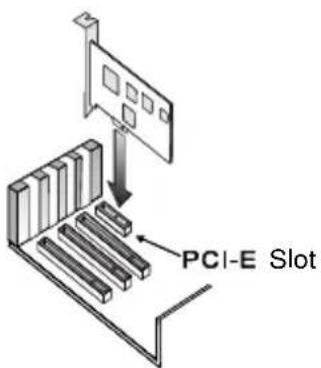
2.1 Installing Capture Card
- Turn off the PC.
- Remove the tower PC case.
- Insert the capture card into an empty PCIe expansion slot on the motherboard.
- Place the case back.
2.2 Making Connections
a. Current PC – capture from your local PC
Connect your graphics card output to the capture card input via the provided HDMI cable (or DVI to HDMI cable if there is no HDMI output on the graphics card). Connect the capture card output to the PC monitor via the HDMI cable (or HDMI to DVI converter if there is no HDMI input on the PC monitor).
Graphics card with an HDMI port
![graph TD A["Monitor"] --> B["Audio Output"] B --> C["Audio Track"] C --> D["Output"] D --> E["Audio Out"] E --> F["Audio Track"] F --> G["Output"] G --> H["Audio Track"] H --> I["Output"] I --> J["Audio Track"] J --> K["Output"] K --> L["Audio Track"] L --> M["Output"] M --> N["Audio Track"] N --> O…](/content/2026/05/953685/images/230db5fcf74cf257ecbf013fab626f34f7a62e699df662a6d24ecb520cdc03c1.jpg)
Capture source directly passes through the capture card and shows on local PC monitor.
-
Sound Card
-
Capture Card
-
Graphics Card
Use supplied items as a set: F, G
Quick Installation Guide
Graphics card without an HDMI port
![graph TD A["Monitor"] --> B["OR"] B --> C["Audio OUT"] C --> D["Audio IN"] D --> E["Output"] B --> F["Ground"] style A fill:#f9f,stroke:#333 style B fill:#ccf,stroke:#333 style C fill:#cfc,stroke:#333 style D fill:#fcc,stroke:#333 style E fill:#cff,stroke:#333 style F fill:#ffc,stroke:#333](/content/2026/05/953685/images/09b17c9aa5b8ce62fe2065ee342fd6626c46505e1e73288bffe901afe39768fa.jpg)
Capture source directly passes through the capture card and shows on local PC monitor.
- Sound Card
-
Graphics Card
-
Capture Card
Use supplied items as a set: F, G
b. Game Console - capture from your game console
Connect your game console output to the capture card input via the provided HDMI cable.
Connect the capture card output to the TV set via the HDMI cable.
![graph TD A[" gaming "] -->|G| B[" Audio OUT"] C[" Gaming "] -->|6| D[" Home screen "] E[" Gaming "] -->|5| F[" Home screen "] G[" Gaming "] -->|C| H[" Audio OUT - Audio IN"] I[" Gaming "] -->|4| J[" Home screen "] K[" Gaming "] -->|OR| L[" Home screen "] B -->|1| M[" Audio OUT"] D -->|2| N[" Home sc…](/content/2026/05/953685/images/cee2f4b1149975abeeff0f6e551ddd93bbc19eeb599636a2e0eb55a9b90e884e.jpg)
- Sound Card
- Graphics Card
- Capture source

PLEASE DO NOT USE HDMI SPLITTERS TO BYPASS COPY PROTECTION.
- Capture Card
- PC monitor with capture card
- TV set
Quick Installation Guide
c. Other PC - capture from the other PC
Connect your graphics card output on the other PC to the capture card input on current PC via the provided HDMI cable (or DVI to HDMI cable if there is no HDMI output on the graphics card of the other PC). Note: When using DVI to HDMI cable, please use an audio cable to connect the audio output on the other PC and audio input on the capture card for audio capture.
Capture from the other laptop
![graph TD A["1"] --> B["2"] B --> C["3"] C --> D["4"] D --> E["5"] E --> F["OR"] style A fill:#f9f,stroke:#333 style B fill:#ccf,stroke:#333 style C fill:#cfc,stroke:#333 style D fill:#fcc,stroke:#333 style E fill:#cff,stroke:#333](/content/2026/05/953685/images/18fd58d05923abc56f8a0934aeb88d60fd84517fd2ac6d586313fb44992f881b.jpg)
- Sound Card
- Graphics Card
-
Capture source
-
Capture Card
- PC monitor with capture card
Use supplied items as a set: F, G
Capture from the other PC tower
![graph TD A["1"] --> B["2"] B --> C["3"] C --> D["4"] D --> E["5"] E --> F["6"] F --> G["7"] G --> H["8"] H --> I["9"] I --> J["10"] style A fill:#f9f,stroke:#333 style B fill:#ccf,stroke:#333 style C fill:#cfc,stroke:#333 style D fill:#fcc,stroke:#333 style E fill:#cff,stroke:#333 style F fill:#ffc,…](/content/2026/05/953685/images/4006b16261d41b38774bda38b7bc9418896127d52856d7d516196a86f4a05f7b.jpg)
For capture source without dual output graphics card, use the capture card output for monitor connection.
- Sound Card
- Graphics Card
-
Capture source
-
Capture Card
- PC monitor with capture card
Use supplied items as a set: F, G
2.3 Hot Button

Note: Please make sure the front USB port has enough power supply to Hot Button.
- Getting Ready for Operation: The LED flashes clockwise in quadrantal circle during the RECentral startup, and then lights up in full circle when ready for operation.
● During Capture: The LED lights up and goes off at a slowly breathing pace.
● When Disk Space is Low: The LED flashes at a quick pace.
3 Driver and the Application Installation
Installing Drivers and the Application in Windows ® 7 / Windows ® 8
Download RECentral from the official website at http://gamerzone.avermedia.com. Follow the on-screen instructions to complete the installation of RECentral. The InstallShield Wizard Completed page appears when the installation is complete.
4 Activating the Application
Windows® 7
To run the application from the Programs menu, go to Start → All Programs → AVerMedia → AVerMedia RECentral → RECentral.
Windows® 8
Click on RECentral on the Metro Start screen or double click on RECentral on the Desktop.
5 Uninstalling Application and Driver
Windows® 7
Please go to Start and select All Programs, AVerMedia RECentral, and Uninstaller. Follow the on-screen instructions to complete the uninstallation of RECentral.
Windows ® 8
- Right click on AVerMedia RECentral on the Metro Start screen, and click on Uninstall.
- In Programs and Features, select AVerMedia RECentral → Uninstall/Change.
A. Live Gamer HD
Izvorni signal direktno prolazi kroz Live Gamer HD karticu i prikazuje se na PC monitoru.
-
Zvučna kartica ili izlaz na matičnoj ploči
-
Grafička kartica
-
Live Gamer HD kartica
Napomena: Molim provjerite da li USB port na koji priključujete tipku ima dovoljno struje za napajanje Tipke.
To run the application from the Programs menu, go to Start → All Programs → AVerMedia → AVerMedia RECentral → RECentral.
Windows® 8
Kliknite RECentral na zaslonu Metro Start ili dvaput kliknite RECentral na radnoj površini.
2.1 irrmlnds Capture Card
In situ HDMI will be found in the (in situ DVI) by HDMI will be seen in the (in situ DVI) and Capture Card.
F. Cablu HDMI-to-DVI
G. Cablu Audio 3.5mm
2 Instalare Hardware
2 Instalace hardware
- EUROPEAN COMMUNITY COMPLIANCE STATEMENT
- FCC NOTICE (CLASS B)
- FEDERAL COMMUNICATIONS COMMISSION STATEMENT
- CAUTION ON MODIFICATIONS
- ICES-003
- WARNING
- DISCLAIMER
- COPYRIGHT
- 2 HARDWARE INSTALLATION
- 2.1 INSTALLING CAPTURE CARD
- 2.2 MAKING CONNECTIONS
- CURRENT PC – CAPTURE FROM YOUR LOCAL PC
- QUICK INSTALLATION GUIDE
- GAME CONSOLE - CAPTURE FROM YOUR GAME CONSOLE
- OTHER PC - CAPTURE FROM THE OTHER PC
- 2.3 HOT BUTTON
- 3 DRIVER AND THE APPLICATION INSTALLATION
- 4 ACTIVATING THE APPLICATION
- 5 UNINSTALLING APPLICATION AND DRIVER
- WINDOWS ® 8
- 2 INSTALARE HARDWARE
- 2 INSTALACE HARDWARE
Brand : AVERMEDIA
Model : Live Gamer HD C985
Category : Capture Card