MONTE CARLO 28 - Radio BLAUPUNKT - Free user manual and instructions
Find the device manual for free MONTE CARLO 28 BLAUPUNKT in PDF.


User questions about MONTE CARLO 28 BLAUPUNKT
0 question about this device. Answer the ones you know or ask your own.
Ask a new question about this device
Download the instructions for your Radio in PDF format for free! Find your manual MONTE CARLO 28 - BLAUPUNKT and take your electronic device back in hand. On this page are published all the documents necessary for the use of your device. MONTE CARLO 28 by BLAUPUNKT.
USER MANUAL MONTE CARLO 28 BLAUPUNKT
1 button Opens the detachable control panel (flip-release panel).
② Rocker switch
3 MENU button Calls up the menu for basic settings.
SRC button Source selection between radio, CD and AUX.
Volume control
On/Off button Short press: Switches the device on. In operation: Mutes the device. Long press: Switches the device off.
⑦ Display
DIS button Changes display contents.
⑨ TS button
Starts the Travelstore function.
AUD button Sets bass, treble, middle, balance, and fader. Switches X-BASS on/off and adjusts it. Selects an equalizer presetting.
1 AUX input
12 TA button Starts the traffic announcement function. Traffic announcements have priority over radio or CD mode.
13 Numeric keypad
14 BAND button Selects the FM memory banks and the MW and LW wavebands.
15 arrow button Short press: Radio mode: manual search in selected frequency band. CD/MP3/WMA mode: next track. Long press: Radio mode: automatic seek tuning in selected frequency band. CD/MP3/WMA mode: fast forward.
arrow button Short press: Radio mode: manual search in selected frequency band. CD/MP3/WMA mode: previous track. Long press: Radio mode: automatic seek tuning in selected frequency band. CD/MP3/WMA mode: fast reverse.
17 CD tray
⑱ Reset button Can be activated only with a pointed object.
19 button (eject) Ejects the CD from the device
About these instructions 32
Symbols used. 32
Use as directed. 32
Declaration of conformity. 32
For your safety 33
If you are installing device yourself....33
Observe the following! 33
Cleaning instructions. 33
Disposal of old unit 33
Scope of delivery 34
Optional equipment (not part of the scope of delivery) ....34
Warranty. 34
Service 34
Detachable control panel 35
Theft protection. 35
Detaching the control panel. 35
Attaching the control panel. 35
Timeout function 36
Switching on/off.. 36
Switching on/off 36
Switching on/off using the vehicle ignition 36
Switching off with detachable control panel. 36
Adjusting the volume 37
Power-on volume 37
Quickly reducing the volume (MUTE)....37
Muting during telephone mode 37
Switching the confirmation beep on/off 37
Radio mode 38
Adjusting the tuner.. 38
Switching to radio mode 39
RDS 39
Selecting the waveband/ memory bank. 40
Tuning into a station 40
Setting the sensitivity of station seek tuning 40
Storing stations 41
Listening to stored stations 41
Programme type (PTY) 41
Traffic information. 42
Switching traffic information priority on/off 42
Setting the volume for traffic announcements. 43
CD mode 43
Switching to CD mode 43
Selecting tracks 44
Fast searching (audible) 44
Random track play (MIX) 44
Scanning tracks (SCAN) 44
Repeating tracks (REPEAT) 45
Interrupting playback (PAUSE)......45
Configuring the display 45
Traffic announcements in CD mode.... 45
Ejecting a CD. 45
MP3/WMA mode 46
Preparing an MP3/WMA CD. 46
Switching to MP3 mode 47
Configuring the display 47
Selecting a directory 47
Selecting tracks/files 47
Fast searching (audible) 47
Random track play (MIX) 48
Scanning tracks (SCAN) 48
Repeating tracks (REPEAT) 48
Interrupting playback (PAUSE)......48
Menu settings. 49
Setting the time 49
Selecting 12/24-hour clock mode....49
Loading standard settings 49
Switching the AUX input on/off 50
Adjusting the display brightness.....50
Sound 50
Adjusting the bass 50
Adjusting the treble. 50
Setting the left/right volume distribution (balance) 51
Adjusting the front/rear volume distribution (fader) 51
X-BASS 51
Equalizer presettings (presets) 52
External audio sources. 52
Resetting the device (Reset) 53
Technical data 53
Amplifier 53
Tuner 53
CD. 53
Preamp Out 53
AUX input sensitivity 53
Installation instructions 156
About these instructions
These instructions contain important information to easily and safely install and operate the device.
- Read these instructions carefully and completely before using the device.
- Keep the instructions at a location so that they are always accessible to all users.
Always pass on the device to third parties together with these instructions.
In addition, observe the instructions of the devices used in conjunction with this device.
Symbols used
These instructions employ the following symbols:

CAUTION!
Warns about laser beam

DANGER!
Warns about injuries

CAUTION!
Warns about damaging the CD drive

The CE mark confirms the compliance with EU directives.
Identifies a sequencing step
- Identifies a listing
Use as directed
This device is intended for installation and operation in a vehicle with 12 V vehicle system voltage and must be installed in a DIN slot. Observe the performance limits in the technical data. Repairs and installation, if necessary, should be performed by a specialist.
Declaration of conformity
The Blaupunkt GmbH declares that the device complies with the basic requirements and the other relevant regulations of the directive 89/336/EWG.
For your safety
The device was manufactured according to the state of the art and established safety guidelines. Even so, dangers may occur if you do not observe the safety notes in these instructions.
If you are installing device yourself
You may only install the device yourself if you are experienced in installing car sound systems and are very familiar with the electrical system of the vehicle. For this purpose, observe the installation instructions at the end of these instructions.
Observe the following!

CAUTION!
The device contains a Class 1 laser
that can cause injuries to your eyes.
Do not open the device and do not perform any modifications.

DANGER!
Increased risk of injury from connector
In case of an accident, the protruding connector in the front AUX-IN socket may cause injuries. The use of straight plugs or adapters can lead to an increased risk of injury.
It is, therefore, recommended to use angled jack plugs, e.g. the Blaupunkt accessories cable (7 607 001 535).
In operation:
- Operate the device only if traffic situation permits it! Stop at a suitable location to perform more extensive operations.
- Remove or attach the control panel only while the vehicle is standing an.
- To protect your hearing, always listen at a moderate volume. During mute phases (e.g. when changing the audio source), changing the volume is not audible. Do not increase the volume during this mute phase.
Always listen at a moderate volume so that you can always hear acoustic warning signals (e.g. police).
After operation:
- The device is worthless to a thief without the control panel. Always remove the control panel whenever you leave the vehicle.
- Transport the control panel so that it is protected against impacts and the contacts cannot become dirty.
Cleaning instructions
Solvents, cleaning and scouring agents as well as dashboard spray and plastics care product may contain ingredients that will damage the surface of the device.
Use only a dry or slightly moistened cloth for cleaning the device.
Disposal of old unit

Do not dispose of your old unit in the household trash!
Use the return and collection systems available to dispose of the old device.
Scope of delivery
The scope of delivery includes:
1 Car sound system
1 Support frame
2 Disassembly tools
1 Perforated strips
1 Case
1 Operating instructions
Optional equipment (not part of the scope of delivery)
Use only accessories approved by Blaupunkt.
Remote control
The steering wheel and/or handheld remote control allows you to access the basic functions of your car sound system safely and conveniently.
You cannot switch the device on/off using the remote control!
You can find out from your Blaupunkt dealer or on the Internet at www.blaupunkt.com which remote controls can be used with your car sound system.
Amplifier
You can use all Blaupunkt and Velocity amplifiers.
Warranty
We provide a manufacturer's warranty for products bought within the European Union. For devices purchased outside the European Union, the warranty terms issued by our respective responsible domestic agency are valid.
The warranty terms can be called up under www.blaupunkt.com or requested directly from:
Blaupunkt GmbH
Hotline
Robert-Bosch-Str. 200
D-31139 Hildesheim, Germany
Service
In some countries, Blaupunkt offers a repair and pick-up service.
Information about the availability of this service in your country can be found at www.blaupunkt.com.
If you want to take advantage of this service, you may request a pick-up service for your device via the Internet.
Detachable control panel
Theft protection
The device is equipped with a detachable control panel (flip-release panel) as a way of protecting your equipment against theft. The device is worthless to a thief without this control panel.
Protect your device against theft by taking the control panel with you whenever you leave your vehicle. Do not leave the control panel inside your vehicle - not even in a hidden place.
Notes:
- Never drop the control panel.
- Do not expose the control panel to direct sunlight or another heat source.
- Avoid direct skin contact with the control panel's electrical contacts. If necessary, clean the contacts with a lint-free cloth moistened with cleaning alcohol.
Detaching the control panel
press the 2 button ①.
The control panel opens to the bottom.
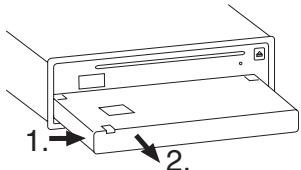
Grasp the control panel at the left side.
Push the control panel slightly to the right and then pull it straight out of the bracket.
Notes:
- The device switches off as soon as the control panel is removed. The device remembers the audio source played last for the next switch-on.
- Any CD already inserted in the device remains there.
Attaching the control panel
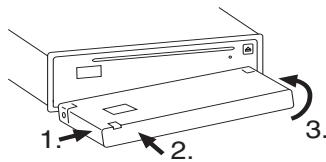
Insert the control panel on the right side and press it slightly to the right (see Figure 1.).
Carefully press the control panel into the left bracket until it engages (see Figure 2.).
Fold the control panel up into the slot and press it gently into place until it engages (see Figure 3.).
If the device was still switched on when you detached the control panel, it will automatically switch on with the last setting activated (radio, CD or AUX) when the panel is replaced.
Timeout function
The device features a time-out function (time window).
For example, if you press the MENU button ③ and select a menu item, the device switches back after approx. 5 seconds after the last button activation. The settings performed are saved.
Switching on/off
You can switch on the device with any button.
Switching on/off
To switch on the device,
press any button.
The device switches on.
To switch off the device, press and hold down the On/Off button 6 for longer than 2 seconds.
The device switches off.
Switching on/off using the vehicle ignition
The device will switch on/off simultaneously with the ignition if the device is correctly connected to the vehicle's ignition as shown in the installation instructions and you did not switch the device off by pressing the On/Off button 6.
Switching off with detachable control panel
Detach the control panel.
The device switches off.
Note:
To protect the vehicle battery, the device will switch off automatically after one hour if the ignition is off.
Adjusting the volume
You can adjust the volume in increments from 0 (off) to 100 (maximum).
To increase the volume,
turn the volume control 5 clockwise.
To decrease the volume,
turn the volume control ⑤ counterclockwise.
Power-on volume
When you switch off the device, the volume selected last is stored.
When you switch on the device, the stored volume is selected.
Quickly reducing the volume (MUTE)
You can quickly reduce the volume to a preset level.
Briefly press the On/Off button 6.
The display shows "MUTE".
Cancelling mute
To return to your previously set volume level,
briefly press the On/Off button 6 again.
Muting during telephone mode
If your car sound system is connected to a cell phone, the car sound system is muted when you answer a call.
Note:
During a phone call, no traffic announcements are switched through.
There are hands-free systems that activate the mute function of the radio with a LOW signal (0 V) or HIGH signal (12 V). This information can be found in the operating instructions of your hands-free system. In the menu, you can select whether the radio should mute during an incoming call using a HIGH or a LOW signal:
Press the MENU button ③.
Press the or 不 button ② repeatedly until "TEL MUTE" appears on the display.
Press the button 15 to select among "HIGH/LOW/OFF".
Note:
"HIGH" means that the device mutes with an incoming HIGH signal.
"LOW" means that the device mutes with an incoming LOW signal.
"OFF" means that the volume is not lowered during a call.
When you have finished making your changes,
press the MENU button ③ or wait 5 seconds.
The settings are saved.
Switching the confirmation beep on/off
When you press certain buttons of the device, a confirmation beep sounds. You can switch the beep on or off. You can select four volumes for the beep.
Press the MENU button ③.
Press the or ±b button ② repeatedly until "BEEP" appears on the display.
Press the > or ≤ button to adjust the volume of the beep from 1 to 4.
To switch off the beep, press the ≥ 15 or < button _6 repeatedly until "BEEP OFF" appears on the display.
When you have finished making your changes,
press the MENU button ③ or wait 5 seconds.
The settings are saved.
Radio mode
This device is equipped with an RDS radio receiver. Many of the receivable FM stations broadcast a signal that not only carries the programme but also additional information such as the station name and programme type (PTY).
The station name appears on the display as soon as the tuner receives it.
Adjusting the tuner
To ensure proper functioning of the tuner, the device must be set for the region in which it is being operated. You can select between Europe ("EURO"), America ("USA") and Asia ("ASIA"). The tuner is factory-set to the region in which it was sold. If you experience problems with your radio reception, please check this setting.
Note:
The radio functions described in these operating instructions refer to the tuner setting for Europe (EURO). If you switch to a different region (ASIA, USA), the user settings are lost.
Press the MENU button ③.
Press the v or 大 button ② repeatedly until "AREA EURO", "AREA USA" or "AREA ASIA" appears on the display.
Select your tuning region with the button > or < 16.
Press the MENU button ③ or wait 5 seconds.
The settings are saved.
Switching to radio mode
If you are in CD or AUX mode,
press the SRC button ④ repeatedly until an RDS radio name or a frequency appears on the display.
RDS
Your radio uses the Radio Data System (RDS). RDS allows receiving additional information on the radio frequency. In addition to the display of the station name, you can also use convenient RDS functions (see the next chapter).
Note
RDS is broadcast only in the FM band. Not all radio stations in the FM range offer RDS.
Switching the display of station names on/off
You can switch the display of the station names on or off as needed. In the delivery state, the function is activated.
Press the MENU button ③.
Press the v or n button ② repeatedly until "RDS ON" or "RDS OFF" appears on the display.
To switch RDS on/off,
press the button >15 or < 16
When you have finished making your changes,
press the MENU button ③ or wait 5 seconds.
The settings are saved.
Convenient RDS functions (AF, REG)
The convenient RDS functions AF (Alternative Frequency) and REG (Regional) extend the range of functions of your radio device.
- AF: If the RDS function is activated, the radio automatically tunes into the best receivable frequency for the station that is currently set.
- REG: At certain times, some radio stations divide their programme into regional programmes providing different content. You can use the REG function to prevent the car radio from switching to alternative frequencies that are transmitting different programme content.
Note:
AF and REG must be activated/deactivated separately in the menu.
Switching AF on/off
Press the MENU button ③.
Press the or x button ② repeatedly until "AF ON" or "AF OFF" appears on the display.
To switch AF on/off,
press the button >15 or < 16
When you have finished making your changes,
press the MENU button ③ or wait 5 seconds.
The settings are saved.
Switching REG on/off
Press the MENU button ③.
Press the X or button ② repeatedly until "REG ON" or "REG OFF" appears on the display.
To switch REG on/off,
press the button >15 or < 16
When you have finished making your changes,
press the MENU button ③ or wait 5 seconds.
The settings are saved.
Selecting the waveband/memory bank
This device can receive programmes broadcast over the FM frequency range as well as the MW and LW wavebands. There are three memory banks available for the FM waveband (FM1, FM2 and FMT) and one for each of the MW and LW wavebands.
Six stations can be stored on the station buttons in each memory bank.
The wavebands MW and LW can be switched on or off via the menu.
Press the MENU button ③.
Press the or 不 button ② repeatedly until "LW ON" or "LW OFF" or "MW ON" or "MW OFF" appears on the display.
To switch the wavebands on/off,
press the button >15 or < 16
The settings are saved.
To switch between the FM memory banks (FM1, FM2 and FMT) and the MW and LW wavebands,
press the BAND button 14.
Tuning into a station
There are various ways of tuning into a station.
Automatic station seek tuning
Press and hold down the button > 15 or < 16 for 2 seconds.
The radio tunes into the next receivable station.
Tuning into stations manually
You can also tune into stations manually.
To change the set frequency in small increments,
briefly press the >15 or button 16 repeatedly until the desired frequency is set.
Setting the sensitivity of station seek tuning
You can choose whether the radio should only tune into stations providing good reception or whether it can also tune into those with a weak reception.
Press the MENU button ③.
Press the v or 不 button ② repeatedly until "SENS HIGH" or "SENS LOW" appears on the display.
Set the desired sensitivity with the button >15 or < 16
When you have finished making your changes,
press the MENU button ③ or wait 5 seconds.
The settings are saved.
Storing stations
Storing stations manually
Select the desired memory bank FM1, FM2, FMT, LW or MW.
Tune into the desired station.
Press and hold down one of the station buttons 1-6 (13) for longer than two seconds to assign the station to that button.
The settings are saved.
Storing stations automatically (Travelstore)
You can automatically store the six stations offering the strongest reception in the region (FM only). The stations are stored in the FMT memory bank.
Note:
Any stations that were previously stored in this memory bank are deleted in the process.
Briefly press the TS button ⑨.
The storing procedure begins. "FMTSTORE" appears on the display. After the process has completed, the radio will play the station that is stored on station button 1 of the FMT memory bank.
Listening to stored stations
Select the waveband or memory bank with the BAND button 14.
Press one of the station buttons 1-6⑬.
The stored station is played if it can be received.
Programme type (PTY)
Besides transmitting the station name, some FM stations also provide information on the type of programme that they are broadcasting. Your car radio can receive and display this information.
For example, the programme types can be:
CULTURE TRAVEL JAZZ
SPORT SERVICE POP
You can use the PTY function to select stations of a particular programme type.
If you specify the programme type and start seek tuning, the radio will switch from the current station to a station of the selected programme type.
Notes:
- If the tuner does not find a station that corresponds to the selected programme type, you will hear a beep several times and "PTY NONE" appears briefly on the display. The radio will then retune to the station that it received last.
- If the tuned radio station or another station on the broadcasting network broadcasts your selected programme type at a later point in time, the radio will automatically switch from the currently tuned station or from CD mode to the station whose programme type matches the one you selected.
- If you do not want this PTY switching, disable PTY in the menu.
Switching PTY on/off
Press the MENU button ③.
Press the v or ±b button ② repeatedly until "PTY OFF" or a selected programme (e.g. OLDIES, JAZZ, CLASSICS) appears on the display.
Press the >15 or < button 16 to enable or disable PTY (PTY OFF). (The display shows the respective programme type.)
When you have finished making your changes,
press the MENU button ③ or wait 5 seconds.
The settings are saved. Seek tuning starts immediately. During seek tuning, you cannot perform any menu settings.
Note:
As an alternative, you can switch PTY on/off with the TS button ⑨.
To switch PTY on/off using the TS button ⑨,
press the TS button 9 for longer than 2 seconds.
PTY switches on/off.
Traffic information
Your device is equipped with an RDS-EON receiver. EON (Enhanced Other Network) ensures that whenever a traffic announcement (TA) is broadcast, the system switches automatically from a station that does not provide traffic reports to the appropriate traffic information station within the broadcasting network that does.
Once the traffic announcement has been played, the system will switch back to the programme that you were listening to before.
If you do not want to switch within a broadcasting network or toggle PTY, you can switch EON on or off.
To switch EON on/off,
press the MENU button ③.
Press the v or ±b button repeatedly until "EON ON" or "EON OFF" appears on the display.
Press the > 15 or <button 16 to switch EON on or off.
When you have finished making your changes,
press the MENU button ③ or wait 5 seconds.
The settings are saved.
Switching traffic information priority on/off
Press the TA button 12 to activate or deactivate the priority for traffic information.
The priority for traffic announcements is activated if the display shows "TA".
Setting the volume for traffic announcements
Press the MENU button ③.
Press the or 不 button ② repeatedly until "TA VOL" appears on the display.
Press the > 15 or <button 16 to adjust the volume. You can select between -2 and +2.
When you have finished making your changes,
press the MENU button ③ or wait 5 seconds.
The settings are saved.
Note:
Using the volume control ⑤ , you can also adjust the volume during a traffic announcement for the duration of that announcement.
CD mode
You can use this device to play standard audio CDs, CD-Rs and CD-RWs with a diameter of 12cm .

CAUTION!
Labelled or shaped CDs can damage the CD drive.
- Do not insert any shape CDs.
- Do not insert any 8-cm CDs.
- Do not attach labels to CDs since the label may detach during operation.
Notes:
- Label CDs only by using a marker since it does not contain any caustic materials. Permanent markers can damage CDs.
To ensure proper functioning, use only CDs with the Compact-Disc logo. Copy-protected CDs can cause playback problems. Blaupunkt cannot guarantee the proper functioning of copy-protected CDs! - Besides being able to play audio CDs on this device, you can also play CDs containing MP3/WMA music files. For further information, please read the chapter entitled "MP3/WMA mode".
Switching to CD mode
If there is no CD inserted in the drive,
press the button ①.
The control panel opens.
Gently insert the CD with its printed side uppermost into the drive until you feel some resistance.
The drive draws in the CD automatically.
You must not hinder or assist the drive as it draws in the CD.
Gently close the control panel whilst exerting a little pressure until you feel it click into place.
The CD starts playing.
Note:
If the vehicle ignition was switched off prior to inserting the CD, you must switch the device on first with the On/Off button 6 to start the playback.
If a CD is already inserted in the drive,
press the SRC button ④ repeatedly until the "CD symbol" appears on the display.
The playback starts with the track played last.
Selecting tracks
Press the > 15 or <button 16 to select the next or previous track.
If you press the <button 16 once, the current track will be played again from the beginning.
Fast searching (audible)
To fast search backwards or forwards,
press and hold down the > or < button until fast searching backwards or forwards begins.
Random track play (MIX)
To play back all the tracks of a CD at random,
press the 4 MIX button 13.
The display shows "MIX".
The next randomly selected track will then be played.
Cancelling MIX
Press the 4 MIX button (13) again.
The MIX symbol disappears.
Normal playback is then resumed.
Scanning tracks (SCAN)
You can scan (briefly play) all the tracks on the CD.
Press the 2 SCN button (13).
The display shows "SCN".
The next track will then be scanned.
Stopping Scan
To end the scanning process,
press the 2 SCN button (13)
The SCN symbol disappears.
The currently scanned track will then continue to be played normally.
Adjusting the scan time for SCAN
You can adjust the scan time for the SCAN function in the menu.
Press the MENU button ③.
Press the or ±b button ② repeatedly until "SCAN" appears on the display.
Press the > 15 or <button 16 to select either 5, 10 or 20 seconds.
When you have finished making your changes,
press the MENU button ③ or wait 5 seconds.
The settings are saved.
Repeating tracks (REPEAT)
If you want to repeat a track,
press the 3 RPT button ① 3
The display shows "RPT".
The track is repeated continuously until you deactivate Repeat.
Cancelling Repeat
If you want to cancel the repeat function,
press the 3 RPT button ① again.
The RPT symbol disappears.
Normal playback is then resumed.
Interrupting playback (PAUSE)
To interrupt the playback,
press the 1 13
The display shows "PAUSE".
Cancelling pause
To continue the playback,
press the 1 button 13 during the pause.
Playback is continued.
Configuring the display
Notes:
- The display can be changed only if RDS is switched on in the menu.
- The display changes for 5 seconds.
You can choose from various display options in CD mode:
Time
- Station set last (only for RDS station name reception)
Frequency set last
- PTY function set last
CD track display
To switch between the different display options,
press the DIS button ⑧ repeatedly until the desired display appears.
Traffic announcements in CD mode
If you wish to receive traffic announcements in CD mode,
press the TA button 12.
The priority for traffic announcements is activated if the display shows the TA symbol. For further details, please read the chapter entitled "Traffic information".
Ejecting a CD
Press the button ①.
The control panel opens to the bottom.
Press the button 19 next to the CD compartment.
The CD is ejected.
Remove the CD and close the control panel.
Notes:
- If a CD is ejected, the drive will automatically draw it back in again after 10 seconds.
- You can also eject CDs whilst the device is switched off or whilst another audio source is activated.
MP3/WMA mode
You can also use this car sound system to play CD-Rs and CD-RWs that contain MP3 music files. You can also play WMA files. This chapters deals only with playing MP3 files since the operation for MP3 and WMA files is identical.
Note:
WMA files with Digital Rights Management (DRM) from online music shops cannot be played with this device.
Preparing an MP3/WMA CD
The various combinations of CD burners, CD burning software and CD blanks may lead to problems arising with the device's ability to play certain CDs. If problems occur with your own burned CDs, you should try another brand of CD blank or choose another colour of CD blank.
The format of the CD must be ISO 9660 Level 1/Level 2 or Joliet. Other formats cannot be played reliably.
Notes:
To ensure uninterrupted playback,
- do not try changing the file extension to ".MP3" of any files other than MP3 files and then attempt to play them. The device will ignore these invalid files during playback.
-
do not use "mixed" CDs containing both non-MP3 files and MP3 tracks (the device only reads MP3 files during MP3 playback).
-
do not use mix-mode CDs containing both CD-audio tracks and MP3 tracks. If you try playing a mix-mode CD, the device will only play the CD-audio tracks.
MP3 ID3 tags
MP3 tracks can contain additional information such as the artist, album and track name (ID3 tags). This device can display ID3 tags of version 1 and 2.
Switching to MP3 mode
MP3 mode is activated in the same way as normal CD mode. For further information, please read the section entitled "Switching to CD mode" in the "CD mode" chapter.
Note
If an MP3 or WMA CD is located in the drive, the display shows "MP3" during MP3 mode.
Configuring the display
The following settings require that an MP3 CD is in the device.
Notes:
- You can change the display for time, station set last and PTY function set last only if RDS is switched on in the menu.
The display changes for 5 seconds.
Configuring the default display
You can display various types of information on the current track:
Time
Track
Name of artist
Genre
Station set last
- PTY function set last
File name
To switch between the different display options,
press the DIS button ⑧ repeatedly until the desired display appears.
Selecting a directory
To move up or down to another directory,
press the v or ±b button 2 once or several times.
Selecting tracks/files
To move up or down to another track or file in the current directory,
press the >15 or < button 16 once or several times.
If you press the <button 16 once, the current track will be played again from the beginning.
Fast searching (audible)
To fast search forwards or backwards,
press and hold down the > 15 or < button 16 until fast searching backwards or forwards begins.
Random track play (MIX)
To play back all the tracks of a CD at random,
press the 4 MIX button 13.
The display shows "MIX".
The next randomly selected track will then be played.
Cancelling MIX
Press the 4 MIX button ① again.
The MIX symbol disappears.
Normal playback is then resumed.
Scanning tracks (SCAN)
You can scan (briefly play) all the tracks on the CD.
Press the 2 SCN button 13.
The display shows "SCN".
The next track will then be scanned.
Stopping Scan
To end the scanning process,
press the 2 SCN button 13.
The SCN symbol disappears.
The currently scanned track will then continue to be played normally.
Adjusting the scan time for SCAN
You can adjust the scan time for the SCAN function in the menu.
Press the MENU button ③.
Press the v or 空 button ② repeatedly until "SCAN" appears on the display.
Press the button ⑤ or < < button ⑥ to select either 5, 10 or 20 seconds.
When you have finished making your changes,
press the MENU button ③ or wait 5 seconds.
The settings are saved.
Repeating tracks (REPEAT)
To repeat a track,
briefly press the 3 RPT button ① 3
The display shows "RPT".
The track is repeated continuously until you deactivate Repeat.
To repeat a directory,
press the 3 RPT button ① for longer than 2 seconds.
"RPT" flashes on the display.
The directory is repeated continuously until you deactivate Repeat.
Cancelling Repeat
If you want to cancel the repeat function,
Press the 3 RPT button ① again.
The RPT symbol disappears.
Normal playback is then resumed.
Interrupting playback (PAUSE)
Press the 1 button ⑬.
The display shows "PAUSE".
Cancelling pause
press the 1 button 13 during the pause.
Playback is continued.
Menu settings
Setting the time
To set the time,
press the MENU button ③.
Press the A or V button ② repeatedly until "CLOCK ON" or "CLOCK OFF" appears on the display.
You can adjust the time and time mode only if the menu item is set to "CLOCK ON".
Press the MENU button ③.
Press the A or V button ② repeatedly until the time appears on the display.
Press the > 15 or < button 16 to change the value.
Press the ±b or V button ② to switch between hours and minutes.
Note:
If the menu item is set to "CLOCK ON", the device displays the time for all selected sources. The time adjusts itself automatically with the RDS signal if it can be received.
When you have finished making your changes,
press the MENU button ③ or wait 5 seconds.
The settings are saved.
Selecting 12/24-hour clock mode
Press the MENU button ③.
Press the x or y button ② repeatedly until "HOUR 24" or "HOUR 12" appears on the display.
Press the > 15 or < button 16 to switch the mode.
When you have finished making your changes,
press the MENU button ③ or wait 5 seconds.
The settings are saved.
Loading standard settings
Note:
Your user settings (audio, station memory) are overwritten when you load the standard settings.
To load the standard settings,
press the MENU button ③.
Press the A or V button ② repeatedly until "DEF OFF" appears on the display.
Press the >15 or button 16 until "DEF LOAD" (default load) appears on the display.
Press the MENU button 3 within 5 seconds (timeout function) to load the standard settings.
Switching the AUX input on/off
You can switch the AUX input on/off in the menu.
Press the MENU button ③.
Press the ±b or button ② repeatedly until "AUX ON" or "AUX OFF" appears on the display.
Press the > 15 or < button 16 to switch the AUX input on/off.
When you have finished making your changes,
press the MENU button ③ or wait 5 seconds.
The settings are saved.
Note
If the AUX input is switched off in the menu, you cannot select the AUX input as a source.
Adjusting the display brightness
To switch between bright and dark,
press and hold down the DIS button ⑧ for longer than 2 seconds.
Sound
The sound settings for the volume distribution (balance and fader), X-BASS, bass, treble and DSP (Digital Sound Processor) apply to all the audio sources.
Adjusting the bass
You can adjust the bass level between -10 and +10.
Adjusting the level
Press the AUD button 10 repeatedly until "BAS" appears on the display.
Turn the volume control 5 to adjust the level from -10 to +10.
When you have finished making your changes,
wait 5 seconds.
The settings are saved.
Note:
If an equalizer presetting (POP M, ROCK M, CLASSICS, FLAT) is selected, the manual increase of the bass level and treble is overwritten. As soon as another manual increase is performed, the equaliser switches off. For further information, please read the note in the section entitled "Equalizer presettings (presets)".
Adjusting the treble
You can adjust the treble level between -10 and +10.
Adjusting the level
Press the AUD button 10 repeatedly until "TRB" appears on the display.
Turn the volume control 5 to adjust the level from -10 to +10.
When you have finished making your changes,
wait 5 seconds.
The settings are saved.
Note:
If an equalizer presetting (POP M, ROCK M, CLASSICS, FLAT) is selected, the manual increase of the bass level and treble is overwritten. As soon as another manual increase is performed, the equaliser switches off. For further information, please read the note in the section entitled "Equalizer presettings (presets)".
Setting the left/right volume distribution (balance)
To adjust the left/right volume distribution (balance),
press the AUD button 10 repeatedly until "BAL" appears on the display.
Turn the volume control 5 to adjust the distribution from 10L to 10R.
When you have finished making your changes,
wait 5 seconds.
The settings are saved.
Adjusting the front/rear volume distribution (fader)
To adjust the front/rear volume distribution (fader),
press the AUD button 10 repeatedly until "FAD" appears on the display.
Turn the volume control 5 to adjust the distribution from 10F to 10R.
When you have finished making your changes,
wait 5 seconds.
The settings are saved.
X-BASS
X-Bass allows you to increase the bass at low volume.
The selected X-Bass setting is effective for all audio sources (radio, CD, MP3 or AUX).
Switching X-BASS on/off
Press the AUD button 10 repeatedly until "X-BASS ON" or "X-BASS OFF" appears on the display.
Turn the volume control 5 to perform the desired setting.
When you have finished making your changes,
wait 5 seconds.
The settings are saved.
"X-BASS" appears on the display if the function is activated.
Equalizer presettings (presets)
This device features an equaliser in which the settings for "FLAT" (linear) and the music genres "CLASSICS", "POP M" and "ROCK M" are already programmed.
To select an equaliser setting,
press the AUD button 10 repeatedly until "FLAT", "CLASSICS", "POP M", "ROCK M" or "DSP OFF" appears on the display.
Turn the volume control 5 to select one of the settings or select "DSP OFF" to switch off the equaliser.
When you have finished making your changes,
wait 5 seconds.
The settings are saved.
The respective setting appears on the display.
Note:
Without equaliser presets, you can adjust the bass and treble from -10 to +10.
If you change the treble and/or bass while an equalizer presetting (POP M, ROCK M, CLASSICS, FLAT) is selected, the equaliser switches off automatically (DSP OFF).
External audio sources
External audio sources, such as portable CD players, MiniDisc players or MP3 players, can be connected to the device via the AUX input.
Notes:
- To connect an external audio source via the rear or front AUX input (depending on the model), you need a cable with cinch plugs (rear AUX input) or a 3.5-mm jack plug (front AUX input).
- The AUX input can be selected with the SRC button ④. "AUX" appears on the display.
Resetting the device (Reset)
To reset the device to the delivery state,
press the Reset button (18) with a pointed object.
The device restarts.
The delivery state has been restored.
Technical data
Amplifier
Output power:
4 x 22 watts sine in accordance with DIN 45324 at 14.4 V at 4 ohms.
4 x 40 watts max. power
Tuner
Wavebands:
FM : 87.5 - 108 MHz
MW : 531 - 1.620 kHz
LW : 153-279 kHz
FM frequency response:
35-15.000 Hz
CD
Frequency response:
20 - 20.000 Hz
Preamp Out
2 channels
2V
AUX input sensitivity
AUX-IN:
150 mV/10 kΩ
Weight
approx. 1.6kg
Subject to changes

Einbauanleitung

Sicherheitshinweise
Installation instructions

Safety instructions
When carrying out installation work and making connections please observe the following safety instructions:
-
Disconnect the negative terminal of the battery! When doing so, please observe the vehicle manufacturer's safety instructions.
-
Make sure you do not damage vehicle components when drilling any holes.
-
The cross sections of the positive and negative cables must not be less than 1.5 mm^2 .
- Do not connect the vehicle's plug connectors to the radio!
You can obtain the adapter cable required for your vehicle type from any BLAUPUNKT dealer.
Depending on the model, your vehicle may differ from the description provided here. We accept no responsibility for any damages due to incorrect installation or connection or for any consequential damages.
If the information provided here is not suitable for your specific installation requirements, please contact your Blaupunkt dealer, your vehicle
manufacturer or our telephone hotline.
When installing an amplifier, you must first connect the device earth connections before connecting the plugs for the line-in or line-out jacks.
Earth connection of external devices may not be connected to earth of car sound system (housing).
F Notice de montage

Supplied Mounting Hardware
Available as an optional accessory
Disponible en option
| A | B | ||
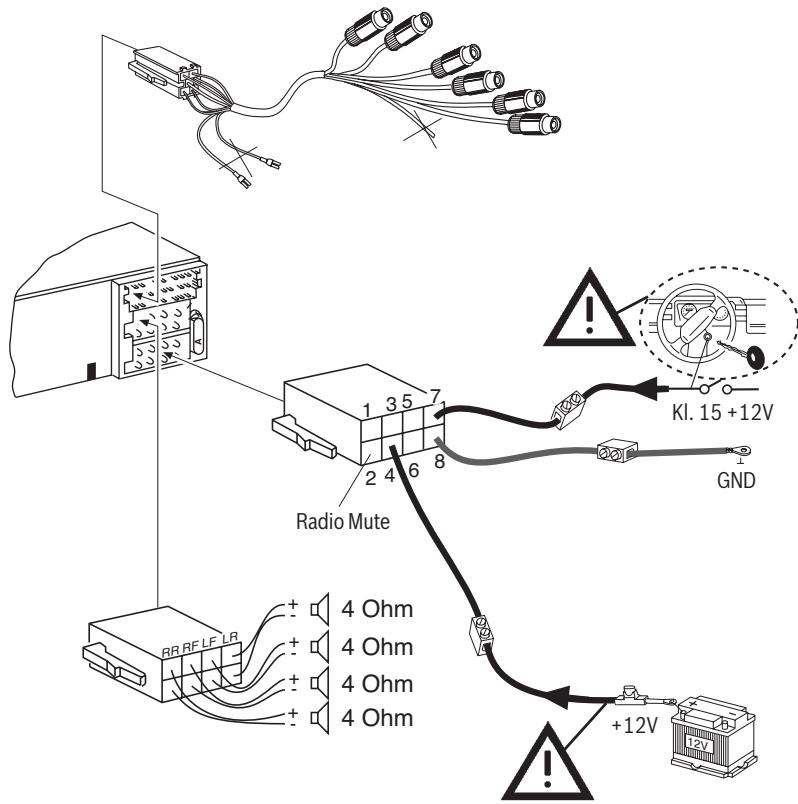
| 1 | NC | 1 | Speaker out RR+ |
| 2 | Radio Mute | 2 | Speaker out RR- |
| 3 | NC | 3 | Speaker out RF+ |
| 4 | Permanent +12V | 4 | Speaker out RF- |
| 5 | NC | 5 | Speaker out LF+ |
| 6 | NC | 6 | Speaker out LF- |
| 7 | KI.15/Ignition | 7 | Speaker out LR+ |
| 8 | Masse/GND | 8 | Speaker out LR- |
| C1 | C2 | C3 | |||
| 1 | Line Out LR | 7 | NC | 13 | NC |
| 2 | Line Out RR | 8 | NC | 14 | NC |
| 3 | Line Out / Ground | 9 | NC | 15 | NC |
| 4 | NC | 10 | SW Supply - RC +12V | 16 | NC |
| 5 | NC | 11 | Remote Control | 17 | NC |
| 6 | NC | 12 | RC - GND | 18 | NC |
| 19 | NC | ||||
| 20 | NC | ||||
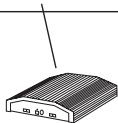
Amplifier
9.
Preamp./Sub./Center - out cable
7607001512
© 2008 All rights reserved by Blaupunkt. This material may be reproduced, copied or distributed for personal use only.
This product is protected by certain intellectual property rights of Microsoft. Use or distribution of such technology outside of this product is prohibited without a license from Microsoft.
Please keep the filled-in radio pass in a safe place!