
PURE-FI ANYTIME - Bluetooth speaker LOGITECH - Free user manual and instructions
Find the device manual for free PURE-FI ANYTIME LOGITECH in PDF.

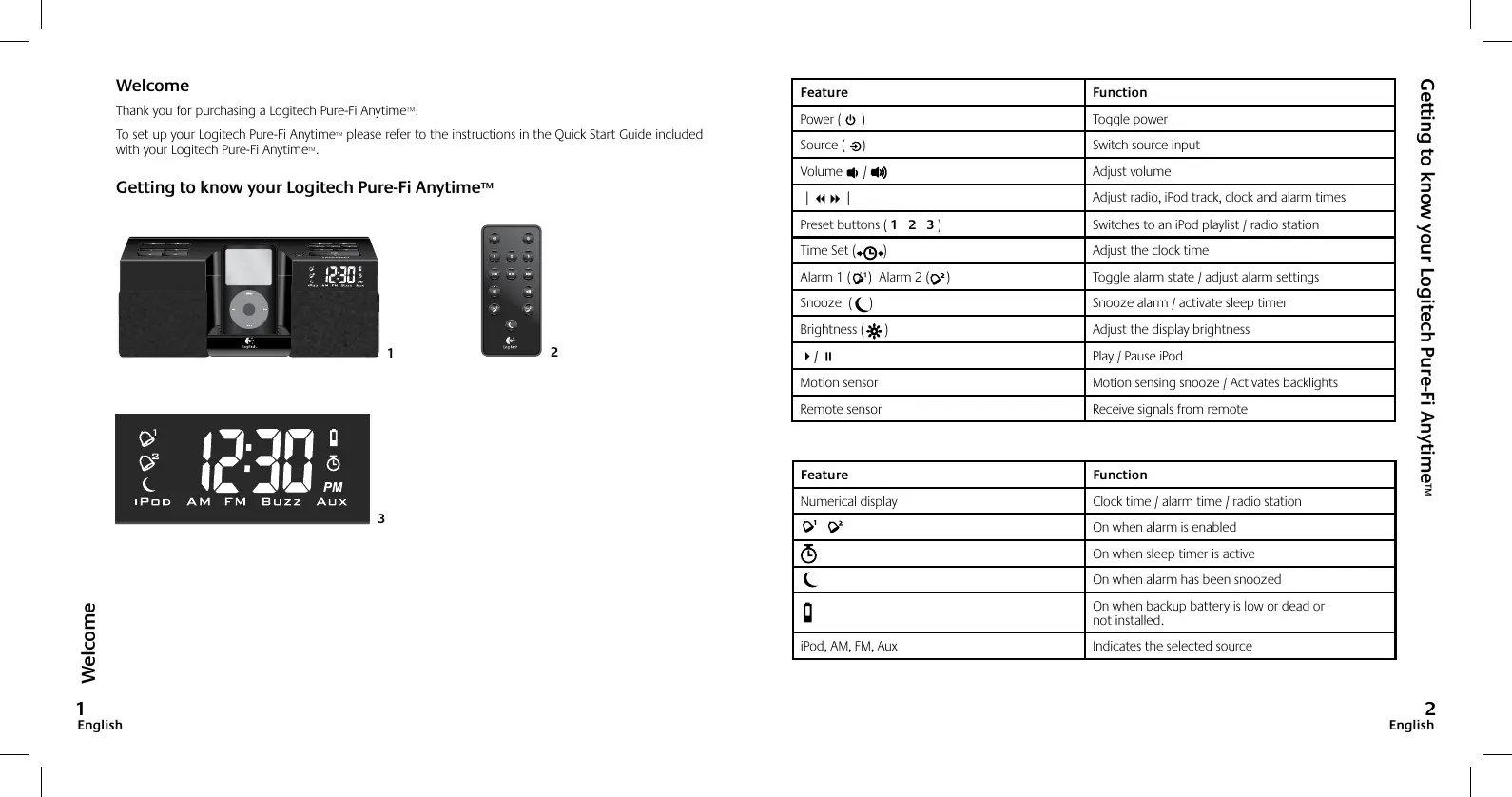


| Product Type | Bluetooth Speaker with iPod/iPhone Dock |
| Brand | Logitech |
| Model | Pure-Fi Anytime |
| Power Supply | Mains (with backup battery for clock and alarm) |
| Main Functions | AM/FM radio, iPod/iPhone dock, 3.5 mm auxiliary input, dual alarm, alarm snooze, motion sensor, backlight, sleep timer |
| Radio Bands | AM and FM |
| Presets | 3 presets for iPod and radio |
| Connectivity | Universal dock for iPod/iPhone, 3.5 mm auxiliary input |
| Display | Digital display with backlight |
| Alarm Source | iPod, AM, FM, buzzer alarm |
| Volume | Adjustable via buttons or remote control |
| Sleep Timer | Yes, adjustable |
| Motion Sensor | Yes, for alarm snooze and backlight |
| Backup Battery | Included, maintains clock and alarm during power outage |
| iPod Charging | Yes via dock (except when powered by backup battery) |
| iPod Compatibility | iPod and iPhone (with included adapters) |
| Included Accessories | Remote control, dock adapters, backup battery |
| Care and Cleaning | Clean with a dry, soft cloth. Do not use abrasive products. |
| Safety | Use only the supplied mains adapter. Do not expose to moisture. |
| Repairability and Spare Parts | Contact Logitech support. No consumer-available spare parts. |
Frequently Asked Questions - PURE-FI ANYTIME LOGITECH
User questions about PURE-FI ANYTIME LOGITECH
0 question about this device. Answer the ones you know or ask your own.
Ask a new question about this device
Download the instructions for your Bluetooth speaker in PDF format for free! Find your manual PURE-FI ANYTIME - LOGITECH and take your electronic device back in hand. On this page are published all the documents necessary for the use of your device. PURE-FI ANYTIME by LOGITECH.
USER MANUAL PURE-FI ANYTIME LOGITECH
Logitech.
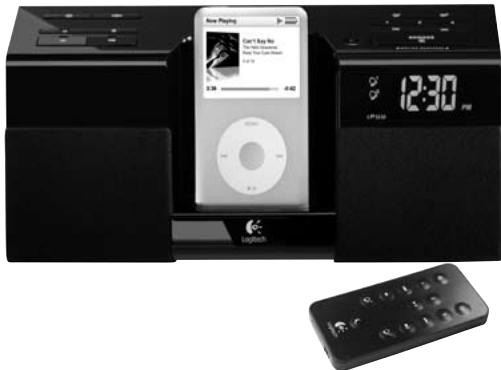
To set up your Logitech Pure-Fi Anytime™ please refer to the instructions in the Quick Start Guide included with your Logitech Pure-Fi Anytime™.
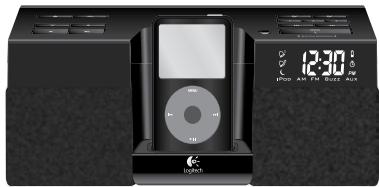
Getting to know your Logitech Pure-Fi Anytime™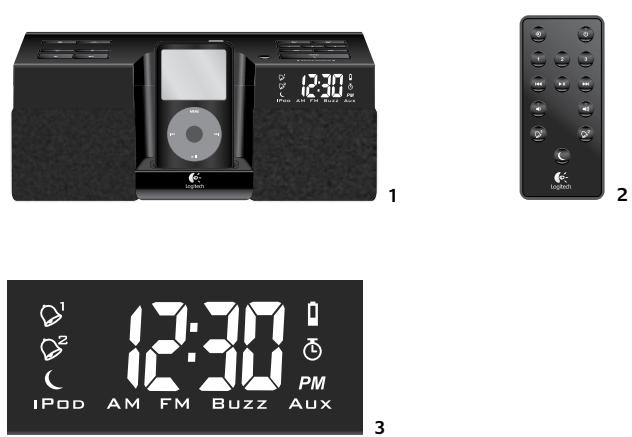
| Feature | Function |
| Power ( ⏻ ) | Toggle power |
| Source ( ⏱ ) | Switch source input |
| Volume 📋 / 📁 | Adjust volume |
| | ◀ ▶ | | Adjust radio, iPod track, clock and alarm times |
| Preset buttons ( 1 2 3 ) | Switches to an iPod playlist / radio station |
| Time Set ( ⚙️ ⚙️) | Adjust the clock time |
| Alarm 1 ( ⚙¹ ) Alarm 2 ( ⚙² ) | Toggle alarm state / adjust alarm settings |
| Snooze ( Ⓗ ) | Snooze alarm / activate sleep timer |
| Brightness ( ⚙️ ) | Adjust the display brightness |
| ▸ / ∥ | Play / Pause iPod |
| Motion sensor | Motion sensing snooze / Activates backlights |
| Remote sensor | Receive signals from remote |
| Feature | Function |
| Numerical display | Clock time / alarm time / radio station |
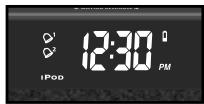
| On when alarm is enabled | |
| On when sleep timer is active | |
| On when alarm has been snoozed | |
| On when backup battery is low or dead or not installed. | |
| iPod, AM, FM, Aux | Indicates the selected source |
Listening to Your iPod™
To listen to your iPod:
- Plug your iPod / iPhone into the Universal Dock.
- Using the iPod, select the songs you want to listen to.
- Press Play on your iPod.
Logitech Pure-Fi Anytime™ will automatically turn on, switch to the iPod input and start playing.
Note
- You can navigate through your playlist directly on the iPod or by using the | ◀ ▶ | buttons.
iPod Playlist Presets
You can use the preset buttons to launch playlists on your iPod. To do so, create playlists on your iPod named '1', '2', and '3'. Pressing a preset button will launch the playlist with the same name – in shuffle mode.
Operating the Radio
Your Logitech Pure-Fi Anytime™ includes both AM and FM radios. To listen to the radio:
- Press Source (→) repeatedly until either AM or FM is active.
- Use the | ◀ ▶ | buttons to change the station.
Note
- To automatically scan for the next station, press and hold the | ◀ ▶ | buttons until you hear a beep.
Radio Presets
To save a station as a preset:
- Change to the desired station.
- Press and hold the desired preset button (1, 2, or 3) until you hear a beep.
To change to a preset station:
- Press Source (→) repeatedly until either AM or FM is active.
- Press the desired preset button (1, 2, or 3).
Using the Auxiliary Input
To use the 3.5mm auxiliary input:
- Connect your source device to the auxiliary input.
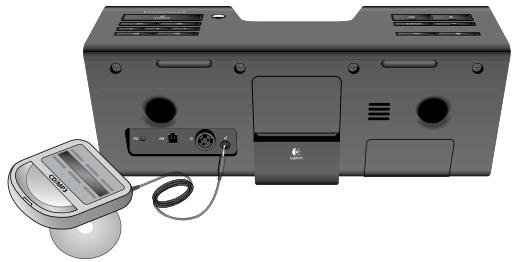
- Press Source ( → ) repeatedly until the auxiliary input is active.
- Press Play on your source device.
Note
- Depending on your source device, you may need to purchase an adapter cable.
Adjusting the Volume
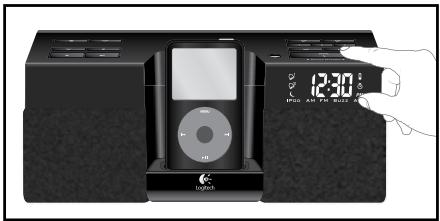
To adjust the system volume:
- Use the volume buttons (播放)
Setting the Clock
To set the current time:
- Press and hold Time Set (♦♦) until you hear a beep.
- Use the | ◀ ▶ | buttons to change the time.
- Press Time Set (♦♦) to accept the change.
Using the Alarms
Your Logitech Pure-Fi Anytime™ includes two separate alarms.
Alarm State
To enable an alarm: press alarm 1 ( 1 ) or alarm 2 ( 2 ). This will also show you the alarm time.
To disable an alarm: press alarm 1 ( 1 ) or alarm 2 ( 2 ).
Note: If an alarm is enabled, the alarm indicator for that alarm will be visible on the display.
Alarm Settings
To set the alarm settings:
- Press and hold alarm 1 ( 1 ) or alarm 2 ( 2 ) for 1 second.
- Alarm time: Press the ◀◀ ▶▶ | buttons to change the time.
- Alarm source: Press Source (→) to select the alarm source. Options are: iPod, AM, FM, and buzzer.
- Alarm volume: Use 📋 / 📋 or the volume 📋 / 📋 buttons on the remote to select the alarm volume.
Snooze
Using the snooze feature will temporarily turn off an active alarm for several minutes – allowing you to get a few more minutes of sleep. To activate the snooze feature:
- Press Snooze ( ) OR
- Wave your hand above the speaker (the motion sensor will activate snooze automatically)
Note
- To set the length of the snooze timer, hold the snooze button ( ) down until you hear a beep. Then, press the | ◀ ▶ | buttons to change the snooze length.
Resetting an Alarm
Resetting an alarm turns it off for the rest of the current day – and automatically turns it on for the following day. To reset an alarm, do either of the following:
- Press Power ( ⏻ ). This will also turn the speaker off. OR
- Press Source (→). This will keep the speakers on and switch to the selected source.
Notes
- An alarm can only be reset if it is either active or snoozed. (Pressing either alarm button if no alarm is active will toggle the alarm state rather than reset it.)
- An alarm will only sound for 60 minutes before automatically resetting itself.
Backup Battery
Your Logitech Pure-Fi Anytime™ includes a backup battery to keep your Logitech Pure-Fi Anytime™ working even during a power outage. The backup battery performs three functions while the power is out:
- It keeps the clock time correct
- It will remember your radio presets
- It will sound the alarm
The display will indicate when the battery is low or dead or not installed.
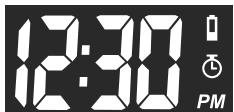
Notes
When using the backup battery:
- The alarm will always sound the buzzer, regardless of the alarm source setting.
- You cannot listen to the iPod or the radio.
- The display brightness will be at the lowest setting.
Sleep Timer
Logitech Pure-Fi Anytime™ includes a sleep timer that will automatically turn Logitech Pure-Fi Anytime™ off after a set period of time. To activate the sleep timer, press Snooze. To increment the timer, press Snooze repeatedly – until the desired time is reached. For finer adjustment of the duration, use the | ◀ ▶ | buttons. You can turn off the sleep timer in one of two ways:
- Press power ( ⏻ ). This will also turn Logitech Pure-Fi Anytime™ off.
- Repeatedly press Snooze until the display reads 'Off'. This will leave Logitech Pure-Fi Anytime™ on.
Note
- The sleep timer can only be used if no alarm is currently sounding and no snooze time is active.
Motion Sensor
Your Logitech Pure-Fi Anytime™ includes an integrated motion sensor. It provides two benefits:
Motion-activated backlights
The button backlights automatically turn on when motion is detected above the speaker, allowing you to adjust the speaker without having to turn on the lights in the room. The backlights will dim a few seconds after motion is no longer detected.
Motion-sensing snooze
Logitech Pure-Fi Anytime™ allows you to simply wave your hand above the speaker to activate the snooze feature. This prevents you from having to reach for the snooze button and accidentally knocking your iPod out of the Universal Dock.
Charging Your iPod
Your iPod battery will charge automatically when your iPod is in Logitech Pure-Fi Anytime™'s Universal Dock, and connected to A/C power. Your iPod will not charge if the Logitech Pure-Fi Anytime™ is operating on battery back up power.
Note: If your iPod is left on while the Logitech Pure-Fi Anytime™ is not connected to AC power, the iPod battery will run down.
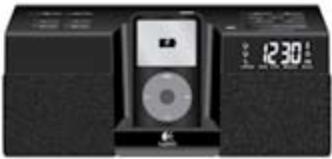
Troubleshooting
My iPod is in the Dock and playing, but I can't hear any music.
- Make sure that Logitech Pure-Fi Anytime™ is on.
- Make sure that the iPod input is selected.
- Make sure that the volume level on Logitech Pure-Fi Anytime™ is at least half way up. Use the volume up and down buttons on the speaker to adjust.
- Try turning off the Sound Check feature on your iPod.
- Download the latest version of iTunes (available at apple.com) and upgrade your iPod to the latest iPod firmware. Test your iPod with headphones or another speaker.
There isn't a Universal Dock adapter for my iPod.
- Try each of the trays included with your Logitech Pure-Fi Anytime™ and use the tray that provides the best fit.
- Use the Universal Dock adapter that was included with your iPod when you purchased it.
- If you have a 1st, 2nd, or 3rd generation iPod, you need to use the Aux input connector on the back of Logitech Pure-Fi Anytime™. (1st / 2nd generation iPods do not have a dock connector. 3rd generation iPods are not supported by the Logitech Pure-Fi Anytime™'s Universal Dock.)
The FM radio reception is poor.
Make sure that the FM antenna is fully extended. Leaving the antenna coiled up will result in poor reception.
The remote isn't working.
- Point the remote directly at Logitech Pure-Fi Anytime™.
- Make sure the remote sensor isn't being blocked.
- Try using a new battery in the remote.
The display and controls are too bright / dim.
Use the Brightness button to adjust the brightness level.
My iPod screen says "OK to disconnect" or "Accessory attached."
Depending on your iPod model, these messages may appear when playing iPod playlist presets. Once the music has started playing, the iPod screen will return to normal.
For the most up-to-date troubleshooting information, visit www.logitech.com
Welcome
Note
French
Troubleshooting
Note
www.logitech.com/support

| Location / Pays | Hotline Technical Help / Numéro Aide Technique |
| United States | +1 646 269 3457 |
| Argentina | 0800 555 3284 |
| Brazil | 0800 891 4173 |
| Canada | +1 416 207 2782 |
| Chile | 1230 020 5484 |
| Latin America | +55 11 3444 6761 |
| Mexico | 001 800 578 9619 |
© 2008 Logitech. All rights reserved. Logitech, the Logitech logo, and other Logitech marks are owned by Logitech and may be registered. All other trademarks are the property of their respective owners.
'Made for iPod' means that an electronic accessory has been designed to connect specifically to iPod and has been certified by the developer to meet Apple performance standards. 'Made for iPhone' means that an electronic accessory has been designed to connect specifically to iPhone and has been certified by the developer to meet Apple performance standards. Apple is not responsible for the operation of this device or its compliance with safety and regulatory standards.
iPod and iPhone are trademarks of Apple, Inc., registered in the U.S. and other countries.
iPod/iPhone not included. iPod/iPhone sold separately. iPod/iPhone not included.
- LISTENING TO YOUR IPOD™
- TO LISTEN TO YOUR IPOD
- NOTE
- IPOD PLAYLIST PRESETS
- OPERATING THE RADIO
- RADIO PRESETS
- TO CHANGE TO A PRESET STATION
- USING THE AUXILIARY INPUT
- TO USE THE 3.5MM AUXILIARY INPUT
- ADJUSTING THE VOLUME
- SETTING THE CLOCK
- TO SET THE CURRENT TIME
- USING THE ALARMS
- ALARM STATE
- ALARM SETTINGS
- SNOOZE
- RESETTING AN ALARM
- NOTES
- BACKUP BATTERY
- SLEEP TIMER
- MOTION SENSOR
- MOTION-ACTIVATED BACKLIGHTS
- MOTION-SENSING SNOOZE
- CHARGING YOUR IPOD
- TROUBLESHOOTING
- MY IPOD IS IN THE DOCK AND PLAYING, BUT I CAN'T HEAR ANY MUSIC
- THERE ISN'T A UNIVERSAL DOCK ADAPTER FOR MY IPOD
- THE FM RADIO RECEPTION IS POOR
- THE REMOTE ISN'T WORKING
- THE DISPLAY AND CONTROLS ARE TOO BRIGHT / DIM
- MY IPOD SCREEN SAYS "OK TO DISCONNECT" OR "ACCESSORY ATTACHED
- WELCOME
- WWW.LOGITECH.COM/SUPPORT
Brand : LOGITECH
Model : PURE-FI ANYTIME
Category : Bluetooth speaker