
SDJ 100 A1 - DJ Equipment SILVERCREST - Free user manual and instructions
Find the device manual for free SDJ 100 A1 SILVERCREST in PDF.


| Brand | SilverCrest |
| Model | SDJ 100 A1 |
| Product type | USB mixing console (DJ controller) |
| Dimensions (W x H x D) | approx. 48.5 x 5.5 x 21 cm |
| Weight | approx. 1,300 g |
| Power supply | 5 V (via USB) |
| Power consumption | max. 1 W |
| USB cable length | approx. 150 cm |
| Included software | Cross DJ |
| Compatible operating system | Windows XP/Vista/7 |
| Required processor | Intel Core 2 Duo 1.8 GHz or higher |
| Required RAM | 1 GB minimum |
| Required USB port | USB 1.1/2.0/3.0 |
| Number of players | 2 |
| Mixing functions | Crossfader, equalizer (treble/bass), speed control (PITCH) |
| Built-in effects | Yes (selectable and adjustable intensity) |
| CUE and HOT points | 1 CUE point and 2 HOT points per player |
| Maintenance | Clean with a clean, dry cloth |
| Safety | Protect from moisture, heat sources, shocks; do not open the housing |
| Reparability | Contact an authorized service center |
| Warranty | 3 years |
Frequently Asked Questions - SDJ 100 A1 SILVERCREST
User questions about SDJ 100 A1 SILVERCREST
0 question about this device. Answer the ones you know or ask your own.
Ask a new question about this device
Download the instructions for your DJ Equipment in PDF format for free! Find your manual SDJ 100 A1 - SILVERCREST and take your electronic device back in hand. On this page are published all the documents necessary for the use of your device. SDJ 100 A1 by SILVERCREST.
USER MANUAL SDJ 100 A1 SILVERCREST
natural_image
Black and white industrial machine with dual dials and control knobs (no visible text or symbols)USB-DJ-CONTROLLER SDJ 100 A1
TARGA GMBH
Large Wondo 41
13.34294 5000
Last Information Update
06/2012-Date: No: 50) 103 At 06/2012-
DE AT CH
USB-DJ-CONTROLLER
Deutsch 2
Français....19
Italiano 36
Nederlands....53
English....70
Inhalt
Einleitung 3
Cher client, chère cliente,
II software Cross DJ....43
II software Cross DJ
De software Cross DJ
Supplied items....71
Technical data 72
System requirements....72
Safety instructions....72
Operating environment....72
Cables 73
Children and persons with disabilities....74
Copyright....74
Back up 74
Control elements 75
Prior to use....77
Installing the software 77
The Cross DJ software....77
Connecting the USB Mixer 78
Set-up 78
Players....78
Loading a track....78
Track playback....79
Adjusting the player volume 79
Adjusting the master volume....79
Mixing tracks....79
Scratch and search functions....79
Varying the speed 80
Automatic track synchronisation....80
High frequencies....80
Low frequencies....80
Reversing the playback direction 81
Using a CUE point....81
Using the HOT points....81
Effects 82
Servicing/cleaning 83
Environmental and disposal information....83
Conformity information....83
Troubleshooting 84
Warranty and servicing information 85
Introduction
Thank you for purchasing the SilverCrest SDJ 100 A1 USB Mixer. Before using this device for the first time please read the following instructions carefully and take note of the safety warnings, even if you are familiar with the use of electronic devices. Please keep this manual safe for future reference. If you sell or pass on this device, always include this user guide.
Intended use
The SilverCrest SDJ 100 A1 USB Mixer allows you to mix and scratch digital music on a computer. You can add your own style to your favourite music or create your own mixes at parties.
This is an information technology device. It is only designed for private use and not for industrial or commercial purposes. Furthermore, the device may not be used outdoors or in tropical climates. This device fulfills all relevant norms and standards related to CE conformity. In the event of any modification to the device that was not approved by the manufacturer, compliance with these standards is no longer guaranteed. Only use accessories specified by the manufacturer.
Please observe the regulations and laws in the country of use.
Supplied items
Please check that all the following items are contained in the packaging:
- USB Mixer SilverCrest SDJ 100 A1
- USB cable
- Software CD
- This User Manual
If parts are missing or damaged, please call our hotline. The telephone number can be found in the last chapter: "Warranty and servicing information".
Technical data
Dimensions (WxHxD) approx. 48.5 x 5.5 x 21 cm
Weight approx. 1300 g
USB cable length approx. 150 cm
Input voltage 5 V
Power consumption 1W max.
System requirements
Computer PC or notebook with sound output
Processor
Intel ^® Core 2 Duo with 1.8 GHz or higher
Operating system
Windows
^® XP/Vista or Windows ^® 7
RAM 1 GB or more
Connection USB 1.1, USB 2.0 or USB 3.0 interface
Safety instructions
Before using this device for the first time please read the following instructions carefully and take note of the safety warnings, even if you are familiar with the use of electronic devices. Please keep this manual safe for future reference. If you sell the device or pass it on, always include this manual.

This symbol indicates important information for safe operation of the device and the safety of the user.

This symbol indicates other important information on the topic.
Operating environment
Place the device on a stable, even surface and do not place any heavy objects on the device. The device is not designed for use in environments with a high temperature or humidity (e.g. bathrooms) or in extremely dusty conditions. Operating temperatures and operating air humidity: 5 °C to 35 °C, max. 75 % rel. air humidity.

Ensure that
- air can always circulate freely (do not place the device on shelves, on a thick carpet or a bed or anywhere where ventilation slots are covered, and always leave at least 10 cm clearance on all sides):
• no direct heat sources (e.g. heating) can affect the device;
• no direct sunlight or bright artificial light reaches the device;
- contact with sprayed and dripping water and corrosive liquids is prevented and the device is never operated near water; in particular it should never be immersed (do not place any objects filled with liquids such as vases or drinks on or near the device);
• the device is not in the immediate vicinity of magnetic fields (e.g. speakers);
• no fire sources (e.g. burning candles) are placed on or near the device;
• no foreign objects penetrate the device;
- the device is not subjected to any extreme temperature fluctuations, as this may result in moisture caused by condensation and therefore a short circuit;
• the device is never subjected to excessive shocks and vibrations.

Cables
Always handle the cables by the plug and do not pull on the cables themselves. Never place the device, any furniture or other heavy objects on the cable and take care that the cable is not kinked, especially near the plug and connection sockets. Never make knots in any of the cables or tie them together with other cables. Ensure that all cables are placed so that no one can trip over them and they do not cause an obstruction.

Children and persons with disabilities
Electrical devices do not belong in the hands of children. Persons with disabilities should also only use electrical devices appropriately. Never allow children or persons with disabilities to use electrical devices unsupervised. They may not recognise potential risks. Small parts can be fatal if swallowed. Also always keep plastic packaging out of reach, as it poses a suffocation risk.
Copyright
All information contained in this User Manual is subject to copyright and is provided for information purposes only. It is only permitted to copy or duplicate data and information with the express and written consent of the author. This also includes commercial use of the content and data. The text and illustrations are based on the state of the art at the time of printing.
Back up
Please note: Please ensure that you back up your data after every update to external storage media. Damage claims for lost data or for consequential losses as a result of lost data are excluded.
Control elements
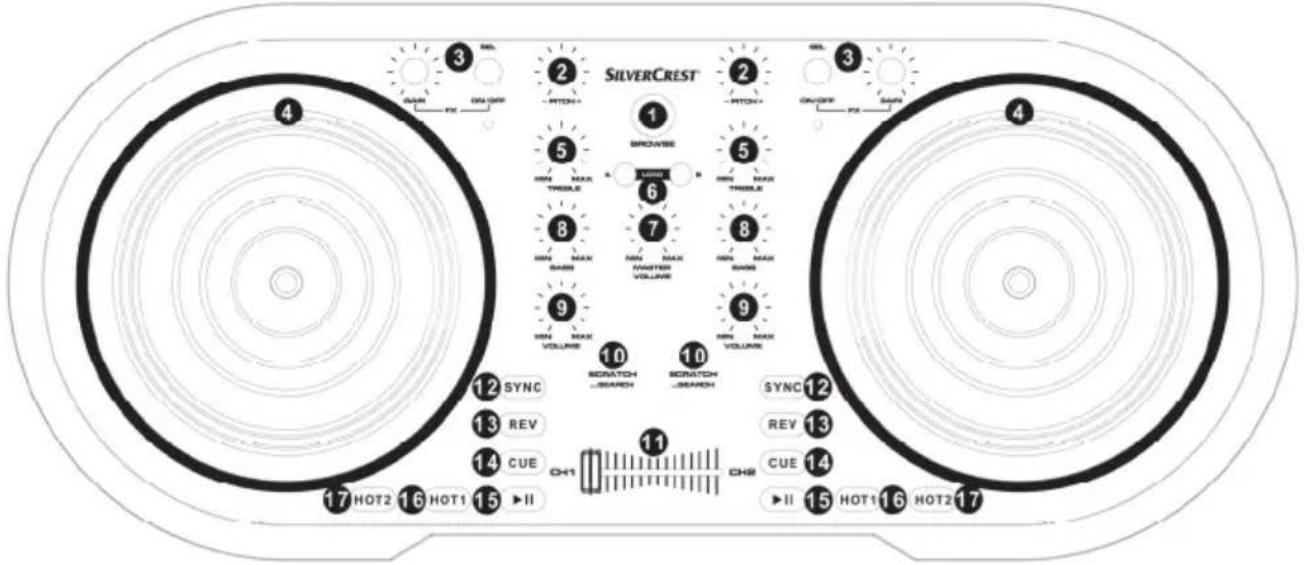
1 BROWSE Use this control to scroll through the tracks loaded in the software.
2 PITCH Turn this control to vary the track speed. You can set the minimum and maximum speed here in the software.
3 FX Select the required effect by turning the SEL ON/OFF control. The selected effect is shown here in the software. To activate the selected effect, press the SEL ON/OFF control. Press the SEL ON/OFF control again to deactivate the effect. You can vary the intensity of the effect by turning the GAIN control.
4 JOG WHEEL With the JOG WHEELs you can "scratch" the track or fast forward to a specific place in the track. You can select the required function with the SCRATCH/SEARCH [10] button.
5 TREBLE This control serves for damping or amplifying high frequencies.
6 LOAD Press the A button to load the selected track in player A or the B button to load the selected track in player B. Please note that the track is only loaded if you have not already loaded a track into the respective player and if the player is paused.
7 MASTER VOLUME Use this control to adjust the volume for both players.
8 BASS This control serves for damping or amplifying low frequencies (bass).
9 VOLUME This control only varies the volume of the required player.
10 SCRATCH/SEARCH Press this button to set the JOG WHEEL [4] to SCRATCH mode or to SEARCH mode.
| 11 | CROSSFADER | To seamlessly crossfade between both players, push the CROSSFADER from one player to the other. |
| 12 | SYNC | Press this button to automatically synchronise the track with the beat of the other track. |
| 13 | REV | Press this button to reverse the playback direction (forwards/backwards). |
| 14 | CUE | Press this button to set a CUE point at a specific point of a track. |
| 15 | ▶II | Play or pause the track. |
| 16 | HOT1 | Press this button to mark the current position of the track. If a mark has been set, this button lights up. You can jump to the mark by pressing the button again during playback. Playback of the track is then started from this mark. |
| 17 | HOT2 | Press this button to mark the current position of the track. If a mark has been set, this button lights up. You can jump to the mark by pressing the button again during playback. Playback of the track is then started from this mark. |
Prior to use
Installing the software

First connect the device to the computer before installing the necessary software. Important files can be overwritten and altered during installation of programs or drivers. You should back up the contents of your hard drive before installing the program so that you can still access your original files if there is a problem with the installation.
- Insert the enclosed CD ROM into the drive and the installation menu opens automatically.
• Install the software (Cross DJ) according to the directions on the screen. - If the device has been correctly connected to the computer, the window for entering the product key opens:
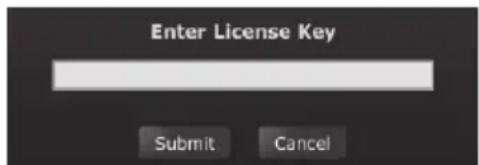
- Now enter the product key shown on the CD case.
- Confirm the entry by clicking "Submit".

If the setup wizard does not automatically start when the CD-ROM is inserted, then the auto run function of your CD drive is deactivated. Then proceed as follows:
- Click on the 'Start' button to open the Start Menu.
- Click on the option 'Run...'
- Insert the drive letter of your CD-ROM drive, followed by a colon and the program name 'Autorun' (e.g. D:autorun).
- Click on the 'OK' button to confirm the entry.
The Cross DJ software
A detailed description of the software functions such as the recording function is given on the enclosed CD-ROM. Please note that the "Preview" function is not supported by the SilverCrest SDJ 100 A1 USB Mixer.
Connecting the USB Mixer
Connect the USB Mixer to the computer. To this purpose insert the small plug of the supplied USB cable into the USB port on the rear of the USB Mixer. Insert the wide plug of the USB cable into a free USB port of your computer.
Set-up
When you have connected the USB Mixer to your computer and have installed the Cross DJ software, the device is ready for use. Start the supplied software to create your mixes. A detailed User Manual for the use of the software is provided on the enclosed CD-ROM.
Players
With the USB Mixer you can control two players. The USB Mixer is designed so that the left-hand controls are used to control the left-hand player (player A) and the right-hand controls for controlling the right-hand player (player B).
The MASTER VOLUME control [7] located in the centre controls the volume of both players (players A and B). Use the CROSSFADER [11] to seamlessly crossfade between both players. The BROWSE control [1] is used to select a track. For more information, read the following section.
Loading a track
You can highlight a track in the software with the BROWSE control [1]. To this purpose turn the control either clockwise or anti-clockwise. To load the highlighted track into a player, use the LOAD buttons A or B [6]. Press the LOAD A button [6] to load the highlighted track into player A. To load the highlighted track into player B, press the LOAD B button [6].

Please note that a track can only be loaded into a player when the player is paused and if you have not previously loaded a track into the player.

When a track is loaded into the player for the first time, it is analysed. The track speed and the full track information is displayed after this analysis.
Track playback
Press the ▶II button [15] of the respective player to start playback of the loaded track. The ▶II button [15] lights up green during playback. To pause the track, press the ▶II button [15] again.
Adjusting the player volume
You can adjust the player volume with the VOLUME control [9]. To this purpose use the VOLUME control [9] of the respective player.

You can use this control, for example, to adjust the volume of two tracks to the same level during mixing.
Adjusting the master volume
You can adjust the master volume with the MASTER VOLUME control [7]. The volume of both players is then adjusted accordingly.
Mixing tracks
The CROSSFADER [11] permits crossfading of the tracks. If you move the CROSSFADER [11] to the far left, only the track in player A is audible. If you only wish to listen to the track in player B, move the CROSSFADER [11] to the far right. Set the CROSSFADER [11] to the centre position to listen to both tracks (players A and B) at the same time.

If, for example, you want to crossfade from player A to player B, move the CROSSFADER [11] from the left to the right.
Scratch and search functions
You can use the JOG WHEEL [4] to scratch the track or search for a position in the track. You can also adjust the speed of a track. Press the SCRATCH/SEARCH button [10] to switch from SCRATCH to SEARCH mode. If the SCRATCH/SEARCH button [10] lights up, SCRATCH mode is activated. If the SCRATCH/SEARCH button [10] does not light up, SEARCH mode is activated.
SCRATCH mode (button lights up):
In this mode the track is scratched when the JOG WHEEL [4] is moved. Please note that when you release the JOG WHEEL [4], the track continues to run normally or is paused. If the JOG WHEEL [4] runs on, the track remains unaffected.

SCRATCH mode is available when the player is running or paused.
SEARCH mode (button does not light up):
If the player is paused, a position in the track can be searched for by moving the JOG WHEEL [4]. If the player is playing a track, the speed can be varied by moving the JOG WHEEL [4]. The track is played at the normal speed once more when the JOG WHEEL [4] is released.

The SEARCH mode is only available when a track is paused.
Varying the speed
Use the PITCH control [2] to vary the track speed. You can set the minimum and maximum possible speed here in the software. Set the PITCH control [2] to the centre position until it engages to play the track at the normal speed. Also refer to the software documentation on the enclosed CD.
Automatic track synchronisation
Use the SYNC button [12] to automatically synchronise the beat of the track with the beat of the other track. When you press the SYNC button [12], it lights up briefly. Both tracks then run synchronously and can be crossfaded without interrupting the rhythm.
High frequencies
You can adjust the high frequencies with the TREBLE control [5]. Turn the TREBLE control [5] anticlockwise to dampen the high frequencies. To amplify the high frequencies, turn the TREBLE control [5] clockwise. Set the TREBLE control [5] to the centre position until it engages to ensure an unchanged frequency response.
Low frequencies
You can adjust the low frequencies (bass) with the BASS control [8]. Turn the BASS control [8] anticlockwise to dampen the low frequencies. To amplify the low frequencies, turn the BASS control [8]
clockwise. Set the BASS control [8] to the centre position until it engages to ensure an unchanged frequency response.
Reversing the playback direction
Press the REV button [13] to reverse the playback direction. You can therefore use this function to play a track backwards. To play the track forwards again, press the REV button [13] again. When the track is playing backwards, the REV button [13] lights up red.
Using a CUE point
First set a CUE point at the point in the track from which playback should be started. To this purpose pause playback near the position at which you want to set the CUE point by pressing the ▶II button [15]. Now use the JOG WHEEL [4] to find the exact position on the track.

Ensure that the JOG WHEEL [4] is in SEARCH mode during this function. For further information for setting the SEARCH mode, turn to page 79 in the "Scratch and search functions" section.
The CUE button [14] now flashes and shows that a new CUE point can be set. Now press the CUE button [14] to set the CUE point to the current track position. The CUE button [14] stops flashing and the CUE point was set.
If you press the CUE button [14] during playback, playback is stopped immediately and the player jumps to the CUE point. If no CUE point has been set, the player jumps to the beginning of the track. If you hold down the CUE button [14], the track is played from the CUE point. When you release the CUE button [14], playback is stopped and the player jumps back to the CUE point.
Using the HOT points
You can set two HOT points for each player. To this purpose use the HOT1 button [16] and the HOT2 button [17].
Pause playback near the position at which you want to set the HOT point by pressing the ▶II button [15]. Now use the JOG WHEEL [4] to find the exact position on the track.

Ensure that the JOG WHEEL [4] is in SEARCH mode during this function. For further information for setting the SEARCH mode, turn to page 79 in the "Scratch and search functions" section.
Now press the HOT1 button [16] to set the HOT1 point at the current position of the track or the HOT2 button [17] to set the HOT2 point at the current position of the track. The HOT1 button [16] or HOT2 button [17] now lights up and shows that a HOT point has been set.
If you press the HOT1 button [16] or the HOT2 button [17] during playback, the player jumps to the HOT point and continues playback from this point.
When playback is paused, briefly press the HOT1 button [16] or the HOT2 button [17] to jump to the HOT point. If you press the HOT1 button [16] or the HOT2 button [17] for longer than two seconds (the track is played during this time), the HOT point is deleted and the player jumps to the position of the deleted HOT point. Playback is then paused.

Press the HOT1 button [16] or the HOT2 button [17] several times in quick succession to create a stuttering effect.

The created HOT points are permanently saved. If you load a track into the player, the previously created HOT points are immediately available.
Effects
A wide range of effects are at your disposal that you can integrate into your tracks. Select the desired effect by turning the FX SEL ON/OFF control [3]. The currently selected effect is displayed in the software. Press the FX SEL ON/OFF control [3] to activate the effect. If an effect has been activated, the red LED below the FX SEL ON/OFF control [3] lights up. You can vary the intensity of the effect by turning the FX GAIN control [3]. Press the FX SEL ON/OFF control [3] again to deactivate the effect. Also refer to the software documentation on the enclosed CD.
Servicing/cleaning
Maintenance work is necessary when the device has been damaged in any way, for example if the housing was damaged, if liquid or objects have penetrated the device, if the product has been exposed to rain or moisture or if it does not work correctly or has been dropped. If smoke is produced, or there are any unusual sounds or smells, disconnect the device from your computer immediately. In these cases the device should not be used until it has been inspected by authorised service personnel. Only have the device serviced by qualified personnel. Never open the housing of the device. Only use a clean, dry cloth for cleaning and never use any corrosive liquids. Never try to open the housing of the device as this would void your warranty.
Environmental and disposal information
When this symbol appears on a product, it indicates that the product is subject to the European Directive 2002/96/EC. All electrical and electronic devices must be disposed of separately from household waste at designated disposal points. The correct disposal of old devices in this manner will prevent environmental pollution and human health hazards. For further information about proper disposal contact your local authorities, waste disposal office or the shop where you bought the device.
Dispose of the packaging in an environmentally compatible manner. Cardboard can be put out for municipal paper collections or brought to public collection points for recycling. Films and plastic used for packaging the device are collected by your local disposal services and disposed of in an environmentally compatible manner.
Conformity information

This device conforms with the basic requirements and other required provisions of the EMC Directive 2004/108/EC and RoHS II Directive 2011/65/EU. The conformity declaration is to be found at the end of this instruction manual.
Troubleshooting
The USB Mixer is connected but is not recognised by the operating system.
- Check the USB connection.
- Are you using a supported operating system?
A track is played but there is no audio output.
- Check the MASTER VOLUME control [7] and turn it clockwise to increase the master volume.
- Check the VOLUME control [9] of the respective player and turn it clockwise to increase the player volume.
- Check the position of the CROSSFADER [11] and if necessary move it to the centre position to hear both players.
A selected track is not loaded into the player.
- Check whether the player is playing a track. Then pause playback before loading a new track.
Warranty and servicing information
Warranty of Targa GmbH
Dear Customer,
This device is sold with three years warranty from the date of purchase. In the event of product defects, you have legal rights towards the seller. These statutory rights are not restricted by our warranty as described below.
Warranty conditions
The warranty period commences upon the date of purchase. Please keep the original receipt in a safe place as it is required as proof of purchase. If any material or manufacturing faults occur within three years of purchase of this product, we will repair or replace the product free of charge as we deem appropriate.
Warranty period and legal warranty rights
The warranty period is not extended in the event of a warranty claim. This also applies to replaced and repaired parts. Any damage or defects discovered upon purchase must be reported immediately when the product has been unpacked. Any repairs required after the warranty period will be subject to charge.
Scope of warranty
The device was carefully manufactured in compliance with stringent quality guidelines and subjected to thorough testing before it left the works. The warranty applies to material and manufacturing faults. This warranty does not cover product components which are subject to normal wear and which can therefore be regarded as wearing parts, or damage to fragile components such as switches, rechargeable batteries or components made of glass. This warranty is void if the product is damaged, incorrectly used or serviced. To ensure correct use of the product, always comply fully with all instructions contained in the user manual. The warnings and recommendations in the user manual regarding correct and incorrect use and handling of the product must always be observed and complied with. The product is solely designed for private use and is not suitable for commercial applications. The warranty is rendered void in the event of incorrect handling and misuse, if it is subjected to force, and also if any person other than our authorised service technicians interfere with the device. No new warranty period commences if the product is repaired or replaced.
Submitting warranty claims
To ensure speedy handling of your complaint, please note the following:
Before using your product for the first time, please read the enclosed documentation or online help carefully. Should any problems arise which cannot be solved in this way, please call our hotline.
- Always have your receipt, the product article number as well as the serial number (if available) to hand as proof of purchase.
- If it is not possible to solve the problem on the phone, our hotline support staff will initiate further servicing procedures depending on the fault.

Service

Phone: 0207 - 36 50 744
E-Mail: service.GB@targa-online.com

Phone: 01 - 242 15 83
E-Mail: service.IE@targa-online.com

Phone: 800 - 62 175
E-Mail: service.MT@targa-online.com

Phone: 800 - 92 496
E-Mail: service.CY@targa-online.com
IAN: 76095

Manufacturer
Please note that the following address is not a service address. First contact the service point stated above.
TARGA
GmbH
Postfach 22 44
D-59482 Soest
www.targa.de
CE
EU - Declaration of Conformity
Address:
Targa GmbH
Lange Wende 41
59494 Soest, Germany
Brand:
SilverCrest
Product:
USB Mixer
Model:
SDJ 100 A1
Identification number:
IAN 76095
The product complies with the requirements of the following European directives:
2004/108/EC
Electromagnetic Compatibility
2011/65/EU
Restriction of the use of certain hazardous substances in electrical and electronic equipment
Compliance was proved by the application of the following standards:
EMC:
EN 55022: 2010
EN 55024: 2010
EN 61000-3-2:2006 + A1:2009 + A2:2009
EN 61000-3-3:2008
Rohs:
EN 62321 : 2009
Year of CE marking:
2012
Soest, 19th of July 2012
Matthias Klauke, Managing Director
- USB-DJ-CONTROLLER SDJ 100 A1
- Inhalt
- Einleitung 3
- II software Cross DJ
- De software Cross DJ
- Supplied items....71
- Technical data 72
- Safety instructions....72
- Control elements 75
- Prior to use....77
- Set-up 78
- Introduction
- Intended use
- Supplied items
- Technical data
- System requirements
- Safety instructions
- Operating environment
- Ensure that
- Cables
- Children and persons with disabilities
- Copyright
- Back up
- Control elements
- Prior to use
- Installing the software
- The Cross DJ software
- Connecting the USB Mixer
- Set-up
- Players
- Loading a track
- Track playback
- Adjusting the player volume
- Adjusting the master volume
- Mixing tracks
- Scratch and search functions
- SCRATCH mode (button lights up):
- SEARCH mode (button does not light up):
- Varying the speed
- Automatic track synchronisation
- High frequencies
- Low frequencies
- Reversing the playback direction
- Using a CUE point
- Using the HOT points
- Effects
- Servicing/cleaning
- Environmental and disposal information
- Conformity information
- Troubleshooting
- Warranty and servicing information
- Warranty of Targa GmbH
- Warranty conditions
- Warranty period and legal warranty rights
- Scope of warranty
- Submitting warranty claims
- Service
- Manufacturer
- CE
- EU - Declaration of Conformity
Brand : SILVERCREST
Model : SDJ 100 A1
Category : DJ Equipment