
Cell Pro - Surveillance Camera IMOU - Free user manual and instructions
Find the device manual for free Cell Pro IMOU in PDF.


| Product Type | Wireless surveillance camera |
| Brand | Imou |
| Model | Cell Pro |
| Use | Indoor and outdoor (IP65) |
| Protection rating | IP65 |
| Night vision | Yes (photosensitive sensor) |
| Motion detection | Yes (PIR detector) |
| Two-way audio | Yes (built-in microphone and speaker) |
| Connectivity | Wi-Fi 2.4 GHz |
| Power supply | Rechargeable battery + USB power adapter (5V) |
| Number of cameras per hub | Up to 6 |
| Operating temperature | -20°C to 50°C |
| Installation | Wall or ceiling mount (bracket included) |
| Package contents | Camera, guide, adapter, bracket, installation template |
| Compatibility | IMOU app (iOS/Android) |
| Reset | Hold SYNC button for 8 seconds |
| Maintenance | Clean the lens with a soft cloth |
| Customer service | service.global@imoulife.com |
| Spare parts | Contact customer service |
Frequently Asked Questions - Cell Pro IMOU
User questions about Cell Pro IMOU
0 question about this device. Answer the ones you know or ask your own.
Ask a new question about this device
Download the instructions for your Surveillance Camera in PDF format for free! Find your manual Cell Pro - IMOU and take your electronic device back in hand. On this page are published all the documents necessary for the use of your device. Cell Pro by IMOU.
USER MANUAL Cell Pro IMOU
natural_image
Line drawing of a vintage remote control unit with two circular buttons and a brand logo (imov), no text or symbols present.www.imoulife.com
Welcome
Thank you for choosing IMOU.
We are devoted to providing you easy smart home products. If you have problems using the product, please contact our service team before returning your product.
Our service mail: service.global@imoulife.com
Frequently asked questions can be found at imoulife.com/support/help

natural_image
Illustration of a person sitting on a sofa with a coffee table and mug (no text or symbols)Package content
EN
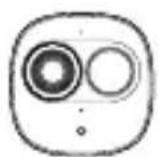
Camera ×1

Quick Start Guide ×1

Power Adapter ×1

Bracket ×1
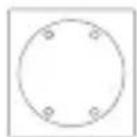
Positioning Map ×1
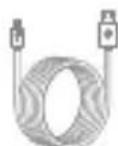
Power Cable ×1
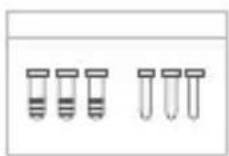
Screw Package ×1
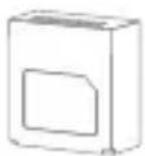
Battery ×1

Hub ×1
Camera introduction
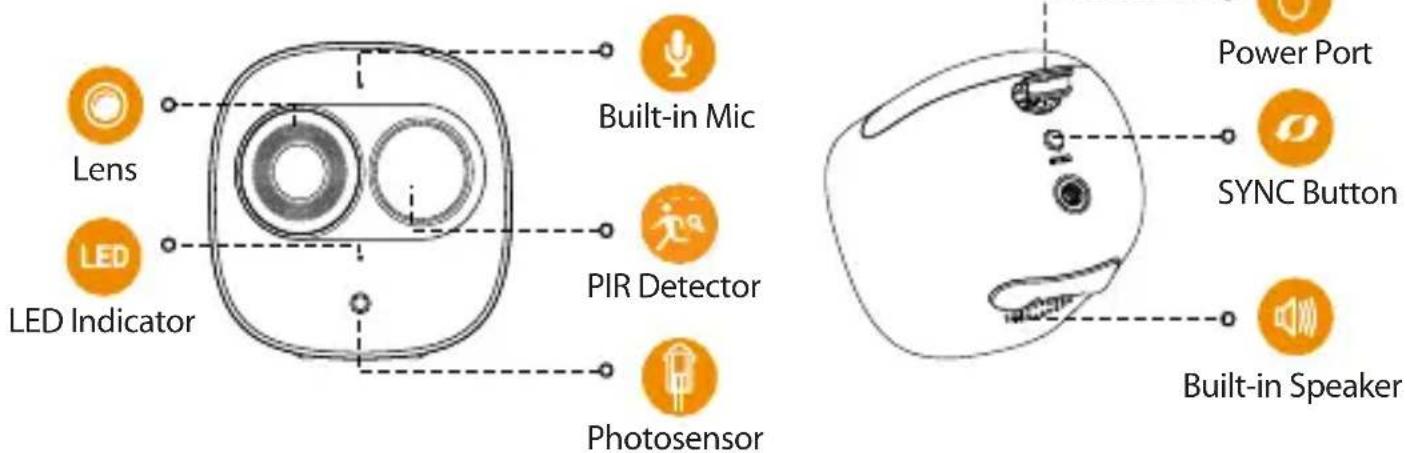
Note: Press the SYNC button to pair with the base station.
Press and hold the SYNC button for 8s to reset the camera.
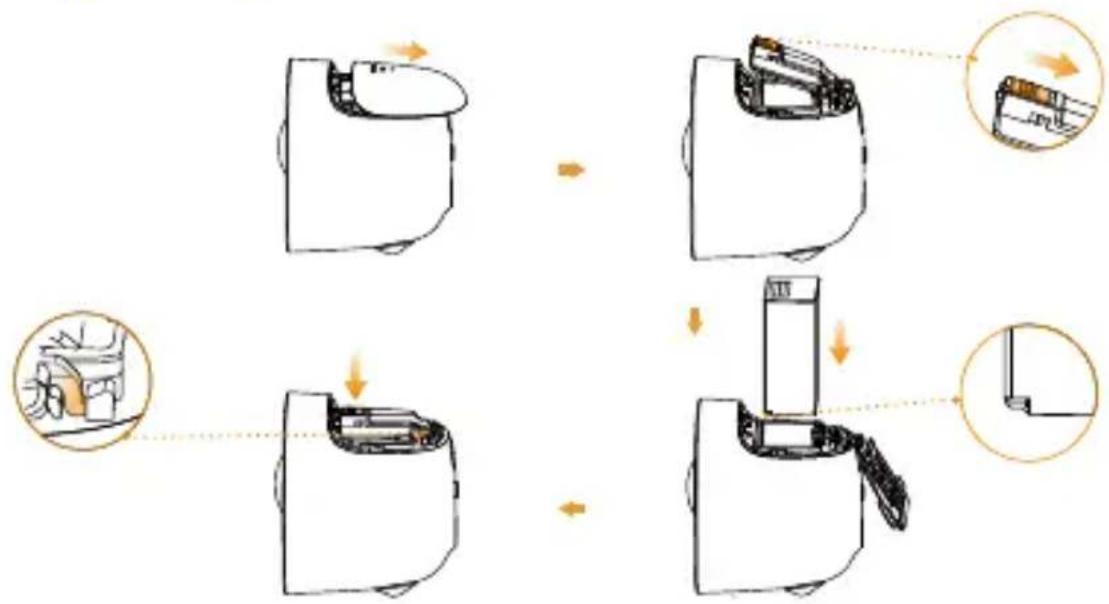
Installing Battery
EN
flowchart
graph TD
    A["Receipt"] --> B["Device 1"]
    B --> C["Device 2"]
    C --> D["Device 3"]
    D --> E["Device 4"]
    E --> F["Final Shipment"]
The pattern of the LED indicator is included in the following table.
| LED Indicator Status | Device Status |
| off | Sleeping modeRun out of battery |
| Green light on | Alarm is triggeredInstructed to wake |
| Green light flashing | Reconnecting Wi-Fi |
| Green light quick flashing | Waiting for pairing with the base station |
| Green light stay on for 10 s, then off | Pairing succeeded |
| Red light stay on for 10 s, then off Pairing timeout | |
| Red light stay on for 1 s, then off | Reset completed |
Hub
EN
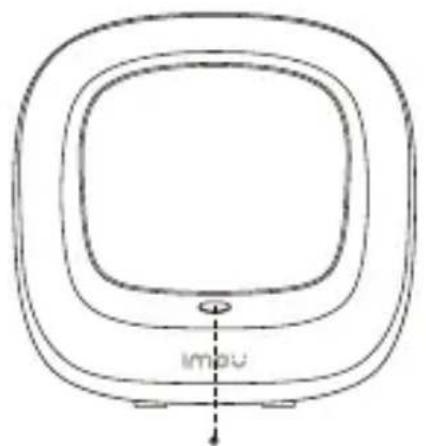
SYNC Button
natural_image
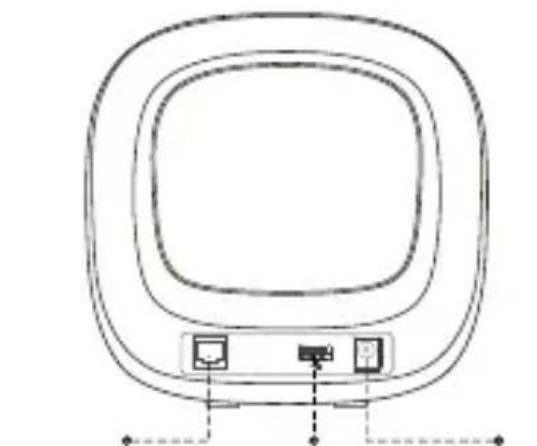
Line drawing of a rectangular TV set with three small icons at the base (no text or symbols)Ethernet Port
USB Port Power Port
1


Download on the App Store

GET IT ON
Google play

Windows

Tips
EN

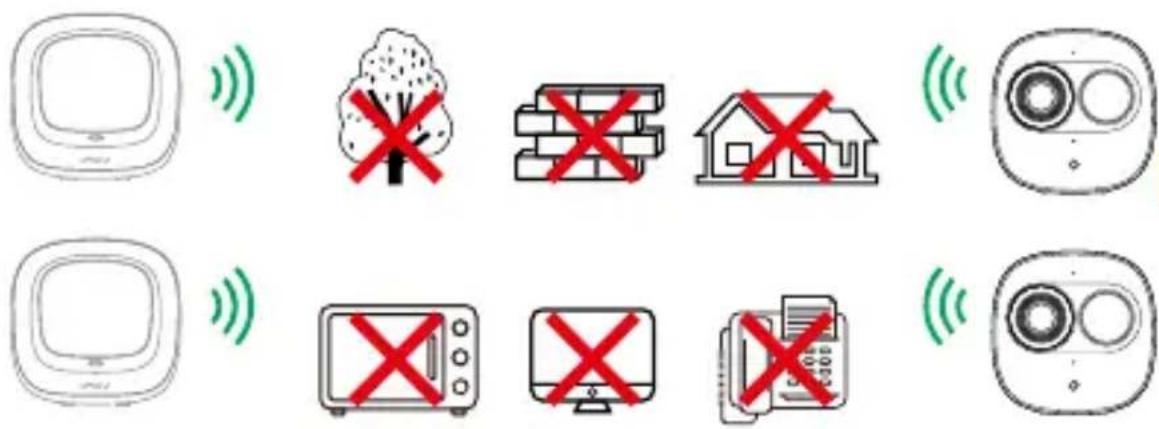
To ensure the best possible wireless performance, please make sure there are no obstacles and electromagnetic interference between the camera and hub.


flowchart
graph TD
    A["IMov"] --> B["QR Code"]
    B --> C["Setup"]
    C --> D["Next"]
    D --> E["Setup"]
    E --> F["Done"]
    C --> G["WIFI Name"]
    C --> H["Password"]
3 Pairing with the Hub
EN
natural_image
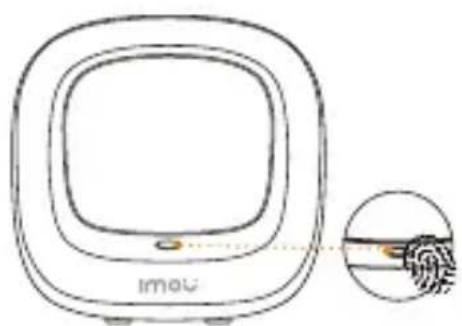
Diagram of a square device with a circular top and a magnified inset showing a finger contact (no text or symbols)1 Press the SYNC button, and then the indicator on the base station flashes with white light.

natural_image
Simple line drawing of a biological cell with internal structures and a magnified inset showing a magnified view (no text or labels)2 Press the SYNC button, and then the indicator on the camera flashes with green light.

natural_image
Line drawing of a microwave oven and its control panel (no text or symbols)3 The system indicator on the Hub stays on with white light for 10 s, and then off.
● The indicator on the camera stays on with green light for 10 s, and then off.
Note: You can pair six cameras at most with one Hub, and pair one camera at a time. Keep the distance of the Hub and the camera within 30 cm (12 inches) during pairing.
Installing Camera
EN

| Problem Solution | |
| Cannot set up camera | · Ensure your mobile device and the camera are within range of your Wi-Fi router.· Ensure the LED indicator on the camera is flashing green before beginning setup. |
| The APP says "Failed to configure device network" | · Reset your Camera and connect it again.· Some cameras only support 2.4GHz, while some routers have dual band, 2.4G/5G. Make sure you are connecting 2.4GHz only. |
| The app says "Failed to bind" | The camera is already connected to Wi-Fi, but the router is:· Not connected to Internet· Poor network status· The Wi-Fi signal is not stable due to obstacles or electronic interference |
| No picture / signal | · Ensure the LED indicator on the camera is flashing steady green. See 'LED Status' section for details if otherwise.· Ensure the camera is properly connected to power using the included USB power adapter.· Try repositioning the camera, router, or both to improve signal strength. |
| Picture is not clear | · Check the camera lens for dirt, dust, spider webs. Clean the lens with a soft, clean cloth.· Remove the vinyl cover on the camera lens. |
| No audio | · Ensure audio function on camera is turned on.· Ensure audio is turned up on viewing device. |
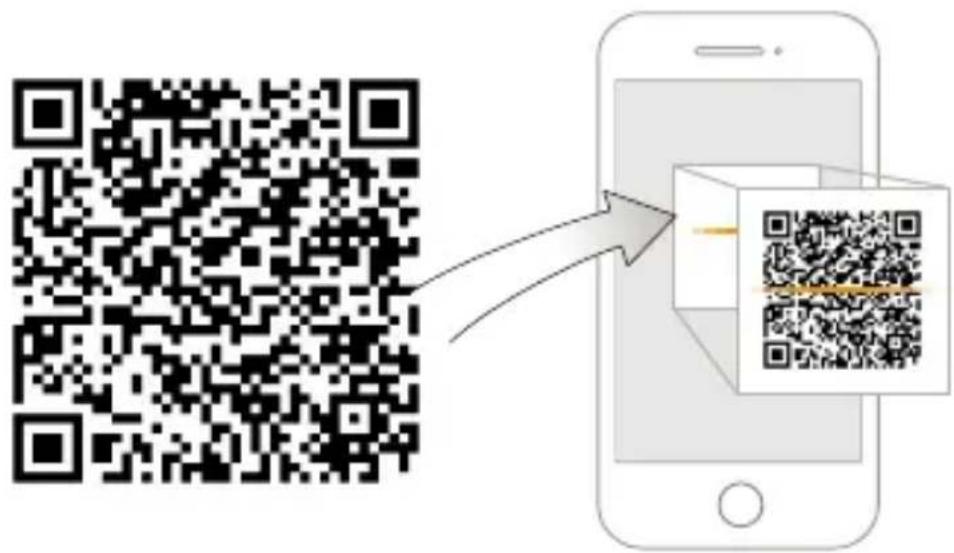
| Phone is not reading QR code | · Clean the camera lens of your Smartphone· Ensure that there is enough light on the QR code· Don't hold the QR code too close to the camera |
Kurzanleitung
*Cell Pro(Add-on Camera)
*Cell Pro Kit(Hub+Camera)
natural_image
Line drawing of a vintage remote control device with two circular buttons and a rectangular head (no text or symbols)Willkommen
DE
Packungsinhalt
flowchart
graph TD
    A["Step 1: Screen with lid"] --> B["Step 2: Screen with lid and handle"]
    B --> C["Step 3: Screen with lid and handle"]
    C --> D["Step 4: Screen with lid and handle"]
    D --> E["Step 5: Screen with lid and handle"]
DE
natural_image
Simple line drawing of a square frame with a central circular element and a vertical dashed line labeled 'imou' at the bottom (no other text or symbols)Synchronisationstaste

natural_image
Line drawing of a rectangular TV set with two small icons at the bottom (no text or symbols)
Download on the App Store

GET IT ON
Google play

Windows

Tips
DE

natural_image
Line drawing of a square device with a circular top and a small inset showing a magnified view of a textured surface (no text or symbols)natural_image
Simple line drawing of a biological cell or vesicle with internal structures and a magnified inset showing a textured surface (no text or symbols)natural_image
Line drawing of a microwave oven and its control panel (no text or symbols)natural_image
Line drawing of a vintage remote control device with two circular buttons and a brand logo (imou), no text or symbols present.Bienvenido
ES
natural_image
Line drawing of a rectangular device with two labeled ports and a dashed line indicating alignment (no text or symbols)
Download on the App Store

Windows
ES

Tips

natural_image
Line drawing of a square device with a circular top and a small inset showing a magnified view of a fiber or fiber (no text or symbols)natural_image
Simple line drawing of a biological cell or organism with internal structures and a magnified inset (no text or labels)natural_image
Line drawing of a microwave oven and its control panel (no text or symbols)natural_image
Line drawing of a vintage remote control device with two circular buttons and a rectangular head (no text or symbols)www.imoulife.com
Bienvenue
FR
natural_image
Line drawing of a rectangular electronic device with two ports and a central screen (no text or symbols)Port Ethernet
Port USB Port
d'alimentation
FR
1

Download on the App Store

GET IT ON
Google play

Windows

Tips

FR
natural_image
Line drawing of a square device with a circular top and a small inset showing a magnified view of a textured surface (no text or symbols)natural_image
Simple line drawing of a biological cell or organism with internal structures and a magnified inset (no text or labels)FR
natural_image
Line drawing of a microwave oven and its control panel (no text or symbols)natural_image
Line drawing of a vintage remote control device with two lenses and a labeled 'imou' logo (no text beyond branding)www.imoulife.com
Benvenuti
IT
natural_image
Simple line drawing of a TV set with two monitors and a speaker (no text or symbols)
Download on the
App Store

GET IT ON
Google play

Windows

Tips
IT
natural_image
Diagram of a square device with a circular top and a magnified inset showing a fiber detail (no text or symbols)natural_image
Simple line drawing of a biological cell with internal structures and a magnified inset showing a textured surface (no text or symbols)natural_image
Line drawing of a microwave oven and its control panel (no text or symbols)natural_image
Line drawing of a vintage remote control device with two lenses and a labeled 'imou' logo (no text beyond branding)www.imoulife.com
Welkom
natural_image
Illustration of a person sitting on a sofa holding a tablet, with a mug nearby (no text or symbols)Inhoud verpakking

Camera ×1
flowchart
graph TD
    A["Device with handbag"] --> B["Assembly step"]
    B --> C["Device with battery and door panel"]
    C --> D["Assembly step with handbag and door panel"]
NL
natural_image
Line drawing of a rectangular device with three labeled ports (no text or symbols)USB poort StroomaansluitingEthernetpoo
NL
1

natural_image
Diagram of a square device with a circular top and a magnified inset showing a finger contact (no text or symbols)natural_image
Simple line drawing of a biological cell with internal structures and a magnified inset showing a textured surface (no text or symbols)natural_image
Line drawing of a microwave oven and its control panel (no text or symbols)natural_image
Line drawing of a vintage remote control device with two lenses and a labeled 'imou' logo (no text beyond branding)www.imoulife.com
Bem-vindo
flowchart
graph TD
    A["Step 1: Screen with lid"] --> B["Step 2: Screen with lid and cable"]
    B --> C["Step 3: Screen with cable and cable holder"]
    C --> D["Step 4: Screen with cable holder and cable holder"]
    D --> E["Final Step: Screen with cable holder and cable holder"]
natural_image
Line drawing of a rectangular device with rounded corners and two small icons at the base (no text or symbols)Download on the App Store

GET IT ON Google play

Windows

Tips

PT
natural_image
Line drawing of a square device with a circular top and a small inset showing a magnified view of a fiber or fiber (no text or symbols)natural_image
Simple line drawing of a human head with internal organs and a magnified inset showing a small object (no text or symbols)natural_image
Line drawing of a microwave oven and its control panel (no text or symbols)


Brand : IMOU
Model : Cell Pro
Category : Surveillance Camera