
TL-WPA8631P - Powerline adapter TP-LINK - Free user manual and instructions
Find the device manual for free TL-WPA8631P TP-LINK in PDF.


| Product Type | Powerline Adapter with Integrated Wi-Fi |
| Brand | TP-Link |
| Model | TL-WPA8631P |
| Dimensions (L × W × H) | 110 × 66 × 44 mm |
| Weight | 220 g |
| Power Supply | 100-240 V~, 50/60 Hz |
| Power Consumption | Approximately 8.5 W in normal operation |
| Powerline Standard | HomePlug AV2, compatible with HomePlug AV standards |
| Theoretical Powerline Speed | Up to 1300 Mbps |
| Wi-Fi Frequencies | Dual band: 2.4 GHz (300 Mbps) and 5 GHz (867 Mbps) |
| Wi-Fi Standards | IEEE 802.11 a/b/g/n/ac |
| Ethernet Ports | 1 Gigabit Ethernet RJ45 port |
| Buttons | Pair, Wi-Fi, Reset |
| LED Indicators | Power, Powerline, Wi-Fi (2.4 GHz and 5 GHz) |
| Powerline Security | AES 128-bit encryption for data transmitted over the electrical network |
| Wi-Fi Security | WPA/WPA2-PSK, WPA2-PSK, WPA3 (depending on firmware) |
| Maintenance and Cleaning | Unplug the device before cleaning; use a soft, dry cloth. Do not use abrasive products or solvents. |
| Spare Parts and Repairability | Not user-serviceable. No spare parts available. Contact TP-Link support in case of malfunction. |
| Warranty | Limited 3-year warranty |
| Operating Temperature | 0 °C to 40 °C |
| Operating Humidity | 10% to 90% RH (non-condensing) |
| Certifications | CE, RoHS, REACH |
Frequently Asked Questions - TL-WPA8631P TP-LINK
User questions about TL-WPA8631P TP-LINK
0 question about this device. Answer the ones you know or ask your own.
Ask a new question about this device
Download the instructions for your Powerline adapter in PDF format for free! Find your manual TL-WPA8631P - TP-LINK and take your electronic device back in hand. On this page are published all the documents necessary for the use of your device. TL-WPA8631P by TP-LINK.
USER MANUAL TL-WPA8631P TP-LINK
TP-Link Technologies Co., Ltd. South Building(floors 1,3,4,5) and 28(floors 1-4), Central Science
& Technology Park, Shennan Rd, Nanshan, Shenzhen, China
TP-Link UK Limited Unit 2 & 3 Riverview (142-144), Cardiff Road, Reading, RG1 8EW
TP-Link Hellas Ltd. Marathonodromou 77, Marousi 151 24, Greece
Specifications are subject to change without notice. TP-Link is a registered trademark of TP-Link
Technologies Co., Ltd. Other brands and product names are trademarks or registered trademarks of their respective holders.
No part of the specifications may be reproduced in any form or by any means or used to make any
derivative such as transition, transformation, or adaptation without permission from IP-Link Technologies Co. Ltd. Copyright © 2018 IP-Link Technologies Co. Ltd. All rights reserved.
MADE IN CHINA
7106507825 REV2.1.1

tp-link
Quick Installation Guide
Powerline Extender
CONTENTS
01 / Deutsch
05 / English
09 / Español
13 / Ελληνικά
17 / Français
21 / Italiano
25 / Português
29 / Suomi
33 / Nederlands
37 / Svenska
41 / Norsk
45 / Dansk
Deutsch
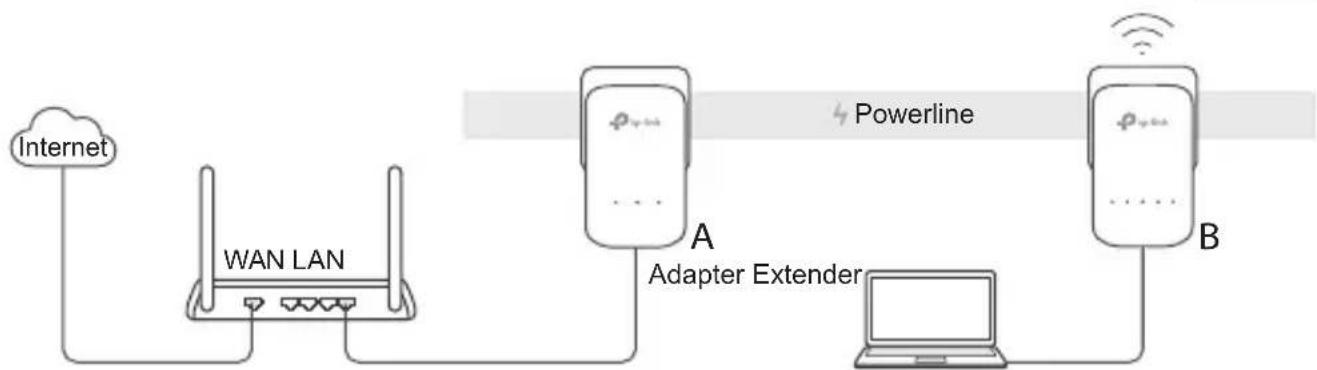
flowchart
graph LR
    A["Internet"] --> B["WAN LAN"]
    B --> C["Adapter Extender A"]
    C --> D["Powerline"]
    D --> E["Adapter Extender B"]
    E --> F["Powerline"]
- Connect the adapter to a LAN port of your router using an Ethernet cable.
- Plug the powerline devices into the wall outlets near each other and on the same electrical circuit.
- Pair the powerline devices.
A. Press the Pair button on the powerline adapter for 1 second. The Power LED starts blinking.
* If the Power LED does not blink, press the Pair button again.
B. Within 2 minutes, press the Pair button on the powerline extender for 1 second. The Power LED ⏻ starts blinking. When the Powerline LED turns on, it's done.
English
- Relocate the powerline extender to a new location. Connect to the Wi-Fi using the SSID and password on the product label.
* A blinking or red Powerline LED 🔒 indicates poor signal strength. Move the extender to another location.
- Enjoy!
Tips: You can add more powerline devices to the existing powerline network by pairing these devices.
Attention
- Plug the powerline devices directly into the wall outlets but not the power strips.
- For passthrough powerline devices, plug the power strips into the integrated electrical sockets of the powerline devices.
Copy Wi-Fi Settings from Router to Extender
If your router supports WPS, you can follow the steps below to automatically copy the router's Wi-Fi settings (SSID and password) to the powerline extender.
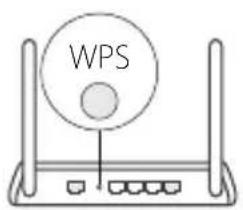
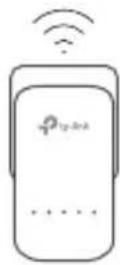
- Plug in the powerline extender near your router. Press the WPS button on your router.
- Within 2 minutes, press the Wi-Fi button on the extender for 1 second.
- When the 2.4GHz Wi-Fi LED and 5GHz Wi-Fi LED on the extender blink quickly for 3 seconds, and then stay on, it's done!
* 5GHz Wi-Fi is not available on single-band products. For multiple-band products, the powerline extender copies by default both 2.4GHz and 5GHz wireless settings at the same time. If it fails to copy both, your router may be only able to clone one band at a time. Please check your router's manual for support.
Note: The wireless settings can also be configured through the powerline extender's web interface or through the tpPLC app. You can download the app from the App Store or Google Play, or simply scan the QR code.

English
FAQ (Frequently Asked Questions)
Q1. How do I reset my powerline extender?
A. With the extender powered on, press and hold the Reset button (use a pin if it is a hole) until all LEDs turn off. When all LEDs turn on again, the reset process is complete.
Q2. How to troubleshoot if there is no internet connection in my powerline network?
A1. Make sure all adapters and extenders are on the same electrical circuit.
A2. Make sure all Powerline LEDs 📋 are on. If not, pair your adapters and extenders again.
A3. Make sure all hardware connections are correctly and securely connected.
A4. Check if you have an internet connection by connecting the computer directly to the modem or router.
Q3. What can I do if a successfully-paired extender does not reconnect after being relocated?
A1. Make sure all powerline devices are on the same electrical circuit.
A2. Pair it again with another adapter or extender, and make sure the Powerline LED is on before relocating it.
A3. Check for possible interference, such as washers, air conditioners or other household appliances that may be too close to one of the powerline adapters or extenders.
Español
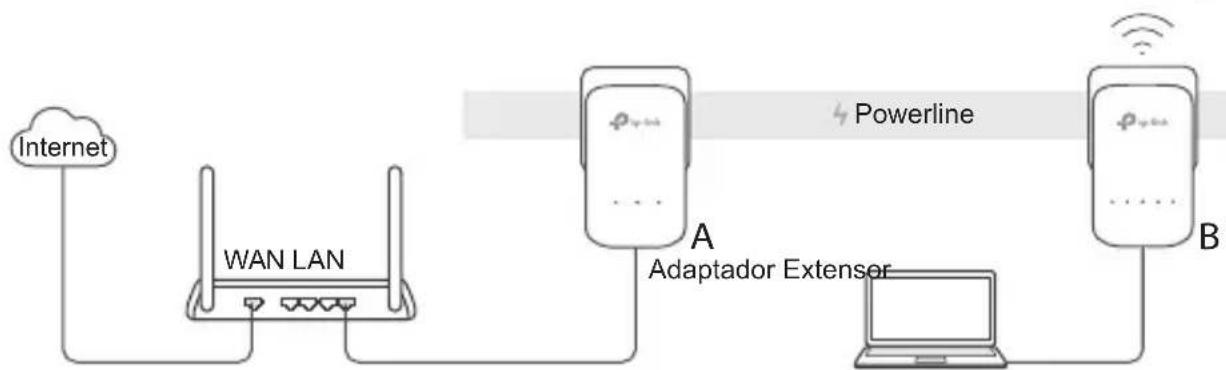
flowchart
graph LR
    A["Internet"] --> B["WAN LAN"]
    B --> C["Adaptador Extensor"]
    C --> D["Powerline"]
    D --> E["B"]
    E --> F["Wireless Signal"]
    style A fill:#f9f,stroke:#333
    style B fill:#ccf,stroke:#333
    style C fill:#cfc,stroke:#333
    style D fill:#fcc,stroke:#333
    style E fill:#cff,stroke:#333
Français
Italiano
Domande Frequenti
Português
FAQ (Perguntas Frequentes)
Suomi
Svenska
Norsk
Dansk
TP-Link hereby declares that the device is in compliance with the essential requirements and other relevant provisions of directives 2014/53/EU, 2009/125/EC and 2011/65/EU.
The original EU declaration of conformity may be found at http://www.tp-link.com/en/ce.
Español
- Keep the device away from water, fire, humidity or hot environments.
- Do not attempt to disassemble, repair, or modify the device.
- Do not use the device where wireless devices are not allowed.
- The socket-outlet shall be installed near the equipment and shall be easily accessible.
- For passthrough devices, plug the power strips into the integrated electrical sockets of the devices, but devices of the same or another type not be stacked in normal use.
- Plug the powerline devices directly into the wall outlets but not the power strips.
Please read and follow the above safety information when operating the device. We cannot guarantee that no accidents or damage will occur due to improper use of the device. Please use this product with care and operate at your own risk.

TP-Link Three Years Limited Product Warranty
For TP-Link Branded Products Only.
THIS WARRANTY GIVES YOU SPECIFIC LEGAL RIGHTS, AND YOU MAY HAVE OTHER RIGHTS THAT VARY FROM STATE TO STATE (OR BY COUNTRY OR PROVINCE).
TO THE EXTENT ALLOWED BY LOCAL LAW, THIS WARRANTY AND THE REMEDIES SET FORTH ARE EXCLUSIVE AND IN LIEU OF ALL OTHER WARRANTIES, REMEDIES AND CONDITIONS.
TP-Link warrants the TP-Link branded hardware product contained in the original packaging against defects in materials and workmanship when used normally in according with TP-Link's guidelines for a period of THREE YEARS form the date of original retail purchase by the end-user purchaser.
Español
http://www.tp-link.com
Brand : TP-LINK
Model : TL-WPA8631P
Category : Powerline adapter