
QDISK - External Storage ARCHOS - Free user manual and instructions
Find the device manual for free QDISK ARCHOS in PDF.


| Product Type | External Hard Drive |
| Brand | ARCHOS |
| Model | QDISK |
| Interface | USB 2.0 |
| Power Supply | 12 V DC via external power adapter (included) |
| Compatible Operating Systems | Windows 98, 98 SE, ME, 2000, XP |
| Power Indicator | Green (power on) |
| Activity Indicator | Red (being accessed by computer) |
| Formatting | Requires formatting before use (if not preformatted) |
| Driver Installation | Microsoft USB mass storage drivers (Windows ME/2000/XP); floppy disk provided for Windows 98 |
| Safe Removal | Use the device icon in the taskbar (Windows ME/2000/XP) |
| Maintenance and Cleaning | Unplug before cleaning; use a dry cloth; avoid impacts |
| Safety | Do not open the case; avoid humidity; unplug before handling |
| Included Accessories | Power adapter, USB 2.0 cable |
| Repairability | Not user-serviceable; intervention by qualified technician |
| Technical Support | By phone (France: 01-7020-0030) or email (support@archos.com) |
| Warranty | Limited warranty; does not cover accidental damage or damage from improper use |
Frequently Asked Questions - QDISK ARCHOS
User questions about QDISK ARCHOS
0 question about this device. Answer the ones you know or ask your own.
Ask a new question about this device
Download the instructions for your External Storage in PDF format for free! Find your manual QDISK - ARCHOS and take your electronic device back in hand. On this page are published all the documents necessary for the use of your device. QDISK by ARCHOS.
USER MANUAL QDISK ARCHOS
Warranty and Limited Liability
This product is sold with a limited warranty, and specific remedies are available to the original purchaser in the event the product fails to conform to the limited warranty. Manufacturer's liability may be further limited in accordance with its sales contract.
In general, the manufacturer shall not be responsible for product damages caused by natural disasters, fire, static discharge, misuse, abuse, neglect, improper handling or installation, unauthorized repair, alteration, or accident. In no event shall the manufacturer be liable for loss of data stored on disk media.
MANUFACTURER SHALL NOT BE LIABLE FOR ANY SPECIAL, INCIDENTAL OR CONSEQUENTIAL DAMAGES, EVEN IF INFORMED OF THE POSSIBILITY THEREOF IN ADVANCE.
Please see your sales contract for a complete statement of warranty rights, remedies, and limitation of liability.
Furthermore, warranty does not apply to:
- Damages or problems resulting from misuse, abuse, accident, alteration, or incorrect electrical current or voltage.
- Any product with a tampered-with or damaged warranty seal or serial number label.
- Any product without a warranty or serial number label.
- Batteries and any consumable items delivered with or in the equipment.
Warnings and Safety Instructions
CAUTION
To prevent risks of electric shock, this unit must only be opened by qualified service personnel.
Power off and disconnect the power supply cable before opening the unit.
WARNING
To prevent fire or shock hazard, do not expose the unit to rain or moisture.
Use of this product is for personal use only. Copying CDs or loading music, video, or picture files for sale or other business purposes is or may be a violation of copyright law.
FCC Warning Statement
FCC Compliance
This equipment has been tested and found to comply with the requirements for a class B digital device pursuant to Part 15 of the FCC regulations. These requirements are designed to provide reasonable protection against harmful interference in a residential area. This equipment generates, uses and can radiate radio frequency energy. If not installed and used in accordance with the manufacturer's instructions, it may cause harmful interference to radio communications. However, there is no guarantee that interference will not occur in a particular environment. If this equipment does cause harmful interference to radio or television reception, which can be determined by turning the equipment on and off, the user is advised to try to correct the interference by one or more of the following methods:
• Reorient or relocate the receiving unit's antenna; - Increase the distance between the equipment and the receiver; - Connect the equipment to a different power outlet other than the one where the receiver is connected; - Consult a certified television or radio technician for assistance.
CAUTION: any changes or modifications not expressly approved by the manufacturer of this device will void the user's authority to operate the equipment.
FCC Part 15 - Operation is subject to the following two conditions:
- This device may not cause harmful interference;
- This device must accept any interference received including interference that may cause undesired operation.
Copyright Notice
Copyright ARCHOS © 2002 All rights reserved.
This document may not, in whole or part, be copied, photocopied, reproduced, translated or reduced to any electronic medium or machine-readable form without prior consent, in writing, from Archos.
Apple, Macintosh, MacOS are trademarks of Apple Inc. All rights reserved. All other brands and product names mentioned in this user guide are trademarks or registered trademarks of their respective owners.
*All specifications are subject to change without notice.
1. QDISK Quick Installation Guide
1.1 System Requirements:
System Requirements: a computer with Windows 98, 98 SE, ME, 2000 or XP and USB 2.0 port.
1.2 Parts Description:
QDISK Drive
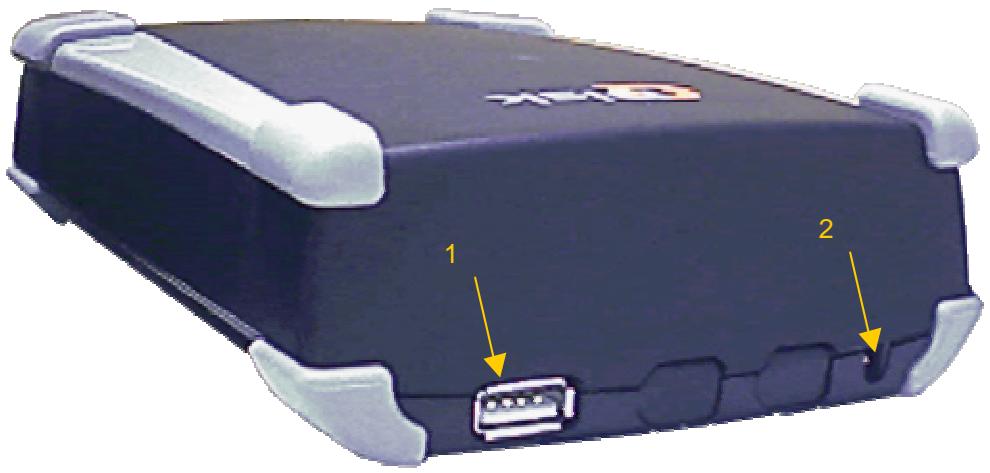
- USB 2.0 Ports
Allows connection to a computer through USB 2.0 cable
- Power Socket
12V power supply socket for a DC Adapter
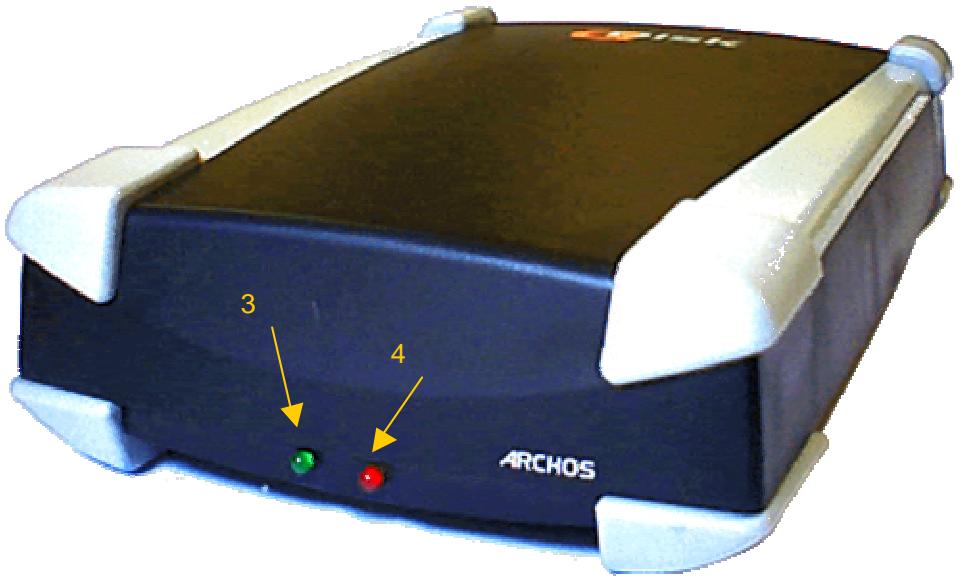
- Green Power Light
It is on when hard drive is powered
- Red Busy Light
It is on when the computer accesses the hard drive
2. Quick Start Guide – Installation
2.1 Hardware Installation
• Plug the power supply to the Qdisk. - Check if the green power light is "on".
• Plug the USB cable into your computer.
2.2 Driver Installation
W98 USB2.0 interface cable (high speed)
- Turn on your computer and wait until it has finished booting.
- Connect the USB end of the USB cable to a free USB port on your computer
- A "New Hardware Found" window will guide you through installation of driver. When prompted for driver disk, insert Install Disk in floppy drive.
Then follow the instructions on screen to complete installation
WME W2000 WXP USB2.0 interface cable (high speed) -
• Turn on your computer and wait until it has finished booting. - Connect the USB end of the USB cable to a free USB port on your computer - A "New Hardware Found" window will guide you through installation of driver. Microsoft "USB Mass storage" drivers will be automatically installed. No install disk is needed.
For Windows 98, 98SE & ME you must declare drive as "Removable" & "Int13"
• Double-click "My Computer" icon on Desktop.
- If QDISK is already shown in "My Computer" window, skip this paragraph.
- If QDISK is not shown, you must declare it as "Removable" and "Int13", as follows:
- Double-click "Control Panel" icon, then "System" icon.
- Click on the "Device manager" tab. Expand "Disk Drives" by double-clicking on it.
- At least two lines will appear: one for your main disk, and another one for QDISK.
- Find the line related to QDISK: double-click on each line, look at the "Settings" tab in the "Properties" window. The line related to QDISK will have no "Drive Letter" assigned to it.
• In the "Settings" tab for QDISK, check both "Removable" and "Int13" - Click "OK", and "Close" System manager. - Windows will ask you to reboot your computer. Do not remove your new drive while rebooting. • After reboot, QDISK will appear in the "My Computer" window, with a letter assigned to it. - If QDISK did not appear in "My Computer" after rebooting, proceed again by declaring it as "Removable" and "Int13". QDISK will be recognised.
For Windows 2000 or XP:
The QDISK will be automatically installed by the default Microsoft driver.
2.3 Formatting QDISK
- Open the "My Computer" window. Double-click on QDISK's icon. • If the drive has not been factory-formatted, you will get a message asking you to format it. • If you do not intend to share your drive with a WinNT-based machine,
- Just let Windows format your new drive.
2.4 Inserting or Removing QDISK drive
For Windows 98 & 98SE
• You can insert QDISK at any time either before or after boot-up. • To remove your drive, stop accessing it and wait until the red Busy light is off; then unplug it.
Warning: In any case, never remove the external power supply jack before removing
QDISK from computer port.
For Windows ME, 2000 & XP
You can plug in your QDISK at any moment, before or after boot-up.
To remove your QDISK:
- Stop accessing your QDISK and wait until the red Busy light is off.
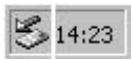
- Click on the "peripheral" icon in the system tray.
- Click on the pop-up windows asking for removal. Wait until a message says removal is OK.
Warning: Do NOT remove the QDISK when it is accessed by the PC. Loss of data and/or drive damage may result.
3. Customer Support
If you need help with your Jukebox unit, please contact the place of purchase.
If you need additional help, you may contact ARCHOS directly via the Web or by phone.
Technical Support
| Call for | 949-609-1400 | (USA, Canada) |
| 0207-949-0115 | (UK) | |
| 0696-698-4714 | (Germany) | |
| 09-1745-6224 | (Spain) | |
| 01-7020-0030 | (France) | |
| 02-4827-1143 | (Italy) | |
| for assistance and information from our trained technical staff. | ||
technical-support@archos.com
(Support in English language)
support-technique@archos.com
(Support in French language)
United States & Canada
ARCHOS Technology
3, Goodyear – Unit A
Irvine, CA 92618
USA
Europe & Asia
ARCHOS S.A.
12, rue Ampère
91430 Igny
France
Phone: +949-609-1400
Fax: +949-609-1414
Windmill Hill Business Park
Whitehill Way
Swindon
Wiltshire SN5 6QR
UK
Phone: +44 (0) 1793 44 15 10
Fax: +44 (0) 1793 44 16 10
http://www.archos.com
Technical support
support-technique@archos.com
3, Goodyear – Unit A
Irvine, Ca 92618
USA
Europe and Asia
ARCHOS S.A.
12, rue Ampère
91430 Igny
France
Windmill Hill Business Park
Whitehill Way
Swindon
Wiltshire SN5 6QR
United Kingdom
support-technique@archos.com
3, Goodyear – Unit A
Irvine, CA 92618
U.S.A.
Europe and Asia
ARCHOS S.A.
12, rue Ampère
91430 Igny
France
Phone: + 949-609-1400
Fax: +949-609-1414
Phone: +33 169 33 169 0
Fax: +33 169 33 169 9
United Kingdom
ARCHOS (UK) Limited
Regus House
Windmill Hill Business Park
Whitehill Way
Swindon
Wiltshire SN5 6QR
United Kingdom
Phone: +44 (0) 1793 44 15 10
support-technique@archos.com
3, Goodyear – Unit A
Irvine, CA 92618
USA
Europe and Asia
ARCHOS S.A.
12, rue Ampère
91430 Igny
France
Windmill Hill Business Park
Whitehill Way
Swindon
Wiltshire SN5 6QR
United Kingdom
support-technique@archos.com
3, Goodyear – Unit A
Irvine, CA 92618
USA
Europe and Asia
ARCHOS S.A.
12, rue Ampère
91430 Igny
France
Phone: +949-609-1400
Fax: +949-609-1414
Phone: +33 169 33 169 0
Fax: +33 169 33 169 9
United Kingdom
ARCHOS (UK) Limited
Regus House
Windmill Hill Business Park
Whitehill Way
Swindon
Wiltshire SN5 6QR
United Kingdom
Telephone: +44 (0) 1793 44 15 10


- WARRANTY AND LIMITED LIABILITY
- MANUFACTURER SHALL NOT BE LIABLE FOR ANY SPECIAL, INCIDENTAL OR CONSEQUENTIAL DAMAGES, EVEN IF INFORMED OF THE POSSIBILITY THEREOF IN ADVANCE
- FURTHERMORE, WARRANTY DOES NOT APPLY TO
- WARNINGS AND SAFETY INSTRUCTIONS
- CAUTION
- WARNING
- FCC WARNING STATEMENT
- FCC COMPLIANCE
- COPYRIGHT NOTICE
- COPYRIGHT ARCHOS © 2002 ALL RIGHTS RESERVED
- QDISK QUICK INSTALLATION GUIDE
- SYSTEM REQUIREMENTS
- PARTS DESCRIPTION
- QDISK DRIVE
- QUICK START GUIDE – INSTALLATION
- HARDWARE INSTALLATION
- DRIVER INSTALLATION
- W98 USB2.0 INTERFACE CABLE (HIGH SPEED)
- WME W2000 WXP USB2.0 INTERFACE CABLE (HIGH SPEED)
- FOR WINDOWS 98, 98SE & ME YOU MUST DECLARE DRIVE AS "REMOVABLE" & "INT
- FOR WINDOWS 2000 OR XP
- FORMATTING QDISK
- INSERTING OR REMOVING QDISK DRIVE
- FOR WINDOWS 98 & 98SE
- FOR WINDOWS ME, 2000 & XP
- TO REMOVE YOUR QDISK
- CUSTOMER SUPPORT
- EUROPE AND ASIA
- ARCHOS S.A
- UNITED KINGDOM
- ARCHOS (UK) LIMITED
Brand : ARCHOS
Model : QDISK
Category : External Storage