
NI-707539 - Router Icidu - Free user manual and instructions
Find the device manual for free NI-707539 Icidu in PDF.


| Product Type | Wireless Broadband Router |
| Model | NI-707539 |
| Brand | Icidu |
| Wireless Standard | IEEE 802.11b/g/n |
| Frequency Band | 2.4 GHz |
| Maximum Wireless Speed | 300 Mbps |
| Power Consumption | 1.1 W (typical) |
| Energy Saving | Up to 50% energy savings |
| WAN Connection Types | Cable Modem, Fixed-IP xDSL, PPPoE, PPTP, L2TP, Telstra Big Pond |
| Default IP Address | 192.168.2.1 |
| Default Username | admin |
| Default Password | 1234 |
| Wireless Security | WEP, WPA (TKIP/AES), WPA2 Mixed, WPS |
| Advanced Functions | Virtual Server, Access Control, Hacker Attack Detection, DMZ, NAT, Firewall, QoS |
| Management Tools | Quick Setup, Backup/Restore, Firmware Upgrade, Reset to Factory Defaults |
| Power Supply | DC 5V, 1A (typical) |
| Antennas | 2 external antennas |
| LED Indicators | Power, WAN, LAN, WLAN |
| Compliance | FCC Class B, CE, RoHS |
| Operating Temperature | 0°C to 40°C |
| Storage Temperature | -20°C to 70°C |
| Package Contents | Router, power adapter, Ethernet cable, manual |
| Country Restrictions | Varies: see manual for Bulgaria, France, Italy, Luxembourg, Norway, Russia |
Frequently Asked Questions - NI-707539 Icidu
User questions about NI-707539 Icidu
0 question about this device. Answer the ones you know or ask your own.
Ask a new question about this device
Download the instructions for your Router in PDF format for free! Find your manual NI-707539 - Icidu and take your electronic device back in hand. On this page are published all the documents necessary for the use of your device. NI-707539 by Icidu.
USER MANUAL NI-707539 Icidu

COMMUNICATION
SUPPORT

BROADBAND ROUTER
WIRELESS 300N
300 MBPS
HANDLEIDING NI-707539

natural_image
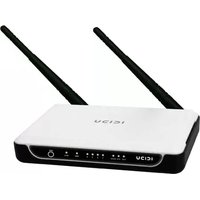
White ICIDU wireless router with two black antennas and indicator lights (no visible text or symbols on the device body)INHOUD VAN DE VERPAKKING 4
A connection through a cable modem requires minimal configuration. When you set up an account with your Cable provider, the Cable provider and your Wireless Fourier will automatically establish a connection, so you probably do not need to enter anything more.
○ Fixed-IP xDSL
Some iOS, Internet Service Providers may assign a Fixed IP Address for your Wireless Router. If you have been provided with this information, choose this option and enter the assigned IP Address, Subnet Mask, Gateway IP Address and DNS IP Address for your Wireless Router.
○ PPPoE xDSL
If you connect to the Internet using an xDSL Modem and your ISP has provided you with a Password and a Service Name, then your ISP uses PPPoE, to establish a connection. You must choose this option and enter the required information.
○ PPTP xDSL
If you connect to the Internet using an xDSL Modem and your ISP has provided you with a Password, Local IP Address, Remote IP Address and a Connection ID, then your ISP uses PPTP to establish a connection. You must choose this option and enter the required information.
○ L2TP xDSL
Layer Two Tunneling Protocol is a common connection method used in xDSL connections.
○ Telstra Big Pond
If your Internet service is provided by Telstra Big Pond in Australia, you will need to enter your information below. This information is provided by Telstra Big Pond.
Indien je over Dynamic IP beschikt klik je op “Cable Modem” je kommt dan direct in het scherm “Dynamic IP”.
O Cable Modem
A connection through a cable modem requires minimal configuration. When you set up an account with your Cable provider, the Cable provider and your Wireless Fourier will automatically establish a connection, so you probably do not need to enter anything more.
○ Fixed-IP xDSL
Some xDSL Internet Service Providers may assign a Fixed IP Address for your Wireless Router. If you have been provided with this information, choose this option and enter the assigned IP Address, Subnet Mask, Gateway IP Address and DNS IP Address for your Wireless Router.
PPPoExDSL
If you connect to the Internet using an xDSL Modem and your ISP has provided you with a Password and a Service Name, then your ISP uses PPPoE to establish a connection. You must choose this option and enter the required information.
○ PPTP xDSL
If you connect to the Internet using an xDSL, Modern and your ISP has provided you with a Password, Local IP Address, Remote IP Address and a Connection ID, then your ISP uses PPTP to establish a connection. You must choose this option and enter the required information.
○ L2TP xDSL
Layer Two Tunneling Protocol is a common connection method used in xDSL connections.
○ Telstra Big Pond
If your Internet service is provided by Telstra Big Pond in Australia, you will need to enter your information below. This information is provided by Telstra Big Pond.
3. IP Address Info 1
PPPoE
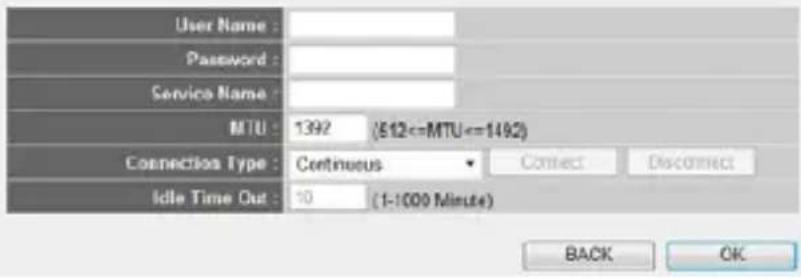
Enter the User Name and Password required by your ISP in the appropriate fields. If your ISP has provided you with a "Service Name" enter it in the Service Name field, otherwise, leave it blank.

Basic Settings 1
This page allows you to define E93D, and Channel for the wireless connection. These parameters are used for the wireless stations to connect to the Access Point.

Save settings successfully!
You may press CONTINUE button to continue configuring other settings or press APPLY button to restart the system to make the changes take effect.
CONTINUE
APPLY
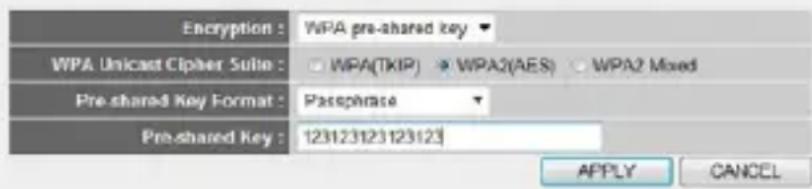
This page allows you to setup the wireless security. Turn on WEP or WPA by using Encryption Keys could prevent any unauthorized access to your wireless network.
This is a class B product. In a domestic environment, this product may cause radio interference, in which case the user may be required to take adequate measures.

NATIONAL RESTRICTIONS
This device is intended for home and office use in all EU countries (and other countries following the EU directive 1999/5/EC) without any limitation except for the countries mentioned below:
| COUNTRY RESTRICTION REASON/REMARK | ||
| Bulgaria None General authorization required for outdoor use and public service | ||
| France Outdoor use limited to Military Radiolocation use.10 mW e.i.r.p. within the Refarming of the 2.4 GHz band has band 2454-2483.5 MHz been ongoing in recent years to allow current relaxed regulation.Full implementation planned 2012 | ||
| Italy None If used outside of own premises, general authorization is required | ||
| Luxembourg None General authorization required for network and service supply (not for spectrum) | ||
| Norway Implemented This subsection does not apply for the geographical area within a radius of 20 km from the centre of Ny-Ålesund | ||
| Russian Federation None Only for indoor applications |
This equipment has been tested and found to comply with the limits for a Class B digital device, pursuant to part 15 of the FCC Rules. These limits are designed to provide reasonable protection against harmful interference in a residential installation. This equipment generates, uses and can radiate radio frequency energy and, if not installed and used in accordance with the instructions, may cause harmful interference to radio communications. However, there is no guarantee that interference will not occur in a particular installation. If this equipment does cause harmful interference to radio or television reception, which can be determined by turning the equipment off and on, the user is encouraged to try to correct the interference by one or more of the following measures:
- Reorient or relocate the receiving antenna.
- Increase the separation between the equipment and receiver.
- Connect the equipment into an outlet on a circuit different from that to which the receiver is connected.
- Consult the dealer or an experienced radio/ TV technician for help.
This device complies with part 15 of the FCC Rules. Operation is subject to the following two conditions:
1) This device may not cause harmful interference.
2) This device must accept any interference received, including interference that may cause undesired operation.
Any changes or modifications not expressly approved by the party responsible for compliance could void the user's authority to operate the equipment.
FCC RF RADIATION EXPOSURE
S TATEMENT:
This device has been tested for compliance with FCC RF Exposure (SAR) limits in the typical laptop computer configuration and this device can be used in desktop or laptop computers. This device cannot be used with handheld PDAs (personal digital assistants). This device and its antenna must not be co-located or operated in conjunction with any other antenna or transmitter. SAR measurements are based on a 5mm spacing from the body and that compliance is achieved at that distance.
GARANTIE
© Copyright 2011 ICIDU
natural_image
White ICIDU wireless router with two black antennas and indicator lights (no visible text or symbols on the device body)L IEF ERUMFANG 4
TECHNISCHE DATEN 4
A connection through a cable modem requires minimal configuration. When you set up an account with your Cable provider, the Cable provider and your Wireless Router will automatically establish a connection, so you probably do not need to enter anything more.
- Fixed-IP xDSL
Some xDSL Internet Service Providers may assign a Fixed IP Address for your Wireless Router. If you have been provided with this information, choose this option and enter the assigned IP Address, Subnet Mask, Gateway IP Address and DNS IP Address for your Wireless Router.
○ PPPoE xDSL
If you connect to the Internet using an xDSL Modem and your ISP has provided you with a Password and a Service Name, then your ISP uses PPPeE to establish a connection. You must choose this option and enter the required information.
○ PPTP xDSL
If you connect to the Internet using an xDSL Modem and your ISP has provided you with a Password, Local IP Address, Remote IP Address and a Connection ID, then your ISP uses PPTP to establish a connection. You must choose this option and enter the required information.
○ L2TP xDSL
Layer Two Tunneling Protocol is a common connection method used in xDSL connections.
Telstra Big Pond
If your Internet service is provided by Telstra Big Pond in Australia, you will need to enter your information below. This information is provided by Telstra Big Pond.
A connection through a cable modem requires minimal configuration. When you set up an account with your Cable provider, the Cable provider and your Wireless Fourier will automatically establish a connection, so you probably do not need to enter anything more.
○ Fixed-IP xDSL
Some xDSL, Internet Service Providers may assign a Fixed IP Address for your Wireless Router. If you have been provided with this information, choose this option and enter the assigned IP Address, Subnet Mask, Gateway IP Address and DNS IP Address for your Wireless Router.
- PPPoE xDSL
If you connect to the Internet using an xDSL Modem and your ISP has provided you with a Password and a Service Name, then your ISP uses PPPoE to establish a connection. You must choose this option and enter the required information.
O PPTP xDSL
If you connect to the Internet using an xDSL Modern and your ISP has provided you with a Password, Local IP Address, Remote IP Address and a Connection ID, then your ISP uses PPTP to establish a connection. You must choose this option and enter the required information.
○ L2TP xDSL
Layer Two Tunneling Protocol is a common connection method used in xDSL connections.
○ Telstra Big Pond
If your Internet service is provided by Telstra Big Pond in Australia, you will need to enter your information below. This information is provided by Telstra Big Pond.
Enter the User Name and Password required by your ISP in the appropriate fields. If your ISP has provided you with a "Service Name" enter it in the Service Name field, otherwise, leave it blank.
Basic Settings 1
This page allows you to define ESSD, and Channel for the wireless correction. These parameters are used for the wireless stations to connect to the Access Point.

Save settings successfully!
You may press CONTINUE button to continue configuring other settings or press APPLY button to restart the system to make the changes take effect.
CONTINUE
APPLY
This is a class B product. In a domestic environment, this product may cause radio interference, in which case the user may be required to take adequate measures.

NATIONAL RESTRICTIONS
This device is intended for home and office use in all EU countries (and other countries following the EU directive 1999/5/EC) without any limitation except for the countries mentioned below:
COUNTRY RESTRICTION REASON/REMARK
| Bulgaria None General authorization required for outdoor use and public service |
| France Outdoor use limited to Military Radiolocation use.10 mW e.i.r.p. within the Refarming of the 2.4 GHz band has band 2454-2483.5 MHz been ongoing in recent years to allow current relaxed regulation.Full implementation planned 2012 |
| Italy | None | If used outside of own premises, general authorization is required |
| Luxembourg | None | General authorization required for network and service supply (not for spectrum) |
| Norway | Implemented | This subsection does not apply for the geographical area within a radius of 20 km from the centre of Ny-Ålesund |
| Russian Federation | None | Only for indoor applications |
This equipment has been tested and found to comply with the limits for a Class B digital device, pursuant to part 15 of the FCC Rules. These limits are designed to provide reasonable protection against harmful interference in a residential installation. This equipment generates, uses and can radiate radio frequency energy and, if not installed and used in accordance with the instructions, may cause harmful interference to radio communications. However, there is no guarantee that interference will not occur in a particular installation. If this equipment does cause harmful interference to radio or television reception, which can be determined by turning the equipment off and on, the user is encouraged to try to correct the interference by one or more of the following measures:
- Reorient or relocate the receiving antenna.
- Increase the separation between the equipment and receiver.
- Connect the equipment into an outlet on a circuit different from that to which the receiver is connected.
- Consult the dealer or an experienced radio/ TV technician for help.
This device complies with part 15 of the FCC Rules. Operation is subject to the following two conditions:
1) This device may not cause harmful interference.
2) This device must accept any interference received, including interference that may cause undesired operation.
Any changes or modifications not expressly approved by the party responsible for compliance could void the user's authority to operate the equipment.
FCC RF RADIATION EXPOSURE
S TATEMENT:
This device has been tested for compliance with FCC RF Exposure (SAR) limits in the typical laptop computer configuration and this device can be used in desktop or laptop computers. This device cannot be used with handheld PDAs (personal digital assistants). This device and its antenna must not be co-located or operated in conjunction with any other antenna or transmitter. SAR measurements are based on a 5mm spacing from the body and that compliance is achieved at that distance.
G ARANTIE
© Copyright 2011 ICIDU
- BROADBAND ROUTER
- WIRELESS 300N
- MBPS
- ○ Fixed-IP xDSL
- ○ PPPoE xDSL
- ○ PPTP xDSL
- ○ L2TP xDSL
- ○ Telstra Big Pond
- O Cable Modem
- PPPoExDSL
- IP Address Info 1
- PPPoE
- Basic Settings 1
- Save settings successfully!
- NATIONAL RESTRICTIONS
- FCC RF RADIATION EXPOSURE
- S TATEMENT:
- GARANTIE
- - Fixed-IP xDSL
- Telstra Big Pond
- - PPPoE xDSL
- O PPTP xDSL
- G ARANTIE
Brand : Icidu
Model : NI-707539
Category : Router