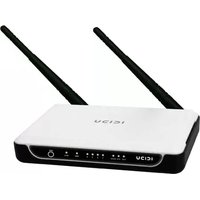
NI-707521 - Router Icidu - Free user manual and instructions
Find the device manual for free NI-707521 Icidu in PDF.


| Product Type | Wireless Broadband Router |
| Brand | Icidu |
| Model | NI-707521 |
| Wireless Standard | IEEE 802.11b/g/n |
| Maximum Data Rate | 300 Mbps |
| Frequency Band | 2.4 GHz |
| Number of Antennas | 2 |
| WAN Port | 1 x 10/100 Mbps Ethernet |
| LAN Ports | 4 x 10/100 Mbps Ethernet |
| WPS Button | Yes |
| Wireless Security | WEP, WPA/WPA2, WPA-PSK/WPA2-PSK |
| Management Interface | Web-based (HTTP) |
| Power Supply | 9V DC, 0.6A |
| Certifications | CE, FCC |
| Operating Temperature | 0°C to 40°C |
| Storage Temperature | -20°C to 70°C |
| Humidity Range | 10% to 90% (non-condensing) |
| Dimensions (approx.) | 150 x 100 x 30 mm |
| Weight (approx.) | 200 g |
| Package Contents | Router, Power Adapter, Ethernet Cable, Quick Installation Guide |
| Internet Connection Types | PPPoE, Dynamic IP, Static IP, Auto-Detect |
| Country Restrictions | Subject to national regulations (see manual) |
| FCC Class | Class B |
Frequently Asked Questions - NI-707521 Icidu
User questions about NI-707521 Icidu
0 question about this device. Answer the ones you know or ask your own.
Ask a new question about this device
Download the instructions for your Router in PDF format for free! Find your manual NI-707521 - Icidu and take your electronic device back in hand. On this page are published all the documents necessary for the use of your device. NI-707521 by Icidu.
USER MANUAL NI-707521 Icidu
HANDLEIDING NI-707521

natural_image
White and black wireless router device with two antennas (no visible text or symbols on body)NEDERLANDS
INHOUD VAN DE VERPAKKING 5
TECHNISCHE SPECIFICATIES 5
TOEPASSINGMOGELIJKHEDEN 5
HARDWARE INSTALLATIE 6
ROUTER CONFIGURATIE 9
WPS 15
CE/FCC 16
GARANTIE 19
BROADBAND ROUTER
WIRELESS 300N
300 MBPS
Quick Setup - WAN Connection Type
The Quick Setup is preparing to set up your connection type of WAN port.
The Router will try to detect the Internet connection type your ISP provides if you select the Auto-Detect option. Otherwise, you need to specify the connection type manually.
○ Auto-Detect - Let the Router automatically detect the connection type your ISP provides.
○ PPPoE - For this connection, you will need your account name and password from your ISP.
Dynamic IP - Your ISP uses a DHCP service to assign your Router an IP address when connecting to the Internet.
Static IP - This type of connection uses a permanent, fixed (static) IP address that your ISP assigned.
Back
Next
Indien je over Dynamic IP beschikt klik je op "Next" je kommt dan direct in het scherm "Quick Setup – Wireless"
Quick Setup - WAN Connection Type
The Quick Setup is preparing to set up your connection type of WAN port.
The Router will try to detect the Internet connection type your ISP provides if you select the Auto-Detect option. Otherwise, you need to specify the connection type manually.
○ Auto-Detect - Let the Router automatically detect the connection type your ISP provides.
- PPPoE - For this connection, you will need your account name and password from your ISP.
Dynamic IP - Your ISP uses a DHCP service to assign your Router an IP address when connecting to the Internet.
Static IP - This type of connection uses a permanent, fixed (static) IP address that your ISP assigned.
Back
Next
Je krijgt nu de melding “Selecting the incorrect country may cause interference to other devices and violate the applicable law” Klik op “OK”
Klik nu nogmaals op "OK" om de router te herstarten
This is a class B product. In a domestic environment, this product may cause radio interference, in which case the user may be required to take adequate measures.
NATIONAL RESTRICTIONS
This device is intended for home and offi ce use in all EU coun-tries (and other countries following the EU directive 1999/5/EC) without any limitation except for the countries mentioned below:
| COUNTRY RESTRICTION REASON/REMARK | ||
| Bulgaria None General authorization required for outdoor use and public service | ||
| France Outdoor use limited to Military Radiolocation use.10 mW e.i.r.p. within the Refarming of the 2.4 GHz band has band 2454-2483.5 MHz been ongoing in recent years to allow current relaxed regulation.Full implementation planned 2012 | ||
| Italy None If used outside of own premises, general authorization is required | ||
| Luxembourg None General authorization required for network and service supply(not for spectrum) | ||
| Norway Implemented This subsection does not apply for the geographical area within a radius of 20 km from the centre of Ny-Ålesund | ||
| Russian Federation None Only for indoor applications |
This equipment has been tested and found to comply with the limits for a Class B digital device, pursuant to part 15 of the FCC Rules. These limits are designed to provide reasonable protection against harmful interference in a residential installation. This equipment generates, uses and can radiate radio frequency energy and, if not installed and used in accordance with the instructions, may cause harmful interference to radio communications. However, there is no guarantee that interference will not occur in a particular installation. If this equipment does cause harmful interference to radio or television reception, which can be determined by turning the equipment off and on, the user is encouraged to try to correct the interference by one or more of the following measures:
- Reorient or relocate the receiving antenna.
- Increase the separation between the equipment and receiver.
- Connect the equipment into an outlet on a circuit different from that to which the receiver is connected.
- Consult the dealer or an experienced radio/ TV technician for help.
This device complies with part 15 of the FCC Rules. Operation is subject to the following two conditions:
1) This device may not cause harmful interference.
2) This device must accept any interference received, including interference that may cause undesired operation.
Any changes or modifications not expressly approved by the party responsible for compliance could void the user's authority to operate the equipment.
FCC RF RADIATION EXPOSURE STATEMENT:
This device has been tested for compliance with FCC RF Exposure (SAR) limits in the typical laptop computer configuration and this device can be used in desktop or laptop computers. This device cannot be used with handheld PDAs (personal digital assistants). This device and its antenna must not be co-located or operated in conjunction with any other antenna or transmitter. SAR measurements are based on a 5mm spacing from the body and that compliance is achieved at that distance.
GARANTIE
© Copyright 2010 ICIDU
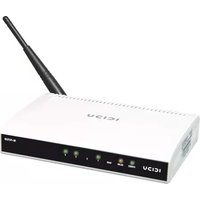
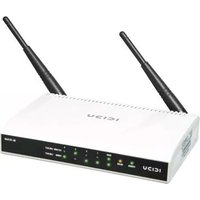
Brand : Icidu
Model : NI-707521
Category : Router