
Nl-707533 - Router Icidu - Free user manual and instructions
Find the device manual for free Nl-707533 Icidu in PDF.


| Product Type | Wireless Gigabit Router |
| Model | Nl-707533 |
| Brand | Icidu |
| Wireless Standards | IEEE 802.11b/g/n |
| Maximum Wireless Speed | 300 Mbps |
| Maximum Wired Speed | 1 Gbps (Gigabit Ethernet) |
| Frequency Band | 2.4 GHz |
| MIMO | Yes, 3x3 |
| Antennas | 3 external, 3 dBi each |
| Ports | 1 x WAN (RJ-45), 4 x LAN (RJ-45), 1 x USB |
| USB Port Function | NAS (Network Attached Storage) support |
| Security Encryption | WEP 64/128/152-bit, WPA, WPA2, TKIP, AES |
| WPS | Yes (Wi-Fi Protected Setup) |
| VPN Pass-Through | Yes |
| NAT/DHCP | Built-in |
| WAN Connection Types | Dynamic IP, Static IP, PPPoE |
| Management | Web based (http://192.168.1.1) |
| Power Adapter | 12V DC, 1.5A |
| Dimensions | Not specified in manual |
| Weight | Not specified in manual |
| Package Contents | Router, Power Adapter, CD with Manual, User Manual |
| Warranty | 10 years (unless otherwise specified) |
Frequently Asked Questions - Nl-707533 Icidu
User questions about Nl-707533 Icidu
0 question about this device. Answer the ones you know or ask your own.
Ask a new question about this device
Download the instructions for your Router in PDF format for free! Find your manual Nl-707533 - Icidu and take your electronic device back in hand. On this page are published all the documents necessary for the use of your device. Nl-707533 by Icidu.
USER MANUAL Nl-707533 Icidu
natural_image
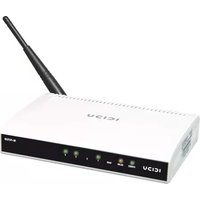
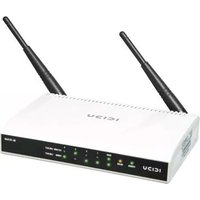
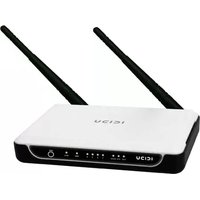
White wireless router with three black antennas on top, no visible text or symbols on the device bodyENGLISH
CONTENTS OF THE PACKAGE 5
TECHNICAL SPECIFICATIONS 5
RANGE OF APPLICATIONS 5
HARDWARE INSTALLATION 6
ROUTER CONFIGURATION 9
CONNECTING TO THE INTERNET 10
WPS 13
CE/fCC 14
WARRANTy 17
ENGLISH
GIGABIT ROUTER
WIRELESS 300N
300 MBPS WITH USB PORT
Thank you for buying this 300N router. If you want to interconnect several PC's for shared Internet access, you will need an additional component to connect the PCs. This router allows you to set up a wireless network, quickly and efficiently. The USB port enables NAS functionality when connecting an external hard disk.
ICIDU
CONTENTS OF THE PACKAGE
Before starting the installation first check that all necessary parts are present. The box should contain:
- Gigabit Wireless Router 300N
- Power adapter 12V = 1.5A
- CD with full manual
- User manual
TECHNICAL SPECIFICATIONS
- 802.11n wireless protocol
- Maximum wireless data transfer speed: 300Mbps
- Gigabit LAN, Gigabit WAN
- Mimo (Multi In - Multi Out)
- USB port for NAS functionality
- Supports: IEEE 802.11b, and IEEE 802.11g
- Supports: WEP/WPA/WPA2/TKIP/AES
- 3x Aerial 3dBi
- Supports: 64/128/152 bit WEP encryption security
- Maximum wired data transfer speed: 1Gbps
- Web Based Management
- Supports: Dynamic IP, Static IP, PPPoE
- 1 x WAN, 4 x LAN RJ-45 UTP ports
- Built-in NAT and DHCP server
- Supports: VPN pass through
- Independent of operating system
RANGE OF APPLICATIONS
This router allows you to set up a wireless broadband Internet connection on multiple computers. On top of a shared Internet
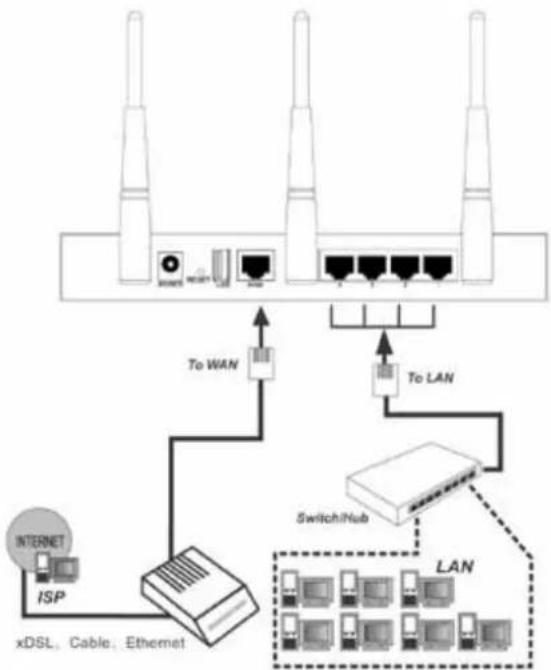
connection, you can also set up a network between several PCs. Connect the ADSL or cables modem to the WAN port of the router and after a few seconds the WAN LED will light up. You can now connect the PCs. Once the PCs have been started up, the relevant LED will light up.
HARDWARE INSTALLATION
As soon as you have connected the router to the power adapter, the power LED (Green) will light up once. The other LEDs (Green) will light up as soon as one of the UTP ports are connected to the computer. When data is transferred from one computer to another the LEDs will start to flash.
LED INDICATORS

Name Status Indication
Power Off Power is off.
On Power is on.
System On The Router is initializing or maybe has a system error.
Flashing The Router is working properly.
Off The Router has a system error.
WLAN, Off The Wireless function is disabled.
Flashing The Wireless function is enabled.
WAN Off There is no device linked to the corresponding port.
LAN 1-4 On There is a device linked to the corresponding port
but there is no activity.
Flashing There is an active device linked to the corresponding port.
USB Off There is no connected storage device
On There is a device linked to the corresponding port
WPS Slow Flash A wireless device is connecting to the network by WPS function. This process will last in the first 2 minutes.
On A wireless device has been successfully added to the network by WPS function.
Quick Flash A wireless device failed to be added to the network by WPS function.
OVERVIEW OF CONNECTIONS AT THE BACK OF THE ROUTER
flowchart
graph TD
    A["Internet"] -->|ISP| B["xDSL, Cable, Ethernet"]
    B --> C["Switch/Hub"]
    C --> D["LAN"]
    D --> E["To LAN"]
    E --> F["To WAN"]
    F --> G["Network Port 1"]
    F --> H["Network Port 2"]
    F --> I["Network Port 3"]
    F --> J["Network Port 4"]
    F --> K["Network Port 5"]
    F --> L["Network Port 6"]
    F --> M["Network Port 7"]
    F --> N["Network Port 8"]
After you have correctly connected the router, you can start to configure it. For some providers you will need addition information, such as your username and a password.
Start up the Internet browser and enter the following address in the address bar http://192.168.1.1 and press "Enter"

The following screen is displayed. To access the router enter "admin" for username and "admin" for password and then click "OK"

CONNECTING TO THE INTERNET
After successful login, you can configure the router using the web browser. Please click the Quick Setup link on the left of the main menu and the Quick Setup screen will appear. Click Next to continue.

The Choose WAN Connection Type screen will appear. Please select one compatible with your ISP. Click Next to configure the necessary network parameters.
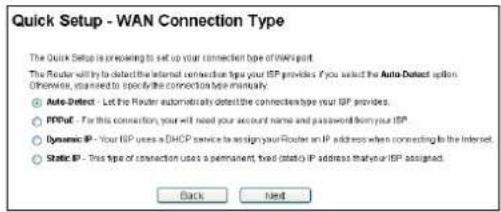
If you have a Dynamic IP (or automatic IP) account, select Dynamic IP and click Next, the router will automatically get IP parameter from your ISP without entering any parameters.
If you have a fixed IP (or static IP) account, select Static IP and click Next to load the following figure, and fill the blanks with the parameters provided by your ISP.
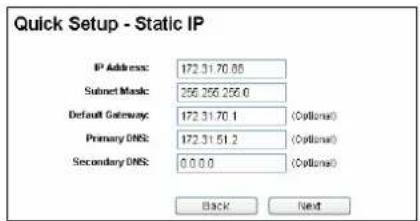
After you complete the above, click Next, the Wireless settings screen will appear as the following:

At the end of the Quick Setup, click the Finish button to exit this Quick Setup. The router should now be connecting you to the Internet.
Use this space to write down your router's settings.
Wireless Settings
SSID :
To get the most out of your router, please see the complete manual on the CD-ROM.
WPS CONFIGURATION
WPS (Wi-Fi Protected Setup) function allows you to add a new wireless device to an existing network quickly. WPS can only be used if the router also supports this feature.
Push the button on the router and on the adapter and wait until the following screen appears. Then click "Finish".

The WPS connection can also be established by making the connection in the software utility. This will also enable you to use a PIN code. For more information on WPS, please read the full manual on the CD.

CE MARK WARNING
This is a class B product. In a domestic environment, this product may cause radio interference, in which case the user may be required to take adequate measures.
NATIONAL RESTRICTIONS
This device is intended for home and office use in all EU countries (and other countries following the EU directive 1999/5/EC) without any limitation except for the countries mentioned below:
COUNTRY RESTRICTION REASON/REMARK
| Bulgaria None General authorization required for outdoor use and public service |
| France Outdoor use limited to Military Radiolocation use. 10 mW e.l.r.p. within the Refarming of the 2.4 GHz band has band 2454-2483.5 MHz been ongoing in recent years to allow current relaxed regulation.Full implementation planned 2012 |
| Italy | None | If used outside of own premises, general authorization is required |
| Luxembourg | None | General authorization required for network and service supply(not for spectrum) |
| Norway | Implemented | This subsection does not apply for the geographical area within a radius of 20 km from the centre of Ny-Ålesund |
| Russian Federation | None | Only for indoor applications |
Please don't use the product outdoors in France

fCC STATEMENT
This equipment has been tested and found to comply with the limits for a Class B digital device, pursuant to part 15 of the FCC Rules. These limits are designed to provide reasonable protection against harmful interference in a residential installation. This equipment generates, uses and can radiate radio frequency energy and, if not installed and used in accordance with the instructions, may cause harmful interference to radio communications. However, there is no guarantee that interference will not occur in a particular installation. If this equipment does cause harmful interference to radio or television reception, which can be determined by turning the equipment off and on, the user is encouraged to try to correct the interference by one or more of the following measures:
- Reorient or relocate the receiving antenna.
- Increase the separation between the equipment and receiver.
- Connect the equipment into an outlet on a circuit different from that to which the receiver is connected.
- Consult the dealer or an experienced radio/ TV technician for help.
This device complies with part 15 of the FCC Rules. Operation is subject to the following two conditions:
1) This device may not cause harmful interference.
2) This device must accept any interference received, including interference that may cause undesired operation.
Any changes or modifications not expressly approved by the party responsible for compliance could void the user's authority to operate the equipment.
fCC Rf RADIATION EXPOSURE STATEMENT:
This device has been tested for compliance with FCC RF Exposure (SAR) limits in the typical laptop computer configuration and this device can be used in desktop or laptop computers. This device cannot be used with handheld PDAs (personal digital assistants). This device and its antenna must not be co-located or operated in conjunction with any other antenna or transmitter. SAR measurements are based on a 5mm spacing from the body and that compliance is achieved at that distance.
WARRANTy
Unless specified otherwise, all items sold under the ICIDU name are covered by a 10-year warranty. No warranty or support is provided for the software and rechargeable batteries that are provided. Claims under warranty can be made only via the dealer from whom the item was purchased.
Specifications can be changed without notice.
All ICIDU products comply with current European safety and environmental standards and legislation. For further details, visit our website www.icidu.com
ICIDU is a registered trademark. All other brand names and rights in connection with them are and remain the property of the rightful owner.
© Copyright 2011 ICIDU
All rights expressly reserved
- ENGLISH
- GIGABIT ROUTER
- WIRELESS 300N
- MBPS WITH USB PORT
- CONTENTS OF THE PACKAGE
- TECHNICAL SPECIFICATIONS
- RANGE OF APPLICATIONS
- HARDWARE INSTALLATION
- Name Status Indication
- CONNECTING TO THE INTERNET
- WPS CONFIGURATION
- CE MARK WARNING
- NATIONAL RESTRICTIONS
- fCC STATEMENT
- fCC Rf RADIATION EXPOSURE STATEMENT:
- WARRANTy
Brand : Icidu
Model : Nl-707533
Category : Router