
Grafico TW - Graphic tablet Evolveo - Free user manual and instructions
Find the device manual for free Grafico TW Evolveo in PDF.


| Product Type | Drawing tablet |
| Brand | Evolveo |
| Model | Grafico TW |
| Dimensions | 280 x 193 x 8 mm |
| Active Area | 195 x 145 mm (7.7 x 5.7 in) |
| Pressure Sensitivity | 8192 levels |
| Report Rate | 233 PPS |
| Resolution | 5080 LPI |
| Active Height | 15 mm |
| Pen Type | Wireless, battery-free |
| Pen Keys | 2 ( + and - ) |
| Tablet Keys | 4 physical + M-key (rotary encoder) |
| Connection | USB 2.0/3.0, OTG for Android |
| Compatibility | Windows, macOS, Android (with OTG) |
| Power | 5V via USB, max 60mA |
| Included Spare Tips | 30 |
| Included Accessories | Pen, USB cable, Micro-USB OTG, USB-C OTG, pen case, tip removal ring, work surface foil, size L gloves |
| Customizable Keys | Yes (Windows/macOS), not on Android |
| Windows Ink Support | Yes |
Frequently Asked Questions - Grafico TW Evolveo
User questions about Grafico TW Evolveo
0 question about this device. Answer the ones you know or ask your own.
Ask a new question about this device
Download the instructions for your Graphic tablet in PDF format for free! Find your manual Grafico TW - Evolveo and take your electronic device back in hand. On this page are published all the documents necessary for the use of your device. Grafico TW by Evolveo.
USER MANUAL Grafico TW Evolveo
natural_image
Digital drawing tablet with a stylus and a red circular button on the left (no text or symbols visible)CZ
SK
EN
HU
RO
SL
Obsah / Content / Tartalom / Cuprins / Vsebina
Česky......4
Slovensky 21
English 38
Magyar....55
Română....72
Slovenščina 89
Obsah
natural_image
Circular icon with a speaker symbol inside, surrounded by starry background (no text or symbols)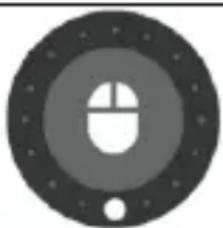
natural_image
Abstract circular graphic with a central white mouse-like shape and surrounding stars (no text or symbols)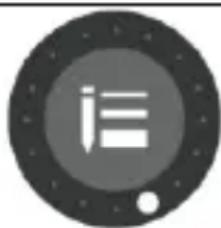
natural_image
Circular icon with a stylized white 'i' inside a dark gray ring, surrounded by stars and dots (no text or symbols)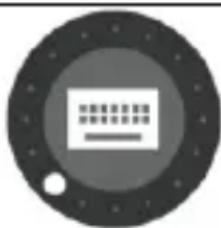
natural_image
Abstract circular icon with a stylized grid pattern inside, no text or symbols present.Vol+-
kolečko myši
štětec+-
nastavení
natural_image
Circular icon with a central square and directional arrows, surrounded by concentric rings and stars (no text or symbols)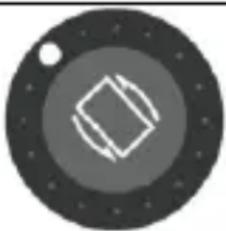
natural_image
Abstract circular design with concentric rings and a central diamond shape (no text or symbols)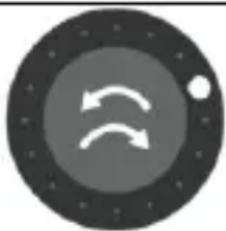
natural_image
Circular icon with two curved arrows inside a dark gray ring, surrounded by stars (no text or symbols)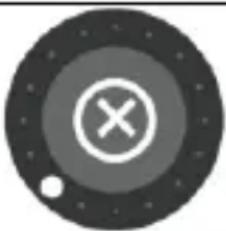
natural_image
Circular icon with a cross and dot, resembling a target or button (no text or symbols)CTRL+-
rotace plátna
zpět
zrušit
natural_image
Hand pressing a button on a black square surface, with an arrow pointing to the left (no text or symbols visible)
5) Zadejte heslo a pokračujte v instalaci.
9) Zaškrtnutím povolte MyTabletDaemon.
Copyright © Abacus Electric, s.r.o.
www.evolveo.com
www.facebook.com/EvolveoCZ
Dovozce
Abacus Electric, s.r.o.
No.5, 17/F, Strand 50, 50 Bonham Strand, Sheung Wan, Hong Kong
Vyrobeno v Číně
| 1) Uchopte hrot pomocou krúžku a vytiahnite ho z pera | 2) Vložte a zatlačte nový hrot do pera |
Pripojenie
MyTablet.pkg
3) Otvorte MyTablet.pkg
4) Vyberte inštalačnú cestu a potom "Install" (Inštalovat'), čím spustíte inštaláciu.
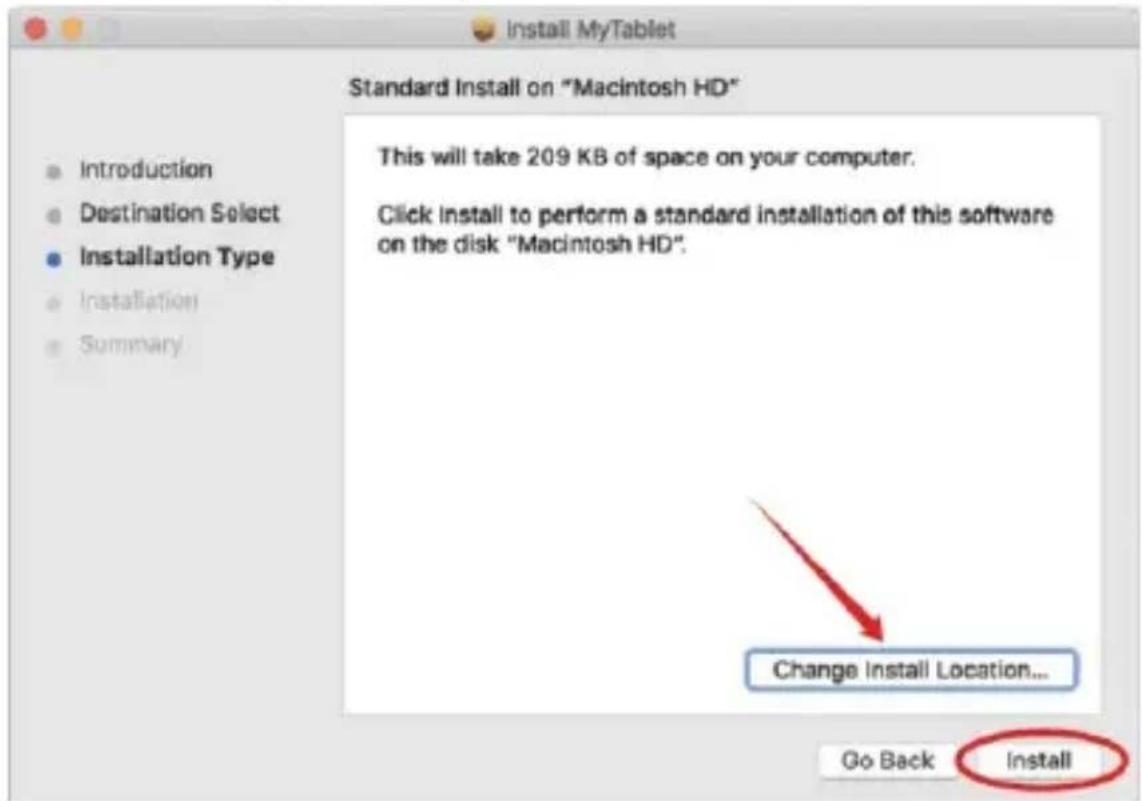
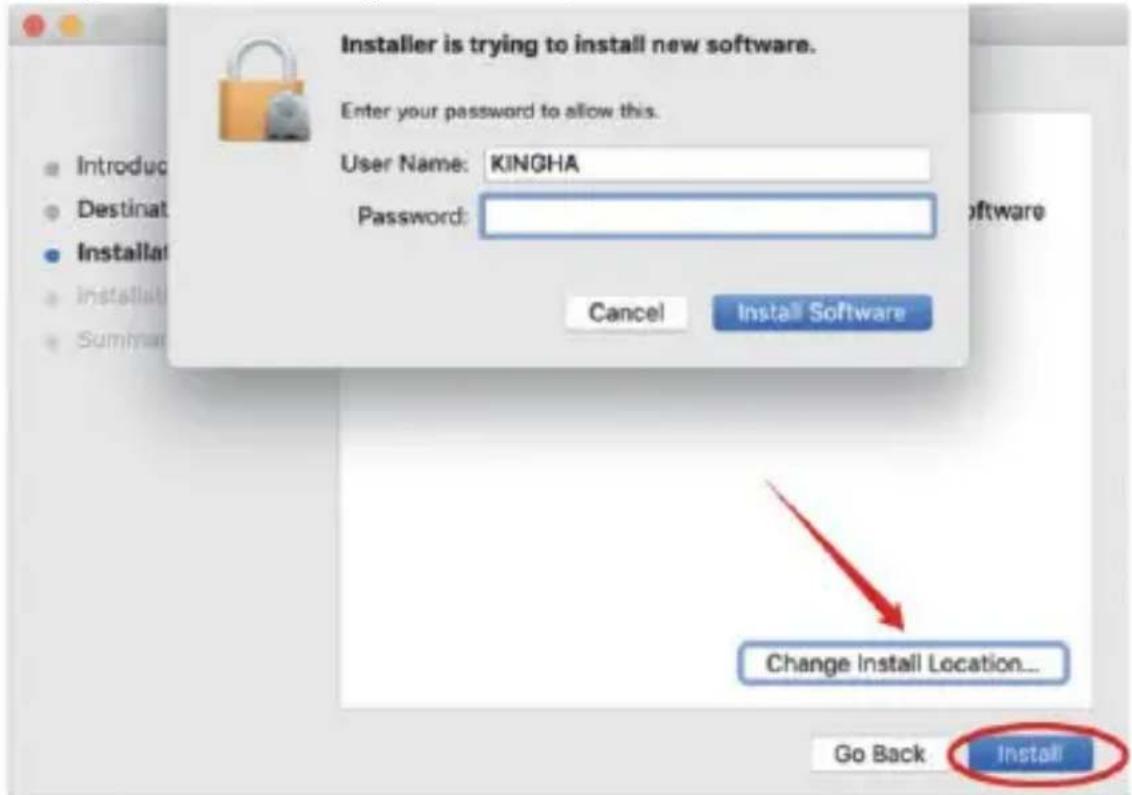
5) Zadajte heslo a pokračujte v inštalácii.
Copyright © Abacus Electric, s.r.o.
www.evolveo.com
www.facebook.com/EvolveoCZ
Dovozca
Abacus Electric, s.r.o.
No.5, 17/F, Strand 50, 50 Bonham Strand, Sheung Wan, Hong Kong
Vyrobené v Číne
Contents of the package 38
Overview.... 39
Wireless pen 40
Replacing the spikes.... 40
Connecting.... 40
Connect to your Android phone 41
Wireless pen settings 42
Specifications 43
Rotating menu function 43
Installing drivers.... 44
Technical support.... 51
Dear customer, thank you for choosing EVOLVEO Grafico TW. We trust that the product will serve you to your full satisfaction.
Important information
This manual contains the steps for daily operation, setup and installation of the EVOLVEO Grafico TW.
The drivers needed to install the device are stored inside the device.
Contents of the package
- EVOLVEO Grafico TW, graphic tablet
- Wireless pen
- Spare tips - 30pcs
- USB
- User manual
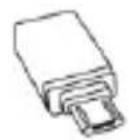
- Micro-USB OTG adapter
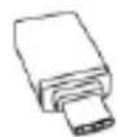
- USB C OTG adapter
- Wireless pen case
- Ring for removing spikes
- Work surface foil
- Gloves size L
Overview
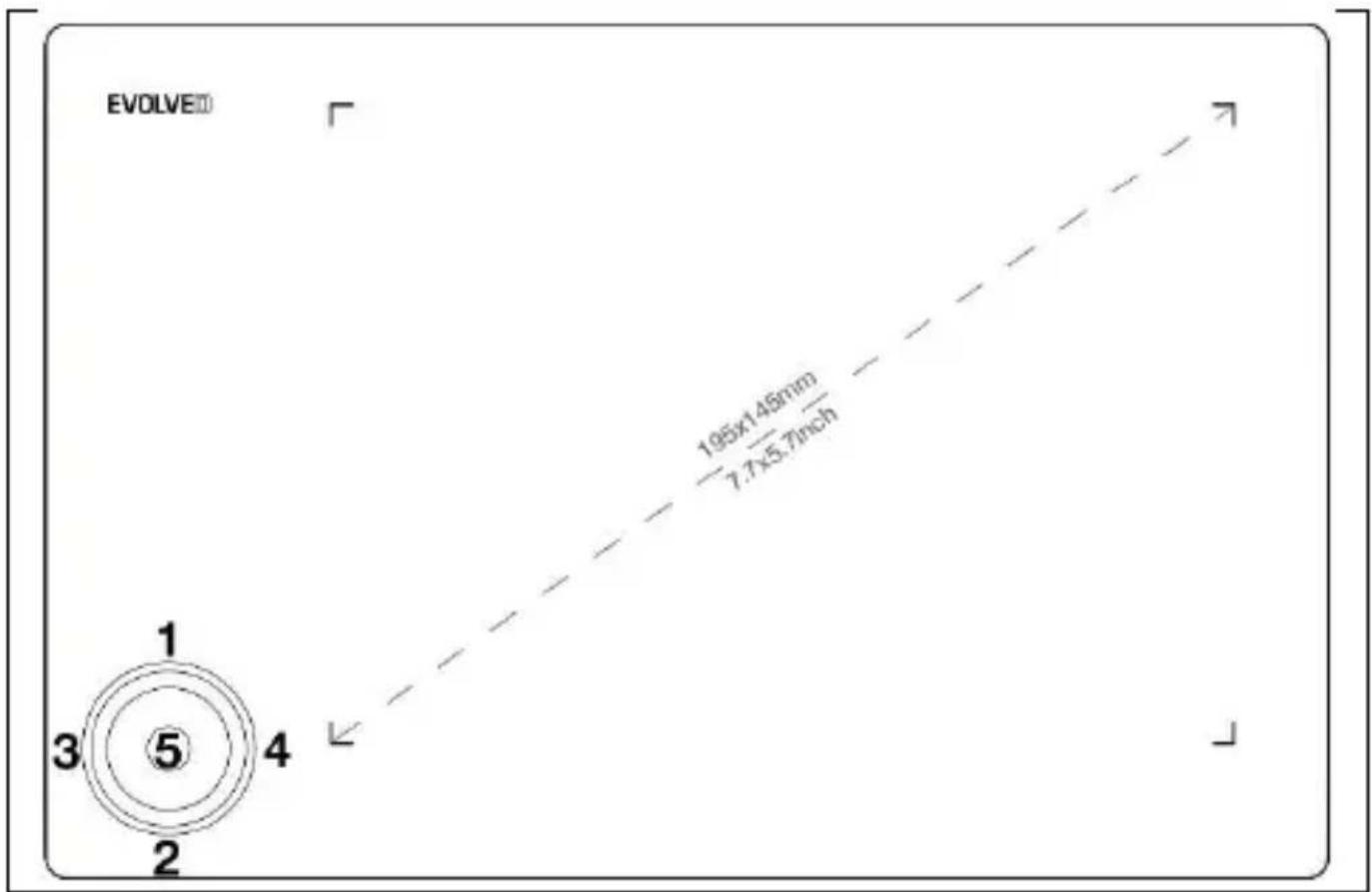
Remark: After successful connection of the device, the normal working state is as follows:
When the wireless pen is not in the graphics tablet workspace, the mouse cursor is static.
When the wireless pen touches the graphics tablet's work area, the mouse cursor moves in response to the movements of the wireless pen.
Remark: Keys 1-4 can be reconfigured to suit your use. Changing the function cannot be done on Android.
Wireless pen

| 1) pro key -2) key for + | 3) wireless pen tip |
Remark: The key for "-" can be adapted to your needs. See the driver interface for details.
Remark: No need to charge the wireless pen or use the battery.
Replacing the spikes
natural_image
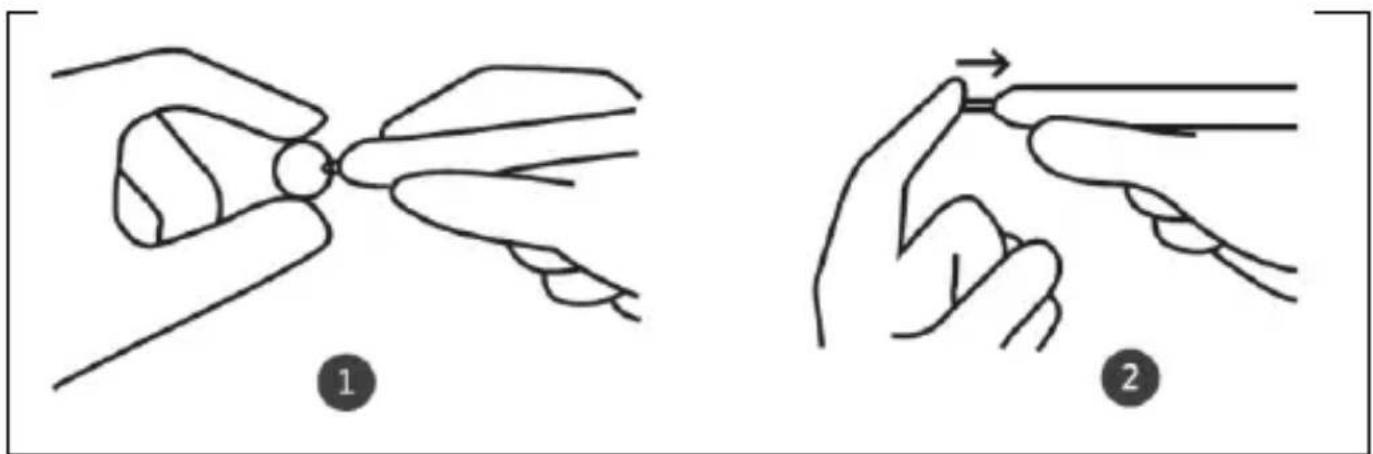
Two-step illustration showing a hand holding a small object, labeled 1 and 2, with no text or symbols present.| 1) Grasp the nib with the ring and pull it out of the pen | 2) Insert and press the new nib into the pen |
Connecting
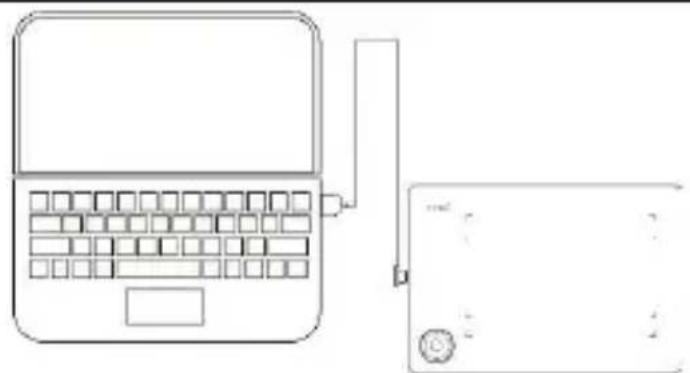
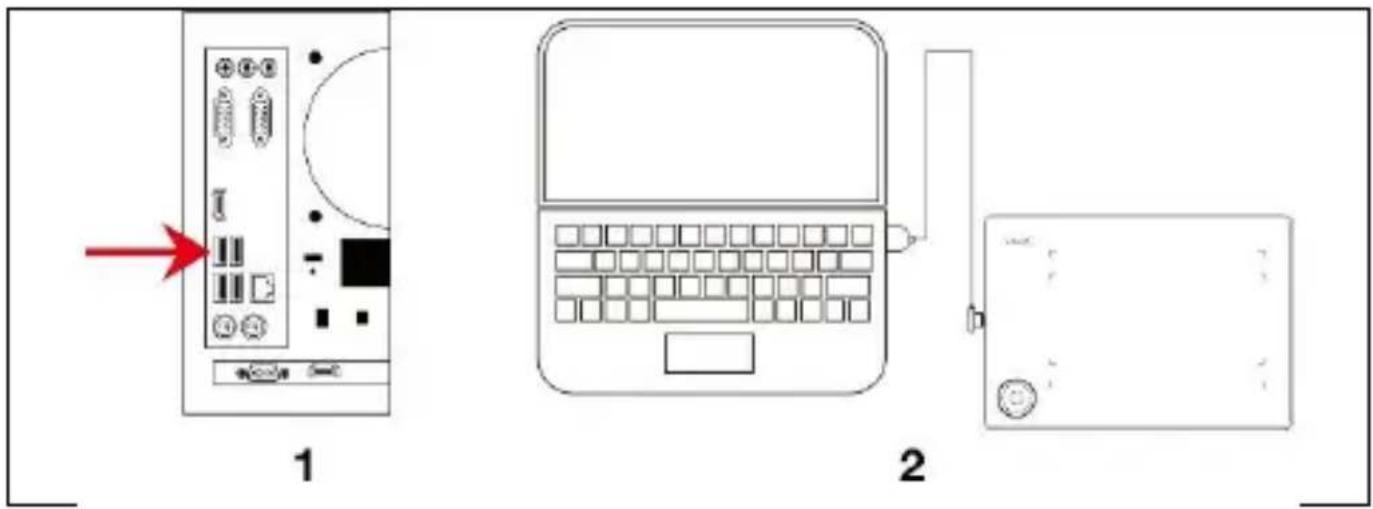
Connect the graphics tablet to the PC USB 2.0/3.0 port. Do not use the front USB ports of your PC to connect.
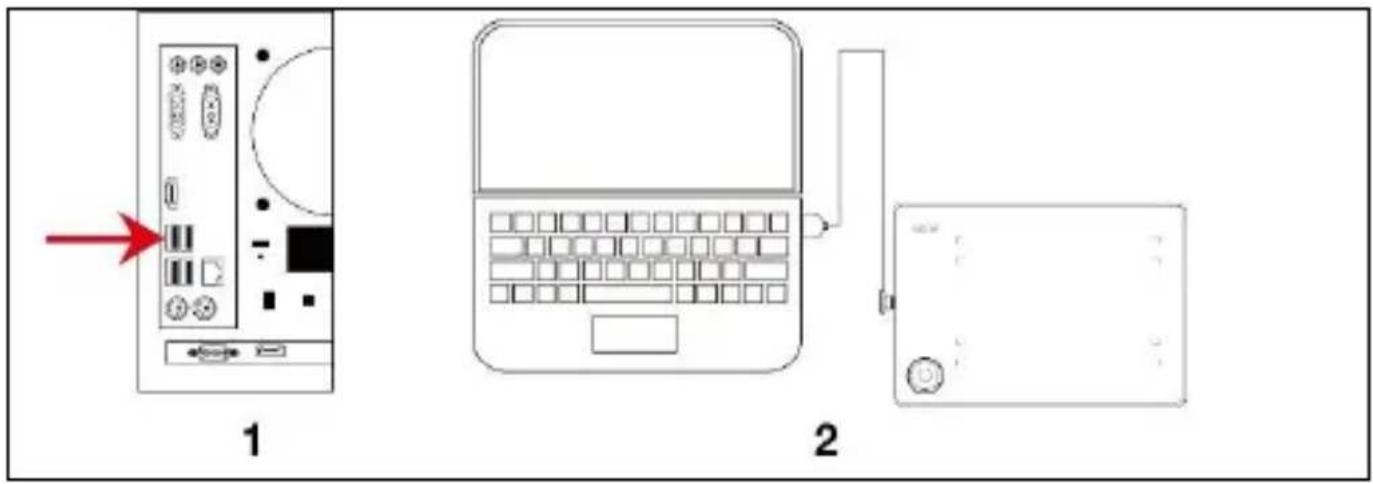
| 1) USB connection to PC | 2) USB connection to laptop |
Connect to your Android phone
Android phone/OTG adapter/USB cable/graphic tablet
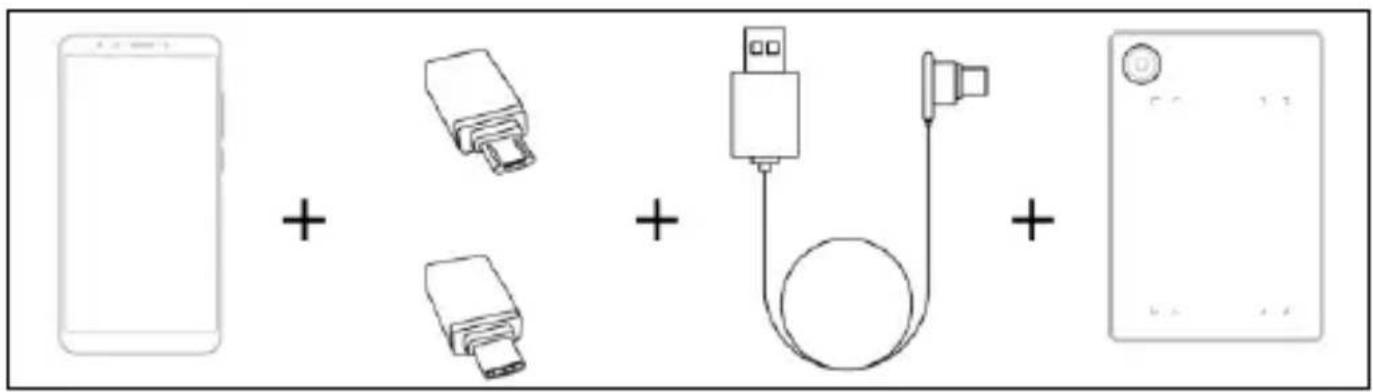
Important: Please turn off the screen rotation function on your phone before connecting.
Important: Please make sure that your phone supports OTG and this feature is enabled.
Procedure:
1) Connect the OTG adapter to your Android phone
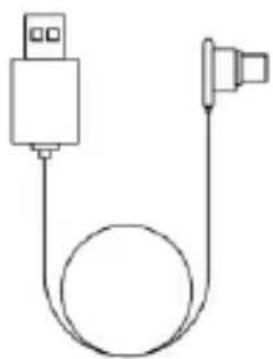
2) Connect the USB cable to the OTG adapter
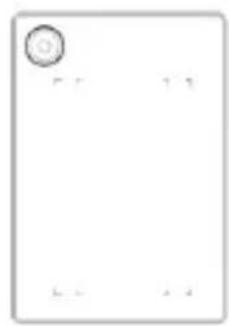
3) Connect the USB cable to the EVOLVEO Grafico graphics tablet
Wireless pen settings (Windows only)
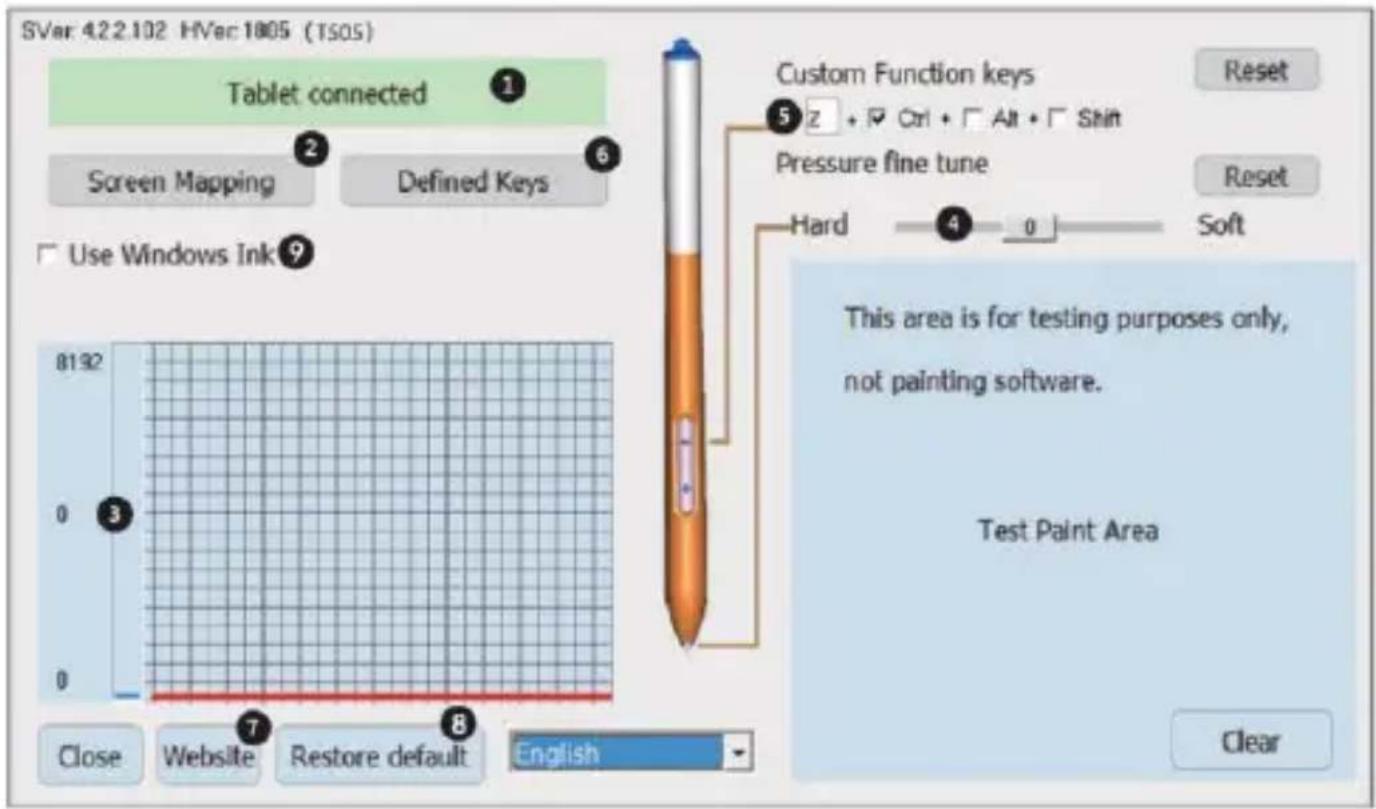
1) PC and graphics tablet connection status
2) Screen mapping: The ability to set the screen and desktop mapping area of a graphics tablet.
3) Wireless pen pressure: Level from 0 to 8192. The curve shows the level of pressure exerted on the graphics tablet by the wireless pen.
4) Fine-tuning of pressure: It serves to slightly adjust the pressure. Default: 0. The change can be seen to the left of the pressure curve.
5) Wireless pen keys set: Adjustable function of the "-" key. Default: Ctrl+z. The function of the "+" key is set as the right mouse button.
6) Adjustable keys
7) In case of problems, contact technical support.
8) Restore drivers to factory settings
9) Default: not selected
Specifications
| Product name | EVOLVEO Grafico TW |
| Product number | TAB GFK TW |
| Dimensions | 280 x 193 x 8 mm |
| Working voltage | 5V |
| Consumption max. | 60mA |
| Pressure level | 8192 |
| Feedback | 233 PPS |
| Screen resolution | 5080 LPI |
| Active height | 15 mm |
| Physical keys | Can be reconfigured in Windows and MAC OS interface. For Android, this feature is undefined. |
| Active workspace | 195 x 145 mm |
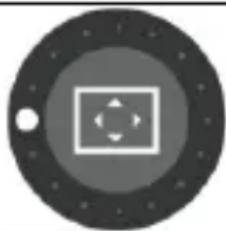
Rotating menu function
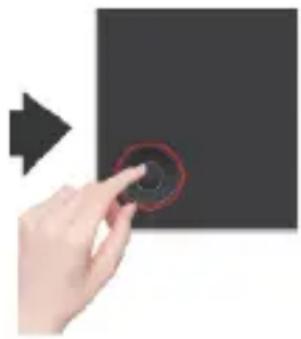
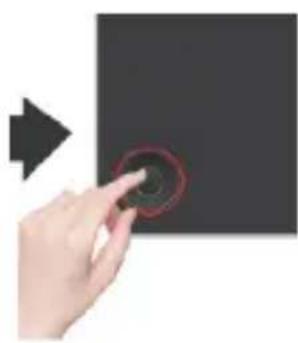
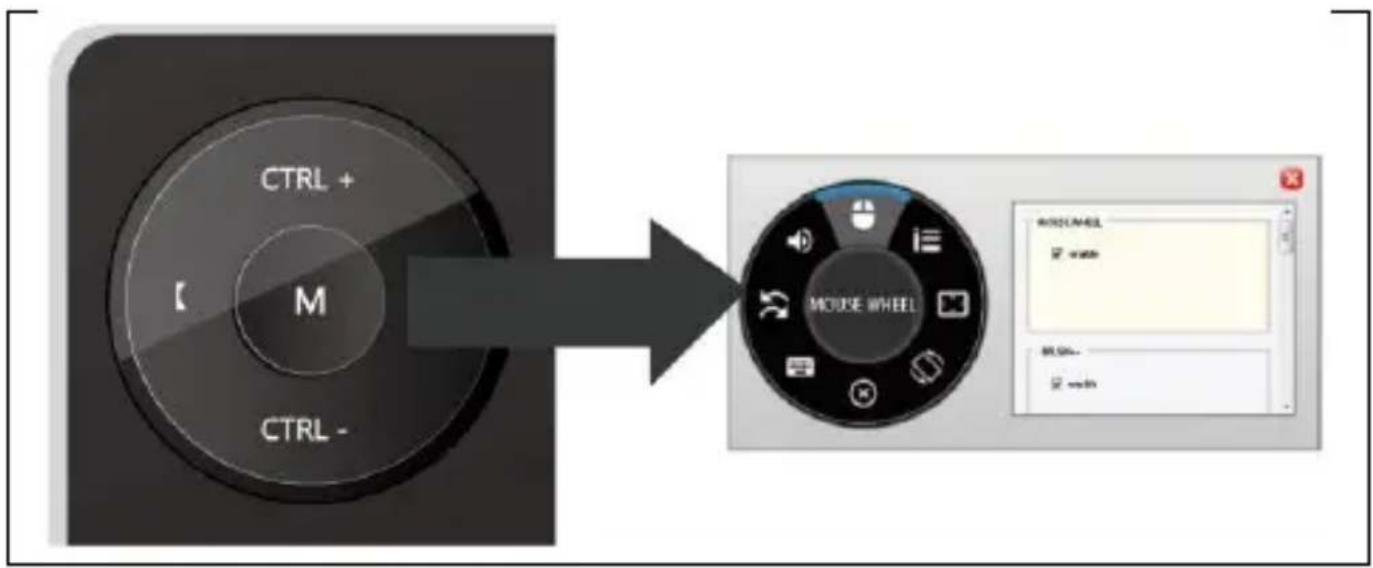
Press the M-Key briefly and use the rotary encoder to select a function.
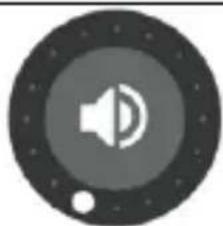
natural_image
Circular icon with a speaker symbol inside, surrounded by starry background (no text or symbols)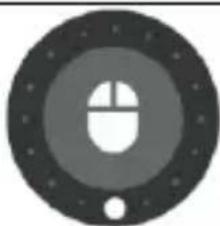
natural_image
Circular icon with a stylized computer mouse silhouette and star pattern (no text or symbols)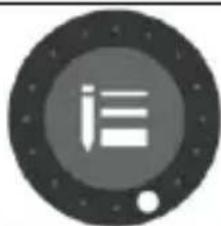
natural_image
Circular icon with a stylized white 'i' in the center, surrounded by dark speckles (no text or symbols)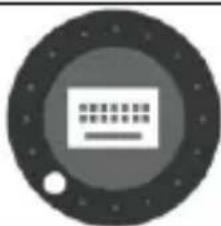
natural_image
Circular icon with a stylized grid pattern inside, surrounded by concentric rings and stars (no text or symbols)Vol+-
mouse wheel
brush+-
settings
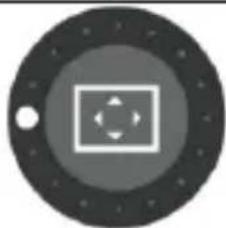
natural_image
Abstract circular design with concentric rings and a central square, no text or symbols present.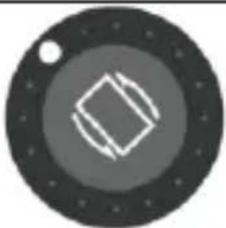
natural_image
Abstract circular design with concentric rings and a small white dot, no text or symbols present.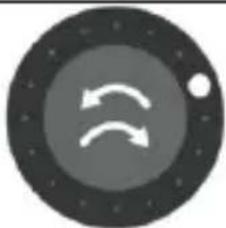
natural_image
Circular icon with two curved arrows inside, surrounded by a starry background (no text or symbols)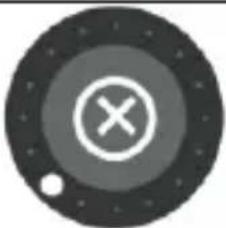
natural_image
Circular icon with a cross and dot, no text or symbols presentCTRL+-
rotate canvas
back
cancel
natural_image
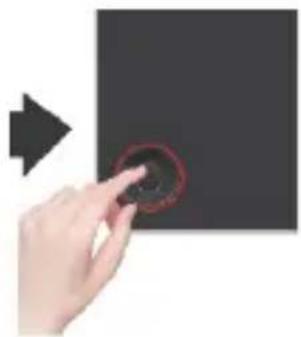
Hand pressing a circular button on a black surface, with an arrow pointing to the left (no text or symbols visible)Long press and hold the M-Key to call up the window for setting individual functions.
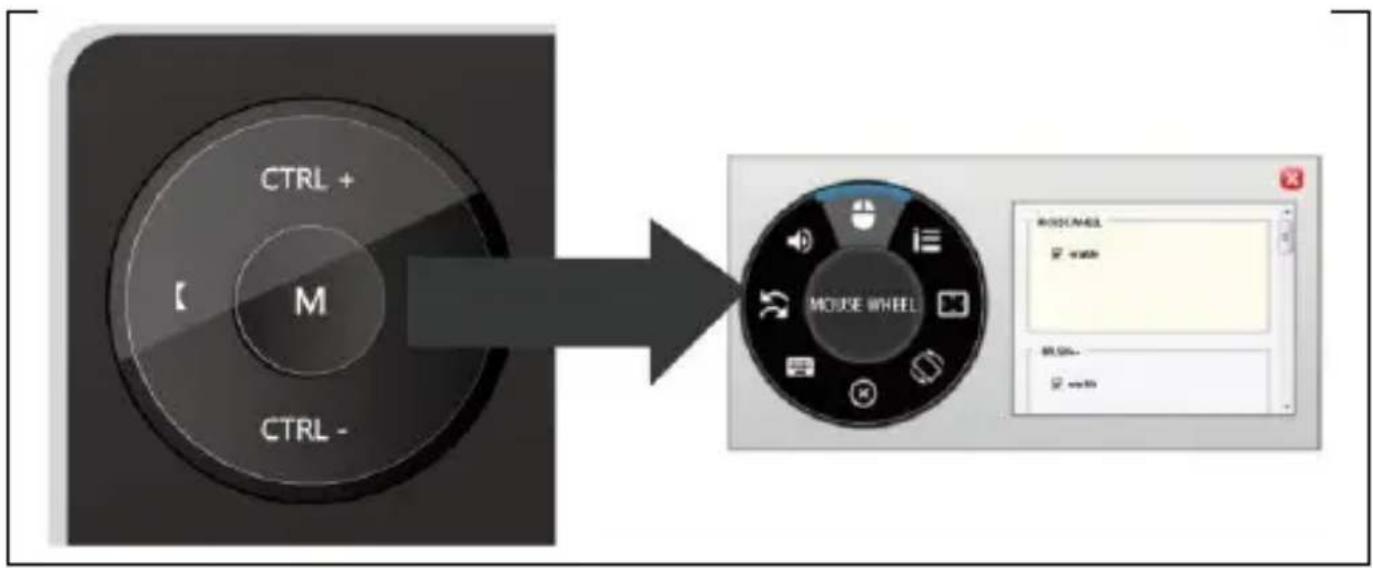
flowchart
graph LR
    A["CTRL +"] --> B["M"]
    B --> C["CTRL -"]
    D["MOUSE WHEEL"] --> E["MOUSE NAME"]
    E --> F["watch"]
    E --> G["BL ONLY..."]
    E --> H["we'll be"]
Installing drivers
Instalace pro Windows
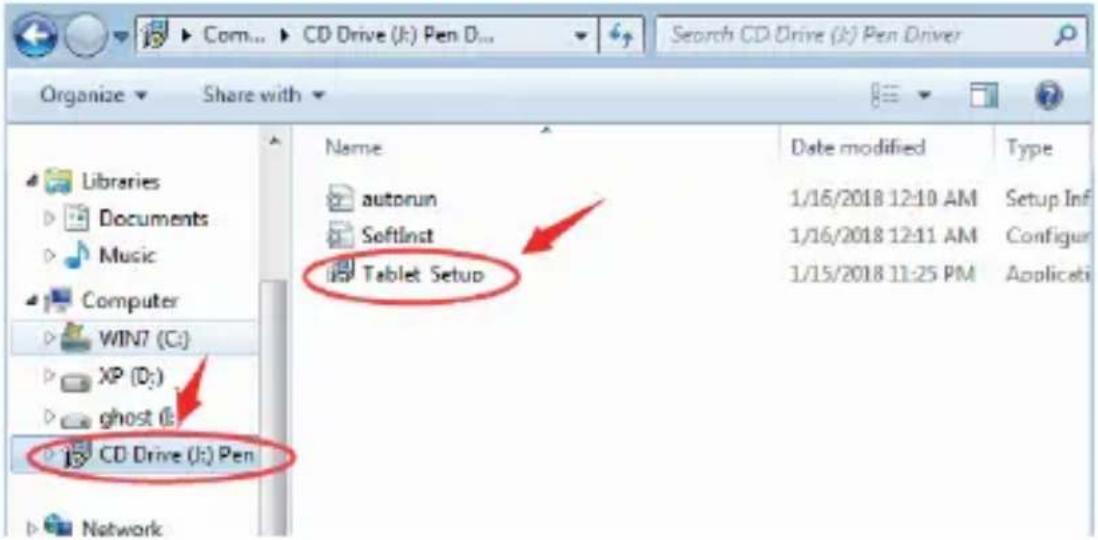
1) After connecting the graphics tablet to your PC, wait a few minutes. Then open "This computer" and then the CD-ROM (J). Run the " Grafico Drivers.exe" file to install the drivers
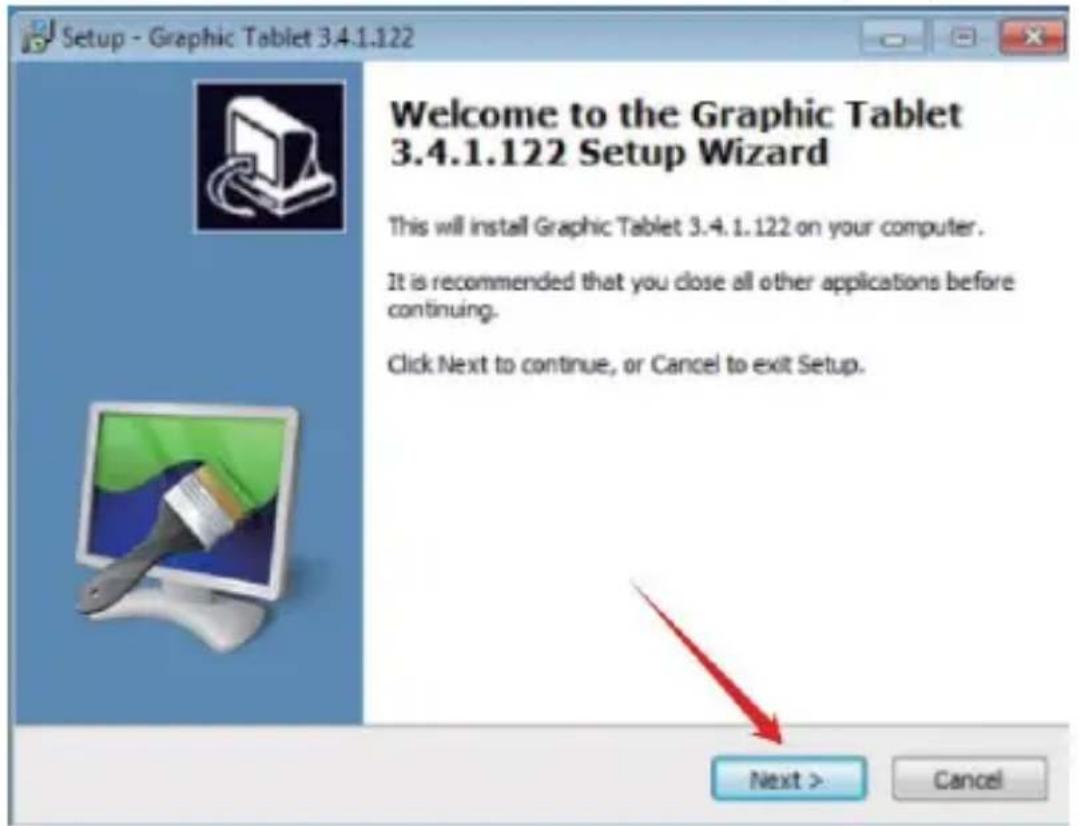
2) Follow the installation instructions step by step.
3) In the last driver installation window you will be asked if you want to download the "Paint Tool SAI" graphics program. Select whether you want to install the program.
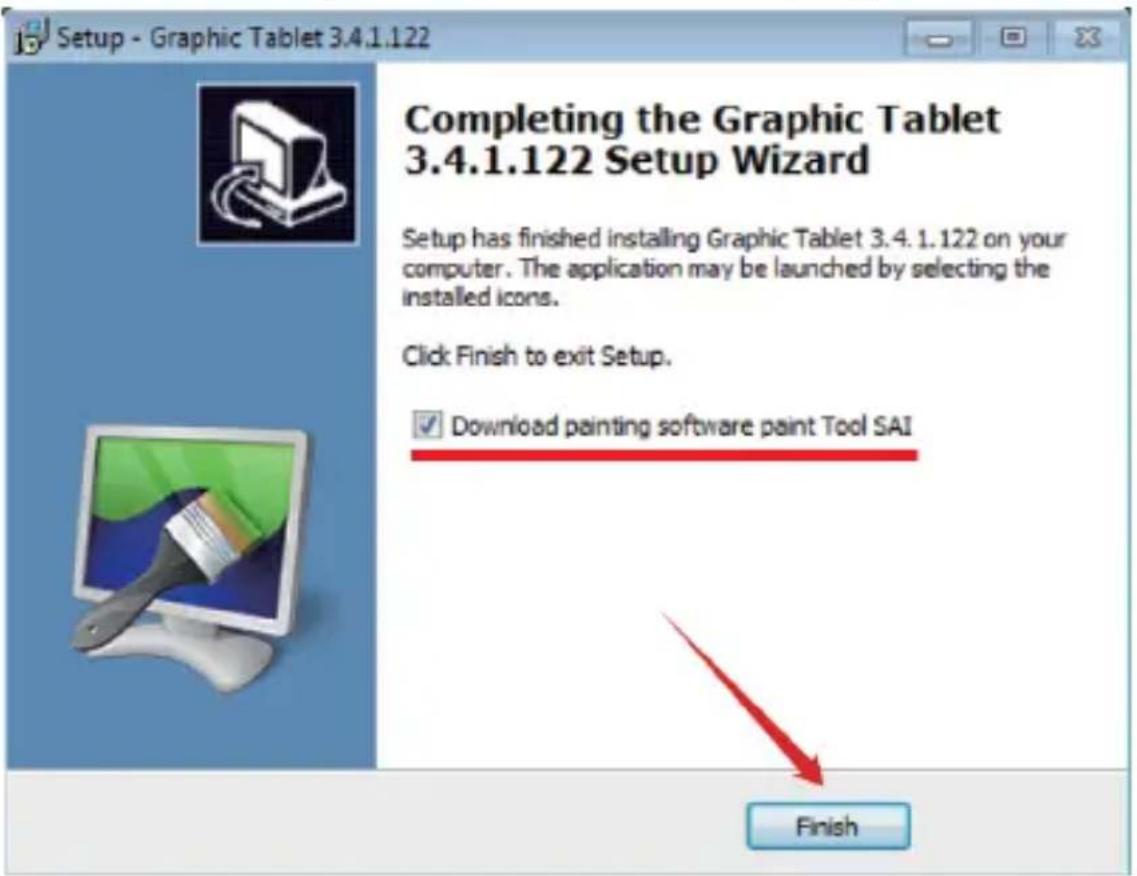
4) Select a path to save the download.
5) Once the download is complete, run the "sai.exe" file and follow the steps to install the program.
6) The installation is complete after the icons of the installed programs appear on the desktop.
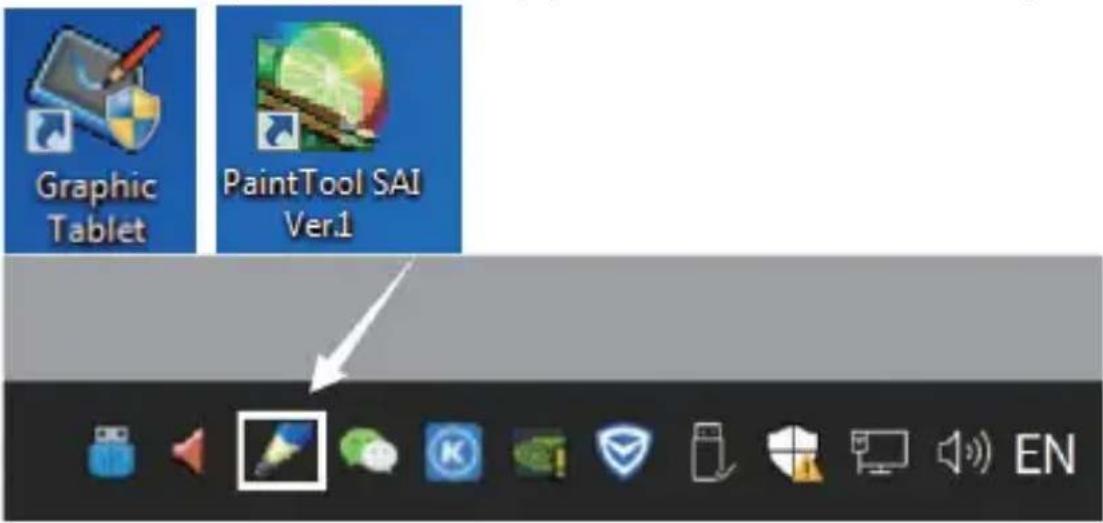
Remark:
- Do not use a USB HUB or USB extension cable to connect to your PC.
- When not in use, do not allow the pen tip to touch anything and avoid dropping the pen from a height.
- Avoid disorderly mouse cursor movement, or movement without action. Do not use two or more graphics tablets at the same time.
- Please turn off the flicks function in Windows 7.
Installation for MAC OS
1) After connecting the tablet to your Mac device, locate the "Pen Driver" folder and open it.
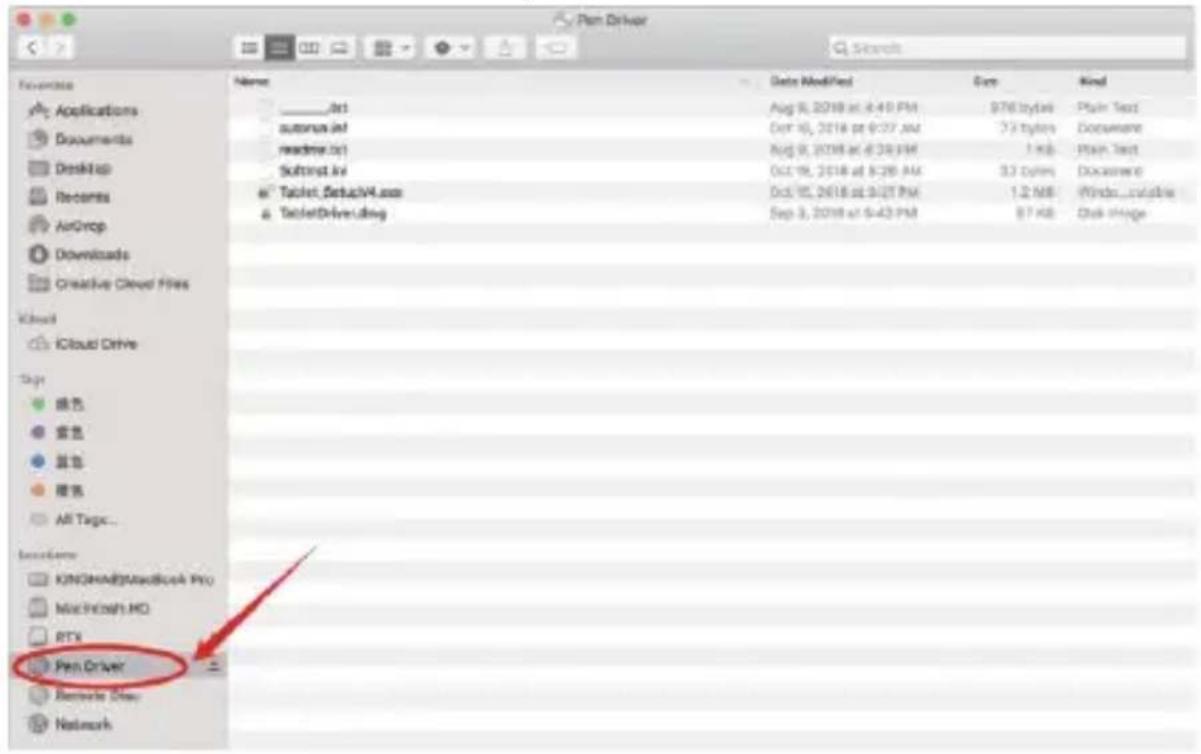
2) Open TabletDriver.DMG
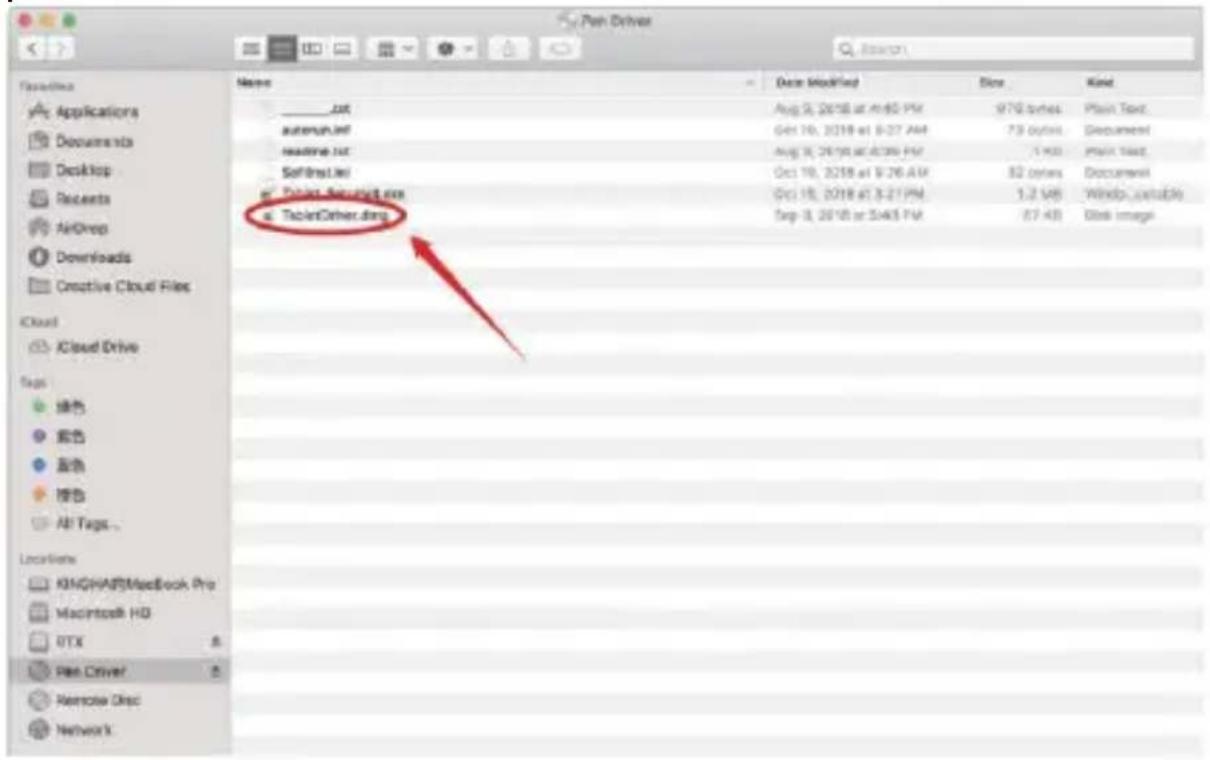
MyTablet.pkg
3) Open MyTablet.pkg
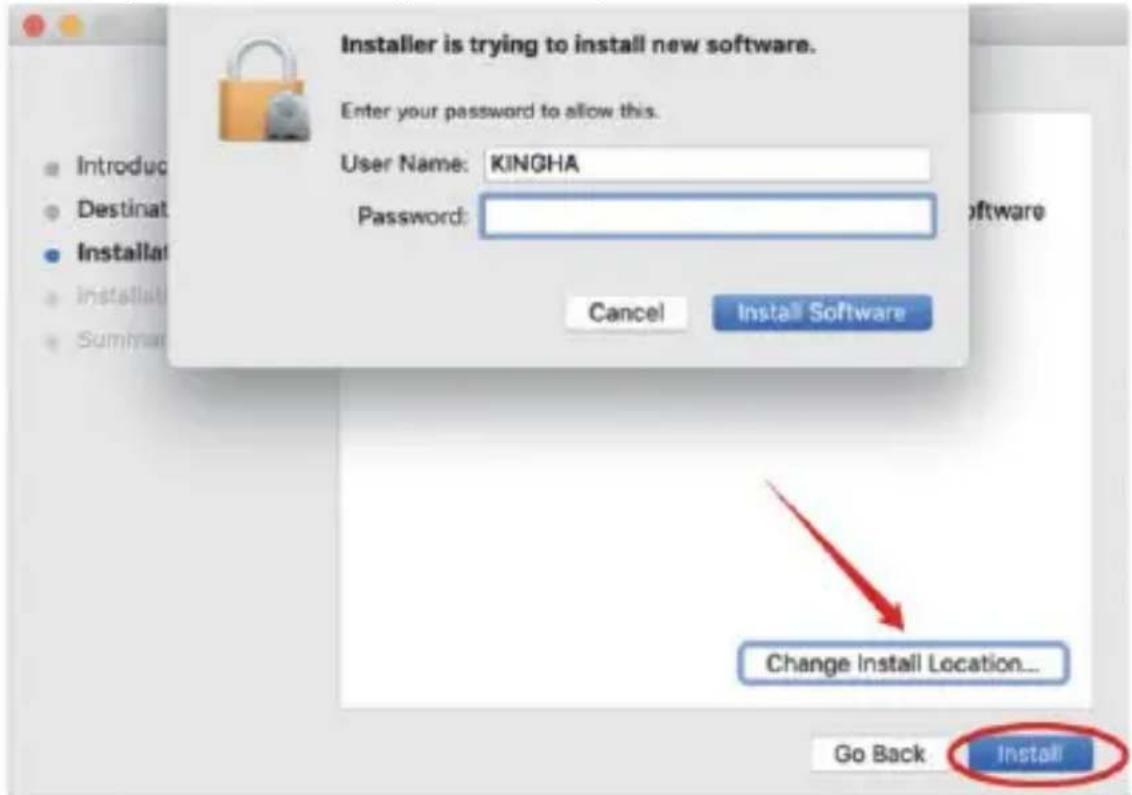
4) Select the installation path and then "Install" to start the installation.
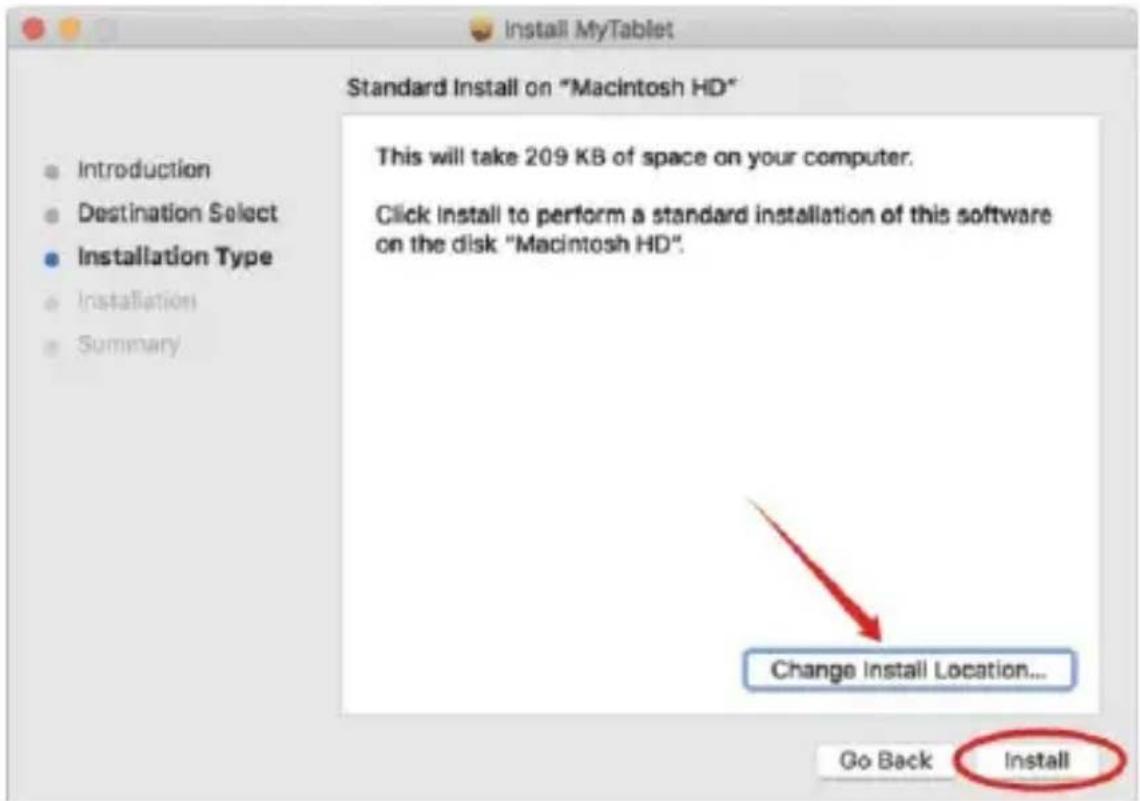
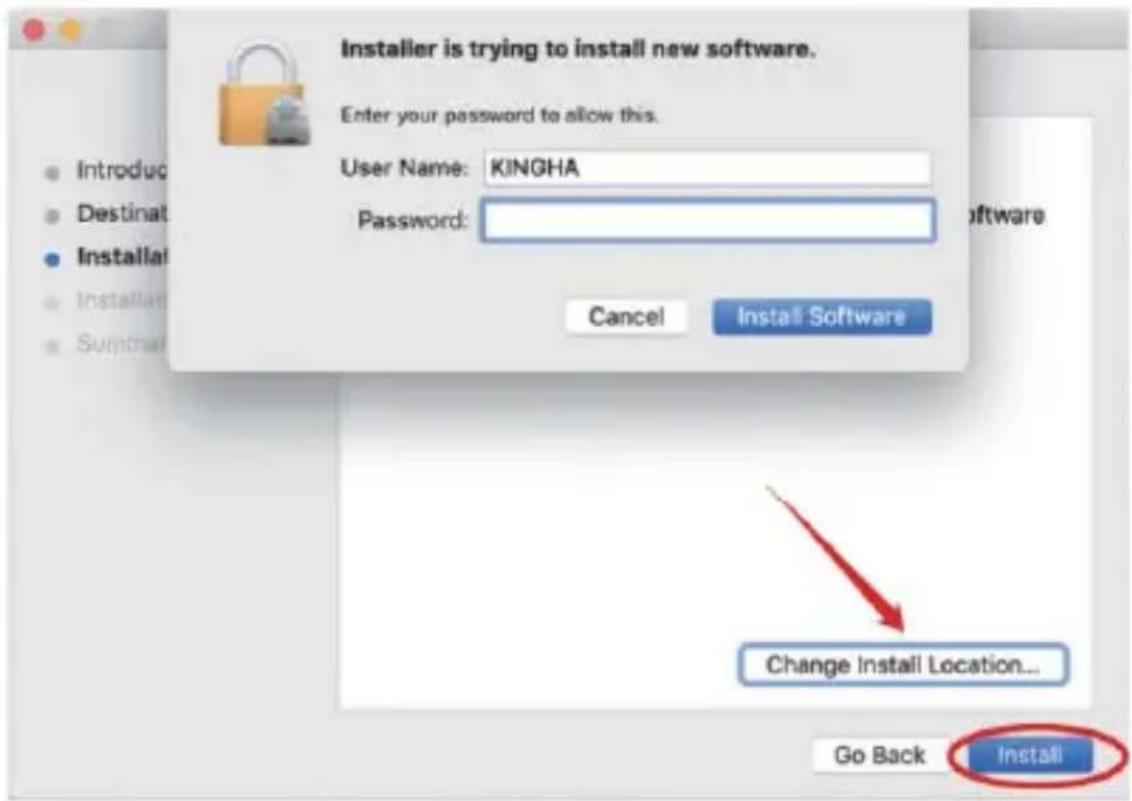
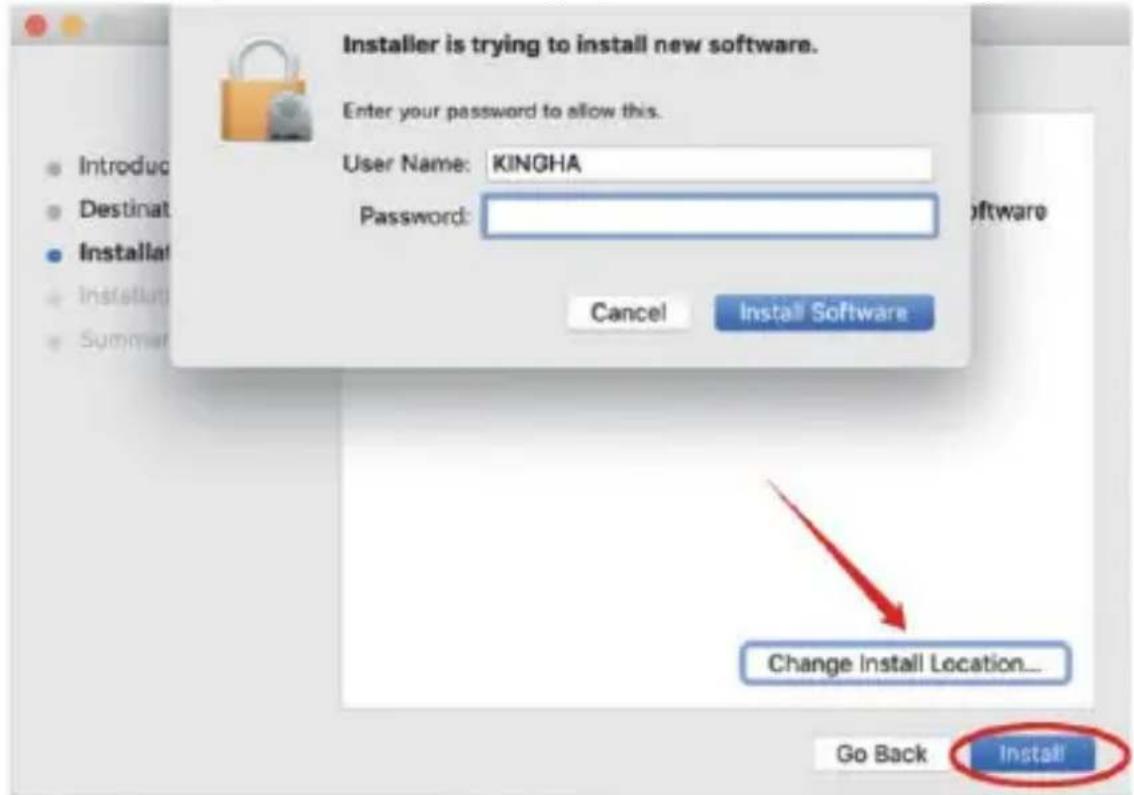
5) Enter your password and continue with the installation.
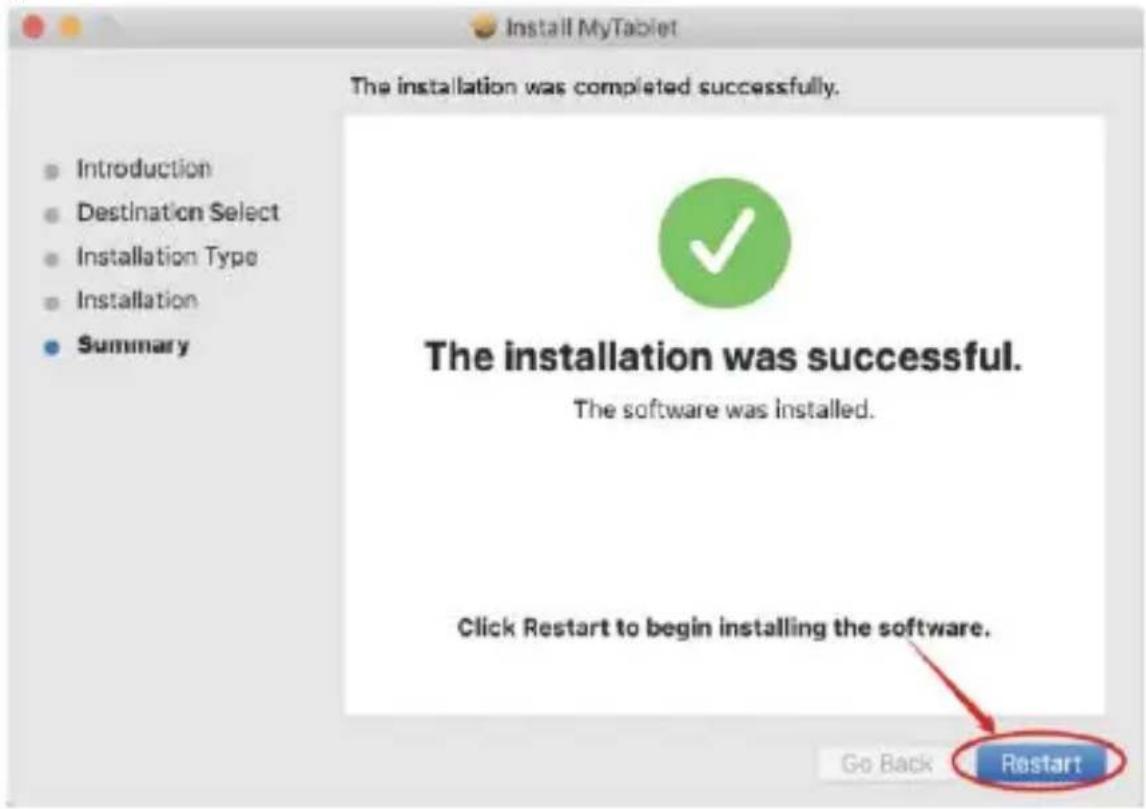
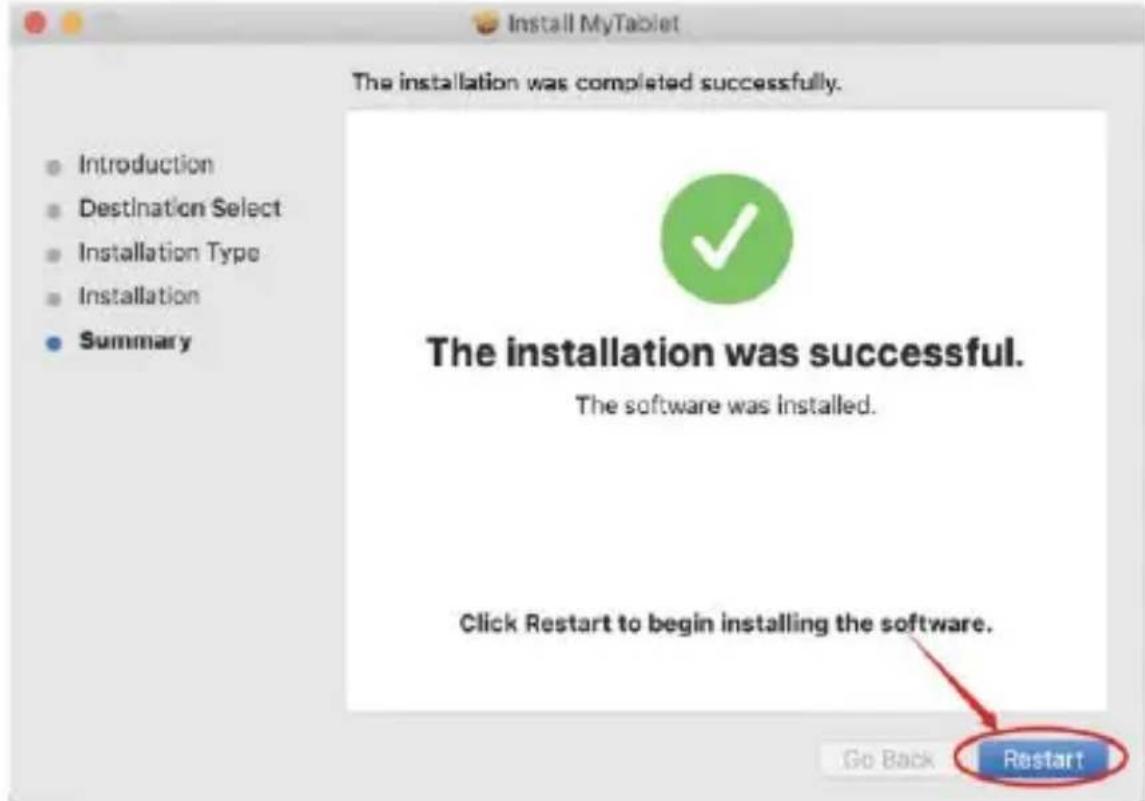
6) After successful installation, you will be prompted to restart your device.
Remark: After installing the driver, make the following settings
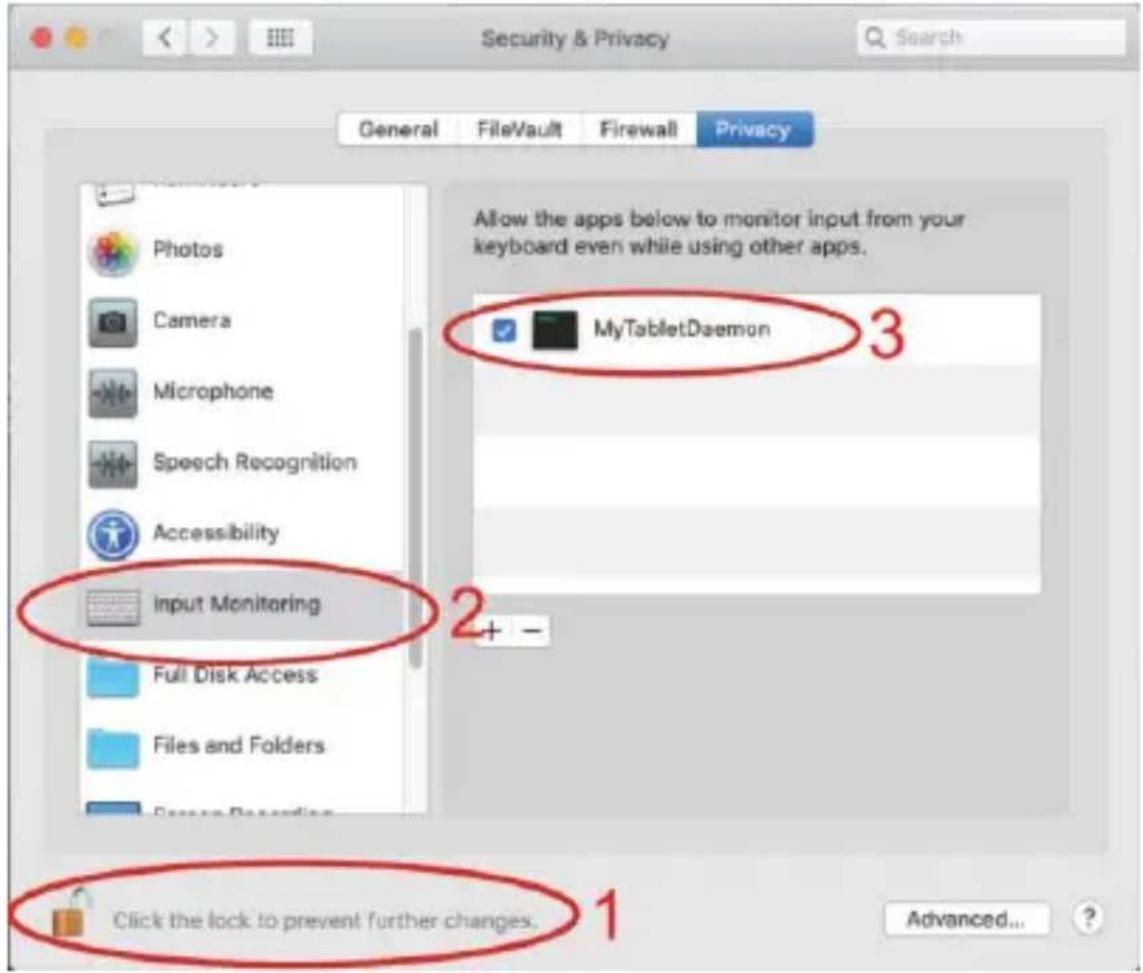
7) Open your MAC OS settings. Search for "Security & Privacy Option".
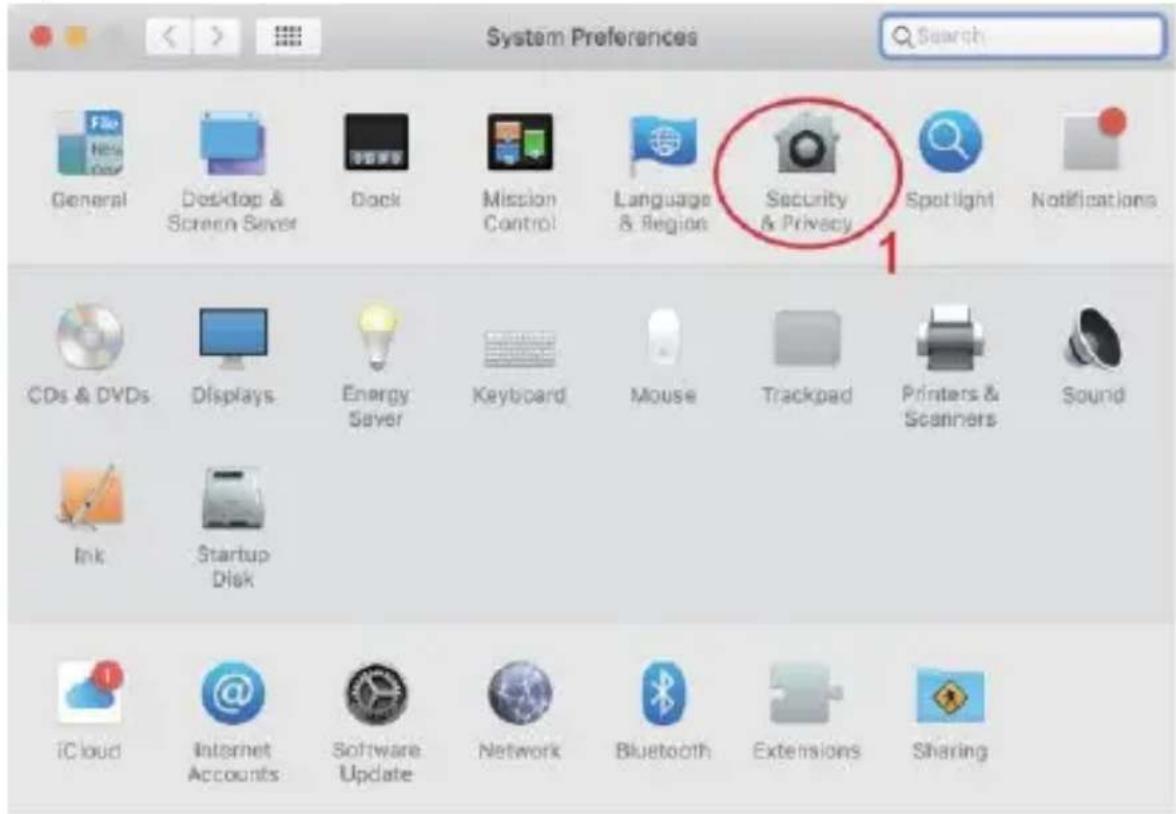
8) Select the unlock option.
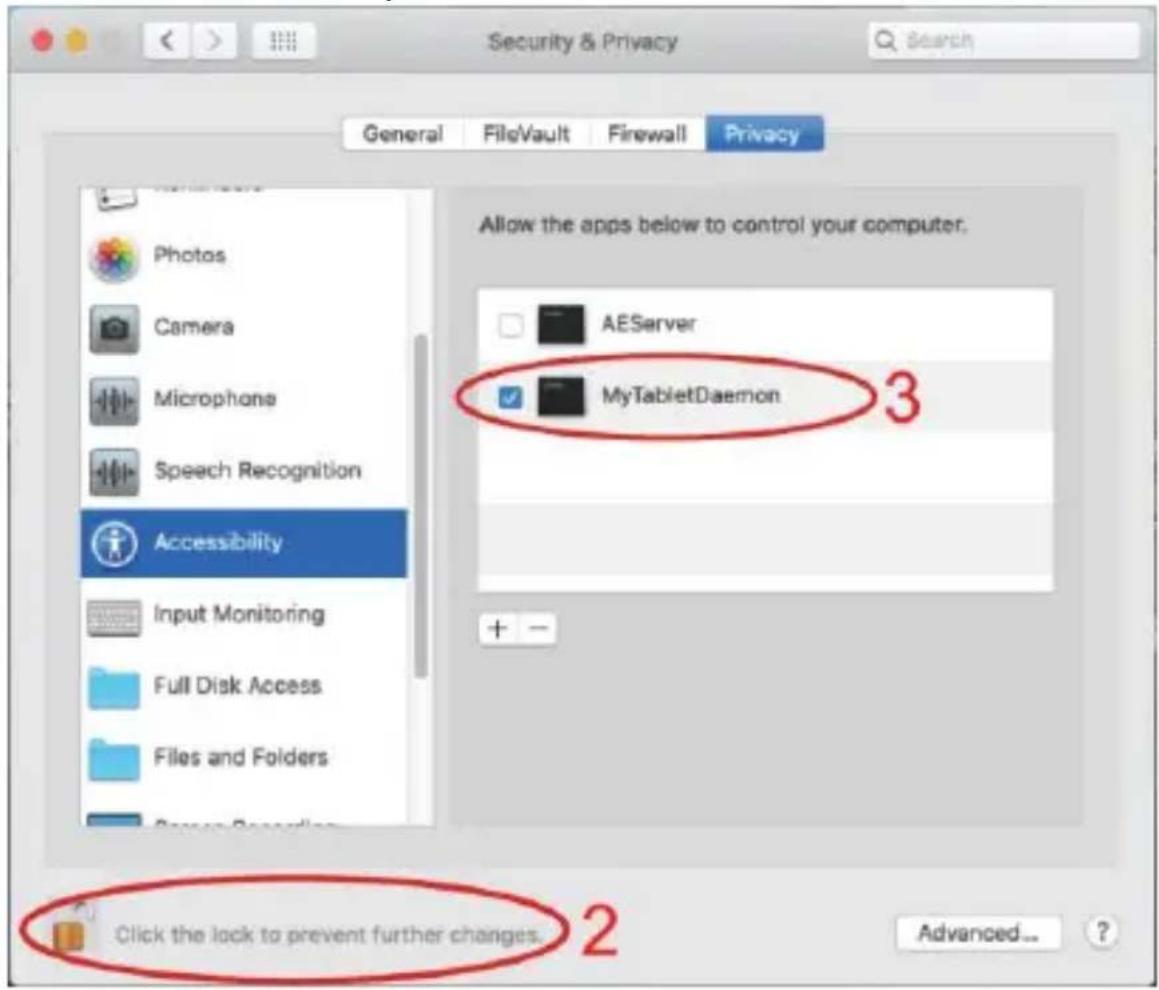
9) Check to enable MyTabletDaemon.
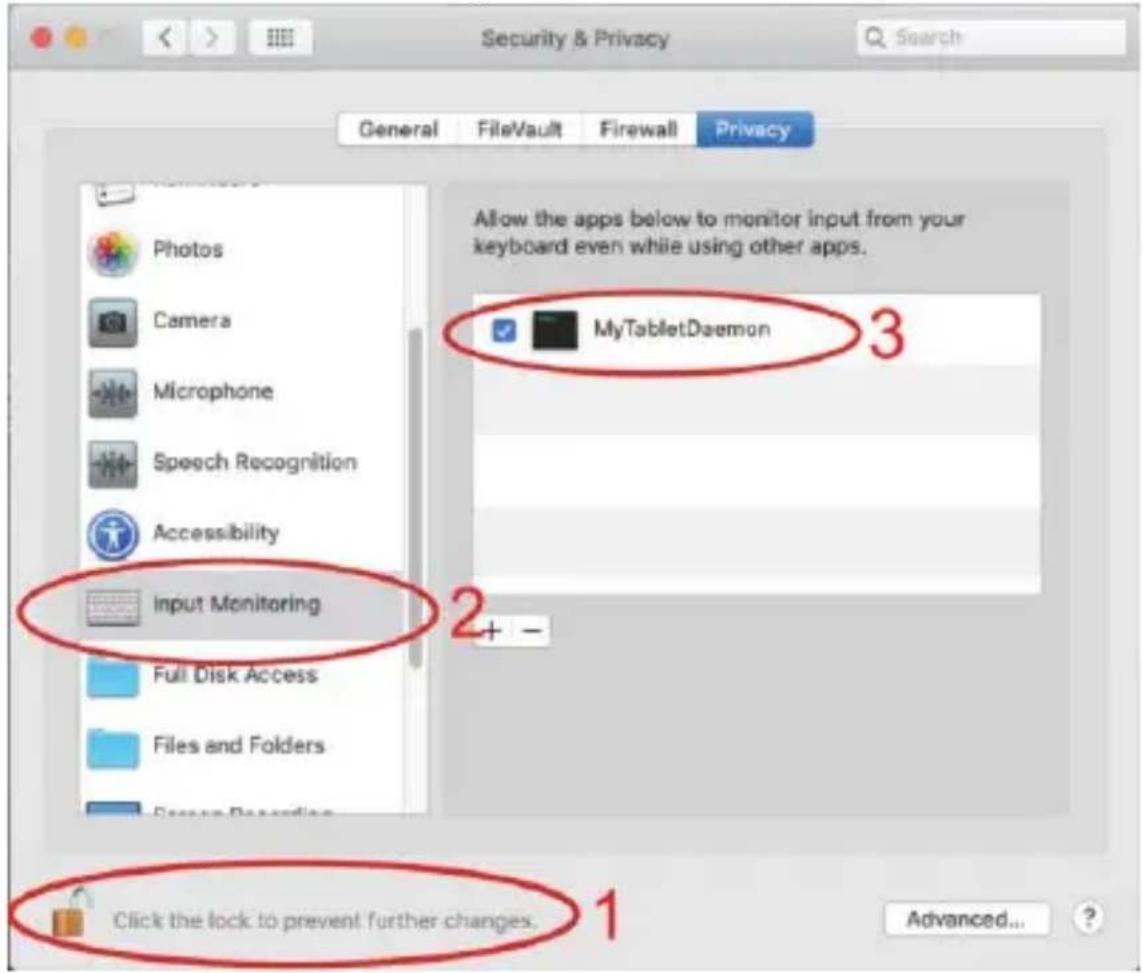
The MAC OS drivers have been successfully installed. Please restart the system.
Important: The app is constantly being updated and developed, individual steps may vary after updates. In case of any problems with the procedure, we recommend contacting the service centre.
Technical support
Contact EVOLVEO Technical Support
www.evolveo.com/helpdesk/
The warranty is NOT valid for:
- using the device for other purposes
- installing frimware other than that installed in EVOLVEO Grafico TW or that can be downloaded manually or automatically from the application
- electromechanical or mechanical damage caused by improper use
- damage caused by natural elements such as fire, water, static electricity, surges, etc.
- damage caused by unauthorised repair
Disposal
The crossed-out container symbol on the product, in the literature or on the packaging means that in the EU all electrical and electronic equipment, batteries and accumulators must be placed in the separate waste stream at the end of their useful life. Do not dispose of these products in unsorted municipal waste.

DECLARATION OF CONFORMITY
Abacus Electric, s.r.o. hereby declares that the EVOLVEO Grafico TW complies with the requirements of the notes and regulations applicable to this type of instrument.
The full text of the Declaration of Conformity can be found at http://ftp.evolveo.com/CE/
Copyright © Abacus Electric, s.r.o.
www.evolveo.com
www.facebook.com/EvolveoCZ
Importer
Abacus Electric, s.r.o.
Planá 2, 370 01, Czech Republic
Producer
Naxya Limited
No.5, 17/F, Strand 50, 50 Bonham Strand, Sheung Wan, Hong Kong
Made in China
All rights reserved.
Design and specifications are subject to change without notice.
Tartalomjegyzék
1
natural_image
Line drawing of a laptop and a rectangular device with a scroll wheel (no text or symbols)2
natural_image
Blank white smartphone with no visible text, numbers, or symbols on the screen+
natural_image
Simple line drawing of a USB cable with two connectors (no text or symbols)+
natural_image
Blank white document with a small circular icon in the top-left corner (no text or symbols)natural_image
Circular icon with a speaker symbol inside, surrounded by stars and dots (no text or numbers)Vol+-
natural_image
Circular icon with a computer mouse silhouette and starry background (no text or symbols)egérkerék

natural_image
Circular icon with stylized white 'i' symbol on dark background, no readable text or symbolsecset+-
natural_image
Circular icon with a stylized card or button symbol, surrounded by starry background (no text or symbols)beállítások
natural_image
Circular icon with a central square and directional arrows, surrounded by concentric rings and stars (no text or symbols)CTRL+-
natural_image
Abstract circular design with concentric rings and a small white dot, no text or symbols present.a vászon
natural_image
Circular icon with two curved arrows inside a starry background, no text or symbols present.natural_image
Circular icon with a cross and dot, resembling a target or warning symbol (no text or numbers)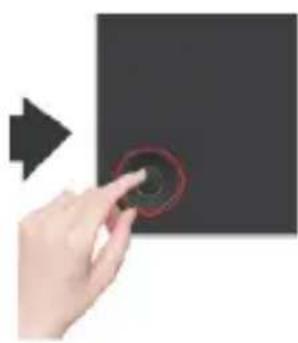
natural_image
Hand holding a circular button on a black surface, with an arrow pointing to the left (no text or symbols visible)Copyright © Abacus Electric, s.r.o.
www.evolveo.com
www.facebook.com/EvolveoCZ
Importór
Abacus Electric, s.r.o.
No.5, 17/F, Strand 50, 50 Bonham Strand, Sheung Wan, Hong Kong
Made in China
Minden jog fenntartva.
| 1) Conexiune USB la PC | 2) Conexiune USB la laptop |
natural_image
Circular icon with a speaker symbol inside, surrounded by stars and dots (no text or numbers)
natural_image
Circular icon with a computer mouse silhouette and starry background (no text or symbols)
natural_image
Circular icon with stylized white 'i' and black dots, no readable text or symbols
natural_image
Circular icon with a stylized card or document symbol inside, surrounded by starry background (no text or symbols)natural_image
Circular icon with a central square and directional arrows, surrounded by concentric rings and stars (no text or symbols)
natural_image
Abstract circular design with concentric rings and a small white dot, no text or symbols present.
natural_image
Circular icon with two curved arrows inside a starry background, no text or symbols present.
natural_image
Circular icon with a cross and dot, resembling a target or warning symbol (no text or numbers)natural_image
Hand holding a circular button with a red ring, pointing right (no text or symbols visible)
Copyright © Abacus Electric, s.r.o.
www.evolveo.com
www.facebook.com/EvolveoCZ
Importator
Abacus Electric, s.r.o.
No.5, 17/F, Strand 50, 50 Bonham Strand, Sheung Wan, Hong Kong
Fabricat în China
| 1) Z obročem primite konico in jo izvlecite iz pisala | 2) Vstavite in pritisnite novo konico v pisalo |
Povezovanje
Grafično tablico priključite na vrata USB 2.0/3.0 računalnika. Za povezavo ne uporabljajte sprednjih vrat USB računalnika.
natural_image
Circular icon with a speaker symbol inside, surrounded by stars and dots (no text or numbers)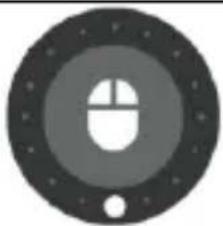
natural_image
Circular icon with a computer mouse silhouette and starry background (no text or symbols)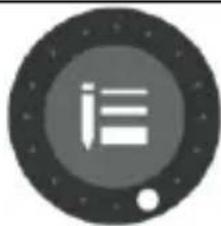
natural_image
Circular icon with stylized white 'i' and black dots, no readable text or symbols
natural_image
Circular icon with a stylized card or document symbol inside, surrounded by starry background (no text or symbols)Vol+-
kolesce miške
čopič+-
nastavitve
natural_image
Circular icon with a central square and directional arrows, surrounded by concentric rings and stars (no text or symbols)
natural_image
Abstract circular design with concentric rings and a small white dot, no text or symbols present.
natural_image
Circular icon with two curved arrows inside a dark gray ring, surrounded by stars (no text or symbols)
natural_image
Circular icon with a cross and dot, resembling a target or button (no text or symbols)CTRL+- obrnite platno
nazaj
prekličete
natural_image
Hand holding a circular button on a black surface, with an arrow pointing to the left (no text or symbols visible)Dolgo pritisnite in pridržite tipko M, da prikličete okno za nastavitev posameznih funkcij.
flowchart
graph LR
    A["CTRL +"] --> B["MOUSE WHEEL"]
    C["M"] --> B
    D["CTRL -"] --> B
    B --> E["WRITE"]
    B --> F["WRITE"]
MyTablet.pkg
3) Odprite MyTablet.pkg
4) Izberite namestitveno pot in nato "Namesti", da začnete namestitev.
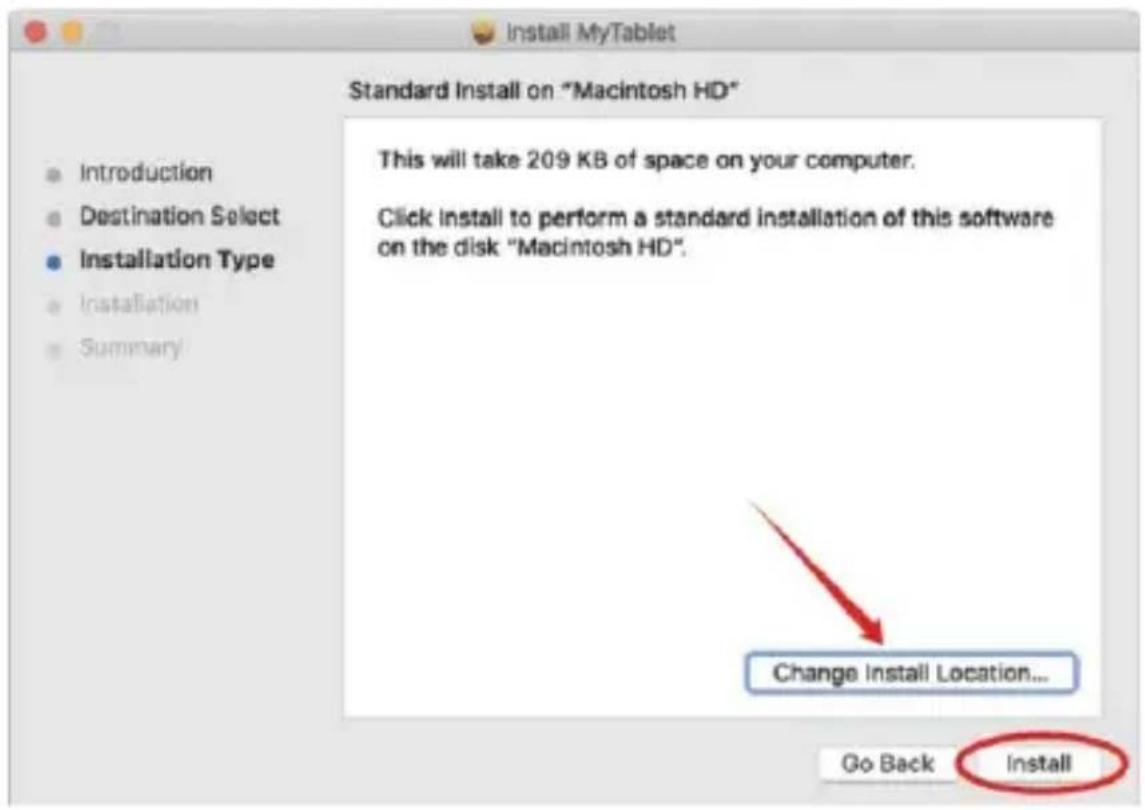
5) Vnesite geslo in nadaljujte z namestitvijo.
6) Po uspešni namestitvi boste morali znova zagnati napravo.
Copyright © Abacus Electric, s.r.o.
www.evolveo.com
www.facebook.com/EvolveoCZ
Uvoznik
Abacus Electric, s.r.o.
Planá 2, 370 01, Češka
Producent
Družba Naxya Limited
Št. 5, 17/F, Strand 50, 50 Bonham Strand, Sheung Wan, Hongkong Izdelano na Kitajskem
Vse pravice pridržane.
- Obsah / Content / Tartalom / Cuprins / Vsebina
- Obsah
- Pripojenie
- Dear customer, thank you for choosing EVOLVEO Grafico TW. We trust that the product will serve you to your full satisfaction.
- Important information
- Contents of the package
- Overview
- Wireless pen
- Replacing the spikes
- Connecting
- Connect to your Android phone
- Procedure:
- Wireless pen settings (Windows only)
- Specifications
- Rotating menu function
- Installing drivers
- Instalace pro Windows
- Remark:
- Installation for MAC OS
- Technical support
- The warranty is NOT valid for:
- Disposal
- DECLARATION OF CONFORMITY
- Tartalomjegyzék
- Povezovanje
Brand : Evolveo
Model : Grafico TW
Category : Graphic tablet