
Terra NV4 - Uncategorized Evolveo - Free user manual and instructions
Find the device manual for free Terra NV4 Evolveo in PDF.


| Product Type | Smart Wi-Fi Electric Socket |
| Model | Evolveo Terra NV4 |
| Power Supply | From electrical grid (230V~/50Hz) |
| Maximum Electrical Load | 16A, 3680W |
| Wi-Fi Connection | 2.4GHz only |
| IP Rating | IP44 (splash and dust resistant, outdoor use) |
| Working Temperature | -15°C to 35°C |
| Control App | Tuya Smart Life (iOS/Android) |
| Smart Home Compatibility | Google Home, Amazon Alexa |
| Functions | Timer, Plan, Cycler, Randomly, Automatically |
| LED Indicator | Blue: on/off/reset/pairing status |
| Reset / Pairing Button | Yes (press and hold 10 seconds) |
| Installation | Plug into socket, pair via Tuya app |
| Relay Status After Power Failure | Configurable (off by default) |
| Usage History | Available in app (on/off log) |
| Sharing | Share with household members via app |
| Group Control | Create groups for simultaneous control |
| Security | Do not exceed max load; protect from children; IP44 |
| Certifications | CE, Declaration of Conformity |
Frequently Asked Questions - Terra NV4 Evolveo
User questions about Terra NV4 Evolveo
0 question about this device. Answer the ones you know or ask your own.
Ask a new question about this device
Download the instructions for your Uncategorized in PDF format for free! Find your manual Terra NV4 - Evolveo and take your electronic device back in hand. On this page are published all the documents necessary for the use of your device. Terra NV4 by Evolveo.
USER MANUAL Terra NV4 Evolveo
aplikaci Tuya Smart Life (dále jen „Tuya“).
No.5, 17/F, Strand 50, 50 Bonham Strand, Sheung Wan, Hong Kong
Vyrobeno v Číně
Copyright © Abacus Electric, s.r.o.
www.evolveo.com
www.facebook.com/EvolveoSK
Dovozca / Dovozce / Importer / Importör / Importator
Abacus Electric, s.r.o.
No.5, 17/F, Strand 50, 50 Bonham Strand,
Sheung Wan, Hong Kong
Vyrobené v Číne
Installation and pairing .... 33
LED 35
Functions 36
Settings....37
Compatible with Google Home...... 37
Pairing with Amazon Alexa....38
More functions .... 39
EN
Dear Customer, thank you for choosing EVOLVEO Terra NV4. We believe that the smart electric socket will serve you well.
Warning!
- Do not connect any device that could exceed the maximal values of the device.
- Children can use the device under the supervision of an adult.
- Do not disassemble or try to repair the device. Use the authorized service.
- Keep the packaging material out of the reach of children. Choking hazard.
- Do not throw in the municipal waste.
- Do not expose to direct sunlight.
- IP44 Protection ensures resistance to splashing water and dust.
Device description – smart electric socket
| Product name | EVOLVEO Terra NV4 |
| Product number | Terra-NV4 |
| Power supply | From electrical grid |
| Working voltage | 230V~/50Hz |
| Maximal electrical load | 16A, 3680W |
| Connection | Wi-Fi 2.4GHz |
| IP rating | IP44, outdoor use |
| Working temperatures | -15 – 35 °C |
Installation and pairing
- Connect your phone to Wi-Fi network.
• From Google Play of Apple Store download theTuya Smart Life app

(hereinafter "Tuya") to your mobile phone.
- New users need to register and create a new account. Users who have an account can sign in the Tuya app.
- Plug the smart electric socket to electrical grid within reach of your WiFi network.
Note: The socket supports 2.4GHz network only. If your router supports both 2.4GHz and 5GHz network, please choose 2.4GHz.
- Shortly press the button on the electrical socket. The blue LED goes on and indicates that the device is turned on.
- Press and hold the button for 10 seconds. LED starts flashing. The electrical socket is reset to the factory setting and is ready for pairing.
- Select “+” in the Tuya app and in the right upper corner select “Socket
(Wi-Fi)".
- Choose 2.4GHz Wi-Fi and enter password to connect to the network.
- After successful connecting of the socket, select “More”.
- Select "EZ Mode" in the upper right corner
- The renaming is optional, then select “Complete” in the right upper corner.
The steps may vary slightly when updating Tuya.
LED
| The blue light is on | The electric socket is turned on |
| The blue light is off | The electric socket is turned off |
| The blue light flashes | Reset / Ready for pairing |
| The blue light flashes slowly until it goes off | Setting has been successful |
Note: Each device can be paired with one account only. If you wish to use the socket with multiple devices, share the device using the Tuya app.
Functions
Select the function “Timer”, “Plan”, “Cycler”, “Randomly” or “Automatically” based on your preferences.
Timer: The device switches off or on after the set time has elapsed.
Plan: The device switches off or on at a set time.
Cycler: The device switches on (start at a set time) and off (end at a set time) repeatedly.
Randomly: If the set time interval is equal to or more than 1 hour, the socket switches on within 2-30 minutes after the set timer and switches off within 2-30 minutes before the end of set timer.
If the set time interval is less than 1 hour, the delayed start is 2-X minutes and delayed shutdown is 2-X minutes.
(X= (time interval / 2) -2)
Example: Set timer start to 8:00 and end to 8:30. The device will randomly switch on between 8:02 and 8:13. The device will randomly switch off between 8:17 and 8:28.
Settings
Usage history: Display when the product was turned on / off.
Relay status (On/Off): If “Off” is selected, the device stays switched off after a power failure even when the power goes on again. Relay status is automatically set to “Off”.
Compatible with Google Home
Open your Google Home app and in Home Control select “Smart Life”. To successfully pair the device enter correct login details. Your device will show in the Home Control list.
Pairing with Amazon Alexa
- Connect Tuya account to Alexa.
- Open the Alexa app, select “Skills” in the menu and search for “Smart Life”. To choose “Smart Life” select “Enable” and enable Smart Life function.
- You will be redirected to login screen. Enter correct Tuya account login details. Then select “Link Now” to connect accounts.
• Control your device
- Device recognition: First, Echo needs to recognize your device before you can control it. Say “Alexa, discover devices.” to your Echo. Echo will recognize the device which has been previously added using the Smart Life app. The alternative for a new device recognition is selecting the “discover devices” button.
- The recognized devices will show in the list.
Note: Whenever you rename the device in the Smart Life app, Echo will need to discover the device again.
More functions
Pencil icon: Renaming the device
Share device: Shares the device with the household members. Enter login name of the household member in the Tuya app.
Create a group: The devices in the same group can be controlled at the same time.
Frequently asked questions - FAQ
- The device cannot be switched off or on, what should I do?
Make sure your mobile device and socket are connected to the same WiFi network.
Make sure the devices plugged in the socket are switched on.
- The socket cannot be paired, what should I do?
1) Make sure the device is powered.
2) Make sure your mobile device is connected to 2.4GHz WiFi network.
3) Make sure the device is within WiFi
range or move the socket to a different place.
4) Check your internet connection. Make sure the router is working.
5) In case the router supports both 2.4GHz and 5GHz signal, choose 2.4GHz and then add the socket.
6) Enable transmission on your router.
Configure the encryption method as WPA2-PSK and authorization type as AES, or set both to “automatic”.
7) Make sure the WiFi signal is not interrupted, or move the device to a different place with a stronger signal.
8) Make sure the devices connected to the router reach the limit. Try turning off some of the functions on the devices using the WiFi, and connecting the socket again.
9) Make sure the MAC filter function is turned on. Remove the device from the filtered list and make sure the router does not forbid using smart device connection.
10) Make sure you have entered a correct password in the app to connect to WiFi network.
11) Make sure the device is ready for pairing: The blue control flashes rapidly (twice per second) for the quick connection mode, flashes slowly (once per two
seconds) for Acces Point connection mode.
12) Repéat the app configuration process.
13) Reset the socket (factory setting) and try pairing it again.
Technical support
Before you contact the EVOLVEO technical support, please read “FAQ - Frequently Asked Questions”:
www.evolveo.com/helpdesk/
The warranty DOES NOT APPLY to:
• using the device for different purposes
- installation of a different firmware than the one installed in EVOLVEO Terra NV4 or the one which can be manually or automatically downloaded in the device menu
• electromechanical or mechanical damage caused by improper use
- damage caused by natural elements such as fire, water, static electricity, surges, etc.
• damage caused by unauthorized repair
Disposal
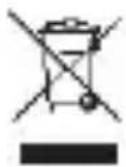
The symbol of crossed container on the product, in literature or on the packaging means that in EU all electric and electronic devices, batteries and accumulators must be disposed of in sorted waste at the end of their working life. These products must not be disposed as unsorted municipal waste.

Declaration of Conformity
The Abacus Electric, s.r.o. company declares that EVOLVEO Terra NV4 is in accordance with the requirements of the standards and regulations applicable to this type of device.
The full text of the Declaration of Conformity can be found at https://ftp.evolveo.com/CE/
Copyright © Abacus Electric, s.r.o. www.evolveo.com www.facebook.com/EvolveoCZ
Dovozce / Dovozca / Importer / Importör / Importator Abacus Electric, s.r.o. Planá 2, 370 01, The Czech Republic
Výrobce / Výrobca / Manufacturer / Gyártó / Producător Naxya Limited No.5, 17/F, Strand 50, 50 Bonham Strand, Sheung Wan, Hong Kong Made in China
All rights reserved. The design and specifications are subject to change without prior notice.


- Dear Customer, thank you for choosing EVOLVEO Terra NV4. We believe that the smart electric socket will serve you well.
- Warning!
- Device description – smart electric socket
- Installation and pairing
- (Wi-Fi)".
- Functions
- Settings
- Compatible with Google Home
- Pairing with Amazon Alexa
- More functions
- Frequently asked questions - FAQ
- Technical support
- The warranty DOES NOT APPLY to:
- Disposal
- Declaration of Conformity
Brand : Evolveo
Model : Terra NV4
Category : Uncategorized