
MXM 421 BT - Mp3 player GoGen - Free user manual and instructions
Find the device manual for free MXM 421 BT GoGen in PDF.


| Product Type | MP4 player with Bluetooth |
| Brand | GoGen |
| Model | MXM 421 BT |
| Display | 1.8" TFT (128 x 160 pixels) |
| Dimensions | 60 x 43 x 12 mm |
| Weight | 26 g |
| Battery | Built-in Li-polymer, rechargeable via USB |
| Charging | 5 V / 500 mA |
| Memory | Internal memory + microSD slot (up to 128 GB) |
| USB Interface | USB 2.0 |
| Bluetooth | Version not specified, frequency 2400-2483.5 MHz, E.i.r.p. 12.49 mW, profiles A2DP, AVRCP |
| FM Radio | 87.5 - 108 MHz |
| Supported Audio Formats | MP3, WMA, WAV, APE, FLAC |
| Supported Video Formats | AMV, AVI (conversion required) |
| Main Functions | Music, Video, FM Radio, Voice Recording, Picture Viewer, Ebook Reader, Bluetooth, Tools (Calendar, Stopwatch) |
| Safety Warnings | Do not disassemble, avoid moisture & high temperature (>35°C or <5°C), use earphones safely |
| Care & Maintenance | Keep dry, charge monthly if not used, backup data regularly |
| Reparability | Do not attempt self-repair; contact service center |
| Warranty | 2 years from date of purchase (excludes battery capacity decrease) |
Frequently Asked Questions - MXM 421 BT GoGen
User questions about MXM 421 BT GoGen
0 question about this device. Answer the ones you know or ask your own.
Ask a new question about this device
Download the instructions for your Mp3 player in PDF format for free! Find your manual MXM 421 BT - GoGen and take your electronic device back in hand. On this page are published all the documents necessary for the use of your device. MXM 421 BT by GoGen.
USER MANUAL MXM 421 BT GoGen
natural_image
Abstract logo with a stylized white 'S' inside a circle on black background (no text or symbols)MXM 421 BT
GoGEN
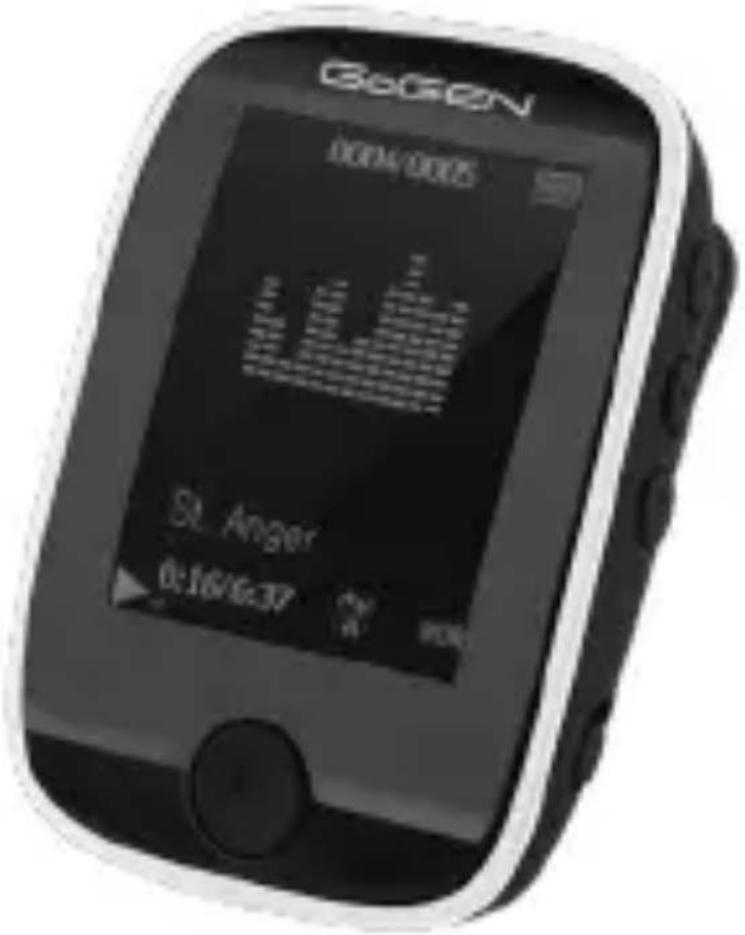
PŘEHRÁVAČ MP4
PREHRÁVAČ MP4
ODTWARZACZ MP4
MP4 PLAYER
MP4 LEJÁTSZÓ

NÁVOD K POUŽITÍ
NÁVOD NA POUŽITIE
INSTRUKCJA OBSŁUGI
USER MANUAL
HASZNÁLATI UTASÍTÁS
EBOOK - ELEKTRONICKÁ KNIHA
EBOOK - ELEKTRONICKÁ KNIHA
Hip hop: Tryb EQ Hip hop;
Jazz: Tryb EQ Jazz;
For your safety – read this user guide carefully to ensure proper use of the product and to avoid any danger of physical damage
- Be cautious while using your MP4 player to avoid explosion, fire, electric shock, etc.
- When using your player, pay attention to your health, especially the hearing power.
- Do not leave the player in a place subject to moisture or temperature higher than 35 °C or 5 °C .
-Do not use earphones while driving or riding a bicycle.
-Do not repair device by yourself, or it will cause damage.
-Using earphones while walking may cause traffic accident.
-Avoid getting the player wet or dropped in water.
- Do not turn up the volume too high as doctors warn against prolonged exposure to high volume.
- Stop using the device or turn down the volume if you encounter problems on your hearing.
-Please backup important data onto your computer to avoid data loss.
-Always use the accessories provided by or approved by our company.
Note
Please recharge the digital player before using it!
KEY FEATURES
Support Bluetooth function (by connecting it to Bluetooth speakers and headphones)
MP3/WMA/WAV /APE/FLAC etc. format supported.
Support USB 2.0 capability
Support voice recording function.
Support FM Radio
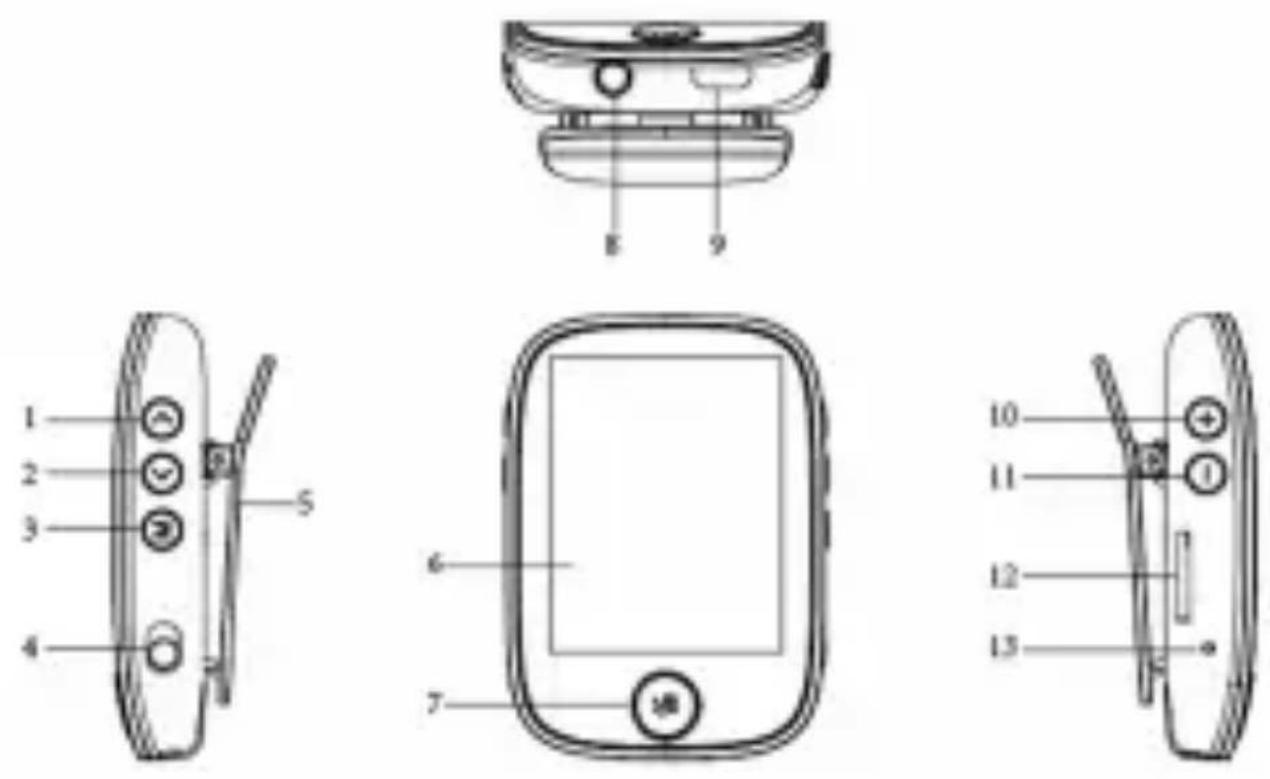
NOMENCLATURE
- Backward
- Forward
- MENU
- Power on/off
- Clip
- LCD display
- Play/ Pause
- Earphone jack
- USB port
- VOL+
11.VOL- - Micro SD slot
- MIC
CHARGING BATTERY SAFELY
- Connect to device's USB port with the provided USB cable.
- Battery icon will blink while charging and once full, it will stop blinking.
- If device is full charged, disconnect the USB cable.
Note
-Before using it for the first time, please charge device.
-Do not overcharge device, or it may shorten the battery's life.
-Battery life shortens after long time usage
- The li-polymer battery is consumptive material, so even if device is tuned off for prolonged it needs to be charged periodically.
CAUTION
Do not disassemble, crush, short-circuit or incinerate your battery as it may cause fire, injury, burns, or other hazards.
BASIC OPERATIONS
Turn on device
When Main Power Switch is turned off, slide button to turn on device When Main Power Switch is turned on, long press[Play/Pause]to turn on device.
Turn off device
When device is turned on, long press [Play/Pause] to turn off device. If device functions abnormally, slide Main Power Switch button to forcefully turn off device. Due to possible data loss, it is recommended to turn off device by long pressing [Play/Pause] button.
Note
In case device is not being used for long time, Charge once a month.
KEY FUNCTION
[Backward/Forward]: Press to move up/down
[VOL+/VOL-]: Short press to adjust volume and long press to quick adjustment.
[M]: Press enter the pop-up menu and press again to return to the previous menu. Long press to return to main menu.
[Play/Pause]: Press to play or pause.
[Power]: Slide button to turn on /off device power supply.
Adding/Removing files/Folders
Use device as a removable USB storage
- Connect device to computer using provided USB cable.
- Select "GOGMXM421BT" and Add files/folders into it by dragging or copying and pasting them.
- Delete files from the removable USB storage (use the „Delete“ command).
Disconnecting device from P:
Follow the steps to avoid damaging device or losing data:
- Left click mouse on the icon that is on the taskbar at the bottom right corner of the desktop.
- Click „Safely remove USB Mass storage Device”.
- Disconnect the player from your computer.
CAUTION
- Do not disconnect device while files are being transferred.
- Do not press [M/Play] key while transferring files, or it can cause data loss or damage to the device
BT - CONNECTING TO SPEAKER/HEADPHONE
This device can connect to Bluetooth speaker and headphone that supports A2DP, AVRCP profiles.
Turn on/off Bluetooth
Select "BT" on main menu. Press [Play/Pause] to enter,
Select "BT Control" and press [Play/Pause].
Press [Backward/Forward] to select "Turn BT on" or "Turn BT off" and press [Play/Pause] to turn on or off.
Pairing device
Set "Pairing mode" of Bluetooth speaker or headphone.
Go to “Search Device” and press [Play/Pause] to show “Searching…” message. Wait until this message disappears.(Time for searching device depends on number of devices nearby and it can take up to 1\~3 minutes depending on the environment).
Note
Refer to user's manual of Speaker or headphone for pairing modes.
Connecting/Disconnecting/Unpairing device
Go to “Device’s list” and press [Play/Pause] to see list of devices.
Select desired device and press [Play/Pause] to show pop-up menu.
Bluetooth Devices Connected : select "Connect" and press [Play/Pause] to connect.
Disconnecting device : select connected device and press [Play/Pause] to show pop-up menu and select "Disconnect" to disconnect.
Bluetooth Devices Unpairing : select "Unpairing" and press [Play/Pause] to unpair.
Note
If device is not shown on “Device list” then go back and follow the steps from “Pairing device”.
Select "All Music" on Bluetooth menu and press [Play/Pause] to play.
When using Bluetooth to play music, press [M] to show pop-up menu shown below.
Off: Close the EQ mode
Rock: Rock mode of EQ mode;
Funk : Funk mode of EQ mode
Hip hop: Hip hop mode of EQ mode
Jazz: Jazz mode of EQ mode
Classical: Classical mode of EQ mode
Techno: Techno mode of EQ mode
Custom: Custom mode of EQ mode
Long press [M] to come back Bluetooth menu, and press [M] again to show pop-up Exit Bluetooth selection menu. Press [Forward/Backward] to Select whether to exit Bluetooth interface
MUSIC
Select "Music" on main menu and press [Play/Pause] to enter submenu and press [Forward/Backward] to select your desired mode. and press [Play/Pause] to select
All songs: show all music from internal memory
Artist: show music sorted by artist
Albums: show music sorted by album
Genres: show music sorted by genre
Playlists: show Playlists
Album art: show Album art
Audiobooks: show audiobooks
Create Playlist: Create Playlist
Local folder: Files in built-in memory
Card folder: Files in card
Press [Forward/Backward] to select music files and press [Play/Pause] to play and pause.
VIDEO
In order to play video files on this device, you must convert the video files to AMV/AVI format. Select "Video" on main menu and press [Play/Pause] to show pop-up menu shown below.
Local folder: Video files in memory
Card folder: Video files in card
Press [Forward/Backward] to select the video file you want to play and press [Play/Pause] to enter.
Video playing
Play/Pause video: Press [Play/Pause] to play video and press it again to pause.
Play next/previous video: Press [Forward/Backward] to play next/previous video.
FF/RW video: While video is playing, Press and hold [Forward/Backward] to fast forward or rewind video.
When playing video, press [M] to show pop-up menu shown below.
Brightness: Video brightness adjustment.
Repeat: Video cycle mode selection.
Delete: Delete the current video file.
Create playlist: Update playlist.
Note
When the SD card is not inserted, the machine will display the memory file directly without displaying the selection menu above.
RADIO
Select "Radio" on main menu and press [Play/Pause] to enter Select FM Station
Previous/Next station: Press [Forward/Backward] to adjust FM station. Setting
On FM radio mode, press [M] to enter pop-up menu and adjust device's function according to user's preference.
Note
Always plug earphone when listening to FM Radio because earphone wire acts as antenna.
PICTURE
Select “Picture” on main menu and press [Play/Pause] to show pop-up menu shown below.
Local folder: pictures files in memory
Card folder: pictures files in card
Press [Forward/Backward] to select the video file you want to play.
Photo viewing
View next/previous photo: On viewing photo, [Forward/Backward] to view next/previous photo
On viewing photo, press [M] to enter pop-up menu and adjust device's function according to user's preference.
Note
When the SD card is not inserted, the machine will display the memory file directly without displaying the selection menu above.
RECORD
Select “Record” on main menu and press [Play/Pause] to show pop-up menu
Start voice recording: Start recording.
Recodings library: Saved recording file
Storage: When the SD card inserted, user can choose save internal/external memory.
Record Format: Select a recording file format
Record Settings: Detailed recording settings
Start/pause recording: Press [Play/Pause] to start recording and press it again to pause.
Save recording file: while recording, long press [M] to save file.
EBOOK
Select “Ebook” on main menu and press [Play/Pause] to enter Ebook viewing: On viewing ebook, [Forward/Backward] to flick through In e-book browsing mode, press [M] to enter pop-up menu and adjust device’s function according to user’s preference.
FOLDERS
Select „Folder“ on main menu and press [Play/Pause] to enter. Browse files from external or internal memory and choose your desired files (video, photo, music files, recorded files, etc.)
SET
Select "Set" on main menu and press [Play/Pause] to enter.
Play mode: Music playback settings Sound settings: Sound related settings Sleep timer: Sleep timer settings Display settings: Display settings Date and time: Date and time settings Slideshow settings: Slideshow settings Language: Select menu language Information: System information setting Format device: Formatted internal storage Factory settings: Restore factory settings
TOOLS
Select "Tools" on main menu and press [Play/Pause] to enter Calendar:
Press [M] to switch on year / month / day, Press [Forward/Backward] to adjust.
Stopwatch:
Press [Play/Pause] to start Stopwatch and press it again to pause. Press [M] to reset the stopwatch. Press [Forward/Backward] to increase / decrease a stopwatch record.
SPECIFICATION
| Display 1,8" (128 x 160 pixel) | |
| MicroSD up to 128 GB | |
| USB interface USB 2.0 | |
| Bluetooth Support Bluetooth | both speaker, stereo headset |
| Frequency range2400 - 2483,5 MHzE.i.r.p. 12,49 mW | |
| Profile : A2DP, AVRCP | |
| FM Band Range 87,5 -108 MHz | |
| Charging 5 V / 500 mA | |
| Dimension 60 x 43 x 12 mm | |
| Weight 26 g |
Note
Due to software upgrade, There may be alteration in the content of this manual. There will be no separate notice in the case of any changes in the performance and functions of this product. If some sets and procedure are not identical, please take the real unit as standard.
WE RESERVE THE RIGHT TO CHANGE TECHNICAL SPECIFICATIONS..
Warranty
Our product is warranted for 2 full year from the date of purchase. The warranty is provided on all material defects and workmanship. Guarantee of 24 months does not apply to decrease in the accumulator's effective capacity caused by its use or age. Effective capacity gradually decreases depending on the method of use of the accumulator.


To avoid danger of suffocation, keep the plastic bag away from babies And children. Do not use this bag in cribs, beds, carriages or playpens. This bag is not a toy
Disposal of old Electrical & Electronic Equipment (Applicable in the European Union and other European countries with separate collection systems)
This symbol on the product or on its packaging indicates that this product shall not be treated as household waste. Instead it shall be handed over to the applicable collection point for the recycling of electrical and electronic equipment. By ensuring this product is disposed of correctly, you will help prevent potential negative consequences for the environment and human health, which could
otherwise be caused by inappropriate waste handling of this product. The recycling of materials will help to conserve natural resources. For more detailed information about recycling of this product, please contact your local Civic Office, your household waste disposal service or the shop where you purchased the product
Hereby, ETA a.s. declares that the radio equipment type MXM421BT is in compliance with Directive 2014/53/EU. The full text of the EU declaration of conformity is available at the following internet address:
http://www.gogen.cz/declaration_of_conformity
natural_image
Abstract logo design with white stylized 'S' inside a circle on black background (no text or symbols)GoGEN


- GoGEN
- EBOOK - ELEKTRONICKÁ KNIHA
- For your safety – read this user guide carefully to ensure proper use of the product and to avoid any danger of physical damage
- Note
- KEY FEATURES
- NOMENCLATURE
- CHARGING BATTERY SAFELY
- CAUTION
- BASIC OPERATIONS
- Turn on device
- Turn off device
- KEY FUNCTION
- Adding/Removing files/Folders
- Disconnecting device from P:
- BT - CONNECTING TO SPEAKER/HEADPHONE
- Turn on/off Bluetooth
- Pairing device
- Connecting/Disconnecting/Unpairing device
- MUSIC
- VIDEO
- Video playing
- RADIO
- PICTURE
- RECORD
- EBOOK
- FOLDERS
- SET
- TOOLS
- WE RESERVE THE RIGHT TO CHANGE TECHNICAL SPECIFICATIONS..
- Warranty
- Disposal of old Electrical & Electronic Equipment (Applicable in the European Union and other European countries with separate collection systems)
Brand : GoGen
Model : MXM 421 BT
Category : Mp3 player