
Vanquish - Mouse Tracer - Free user manual and instructions
Find the device manual for free Vanquish Tracer in PDF.


| Product Type | Gaming Mouse |
| Brand | Tracer |
| Model | Vanquish |
| Interface | USB |
| Cable Length | 1.8 m (nylon braided) |
| Number of Buttons | 6 programmable |
| Sensor Type | Optical (A3050) |
| DPI Range | 500 - 4000 CPI (adjustable) |
| Polling Rate | 125/250/500/1000 Hz |
| Frame Rate | 6600 fps |
| Acceleration | 20 G |
| Onboard Memory | 64 KB |
| Lighting | RGB LED with color options |
| Foot Material | Teflon |
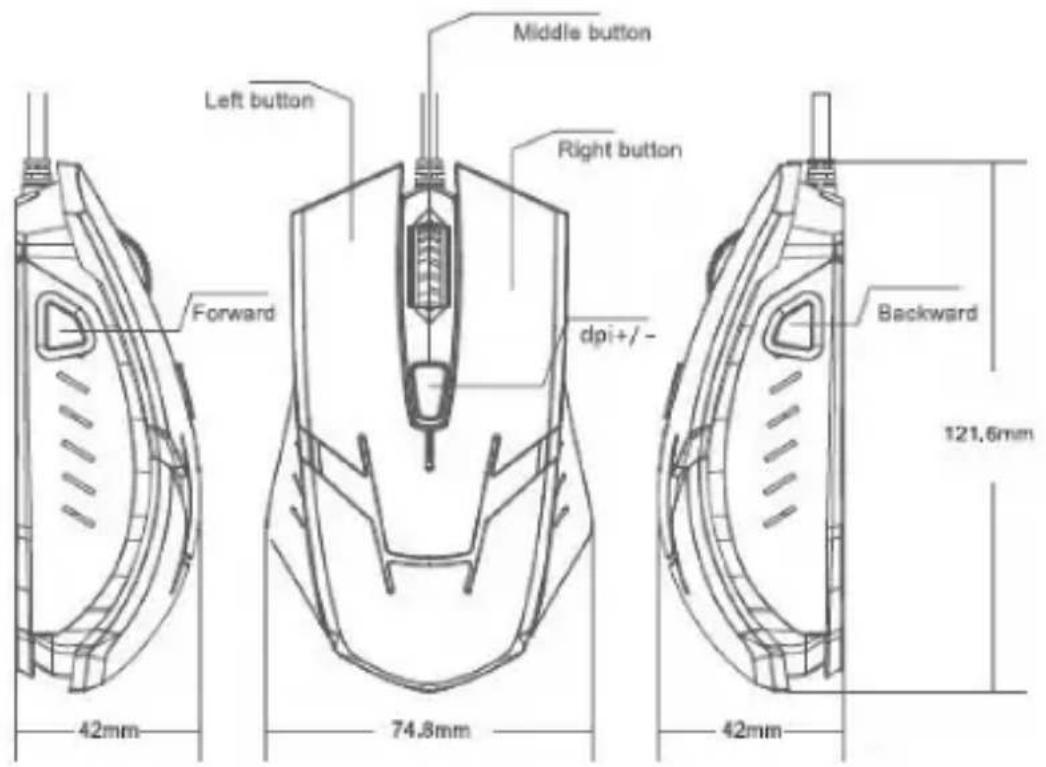
| Dimensions (LxWxH) | 121.6 x 74.8 x 42 mm |
| Software Support | Yes (Gaming Mouse Setting) |
| Cleaning | Clean with a soft, dry cloth. Avoid liquids. |
| Safety | Do not expose to moisture or extreme temperatures. Unplug when cleaning. |
| Repairability | Not user-serviceable. Do not disassemble. |
| General | For gaming and everyday use. Refer to user manual for details. |
Frequently Asked Questions - Vanquish Tracer
User questions about Vanquish Tracer
0 question about this device. Answer the ones you know or ask your own.
Ask a new question about this device
Download the instructions for your Mouse in PDF format for free! Find your manual Vanquish - Tracer and take your electronic device back in hand. On this page are published all the documents necessary for the use of your device. Vanquish by Tracer.
USER MANUAL Vanquish Tracer
Tracer Vanquish gaming mouse Instructions for use
CZ
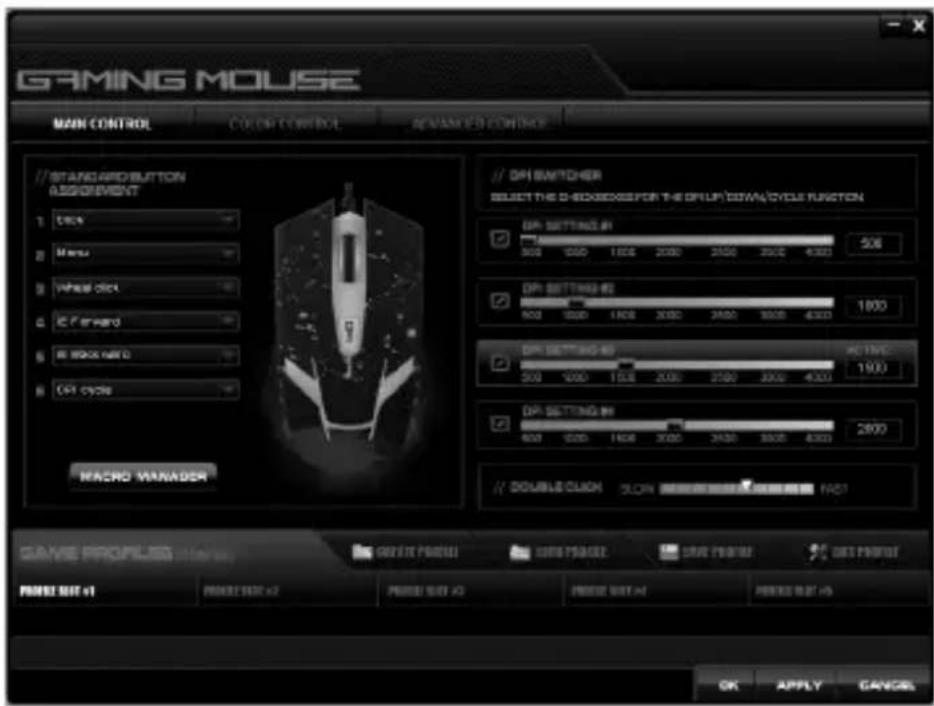
1. The main interface of the program
If you start to this Mouse, please double click the mouse icon in the system tray or right-hand button click to check shortcut menu. Then, click the program. If no mouse icon is in system tray, you can click start>All Programs>GamingMouse>Gaming Mouse Setting to use software.
Main dialog box is divided into three parts: Main Setting, Advanced Setting and colorsetting.
Below the main dialog box is Configuration choice part which includes five groups of configuration files. You can click 1-5 press-button configurations to select the set of checking or amending the configuration files.
OK: Save set and close dialog box.
Cancel: Exit the dialog box and not save.
Apply: Make changes to take effect but not close the dialog box.
Parameter:
Cable: Ultra durable 1.8M nylon cord
6-programmable button gaming class optical mouse
On-the-fly adjustable CPI
button (default) 500/100/1500/2000CPI
Software CPI setting: 500/1000/1500/2000/2500/3000/4000CPI
Adjustable polling rate(/second)125/250/1000HZ
Frame rate: 6600fps
Acceleration: 20G
Optical sensor: A3050
Marco-able gaming mouse with 64KB on-board memory
LED light effects with color option
High quality Teflon food pad
Size:
2. Main Setting
Main Setting are used as a specific function which each mouse button is assigned. Click each function press-button to show function list which the press-button is assigned. The available function of the button is as follows:
Click Executing standard the click function of mouse.
wheel Click: Executing general rolling function of mouse.
Menu: Executing click function of standard right button.
IE Forward Executing the function of IE Forward.
IE Backward: Executing the function of IE Backward.
CPI up: Executing dpi up function
CPI down: Executing dpi down function
Single Key Executing the button function of single fingerboard.
Macro Executing user-defined button function.
3. Single Key Setting
Set button to execute single keyboard function.
EN
Mouse Vanquish Gaming mouse
Instructions for use
4. Macro Setting
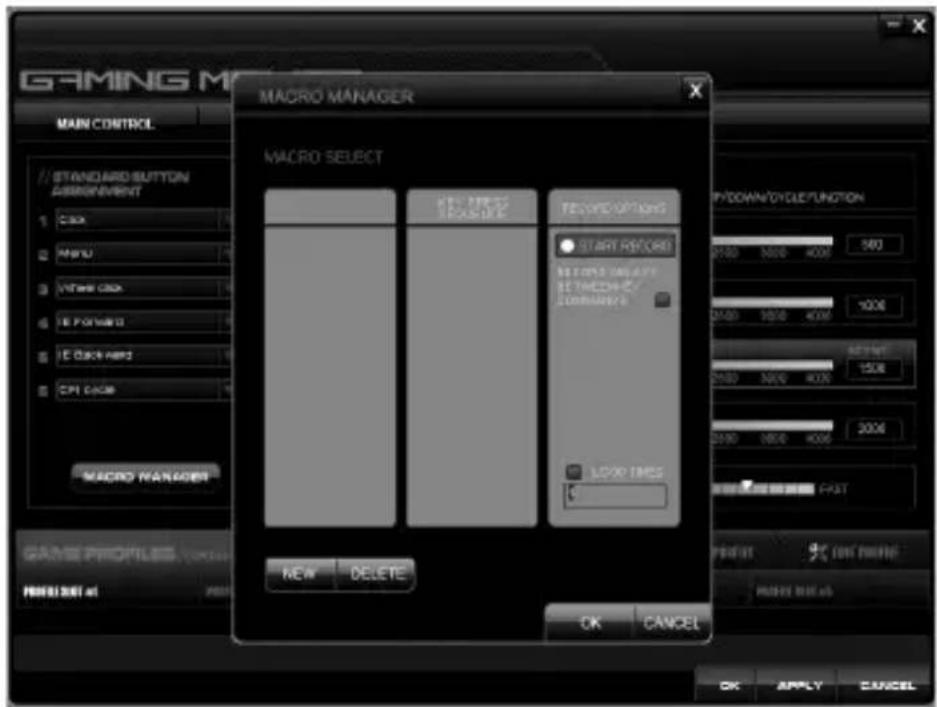
Macro is a series of key actions according to specific executive order and time. Just pressed a button, it can perform a series of instructions as well as enhancing the gaming efficiency. You can input the required button sequence in the following interface, and insert delay.
5. Advanced Setting
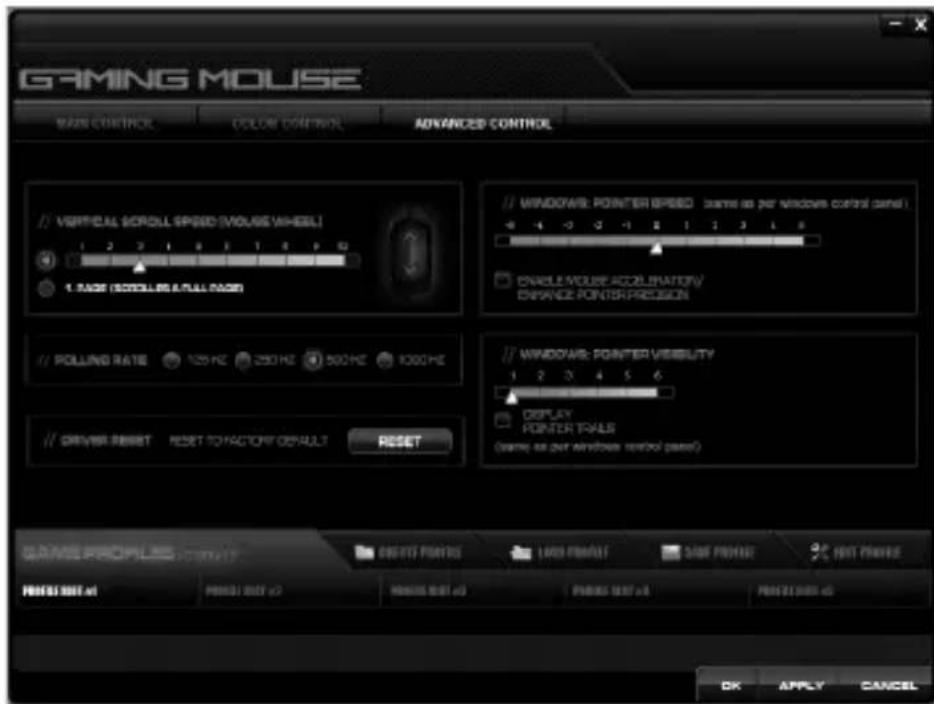
Advanced Setting includes Vertical scroll speed, driver reset Window pointer speed, Window pointer visibility, Polling Rate.
Vertical scroll speed:Adjusting the wheel rolling speed.
driver reset: reset to factory default
Window pointer speed: Adjusting Windows pointer speed. (According to the mouse control panel Windows)
Window pointer visibility: adjust the visibility
Polling Rate Used to set the report rate.
DPI Setting Used to set the DPI equipment values. The higher DPI seted, the more sensitive when the mouse moves.
EN
Mouse Vanquish
Gaming mouse
Instructions for use
6. Color Setting
GLOBAL LIGHT SETTING: EXECUTING ON/OFF
A LIGHT INTENSITY: EXECUTING YOUR MOUSE LIGHT INTENSITIVE
LEVEL
500/100/1500/2000 CPI
500/100/1500/2000 CPI


Brand : Tracer
Model : Vanquish
Category : Mouse