Tracer Cobalt - Mouse

Cobalt - Mouse Tracer - Free user manual and instructions

Find the device manual for free Cobalt Tracer in PDF.

📄 40 pages English EN Download 💬 AI Question 10 questions ⚙️ Specs
Notice Tracer Cobalt - page 1
Pick your language and provide your email: we'll send you a specifically translated version.
Product Type Gaming Mouse
Connection USB 2.0
DPI Levels 800 (green), 1600 (red), 2400 (blue)
LED Lighting Breathing LED (DPI dependent colors)
Number of Buttons 7 customizable buttons + left, right, scroll, DPI+/-, forward, backward (total 11)
Switch Type Omron switches
Report Rate 125Hz - 1000Hz (adjustable)
Cable Braided fiber cable
Software Support Driver CD provided; software for button assignment, macro setting, profile management
Macro Function Yes, via Macro Manager (record key sequences, set loop times)
Profile Settings 3 profiles, import/export supported
Package Contents Mouse, user manual, driver CD
Compatibility Windows (driver required)

Frequently Asked Questions - Cobalt Tracer

How do I install the driver for the Tracer Cobalt mouse?
Insert the provided CD into your computer's CD-ROM drive and click setup.exe. Choose English language and follow the installation prompts. Restart your computer after installation is complete. The software icon will appear in the taskbar.
How can I adjust the DPI settings?
Press the DPI+ or DPI- buttons on the mouse to cycle through three levels: 800 DPI (green LED), 1600 DPI (red LED), and 2400 DPI (blue LED). The LED color indicates the current DPI setting.
Can I program the mouse buttons?
Yes, you can program the 7 customizable buttons using the driver software. Open the software, go to 'Main Control' and click 'Button Assignment'. Select a button and assign a function (e.g., multimedia, keyboard shortcuts). Click 'Apply' to save.
How do I create a macro?
In the driver software, go to 'Main Control' and click 'Macro'. Click 'New' to name your macro, then 'Start Record' to press the desired key sequence. Click 'Stop Record' when done. You can set loop times and choose 'Record Delays' for timing. Then assign the macro to a mouse button.
How do I reset the mouse to factory default settings?
Open the driver software, go to 'Main Control' interface, and click the 'Reset' button. Then click 'Apply' to restore factory defaults for all customizable buttons and settings.
What is the report rate and how do I change it?
The report rate can be set between 125Hz and 1000Hz in the driver software under 'Advanced Settings'. A higher rate (e.g., 1000Hz) reduces latency but may use more CPU resources. Choose the rate that suits your needs and click 'Apply'.
Is the Tracer Cobalt mouse wired or wireless?
The Tracer Cobalt is a wired mouse with a braided fiber USB cable. It connects via USB 2.0.
How do I clean the mouse?
Unplug the mouse. Use a soft, slightly damp cloth to wipe the exterior. Avoid using harsh chemicals or getting moisture inside the mouse. For the sensor, use a cotton swab lightly moistened with isopropyl alcohol.
What operating systems are supported?
The mouse driver is designed for Windows. It may work on other operating systems without full software functionality. The basic mouse functions (buttons, scroll, DPI switching) work without drivers.
Does the mouse have onboard memory for profiles?
The software allows saving profiles to your computer, but the mouse does not appear to have onboard memory. Profiles can be exported and imported via the software. You can switch between three software profiles.

User questions about Cobalt Tracer

0 question about this device. Answer the ones you know or ask your own.

Ask a new question about this device

The email remains private: it is only used to notify you if someone responds to your question.

No questions yet. Be the first to ask one.

Download the instructions for your Mouse in PDF format for free! Find your manual Cobalt - Tracer and take your electronic device back in hand. On this page are published all the documents necessary for the use of your device. Cobalt by Tracer.

USER MANUAL Cobalt Tracer

Tracer Cobalt gaming mouse

Instructions for use

CZ

natural_image Black computer mouse with visible scroll wheel and control buttons (no text or symbols)

Mysz dla graczy *1

Nystka partingowa Ustavania gólone Ustavania zawanaowane Cytoscego partingowa Glas Partitek Primary Partitek Pazifikar Partitek B. Papiak Lower Materials Primary Partitek Pazifikar Partitek B. Papiak B. Papiak Pozifikar Partitek Pozifikar Partitek Zanlava Partitek Vermanski Multivizna Project Items Provena Sgrp Provena Sgrp Provena Sgrp Provena Sgrp Provena Sgrp Provena Sgrp Provena Sgrp Provena Sgrp Provena Sgrp Provena Sgrp Provena Sgrp Provena Sgrp Provena Sgrp Provena Sgrp Provena Sgrp Prevent R11 Particulars Control

PL

Mysz Cobalt

Dla graczy

Instrukcja obsługi
Mycita parachyme Ustavienia gólne Ustavienia zawarschane Programme projektowe: New Papić na. Frem Papić Kemich krajna Vojanač Celeryna na. Gy- Gy- Programme Lebanovania zawarschane Sovany Main Ustavienia Profil Ade 1 Ade 2 Ade 3 Import Export OK Allow Apply

Nynska gatorzysne Ustavieria glóvre Ustavieria cosvorsovane Programa svrakcylne Low Poly sk Low Polyna High Polyema Pictor Low Polyna High Poly sk Polyna Brasil in Izadora in Izadora Potency sk Polyna ve kore na Inkuk Dumina cistente Wimako Blastnada Potency sk Caspal OK Not OK OK

Myckia gemingrove Ustawa Zanystymsu Mabozni Wimona Mawna Project Name Project Type Project Description Project Description Project Description Project Description Project Description Project Description Project Description Project Description Project Description Project Description Project Description Project Description Project Description Project Description Project Description Project Description Project Description Project Description Project Description Project Description Project Description Project Description Project Description Project Description Project Description Project Description Project Description Project Description Project Description Project Description Project Description Project Description Project Description Project Description

Mydzie genome Zarodzinie Maksami Wynnytakim Search Bar Search Options Search Bar Search Options Search Bar Search Bar Search Bar Search Bar Search Bar Search Bar Search Bar Search Bar Search Bar Search Bar Search Bar Search Bar Search Bar Search Bar Search Bar Search Bar Search Bar Search Bar Search Bar Search Bar Search Bar Search Bar Search Bar Search Bar Search Bar Search Bar Search Bar Search Bar Search Bar Search Bar Search Bar Search Bar Search Bar Search Bar

Myrna gamegoes Listen Zacupdoole Makeme Myrna Make Start End OK Apply Apply Start End OK Apply Apply

PL

Mouse Cobalt Gaming mouse

Instructions for use

Thanks for choosing this gaming mouse, before you start, please read the user manual firstly.

Contents
Tracer Cobalt - Contents - 1

natural_image Black wired computer mouse with visible scroll wheel and control buttons (no text or symbols)

Gaming mouse *1

Tracer Cobalt - Contents - 2
User manual *1

Tracer Cobalt - Contents - 3
CD driver *1

Features

• 800/1600/2400 DPI shift, breathing LED light
- 7 customized function buttons (driver needed)
• Macro definition function setting (driver needed)
• USB 2.0 transmission, 125Hz-1000Hz Report Rate
- Omron switch, long lifetime, comfortable touch
• Luminous scroll wheel, bifurcation type button-roller design
- Braided fiber cable, leak-proof performance

Mouse Button Functions
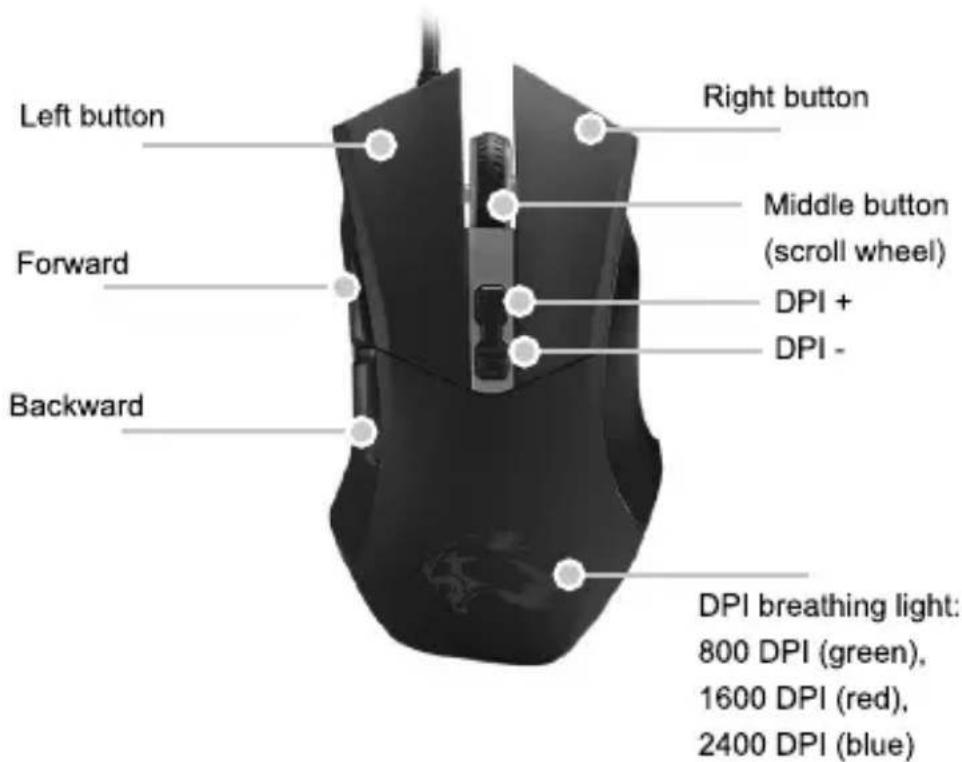
Left button Forward Backward Right button Middle button (scroll wheel) DPI + DPI - DPI breathing light: 800 DPI (green), 1600 DPI (red), 2400 DPI (blue)

Driver Installation Instruction

Thespecial functions of this mouse will work effectively after installing the driver.

  1. Put the CD driver into computer CD-Rom, then click setup.exe
  2. Choose language English "to start the installation".
  3. Restart computer after installation complete.
  4. Double-click the installed software "Standard Mouse Driver" on computer taskbar, get into the Gaming Mouse interface, then set up your own functions.

EN

Mouse Cobalt Gaming mouse

Instructions for use

Instruction for Setting Mouse Special Function

Before you start please make sure the CD driver has been installed successfully. On the "Gaming Mouse" interface ta set up special function.

Main Control

  • Button Assignment
  • Setting Single Key Setting
  • Macro Setting

Advanced Settings

Profile Setting
DARING MOUSE MAIN CONTROL ADVANCED SETTINGS BOTTOM ASSIGNMENT Left/Right Right/Left Bottom/Right Right/Left Bottom/Right Bottom/Left Bottom/Right Bottom/Left Bottom/Right Bottom/Left Bottom/Right Bottom/Left Bottom/Right Bottom/Left Bottom/Right Bottom/Left Bottom/Right Bottom/Left Bottom/Right Bottom/Left Bottom/Right Bottom/Left Bottom/Right Bottom/Left Bottom/Right Bottom/Left Bottom/Right Bottom/Left Bottom/Right Bottom/Left Bottom SETTING ACQUESI RESOLVED RESOLVED BACK FRONT NO APPLY BACKS

GAMING HOUSE MAIN CONTROL ADVANCED SETTINGS BUTTON ARE DIRECTION: Left side Right End Stand Case: R. Backend Left Case Right End Stand Case R. Frontend R. Equipment Stand Case Single Case Bottom Case On/Down On/Down Main Settings Select All PROFESSION PROFESSION PROFESSION PROFESSION PROFESSION PROFESSION PROFESSION PROFESSION PROFESSION PROFESSION PROFESSION PROFESSION PROFESSION PROFESSION PROFESSION PROFESSION PROFESSION PROFESSION PROFESSION PROFESSION PROFESSION PROFESSION PROFESSION PROFESSION PROFESSION PROFEPTION PROFEPTION PROFEPTION PROFEPTION PROFEPTION PROFEPTION PROFEPTION PROFEPTION PROFEPTION PROFEPTION PROFEPTION PROFEPTION PROFEPTION PROFEPTION PROFEPTION PROFEPTION PROFEPTION PROFEPTION PROFEPTION PROFEPTION PROFEPTION PROFEPTION PROFEPTION PROFEPTION PROFEPTION PROFESSION PROFESSION PROFESSION PROFESSION PROFESSION PROFESSION PROFESSION PROFESSION PROFESSION PROFESSION PROFESSION PROFESSION PROFESSION PROFESSION PROFESSION PROFESSION PROFESSION PROFESSION PROFESSION PROFESSION PROFESSION PROFESSION PROFESSION PROFESSION PROFEDITION

Main Control

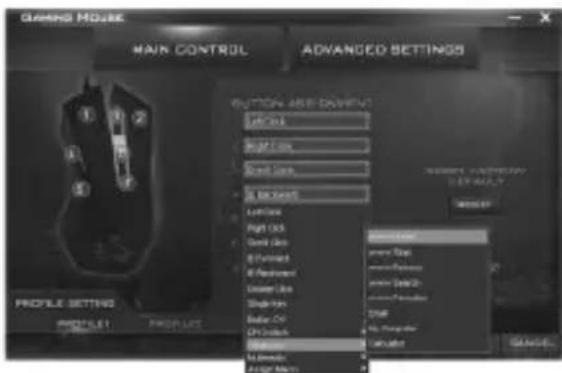
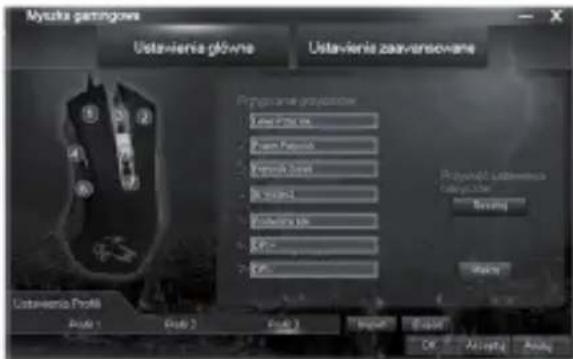
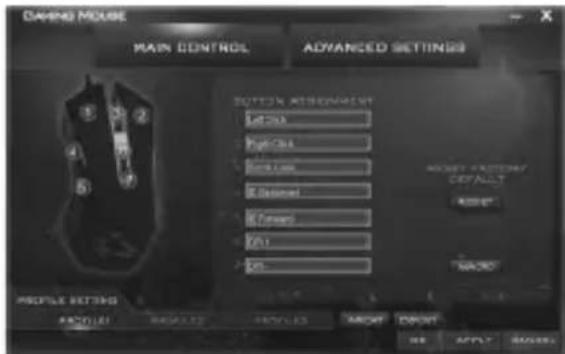
- Button Assignment Setting Yau can make different function settings for the 7customized buttons.

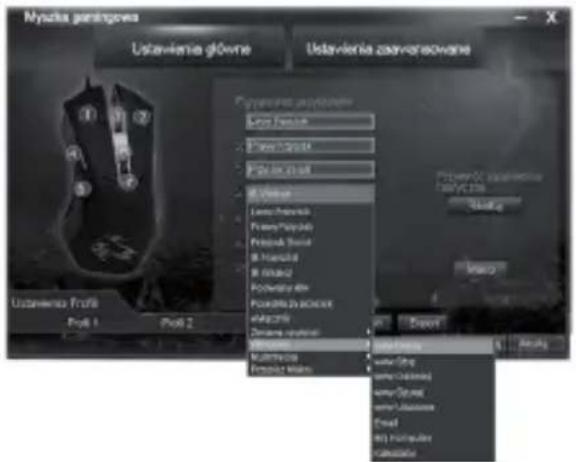
  1. Click "Main Control" to get into "Button Assignment" interface, you will see 7 customized buttons.

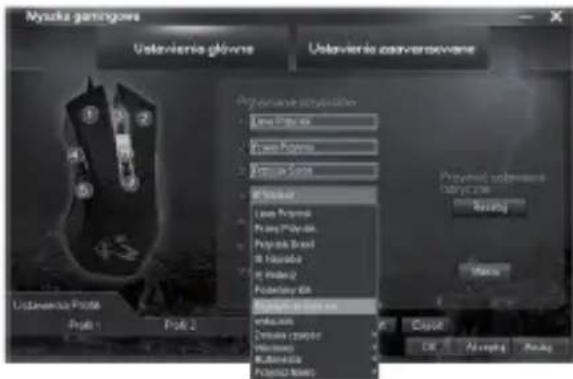
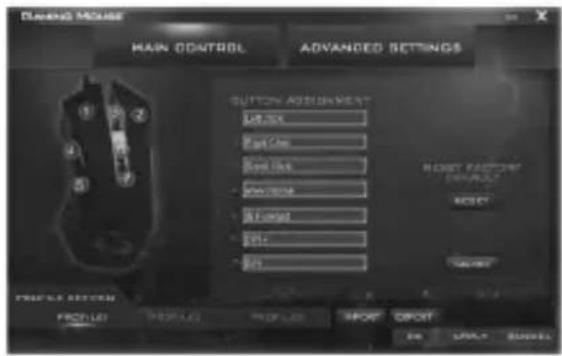
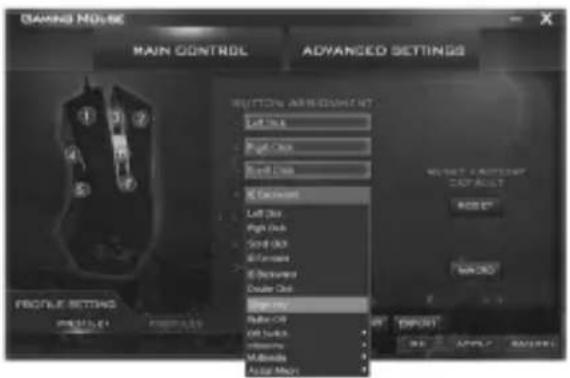
  2. Click the 7 customized buttons for setting (except "Left Click"), for example: Click "IE Backward" and choose the function you need. (e.g. "www Home").

  3. Click "APPLY" to save and realize your special setting, e.g. "www Home".
CNC MODE MAIN CONTROL ADVANCED SETTINGS BUTTON ASSIGNMENT L10.2X Fpt.5m Ran.1kx POTTON R1.0mm2 S14. S11 RIGHT FACTORY DEFAULT RIGHT SELECT BUTTON FROM LO PRODUCTS PRODUCTS IMPORT IMPORT OK CREATE CANCEL

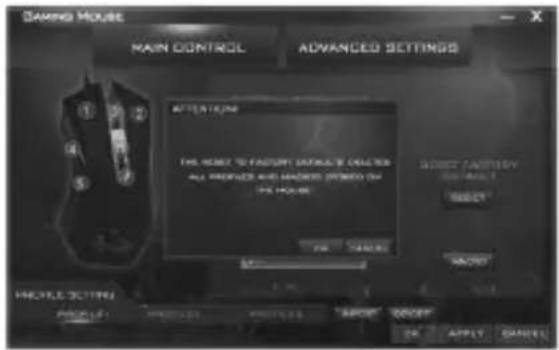
  1. If you want to reset factory default for the 7 customized buttons, click "RESET" Then click "APPLY" to save the defaults.
MAIN CONTROL ADVANCED SETTINGS ATTENTION THE MAIN TO FASHY ORDER IS COLDERS ALL PROGRESS AND HANDS USED ON THE HOME FOR TARGETS SHORT CATEGORY SELECT MAKE WRITE SETTING PRODUCTS PRODUCTS APPEND CHANGE OK APPLY CANCEL

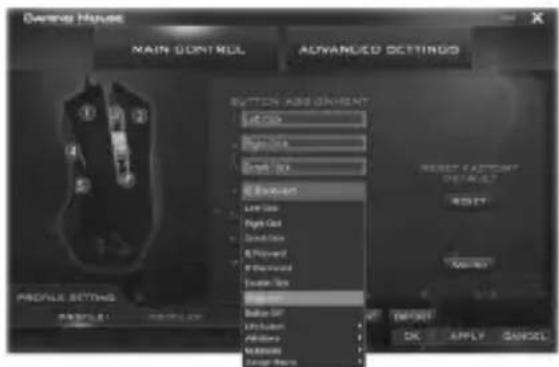
- Single Key Setting Yau can change the function of mouse button into key function of keyboard by setting "Single Key7".
Dining House MAIN CONTROL ADVANCED SETTINGS BUTTON ADD ORIENTATION Lift Gain Right Shift Left Shift C:\Devort Left Cause Right Cause Sand Cause R\Forward R\Forward Center Size Balance Balance UP Unadjusted Additions Maximum Range Range RESET CURRENT DEFAULT RESET PROVALUE SETTINGS TITLE: 100% OK: Apply Cancel

EN

Mouse Cobalt Gaming mouse

Instructions for use
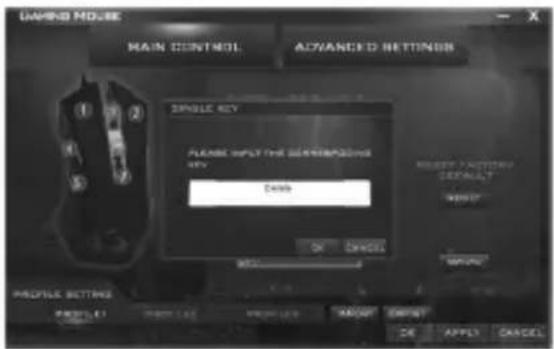
DAVID NO.5E MAIN CONTROL ADVANCED SETTINGS SINGLE KEY PLEASE INPUT THE COLDING KEY OK CANCEL REQUEST FACTORY DEFAULT NOOD PROFILE SETTINGS TITLE 1 RIGHT LINE PROJECT LET MOUNT RESET OK APPLY CANCEL

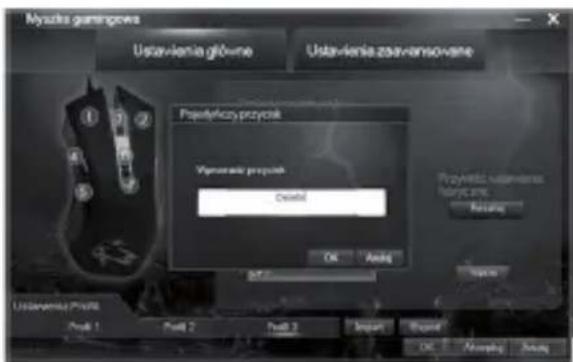
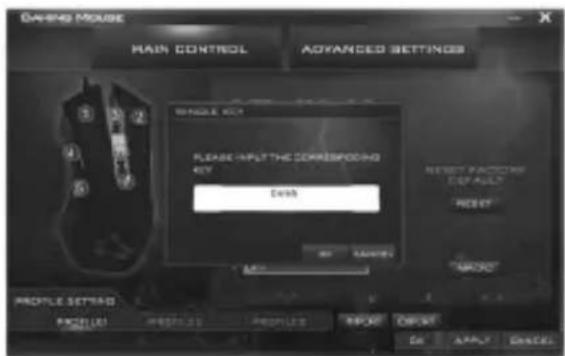
For example: Click "IE Backward" and choose "Single Key" get into the dialog as below and press any single key of keyboard you want to set, e.g. "Delete" Then click OK and "APPLY" to save this setting.
GARID HOUSE MAIN MODE MANAGER MODE SELECT Status: 100% OK Cancel ITEMS: 1.00000000000000000000000000000000000000000000000000000000000000000000000000000000 Profile Settings PROJET LET OK Cancel ITEMS: 1.0000000000000000000 OK Cancel ITEMS: 1.5625888888888888888888888888888888888888888888888888888888888888

Macro Setting

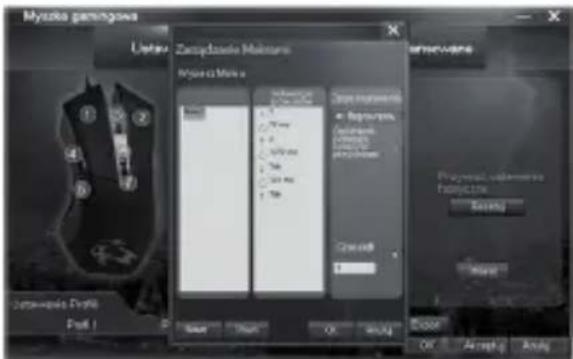
You can set up the mouse button function as keyboards' combo keys function by Macro Manager.
DATING MACHINE MAIN MANAGING MANAGER CATTING MANUAL +1.091 +1.091 +1.091 COTTINGS RISKER ORDER DEFAULT ORDER PROILE SETTING PICKLE: SAY NEW BY MANAGER SHEET OK Apply Details

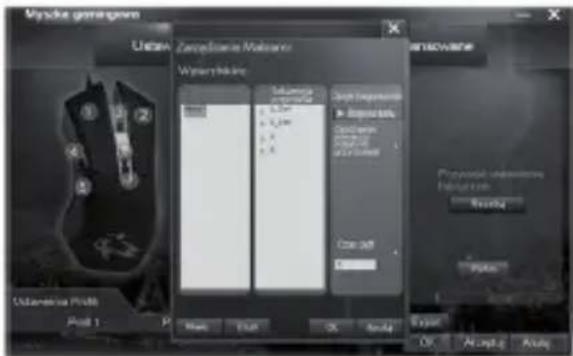
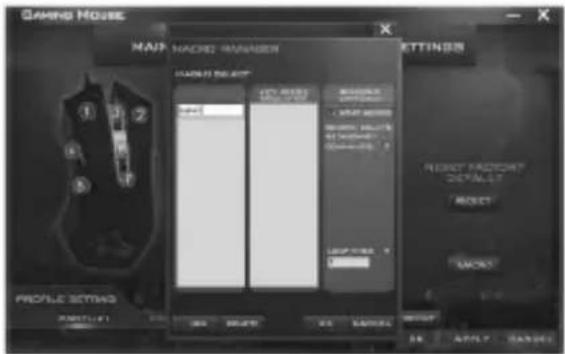
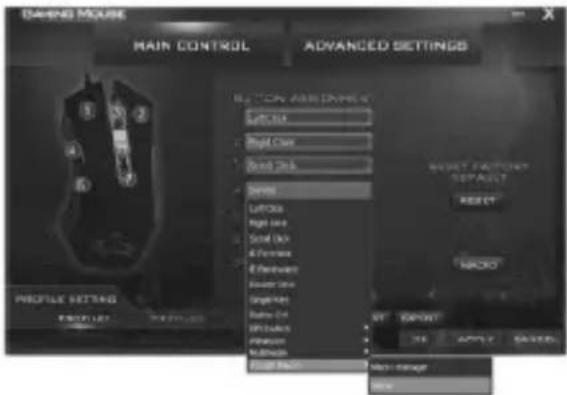
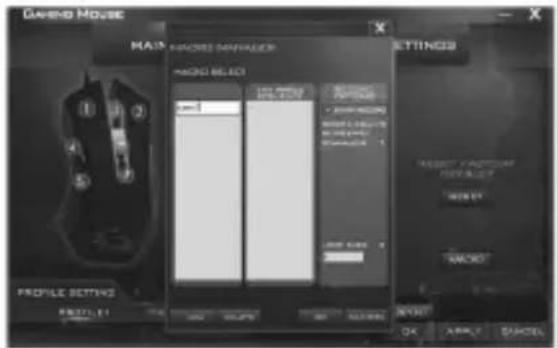
  1. On "Main Control" interface and click.Macro get into the dialog Micro Manager Then click "NEW" to create a name for the macro definition function you want. (e.g. create the name as "name1")

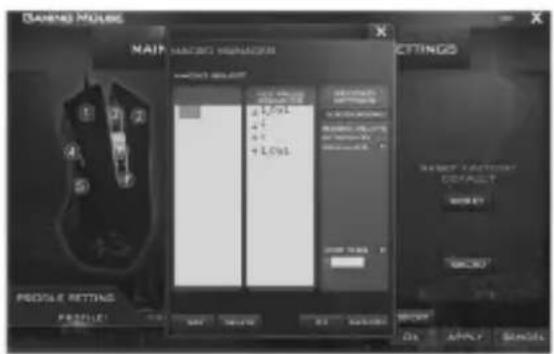
  2. Choose the created name (e.g. "name1") and click "Start Record" on dialog "Key Press Sequence" to press any keyboard's combo keys for setting, and click "Stop Record" (e.g. press "Ctrl + C" as below).

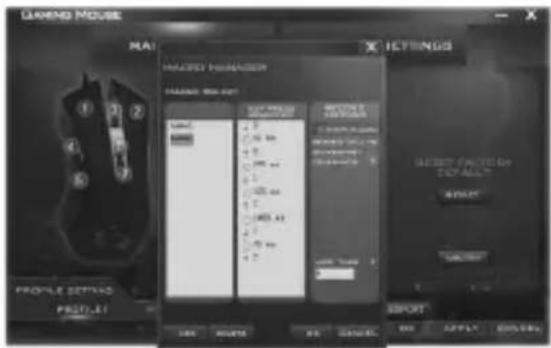
  3. If game needed, by choosing "Record Delays Between Key Commands" you can set up the combo keys to be pressed not at the same time when playing the games. (as below).

  4. After stop Record you can also set up the cycle index of macro function by choosing Loop Times.
  5. Click "OK" to save the all macro definition function settings.
  6. You will find the new added macro definition functions in "Assign Macro" and can set up the mouse button as this function, then click "APPLY" (as below).
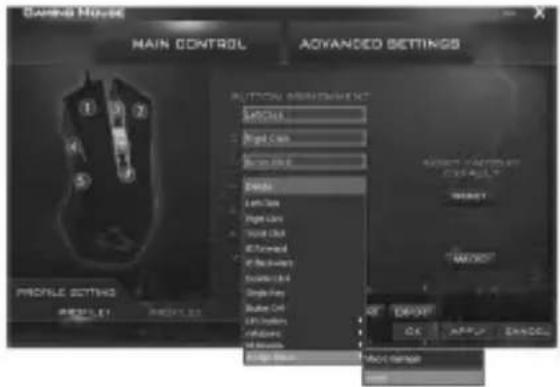
GARAGE HOUSE MAIN HAIJIANG MANAGER GARAGE MANUAL SALAD SALAD SALAD SALAD SALAD SALAD SALAD SALAD SALAD SALAD SALAD SALAD SALAD SALAD SALAD SALAD SALAD SALAD SALAD SALAD SALAD SALAD SALAD SALAD SALAD SALADE SALADE SALADE SALADE SALADE SALADE SALADE SALADE SALADE SALADE SALADE SALADE SALADE SALADE SALADE SALADE SALADE SALADE SALADE SALADE SALADE SALADE SALADE SALADE SALADE SALAD SALAD SALAD SALAD SALAD SALAD SALAD SALAD SALAD SALAD SALAD SALAD SALAD SALAD SALAD SALAD SALAD SALAD SALAD SALAD SALAD SALAD SALAD SALAD SALAOUT SALAOUT SALAOUT SALAOUT SALAOUT SALAOUT SALAOUT SALAOUT SALAOUT SALAOUT SALAOUT SALAOUT

MAIN CONTROL ADJANCED SETTINGS BUTTON CONTROL RISKLE Big Cat Box 1.0 Balance Left Size Right Size Top Size Right Side Left Side Bottom Side Single Side Right Side Left Side Bottom Side Balance Box Short Range OK Cancel ADDEND

Advanced Settings

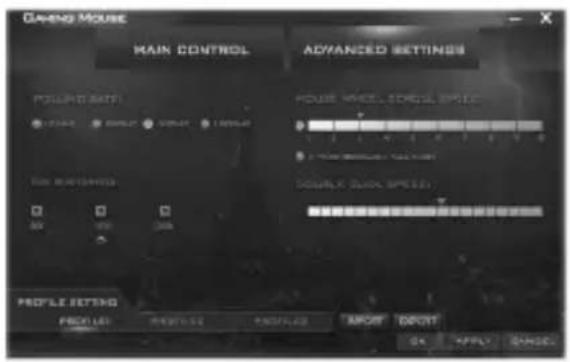
Click "Advanced Settings" and get into the interface as below, you can change the settings you need. If needed to reset factory default for the settings, please get into "Main Control" interface and click "RESET". then click "APPLY" to save defaults.
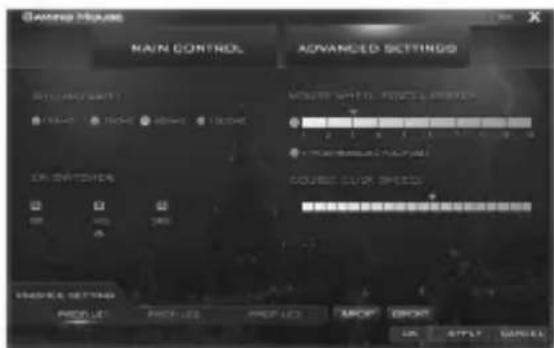
MAIN CONTROL ADVANCED SETTINGS MAIN CONTROL AVIANCE LIMIT 100% 200% 300% 400% 500% 600% 700% 800% 900% 1000% DOUBLE SWITCHER COURSE SLIP SPEEDS MOUNTS OF 100% POINT CABBAGE MOUNTS OF 100% POINT CABBAGE MOUNTS OF 100% POINT CABBAGE MOUNTS OF 100% POINT CABBAGE MOUNTS OF 100% POINT CABBAGE MOUNTS OF 100% POINT CABBAGE MOUNTS OF 100% POINT CABBAGE MOUNTS OF 100% POINT CABBAGE RANGE MOUNTS OF 100% POINT CABBAGE MOUNTS OF 100% POINT CABBAGE MOUNTS OF 100% POINT CABBAGE MOUNTS OF 100% POINT CABBAGE MOUNTS OF 100% POINT CABBAGE MOUNTS OF 100% POINT CABBAGE MOUNTS OF 100% POINT CABBAGE N/A MOUNTS OF 100% POINT CABBAGE MOUNTS OF 100% POINT CABBAGE MOUNTS OF 100% POINT CABBAGE MOUNTS OF 100% POINT CABBAGE MOUNTS OF 100% POINT CABBAGE MOUNTS OF 100% POINT CABBAGE MOUNTS OF 100% POINT CABBAGE OK CHANGE CANCEL

EN

Mouse Cobalt Gaming mouse

Instructions for use

Profile Setting

3 modes configuration settings provided, easy to switch and suitable for different game environment.

PRODUCTS PRODUCT PRODUCT IMPORT EXPORT BUY APPLY BANANA

Configurations for import and export are supported. You can export the settings and save them in the hard drive. If change computer or install computer system, then just can import the saved setting to computer, no need to repeat setting.

For example:

  1. Choose one of the 3 profiles (e.g. click "Profile 1"), you can make the settings on "Main Control" and "Advanced Settings", then click "APPLY" to use normally.
  2. Click "Export" you can export to save the settings in computer or hard drive.
  3. Choose another profile (e.g. click "Profile 2"), and click "Import", can import the above saved settings to Profile 2 directly, no need to repeat setting. Click "APPLY" for saving this setting.
natural_image Black computer mouse with visible scroll wheel and control buttons (no text or symbols)

Myš pro hráče *1

Tracer Cobalt - Profile Setting - 2
Návod k obsluze *1

Tracer Cobalt - Profile Setting - 3
CD s ovladačem*1

Funkce

natural_image Black computer mouse with visible scroll wheel and control buttons (no text or symbols)

Myš pre hráčov *1

SK

Myš Cobalt Pre hráčov

Návod na obsluhu
GAMING NO. 56 MAIN CONTROL ADVANCED SETTINGS BUTTON ADDRESS Left Dia Right Dia Left Dia C Command Left Dia Right Dia Left Dia C Command Right Dia Dauer Dia Right Dia LEFT Dia Off Dia Off Dia Off Dia Multipla Multi Map MUST REDUSTRY CAPSALUT RESET MACRO IMPORT OK APPLY BACKUP

DAVID MOUSE MAIN CONTROL ADVANCED SETTINGS SINGLE KEY PLEASE INPUT THE CORRESPONDING KEY Cash RESET FADDITIONS DEFAULT RESET MAKE WRITE SETTING PROFILE1 PROFILE2 PROFILE3 REPORT ORDER OK APPLY CANCEL

GAMING HOME MAIN HACKED MANAGER MAIN HACKED SETTINGS 1 2 3 4 5 6 7 8 TITLE RIGHT POST LEFT POST RIGHT POST NEXT POST NEXT POST NEXT POST NEXT POST NEXT POST NEXT POST NEXT POST NEXT POST NEXT POST NEXT POST NEXT POST NEXT POST NEXT POST NEXT POST NEXT POST NEXT POST NEXT POST NEXT POST NEXT POST NEXT POST NEXT POST NEXT POST NEXT POST NEXT POST NEXT POST NEXT POST NEXT POST NEXT POST NEXT POST NEXT POST NEXT POST NEXT POST NEXT POST NEXT Post NEXT Post NEXT Post NEXT Post NEXT Post NEXT Post NEXT Post NEXT Post NEXT Post NEXT Post NEXT Post NEXT Post NEXT Post NEXT Post NEXT Post NEXT Post NEXT Post NEXT Post NEXT Post NEXT Post NEXT Post NEXT Post NEXT Post NEXT Post NEXT Post NEXT Post NEXT Post NEXT Post NEXT Post NEXT Post NEXT Post NEXT Post NEXT Post NEXT Post

DAKING MOUSE MAIN CONTROL ADVANCED SETTINGS BLUE CNTS AND DATA LPG: 100 RGB Class Sound Disk Davon LPG class Right side Sound key 4 Features 8 Dimensions Rearer class Origining Bottom-Or 9 Products Rotation Radish High Manager High RESET RESET SWITCH DEFAULT RESET MACRO PROFILE SETTING FEATURES PROFILES PROGMENTS PROOFERS PROOFERS PROOFERS PROOFERS PROOFERS PROOFERS PROOFERS PROOFERS PROOFERS PROOFERS PROOFERS PROOFERS PROOFERS PROOFERS PROOFERS PROOFERS PROOFERS PROOFERS PROOFERS PROOFERS PROOFERS PROOFERS PROOFERS PROOFERS PROOFERS PROOFER

SK

Myš Cobalt Pre hráčov

Návod na obsluhu
GAME Mouse MAIN CONTROL ADVANCED SETTINGS POWER RATE 100% 200% 300% 400% 500% 600% 700% 800% 900% 1000% 1100% 1200% 1300% 1400% 1500% 1600% 1700% 1800% 1900% 2000% 2100% 2200% 2300% 2400% 2500% 2600% 2700% 2800% 2900% 3000% 3100% 3200% 3300% 3400% 3500% 3600% 3700% 3800% 3900% 4000% 4100% 4200% 4300% 4400% 4500% 4600% 4700% 4800% 4900% 5000% 5100% 5200% 5300% 5400% 5500% 5600% 5700% 5800% 5900% 6000% 6100% 6200% 6300% 6400% 6500% 6600% 6700% 6800% 6900% 7000% 7100% 7200% 7300% 7400% 7500% 7600% 7700% 7800% 7900% 8000% 8100% 8200% 8300% 8400% 8500% 8600% 8700% 8800% 8900% 9000% 9100% 9200% 9300% 9400% 9500% 9600% 9700% 9800% 9900% 100 PRICE CANCEL AVOCY IMPORT EXPORT IMPORT OK APPLY CANCEL

Pokročilé nastavenia

natural_image Black computer mouse with visible scroll wheel and lens (no text or symbols)

Мышь для игроков *1

RU

Manual assistant
Powered by Anthropic
Waiting for your message
Product information

Brand : Tracer

Model : Cobalt

Category : Mouse