C-220 ZOOM - Appareil photo numérique OLYMPUS - Free user manual and instructions

Find the device manual for free C-220 ZOOM OLYMPUS in PDF.

Page 3
View the manual : Français FR Deutsch DE English EN Español ES 中文 ZH
Manual assistant
Powered by ChatGPT
Waiting for your message
Product information

Brand : OLYMPUS

Model : C-220 ZOOM

Category : Appareil photo numérique

Download the instructions for your Appareil photo numérique in PDF format for free! Find your manual C-220 ZOOM - OLYMPUS and take your electronic device back in hand. On this page are published all the documents necessary for the use of your device. C-220 ZOOM by OLYMPUS.
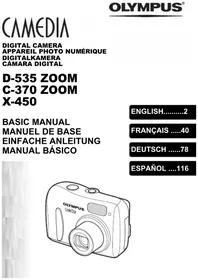
USER MANUAL C-220 ZOOM OLYMPUS

basic_e_d.fm Page 1 Tuesday, February 12, 2002 4:29 PM

basic_e_d.fm Page 2 Tuesday, February 12, 2002 4:29 PM These instructions are only for quick reference. For more details on the functions described here, refer to the “Reference Manual” on CD-ROM.

basic_e_d.fm Page 3 Tuesday, February 12, 2002 4:29 PM For customers in Europe

“CE” mark indicates that this product complies with the European requirements for safety, health, environment and customer protection. “CE” mark cameras are intended for sales in Europe.

For customers in North and South America

For customers in USA En

Declaration of Conformity

Model Number : C-2 Zoom/D-520 ZOOM/C-220 ZOOM Trade Name : OLYMPUS Responsible Party : Olympus America Inc. Address : 2 Corporate Center Drive, Melville, New York 11747-3157 U.S.A. Telephone Number: 631-844-5000 Tested To Comply With FCC Standards FOR HOME OR OFFICE USE This device complies with Part 15 of the FCC rules. Operation is subject to the following two conditions: (1) This device may not cause harmful interference. (2) This device must accept any interference received, including interference that may cause undesired operation.

For customers in Canada

This Class B digital apparatus meets all requirements of the Canadian Interference-Causing Equipment Regulations.

IBM is a registered trademark of International Business Machines Corporation.

Microsoft and Windows are registered trademarks of Microsoft Corporation. Macintosh is a trademark of Apple Computer Inc. All other company and product names are registered trademarks and/or trademarks of their respective owners. • The standards for camera file systems referred to in this manual are the “Design Rule for Camera File System/DCF” standards stipulated by the Japan Electronics and Information Technology Industries Association (JEITA).

basic_e_d.fm Page 4 Tuesday, February 12, 2002 4:29 PM Extends automatically when you open the lens barrier.

Pops up when you open the lens barrier.

Turns the camera on and off in the shooting mode.

AF target mark Card cover Strap eyelet

Battery compartment cover

Arrow pad (Monitor) button Turns the camera on and off in the playback mode.

basic_e_d.fm Page 5 Tuesday, February 12, 2002 4:29 PM J MONITOR INDICATIONS Shooting mode

Exposure compensation

Number of storable still pictures/Seconds remaining

1600 × 1200, 1024 × 768, 640 × 480

File number, Frame number/

13 Print reservation, Number of prints

You can view shooting information details of the recorded picture in the playback mode.

basic_e_d.fm Page 6 Tuesday, February 12, 2002 4:29 PM Memory gauge

The memory gauge lights up when you take a picture. While the gauge is lit, the camera is storing the picture on the card. The memory gauge indication changes as shown below depending on the shooting status. When the memory gauge is full, wait a few moments before taking the next shot.

En When taking still pictures

No more pictures can be taken (Fully Lit)

When recording movies

If you continue shooting Shoot Wait Before shooting (Gauge is off)

During shooting (Lit)

• Shooting is not possible until the lit area goes off completely. • Movie recording ends automatically when the memory gauge is full.

If the remaining battery power is low, the battery check indication on the monitor changes as follows while the camera is turned on. No indication Lights up (Green) Remaining power level: high

Remaining power level: low Replace with a new battery.

Green lamp and Orange lamp on the right of the viewfinder blink

Remaining power level: exhausted

basic_e_d.fm Page 7 Tuesday, February 12, 2002 4:29 PM J ATTACHING THE STRAP

1 Thread the short end of the strap 2 3

through the strap eyelet.

Thread the long end of the strap through the loop that has already gone through the eyelet.

Pull the strap tight, making sure that it is securely fastened and does not come loose.

J LOADING THE BATTERIES

• The monitor is off.

• The lens barrier is closed. • The lamp on the right of the viewfinder is off.

Slide the battery compartment cover in the direction of

(the direction indicated by the mark on the cover), and lift it up in the direction of .

Insert the batteries, making sure that they are correctly oriented as shown in the illustration.

When using AA (R6) batteries

Battery insertion direction mark

When using a lithium battery pack

Close the battery compartment cover in the direction of

. While pressing the mark, slide the cover in the direction of . If the battery compartment cover will not close easily, do not force it. Try pressing the mark with both hands.

basic_e_d.fm Page 8 Tuesday, February 12, 2002 4:29 PM AA (R6) alkaline batteries

The number of pictures that you can store in the camera may vary considerably with AA batteries, depending on the battery manufacturer, camera shooting conditions, etc. Use this type of battery only when you have no other choices available. Turn off the monitor whenever possible to save power.

J INSERTING THE CARD (SmartMedia)

The pictures you have taken are stored on the card.

• The monitor is off. • The lens barrier is closed. • The lamp on the right of the viewfinder is off.

Open the card cover.

Insert the card as far as it will go in the direction shown in the illustration. There is an arrow inside the card cover, indicating the direction in which the card should be inserted.

Close the card cover securely until it clicks.

Card insertion direction mark

basic_e_d.fm Page 9 Tuesday, February 12, 2002 4:29 PM J TURNING THE POWER ON/OFF When shooting pictures

Power on: Open the lens barrier. The camera turns on in the shooting mode. The lens extends and the flash pops up. If the lens does not extend, the lens barrier is not fully open. Open the lens barrier until it clicks.

If the date and time have reverted to the factory default settings, Y/M/D appears on the monitor.

Power off: Close the lens barrier slightly until it just touches the lens barrier.

The lens barrier stops just before it touches the lens and the lens retracts. Wait until the lens is fully retracted before closing the lens barrier completely. The camera turns off. (The monitor also turns off.) Press the flash down manually until it locks in place.

Do not push the lens barrier forcefully against the lens as this may damage the lens or cause it to malfunction.

basic_e_d.fm Page 10 Tuesday, February 12, 2002 4:29 PM When playing back pictures

Power on: Press the (monitor) button with the lens barrier closed. The camera turns on in the playback mode. The monitor turns on and the last picture taken is displayed.

(monitor) button Power off: Press the

The monitor and the camera turn off.

Never open the card cover, remove the card or the batteries, or connect or disconnect the AC adapter while the camera is turned on. Doing so could destroy all data on the card. Destroyed data cannot be restored. When changing the card, be sure to turn the camera off before opening the card cover.

basic_e_d.fm Page 11 Tuesday, February 12, 2002 4:29 PM J SETTING THE DATE AND TIME

1 Open the lens barrier. 2 Press . 3 4 5 6

The shooting mode top menu is displayed.

on the arrow pad to select MODE MENU.

to select the SETUP tab, then press

to select one of the following date formats:

Y-M-D (Year/Month/Day)

M-D-Y (Month/Day/Year) D-M-Y (Day/Month/Year) Then press . The cursor moves to the next setting field.

Press to set the first field, then press the next field.

to move back to the previous setting field.

Repeat the above steps until the date and time are completely set.

For a more accurate setting, press

The clock starts when you press

10 Close the lens barrier.

when the clock hits 00 seconds.

The camera turns off.

If the camera is left for about 1 hour with the batteries removed, or if the battery power is exhausted, the date and time settings may be canceled or become incorrect. Before taking important pictures, check that the date and time settings are correct.

basic_e_d.fm Page 12 Tuesday, February 12, 2002 4:29 PM When you turn on the camera and press

, the top menu is displayed on the monitor. The functions of this camera are set from the menus. This chapter explains how the menus work, using the shooting mode screens. Press

The top menu is displayed.

• Lets you access the menu selections to set the metering, white balance, etc. • Categorizes the settings into 4 tabs. • Displays the CAMERA, PICTURE, CARD and SETUP tabs. Select the desired tab on the left of the screen by pressing .

HQ 1600*1200 SQ1 1024*768 SQ2 640*480 CANCEL SELECt GO

• Let you quickly access the most frequently used menu settings. • Display operational buttons at the bottom of the screen, and let you select items by pressing .

DIGItAL ZOOM MEtERING

basic_e_d.fm Page 13 Tuesday, February 12, 2002 4:29 PM How to use the menus

DIGItAL ZOOM MEtERING PICTURE tab

basic_e_d.fm Page 14 Tuesday, February 12, 2002 4:29 PM

Setting is completed when the setting has been selected.

DIGItAL ZOOM MEtERING The green frame moves to the selected item.

DIGItAL ZOOM MEtERING

to select the desired item, then press to display the available setting selections.

DIGItAL ZOOM MEtERING OFF ON DIGItAL ZOOM MEtERING OFF ON

• Not all items can be selected depending on the status of the camera and the settings performed. For example, when the movie mode is selected, you cannot select SEPIA, BLACK&WHITE or in the EDIT tab category.

• By pressing the shutter button to take a picture while the menu is displayed, you can take pictures with the currently selected settings. • If you want to save the settings after the camera is turned off, set All Reset to OFF.

basic_e_d.fm Page 15 Tuesday, February 12, 2002 4:29 PM Shortcut menus

Shooting mode DRIVE Lets you shoot one frame at a time (normal shooting).

Lets you shoot pictures in succession.

Lets you shoot movies.

Lets you select the resolution and the image quality of the image.

Still picture : SHQ, HQ, SQ1 and SQ2 Movie

: HQ, SQ FUNCTION Lets you combine two still pictures taken in succession into one picture.

Lets you take a picture of yourself while holding the camera.

PANORAMA Allows panorama pictures to be taken with Olympus

CAMEDIA-brand SmartMedia cards.

Displays all recorded pictures in slide-show fashion.

INFO Displays all the shooting information on the monitor.

ERASE Erases a selected picture.

basic_e_d.fm Page 16 Tuesday, February 12, 2002 4:29 PM Mode menus

Mode menu functions are categorized into 4 tabs. Use tab and display the respective functions.

These instructions are only for quick reference. For more details on the functions described here, refer to the “Reference Manual” on

DIGItAL ZOOM MEtERING CAMERA tab

Adjusts the brightness of the image (Exposure compensation).

DIGITAL ZOOM Extends the maximum optical zoom, making possible up to approximately 5x zoom shooting with the digital zoom function.

METERING Selects the area of the image that will be used to determine exposure or image brightness from the two available settings: ESP or

WB Sets the appropriate white balance according to the light source.

Selects whether to save the current camera settings when you turn off the power.

REC VIEW Turns the beep sound (used for warnings, etc.) on and off.

Selects whether to display pictures on the monitor while saving them. Adjusts the brightness of the monitor. Sets the date and time.

basic_e_d.fm Page 17 Tuesday, February 12, 2002 4:29 PM SEt CARD EDIt PLAY Playback mode

Protects pictures from accidental erasure. Rotates pictures 90 degrees clockwise or counterclockwise. Stores printing information on the card required for DPOF printers. EDIT tab

BLACK & WHITE SEPIA INDEX Creates black and white pictures.

Creates sepia-toned pictures. Makes the file size smaller. Creates an index picture of a movie in 9 frames.

Erases all image data stored on the card.

Selects whether to save the current camera settings when you turn off the power.

Turns the beep sound (used for warnings, etc.) on and off. Selects the number of frames in the index display. Adjusts the brightness of the monitor. Sets the date and time.

basic_e_d.fm Page 18 Tuesday, February 12, 2002 4:29 PM SHOOTING BASICS J TAKING STILL PICTURES You can take still pictures using either the viewfinder or the monitor. Both methods are easy as all you have to do is to press the shutter button.

En Taking still pictures using the viewfinder

Open the lens barrier.

Slide the lens barrier open until it clicks. The flash pops up and the lens extends.

Position the AF target mark over the subject in the viewfinder.

When the distance from the camera to the subject is less than 0.5 m/ 1.6 ft, select the macro mode.

Press the shutter button gently (halfway).

The green lamp on the right of the viewfinder lights up when the focus and exposure are locked. At this time the sound of the focusing mechanism can be heard from inside the camera, but no picture is being taken.

Press the shutter button all the way (fully).

The camera takes the picture.

Taking still pictures using the monitor

Open the lens barrier.

Slide the lens barrier open until it clicks. The flash pops up and the lens extends.

The monitor turns on.

Determine the image composition while observing your subject on the monitor.

Take the picture by following the same procedure as for shooting using the viewfinder. Press the shutter button all the way (fully) to take the picture. When you want to take pictures with the monitor off, press again. Never open the card cover, remove the batteries or disconnect the AC adapter while the orange lamp is blinking. Doing so could destroy stored pictures and prevent storage of pictures you have just taken.

basic_e_d.fm Page 19 Tuesday, February 12, 2002 4:29 PM J IF CORRECT FOCUS CANNOT BE OBTAINED (FOCUS LOCK)

When the subject you want to focus on is not in the center of the frame and you cannot position the AF target mark on it, you can focus the camera on another point at roughly the same distance (focus lock) and take the picture as explained below.

Open the lens barrier.

The camera turns on in the shooting mode.

Look into the viewfinder and position the AF target mark on the subject.

When shooting a hard-to-focus subject or a fast-moving subject, point the camera at an object about the same distance away as the subject.

Half-press the shutter button until the green lamp on the right of the viewfinder illuminates steady.

The focus and exposure are locked when the green lamp lights up.

Keeping the shutter button pressed halfway, recompose your shot in the viewfinder.

Press the shutter button fully.

basic_e_d.fm Page 20 Tuesday, February 12, 2002 4:29 PM J RECORDING MOVIES You can record movies with this camera. Recorded movies can be played back or stored separately as still pictures using the index function.

Display the top menu in the shooting mode.

• Open the lens barrier.

to select DRIVE. to select

Movie recording is set and the menu is closed.

The total recordable time depending on the card memory capacity and the mark are displayed on the monitor.

Record the movie while observing your subject on the monitor.

Press the shutter button fully to start recording. When you press the shutter button, the number of seconds remaining for one record is displayed. Press the shutter button fully again to stop recording. To cancel movie mode Press . The monitor turns off and the movie mode is canceled. • During movie recording, the flash and optical zoom are disabled. • It takes longer to store movies than still pictures. • The seconds remaining varies depending on the record mode and the amount of space available on the card. • You cannot record movies with sound.

J ZOOMING IN ON A SUBJECT (OPTICAL ZOOM)

Telephoto and wide-angle shooting are possible at 3x magnification using the optical zoom (equivalent to 38 mm -114 mm on a 35mm camera). By combining the 3x optical zoom with the 2.5x digital zoom, you can obtain zoom magnification of approximately 7.5x (equivalent to 38 mm - 285 mm on a 35 mm camera). When the record mode is set to SQ2, the 5x digital zoom is available.

Open the lens barrier.

Slide the zoom lever while looking in the viewfinder.

The camera turns on in the shooting mode.

Press the zoom lever toward to zoom out.

to zoom in, and toward

Take the picture while looking in the viewfinder.

Pictures taken with the digital zoom may appear grainy.

basic_e_d.fm Page 21 Tuesday, February 12, 2002 4:29 PM J TAKING CLOSE-UP PICTURES (MACRO MODE)

The macro mode allows you to shoot a subject at a distance of 0.2 - 0.5 m/ 0.7 - 1.6 ft.

Open the lens barrier.

The camera turns on in the shooting mode.

The monitor turns on and the current macro setting is displayed.

while the current macro setting is displayed.

The setting changes between

ON and OFF each time is pressed. When the macro mode is selected, the macro mode indicator is displayed.

Take the picture while observing your subject on the monitor.

To cancel macro mode, press The macro mode indicator

repeatedly until disappears.

1 Open the lens barrier. 2 3 4

The camera turns on in the shooting mode.

The current flash setting is displayed.

while the current flash setting is displayed.

, the flash mode is switched in the following sequence: AUTO .

The flash working range is approximately 2.5 m/8.2 ft.

Auto-flash (No indication)

The flash fires automatically in low light or backlight conditions.

Red-eye reduction flash (

The red-eye reduction flash mode reduces this phenomenon by emitting preflashes before firing the regular flash.

The flash always fires every time the shutter button is released.

basic_e_d.fm Page 22 Tuesday, February 12, 2002 4:29 PM Flash off (

The flash does not fire even in low light conditions.

Use this mode when shooting a subject against a night background.

Night scene with red-eye reduction (

Use this mode when shooting a portrait against a night background to reduce the red-eye phenomenon.

J USING THE SELF-TIMER This function is useful for taking pictures with yourself included in the photograph. Fix the camera securely on a tripod for self-timer shooting.

Open the lens barrier.

The camera turns on in the shooting mode.

The monitor turns on and current self-timer setting is displayed.

while the current self-timer setting is displayed.

The setting changes between pressed.

Press the shutter button fully.

The self-timer lamp lights up for approximately 10 seconds, then starts blinking. After blinking for 2 seconds with beep sound, the picture is taken.

basic_e_d.fm Page 23 Tuesday, February 12, 2002 4:29 PM SELECTING THE IMAGE QUALITY (RECORD MODE)

Choose the best record mode for your purposes (printing, editing on a computer, website editing, etc.). Still picture record modes Record mode

(Super High Quality)

• Use this mode when you

1600 × 1200 pixels* want to print out an image with high quality or on large paper such as A4 (8.3" × 11.7"/21 cm × 29.7 cm), or you want to process images on a PC. • The image quality is higher, but the number of storable images is fewer. It takes longer to store the images.

• Use this mode when you

1600 × 1200 pixels* want to edit images on a PC HQ or print them out on (High Quality) postcard size paper. • This mode is the factory default setting.

• Use this mode when you want to attach images to email or simply view them on a PC.

• This is the standard quality mode, and the number of storable images is increased.

1024× 768 pixels* in

SQ1 mode 640 × 480 pixels* in SQ2 mode

basic_e_d.fm Page 24 Tuesday, February 12, 2002 4:29 PM Movie record modes

Record mode HQ (High Quality)

(No. of pixels) You can record continuously 320 × 240 pixels* for 15 seconds at a time. Description

You can record continuously 160 × 120 pixels* for 60 seconds at a time.

* Pixels are the unit used to express the resolution.

Display the top menu in the shooting mode.

• Open the lens barrier. • Press .

to select one of the record modes, then press

The record modes for still pictures are SHQ, HQ, SQ1 and SQ2; and for movies are HQ and SQ.

The record mode is set and the menu is closed.

basic_e_d.fm Page 25 Tuesday, February 12, 2002 4:29 PM PLAYBACK J PLAYING BACK STILL PICTURES You can play back pictures one by one on the monitor.

with the lens barrier closed.

The monitor turns on and displays the last picture taken. (Single-frame playback)

Displays the previous picture. Displays the next picture. Jumps to the picture 10 frames behind. Jumps to the picture 10 frames ahead.

The monitor and camera turn off.

Quick View (Double-click playback)

This function lets you play back pictures during shooting with the lens barrier open. It is useful when you want to check shooting results and resume shooting quickly.

twice quickly (double-click) in the shooting mode.

The camera immediately enters the playback mode and displays the last picture taken. (Single-frame playback)

Press the shutter button gently (halfway).

The camera returns to the shooting mode and you can resume shooting.

Pictures displayed on the monitor can be enlarged 1.5, 2, 2.5 or 3 times. This function is useful when you want to check the details of a picture.

with the lens barrier closed.

The monitor turns on and displays the last picture taken.

Press to select the picture you want to enlarge.

Press the zoom lever toward

basic_e_d.fm Page 26 Tuesday, February 12, 2002 4:29 PM

The picture is magnified 1.5 times. The magnification increases each time the zoom lever is pressed.

To return the picture to the original size (1x), press the zoom lever toward .

By pressing while the enlarged picture is displayed, you can scroll the picture in the desired direction, enabling you to view a different section.

This function lets you show several pictures at the same time on the monitor. It is useful for quickly finding the picture you want to view. The number of pictures shown can be 4, 9 or 16.

with the lens barrier closed.

Press the zoom lever toward mode.

to enter the index display

Use the arrow pad to select a frame.

: Moves to the previous frame. : Moves to the next frame. : Jumps to the previous index display (the frames before the top left frame). : Jumps to the next index display (the frames following the bottom right frame).

To return to single-frame playback, press the zoom lever toward

J PLAYING BACK MOVIES

1 Press with the lens barrier closed. 2 3

The monitor turns on.

Press to display the desired picture with a indicator, then press

. The top menu is displayed.

The movie is played back after the orange lamp on the right of the viewfinder blinks and the movie data is downloaded to the camera.

When the movie reaches the end, the display returns automatically to the beginning of the movie.

basic_e_d.fm Page 27 Tuesday, February 12, 2002 4:29 PM

The MOVIE PLAYBACK menu is displayed.

: Plays back the entire movie again. FRAME BY FRAME: Plays back the movie manually one frame at a time. EXIT : Leaves the movie playback mode.

to select the desired operation, then press

Displays the first frame of the movie.

Displays the last frame of the movie. Displays the next frame. The movie can be displayed continuously by holding the button down. Displays the previous frame. The movie can be displayed continuously in reverse by holding the button down. Displays the MOVIE PLAYBACK menu.

J PROTECTING PICTURES (PROTECT)

You are recommended to protect important pictures to avoid accidentally erasing them.

with the lens barrier closed.

The monitor turns on.

to select the picture you want to protect.

The mode menu is displayed.

to select the PLAY tab, then press

The selected picture is protected.

To close the menu, press twice. Protected pictures cannot be erased by the single-frame/all-frame erase function, but they can be all erased with the format function.

basic_e_d.fm Page 28 Tuesday, February 12, 2002 4:29 PM J ERASING PICTURES Recorded pictures can also be erased. This can be done either one frame at a time or all the pictures in the card.

Once erased, pictures cannot be restored. Check each picture before erasing to avoid accidentally erasing pictures you want to keep.

with the lens barrier closed.

The monitor turns on.

to select the picture you want to erase.

The top menu is displayed.

to select YES, then press

The picture is erased and the menu is closed.

Display the top menu in the playback mode.

with the lens barrier closed.

to select MODE MENU.

to select the CARD tab, then press to select

to select YES, then press

All the pictures are erased.

basic_e_d.fm Page 29 Tuesday, February 12, 2002 4:29 PM J FORMATTING This function lets you format a card. Formatting prepares cards to receive data. Before using non-Olympus cards or cards which have been formatted on a PC, you must format them with this camera.

All existing data, including protected data is erased when the card is formatted. Once erased, pictures cannot be restored, so make sure that you do not erase important data.

Display the top menu in the shooting mode.

• Open the lens barrier. • Press .

to select MODE MENU.

. to select YES, then press

basic_e_d.fm Page 30 Tuesday, February 12, 2002 4:29 PM PRINT SETTINGS En

By specifying the desired number of prints of each picture on the card and whether or not the date and time are to be printed, you can print out the desired pictures according to the print reservation data with a DPOFcompatible printer or at a DPOF photo lab.

What is DPOF? DPOF is short for Digital Print Order Format. DPOF is a format used to record automatic print information from cameras. By specifying which pictures are to be printed, the pictures can be printed easily by DPOF-compatible printing service labs or on a personal DPOFcompatible printer.

Confirm the print reservation data

If print reservation data is already stored on the card, the PRINT ORDER SETTING screen appears, giving you the choice of resetting the data or keeping it. If there is no print reservation data, this screen does not appear and you can proceed to the next operation.

Select single-frame or all-frame reservation

Select whether you want to specify the number of prints for a selected frame, or if you want one print of all the frames.

Set the number of prints (only for single-frame reservation)

Display the frame to be printed and set the desired number of prints.

Set the date/time printing data

You can include the shooting date or time on the print.

Confirm the reservation data

Check the number of ordered frames, the total number of prints, and the date/ time printing data.

For more details, refer to the “Reference Manual” on CD-ROM.

basic_e_d.fm Page 31 Tuesday, February 12, 2002 4:29 PM DOWNLOADING PICTURES TO A COMPUTER By connecting the camera to a computer with the provided USB cable, images on a card can be transferred to the computer. Some OS’s (operating systems) may need a special setup before connecting to the camera for the first time. Follow the chart below. For details of the procedures in the chart, refer to the “Reference Manual” on the software CD.

Identifying the OS Windows 98/

98 SE (Second Edition)

Installing the USB driver for Windows 98

Connecting the camera to the computer using the provided USB cable Confirming the computer recognizes the camera Downloading image files Disconnecting the USB cable Even if your computer has a USB connector, data transfer may not function correctly if you are using one of the operating systems listed below or if you have an add-on USB connector (extension card, etc.). • Windows 95/NT 4.0 • Windows 98/98 SE upgrade from Windows 95 • Mac OS 8.6 or lower (except Mac OS 8.6 equipped with USB MASS Storage Support 1.3.5 installed at the factory) • Data transfer is not guaranteed on a home-built PC system or PCs with no factory installed OS. • You can view images using: graphics applications that support the JPEG file format (Paint Shop Pro, Photoshop, etc.); Internet browsers (Netscape Communicator, Microsoft Internet Explorer, etc.); CAMEDIA Master software; or other software. For details on using commercial graphics applications, refer to their instruction manuals. • QuickTime is needed for playing back movies. QuickTime is included on the provided software CD.

basic_e_d.fm Page 32 Tuesday, February 12, 2002 4:29 PM

• If you want to process images, make sure to download them to your computer first. Depending on the software, image files may be destroyed if the images are processed (rotated, etc.) while they are on the card.

Users running other OS cannot use the provided USB cable to connect the camera directly to a computer.

Windows 95 Windows NT Mac OS before OS 9 You can download images directly to your computer using an optional floppy disk adapter or PC card adapter. Does your computer have a USB interface? Is there a port marked on your computer? No

Is your OS one of the following? • Windows 98 • Windows 2000 • Windows Me • Windows XP

• Mac OS 9/X Connect the camera directly to your computer using the provided USB cable.

Use the optional USB SmartMedia reader/writer. *Not compatible with Mac OS X. Depending on the model, you can download the driver from the Olympus website. For details, visit our website.

Does your computer have a built-in PC card slot?

Use the optional PC card adapter.

*Not supported by Windows NT4.0 or lower.

Does your computer have a built-in floppy disk drive?

Consult your nearest Olympus representative.

For more details, refer to the “Reference Manual” on CD-ROM.

basic_e_d.fm Page 33 Tuesday, February 12, 2002 4:29 PM OPTIONAL ACCESSORIES

Camera case P-400 and P-200 photo printers for Olympus digital cameras AC adapter Standard SmartMedia card (8/16/32/64/128MB) Floppy disk adapter PC card adapter Olympus-brand removable media reader/writer NiMH battery NiMH battery charger CR-V3 long life lithium batteries

Visit the Olympus home page for the latest information on optional items. http://www.olympus.com/

basic_e_d.fm Page 34 Tuesday, February 12, 2002 4:29 PM The card is not inserted, or it cannot be recognized.

Insert a card, or reinsert the card correctly.

Cannot record, play back or erase pictures on this card.

Wipe the gold contacts with a piece of cleaning paper (commercially available) and insert the card again. If the problem is still not corrected, format the card. If the card cannot be formatted, this card cannot be used.

Writing to the card is prohibited.

If you are taking pictures, remove the write-protect seal attached to the card.

For more details, refer to the provided instruction manual for the card.

There is no empty space on the card, so no more pictures can be taken.

Replace the card or erase unwanted pictures. Before erasing, download important images to a PC.

There is no empty space on the card, so it cannot record new information such as print reservation data and other functions.

Replace the card or erase unwanted pictures. Before erasing, download important images to a PC.

There are no pictures on the card.

The card contains no pictures. Record pictures.

The selected picture cannot be played back on this camera.

Use image processing software on a

PC to view it. If that cannot be done, the image file is partially damaged.

The card cover is open.

Close the card cover.

NO CARD CARD ERROR WRItE-PROtECt

CARD FULL NO PICtURE PICtURE ERROR CARD-COVER OPEN

basic_e_d.fm Page 35 Tuesday, February 12, 2002 4:29 PM The card is not formatted.

basic_e_d.fm Page 36 Tuesday, February 12, 2002 4:29 PM Digital camera (for shooting and displaying)

Digital recording, JPEG (in accordance with

Design rule for Camera File system (DCF)), Digital Print Order Format (DPOF)

SmartMedia (4 MB - 128 MB)

*All cards except 2 MB and 5 V.

Recording image resolution

1600 × 1200 pixels (SHQ/HQ)

1024 × 768 pixels (SQ1) 640 × 480 pixels (SQ2)

No. of storable pictures

(When an 8 MB card is used)

Approx. 5 frames (SHQ)

Approx. 16 frames (HQ) Approx. 29 frames (SQ1) Approx. 49 frames (SQ2)

No. of effective pixels

1/3.2" CCD solid-state image pickup, 2,110,000 pixels (gross)

Olympus lens 5 - 15 mm, f 2.8/4.9, 8 elements in 7 groups (equivalent to 38 mm to 114 mm lens on 35 mm camera)

1/2 to 1/1000 sec. (Night scene mode: 1 sec.)

Optical real image viewfinder (with AF target mark)

1.5" TFT color LCD display, 114,000 pixels

DC-IN jack, USB connector (mini - B)

Automatic calendar system

basic_e_d.fm Page 37 Tuesday, February 12, 2002 4:29 PM Operating environment

0°C to 40°C (32°F to 104°F) (operation)

-20°C to 60°C (-4°F to 140°F) (storage)

30% to 90% (operation)

10% to 90% (storage)

Two AA (R6) alkaline batteries, lithium batteries,

NiMH batteries or NiCd batteries Or a lithium CR-V3 battery pack Or AC adapter (optional) * Manganese (zinc-carbon) batteries cannot be used.

112 mm (W) × 62 mm (H) × 35 mm (D)

(4.4" × 2.4" × 1.4") (excluding protrusions)

175 g (0.4 lb) (without batteries or card)

SPECIFICATIONS ARE SUBJECT TO CHANGE WITHOUT ANY NOTICE OR OBLIGATION ON THE PART OF THE MANUFACTURER.

basic_f_d.fm Page 38 Friday, February 22, 2002 12:36 PM

basic_f_d.fm Page 39 Friday, February 22, 2002 12:36 PM C-2 Zoom/D-520 ZOOM/C-220 ZOOM OLYMPUS Olympus America Inc.

2 Corporate Center Drive, Melville, New York 11747-3157 U.S.A. : 631-844-5000

basic_f_d.fm Page 40 Friday, February 22, 2002 12:36 PM

basic_f_d.fm Page 41 Friday, February 22, 2002 12:36 PM SHQ, HQ, SQ1, SQ2

basic_f_d.fm Page 42 Friday, February 22, 2002 12:36 PM

basic_f_d.fm Page 43 Friday, February 22, 2002 12:36 PM

basic_f_d.fm Page 44 Friday, February 22, 2002 12:36 PM J INTRODUCTION DE LA CARTE

basic_f_d.fm Page 45 Friday, February 22, 2002 12:36 PM

basic_f_d.fm Page 46 Friday, February 22, 2002 12:36 PM

basic_f_d.fm Page 47 Friday, February 22, 2002 12:36 PM

basic_f_d.fm Page 48 Friday, February 22, 2002 12:36 PM SHQ 1600*1200

HQ 1600*1200 SQ1 1024*768 SQ2 640*480 CANCEL SELECt GO

DIGItAL ZOOM MEtERING

basic_f_d.fm Page 49 Friday, February 22, 2002 12:36 PM DIGItAL ZOOM MEtERING Languette PICTURE WB ALL RESEt

basic_f_d.fm Page 50 Friday, February 22, 2002 12:36 PM

DIGItAL ZOOM MEtERING DIGItAL ZOOM MEtERING OFF ON DIGItAL ZOOM MEtERING OFF ON

basic_f_d.fm Page 51 Friday, February 22, 2002 12:36 PM

basic_f_d.fm Page 52 Friday, February 22, 2002 12:36 PM DIGItAL ZOOM MEtERING

basic_f_d.fm Page 53 Friday, February 22, 2002 12:36 PM SEt CARD EDIt PLAY Mode affichage

basic_f_d.fm Page 54 Friday, February 22, 2002 12:36 PM

basic_f_d.fm Page 55 Friday, February 22, 2002 12:36 PM

basic_f_d.fm Page 56 Friday, February 22, 2002 12:36 PM

basic_f_d.fm Page 57 Friday, February 22, 2002 12:36 PM

basic_f_d.fm Page 58 Friday, February 22, 2002 12:36 PM

basic_f_d.fm Page 59 Friday, February 22, 2002 12:36 PM

basic_f_d.fm Page 60 Friday, February 22, 2002 12:36 PM

basic_f_d.fm Page 61 Friday, February 22, 2002 12:36 PM

basic_f_d.fm Page 62 Friday, February 22, 2002 12:36 PM

basic_f_d.fm Page 63 Friday, February 22, 2002 12:36 PM

basic_f_d.fm Page 64 Friday, February 22, 2002 12:36 PM

basic_f_d.fm Page 65 Friday, February 22, 2002 12:36 PM

basic_f_d.fm Page 66 Friday, February 22, 2002 12:36 PM

basic_f_d.fm Page 67 Friday, February 22, 2002 12:36 PM Windows 98/

98 SE (Second Edition)

basic_f_d.fm Page 68 Friday, February 22, 2002 12:36 PM

basic_f_d.fm Page 69 Friday, February 22, 2002 12:36 PM

basic_f_d.fm Page 70 Friday, February 22, 2002 12:36 PM

basic_f_d.fm Page 71 Friday, February 22, 2002 12:36 PM CARD-COVER OPEN

basic_f_d.fm Page 72 Friday, February 22, 2002 12:36 PM

1600 × 1200 pixels (SHQ/HQ)

1024 × 768 pixels (SQ1) 640 × 480 pixels (SQ2)

basic_f_d.fm Page 73 Friday, February 22, 2002 12:36 PM

112 mm (L) × 62 mm (H) × 35 mm (P)

(sans les protubêrances)

basic_d_d.fm Page 74 Thursday, February 21, 2002 4:48 PM

basic_d_d.fm Page 75 Thursday, February 21, 2002 4:48 PM

basic_d_d.fm Page 76 Thursday, February 21, 2002 4:48 PM

basic_d_d.fm Page 77 Thursday, February 21, 2002 4:48 PM SHQ, HQ, SQ1, SQ2

basic_d_d.fm Page 78 Thursday, February 21, 2002 4:48 PM

basic_d_d.fm Page 79 Thursday, February 21, 2002 4:48 PM

basic_d_d.fm Page 80 Thursday, February 21, 2002 4:48 PM

basic_d_d.fm Page 81 Thursday, February 21, 2002 4:48 PM

basic_d_d.fm Page 82 Thursday, February 21, 2002 4:48 PM

basic_d_d.fm Page 83 Thursday, February 21, 2002 4:48 PM

basic_d_d.fm Page 84 Thursday, February 21, 2002 4:48 PM SHQ 1600*1200

HQ 1600*1200 SQ1 1024*768 SQ2 640*480 CANCEL SELECt GO

DIGItAL ZOOM MEtERING

basic_d_d.fm Page 85 Thursday, February 21, 2002 4:48 PM DIGItAL ZOOM MEtERING Menüanzeiger

basic_d_d.fm Page 86 Thursday, February 21, 2002 4:48 PM DIGItAL ZOOM MEtERING DIGItAL ZOOM MEtERING DIGItAL ZOOM MEtERING OFF ON DIGItAL ZOOM MEtERING OFF ON

basic_d_d.fm Page 87 Thursday, February 21, 2002 4:48 PM

basic_d_d.fm Page 88 Thursday, February 21, 2002 4:48 PM DIGItAL ZOOM MEtERING

basic_d_d.fm Page 89 Thursday, February 21, 2002 4:48 PM SEt CARD EDIt PLAY Wiedergabemodus

basic_d_d.fm Page 90 Thursday, February 21, 2002 4:48 PM

basic_d_d.fm Page 91 Thursday, February 21, 2002 4:48 PM

basic_d_d.fm Page 92 Thursday, February 21, 2002 4:48 PM

basic_d_d.fm Page 93 Thursday, February 21, 2002 4:48 PM

basic_d_d.fm Page 94 Thursday, February 21, 2002 4:48 PM

basic_d_d.fm Page 95 Thursday, February 21, 2002 4:48 PM

basic_d_d.fm Page 96 Thursday, February 21, 2002 4:48 PM

basic_d_d.fm Page 97 Thursday, February 21, 2002 4:48 PM

basic_d_d.fm Page 98 Thursday, February 21, 2002 4:48 PM

basic_d_d.fm Page 99 Thursday, February 21, 2002 4:48 PM

basic_d_d.fm Page 100 Thursday, February 21, 2002 4:48 PM

basic_d_d.fm Page 101 Thursday, February 21, 2002 4:48 PM

basic_d_d.fm Page 102 Thursday, February 21, 2002 4:48 PM

basic_d_d.fm Page 103 Thursday, February 21, 2002 4:48 PM Windows 98/

98 SE (Second Edition)

basic_d_d.fm Page 104 Thursday, February 21, 2002 4:48 PM

basic_d_d.fm Page 105 Thursday, February 21, 2002 4:48 PM SONDERZUBEHÖR

basic_d_d.fm Page 106 Thursday, February 21, 2002 4:48 PM

basic_d_d.fm Page 107 Thursday, February 21, 2002 4:48 PM CARD-COVER OPEN

basic_d_d.fm Page 108 Thursday, February 21, 2002 4:48 PM

1.600 × 1.200 Pixel (SHQ/HQ)

1.024 × 768 Pixel (SQ1) 640 × 480 Pixel (SQ2)

basic_d_d.fm Page 109 Thursday, February 21, 2002 4:48 PM Automatischer

Umgebungsbedingungen

basic_sp_d.fm Page 110 Friday, February 22, 2002 12:47 PM

basic_sp_d.fm Page 111 Friday, February 22, 2002 12:47 PM

basic_sp_d.fm Page 112 Friday, February 22, 2002 12:47 PM

basic_sp_d.fm Page 113 Friday, February 22, 2002 12:47 PM SHQ, HQ, SQ1, SQ2

basic_sp_d.fm Page 114 Friday, February 22, 2002 12:47 PM

basic_sp_d.fm Page 115 Friday, February 22, 2002 12:47 PM

basic_sp_d.fm Page 116 Friday, February 22, 2002 12:47 PM

basic_sp_d.fm Page 117 Friday, February 22, 2002 12:47 PM

basic_sp_d.fm Page 118 Friday, February 22, 2002 12:47 PM

basic_sp_d.fm Page 119 Friday, February 22, 2002 12:47 PM

basic_sp_d.fm Page 120 Friday, February 22, 2002 12:47 PM SHQ 1600*1208

HQ 1600*1200 SQ1 1024*768 SQ2 640*480 CANCEL SELECt GO

DIGItAL ZOOM MEtERING

basic_sp_d.fm Page 121 Friday, February 22, 2002 12:47 PM ALL RESEt

basic_sp_d.fm Page 122 Friday, February 22, 2002 12:47 PM

DIGItAL ZOOM MEtERING Sp

DIGItAL ZOOM MEtERING DIGItAL ZOOM MEtERING OFF ON DIGItAL ZOOM MEtERING OFF ON

basic_sp_d.fm Page 123 Friday, February 22, 2002 12:47 PM

basic_sp_d.fm Page 124 Friday, February 22, 2002 12:47 PM DIGItAL ZOOM MEtERING

basic_sp_d.fm Page 125 Friday, February 22, 2002 12:47 PM SEt CARD EDIt PLAY

basic_sp_d.fm Page 126 Friday, February 22, 2002 12:47 PM

basic_sp_d.fm Page 127 Friday, February 22, 2002 12:47 PM

basic_sp_d.fm Page 128 Friday, February 22, 2002 12:47 PM

basic_sp_d.fm Page 129 Friday, February 22, 2002 12:47 PM

basic_sp_d.fm Page 130 Friday, February 22, 2002 12:47 PM

basic_sp_d.fm Page 131 Friday, February 22, 2002 12:47 PM

basic_sp_d.fm Page 132 Friday, February 22, 2002 12:47 PM

basic_sp_d.fm Page 133 Friday, February 22, 2002 12:47 PM

basic_sp_d.fm Page 134 Friday, February 22, 2002 12:47 PM

basic_sp_d.fm Page 135 Friday, February 22, 2002 12:47 PM

basic_sp_d.fm Page 136 Friday, February 22, 2002 12:47 PM

basic_sp_d.fm Page 137 Friday, February 22, 2002 12:47 PM

basic_sp_d.fm Page 138 Friday, February 22, 2002 12:47 PM

basic_sp_d.fm Page 139 Friday, February 22, 2002 12:47 PM Windows 98/

98 SE (Second Edition)

basic_sp_d.fm Page 140 Friday, February 22, 2002 12:47 PM

basic_sp_d.fm Page 141 Friday, February 22, 2002 12:47 PM ACCESORIOS OPCIONALES

basic_sp_d.fm Page 142 Friday, February 22, 2002 12:47 PM CÓDIGOS DE ERROR Monitor

Acciones correctivas

CARD FULL NO PICtURE PICtURE ERROR CARD-COVER OPEN

basic_sp_d.fm Page 143 Friday, February 22, 2002 12:47 PM

basic_sp_d.fm Page 144 Friday, February 22, 2002 5:04 PM

1600 × 1200 pixels (SHQ/HQ)

1024 × 768 pixels (SQ1) 640 × 480 pixels (SQ2)

basic_sp_d.fm Page 145 Friday, February 22, 2002 12:47 PM Conector exterior

Jack DC-IN, conector USB (mini-B), jack VIDEO OUT Friday, February 22, 2002

12:49 PM Friday, February 22, 2002

12:49 PM C-2 Zoom/D-520 ZOOM/C-220 ZOOM OLYMPUS Olympus America Inc.

2 Corporate Center Drive, Melville, New York 11747-3157 U.S.A. ︰ 631-844-5000

Friday, February 22, 2002

Friday, February 22, 2002

1600 × 1200, 1024 × 768, 640 × 480

Friday, February 22, 2002

12:49 PM Friday, February 22, 2002

Friday, February 22, 2002

12:49 PM Friday, February 22, 2002

12:49 PM Friday, February 22, 2002

照相機在重放模式打開電源。液晶顯示屏打開,顯示最後拍攝

Friday, February 22, 2002

Friday, February 22, 2002

12:49 PM SHQ 1600*1200

HQ 1600*1200 SQ1 1024*768 SQ2 640*480 CANCEL SELECt GO

DIGItAL ZOOM MEtERING

Friday, February 22, 2002

12:49 PM DIGItAL ZOOM MEtERING PICTURE 標籤

Friday, February 22, 2002

DIGItAL ZOOM MEtERING DIGItAL ZOOM MEtERING DIGItAL ZOOM MEtERING OFF ON DIGItAL ZOOM MEtERING OFF ON Friday, February 22, 2002

12:49 PM Friday, February 22, 2002

12:49 PM DIGItAL ZOOM MEtERING Friday, February 22, 2002

12:49 PM SEt CARD EDIt PLAY

Friday, February 22, 2002

12:49 PM Friday, February 22, 2002

12:49 PM Friday, February 22, 2002

12:49 PM Friday, February 22, 2002

Friday, February 22, 2002

在拍攝夜色背景前的人物肖像時使用此模式以減輕紅眼現象。

Friday, February 22, 2002

12:49 PM Friday, February 22, 2002

12:49 PM Friday, February 22, 2002

12:49 PM Friday, February 22, 2002

12:49 PM Friday, February 22, 2002

12:49 PM Friday, February 22, 2002

Friday, February 22, 2002

12:49 PM Friday, February 22, 2002

12:49 PM Friday, February 22, 2002

12:49 PM Friday, February 22, 2002

自 2002 年 2 月 • • • • • • • • • •

Friday, February 22, 2002

CARD-COVER OPEN Friday, February 22, 2002

1600 × 1200 像素 (SHQ/HQ)

1024 × 768 像素 (SQ1) 640 × 480 像素 (SQ2)

Friday, February 22, 2002

basic_e_d.fm Page 38 Tuesday, February 12, 2002 4:29 PM

http://www.olympus.com/

OLYMPUS OPTICAL CO., LTD.

San-Ei Building, 22-2, Nishi Shinjuku 1-chome, Shinjuku-ku, Tokyo, Japan Customer support (Japanese language only): Tel. 0426-42-7499 Tokyo

OLYMPUS AMERICA INC.

Two Corporate Center Drive, Melville, NY 11747-3157, U.S.A. Tel. 631-844-5000

Technical Support (USA)

24/7 online automated help: http://support.olympusamerica.com/ Phone customer support: Tel. 1-888-553-4448 (Toll-free) Our phone customer support is available from 8 am to 10 pm (Monday to Friday) ET E-Mail: distec@olympus.com Olympus software updates can be obtained at: http://olympus.com/digital/

Adobe [Photoshop] Support

Adobe software updates and technical information can be obtained at: http://www.adobe.com/support/

OLYMPUS OPTICAL CO. (EUROPA) GMBH.

Premises/Goods delivery: Wendenstraβe 14-18, 20097 Hamburg, Germany Tel. 040-237730 Letters: Postfach 10 49 08, 20034 Hamburg, Germany

Hotline Numbers for customers in Europe:

Tel. 01805-67 10 83 Tel. 00800-67 10 83 00

Tel. +49 180 5-67 10 83

Tel. +49 40-237 73 899

for Germany for Austria, Belgium, Denmark, France,

Netherlands, Norway, Sweden, Switzerland, United Kingdom for Finland, Italy, Luxembourg, Portugal, Spain, Czech Republic for Greece, Croatia, Hungary, and the rest of Europe

Our Hotline is available from 9 am to 6 pm (Monday to Friday)

E-Mail: di.support@olympus-europa.com  2002 OLYMPUS OPTICAL CO., LTD. VT351001