
VIO-XD7 - Tablet Evolveo - Free user manual and instructions
Find the device manual for free VIO-XD7 Evolveo in PDF.


| Product Type | Tablet |
| Brand | Evolveo |
| Model | VIO-XD7 |
| Processor | 1 GHz |
| Operating System | Android 4.1 |
| RAM | 512 MB |
| Display Size | 7 inches |
| Display Resolution | 800 x 480 pixels |
| Storage Expansion | microSDHC card slot |
| Wireless Connectivity | Wi-Fi 802.11 b/g/n |
| Battery | Rechargeable lithium-ion |
| Charging Port | microUSB |
| Audio Jack | 3.5 mm headphone jack |
| Special Features | Multi-touch display, G-sensor |
| Product Manual Languages | CS, EN, HU, PL, RU, SK |
| Safety & Cleaning | Avoid shocks, magnetic fields, liquids; clean with dry soft cloth |
| Battery Tips | Reduce brightness, turn off Wi-Fi when not needed, close background apps |
| Warranty | Does not cover unauthorized repair, mechanical damage, or alternative firmware |
Frequently Asked Questions - VIO-XD7 Evolveo
User questions about VIO-XD7 Evolveo
0 question about this device. Answer the ones you know or ask your own.
Ask a new question about this device
Download the instructions for your Tablet in PDF format for free! Find your manual VIO-XD7 - Evolveo and take your electronic device back in hand. On this page are published all the documents necessary for the use of your device. VIO-XD7 by Evolveo.
USER MANUAL VIO-XD7 Evolveo
natural_image
Digital tablet displaying a blue abstract background with diagonal light streaks (no text or symbols visible)Procesor: 1 GHz
natural_image
Technical line drawing of a tablet device showing front, side, and top views (no text or symbols)Copyright © 2013 ABACUS Electric s.r.o.
natural_image
Blue abstract image with diagonal light streaks on a dark background, no text or symbols visibleProcesor: 1 GHz
natural_image
Line drawing of a smartphone front panel with side and top views, showing internal components and screen area (no text or symbols)-
Zapnút'/vypnút'
-
Napájanie
-
Spät'
-
microUSB
-
Menu
-
Mikrofón
-
Vstup pre slúchadlá
-
microSDHC slot
ÚVOD
Zapnutie/vypnutie:
Copyright © 2013 ABACUS Electric s.r.o.
natural_image
Blue abstract image with diagonal light streaks on dark background, no text or symbols visibleProcesor: 1 GHz
natural_image
Line drawing of a tablet device showing front, side, and top views with labeled parts (no text or symbols on the diagram itself)Copyright © 2013 ABACUS Electric s.r.o.
natural_image
Digital tablet displaying a blue abstract background with diagonal light streaks (no text or symbols visible)Processzor: 1 GHz
natural_image
Line drawing of a tablet device showing front, side, and top views with labeled components (no text or symbols beyond labels)Copyright © 2013 ABACUS Electric s.r.o.
natural_image
Digital tablet displaying a blue abstract background with diagonal light streaks (no text or symbols)Processor: 1 GHz
Operating system: Android 4.1
Operating memory: 512 MB RAM
Display: 7" multi capacity
Memory extension: using the microSDHC card
Definition: 800 * 480 pixels
Wireless connection: Wireless LAN 802.11 b/g/n
User guide
EN
EVOLVED
Dear customer,
Thank you for choosing the EVOLVEO tablet. We believe it will bring you a lot of fun and satisfaction.
Important notice!
- this tablet is a complicated electronic device therefore protect it against the shocks and the magnetic field effect
- do not touch the tablet with wet hands when it is getting recharged, it could cause an injury by the electric current or a serious damage of the tablet
- use a dry soft cloth for cleaning the tablet display (do not use the dissolving agents, as petrol, solvents or alcohol)
- do not touch the display with the sharp object, it can cause the tablet damage
- do not expose the tablet to the influence of humidity or liquids
- do not dismantle the tablet or the battery because it could cause their irreversible damage
- the reparation and service is possible to realize only in the authorized service place for the tablets EVOLVEO (more at www.evolveo.eu), otherwise you can damage the tablet and lose the guarantee
Important business legal regulations
- no part of this manual can be copied, extended or changed without prior written agreement of the manufacturer
- the manufacturer/distributor reserves the right to make changes in this product against the state written in this manual without prior notice, because the product goes through the continual progress and improving
-
the manufacturer, distributors and sellers are not responsible for any loss of data and direct or indirect damages caused in connection with the tablet using no matter how they occurred
-
the content of this guide is provided without the guarantee
- the manufacturer reserves the right to change or withdraw this guide without prior notice
TIPS for the tablet battery endurance extension:
- the Wi-Fi turned on, the display backlight or playing the games discharge the battery more than is usual
• for playing the games it is mostly not necessary to turn on the Wi-Fi - reduce the display brightness and set a shorter interval for switching off the display
- turn off automatic synchronization for Gmail, Calendar, Contacts, automatic update of applications, Update of Facebook/ Twitter status - updates on the background
- use the "Application manager" if you want to control the processes running in your tablet
- ban or uninstall applications which you do not use
- ban the "Widgets" on the opening screen, which you do not need
- do not use the "Live" wallpapers for background
- prevent the tablet battery overheating - do not expose it to high temperatures, prolonged exposure to direct sun etc.
- capacity of battery also depends on the level of charging
• after completion of the charging process, disconnect the charger
TIP: how to improve performance of the tablet
- The tablet during the operation uses its operating memory RAM. Some applications after ending run on the “background” and that still burdens the memory. For better management of applications use “ES Task Manager”, for example.
EVOLVED
natural_image
Line drawing of a tablet device showing front, side, and top views with labeled components (no text or symbols beyond labels)-
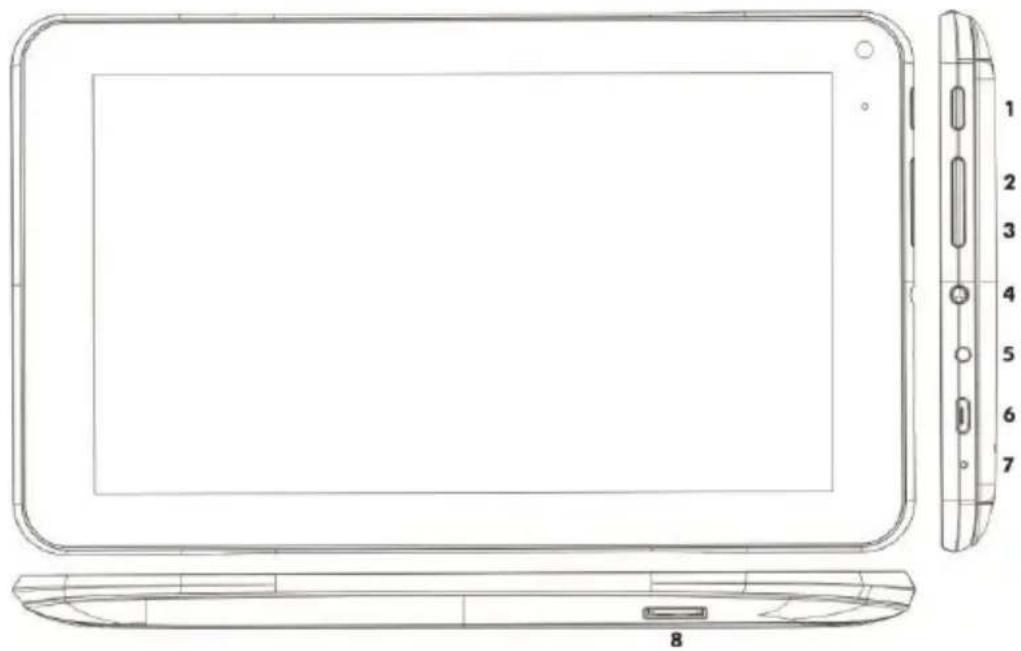
Turn ON/turn OFF
-
DC-IN
-
Escape
-
microUSB
-
Menu
-
Microphone
-
Input for earphones
-
microSDHC slot
INTRODUCTION
Turning on/off:
Press and hold the power key for 5 seconds at least. You will turn off the device by pressing and holding the power key and confirming the option for turning off in the displayed dialog. Short pressing of the power key will lock and turn off the LCD display, for display lighting press this key again.
To unlock the device you have to move it by drag and drop it to the right to the lock icon. You can start up the Photo camera by moving by drag and dropping to the left to the icon of camera.
Connecting to the charger
If the accumulator is discharged, it is necessary to recharge it. You can recharge the battery by the supplied/included charger. The charging status will be shown during recharging (in the text or graphic form). Do not leave the device in the charger too long after recharging. The device can get a little bit warmer during recharging. It is normal and it is not the sign of a malfunction. However, the accumulator (as all the types) loses its capacity as the time goes therefore if the time from recharging to discharging is extremely short it'll be necessary to replace the accumulator in the device. But still this capacity should last during all the moral lifetime (period) of the device. You can normally use the device when you recharge it. Be especially cautious though not to break off the charging connector or pull out the cable from the USB port during the manipulation with the device.
Recharge the tablet battery if:
- Android system notifies the battery's low capacity
• the keys do not react at pressing - if you do not use the tablet for a longer time, recharge it at least once in a month
- if the tablet turns off itself in consequence of battery discharging you have to wait for a while
EVOLVED
after connecting the battery into the charger before the battery gets recharged a little bit and the tablet is ready to be used/for using again
- the tablet should be in the standby mode during recharging; the turned off display or using during recharging considerably prolongs recharging time
Main menu Icons
 | Back - for return to the previous screen. |
 | Icon for Main menu. |
 | Opens the list of Actually open applications. By touching the corresponding application you will switch over to the chosen application. |
 | Icon All applications is placed in the top right corner of the display. By touching it, you will open the list of Applications and Widgets. |
 | The tablet settings |

Touch activation
For activating the display icons, such as application icons and setting icons, for writing the signs and symbols using the OSD keypad or for pressing the keys on the display, just click on the corresponding keys by finger.
Pressing and holding
Put your finger on the icon, hold it and do not lift it up until the action begins. For example, for opening the Menu for user modification of Home screen put your finger at the blank place on the Home screen and hold it on the display until the Menu opens.
Moving the icon on
Hold your finger on the item and without lifting it up move the finger on the
EVOLVED
| the display | display, until you reach the target position. Move the icons on the Home screen to change their position. |
| Moving in the menu and changing the display | Move your finger quickly over the display surface without interruption from the first touch (so it is not the typical move) at the quick move. For example, if you roll up or down in the shown list and you make a quick move over the display in some display of Calendar you change the shown time period. |
| Double click | Click twice quickly on the shown web page, map or another display to enlarge it. For example, you can enlarge the given part so its width will exactly adjust to the display area by clicking on the part of the web page in the Browser. In some applications, e. g. in the Browser, the text column arrangement will change so its width adjusts to the display area by clicking after previous image enlarging. Click quickly on the display and the internet page or another application will make the screen zooming in. |
| Display turning | The orientation turns according to the tablet turning in Landscape or Portrait format at most of the displaying. You can turn this function on or off. |
| Drawing closer/apart | In some application (e. g. Maps, Browser and Gallery) you can make the enlargement/reduction by putting two fingers on the display at the same time and draw them closer (for reduction) or apart (for enlargement). |
Tablet status
You will find out more details in the down right corner of the display in the Main menu by clicking the time indicator, e. g. the network status (Wi-Fi), battery charging, and so on. You can also open Quick settings for showing and controlling the most common tablet settings the same way as the access to the complete tablet Settings.
EVOLVED
Quick settings:
Airplane mode: move the scroll bar for Turning on/off the wireless access and also for turning off the mobile data
Wi-Fi: open the options for setting the wireless Internet access by touching
Automatic screen turning: move the scroll bar for Turning on/off
Brightness: setting the display brightness
Notice: turning on/off for noticing the applications, New email, chat invitation, and so on
Setting: for opening the complete setting menu of all tablet functions
Wi-Fi permission:
Make sure that you are connected to Internet by Wi-Fi before starting up any internet application. Click on the clock icon in the system toolbar of the Main menu for a speed access to Wi-Fi setting.
a. Choose Turned on and if it is necessary choose "Searching" on the top right or "Add network".
EVOLVEO tablet will search for available networks. Click on the Wi-Fi for opening the menu.
b. Click on the network that you want to be connected to. If the network is safe you will be invited to enter your password or other verification data (ask for the details from your network administrator).
APPLICATION
Click on the top right corner on the EVOLVEO tablet home screen. You will call up the list of the installed applications. You will run the chosen application by a short click. You can create a shortcut on the home screen by holding and move the application icon by drag and drop. For deleting it from the home screen move the icon by drag and drop it to the top part of the screen to the icon "Delete".
For gaining the Android application run the icon Google Play in the tablet. If you want to show all the applications, press the icon All applications on the home screen. That is the place where you can see all the application in the tablet, including the applications downloaded and installed from the web Google Play or other sources.
Description of the menu toolbar

Left side: key Back, Home, Switching between open applications
Right side: battery status/charging battery, time, microSD card, USB connection and WiFi signal.
You can add the following types of items into the Home screen:
-
Applications: Adding the application links, web pages bookmarks, favourite contacts, localities on the Maps, Gmail name tag, Playlist and many other items. Available links depend on the installed applications.
-
Widgets: Adding any of the amounts of the different mini applications (Widgets) to own Home screen, including the clock widget, audio player, photo frame, Google searching bar, the charging administrator, Calendar informing about upcoming events and news and weather widget. You can also download Widgets from the web Google Play.
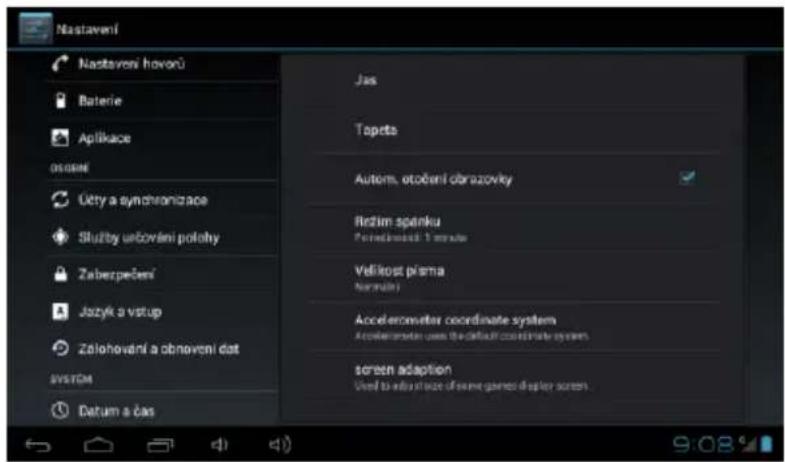
Here you can change the settings of your tablet.
Language and input - click on "Language" and choose required language.
EVOLVED
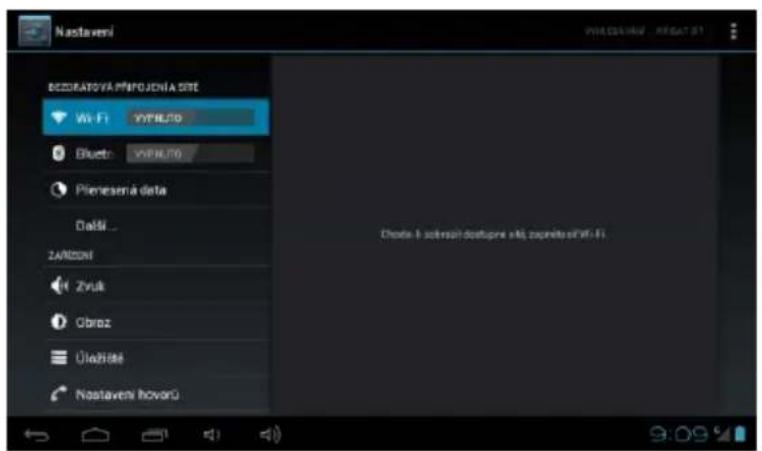
Wi-Fi
You can turn on/off the Wi-Fi in tablet by the scroll bar.
After turning on the available Wi-Fi network will show up on the right in the list. Choose the network by clicking and if it is possible enter the login data.
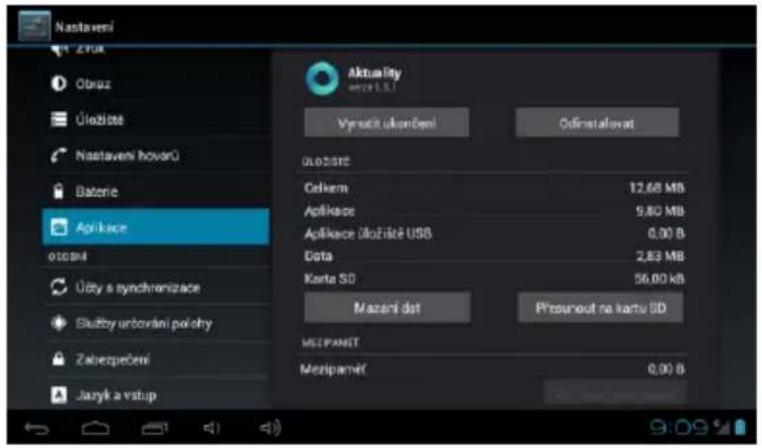
The service of all installed applications.
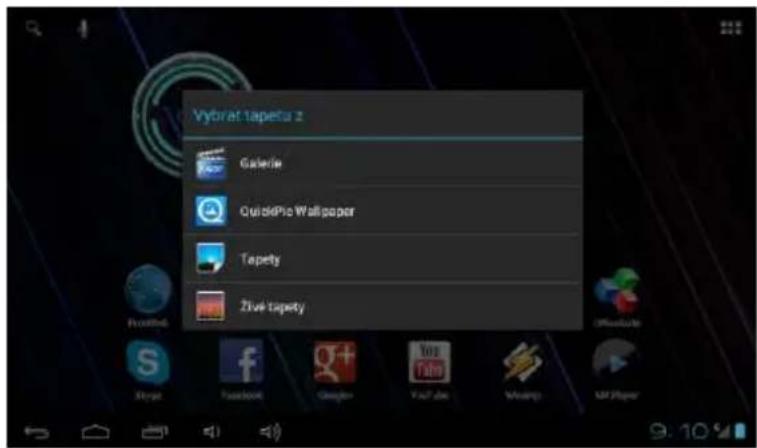
Changing the wallpaper
The wallpapers are the pictures from the Gallery and they serve as the background for Main menu.
a. Touch and hold the key on the arbitrary place on the home screen that is not taken.
b. Select the source „Gallery“ or „Wallpapers“.
c. Choose the wallpaper and confirm the option „Set the wallpaper“
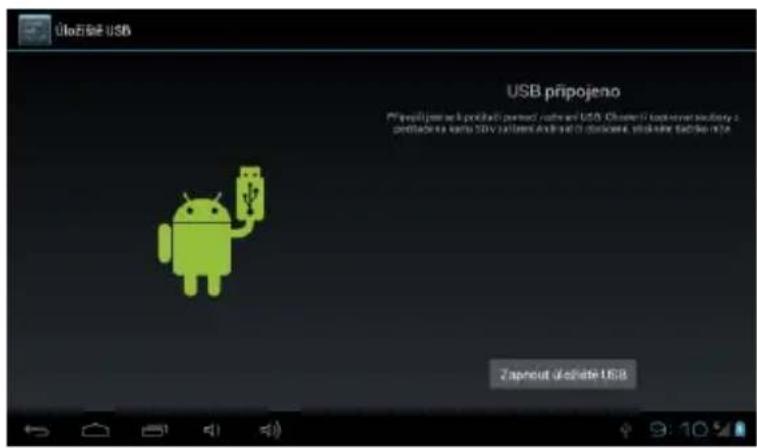
Connecting to the computer and data transfer
The dialog window with the request for permitting the replaceable disc mode will be shown after connecting to the computer. Click on the confirming key for permitting it. Then it is possible to get connected to the inner memory and to the memory card content after a while. You can save the files to the device for later use using the USB connection. Copy the files into the device usually, the same way you work with the hard disc.
EVOLVED
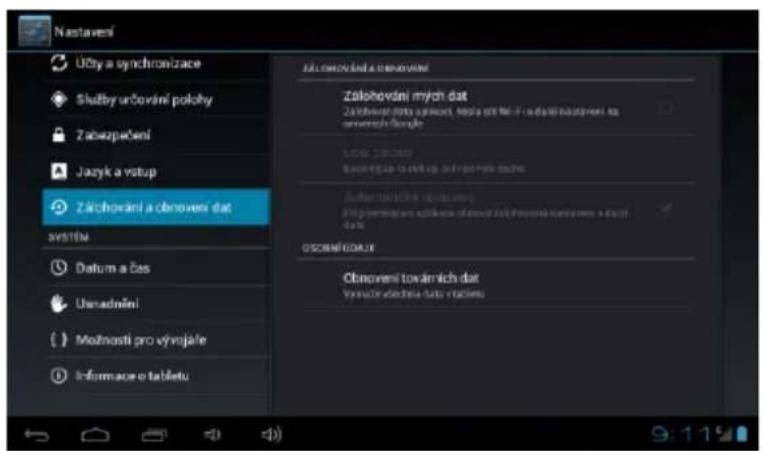
Reset device by pressing the On/Off button for longer than 2 seconds.
Note: Try to find out what caused the device freezing and next time try to avoid the problem file/application (if freezing was caused by it). The cause can be also the incompatibility of some older applications with the new system Android 4.1. Uninstall the application that causes the problems and wait for an edition of the version designated for Android 4.1.
Troubleshooting
| Problem | Solution |
| The tablet can’t be switched on | Check if the battery is recharged. |
| The tablet gets turned off during running | Recharge the battery by recharging adaptor. |
| The sound can’t be heard | Check if you haven’t muted the sound; the play file that you want to play can also be damaged or check right inserting of the earphones into the tablet. |
| The files can’t be copied into the tablet | You must allow Mass storage in the tablet.Check if you have enough place in the tablet, if the USB cable is all right. |
| The Wi-Fi connection can’t be made | Check your Wi-Fi router. Make sure that you have the Wi-Fi in your tablet allowed. Try also other devices, e. g. Smartphone or laptop, if the problems with the access to your Wi-Fi persist. If the connection is functional choose the same connection also for the tablet. Check if you are in the Wi-Fi network coverage and if the configuration is correct. |
| The tablet isn’t in standard | Reset the tablet to the “Default settings” or turn the tablet off and on. Make a backup copy of your data before making the reset to the Default settings. Notice: all the user’s data, applications, files and settings will be deleted. |
This product goes through the constant development and improving. Therefore it is possible that the actual design, function or operating won't absolutely answer the conditions written in this guide. The possible difference isn't the device defect and it is not the reason for the warranty claim.
Do you need an advice even after reading this guide? First read “Frequently Asked Questions” at your tablet model at www.evolveo.eu or contact the EVOLVEO technical support.
EVOLVED
The warranty DOESN'T APPLY to:
• using the device for other purposes than it was designed to
- installation of another firmware then the one that was in EVOLVEO tablet installed as the original from the factory or that is to be downloaded on ftp.evolveo.eu
- mechanic damage of the tablet caused by inappropriate using (e. g. burst display, burst front or back tablet cover, damaged power connector or microUSB connector and so on)
- damage caused by the natural elements as fire, water, static electricity, overvoltage and so on
• damage caused by unauthorized repair
- damage of the guarantee seal or unreadable serial number of the device

Disposal
The symbol of crossed out container on the product, in the literature or on the wrapping means that in the European Union all the electric and electronic products, batteries and accumulators must be placed into the separate salvage after finishing their lifetime. Do not throw these products into the unsorted municipal waste


LARATION OF CONFORMITY:
Hereby, the company ABACUS ELECTRIC spol. s r. o. declares that tablet EVOLVEO Vision XD7 (EAN: 8594161334699) is in compliance with the requirements of the norms and regulations, relevant for the given type of device. The complete text of Declaration of conformity can be found on ftp://ftp.evolveo.eu
Copyright © 2013 ABACUS Electric s.r.o.
All rights reserved. Design and specification can be changed without prior notice.
EVOLVED
natural_image
Digital tablet displaying a blue abstract background with diagonal light streaks (no text or symbols)Процессор: 1 GHz
natural_image
Technical line drawing of a tablet device showing front, side, and top views (no text or symbols)Copyright © 2013 ABACUS Electric s.r.o.
- ÚVOD
- Zapnutie/vypnutie:
- User guide
- EN
- EVOLVED
- Dear customer,
- Important notice!
- Important business legal regulations
- TIPS for the tablet battery endurance extension:
- TIP: how to improve performance of the tablet
- INTRODUCTION
- Turning on/off:
- Connecting to the charger
- Recharge the tablet battery if:
- Touch activation
- Pressing and holding
- Moving the icon on
- Tablet status
- Quick settings:
- Wi-Fi permission:
- APPLICATION
- You can add the following types of items into the Home screen:
- Wi-Fi
- Changing the wallpaper
- Connecting to the computer and data transfer
- The warranty DOESN'T APPLY to:
- Disposal
- LARATION OF CONFORMITY:
Brand : Evolveo
Model : VIO-XD7
Category : Tablet