ROG FUSION II 300 - Headphones ASUS - Free user manual and instructions
Find the device manual for free ROG FUSION II 300 ASUS in PDF.


| Product Type | Wireless Gaming Headset |
| Brand | ASUS |
| Model | ROG FUSION II 300 |
| Driver Diameter | 40 mm |
| Frequency Response | 20 Hz - 20 kHz |
| Impedance | 32 ohms |
| Connectivity | 2.4 GHz Wireless, Bluetooth 5.0, 3.5 mm wired |
| Battery Life | Up to 15 hours (wireless) |
| Charging | USB-C, fast charge support |
| Weight | 300 g |
| Dimensions (W x D x H) | 200 x 180 x 80 mm |
| Microphone | Detachable unidirectional boom mic |
| Surround Sound | Virtual 7.1 channel |
| RGB Lighting | Aura Sync compatible |
| Controls | On-ear volume wheel, mute button, mode switch |
| Compatibility | PC, PlayStation, Nintendo Switch, mobile devices |
| Spare Parts | Replacement ear cushions, USB dongle, charging cable |
| Cleaning | Wipe ear cushions with damp cloth; avoid liquids on drivers |
| Safety | Use moderate volume to prevent hearing damage |
| General Information | Designed for immersive gaming with low latency wireless audio |
Frequently Asked Questions - ROG FUSION II 300 ASUS
User questions about ROG FUSION II 300 ASUS
0 question about this device. Answer the ones you know or ask your own.
Ask a new question about this device
Download the instructions for your Headphones in PDF format for free! Find your manual ROG FUSION II 300 - ASUS and take your electronic device back in hand. On this page are published all the documents necessary for the use of your device. ROG FUSION II 300 by ASUS.
USER MANUAL ROG FUSION II 300 ASUS
natural_image
Abstract logo design with stylized white and red shapes on black background (no text or symbols)REPUBLIC OF
GAMERS
GAMING HEADSETGAMING HEADSET
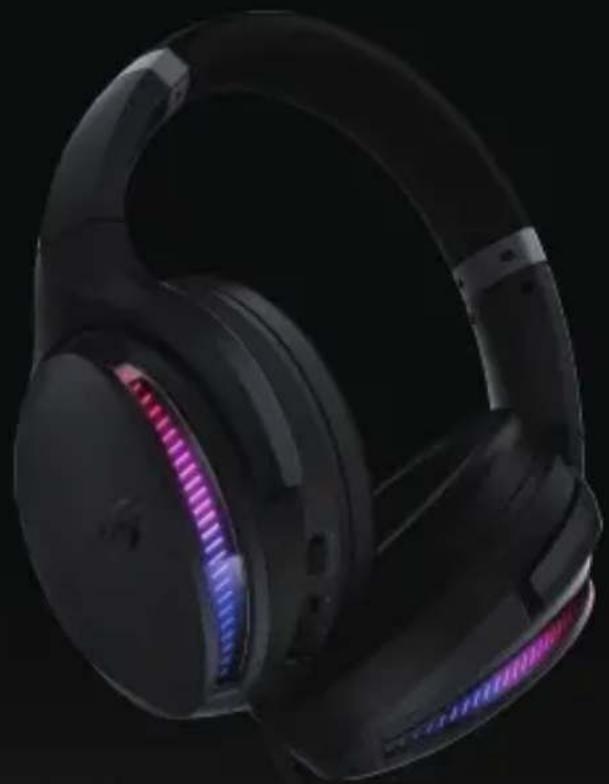
ROG FUSION II 300
GAMING HEADSET
Quick Start GuideQuick S
natural_image
Black and white photo of a black wireless headphones with visible purple and blue accent stripes (no text or symbols)Contents
English....3
繁體中文....4
简体中文 5
Français 6
Deutsch....7
Русский....8
Italiano 9
日本語....10
العربية 11
Български....12
Eesti....13
Suomi....14
Ελληνικά....15
Lietuvių ....16
Latviešu....17
Norsk....18
Hrvatski....19
Čeština....20
Nederlands 21
Magyar 22
Polski....23
Português....24
Română....25
Dansk....26
Slovenščina....27
Srpski 28
Svenska 29
Українська....30
^1 ηυ 31
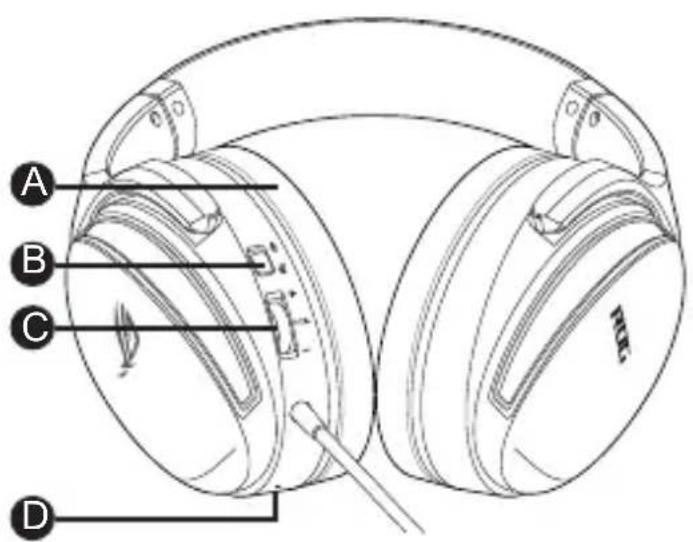
A. Changeable ear cushion
B. Microphone on/off
C. Audio control wheel
Roll to control the volume
Press to turn on/off the virtual 7.1 surround sound
D. Virtual 7.1 surround sound LED indicator
The LED indicator turns solid red when the 7.1 virtual surround sound is on
Getting started
To set up your ROG Fusion II 300 gaming headset:
- Connect the headset to your device through the USB-C ^® connector or the USB-C ^® to USB-A adapter.
- Download the Armoury software from https://rog.asus.com/ and then install it on your computer.
電競耳機
ROG FUSION II 300 GAMING HEADSET
包装內容物
ROG FUSION II 300 GAMINGHEADSET
Inhoud verpakking
• 1 x ROG Fusion II 300 gamingheadset
• 1 x Paar ROG Hybrid oorkussens
- 1 x USB-C ^ -naar-USB-A-adapterdongle
• 1 x Beknopte handleiding
• 1 x Garantieverklaring
Systeemvereisten
- Windows® 10 / Windows® 8.1 / Windows® 7
- Internetverbinding (voor het downloaden van optionele software)
- USB-A- of USB-C ^ -poort
Productoverzicht
Federal Communications Commission Statement
This device has been tested and found to comply with the limits for a Class B device, pursuant to Part 15 of the FCC Rules. These limits are designed to provide reasonable protection against harmful interference in a residential installation. This equipment generates, uses and can radiate radio frequency energy and, if not installed and used in accordance with manufacturer's instructions, may cause harmful interference to radio communications. However, there is no guarantee that interference will not occur in a particular installation. If this equipment does cause harmful interference to radio or television reception, which can be determined by turning the equipment off and on, the user is encouraged to try to correct the interference by one or more of the following measures:
- Reorient or relocate the receiving antenna.
- Increase the separation between the equipment and receiver.
- Connect the equipment to an outlet on a circuit different from that to which the receiver is connected.
- Consult the dealer or an experienced radio/TV technician for help.
CAUTION! Any changes or modifications not expressly approved by the grantee of this device could void the user's authority to operate the equipment.
Canada, Industry Canada (IC) Notices
This Class B digital apparatus complies with Canadian ICES-003 and RSS-210.
Operation is subject to the following two conditions: (1) this device may not cause interference, and (2) this device must accept any interference, including interference that may cause undesired operation of the device.
Canada, avis d'Industrie Canada (IC)
Limitation of Liability
Circumstances may arise where because of a default on ASUS' part or other liability, you are entitled to recover damages from ASUS. In each such instance, regardless of the basis on which you are entitled to claim damages from ASUS, ASUS is liable for no more than damages for bodily injury (including death) and damage to real property and tangible personal property; or any other actual and direct damages resulted from omission or failure of performing legal duties under this Warranty Statement, up to the listed contract price of each product.
ASUS will only be responsible for or indemnify you for loss, damages or claims based in contract, tort or infringement under this Warranty Statement.
This limit also applies to ASUS' suppliers and its reseller. It is the maximum for which ASUS, its suppliers, and your reseller are collectively responsible.
UNDER NO CIRCUMSTANCES IS ASUS LIABLE FOR ANY OF THE FOLLOWING: (1) THIRD-PARTY CLAIMS AGAINST YOU FOR DAMAGES; (2) LOSS OF, OR DAMAGE TO, YOUR RECORDS OR DATA; OR (3) SPECIAL, INCIDENTAL, OR INDIRECT DAMAGES OR FOR ANY ECONOMIC CONSEQUENTIAL DAMAGES (INCLUDING LOST PROFITS OR SAVINGS), EVEN IF ASUS, ITS SUPPLIERS OR YOUR RESELLER IS INFORMED OF THEIR POSSIBILITY.
REACH
Complying with the REACH (Registration, Evaluation, Authorisation, and Restriction of Chemicals) regulatory framework, we published the chemical substances in our products at ASUS REACH website at http://csr.asus.com/english/REACH.htm
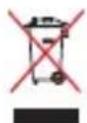
DO NOT throw this product in municipal waste. This product has been designed to enable proper reuse of parts and recycling. The symbol of the crossed out wheeled bin indicates that the product (electrical, electronic equipment and mercury-containing button cell battery) should not be placed in municipal waste. Check local regulations for disposal of electronic products.
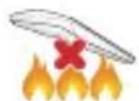
DO NOT throw this product in fire. DO NOT short circuit the contacts. DO NOT disassemble this product.
Simplified UKCA Declaration of Conformity
ASUSTek Computer Inc. hereby declares that this device is in compliance with the essential requirements and other relevant provisions of The Radio Equipment Regulations 2017 (S.I. 2017/1206). Full text of UKCA declaration of conformity is available at https://www.asus.com/support/.
ASUS Recycling/Takeback Services
ASUS recycling and takeback programs come from our commitment to the highest standards for protecting our environment. We believe in providing solutions for you to be able to responsibly recycle our products, batteries, other components, as well as the packaging materials. Please go to http://csr.asus.com/english/Takeback.htm for the detailed recycling information in different regions.
VCCI: Japan Compliance Statement
VCCI Class B Statement
KC: Korea Warning Statement

R-R-MSQ-RF31

natural_image
Grayscale aerial view of a flat landscape with no visible text, symbols, or markings.CE Marking
This is a Class B product, in a domestic environment, this product may cause radio interference, in which case the user may be required to take adequate measures.

RED
"Hereby, ASUSTeK CCOMPUTER INC. declares that this headset is in compliance with the essential requirements and other relevant provisions of Directive 2014/53/EU."
Authorized representative in United Kingdom : ASUSTEK (UK) LIMITED
Address: 1st Floor, Sackville House, 143-149 Fenchurch Street, London,
EC3M 6BL, England, United Kingdom
FCC COMPLIANCE INFORMATION
Per FCC Part 2 Section 2.1077

Responsible Party: Asus Computer International
Address: 48720 Kato Rd., Fremont, CA 94538, USA
Phone/Fax No: (510)739-3777/(510)608-4555
hereby declares that the product
Product Name : ROG Fusion II 300
Model Number : ROG Fusion II 300
compliance statement:
This device complies with part 15 of the FCC Rules. Operation is subject to the following two conditions: (1) This device may not cause harmful interference, and (2) this device must accept any interference received, including interference that may cause undesired operation.
Ver. 180125

EAC
UK CA
Service and Support
Visit our multi-language website at https://www.asus.com/support.


natural_image
Abstract logo design featuring stylized white and red shapes on black background (no text or symbols)REPUBLIC OF GAMERS