
TSL-CAM-BULLET8S - Security Camera TESLA - Free user manual and instructions
Find the device manual for free TSL-CAM-BULLET8S TESLA in PDF.


| Product Type | Outdoor Security Camera |
| Model | TSL-CAM-BULLET8S |
| Brand | Tesla (Smart Camera Outdoor 2022) |
| Resolution | 1920 x 1080 pixels (Full HD) |
| Sensor | 1/2.9" 2MP CMOS |
| Lens | 2.8mm @ F2.0 |
| Night Vision | Up to 10m IR distance |
| Full Color Vision | Yes, with white light support |
| Motion Detection | Yes, with push notifications |
| Two-Way Audio | Yes (built-in microphone) |
| Video Flip | Yes, vertical flip |
| Storage | MicroSD card (max 128GB), Cloud, NVR |
| Connectivity | Wi-Fi 2.4 GHz IEEE 802.11b/g/n |
| Power Supply | DC 12V / 1A (adapter included) |
| Dimensions | 133 x 64 x 62 mm |
| Weight | Approximately 300 g (estimated) |
| App Compatibility | Tesla Smart for iOS and Android |
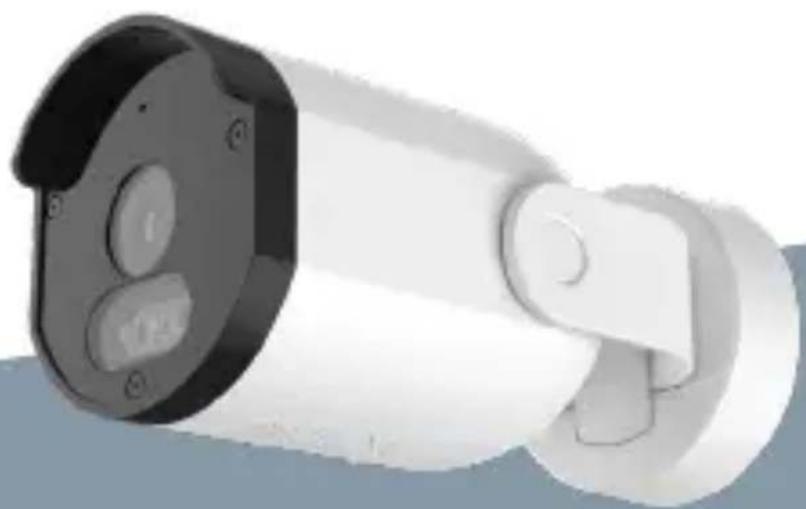
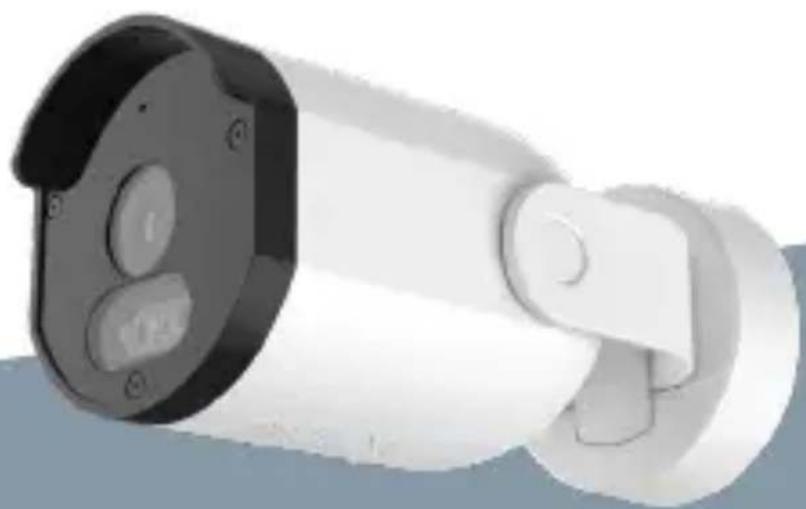
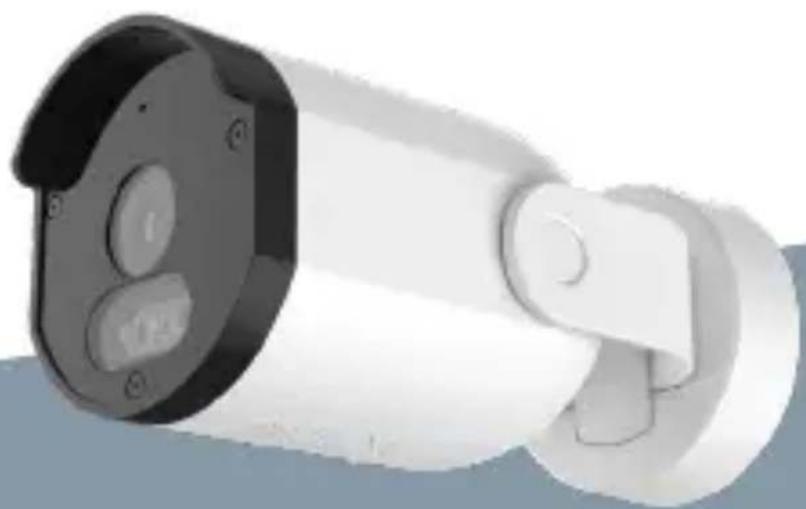
| Mounting | Wall mount with adjustable bracket (horizontal 0-150°, vertical 15-20°, rotation 0-360°) |
| What's in the Box | Camera, power adapter, screw package, user manual, screwdriver |
| Water Resistance | Outdoor rated (IP66, estimated) |
| Reset Function | Press and hold reset button for 5 seconds |
| Status Indicator | Red/Blue LED: red solid (error), red blink (WiFi waiting), blue solid (normal), blue blink (connecting) |
| Compliance | EU Directive 2014/53/EU, WEEE |
| Care and Cleaning | Wipe with a soft, dry cloth; do not use harsh chemicals |
Frequently Asked Questions - TSL-CAM-BULLET8S TESLA
User questions about TSL-CAM-BULLET8S TESLA
0 question about this device. Answer the ones you know or ask your own.
Ask a new question about this device
Download the instructions for your Security Camera in PDF format for free! Find your manual TSL-CAM-BULLET8S - TESLA and take your electronic device back in hand. On this page are published all the documents necessary for the use of your device. TSL-CAM-BULLET8S by TESLA.
USER MANUAL TSL-CAM-BULLET8S TESLA
natural_image
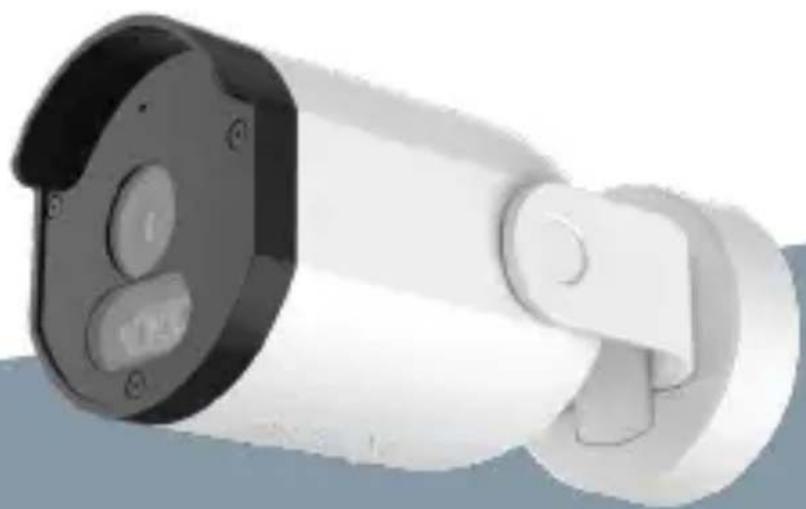
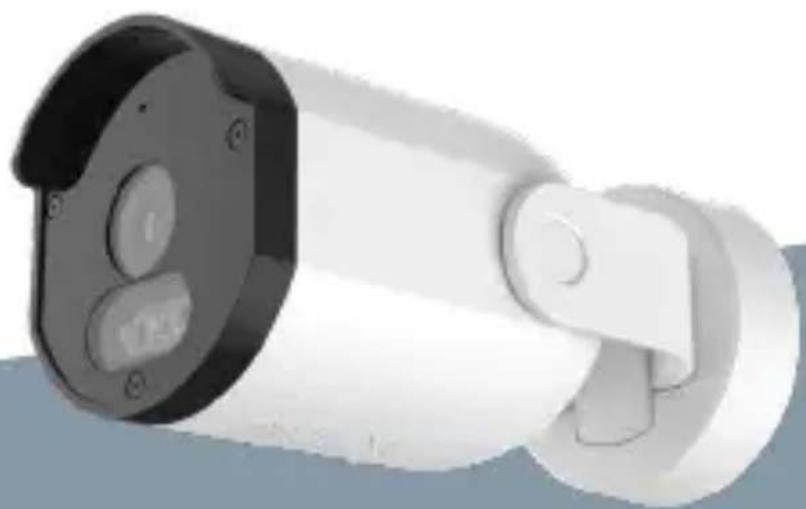
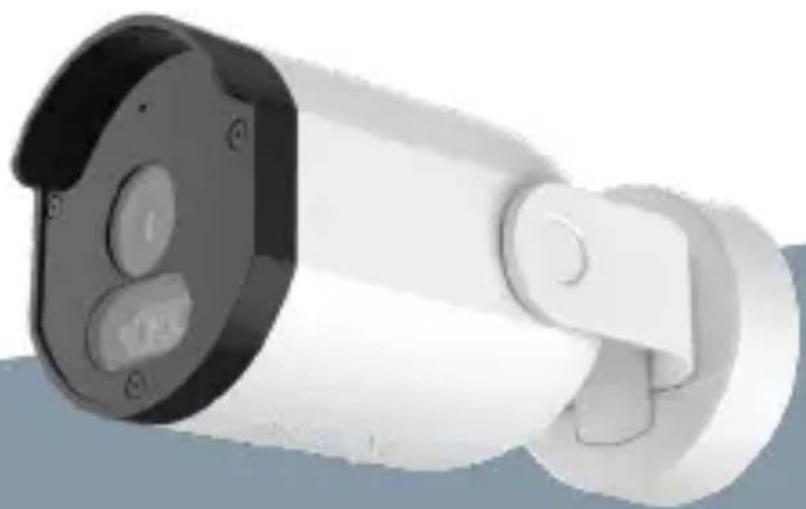
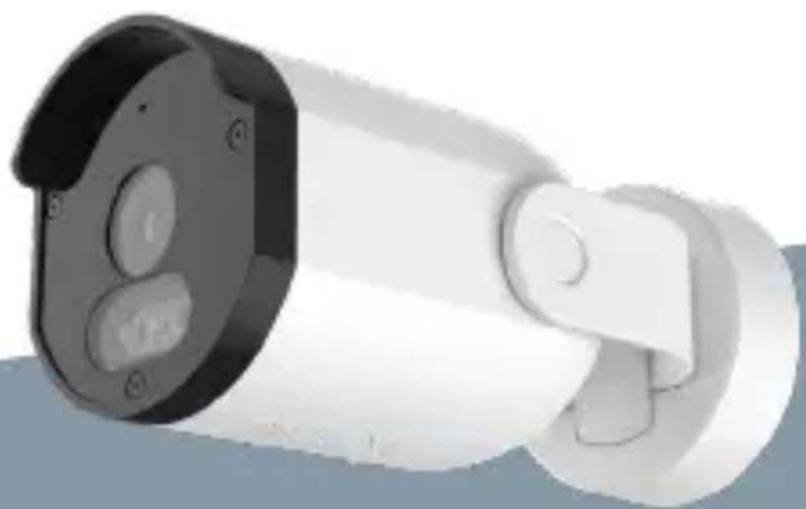
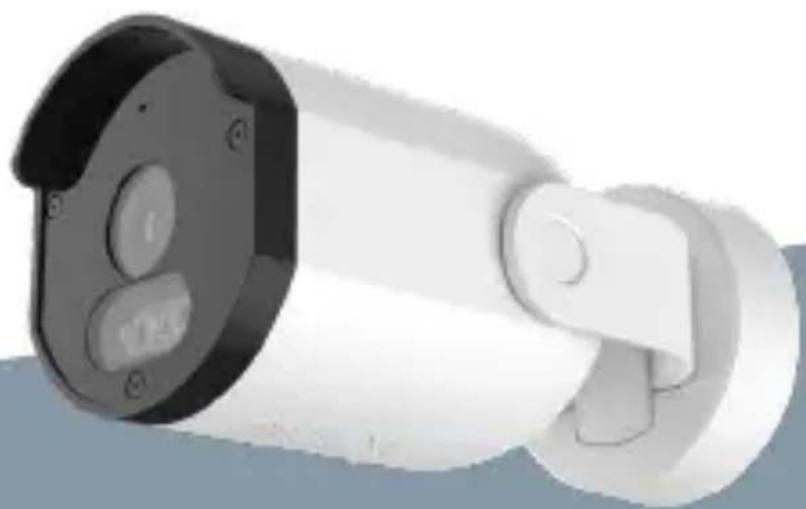
Exterior view of a modern security camera with dual buttons and a cylindrical lens (no text or symbols visible)TESLA SMART CAMERA OUTDOOR 2022
USER MANUAL
WHAT'S IN THE BOX
Please consult this checklist for all parts.
• Smart Camera Outdoor
- Power adapter
- Screw package
- User manual
- Screwdriver
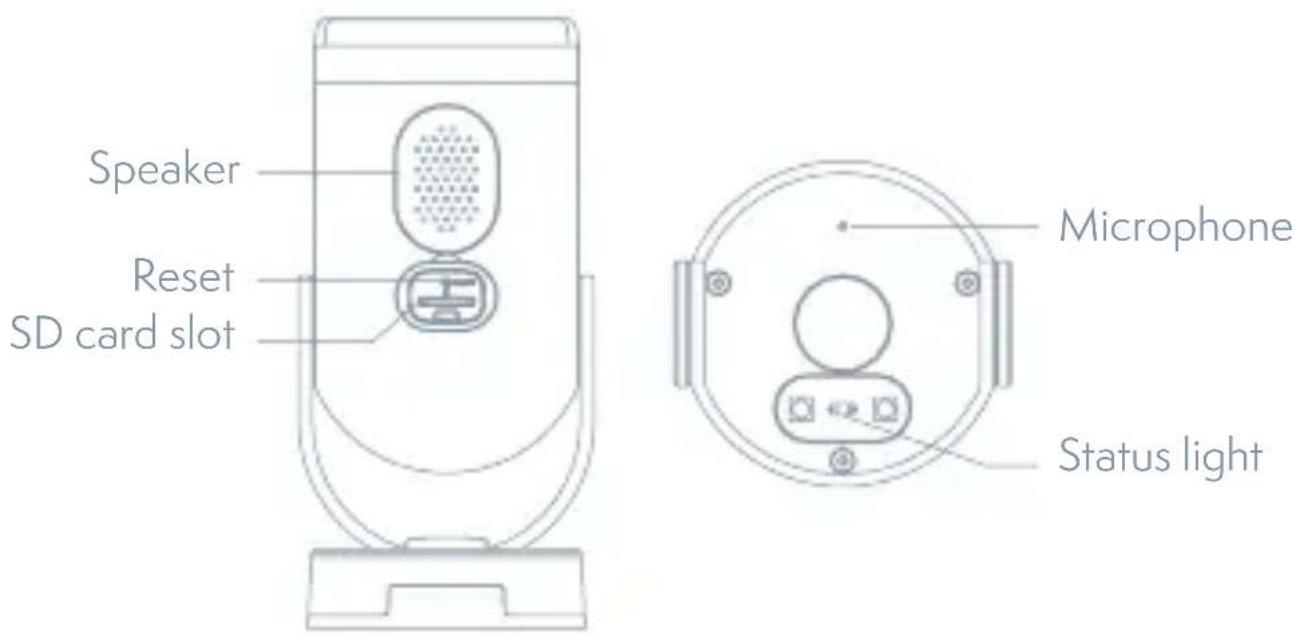
| Power | DC 12 ± 10 % |
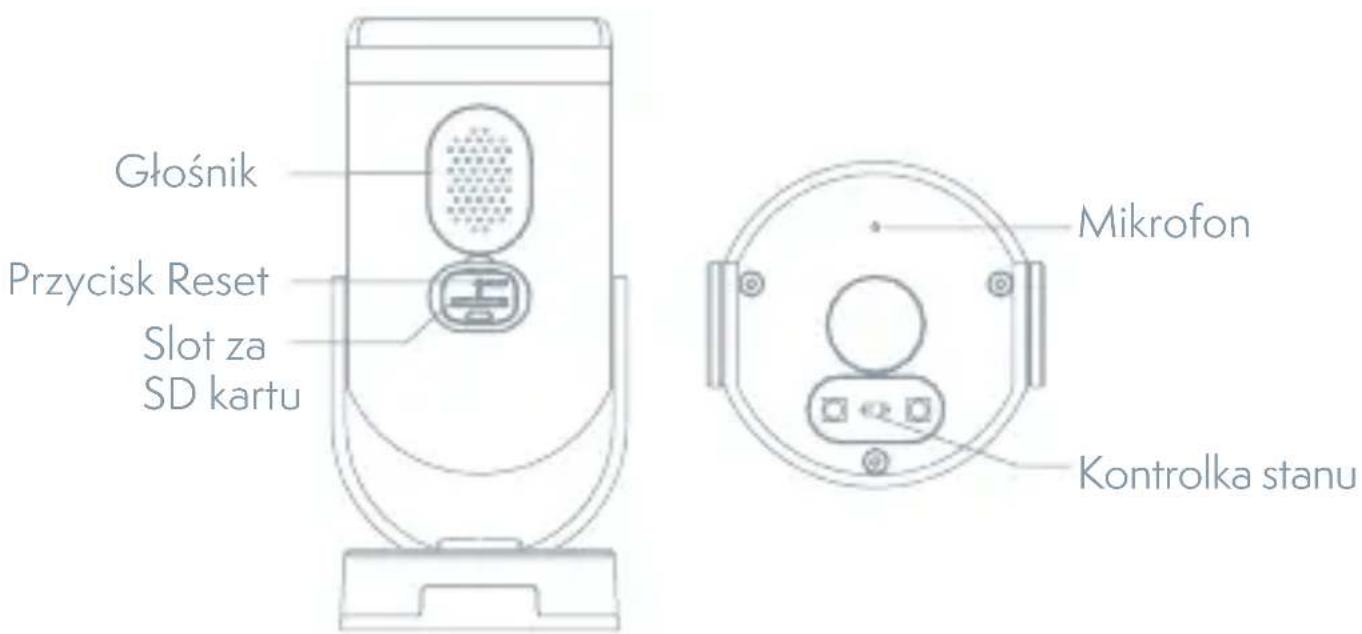
| Status light Red light solids on: the camera or network is abnormalBlinking red light: awaiting WiFi connection (faster blinking)Blue light solids on: camera running correctlyBlinking blue light: currently connecting | |
| Microphone Captures sound for your video | |
| SD card slot Supports local SD Card storage (Max.128G) | |
| Reset Press and hold for 5 seconds to reset the camera(if you have modified settings, they will return to factory defaults) |
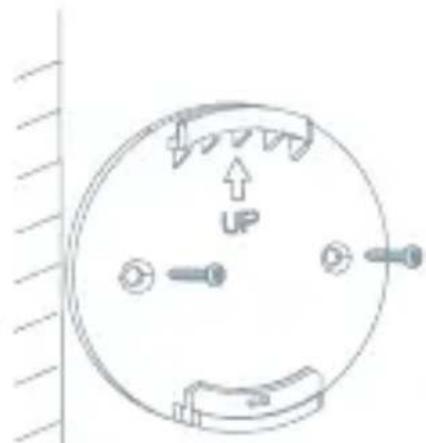
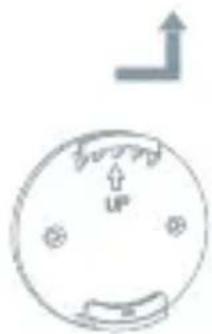
INSTALL
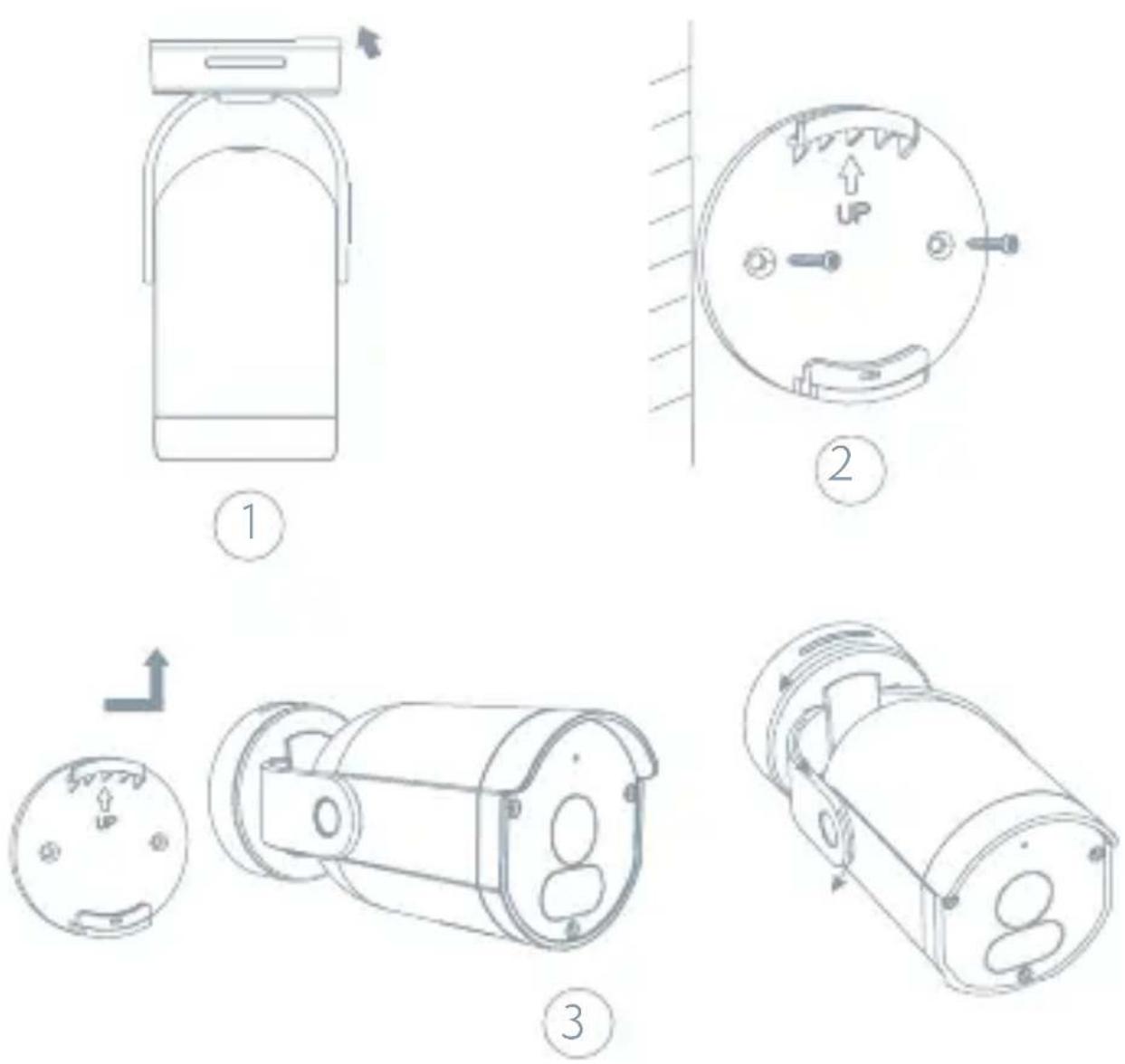
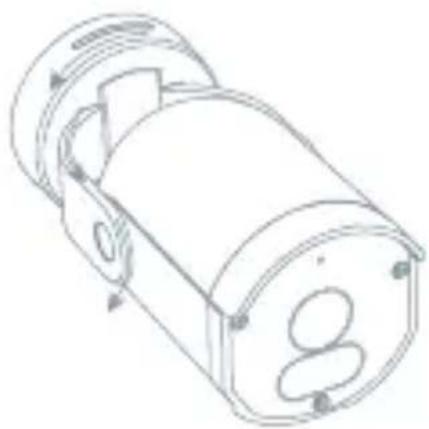
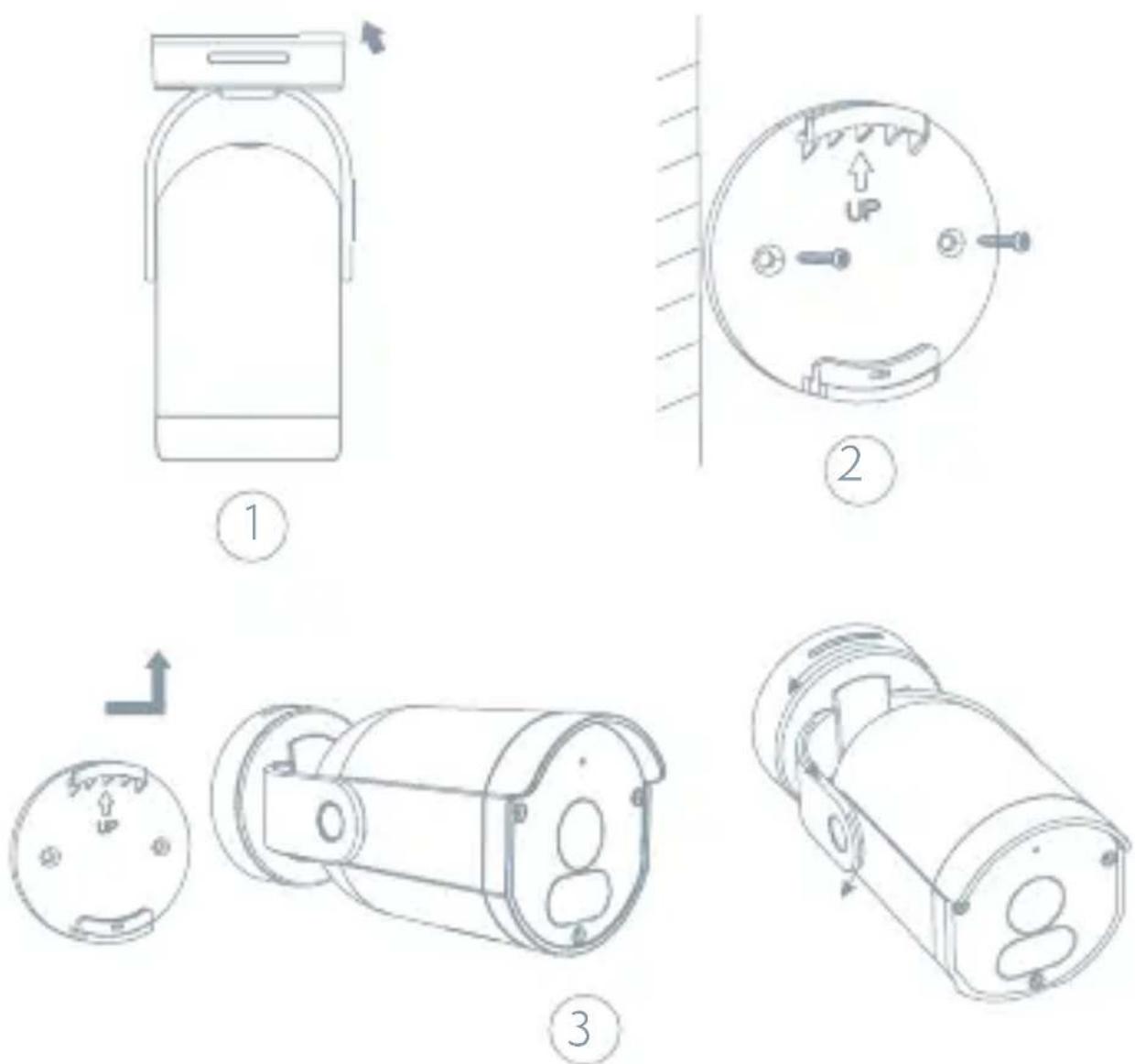
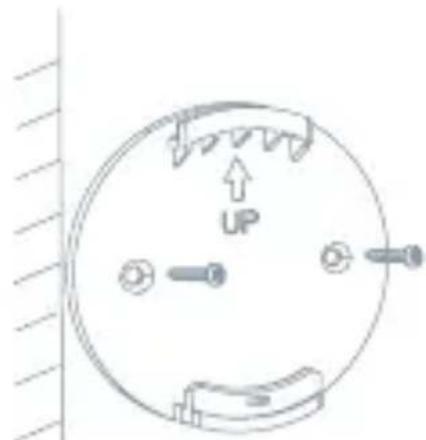
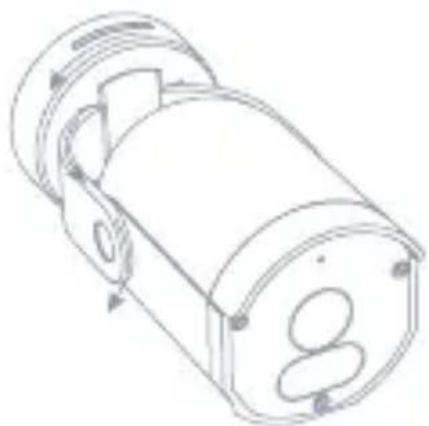
- Push the bracket in the direction shown to take apart.
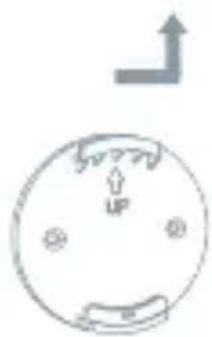
- Install the bracket to the wall with screws. Put the UP logo up.
- Insert the bracket upward and then push the bracket in the opposite direction of step 1, to lock the bracket with the camera. (Optional) You can adjust the camera horizontally or vertically by manual. It is recommended to adjust camera horizontally between 0 to 150 degrees, and vertically between 15 to 20 degrees. You can also rotate the bracket from 0 to 360 degrees
CONNECT
Download
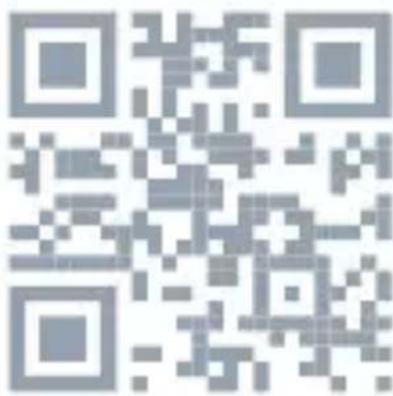
Tesla Smart is available for both iOS and Android OS. Search the name 'Tesla Smart' in App Store or Android Market, or scan the QR-Code to download the App.
SET UP ROUTER
The router supports the 2.4GHz WiFi (doesn't support the 5GHz), and is connected to the WiFi network. Please set the parameters of the router before connecting the WiFi network, and record the SSID and password of your WiFi. Please keep network available
REGISTRATION PROCESS
Step 1 Open the Tesla Smart App, click „Register“, read the „Privacy Policy“ and click „Agree“.
Step 2 Input a legal and valid Mobile number or Email address and click „Continue“. Input Verification Code, then log in the app.
QR CODE CONFIGURATION
- Open the Tesla Smart App, click „Create family“, and you can customize the Family name and related settings.
- Continue to click „Security & Sensor“ >> „Smart Camera“, and then choose “Add Device” or „+“, ready to add camera.
- In „Add Device“ this interface, continue to click „next step“, and then you should input your WiFi's passwords. Note:
1) Camera only supports 2.4GHz WiFi network. 2) The number of bits in the ssid and passwords of the router should not exceed 24 digits. - In this interface, you should scan the QR code in your phone with the camera, when the camera comes out „dong dong dong“. And you can complete the configuration about 30s.
- When connecting, you should make sure your router, mobile, and
camera are as close as possible. When camera added successfully, click „√„ you could also DIY the camera's name.
SETTINGS
In „Smart Camera“ interface, click „Z„, you can set the camera common functions.
FAQ
Q: The device cannot be previewed properly?
A: Check whether the network is normal, you can place the camera close to the router, and if not, it is recommended to reset the device and add it again.
Q: Why is it still in the list of devices after resetting?
A: The reset device only resets the network configuration of the camera, but cannot change the configuration on the App, remove the camera, and must be deleted by the App.
Q: How to cut the camera network to another router?
A: First remove and reset the device on the App and then configure the device again by the App.
Q: Why doesn't the device identify the SD card?
A: It is recommended to plug in SD card after power cut. Confirm whether the SD card is normally available and the format is FAT32. And the TF card can't be identified when the internet environment is not good.
Q: Why I can't get the notifications with my cell phone App?
A: Please confirm that the App has been running on the phone, and the relevant reminder function has been opened;Message notification and authority confirmation in the mobile phone system have been opened.
FUNCTIONS
Video flip
Flip your video stream up or down for maximum flexibility.
Motion detection
Built-in motion sensors detect movement, and the camera will send you push notifications and app alerts.
Record
Record every moment using high capacity SD card storage.
Day & Night
Never miss a moment, even in complete darkness, with powerful night-vision technology.
Full color vision
With white light, the captured pictures and videos of motion detection are colorful which can provide you a better vision.
TECHNICAL SPECIFICATION
| Product name Tesla | Smart Camera Outdoor 2022 |
| Resolution 1920 x 1080 | |
| Power supply DC 12/1A | |
| Sensor 1/2.9" 2MPx, CMOS | |
| IR Distance Up To 10 m | |
| Lens | 2.8mm@F2.0 |
| Dimensions | 133 x 64 x 62 mm |
| Storage | MicroSD Card, Cloud, NVR |
| App Tesla Smart for Android and iOS | |
| Connectivity Wi-Fi 2,4 GHz IEEE 802.11b/g/n | |
| Model | TSL-CAM-BULLET8S |
INFORMATION ABOUT DISPOSAL AND RECYCLING
This product is marked with the symbol for separate collection. The product must be disposed of in accordance with the regulations for disposal of electrical and electronic equipment (Directive 2012/19/EU on waste electrical and electronic equipment). Disposal together with regular municipal waste is prohibited. Dispose of all electrical and electronic products in accordance with all local and European regulations at the designated collection points which hold the appropriate authorisation and certification in line with the local and legislative regulations. Correct disposal and recycling help to minimise impacts on the environment and human health. Further information regarding disposal can be obtained from the vendor, authorised service centre or local authorities.
EU DECLARATION OF CONFORMITY
Hereby, Tesla Global Limited declares that the radio equipment type TSL-CAM-BULLET8S is in compliance with Directive 2014/53/EU. The full text of the EU declaration of conformity is available at the following internet address: tsl.sh/doc
Connectivity: Wi-Fi 2,4 GHz IEEE 802.11b/g/n
Frequency band: 2.412 - 2.472 GHz
Max. radio-frequency power (EIRP): < 20 dBm
Manufacturer
Tesla Global Limited
Far East Consortium Building
121 Des Voeux Road Central
Hong Kong
www.teslasmart.com
TT TESLA
natural_image
Exterior view of a modern security camera with dual buttons and a cylindrical lens (no text or symbols visible)TESLA SMART CAMERA OUTDOOR 2022
BENUTZERHANDBUCH
natural_image
Simple line drawing of a cylindrical container with a lid and side arm, no text or symbols present.1
2
natural_image
Simple diagram of a circular object with arrows and symbols, no readable text or labels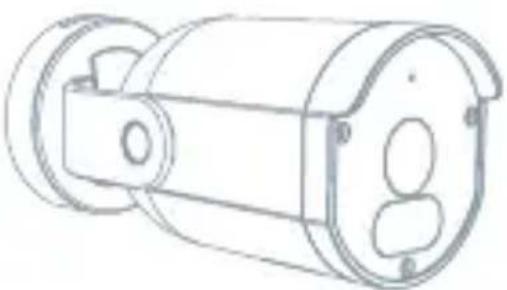
natural_image
Technical line drawing of a cylindrical mechanical component with mounting holes and a flange (no text or symbols)3
natural_image
Technical line drawing of a cylindrical mechanical component with internal slots and mounting holes (no text or symbols)ROUTER EINSTELLEN
natural_image
3D rendering of a white cylindrical security camera with black and white casing (no text or symbols visible)TESLA SMART CAMERA OUTDOOR 2022
UŽIVATELSKÁ PŘÍRUČKA
CO NALEZNETE V BALENÍ
NASTAVIT ROUTER
Far East Consortium Building
121 Des Voeux Road Central
Hong Kong
www.teslasmart.com
TT TESLA
natural_image
3D rendering of a security camera with black and white casing (no text or symbols visible)TESLA SMART CAMERA OUTDOOR 2022
UŽIVATELŠKÁ PRÍRUČKA
ČO NÁJDETE V ŠKATULÍKE
Far East Consortium Building
121 Des Voeux Road Central
Hong Kong
www.teslasmart.com
TT TESLA
natural_image
3D rendering of a security camera with black and white casing (no text or symbols visible)TESLA SMART CAMERA OUTDOOR 2022
INSTRUKCJA UŻYTKOWNIKA
CO ZNAJDZIESZ W PUDEŁKU
USTAW ROUTER
Far East Consortium Building
121 Des Voeux Road Central
Hong Kong
www.teslasmart.com
TT TESLA
natural_image
3D rendering of a security camera with black and white casing (no text or symbols visible)TESLA SMART CAMERA OUTDOOR 2022
HASZNÁLATI ÚTMUTATÓ
MIT TALÁL A DOBOZBAN
A ROUTER BEÁLLÍTÁSA
Far East Consortium Building
121 Des Voeux Road Central
Hong Kong
www.teslasmart.com
TT TESLA
natural_image
Exterior view of a modern security camera with dual buttons and a cylindrical lens (no text or symbols visible)TESLA SMART CAMERA OUTDOOR 2022
UPORABNIŠKI PRIROČNIK
KAJ VSE BOSTE NAŠLI V EMBALAŽI
Far East Consortium Building
121 Des Voeux Road Central
Hong Kong
www.teslasmart.com
TT TESLA
natural_image
3D rendering of a security camera with black and white casing (no text or symbols visible)TESLA SMART CAMERA OUTDOOR 2022
KORISNIČKE UPUTE
ŠTO ČETE NAČI U KUTIJICI
Pročitajte kontrolni spisak uveden niže te prekontrolirajte da li ste dobili sve dijelove.
• Smart Camera Outdoor
- Adapter za punjenje
• Vijci
- Upute za korištenje
• Odvijač
| Priključak za struju | DC 12 V ± 10 % |
| Indikatorska lampica | Svijetli crveno svjetlo: kamera se uključuje ili nefunkcionira ispravnoTrepereće crveno svjetlo: čekanje na Wi-Fi spoj (polagano blinka) spajanje s Wi-Fi mrežom (brzo blinka)Svijetli plavo svjetlo: kamera funkcionira ispravno |
| Mikrofon Snima zvukove za vaš videozapis | |
| Slot za SD kartu Podrška mikro SD memorijske kartice (max. 128 G) | |
| Reset gomb Stisknutim i drženjem gumba u trajanju 5 sekundi resetirate kameru | |
INSTALACIJA
POSTAVITE RUTER
Ruter podržava 2,4GHz Wi-Fi mrežu (nepodržava 5GHz). Prije povezivanja sa Wi-Fi mrežom postavite parametre ruteru a zapišite SSID i lozinku vaše Wi-Fi mreže.
PROCES REGISTRACIJE
- korak: Otvorite aplikaciju Tesla Smart, kliknite na „Registrirati“, pročitajte „Pravila o zaštiti osobnih podataka“ i kliknite na „Slažem se“.
- korak: Zadajte telefonski broj ili e-mail te kliknite na „Dalje“.
Zadajte sigurnosni kod i prijavite se u aplikaciju.
KONFIGURACIJA POMOČU QR KODU
- Otvorite aplikaciju Tesla Smart, kliknite na „Stvoriti obitelj“, gdje možete uređivati ime obitelji a ostale postavke u vezi s tim.
- Nastavite klikom na „Osiguravanje i senzor” >> „Pametna kamera“, nakon toga izaberite „Pridodati uređaj“ ili „+“ - kameru je sada moguće pridodati.
- U sučelju pridodavanju uređaja nastavite klikom na „ldući korak“, a onda unesite lozinku vaše Wi-Fi mreže. Upozorenje:
1) Kamera podržava samo 2,4GHz Wi-Fi mrežu.
2) Broj bitova SSID, te lozinke ruteru ne bi trebali biti duži od 24 znaka. - U tom sučelju naskenirajte QR kod u vašem telefonu kamerom, kamera nakon toga 3x zapipne. Za otprilike 30 sekundi možete konfiguraciju dovršiti.
- Tijekom pripajanja, ruter, mobilni telefon i kamera moraju biti blizo jedan pokraj drugoga. Nakon što je kamera uspješno učitana, kliknite na „”, gdje možete upisati naziv kamere.
POSTAVKE
U sučelju „pametna kamera“ kliknite na „ 📄“ te postavite uobičajene funkcije kamere.
ČESTO POSTAVLJANA PITANJA
Far East Consortium Building
121 Des Voeux Road Central
Hong Kong
www.teslasmart.com
TT TESLA
natural_image
3D rendering of a white cylindrical security camera with black and white casing (no text or symbols visible)TESLA SMART CAMERA OUTDOOR 2022
НАЛАШТУЙТЕ РОУТЕР
Far East Consortium Building
121 Des Voeux Road Central
Hong Kong
www.teslasmart.com
TT TESLA
natural_image
Exterior view of a modern security camera with dual buttons and a cylindrical lens (no text or symbols visible)TESLA SMART CAMERA OUTDOOR 2022
natural_image
Simple line drawing of a cylindrical container with a handle and spout, no text or symbols present.1
2
natural_image
Simple diagram of a circular dial with an upward arrow and 'UP' label, no readable text or symbols beyond the arrow.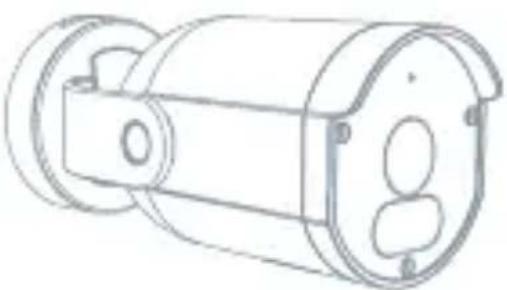
natural_image
Technical line drawing of a cylindrical mechanical component with mounting flanges (no text or symbols)3
natural_image
Technical line drawing of a cylindrical mechanical component with internal components and directional arrows (no text or symbols)НАСТРОИТЬ РОУТЕР
Far East Consortium Building
121 Des Voeux Road Central
Hong Kong
www.teslasmart.com

TESLA SMART CAMERA OUTDOOR
Manufacturer
Tesla Global Limited
Far East Consortium Building
121 Des Voeux Road Central
Hong Kong
www.teslasmart.com


- TESLA SMART CAMERA OUTDOOR 2022
- WHAT'S IN THE BOX
- INSTALL
- CONNECT
- Download
- SET UP ROUTER
- REGISTRATION PROCESS
- QR CODE CONFIGURATION
- SETTINGS
- FAQ
- FUNCTIONS
- Video flip
- Motion detection
- Record
- Day & Night
- Full color vision
- INFORMATION ABOUT DISPOSAL AND RECYCLING
- EU DECLARATION OF CONFORMITY
- Manufacturer
- TT TESLA
- ROUTER EINSTELLEN
- CO NALEZNETE V BALENÍ
- NASTAVIT ROUTER
- ČO NÁJDETE V ŠKATULÍKE
- CO ZNAJDZIESZ W PUDEŁKU
- USTAW ROUTER
- MIT TALÁL A DOBOZBAN
- A ROUTER BEÁLLÍTÁSA
- KAJ VSE BOSTE NAŠLI V EMBALAŽI
- ŠTO ČETE NAČI U KUTIJICI
- INSTALACIJA
- POSTAVITE RUTER
- PROCES REGISTRACIJE
- KONFIGURACIJA POMOČU QR KODU
- POSTAVKE
- ČESTO POSTAVLJANA PITANJA
- НАЛАШТУЙТЕ РОУТЕР
- НАСТРОИТЬ РОУТЕР
- TESLA SMART CAMERA OUTDOOR
Brand : TESLA
Model : TSL-CAM-BULLET8S
Category : Security Camera