
Smart Camera Omni 360 - Security Camera TESLA - Free user manual and instructions
Find the device manual for free Smart Camera Omni 360 TESLA in PDF.


| Product Type | Security Camera |
| Model | TSL-CAM-OMN360 |
| Resolution | 2304 x 1296 pixels |
| Sensor | 1/2.7" 3MP CMOS |
| Lens | 3.6mm, F2.0 |
| Night Vision | Black & white up to 8 m, color up to 5 m |
| Pan/Tilt | 360° pan (via app) |
| Power Supply | DC 5V, 1A (included adapter) |
| Connectivity | Wi-Fi 2.4 GHz IEEE 802.11b/g/n |
| Storage | MicroSD card (max 128GB) and Cloud storage |
| Dimensions | 84 x 121 mm |
| App | Tesla Smart (iOS/Android) |
| Motion Detection | Yes, with push notifications |
| Two-Way Audio | Yes (microphone and speaker) |
| Recording | 24/7 continuous recording |
| Preset Points | Yes, configurable |
| Video Flip | Yes |
| Day/Night Mode | Automatic IR cut filter |
| In the Box | Camera, power adapter, USB-C cable, bracket, screws, manual |
Frequently Asked Questions - Smart Camera Omni 360 TESLA
User questions about Smart Camera Omni 360 TESLA
0 question about this device. Answer the ones you know or ask your own.
Ask a new question about this device
Download the instructions for your Security Camera in PDF format for free! Find your manual Smart Camera Omni 360 - TESLA and take your electronic device back in hand. On this page are published all the documents necessary for the use of your device. Smart Camera Omni 360 by TESLA.
USER MANUAL Smart Camera Omni 360 TESLA
natural_image
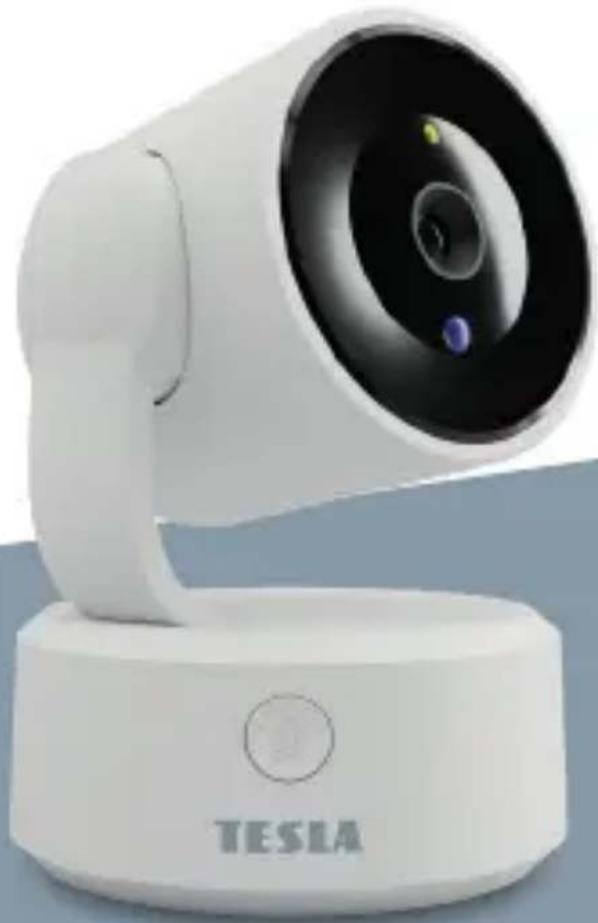
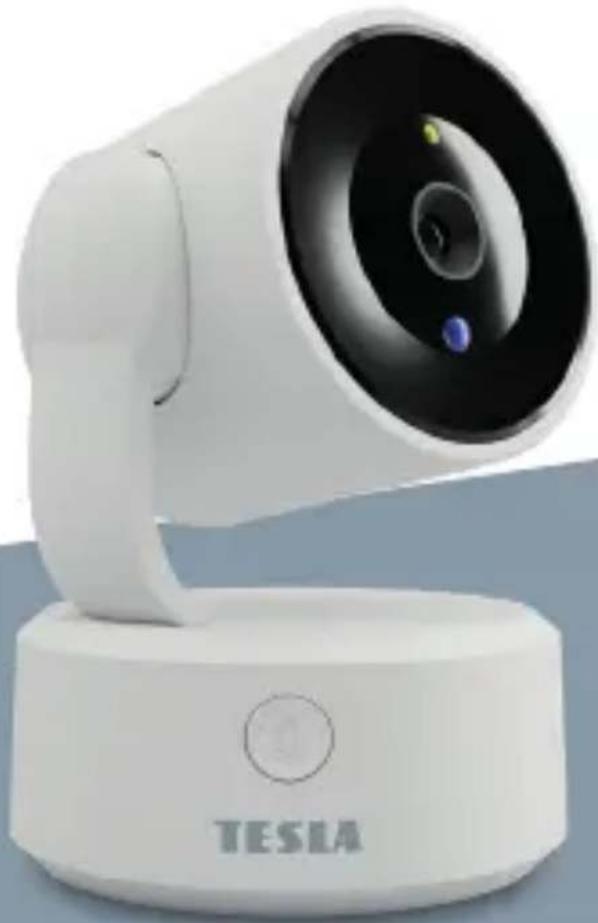
White Tesla 3D camera with lens and control panel (no visible text or symbols on device body)TESLA SMART CAMERA OMNI 360
USER MANUAL
IN THE BOX
• Tesla Smart camera Omni 360
- Power adapter
- USB-C cable
- Bracket
- Screws
- User manual
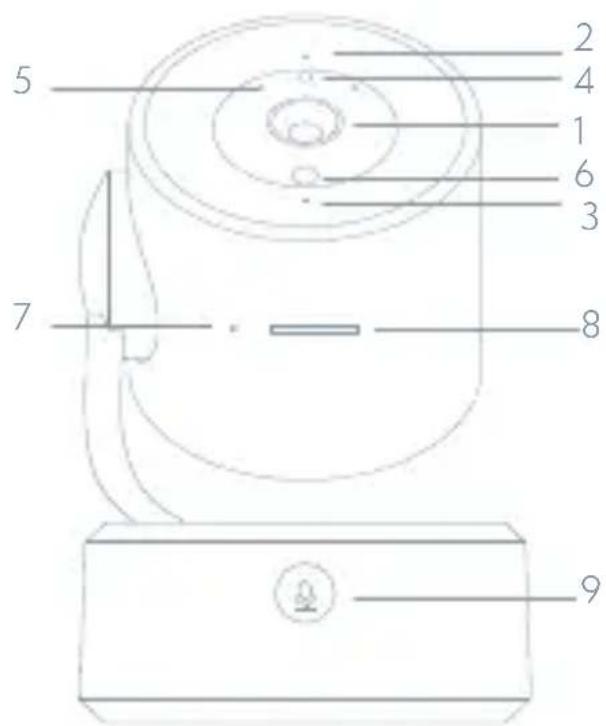
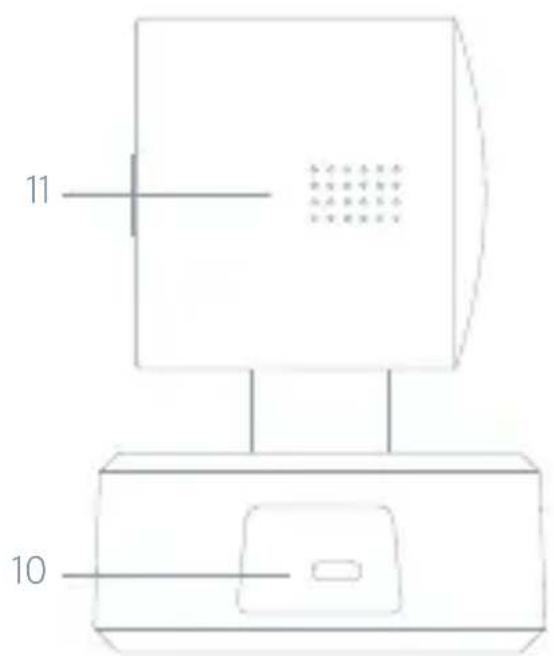
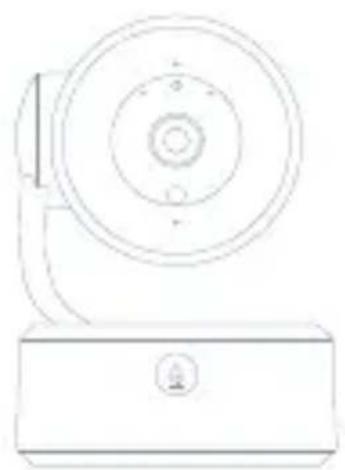
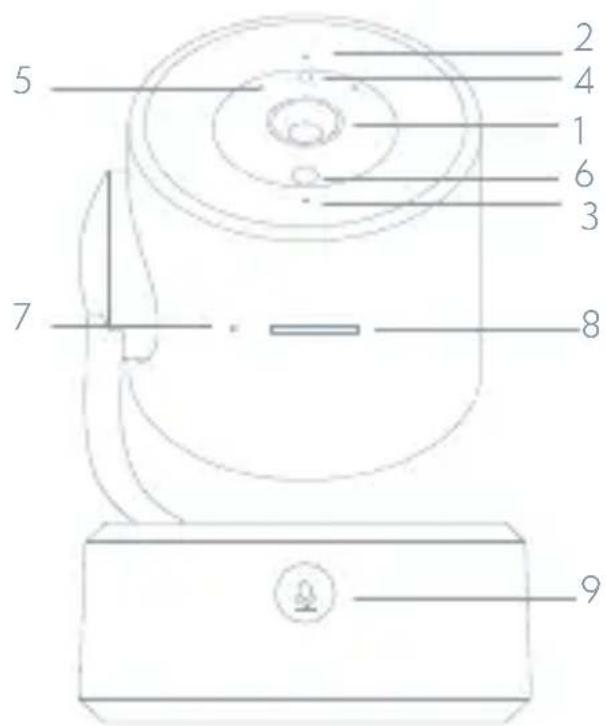
1 - Lens
2 - Status light
3 - Microphone
4 - Colored LED
5 - Infrared LED
6 - Light sensor
7 - Restart button
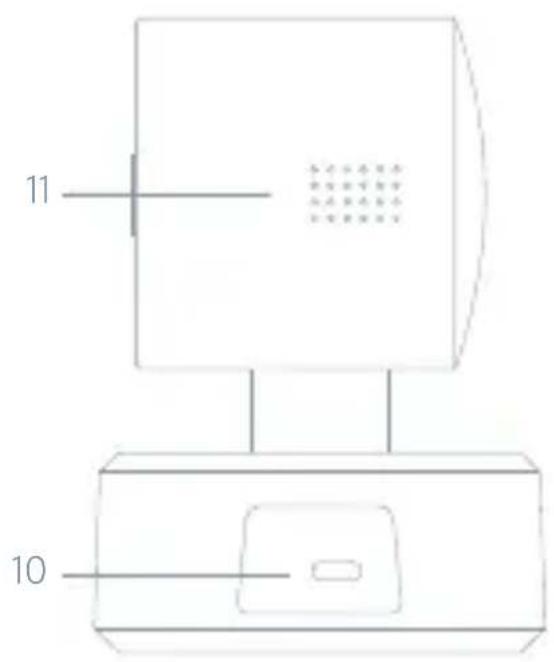
8 - SD card slot
9 - Call button
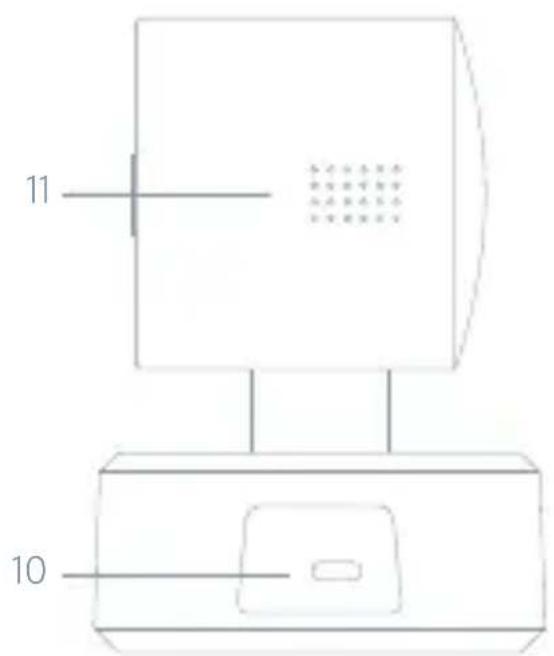
10 - USB-C port
11 - Speaker
| Power | DC 5V ± 10% |
| Status light Blue light flashes and beeps: the camera is waiting to pair with the appBlue light is on: the camera is connected to the Wi-FiBlue light is on: the camera is working properly | |
| Microphone Captures sound for your video | |
| SD card slot Supports local SD Card storage (Max.128GB) | |
| Reset Press and hold for 5 seconds to reset the camera(if you have modified settings, they will return to factory defaults) | |
| Reset Press and hold for 5 seconds to reset the camera | |
INSTALL
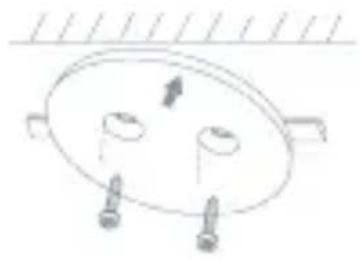
1 Use the included mounting bracket to fix the camera to a clean surface.
natural_image
Simple line drawing of a ceiling-mounted fixture with two screws and a central component (no text or symbols)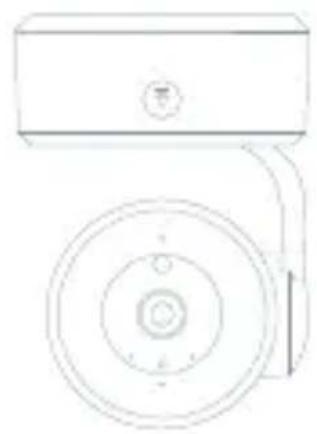
natural_image
Simple line drawing of a rectangular device with a circular base and pointer, no text or symbols present.2 Or, put the camera on a flat surface.
natural_image
Line drawing of a mechanical device with concentric circular components and a base (no text or symbols)CONNECT
DOWNLOAD
Tesla Smart is available for both iOS and Android OS. Search the name 'Tesla Smart' in App Store or Android Market, or scan the QR-Code to download the App.
SET UP ROUTER
The router supports the 2.4GHz WiFi (doesn't support the 5GHz), and is connected to the WiFi network. Please set the parameters of the router before connecting the WiFi network, and record the SSID and password of your WiFi. Please keep network available
REGISTRATION PROCESS
Step 1 Open the Tesla Smart App, click „Register“, read the „Privacy Policy“ and click „Agree“.
Step 2 Input a legal and valid Mobile number or Email address and click „Continue“. Input Verification Code, then log in the app.
CONFIGURATION VIA BLUETOOTH INTERFACE
Open the app and select „add device“ at the top right. You will automatically see the camera in the search for nearby devices.
-
Then simply add the camera
-
If you have a problem connecting, scan the QR code below in the app and go through the process of restarting and re-pairing in the app
FAQ
Q: The device cannot be previewed properly?
A: Check whether the network is normal, you can place the camera close to the router, and if not, it is recommended to reset the device and add it again.
Q: Why is it still in the list of devices after resetting?
A: The reset device only resets the network configuration of the camera, but cannot change the configuration on the App, remove the camera, and must be deleted by the App.
Q: How to cut the camera network to another router?
A: First remove and reset the device on the App and then configure the device again by the App.
Q: Why doesn't the device identify the SD card?
A: It is recommended to plug in SD card after power cut. Confirm whether the SD card is normally available and the format is FAT32. And the TF card can't be identified when the internet environment is not good.
Q: Why I can't get the notifications with my cell phone App?
A: Please confirm that the App has been running on the phone, and the relevant reminder function has been opened;Message notification and authority confirmation in the mobile phone system have been opened.
Question: I want to donate/sell my camera - what do I need to do?
Remove the camera from your account and wait for the camera to restart.
FUNCTIONS
Pan/Tilt
Rotate your camera by sliding on your smartphone, providing you with 360 degrees of vision.
Video flip
Flip your video stream up or down for maximum flexibility.
Motion detection
Built-in motion sensors detect movement, and the camera will send you push notifications and app alerts.
Record
Support 24H continuous recording with high capacity SD storage or Cloud storage.
Setting preset points
You can save these points as a view of a given situation. The practical use here is for smart scenes. You can then set the camera to turn to a point you specify at a certain time (e.g. when you enter a room) or when a light bulb turns on or a sensor switches on.
Day & Night
Never miss a moment, even in complete darkness, with powerful night-vision technology.
TECHNICAL SPECIFICATION
| Product name Tesla | Smart Camera Omni 360 |
| Resolution 2304 x 1296 | |
| Power supply DC5V, 1A | |
| Sensor 1/2.7" 3MPx, CMOS | |
| Night vision Black and white mode 8 m; colour mode 5 m | |
| Lens 3.6mm, F2.0 | |
| Dimensions | 84 x 121 mm |
| Storage MicroSD Card, Cloud | |
| App Tesla Smart for Android a iOS | |
| Connectivity Wi-Fi 2,4 GHz IEEE 802.11b/g/n | |
| Model TSL-CAM-OMN | 360 |
INFORMATION ABOUT DISPOSAL AND RECYCLING
This product is marked with the symbol for separate collection. The product must be disposed of in accordance with the regulations for disposal of electrical and electronic equipment (Directive 2012/19/EU on waste electrical and electronic equipment). Disposal together with regular municipal waste is prohibited. Dispose of all electrical and electronic products in accordance with all local and European regulations at the designated collection points which hold the appropriate authorisation and certification in line with the local and legislative regulations. Correct disposal and recycling help to minimise impacts on the environment and human health. Further information regarding disposal can be obtained from the vendor, authorised service centre or local authorities.
EU DECLARATION OF CONFORMITY
Hereby, TESLA Solar s.r.o. declares that the radio equipment type TSL-CAM-OMNI360 is in compliance with Directive 2014/53/EU. The full text of the EU declaration of conformity is available at the following internet address: tsl.sh/doc
Connectivity: Wi-Fi 2,4 GHz IEEE 802.11b/g/n Frequency band: 2.412 - 2.472 GHz Max. radio-frequency power (EIRP): < 20 dBm

Manufacturer TESLA Solar s.r.o. Rubeska 215/1 19000 Prague Czech Republic www.teslasmart.com
TT
TESLA
natural_image
White Tesla camera with lens and control panel (no visible text or symbols on device body)TESLA SMART CAMERA OMNI 360
BENUTZERHANDBUCH
LIEFERUMFANG
natural_image
Simple line drawing of a ceiling-mounted electrical outlet with two screw pins and a central hub (no text or symbols)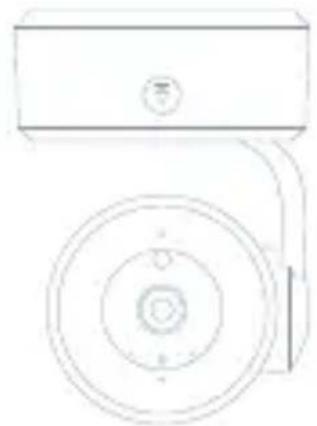
natural_image
Simple line drawing of a mechanical or electrical component with circular and rectangular features (no text or symbols)natural_image
Line drawing of a mechanical device with concentric circles and a base (no text or symbols)ANSCHLUSS
HERUNTERLADEN
ROUTER EINSTELLEN
natural_image
White Tesla 3D camera with lens and control panel (no visible text or symbols on device body)TESLA SMART CAMERA OMNI 360
UŽIVATELSKÁ
PŘÍRUČKA
OBSAH BALENÍ
• Tesla Smart camera Omni 360
- Napájecí adaptér
- USB kabel
• Držák
• Šroubky
• Návod k obsluze
natural_image
Simple line drawing of a ceiling-mounted fixture with two screws and a central component (no text or symbols)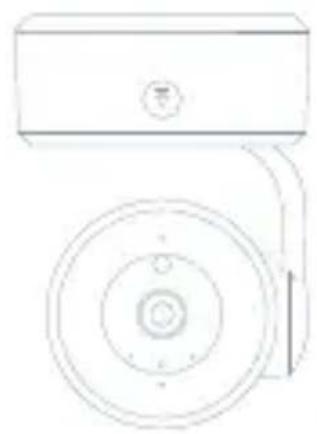
natural_image
Simple line drawing of a rectangular device with a circular base and pointer, no text or symbols present.natural_image
Line drawing of a mechanical device with concentric circular components and a base (no text or symbols)PŘIPOJENÍ
STÂHNOUT
NASTAVIT ROUTER
natural_image
White Tesla 3D camera with lens and control panel (no visible text or symbols on device body)TESLA SMART CAMERA OMNI 360
UŽIVATELŠKÁ
PRÍRUČKA
OBSAH BALENIA
• Tesla Smart camera Omni 360
- Napájací adaptér
- USB-C kábel
• Držiak
- Skrutky
• Návod na obsluhu
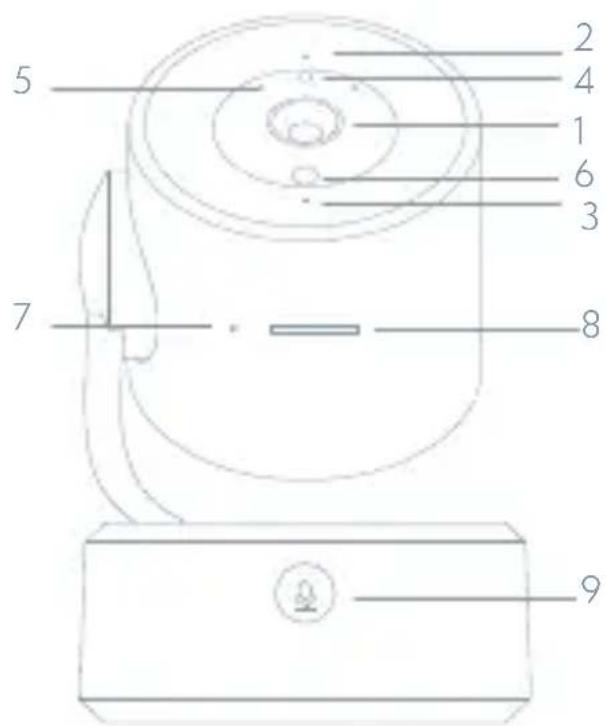
1 - Objektív
2 - Stavová kontrolka
3 - Mikrofón
4 - Farebná LED dióda
5 - Infra LED diódy
6 - Senzor svetla
7 - Tlačidlo pre rešart
8 - Slot pre SD kartu
9 - Tlačidlo na vyvolanie hovoru
10 - USB-C port
11 - Reproduktor
natural_image
Simple line drawing of a circular object with two internal holes and three protruding pins, under a hatched ceiling (no text or symbols)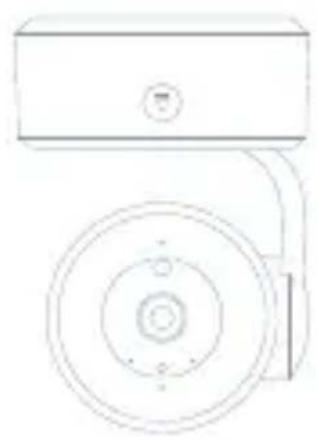
natural_image
Simple line drawing of a rectangular device with a circular base and mounting bracket (no text or symbols)natural_image
Line drawing of a mechanical device with circular components and a base (no text or symbols)PRIPOJENIE
STIAHNÚT APLIKÁCIU
NASTAVIŠ ROUTER
ČASTO KLADENĚ OTÁZKY
natural_image
White Tesla 3D camera with lens and control panel (no visible text or symbols on device body)TESLA SMART CAMERA OMNI 360
INSTRUKCJA UŻYTKOWNIKA
ZAWARTOŚĆ OPAKOWANIA
natural_image
Simple line drawing of a ceiling-mounted fixture with two handles and three screws (no text or symbols)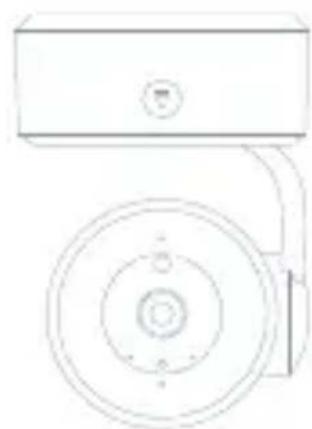
natural_image
Simple line drawing of a mechanical or electrical component with concentric circles and a rectangular body (no text or symbols)natural_image
Technical line drawing of a mechanical component with concentric circular features and a base (no text or symbols)POŁĄCZENIE
POBIERZ
USTAW ROUTER
CZĘSTO ZADAWANE PYTANIA
Producent
TESLA Solar s.r.o.
Rubeska 215/1
19000 Prague
Czech Republic
www.teslasmart.com
TT
TESLA
natural_image
White Tesla 3D camera with lens and control panel (no visible text or symbols on device body)TESLA SMART CAMERA OMNI 360
HASZNÁLATI
ÚTMUTATÓ
DOBOZ TARTALMA
natural_image
Technical line drawing of two electrical mounting components: a circular socket with two pins and a rectangular head with a connecting rod (no text or symbols)natural_image
Simple line drawing of a mechanical device with concentric circles and a base (no text or symbols)CSATLAKOZTATÁS
LETÖLTÉS
A ROUTER BEÁLLÍTÁSA
GYAKRAN ISMÉTELT KÉRDÉSEK


- TESLA SMART CAMERA OMNI 360
- IN THE BOX
- INSTALL
- CONNECT
- DOWNLOAD
- SET UP ROUTER
- REGISTRATION PROCESS
- CONFIGURATION VIA BLUETOOTH INTERFACE
- FAQ
- FUNCTIONS
- Pan/Tilt
- Video flip
- Motion detection
- Record
- Setting preset points
- Day & Night
- INFORMATION ABOUT DISPOSAL AND RECYCLING
- EU DECLARATION OF CONFORMITY
- TT
- TESLA
- LIEFERUMFANG
- ANSCHLUSS
- HERUNTERLADEN
- ROUTER EINSTELLEN
- OBSAH BALENÍ
- PŘIPOJENÍ
- STÂHNOUT
- NASTAVIT ROUTER
- OBSAH BALENIA
- PRIPOJENIE
- STIAHNÚT APLIKÁCIU
- NASTAVIŠ ROUTER
- ČASTO KLADENĚ OTÁZKY
- ZAWARTOŚĆ OPAKOWANIA
- POŁĄCZENIE
- POBIERZ
- USTAW ROUTER
- CZĘSTO ZADAWANE PYTANIA
- Producent
- DOBOZ TARTALMA
- CSATLAKOZTATÁS
- LETÖLTÉS
- A ROUTER BEÁLLÍTÁSA
- GYAKRAN ISMÉTELT KÉRDÉSEK
Brand : TESLA
Model : Smart Camera Omni 360
Category : Security Camera