
T630 - Mouse LOGITECH - Free user manual and instructions
Find the device manual for free T630 LOGITECH in PDF.
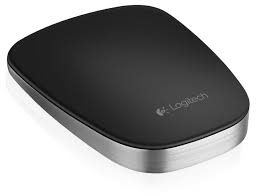

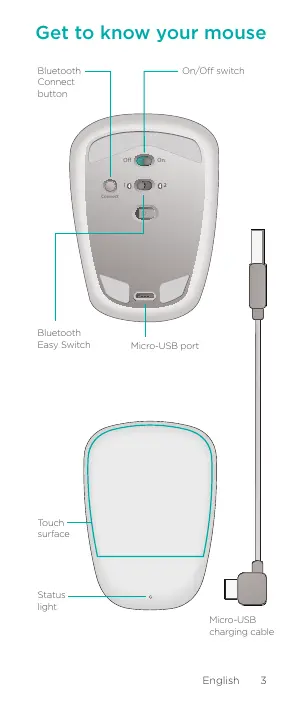


| Product type | Wireless touch mouse |
| Brand | Logitech |
| Model | T630 |
| Connection technology | Bluetooth |
| Power source | Rechargeable battery via USB cable |
| Battery life | Fast charging: 1 minute charging = about 1 hour use |
| Charging indicator | Green (charging), Red (low battery) |
| Touch surface | Yes (left/right/middle click, vertical/horizontal scrolling, gestures) |
| Number of Bluetooth channels | 2 (EasySwitch) |
| Compatible operating systems | Windows 8, Windows RT, Windows 7 |
| Gestures | Left click, right click, middle click, scroll, Start menu (two-finger double-tap), app switch (left edge swipe), charms bar (right edge swipe) |
| Customization software | Logitech Options (downloadable at www.logitech.com/support/t630) |
| Box contents | Ultrathin Touch Mouse T630, charging cable |
Frequently Asked Questions - T630 LOGITECH
User questions about T630 LOGITECH
0 question about this device. Answer the ones you know or ask your own.
Ask a new question about this device
Download the instructions for your Mouse in PDF format for free! Find your manual T630 - LOGITECH and take your electronic device back in hand. On this page are published all the documents necessary for the use of your device. T630 by LOGITECH.
USER MANUAL T630 LOGITECH
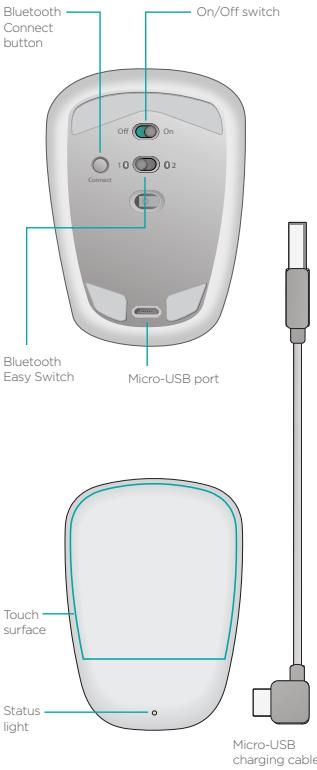
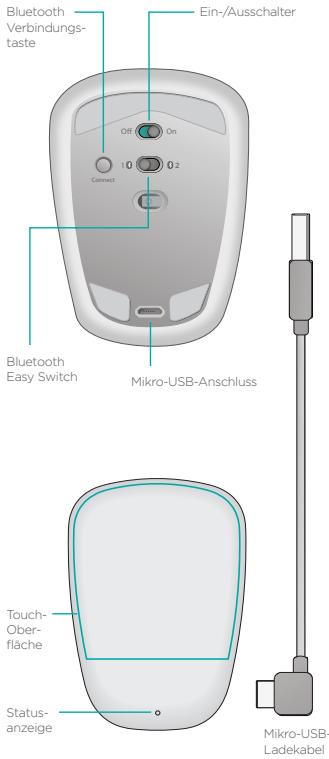
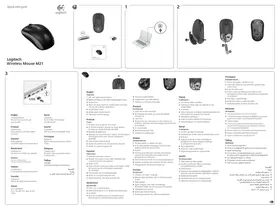
Get to know your mouse
Set up Bluetooth
On your mouse
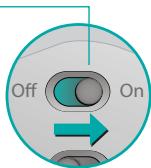
1. Power on
Slide the switch to the On position.
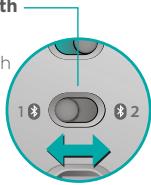
2. Select Bluetooth channel
Slide the Bluetooth Easy Switch to position 1 or 2.
3. Press Connect
The status light blinks blue rapidly to indicate the mouse is ready for pairing with your PC.
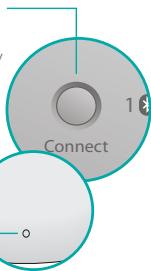
The status light blinks while the mouse is discoverable—about three minutes.
Set up Bluetooth
On your PC
Windows 8 and Windows RT:
Open the Settings charm and tap or click Devices (in PC settings).
Tap or click Add a Device and select Ultrathin Touch Mouse from the list of wireless devices.
Windows 7: Right-click
the Bluetooth icon on the taskbar and select Add a Device from the context menu. Select Ultrathin
Touch Mouse from the list of available devices and click Next.
When pairing is complete, the status light glows blue steadily for 30 seconds.
Install software
Don't miss out on all your mouse has to offer! Install Logitech software for smoother performance, customizable settings, and optimal gestures.
Download the software from:
www.logitech.com/support/t630
Pair with another PC
Slide the Bluetooth Easy Switch to the remaining unused channel, press the Connect button, and repeat the steps in "Set up Bluetooth."
Afterwards, reconnect to a PC by first selecting the channel you used to pair with it.
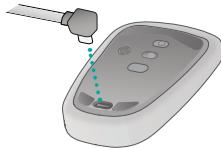
Charge the battery
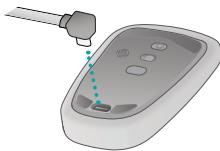
Use the charging cable to recharge the mouse from your computer. The status light blinks green until the mouse is fully charged. On average, one minute of charging adds an hour
of use.
What do you think?
Take a moment to tell us. Thank you for purchasing our product.
www.logitech.com/ithink
Gestures
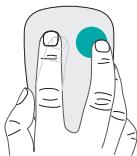
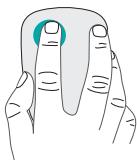
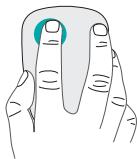
Click. Press the left side of the touch surface.
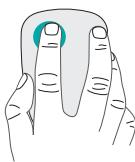
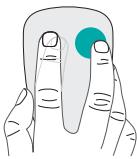
Right-click. Press the right side of the touch surface.
Lift the non-clicking finger completely off the surface.
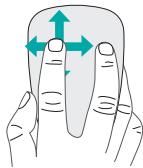
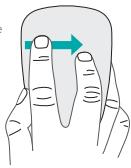
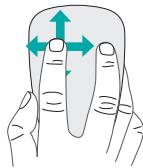
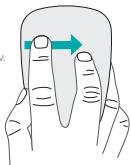
Scroll. Swipe up, down, or sideways.
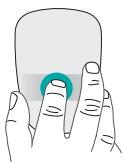
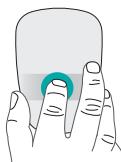
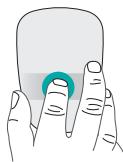
Middle-click. Press the lower portion of the touch surface.
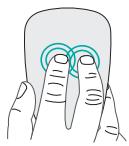
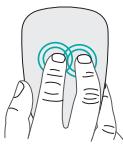
Start menu. Double-tap on the touch surface with two fingers.
App switching. Swipe from the left edge of the touch surface with one finger.
Swipe from the right edge to display the Charms bar.
Troubleshooting
Mouse not working?
On your PC, confirm that Bluetooth is turned on. Is the mouse powered on? - If the status light is blinking red, recharge the battery. - Confirm that the Bluetooth channel (1 or 2) is the same one you used for pairing. - Restart your PC. - If your mouse is listed as a Bluetooth device, remove it from the list and repeat the steps to pair it with your PC.
www.logitech.com/support/t630
Support
Visit the product page
While online, check out the Ultrathin Touch Mouse product page, your destination for world-class support. There you will find tutorials, guidelines, and troubleshooting tips for your mouse.
www.logitech.com/support/t630
Introduction to the mouse
www.logitech.com/ithink
Gestures
www.logitech.com/ithink
Control gestures
www.logitech.com/ithink
www.logitech.com/ithink
Gestures
Gestures
Hand movements
Gestures
Gestures
Hand movements
Gestures
Movements
And. Use the right hand to control the screen.
Avoid touching the surface to prevent accidental clicks.
Click, press the top, and drag.
Middle click. Press the bottom of the surface, then release.
Swipe. Slide two fingers across the surface to scroll.
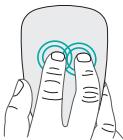
Swipe with three fingers. Slide from the left edge of the touchpad with three fingers.
Swipe from the left edge to view the notification center.
Troubleshooting
Is the touchpad not working?
On your PC, verify that Bluetooth is enabled. Is the touchpad enabled? If the status light is blinking orange, reset the connection. - Make sure the Bluetooth channel (1 or 2) is the same one used for the connection. Restart your PC. If your touchpad is registered as a Bluetooth device, remove it from the list and repeat the steps to pair it with your PC.
www.logitech.com/support/t630
Support
www.logitech.com/ithink
Gestures
Click. Press the left side of the touch surface.
"Bluetooth 123!" pall
j 1
- If x A, then y A, y B.
\1,2,3\ \1,3\
www.logitech.com/ithink
Bluetooth
Windows RT Windows 8 (pc settings) Settings PC settings Devices Add ultrathin (jaj) a Device Touch Mouse Next jai jai jai jai jai jai jai jai jai jai jai jai jai jai jai jai jai jai jai jai jai jai jai jai jai jai jai jai jai jai jai jai jai jai jai jai jai jai jai jai jai jai jai jai jai jai jai jai jai jai jali jali jali jali jali jali jali jali jali jali jali jali jali jali jali jali jali jali jali jali jali jali jali jali jali jali jali jali jali jali jali jali jali jali jali jali jali jali
www.logitech.com/support/t630
(2 Bluetooth 1)
Bluetooth
www.logitech.com/support/t630
Ultrathin Touch Mouse
French: +32-(0)2 200 64 40
Czech Republic
+420 239 000 335
Denmark
+45-38 32 31 20
Germany
+49-(0)69-51709427
Spain
+34-91-275 45 88
France
+33-(0)1-57 32 32 71
Ireland
+353-(0)1524 5080
Italy
+39-02-91483031
Hungary
+36 (1) 777-4853
Netherlands
+31-(0)-20-2008433
Norway
+47-(0)24159579
Austria
+43-(0)1206091026
Poland
008004411719

Portugal
+351-21-415 90 16
+7(495)6413460
Switzerland/Switzerland, Switzerland
D +41-(0)227614012
F +41-(0)227614016
+41-(0)227614020
E +41-(0)227614025
South Africa
0800 981 089
Finland
+358-(0)972519108
Sweden
+46-(0)8-50163283
Türkiye
00800448825862
United Arab Emirates
8000 441-4294
United Kingdom
+44-(0)203-024-8159
European, Mid. East., & African Hq.
Morges, Switzerland
English: +41-(0)22 761 40 25
English: 41-(0)22 761 40 25
www.logitech.com
© 2013 Logitech. Logitech, the Logitech logo, and other Logitech marks are owned by Logitech and may be registered. All other trademarks are the property of their respective owners. Logitech assumes no responsibility for any errors that may appear in this manual. Information contained herein is subject to change without notice.


- GET TO KNOW YOUR MOUSE
- SET UP BLUETOOTH
- ON YOUR MOUSE
- POWER ON
- SELECT BLUETOOTH CHANNEL
- PRESS CONNECT
- ON YOUR PC
- WINDOWS 8 AND WINDOWS RT
- WINDOWS 7: RIGHT-CLICK
- INSTALL SOFTWARE
- PAIR WITH ANOTHER PC
- CHARGE THE BATTERY
- WHAT DO YOU THINK
- GESTURES
- TROUBLESHOOTING
- MOUSE NOT WORKING
- SUPPORT
- VISIT THE PRODUCT PAGE
- INTRODUCTION TO THE MOUSE
- CONTROL GESTURES
- WWW.LOGITECH.COM/ITHINK
- HAND MOVEMENTS
- MOVEMENTS
- IS THE TOUCHPAD NOT WORKING
- BLUETOOTH
- WWW.LOGITECH.COM/SUPPORT/T
- WWW.LOGITECH.COM
Brand : LOGITECH
Model : T630
Category : Mouse