
Camileo CLIP - Camcorder TOSHIBA - Free user manual and instructions
Find the device manual for free Camileo CLIP TOSHIBA in PDF.


| Product Type | Camcorder |
| Model | Camileo CLIP |
| Video Resolution | Full HD 1080/30 (1920x1080), HD 720/60 (1280x720), HD 720/30, VGA 480/30 |
| Photo Resolution | 16MP (4608x3456 interpolated), 5MP (2592x1944), 3MP (2048x1536) |
| Digital Zoom | 5x (Full HD), 10x (HD and VGA) |
| Image Sensor | 5 MP CMOS |
| Display | LCD screen (size not specified in manual) |
| Storage | Built-in memory + Micro SD card slot (optional, up to SDXC) |
| Connectivity | Mini USB 2.0, Mini HDMI (cable not included) |
| Battery | Built-in lithium-ion, not user-replaceable |
| Charging Time | Up to 8.5 hours via USB, up to 2.5 hours with optional AC adapter (5V, 2A) |
| Special Features | Splash-proof, clip for attachment, motion detection, face tracking, smile detection, slow motion, time lapse, pre-record, video trim, anti-glare, webcam mode |
| Software | CAMILEO Uploader, ArcSoft MediaImpression (included on CD) |
| System Requirements | Windows XP/Vista/7, Intel/AMD Dual-Core CPU, 1GB RAM, 1GB HDD, USB port |
| Dimensions | Approximately 100 x 60 x 20 mm (estimated) |
| Safety | Do not disassemble, avoid water, high temperature, use only supplied accessories |
Frequently Asked Questions - Camileo CLIP TOSHIBA
User questions about Camileo CLIP TOSHIBA
0 question about this device. Answer the ones you know or ask your own.
Ask a new question about this device
Download the instructions for your Camcorder in PDF format for free! Find your manual Camileo CLIP - TOSHIBA and take your electronic device back in hand. On this page are published all the documents necessary for the use of your device. Camileo CLIP by TOSHIBA.
USER MANUAL Camileo CLIP TOSHIBA
Leading Innovation >>>
CAMILEO® CLIP User's Guide
English/Espanol
Regulatory Information
FCC Information

Product Name: Camcorder
Model number: CAMILEO ^® CLIP
FCC notice “Declaration of Conformity Information”
This equipment has been tested and found to comply with the limits for a Class B digital device, pursuant to part 15 of the FCC rules. These limits are designed to provide reasonable protection against harmful interference in a residential installation. This equipment generates, uses and can radiate radio frequency energy and, if not installed and used in accordance with the instructions, may cause harmful interference to radio communications. However, there is no guarantee that interference will not occur in a particular installation. If this equipment does cause harmful interference to radio or television reception, which can be determined by turning the equipment off and on, the user is encouraged to try to correct the interference by one or more of the following measures:
◆ Reorient or relocate the receiving antenna.
Increase the separation between the equipment and receiver.
Connect the equipment into an outlet on a circuit different from that to which the receiver is connected.
Consult the dealer or an experienced radio/TV technician for help.
▲WARNING
Changes or modifications made to this equipment, not expressly approved by TOSHIBA or parties authorized by TOSHIBA could void the user's authority to operate the equipment.
FCC Conditions
This equipment has been tested and found to comply with Part 15 of the FCC Rules. Operation is subject to the following two conditions:
(1) This device may not cause harmful interference.
(2) This device must accept any interference received. Including interference that may cause undesired operation.
Contact
Address: TOSHIBA America Information Systems, Inc.
9740 Irvine Boulevard
Irvine, California 92618-1697
Telephone: (949) 583-3000
Safety Instructions
1 Do not drop, puncture or disassemble the camcorder; otherwise the warranty will be voided.
2 Avoid all contact with water, and dry hands before using.
3 Do not expose the camcorder to high temperature or leave it in direct sunlight. Doing so may damage the camcorder.
4 Use the camcorder with care. Avoid pressing hard on the camcorder body.
5 For your own safety, avoid using the camcorder when there is a storm or lightning.
6 Use only the accessories supplied by the manufacturer.
7 Keep the camcorder out of the reach of infants.
NOTE
The camcorder has a built-in battery, which is not user-accessible.
Safety icons
This manual contains safety instructions that must be observed to avoid potential hazards that could result in personal injuries, damage to your equipment, or loss of data. These safety cautions have been classified according to the seriousness of the risk, and icons highlight these instructions as follows:
| △DANGER | Indicates an imminently hazardous situation which, if not avoided, will result in death or serious injury. |
| △WARNING | Indicates a potentially hazardous situation which, if not avoided, could result in death or serious injury. |
| △CAUTION | Indicates a potentially hazardous situation which, if not avoided, may result in minor or moderate injury. |
| CAUTION | Indicates a potentially hazardous situation which, if not avoided, may result in property damage. |
| NOTE | Provides important information. |
Additional Information
© Copyright 2012 TOSHIBA CORPORATION. All rights reserved. TOSHIBA reserves the right to make technical changes. TOSHIBA assumes no liability for damages incurred directly or indirectly from errors, omissions or discrepancies between this product and the documentation.
About the built-in battery
The built-in battery pack is a lithium ion battery, which can explode if not used properly.
Do not attempt to replace the built-in battery. It is built-in and not changeable.
◆Charge the built-in battery only in an ambient temperature between 41 and 95 degrees Fahrenheit (5 and 35 degrees Celsius). Otherwise, the electrolyte solution might leak, battery performance might deteriorate, and the battery life might be shortened.
◆ Charge the battery in accordance with the instructions.
Only use the supplied USB cable or an optional Toshiba charger to charge the camcorder. Never attempt to charge the camcorder with any other charger.
Trademarks
CAMILEO is a registered trademark of Toshiba America Information Systems, Inc. and/or Toshiba Corporation.
Adobe and Adobe Reader are either registered trademarks or trademarks of Adobe Systems Incorporated in the United States and/or other countries.
ArcSoft, MediaImpression, and MediaConverter are registered trademarks of ArcSoft, Inc.
Facebook is a registered trademark of Facebook Inc.
HDMI, the HDMI Logo and High-Definition Multimedia Interface are trademarks or registered trademarks of HDMI Licensing, LLC.
Intel, Intel Core, Celeron, Centrino and Pentium are trademarks or registered trademarks of Intel Corporation or its subsidiaries in the United States and other countries.
Mac is a trademark of Apple Inc., registered in the U.S. and other countries.
Microsoft, Windows, and Windows Vista are either registered trademarks or trademarks of Microsoft Corporation in the United States and/or other countries.
Picasa is a trademark of Google Inc.
Secure Digital and SD are trademarks of SD Card Association.
YouTube and the YouTube logo are registered trademarks of Google, Inc.
All other brand and product names are trademarks or registered trademarks of their respective companies.
Contents
Chapter 1: Getting to Know Your Camcorder....9
Overview 9
Check the components ....10
Splash-proof design....11
System requirements....11
Front view 12
Underside view ......12
Rear view....13
Chapter 2: Getting Started.... 15
Charge the Built-in Battery....15
Inserting and Removing the Micro SD Card......16
About the Clip ....17
Turning the Camcorder On and Getting Started .....17
Turning on the Camcorder - Standby Mode active..17
Turning the Camcorder Off ....18
Menu options....18
Video Mode Menu....18
Photo Mode Menu 20
Chapter 3: Preview/Record Mode.... 22
Button Functions....22
LCD screen information 23
Video recording 25
Taking photos 26
Using Anti-Glare Function....26
Using Digital Zoom ....26
Options for Menu....27
Video Mode Menu....27
Photo Mode Menu 28
Video setup....29
Resolution....29
Stabilization ....30
Motion detection....30
Face tracking....31
Slow motion....31
Pre-record....32
Time lapse ....32
Continuous play....33
Photo setup ....34
Resolution....34
Self-timer....35
Smile detection 35
Date printing 36
ISO....36
Slide show 37
Settings....38
Sound 38
TV format....39
Language 39
Time....40
Format 40
Restore default....41
Effects....42
Scene....43
Filter....43
White balance 44
Chapter 4: Voice Recording.... 45
Voice recording....45
Audio Playback 47
Delete Audio File 47
Chapter 5: Playback Mode....48
Button functions 48
LCD screen information 49
Operations for Playback mode....50
Video Playback....51
Video Trim 51
Photo Playback 53
Delete File in Playback Mode....53
Chapter 6: Viewing Files on the computer.... 54
Installing bundled software....54
Transferring files to a computer....55
Chapter 7: Uploading Files to the Internet....56
CAMILEO® Uploader....56
Set up account information for the web site .....59
Chapter 8: Webcam Mode....60
Chapter 9: Troubleshooting....61
Chapter 10: Other Information....62
Toshiba Support 62
Before you call 62
Contacting Toshiba 63
Toshiba's technical support web site ......63
Toshiba voice contact 63
Warranty....63
Online Warranty Information......63
Warranty Service 63
Chapter 1
Getting to Know Your Camcorder
Thank you for buying the CAMILEO Clip camcorder. This guide introduces the camcorder's features as well as some basic procedures to operate this product.
Overview
Your Toshiba camcorder comes equipped with a 5MP sensor that can record H.264 format movies. This format allows for extended video recording with less memory.
◆High-quality images up to 16MP can also be delivered smoothly.
◆5x digital zoom helps you to control over the videos and photos you take.
The camcorder supports video recording at Full HD resolution of 1920 x 1080p. You can also connect it to an HDTV via a mini HDMI™ cable (Mini HDMI™ cable must be purchased separately), and easily playback the recorded high-definition videos on the wide screen HDTV.
Electronic Image Stabilization to record smoother videos.
◆Pause function to record multiple moments in a single file.
This camcorder integrates function of video trimming to edit the video without the need for a computer.
ISO sensitivity and color balance can either be adjusted automatically or changed manually.
Moreover, the camcorder has an advanced uploading feature. With the exclusive built-in CAMILEO UPLOADER application, you can upload the videos or photos captured by the camcorder to the Internet more effortlessly.
◆Splash resistant and ruggedized finish for outdoor use.
The camcorder can be a voice recorder to record WAV audio files.
The built-in memory allows you to take limited photos and to record limited videos without a memory card. The memory card slot allows users to increase the storage capacity.
NOTE
Partial memory of the built-in memory is used for the camcorder's Firmware code.
NOTE
Install the bundled software application for viewing the videos correctly on a computer.
Check the components
Unpack the package and make sure all standard accessories listed are included:
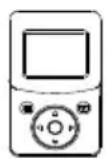
Camcorder
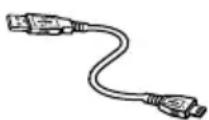
USB Cable

Strap

Cleaning Cloth

CD-ROM

Quick Start Guide
(Sample Illustration) Components
Splash-proof design
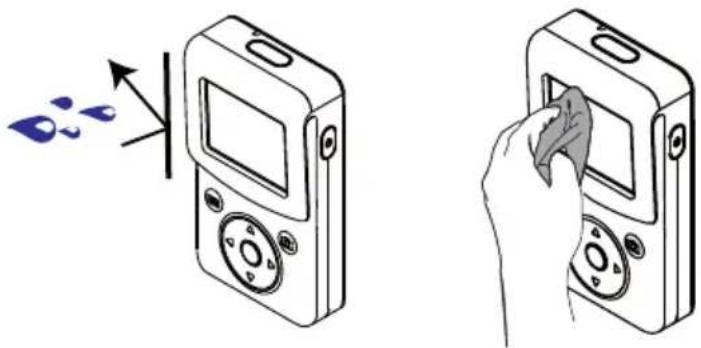
◆ Splash-proof design protects your camcorder from damage that accidental splashes can cause.
natural_image
Illustration of a digital camera with an arrow indicating light reflection and a hand cleaning the screen (no text or symbols)◆Always keep the lens clean and wipe the water droplets off the camcorder with a soft, dry cloth.
◆The cover for the ports must be firmly closed.
The splash-proof of the ports is not guaranteed in all environments or conditions.
System requirements
◆Microsoft ^® Windows ^® XP/Windows Vista ^® /Windows ^® 7
Intel ^® / AMD ^® Dual-Core CPU or above
◆1 GB system memory
◆1 GB hard drive space
CD-ROM drive
Available USB port
16-bit Color Display
NOTE
The LCD screen is manufactured using extremely high-precision technology. However, some tiny black and/or bright dots (white, red, blue or green) may appear on the LCD screen. These dots are a normal result of the manufacturing process, and do not affect the recording.
Front view
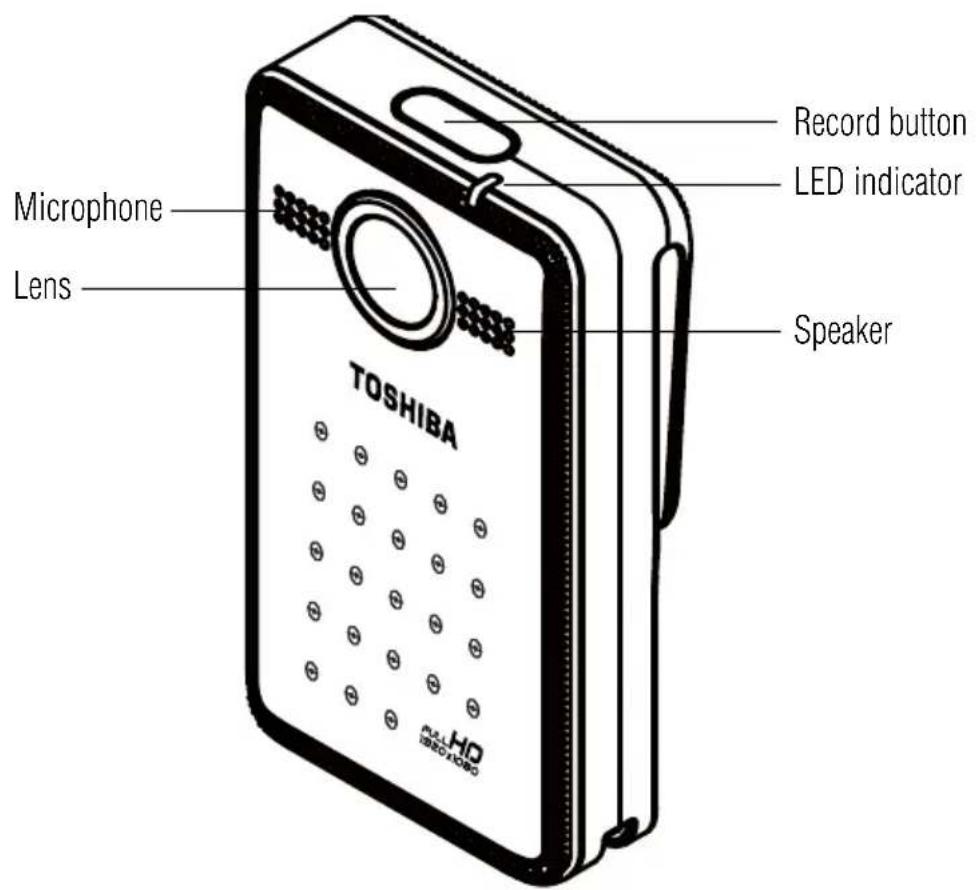
(Sample Illustration) Front view
Underside view
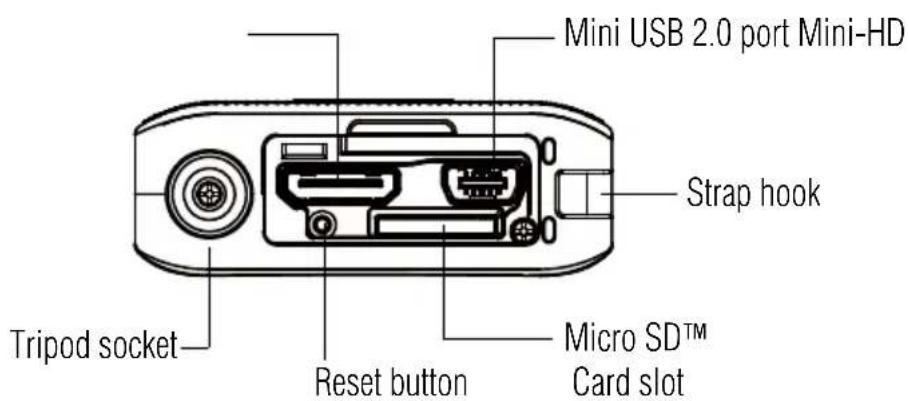
(Sample Illustration) Underside view
Rear view
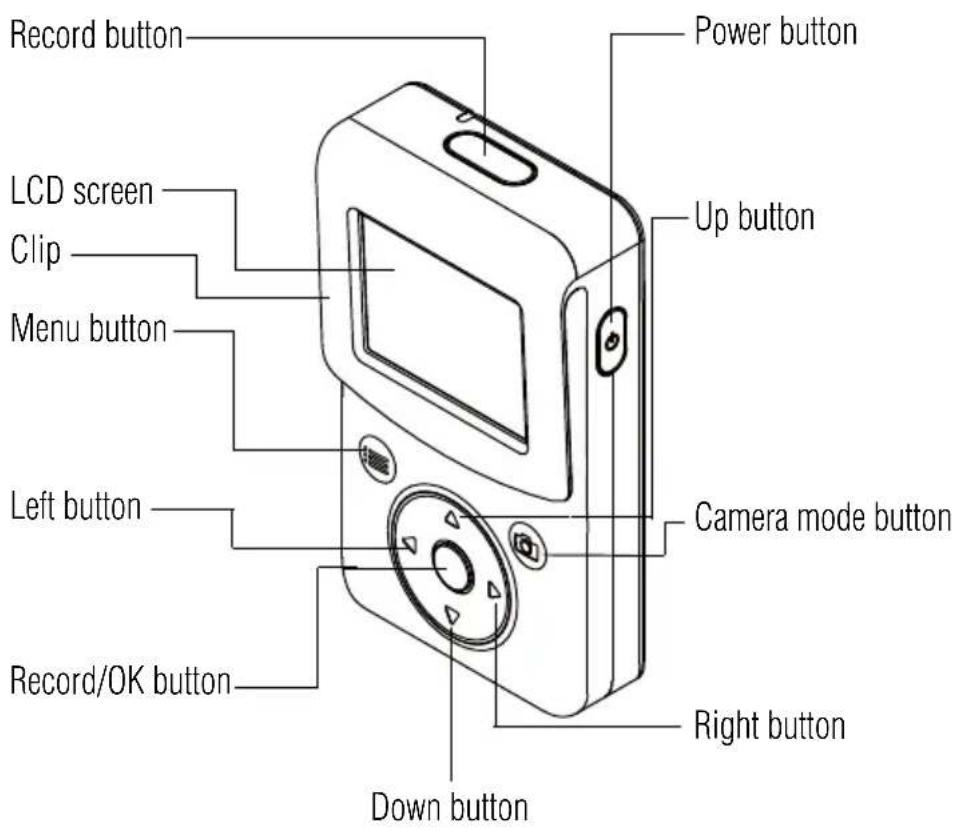
(Sample Illustration) Rear view
| QUICK TOUR | |
| Power button | Press the Power button for one second. |
| If no operation is made in three minutes, the camcorder will turn itself off automatically to conserve battery power. | |
| Camera mode button | Press to toggle Video Mode or Photo Mode |
| Menu button | Menu ON. |
| Exit Menu / Playback Mode. | |
| Record button | In Video Mode, press to take video. To stop recording, press it again. |
| In Photo Mode, press to take photo. | |
| Record / OK button | In Video Mode, press to take video. To stop recording, press it again. |
| In Photo Mode, press to take photo. | |
| In VOICE RECORDING, press to record audio. To stop recording, press it again. | |
| Validate the setting. | |
| Up button | Zoom in. |
| In Playback Mode, go to the Information screen. | |
| When playing videos, press to increase volume. | |
| Down button | Zoom out. |
| When playing video, press to decrease volume. | |
| Left button | In Preview Mode, press to go to Playback Mode. |
| Move between the option items. | |
| In Playback Mode, press to go to the previous video / photo. | |
| Right button | In Preview Mode, press to toggle ANTI GLARE ON or ANTI GLARE OFF. |
| While recording video / audio, press to pause the recording. Press again to resume recording. | |
| Move between the option items. | |
| In Playback Mode, press to go to the next video / photo. | |
Chapter 2
Getting Started
Charge the Built-in Battery
When the USB connection is made to your computer for the first time, up to three AutoPlay screens will appear on your computer screen. You must use the supplied USB cable.
1 Connect your camcorder to your computer.
2 Select MASS STORAGE on the camcorder screen.
3 The blinking light indicates that the camcorder is currently charging, and the light remains on after the charging is completed.
4 The full charge time is up to 8.5 hours, using the provided USB cable. (Actual charging time may vary, depending on the battery and computer charging conditions.)
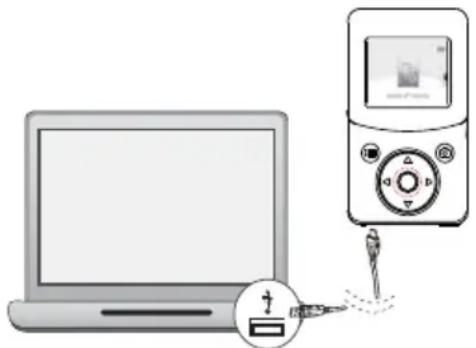
(Sample Illustration) Charge the built-in battery
NOTE
◆Be sure to remove the protective film on the lens before using.
You may also use the optional USB AC adaptor (Rated at 5V, 2A) to charge the built-in battery. Approximate charging time is up to 2.5 hours (optional USB AC adaptor may be purchased separately).
▲WARNING
Never charge the battery by a method other than as instructed. Doing so may cause a fire or explosion possibly resulting in serious injury.
Inserting and Removing the Micro SD Card (optional)
The camcorder comes with a limited internal memory which allows you to store limited photos and videos. You can expand the memory capacity by using an optional Micro SD memory card.
1 Open the ports cover.
2 Insert the Micro SD card (Optional) into the slot until it locks properly.
3 To remove the Micro SD card, press inward to release it and gently pull it out.
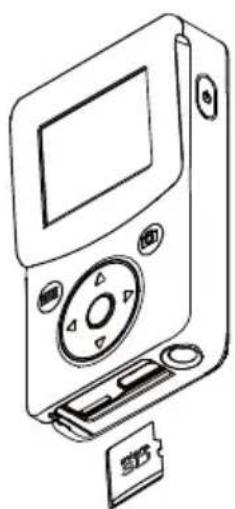
natural_image
Line drawing of a portable electronic device with a screen, buttons, and a card (no text or symbols)NOTE
When a memory card is inserted, photos and videos are saved onto the card rather than the built-in memory.
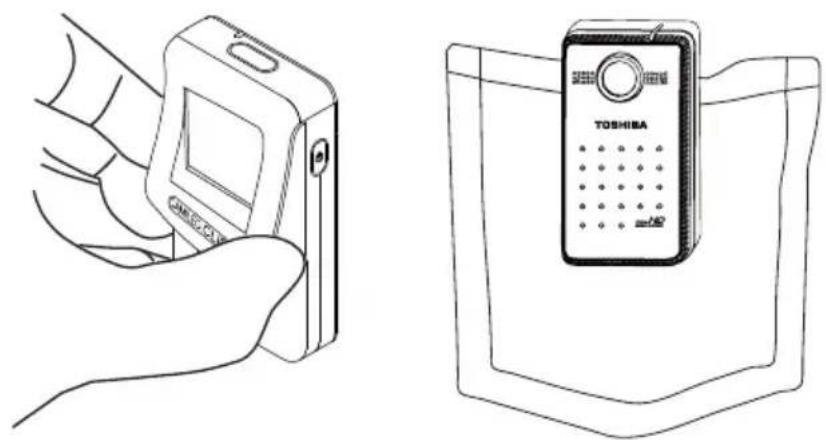
About the Clip
Pull the clip slightly and clip the camcorder onto your clothing / belt, etc.
Turning the Camcorder On and Getting Started
To turn on the camcorder, press the Power button (☐) for one second.
To record video: In Video Mode, press the Record button ( ) to record videos. To stop recording, press it again.
To pause recording: Press the Right button to pause recording. To continue the recording, press it again.
To take a photo: In Photo Mode, press the Record button (○) / ( ) to take photo.
To view stored videos and photos: Press the Left button to switch to the Playback mode.
NOTE
There are two separate record buttons to be utilized, depending on your mode of use.
Turning on the Camcorder - Standby Mode active
In order to conserve battery power, the LCD will automatically turn off after idling about one minute to switch to standby mode.
When standby by mode is active, you can resume to normal mode by pressing any button.
NOTE
If no operation is made in three minutes, the camcorder will turn itself off automatically to conserve battery power.
Turning the Camcorder Off
To turn off the camcorder, press the Power button ( ) for one second.
Menu options
There are two camera modes, Video and Photo. Press the Camera mode button ( ) to toggle between the two modes.
Video Mode Menu
In Video Mode, press (⊕) to go to the video mode menu.
| VIDEO GALLERY | ||
| Go to the recorded video files carousel. You can check the recorded video files.Press the Record/OK ( ) button to enter the playback full screen mode.The information screen will display for 3 seconds, then disappear. You can delete or edit the recorded video file, | ||
| VIDEO SETUP | ||
| Resolution | Full HD 1080/30 1920 x 1080p (30fps) | |
| HD 720/60 1280 x 720p (60fps) | ||
| HD 720/30 1280 x 720p (30fps) | ||
| VGA 480/30 640 x 480 (30fps) | ||
| Stabilization | ON | Enable motion stabilization, for smooth and stable video. |
| OFF Disable motion stabilization. | ||
| Motion detection | ON | Start video recording while detecting movements of objects. |
| OFF Disable motion detection. | ||
| Face tracking | ON | The camcorder can detect human face(s) and focus on the face(s) automatically. |
| OFF Disable face tracking. | ||
| Slow motion | ON | Record videos in slow motion. When the video is played, the playback time will be longer than the actual recording time. |
| OFF Disable slow motion. | ||
| Pre-record | ON | Enable pre-recording. The camcorder records a few seconds more before the Record button is pressed. |
| OFF Disable pre-recording. | ||
| Time lapse | OFF Disable time lapse. | |
| 1 second Record one frame per second. | ||
| 3 seconds Record one frame every three seconds. | ||
| 5 seconds Record one frame every five seconds. | ||
| Continuous play | ON Playback the video files continuously. | |
| OFF Disable continuous play. | ||
| SETTINGS | ||
| Sound | ON Enable operation sound. | |
| OFF Disable operation sound. | ||
| TV format | NTSC (60Hz) TV output setting is NTSC standard. | |
| PAL (50Hz) TV output setting is PAL standard. | ||
| Languages | English, Czech, Danish, Dutch, Finnish, French, German, Greek, Italian, Norwegian, Polish, Portuguese, Russian, Swedish, Spanish, and Turkish. | |
| Time Set up date and time. | ||
| Format | YES Format memory/ card. | |
| NO Do not format memory/ card. | ||
| Restore defaults | YES | Restore default factory settings and delete all data in Wi-Fi profile. |
| NO Do not restore default factory settings. | ||
| VOICE RECORDING | ||
| You can start voice recording or check/delete the recorded audio files in the AUDIO GALLERY. Press the Record/OK ( ) button to start recording. | ||
| EFFECTS | ||
| Scene | AUTO Automatic adjustment. | |
| SKIN Select to make skin tones look more natural. | ||
| NIGHT Select for night scenes or low-light situations. | ||
| BACKLIGHT Select when bright light is behind subject. | ||
| Filter | AUTO Shoot without any special effect on the image. | |
| BLACK & WHITE The image is converted to black and white. | ||
| CLASSIC The image is converted to sepia look. | ||
| NEGATIVE | The image is converted as the negative of the normal. | |
| White balance | AUTO Automatic adjustment. | |
| DAYLIGHT Use under outsides light condition. | ||
| FLUORESCENT Use under fluorescent light condition. | ||
| TUNGSTEN Use under tungsten light condition. | ||
Photo Mode Menu
In Photo Mode, press (⊕) to go to the photo mode menu.
| PHOTO GALLERY | ||
| Go to the recorded photo files carousel. You can check the recorded photo files.Press the Record/OK ( ) button to enter the playback full screen mode.The information screen will display for 3 seconds, then disappear. You can delete the recorded photo files. | ||
| PHOTO SETUP | ||
| Resolution | HIGH - 16MP 4608 x 3456 (16MP) | |
| STANDARD - 5MP 2592 x 1944 (5MP) | ||
| LOW - 3MP 2048 x 1536 (3MP) | ||
| Self timer | ON Activate 10-second-delayed self timer. | |
| OFF | Disable self timer. | |
| Smile detection | ON | The camcorder can capture image automatically when detecting a smile in photo mode. |
| OFF | Disable Smile detection. | |
| Date printing | ON Imprint the date and time on the photo. | |
| OFF | Disable date printing. | |
| ISO | auto | The camcorder adjusts the ISO sensitivity of its images automatically. |
| 800 | Manually sets to ISO 800 for lower light settings | |
| Slideshow | 2 seconds Display one photo every 2 seconds. | |
| 5 seconds Display one photo every 5 seconds. | ||
| 10 seconds Display one photo every 10 seconds. | ||
| OFF Disable slide show. | ||
| SETTINGS | (Refer to the video mode menu.) | |
| VOICE RECORDING | ||
| EFFECTS | ||
Chapter 3
Preview/Record Mode
Button Functions
 | Camera mode button:1 Press to toggle between Video mode and Photo mode. |
 | Menu button:1 Menu ON.2 Exit Menu/Playback mode. |
  | Record button:1 In Video mode, press to take video. To stop recording, press it again.2 In Photo mode, press to take photo.Up button:1 Zoom in. Down button:1 Zoom out. Left button:1 In preview mode, press to go to Playback mode. Right button:1 In preview mode, press to toggle ANTI GLARE ON or ANTI GLARE OFF.2 While recording video/audio, press to pause the recording. Press again to resume recording. Record/OK button:1 In Video mode, press to take video. To stop recording, press it again.2 In Photo mode, press to take photo. |
 | Power button:1 Press down for one second to turn on or turn off the camcorder. |
LCD screen information
The indicators shown below may display on LCD when videos and photos are recorded:
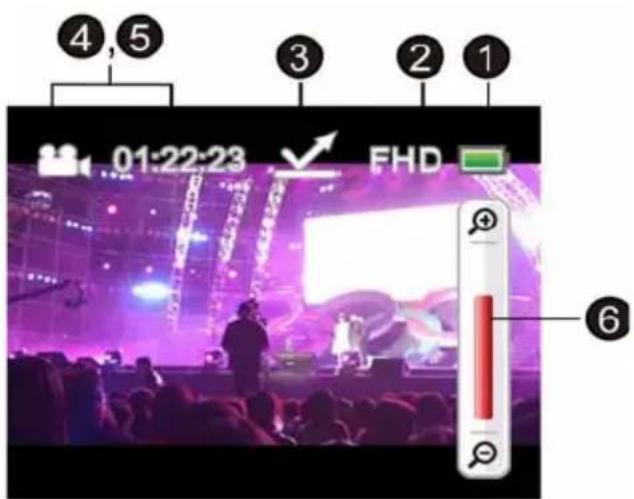
(Sample Image) LCD screen information
| 1 |  | Battery: full power |
 | Battery: medium power | |
 | Battery: low power | |
| 2 | VIDEO RESOLUTION | |
| FHD FULL HD 1080/30 | ||
| HD60 HD 720/60 | ||
| HD30 HD 720/30 | ||
| VGA VGA 480/30 | ||
| PHOTO RESOLUTION | ||
| 16MP High-16MP | ||
| 5MP Standard-5MP | ||
| 3MP Low-3MP | ||
| 3 |  | ANTI GLARE ON |
| 4,5 | 01:22:23 Video mode / Remaining recordable time | |
 15 15 | Photo mode / The number of photos that can still be taken at the current resolution | |
| 6 | [6023] | Zoom meter:1X~5X (5X Digital zoom) (Available for FULL HD 1080/30 video recording)1X~10X (10X Digital zoom) (Available for HD 720/60, HD 720/30, and VGA 480/30 video recording) |
Video recording
| Operation Display Screen | |
| 1 In Video mode, press the Record ( )∅( )button to start recording.2 When a video is being recorded, a time indicator will display on the LCD screen.3 To stop recording, press the Record ( )∅( )button again. | 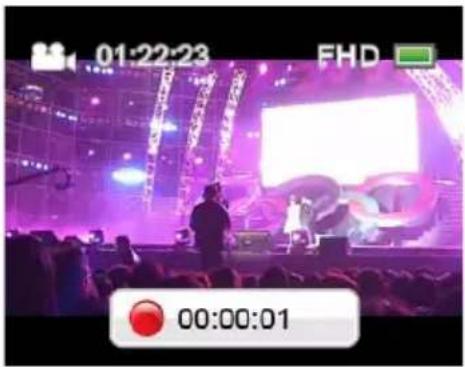 |
| 4 To pause recording, press the Right button. To continue recording, press it again. | 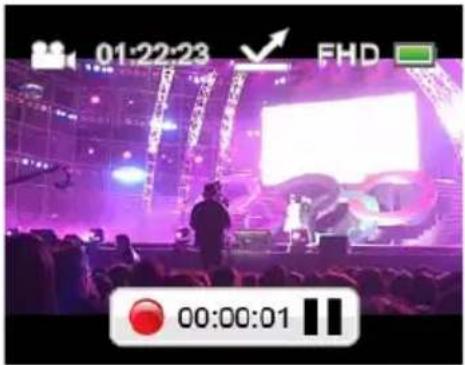 |
Taking photos
| Operation Display Screen | |
| 1 In Photo mode, press the Record ( )∅( ∅ button to take photo. | 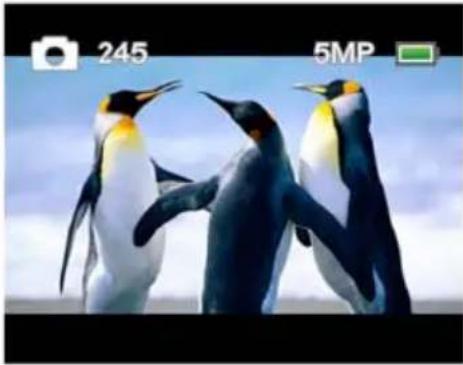 |
Using Anti-Glare Function
| Operation Display Screen | |
| 1Press the Right button in preview mode, the ANTI GLARE ( ) icon will appear on the screen.2Press again, the ANTI GLARE ( ) icon will disappear. | 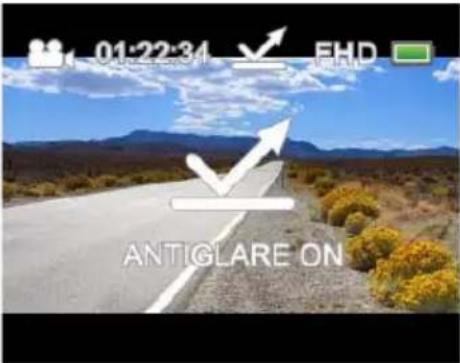 |
Using Digital Zoom
The digital zoom magnifies images when recording video or taking photos.
The digital zoom can be set to 1X\~5X (FULL HD 1080/30), or 1X\~10X (HD 720/60, HD 720/30, and VGA 480/30).
Options for Menu
Video Mode Menu
| Operation Display Screen | |
| 1 Press ( ) to switch to Video mode. | 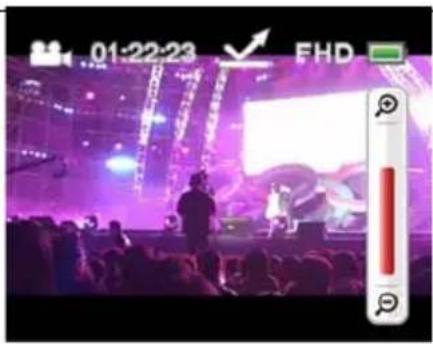 |
| 2 Press ( ) to access to the Video mode menu.3 Use the Right/Left button to select the desired option on the carousel, and then press the OK ( ) button to enter its menu.4 Or press ( ) to exit the Video mode menu. | 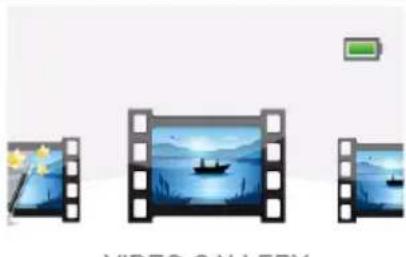 VIDEO GALLERY VIDEO GALLERY |
| VIDEO GALLERY | VIDEO SETUP SETTINGS | VOICE RECORDING | EFFECTS | |
 |  |  |  |  |
| (Video files carousel) | RESOLUTIONSTABILIZATIONMOTION DETECTIONFACE TRACKINGSLOW MOTIONPRE-RECORDTIME LAPSECONTINUOUS PLAY | SOUNDTV FORMATLANGUAGESDATE & TIMEFORMATRESTORE DEFAULT | START RECORDINGAUDIO GALLERY | SCENEFILTERWHITE BALANCE |
Please refer to Chapter 4 for the detailed information about VOICE RECORDING.
Please refer to Chapter 5 for the detailed information about VIDEO GALLERY.
Photo Mode Menu
| Operation Display Screen | |
| 1 Press ( ) to switch to Photo mode. | 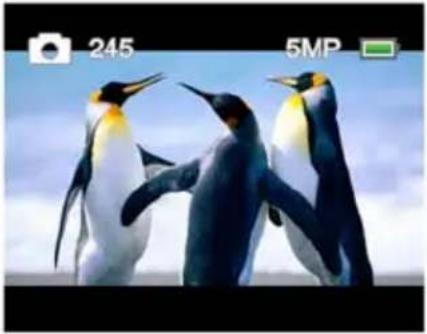 |
| 2 Press ( ) to access to the Photo mode menu.3 Use the Right/Left button to select the desired option on the carousel, and then press the OK ( ) button to enter its menu.4 Or press ( ) to exit the Photo mode menu. | 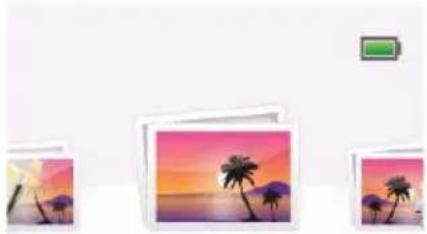 PHOTO GALLERY PHOTO GALLERY |
| PHOTO GALLERY | PHOTO SETUP SETTINGS | VOICE RECORDING | EFFECTS | |
 |  |  |  |  |
| (Photo files carousel) | • RESOLUTION• SELF-TIMER• SMILE DETECTION• DATE PRINTING• ISO• SLIDE SHOW | • SOUND• TV FORMAT• LANGUAGES• DATE & TIME• FORMAT• RESTORE DEFAULT | • START RECORDING• AUDIO GALLERY | • SCENE• FILTER• WHITE BALANCE |
Please refer to Chapter 4 for the detailed information about VOICE RECORDING.
Please refer to Chapter 5 for the detailed information about PHOTO GALLERY.
Video setup
| Operation Display Screen | |
| 1 In Video mode, Press ( ) to go to the video mode menu.2 Use the Right/Left button to select VIDEO SETUP on the carousel, and then press the OK button to enter its menu.3 The menu contains eight options: RESOLUTION, STABILIZATION, MOTION DETECTION, FACE TRACKING, SLOW MOTION, PRE-RECORD, TIME LAPSE, and CONTINUOUS PLAY, for you to adjust the camcorder settings.4 Use the Right/Left button to select the desired option on the carousel, and then press the OK ( ) button to enter its menu.5 Or press the Up button to highlight the Return ( ) icon, and then press the OK ( ) button to exit. | 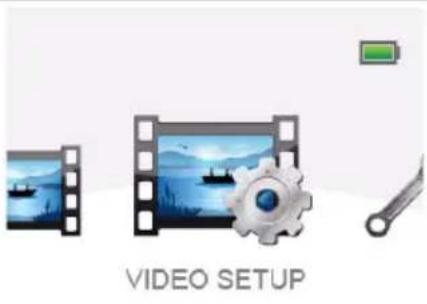 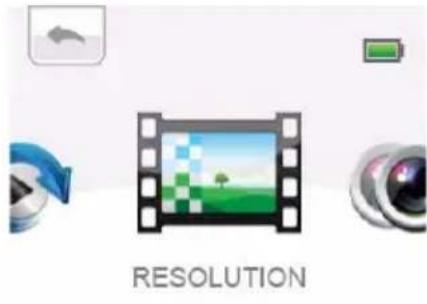 |
Resolution
Four resolution settings are available.
Full HD: 1080/30: Record videos at 1920x1080p 30 FPS (frames per second) resolution.
◆HD 720/60: Record videos at 1280x720p 60 FPS resolution.
◆HD 720/30: Record videos at 1280x720p 30 FPS resolution.
VGA 480/30: Record videos at 640x480p 30 FPS resolution.
| Operation Display Screen | |
| 1 In the Video Setting menu, select the RESOLUTION icon and then press the OK ( ) button to enter its setting menu.2 Use the Up/Down button to select the desired setting, and then press the OK ( ) button to validate the setting.3 Or press the Up button to highlight the Return ( ) icon, and then press the OK ( ) button to exit. | 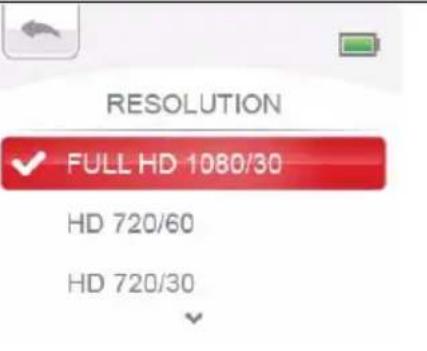 |
Stabilization
Record with an effect of reducing the camcorder shake to result in more stable video.
| Operation Display Screen | |
| 1 In the Video Setting menu, select the STABILIZATION icon and then press the OK ( ) button to enter its setting menu.2 Use the Up/Down button to select ON or OFF, and then press the OK ( ) button to validate the setting.3 Or press the Up button to highlight the Return ( ) icon, and then press the OK ( ) button to exit. | 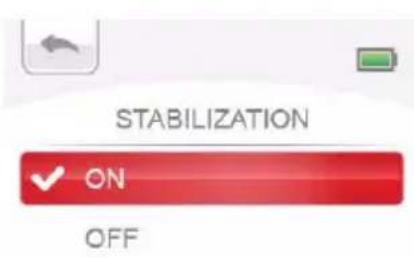 |
Motion detection
Record video automatically when the camcorder detects a movement.
| Operation Display Screen | |
| 1 In the Video Setting menu, select the MOTION DETECTION icon and then press the OK ( ◎ button to enter its setting menu.2 Use the Up/Down button to select ON or OFF, and then press the OK ( ◎ button to validate the setting.3 Or press the Up button to highlight the Return ( ) icon, and then press the OK ( ◎ button to exit.4 The camcorder will start to record video automatically if it detects a movement, and will stop recording when it no longer detects movement. | 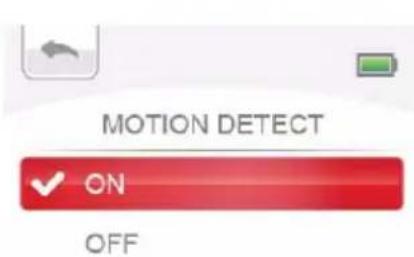 |
Face tracking
The camcorder can detect human face(s) and focus on the face(s) automatically (up to six faces). Use this function for capturing portraits in backlight scenes.
| Operation Display Screen | |
| 1 In the Video Setting menu, select the FACE TRACKING icon and then press the OK (button to enter its setting menu.2 Use the Up/Down button to select ON or OFF, and then press the OK (button to validate the setting.3 Or press the Up button to highlight the Return (icon, and then press the OK (button to exit. | 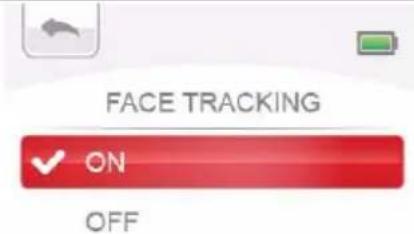 |
| 4 In Record mode, aim the camcorder at the face(s). The face frame(s) will appear around the face. | 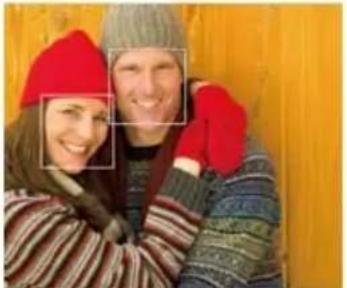 |
Slow motion
Record video with slow motion effect. When the video is played, the playback time will be longer than the actual recording time. Some occasions you can use this effect, such as the skill demonstration of athletic activities of all kinds, or a key moment in an athletic game.
| Operation Display Screen | |
| 1 In the Video Setting menu, select the SLOW MOTION icon and then press the OK (○button to enter its setting menu.2 Use the Up/Down button to select ON or OFF, and then press the OK (○button to validate the setting.3 Or press the Up button to highlight the Return ( )icon, and then press the OK (○button to exit. | 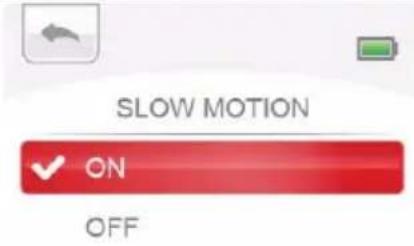 |
Pre-record
The Pre-record function ensures that you will not miss any critical recording opportunities. The videos are recorded few seconds more before the Record button is pressed.
| Operation Display Screen | |
| 1 In the Video Setting menu, select the Pre-record icon and then press the OK ( ) button to enter its setting menu.2 Use the Up/Down button to select ON or OFF, and then press the OK ( ) button to validate the setting.3 Or press the Up button to highlight the Return ( ) icon, and then press the OK ( ) button to exit. | 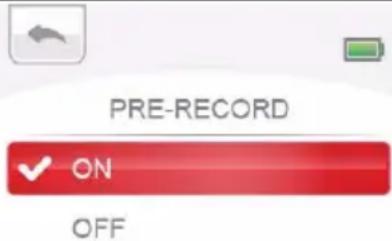 |
NOTE
- Be sure to aim the camcorder at the subject and position it securely before the Record button is pressed.
Once the Pre-record function is activated, it will be disabled when you set up any other setting.
Time lapse
Record still images at specific intervals you can set, and play them as one video file. This effect is good for recording cloudscapes, seeds germinating, and flowers opening.
OFF: Disable Time Lapse.
◆1 SECOND: Record one frame per second.
◆3 SECONDS: Record one frame every 3 seconds.
◆5 SECONDS: Record one frame every 5 seconds.
| Operation Display Screen | |
| 1 In the Video Setting menu, select the TIME LAPSE icon and then press the OK ( ⏻ button to enter its setting menu.2 Use the Up/Down button to select the desired setting, and then press the OK ( ⏻ button to validate the setting.3 Or press the Up button to highlight the Return ( )icon, and then press the OK ( ⏻ button to exit. | 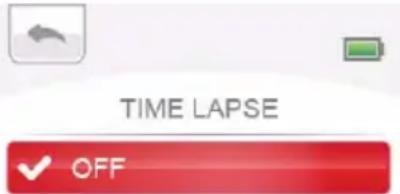 1 SECOND3 SECONDS 1 SECOND3 SECONDS |
NOTE
Motion Detect, Time Lapse, and Slow Motion functions cannot be used simultaneously.
Continuous play
Playback the video files continuously.
| Operation Display Screen | |
| 1 In the Video Setting menu, select the Continuous Play icon and then press the OK ( ) button to enter its setting menu.2 Use the Up/Down button to select ON or OFF, and then press the OK ( ) button to validate the setting.3 Or press the Up button to highlight the Return ( ) icon, and then press the OK ( ) button to exit. | 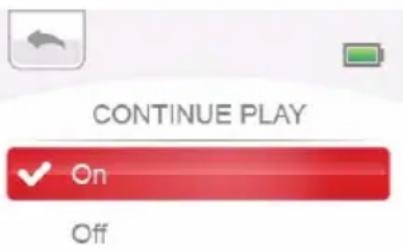 |
Photo setup
| Operation Display Screen | |
| 1 In Photo mode, Press ( ) to go to the photo mode menu.2 Use the Right/Left button to select PHOTO SETUP on the carousel, and then press the OK ( ) button to enter its menu.3 The menu contains six options: RESOLUTION, SELF-TIMER, SMILE DETECTION, DATE PRINTING, ISO, and SLIDE SHOW, for you to adjust the camcorder settings.4 Use the Right/Left button to select the desired option on the carousel, and then press the OK ( ) button to enter its menu.5 Or press the Up button to highlight the Return ( ) icon, and then press the OK ( ) button to exit. | 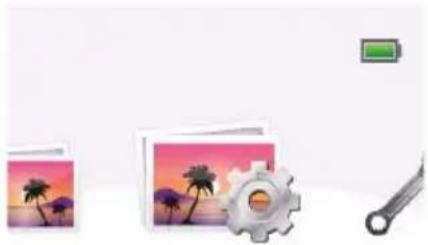 PHOTO SETUP PHOTO SETUP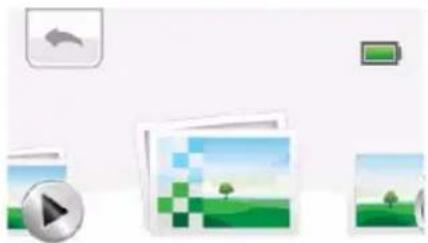 RESOLUTION RESOLUTION |
Resolution
Three resolution settings are available.
◆16MP: Takes photos at 4608 x 3456, 16 megapixel resolution (interpolated).
◆5MP: Takes photos at 2592 x 1944, 5 megapixel quality.
3MP: Takes photos at 2048 x 1536, 3 megapixel quality.
| Operation Display Screen | |
| 1 In the Photo Setting menu, select the RESOLUTION icon and then press the OK (button to enter its setting menu.2 Use the Up/Down button to select the desired setting, and then press the OK (button to validate the setting.3 Or press the Up button to highlight the Return (icon, and then press the OK (button to exit. |  RESOLUTION RESOLUTION STANDARD - 8MPLOW - 3MP STANDARD - 8MPLOW - 3MP |
Self-timer
The self-timer allows you to take photos with a ten-second time delay.
| Operation Display Screen | |
| 1 In the Photo Setting menu, select the SELF-TIMER icon and then press the OK ( Ⓤbutton to enter its setting menu.2 Use the Up/Down button to select ON or OFF, and then press the OK ( Ⓤbutton to validate the setting.3 Or press the Up button to highlight the Return ( )icon, and then press the OK ( Ⓤbutton to exit. | 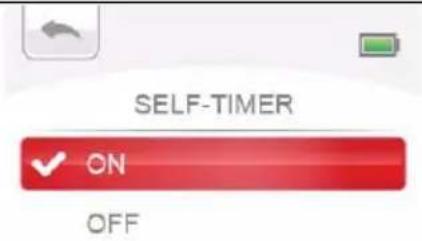 |
Smile detection
The camcorder captures the photo automatically when it detects a smile.
| Operation Display Screen | |
| 1 In the Photo Setting menu, select the SMILE DETECTION icon and then press the OK ( ◎ button to enter its setting menu.2 Use the Up/Down button to select ON or OFF, and then press the OK ( ◎ button to validate the setting.3 Or press the Up button to highlight the Return ( ) icon, and then press the OK ( ◎ button to exit. | 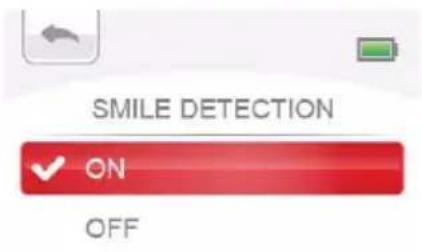 |
| 4 In Record mode, aim the camcorder at the smiling faces. The face frames will appear around the face with smile. The camcorder will focus on the subject, then it will capture the photo automatically. |  |
Date printing
Imprint the date and time on the photo.
| Operation Display Screen | |
| 1 In the Photo Setting menu, select the DATE PRINTING icon and then press the OK ( ⭕ button to enter its setting menu.2 Use the Up/Down button to select ON or OFF, and then press the OK ( ⭕ button to validate the setting.3 Or press the Up button to highlight the Return ( ⭕ icon, and then press the OK ( ⭕ button to exit.4 As the function is activated, the date will appear on the corner of the photo. | 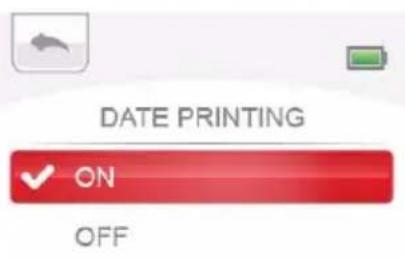 |
ISO
The camcorder adjusts the ISO sensitivity of the images automatically. A manual ISO sensitivity setting of 800 is also available. Manually select ISO 800 to shoot an image in lower light settings.
AUTO: Set the ISO sensitivity automatically.
800: ISO 800
| Operation Display Screen | |
| 1 In the Photo Setting menu, select the ISO icon and then press the OK ( ) button to enter its setting menu.2 Use the Up/Down button to select the desired setting, and then press the OK ( ) button to validate the setting.3 Or press the Up button to highlight the Return ( ) icon, and then press the OK ( ) button to exit. | 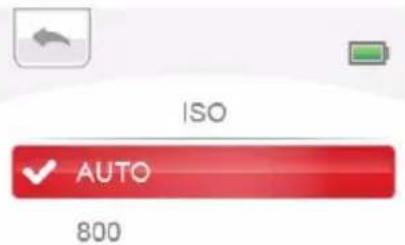 |
Slide show
Display photos one after another in turn.
◆2 SECONDS: Display one photo every 2 seconds
◆5 SECONDS: Display one photo every 5 seconds
◆ 10 SECONDS: Display one photo every 10 seconds
OFF: Disable Slideshow
| Operation Display Screen | |
| 1 In the Photo Setting menu, select the Slide show icon and then press the OK ( ) button to enter its setting menu.2 Use the Up/Down button to select the desired setting, and then press the OK ( ) button to validate the setting.3 Or press the Up button to highlight the Return ( ) icon, and then press the OK ( ) button to exit. |   5 SECONDS10 SECONDS 5 SECONDS10 SECONDS |
Settings
| Operation Display Screen | |
| 1 Press the Menu ( ) button to go to the video/photo mode menu.2 Use the Right/Left button to select SETTINGS on the carousel, and then press the OK ( ) button to enter its menu.3 The SETTINGS menu contains six options for configuring your camcorder setup: SOUND (operation sound), TV FORMAT, LANGUAGES, DATE & TIME, FORMAT, and RESTORE DEFAULT.4 Use the Right/Left button to select the desired option on the carousel, and then press the OK ( ) button to enter its menu.5 Or press the Up button to highlight the Return ( ) icon, and then press the OK ( ) button to exit. |  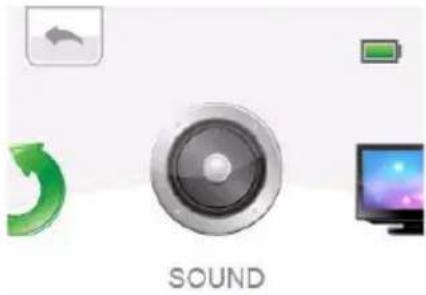 |
Sound
Enable or disable the keypad tone and the operation sound.
| Operation Display Screen | |
| 1 In the Settings menu, select the SOUND icon and then press the OK ( ◎ button to enter its setting menu.2 Use the Up/Down button to select ON or OFF, and then press the OK ( ◎ button to validate the setting.3 Or press the Up button to highlight the Return ( ) icon, and then press the OK ( ◎ button to exit. | 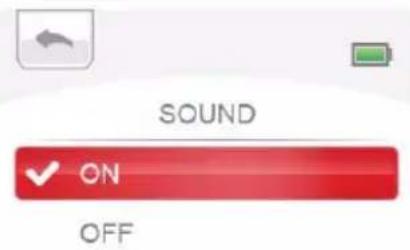 |
TV format
Ensure that the appropriate TV standard of your area is selected – either NTSC or PAL Selecting the incorrect TV format setting may cause image flickering.
NTSC (60Hz): USA, Canada, Japan, South Korea, Taiwan, etc.
◆PAL (50Hz): UK, Europe, China, Australia, Singapore, Hong Kong, etc.
| Operation Display Screen | |
| 1 In the Settings menu, select the TV icon and then press the OK (button to enter its setting menu.2 Use the Up/Down button to select the desired setting, and then press the OK (button to validate the setting.3 Or press the Up button to highlight the Return (icon, and then press the OK (button to exit. | 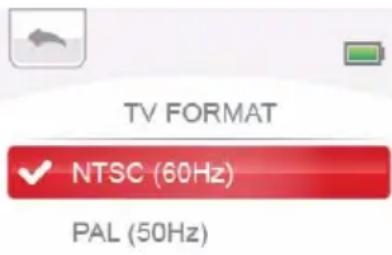 |
Language
Use this option to select the language of the user interface.
| Operation Display Screen | |
| 1 In the Settings menu, select the LANGUAGE icon and then press the OK (button to enter its setting menu.2 Use the Up/Down button to select the desired setting, and then press the OK (button to validate the setting.3 Or press the Up button to highlight the Return (icon, and then press the OK (button to exit. | 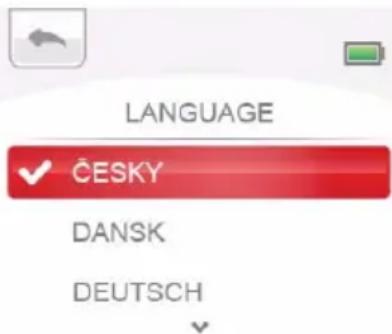 |
Time
The date and time can be imprinted on the photo (Refer to DATE PRINTING for the setting.) Before using the camcorder, be sure to set the correct date and time.
| Operation Display Screen | |
| 1 In the Settings menu, select the TIME icon and then press the OK ( ) button.2 Select Change settings and then press the OK ( ) button to enter time setting menu.3 Use the Up/Down button to move between the lines of Day, Month, Year, Hour and Minute.4 Use the Right/Left button to adjust the numeric value.5 Press the Up button to highlight the Return ( ) icon, and then press the OK ( ) ○ button to exit. | 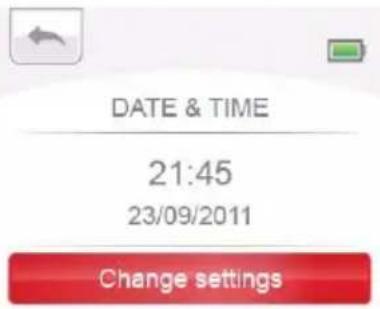  Day 23 Day 23 |
Format
Use this option to delete all files in the camcorder's built-in memory, or on the optionally-installed memory card.
- Yes: All files in the built-in memory will be deleted, or all files on the memory card will be deleted.
No: No files will be deleted from either the built-in memory, or from the memory card.
| Operation Display Screen | |
| 1 In the Settings menu, select the FORMAT icon and then press the OK ( ) button to enter its setting menu.2 Use the Up/Down button to select YES or NO, and then press the OK ( ) button to validate the setting.3 Or press the Up button to highlight the Return ( ) icon, and then press the OK ( ) button to exit. | 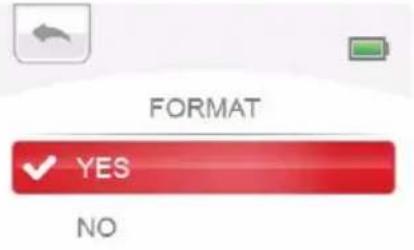 |
NOTE
All the data will be erased if the memory card is formatted. Make sure that all files are copied to your computer before formatting the card.
Restore default
Use this option to restore the default factory setting.
◆ YES: Restore the default factory setting.
NO: Do not restore the default factory setting.
| Operation Display Screen | |
| 1 In the Settings menu, select the RESTORE DEFAULT icon and then press the OK ( Ⓤ button to enter its setting menu.2 Use the Up/Down button to select YES or NO, and then press the OK ( Ⓤ button to validate the setting.3 Or press the Up button to highlight the Return ( ) icon, and then press the OK ( Ⓤ button to exit. | 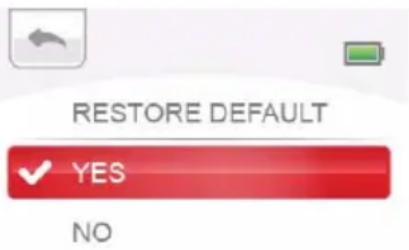 |
The following table indicates the camcorder's default factory settings.
| SETTING | DEFAULT FACTORY SETTING |
| RESOLUTION | Video: Full HD 1080p/30Photo: STANDARD-5M |
| STABILIZATION On | |
| MOTION DETECTION Off | |
| FACE TRACKING Off | |
| SLOW MOTION Off | |
| PRE-RECORD Off | |
| TIME LAPSE Off | |
| CONTINUOUS PLAY Off | |
| SELF-TIMER Off | |
| SMILE DETECTION | Off |
| DATE PRINTING | Off |
| ISO | Auto |
| SLIDESHOW | Off |
| SCENE | Auto |
| FILTER | Auto |
| WHITE BALANCE Auto | |
| SOUND On | |
| TV Depends on shipping area | |
| LANGUAGE Depends on shipping area | |
| VOLUME Level 3 |
NOTE
Please refer to chapter 4 for voice recording instructions.
Effects
| Operation Display Screen | |
| 1 Press ( ) to go to the video/photo mode menu.2 Use the Right/Left button to select EFFECTS on the carousel, and then press the OK ( ) button to enter its menu.3 The menu contains three options: SCENE, FILTER, and WHITE BALANCE, for you to adjust the camcorder settings.4 Use the Right/Left button to select the desired option on the carousel, and then press the OK ( ) button to enter its menu.5 Or press the Up button to highlight the Return ( ) icon, and then press the OK ( ) button to exit. |  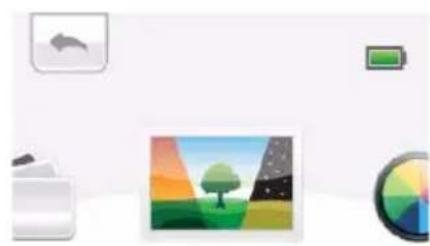 SCENE SCENE |
Scene
You can select the mode according to the scene condition.
AUTO: Automatic adjustment.
✿ SKIN: Shoot with an effect that makes skin tones more natural.
NIGHT: Use Night mode for night scenes or low light conditions.
✿ BACKLIGHT: You can take shots when the bright light is behind the subject.
| Operation Display Screen | |
| 1 In the effects menu, select the SCENE icon and then press the OK ( ) button to enter its setting menu.2 Use the Up/Down button to select the desired setting, and then press the OK ( ) button to validate the setting.3 Or press the Up button to highlight the Return ( ) icon, and then press the OK ( ) button to exit. | 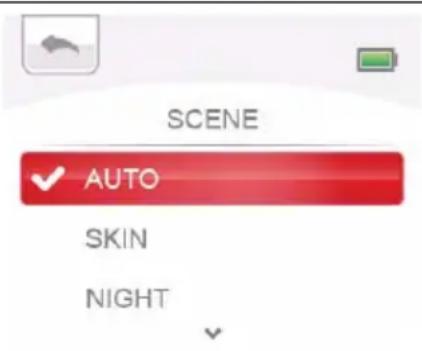 |
NOTE
To avoid blurry photos, place the camcorder on a flat, steady surface, or use a tripod when taking shots in the NIGHT mode.
Filter
You can select the special filter effects on the videos or photos.
◆ AUTO: Shoot without any special effect on the image.
BLACK & WHITE: The image is converted to black and white.
CLASSIC: The image is converted to a sepia look.
NEGATIVE: The image is converted as the negative of the normal.
| Operation Display Screen | |
| 1 In the effects menu, select the FILTER icon and then press the OK (button to enter its setting menu.2 Use the Up/Down button to select the desired setting, and then press the OK (button to validate the setting.3 Or press the Up button to highlight the Return (icon, and then press the OK (button to exit. | 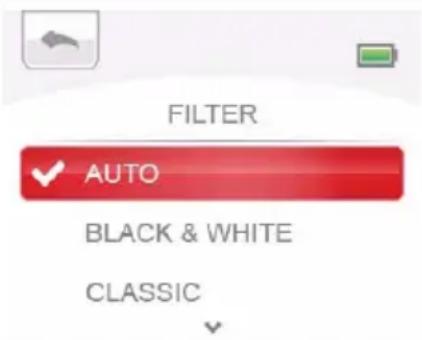 |
White balance
The camcorder adjusts the color balance of images automatically. Three manual white balance settings are available:
AUTO: The camcorder automatically adjusts white balance.
◆DAYLIGHT: Under outdoor condition.
FLUORESCENT: Under fluorescent light condition.
◆TUNGSTEN: Under tungsten light condition.
| Operation Display Screen | |
| 1 In the effects menu, select the WHITE BALANCE icon and then press the OK ( ) button to enter its setting menu.2 Use the Up/Down button to select the desired setting, and then press the OK ( ) button to validate the setting.3 Or press the Up button to highlight the Return ( ) icon, and then press the OK ( ) button to exit. | 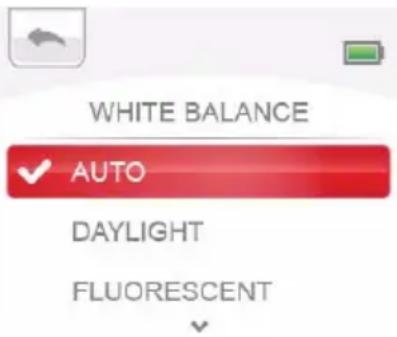 |
Chapter 4
Voice Recording
Voice recording
The camcorder can be a voice recorder to record WAV audio files.
| Operation Display Screen | |
| 1Press to the Menu button ( ) to go to the video/photo mode menu.2Use the Right/Left button to select VOICE RECORDING on the carousel, and then press the OK ( ) button to enter its menu. |  VOICE RECORDING VOICE RECORDING |
| 3 Select START RECORDING and then press the OK ( ◊button to start voice recording. To stop recording, press it again.4 While recording audio, press the Right button to pause the recording. Press again to resume recording.5 5. Or press the Up button to highlight the Return icon ( ), and then press the OK ( ◊button to exit. | 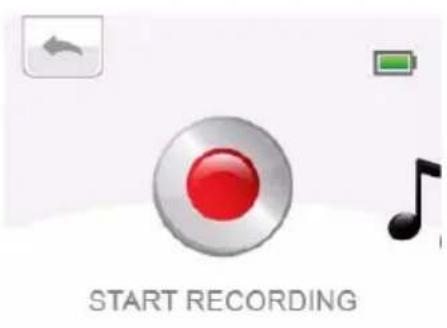 |
 | |
 |
Audio Playback
You can check/delete the recorded audio files through AUDIO GALLERY.
| Operation Display Screen | |
| 1 In voice recording menu, use the Right/Left button to select AUDIO GALLERY, and then press the OK (button to go to the audio thumbnail.2 Use the Right/Left button to select the audio file you want to play, and then press the OK (button to playback it.3 When playing audio, press the Up button to increase volume, or press the Down button to decrease volume. |  AUDIO GALLERY AUDIO GALLERY  |
Delete Audio File
| Operation Display Screen | |
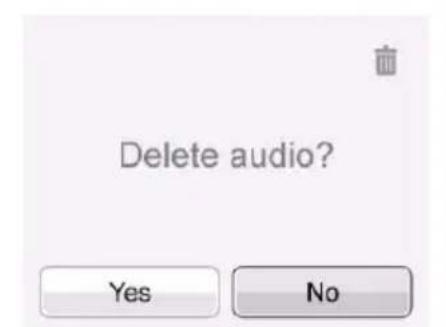
| 1 Press the Up button to go to the information screen.2 Press the Down button to highlight the Delete icon ( )to go to the delete screen.3 Select Yes to delete it. Select No to cancel and exit. | 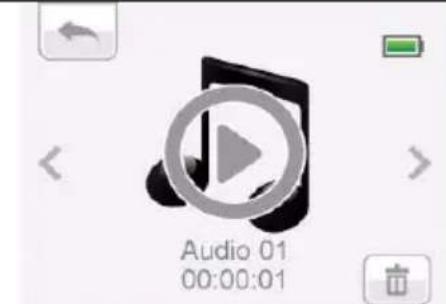 |
 |
Chapter 5
Playback Mode
Button functions
The buttons have the following functions in Playback Mode.
 | Camera mode button:1 Press to toggle Video mode or Photo mode. |
 | Menu button:1 Menu ON.2 Exit menu/playback mode. |
 | Up button:1 In Playback Mode, go to the information screen.2 When playing video/audio, press to increase volume.Down button:1 When playing video, press to decrease volume.Left button:1 Go to the previous video/photo/audio.Right button:1 Go to the next video/photo/audio.Record/OK button:1 Press to play/pause the video/audio. |
 | Power button:1 Press down for one second to turn on or turn off the camcorder. |
LCD screen information
Indicators on the LCD screen while in Playback Mode:
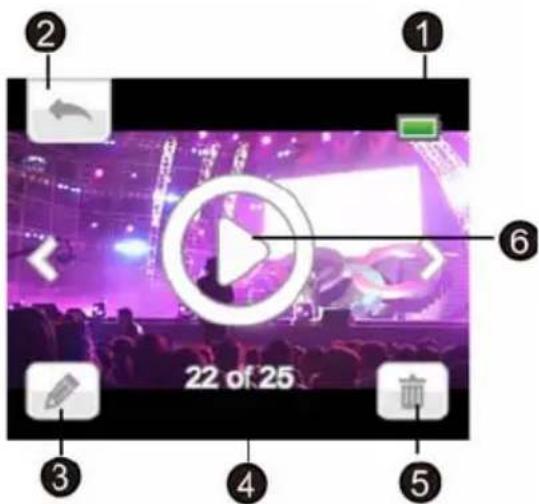
(Sample Image) LCD screen information.
| 1 |  | Battery: full power |
 | Battery: medium power | |
 | Battery: low power | |
| 2 |  | Return |
| 3 | Video Mode | |
 | Video trimming | |
| Photo Mode | ||
 | Slideshow | |
| 4 | 22  | Number of current video or photo/Total number of videos or photos |
| 5 |  | Delete |
| 6 |  | Press the Record/OK button to switch to thumbnail screen |
Operations for Playback mode
| Operation Display Screen | |
| 1 In Video/Photo mode, press the Left button to switch to the Video Playback mode.2 Or select VIDEO GALLERY/PHOTO GALLERY in the Video/Photo mode menu. | 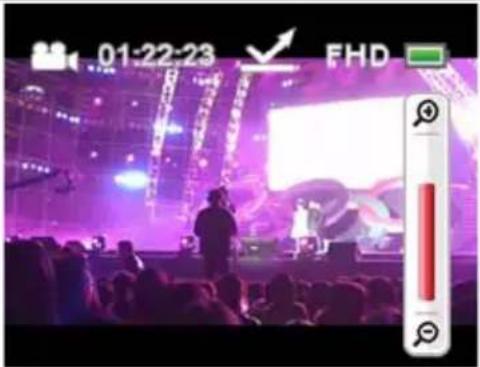 |
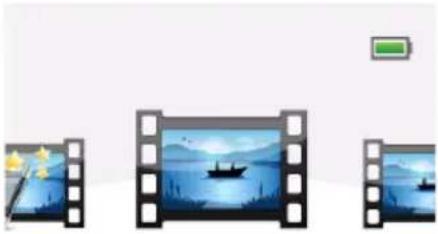 VIDEO GALLERY VIDEO GALLERY | |
| 3 Use the Right/Left button to go to the next/previous video/photo. | 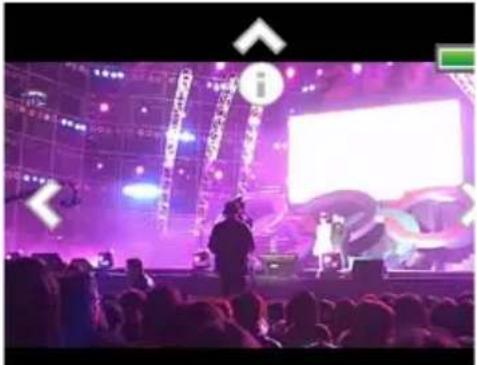 |
| 4 Press the Up button to go to the video/photo information screen of videos and photos. | 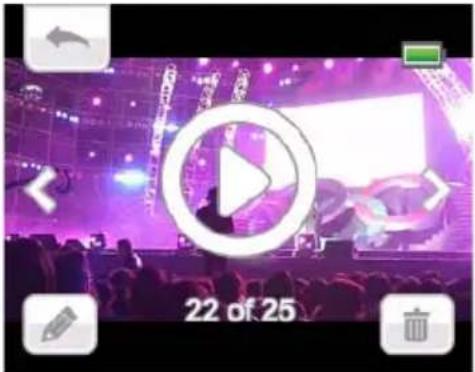 |
Video Playback
| Operation Display Screen | |
| 1 In the Video Playback Mode, press the OK ( ◎ button to play or pause the video.2 While playing video, press the Right/Left button to fast forward/rewind.3 Use the Up/Down button to adjust the volume. | 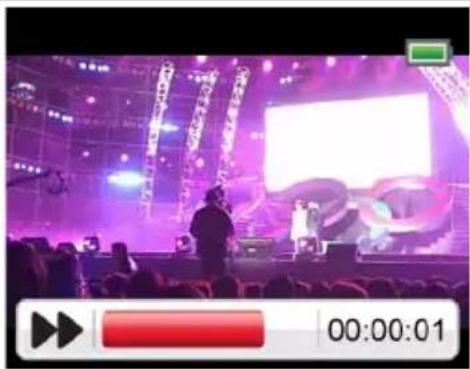 |
Video Trim
You can trim away the beginnings and ends of the recorded video and save it as a new video clip.
| Operation Display Screen | |
| 1 In the information screen, use the Down button to highlight the edit icon ( ) and then press the OK ( ) button to start to trim the video file. | 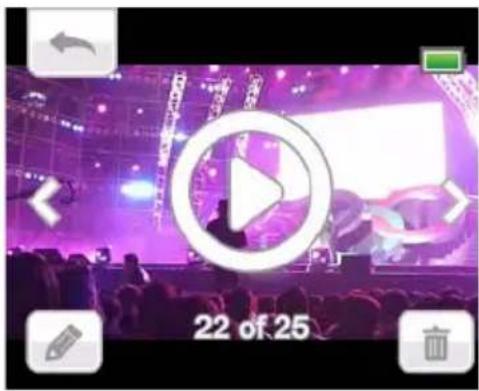 |
| 2Press the Left/Right buttons to move the left dividing icon (on the bar to specify the beginning. Press the OK (button to confirm the position and switch to the right dividing icon (the arrow becomes red) to specify the end.3Press the Down button to highlight the preview icon (and then press the OK (button to watch the edited video preview.4Press the Down button and then press the Right button to highlight the save icon (Press the OK ( ) button to trim away the white portion and save the red portion.5In confirmation screen, you can select Overwrite or As New to save the edited video.6Or press the Up button to highlight the Return (icon, and then press the OK (button to exit. | 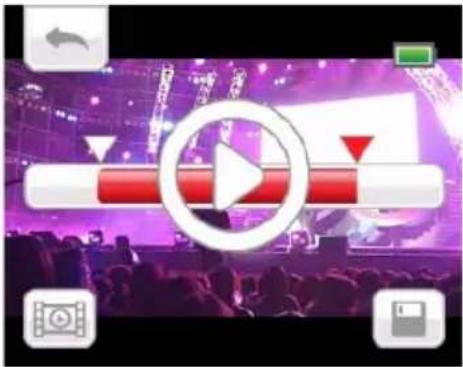  Save Video?Overwrite As New Save Video?Overwrite As New |
Photo Playback
| Operation Display Screen | |
| 1 In the Photo Playback Mode, use the Right/Left button to go to the next/ previous photo.2 In the information screen, use the Down button to highlight the slide show icon ( ) and then press the OK ( ) button to start the slideshow. |  |
Delete File in Playback Mode
| Operation Display Screen | |
| 1 In the information screen, use the Down button and then the Right button to highlight the delete icon ( ) and then press the OK ( ) button to go to the confirmation screen.2 Select Yes and then press the OK ( ) button to delete the current file.3 Select No and then press the OK ( ) button to cancel and exit. | 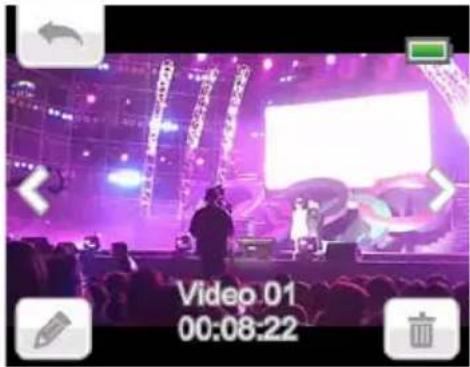 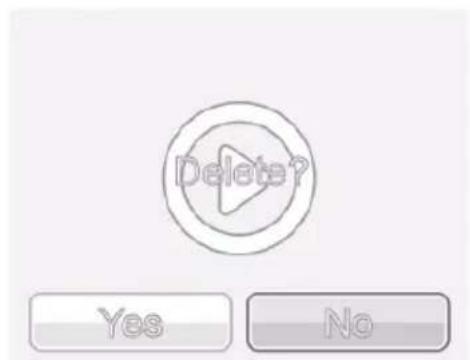 |
Viewing Files on the computer
Installing bundled software
The CD-ROM supplied with this camcorder contains two pieces of software.
- CAMILEO® Uploader is an application that offers you an easy way to upload your files to social media web sites instantly.
- ArcSoft MediaImpression® is a user-friendly application that helps you managing your media, and uploading your files to the web sites easily.
Adobe® Reader® is a popular program that you need to have installed to read the User's Manual. Many computer users will find they already have this software installed on their computer.
To install the bundled software:
1 Insert the CD-ROM into your computer's optical disc drive. The autorun screen appears.
2 Click “Install Application Software”. Follow the onscreen instructions to complete the installation.
NOTE
Detailed information can be found in the online help of all the bundled software. Install the bundled software application, ArcSoft MedialImpression, for viewing the videos correctly on a computer.
Transferring files to a computer
You can transfer videos/photos/audios stored on your camera to a computer and send them in emails to friends or post them on the web sites.
To do this you should:
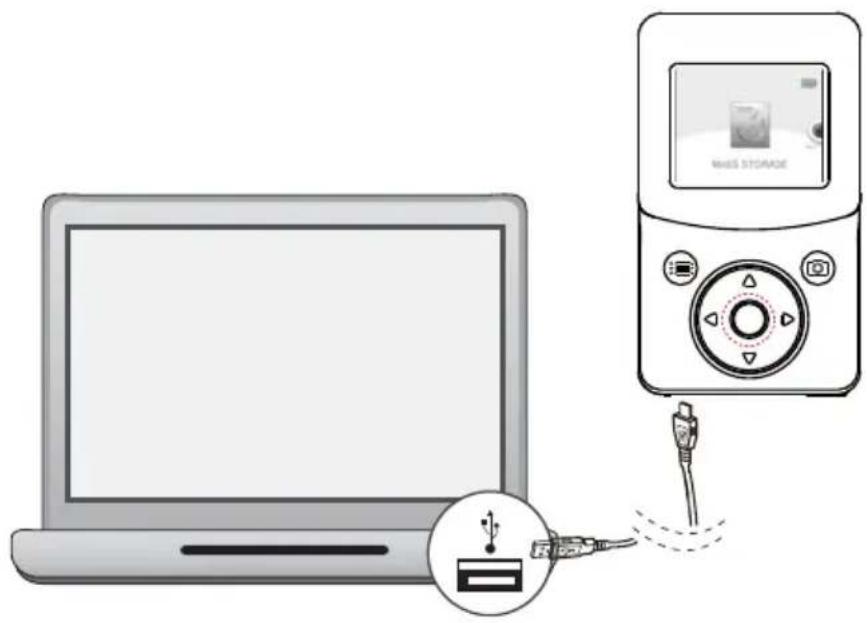
1 Connect the computer and camera with the supplied mini USB 2.0 cable.
2 Select MASS STORAGE on the camcorder screen.
3 To access files on your Micro SD card: Video, photo, and audio files can be found on your computer at My Computer\SD\DCIM\100MEDIA (path will vary depending on name of the card).
4 To access files in the camcorder's internal memory: Video, photo, and audio files can be found on your computer at My Computer\DV\DCIM\100MEDIA
5 Under this folder, you can view, delete, move, and copy your videos, photos, and audio files.
Chapter 7
Uploading Files to the Internet
The built-in CAMILEO® Uploader application offers you an easy way to upload your files to social media web sites instantly. It helps you share them with your family and friends on the web sites.
CAMILEO® Uploader
To upload files to the Internet:
1 Connect the camcorder to your computer by using the supplied USB cable.
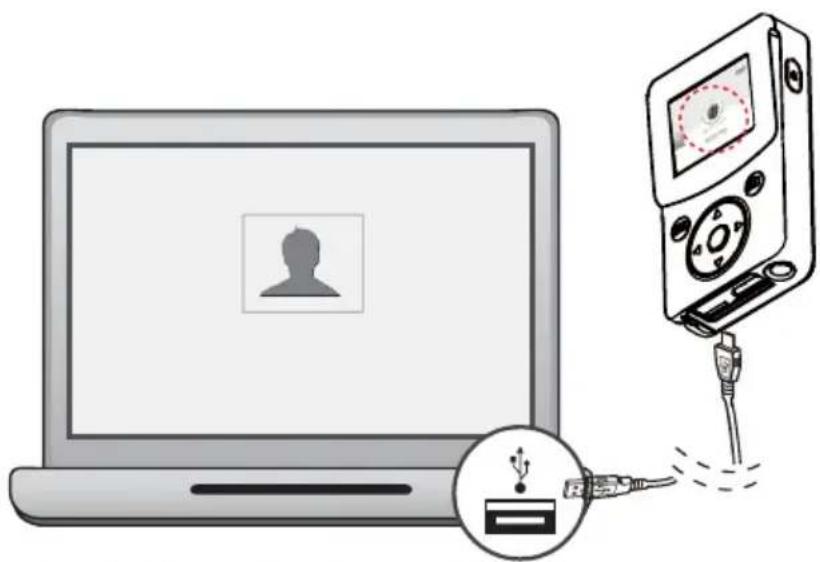
(Sample Illustration) Connecting the camcorder to a computer
2 After making a USB connection, the AutoPlay window will appear. (It may be different based on OS recognition. If the AutoPlay window does not appear. Please click My Computer / DVAP / DVAP.exe to execute the application.)
3 The main screen appears automatically on the desktop.
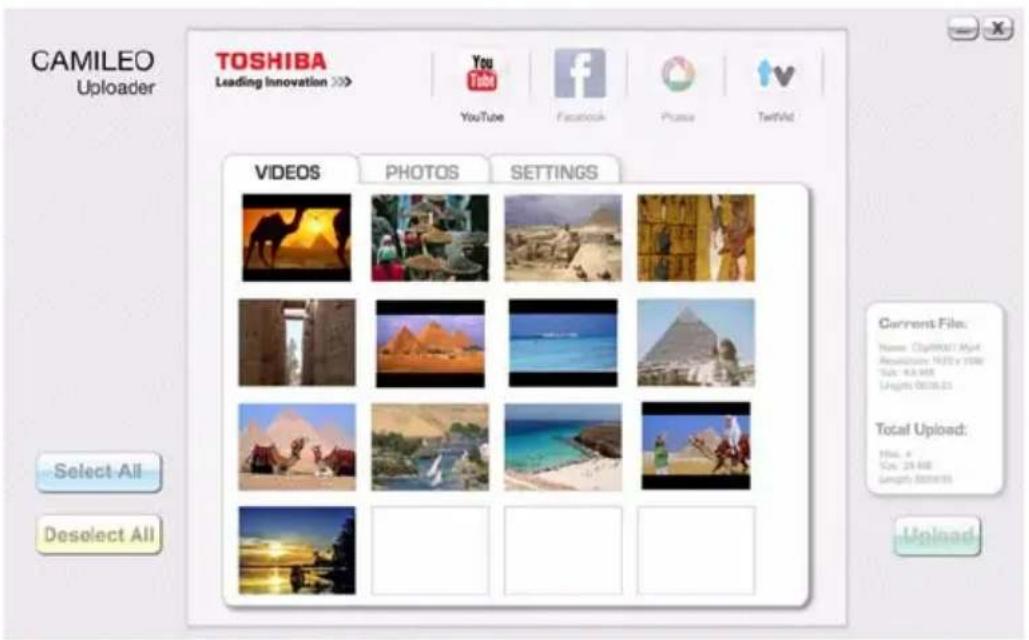
(Sample Image) CAMILEO ^® Uploader main screen
NOTE
If ArcSoft MedialImpression is not installed, you may be asked to install the H.264 codec (ffdshow, free under GPL license) for correctly viewing the videos on CAMILEO Uploader.
4 Choose the web site you wish to upload to.
5 Click on VIDEOS/PHOTOS to go to the videos / photos thumbnail page. Scroll the bar to change the pages.
6 Click on the files you want to upload. Click on Select All/Deselect All to select/deselect all video or photo files shown on the current page.
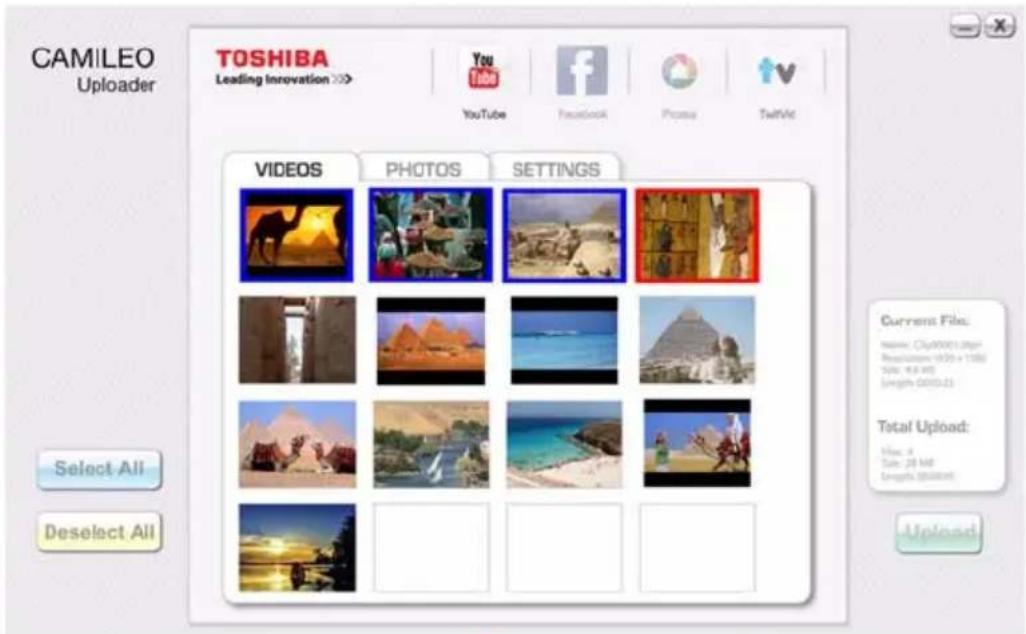
(Sample Image) CAMILEO ^® Uploader main screen
7 Click on Upload to start uploading.
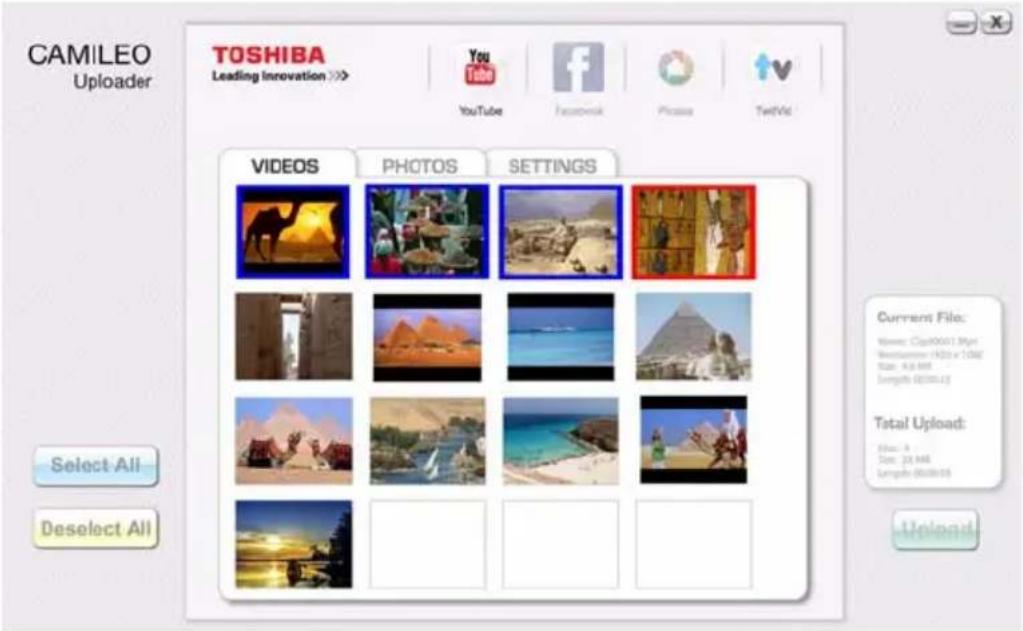
(Sample Image) CAMILEO® Uploader screen - Upload videos/photos.
Set up account information for the web site
1 Choose the web site.
2 Click on SETTINGS to go to the setup page.
3 Fill in your account information in the blanks. Then click on "Save".
4 You can check Remember Password to save your account information and password in this CAMILEO Uploader application. (If it is unchecked, the password request will appear after clicking on UPLOAD on the thumbnail page.)
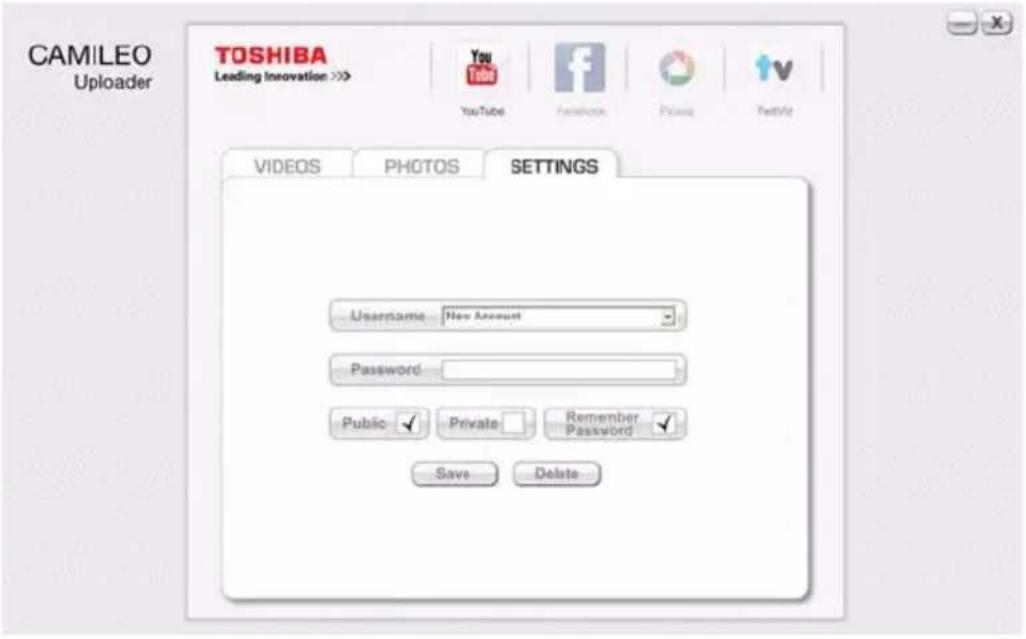
(Sample Image) CAMILEO® Uploader screen - Sign up for new account
NOTE
Some social web sites may not be accessible in certain regions. You must have Internet access to upload files to the web site.
Chapter 8
Webcam Mode
Webcam Mode
1 Connect the computer and camcorder with the supplied mini USB 2.0 cable.
2 Select WEBCAM on the camcorder.
3 In this mode, you can implement live video conference meetings and multimedia communications.
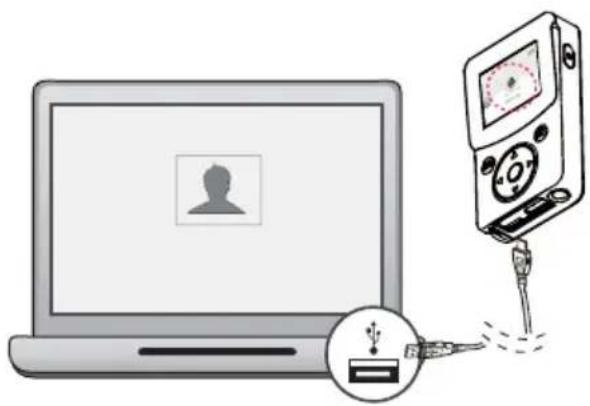
(Sample Illustration) Connecting the camcorder to a computer
Troubleshooting
| The files on the memory card do not display smoothly when the LCD shows the “!” marking | The “!” symbol means the SD card is too low of a speed or contains corrupted files. Solve this condition by formatting the SD card in the camcorder instead of with a computer (refer to the detailed format instruction in Chapter 3). Or change the SD/SDHC/SDXC card to a high speed one. |
| Why do some of my indoor photos look blurry and dark? | The camcorder extends photo exposure time under low light/ indoor condition. Keep the camcorder (and the target subject) steady for several seconds when taking photos. The shutter will sound when photos are being taken. |
| After connecting the USB cable to the computer... | 1. The disk “DV” indicates the internal memory of the camcorder.2. “Removable Disk” indicates the external memory (if the SD card is inserted in the camcorder).3. The disk “DVAP” indicates that the built-in CAMILEO UPLOADER application is saved to this disk. |
| The camcorder is not responsive. | Press the reset button, then press the Power button twice. |
CAUTION
Please DO NOT format this disk or delete the application inside; otherwise, the CAMILEO Uploader application may not function.
Chapter 10
Other Information
Toshiba Support
If you require help or are having problems operating your product, you may need to contact Toshiba for additional technical assistance.
Before you call
Since some problems may be related to software, it is important that you investigate other sources of assistance first. Try the following before contacting Toshiba:
◆ Review the documentation supplied with your product.
If a problem occurs when you are running software applications, consult the software documentation for troubleshooting suggestions. Contact the software company's technical support department for assistance.
Consult the reseller or dealer from whom you purchased your product. They are your best resource for current information and support.
Contacting Toshiba
Toshiba's technical support web site
For technical support, or to stay current on the most recent software and hardware options for your CAMILEO® product and for other product information, be sure to regularly check the Toshiba web site at support.toshiba.com.
Toshiba voice contact
For technical support, call the Toshiba Customer Support Center:
Within the United States at (888) 592-0944
Outside the United States at (949) 583-3305
Warranty
Online Warranty Information
This product is covered by a One (1) Year Standard Limited Warranty.
A copy of the warranty is included on the enclosed CD, and can be viewed online at http://pcsupport.toshiba.com/accessories1yr.
Warranty Service
Customers located in the fifty (50) United States and District of Columbia may obtain warranty service by visiting the Toshiba Acclaim Web site at www.acclaim.toshiba.com or by contacting the telephone support center at 888-592-0944.
Customers located outside the fifty (50) United States and District of Columbia may obtain warranty service by contacting the telephone support center at 949-583-3305.
TOSHIBA
Leading Innovation >>>
natural_image
Illustration of a digital camera with a screen and a hand holding a cloth, showing motion and cleaning (no text or symbols)natural_image
Illustration of a laptop connected to a CD player via a device, showing signal flow (no text or symbols)natural_image
Line drawing of a portable electronic device with control panel and card slot (no text or symbols)NOTA
natural_image
Play button interface with red play button and white circular play symbol on stage (no text or symbols)

Save Video?
Overwrite
As New
Capítulo 7
natural_image
Illustration of a laptop connected to a handheld electronic device with a USB symbol (no text or labels)

- Leading Innovation >>>
- CAMILEO® CLIP User's Guide
- Regulatory Information
- FCC Information
- FCC notice “Declaration of Conformity Information”
- ▲WARNING
- FCC Conditions
- Contact
- Safety Instructions
- Safety icons
- Additional Information
- About the built-in battery
- Trademarks
- Contents
- Chapter 1: Getting to Know Your Camcorder....9
- Chapter 2: Getting Started.... 15
- Chapter 3: Preview/Record Mode.... 22
- Chapter 4: Voice Recording.... 45
- Chapter 5: Playback Mode....48
- Chapter 6: Viewing Files on the computer.... 54
- Chapter 7: Uploading Files to the Internet....56
- Chapter 8: Webcam Mode....60
- Chapter 9: Troubleshooting....61
- Chapter 10: Other Information....62
- Chapter 1
- Getting to Know Your Camcorder
- Overview
- NOTE
- Check the components
- Splash-proof design
- System requirements
- Front view
- Underside view
- Rear view
- Chapter 2
- Getting Started
- Charge the Built-in Battery
- Inserting and Removing the Micro SD Card (optional)
- About the Clip
- Turning the Camcorder On and Getting Started
- Turning on the Camcorder - Standby Mode active
- Turning the Camcorder Off
- Menu options
- Video Mode Menu
- Photo Mode Menu
- Chapter 3
- Preview/Record Mode
- LCD screen information
- Video recording
- Taking photos
- Using Anti-Glare Function
- Using Digital Zoom
- Options for Menu
- Video setup
- Resolution
- Stabilization
- Motion detection
- Face tracking
- Slow motion
- Pre-record
- Time lapse
- Continuous play
- Photo setup
- Self-timer
- Smile detection
- Date printing
- ISO
- Slide show
- Settings
- Sound
- TV format
- Language
- Time
- Format
- Restore default
- Scene
- Filter
- White balance
- Chapter 4
- Voice Recording
- Audio Playback
- Chapter 5
- Playback Mode
- Button functions
- Operations for Playback mode
- Video Playback
- Video Trim
- Photo Playback
- Delete File in Playback Mode
- Viewing Files on the computer
- Installing bundled software
- Transferring files to a computer
- Chapter 7
- Uploading Files to the Internet
- CAMILEO® Uploader
- Set up account information for the web site
- Chapter 8
- Webcam Mode
- Troubleshooting
- CAUTION
- Chapter 10
- Other Information
- Toshiba Support
- Before you call
- Contacting Toshiba
- Toshiba's technical support web site
- Toshiba voice contact
- Warranty
- Online Warranty Information
- Warranty Service
- TOSHIBA
- NOTA
- Capítulo 7
Brand : TOSHIBA
Model : Camileo CLIP
Category : Camcorder