
Track Eight - Hi-Fi System M-AUDIO - Free user manual and instructions
Find the device manual for free Track Eight M-AUDIO in PDF.


| Product Type | Multitrack audio interface / Recording system |
| Brand | M-Audio |
| Model | Track Eight (M-Track Eight) |
| Audio inputs | 8 combo XLR/TRS 6.35 mm inputs (inputs 1-2 with high-impedance instrument switch) |
| Audio outputs | 8 TRS 6.35 mm line outputs + 2 TRS 6.35 mm monitor outputs + 2 TRS 6.35 mm headphone outputs |
| Phantom power | +48V switchable in groups (channels 1-4 and 5-8) |
| Connectivity | USB 2.0 (cable included) |
| Power supply | 19V DC, 2.37A power adapter (center positive) |
| Main features | 8 inputs with preamps, latency-free direct monitoring, instrument switches, individual gain controls, monitor mix, headphone source selectors, Dim attenuation (-20 dB), mono direct and monitor |
| Indicators | Level meters for all 8 inputs, status LEDs (power, standby) |
| Included software | Pro Tools | First | M-Audio Edition, virtual instrument plug-ins (download) |
| Compatibility | Windows and macOS (specific drivers required for Windows) |
| Box contents | M-Track Eight, power adapter, USB cable, software download card, user guide, safety and warranty information |
| Maintenance | Clean with a dry, soft cloth; avoid liquids and moisture |
| Safety | Use only the provided adapter; do not expose to water or extreme temperatures; unplug during thunderstorms |
| Dimensions (approx.) | Approximately 48 x 25 x 7 cm (estimated) |
| Weight (approx.) | Approximately 3 kg (estimated) |
Frequently Asked Questions - Track Eight M-AUDIO
User questions about Track Eight M-AUDIO
0 question about this device. Answer the ones you know or ask your own.
Ask a new question about this device
Download the instructions for your Hi-Fi System in PDF format for free! Find your manual Track Eight - M-AUDIO and take your electronic device back in hand. On this page are published all the documents necessary for the use of your device. Track Eight by M-AUDIO.
USER MANUAL Track Eight M-AUDIO
User Guide (English)
Introduction
Thank you for purchasing the M-Track Eight. At M-Audio, we know how serious music is to you. That's why we design our equipment with only one thing in mind—to make your performance the best it can be.
Box Contents
M-Track Eight Software Download Card
Power Adapter User Guide
USB Cable Safety & Warranty Manual
Support
Visit m-audio.com to view and download the latest documentation, system requirements, and other information about your product.
For additional product support, visit m-audio.com/support.
Setup
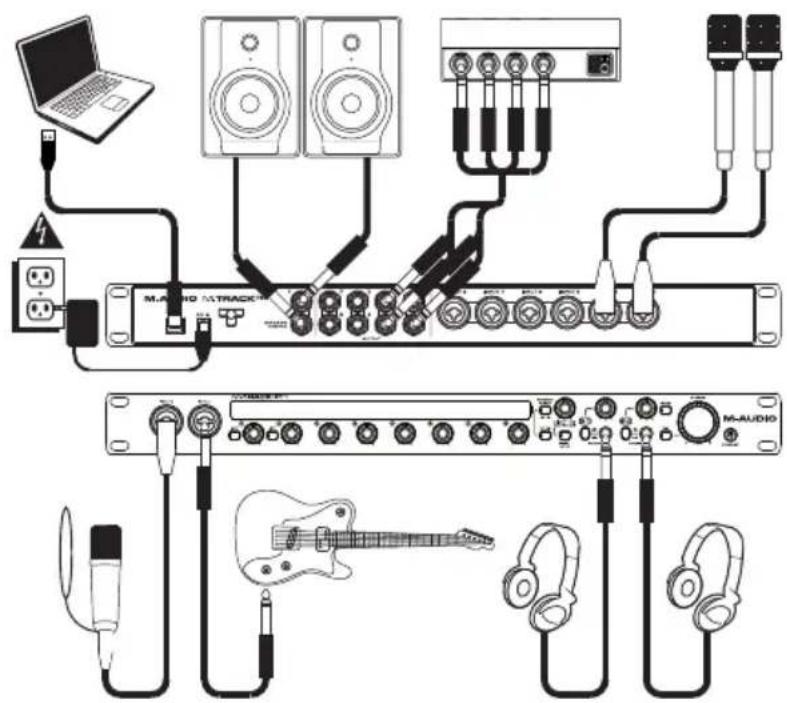
Connection Diagram
Items not listed under Introduction > Box Contents are sold separately.
Quick Start
Windows users: Before connecting M-Track Eight to your computer, install the drivers:
- Go to m-audio.com/drivers and download the latest M-Track Eight driver for your operating system.
- Open the file you downloaded and double-click the driver installer file.
- Follow the on-screen instructions to install the drivers.
Important:
- Remember to select M-Track Eight as your interface in the Preferences, Options, Device Setup, etc. in your digital audio workstation (DAW).
- If you are using an electric guitar or bass with that input, remember to depress the instrument selector for Input 1 and/or Input 2.
- Use an input's +48V switch only if its microphone requires phantom power. Dynamic microphones and ribbon microphones do not require phantom power, but most condenser microphones do. Consult your microphone's documentation to find out whether it needs phantom power.
Software
We've included Pro Tools | First | M-Audio Edition with your M-Track Eight so you can get started making music with professional software right out of the box. For Pro Tools | First | M-Audio Edition, register your M-Track Eight on m-audio.com, and follow the Pro Tools | First | M-Audio Edition install instructions in your user account.
Virtual Instruments
Follow the instructions on the software download card for installing the included virtual instrument plugins. After installation, most DAWs will not load virtual instrument plugins automatically. In order to access the virtual instrument plugins with Pro Tools | First | M-Audio Edition, you will need to choose the plugin folder for the software to scan:
Pro Tools | First | M-Audio Edition AAX plugin folders:
Windows (32-bit): C:\Program Files (x86)\Common Files\Avid\Audio\Plug-Ins
Windows (64-bit): C:\Program Files\Common Files\Avid\Audio\Plug-Ins
macOS: Macintosh HD/Library/Application Support/Avid/Audio/Plug-Ins
Setting Up M-Track Eight with Your Software
Be sure your audio software program is set up to receive audio from the M-Track Eight. This can usually be done in your software's Preferences, Device Setup, or Options. Please consult your software manual for more information.
To set up the M-Track Eight with Pro Tools | First | M-Audio Edition:
- Use the included USB cable to connect the M-Track Eight to your computer. Press the power button to power on M-Track Eight.
- Open Pro Tools | First | M-Audio Edition.
- Go to Setup > Playback Engine...
- Open the Playback Engine dropdown menu and select M-Audio M-Track Eight.
Note: You may need to save and restart your project.
- Select your Sample Rate and then click OK to close the Setup window.
You can now add audio tracks to receive audio from sources connected to the M-Track Eight inputs and stream recorded audio back through the M-Track Eight outputs.
Features
Front Panel

- Power Mode Button: Use this button to switch M-Track Eight between its power modes:
When the edges of the display are lit, M-Track Eight is powered on. To power M-Track Eight on, press this button once.
When a leaf icon is shown in the display, M-Track Eight is in Standby Mode (a low-power mode). To put M-Track Eight in Standby Mode, either press and hold this button for two seconds (when it is powered on) or wait for 30 minutes after your computer enters its "sleep"/low-power mode.
When the display is completely off, M-Track Eight is powered off. M-Track Eight will power-off automatically after not detecting a connection to your computer for 30 minutes. You do not need to enter this mode manually; Standby Mode draws only a small amount of power.
-
Display: This display shows the signal level of the eight inputs. The edges of the display will light up when M-Track Eight is powered on. A leaf symbol will light up when M-Track Eight is in standby mode.
-
Inputs 1-2 (XLR or 1/4'' / 6.35 mm TRS): Connect microphones, line-level devices, or guitars to these inputs. (For mic-level signals, use an XLR cable. For line-level signals, use a 1/4'' / 6.35 mm TRS cable.) View the input signal levels in the display.
-
+48V Switch: This switch activates and deactivates phantom power for Channels 1–4 and/or Channels 5–8. When activated, phantom power supplies +48V to the corresponding XLR micro inputs. Please note that dynamic microphones and ribbon microphones do not require phantom power, while most condenser microphones do. Consult your microphone's documentation to find out whether it needs phantom power.
-
Input Gain: Adjusts the input's gain level. Set this knob so the corresponding level meter in your DAW displays a "healthy" level during performance—but not so high that the meter "clips" or peaks causing distortion in the audio.
-
Instrument Selector: When the switch is in the raised position, the channel will accept microphone- or line-level signals. When this switch is in the depressed position, the channel will serve as a high-impedance input for connecting guitar or bass instruments.
-
Monitor Mix: Blends any amount of zero-latency signal from all your inputs (Direct) with the output of your computer (USB).
Note: When set to Direct, the left channel will be a sum of Inputs 1, 3, 5, and 7 and the right channel will be a sum of Inputs 2, 4, 6, and 8. You can sum these left and right channels (to hear all inputs as a single summed mono signal) by putting the Direct Mono or Mono button in its depressed position.
This knob is useful during recording when dealing with the “buffer size” and “latency.” The computer takes a short amount of time to process the incoming audio before sending it back out; this time is determined by the buffer size setting. Latency is the resulting delay between the incoming sound (playing your instrument, singing, etc.) and outgoing sound (when you hear it in the DAW). Higher buffer sizes result in higher latency.
If your computer is powerful enough, you may be able to set your buffer size low enough such that you may never need direct monitoring. In this case, set the knob all the way to the USB position to monitor only the audio output of your DAW.
In other cases, though, low buffer sizes can consume a lot of your computer's CPU and cause audio glitches, so you may need to use a higher buffer setting, resulting in latency. In this case, use a higher buffer size and turn the knob more towards the Direct position to monitor your incoming signal without latency. When listening to the playback, turn it all the way to the USB position.
- Direct Mono Selector: Leave this switch in the raised position (off) to monitor the direct input signal with Inputs 1, 3, 5, and 7 in the left channel and Inputs 2, 4, 6, and 8 in the right channel. Put this switch in its depressed position (lit) to monitor the direct input signal with all inputs summed and heard equally on each side. This switch does not affect the DAW playback or how your sound is recorded into your DAW; it affects only how you hear the input signal in the Headphone Outputs (when the Headphone Source Selector is set to 1/2) and Monitor Outputs.
- Headphone Outputs (1/4" / 6.35 mm TRS): Connect stereo headphones to these outputs. The mix you hear from these outputs will be determined by the Headphone Source Selector and Monitor Mix knob.
- Headphone Source Selector: This switch selects which outputs (on the rear panel) are also sent to the Headphone Output: Monitor Outputs 1–2 (1/2) or Outputs 3–4 (3/4).
- Headphone Volume: Adjusts the output volume of the Headphone Output.
- Mono Selector: Leave this switch in the raised position (off) to monitor the signal sent to Monitor Outputs 1–2 in stereo. Put this switch in its depressed position (lit) to monitor the signal sent to Monitor Outputs 1–2 with summed to mono and heard equally on each side. This switch does not affect how your sound is recorded into your DAW; it affects only how you hear the signal in the Headphone Outputs (when the Headphone Source Selector is set to 1/2) and Monitor Outputs.
Important: This switch affects any audio signal sent out of Monitor Outputs 1–2. This includes any direct input signal (if the Monitor Mix knob is set towards Direct). - Dim Selector: Put this switch in its depressed position (lit) to reduce the gain of Monitor Outputs 1–2 by 20 dB. This can be useful for quickly checking how your mixes sound at lower levels without moving the Monitor Level knob from a preferred setting. This is also useful if you find the Monitor Outputs are too loud even while using M-Track Eight's front panel volume/level controls in their lowest ranges.
- Monitor Level: Adjusts the output volume of Monitor Outputs 1–2, which should be connected to your powered monitors or amplifier system.
Rear Panel

4
- Power Input: Connect the included power adapter (19 V, 2.37 A, center-positive) here, and then connect the adapter to a power outlet.
- Power Adapter Restraint: You can secure a power adapter cord to this restraint to help avoid disconnecting it accidentally.
- USB Port: This connection will allow you to send audio to/from a computer. Use a USB cable to connect the M-Track Eight to a computer. The M-Track Eight requires a USB 2.0 connection.
- Inputs 3–8 (XLR or 1/4" / 6.35 mm TRS): Connect microphones or line-level devices to these inputs. (For mic-level signals, use an XLR cable. For line-level signals, use a 1/4" / 6.35 mm TRS cable.) View the input signal levels in the front panel's display.
- Outputs 1–8 (1/4" / 6.35 mm TRS): Connect these outputs to powered monitors, an amplifier system, etc. Their levels are automatically +10 dBu, so we recommend connecting these to a headphone amp or remote mixer.
Channels 1–8 of your computer's outgoing USB audio signal will be sent to these outputs. You can send Outputs 3–4 to the Headphone Outputs by setting the Headphone Source Selectors to 3/4. - Monitor Outputs 1–2 (1/4" / 6.35 mm TRS): Connect these outputs to your powered monitors, an amplifier system, etc. Their levels are controlled by the Monitor Level knob. To monitor these outputs in your headphones, make sure the Headphone Source Selector is set to 1/2.
Inicio rápida
macOS: Macintosh HD/Library/Application Support/Avid/Audio/Plug-Ins
Démarrage rapide
Pro Tools | First | M-Audio Edition/AAX cartelle plugin:
Windows (32-bit): C:\Program Files (x86)\Common Files\Avid\Audio\Plug-Ins
Windows (64-bit): C:\Program Files\Common Files\Avid\Audio\Plug-Ins
macOS: Macintosh HD/Library/Application Support/Avid/Audio/Plug-Ins
Schnellstart
Pro Tools | First | M-Audio Edition/AAX Plugin-Ordner:
macOS: Macintosh HD/Library/Application Support/Avid/Audio/Plug-Ins
Technical Specifications
All specifications are measured at 20 kHz bandwidth. Specifications are subject to change without notice.
Mic Inputs 1–8 (balanced XLR)
| Frequency Response | 20 Hz – 20 kHz (±0.1 dB) |
| Dynamic Range | 111 dB (A-weighted) |
| Signal-to-Noise Ratio | 111 dB (1 kHz, +4 dBu, A-weighted) |
| THD+N | 0.002% (1 kHz, +4 dBu, -1 dBFS) |
| Preamp EIN | -132 dBu (max gain, 40 Ω source, A-weighted)-126 dBu (max gain, 150 Ω source, unweighted) |
| Max Input Level | +12 dBu |
| Sensitivity | -46 dBu |
| Gain Range | 58 dB |
Line Inputs 1–8 (balanced 1/4" / 6.35 mm TRS)
| Frequency Response | 20 Hz – 20 kHz (±0.1 dB) |
| Dynamic Range | 112 dB (A-weighted) |
| Signal-to-Noise Ratio | 111 dB (1 kHz, +4 dBu, A-weighted) |
| THD+N | 0.002% (1 kHz, +4 dBu, -1 dBFS) |
| Max Input Level | +16 dBu |
| Sensitivity | -13 dBu |
| Gain Range | 29 dB |
Inst Inputs 1–2 (unbalanced 1/4" / 6.35 mm TS)
| Frequency Response | 20 Hz – 20 kHz (±0.2 dB) |
| Dynamic Range | 112 dB (A-weighted) |
| Signal-to-Noise Ratio | 111 dB (1 kHz, +4 dBu, A-weighted) |
| THD+N | 0.001% (1 kHz, +4 dBu, -1 dBFS) |
| Max Input Level | +9 dBu |
| Sensitivity | -21 dBu |
| Input Impedance | 1 MΩ |
| Gain Range | 30 dB |
Monitor Outputs 1–2 (differential-balanced 1/4" / 6.35 mm TRS)
| Frequency Response | 20 Hz – 20 kHz ( ± 0.1 dB) |
| Dynamic Range | 112 dB (A-weighted)110 dB (A-weighted, with Dim activated) |
| THD+N | 0.003% (1 kHz, -1 dBFS) |
| Maximum Output Level | +28 dBu+8 dBu (with Dim activated) |
Line Outputs 1–8 (impedance-balanced 1/4" / 6.35 mm TRS)
| Frequency Response | 20 Hz – 20 kHz (±0.1 dB) |
| Dynamic Range | 113 dB (A-weighted) |
| THD+N | 0.004% (1 kHz, -1 dBFS) |
| Maximum Output Level | +10 dBu |
| Output Impedance | 51 Ω |
General
| Power | 19 V, 2.37 A, center-positive |
| Dimensions(width x depth x height) | 19.0” x 5.9” x 1.7”48.3 x 15.0 x 4.3 cm |
| Weight | 4.37 lb.1.98 kg |
Trademarks & Licenses
M-Audio is a trademark of inMusic Brands, Inc., registered in the U.S. and other countries.
AAX, Avid, and Pro Tools are registered trademarks of Avid Technology, Inc. in the U.S. and other countries. macOS is a trademark of Apple Inc., registered in the U.S. and other countries.
Windows is a registered trademark of Microsoft Corporation in the United States and other countries.
All other product names, company names, trademarks, or trade names are those of their respective owners.
m-audio.com

- User Guide (English)
- Introduction
- Box Contents
- Support
- Setup
- Connection Diagram
- Quick Start
- Important:
- Software
- Virtual Instruments
- Setting Up M-Track Eight with Your Software
- To set up the M-Track Eight with Pro Tools | First | M-Audio Edition:
- Features
- Front Panel
- Rear Panel
- Inicio rápida
- Démarrage rapide
- Schnellstart
- Technical Specifications
- Trademarks & Licenses
Brand : M-AUDIO
Model : Track Eight
Category : Hi-Fi System