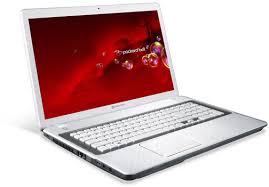
TV44HCG-B9606G75MNWB - Computer PACKARD BELL - Free user manual and instructions
Find the device manual for free TV44HCG-B9606G75MNWB PACKARD BELL in PDF.



User questions about TV44HCG-B9606G75MNWB PACKARD BELL
0 question about this device. Answer the ones you know or ask your own.
Ask a new question about this device
Download the instructions for your Computer in PDF format for free! Find your manual TV44HCG-B9606G75MNWB - PACKARD BELL and take your electronic device back in hand. On this page are published all the documents necessary for the use of your device. TV44HCG-B9606G75MNWB by PACKARD BELL.
USER MANUAL TV44HCG-B9606G75MNWB PACKARD BELL
Starting your computer 4
Wireless connection 4
Registration 5
Software installation 6
Recovery 6
Having trouble? 6
Computer Basics 8
Safety and comfort 8
Safety precautions 8
Health precautions 11
Getting to know your computer 14
Top view - display 15
Top view - keyboard 16
Special keys 17
Front view. 20
Left view 21
Right view 22
Base view 24
Touchpad 25
Touchpad basics 25
Upgrading your computer 27
Expanding through options 27
Connectivity options 27
Power supply 32
AC power adapter 32
Battery pack 33
Battery pack characteristics 33
Replacing the battery pack 35
Installing or removing the battery pack..... 35
Charging the battery. 36
Checking the battery level 36
Optimizing battery life 37
Battery-low warning 37
Power management 39
Saving power 39
Software 42
Using Windows and your software 42
Internet security offer 42
Packard Bell Recovery Management.... 42
Internet 43
First steps on the net 43
Protecting your computer 43
Choose an Internet Service Provider 43
Network connections 45
Surf the Net! 49
Security 49
Recovery 58
Creating a recovery backup. 58
Creating a drivers and applications backup.... 61
Recovering your system 64
Reinstalling drivers and applications 65
Returning to an earlier system snapshot. 68
Returning your system to its factory condition 69
Recovering from Windows 70
Recovering from a recovery backup 74
Frequently asked questions 78
Tips and hints for using Windows 8. 81
Three concepts you might want to keep in mind 81
How do I access the charms? 81
How do I get to Start? 81
How do I jump between apps? 82
How do I turn off my computer? 82
Why is there a new interface? 82
How do I unlock my computer? 83
How do I personalize my computer? 83
I want to use Windows in the way that I'm used to - give me my desktop back! 84
Where are my apps? 84
What is a Microsoft ID (account)? 86
How do I add a favorite to Internet
Explorer? 86
How do I check for Windows
updates? 87
Where can I get more information? 87
Regulatory information 88
Environment 105
Software license 108
Index 111
STARTING YOUR COMPUTER
Thank you for purchasing this Packard Bell computer!
This guide has been designed to introduce you to the features of your computer and assist in your computing experience.
After setting up and starting your computer, as shown in the setup instructions, it will ask you questions that will help you connect to the Internet. Your computer will then configure installed software.
WIRELESS CONNECTION
To connect to a wireless network, first check the wireless features of your computer are on, and that the router or modem you want to connect to is also correctly configured.
- If wireless is not on, press the Windows key (串) + W , type "Wireless" and then click on Wireless. Click the toggle switch under Wi-Fi to enable the wireless connection. Click again to disable.
- To connect to a network, press the Windows key (■) + W, type "Wireless" and then click on Connect to a network. Select your network and enter the password if required.
After a short delay, your computer should connect to the Internet.
If your network is not detected, or your computer does not connect to the Internet, please refer to your ISP or router's documentation. After your computer starts and you can use it, open Internet Explorer and follow the instructions.
Alternatively, use a network cable to connect directly to a network port on your router. Please refer to your ISP or router's guide.
REGISTRATION
When using your computer for the first time, it is recommended that you register it. This gives you access to some useful benefits, such as:
- Faster service from our trained representatives.
- Membership in the Packard Bell community: receive promotions and participate in customer surveys.
- The latest news from Packard Bell.
How to register
During the initial startup of your computer, a window will invite you to register. Please fill in the information and click Next. The second window you'll see contains optional fields that will help us to provide you with a more personable customer service experience.
Another option
Another way to register your Packard Bell product is to visit our website at registration.packardbell.com. Choose your country and follow the simple instructions.
After registering, you will be sent a confirmation email with important information that you should keep in a safe place.
SOFTWARE INSTALLATION
Your computer will automatically install software and prepare your computer for use. This may take some time, please do not turn off your computer; wait until the installation has finished.
RECOVERY
You should create recovery discs as soon as you are able. The Packard Bell Recovery Management program allows you to create recovery discs and then to restore or reinstall applications and drivers provided by Packard Bell.
HAVING TROUBLE?
Packard Bell provides several options to support your purchase.
Packard Bell support
Make sure you write down your computer serial number, date and place of purchase and model name on the area provided in this guide; save your proof of purchase. Before you call us, please write down any error message that accompanies the problem, and have the computer in front of you and switched on if possible. Having these items to hand when contacting us will ensure better and quicker service.
Packard Bell website
Remember to visit www.packardbell.com - Check out the support section for up-to-date information, help, drivers and downloads.
Warranty and contact information
You can find information about the warranty for your computer and how to contact technical support in your computer's Warranty.
COMPUTER BASICS
SAFETY AND COMFORT
Safety precautions
Please follow the guidelines below to use your computer comfortably and to avoid health problems.
Computer environment
Make sure that the computer:
- Is used on a stable surface, stand or table. A fall can seriously damage the computer.
- Is not used on a surface that vibrates, or used when taking part in sport, exercise or other activities in a dynamic environment. Vibration or movement can loosen fastenings, damage internal components and even cause battery leakage.
- Is away from direct sunlight and sources of heat.
- Is away from magnetic fields or any device generating static electricity.
- Is kept at least 30 centimetres (one foot) away from a mobile phone.
- Is not in a dusty or damp environment.
- Is not used near water. Never spill liquids of any kind on or into your computer.
- Is not placed on a carpet or any other surface that may have an electrical charge.
Please note
- Slots and openings are provided for ventilation to ensure reliable operation of the product and to protect it from overheating. These openings must not be blocked or covered. The openings should never be blocked by placing the product on a bed, sofa, rug or other similar surface. This product should never be placed near or over a radiator or heat register, or in a built-in installation unless proper ventilation is provided.
- Never push objects of any kind into this product through cabinet slots as they may touch dangerous voltage points or short-out parts that could result in a fire or electric shock. Never spill liquid of any kind onto or into the product.
- To avoid damage of internal components and to prevent battery leakage, do not place the product on a vibrating surface.
- Never use it under sporting, exercising, or any vibrating environment which will probably cause unexpected short current or damage rotor devices, HDD, optical drive, and even exposure risk from lithium battery pack.
Cables
Make sure that:
- Cables are not strained and that there is no risk of people walking or tripping over them.
-
Other devices do not crush the cables.
-
The power cable is connected to the computer before connecting the power cable to the AC power outlet.
- The power cable is unplugged from the power outlet before disconnecting the power cable from the computer.
- Three-pin power cords are connected to a grounded power outlet.
- The power outlet is easily accessible and as close to the computer as possible (do not overload it with too many adapters).
If your computer uses an external AC adapter:
- Do not cover or place objects on the AC adapter. Allow the adapter to cool properly during use by keeping it clear of objects.
- Only use the AC adapter that is supplied with your computer. Although other adapters may look similar, using them can damage your computer. If a replacement is required, use only parts certified for use with your computer.
Cleaning your computer
- Always unplug your computer from the power outlet before cleaning it.
- Do not use liquid or aerosol cleaners, use a damp cloth instead.
- Never spray cleaning product directly on the screen.
- If you spill liquid on your computer, switch it off immediately, unplug the AC adapter, remove the battery and make sure it is completely dry before switching it on again. Wait overnight if necessary.
Note: If your computer includes slots for memory cards or expansion devices, plastic 'dummies' may be installed in the card slots. Dummies
protect unused slots from dust, metal objects or other particles. Save the dummies for use when no cards are in the slots.
Servicing your computer
Do not attempt to service your computer yourself, as opening or removing covers may expose you to dangerous voltage or other risks. Refer all servicing to qualified service personnel.
Unplug your computer from the wall outlet and refer servicing to qualified service personnel when:
- the power cord or plug is damaged, cut or frayed,
- liquid was spilled into the product,
- the product was exposed to rain or water,
- the product has been dropped or the case has been damaged,
- the product exhibits a distinct change in performance,
- the product does not operate normally after following the operating instructions
Note: Adjust only those controls that are covered by the operating instructions, since improper adjustment of other controls may result in damage and will often require extensive work by a qualified technician to restore the product to normal condition.
Health precautions
-
The bottom surface, areas around ventilation openings and AC adapter may get hot. To avoid injury, ensure they do not come in contact with your skin or body.
-
Your device and its enhancements may contain small parts. Keep them out of the reach of small children.
-
The computer and accessories may contain small parts. Keep them out of the reach of small children.
-
If you work or play for hours at a time, then make sure you take regular breaks. Look away from the computer's screen once in a while. Do not use your computer if you are tired.
-
Arrange your computer so that you can work in a natural and relaxed position. Place items that you use frequently within easy reach.
-
Position your computer directly in front of you for increased safety and comfort. Ensure that your keyboard and touchpad are at a comfortable height. The screen should be about 45-70 cm (18-30 inches) from your eyes.
If you use your computer for long periods while sitting at a desk, invest in an external keyboard for improved comfort.
-
To protect your hearing, when using speakers or headphones, increase volume gradually until you can hear clearly and comfortably; do not increase the volume level after your ears have adjusted. Do not listen to high volumes for extended periods. Do not increase the volume to block out noisy surroundings; decrease the volume if you cannot hear people speaking near you.
-
The computer's underside, power adapter and the air from ventilation slots may become hot during use. Avoid continuous body contact and do not place the computer on your lap while it is operating.
- Ensure that the computer's ventilation slots and openings are never obstructed or covered. Do not place the computer on a soft surface (such as a carpet, chair or bed) that may block ventilation slots.
- Do not push objects of any kind into ventilation or case slots as they may touch dangerous voltage points or short-out parts that may result in a fire or electric shock.
- Some disorders of the hands, wrists, arms, neck, shoulders, legs and back may be associated with, or aggravated by certain repetitive actions. To reduce your risk of developing these disorders, type with your wrists straight and your hands and wrists floating above the keyboard. If you experience periods of pain, tingling, numbness or other discomfort, please contact your doctor.
- We advise that parents monitor the use of games by their children. If you or your child experience any of the following symptoms: dizziness, blurred vision, eye or muscle twitches, loss of consciousness, disorientation, any involuntary movement or convulsion, IMMEDIATELY discontinue use and consult your doctor. This may happen even if the person has no medical history of epilepsy.
GETTING TO KNOW YOUR COMPUTER
After setting up your computer, as illustrated in the setup instructions, let us show you around your new Packard Bell computer.
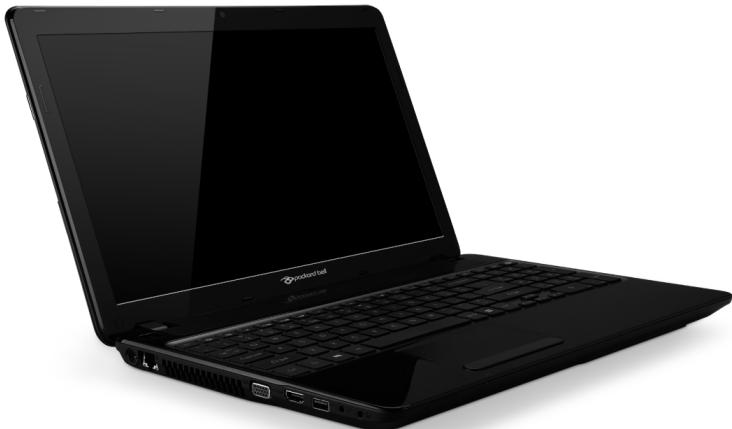
Packard Bell EasyNote TV
TOP VIEW - DISPLAY
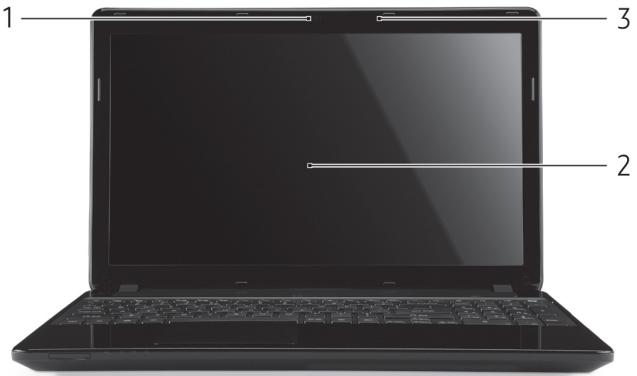
| # | Icon | Item | Description |
| 1 | Webcam | Web camera for video communication. A light next to the Webcam indicates that the webcam is active. | |
| 2 | Display screen | Also called Liquid-Crystal Display (LCD), displays computer output. | |
| 3 | Microphone | Internal microphone for sound recording. |
TOP VIEW - KEYBOARD
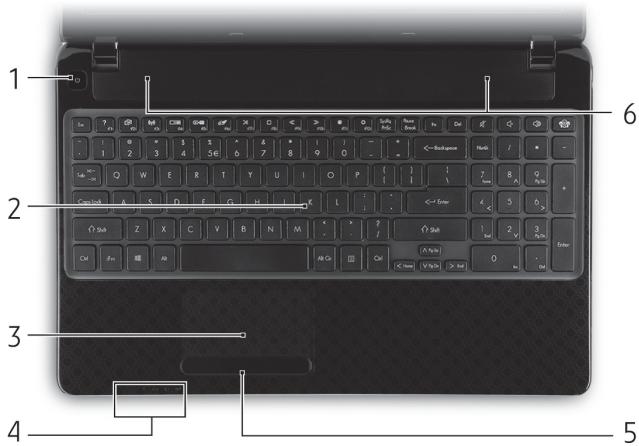
| # | Icon | Item | Description |
| 1 | ○ | Power button / indicator | Turns the computer on and off. Indicates the computer's power status. |
| 2 | Keyboard | For entering data into your computer. - Special keys are described on page 17. | |
| 3 | Touchpad | Touch-sensitive pointing device which functions like a computer mouse. | |
| 4 | Power indicator | Indicates the computer's power status. | |
| Battery indicator | Indicates the computer's battery status. - Charging: The light shows amber when the battery is charging. - Fully charged: The light shows blue when in AC mode. | ||
| HDD indicator | Indicates when the hard disk drive is active. | ||
| Communication indicator | Indicates the computer's wireless connectivity device status. | ||
| 5 | Click buttons (left and right) | The left and right side of the button function as left and right selection buttons. | |
| 6 | Speakers | Deliver stereo audio output. |
- Note: The front panel indicators are visible even when the computer cover is closed.
Special keys
Your computer's keyboard includes keys that activate special functions. The function of each key is clearly marked with an icon.
| Icon | Function | Description |
| Fn | Hotkey for second function | Activates a second function on certain keys. E.g. press the Fn key to activate the F1 to F12 keys. |
| ? | Help | Opens the help menu. |
| Backup | Allows you to create backup copies of your computer; either the entire system or only selected files and folders. Create a regular schedule or make copies whenever you want. | |
| Communication | Enables/disables the computer's communication devices. | |
| Display toggle | Switches display output between the display screen, external monitor (if connected) and both. | |
| Screen blank | Turns the display screen backlight off to save power. Press any key to return. | |
| Touchpad toggle | Turns the internal touchpad on and off. | |
| Play/Pause | Play or pause a selected media file. | |
| Stop | Stop playing the selected media file. | |
| Previous | Return to the previous media file. | |
| Next | Jump to the next media file. | |
| Brightness down | Decreases the screen brightness. | |
| Brightness up | Increases the screen brightness. | |
| Social Networking | Opens the Social Networks application. - If this application is not installed, the key will start your instant messaging application. | |
| Volume up | Increases the sound volume. | |
| Volume down | Decreases the sound volume. | |
| Speaker toggle | Turns the speakers on and off. | |
Hotkeys
The computer uses hotkeys (key combinations) to access function keys and navigation commands.
To activate hotkeys, press and hold the Fn key (bottom left) before pressing the other key in the hotkey combination.
| Hotkey | Function | Description |
| Fn + Special keys (see page 17) | Function keys | Activates the F1 to F12 keys. |
| Fn + < | Home | Scrolls to the beginning of a document. |
| Fn + > | End | Scrolls to the end of a document. |
| Fn + ∧ | Page up | Scrolls up a page in a document. |
| Fn + ∨ | Page Down | Scrolls down a page in a document. |
- Note: It is not necessary to press the Fn key to use the F1 to F12 function keys when starting your computer or when using the BIOS.
To swap the hotkey and special function of the F1 to F12 keys, change the function key setting in the BIOS (to open the BIOS press F2 when starting your computer, then select the Main menu and change Function key behavior to Function keys).
FRONT VIEW

| # | Icon | Item | Description |
| 1 | Multi-in-1 card reader | Accepts Secure Digital (SD), MultiMediaCard (MMC), Memory Stick PRO (MS PRO), xD-Picture Card (xD). - Push to remove/install the card. Only one card can operate at any given time. | |
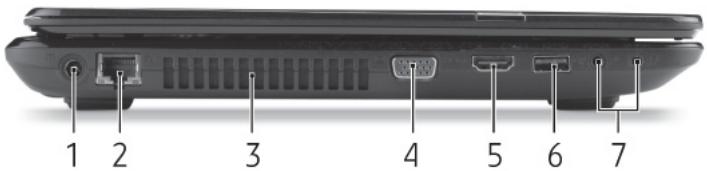
| # | Icon | Item | Description |
| 1 | DC-in jack | Connects to your computer's AC adapter. | |
| 2 | Ethernet (RJ-45) port | Connects to an Ethernet 10/100/1000-based network. | |
| 3 | Ventilation and cooling fan | Allows the computer to stay cool. - Do not cover or obstruct the openings. | |
| 4 | External display (VGA) port | Connects to a display device (e.g., external monitor, LCD projector). | |
| 5 | HDMI port | Supports high-definition digital video connections. | |
| 6 | USB port | Connects to USB devices. - If a port is black, it is USB 2.0 compatible, if it is blue it is also USB 3.0 compatible. | |
| 7 | Microphone jack | Accepts inputs from external microphones. | |
| Headphones / speaker jack | Connects to audio line-out devices (e.g., speakers, headphones). - Supports compatible 3.5 mm headsets with built-in microphone (e.g. Acer smart handheld headsets). | ||
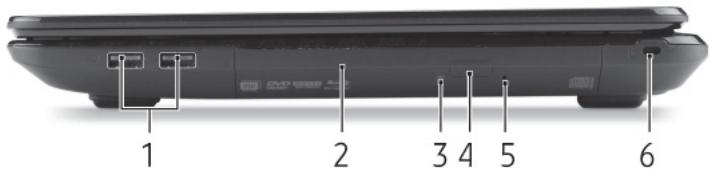
RIGHT VIEW
| # | Icon | Item | Description |
| 1 | USB ports | Connects to USB devices. - If a port is black, it is USB 2.0 compatible, if it is blue it is also USB 3.0 compatible. | |
| 2 | Optical drive | Internal optical drive; accepts CDs or DVDs. | |
| 3 | Optical disk access indicator | Lights up when the optical drive is active. | |
| 4 | Optical drive eject button | Ejects the optical disk from the drive. | |
| 5 | Emergency eject hole | Ejects the optical drive tray when the computer is turned off. - Carefully insert a straightened paper clip to eject the optical drive tray. | |
| 6 | Kensington lock slot | Connects to a Kensington-compatible computer security lock. - Wrap the computer security lock cable around an immovable object such as a table or handle of a locked drawer. Insert the lock into the notch and turn the key to secure the lock. Some keyless models are also available. | |
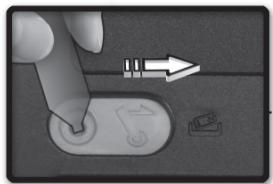
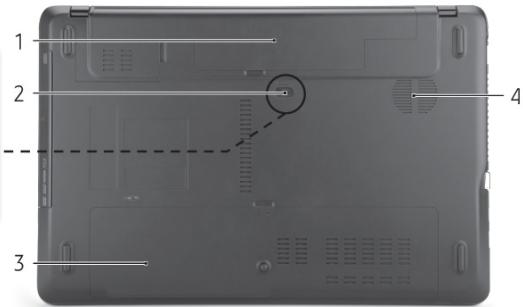
| # | Icon | Item | Description |
| 1 | Battery bay | Houses the computer's battery pack. | |
| 2 | Battery release latch | Releases the battery for removal. Insert a suitable tool and slide to release. | |
| 3 | Memory compartment | Houses the computer's main memory. | |
| Hard disk bay | Houses the computer's hard disk (secured with screws). | ||
| 4 | Ventilation and cooling fan | Allows the computer to stay cool. - Do not cover or obstruct the openings. |
TOUCHPAD
TOUCHPAD BASICS
The touchpad controls the arrow (or 'cursor') on the screen. As you slide your finger across the touchpad, the cursor will follow this movement.
Press the left or right side of the button located beneath the touchpad to perform selection and execution functions. These two areas are similar to the left and right buttons on a mouse. Tapping on the touchpad is the same as clicking the left side of the button.
Note: The touchpad is sensitive to finger movement; the lighter the touch, the better the response.
Please keep the touchpad and your fingers dry and clean.
The cursor is controlled by some basic gestures:
- Single-finger slide: Slide a finger across the touchpad to move the cursor.
- Single-finger tap: Lightly tap the touchpad with your finger, to perform a 'click', which will select or start an item. Quickly repeat the tap to perform a double tap or 'double click'.
- Drag: Press and hold the left side of the selection button, or tap twice anywhere on the touchtap, then slide a second finger across the touchpad to select all items in an area.

TOUCHPAD GESTURES
Windows 8 and many applications support touchpad gestures that use one or more fingers.
Note: Support for touchpad gestures depends on the active application. These allow you to control applications with a few simple gestures, such as:
- Swipe in from edge: Access Windows tools by swiping into the center of the touchpad from the right, top or left.
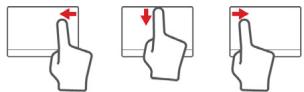
- Swipe in from right edge: Toggle the charms.
- Swipe in from top edge: Toggle the app commands.
-
Swipe in from left edge: Switch to the previous app.
-
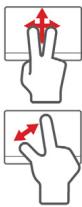
Two-finger slide: Swiftly scroll through web pages, documents and playlists by placing two fingers on the touchpad and moving both in any direction.
- Two-finger pinch: Zoom in and out of photos, maps and documents with a simple finger-and-thumb gesture.
UPGRADING YOUR COMPUTER
EXPANDING THROUGH OPTIONS
Your computer offers you many options for a complete computing experience.
Connectivity options
Ports allow you to connect peripheral devices to your computer. For instructions on how to connect different external devices to the computer, read the following section.
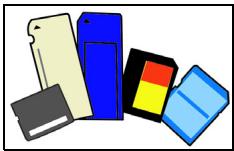
Memory card reader
Memory cards are used in a wide selection of digital cameras, PDAs, MP3 players and mobile phones.
Inserting a memory card
- Align the card so that the connector points towards the port, with the connectors facing down.
- Carefully slide the card into the port. If you find you need to use any force to insert the card, try reorientating the card slightly.
- Push the card until it clicks into place. A few millimetres of the card will extend from beyond the slot.
If the card contains some files, the Windows Auto Play window may appear (this depends on the contents of the card) and ask you if you wish
to use a program to access the contents of the card. Select an option here if it is appropriate, otherwise select Cancel. If the card contains no files, or unknown files, a window will open showing the contents of the card.
SD, SDHC and SDXC cards
Different types of SD cards cover different capacities, while using the same overall design. SD cards contain up to 4 GB, SDHC cards contain up to 32 GB, and SDXC cards can contain up to 2048 GB (2 TB). Your computer provides an SDHC or SDXC compatible card reader.
Note: SDXC memory cards can only be used in an SDXC-compatible reader; SD and SDHC cards can be used in either type.
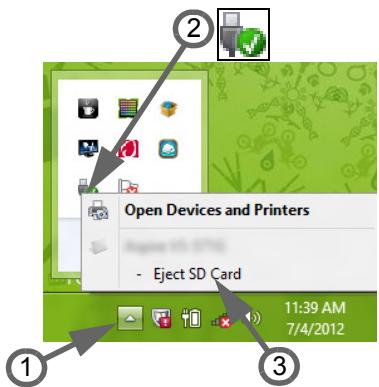
Removing a card from a memory card reader
- Click on Show hidden icons arrow in the Notification Area (next to the clock).
- Click on the Safely Remove Hardware icon.
- Click on Eject SD Card (or the name of the device).
- Wait until a Safe to Remove Hardware message is displayed.
- Remove the card.
Built-in networking
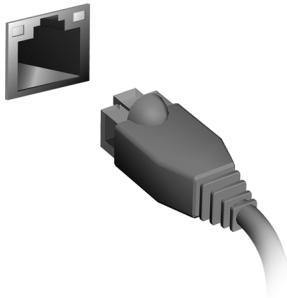
The built-in networking allows you to connect your computer to an Ethernet-based network.
Connect an Ethernet cable from the Ethernet (RJ-45) port on the chassis of the computer to a network jack or hub on your network.
Universal Serial Bus (USB)
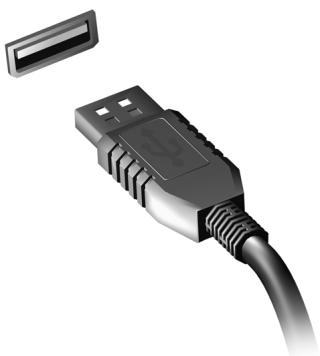
The USB port is a high-speed serial bus which allows you to connect USB peripherals without taking up system resources.
Certain computers may include one or more USB 3.0 ports. These resemble standard USB ports, except they include additional internal connections and are blue. You may use USB 3.0 compatible devices with these ports to benefit from faster transfer speeds.
Video port
Connect to a monitor with a VGA or DVI port (the type of connection supported depends on your computer's configuration). The appropriate
cable is usually included with the monitor.
Follow these steps to connect an monitor to your computer:
- Check that the computer is powered off and the monitor power switch is turned off.
- Attach the video cable to the monitor port on the computer. Secure the cable connection with the screws provided.
- Connect the monitor power cable and plug it into a properly grounded wall outlet.
- Follow any setup instructions in the monitor's user's guide.
- Turn on power to the monitor, then the computer.
- Make sure that the current resolution and refresh rate do not exceed the specifications of the monitor. If necessary change the display settings used by the computer.
Note: To access the display controls, press the Windows key (■) + W, type "Display" and then click on Display.
High-Definition Multimedia Interface (only for certain models)
HDMI (High-Definition Multimedia Interface) is an industry-supported, uncompressed, all-digital audio/video interface. HDMI provides an interface between any compatible digital audio/video source, such as a set-top box, DVD player, and A/V receiver and a compatible digital audio and/or video monitor, such as a digital television (DTV), over a single cable.
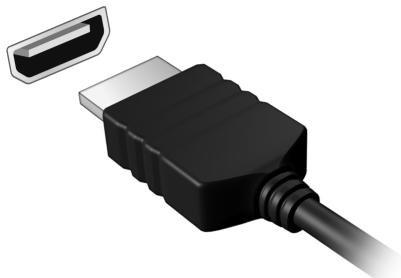
Use the HDMI port on your computer to connect with high-end audio and video equipment. Single cable implementation allows tidy setup and fast connection.
Headphones and microphone
These two ports allow you to connect audio devices. Use the headphone port to plug in stereo headphones or powered speakers. Plugging an audio device to the headphone port disables the built-in speakers. Use the microphone port to connect an external microphone for mono recording; plugging in an external microphone disables the built-in microphone.
POWER SUPPLY
AC POWER ADAPTER
Your computer can use the supplied external power adapter (a power 'brick') to run on AC power. A power cable is provided that is appropriate for the country where the computer was purchased.
The power adapter provides adequate power to run your computer and recharge the battery pack at the same time.
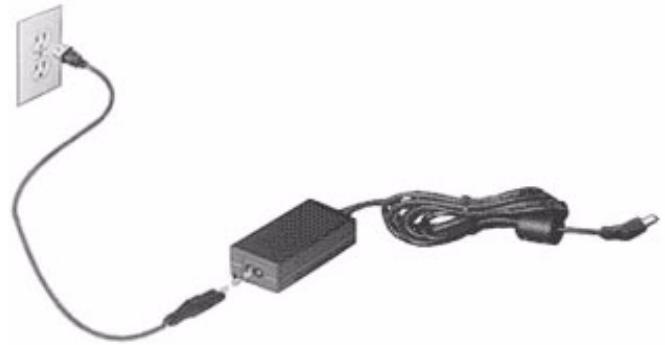
Caution: Do not cover or place objects on the AC adapter. Keeping the adapter clear of objects allows the adapter to cool properly during use.
Only use the AC adapter that is supplied with your computer. Although other adapters may look similar, using them can damage your computer.
Warning: The AC adapter and the underside of the computer can become hot after prolonged use. This is normal, but may cause injury with prolonged contact.
BATTERY PACK
The computer uses a battery pack that gives you extended use between charges.
Battery pack characteristics
The battery pack has the following characteristics:
- Employs current battery technology standards.
- Delivers a battery-low warning.
The battery is recharged whenever you connect the computer to the AC adapter. Your computer supports charge-in-use, enabling you to recharge the battery while you continue to operate the computer. However, recharging with the computer turned off results in a significantly faster charge time.
The battery will come in handy when you travel or during a power failure. It is advisable to have an extra fully-charged battery pack available as backup. Contact your dealer for details on ordering a spare battery pack.
Maximizing the battery's life
Like all other batteries, your computer's battery will degrade over time. This means that the battery's performance will diminish with time and use.
To maximize your battery's life, you are advised to adhere to the recommendations set out below.
Conditioning a new battery pack
Before you use a battery pack for the first time, there is a "conditioning" process that you should follow:
- Insert the new battery without turning the computer on.
- Connect the AC adapter and fully charge the battery.
- Disconnect the AC adapter.
- Turn on the computer and operate using battery power.
- Fully deplete the battery.
- Reconnect the AC adapter and fully charge the battery again.
Follow these steps again until the battery has been charged and discharged three times.
Use this conditioning process for all new batteries, or if a battery hasn't been used for a long time. If the computer is to be stored for more than two weeks, you are advised to remove the battery pack from the unit.
Warning: Do not expose battery packs to temperatures below 0 ^ C (32 F) or above 45^ C (113 F). Extreme temperatures may adversely affect the battery pack.
By following the battery conditioning process you condition your battery to accept the maximum possible charge. Failure to follow this procedure will prevent you from obtaining the maximum battery charge, and will also shorten the effective lifespan of the battery.
In addition, the useful lifespan of the battery is adversely affected by the following usage patterns:
- Using the computer on constant AC power with the battery inserted. If you want to use constant AC power, you are advised to remove the battery pack after it is fully charged.
- Not discharging and recharging the battery to its extremes, as described above.
- Frequent use; the more you use the battery, the faster it will reach the end of its effective life. A standard computer battery has a life span of about 300 charges.
Replacing the battery pack
The notebook uses lithium batteries. Replace the battery with the same type as that which came bundled with your product. Use of another battery may present a risk of fire or explosion.
Warning: Batteries may explode if not handled properly. Do not disassemble or dispose of them in fire. Keep them away from children. Follow local regulations when disposing of used batteries.
Installing or removing the battery pack
Important! Before removing the battery from the unit, connect the AC adapter if you want to continue using your computer. Otherwise, turn off the computer first.
To install a battery pack:
- Align the battery with the open battery bay; make sure that the end with the contacts will enter first, and that the top surface of the battery is facing up.
- Slide the battery into the battery bay and gently push until the battery locks in place.
To remove a battery pack:
- Slide the battery release latch to release the battery.
- Pull the battery from the battery bay.
Charging the battery
To charge the battery, first make sure that it is correctly installed in the battery bay. Plug the AC adapter into the computer, and connect to a mains power outlet. You can continue to operate your computer on AC power while your battery is charging. However, charging the battery with the computer turned off results in a significantly faster charge time.
Note: You are advised to charge the battery before retiring for the day. Charging the battery overnight before traveling enables you to start the next day with a fully-charged battery.
Checking the battery level
The Windows power meter indicates the current battery level. Rest the cursor over the battery/power icon on the taskbar to see the battery's present charge level.
Optimizing battery life
Optimizing battery life helps you get the most out of battery operation, prolonging the charge/recharge cycle and improving recharging efficiency. You are advised to follow the suggestions set out below:
Purchase an extra battery pack.
- Use AC power whenever possible, reserving battery for on-the-go use.
- Eject a PC Card if it is not being used, as it will continue to draw power (for selected models).
- Store the battery pack in a cool, dry place. The recommended temperature is 10^ ( 50^ ) to 30^ ( 86^ ). Higher temperatures cause the battery to self-discharge faster.
- Excessive recharging decreases the battery life.
- Look after your AC adapter and battery.
Battery-low warning
When using battery power pay attention to the Windows power meter.
Warning: Connect the AC adapter as soon as possible after the battery-low warning appears. Data will be lost if the battery to become fully depleted and the computer shuts down.
When the battery-low warning appears, the recommended course of action depends on your situation:
| Situation | Recommended Action |
| The AC adapter and a power outlet are available. | 1. Plug the AC adapter into the computer, and then connect to the mains power supply. 2. Save all necessary files. 3. Resume work. Turn off the computer if you want to recharge the battery rapidly. |
| An extra fully charged battery pack is available. | 1. Save all necessary files. 2. Close all applications. 3. Shut down the operating system to turn off the computer. 4. Replace the battery pack. 5. Turn on the computer and resume work. |
| The AC adapter or a power outlet is unavailable. You have no spare battery pack. | 1. Save all necessary files. 2. Close all applications. 3. Shut down the operating system to turn off the computer. |
POWER MANAGEMENT
This computer has a built-in power management unit that monitors system activity. System activity refers to any activity involving one or more of the following devices: keyboard, mouse, hard disk, peripherals connected to the computer, and video memory. If no activity is detected for a period of time, the computer stops some or all of these devices in order to conserve energy.
SAVING POWER
Disable Fast startup
Your computer uses Fast startup to start quickly, but also uses a small amount of power to check for signals to start. These checks will slowly drain your computer's battery.
If you prefer to reduce your computer's power requirements and environmental impact, turn off Fast startup:
Note: If Fast startup is off, your computer will take longer to start from Sleep.
Your computer will also not start if it receives an instruction to start over a network (Wake on LAN).
- Open the Desktop.
- Click Power Options in the Notification area.
- Select More Power Options.

- Select Choose what the power buttons do.
- To access Shutdown Settings, select Change settings that are currently unavailable.
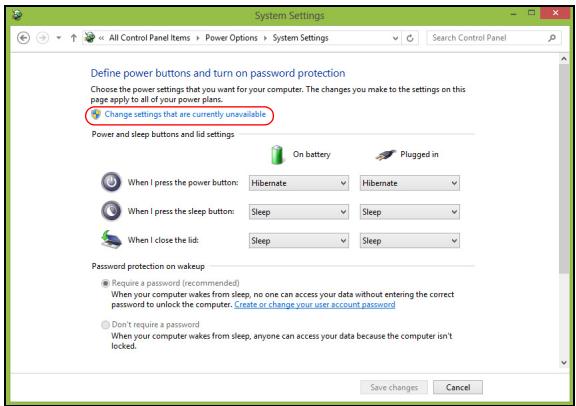
6. Scroll down and disable Turn on fast startup.
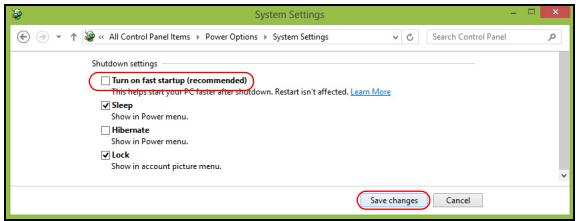
7. Select Save changes.
SOFTWARE
USING WINDOWS AND YOUR SOFTWARE
Packard Bell computers include software to help you use your computer; the programs and categories available on your computer depend on the model purchased.
Internet security offer
It is vital to protect your computer from viruses and attacks over the Internet (see Security on page 49). An comprehensive Internet security suite, including a free trial subscription period, is offered when you first start your computer. You should activate this protection before connecting to the Internet. This security suite protects your computer from the most recent online threats and protects your personal data (bank account credentials, credit card numbers, passwords, and more).
Packard Bell Recovery Management
To prepare your computer for system recovery options, you should create a set of recovery discs as soon as possible. See page 58 for more information.
FIRST STEPS ON THE NET
Protecting your computer
It is vital to protect your computer from viruses and attacks over the Internet (see Internet security offer on page 42 and Security on page 49). A comprehensive Internet security program is offered when you first start your computer. You should activate this protection as soon as possible, certainly before you connect to the Internet.
Choose an Internet Service Provider

Using the Internet has become a natural part of daily computing. Just a few simple steps can connect you to a vast collection of knowledge and communication tools. To accomplish these steps you should first select an Internet Service Provider (ISP), which supplies the connection between your computer and the Internet. You should research the ISPs available in your region, not
forgetting to talk to friends and family about their experiences or to check reviews and consumer reports. The ISP you select will provide instructions on how to connect to the Internet (you may need additional software or a special 'box' that connects to your phone line).
Connection types
Depending on your computer model, your location and your communication needs, you have several ways to connect to the Internet.
Dial-up
Some computers include a telephone dial-up ('modem') connector. This allows you to connect to the Internet using your telephone line. With a dial-up connection, you cannot use the modem and the telephone simultaneously on a single phone line. This type of connection is recommended only if you have limited use of the Internet as the connection speed is low and connection time is typically charged per hour.
DSL (e.g. ADSL)
DSL (Digital Subscriber Line) is an 'always-on' connection that runs over the phone line. As DSL and phone do not use the same frequencies, you can use your telephone at the same time you are connected to the Internet (this requires a 'micro-filter' on each telephone socket to avoid interference). To be eligible for DSL, you must be located near an DSL-equipped phone exchange (service is sometimes unavailable in rural areas). Connection speeds vary depending on your location, but DSL generally provides very fast and reliable Internet connection. As the connection is always-on, it is generally charged at fixed monthly rates.
Note: A DSL connection requires an appropriate modem. A modem is usually provided by the ISP when you register. Many of these modems include an 'router' that provides network and wi-fi access.
Cable
A cable connection provides fast and always-on Internet service via a cable television line. This service is generally available in large cities. You can use your telephone and watch cable TV at the same time you are connected to the Internet.
3G (WWAN or 'Wireless Wide-Area Network')
A 3G connection allows you to use cellular networks (such as those used by a mobile phone) to connect to the Internet while away from home. The socket for a SIM card may be built in to your computer, or may require an external device, such as a USB modem or even an appropriately equipped mobile phone.
Note: If your computer includes a SIM card slot, you require a compatible SIM card and a contract with a cellular provider.
Before using the 3G features, check with your service provider to see if any additional charges will be incurred, especially roaming charges.
Network connections
A LAN (Local Area Network) is a group of computers (for example, within an office building or home) that share a common communications line and resources. When you set up a network, you can share files, peripheral devices (such as a printer) and an Internet connection. You can set up a LAN using wired technologies (such as Ethernet) or wireless technologies (such as WiFi or Bluetooth).
Wireless networks
A wireless LAN or WLAN is a wireless local area network, which may link two or more computers without using wires. Setting up a wireless network is easy and allows you to share files, peripheral devices and an Internet connection.
What are benefits of a wireless network?
Mobility
Wireless LAN systems allow you and other users of your home network to share access to files and devices connected to the network, for example a printer or scanner.
Also you can share an internet connection with other computers in your home.
Installation speed and simplicity
Installing a wireless LAN system can be fast and easy and eliminates the need to pull cables through walls and ceilings.
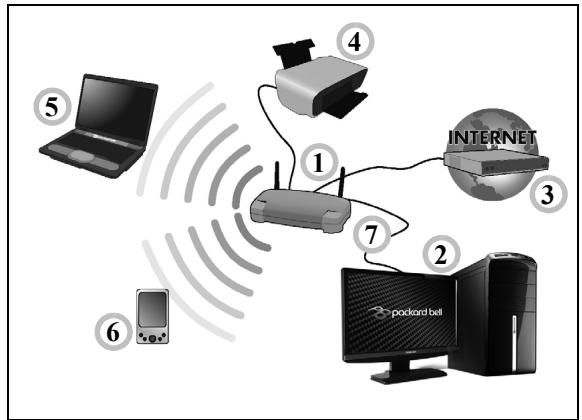
Components of a wireless LAN
To set up your Wireless network at home you need to have the following:
Access point (router)
Access points (routers) are two-way transceivers that broadcast data into the surrounding environment. Access points act as a mediator between wired and wireless network. Most routers have a built-in DSL modem that will allow you access to a high speed DSL internet connection. The ISP (Internet Service Provider) you have chosen normally supplies a modem/
router with the subscription to their services. Read carefully the documentation supplied with your Access point/rodter for detailed setup instructions.
Network cable (RJ45)
A network cable (also called RJ45 cable) is used to connect the host computer to the access point (see illustration below); this type of cable may also be used to connect peripheral devices to the access point.
Wireless adapter
An internal wireless adapter is normally already installed in your computer. A button or controls in Windows allow you to activate or deactivate the adapter.
Diagram of a working network
- Access point/rodter
- Desktop computer
- Modem
- Printer
- Portable computer
- PDA/Smartphone
- Network cables (RJ45)
Turning on/off a wireless network connection
Most computers feature a 'WiFi' button that turns the network connection on or off. If your computer has wireless access, but does not feature a Communication button, you may turn your wireless network on or off, or control what is shared over the network with the network management options. Press the Windows key (■) + W, type "HomeGroup" and then click on HomeGroup.
Warning: Using wireless devices while flying in aircraft is prohibited. Switch off all devices before boarding an aircraft; they may be dangerous to the operation of the aircraft, disrupt
Surf the Net!
To surf the Internet, you need a program called an Internet browser. Internet Explorer provides an easy and secure web browsing experience. As soon as you have your Internet access installed and you are connected, from Start, click the Internet Explorer tile or the icon located on Desktop and take your Internet experience to a new level!

Packard Bell website
To get you started why not visit our website, www.packardbell.com.
Packard Bell is dedicated to provide you with on-going personalised support. Check out our Support section to get help tailored to your needs.
www.packardbell.com is your portal to a world of online activities and services: visit us regularly for the latest information and downloads!
Security
You are probably eager to explore everything the Internet has to offer. In order for you to be safe online, Packard Bell has pre-installed Symantec's award-winning Norton Internet Security™ on your computer.
Norton Internet Security runs quietly in the background to block today's complex threats and protect your identity when you shop, bank, or browse online.
Norton Internet Security blocks online identity theft, detects and eliminates spyware, removes viruses and Internet worms, protects against hackers.
Definitions
What is a virus?
Malicious software, typically called 'viruses', are programs designed to infect and damage computers. Most viruses are transmitted over the Internet, emails or malicious Web sites. A typical virus will replicate and pass itself undetected to multiple computers. Other forms of nuisance, such as Trojan horses, worms or spam can infect your computer in various ways, using up resources or clogging up a network.
Note: Packard Bell guarantees that your computer was 100% virus free at the time of purchase and does not cover damages due to viruses.
What is spyware?
Spyware refers to generally unwanted programs that are downloaded onto your computer while connected to the Internet, often without you knowing it. Once it has infected your computer, it can snoop on your browsing activity, collect personal information, cause pop-up ads to appear, or even change the configuration of your computer. Spyware consumes resources on your computer; it can slow down your Internet connection or entire computer system, and even cause crashes.
Spyware is sometimes used by unscrupulous companies to monitor and track the sites you visit on the Internet so as to determine your web-surfing habits and display targeted pop-up ads on your screen. However, some
kinds of spyware go beyond simple tracking and actually monitor keystrokes and capture passwords, posing a serious security risk.
What is malware?
Malicious software, also known as malware, is software designed to deliberately harm your computer. For example, viruses, worms, and Trojan horses are malicious software. To help protect your computer against malware, make sure it is using up-to-date antivirus and anti-malware software.
What is a personal firewall?
A personal firewall is a software program designed to prevent unauthorized access to or from a private network. It acts as a shield to protect your Internet connection from unwanted connections, some of which may attempt to take control of your computer to install or redistribute viruses or malicious programs. Each connection to your computer is monitored - programs that attempt to receive information without your permission are detected and the firewall will display an alert. You can then decide if you will allow the connection, if the connection is to a program you are currently using then normally you would allow it (i.e. a game connecting to a multi-player server or an encyclopediaaia making a content update).
How to protect your computer
Cybercrime prevention can be straight-forward - when armed with a little technical advice and common sense, many attacks can be avoided. In general, online criminals are trying to make their money as quickly and
easily as possible. The more difficult you make their job, the more likely they are to leave you alone and move on to an easier target. The tips below provide basic information on how you can prevent online fraud.
Keep your computer current with the latest patches and updates
One of the best ways to keep attackers away from your computer is to apply patches and other software fixes when they become available. By regularly updating your computer, you block attackers from being able to take advantage of software flaws (vulnerabilities) that they could otherwise use to break into your system.
While keeping your computer up-to-date will not protect you from all attacks, it makes it much more difficult for hackers to gain access to your system, blocks many basic and automated attacks completely, and might be enough to discourage less-determined attackers, so they will give up and look for a more vulnerable computer elsewhere.
More recent versions of Microsoft Windows and other popular software can be configured to download and apply updates automatically so that you do not have to remember to check for the latest software. Taking advantage of auto-update features in your software is a great start toward keeping yourself safe online.
Protect your computer with security software
Several types of security software are necessary for basic online security. Security software essentials include firewall and antivirus programs. A firewall is usually your computer's first line of defense-it controls who and what can communicate with your computer online. You could think of a firewall as a sort of "policeman" that watches all the data attempting to
flow in and out of your computer on the Internet, allowing communications that it knows are safe and blocking "bad" traffic such as attacks from ever reaching your computer.
The next line of defense many times is your antivirus software, which monitors all online activities such as email messages and Web browsing and protects an individual from viruses, worms, Trojan horse and other types of malicious programs. Your antivirus and antispyware software should be configured to update itself, and it should do so every time you connect to the Internet.
Integrated security suites such as Norton Internet Security, which combine firewall, antivirus, antispyware with other features such as antivirus and parental controls, have become popular as they offer all the security software needed for online protection in a single package. Many people find using a comprehensive security suite an attractive alternative to installing, configuring and updating several different types of security software.
A complete version of Norton Internet Security™ is pre-installed on your Packard Bell system. It includes a free trial subscription to protection updates. Make sure you Activate it!
Choose strong passwords and keep them safe
Passwords are a fact of life on the Internet today; we use them for everything from ordering flowers and online banking to logging into our favorite airline Web site to see how many miles we have accumulated. The following tips can help make your online experiences secure:
-
Selecting a password that cannot be easily guessed is the first step toward keeping passwords secure and out of the wrong hands. Strong passwords have eight characters or more and use a combination of letters, numbers and symbols (e.g., # $ % !?). Avoid using any of the following as your password: your login name, anything based on your personal information such as your last name, and words that can be found in the dictionary, especially "password". Try to select especially strong, unique passwords for protecting activities like online banking.
-
Keep your passwords in a safe place and try not to use the same password for every service you use online.
- Change passwords on a regular basis, at least every 90 days. This can limit the damage caused by someone who has already gained access to your account. If you notice something suspicious with one of your online accounts, one of the first steps you can take is to change your password.
Protect your personal information
Exercise caution when sharing personal information such as your name, home address, phone number, and email address online. To take advantage of many online services, you will inevitably have to provide personal information in order to handle billing and shipping of purchased goods. Since not divulging any personal information is rarely possible, the following list contains some advice for how to share personal information safely online:
- Keep an eye out for phony email messages. Things that indicate a message may be fraudulent are misspellings, poor grammar, odd
phrasing, Web site addresses with strange extensions, Web site addresses that are entirely numbers where there are normally words, and anything else out of the ordinary. Additionally, phishing messages will often tell you that you have to act quickly to keep your account open, update your security, or urge you to provide information immediately or else something bad will happen. Don't take the bait.
-
Don't respond to email messages that ask for personal information. Legitimate companies will not use email messages to ask for your personal information. When in doubt, contact the company by phone or by typing in the company Web address into your Web browser. Don't click on the links in these messages as they make take you to fraudulent, malicious Web sites.
-
Steer clear of fraudulent Web sites used to steal personal information. When visiting a Web site, type the address (URL) directly into the Web browser rather than following a link within an email or instant message. Fraudsters often forge these links to make them look convincing.
A shopping, banking or any other Web site where sensitive information should have an "S" after the letters "http" (i.e. https://www.yourbank.com not http://www.yourbank.com). The "s" stands for secure and should appear when you are in an area requesting you to login or provide other sensitive data. Another sign that you have a secure connection is the small lock icon in the bottom of your web browser (usually the right-hand corner).
- Pay attention to privacy policies on Web sites and in software. It is important to understand how an organization might collect and use your
personal information before you share it with them.
- Guard your email address. Spammers and "phishers" sometimes send millions of messages to email addresses that may or may not exist in hopes of finding a potential victim. Responding to these messages or even downloading images ensures you will be added to their lists for more of the same messages in the future. Also be careful when posting your email address online in newsgroups, blogs or online communities.
Online offers that look too good to be true usually are
The old saying "there's no such thing as a free lunch" still rings true today. Supposedly "free" software such as screen savers or smileys, secret investment tricks sure to make you untold fortunes, and contests that you've surprisingly won without entering are the enticing hooks used by companies to grab your attention.
While you may not directly pay for the software or service with money, the free software or service you asked for may have been bundled with advertising software ("adware") that tracks your behavior and displays unwanted advertisements. You may have to divulge personal information or purchase something else in order to claim your supposed content winnings. If an offer looks so good it's hard to believe, ask for someone else's opinion, read the fine print, or even better, simply ignore it.
Review bank and credit card statements regularly
The impact of identity theft and online crimes can be greatly reduced if you can catch it shortly after your data is stolen or when the first use of your information is attempted. One of the easiest ways to get the tip-off that something has gone wrong is by reviewing the monthly statements
provided by your bank and credit card companies for anything out of the ordinary.
Additionally, many banks and services use fraud prevention systems that call out unusual purchasing behavior (i.e. if you live in Texas and all of the sudden start buying refrigerators in Budapest). In order to confirm these out of the ordinary purchases, they might call you and ask you to confirm them. Don't take these calls lightly; this is your hint that something bad may have happened and you should take necessary action.
Protect your computer with Windows security tools
Windows provides a variety of protection applications.
Windows Updates
If you have an active Internet connection, Windows can check for important updates for your computer and install them automatically. These updates include security patches and program updates that can improve your computing experience and help protect your computer against new viruses and attacks.
How do I know when my computer is at risk?
If the Action Center reports an alert, or if your computer behaves erratically, crashes unexpectedly or if some of your programs do not work correctly, your computer may be infected by malicious software. However, do not blame every computer problem on a virus! If you suspect your computer is infected, the first thing to do is update, if you have not already done so, and run your antivirus and anti-spyware software.
RECOVERY
If you are having trouble with your computer, and the frequently asked questions (see page 78) do not help, you can 'recover' your computer - i.e. return it to an earlier state.
This section describes the recovery tools available on your computer. Packard Bell provides Packard Bell Recovery Management, which allows you to create a recovery backup, a drivers and applications backup, and to start recovery options, either using Windows tools, or the recovery backup.
Note: Packard Bell Recovery Management is only available with a pre-installed Windows operating system.
Important: We recommend that you create a Recovery Backup and Drivers and Applications Backup and as soon as possible. In certain situations a full recovery will require a USB recovery backup.
CREATING A RECOVERY BACKUP
To reinstall from a USB storage drive, you must first create a recovery backup. The recovery backup includes the entire original contents of your computer's hard drive, including Windows and all factory-loaded software and drivers. Using this backup will restore your computer to the same state as when you purchased it, while giving you an option to retain all settings and personal data.
Note: Make sure you have a USB drive with a capacity of at least 16 GB.
- From Start, type 'Recovery' and then click Packard Bell Recovery Management in the list of apps.

Packard Bell Recovery Management
?X
Welcome to Packard Bell Recovery Management
Packard Bell Recovery Management enables you to restore your system. To begin, select the task you want to perform. Please DO NOT remove the USB device while proceeding.

Customized Restore (Retain User Data)

Reinstall Drivers or Applications
Make a back-up before you restore (Recommended).

Create Factory Default Backup
Create Drivers and Applications Backup
Restores your computer to its factory default status. A system is required. NOTE: All data on drive C will be deleted.

packard bell
- Click Create Factory Default Backup. The Recovery Drive window opens.
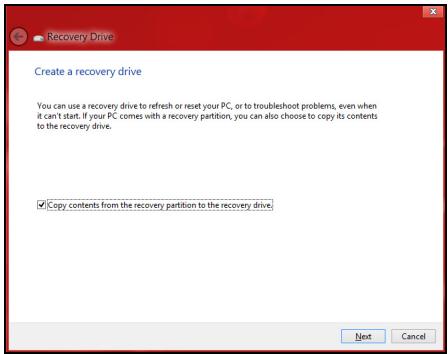
Make sure Copy contents from the recovery partition to the recovery drive is selected. This provides the most complete and safest recovery backup.
-
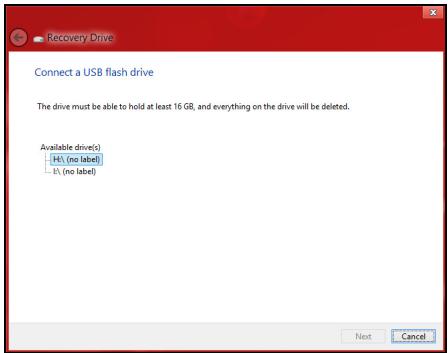
Plug in the USB drive then click Next.
-
Make sure your USB drive has enough capacity before continuing. The recovery backup requires at least 16 GB of storage
- You will be shown the backup progress on the screen.
- Follow the process until it completes.
- After creating the recovery backup, you can choose to delete the recovery information on your computer. If you delete this information, you can only use the USB recovery backup to restore your computer, if you lose or erase the USB drive, you cannot restore your computer.
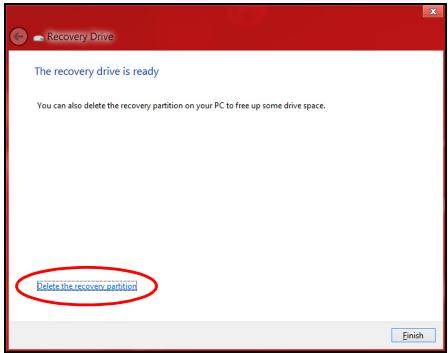
- Unplug the USB drive and label it clearly.
Important: Write a unique, descriptive label on the backup, such as 'Windows Recovery Backup'. Make sure you keep the backup in a safe place that you will remember.
CREATING A DRIVERS AND APPLICATIONS BACKUP
To create a Drivers and Applications Backup, that contains the factory-loaded software and drivers needed by your computer, you may use either a USB storage drive or, if your computer features a DVD recorder, one or more blank recordable DVDs.
- From Start, type 'Recovery' and then click Packard Bell Recovery Management in the list of apps.

Packard Bell Recovery Management
? X
Welcome to Packard Bell Recovery Management
Packard Bell Recovery Management enables you to restore your system. To begin, select the task you want to perform. Please DO NOT remove the USB device while proceeding.

Customized Restore (Retain User Data)

Reinstall Drivers or Applications
Make a back-up before you restore (Recommended).

Create Factory Default Backup
Create Drivers and Applications Backup
Restores your computer to its factory default status. A system is required. NOTE: All data on drive C will be deleted.

packard bell
- Click Create Drivers and Applications Backup.
Plug in the USB drive or insert a blank DVD into the optical drive, then click Next.
- If you are using a USB drive, make sure your USB drive has enough capacity before continuing.
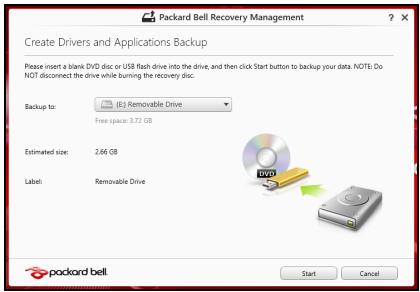
- If using DVDs, it will also show the number of blank, recordable discs you will need to complete the recovery discs. Make sure that you have the required number of identical, blank discs.
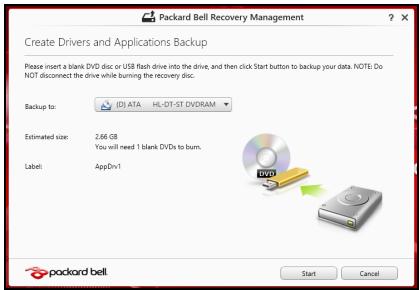
-
Click Start to copy files. You will be shown the backup progress on the screen.
-
Follow the process until it completes:
-
If you are using optical discs, the drive ejects each disc as it completes burning it. Remove the disc from the drive and mark it with a permanent marker.
If multiple discs are required, insert a new disc when prompted, then click OK. Continue until the process is complete. - If you are using a USB drive, unplug the drive and label it clearly.
Important: Write a unique, descriptive label on each backup, such as 'Drivers and Applications Backup'. Make sure you keep the backup in a safe place that you will remember.
RECOVERING YOUR SYSTEM
To recover your system:
- Perform minor fixes.
If only one or two items of software or hardware have stopped working correctly, the problem may be solved by reinstalling the software or the device drivers.
To reinstall software and drivers that were pre-installed at the factory, see "Reinstalling drivers and applications" on page 65.
For instructions on reinstalling software and drivers that were not preinstalled, see that product's documentation or support Web site.
- Revert to a previous system condition.
If reinstalling software or drivers does not help, then the problem may be
solved by returning your system to a previous state when everything was working correctly.
For instructions, see "Returning to an earlier system snapshot" on page 68.
- Reset your operating system.
If nothing else has solved the problem and you want to reset your system, but keep your user information, see "Returning your system to its factory condition" on page 69.
- Reset your system to its factory condition.
If nothing else has solved the problem and you want to reset your system to factory condition, see "Returning your system to its factory condition" on page 69.
Reinstalling drivers and applications
As a troubleshooting step, you may need to reinstall the applications and device drivers that came pre-installed on your computer from the factory. You can reinstall using either your hard drive or the backup you have created.
- Other applications - If you need to reinstall software that did not come pre-installed on your computer, you need to follow that software's installation instructions.
- New device drivers - If you need to reinstall device drivers that did not come pre-installed on your computer, follow the instructions provided with the device.
If you are reinstalling using Windows and the recovery information stored on your computer:
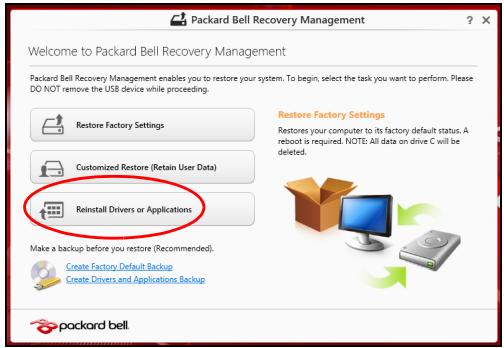
- From Start, type 'Recovery' and then click Packard Bell Recovery Management in the list of apps.
-
Click Reinstall Drivers or Applications.
-
You should see the Contents section of the Packard Bell Resource Center.
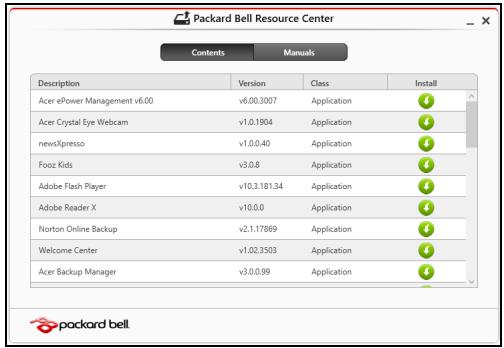
- Click the install icon for the item you want to install, then follow the onscreen instructions to complete the installation. Repeat this step for each item you want to reinstall.

If you are reinstalling from a Drivers and Applications Backup on a DVD or USB drive:
-
Insert the Drivers and Applications Backup into the disc drive or connect it to a free USB port.
-
If you inserted a DVD wait for Packard Bell Resource Center to start.
-
If Packard Bell Resource Center does not start automatically, press the Windows key +
, then double-click on the optical drive icon. -
If you are using a USB drive, press the Windows key +
, then double-click on the drive that contains the backup. Double-click on ResourceCenter. -
You should see the Contents section of the Packard Bell Resource Center.
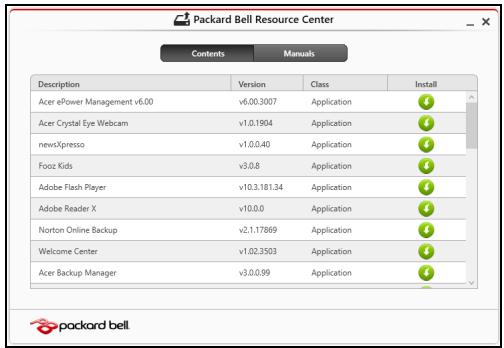
- Click the install icon for the item you want to install, then follow the onscreen prompts to complete the installation. Repeat this step for each item you want to reinstall.

Returning to an earlier system snapshot
Microsoft System Restore periodically takes a 'snapshot' of your system settings and saves them as restore points. In most cases of hard-to-resolve software problems, you can return to one of these restore points to get your system running again.
Windows automatically creates an additional restore point each day, and also each time you install software or device drivers.
Note: For more information about using Microsoft System Restore, from Start, type 'Help' and then click Help and Support in the list of apps. Type 'Windows system restore' in the Search Help box, then press Enter.
Returning to a restore point
- From Start, type 'Control Panel' and then click Control Panel in the list of apps.
- Click System and Security > Action Center, then click Recovery at the bottom of the window.
- Click Open System Restore, then Next.
- Click the latest restore point (at a time when your system worked correctly), click Next, then Finish.
- A confirmation window appears; click Yes. Your system is restored using the restore point you specified. This process may take several minutes, and may restart your computer.
Returning your system to its factory condition
If your computer experiences problems that are not recoverable by other methods, you may need to reinstall everything to return your system to its factory condition. You can recover from either your hard drive or the recovery backup you have created.
- If you can still run Windows and have not deleted the recovery partition, see "Recovering from Windows" on page 70.
- If you cannot run Windows, your original hard drive has been completely re-formatted or you have installed a replacement hard drive, see "Recovering from a recovery backup" on page 74.
Recovering from Windows
Start Packard Bell Recovery Management:
- From Start, type 'Recovery' and then click Packard Bell Recovery Management in the list of apps.
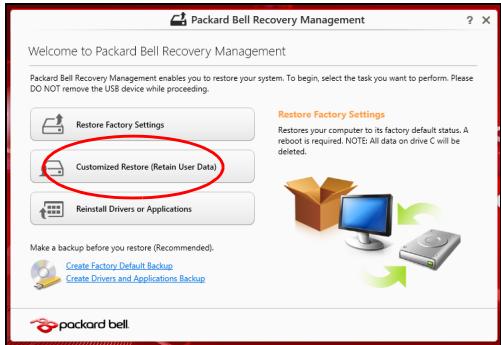
Two options are available, Restore Factory Settings (Reset my PC) or Customized Restore (Refresh my PC).
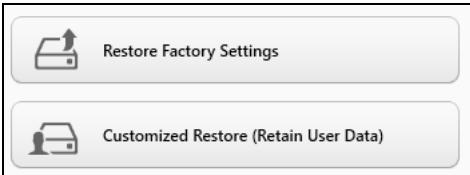
Restore Factory Settings deletes everything on your hard drive, then reinstalls Windows and all software and drivers that were pre-installed on your system. If you can access important files on your hard drive, back them up now. See "Restore Factory Settings with Packard Bell Recovery Management" on page 71.
Customized Restore will attempt to retain your files (user data) but will reinstall all software and drivers. Software installed since you purchased your PC will be removed (except software installed from the Windows
Store). See "Customized Restore with Packard Bell Recovery Management" on page 73.
Restore Factory Settings with Packard Bell Recovery Management
1. Click Restore Factory Settings.
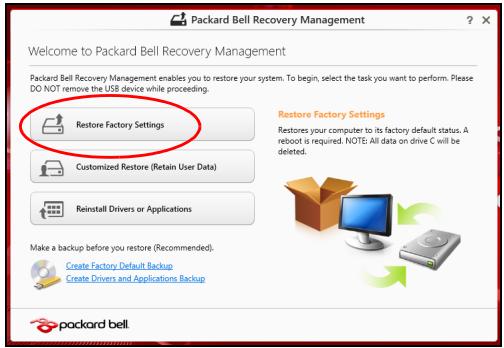
Caution: 'Restore Factory Settings' will erase all files on your hard drive.
- If your computer is configured with two operating systems (only available on certain systems), a window opens with the option to restore either Windows 7 or Windows 8. If you choose Windows 7, your computer will restart and restore Windows 7. If you choose Windows 8, Reset your PC opens, as described below.
Note: To fully enjoy Windows 8 features after changing from Windows 7, enter the BIOS (press <F2> when starting your computer) and
change Boot Mode to EFI. If you reinstall Windows 7, you must change Boot Mode back to Legacy before restarting your computer.
- The Reset your PC window opens.
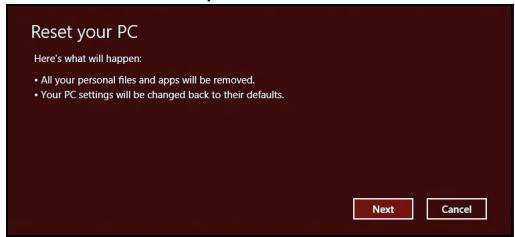
Images for reference only.
- Click Next, then choose how to erase your files:
a. Just remove my files quickly erases all files before restoring your computer and takes about 30 minutes.
b. Fully clean the drive completely cleans the drive after each file is erased, so no files can be viewed after the recovery. Cleaning the drive takes much longer, up to 5 hours, but is much more secure as old files are completely removed.
- Click Reset.
- The recovery process begins by restarting your computer, then continues by copying files to your hard drive.
- After the recovery has finished, you can start using your computer by repeating the first-start process.
1. Click Customized Restore (Retain User Data).
2. The Refresh your PC window opens.
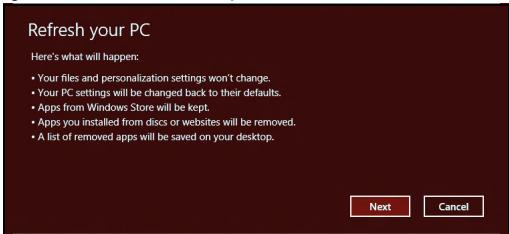
3. Click Next, then Refresh.
4. The recovery process begins by restarting your computer, then continues by copying files to your hard drive. This process takes about 30 minutes.
Recovering from a recovery backup
To recover from a recovery backup on a USB drive:
- Find your recovery backup.
- Plug in the USB drive and turn on your computer.
- If it is not already enabled, you must enable the F12 Boot Menu:
a. Press <F2> when starting your computer.
b. Use the left or right arrow keys to select the Main menu.
c. Press the down key until F12 Boot Menu is selected, press
d. Use the left or right arrow keys to select the Exit menu.
e. Depending on the type of BIOS your computer uses, select Save Changes and Exit or Exit Saving Changes and press Enter. Select OK or Yes to confirm.
f. Your computer will restart.
- During startup, press
to open the boot menu. The boot menu allows you to select which device to start from, select the USB drive.
a. Use your arrow keys to select USB Device, then press Enter.
b. Windows starts from the recovery backup instead of the normal startup process.
- Select your keyboard type.
- Select Troubleshooting and then choose the type of recovery to use:
a. Click Advanced then System Restore to start Microsoft System Restore:
Microsoft System Restore periodically takes a 'snapshot' of your system settings and saves them as restore points. In most cases of hard-to-resolve software problems, you can return to one of these restore points to get your system running again.
b. Click Reset your PC to start the reset process:
Reset your PC deletes everything on your hard drive, then reinstalls Windows and all software and drivers that were pre-installed on your system. If you can access important files on your hard drive, back them up now. See "Reset your PC from the recovery backup" on page 76.
c. Click Refresh your PC to start the refresh process:
Refresh your PC will attempt to retain your files (user data) but will reinstall all software and drivers. Software installed since you purchased your PC will be removed (except software installed from the Windows Store). See "Refresh your PC from the recovery backup" on page 77.
Reset your PC from the recovery backup
Caution: Reset your PC will erase all files on your hard drive.
- The Reset your PC window opens.
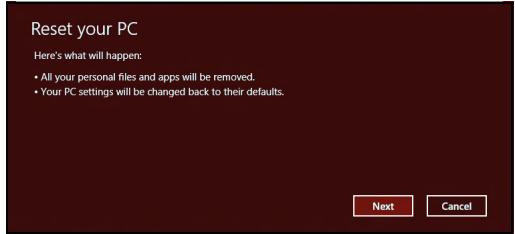
Images for reference only.
- Click Next.
- Select the operating system to recover (normally only one option is available).
- Choose to keep any changes to the hard drive:
a. If you have deleted the recovery partition or otherwise changed the partitions on the hard drive and want to keep these changes, select No.
b. To completely restore your computer to Factory Settings, select Yes.
- Choose how to erase your files:
a. Just remove my files quickly erases all files before restoring your computer and takes about 30 minutes.
b. Fully clean the drive completely cleans the drive after each file is erased, so no files can be viewed after the recovery. Cleaning the drive takes much longer, up to 5 hours, but is much more secure as
old files are completely removed.
- Click Reset.
- After the recovery has finished, you can start using your computer by repeating the first-start process.
Refresh your PC from the recovery backup
- The Refresh your PC window opens.
Refresh your PC
Here's what will happen:
- Your files and personalization settings won't change.
- Your PC settings will be changed back to their defaults.
- Apps from Windows Store will be kept.
- Apps you installed from discs or websites will be removed.
A list of removed apps will be saved on your desktop.
Next
Cancel
- Click Next.
- Select the operating system to recover (normally only one option is available).
- Click Refresh.
- The recovery process begins by restarting your computer, then continues by copying files to your hard drive. This process takes about 30 minutes.
Frequently Asked Questions
The following is a list of possible situations that may arise during the use of your computer. Easy solutions are provided for each one.
I turned on the power, but the computer does not start or boot up.
Look at the power indicator:
-
If it is not lit, no power is being supplied to the computer. Check the following:
-
If you are using on the battery, it may be low and unable to power the computer. Connect the AC adapter to recharge the battery pack.
- Make sure that the AC adapter is properly plugged into the computer and to the power outlet.
If it is lit, check the following:
- Is a disc in the optical drive? Remove it and press <Ctrl> + <Alt> + <Del> to restart the system.
- Do you have a USB storage device (USB disk or smartphone) plugged into your computer? Unplug it and press <Ctrl> + <Alt> + <Del> to restart the system.
Nothing appears on the screen.
The computer's power management system automatically blanks the screen to save power. Press any key to turn the display back on.
If pressing a key does not turn the display back on, three things might be the cause:
- The brightness level might be too low. Press (increase) to adjust the brightness level.
- The display device might be set to an external monitor. Press ☐ to toggle the display back to the computer.
- If the Sleep indicator is lit, the computer is in Sleep mode. Press and release the power button to resume.
No audio is heard from the computer.
Check the following:
- The volume may be muted. In Windows, look at the volume control (speaker) icon on the taskbar. If it is crossed-out, click the icon and deselect the Mute all option.
- The volume level may be too low. In Windows, look at the volume control icon on the taskbar. You can also use the volume control buttons to adjust the volume.
- If headphones, earphones or external speakers are connected to the line-out port on the computer, the internal speakers automatically turn off.
I want to eject the optical drive tray without turning on the power
There is a mechanical eject hole on the optical drive. Simply insert the tip of a pen or paperclip into the hole and push to eject the tray.
The keyboard does not respond.
Try attaching an external keyboard to a USB port on the computer. If it works, contact your dealer or an authorized service center as the internal keyboard cable may be loose.
The printer does not work
Check the following:
- Make sure that the printer is connected to a power outlet and that it is turned on.
- Make sure that the printer cable is connected securely to a USB port and the corresponding port on the printer.
TIPS AND HINTS FOR USING WINDOWS 8
We know this is a new operating system that will take some getting used to, so we've created a few pointers to help you get started.
Three concepts you might want to keep in mind
1. Start
The Start button is no longer available; you can launch apps from the Start screen.
2. Tiles
Live tiles are similar to thumbnails of the apps.
3. Charms
Charms allow you to perform useful functions, such as sharing content, turning off your PC or changing settings.
How do I access the charms?
Move the cursor to the upper or lower right-hand corner of the screen to access the charms, or press the Windows key +
How do I get to Start?
Press the Windows key on the keyboard; press the Windows key +
How do I jump between apps?
Move the cursor to the left-hand edge of the screen to view thumbnails of apps that are currently running.
You may also press the Windows key +
How do I turn off my computer?
Press the Windows key +
Why is there a new interface?
The new interface for Windows 8 is designed to work well with touch input. Windows Store apps will automatically use the whole screen and don't require closing in the traditional way. Windows Store apps will be displayed on Start using live-tiles.
What are 'live tiles?'
Live tiles are similar to thumbnails of the apps that will be updated with new content whenever you're connected to the Internet. So, for example, you can view weather or stock updates without needing to open the app.
How do I unlock my computer?
Press the any key and click on a user account icon to unlock the computer. If your account has a password set, you will need to enter the password to continue.
How do I personalize my computer?
You can personalize Start with a different background image or by arranging the tiles to suit your personal needs.
To change the background, press the Windows key +
How do I move tiles?
Click and hold a tile to select it, then drag it to the place on Start that you want it to appear. Other tiles will be moved to accommodate the tile in its new location.
Can I make tiles bigger or smaller?
Right-click on a tile, then select Smaller or Larger from the menu that appears at the bottom of the screen.
How do I personalize the Lock screen?
You can personalize the lock screen with a different image or to show you quick status and notifications to suit your personal needs.
To change the background, press the Windows key +
So, how do I close an app?
Move the cursor to the top of the screen and click and drag the window downwards to close the app.
You can close apps from the thumbnails on the left-hand edge of the screen by right-clicking on a thumbnail and selecting Close.
Can I change the screen resolution?
From Start, start typing 'Control Panel' to open Search and display the results; click Control Panel > Adjust screen resolution.
I want to use Windows in the way that I'm used to - give me my desktop back!
From Start click the Desktop tile to see a traditional desktop. You can pin apps you frequently use to the taskbar to easily open them.
If you click an app that is not a Windows Store app, Windows will automatically open the app using Desktop.
Where are my apps?
From Start, simply start typing the name of the app you would like to open, and Search will automatically open and list results.
To view the complete list of apps, press the space bar or the Menu key and click All apps.
How do I make an app appear on Start?
If you're in All apps and you want to make an app appear on Start, you can select the app and right-click on it. Select Pin to Start from the menu that appears at the bottom of the screen.
How do I remove a tile from Start?
Right-click the tile and click Unpin from Start from the menu that appears at the bottom of the screen.
How do I make an app appear on my taskbar in Desktop?
If you're in All apps and you want to make an app appear on the taskbar in Desktop, you can select the app and right-click on it. Select Pin to taskbar from the menu that appears at the bottom of the screen.
How do I install apps?
You can download Windows Store apps from Store. You will need to have a Microsoft ID to purchase and download apps from Store.
I can't find apps like Notepad and Paint! Where are they?
From Start you can simply start typing the name of the app you're looking for to open Search and list the results. Alternatively, open All apps and scroll to 'Windows Accessories' to see the list of legacy programs.
What is a Microsoft ID (account)?
A Microsoft account is an email address and password that you use to sign in to Windows. You can use any email address, but it is best if you choose the one you already use to communicate with friends and sign in to your favorite websites. When you sign in to your PC with a Microsoft account, you'll connect your PC to the people, files, and devices you care about.
Do I need one?
You do not need a Microsoft ID to use Windows 8, but it makes life easier because you can sync data across different machines you sign in to using a Microsoft ID.
How do I get one?
If you've already installed Windows 8 and didn't sign in with a Microsoft account or you don't have a Microsoft account and want to get one, press the Windows key +
How do I add a favorite to Internet Explorer?
Internet Explorer 10 doesn't have traditional favorites, instead you can pin shortcuts to Start. Once you have the page open, right-click anywhere on the page to open the menu at the bottom of the screen. Click Pin to Start.
How do I check for Windows updates?
Press the Windows key +
Where can I get more information?
For more information please visit:
- Windows 8 tutorials: www.packardbell.com/windows8-tutorial
- Support FAQs: support.packardbell.com
REGULATORY INFORMATION
PREVENTION OF HEARING LOSS
To protect your hearing, follow these instructions.
- Increase the volume gradually until you can hear clearly and comfortably.
- Do not increase the volume level after your ears have adjusted.
- Do not listen to music at high volumes for extended periods.
- Do not increase the volume to block out noisy surroundings.
- Decrease the volume if you can't hear people speaking near you.

RADIO DEVICE REGULATORY NOTICE
- Note: Regulatory information below is for models with wireless LAN and/or Bluetooth only.
WIRELESS ADAPTER REGULATORY INFORMATION
USA—FCC and FAA
The FCC with its action in ET Docket 96-8 has adopted a safety standard for human exposure to radio frequency (RF) electromagnetic energy emitted by FCC certified equipment. The wireless adapter meets the Human Exposure limits found in OET Bulletin 65, supplement C, 2001, and ANSI/IEEE C95.1, 1992. Proper operation of this radio according to the instructions found in this manual will result in exposure substantially below the FCC's recommended limits.
- The following safety precautions should be observed:
Do not touch or move antenna while the unit is transmitting or receiving.
- Do not hold any component containing the radio such that the antenna is very close or touching any exposed parts of the body, especially the face or eyes, while transmitting.
- Do not operate the radio or attempt to transmit data unless the antenna is connected; this behavior may cause damage to the radio.
Use in specific environments:
- The use of wireless adapters in hazardous locations is limited by the constraints posed by the safety directors of such environments.
- The use of wireless adapters on airplanes is governed by the Federal Aviation Administration (FAA).
- The use of wireless adapters in hospitals is restricted to the limits set forth by each hospital.
Antenna Use
In order to comply with FCC RF exposure limits, low gain integrated antennas should be located at a minimum distance of 20~cm (8 inches) or more from the body of all persons or at a minimum distance as specified by the FCC module grant conditions. FCC grants can be viewed from the FCC Equipment Authorization website at https://fjallfoss.fcc.gov/oetcf/eas/reports/GenericSearch.cfm by entering the FCC ID printed on the module label.
Explosive Device Proximity Warning
Warning: Do not operate a portable transmitter (including this wireless adapter) near unshielded blasting caps or in an explosive environment unless the transmitter has been modified to be qualified for such use
AntennaWarnings
- Warning: To comply with the FCC and ANSI C95.1 RF exposure limits, it is recommended that for the wireless adapter installed in a desktop or portable computer, the antenna for this wireless adapter to be installed so as to provide a
separation distance of at least 20 cm (8 inches) from all persons or at the minimum distance as specified by the module grant conditions. FCC grants can be viewed from the FCC Equipment Authorization website at https://fjallfoss.fcc.gov/oetcf/eas/reports/GenericSearch.cfm by entering the FCC ID printed on the module label.
- Warning: The wireless adapter is not designed for use with high-gain directional antennas.
Use On Aircraft Caution
- Caution: Regulations of the FCC and FAA prohibit airborne operation of radio-frequency wireless devices (wireless adapters) because their signals could interfere with critical interference with critical aircraft instruments.
Local Restrictions on 802.11a, 802.11b, 802.11g and 802.11n Radio Usage
- Caution: Due to the fact that the frequencies used by 802.11a, 802.11b, 802.11g and 802.11n wireless LAN devices may not yet be harmonized in all countries, 802.11a, 802.11b, 802.11g and 802.11n products are designed for use only in specific countries, and are not allowed to be operated in countries other than those of designated use. As a user of these products, you are responsible for ensuring that the products are used only in the countries for which they were intended and for verifying that they are configured with the correct selection of frequency and channel for the country of use. Any deviation from the permissible power and frequency settings for the country of use is an infringement of national law and may be punished as such.
Wireless Interoperability
The wireless adapter is designed to be interoperable with other wireless LAN products that are based on direct sequence spread spectrum (DSSS) radio technology and to comply with the following standards:
- IEEE Std. 802.11b compliant Standard on Wireless LAN
- IEEE Std. 802.11g compliant Standard on Wireless LAN
-
IEEE Std. 802.11a compliant Standard on Wireless LAN (applies to devices supporting 802.11a)
-
IEEE Std. 802.11n draft 2.0 compliant on Wireless LAN
- Wireless Fidelity certification, as defined by the Wi-Fi Alliance
The Wireless Adapter and Your Health
The wireless adapter, like other radio devices, emits radio frequency electromagnetic energy. The level of energy emitted by the wireless adapter, however, is less than the electromagnetic energy emitted by other wireless devices such as mobile phones. The wireless adapter operates within the guidelines found in radio frequency safety standards and recommendations. These standards and recommendations reflect the consensus of the scientific community and result from deliberations of panels and committees of scientists who continually review and interpret the extensive research literature. In some situations or environments, the use of the wireless adapter may be restricted by the proprietor of the building or responsible representatives of the applicable organization. Examples of such situations may include:
- Using the wireless adapter on board airplanes, or
- Using the wireless adapter in any other environment where the risk of interference with other devices or services is perceived or identified as being harmful.
If you are uncertain of the policy that applies to the use of wireless adapters in a specific organization or environment (an airport, for example), you are encouraged to ask for authorization to use the adapter before you turn it on.
FCC Radio Frequency Interference Requirements (applies to device supporting 802.11a)
This device is restricted to indoor use due to its operation in the 5.15 to 5.25 GHz and 5.470 to 5.725 GHz frequency ranges. FCC requires this product to be used indoors for the frequency ranges 5.15 to 5.25 GHz and 5.470 to 5.725 GHz to reduce the potential for harmful interference to co-channel mobile satellite systems. High power radars are allocated as primary users of the 5.25 to 5.35 GHz and 5.65 to 5.85 GHz bands. These radar stations can cause interference with and /or damage this device. No configuration controls are provided for this wireless adapter allowing any change in the frequency of
operations outside the FCC grant of authorization for U.S operation according to Part 15.407 of the FCC rules.
USA - Federal Communications Commission (FCC)
This device complies with Part 15 of the FCC Rules. Operation of the device is subject to the following two conditions:
- This device may not cause harmful interference.
- This device must accept any interference that may cause undesired operation.
- Note: The radiated output power of the adapter is far below the FCC radio frequency exposure limits. Nevertheless, the adapter should be used in such a manner that the potential for human contact during normal operation is minimized. To avoid the possibility of exceeding the FCC radio frequency exposure limits, you should keep a distance of at least 20cm between you (or any other person in the vicinity), or the minimum separation distance as specified by the FCC grant conditions, and the antenna that is built into the computer. Details of the authorized configurations can be found at http://www.fcc.gov/oet/ea/ by entering the FCC ID number on the device.
Interference Statement
This wireless adapter has been tested and found to comply with the limits for a Class B digital device, pursuant to Part 15 of the FCC Rules. These limits are designed to provide reasonable protection against harmful interference in a residential installation. This wireless adapter generates, uses, and can radiate radio frequency energy. If the wireless adapter is not installed and used in accordance with the instructions, the wireless adapter may cause harmful interference to radio communications. There is no guarantee, however, that such interference will not occur in a particular installation. If this wireless adapter does cause harmful interference to radio or television reception (which can be determined by turning the equipment off and on), the user is encouraged to try to correct the interference by taking one or more of the following measures:
-
Reorient or relocate the receiving antenna of the equipment experiencing the interference.
-
Increase the distance between the wireless adapter and the equipment experiencing the interference.
- Connect the computer with the wireless adapter to an outlet on a circuit different from that to which the equipment experiencing the interference is connected.
- Consult the dealer or an experienced radio/TV technician for help.
- Note: The adapter must be installed and used in strict accordance with the manufacturer's instructions as described in the user documentation that comes with the product. Any other installation or use will violate FCC Part 15 regulations.
Canada - Industry Canada (IC)
This device complies with RSS210 of Industry Canada. Cet apparéil se conforme à RSS210 de Canada d'Industrie.
- Caution: When machine supports and using IEEE 802.11a wireless LAN, this product is restricted to indoor use due to its operation in the 5.15- to 5.25 GHz frequency range. Industry Canada requires this product to be used indoors for the frequency range of 5.15 GHz to 5.25 GHz to reduce the potential for harmful interference to co-channel mobile satellite systems. High power radar is allocated as the primary user of the 5.25 to 5.35 GHz and 5.65 to 5.85 GHz bands. These radar stations can cause interference with and/or damage to this device. The maximum allowed antenna gain for use with this device is 6dBi in order to comply with the E.I.R.P limit for the 5.25 to 5.35 and 5.725 to 5.85 GHz frequency range in point-to-point operation. To comply with RF exposure requirements all antennas should be located at a minimum distance of 20 cm, or the minimum separation distance allowed by the module approval, from the body of all persons.
- Attention: l'utilisation d'un réseau sans fil IEEE802.11a est restreinte à une utilisation en interieur à cause du fonctionement dans la bande de fréquence 5,15 - 5,25 GHz. Industry Canada requiert que ce produit soit utilisé à l'intérieur desBATIMENTS pour la bande de fréquence 5,15 - 5,25 GHz afin de réduire les possibiltés d'interférences nuisibles aux canaux co-existants des systèmes de transmission satellites. Les radars de puissances ont fait l'objet d'une allocation primaire de
This Class B digital apparatus complies with Canadian ICES-003.
"To prevent radio interference to the licensed service, this device is intended to be operated indoors and away from windows to provide maximum shielding. Equipment (or its transmit antenna) that is installed outdoors is subject to licensing."
List of applicable countries
This product must be used in strict accordance with the regulations and constraints in the country of use. For further information, contact the local office in the country of use. Please see http://ec.europa.eu/enterprise/rtte/implement.htm for the latest country list.
List of National Codes
THIS EQUIPMENT MAY BE OPERATED IN THE FOLLOWING COUNTRIES:
| Country | ISO 31662 letter code | Country | ISO 31662 letter code | Country | ISO 31662 letter code | Country | ISO 31662 letter code |
| Austria | AT | Germany | DE | Malta | MT | United Kingdom | GB |
| Belgium | BE | Greece | GR | Netherlands | NT | Iceland | IS |
| Cyprus | CY | Hungary | HU | Poland | PL | Liechtenstein | LI |
| Czech Republic | CZ | Ireland | IE | Portugal | PT | Norway | NO |
| Denmark | DK | Italy | IT | Slovakia | SK | Switzerland | CH |
| Estonia | EE | Latvia | LV | Slovenia | SL | Bulgaria | BG |
| Finland | FI | Lithuania | LT | Spain | ES | Romania | RO |
| France | FR | Luxembourg | LU | Sweden | SE | Turkey | TR |
The low band 5.15 -5.35 GHz is for indoor use only.
This equipment complies with the essential requirements of the European Union directive 1999/5/EC. See Statements of European Union Compliance, and more details refer to the attached Declaration of Conformity.
| English | Hereby, ACER INC., declares that this devise is in compliance with the essential requirements and other relevant provisions of Directive 1999/5/EC. |
| Česky [Czech] | ACER INC. tímto prohlasuje,že toto zařizení je ve shodě se základními požadavya dalsími príslušnými ustanoveními směrnice 1999/5/ES. |
| Daansk [Danish] | Undertegnede ACER INC. erklærer herved, at følgende udstyr overholder de væsentlige krav og øvridge relevante krav i direktiv 1999/5/EF. |
| Deutsch [German] | Hiermit erklärrt ACER INC., dass sich das Gerät Radiolan in Übereinstimmung mit den grundlegenden Anforderungen und den übrigen einschlögigen Bestimmungen der Richtlinie 1999/5/EG befindet. |
| Eesti [Estonian] | Käesolevaga kinnitab ACER INC. seadme vastavust direktiivi 1999/5/EÜ pöhinõuetele ja nimetatud direktivist tulenevatele teistele asjakohastele sätetele. |
| Espanol [Spanish] | Por medio de la presente ACER INC. declara que el dispositivo cumple con los requisitos esencias y caulesquiera除外 dispositions aplicables o exigibles de la Directiva 1999/5/CE. |
| Ελληνικά [Greek] | Δια του παρόντος η ACER INC. δηλώνει στι η παρούσα συακεύη συμμορώνεται προς τίς υουσιώδεις απατιήσεις και τις λοιπές διατάξεις της Εθηγίας 1999/5/ EK. |
| François [French] | Par laprésente ACER INC. Declare que cet appeareil est conforme aux exigences essentielles et aux autres dispositions pertinentes de la directive 1999/5/CE. |
| Íslenska [Icelandic] | Hér með lysir ACER INC. yfirþvi að erí samræmi við grunnkröfur og aðrar kröfur, sem gerða r eruí tīskipun 1999/5/EC. |
| Itaaliano [Italian] | Con la presente ACER INC. dichiara che questo dispositivo è conforme ai requisiti essenziali ed alle altre disposizioni pertinenti stabilite alla direttiva 1999/5/CE. |
| Latviski [Latvian] | Ar šo ACER INC. deklare, ka šī ierīce atbilst Direktīvas 1999/5/EK būtiskajām prasībām un citiem ar to saistītajiem noteikumiem. |
| Lietuvić [Lithuanian] | Šiuo ACER INC. deklaruoja, kad šis Žrenginys atitinka esminius reikalavimus irKitas 1999/5/EB Direktyvos nuostatas. |
| Malti [Maltese] | Hawnhekk, ACER INC., jiddikjara li dan jikkonforma mal- ti ijiet essenzjali u ma provvedimenti o rajn relevanti li he mm fid-Dirrettiva 1999/5/EC. |
| Magyar [Hungarian] | Alulírott, ACER INC. nyilatkozom, hogy a készülék megfelela a vonahtkoź alapveto követelényeknek és az 1999/5/EC irányelv egyéb eloírsainak. |
| Nederlands [Dutch] | Hierbij verkaart ACER INC. dat het toestel voldoet aan de essentièle eisen en de andere relevante bepalingen van richtlijn 1999/5/EG. |
| Norsk [Norwegiann] | ACER INC. erkrærer herved at utstyret er i samsvar med de grunnleggende krav og øvridge relevante krav i direktiv 1999/5/EF. |
| Polski [Polish] | Niniejszym ACER INC. oświadcza,ź urȩzdenie jest zgodne z zasadniczymi wymogami oraz pożostymi stosownymi postanowieniami Dyrektywy 1999/5/EC. |
| Portuguès [Portuguese] | ACER INC. declares que este dispositivo está conforme com os requisitos essentials i e autres disponções da Directa 1999/5/CE. |
| Slovensko [Slovenian] | ACER INC. izjavlja, da je ta naprava skladna z bistvenimi zahtevami in ostalimi relevantnimi določili Direktive 1999/5/ES. |
| Slovensky [Slovak] | ACER INC. týmto vyhlasuje,ź zariadenie splína základné požiadavky a větky príslušné ustanovenia Smernice 1999/5/ES. |
| Suomi [Finnish] | ACER INC. vakuuttaa täten että tämä laite on direktiivin 1999/5/EY oleellisten vaatimusten ja sitä koskevienn direktiivin muiden ehtojen mukainen. |
| Svenska [Swedish] | Härmed intygar ACER INC. attenna enchet stár i överensstammelse med väsentliga egenskapskrav och övriga relevanta bestämelse som framgår av direktiv 1999/5/EG. |
France
The use of these equipments is regulated by:
1.D.L.gs 1.8.2003, n. 259, article 104 (activity subject to general authorization) for outdoor use and article 105 (free use) for indoor use, in both cases for private use.
2.D.M. 28.5.03, for supply to public of LAN access to networks and telecom services.
Pakistan Telecommunication Authority (PTA) Approved
Morocco
The operation of this product in the radio channel 2 (2417 MHz) is not authorized in the following cities: Agadir, Assa-Zag, Cabo Negro, Chaouen, Goulmima, Oujda, Tan Tan, Taourirt, Taroudant and Taza.
The operation of this product in the radio channels 4, 5, 6 and 7 (2425 - 2442 MHz) is not authorized in the following cities: Aéroport Mohamed V, Agadir, Aguelmous, Anza, Benslimane, Béni Hafida, Cabo Negro, Casablanca, Fès, Lakhab, Marrakech, Merchich, Mohammédia, Rabat, Salé, Tanger, Tan Tan, Taunate, Tit Mellil, Zag.
Japan
5GHz 带は室内ご用使用のと
Korea
MODIFICATIONS TO THE PRODUCT
CE Marking
Packard Bell cannot be held responsible for unauthorized modifications made by the user and the consequences thereof, which may alter the conformity of the product with the CE Marking.
Radio frequency interference
The manufacturer is not responsible for any radio or TV interference caused by unauthorised modifications to this equipment.
CONNECTIONS AND REMOTE EARTHSH
PELV (Protected Extra Low Voltage)
To ensure the extra-low voltage integrity of the equipment, only connect equipment with mains-protected electrically-compatible circuits to the external ports.
SELV (Safety Extra Low Voltage)
Every input and output of this product is classified as Safety Extra Low Voltage.
Remote earths
To prevent electrical shock, connect all local (individual office) computers and computer support equipment to the same electrical circuit of the building wiring. If you are unsure, check the building wiring to avoid remote earth conditions.
Building supply
Only connect the equipment to a building supply that is in accordance with current wiring regulations in your country. In the U.K., these are the IEE regulations.
POWER SUPPLY AND CABLES
Power supply
The power supply socket-inlet and socket-outlet (if equipped) are classified as Hazardous Voltage.
You must unplug the power supply cord and remove the battery to disconnect the equipment from the power supply. In that aim, the socket-outlet should be installed near to the equipment and should be easily accessible.
Input rating: Refer to the rating label on the bottom of the computer and ensure that your power adapter complies with the specified rating.
Under no circumstances should the user attempt to disassemble the power supply. The power supply has no user-replaceable parts. Inside the power supply are hazardous voltages that can cause serious personal injury.
A defective power supply must be returned to your dealer.
Power cables and plug
This Product requires a grounded power cord and plug. The plug only fits in a grounded power outlet. Make sure the power outlet is properly grounded before inserting the plug. Do not insert the plug into a non-grounded power outlet. Contact your electrician for details.
The cord length must not exceed 2.5 metres. To prevent electrical hazards, do not remove or disable the ground contact on the power cord. Replace the power cord if it gets damaged. Contact your dealer for an exact replacement. In Europe, the plug must be rated for 250 VAC, 10 amp minimum. The plug must display an international agency approval marking. The cord must be suitable for use in the end-user country. Consult your dealer or the local electrical authorities if you are unsure of the type of power cord to use in your country.
Cables
For cables which are not delivered with the Product in the computer's packaging:
The EMC performance of the system is guaranteed only if the cable and interface use efficient shielding.
The use of shielded interface cable is required for USB, IEEE1394, serial, printer, game, analog or digital audio/ video, PS2, TV or FM antennas, and generally all high-speed cable interfaces.
Use only UL Listed No. 26AWG or larger telecommunication cords.
Only Ethernet LAN or RTC modem cable can have length exceeding 3 metres.
Packard Bell recommends that you add a ferrite core round clip to each cable connecting your computer to a hardware device that was not included with your computer.
- Ferrite reference: 28A-2029 from Steward (two loops)
During product certification, Packard Bell used the following cable quality:
- USB2.0 Certified Cables from Hama 46778
- IEEE1394 shielded FireWire from Hama 50011
- RCA-RCA shielded Audio/Video Cables from Thomson KHC001M, KHC012M, KHC028M
- Stereo Jack shielded Audio cables from Hama 43330H, 42714H
Heat Build-up and Portable Computers
The AC adapter and the underside of the computer can become hot after prolonged use.
Sustained physical contact with either should be avoided.
CHASSIS COVER REMOVAL AND REPLACEMENT
Before removing the chassis cover to service or modify the equipment, you must disconnect all power and modem cords, and remove or disable the battery.
- Caution: Some components inside the computer can become hot after prolonged use.
You then must close the chassis before you plug in and switch on the equipment.
LASER COMPLIANCE STATEMENT
The optical devices are tested and certified to be compliant with International Electrotechnical Commission IEC60825-1 and European EN60825-1 standards for Class 1 laser products.
Class 1 laser products are not considered hazardous. The optical devices are designed such that there is never human access to laser radiation above a Class 1 level during normal operation or prescribed maintenance conditions.
The optical devices installed in your computer are designed for use solely as components of such electronic product and therefore do not comply with the appropriate requirements of Code of Federal Regulation Sec. 1040.10 and Sec. 1040.11 for COMPLETE laser products.
Because exposure to laser radiation is extremely hazardous, under no circumstances should the user attempt to disassemble the laser device.
PACKAGING
The packaging of this product is compliant with the European Environmental Directive 94/62/EC from December 20th 1994 and its equivalent in the French Legislation by the Decree 98-638 from july 20th 1998.
COMPLIANT WITH RUSSIAN REGULATORY CERTIFICATION

ME61
ENVIRONMENT
OUR COMMITMENT TO ENVIRONMENTAL PROTECTION
Environment has been at the heart of our products.
Packard Bell is committed to limit the environmental impact of its products during product life cycle.
Starting at design phase, with a very strict procurement policy, maximum attention is given to electronic components in order to limit their weight in heavy metals such as lead, cadmium, chromium, mercury, etc. Suppliers are asked, for each part of any product, to respect all regulations.
As far as end-of-life products are concerned, measures have been taken to anticipate and facilitate the recycling of all our products. Thus, all plastic parts heavier than 25 grams used in Packard Bell products are labelled ISO 11469. This label allows a quick recognition of the material and eases its valorisation. Likewise, desktop computers are designed to be easily dismantled, with screws being replaced by clips.
PRODUCT DISPOSAL
The 2002/96/EC Directive, known as Waste Electrical and Electronic Equipment (WEEE) Directive, requires that used electrical and electronic products must be disposed of separately from normal household waste in order to promote reuse, recycling and other forms of recovery and to reduce the quantity of waste to be eliminated with a view to reducing landfill and incineration. The crossed-out dustbin logo is there to remind you that these products must be sorted separately for disposal. These
rules concern all Packard Bell products and also all accessories, such as keyboard, mouse, speakers, remote control, etc. When you have to dispose of such products, make sure that they are correctly recycled by checking with your local authority, or by returning your old equipment to your retailer if you are replacing it. For information, visit www.packardbell.com/recycling.
Battery disposal (when applicable)
Before disposing of your equipment ensure that you have removed any batteries that may be fitted in the equipment. European law states that batteries must be collected for disposal separately from household waste. Do not throw your used batteries in the dustbin. Disposse of your used batteries via a battery collection scheme where available, or ask your distributor or local authority what infrastructures you can use. Your efforts will enable the safe collection, recycling and destruction of used batteries and will help protect the environment and reduce health hazards.
- Caution: Risk of explosion if battery is replaced by an incorrect type. Dispose of used batteries according to the instructions.
ENERGY STAR

Packard Bell's ENERGY STAR qualified products save your money by reducing energy cost and protecting the environment without sacrificing features or performance. Packard Bell is proud to offer our customers products with the ENERGY STAR mark.
What is ENERGY STAR?
Products that are ENERGY STAR qualified use less energy and prevent greenhouse gas emissions by meeting strict energy efficiency guidelines set by the U.S. Environmental Protection Agency. Packard Bell is committed to offering products and services worldwide that help customers save money, conserve energy and improve the quality of our environment. The more energy we can save through higher energy efficiency, the more we reduce greenhouse gases and the risks of climate change. More information refers to www.energystar.gov or www.energystar.gov/powermanagement.
- Note: Information in this section may not apply to your computer.
Packard Bell ENERGY STAR qualified products:
- produce less heat and reduce cooling loads in warmer climates.
-
automatically go into "display Sleep" and "computer Sleep" mode after 10 and 30 minutes of inactivity, respectively.
-
wake from "Sleep" mode if the keyboard is pressed or mouse is moved.
save more than 80% energy when in "Sleep" mode.
ENERGY STAR and the ENERGY STAR mark are registered U.S. marks.
SOFTWARE LICENSE
- Note: Most of the software applications are already preinstalled on your Packard Bell computer. They are ready to use or to set up. However, some titles require a CD or DVD to run. You will find these discs in your computer's packaging.
Packard Bell License Agreement (CD and/or DVD Products). This copy of the original is your proof of license. Please treat it as valuable property.
Important!
Read carefully before installing the software.
The following License Agreement applies to you. This is a legal agreement between you (either individual or an entity) and Packard Bell. By installing the software you are agreeing to be bound by the terms of this Agreement. If you do not agree to the terms of this Agreement, promptly return your entire computer system, the unopened software packet(s), if any, as well as the accompanying terms (including written materials or other container(s)) in the place you obtained them for a full refund.
PACKARD BELL SOFTWARE LICENSE
1. Grant of License
This Packard Bell License Agreement ("License") permits you to use one copy of the specified version of the Packard Bell SOFTWARE identified above (which may include at least one CD or DVD disc) on any single computer, provided the SOFTWARE is in use on only one computer at any time. If you have multiple Licenses for the SOFTWARE, then at any time you may have as many copies of the SOFTWARE in use as you have Licenses. The SOFTWARE is "in use" on a computer when it is loaded into the temporary memory (i.e. RAM) or installed in the permanent memory (e.g. hard disk, CD and/or DVD, or other storage device of that computer, except that a copy installed on a network server for the sole purpose of distribution of other computer is not "in use." If the anticipated number of users of the SOFTWARE will exceed the number of applicable Licenses, then you must have a reasonable mechanism or process in place to assure that the number of persons
using the SOFTWARE concurrently does no exceed the number of Licenses. If the SOFTWARE is permanently installed on the hard disk or the storage device of a computer (other than a network server) and one person uses that computer more than 80% of the time it is in use, then that person may also use the SOFTWARE on a portable or home computer.
2. Copyright
The SOFTWARE is owned by Packard Bell or its suppliers and is protected by United States copyright laws and international treaty provision. Therefore, you must treat the SOFTWARE like any other copyrighted material (e.g. a book or musical recording) except that you may transfer the CD and/or DVD disc portion of the SOFTWARE, if any, to a single hard disk provided you keep the original solely for backup or archival purposes. You may not copy the CD and/or DVD disc portion of the SOFTWARE or the written materials accompanying the SOFTWARE.
3. Other restrictions
You may not rent or lease the SOFTWARE, but you may transfer the SOFTWARE and accompanying written materials on a permanent basis provided you retain no copies and the recipient agrees to the terms of this Agreement. You may not reverse engineer, decompile or disassemble the SOFTWARE. Any transfer of the SOFTWARE must include the most recent update and all prior versions.
THIRD PARTY SOFTWARE OR FREE SOFTWARE LICENSE INFORMATION
Software pre-loaded, embedded or otherwise distributed with the products provided by Packard Bell does contain free or third party software programs (the "Free Software"), which are licensed under the terms GNU General Public License (the "GPL"). The Free Software is marked as such. Your copying, distribution and/or modification of the Free Software shall be subject to the terms of the GPL.
The Free Software is distributed in the hope that, but it will be useful WITHOUT ANY WARRANTY; without even the implied warranty of MERCHANTABILITY or FITNESS FOR A PARTICULAR PURPOSE. The provisions of the GNU General Public License shall always apply. You may access http://www.gnu.org directly to obtain a copy of the
GPL or write to the free Software Foundation, Inc. and request a copy. The address of the Free Software Foundation, Inc is: 59 Temple Place - Suite 330, Boston, MA, 02111-1307, USA.
For a period of three (3) years as commencing from your receipt of this software, you may obtain a complete machine-readable copy of the source code for the Free Software under the terms of the GPL without charge except for the cost of media, shipping, and handling, upon a written request to us.
Contact us if you have any further questions. Our mailing address is 8F, 88, Sec. 1, Hsin Tai Wu Rd., Hsichih, New Taipei City 221, Taiwan.
INDEX
A
audio troubleshooting 79
B
Batteries 106 low conditions 38
battery disposal 106 maximizing life 33
battery pack optimizing 37
battery-low warning 37 removing 36
characteristics 33 using the first time 34
charging. 36 brightness
checking charge level 36 hotkeys 19
installing 36 Browser 49
C
Cables. 9, 102 computer
CD-ROM features 14
ejecting manually 79 on indicator 17
troubleshooting 79 Computer environment 8
charging connections
checking level 36 network 29
Cleaning your computer 10 Cursor 25
D
Display Packard Bell Website 49
hotkeys. 18 Drives
display Memory card reader 27
troubleshooting 78 DSL 44
Documentation
E
Environment. 105 Epilepsy warning. 13
F
FAQ. See frequently-asked questions frequently-asked questions 78
Firewall 51 front view. 20
H
Health precautions 11 hotkeys 19
1
Interference 101 Firewall 51
Internet Internet Service Provider (ISP) 43
Connection 43, 44
K
Keyboard keyboard hotkeys 19 troubleshooting 80
L
LAN (Local Area Network) 45 left view 20
M
Maintenance Memory card reader 27
Recovery Management. 42, 58 Modem 44
Malware 51
N
network. 29 Norton Internet Security.. 49, 53
Network connections 45
P
Packard Bell problems 78
Recovery Management. 42 CD-ROM 79
Website 49 display. 78
ports 27 keyboard 80
Power cords. 9 printer. 80
printer startup 78
troublesheathing 80
R
Recovery Removable media devices. 28
Recovery Management. 42, 58 Removing hardware. 28
Regulatory Information 88, 105
s
Safety precautions 8 speakers
Security hotkey 18, 19
Antivirus 51 troubleshooting 79
Updates 57 Spyware 50
Software Support
Software License 108 Packard Bell Website 49
T
touchpad 25 using 25-??
U
Uninstalling hardware 28 Update
universal serial bus. 29 Windows automatic updates.. 57
V
view left 21
front 21 right 22
W
Warranty. 7
WiFi 45, 46
Windows
Using Windows 42
Windows automatic updates 57
VOUS AVEZ DES PROBLEMES?
Support Packard Bell
EXTENSION AVEC DES OPTIONS
Packard Bell Recovery Management
Packard Bell Recovery Management
?X
Welcome to Packard Bell Recovery Management
Packard Bell Recovery Management enables you to restore your system. To begin, select the task you want to perform. Please DO NOT remove the USB device while proceeding.

Customized Restore (Retain User Data)

Reinstall Drivers or Applications
Make a back-up before you restore (Recommended).

Create Factory Default Backup
Create Drivers and Applications Backup

packard bell.
Restores your computer to its factory default status. A system is required. NOTE: All data on drive C will be deleted.
Packard Bell Recovery Management
?X
Welcome to Packard Bell Recovery Management
Packard Bell Recovery Management enables you to restore your system. To begin, select the task you want to perform. Please DO NOT remove the USB device while proceeding.

Customized Restore (Retain User Data)

Reinstall Drivers or Applications
Make a backup before you restore (Recommended).

Create Factory Default Backup
Create Drivers and Applications Backup
Restores your computer to its factory default status. A system is required. NOTE: All data on drive C will be deleted.

packard bell
Here's what will happen:
- All your personal files and apps will be removed.
- Your PC settings will be changed back to their defaults.
Next
Cancel
Packard Bell Recovery Management
?X
Welcome to Packard Bell Recovery Management
Packard Bell Recovery Management enables you to restore your system. To begin, select the task you want to perform. Please DO NOT remove the USB device while proceeding.

Customized Restore (Retain User Data)

Reinstall Drivers or Applications
Make a backup before you restore (Recommended).

Create Factory Default Backup
Create Drivers and Applications Backup

packard bell
Restores your computer to its factory default status. A reboot is required. NOTE: All data on drive C will be restored.
Here's what will happen:
- Your files and personalization settings won't change.
- Your PC settings will be changed back to their defaults.
- Apps from Windows Store will be kept.
- Apps you installed from discs or websites will be removed.
- A list of removed apps will be saved on your desktop.
Next
Cancel
The FCC with its action in ET Docket 96-8 has adopted a safety standard for human exposure to radio frequency (RF) electromagnetic energy emitted by FCC certified equipment. The wireless adapter meets the Human Exposure limits found in OET Bulletin
65, supplement C, 2001, and ANSI/IEEE C95.1, 1992. Proper operation of this radio according to the instructions found in this manual will result in exposure substantially below the FCC's recommended limits.
- The following safety precautions should be observed:
Do not touch or move antenna while the unit is transmitting or receiving.
- Do not hold any component containing the radio such that the antenna is very close or touching any exposed parts of the body, especially the face or eyes, while transmitting.
- Do not operate the radio or attempt to transmit data unless the antenna is connected; this behavior may cause damage to the radio.
Use in specific environments:
- The use of wireless adapters in hazardous locations is limited by the constraints posed by the safety directors of such environments.
- The use of wireless adapters on airplanes is governed by the Federal Aviation Administration (FAA).
- The use of wireless adapters in hospitals is restricted to the limits set forth by each hospital.
Antenna Use
In order to comply with FCC RF exposure limits, low gain integrated antennas should be located at a minimum distance of 20~cm (8 inches) or more from the body of all persons or at a minimum distance as specified by the FCC module grant conditions. FCC grants can be viewed from the FCC Equipment Authorization website at https://fjallfoss.fcc.gov/oetcf/eas/reports/GenericSearch.cfm by entering the FCC ID printed on the module label.
Explosive Device Proximity Warning
Warning: Do not operate a portable transmitter (including this wireless adapter) near unshielded blasting caps or in an explosive environment unless the transmitter has been modified to be qualified for such use
AntennaWarnings
-
Warning: To comply with the FCC and ANSI C95.1 RF exposure limits, it is recommended that for the wireless adapter installed in a desktop or portable computer, the antenna for this wireless adapter to be installed so as to provide a separation distance of at least 20cm (8 inches) from all persons or at the minimum distance as specified by the module grant conditions. FCC grants can be viewed from the FCC Equipment Authorization website at https://fjallfoss.fcc.gov/oetcf/eas/reports/GenericSearch.cfm by entering the FCC ID printed on the module label.
-
Warning: The wireless adapter is not designed for use with high-gain directional antennas.
Use On Aircraft Caution
- Caution: Regulations of the FCC and FAA prohibit airborne operation of radio-frequency wireless devices (wireless adapters) because their signals could interfere with critical interference with critical aircraft instruments.
Local Restrictions on 802.11a, 802.11b, 802.11g and 802.11n Radio Usage
- Caution: Due to the fact that the frequencies used by 802.11a, 802.11b, 802.11g and 802.11n wireless LAN devices may not yet be harmonized in all countries, 802.11a, 802.11b, 802.11g and 802.11n products are designed for use only in specific countries, and are not allowed to be operated in countries other than those of designated use. As a user of these products, you are responsible for ensuring that the products are used only in the countries for which they were intended and for verifying that they are configured with the correct selection of frequency and channel for the country of use. Any deviation from the permissible power and frequency settings for the country of use is an infringement of national law and may be punished as such.
Wireless Interoperability
The wireless adapter is designed to be interoperable with other wireless LAN products that are based on direct sequence spread spectrum (DSSS) radio technology and to comply with the following standards:
- IEEE Std. 802.11b compliant Standard on Wireless LAN
- IEEE Std. 802.11g compliant Standard on Wireless LAN
- IEEE Std. 802.11a compliant Standard on Wireless LAN (applies to devices supporting 802.11a)
- IEEE Std. 802.11n draft 2.0 compliant on Wireless LAN
- Wireless Fidelity certification, as defined by the Wi-Fi Alliance
The Wireless Adapter and Your Health
The wireless adapter, like other radio devices, emits radio frequency electromagnetic energy. The level of energy emitted by the wireless adapter, however, is less than the electromagnetic energy emitted by other wireless devices such as mobile phones. The wireless adapter operates within the guidelines found in radio frequency safety standards and recommendations. These standards and recommendations reflect the consensus of the scientific community and result from deliberations of panels and committees of scientists who continually review and interpret the extensive research literature. In some situations or environments, the use of the wireless adapter may be restricted by the proprietor of the building or responsible representatives of the applicable organization. Examples of such situations may include:
- Using the wireless adapter on board airplanes, or
- Using the wireless adapter in any other environment where the risk of interference with other devices or services is perceived or identified as being harmful.
If you are uncertain of the policy that applies to the use of wireless adapters in a specific organization or environment (an airport, for example), you are encouraged to ask for authorization to use the adapter before you turn it on.
FCC Radio Frequency Interference Requirements (applies to device supporting 802.11a)
This device is restricted to indoor use due to its operation in the 5.15 to 5.25 GHz and 5.470 to 5.725 GHz frequency ranges. FCC requires this product to be used indoors for the frequency ranges 5.15 to 5.25 GHz and 5.470 to 5.725 GHz to reduce the potential
for harmful interference to co-channel mobile satellite systems. High power radars are allocated as primary users of the 5.25 to 5.35 GHz and 5.65 to 5.85 GHz bands. These radar stations can cause interference with and/or damage this device. No configuration controls are provided for this wireless adapter allowing any change in the frequency of operations outside the FCC grant of authorization for U.S operation according to Part 15.407 of the FCC rules.
USA — Federal Communications Commission (FCC)
This device complies with Part 15 of the FCC Rules. Operation of the device is subject to the following two conditions:
- This device may not cause harmful interference.
- This device must accept any interference that may cause undesired operation.
- Note: The radiated output power of the adapter is far below the FCC radio frequency exposure limits. Nevertheless, the adapter should be used in such a manner that the potential for human contact during normal operation is minimized. To avoid the possibility of exceeding the FCC radio frequency exposure limits, you should keep a distance of at least 20cm between you (or any other person in the vicinity), or the minimum separation distance as specified by the FCC grant conditions, and the antenna that is built into the computer. Details of the authorized configurations can be found at http://www.fcc.gov/oet/ea/ by entering the FCC ID number on the device.
Interference Statement
This wireless adapter has been tested and found to comply with the limits for a Class B digital device, pursuant to Part 15 of the FCC Rules. These limits are designed to provide reasonable protection against harmful interference in a residential installation. This wireless adapter generates, uses, and can radiate radio frequency energy. If the wireless adapter is not installed and used in accordance with the instructions, the wireless adapter may cause harmful interference to radio communications. There is no guarantee, however, that such interference will not occur in a particular installation. If this wireless
adapter does cause harmful interference to radio or television reception (which can be determined by turning the equipment off and on), the user is encouraged to try to correct the interference by taking one or more of the following measures:
- Reorient or relocate the receiving antenna of the equipment experiencing the interference.
- Increase the distance between the wireless adapter and the equipment experiencing the interference.
- Connect the computer with the wireless adapter to an outlet on a circuit different from that to which the equipment experiencing the interference is connected.
- Consult the dealer or an experienced radio/TV technician for help.
- Note: The adapter must be installed and used in strict accordance with the manufacturer's instructions as described in the user documentation that comes with the product. Any other installation or use will violate FCC Part 15 regulations.
Canada - Industry Canada (IC)
This device complies with RSS210 of Industry Canada. Cet apparéil se conforme à RSS210 de Canada d'Industrie.
This Class B digital apparatus complies with Canadian ICES-003.
"To prevent radio interference to the licensed service, this device is intended to be operated indoors and away from windows to provide maximum shielding. Equipment (or its transmit antenna) that is installed outdoors is subject to licensing."
The use of these equipments is regulated by:
1.D.L.gs 1.8.2003, n. 259, article 104 (activity subject to general authorization) for outdoor use and article 105 (free use) for indoor use, in both cases for private use.
2.D.M. 28.5.03, for supply to public of LAN access to networks and telecom services.
Pakistan Telecommunication Authority (PTA) Approved
Morocco
The operation of this product in the radio channel 2 (2417 MHz) is not authorized in the following cities: Agadir, Assa-Zag, Cabo Negro, Chaouen, Goulmima, Oujda, Tan Tan, Taourirt, Taroudant and Taza.
The operation of this product in the radio channels 4, 5, 6 and 7 (2425 - 2442 MHz) is not authorized in the following cities: Aéroport Mohamed V, Agadir, Aguelmous, Anza, Benslimane, Béni Hafida, Cabo Negro, Casablanca, Fès, Lakhab, Marrakech, Merchich, Mohammédia, Rabat, Salé, Tanger, Tan Tan, Taounate, Tit Mellil, Zag.
Japan
5 GHz 带は室内のは使用のと
Korea
MODIFICATIONS APPORTÉES AU PRODUIT
Homologation CE
MISEAU REBUT DU PRODUIT
installation 39 Batteries 117
C
Recovery Management. 65 Windows.. 63
Recovery Management Program.... 46 Modem 48, 49
Mise à jour
N
Navigateur 53 Norton Internet Security. 54, 58
Recovery Management 65
Recovery Management Program.... 46
réseau 31
Récupération
s
Sécurité
Support
Antivirus. 56
Packard Bell Website 53
Mises à jour 63
T
touches speciales. 21
utiliser. 27
touchpad 27
U
universal serial bus. 32
V
vue gauche 22
Packard Bell-Support
Packard Bell Recovery Management
Packard Bell Recovery Management
?×
Welcome to Packard Bell Recovery Management
Packard Bell Recovery Management enables you to restore your system. To begin, select the task you want to perform. Please DO NOT remove the USB device while proceeding.

Customized Restore (Retain User Data)

Reinstall Drivers or Applications
Make a backup before you restore (Recommended).

Create Factory Default Backup
Create Drivers and Applications Backup

packard bell
Restores your computer to its factory default status. A reboot is required. NOTE: All data on drive Cwill be restored.
Here's what will happen:
- Your files and personalization settings won't change.
- Your PC settings will be changed back to their defaults.
- Apps from Windows Store will be kept.
- Apps you installed from discs or websites will be removed.
- A list of removed apps will be saved on your desktop.
Next
Cancel
The FCC with its action in ET Docket 96-8 has adopted a safety standard for human exposure to radio frequency (RF) electromagnetic energy emitted by FCC certified equipment. The wireless adapter meets the Human Exposure limits found in OET Bulletin 65, supplement C, 2001, and ANSI/IEEE C95.1, 1992. Proper operation of this radio according to the instructions found in this manual will result in exposure substantially below the FCC's recommended limits.
- The following safety precautions should be observed:
Do not touch or move antenna while the unit is transmitting or receiving. - Do not hold any component containing the radio such that the antenna is very close or touching any exposed parts of the body, especially the face or eyes, while transmitting.
- Do not operate the radio or attempt to transmit data unless the antenna is connected; this behavior may cause damage to the radio.
Use in specific environments:
- The use of wireless adapters in hazardous locations is limited by the constraints posed by the safety directors of such environments.
- The use of wireless adapters on airplanes is governed by the Federal Aviation Administration (FAA).
- The use of wireless adapters in hospitals is restricted to the limits set forth by each hospital.
Antenna Use
In order to comply with FCC RF exposure limits, low gain integrated antennas should be located at a minimum distance of 20~cm (8 inches) or more from the body of all persons or at a minimum distance as specified by the FCC module grant conditions. FCC grants can be viewed from the FCC Equipment Authorization website at https://fjallfoss.fcc.gov/oetcf/eas/reports/GenericSearch.cfm by entering the FCC ID printed on the module label.
Explosive Device Proximity Warning
Warning: Do not operate a portable transmitter (including this wireless adapter) near unshielded blasting caps or in an explosive environment unless the transmitter has been modified to be qualified for such use
AntennaWarnings
- Warning: To comply with the FCC and ANSI C95.1 RF exposure limits, it is recommended that for the wireless adapter installed in a desktop or portable computer, the antenna for this wireless adapter to be installed so as to provide a separation distance of at least 20cm (8 inches) from all persons or at the minimum distance as specified by the module grant conditions. FCC grants can be viewed from the FCC Equipment Authorization website at https://fjallfoss.fcc.gov/oetcf/eas/reports/GenericSearch.cfm by entering the FCC ID printed on the module label.
- Warning: The wireless adapter is not designed for use with high-gain directional antennas.
Use On Aircraft Caution
- Caution: Regulations of the FCC and FAA prohibit airborne operation of radio-frequency wireless devices (wireless adapters) because their signals could interfere with critical interference with critical aircraft instruments.
Local Restrictions on 802.11a, 802.11b, 802.11g and 802.11n Radio Usage
- Caution: Due to the fact that the frequencies used by 802.11a, 802.11b, 802.11g and 802.11n wireless LAN devices may not yet be harmonized in all countries, 802.11a, 802.11b, 802.11g and 802.11n products are designed for use only in specific countries, and are not allowed to be operated in countries other than those of designated use. As a user of these products, you are responsible for ensuring that the products are used only in the countries for which they were intended and for verifying that they are configured with the correct selection of frequency and channel for the country of use. Any deviation from the permissible power and frequency settings for the country of use is an infringement of national law and may be punished as such.
Wireless Interoperability
The wireless adapter is designed to be interoperable with other wireless LAN products that are based on direct sequence spread spectrum (DSSS) radio technology and to comply with the following standards:
- IEEE Std. 802.11b compliant Standard on Wireless LAN
- IEEE Std. 802.11g compliant Standard on Wireless LAN
- IEEE Std. 802.11a compliant Standard on Wireless LAN (applies to devices supporting 802.11a)
- IEEE Std. 802.11n draft 2.0 compliant on Wireless LAN
- Wireless Fidelity certification, as defined by the Wi-Fi Alliance
The Wireless Adapter and Your Health
The wireless adapter, like other radio devices, emits radio frequency electromagnetic energy. The level of energy emitted by the wireless adapter, however, is less than the electromagnetic energy emitted by other wireless devices such as mobile phones. The wireless adapter operates within the guidelines found in radio frequency safety standards and recommendations. These standards and recommendations reflect the consensus of the scientific community and result from deliberations of panels and committees of scientists who continually review and interpret the extensive research literature. In some situations or environments, the use of the wireless adapter may be restricted by the proprietor of the building or responsible representatives of the applicable organization. Examples of such situations may include:
- Using the wireless adapter on board airplanes, or
- Using the wireless adapter in any other environment where the risk of interference with other devices or services is perceived or identified as being harmful.
If you are uncertain of the policy that applies to the use of wireless adapters in a specific organization or environment (an airport, for example), you are encouraged to ask for authorization to use the adapter before you turn it on.
FCC Radio Frequency Interference Requirements (applies to device supporting 802.11a)
This device is restricted to indoor use due to its operation in the 5.15 to 5.25 GHz and 5.470 to 5.725 GHz frequency ranges. FCC requires this product to be used indoors for the frequency ranges 5.15 to 5.25 GHz and 5.470 to 5.725 GHz to reduce the potential for harmful interference to co-channel mobile satellite systems. High power radars are allocated as primary users of the 5.25 to 5.35 GHz and 5.65 to 5.85 GHz bands. These radar stations can cause interference with and /or damage this device. No configuration controls are provided for this wireless adapter allowing any change in the frequency of operations outside the FCC grant of authorization for U.S operation according to Part 15.407 of the FCC rules.
USA - Federal Communications Commission (FCC)
This device complies with Part 15 of the FCC Rules. Operation of the device is subject to the following two conditions:
- This device may not cause harmful interference.
- This device must accept any interference that may cause undesired operation.
- Note: The radiated output power of the adapter is far below the FCC radio frequency exposure limits. Nevertheless, the adapter should be used in such a manner that the potential for human contact during normal operation is minimized. To avoid the possibility of exceeding the FCC radio frequency exposure limits, you should keep a distance of at least 20cm between you (or any other person in the vicinity), or the minimum separation distance as specified by the FCC grant conditions, and the antenna that is built into the computer. Details of the authorized configurations can be found at http://www.fcc.gov/oet/ea/ by entering the FCC ID number on the device.
Interference Statement
This wireless adapter has been tested and found to comply with the limits for a Class B digital device, pursuant to Part 15 of the FCC Rules. These limits are designed to provide reasonable protection against harmful interference in a residential installation. This wireless adapter generates, uses, and can radiate radio frequency energy. If the wireless
adapter is not installed and used in accordance with the instructions, the wireless adapter may cause harmful interference to radio communications. There is no guarantee, however, that such interference will not occur in a particular installation. If this wireless adapter does cause harmful interference to radio or television reception (which can be determined by turning the equipment off and on), the user is encouraged to try to correct the interference by taking one or more of the following measures:
- Reorient or relocate the receiving antenna of the equipment experiencing the interference.
- Increase the distance between the wireless adapter and the equipment experiencing the interference.
- Connect the computer with the wireless adapter to an outlet on a circuit different from that to which the equipment experiencing the interference is connected.
- Consult the dealer or an experienced radio/TV technician for help.
- Note: The adapter must be installed and used in strict accordance with the manufacturer's instructions as described in the user documentation that comes with the product. Any other installation or use will violate FCC Part 15 regulations.
Canada — Industry Canada (IC)
This device complies with RSS210 of Industry Canada. Cet apparéil se conforme à RSS210 de Canada d'Industrie.
- Caution: When machine supports and using IEEE 802.11a wireless LAN, this product is restricted to indoor use due to its operation in the 5.15- to 5.25 GHz frequency range. Industry Canada requires this product to be used indoors for the frequency range of 5.15 GHz to 5.25 GHz to reduce the potential for harmful interference to co-channel mobile satellite systems. High power radar is allocated as the primary user of the 5.25 to 5.35 GHz and 5.65 to 5.85 GHz bands. These radar stations can cause interference with and/or damage to this device. The maximum allowed antenna gain for use with this device is 6dBi in order to comply with the E.I.R.P limit for the 5.25 to 5.35 and 5.725 to 5.85 GHz frequency range in point-to
point operation. To comply with RF exposure requirements all antennas should be located at a minimum distance of 20~cm , or the minimum separation distance allowed by the module approval, from the body of all persons.
This Class B digital apparatus complies with Canadian ICES-003.
"To prevent radio interference to the licensed service, this device is intended to be operated indoors and away from windows to provide maximum shielding. Equipment (or its transmit antenna) that is installed outdoors is subject to licensing."
The use of these equipments is regulated by:
1.D.L.gs 1.8.2003, n. 259, article 104 (activity subject to general authorization) for outdoor use and article 105 (free use) for indoor use, in both cases for private use.
2.D.M. 28.5.03, for supply to public of LAN access to networks and telecom services.
Pakistan Telecommunication Authority (PTA) Approved
Morocco
The operation of this product in the radio channel 2 (2417 MHz) is not authorized in the following cities: Agadir, Assa-Zag, Cabo Negro, Chaouen, Goulmima, Oujda, Tan Tan, Taourirt, Taroudant and Taza.
The operation of this product in the radio channels 4, 5, 6 and 7 (2425 - 2442 MHz) is not authorized in the following cities: Aéroport Mohamed V, Agadir, Aguelmous, Anza, Benslimane, Béni Hafida, Cabo Negro, Casablanca, Fès, Lakhab, Marrakech, Merchich, Mohammédia, Rabat, Salé, Tanger, Tan Tan, Taounate, Tit Mellil, Zag.
Japan
5 GHz 带は室内のは使用的ごと
Korea
PELV (Protected Extra Low Voltage)
LAN (Local Area Network) 51 Tastenkombination 19, 20
Recovery Management. 66 WLAN. 51
Manuale dell'utente
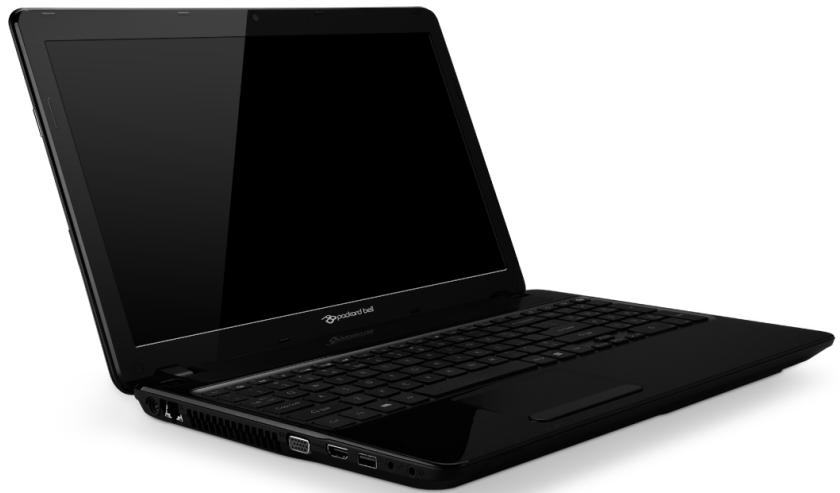
Packard Bell EasyNote TV
INDICE
Packard Bell Recovery Management
Packard Bell Recovery Management
?X
Welcome to Packard Bell Recovery Management
Packard Bell Recovery Management enables you to restore your system. To begin, select the task you want to perform. Please DO NOT remove the USB device while proceeding.

Customized Restore (Retain User Data)

Reinstall Drivers or Applications
Make a back-up before you restore (Recommended).

Create Factory Default Backup
Create Drivers and Applications Backup

packard bell
Restores your computer to its factory default status. A reboot is required. NOTE: All data on drive Cwill be restored.
Packard Bell Recovery Management
?X
Welcome to Packard Bell Recovery Management
Packard Bell Recovery Management enables you to restore your system. To begin, select the task you want to perform. Please DO NOT remove the USB device while proceeding.

Customized Restore (Retain User Data)
Restores your computer to its factory default status. A system is required. NOTE: All data on drive Cwill be deleted.

Reinstall Drivers or Applications
Make a backup before you restore (Recommended).

Create Factory Default Backup
Create Drivers and Applications Backup

packard bell
Here's what will happen:
- Your files and personalization settings won't change.
- Your PC settings will be changed back to their defaults.
- Apps from Windows Store will be kept.
- Apps you installed from discs or websites will be removed.
A list of removed apps will be saved on your desktop.
Next
Cancel
Here's what will happen:
- Your files and personalization settings won't change.
- Your PC settings will be changed back to their defaults.
- Apps from Windows Store will be kept.
- Apps you installed from discs or websites will be removed.
A list of removed apps will be saved on your desktop.
Next
Cancel
Come arriv o a Start?
The FCC with its action in ET Docket 96-8 has adopted a safety standard for human exposure to radio frequency (RF) electromagnetic energy emitted by FCC certified equipment. The wireless adapter meets the Human Exposure limits found in OET Bulletin 65, supplement C, 2001, and ANSI/IEEE C95.1, 1992. Proper operation of this radio according to the instructions found in this manual will result in exposure substantially below the FCC's recommended limits.
- The following safety precautions should be observed:
Do not touch or move antenna while the unit is transmitting or receiving.
- Do not hold any component containing the radio such that the antenna is very close or touching any exposed parts of the body, especially the face or eyes, while transmitting.
- Do not operate the radio or attempt to transmit data unless the antenna is connected; this behavior may cause damage to the radio.
Use in specific environments:
- The use of wireless adapters in hazardous locations is limited by the constraints posed by the safety directors of such environments.
- The use of wireless adapters on airplanes is governed by the Federal Aviation Administration (FAA).
- The use of wireless adapters in hospitals is restricted to the limits set forth by each hospital.
Antenna Use
In order to comply with FCC RF exposure limits, low gain integrated antennas should be located at a minimum distance of 20~cm (8 inches) or more from the body of all persons or at a minimum distance as specified by the FCC module grant conditions. FCC grants can be viewed from the FCC Equipment Authorization website at https://fjallfoss.fcc.gov/oetcf/eas/reports/GenericSearch.cfm by entering the FCC ID printed on the module label.
Explosive Device Proximity Warning
Warning: Do not operate a portable transmitter (including this wireless adapter) near unshielded blasting caps or in an explosive environment unless the transmitter has been modified to be qualified for such use
AntennaWarnings
- Warning: To comply with the FCC and ANSI C95.1 RF exposure limits, it is recommended that for the wireless adapter installed in a desktop or portable computer, the antenna for this wireless adapter to be installed so as to provide a
separation distance of at least 20 cm (8 inches) from all persons or at the minimum distance as specified by the module grant conditions. FCC grants can be viewed from the FCC Equipment Authorization website at https://fjallfoss.fcc.gov/oetcf/eas/reports/GenericSearch.cfm by entering the FCC ID printed on the module label.
- Warning: The wireless adapter is not designed for use with high-gain directional antennas.
Use On Aircraft Caution
- Caution: Regulations of the FCC and FAA prohibit airborne operation of radio-frequency wireless devices (wireless adapters) because their signals could interfere with critical interference with critical aircraft instruments.
Local Restrictions on 802.11a, 802.11b, 802.11g and 802.11n Radio Usage
- Caution: Due to the fact that the frequencies used by 802.11a, 802.11b, 802.11g and 802.11n wireless LAN devices may not yet be harmonized in all countries, 802.11a, 802.11b, 802.11g and 802.11n products are designed for use only in specific countries, and are not allowed to be operated in countries other than those of designated use. As a user of these products, you are responsible for ensuring that the products are used only in the countries for which they were intended and for verifying that they are configured with the correct selection of frequency and channel for the country of use. Any deviation from the permissible power and frequency settings for the country of use is an infringement of national law and may be punished as such.
Wireless Interoperability
The wireless adapter is designed to be interoperable with other wireless LAN products that are based on direct sequence spread spectrum (DSSS) radio technology and to comply with the following standards:
- IEEE Std. 802.11b compliant Standard on Wireless LAN
- IEEE Std. 802.11g compliant Standard on Wireless LAN
-
IEEE Std. 802.11a compliant Standard on Wireless LAN (applies to devices supporting 802.11a)
-
IEEE Std. 802.11n draft 2.0 compliant on Wireless LAN
- Wireless Fidelity certification, as defined by the Wi-Fi Alliance
The Wireless Adapter and Your Health
The wireless adapter, like other radio devices, emits radio frequency electromagnetic energy. The level of energy emitted by the wireless adapter, however, is less than the electromagnetic energy emitted by other wireless devices such as mobile phones. The wireless adapter operates within the guidelines found in radio frequency safety standards and recommendations. These standards and recommendations reflect the consensus of the scientific community and result from deliberations of panels and committees of scientists who continually review and interpret the extensive research literature. In some situations or environments, the use of the wireless adapter may be restricted by the proprietor of the building or responsible representatives of the applicable organization. Examples of such situations may include:
- Using the wireless adapter on board airplanes, or
- Using the wireless adapter in any other environment where the risk of interference with other devices or services is perceived or identified as being harmful.
If you are uncertain of the policy that applies to the use of wireless adapters in a specific organization or environment (an airport, for example), you are encouraged to ask for authorization to use the adapter before you turn it on.
FCC Radio Frequency Interference Requirements (applies to device supporting 802.11a)
This device is restricted to indoor use due to its operation in the 5.15 to 5.25 GHz and 5.470 to 5.725 GHz frequency ranges. FCC requires this product to be used indoors for the frequency ranges 5.15 to 5.25 GHz and 5.470 to 5.725 GHz to reduce the potential for harmful interference to co-channel mobile satellite systems. High power radars are allocated as primary users of the 5.25 to 5.35 GHz and 5.65 to 5.85 GHz bands. These radar stations can cause interference with and /or damage this device. No configuration
controls are provided for this wireless adapter allowing any change in the frequency of operations outside the FCC grant of authorization for U.S operation according to Part 15.407 of the FCC rules.
USA - Federal Communications Commission (FCC)
This device complies with Part 15 of the FCC Rules. Operation of the device is subject to the following two conditions:
- This device may not cause harmful interference.
- This device must accept any interference that may cause undesired operation.
- Note: The radiated output power of the adapter is far below the FCC radio frequency exposure limits. Nevertheless, the adapter should be used in such a manner that the potential for human contact during normal operation is minimized. To avoid the possibility of exceeding the FCC radio frequency exposure limits, you should keep a distance of at least 20cm between you (or any other person in the vicinity), or the minimum separation distance as specified by the FCC grant conditions, and the antenna that is built into the computer. Details of the authorized configurations can be found at http://www.fcc.gov/oet/ea/ by entering the FCC ID number on the device.
Interference Statement
This wireless adapter has been tested and found to comply with the limits for a Class B digital device, pursuant to Part 15 of the FCC Rules. These limits are designed to provide reasonable protection against harmful interference in a residential installation. This wireless adapter generates, uses, and can radiate radio frequency energy. If the wireless adapter is not installed and used in accordance with the instructions, the wireless adapter may cause harmful interference to radio communications. There is no guarantee, however, that such interference will not occur in a particular installation. If this wireless adapter does cause harmful interference to radio or television reception (which can be determined by turning the equipment off and on), the user is encouraged to try to correct the interference by taking one or more of the following measures:
-
Reorient or relocate the receiving antenna of the equipment experiencing the interference.
-
Increase the distance between the wireless adapter and the equipment experiencing the interference.
- Connect the computer with the wireless adapter to an outlet on a circuit different from that to which the equipment experiencing the interference is connected.
- Consult the dealer or an experienced radio/TV technician for help.
- Note: The adapter must be installed and used in strict accordance with the manufacturer's instructions as described in the user documentation that comes with the product. Any other installation or use will violate FCC Part 15 regulations.
Canada — Industry Canada (IC)
This device complies with RSS210 of Industry Canada. Cet apparéil se conforme à RSS210 de Canada d'Industrie.
- Caution: When machine supports and using IEEE 802.11a wireless LAN, this product is restricted to indoor use due to its operation in the 5.15- to 5.25 GHz frequency range. Industry Canada requires this product to be used indoors for the frequency range of 5.15 GHz to 5.25 GHz to reduce the potential for harmful interference to co-channel mobile satellite systems. High power radar is allocated as the primary user of the 5.25 to 5.35 GHz and 5.65 to 5.85 GHz bands. These radar stations can cause interference with and/or damage to this device. The maximum allowed antenna gain for use with this device is 6dBi in order to comply with the E.I.R.P limit for the 5.25 to 5.35 and 5.725 to 5.85 GHz frequency range in point-to-point operation. To comply with RF exposure requirements all antennas should be located at a minimum distance of 20 cm, or the minimum separation distance allowed by the module approval, from the body of all persons.
- Attention: l'utilisation d'un réseau sans fil IEEE802.11a est restreinte à une utilisation en interieur à cause du fonctionement dans la bande de fréquence 5,15 - 5,25 GHz. Industry Canada requiert que ce produit soit utilisé à l'intérieur desBATIMENTS pour la bande de fréquence 5,15 - 5,25 GHz afin de réduire les possibiltés d'interférences nuisibles aux canaux co-existants des systèmes de transmission satellites. Les radars de puissances ont fait l'objet d'une allocation primaire de
This Class B digital apparatus complies with Canadian ICES-003.
"To prevent radio interference to the licensed service, this device is intended to be operated indoors and away from windows to provide maximum shielding. Equipment (or its transmit antenna) that is installed outdoors is subject to licensing."
The use of these equipments is regulated by:
1.D.L.gs 1.8.2003, n. 259, article 104 (activity subject to general authorization) for outdoor use and article 105 (free use) for indoor use, in both cases for private use.
2.D.M. 28.5.03, for supply to public of LAN access to networks and telecom services.
Pakistan Telecommunication Authority (PTA) Approved
Morocco
The operation of this product in the radio channel 2 (2417 MHz) is not authorized in the following cities: Agadir, Assa-Zag, Cabo Negro, Chaouen, Goulmima, Oujda, Tan Tan, Taourirt, Taroudant and Taza.
The operation of this product in the radio channels 4, 5, 6 and 7 (2425 - 2442 MHz) is not authorized in the following cities: Aéroport Mohamed V, Agadir, Aguelmous, Anza, Benslimane, Béni Hafida, Cabo Negro, Casablanca, Fès, Lakhab, Marrakech, Merchich, Mohammédia, Rabat, Salé, Tanger, Tan Tan, Taunate, Tit Mellil, Zag.
Japan
5 GHz 带是室内用使用のと
Korea
当用,
Taiwan
第十二条
Recovery Recovery Management 64
Recovery Management Program. 46 Rete 31
Recupero
s
schermo Spyware 55
Packard Bell Recovery Management
The FCC with its action in ET Docket 96-8 has adopted a safety standard for human exposure to radio frequency (RF) electromagnetic energy emitted by FCC certified equipment. The wireless adapter meets the Human Exposure limits found in OET Bulletin
65, supplement C, 2001, and ANSI/IEEE C95.1, 1992. Proper operation of this radio according to the instructions found in this manual will result in exposure substantially below the FCC's recommended limits.
- The following safety precautions should be observed:
Do not touch or move antenna while the unit is transmitting or receiving.
- Do not hold any component containing the radio such that the antenna is very close or touching any exposed parts of the body, especially the face or eyes, while transmitting.
- Do not operate the radio or attempt to transmit data unless the antenna is connected; this behavior may cause damage to the radio.
Use in specific environments:
- The use of wireless adapters in hazardous locations is limited by the constraints posed by the safety directors of such environments.
- The use of wireless adapters on airplanes is governed by the Federal Aviation Administration (FAA).
- The use of wireless adapters in hospitals is restricted to the limits set forth by each hospital.
Antenna Use
In order to comply with FCC RF exposure limits, low gain integrated antennas should be located at a minimum distance of 20~cm (8 inches) or more from the body of all persons or at a minimum distance as specified by the FCC module grant conditions. FCC grants can be viewed from the FCC Equipment Authorization website at https://fjallfoss.fcc.gov/ oetcf/eas/reports/GenericSearch.cfm by entering the FCC ID printed on the module label.
Explosive Device Proximity Warning
Warning: Do not operate a portable transmitter (including this wireless adapter) near unshielded blasting caps or in an explosive environment unless the transmitter has been modified to be qualified for such use
AntennaWarnings
-
Warning: To comply with the FCC and ANSI C95.1 RF exposure limits, it is recommended that for the wireless adapter installed in a desktop or portable computer, the antenna for this wireless adapter to be installed so as to provide a separation distance of at least 20cm (8 inches) from all persons or at the minimum distance as specified by the module grant conditions. FCC grants can be viewed from the FCC Equipment Authorization website at https://fjallfoss.fcc.gov/oetcf/eas/reports/GenericSearch.cfm by entering the FCC ID printed on the module label.
-
Warning: The wireless adapter is not designed for use with high-gain directional antennas.
Use On Aircraft Caution
- Caution: Regulations of the FCC and FAA prohibit airborne operation of radio-frequency wireless devices (wireless adapters) because their signals could interfere with critical interference with critical aircraft instruments.
Local Restrictions on 802.11a, 802.11b, 802.11g and 802.11n Radio Usage
- Caution: Due to the fact that the frequencies used by 802.11a, 802.11b, 802.11g and 802.11n wireless LAN devices may not yet be harmonized in all countries, 802.11a, 802.11b, 802.11g and 802.11n products are designed for use only in specific countries, and are not allowed to be operated in countries other than those of designated use. As a user of these products, you are responsible for ensuring that the products are used only in the countries for which they were intended and for verifying that they are configured with the correct selection of frequency and channel for the country of use. Any deviation from the permissible power and frequency settings for the country of use is an infringement of national law and may be punished as such.
Wireless Interoperability
The wireless adapter is designed to be interoperable with other wireless LAN products that are based on direct sequence spread spectrum (DSSS) radio technology and to comply with the following standards:
- IEEE Std. 802.11b compliant Standard on Wireless LAN
- IEEE Std. 802.11g compliant Standard on Wireless LAN
- IEEE Std. 802.11a compliant Standard on Wireless LAN (applies to devices supporting 802.11a)
- IEEE Std. 802.11n draft 2.0 compliant on Wireless LAN
- Wireless Fidelity certification, as defined by the Wi-Fi Alliance
The Wireless Adapter and Your Health
The wireless adapter, like other radio devices, emits radio frequency electromagnetic energy. The level of energy emitted by the wireless adapter, however, is less than the electromagnetic energy emitted by other wireless devices such as mobile phones. The wireless adapter operates within the guidelines found in radio frequency safety standards and recommendations. These standards and recommendations reflect the consensus of the scientific community and result from deliberations of panels and committees of scientists who continually review and interpret the extensive research literature. In some situations or environments, the use of the wireless adapter may be restricted by the proprietor of the building or responsible representatives of the applicable organization. Examples of such situations may include:
- Using the wireless adapter on board airplanes, or
- Using the wireless adapter in any other environment where the risk of interference with other devices or services is perceived or identified as being harmful.
If you are uncertain of the policy that applies to the use of wireless adapters in a specific organization or environment (an airport, for example), you are encouraged to ask for authorization to use the adapter before you turn it on.
FCC Radio Frequency Interference Requirements (applies to device supporting 802.11a)
This device is restricted to indoor use due to its operation in the 5.15 to 5.25 GHz and 5.470 to 5.725 GHz frequency ranges. FCC requires this product to be used indoors for the frequency ranges 5.15 to 5.25 GHz and 5.470 to 5.725 GHz to reduce the potential
for harmful interference to co-channel mobile satellite systems. High power radars are allocated as primary users of the 5.25 to 5.35 GHz and 5.65 to 5.85 GHz bands. These radar stations can cause interference with and/or damage this device. No configuration controls are provided for this wireless adapter allowing any change in the frequency of operations outside the FCC grant of authorization for U.S operation according to Part 15.407 of the FCC rules.
USA — Federal Communications Commission (FCC)
This device complies with Part 15 of the FCC Rules. Operation of the device is subject to the following two conditions:
- This device may not cause harmful interference.
- This device must accept any interference that may cause undesired operation.
- Note: The radiated output power of the adapter is far below the FCC radio frequency exposure limits. Nevertheless, the adapter should be used in such a manner that the potential for human contact during normal operation is minimized. To avoid the possibility of exceeding the FCC radio frequency exposure limits, you should keep a distance of at least 20cm between you (or any other person in the vicinity), or the minimum separation distance as specified by the FCC grant conditions, and the antenna that is built into the computer. Details of the authorized configurations can be found at http://www.fcc.gov/oet/ea/ by entering the FCC ID number on the device.
Interference Statement
This wireless adapter has been tested and found to comply with the limits for a Class B digital device, pursuant to Part 15 of the FCC Rules. These limits are designed to provide reasonable protection against harmful interference in a residential installation. This wireless adapter generates, uses, and can radiate radio frequency energy. If the wireless adapter is not installed and used in accordance with the instructions, the wireless adapter may cause harmful interference to radio communications. There is no guarantee, however, that such interference will not occur in a particular installation. If this wireless
adapter does cause harmful interference to radio or television reception (which can be determined by turning the equipment off and on), the user is encouraged to try to correct the interference by taking one or more of the following measures:
- Reorient or relocate the receiving antenna of the equipment experiencing the interference.
- Increase the distance between the wireless adapter and the equipment experiencing the interference.
- Connect the computer with the wireless adapter to an outlet on a circuit different from that to which the equipment experiencing the interference is connected.
- Consult the dealer or an experienced radio/TV technician for help.
- Note: The adapter must be installed and used in strict accordance with the manufacturer's instructions as described in the user documentation that comes with the product. Any other installation or use will violate FCC Part 15 regulations.
Canada - Industry Canada (IC)
This device complies with RSS210 of Industry Canada. Cet apparéil se conforme à RSS210 de Canada d'Industrie.
This Class B digital apparatus complies with Canadian ICES-003.
"To prevent radio interference to the licensed service, this device is intended to be operated indoors and away from windows to provide maximum shielding. Equipment (or its transmit antenna) that is installed outdoors is subject to licensing."
The use of these equipments is regulated by:
1.D.L.gs 1.8.2003, n. 259, article 104 (activity subject to general authorization) for outdoor use and article 105 (free use) for indoor use, in both cases for private use.
2.D.M. 28.5.03, for supply to public of LAN access to networks and telecom services.
Pakistan Telecommunication Authority (PTA) Approved
Morocco
The operation of this product in the radio channel 2 (2417 MHz) is not authorized in the following cities: Agadir, Assa-Zag, Cabo Negro, Chaouen, Goulmima, Oujda, Tan Tan, Taourirt, Taroudant and Taza.
The operation of this product in the radio channels 4, 5, 6 and 7 (2425 - 2442 MHz) is not authorized in the following cities: Aéroport Mohamed V, Agadir, Aguelmous, Anza, Benslimane, Béni Hafida, Cabo Negro, Casablanca, Fès, Lakhab, Marrakech, Merchich, Mohammédia, Rabat, Salé, Tanger, Tan Tan, Taounate, Tit Mellil, Zag.
Japan
5 GHz 带は室内のは使用的ごと
Korea
Recovery Recovery Management 65
Recovery Management Program.... 47 red 32
Antivirus. 57 Support
Software Packard Bell Website 54
T
Teclado problema 90
Packard Bell Recovery Management.... 45
Internet 46
Cartoes SD, SDHC e SDXC
Packard Bell Recovery Management
Packard Bell Recovery Management
?X
Welcome to Packard Bell Recovery Management
Packard Bell Recovery Management enables you to restore your system. To begin, select the task you want to perform. Please DO NOT remove the USB device while proceeding.

Restores your computer to its factory default status. A reboot is required. NOTE: All data on drive Cwill be restored.

Customized Restore (Retain User Data)

Reinstall Drivers or Applications
Make a backup before you restore (Recommended).

Create Factory Default Backup
Create Drivers and Applications Backup

packard bell
Here's what will happen:
- Your files and personalization settings won't change.
- Your PC settings will be changed back to their defaults.
- Apps from Windows Store will be kept.
- Apps you installed from discs or websites will be removed.
A list of removed apps will be saved on your desktop.
Next
Cancel
The FCC with its action in ET Docket 96-8 has adopted a safety standard for human exposure to radio frequency (RF) electromagnetic energy emitted by FCC certified equipment. The wireless adapter meets the Human Exposure limits found in OET Bulletin

65, supplement C, 2001, and ANSI/IEEE C95.1, 1992. Proper operation of this radio according to the instructions found in this manual will result in exposure substantially below the FCC's recommended limits.
- The following safety precautions should be observed:
Do not touch or move antenna while the unit is transmitting or receiving.
- Do not hold any component containing the radio such that the antenna is very close or touching any exposed parts of the body, especially the face or eyes, while transmitting.
- Do not operate the radio or attempt to transmit data unless the antenna is connected; this behavior may cause damage to the radio.
Use in specific environments:
- The use of wireless adapters in hazardous locations is limited by the constraints posed by the safety directors of such environments.
- The use of wireless adapters on airplanes is governed by the Federal Aviation Administration (FAA).
- The use of wireless adapters in hospitals is restricted to the limits set forth by each hospital.
Antenna Use
In order to comply with FCC RF exposure limits, low gain integrated antennas should be located at a minimum distance of 20~cm (8 inches) or more from the body of all persons or at a minimum distance as specified by the FCC module grant conditions. FCC grants can be viewed from the FCC Equipment Authorization website at https://fjallfoss.fcc.gov/ oetcf/eas/reports/GenericSearch.cfm by entering the FCC ID printed on the module label.
Explosive Device Proximity Warning
Warning: Do not operate a portable transmitter (including this wireless adapter) near unshielded blasting caps or in an explosive environment unless the transmitter has been modified to be qualified for such use
AntennaWarnings
-
Warning: To comply with the FCC and ANSI C95.1 RF exposure limits, it is recommended that for the wireless adapter installed in a desktop or portable computer, the antenna for this wireless adapter to be installed so as to provide a separation distance of at least 20cm (8 inches) from all persons or at the minimum distance as specified by the module grant conditions. FCC grants can be viewed from the FCC Equipment Authorization website at https://fjallfoss.fcc.gov/oetcf/eas/reports/GenericSearch.cfm by entering the FCC ID printed on the module label.
-
Warning: The wireless adapter is not designed for use with high-gain directional antennas.
Use On Aircraft Caution
- Caution: Regulations of the FCC and FAA prohibit airborne operation of radio-frequency wireless devices (wireless adapters) because their signals could interfere with critical interference with critical aircraft instruments.
Local Restrictions on 802.11a, 802.11b, 802.11g and 802.11n Radio Usage
- Caution: Due to the fact that the frequencies used by 802.11a, 802.11b, 802.11g and 802.11n wireless LAN devices may not yet be harmonized in all countries, 802.11a, 802.11b, 802.11g and 802.11n products are designed for use only in specific countries, and are not allowed to be operated in countries other than those of designated use. As a user of these products, you are responsible for ensuring that the products are used only in the countries for which they were intended and for verifying that they are configured with the correct selection of frequency and channel for the country of use. Any deviation from the permissible power and frequency settings for the country of use is an infringement of national law and may be punished as such.
Wireless Interoperability
The wireless adapter is designed to be interoperable with other wireless LAN products that are based on direct sequence spread spectrum (DSSS) radio technology and to comply with the following standards:
- IEEE Std. 802.11b compliant Standard on Wireless LAN
- IEEE Std. 802.11g compliant Standard on Wireless LAN
- IEEE Std. 802.11a compliant Standard on Wireless LAN (applies to devices supporting 802.11a)
- IEEE Std. 802.11n draft 2.0 compliant on Wireless LAN
- Wireless Fidelity certification, as defined by the Wi-Fi Alliance
The Wireless Adapter and Your Health
The wireless adapter, like other radio devices, emits radio frequency electromagnetic energy. The level of energy emitted by the wireless adapter, however, is less than the electromagnetic energy emitted by other wireless devices such as mobile phones. The wireless adapter operates within the guidelines found in radio frequency safety standards and recommendations. These standards and recommendations reflect the consensus of the scientific community and result from deliberations of panels and committees of scientists who continually review and interpret the extensive research literature. In some situations or environments, the use of the wireless adapter may be restricted by the proprietor of the building or responsible representatives of the applicable organization. Examples of such situations may include:
- Using the wireless adapter on board airplanes, or
- Using the wireless adapter in any other environment where the risk of interference with other devices or services is perceived or identified as being harmful.
If you are uncertain of the policy that applies to the use of wireless adapters in a specific organization or environment (an airport, for example), you are encouraged to ask for authorization to use the adapter before you turn it on.
FCC Radio Frequency Interference Requirements (applies to device supporting 802.11a)
This device is restricted to indoor use due to its operation in the 5.15 to 5.25 GHz and 5.470 to 5.725 GHz frequency ranges. FCC requires this product to be used indoors for the frequency ranges 5.15 to 5.25 GHz and 5.470 to 5.725 GHz to reduce the potential
for harmful interference to co-channel mobile satellite systems. High power radars are allocated as primary users of the 5.25 to 5.35 GHz and 5.65 to 5.85 GHz bands. These radar stations can cause interference with and /or damage this device. No configuration controls are provided for this wireless adapter allowing any change in the frequency of operations outside the FCC grant of authorization for U.S operation according to Part 15.407 of the FCC rules.
USA — Federal Communications Commission (FCC)
This device complies with Part 15 of the FCC Rules. Operation of the device is subject to the following two conditions:
- This device may not cause harmful interference.
- This device must accept any interference that may cause undesired operation.
- Note: The radiated output power of the adapter is far below the FCC radio frequency exposure limits. Nevertheless, the adapter should be used in such a manner that the potential for human contact during normal operation is minimized. To avoid the possibility of exceeding the FCC radio frequency exposure limits, you should keep a distance of at least 20cm between you (or any other person in the vicinity), or the minimum separation distance as specified by the FCC grant conditions, and the antenna that is built into the computer. Details of the authorized configurations can be found at http://www.fcc.gov/oet/ea/ by entering the FCC ID number on the device.
Interference Statement
This wireless adapter has been tested and found to comply with the limits for a Class B digital device, pursuant to Part 15 of the FCC Rules. These limits are designed to provide reasonable protection against harmful interference in a residential installation. This wireless adapter generates, uses, and can radiate radio frequency energy. If the wireless adapter is not installed and used in accordance with the instructions, the wireless adapter may cause harmful interference to radio communications. There is no guarantee, however, that such interference will not occur in a particular installation. If this wireless
adapter does cause harmful interference to radio or television reception (which can be determined by turning the equipment off and on), the user is encouraged to try to correct the interference by taking one or more of the following measures:
- Reorient or relocate the receiving antenna of the equipment experiencing the interference.
- Increase the distance between the wireless adapter and the equipment experiencing the interference.
- Connect the computer with the wireless adapter to an outlet on a circuit different from that to which the equipment experiencing the interference is connected.
- Consult the dealer or an experienced radio/TV technician for help.
- Note: The adapter must be installed and used in strict accordance with the manufacturer's instructions as described in the user documentation that comes with the product. Any other installation or use will violate FCC Part 15 regulations.
Canada - Industry Canada (IC)
This device complies with RSS210 of Industry Canada. Cet apparéil se conforme à RSS210 de Canada d'Industrie.
This Class B digital apparatus complies with Canadian ICES-003.
"To prevent radio interference to the licensed service, this device is intended to be operated indoors and away from windows to provide maximum shielding. Equipment (or its transmit antenna) that is installed outdoors is subject to licensing."
The use of these equipments is regulated by:
1.D.L.gs 1.8.2003, n. 259, article 104 (activity subject to general authorization) for outdoor use and article 105 (free use) for indoor use, in both cases for private use.
2.D.M. 28.5.03, for supply to public of LAN access to networks and telecom services.
Pakistan Telecommunication Authority (PTA) Approved
Morocco
The operation of this product in the radio channel 2 (2417 MHz) is not authorized in the following cities: Agadir, Assa-Zag, Cabo Negro, Chaouen, Goulmima, Oujda, Tan Tan, Taourirt, Taroudant and Taza.
The operation of this product in the radio channels 4, 5, 6 and 7 (2425 - 2442 MHz) is not authorized in the following cities: Aéroport Mohamed V, Agadir, Aguelmous, Anza, Benslimane, Béni Hafida, Cabo Negro, Casablanca, Fès, Lakhab, Marrakech, Merchich, Mohammédia, Rabat, Sale, Tanger, Tan Tan, Taounate, Tit Mellil, Zag.
Japan
5 GHz 带は室内のは使用的ごと
Korea
Programa Recovery Management... 45
N
Norton Internet Security 53, 57
P
Packard Bell problemas 85
Programa Recovery Management... 45 arranque 85
Website: 52 CD-ROM 87
Programa Recovery Management... 45 Recovery Management 63
rede 31
s
Segurarca Software
De computer upgraden 29
Packard Bell Recovery Management
3g (WWAN of 'Wireless Wide-Area Network')
Packard Bell Recovery Management
?X
Welcome to Packard Bell Recovery Management
Packard Bell Recovery Management enables you to restore your system. To begin, select the task you want to perform. Please DO NOT remove the USB device while proceeding.

Restores your computer to its factory default status. A system is required. NOTE: All data on drive C will be deleted.

Customized Restore (Retain User Data)

Reinstall Drivers or Applications
Make a backup before you restore (Recommended).

Create Factory Default Backup
Create Drivers and Applications Backup

packard bell
Here's what will happen:
- Your files and personalization settings won't change.
- Your PC settings will be changed back to their defaults.
- Apps from Windows Store will be kept.
- Apps you installed from discs or websites will be removed.
A list of removed apps will be saved on your desktop.
Next
Cancel
Here's what will happen:
- Your files and personalization settings won't change.
- Your PC settings will be changed back to their defaults.
- Apps from Windows Store will be kept.
- Apps you installed from discs or websites will be removed.
A list of removed apps will be saved on your desktop.
Next
Cancel
The FCC with its action in ET Docket 96-8 has adopted a safety standard for human exposure to radio frequency (RF) electromagnetic energy emitted by FCC certified equipment. The wireless adapter meets the Human Exposure limits found in OET Bulletin
65, supplement C, 2001, and ANSI/IEEE C95.1, 1992. Proper operation of this radio according to the instructions found in this manual will result in exposure substantially below the FCC's recommended limits.
- The following safety precautions should be observed:
Do not touch or move antenna while the unit is transmitting or receiving.
- Do not hold any component containing the radio such that the antenna is very close or touching any exposed parts of the body, especially the face or eyes, while transmitting.
- Do not operate the radio or attempt to transmit data unless the antenna is connected; this behavior may cause damage to the radio.
Use in specific environments:
- The use of wireless adapters in hazardous locations is limited by the constraints posed by the safety directors of such environments.
- The use of wireless adapters on airplanes is governed by the Federal Aviation Administration (FAA).
- The use of wireless adapters in hospitals is restricted to the limits set forth by each hospital.
Antenna Use
In order to comply with FCC RF exposure limits, low gain integrated antennas should be located at a minimum distance of 20~cm (8 inches) or more from the body of all persons or at a minimum distance as specified by the FCC module grant conditions. FCC grants can be viewed from the FCC Equipment Authorization website at https://fjallfoss.fcc.gov/oetcf/eas/reports/GenericSearch.cfm by entering the FCC ID printed on the module label.
Explosive Device Proximity Warning
Warning: Do not operate a portable transmitter (including this wireless adapter) near unshielded blasting caps or in an explosive environment unless the transmitter has been modified to be qualified for such use
AntennaWarnings
-
Warning: To comply with the FCC and ANSI C95.1 RF exposure limits, it is recommended that for the wireless adapter installed in a desktop or portable computer, the antenna for this wireless adapter to be installed so as to provide a separation distance of at least 20cm (8 inches) from all persons or at the minimum distance as specified by the module grant conditions. FCC grants can be viewed from the FCC Equipment Authorization website at https://fjallfoss.fcc.gov/oetcf/eas/reports/GenericSearch.cfm by entering the FCC ID printed on the module label.
-
Warning: The wireless adapter is not designed for use with high-gain directional antennas.
Use On Aircraft Caution
- Caution: Regulations of the FCC and FAA prohibit airborne operation of radio-frequency wireless devices (wireless adapters) because their signals could interfere with critical interference with critical aircraft instruments.
Local Restrictions on 802.11a, 802.11b, 802.11g and 802.11n Radio Usage
- Caution: Due to the fact that the frequencies used by 802.11a, 802.11b, 802.11g and 802.11n wireless LAN devices may not yet be harmonized in all countries, 802.11a, 802.11b, 802.11g and 802.11n products are designed for use only in specific countries, and are not allowed to be operated in countries other than those of designated use. As a user of these products, you are responsible for ensuring that the products are used only in the countries for which they were intended and for verifying that they are configured with the correct selection of frequency and channel for the country of use. Any deviation from the permissible power and frequency settings for the country of use is an infringement of national law and may be punished as such.
Wireless Interoperability
The wireless adapter is designed to be interoperable with other wireless LAN products that are based on direct sequence spread spectrum (DSSS) radio technology and to comply with the following standards:
- IEEE Std. 802.11b compliant Standard on Wireless LAN
- IEEE Std. 802.11g compliant Standard on Wireless LAN
- IEEE Std. 802.11a compliant Standard on Wireless LAN (applies to devices supporting 802.11a)
- IEEE Std. 802.11n draft 2.0 compliant on Wireless LAN
- Wireless Fidelity certification, as defined by the Wi-Fi Alliance
The Wireless Adapter and Your Health
The wireless adapter, like other radio devices, emits radio frequency electromagnetic energy. The level of energy emitted by the wireless adapter, however, is less than the electromagnetic energy emitted by other wireless devices such as mobile phones. The wireless adapter operates within the guidelines found in radio frequency safety standards and recommendations. These standards and recommendations reflect the consensus of the scientific community and result from deliberations of panels and committees of scientists who continually review and interpret the extensive research literature. In some situations or environments, the use of the wireless adapter may be restricted by the proprietor of the building or responsible representatives of the applicable organization. Examples of such situations may include:
- Using the wireless adapter on board airplanes, or
- Using the wireless adapter in any other environment where the risk of interference with other devices or services is perceived or identified as being harmful.
If you are uncertain of the policy that applies to the use of wireless adapters in a specific organization or environment (an airport, for example), you are encouraged to ask for authorization to use the adapter before you turn it on.
FCC Radio Frequency Interference Requirements (applies to device supporting 802.11a)
This device is restricted to indoor use due to its operation in the 5.15 to 5.25 GHz and 5.470 to 5.725 GHz frequency ranges. FCC requires this product to be used indoors for the frequency ranges 5.15 to 5.25 GHz and 5.470 to 5.725 GHz to reduce the potential
for harmful interference to co-channel mobile satellite systems. High power radars are allocated as primary users of the 5.25 to 5.35 GHz and 5.65 to 5.85 GHz bands. These radar stations can cause interference with and/or damage this device. No configuration controls are provided for this wireless adapter allowing any change in the frequency of operations outside the FCC grant of authorization for U.S operation according to Part 15.407 of the FCC rules.
USA — Federal Communications Commission (FCC)
This device complies with Part 15 of the FCC Rules. Operation of the device is subject to the following two conditions:
- This device may not cause harmful interference.
- This device must accept any interference that may cause undesired operation.
- Note: The radiated output power of the adapter is far below the FCC radio frequency exposure limits. Nevertheless, the adapter should be used in such a manner that the potential for human contact during normal operation is minimized. To avoid the possibility of exceeding the FCC radio frequency exposure limits, you should keep a distance of at least 20cm between you (or any other person in the vicinity), or the minimum separation distance as specified by the FCC grant conditions, and the antenna that is built into the computer. Details of the authorized configurations can be found at http://www.fcc.gov/oet/ea/ by entering the FCC ID number on the device.
Interference Statement
This wireless adapter has been tested and found to comply with the limits for a Class B digital device, pursuant to Part 15 of the FCC Rules. These limits are designed to provide reasonable protection against harmful interference in a residential installation. This wireless adapter generates, uses, and can radiate radio frequency energy. If the wireless adapter is not installed and used in accordance with the instructions, the wireless adapter may cause harmful interference to radio communications. There is no guarantee, however, that such interference will not occur in a particular installation. If this wireless
adapter does cause harmful interference to radio or television reception (which can be determined by turning the equipment off and on), the user is encouraged to try to correct the interference by taking one or more of the following measures:
- Reorient or relocate the receiving antenna of the equipment experiencing the interference.
- Increase the distance between the wireless adapter and the equipment experiencing the interference.
- Connect the computer with the wireless adapter to an outlet on a circuit different from that to which the equipment experiencing the interference is connected.
- Consult the dealer or an experienced radio/TV technician for help.
- Note: The adapter must be installed and used in strict accordance with the manufacturer's instructions as described in the user documentation that comes with the product. Any other installation or use will violate FCC Part 15 regulations.
Canada - Industry Canada (IC)
This device complies with RSS210 of Industry Canada. Cet apparéil se conforme à RSS210 de Canada d'Industrie.
This Class B digital apparatus complies with Canadian ICES-003.
"To prevent radio interference to the licensed service, this device is intended to be operated indoors and away from windows to provide maximum shielding. Equipment (or its transmit antenna) that is installed outdoors is subject to licensing."
The use of these equipments is regulated by:
1.D.L.gs 1.8.2003, n. 259, article 104 (activity subject to general authorization) for outdoor use and article 105 (free use) for indoor use, in both cases for private use.
2.D.M. 28.5.03, for supply to public of LAN access to networks and telecom services.
Pakistan Telecommunication Authority (PTA) Approved
Morocco
The operation of this product in the radio channel 2 (2417 MHz) is not authorized in the following cities: Agadir, Assa-Zag, Cabo Negro, Chaouen, Goulmima, Oujda, Tan Tan, Taourirt, Taroudant and Taza.
The operation of this product in the radio channels 4, 5, 6 and 7 (2425 - 2442 MHz) is not authorized in the following cities: Aéroport Mohamed V, Agadir, Aguelmous, Anza, Benslimane, Béni Hafida, Cabo Negro, Casablanca, Fès, Lakhab, Marrakech, Merchich, Mohammédia, Rabat, Salé, Tanger, Tan Tan, Taounate, Tit Mellil, Zag.
Japan
5 GHz 带は室内のは使用のと
Korea
PELV (Protected Extra Low Voltage)
SELV (Safety Extra Low Voltage)
VERKLARING LASERPRODUCT
Recovery Management. 64
Recovery Management
programma 46
Ondersteuning
Packard Bell-website. 53
opladen
Packard Bell Recovery Management. 43
Internet 44
Dine fpre ste trinn pa nettet 44
Beskyttdatamaskinen 44
Velg Internen-tjenesteleverandr 44
Deaktiver hurtigoppstart
Packard Bell Recovery Management
Start Packard Bell Recovery Management:
Here's what will happen:
- Your files and personalization settings won't change.
- Your PC settings will be changed back to their defaults.
- Apps from Windows Store will be kept.
- Apps you installed from discs or websites will be removed.
- A list of removed apps will be saved on your desktop.
Next
Cancel
The FCC with its action in ET Docket 96-8 has adopted a safety standard for human exposure to radio frequency (RF) electromagnetic energy emitted by FCC certified equipment. The wireless adapter meets the Human Exposure limits found in OET Bulletin 65, supplement C, 2001, and ANSI/IEEE C95.1, 1992. Proper operation of this radio according to the instructions found in this manual will result in exposure substantially below the FCC's recommended limits.
- The following safety precautions should be observed:
Do not touch or move antenna while the unit is transmitting or receiving.
- Do not hold any component containing the radio such that the antenna is very close or touching any exposed parts of the body, especially the face or eyes, while transmitting.
- Do not operate the radio or attempt to transmit data unless the antenna is connected; this behavior may cause damage to the radio.
Use in specific environments:
- The use of wireless adapters in hazardous locations is limited by the constraints posed by the safety directors of such environments.
- The use of wireless adapters on airplanes is governed by the Federal Aviation Administration (FAA).
- The use of wireless adapters in hospitals is restricted to the limits set forth by each hospital.
Antenna Use
In order to comply with FCC RF exposure limits, low gain integrated antennas should be located at a minimum distance of 20~cm (8 inches) or more from the body of all persons or at a minimum distance as specified by the FCC module grant conditions. FCC grants can be viewed from the FCC Equipment Authorization website at https://fjallfoss.fcc.gov/oetcf/eas/reports/GenericSearch.cfm by entering the FCC ID printed on the module label.
Explosive Device Proximity Warning
Warning: Do not operate a portable transmitter (including this wireless adapter) near unshielded blasting caps or in an explosive environment unless the transmitter has been modified to be qualified for such use
AntennaWarnings
- Warning: To comply with the FCC and ANSI C95.1 RF exposure limits, it is recommended that for the wireless adapter installed in a desktop or portable computer, the antenna for this wireless adapter to be installed so as to provide a
separation distance of at least 20 cm (8 inches) from all persons or at the minimum distance as specified by the module grant conditions. FCC grants can be viewed from the FCC Equipment Authorization website at https://fjallfoss.fcc.gov/oetcf/eas/reports/GenericSearch.cfm by entering the FCC ID printed on the module label.
- Warning: The wireless adapter is not designed for use with high-gain directional antennas.
Use On Aircraft Caution
- Caution: Regulations of the FCC and FAA prohibit airborne operation of radio-frequency wireless devices (wireless adapters) because their signals could interfere with critical interference with critical aircraft instruments.
Local Restrictions on 802.11a, 802.11b, 802.11g and 802.11n Radio Usage
- Caution: Due to the fact that the frequencies used by 802.11a, 802.11b, 802.11g and 802.11n wireless LAN devices may not yet be harmonized in all countries, 802.11a, 802.11b, 802.11g and 802.11n products are designed for use only in specific countries, and are not allowed to be operated in countries other than those of designated use. As a user of these products, you are responsible for ensuring that the products are used only in the countries for which they were intended and for verifying that they are configured with the correct selection of frequency and channel for the country of use. Any deviation from the permissible power and frequency settings for the country of use is an infringement of national law and may be punished as such.
Wireless Interoperability
The wireless adapter is designed to be interoperable with other wireless LAN products that are based on direct sequence spread spectrum (DSSS) radio technology and to comply with the following standards:
- IEEE Std. 802.11b compliant Standard on Wireless LAN
- IEEE Std. 802.11g compliant Standard on Wireless LAN
-
IEEE Std. 802.11a compliant Standard on Wireless LAN (applies to devices supporting 802.11a)
-
IEEE Std. 802.11n draft 2.0 compliant on Wireless LAN
- Wireless Fidelity certification, as defined by the Wi-Fi Alliance
The Wireless Adapter and Your Health
The wireless adapter, like other radio devices, emits radio frequency electromagnetic energy. The level of energy emitted by the wireless adapter, however, is less than the electromagnetic energy emitted by other wireless devices such as mobile phones. The wireless adapter operates within the guidelines found in radio frequency safety standards and recommendations. These standards and recommendations reflect the consensus of the scientific community and result from deliberations of panels and committees of scientists who continually review and interpret the extensive research literature. In some situations or environments, the use of the wireless adapter may be restricted by the proprietor of the building or responsible representatives of the applicable organization. Examples of such situations may include:
- Using the wireless adapter on board airplanes, or
- Using the wireless adapter in any other environment where the risk of interference with other devices or services is perceived or identified as being harmful.
If you are uncertain of the policy that applies to the use of wireless adapters in a specific organization or environment (an airport, for example), you are encouraged to ask for authorization to use the adapter before you turn it on.
FCC Radio Frequency Interference Requirements (applies to device supporting 802.11a)
This device is restricted to indoor use due to its operation in the 5.15 to 5.25 GHz and 5.470 to 5.725 GHz frequency ranges. FCC requires this product to be used indoors for the frequency ranges 5.15 to 5.25 GHz and 5.470 to 5.725 GHz to reduce the potential for harmful interference to co-channel mobile satellite systems. High power radars are allocated as primary users of the 5.25 to 5.35 GHz and 5.65 to 5.85 GHz bands. These radar stations can cause interference with and /or damage this device. No configuration
controls are provided for this wireless adapter allowing any change in the frequency of operations outside the FCC grant of authorization for U.S operation according to Part 15.407 of the FCC rules.
USA - Federal Communications Commission (FCC)
This device complies with Part 15 of the FCC Rules. Operation of the device is subject to the following two conditions:
- This device may not cause harmful interference.
- This device must accept any interference that may cause undesired operation.
- Note: The radiated output power of the adapter is far below the FCC radio frequency exposure limits. Nevertheless, the adapter should be used in such a manner that the potential for human contact during normal operation is minimized. To avoid the possibility of exceeding the FCC radio frequency exposure limits, you should keep a distance of at least 20cm between you (or any other person in the vicinity), or the minimum separation distance as specified by the FCC grant conditions, and the antenna that is built into the computer. Details of the authorized configurations can be found at http://www.fcc.gov/oet/ea/ by entering the FCC ID number on the device.
Interference Statement
This wireless adapter has been tested and found to comply with the limits for a Class B digital device, pursuant to Part 15 of the FCC Rules. These limits are designed to provide reasonable protection against harmful interference in a residential installation. This wireless adapter generates, uses, and can radiate radio frequency energy. If the wireless adapter is not installed and used in accordance with the instructions, the wireless adapter may cause harmful interference to radio communications. There is no guarantee, however, that such interference will not occur in a particular installation. If this wireless adapter does cause harmful interference to radio or television reception (which can be determined by turning the equipment off and on), the user is encouraged to try to correct the interference by taking one or more of the following measures:
-
Reorient or relocate the receiving antenna of the equipment experiencing the interference.
-
Increase the distance between the wireless adapter and the equipment experiencing the interference.
- Connect the computer with the wireless adapter to an outlet on a circuit different from that to which the equipment experiencing the interference is connected.
- Consult the dealer or an experienced radio/TV technician for help.
- Note: The adapter must be installed and used in strict accordance with the manufacturer's instructions as described in the user documentation that comes with the product. Any other installation or use will violate FCC Part 15 regulations.
Canada — Industry Canada (IC)
This device complies with RSS210 of Industry Canada. Cet apparéil se conforme à RSS210 de Canada d'Industrie.
-
Caution: When machine supports and using IEEE 802.11a wireless LAN, this product is restricted to indoor use due to its operation in the 5.15- to 5.25 GHz frequency range. Industry Canada requires this product to be used indoors for the frequency range of 5.15 GHz to 5.25 GHz to reduce the potential for harmful interference to co-channel mobile satellite systems. High power radar is allocated as the primary user of the 5.25 to 5.35 GHz and 5.65 to 5.85 GHz bands. These radar stations can cause interference with and/or damage to this device. The maximum allowed antenna gain for use with this device is 6dBi in order to comply with the E.I.R.P limit for the 5.25 to 5.35 and 5.725 to 5.85 GHz frequency range in point-to-point operation. To comply with RF exposure requirements all antennas should be located at a minimum distance of 20 cm, or the minimum separation distance allowed by the module approval, from the body of all persons.
-
Attention: l'utilisation d'un réseau sans fil IEEE802.11a est restreinte à une utilisation en interieur à cause du fonctionement dans la bande de fréquence 5,15 - 5,25 GHz. Industry Canada requiert que ce produit soit utilisé à l'intérieur desBATIMENTS pour la bande de fréquence 5,15 - 5,25 GHz afin de réduire les possibiltés d'interférences nuisibles aux canaux co-existants des systèmes de transmission satellites. Les radars de puissances ont fait l'objet d'une allocation primaire de
This Class B digital apparatus complies with Canadian ICES-003.
"To prevent radio interference to the licensed service, this device is intended to be operated indoors and away from windows to provide maximum shielding. Equipment (or its transmit antenna) that is installed outdoors is subject to licensing."
The use of these equipments is regulated by:
1.D.L.gs 1.8.2003, n. 259, article 104 (activity subject to general authorization) for outdoor use and article 105 (free use) for indoor use, in both cases for private use.
2.D.M. 28.5.03, for supply to public of RLAN access to networks and telecom services.
Pakistan Telecommunication Authority (PTA) Approved
Morocco
The operation of this product in the radio channel 2 (2417 MHz) is not authorized in the following cities: Agadir, Assa-Zag, Cabo Negro, Chaouen, Goulmima, Oujda, Tan Tan, Taourirt, Taroudant and Taza.
The operation of this product in the radio channels 4, 5, 6 and 7 (2425 - 2442 MHz) is not authorized in the following cities: Aéroport Mohamed V, Agadir, Aguelmous, Anza, Benslimane, Béni Hafida, Cabo Negro, Casablanca, Fès, Lakhab, Marrakech, Merchich, Mohammédia, Rabat, Salé, Tanger, Tan Tan, Taunate, Tit Mellil, Zag.
Japan
5 GHz 带是室内用使用のと
Korea
当用,
Taiwan
第十二条
Recovery Management. 60
Recovery Management
programmet 43
H
HelsetiItak 12
hurtigtast 18, 19
hoyttaler
hurtigmaster 20
feilsking og problemlösing 82
1
Norton Internet Security. 50, 54
Recovery Management. 60 front. 21
Recovery Management- horyre 23
programmet 43 venstre 21
W
WiFi 46, 47 Windows Automatiske
Packard Bell support
Packard Bells websted.
Service of computeren
Packard Bell Recovery Management
Packard Bells websted
Start Packard Bell Recovery Management:
- Fra Start indtaster du 'Recovery', hvorefter du klikker på Packard BellRecovery Management i listen over apps.
Here's what will happen:
- Your files and personalization settings won't change.
- Your PC settings will be changed back to their defaults.
- Apps from Windows Store will be kept.
- Apps you installed from discs or websites will be removed.
- A list of removed apps will be saved on your desktop.
Next
Cancel
The FCC with its action in ET Docket 96-8 has adopted a safety standard for human exposure to radio frequency (RF) electromagnetic energy emitted by FCC certified equipment. The wireless adapter meets the Human Exposure limits found in OET Bulletin
65, supplement C, 2001, and ANSI/IEEE C95.1, 1992. Proper operation of this radio according to the instructions found in this manual will result in exposure substantially below the FCC's recommended limits.
- The following safety precautions should be observed:
Do not touch or move antenna while the unit is transmitting or receiving.
- Do not hold any component containing the radio such that the antenna is very close or touching any exposed parts of the body, especially the face or eyes, while transmitting.
- Do not operate the radio or attempt to transmit data unless the antenna is connected; this behavior may cause damage to the radio.
Use in specific environments:
- The use of wireless adapters in hazardous locations is limited by the constraints posed by the safety directors of such environments.
- The use of wireless adapters on airplanes is governed by the Federal Aviation Administration (FAA).
- The use of wireless adapters in hospitals is restricted to the limits set forth by each hospital.
Antenna Use
In order to comply with FCC RF exposure limits, low gain integrated antennas should be located at a minimum distance of 20~cm (8 inches) or more from the body of all persons or at a minimum distance as specified by the FCC module grant conditions. FCC grants can be viewed from the FCC Equipment Authorization website at https://fjallfoss.fcc.gov/ oetcf/eas/reports/GenericSearch.cfm by entering the FCC ID printed on the module label.
Explosive Device Proximity Warning
Warning: Do not operate a portable transmitter (including this wireless adapter) near unshielded blasting caps or in an explosive environment unless the transmitter has been modified to be qualified for such use
AntennaWarnings
-
Warning: To comply with the FCC and ANSI C95.1 RF exposure limits, it is recommended that for the wireless adapter installed in a desktop or portable computer, the antenna for this wireless adapter to be installed so as to provide a separation distance of at least 20cm (8 inches) from all persons or at the minimum distance as specified by the module grant conditions. FCC grants can be viewed from the FCC Equipment Authorization website at https://fjallfoss.fcc.gov/oetcf/eas/reports/GenericSearch.cfm by entering the FCC ID printed on the module label.
-
Warning: The wireless adapter is not designed for use with high-gain directional antennas.
Use On Aircraft Caution
- Caution: Regulations of the FCC and FAA prohibit airborne operation of radio-frequency wireless devices (wireless adapters) because their signals could interfere with critical interference with critical aircraft instruments.
Local Restrictions on 802.11a, 802.11b, 802.11g and 802.11n Radio Usage
- Caution: Due to the fact that the frequencies used by 802.11a, 802.11b, 802.11g and 802.11n wireless LAN devices may not yet be harmonized in all countries, 802.11a, 802.11b, 802.11g and 802.11n products are designed for use only in specific countries, and are not allowed to be operated in countries other than those of designated use. As a user of these products, you are responsible for ensuring that the products are used only in the countries for which they were intended and for verifying that they are configured with the correct selection of frequency and channel for the country of use. Any deviation from the permissible power and frequency settings for the country of use is an infringement of national law and may be punished as such.
Wireless Interoperability
The wireless adapter is designed to be interoperable with other wireless LAN products that are based on direct sequence spread spectrum (DSSS) radio technology and to comply with the following standards:
- IEEE Std. 802.11b compliant Standard on Wireless LAN
- IEEE Std. 802.11g compliant Standard on Wireless LAN
- IEEE Std. 802.11a compliant Standard on Wireless LAN (applies to devices supporting 802.11a)
- IEEE Std. 802.11n draft 2.0 compliant on Wireless LAN
- Wireless Fidelity certification, as defined by the Wi-Fi Alliance
The Wireless Adapter and Your Health
The wireless adapter, like other radio devices, emits radio frequency electromagnetic energy. The level of energy emitted by the wireless adapter, however, is less than the electromagnetic energy emitted by other wireless devices such as mobile phones. The wireless adapter operates within the guidelines found in radio frequency safety standards and recommendations. These standards and recommendations reflect the consensus of the scientific community and result from deliberations of panels and committees of scientists who continually review and interpret the extensive research literature. In some situations or environments, the use of the wireless adapter may be restricted by the proprietor of the building or responsible representatives of the applicable organization. Examples of such situations may include:
- Using the wireless adapter on board airplanes, or
- Using the wireless adapter in any other environment where the risk of interference with other devices or services is perceived or identified as being harmful.
If you are uncertain of the policy that applies to the use of wireless adapters in a specific organization or environment (an airport, for example), you are encouraged to ask for authorization to use the adapter before you turn it on.
FCC Radio Frequency Interference Requirements (applies to device supporting 802.11a)
This device is restricted to indoor use due to its operation in the 5.15 to 5.25 GHz and 5.470 to 5.725 GHz frequency ranges. FCC requires this product to be used indoors for the frequency ranges 5.15 to 5.25 GHz and 5.470 to 5.725 GHz to reduce the potential
for harmful interference to co-channel mobile satellite systems. High power radars are allocated as primary users of the 5.25 to 5.35 GHz and 5.65 to 5.85 GHz bands. These radar stations can cause interference with and/or damage this device. No configuration controls are provided for this wireless adapter allowing any change in the frequency of operations outside the FCC grant of authorization for U.S operation according to Part 15.407 of the FCC rules.
USA — Federal Communications Commission (FCC)
This device complies with Part 15 of the FCC Rules. Operation of the device is subject to the following two conditions:
- This device may not cause harmful interference.
- This device must accept any interference that may cause undesired operation.
- Note: The radiated output power of the adapter is far below the FCC radio frequency exposure limits. Nevertheless, the adapter should be used in such a manner that the potential for human contact during normal operation is minimized. To avoid the possibility of exceeding the FCC radio frequency exposure limits, you should keep a distance of at least 20cm between you (or any other person in the vicinity), or the minimum separation distance as specified by the FCC grant conditions, and the antenna that is built into the computer. Details of the authorized configurations can be found at http://www.fcc.gov/oet/ea/ by entering the FCC ID number on the device.
Interference Statement
This wireless adapter has been tested and found to comply with the limits for a Class B digital device, pursuant to Part 15 of the FCC Rules. These limits are designed to provide reasonable protection against harmful interference in a residential installation. This wireless adapter generates, uses, and can radiate radio frequency energy. If the wireless adapter is not installed and used in accordance with the instructions, the wireless adapter may cause harmful interference to radio communications. There is no guarantee, however, that such interference will not occur in a particular installation. If this wireless
adapter does cause harmful interference to radio or television reception (which can be determined by turning the equipment off and on), the user is encouraged to try to correct the interference by taking one or more of the following measures:
- Reorient or relocate the receiving antenna of the equipment experiencing the interference.
- Increase the distance between the wireless adapter and the equipment experiencing the interference.
- Connect the computer with the wireless adapter to an outlet on a circuit different from that to which the equipment experiencing the interference is connected.
- Consult the dealer or an experienced radio/TV technician for help.
- Note: The adapter must be installed and used in strict accordance with the manufacturer's instructions as described in the user documentation that comes with the product. Any other installation or use will violate FCC Part 15 regulations.
Canada - Industry Canada (IC)
This device complies with RSS210 of Industry Canada. Cet apparéil se conforme à RSS210 de Canada d'Industrie.
This Class B digital apparatus complies with Canadian ICES-003.
"To prevent radio interference to the licensed service, this device is intended to be operated indoors and away from windows to provide maximum shielding. Equipment (or its transmit antenna) that is installed outdoors is subject to licensing."
The use of these equipments is regulated by:
1.D.L.gs 1.8.2003, n. 259, article 104 (activity subject to general authorization) for outdoor use and article 105 (free use) for indoor use, in both cases for private use.
2.D.M. 28.5.03, for supply to public of LAN access to networks and telecom services.
Pakistan Telecommunication Authority (PTA) Approved
Morocco
The operation of this product in the radio channel 2 (2417 MHz) is not authorized in the following cities: Agadir, Assa-Zag, Cabo Negro, Chaouen, Goulmima, Oujda, Tan Tan, Taourirt, Taroudant and Taza.
The operation of this product in the radio channels 4, 5, 6 and 7 (2425 - 2442 MHz) is not authorized in the following cities: Aéroport Mohamed V, Agadir, Aguelmous, Anza, Benslimane, Béni Hafida, Cabo Negro, Casablanca, Fès, Lakhab, Marrakech, Merchich, Mohammédia, Rabat, Sale, Tanger, Tan Tan, Taounate, Tit Mellil, Zag.
Japan
5 GHz 带は室内のは使用のと
Korea
PELV (Protected Extra Low Voltage)
SELV (Safety Extra Low Voltage)
Management 44 printer. 84
Websted 51 skerm 83
pegefelt 26tastatur 84
Packard Bell Recovery Management. 44
Internet 45
De forsta stegen pa natet 45
Skydda din dator 45
Packard Bell-support
Packard Bell Recovery Management
Windows-upppateringar
Starta Packard Bell Recovery Management:
Here's what will happen:
- Your files and personalization settings won't change.
- Your PC settings will be changed back to their defaults.
- Apps from Windows Store will be kept.
- Apps you installed from discs or websites will be removed.
- A list of removed apps will be saved on your desktop.
Next
Cancel
The FCC with its action in ET Docket 96-8 has adopted a safety standard for human exposure to radio frequency (RF) electromagnetic energy emitted by FCC certified equipment. The wireless adapter meets the Human Exposure limits found in OET Bulletin 65, supplement C, 2001, and ANSI/IEEE C95.1, 1992. Proper operation of this radio according to the instructions found in this manual will result in exposure substantially below the FCC's recommended limits.
- The following safety precautions should be observed:
Do not touch or move antenna while the unit is transmitting or receiving.
- Do not hold any component containing the radio such that the antenna is very close or touching any exposed parts of the body, especially the face or eyes, while transmitting.
- Do not operate the radio or attempt to transmit data unless the antenna is connected; this behavior may cause damage to the radio.
Use in specific environments:
- The use of wireless adapters in hazardous locations is limited by the constraints posed by the safety directors of such environments.
- The use of wireless adapters on airplanes is governed by the Federal Aviation Administration (FAA).
- The use of wireless adapters in hospitals is restricted to the limits set forth by each hospital.
Antenna Use
In order to comply with FCC RF exposure limits, low gain integrated antennas should be located at a minimum distance of 20~cm (8 inches) or more from the body of all persons or at a minimum distance as specified by the FCC module grant conditions. FCC grants can be viewed from the FCC Equipment Authorization website at https://fjallfoss.fcc.gov/oetcf/eas/reports/GenericSearch.cfm by entering the FCC ID printed on the module label.
Explosive Device Proximity Warning
Warning: Do not operate a portable transmitter (including this wireless adapter) near unshielded blasting caps or in an explosive environment unless the transmitter has been modified to be qualified for such use
AntennaWarnings
- Warning: To comply with the FCC and ANSI C95.1 RF exposure limits, it is recommended that for the wireless adapter installed in a desktop or portable computer, the antenna for this wireless adapter to be installed so as to provide a
separation distance of at least 20 cm (8 inches) from all persons or at the minimum distance as specified by the module grant conditions. FCC grants can be viewed from the FCC Equipment Authorization website at https://fjallfoss.fcc.gov/oetcf/eas/reports/GenericSearch.cfm by entering the FCC ID printed on the module label.
- Warning: The wireless adapter is not designed for use with high-gain directional antennas.
Use On Aircraft Caution
- Caution: Regulations of the FCC and FAA prohibit airborne operation of radio-frequency wireless devices (wireless adapters) because their signals could interfere with critical interference with critical aircraft instruments.
Local Restrictions on 802.11a, 802.11b, 802.11g and 802.11n Radio Usage
- Caution: Due to the fact that the frequencies used by 802.11a, 802.11b, 802.11g and 802.11n wireless LAN devices may not yet be harmonized in all countries, 802.11a, 802.11b, 802.11g and 802.11n products are designed for use only in specific countries, and are not allowed to be operated in countries other than those of designated use. As a user of these products, you are responsible for ensuring that the products are used only in the countries for which they were intended and for verifying that they are configured with the correct selection of frequency and channel for the country of use. Any deviation from the permissible power and frequency settings for the country of use is an infringement of national law and may be punished as such.
Wireless Interoperability
The wireless adapter is designed to be interoperable with other wireless LAN products that are based on direct sequence spread spectrum (DSSS) radio technology and to comply with the following standards:
- IEEE Std. 802.11b compliant Standard on Wireless LAN
- IEEE Std. 802.11g compliant Standard on Wireless LAN
-
IEEE Std. 802.11a compliant Standard on Wireless LAN (applies to devices supporting 802.11a)
-
IEEE Std. 802.11n draft 2.0 compliant on Wireless LAN
- Wireless Fidelity certification, as defined by the Wi-Fi Alliance
The Wireless Adapter and Your Health
The wireless adapter, like other radio devices, emits radio frequency electromagnetic energy. The level of energy emitted by the wireless adapter, however, is less than the electromagnetic energy emitted by other wireless devices such as mobile phones. The wireless adapter operates within the guidelines found in radio frequency safety standards and recommendations. These standards and recommendations reflect the consensus of the scientific community and result from deliberations of panels and committees of scientists who continually review and interpret the extensive research literature. In some situations or environments, the use of the wireless adapter may be restricted by the proprietor of the building or responsible representatives of the applicable organization. Examples of such situations may include:
- Using the wireless adapter on board airplanes, or
- Using the wireless adapter in any other environment where the risk of interference with other devices or services is perceived or identified as being harmful.
If you are uncertain of the policy that applies to the use of wireless adapters in a specific organization or environment (an airport, for example), you are encouraged to ask for authorization to use the adapter before you turn it on.
FCC Radio Frequency Interference Requirements (applies to device supporting 802.11a)
This device is restricted to indoor use due to its operation in the 5.15 to 5.25 GHz and 5.470 to 5.725 GHz frequency ranges. FCC requires this product to be used indoors for the frequency ranges 5.15 to 5.25 GHz and 5.470 to 5.725 GHz to reduce the potential for harmful interference to co-channel mobile satellite systems. High power radars are allocated as primary users of the 5.25 to 5.35 GHz and 5.65 to 5.85 GHz bands. These radar stations can cause interference with and /or damage this device. No configuration
controls are provided for this wireless adapter allowing any change in the frequency of operations outside the FCC grant of authorization for U.S operation according to Part 15.407 of the FCC rules.
USA - Federal Communications Commission (FCC)
This device complies with Part 15 of the FCC Rules. Operation of the device is subject to the following two conditions:
- This device may not cause harmful interference.
- This device must accept any interference that may cause undesired operation.
- Note: The radiated output power of the adapter is far below the FCC radio frequency exposure limits. Nevertheless, the adapter should be used in such a manner that the potential for human contact during normal operation is minimized. To avoid the possibility of exceeding the FCC radio frequency exposure limits, you should keep a distance of at least 20cm between you (or any other person in the vicinity), or the minimum separation distance as specified by the FCC grant conditions, and the antenna that is built into the computer. Details of the authorized configurations can be found at http://www.fcc.gov/oet/ea/ by entering the FCC ID number on the device.
Interference Statement
This wireless adapter has been tested and found to comply with the limits for a Class B digital device, pursuant to Part 15 of the FCC Rules. These limits are designed to provide reasonable protection against harmful interference in a residential installation. This wireless adapter generates, uses, and can radiate radio frequency energy. If the wireless adapter is not installed and used in accordance with the instructions, the wireless adapter may cause harmful interference to radio communications. There is no guarantee, however, that such interference will not occur in a particular installation. If this wireless adapter does cause harmful interference to radio or television reception (which can be determined by turning the equipment off and on), the user is encouraged to try to correct the interference by taking one or more of the following measures:
-
Reorient or relocate the receiving antenna of the equipment experiencing the interference.
-
Increase the distance between the wireless adapter and the equipment experiencing the interference.
- Connect the computer with the wireless adapter to an outlet on a circuit different from that to which the equipment experiencing the interference is connected.
- Consult the dealer or an experienced radio/TV technician for help.
- Note: The adapter must be installed and used in strict accordance with the manufacturer's instructions as described in the user documentation that comes with the product. Any other installation or use will violate FCC Part 15 regulations.
Canada — Industry Canada (IC)
This device complies with RSS210 of Industry Canada. Cet apparéil se conforme à RSS210 de Canada d'Industrie.
- Caution: When machine supports and using IEEE 802.11a wireless LAN, this product is restricted to indoor use due to its operation in the 5.15- to 5.25 GHz frequency range. Industry Canada requires this product to be used indoors for the frequency range of 5.15 GHz to 5.25 GHz to reduce the potential for harmful interference to co-channel mobile satellite systems. High power radar is allocated as the primary user of the 5.25 to 5.35 GHz and 5.65 to 5.85 GHz bands. These radar stations can cause interference with and/or damage to this device. The maximum allowed antenna gain for use with this device is 6dBi in order to comply with the E.I.R.P limit for the 5.25 to 5.35 and 5.725 to 5.85 GHz frequency range in point-to-point operation. To comply with RF exposure requirements all antennas should be located at a minimum distance of 20 cm, or the minimum separation distance allowed by the module approval, from the body of all persons.
- Attention: l'utilisation d'un réseau sans fil IEEE802.11a est restreinte à une utilisation en interieur à cause du fonctionement dans la bande de fréquence 5,15 - 5,25 GHz. Industry Canada requiert que ce produit soit utilisé à l'intérieur desBATIMENTS pour la bande de fréquence 5,15 - 5,25 GHz afin de réduire les possibiltés d'interférences nuisibles aux canaux co-existants des systèmes de transmission satellites. Les radars de puissances ont fait l'objet d'une allocation primaire de
This Class B digital apparatus complies with Canadian ICES-003.
"To prevent radio interference to the licensed service, this device is intended to be operated indoors and away from windows to provide maximum shielding. Equipment (or its transmit antenna) that is installed outdoors is subject to licensing."
The use of these equipments is regulated by:
1.D.L.gs 1.8.2003, n. 259, article 104 (activity subject to general authorization) for outdoor use and article 105 (free use) for indoor use, in both cases for private use.
2.D.M. 28.5.03, for supply to public of LAN access to networks and telecom services.
Pakistan Telecommunication Authority (PTA) Approved
Morocco
The operation of this product in the radio channel 2 (2417 MHz) is not authorized in the following cities: Agadir, Assa-Zag, Cabo Negro, Chaouen, Goulmima, Oujda, Tan Tan, Taourirt, Taroudant and Taza.
The operation of this product in the radio channels 4, 5, 6 and 7 (2425 - 2442 MHz) is not authorized in the following cities: Aéroport Mohamed V, Agadir, Aguelmous, Anza, Benslimane, Béni Hafida, Cabo Negro, Casablanca, Fès, Lakhab, Marrakech, Merchich, Mohammédia, Rabat, Salé, Tanger, Tan Tan, Taunate, Tit Mellil, Zag.
Japan
5 GHz 带は室内のは使用的ごと
Korea
当用,
Taiwan
第十二条
PELV (Protected Extra Low Voltage)
SELV (Safety Extra Low Voltage)
Recovery Management 60
avfallshantering av batterier 111
B
batteri
anvanda forsta gangen 36
egenskaper 35
forhallenden medlagniva. 40
Program for CD-ROM 83
Recovery Management. 60
Windows 59
V
Vanligafragor 82 hoger. 23
visa vy framifràn 21
framifr 21Vy fran vander 21
fran vander 21
W
Webbläsare 50 Automatiska upddateringar i
Wi-Fi 47, 48 Windows 59
Windows
Anvanda Windows 44
Käyttoohjekirja
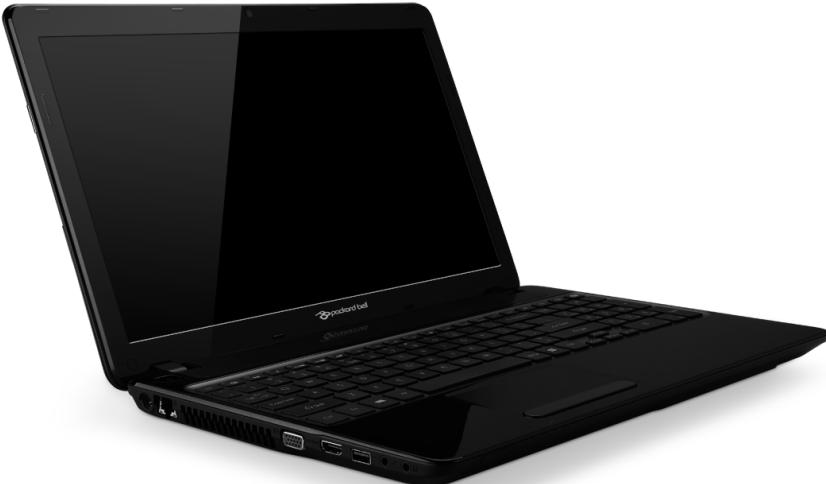
Packard Bell EasyNote TV
SISÄLLYSLUETTELO
Packard Bell Recovery Management. 44
Internet 45
Packard Bell Recovery Management
Here's what will happen:
- Your files and personalization settings won't change.
- Your PC settings will be changed back to their defaults.
- Apps from Windows Store will be kept.
- Apps you installed from discs or websites will be removed.
A list of removed apps will be saved on your desktop.
Next
Cancel
The FCC with its action in ET Docket 96-8 has adopted a safety standard for human exposure to radio frequency (RF) electromagnetic energy emitted by FCC certified equipment. The wireless adapter meets the Human Exposure limits found in OET Bulletin 65, supplement C, 2001, and ANSI/IEEE C95.1, 1992. Proper operation of this radio according to the instructions found in this manual will result in exposure substantially below the FCC's recommended limits.
- The following safety precautions should be observed:
Do not touch or move antenna while the unit is transmitting or receiving.
- Do not hold any component containing the radio such that the antenna is very close or touching any exposed parts of the body, especially the face or eyes, while transmitting.
- Do not operate the radio or attempt to transmit data unless the antenna is connected; this behavior may cause damage to the radio.
Use in specific environments:
- The use of wireless adapters in hazardous locations is limited by the constraints posed by the safety directors of such environments.
- The use of wireless adapters on airplanes is governed by the Federal Aviation Administration (FAA).
- The use of wireless adapters in hospitals is restricted to the limits set forth by each hospital.
Antenna Use
In order to comply with FCC RF exposure limits, low gain integrated antennas should be located at a minimum distance of 20~cm (8 inches) or more from the body of all persons or at a minimum distance as specified by the FCC module grant conditions. FCC grants can be viewed from the FCC Equipment Authorization website at https://fjallfoss.fcc.gov/oetcf/eas/reports/GenericSearch.cfm by entering the FCC ID printed on the module label.
Explosive Device Proximity Warning
Warning: Do not operate a portable transmitter (including this wireless adapter) near unshielded blasting caps or in an explosive environment unless the transmitter has been modified to be qualified for such use
AntennaWarnings
- Warning: To comply with the FCC and ANSI C95.1 RF exposure limits, it is recommended that for the wireless adapter installed in a desktop or portable computer, the antenna for this wireless adapter to be installed so as to provide a
separation distance of at least 20 cm (8 inches) from all persons or at the minimum distance as specified by the module grant conditions. FCC grants can be viewed from the FCC Equipment Authorization website at https://fjallfoss.fcc.gov/oetcf/eas/reports/GenericSearch.cfm by entering the FCC ID printed on the module label.
- Warning: The wireless adapter is not designed for use with high-gain directional antennas.
Use On Aircraft Caution
- Caution: Regulations of the FCC and FAA prohibit airborne operation of radio-frequency wireless devices (wireless adapters) because their signals could interfere with critical interference with critical aircraft instruments.
Local Restrictions on 802.11a, 802.11b, 802.11g and 802.11n Radio Usage
- Caution: Due to the fact that the frequencies used by 802.11a, 802.11b, 802.11g and 802.11n wireless LAN devices may not yet be harmonized in all countries, 802.11a, 802.11b, 802.11g and 802.11n products are designed for use only in specific countries, and are not allowed to be operated in countries other than those of designated use. As a user of these products, you are responsible for ensuring that the products are used only in the countries for which they were intended and for verifying that they are configured with the correct selection of frequency and channel for the country of use. Any deviation from the permissible power and frequency settings for the country of use is an infringement of national law and may be punished as such.
Wireless Interoperability
The wireless adapter is designed to be interoperable with other wireless LAN products that are based on direct sequence spread spectrum (DSSS) radio technology and to comply with the following standards:
- IEEE Std. 802.11b compliant Standard on Wireless LAN
- IEEE Std. 802.11g compliant Standard on Wireless LAN
-
IEEE Std. 802.11a compliant Standard on Wireless LAN (applies to devices supporting 802.11a)
-
IEEE Std. 802.11n draft 2.0 compliant on Wireless LAN
- Wireless Fidelity certification, as defined by the Wi-Fi Alliance
The Wireless Adapter and Your Health
The wireless adapter, like other radio devices, emits radio frequency electromagnetic energy. The level of energy emitted by the wireless adapter, however, is less than the electromagnetic energy emitted by other wireless devices such as mobile phones. The wireless adapter operates within the guidelines found in radio frequency safety standards and recommendations. These standards and recommendations reflect the consensus of the scientific community and result from deliberations of panels and committees of scientists who continually review and interpret the extensive research literature. In some situations or environments, the use of the wireless adapter may be restricted by the proprietor of the building or responsible representatives of the applicable organization. Examples of such situations may include:
- Using the wireless adapter on board airplanes, or
- Using the wireless adapter in any other environment where the risk of interference with other devices or services is perceived or identified as being harmful.
If you are uncertain of the policy that applies to the use of wireless adapters in a specific organization or environment (an airport, for example), you are encouraged to ask for authorization to use the adapter before you turn it on.
FCC Radio Frequency Interference Requirements (applies to device supporting 802.11a)
This device is restricted to indoor use due to its operation in the 5.15 to 5.25 GHz and 5.470 to 5.725 GHz frequency ranges. FCC requires this product to be used indoors for the frequency ranges 5.15 to 5.25 GHz and 5.470 to 5.725 GHz to reduce the potential for harmful interference to co-channel mobile satellite systems. High power radars are allocated as primary users of the 5.25 to 5.35 GHz and 5.65 to 5.85 GHz bands. These radar stations can cause interference with and /or damage this device. No configuration
controls are provided for this wireless adapter allowing any change in the frequency of operations outside the FCC grant of authorization for U.S operation according to Part 15.407 of the FCC rules.
USA - Federal Communications Commission (FCC)
This device complies with Part 15 of the FCC Rules. Operation of the device is subject to the following two conditions:
- This device may not cause harmful interference.
- This device must accept any interference that may cause undesired operation.
- Note: The radiated output power of the adapter is far below the FCC radio frequency exposure limits. Nevertheless, the adapter should be used in such a manner that the potential for human contact during normal operation is minimized. To avoid the possibility of exceeding the FCC radio frequency exposure limits, you should keep a distance of at least 20cm between you (or any other person in the vicinity), or the minimum separation distance as specified by the FCC grant conditions, and the antenna that is built into the computer. Details of the authorized configurations can be found at http://www.fcc.gov/oet/ea/ by entering the FCC ID number on the device.
Interference Statement
This wireless adapter has been tested and found to comply with the limits for a Class B digital device, pursuant to Part 15 of the FCC Rules. These limits are designed to provide reasonable protection against harmful interference in a residential installation. This wireless adapter generates, uses, and can radiate radio frequency energy. If the wireless adapter is not installed and used in accordance with the instructions, the wireless adapter may cause harmful interference to radio communications. There is no guarantee, however, that such interference will not occur in a particular installation. If this wireless adapter does cause harmful interference to radio or television reception (which can be determined by turning the equipment off and on), the user is encouraged to try to correct the interference by taking one or more of the following measures:
-
Reorient or relocate the receiving antenna of the equipment experiencing the interference.
-
Increase the distance between the wireless adapter and the equipment experiencing the interference.
- Connect the computer with the wireless adapter to an outlet on a circuit different from that to which the equipment experiencing the interference is connected.
- Consult the dealer or an experienced radio/TV technician for help.
- Note: The adapter must be installed and used in strict accordance with the manufacturer's instructions as described in the user documentation that comes with the product. Any other installation or use will violate FCC Part 15 regulations.
Canada — Industry Canada (IC)
This device complies with RSS210 of Industry Canada. Cet apparéil se conforme à RSS210 de Canada d'Industrie.
-
Caution: When machine supports and using IEEE 802.11a wireless LAN, this product is restricted to indoor use due to its operation in the 5.15- to 5.25 GHz frequency range. Industry Canada requires this product to be used indoors for the frequency range of 5.15 GHz to 5.25 GHz to reduce the potential for harmful interference to co-channel mobile satellite systems. High power radar is allocated as the primary user of the 5.25 to 5.35 GHz and 5.65 to 5.85 GHz bands. These radar stations can cause interference with and/or damage to this device. The maximum allowed antenna gain for use with this device is 6dBi in order to comply with the E.I.R.P limit for the 5.25 to 5.35 and 5.725 to 5.85 GHz frequency range in point-to-point operation. To comply with RF exposure requirements all antennas should be located at a minimum distance of 20~cm , or the minimum separation distance allowed by the module approval, from the body of all persons.
-
Attention: l'utilisation d'un réseau sans fil IEEE802.11a est restreinte à une utilisation en interieur à cause du fonctionement dans la bande de fréquence 5,15 - 5,25 GHz. Industry Canada requiert que ce produit soit utilisé à l'intérieur desBATIMENTS pour la bande de fréquence 5,15 - 5,25 GHz afin de réduire les possibiltés d'interférences nuisibles aux canaux co-existants des systèmes de transmission satellites. Les radars de puissances ont fait l'objet d'une allocation primaire de
This Class B digital apparatus complies with Canadian ICES-003.
"To prevent radio interference to the licensed service, this device is intended to be operated indoors and away from windows to provide maximum shielding. Equipment (or its transmit antenna) that is installed outdoors is subject to licensing."
The use of these equipments is regulated by:
1.D.L.gs 1.8.2003, n. 259, article 104 (activity subject to general authorization) for outdoor use and article 105 (free use) for indoor use, in both cases for private use.
2.D.M. 28.5.03, for supply to public of RLAN access to networks and telecom services.
Pakistan Telecommunication Authority (PTA) Approved
Morocco
The operation of this product in the radio channel 2 (2417 MHz) is not authorized in the following cities: Agadir, Assa-Zag, Cabo Negro, Chaouen, Goulmima, Oujda, Tan Tan, Taourirt, Taroudant and Taza.
The operation of this product in the radio channels 4, 5, 6 and 7 (2425 - 2442 MHz) is not authorized in the following cities: Aéroport Mohamed V, Agadir, Aguelmous, Anza, Benslimane, Béni Hafida, Cabo Negro, Casablanca, Fès, Lakh Bab, Marrakech, Merchich, Mohammédia, Rabat, Salé, Tanger, Tan Tan, Taunate, Tit Mellil, Zag.
Japan
5 GHz 带是室内用使用のと
Korea
当用,
Taiwan
第十二条
Recovery Management 60
PykoBoDCTBO
Пользователя
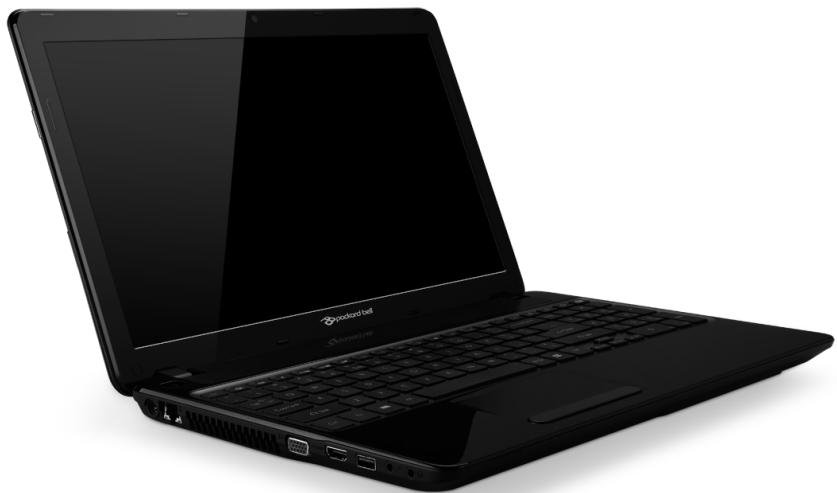
Packard Bell EasyNote TV
ÖrJIABJIΕΗΝΕ
3anyck KOMnbHOtepa 4
BecnpoBODHoe noDKIoueHne 4
Pernctpau 5
UcTaHObKa npOrpAmMHO oBecneueHn.. 6
BocstahOBJIeHne 6
Bo3nKnn npo6JIembl? 6
OchOBhIe CBeDeHnO KOMNbIToTepe 8
Be3oNaChOCTb u yDobcTBo pa60tbl. 8
Mepb6e3oNaChOCTn 8
OxpaHa 3doOpBb. 13
3HaKOMCTBO C KOMNbIOTepom 16
Budcbepxy-dncnnne 17
BudcBepxu -Knabnatapa 18
CneunalbHbIe KnaBnSi 20
Bvnd cpeeni 24
Bud cneBa 25
Bud cnpaba 27
Bud cH3y 29
CencopnnaheJIb 31
OchobblncnoB30aHnaCeHCOPHO naHeI..31
KectbHa ceHcOpHoi nanei 32
Moeprn3aunBaawero
KOMNbIOTepa 34
PacupeHne BO3MOXHOCTe C NOMOJIbIO
DOnOJIHnTeJIbHbIXMOdyIeI 34
Bo3MOxHocTn POnKJIoueHH 34
3JIeKtpoNTaHne 40
AanTep cTeBOro nHTaHn 40
AkkymyIaTOp 41
XapakTepcntkn aKkymyIaTopa 41
3aMeHa aKKMyJrTopa. 43
3apka aKymyIaTopa 45
Packard Bell Recovery Management. 51
IHTepHet 52
PepBbIe Wann B INHTepHeTe 52
3aunTa KOMnbTepe 52
Bb6op noctabuika ycnyr INHTepHET. 52
Cetebbe nooknoueHna 55
Pa6oTa B IVHTepHete 58
Be3onachoctb 59
BocctaHOBHeHne 70
Co3dHme pe3epBHOJ KOIMn DnI BOCCTaHOBJIeHn 70
Co3dAnHepe3epBHO konim dpaBebpoN npIooHNOH 75
BocctaHOBJIeHne CnCTembl 77
IpeyectaHOBka dpaiBepoB npiloxKeHH 78
Bo3bpat K npédbiyuemy
"MOMeHTaIbHomy CHIMKy" CNTEmbl. 82
BocctaHOBJIeHne CNTEmbl DO
nepbohaayalbHoro coctOHHa 83
BocctaHOBHeHne n3 camo CNCTembl
Windows 84
BocctaHOBJeHne n3 pe3epBHOI KOHN
Дя BOCCTaHOBJIeHnI 88
YacTo 3aDaBaemble BOnpocbl 93
CobetbI NIOcka3Kn No pa6oTe C
Windows 8. 96
Hyxho nomnntb cneyuoune Tpu
OCHOBHbIe Beu: 96
Kak OTKpbItb naHeJIe 3KcPipecc-KHONOK
Charms? 96
Kak OTkpblb 3kpan Nyck? 96
Kak pepeknouaTbCmJdy
npnloxKeHnMaMn? 97
Kak BBIKJIOUHTb KOMNbIOTep? 97
3aem HjkeH HObI INTepeic? 97
KaK pa3bIOKIpOBaTb KOMIbIOpTeP? 98
Kak hactpoNTb KOMNbIOpTeP corNaCHO
MONI ppeDNoTeHnAryM? 98
XOuyncnoJb3oBaTbWindows
PnBbIHybIM MHe cNoocobm. KaK
BepHyTb "pa6oyn cToJ? 99
Ide MoN npInloKeHn? 100
Yto TaKoe Microsoft ID (yHETHa
3aipncb)? 101
KakdoabuBt cbbky Ha n3bpaHhble
Bbe6-caiTbI B 6pay3epe Internet
Explorer? 102
Kak npobepntb haJIynchne o6HOBJeHn
ДЯ Windows? 102
Ie MoXHO NOJyHTb DOnOJIHHTeJIbHyIO
HHΦopMaζHNo? 103
HopmatNBHnHOpmaun 104
3aunTa OkpykaUoese cpebl
Copyright © 2012. Bce npaba 3aunuenebl.
PykoBODCTBO noIb3ObaTeIa Packard Bell EasyNote TV
OcbnyxueaHue KOMnbIomepa
He nbItaTecb 06cnyxnbAtb KOMNbIOTep cAmocToTeJbHo, TAK KaK, OTkpBIB NIN CHRB KpbIiKy, Bbl MoKeTe NOdBeprHyt b Ce6y DeHCTBnIO onachoro HaprrjEHHN IIN dpym puckam. Bce Bnbl TexHnueckoro 06cnyxnbAHnI DOnXhbl npOBoDnTB CneuaJIncTb cepBnCHoro ceHTpa.
OTKJIIOHTe KOMNbIOTep OT cTeBOI PO3ETKN I O6paTNTecb 3a NOMOJIbIO B cepBnCHbI ΚeHTp, eCNI:
- ShHyp NiTaHnI nn pa3bem NOBpeXdHeNb, HAppe3aHbI nn npOtePbI,
B yctpoiCTBO 6bIa npoIiTa KnIkoCTb, - yctpoiCTBO nonano noD dojkb nIIN noDBeprrocb Bo3deiCTBnIO BnaI,
- yctpoiCTBO ynpaIOn IINIOBpeKdEn eO KOpNyc
Bpa6oTe yctpoiCTBa BnHbI RaBHbI OTKIOHeHnO THOpMbI - yctpoiCTBO He paobotaet HopmaJIbHo npu co6IIOdeHm INHcTpyKcN ITO 3KcIIyatau
Ipumeyuhe: Inpeaynpoeku noIb3yUmecb moIbko meMu opaHaMu ynpaeJeHua, peaynpoEka komOpbIX npedycMompena UhcmpyKzmaMu no 3KcIpyamauu, mak kak HnpaBunbHoe uCnoIb3O6aHue dpyaux opaHOe ynpaeJeHua MoXem npueecmu K npoejdeHuo u3denuu u, ckopee ecezo, nompebyem om cneuauncmoe cepBuchozo uehmpa bOnbux ycuiu dny ooccmaHo6eHue HopMaJIbHbIx pa6oux npamempoe u3deJnua.
OxpaHa 3dOpOBbY
-Дише,учаски BOKpyr BeHTINЯцIHbIX OTBepCTN i aadanTep nepemehHoro TOKa MOry HarpeBaTbcra. He npikacaiTecb K Hm, YTO6bl He nOlyuNTb OXkOr nIITpAbMy.
B Baawem yctpoictbe n npnaIeXHocTg X HeMy Moryt HaxOHTbcr MeIke DeTaII. DepKnte INx B MeCTax, HeIOCTyINbIX IJIa MaJIeHbIKX DeTei.
- Komпьютей и akceccуapы могут соржаъ Мелкге комно entы. Дерхитух в мостax, He doctyn HBix дя маленьхдөтэн.
- Пи порджгельно pa6ote 3a komlbiptepom peryrahpno DeaTe nepepbbl. Hehaonro OTbOndte rna3a ot kpaHa KOMbIOTepa. Ppekpatnte pa6oty 3a komlbiptepom, noCyBCTBOBAB yctanoctb.
- PacnoJoxnTe KOMnbIOTep TaK, YTOb6bl Bam 6blIO 6blIO eCTeCTBeHHO IN KOMΦopTHo pa60TaB 3a Hm. NObHn3OCTn pacnoJoxnTe ppeDMeTbI, KOtOpBIMN Bbl YaCTO NOlb3yeTEcb.
-Дяболгьебзогиудбногшьпсindnte npraMo nepekomnbItepOM.KnabNAtypa nceHcOpHЯ naHeJIbdoJxHbI bItbHa yd6hoIЯBaBbICote.PacctOryHne ot rla3do 3KpaHa doJxHcoCTabJIrTb npimepHo 45-70 cm.
EcnBbI nooJrny pa6oTaTe 3a KOMnbIOTePOM, CnJa 3a CTOnOM, To nJa IOBbIeHnY yOobCTBa pa6oTbI COBetyEM KynITb BHeuHIOU KNaBnAtypy.
-
ChTo6bI He NoBpeiNTb Cnyx, npn IcNoJIb3OBAHm DInHAMIKOB nINn HayuHNIKOB yBeJIuHVAIte rPOMKOCTb NOCTeNEHHO, NOKa HE DOCTNHTe HOpMaJIbHOI N KOMΦoPTHOH CblIshMocTn. He NobIshaIte yPoBeHb rPOMKOCtN PocIe TORO, KaK BaI sCnyx aJaANTnpyETcA. He ClysaIte My3bIKy Ha BbICOKOI rPOMKOCtN B TeueHne DJIITeJIbHOrO BpemeHn. He NobBiIaIte rPOMKOCTb, ChTo6bI nepeCNIITb OkpykaIOUm Shym; UMeHbIJTe rPOMKOCTb, ecI IN He MOKeTe CblIshaTb TOLOC IIOJe pIdom C Bamn.
-
Bo Bpemra pa60bI HnKnHЯ qactb KOMnbHTopea, aanTep nITaHnRA N BO3dUx, BbIXOJaIuN N3 BeHTnJIaCIOHHbIX OTBepCTn, MoryT HarpeBaTbcr. N36eraTe dIITeNbHOcoPnKoCHOBeHnra pa60taUoJero KOMnbHTopea C TeIOMn He KJaIte ero Ha KOJIeHn.
-
He nepekepbiaBte n He 3aropaxnBaIte BeHTnJIaCIOHbIe n dpyrHe OTBepCTnKOMNbIoTepa.He CTabBe T KOMNbIoTeP Ha MmRkyIO NOBepxHOCTb (KOBep, KpecNo, KpOBAt b N T.I.) KOTOpbie MOryT nepekepbIb BEHTnJIaCIOHbIe OTBepCTnI.
He npocobbIbaTe nocToPOHHne npedMeTbI B yctpoiCTBO uepe3 BeHTnJIaUHOHHbIe OTBepCTnI nnI na3bl B Kopnyce, TAK KAK OHN MOyT COpNIKOCHyTbcr C TOUYkAMN ONaCHOro HAnpJxHnI NJIu Bbl3BaTb KOpOTKoe 3aMbIkaHne DeTaJIeN, YTO MOKeT pInBecTN K BO3rOpaHnIO NII INopaxHeHIO 3JIeKTPnuCeKIM TOKOM.
-Опразденийные NOВТОРЯЮшпеся DeиCTBЯ MOryT Bbl3BaTb 3abOJIeBAHnEpyK,KnCTeI,JaOHeI,SeI,ПleYeI,Hor n CnINHbI.уTObI yMeHbUHTb pNCK pa3BVITnA 3a6OJIeBAHnI,NeYaTaNTe,ДерЖa 3aJIaCTbI INKCTNI npRAMO IN POBHO NaI KJIaBnATypoI.ПочВСТВOBaB INepNoDInuYeCKne 60nI, NOKaJIbIbAHnE, OHeMeHne IIN dpyrNte Prn3HaKN IINCKOMΦOpTa,ObpaNTTEcB K Brpauy.
Cobetyem poDnteJAM KOHTPOJIINPOBAtB, kAc nx DeTn irpaHOT BV KOMNbIOTepHbIe INrpbI. EcIn y DeTei NOABITcIIO6oN I3 CmNTOMOB 3a6ObeBaHnra (roIIOBOKpyKeHne, 3aTyMaHEnHoe 3peHne, cydopora rna3 INJIM MyCKyIbOB, NopePc CO3HaHnA, De3OpHeNTaCnR, Hnpon3BOJbHbIe INJIM KOHBylbcNBHbIe DvIXeHH), To HEMEDJIENHO npeKpatnte NCNoJB3OBAHnE KOMNbIOTepa N O6paTIteCb K BpaUy. 3To MoKET cLyuHTbcra, daxe ecIn y YelNOBeKa HNKOrda He 6blno 3nnlENTnuecknx npinapaidKOB.
3HaKOMCTBO C KOMNbIOTepom
Tenepb, KOrda Bbl BbIOnHnHn HacTroPoiKn, KaK NOKa3aHO Ha NpKaTe No yctaHOBKe, DaBaIte NObJIxKe P03HaKOMMmCc BaUIM HOBbIM Packard Bell HoYt6yKom.
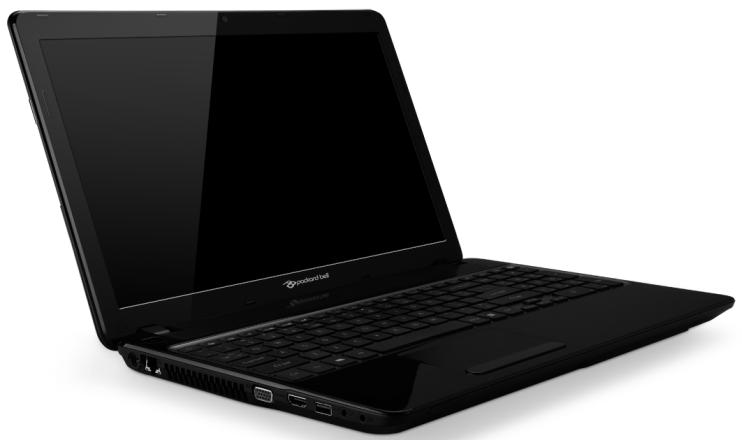
Packard Bell EasyNote TV
BnD cBepxu - dncnpei
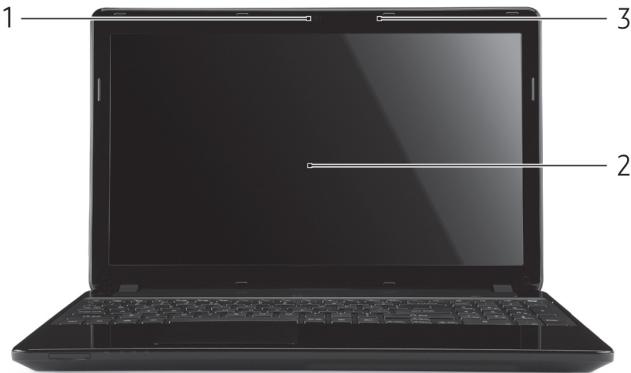
OCHOBbI NcNoJIb3OBaHnA CeHCOPHO NaHeJI
Cencopna naheIb clyknt Iy npablenn npemeuenem cTreJkn (nn 'kycopa') no 3kpany. Pnp npoBeHn n aJIbca no ceHcOpno naHeJI KypCop IOBTOPReT TpaekTopIO npemeuena naIbca.
Haxmaite nebyu npabyu KhoNknoCecncoH naHeIbIO nIyBbOpa N BbIOJIneHnaФHKU. 3TN DBe ObNaCTn aHaIOnuHbI neBOI nIpaBoi KhoNkamMbIu. NocTyKbAHne no ceHcOpHoaHeJIn aHaIOnuHo HaaTnIO neBOI KhoNkMbIu.
Ppumeyue: Cencopnna nane lyecmeunbna K deuxeHIO naiba; yem neae kacaHue, mem moyhee peakua.
cne du me 3a mem, ymo6bI cHcOpnaHn b u bauu nlaBbI bInu cyxmu u yucmbimu.
YnpabJrTb Kypcopom MOXHO HeCKOJIbKIMN OCHOBHbIMN XeCTaM:
CdBnOdHnMaIbIeM:ДЯперemeIeHnKypcopaDbIraTe NaIbIeM NO ceHCOPHOI naHJI.
Kacahne oHn m naIbceM: CJIeRka KocHTecb ee naIbceM, YTO6bl "UeJyKom" BbIbpaTb 3JeMeENT nII 3aNytB erO. IJIa
Kapmbi SD, SDHC u SDXC
HecmotpHa cXOXn BHeuHn BnD, pa3hBie Tnbl KapT SD OTInuAHTcpa3HOJ emKocTBIO. Y kapT SD emKocTb DoCTnraet 4 TB, y kapT SDHC-32 TB, a emKocTb KapT SDXC MoKeT DoCTnraTb 2048 TB (2 TB).YcTpoiCTBO UTeHn KaP T nAmrtn B BaWeM KOMnBoTepe noIdepxNBAeTkapTb TnOB SDHC nIN SDXC.
Пи汞анe: Kapmbi nammu SDXC moxho ucnnoIb3o6aMb moIbko e ycmpoucmee qmehua, noodepkueaouem foopMam SDXC; Kapmbi SD u SDHC moxho ucnnoIb3o6aMb e ycmpoucmee qmehua IIO6Oa muna.
- Haxmnte cTpeNky Noka3bIBaTbCKpbITbIe 3Ha4Kn B o6nacmuyeedomneHu (pIOM C yacAMn).
- Haxmte 3HaOK Be3onachoe n3BneHHe yCtpoCTBa.
- Haxmte N3Bleych KapTy SD (NJIN JIMy yCTpOiCTBa).
4.ДоЖДИТЕСь NOЯВЛЕнЯ COOБЧЕНЯ Tepeb MOЖHO 6e3oNacHo u3eJIeY yCmpoUcmeO.
5.ИЗБЛЕКТЕΚAPТУ.
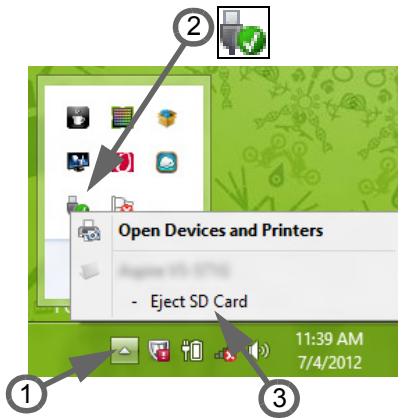
BcmpoeHHbIe cpecdmea paobmbi s cemu
BcTpoEHHbIe cpeIcTBa pa6Otbl B ceTN IO3BOJIAHOT IOdKJIIOUaTb BaI J KOMNbIOTep K ceTN Ethernet.
AdaanTep ceTeBOro NITaHnIa
BaW KOMNbIOTep MoKet IcNOJIb3OBAtB npINaRaEmb BHeUHn aAanTep nITAHnI dIpa6Obl OT cTeBOrO 3JeKtpoNTAHnI. PpINaRaEmb UHyp nITAHnI COOTBeTCTByET CTaHdApTaM TOI CTrpaHbI, rDe 6bl KynJIeH KOMNbIOTep.
3TOT aanTep nntaHnna oecneuBaet HxKhoe nntaHne IpaobtI KOMnbIoTepa N OndHOBpeMeHHoNpO3apJkaeT erO akkymyIaTOp.
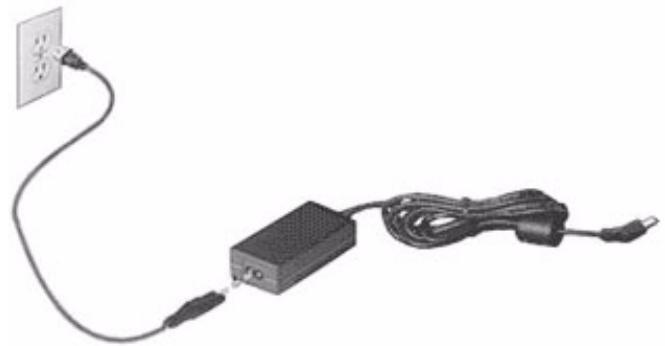
BhImaHne! He 3akpbIbaiTe aadantep ceteBOrO nHTAHnI H KnaIte Ha Hero noctopOHHe npedMebl. NoctopOHHe npedMebl, nOLOXeHHbIe Ha aadantep, He nO3BOJrT emy OxJaXdabcra BO BpeM pa60Tbl.
Приименяп Te Tolyko aадanTep ceteBoro nITaHnA, BXOJaUn B KOMPJIeKT nocTabKn KOMNbIOTepa. Bo3MoXHo, dpyrne aadanTepbI bByIgIyIaT noXoKe, HO IN Приимени MeKet NOBpeDInb BaU KOMNbIOTep.
BHHMaHHe! Nocne npoDoJXHTeJbHO pa6Otbl aanTepeCteBOrO nHTaHnI uDnIe KOMNbIOTepa MOrYT HArpeBaTbcra.3To HopMaJIbHOe ABLeHne, HO npoDoJXHTeJbHbI KOHTaKT CHNMI MOrYT pNpUHHITb TpaBMy.
AkkymyIaTOp
KoMnboTepeNcNoJIb3yeT aKKymyIaTOp, oBeceNeuBaOuI npOIOJXKeIeJIbHOe BpeMraBTOHOMHO pa6Otbl.
XapakrepncTnKn aKKyMylToppa
AkkymyIaTOp o6laJaAeT cIeIyIoUImm xapaKTepeNtKamn:
- COOTBeTCTBnE TeKyuIzIM TexHOJIoRnueCKnM CTaHdApTaM.
- Bыдач п dedупждени O nH3KOM урове зарда.
AkkymyIaTOp 3apJxaeTc npi NpOdkIIOUeHn aIaITepa ceTeBOro nITAHN K KOMNbIbTepy. AkkymyIaTOp MOXHO 3apJxAtb, He IpepbIBaRa paBOTy c KOMNbIbTePOM dIg 3apJda aKKymyIaTOpa. TeM He MeHee, pni BbIKNoUeHHOM KOMNbIbTepe aKKymyJIaTOp 3apJxAEtC3HaHTeJIbHO 6blCTpee.
AkkymyIaTOp NO3BOJIeT NcNOJIb3OBAtB KOMNbIOTep B NOE3dKe INN INPc60x 3JIeKTPoINiTAHnI. Cobetyem IMeTb B pe3epBe DIONoJIHNTeJIbHbI INOINOCbI 3apJXeHHbI aKKymyIaTOp. KynITb pe3epBHBn aKKymyIaTOp MOKHO B KOMNbIOTepHOM MaRa3InHe.
YeenuyeHue cpoKa cnYk6bI akKymnIamopa
Kak n BCE npyrne akkymylantopbl, akkymylantop BaWero KOMnbIOTepa CO BpeMeHem HauHET TepaTb EMKoCTb. 3To 3HaHT, 7TO BpeMpaB0TbI OAKyMylantopa CO BpeMeHem COKpaUaetcra.
Дпя npoДлени croka cnIyXbI aKKymYЯТopa cobetyem BblONHЯТспдуюше peKOMeHdaци.
IodaomoeKa Hoozo aKKyMnyamopa KUCNoJIb3O6aHuO
Ipeed nepBbIM nCNoJIb3OBAHnEM HOBOr aKKyMylTOpa COBeTyEm npOBecTN npOeDpy ero "NOIroTOBKn" K paBoTe:
- BcTaBbTe HObBi aKkyMylTOp B bYkJIIOueHHbI KOMnblOTep.
2.Подсоевинеаадапетер ceteBOrО nITaHЯи NOJIHoCTbIO 3apAДNTe aKKyMylTOp. - OToeHNHe Te aanTep cTeBOro nItaHn.
- BkIIOHInTe KOMMbIoTeP i pa6OtaTHe, IcNoJIb3yra 3JIeKTpOniTahHe OTAKKymJrTopa.
5.Дождпесь поного разрааakумлгета. - Choba noДcoeДиHnTe aДaПТepe ceTeBOrO nITaHnI e ue pa3 noJIHOCTbI O 3apAДnTe aKKyMЛЯТOP.
Packard Bell Recovery Management
YTo6bl NODrTOBHTb KOMNbIOTep K BOCCTaHOBJeHNIO CNUCTEmbl CNCIOJIb3OBAHnEM DOnOIHNITeJIbHbIX NapaMeTpOB, CNeJyET KaK MOXHOCKopee CO3dA Tb H6Op DNCKOB IINB OBCCTaHOBJeHNIA. DOnOIHNITeJIbHbIe CBeDeHnA CM. Ha cTp. 70.
ПервbieшагиВИntepheTe
3aunTa KOMnbIOTepa
Дянаджон paBOTы KOMьOTepа ХИЗHEHNO BaxKHO 3aUNITb erO OT BnpycoB n aTak chepe3 INHTepHeT (cM. pa3dJe IpeDIOXeHue no 6e3OJaCHo pa6ome e INHmepHeme Ha cTp. 51 n pa3dJe Be3OJaCHocmb Ha cTp. 59). Прп nepBOM 3aIyCke KOMbIOTep IpeDIOxHt BOCNoJIb3OBaTBcЯФфKeTINBHO npOrpaMMoJ dЯ 6e3OJaCHo pa6ObTI B INHTepHeTe. 3Ty 3aUnTy cNeIyET aKTHBnPoBaT b KaK MoXHo Ckopee, HO O6ra3aTeJIbHO Do NOdkIQUeHnK INHTepHETy.
BbIbOp noCTabUzIkA ycnyr INHTepHET

Pa60a B INThepHeTe CTana HeOTbEmIeMoJ yactbIooExeJdHeBHOpa60tbcOMNbIOTePOM.HTo6bl NOnyUHTbDOCTyn K pa3HOO6pa3HOINΦOpMaunN CpeDCTBaM O6uEHNy, HxKHO BbIPOJHNTb HECKOJIbKO IpOCTbIX WaROB.ДЯ 3TOrO BbIbEPnte Chayana nocmaeuzka ycnye INHmepHem (ISP), KOtOpbi OBecneuNT PNOKlIoUeHne KOMNbIOTepa K INThepHety. Y3HaIte, KaKne MeCTHbIe KOMNaHn OKa3bIBaHOT ycLyTn INThepHET,
IIOCOBeTyITeCb C pOdCTBHeHHKAMN Ipy3bAMN IIN NOHTaTe O63Opbl NOT3bIBbl KJIeENTOB. Bbl6paHhbI Bamn NOcTaBUnk ycnyr INTEpHET ONIIwET NOPdOK NODKlnUoyEnnK INTEpHETy (BO3MOxHO, INPdETcY cTahOBuTb DOnONHInTeJbHbIe PporpaMMbl IIN KynITb CneUaNbHoe yCTpOJCTBO DnI NOdKJIIOUeyHnK TeNeΦoHHO nnHN).
TunbI NOdkNIOUeHnI
B 3aBncmoctn OT MoJeI N KOMNbIOTepa, MeCTOHaXoKJeHn IOnb3OBaTeJIy n erO notpe6HOCTe moxHo IcNoJIb3OBaTb pa3HbIe cnoCobI IOnkJIouHeHn K INHTepHety.
Kommymupyemoe coeduHue
B HeKOTopbIX KOMNbHOTepax ectb TelefoHHb ("MOeMHbI") pa3bEmdIyUdJIeHHORO DoCTyna K INTepHETy NO KOMMyTnpyeMoN TelefoHHoIINHm. C erO NOMOUsbIO MOxHO NODKNIOHTbcra K INTepHETy nO TelefoHHoI INHm. PnKOMMyTnpyeMoM NODKNIOHOBpeMeHHoe IcNOJb3OBAHne OJHOI TelefoHHoI INHm MOeMoM INTelefoHOM HeBO3MOxHO. 13-3a HN3KOJ CKOPoCTn NepeDaun DaHHbIX INOBpeMeHHoI ONIIaTbI TAKOH NIOkNIOUeHnRA peKOMeHdyetc ToJIbKO dJIyHeuactbIX BvIXoDOb BV INTepHET.
DSL (Haipumep, ADSL)
Lunpobar aboentckara liHna (Digital Subscriber Line, DSL) - 3to noctoHHoe noKluoyehne no TelefoHHo JInn. DSL n TelefoH NCNoB3yOT dIe nepeayn pa3hble yactOtbl, PO3TOMy NO Ondoh TelefoHHo JInn moxHO noKluoyatbcy K INtepHeTy N pOJb3OBaTbcra TelefoHOM. POnkluoyehne no DSL oblyHNO MOxHO 3aka3aTb, eCNI HeJaIeKO oT BAC ectb TelefoHHa CTAuHcNCS DSL-6obOpyDobAHmE (B CeJIbCKoM MeCTHOCTn Takaay Ucnya MoXeT 6bITb HeOCTyHa). CkopoCTb nepeayn DaHHbIX 3aBNCNT OT MecToHaxOXdEHHa KIneHTa, HO B 6OJIbUHNCTBe clyuaeb DSL oBeceNuBaet oueHb 6bICTpoe n HadexHoe noKluoyehne K INtepHeTy. NockolbyK 3TO noKluoyehne noCToHHoro TnHa, obUYHO OHO ONLauHBAETC NOMEcAHyHO.

Ipumeyue:ДЯDSL-нodknquenu hyxhen coomemcmyouu moem.ObiHNO moem npedocmaaemcnaocmauukom ycnye Hmephema npu peucmpauu. Mhoue maKue modembi noCMAJIOMc c Mapwpymuzamopom, obecneueaouum coedunehue c cembu u becpnoobdnoe no kquoenue no cemu Wi-Fi.
Kabénbha
KaßebHbHOe NOdkIIOUcHHe - TIN 6bICTpOro NocToHHORo NOdkIIOUcHnRA K INHTepHETy PO cETN KaßebHOrO TeJIeBnDEHnra. OblyHo TaKoe NOdkIIOUcHHe IpeDlaraetcB Kpyhblx rOpOax. B 3tOM cIyae MoXHO ODHOBPeMeHNO pa3rOBaPbA Tb IO TeJeΦoHy, CMOTpeTb KaßebHObE TeJIeBnDEHne I pa6OtaTb B INHTepHETe.
Texhonoa 3G (WWAN, unu becnpooohna anobabha cemb)
C nOMOuBIO 3G-noKJIoueHn moXHo nCNoJb3OBaTb cOTOBbIe ceTN (Ha npimep, nCnoJb3yEmbIe MObIbHbIMn TelefoHAmN) dIpy nOdkIoueHn K IHTepHeTy, haxoJcB BHe Doma. B KOMnbIOTpe MoXeT bItb rHe3do dIpy SIM-kapTb; ecIn erO HeT, TO moXHO BOCnoJb3OBaTbcr BHeSHnM yCTpoiCTBOM, Ha npimep USB-MoDEMOM nn DaJce COOTBeTCTByUoUM o6pa30m o6opuyoBaHHbIM MObIbHbIM TelefoHOM.

Ipumeyuue: Ecnu e kombomepe ecmb ahe3do SIM-kapmbi, mo 6am nohadobumc coemecmua SIM-kapma u do2oepoc onepamopom comoeou cemu. Ppexde yem ucpnoj3oebam 3G-kykuu, y3naume y c0e2o nocmaeuzka ycnya, bdyem lu Nauchciambcd oonlhumenbna nnama, oc6eHNO 3a poymuHe.
CetebIe noDknIOUeyHnA
IokalbnaCeTb-3To rpypna KOMnbTepeOB (HaPnmuMeB,BoΦnce nIn B 3daHn),KOTOpbIE COBmecTHO NcNoJIb3yIOT IINHIO CBa3N IN pecypcbI. TaKaCeTb P03BOJraET COBmecTHO NcNoJIb3OBA Tb ΦaJIbI, nepnΦepnHbIe yCTpoiCTBa (HaPnmuMeP, pnpHTepbl) INoDKJIuOeHne K INHTepHeTy.Co3dAteb CeTb MoXHo Ha OCHObe npoBOhblx (Ethernet) nIn 6ecnpoBOhblx (HaPnmuMeP, Wi-Fi nIn Bluetooth) texHolorn.
Eecnpo60Dhbcemu
Umo maKoe "uUnoHcKue" npOapamMbI?
"UHIOHCKne" nporpaMMbl - 3TO HeKeIaTeIbHbIe npoRpaMMbl, KOtOpBIE 3aRpykaOTcB KOMNbIoTEp, KOrda OH NIOKJIIOueH K INHTepHeTy, cacto 6e3 BeDoma nOJIb3OBaTeJI. NocIe 3apaxeHnO hN MOrT OTCJExJNBA Tb pa60Ty nOJIb3OBaTeJI B INHTepHeTe, CObIPaTB erO IInHyu INΦopMaunO, COzDABaTb BCJIbIBaHOUIe OKHa C peKJIAmO NIN DaJKe IN3MeHrTb HAcTPOIK NOMNbIoTEpa. "UHIOHCKne" nporpaMMbl NOTpe6JIaHOT pecypcbI KOMNbIoTEpa, MOrT 3aMeJDIIITb NIOKJIIOueHne K INHTepHeTy, CHINITb POnI3BOIDITeJIbHOCTb CNCTeMbl NIN Bbl3BaTb ee c60I.
"UHNOHCKne" npOrpaMMbI INHOrda NcNoIb3yOTcR HeIObOpcOBCTNbIM KOMnAHNMAI DnI OTCLeXINBAHNr TORO, KaKne Be6-caNTbI NOceuaET IOnlb3OBaTeJIb, YTo6bl BbIaBHTb erO npINbYckN prn paBoTe B IVtepHeTe n IOKa3bIBaTb peKJIaMy Ha 3kPaH eero KOMlbOTepa. Ondako HekOTOpbIE TINbI "UHNOHCKnx" npOrpAMM DeIcTByOT BoJee N3OupeHHo - OHN OTCLeXINBaOT Haxatne KlnABNI H nePexXBtBuBAOT napOLn IN dpyrIne FyHKUIN, NOdBeprra NlB3OBaTeJIr ORPOMHOMy PNCKy.
Umo maKoe spedohocHbI npOpaMMbI?
BpeoHocbI npoapMbI npedHa3HaueHb I nAmepeHHoro npuHHeNBA Bpea KOMbIoTepy. K Hm OTHOcTc BnpycbI, "eepBn" n "TpOraHckne KOH". 7To6bl 3aunITnb KOMbIoTe pOT BpeHOCHbIX nporpamm, NcnoJb3yIte n peyJlpaH O6HOBJnTe aHTNBUPychbI nporpammBI npoRpaMMbl 3aunITbl OT BpeHOCHbIX npoPamM.
Umo makoe nepcoHaJIbHbI 6paHdMay3p?
IepcoHaJIbHbI 6paHdMay3p, IIN CeTeB0 3KpaH, - 3TO npOrpAMMa, npedOTBpaUaOuaJ HecAHKUnOHnpoBAHHbIOCTyN K qactHOcETn INn I3 Hee BO BHeuHIO Cetb. OH pa6otaet kak 3KpaH, 3aunuaOuON ot HekeNaTeJIbHbIX CoedInHeHNI pni NODKlOChENN K INHTepHeTy, TAK KAK HEKOtOpBie IN3 HNX MOrTy INCNoJIb3OBaTcBcA DJIY NOnUyeHNE KOHTPOJNA HD CNTeMoJ, YTObbl UcTaHOBnTB INn PaCnPoCTpaHrAe TBnpyCbI IN BpeDOHOChBle npOrpAMMbI. BpaHdMay3p KOHTPOJIpyET KaKdoE IOkJIIOUeHne K KOMNbIoTEpy IN ObHApJxNBAe T pOrpAMMbI, KOToPbIE NbIaOTcA NOnUyAtb INΦopMaUcHb 6e3 pa3peSeHNe IOnb3OBaTeJN, IN BvIdaET npEDynpeXdEHNHe. Ecn NODKlIOUeHne BbINOJNHReTcA INCNoJIb3YeMoB B DaHNO MOMENT npOrpAMMO (HaNPIMep, INpa IOnKJIIOUaTeC K INrPoBOMy cepBepy INN 3HUNKlONeDIn OShOBJAE T COdepXmOE), TO NOnb3OBaTeB MOKeT erO pa3peWntB.
3aumakomnbomepa
IpeodTbpaaTb KOMNbIOTePbHe IpecTyPiHEnMy MoXHO, He OblaJa4a CnEuaJIbHbIMN 3HaHnmaM. BblONHra 6Ue TeXHnueckne peKOMeHdaaun IN ykoBOcCTBycB 3dpabBIM CmblCnOM, MOxHO OTpa3ntb MHOJcTBO aTak 3IoymblJeHHNKOB. O6bHuNO INTEpHET-IPecTyHNKn NbTAOTc3apAbOtaTB KaK MoXHO 6oJee 6blCTpbIM IN JeRKM CnOCo6om. Yem AKTINBHeE NOp30BaTeB IpOTNUBOCTOIT NM, TEM BepoRTHeE, UTO OHN OCTABrER O B NOKoe IN HaCeJIaTcRA Na 6OJee JERkyU JxepTBy. PInPBedeHHbIe HNXe peKOMeHdaaun Coedpxat Obuine CBeDeHnO O 3aUHTe OT CeTEBOrO MoSeHHNueCTBa.
OdNH n3 Jyuchix cnoocob Obe3oPacntb KOMnbIOTep OT 3IOyMbIJIeHNNKOB - yCTaHOBka NcnpabLeHn I dpyrIX O6HOBJIeHn IO Mepe IH NOBHeH. PeryJrpHoe OBHOBHeHne KOMNbIOTepa He I03BOJRAET 3IOyMbIJIeHNNiKaM BOCNoJB3OBAtBCa Yra3BIMOCTAMN DJIY IPOHKnHOBeHnB BAuSy CnCTeMy.
PeryJIrpHoe 6OBHe He 3aUHuaet OT BCEx BO3MOxHbIX aTaK, HO OHO 3HaunTeIbHO 3aTpUdHaeT 3IOyMbIuHnHKam IOnyuHne DoCTyna K CnCTeMe, NOJHoCTbI IOpeIoTbPaUaET IpOcTBie N ABTomTuYeCKne aTaKn. 3TOrO MoXeT 6bITb DOCTaToUHO, UTObI 3aCTaBtB MeHee peWHTbHbIX npectynHko IVckAte Cebe 6oJe e JERkyu ZeIb.
Bolnee no3dHne Bercn Cnctembl Microsoft Windows n Dpynx NOnyIpaHbIX npOrpAMM MOxHOb HAcTPOHTb Ha aBTOMaTHueCKyO 3arpy3ky N UcTaHOBky O6HOBJIeHn, YTObI He 3a6OTNTbcra O npOBepKax IOnyBJIeHn O6HOBJIeHn. NcNoJIb3OBAHHe BO3MOxHOCTei aBTOMaTHueCKOro O6HOBJIeHn - OTNIuHbI CNOCo6 3aUHTbI KOMNbIoTepa np Pa6Ote B INHTepHe.
Packard Bell Recovery Management
?X
Welcome to Packard Bell Recovery Management
Packard Bell Recovery Management enables you to restore your system. To begin, select the task you want to perform. Please DO NOT remove the USB device while proceeding.

Customized Restore (Retain User Data)

Reinstall Drivers or Applications
Make a back-up before you restore (recommended).

Create Factory Default Backup
Create Drivers and Applications Backup

packard bell
Restores your computer to its factory default status. A reboot is required. NOTE: All data on drive Cwill be restored.
- Haxmte Co3aTb pe3epBHyU KOHIO 3aBOdcknx HaCTpoek. OTKpoeTcA OKHO DnCK dny BoccmAoeneHu.
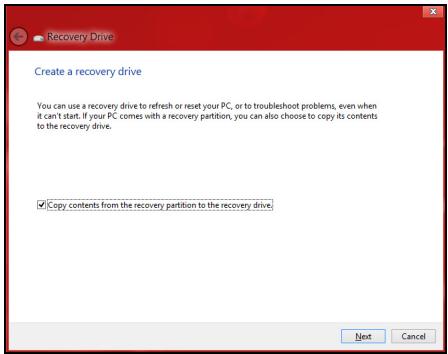
YCTAHOBITEФлжOKKOnHPOBaTbCOePXMoe pa3dJaJXecTKORO DnCKA BOCCTAHOBJIeHnHaДNCKДЯ BOCCTaHOBJIeHn.3TO TnapamTp OBeCneuHBAe TMACmMaJbHo NOJIHoe N 6e3onacHoe CO3DAHnpe3epBHOKONIN DJIa BOCCTaHOBJIeHn.
- Ecnn nCnOJb3yTe DVD-DnCKN, To nporpaMa yKaKeT, cKoJIbKO HUxHNO YnCTbIX 3aINCbIbAeMbIX DnCKOB IJIg 3aINcN DnCKOB BOCCTaHOBJIeHn. PpriTObTe INx NepeI NaJOM pOueDpybl.

-
Haxmte Nyck, yTo6bI cKOnIpoBaTb faiJIb. Ha 3kpaHe 6ydet OTo6paXaTbCxaOxD BblONHHeHHpe3epBHOr KOInpOBAHH.
-
BbIopHnTe yka3aHnna IJy 3aBepseHn npouceca:
-
Ecni nCnOJIb3yTe ONTnueckne DNCKN,TO JIoTOK npINBOda 6yDet OTKpbIbATbcra Nocne 3aIncn KaJDoRo DNcKa. N3BNeKInTe DNCK N3 npINBOda H NOMeTbe erOpMaHeHTbIM MapKePOM. Ecni HuxH0 3aIncatb HeCKoJIbKO DNCKOB,TO,yBnDeB PpeJIOXeHne Ha 3KpaHe, BCTabBe CNeDuOuN M DnCK N HaxMITE OK. IpoDOnJkaIte 3Tu DeIcTBn, Noka IpoUeCC He 3aBepShITcR.
- Ecπn nCπoNβ3yeTe USB-haKoπηTeJIb, To OTcoeДиHηte erO nHaHeCιTe Ha Hero YeTkyU MapKnipOBkY.
Baxho! HanuHnte Ha KaXdOM DnCke NOHrTHbI TeKCT, HAnpImep, "Pe3epBHaJ KOnNJa DpaBepOB N npNJIOKeHn". CoxpaHnte 3Ty pe3epBHyO KOnNIO B HaJeXHOM MecTe N 3aONMHte 3TO MeCTO.
BocctaHOBJeHne cIcTeMbI
IopraOK BOCCTaHOBHeHnN CnCTeMbI:
- UctpaHnTe MeIknIe npOblmbl.
EcnB03HnKHyT HEnoJaKn B pa6Ote TOnbKO OndHO NIn DByX npOrpaMMhBix NIn annapaTHbIX KOMNoHErTOB, TO np6IeMy MOxHo peuNTb nepeycTaHOBko 3TNx npOrpAMM NIn dpaBepOB ycTroiCTB. IopAOK BOCCTaHOBJeHn PO n DpaBepOB, PpeyctaHOBJeHHbIX Ha 3aBOe-IV3rOTOBHTeNe, CM. B pa3dene "PepeycTaHOBka dpaiBepOB n npInloKeHn" cTp.78.
Bo38pam K moyke boccaMaHoEneHua
- Ha экpahe Пуck BВeДиTe "Пань упавлени" И 3aTeM B CпИСКЕ npиLOжени НжмITE Пань упавлени.
- HaxmTe Cnctema n 6e3oNaChocTb > LcHtp noDpeKKn, 3aTeM BHN3y OKHa HaxmTe BocCTaHOBJeHne.
-
HaxmTe 3anyck BOCCTaHOBJeHnC nCTeMbI, 3aTeM DaJee.
-
Haxmnte camyio nocJeHHIO TOky BOCCTaHOBJIeHnra (Ha TOT MOMENT, KOrda Ba7a CnCTema pa6oTana npabUNbHO), Haxmnte Danee n 3aTeM FToTOBO.
5.B OTRpbIbIeMcR OKHe C 3aIpOcOM Ha NODTBepJxdeHne HaxMMte Da. Pocne 3TOro cNCTema 6yDet BOCCTaHOBJIeHa C NcPONb3OBaHNem yka3aHHoB Bamn TOChn BOCCTaHOBJIeHn. 3TOT IPOUeCC MoXeT 3aHrTa HeCKoJIbKO MInHyT INOTpe6oBaTb nepe3arpy3KN KOMNbIOTepa.
BocctaHOBJIeHne cncTeMbI do nepBOHaayJbHoro COCTOHNIA
EcnB KOMNbItepe BO3HKnHyT npo6JIembl, KOToPbIe He ydaCTcayctpaHnTB DpyrIMN CnOCO6aMNI, TO, BO3MOxHO, NOHaIO6bNTcAnepeyCTaHOBnTB CNCTEmY ZeJIKOM, YTO6bl BOCCTaHOBnTB eeH3NaJIbHOe COCTOHN. JIBy BOCCTaHOBNeHMy MOXHO NcNoJIb3OBAtBJIIo6 JeCTKm DNCK, IIOo CO3DaHHbIe BAMN pe3epBHbIe KOIN dJaBOCCTaHOBJIeHnI.
- Ecni cnCTema Windows eue 3aynckaetc, n BbI He ydaJIIN Ha JxecTKOM DnCKe pa3deI BOCCTaHOBJIeHn, TO CM. pa3deI "BocctaHOBJIeHne n3 camo cnCTembl Windows" ctp. 84.
- Ecni cncTeMa Windows He 3aynyckaetcra, a opnHnaJIbHbI JxecTkIn DnCK 6bl IOnHOCTbIO nepeΦopMaHTPOBaH nII 3aMeHeH, To CM. pa3dEn "BocctaHOBJeHne n3 pe3epBHOJ KOHN dJIa BOCCTaHOBJeHnA" ctp.88.
BocctaHOBHeHne n3 cAmO cnCTeMbI Windows
3anycntte npiloxeHne Packard BellRecovery Management:
IpeDyucMOTpeHo DbA cnoc6a - BocCTaHOBJIeHne 3aBOIDCKNX yCTaHOBOK (C6poc PIK) nIIn HAcTpaINBaEMoe BOCCTaHOBJIeHne (O6HOBNTb PIK).

Customized Restore (Retain User Data)
Функия BocstahOBJIeHne 3aBOdckx yCTaHOBOK ydaJIIT BCE daHHbIe C JecTKO R DNCKA, 3aTeM nepeyctaHOBNT Windows N BCE npedycTaHOBJIeHbIe B KOMpbIOTepe nporpaMMbl I dpaiBepbl. Ecni eelse MOxHOb OTKpbITb BaxHbIe paJIbI ha JecTkom DnCKe, TO npraMo ceuac CO3dAnTe INx pe3epBhIe KOJIIN. CM. pa3deI "BocstahOBJIeHne 3aBOdckx HacTpoEk pRn NOMOUI npriIoXeHnja Packard Bell Recovery Management" cTp.85.
Функця HabtpanBaemoe BOCCTaHOBJIeHne NObIaTeCry COxpaHITb BaunФайы (noIb3OBAteJbCKNe DaHHbIe), HO NepeyctaHOBIT BCE nporpamMbI n dpaIbEbpI. Iporpammbl, yCTaHOBJIeHHbIe BamN NOcIe NOKyIKN Pk, 6yDyt ydaJIeHbI (KpOME nporpaMM, yCTaHOBJIeHHbIX C caIHa Marazn Windows). Cm. pa3dEn "HactpanBaemoe BOCCTaHOBJIeHne npri nomoi npinloXeHnja Packard Bell Recovery Management" cTp.87.
1. Haxmnte BocctaHOBNTb 3aBOckne HaCtpoKn.
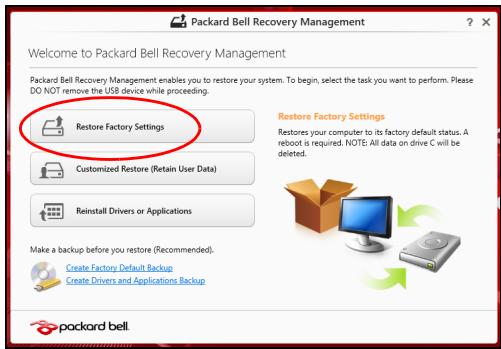
BHHMaHHe! ΦyHKzIa "BocCTaHOBHTb 3aBOdCKne HacTPOiKn" cotpeT BCE φaJIbI Ha JxecTKOM DnCKe.
2. OTPpoeTc8 OKHO C6poc PIK.
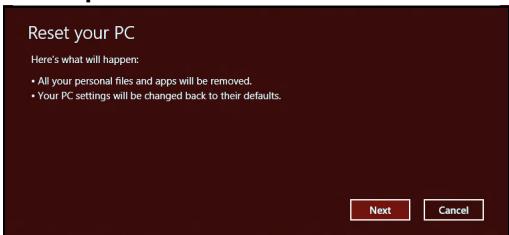
IInnocmpaauu npueedehebmonbko dner cnpaeku.
- Haxmnte Danee n BbIbepeTc cnooc ydaJIeHna qaiIOB:
a. YdaNTb TOnbKO MON faiJIbl - 6bICTpoe ydaJIeHne BCEx faiIOB IpePeB BOCCTaHOBJIeHnEM KOMNbIOTepa; TaKoe ydaJIeHne 3aHIMMaET OKOJIO 30 MInHyT.
b.ПОЛHOCTBIO OYNCTBДСК - NOJHЯ OYNCTKa DnCKA NOCNe YdaJIeHnK KaXdOrO PhaINa, YTO6bI NocNE BOCCTaHOBJIeHn Hn ODNH CTapbI ΦaJI HeJIb3a 6bIIO pOoHTaTb. OYNCTKa DnCKa 3aHmMaET HamHOrO 60JIbWe BpemeHn (do 5 yacOB), HO 3To HAMHOrO 60Jee 6e3OnaChbI CnOCo6, TAK KcK CTapbIe PhaJIbI yDaJIaOTcR 6e3BO3BpaTHO.
4. Haxmnte C6poc.
5. B npocece BocctaHOBneHn CHaJaI npOn3OJTe npe3arpy3Ka KOMNbIOTepa, a 3aTeM NaHHeTcK OKnIpOBaHne faiIOB Ha JecTkN IINCK.
6. После заBERшеня BOCCTaHOBJIeHЯ Bbl CMOKeTe Hauatb pa60Tu c KOMNBIOTepom, NOBTOpNB DeiCTBnR, BblIOJHReMbIe Ppi nepBOM 3anycke.
1. Haxmnte
HactpanBaemoe
BOCCTaHOBJIeHne
(coxpaHntb
N0lb3OBaTeNbckNe daHHbIe).

Packard Bell Recovery Management
?X
Welcome to Packard Bell Recovery Management
Packard Bell Recovery Management enables you to restore your system. To begin, select the task you want to perform. Please DO NOT remove the USB device while proceeding.

Customized Restore (Retain User Data)

Reinstall Drivers or Applications
Make a backup before you restore (Recommended).

Create Factory Default Backup
Create Drivers and Applications Backup

packard bell
Restores your computer to its factory default status. A system is required. NOTE: All data on drive C will be deleted.
2. OTKpoEcra OKHO O6HOBITb PIK.
Refresh your PC
Here's what will happen:
- Your files and personalization settings won't change.
- Your PC settings will be changed back to their defaults.
- Apps from Windows Store will be kept.
- Apps you installed from discs or websites will be removed.
A list of removed apps will be saved on your desktop.
Next
Cancel
3. Haxmnte Danee, 3aTeM 06HOBntb.
- B npocece BocctaHOBHeHn CHaJaI npOn3OJTe nepe3arpy3Ka KOMNbHOtepa, a 3aTeM NaHcHTcK OKnIpOBaHne PaJIIOB Ha JKeCTKN DnCK. 3TOT npoeecc 3aHmMaET OKONO 30 MNHyT.
BocctaHOBJIeHne n3 pe3epBHOJ KOHN dJa BOCCTaHOBJIeHnA
Iopraok BocctaHOBJIeHnI 3 pe3epBHOJ KOII, 3aIIscAHHOJ Ha USB-HakONITeJe:
- HaniTe pe3epBHyIO KOIIIO IJI BOCCTaHOBJIeHNI.
- BCTaBbTe USB-нakОпnteЛь n BKJIIOHnTe KOMIbIOTep.
- BKПЮЧИТе F12 Boot Menu (MeHIO 3aapy3ku F12), ecIи OHO eIe He BKJIIOUcHEO:
a.Bo Bpem 3arpy3kn KOMnbTepa HaxMnTe KnaBnUp
b. HaxaTne KnaBnS CO CTpeJIkAmN BNeBO NIN BnpaBO Bbl6epnte MeHIO Main (INaBHOe).
c. HαkaTneM KλaBùnùn CO CτpeIκOι BHN3 BbI6epNte F12 Boot Menu (MéHIO 3arpy3Kn F12), 3aTeM HαχMnte KλaBùnùy
d. HaxaTne KnaBnU CO CTpeJIkAmN BNeBO NII IN BnpABo BbIbepnte MeHIO Exit (BbIXoJ).
e. B 3aBucmocTn OT TnPa CnCTembl BIOS BaWero KOMNbIOTepa BbIbepnte Save Changes and Exit (CoXpaHnTb N3MeHeHnN n BbIiTN) INI Exit Saving Changes (BbIHTn, coXpaHnB N3MeHeHnN) IN HaxMITE KJIaBnSy Enter. IJI NaDTBePjKeHnN HaxMITE OK INI Yes (Ja).
f. KomnboTep nepe3arpy3ntcra.
4.BoBpem3arpy3Kn Haxmnte KnaBnuy F12>,YTO6bl OTKpbItb MeHIO 3arpy3Kn.B MeHIO 3arpy3Kn MOxHO BbI6paTb yCTpoiCTBO,C KOtOporo cNeDyET 3arpyKaTbCra, HanpImep, USB-HaKoNITeJb.
a. HαkaTne KλaBιu co cTpεπΚaΜι BbIeJIηTe cTρογk USB Device (USB-устpoиCTBO), 3aTeM HαχΜιTe KλaBιu η Entry.
b. BmecTo 06bIChNo 3aRpy3Kn npOn3oJTeT 3aNyck Windows c pe3epBHO KONIN BOCCTaHOBJIeHnI.
5. BbIbepeTtN KlaBnATypbl.
6. BbIbepnTe Troubleshoot (UcTpaHHe HEnCnpaBHOCTe) n 3aTeM BbIbepnTe HxKhbl TIN BOCCTaHOBJIeHNA:
a. Haxmte DoonHnTeIbHo n 3aTeM BocCTaHOBHeHne CnCTeMbI, yTO6bl 3anyCTnTb fYHKzHIO "BocCTaHOBHeHne CnCTeMbI Microsoft": FyHKzHIO "BocCTaHOBHeHne CnCTeMbI Microsoft" nepNoDnueckn DeHaet "MomentaJIbHbIe CHIMKn" napameTPOB n HacTpoE K BaSei CnCTeMbI n COxpaHraET nx KAK TOnKIN BOCCTaHOBHeHn. B 6OJbShnHCTBe cnUyAEB CNOXhBX INpO6LnEM c npOrpAMMaMn dIpy BOCCTaHOBHeHn paOToCnOcObHOCTn CnCTeMbI MoXHO BepHyTbcr Ha ONDy IIN HeCKoJIbKO 3TNX TOcEK BOCCTaHOBHeHn Ha3ad.
b. Haxmte C6poc PK, YTO6bl HAaTb npoecc c6poca NaCTPOeK:ФyHKUJN C6poc PK ydaIIT BCE daHHbIe C JecTKOro DNCKA, NOCJIe 3TOrO 6ydyT nepeycTaHOBJIeHbI CNCTema Windows n BCE npedcyCTaHOBJIeHbIe B KOMlbHOtepe nporpaMMbl I dpaIBepbl. EcNI eJe MOxHO OTkpblb BaxHbIe paIbl Ha JecTKOM DNCKe, TO npRAMO CEuVac CO3dAnTe INX pe3epBHbIe KOHN. CM. pa3deI "C6poc PK n3 pe3epBHOJ KOHN BOCCTaHOBJIeHn" cTp. 90.
c. Haxmte O6HOBnTB PK, YTO6b HAaTb npocecc
OBHOBJIeHn:AyHKUa
06HOBtB PK nonbItaeTcOxpaHnTb BaIiФaJIbI (noIb3OBATeNbckne daHHbIe), HO nepeyctaHOBt BCE nporpaMMbI n dpaIbepbl. PporpaMMbl, yCTaHOBJIeHHbIe Bamn noCle nokynk PIK, 6byt ydaJIeHbl (KpOME nporpaMM, yCTaHOBJIeHHbIX c caiTa Mara3InHa Windows). Cm. pa3dcl "06HOBJIeHne PIK n3 pe3epBHOJ KOINN BOCCTaHOBJIeHnra" cTp.92.
C6poc Pk u3 pe3ep8Hou konuu boccmaHo8neHu
BHHMaHHe! Pn c6pOce PIK 6yDyT ydaJIeHbI Bce paJIbI Ha JxecTKOM DnCKe.
- OTKpoeTcOkHO C6poc PIK.
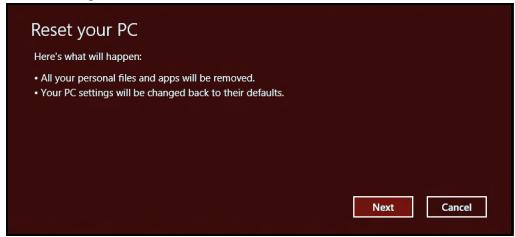
IInnIOcmpauu npueedeHb moIbKO dNcnpaeku.
- Haxmte Danee.
-
Bыберпе onepaunOHHy cncTeMy Дя ВOCCTaHOBJIeHЯ (OьИнОДocTypeH TOnbKO OdINH BapnaHT).
-
BbI6epnte coXpaHeHne BCex n3MeHEni, npOn3BeDeHHbIX C JxecTKIM DnCKOM:
a. EcIn Bbl ydaIIINn Ha JecTcKOM DnCke pa3dEIN BOCCTaHOBJIeHn INI INpyrIM CnOCo6OM N3MeHNIIpa3dEJIb JecTKOro DNCKa IN XOTNTe COxpaHnTB 3TN IN3MeHeHnI, TO Bbl6epnte Het.
b. 4To6bl NIOJIHOCTbI OBOcCTaHOBNTb KOMIbIOTep Do COCTOJHn3aBOIDCKNX HAcTPOEK, TO BbIbEpNte Da.
- BbIbepeTe cnooc ydaIeHna faiIOB:
a. YdaIHTb TOnbKO MOn ΦaJIbI - 6bICTpoe ydaJIeHne BCEx φaIIOBперд BOCCTaHOBJIeHnEM KOMNbIOTepa; TaKOE ydaJIeHne 3aHIMMaET OKOJIO 30 MNHyT.
b.ПОЛНOCТьО OYNCTNTьДСК - NOЛнэ OYNCTKa DUSKa NOCNe YdaJIeHЯ KajdOrOФaINa, YTO6bI NOCne BOCCTaHOBJIeHЯ HN ODNH CTapBIMФaII HeJIb3A 6bIIO pOuHTaTb. OYNCTKa DUSKa 3aHIMaET HamHOrO 60JIbSe BpemeHn (do 5 yacOB), HO 3To HAMHOrO 6oJee 6e3OpaChbI CnOCo6, TAK KaK CTapbIeФaIbIy UdaJIaOTcR 6e3BO3BpaTHO.
- HαχmιTe Cδpoc.
- После заBERшеня BOCSTaHOBJIeHЯ Bbl CMOKeTe HaayabTpbaoTy c KOMNbIOTepom, NOBTOpNB DeiCTBnR, BblIOJHReMbIe Ppi nepBOM 3anycke.
OboeHue PIu3 peepohou konuu 8occmHOeHua
- OTKpoeTcOkHO 06HOBuTb PIK.
Refresh your PC
Here's what will happen:
- Your files and personalization settings won't change.
- Your PC settings will be changed back to their defaults.
- Apps from Windows Store will be kept.
- Apps you installed from discs or websites will be removed.
- A list of removed apps will be saved on your desktop.
Next
Cancel
- Haxmte Danee.
- BbIbepeTe OepaunOHyCnCTeMy IJI BOCCTaHOBJIeHn (ObIuHO DoCTyneH TOJIbKO OINH BapnaHT).
- Haxmte 06HOBTb.
5.B npocece BocctaHOBnEHH CnaHajna npon3OJTe npe3arpy3Ka KOMNbIOTepa, a 3aTEM NaHHeTc KOINPOBaHne paJIIOB Ha JecTkN IINCK. 3TOT npoeecc 3aHnMaet OKOLO 30 MNHyT.
Часто задаваемble Ворpoсы
Да lee пиведен снсok BO3MOKньх ситуаци, KOTopbIe MOryT BCTpeNTbCЯ пи пььЗOBaHn BaUIM KOMNbIOTepOM. Дя кжdoi ситуаци пиведны пocstbe OTBebl n peшehna.
Iocne 6kJIOueHua Numau KOMbIomep He 3aNyckaemc Uu He 3aaykaemc
B3rIyHnTe Ha nHdNkAtop Power (IITaHne):
-
Ecni OH He CBeTnTcra, NiTaHne Ha KOMNbIOTep He IoJaHO. ПрOBepbTe cIeNyUOuee:
-
Ecπi Bbl pa6oTaTe OT aKKymyIaTopa, 3TO MOKeT O3HaaytB, yTO eRO 3apJn Hn3Km I HeCNoCo6eH nITaTB KOMbIbTe. POnkJIIOuHTe aadAnTeP nepemehHOrO ToKa, YTObIb 3apJnTb aKKymyIaTOp.
-
Поберъправиьhoeьи Наджhoeьи подюченя залтета пелемногToka K komblOTepу N к сеТбоВ розтke.
-
Ecπn ένικαTOp CBetntcπ, προΒεpbTe cπeúθuεe:
-
EcTB JIи ДИСКВ ПпИВОде onTnUeCKINx ДИСКOB? ИЗВЛЕКИТЕ erо ИнанЖМИTe
+ + , уTOБbl pepe3aRpy3NtB cNCTeMy. - BctabIeH IIN B KOMnbIOTeP USB-NaKoNITeB (USB-Dnck nnn cMaprTphiN)? OToCoEiINHnte erO n HaxMnTe
+ + , yTo6bl nepe3arpy3ntb cnCTemy.
Hem u306paxeHua Ha 3KpaHe
CnCTema ynpabIeHna\PntaHneM KOMnbIOTepa aBTOMaTnueckN OTKJIIOHaET DIncPJIe NdЯ 3KOHOOMN 3JeKTPo3Heprn. HaxMMTe IIO6yU KNaBnUy, YTO6bI BKJIOHTb DIncPJIe.
Ecni Haxatne KnaBnIe He Bo3Bpaaet DncJIe B pa6OuH peKIM, BO3MOXHbI DBe pUCHbI:
- UpoBHeH JRPKoCTn MOKeT 6bIb CJINJkOM Hn3Ok. HaxMnte (yBeJIuHTb), YTO6bI NOBbICHTb yPoBHeH JRPKoCTn.
B KaueCTBe yCTpoiCTBa OTo6paXeHnMa MO 6bITb BbI6paH BHeuHm MoHHTop. YTo6bI DInCJIpeNpeKJIIOUHTb CHOBa Ha KOMNbIoTeP, HaxMNTe □□ - Ecπn ropnt nHdkaTop pexkma cha (Sleep), to 3TO 3NaHT, yTO KOMIbIOpTe hXoDITcB Pexkme cHa.ДЯ BO3O6HOBHeHЯ paOToBb I O6bIyHOM pexkme HAXMITE n OTnyCTnte KHOJky PtTaHnY.
Kombioomep He 6ocnpou3o0dum 3eyk
PpOBepeBte cneDyUoUee:
- PpOMKocTb MoKet 6bIb OTKJIouheHa. B Windows, IocMOTpIte Ha 3HaQoK peYJrTOpa rpOMKoCTn (DINHAMIK) B NaHeJI 3aJaUc. EcNI OH nepeuepkHyT, To HaxMITE 3HaQoK n CHIMITE qJaXOK BbIK. BCE.
-
UpoBHeHb rPOMKoCTn MoXeT 6bITb CJIuKOM Hn3Ok. B Windows, PocMOTpIte Ha 3NaUOK peYJrTOpa rPOMKoCTn B paHeN 3aJaU. OtperyJInPoBaTb rPOMKoCTb MOxHOb TaKKe KHOJkAmn peYJInPoBKn rPOMKoCTn.
-
Ecπn rɔlOBhblte TeneΦoHbI, HayuHnKn nJIn BHeuHne DnHaMnKn POKJIIOUeHbI K pa3bemy JINHeNHO BoBIXOda nepeDHeN KOMNbIoTepa, TO BHyTpEHHne DNHaMnKn aBTOMaTUnCeCKN OTKJIIOUaIOTcR.
Ecnu aonosbIe mepeohbl. HayuHuku unu eHuHue duhamuku
noDKnOyuHbI K pa3bemy luHeuHOo 6bIXoda nepeDHeu KOMnbIomepa,
mo bHympenHue duHAMUKU aemomamuecku omKnIOyauomcra
Ha npINBOe ONTNUeCKNX DNCKOB eCTb OTBepCTne IJRA MEXAHUweCKORO n3BJIeueHnra DnCKa. YTO6bI BblDINHyTb IOTOK, BCTaBtBe B 3TO OTBepCTne KOHcIK CTePjXHr ShapNKOBOn pyuKn INN KaHcJIepCkyo CKpeNky N HaxMNTe.
Knaasuamypa He peaaupyem
3aHem HxKeH HOBbI INHTepFeic?
Hob布局中Tepfecn DnA Windows 8 pa3pa6oTaH cneuaJIbHo DnA ceHCOPHOrO ynpabLeHn. PpIIOXeHn I3 Mara3Ha Windows 6byT aBTOMaTHueCKn IcNOJb3OBaTB BeCb 3KpaH, INx He HUJHO 3aKpbIbTaB 0bIyHbIM Cnocobom. PpIIOXeHn I3 Mara3Ha Windows 6byT OTo6paKaTbcS Ha 3KpaHe PycB B VIne "DINHAMueCkN X PIIITOK".
Umo makoe "duHaMuueckue nIumKu"?
"ДиHammueckne ПЛNTКn (Live tiles)" analorunhbl 3ckn3am npInIOxKeHn, OHI 6byUT obHOBJIaTbcra C HOBbIM COdepKIMbIM KaJdbI pa3, KOrda Bbl NOkIIouaTeCb K INTEPHeTy. IOnToMy Bbl cMOxKeTe, HApRImep, INPOcMaTPnbTaB obHOBJIeHHbIe MeTeOCBOdKn IIN 6bpXeBbIe KOtnpOBKn, He 3aIpyCKa COOTBeTCTByUOuIe npInIOxKeHn.
Kak pa36nokpoBaTb KOMnbIOTep?
YTo6bl pa3bIOKnpoBaTb KOMNbIOpTe, HaxMMTe IIO6yU KJIaBnUH naXMMte 3NaOcK nONb3OBaTeJbCKo yUeTHoN 3aInc. Ecnn dIy UyeTHoN 3aIncu yCTaHOBLeH npOJIb, To dIy IpOdoJxKeHn HuxHo BBecTN 3TOT npOJIb.
Kak hactpontb KOMnbIOTe pcoJIacHO MOm npednoTHeHnM?
Moxho Hactpontb 3KpaH Pyck, yCTaHOBbBa3JIuHbIe FOHOBbIe I3O6paXeHnI, nIynpaIOHTb PJIITKN B COOTBeTCTBn C BaIIMN npednoTuTeHnA M.
UTo6bI n3MeHnTb fOHOBOe n3o6paXeHne, HaxMMTe KJIaBUN Windows +
Kak ydaunmb numky c 3kpaHa Nyc?
The FCC with its action in ET Docket 96-8 has adopted a safety standard for human exposure to radio frequency (RF) electromagnetic energy emitted by FCC certified equipment. The wireless adapter meets the Human Exposure limits found in OET Bulletin 65, supplement C, 2001, and ANSI/IEEE C95.1, 1992. Proper operation of this radio according to the instructions found in this manual will result in exposure substantially below the FCC's recommended limits.
- The following safety precautions should be observed:
Do not touch or move antenna while the unit is transmitting or receiving.
- Do not hold any component containing the radio such that the antenna is very close or touching any exposed parts of the body, especially the face or eyes, while transmitting.
- Do not operate the radio or attempt to transmit data unless the antenna is connected; this behavior may cause damage to the radio.
Use in specific environments:
- The use of wireless adapters in hazardous locations is limited by the constraints posed by the safety directors of such environments.
- The use of wireless adapters on airplanes is governed by the Federal Aviation Administration (FAA).
- The use of wireless adapters in hospitals is restricted to the limits set forth by each hospital.
Antenna Use
In order to comply with FCC RF exposure limits, low gain integrated antennas should be located at a minimum distance of 20~cm (8 inches) or more from the body of all persons or at a minimum distance as specified by the FCC module grant conditions. FCC grants can be viewed from the FCC Equipment Authorization website at https://fjallfoss.fcc.gov/oetcf/eas/reports/GenericSearch.cfm by entering the FCC ID printed on the module label.
Explosive Device Proximity Warning
Warning: Do not operate a portable transmitter (including this wireless adapter) near unshielded blasting caps or in an explosive environment unless the transmitter has been modified to be qualified for such use
AntennaWarnings
- Warning: To comply with the FCC and ANSI C95.1 RF exposure limits, it is recommended that for the wireless adapter installed in a desktop or portable computer, the antenna for this wireless adapter to be installed so as to provide a
separation distance of at least 20 cm (8 inches) from all persons or at the minimum distance as specified by the module grant conditions. FCC grants can be viewed from the FCC Equipment Authorization website at https://fjallfoss.fcc.gov/oetcf/eas/reports/GenericSearch.cfm by entering the FCC ID printed on the module label.
- Warning: The wireless adapter is not designed for use with high-gain directional antennas.
Use On Aircraft Caution
- Caution: Regulations of the FCC and FAA prohibit airborne operation of radio-frequency wireless devices (wireless adapters) because their signals could interfere with critical interference with critical aircraft instruments.
Local Restrictions on 802.11a, 802.11b, 802.11g and 802.11n Radio Usage
- Caution: Due to the fact that the frequencies used by 802.11a, 802.11b, 802.11g and 802.11n wireless LAN devices may not yet be harmonized in all countries, 802.11a, 802.11b, 802.11g and 802.11n products are designed for use only in specific countries, and are not allowed to be operated in countries other than those of designated use. As a user of these products, you are responsible for ensuring that the products are used only in the countries for which they were intended and for verifying that they are configured with the correct selection of frequency and channel for the country of use. Any deviation from the permissible power and frequency settings for the country of use is an infringement of national law and may be punished as such.
Wireless Interoperability
The wireless adapter is designed to be interoperable with other wireless LAN products that are based on direct sequence spread spectrum (DSSS) radio technology and to comply with the following standards:
- IEEE Std. 802.11b compliant Standard on Wireless LAN
- IEEE Std. 802.11g compliant Standard on Wireless LAN
-
IEEE Std. 802.11a compliant Standard on Wireless LAN (applies to devices supporting 802.11a)
-
IEEE Std. 802.11n draft 2.0 compliant on Wireless LAN
-
Wireless Fidelity certification, as defined by the Wi-Fi Alliance
The Wireless Adapter and Your Health
The wireless adapter, like other radio devices, emits radio frequency electromagnetic energy. The level of energy emitted by the wireless adapter, however, is less than the electromagnetic energy emitted by other wireless devices such as mobile phones. The wireless adapter operates within the guidelines found in radio frequency safety standards and recommendations. These standards and recommendations reflect the consensus of the scientific community and result from deliberations of panels and committees of scientists who continually review and interpret the extensive research literature. In some situations or environments, the use of the wireless adapter may be restricted by the proprietor of the building or responsible representatives of the applicable organization. Examples of such situations may include:
- Using the wireless adapter on board airplanes, or
- Using the wireless adapter in any other environment where the risk of interference with other devices or services is perceived or identified as being harmful.
If you are uncertain of the policy that applies to the use of wireless adapters in a specific organization or environment (an airport, for example), you are encouraged to ask for authorization to use the adapter before you turn it on.
FCC Radio Frequency Interference Requirements (applies to device supporting 802.11a)
This device is restricted to indoor use due to its operation in the 5.15 to 5.25 GHz and 5.470 to 5.725 GHz frequency ranges. FCC requires this product to be used indoors for the frequency ranges 5.15 to 5.25 GHz and 5.470 to 5.725 GHz to reduce the potential for harmful interference to co-channel mobile satellite systems. High power radars are allocated as primary users of the 5.25 to 5.35 GHz and 5.65 to 5.85 GHz bands. These radar stations can cause interference with and /or damage this device. No configuration
controls are provided for this wireless adapter allowing any change in the frequency of operations outside the FCC grant of authorization for U.S operation according to Part 15.407 of the FCC rules.
USA - Federal Communications Commission (FCC)
This device complies with Part 15 of the FCC Rules. Operation of the device is subject to the following two conditions:
- This device may not cause harmful interference.
- This device must accept any interference that may cause undesired operation.
- Note: The radiated output power of the adapter is far below the FCC radio frequency exposure limits. Nevertheless, the adapter should be used in such a manner that the potential for human contact during normal operation is minimized. To avoid the possibility of exceeding the FCC radio frequency exposure limits, you should keep a distance of at least 20cm between you (or any other person in the vicinity), or the minimum separation distance as specified by the FCC grant conditions, and the antenna that is built into the computer. Details of the authorized configurations can be found at http://www.fcc.gov/oet/ea/ by entering the FCC ID number on the device.
Interference Statement
This wireless adapter has been tested and found to comply with the limits for a Class B digital device, pursuant to Part 15 of the FCC Rules. These limits are designed to provide reasonable protection against harmful interference in a residential installation. This wireless adapter generates, uses, and can radiate radio frequency energy. If the wireless adapter is not installed and used in accordance with the instructions, the wireless adapter may cause harmful interference to radio communications. There is no guarantee, however, that such interference will not occur in a particular installation. If this wireless adapter does cause harmful interference to radio or television reception (which can be determined by turning the equipment off and on), the user is encouraged to try to correct the interference by taking one or more of the following measures:
-
Reorient or relocate the receiving antenna of the equipment experiencing the interference.
-
Increase the distance between the wireless adapter and the equipment experiencing the interference.
- Connect the computer with the wireless adapter to an outlet on a circuit different from that to which the equipment experiencing the interference is connected.
- Consult the dealer or an experienced radio/TV technician for help.
- Note: The adapter must be installed and used in strict accordance with the manufacturer's instructions as described in the user documentation that comes with the product. Any other installation or use will violate FCC Part 15 regulations.
Canada — Industry Canada (IC)
This device complies with RSS210 of Industry Canada. Cet apparéil se conforme à RSS210 de Canada d'Industrie.
- Caution: When machine supports and using IEEE 802.11a wireless LAN, this product is restricted to indoor use due to its operation in the 5.15- to 5.25 GHz frequency range. Industry Canada requires this product to be used indoors for the frequency range of 5.15 GHz to 5.25 GHz to reduce the potential for harmful interference to co-channel mobile satellite systems. High power radar is allocated as the primary user of the 5.25 to 5.35 GHz and 5.65 to 5.85 GHz bands. These radar stations can cause interference with and/or damage to this device. The maximum allowed antenna gain for use with this device is 6dBi in order to comply with the E.I.R.P limit for the 5.25 to 5.35 and 5.725 to 5.85 GHz frequency range in point-to-point operation. To comply with RF exposure requirements all antennas should be located at a minimum distance of 20 cm, or the minimum separation distance allowed by the module approval, from the body of all persons.
- Attention: l'utilisation d'un réseau sans fil IEEE802.11a est restreinte à une utilisation en interieur à cause du fonctionement dans la bande de fréquence 5,15 - 5,25 GHz. Industry Canada requiert que ce produit soit utilisé à l'intérieur desBATIMENTS pour la bande de fréquence 5,15 - 5,25 GHz afin de réduire les possibiltés d'interférences nuisibles aux canaux co-existants des systèmes de transmission satellites. Les radars de puissances ont fait l'objet d'une allocation primaire de
This Class B digital apparatus complies with Canadian ICES-003.
"To prevent radio interference to the licensed service, this device is intended to be operated indoors and away from windows to provide maximum shielding. Equipment (or its transmit antenna) that is installed outdoors is subject to licensing."
The use of these equipments is regulated by:
1.D.L.gs 1.8.2003, n. 259, article 104 (activity subject to general authorization) for outdoor use and article 105 (free use) for indoor use, in both cases for private use.
2.D.M. 28.5.03, for supply to public of LAN access to networks and telecom services.
Pakistan Telecommunication Authority (PTA) Approved
Morocco
The operation of this product in the radio channel 2 (2417 MHz) is not authorized in the following cities: Agadir, Assa-Zag, Cabo Negro, Chaouen, Goulmima, Oujda, Tan Tan, Taourirt, Taroudant and Taza.
The operation of this product in the radio channels 4, 5, 6 and 7 (2425 - 2442 MHz) is not authorized in the following cities: Aéroport Mohamed V, Agadir, Aguelmous, Anza, Benslimane, Béni Hafida, Cabo Negro, Casablanca, Fès, Lakhab, Marrakech, Merchich, Mohammédia, Rabat, Salé, Tanger, Tan Tan, Taunate, Tit Mellil, Zag.
Japan
5 GHz 带は室内のは使用的ごと
Korea
当用,
Taiwan
第十二条
UHypbI nHTaHn I BNlKa
Y 3Toro yCTpoiCTBa aanTep nepemehHOro TOKa IMeet U Hyp n Bnky C 3a3emIeHneM. 3Ty Bnky MoXHO NQKIIOnuATb TOnbKO K 3a3emJIeHHbIM 3NeKTpopo3eTkAM. IpexKe Yem BCTabJTB BNky B 3NeKTpopo3eTKy, Y6eIInTeCb, YTO 3NeKTpopo3eTKa HaIeKaIIm M o6pa30m 3a3emIeHa. He BCTabJMy Te BNky B He3a3emJIeHHyO 3NeKTpopo3eTKy. O6paTntEcB 3a cnpaBko K KbaIINΦnIupOBaHOMy 3NeKTpNkY.
Recovery Management 70
C
3apnka
npOBepka ypoBnra 45
3ByK
yctpaHHe HeNoJaOk 94
D
DSL 53
E
Ka6eI 10,118 xapaKTepeNCTIKI 16
Klambnata KOMnbIOpTePnbI KOMNaKT-DnCK
KOM6nHaCn KnaBn. 22 pyHoe n3BneHe ne 95
KnaBnatay uCtpanHeHne HenoJaok. 95
yctpaHHeH HeNoJaOK. 95 IHTepHeT
Jokalbna CeTb. 55 BpaHdMay3p 61
KOMbHaucn KnaBn 22 PoiKnIoueHne 52,53
KOMnbIOTeP Kypcop 31
INHdNkAToP BKn. 19
1
IpeDynpexKdeneB OTHoWeHn 3anyck 93
3nnnneTnuecknx npnaKOB 15 knaBnata 95
Привовы KMNBIOTePньКOMNakT-DnCK... 95
UcTpoIcTBo UTeHn KaPT NaMaTn.... 34 npInTp. 95
nprntep Mepb6e3oNaChocTn 8
yctpaHHe HenoJaok. 95 O6HOBTb
Cetebie nodknueHna 55 Norton Internet Security. 59,64
0
yHnBepcaIbHa nOcneIOBaTeIbHa YcNoBna Ipa6oTbIC KOMNbIOTepom....8
UHHa 37 UcpoNCTBO YTeHnKap Tn. 34
UHpyI pHTAHIA 10 yTIN3aun aKKyMylrTOPOB 123
UcnoBna 3Kcnnyataunn 122
P
Packard Bell Веб-сан . 58 Management. 51
W
WiFi 55 ABTomatueckne o6HOBJIeHnA Windows
Pa6ota B Windows. 51
Y
Rkoctb
KOMBnHaCmN KlaBnI 21
Karty SD, SDHC i SDXC
Packard Bell Recovery Management
Packard Bell Recovery Management
?X
Welcome to Packard Bell Recovery Management
Packard Bell Recovery Management enables you to restore your system. To begin, select the task you want to perform. Please DO NOT remove the USB device while proceeding.

Customized Restore (Retain User Data)

Reinstall Drivers or Applications
Make a backup before you restore (Recommended).

Create Factory Default Backup
Create Drivers and Applications Backup

packard bell
Restores your computer to its factory default status. A reboot is required. NOTE: All data on drive Cwill be restored.
Here's what will happen:
- Your files and personalization settings won't change.
- Your PC settings will be changed back to their defaults.
- Apps from Windows Store will be kept.
- Apps you installed from discs or websites will be removed.
A list of removed apps will be saved on your desktop.
Next
Cancel
The FCC with its action in ET Docket 96-8 has adopted a safety standard for human exposure to radio frequency (RF) electromagnetic energy emitted by FCC certified equipment. The wireless adapter meets the Human Exposure limits found in OET Bulletin
65, supplement C, 2001, and ANSI/IEEE C95.1, 1992. Proper operation of this radio according to the instructions found in this manual will result in exposure substantially below the FCC's recommended limits.
- The following safety precautions should be observed:
Do not touch or move antenna while the unit is transmitting or receiving.
- Do not hold any component containing the radio such that the antenna is very close or touching any exposed parts of the body, especially the face or eyes, while transmitting.
- Do not operate the radio or attempt to transmit data unless the antenna is connected; this behavior may cause damage to the radio.
Use in specific environments:
- The use of wireless adapters in hazardous locations is limited by the constraints posed by the safety directors of such environments.
- The use of wireless adapters on airplanes is governed by the Federal Aviation Administration (FAA).
- The use of wireless adapters in hospitals is restricted to the limits set forth by each hospital.
Antenna Use
In order to comply with FCC RF exposure limits, low gain integrated antennas should be located at a minimum distance of 20~cm (8 inches) or more from the body of all persons or at a minimum distance as specified by the FCC module grant conditions. FCC grants can be viewed from the FCC Equipment Authorization website at https://fjallfoss.fcc.gov/ oetcf/eas/reports/GenericSearch.cfm by entering the FCC ID printed on the module label.
Explosive Device Proximity Warning
Warning: Do not operate a portable transmitter (including this wireless adapter) near unshielded blasting caps or in an explosive environment unless the transmitter has been modified to be qualified for such use
AntennaWarnings
-
Warning: To comply with the FCC and ANSI C95.1 RF exposure limits, it is recommended that for the wireless adapter installed in a desktop or portable computer, the antenna for this wireless adapter to be installed so as to provide a separation distance of at least 20cm (8 inches) from all persons or at the minimum distance as specified by the module grant conditions. FCC grants can be viewed from the FCC Equipment Authorization website at https://fjallfoss.fcc.gov/oetcf/eas/reports/GenericSearch.cfm by entering the FCC ID printed on the module label.
-
Warning: The wireless adapter is not designed for use with high-gain directional antennas.
Use On Aircraft Caution
- Caution: Regulations of the FCC and FAA prohibit airborne operation of radio-frequency wireless devices (wireless adapters) because their signals could interfere with critical interference with critical aircraft instruments.
Local Restrictions on 802.11a, 802.11b, 802.11g and 802.11n Radio Usage
- Caution: Due to the fact that the frequencies used by 802.11a, 802.11b, 802.11g and 802.11n wireless LAN devices may not yet be harmonized in all countries, 802.11a, 802.11b, 802.11g and 802.11n products are designed for use only in specific countries, and are not allowed to be operated in countries other than those of designated use. As a user of these products, you are responsible for ensuring that the products are used only in the countries for which they were intended and for verifying that they are configured with the correct selection of frequency and channel for the country of use. Any deviation from the permissible power and frequency settings for the country of use is an infringement of national law and may be punished as such.
Wireless Interoperability
The wireless adapter is designed to be interoperable with other wireless LAN products that are based on direct sequence spread spectrum (DSSS) radio technology and to comply with the following standards:
- IEEE Std. 802.11b compliant Standard on Wireless LAN
- IEEE Std. 802.11g compliant Standard on Wireless LAN
- IEEE Std. 802.11a compliant Standard on Wireless LAN (applies to devices supporting 802.11a)
- IEEE Std. 802.11n draft 2.0 compliant on Wireless LAN
- Wireless Fidelity certification, as defined by the Wi-Fi Alliance
The Wireless Adapter and Your Health
The wireless adapter, like other radio devices, emits radio frequency electromagnetic energy. The level of energy emitted by the wireless adapter, however, is less than the electromagnetic energy emitted by other wireless devices such as mobile phones. The wireless adapter operates within the guidelines found in radio frequency safety standards and recommendations. These standards and recommendations reflect the consensus of the scientific community and result from deliberations of panels and committees of scientists who continually review and interpret the extensive research literature. In some situations or environments, the use of the wireless adapter may be restricted by the proprietor of the building or responsible representatives of the applicable organization. Examples of such situations may include:
- Using the wireless adapter on board airplanes, or
- Using the wireless adapter in any other environment where the risk of interference with other devices or services is perceived or identified as being harmful.
If you are uncertain of the policy that applies to the use of wireless adapters in a specific organization or environment (an airport, for example), you are encouraged to ask for authorization to use the adapter before you turn it on.
FCC Radio Frequency Interference Requirements (applies to device supporting 802.11a)
This device is restricted to indoor use due to its operation in the 5.15 to 5.25 GHz and 5.470 to 5.725 GHz frequency ranges. FCC requires this product to be used indoors for the frequency ranges 5.15 to 5.25 GHz and 5.470 to 5.725 GHz to reduce the potential for harmful interference to co-channel mobile satellite systems. High power radars are allocated as primary users of the 5.25 to 5.35 GHz and 5.65 to 5.85 GHz bands. These radar stations can cause interference with and /or damage this device. No configuration controls are provided for this wireless adapter allowing any change in the frequency of operations outside the FCC grant of authorization for U.S operation according to Part 15.407 of the FCC rules.
USA - Federal Communications Commission (FCC)
This device complies with Part 15 of the FCC Rules. Operation of the device is subject to the following two conditions:
- This device may not cause harmful interference.
- This device must accept any interference that may cause undesired operation.
- Note: The radiated output power of the adapter is far below the FCC radio frequency exposure limits. Nevertheless, the adapter should be used in such a manner that the potential for human contact during normal operation is minimized. To avoid the possibility of exceeding the FCC radio frequency exposure limits, you should keep a distance of at least 20cm between you (or any other person in the vicinity), or the minimum separation distance as specified by the FCC grant conditions, and the antenna that is built into the computer. Details of the authorized configurations can be found at http://www.fcc.gov/oet/ea/ by entering the FCC ID number on the device.
Interference Statement
This wireless adapter has been tested and found to comply with the limits for a Class B digital device, pursuant to Part 15 of the FCC Rules. These limits are designed to provide reasonable protection against harmful interference in a residential installation. This wireless adapter generates, uses, and can radiate radio frequency energy. If the wireless
adapter is not installed and used in accordance with the instructions, the wireless adapter may cause harmful interference to radio communications. There is no guarantee, however, that such interference will not occur in a particular installation. If this wireless adapter does cause harmful interference to radio or television reception (which can be determined by turning the equipment off and on), the user is encouraged to try to correct the interference by taking one or more of the following measures:
- Reorient or relocate the receiving antenna of the equipment experiencing the interference.
- Increase the distance between the wireless adapter and the equipment experiencing the interference.
- Connect the computer with the wireless adapter to an outlet on a circuit different from that to which the equipment experiencing the interference is connected.
- Consult the dealer or an experienced radio/TV technician for help.
- Note: The adapter must be installed and used in strict accordance with the manufacturer's instructions as described in the user documentation that comes with the product. Any other installation or use will violate FCC Part 15 regulations.
Canada - Industry Canada (IC)
This device complies with RSS210 of Industry Canada. Cet apparéil se conforme à RSS210 de Canada d'Industrie.
- Caution: When machine supports and using IEEE 802.11a wireless LAN, this product is restricted to indoor use due to its operation in the 5.15- to 5.25 GHz frequency range. Industry Canada requires this product to be used indoors for the frequency range of 5.15 GHz to 5.25 GHz to reduce the potential for harmful interference to co-channel mobile satellite systems. High power radar is allocated as the primary user of the 5.25 to 5.35 GHz and 5.65 to 5.85 GHz bands. These radar stations can cause interference with and/or damage to this device. The maximum allowed antenna gain for use with this device is 6dBi in order to comply with the E.I.R.P limit for the 5.25 to 5.35 and 5.725 to 5.85 GHz frequency range in point-to
point operation. To comply with RF exposure requirements all antennas should be located at a minimum distance of 20~cm , or the minimum separation distance allowed by the module approval, from the body of all persons.
This Class B digital apparatus complies with Canadian ICES-003.
"To prevent radio interference to the licensed service, this device is intended to be operated indoors and away from windows to provide maximum shielding. Equipment (or its transmit antenna) that is installed outdoors is subject to licensing."
The use of these equipments is regulated by:
1.D.L.gs 1.8.2003, n. 259, article 104 (activity subject to general authorization) for outdoor use and article 105 (free use) for indoor use, in both cases for private use.
2.D.M. 28.5.03, for supply to public of LAN access to networks and telecom services.
Pakistan Telecommunication Authority (PTA) Approved
Morocco
The operation of this product in the radio channel 2 (2417 MHz) is not authorized in the following cities: Agadir, Assa-Zag, Cabo Negro, Chaouen, Goulmima, Oujda, Tan Tan, Taourirt, Taroudant and Taza.
The operation of this product in the radio channels 4, 5, 6 and 7 (2425 - 2442 MHz) is not authorized in the following cities: Aéroport Mohamed V, Agadir, Aguelmous, Anza, Benslimane, Béni Hafida, Cabo Negro, Casablanca, Fès, Lakhab, Marrakech, Merchich, Mohammédia, Rabat, Sale, Tanger, Tan Tan, Taounate, Tit Mellil, Zag.
Japan
5 GHz 带は室内のは使用的ごと
Korea
Kable. 10, 112 computer
Kable zasilania. 10 wlasciwo... 16
(Service Provider, ISP) 49
Packard Bell Recovery Management
Packard Bell Recovery Management
?X
Welcome to Packard Bell Recovery Management
Packard Bell Recovery Management enables you to restore your system. To begin, select the task you want to perform. Please DO NOT remove the USB device while proceeding.

Customized Restore (Retain User Data)

Reinstall Drivers or Applications
Make a backup before you restore (re)compended).

Create Factory Default Backup
Create Drivers and Applications Backup
Restores your computer to its factory default status. A system is required. NOTE: All data on drive Cwill be deleted.

packard bell.
Start Packard Bell Recovery Management:
The FCC with its action in ET Docket 96-8 has adopted a safety standard for human exposure to radio frequency (RF) electromagnetic energy emitted by FCC certified equipment. The wireless adapter meets the Human Exposure limits found in OET Bulletin 65, supplement C, 2001, and ANSI/IEEE C95.1, 1992. Proper operation of this radio according to the instructions found in this manual will result in exposure substantially below the FCC's recommended limits.
- The following safety precautions should be observed:
- Do not touch or move antenna while the unit is transmitting or receiving.
- Do not hold any component containing the radio such that the antenna is very close or touching any exposed parts of the body, especially the face or eyes, while transmitting.
- Do not operate the radio or attempt to transmit data unless the antenna is connected; this behavior may cause damage to the radio.
Use in specific environments:
- The use of wireless adapters in hazardous locations is limited by the constraints posed by the safety directors of such environments.
- The use of wireless adapters on airplanes is governed by the Federal Aviation Administration (FAA).
- The use of wireless adapters in hospitals is restricted to the limits set forth by each hospital.
Antenna Use
In order to comply with FCC RF exposure limits, low gain integrated antennas should be located at a minimum distance of 20~cm (8 inches) or more from the body of all persons or at a minimum distance as specified by the FCC module grant conditions. FCC grants can be viewed from the FCC Equipment Authorization website at https://fjallfoss.fcc.gov/oetcf/eas/reports/GenericSearch.cfm by entering the FCC ID printed on the module label.
Explosive Device Proximity Warning
Warning: Do not operate a portable transmitter (including this wireless adapter) near unshielded blasting caps or in an explosive environment unless the transmitter has been modified to be qualified for such use
AntennaWarnings
- Warning: To comply with the FCC and ANSI C95.1 RF exposure limits, it is recommended that for the wireless adapter installed in a desktop or portable computer, the antenna for this wireless adapter to be installed so as to provide a
separation distance of at least 20 cm (8 inches) from all persons or at the minimum distance as specified by the module grant conditions. FCC grants can be viewed from the FCC Equipment Authorization website at https://fjallfoss.fcc.gov/oetcf/eas/reports/GenericSearch.cfm by entering the FCC ID printed on the module label.
- Warning: The wireless adapter is not designed for use with high-gain directional antennas.
Use On Aircraft Caution
- Caution: Regulations of the FCC and FAA prohibit airborne operation of radio-frequency wireless devices (wireless adapters) because their signals could interfere with critical interference with critical aircraft instruments.
Local Restrictions on 802.11a, 802.11b, 802.11g and 802.11n Radio Usage
- Caution: Due to the fact that the frequencies used by 802.11a, 802.11b, 802.11g and 802.11n wireless LAN devices may not yet be harmonized in all countries, 802.11a, 802.11b, 802.11g and 802.11n products are designed for use only in specific countries, and are not allowed to be operated in countries other than those of designated use. As a user of these products, you are responsible for ensuring that the products are used only in the countries for which they were intended and for verifying that they are configured with the correct selection of frequency and channel for the country of use. Any deviation from the permissible power and frequency settings for the country of use is an infringement of national law and may be punished as such.
Wireless Interoperability
The wireless adapter is designed to be interoperable with other wireless LAN products that are based on direct sequence spread spectrum (DSSS) radio technology and to comply with the following standards:
- IEEE Std. 802.11b compliant Standard on Wireless LAN
- IEEE Std. 802.11g compliant Standard on Wireless LAN
-
IEEE Std. 802.11a compliant Standard on Wireless LAN (applies to devices supporting 802.11a)
-
IEEE Std. 802.11n draft 2.0 compliant on Wireless LAN
- Wireless Fidelity certification, as defined by the Wi-Fi Alliance
The Wireless Adapter and Your Health
The wireless adapter, like other radio devices, emits radio frequency electromagnetic energy. The level of energy emitted by the wireless adapter, however, is less than the electromagnetic energy emitted by other wireless devices such as mobile phones. The wireless adapter operates within the guidelines found in radio frequency safety standards and recommendations. These standards and recommendations reflect the consensus of the scientific community and result from deliberations of panels and committees of scientists who continually review and interpret the extensive research literature. In some situations or environments, the use of the wireless adapter may be restricted by the proprietor of the building or responsible representatives of the applicable organization. Examples of such situations may include:
- Using the wireless adapter on board airplanes, or
- Using the wireless adapter in any other environment where the risk of interference with other devices or services is perceived or identified as being harmful.
If you are uncertain of the policy that applies to the use of wireless adapters in a specific organization or environment (an airport, for example), you are encouraged to ask for authorization to use the adapter before you turn it on.
FCC Radio Frequency Interference Requirements (applies to device supporting 802.11a)
This device is restricted to indoor use due to its operation in the 5.15 to 5.25 GHz and 5.470 to 5.725 GHz frequency ranges. FCC requires this product to be used indoors for the frequency ranges 5.15 to 5.25 GHz and 5.470 to 5.725 GHz to reduce the potential for harmful interference to co-channel mobile satellite systems. High power radars are allocated as primary users of the 5.25 to 5.35 GHz and 5.65 to 5.85 GHz bands. These radar stations can cause interference with and /or damage this device. No configuration
controls are provided for this wireless adapter allowing any change in the frequency of operations outside the FCC grant of authorization for U.S operation according to Part 15.407 of the FCC rules.
USA - Federal Communications Commission (FCC)
This device complies with Part 15 of the FCC Rules. Operation of the device is subject to the following two conditions:
- This device may not cause harmful interference.
- This device must accept any interference that may cause undesired operation.
- Note: The radiated output power of the adapter is far below the FCC radio frequency exposure limits. Nevertheless, the adapter should be used in such a manner that the potential for human contact during normal operation is minimized. To avoid the possibility of exceeding the FCC radio frequency exposure limits, you should keep a distance of at least 20cm between you (or any other person in the vicinity), or the minimum separation distance as specified by the FCC grant conditions, and the antenna that is built into the computer. Details of the authorized configurations can be found at http://www.fcc.gov/oet/ea/ by entering the FCC ID number on the device.
Interference Statement
This wireless adapter has been tested and found to comply with the limits for a Class B digital device, pursuant to Part 15 of the FCC Rules. These limits are designed to provide reasonable protection against harmful interference in a residential installation. This wireless adapter generates, uses, and can radiate radio frequency energy. If the wireless adapter is not installed and used in accordance with the instructions, the wireless adapter may cause harmful interference to radio communications. There is no guarantee, however, that such interference will not occur in a particular installation. If this wireless adapter does cause harmful interference to radio or television reception (which can be determined by turning the equipment off and on), the user is encouraged to try to correct the interference by taking one or more of the following measures:
-
Reorient or relocate the receiving antenna of the equipment experiencing the interference.
-
Increase the distance between the wireless adapter and the equipment experiencing the interference.
- Connect the computer with the wireless adapter to an outlet on a circuit different from that to which the equipment experiencing the interference is connected.
- Consult the dealer or an experienced radio/TV technician for help.
- Note: The adapter must be installed and used in strict accordance with the manufacturer's instructions as described in the user documentation that comes with the product. Any other installation or use will violate FCC Part 15 regulations.
Canada — Industry Canada (IC)
This device complies with RSS210 of Industry Canada. Cet apparéil se conforme à RSS210 de Canada d'Industrie.
-
Caution: When machine supports and using IEEE 802.11a wireless LAN, this product is restricted to indoor use due to its operation in the 5.15- to 5.25 GHz frequency range. Industry Canada requires this product to be used indoors for the frequency range of 5.15 GHz to 5.25 GHz to reduce the potential for harmful interference to co-channel mobile satellite systems. High power radar is allocated as the primary user of the 5.25 to 5.35 GHz and 5.65 to 5.85 GHz bands. These radar stations can cause interference with and/or damage to this device. The maximum allowed antenna gain for use with this device is 6dBi in order to comply with the E.I.R.P limit for the 5.25 to 5.35 and 5.725 to 5.85 GHz frequency range in point-to-point operation. To comply with RF exposure requirements all antennas should be located at a minimum distance of 20~cm , or the minimum separation distance allowed by the module approval, from the body of all persons.
-
Attention: l'utilisation d'un réseau sans fil IEEE802.11a est restreinte à une utilisation en interieur à cause du fonctionement dans la bande de fréquence 5,15 - 5,25 GHz. Industry Canada requiert que ce produit soit utilisé à l'intérieur desBATIMENTS pour la bande de fréquence 5,15 - 5,25 GHz afin de réduire les possibiltés d'interférences nuisibles aux canaux co-existants des systèmes de transmission satellites. Les radars de puissances ont fait l'objet d'une allocation primaire de
This Class B digital apparatus complies with Canadian ICES-003.
"To prevent radio interference to the licensed service, this device is intended to be operated indoors and away from windows to provide maximum shielding. Equipment (or its transmit antenna) that is installed outdoors is subject to licensing."
The use of these equipments is regulated by:
1.D.L.gs 1.8.2003, n. 259, article 104 (activity subject to general authorization) for outdoor use and article 105 (free use) for indoor use, in both cases for private use.
2.D.M. 28.5.03, for supply to public of LAN access to networks and telecom services.
Pakistan Telecommunication Authority (PTA) Approved
Morocco
The operation of this product in the radio channel 2 (2417 MHz) is not authorized in the following cities: Agadir, Assa-Zag, Cabo Negro, Chaouen, Goulmima, Oujda, Tan Tan, Taourirt, Taroudant and Taza.
The operation of this product in the radio channels 4, 5, 6 and 7 (2425 - 2442 MHz) is not authorized in the following cities: Aéroport Mohamed V, Agadir, Aguelmous, Anza, Benslimane, Béni Hafida, Cabo Negro, Casablanca, Fès, Lakhab, Marrakech, Merchich, Mohammédia, Rabat, Salé, Tanger, Tan Tan, Taunate, Tit Mellil, Zag.
Japan
5 GHz 带は室内のは使用のと
Korea
当用,
Taiwan
第十二条
Karty SD. SDHC a SDXC
Packard Bell Recovery Management
Packard Bell Recovery Management
?X
Welcome to Packard Bell Recovery Management
Packard Bell Recovery Management enables you to restore your system. To begin, select the task you want to perform. Please DO NOT remove the USB device while proceeding.

Customized Restore (Retain User Data)

Reinstall Drivers or Applications
Make a back-up before you restore (Recommended).

Create Factory Default Backup
Create Drivers and Applications Backup

packard bell
Restores your computer to its factory default status. A reboot is required. NOTE: All data on drive Cwill be restored.
Spust'te Packard Bell Recovery Management:
Here's what will happen:
- Your files and personalization settings won't change.
- Your PC settings will be changed back to their defaults.
- Apps from Windows Store will be kept.
- Apps you installed from discs or websites will be removed.
- A list of removed apps will be saved on your desktop.
Next
Cancel
The FCC with its action in ET Docket 96-8 has adopted a safety standard for human exposure to radio frequency (RF) electromagnetic energy emitted by FCC certified equipment. The wireless adapter meets the Human Exposure limits found in OET Bulletin 65, supplement C, 2001, and ANSI/IEEE C95.1, 1992. Proper operation of this radio according to the instructions found in this manual will result in exposure substantially below the FCC's recommended limits.
- The following safety precautions should be observed:
Do not touch or move antenna while the unit is transmitting or receiving.
- Do not hold any component containing the radio such that the antenna is very close or touching any exposed parts of the body, especially the face or eyes, while transmitting.
- Do not operate the radio or attempt to transmit data unless the antenna is connected; this behavior may cause damage to the radio.
Use in specific environments:
- The use of wireless adapters in hazardous locations is limited by the constraints posed by the safety directors of such environments.
- The use of wireless adapters on airplanes is governed by the Federal Aviation Administration (FAA).
- The use of wireless adapters in hospitals is restricted to the limits set forth by each hospital.
Antenna Use
In order to comply with FCC RF exposure limits, low gain integrated antennas should be located at a minimum distance of 20~cm (8 inches) or more from the body of all persons or at a minimum distance as specified by the FCC module grant conditions. FCC grants can be viewed from the FCC Equipment Authorization website at https://fjallfoss.fcc.gov/oetcf/eas/reports/GenericSearch.cfm by entering the FCC ID printed on the module label.
Explosive Device Proximity Warning
Warning: Do not operate a portable transmitter (including this wireless adapter) near unshielded blasting caps or in an explosive environment unless the transmitter has been modified to be qualified for such use
AntennaWarnings
- Warning: To comply with the FCC and ANSI C95.1 RF exposure limits, it is recommended that for the wireless adapter installed in a desktop or portable computer, the antenna for this wireless adapter to be installed so as to provide a
separation distance of at least 20 cm (8 inches) from all persons or at the minimum distance as specified by the module grant conditions. FCC grants can be viewed from the FCC Equipment Authorization website at https://fjallfoss.fcc.gov/oetcf/eas/reports/GenericSearch.cfm by entering the FCC ID printed on the module label.
- Warning: The wireless adapter is not designed for use with high-gain directional antennas.
Use On Aircraft Caution
- Caution: Regulations of the FCC and FAA prohibit airborne operation of radio-frequency wireless devices (wireless adapters) because their signals could interfere with critical interference with critical aircraft instruments.
Local Restrictions on 802.11a, 802.11b, 802.11g and 802.11n Radio Usage
- Caution: Due to the fact that the frequencies used by 802.11a, 802.11b, 802.11g and 802.11n wireless LAN devices may not yet be harmonized in all countries, 802.11a, 802.11b, 802.11g and 802.11n products are designed for use only in specific countries, and are not allowed to be operated in countries other than those of designated use. As a user of these products, you are responsible for ensuring that the products are used only in the countries for which they were intended and for verifying that they are configured with the correct selection of frequency and channel for the country of use. Any deviation from the permissible power and frequency settings for the country of use is an infringement of national law and may be punished as such.
Wireless Interoperability
The wireless adapter is designed to be interoperable with other wireless LAN products that are based on direct sequence spread spectrum (DSSS) radio technology and to comply with the following standards:
- IEEE Std. 802.11b compliant Standard on Wireless LAN
- IEEE Std. 802.11g compliant Standard on Wireless LAN
-
IEEE Std. 802.11a compliant Standard on Wireless LAN (applies to devices supporting 802.11a)
-
IEEE Std. 802.11n draft 2.0 compliant on Wireless LAN
- Wireless Fidelity certification, as defined by the Wi-Fi Alliance
The Wireless Adapter and Your Health
The wireless adapter, like other radio devices, emits radio frequency electromagnetic energy. The level of energy emitted by the wireless adapter, however, is less than the electromagnetic energy emitted by other wireless devices such as mobile phones. The wireless adapter operates within the guidelines found in radio frequency safety standards and recommendations. These standards and recommendations reflect the consensus of the scientific community and result from deliberations of panels and committees of scientists who continually review and interpret the extensive research literature. In some situations or environments, the use of the wireless adapter may be restricted by the proprietor of the building or responsible representatives of the applicable organization. Examples of such situations may include:
- Using the wireless adapter on board airplanes, or
- Using the wireless adapter in any other environment where the risk of interference with other devices or services is perceived or identified as being harmful.
If you are uncertain of the policy that applies to the use of wireless adapters in a specific organization or environment (an airport, for example), you are encouraged to ask for authorization to use the adapter before you turn it on.
FCC Radio Frequency Interference Requirements (applies to device supporting 802.11a)
This device is restricted to indoor use due to its operation in the 5.15 to 5.25 GHz and 5.470 to 5.725 GHz frequency ranges. FCC requires this product to be used indoors for the frequency ranges 5.15 to 5.25 GHz and 5.470 to 5.725 GHz to reduce the potential for harmful interference to co-channel mobile satellite systems. High power radars are allocated as primary users of the 5.25 to 5.35 GHz and 5.65 to 5.85 GHz bands. These radar stations can cause interference with and /or damage this device. No configuration
controls are provided for this wireless adapter allowing any change in the frequency of operations outside the FCC grant of authorization for U.S operation according to Part 15.407 of the FCC rules.
USA - Federal Communications Commission (FCC)
This device complies with Part 15 of the FCC Rules. Operation of the device is subject to the following two conditions:
- This device may not cause harmful interference.
- This device must accept any interference that may cause undesired operation.
- Note: The radiated output power of the adapter is far below the FCC radio frequency exposure limits. Nevertheless, the adapter should be used in such a manner that the potential for human contact during normal operation is minimized. To avoid the possibility of exceeding the FCC radio frequency exposure limits, you should keep a distance of at least 20cm between you (or any other person in the vicinity), or the minimum separation distance as specified by the FCC grant conditions, and the antenna that is built into the computer. Details of the authorized configurations can be found at http://www.fcc.gov/oet/ea/ by entering the FCC ID number on the device.
Interference Statement
This wireless adapter has been tested and found to comply with the limits for a Class B digital device, pursuant to Part 15 of the FCC Rules. These limits are designed to provide reasonable protection against harmful interference in a residential installation. This wireless adapter generates, uses, and can radiate radio frequency energy. If the wireless adapter is not installed and used in accordance with the instructions, the wireless adapter may cause harmful interference to radio communications. There is no guarantee, however, that such interference will not occur in a particular installation. If this wireless adapter does cause harmful interference to radio or television reception (which can be determined by turning the equipment off and on), the user is encouraged to try to correct the interference by taking one or more of the following measures:
-
Reorient or relocate the receiving antenna of the equipment experiencing the interference.
-
Increase the distance between the wireless adapter and the equipment experiencing the interference.
- Connect the computer with the wireless adapter to an outlet on a circuit different from that to which the equipment experiencing the interference is connected.
- Consult the dealer or an experienced radio/TV technician for help.
- Note: The adapter must be installed and used in strict accordance with the manufacturer's instructions as described in the user documentation that comes with the product. Any other installation or use will violate FCC Part 15 regulations.
Canada — Industry Canada (IC)
This device complies with RSS210 of Industry Canada. Cet apparéil se conforme à RSS210 de Canada d'Industrie.
-
Caution: When machine supports and using IEEE 802.11a wireless LAN, this product is restricted to indoor use due to its operation in the 5.15- to 5.25 GHz frequency range. Industry Canada requires this product to be used indoors for the frequency range of 5.15 GHz to 5.25 GHz to reduce the potential for harmful interference to co-channel mobile satellite systems. High power radar is allocated as the primary user of the 5.25 to 5.35 GHz and 5.65 to 5.85 GHz bands. These radar stations can cause interference with and/or damage to this device. The maximum allowed antenna gain for use with this device is 6dBi in order to comply with the E.I.R.P limit for the 5.25 to 5.35 and 5.725 to 5.85 GHz frequency range in point-to-point operation. To comply with RF exposure requirements all antennas should be located at a minimum distance of 20 cm, or the minimum separation distance allowed by the module approval, from the body of all persons.
-
Attention: l'utilisation d'un réseau sans fil IEEE802.11a est restreinte à une utilisation en interieur à cause du fonctionement dans la bande de fréquence 5,15 - 5,25 GHz. Industry Canada requiert que ce produit soit utilisé à l'intérieur desBATIMENTS pour la bande de fréquence 5,15 - 5,25 GHz afin de réduire les possibiltés d'interférences nuisibles aux canaux co-existants des systèmes de transmission satellites. Les radars de puissances ont fait l'objet d'une allocation primaire de
This Class B digital apparatus complies with Canadian ICES-003.
"To prevent radio interference to the licensed service, this device is intended to be operated indoors and away from windows to provide maximum shielding. Equipment (or its transmit antenna) that is installed outdoors is subject to licensing."
The use of these equipments is regulated by:
1.D.L.gs 1.8.2003, n. 259, article 104 (activity subject to general authorization) for outdoor use and article 105 (free use) for indoor use, in both cases for private use.
2.D.M. 28.5.03, for supply to public of LAN access to networks and telecom services.
Pakistan Telecommunication Authority (PTA) Approved
Morocco
The operation of this product in the radio channel 2 (2417 MHz) is not authorized in the following cities: Agadir, Assa-Zag, Cabo Negro, Chaouen, Goulmima, Oujda, Tan Tan, Taourirt, Taroudant and Taza.
The operation of this product in the radio channels 4, 5, 6 and 7 (2425 - 2442 MHz) is not authorized in the following cities: Aéroport Mohamed V, Agadir, Aguelmous, Anza, Benslimane, Béni Hafida, Cabo Negro, Casablanca, Fès, Lakhab, Marrakech, Merchich, Mohammédia, Rabat, Salé, Tanger, Tan Tan, Taunate, Tit Mellil, Zag.
Japan
5 GHz 带是室内用使用のと
Korea
当用,
Taiwan
第十二条
Recovery Management. 60
P
Packard Bell Podpora
Program Recovery Management.... 44 Web Packard Bell 51
Recovery Management. 60
V
Vymenitelna medialni zaifeni 30
W
WiFi 47, 48
Packard Bell Recovery Management.... 45
Internet 46
Original Issue: 6 Jul 2012
Navstivte stränku registration.packardbell.com a objavte výhody zákazníka spolocnosti Packard Bell.
Karty SD, SDHC a SDXC
Packard Bell Recovery Management
Packard Bell Recovery Management
?X
Welcome to Packard Bell Recovery Management
Packard Bell Recovery Management enables you to restore your system. To begin, select the task you want to perform. Please DO NOT remove the USB device while proceeding.

Customized Restore (Retain User Data)

Reinstall Drivers or Applications
Make a back-up before you restore (Recommended).

Create Factory Default Backup
Create Drivers and Applications Backup

packard bell
Restores your computer to its factory default status. A reboot is required. NOTE: All data on drive Cwill be restored.
Spustite Packard Bell Recovery Management:
- V Časti Štart napíste „Recovery“ a potom kliknite v zozname aplikácí na Packard Bell Recovery Management.
K dispozífii su dve možnosti: Obnovit' pôvodné nastavenia (Resetovat'moj PC) alebo Prispósobé obnovenie (Obnovit'moj PC).
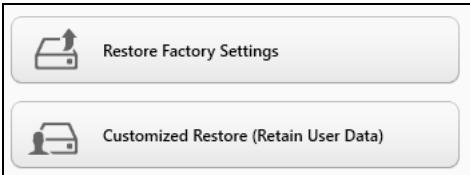
Packard Bell Recovery Management
?X
Welcome to Packard Bell Recovery Management
Packard Bell Recovery Management enables you to restore your system. To begin, select the task you want to perform. Please DO NOT remove the USB device while proceeding.

Customized Restore (Retain User Data)

Reinstall Drivers or Applications
Make a backup before you restore (Recommended).

Create Factory Default Backup
Create Drivers and Applications Backup

packard bell
Restores your computer to its factory default status. A reboot is required. NOTE: All data on drive Cwill be restored.
Here's what will happen:
- Your files and personalization settings won't change.
- Your PC settings will be changed back to their defaults.
- Apps from Windows Store will be kept.
- Apps you installed from discs or websites will be removed.
- A list of removed apps will be saved on your desktop.
Next
Cancel
Here's what will happen:
- Your files and personalization settings won't change.
- Your PC settings will be changed back to their defaults.
- Apps from Windows Store will be kept.
- Apps you installed from discs or websites will be removed.
- A list of removed apps will be saved on your desktop.
Next
Cancel
The FCC with its action in ET Docket 96-8 has adopted a safety standard for human exposure to radio frequency (RF) electromagnetic energy emitted by FCC certified equipment. The wireless adapter meets the Human Exposure limits found in OET Bulletin 65, supplement C, 2001, and ANSI/IEEE C95.1, 1992. Proper operation of this radio according to the instructions found in this manual will result in exposure substantially below the FCC's recommended limits.
- The following safety precautions should be observed:
Do not touch or move antenna while the unit is transmitting or receiving.
- Do not hold any component containing the radio such that the antenna is very close or touching any exposed parts of the body, especially the face or eyes, while transmitting.
- Do not operate the radio or attempt to transmit data unless the antenna is connected; this behavior may cause damage to the radio.
Use in specific environments:
- The use of wireless adapters in hazardous locations is limited by the constraints posed by the safety directors of such environments.
- The use of wireless adapters on airplanes is governed by the Federal Aviation Administration (FAA).
- The use of wireless adapters in hospitals is restricted to the limits set forth by each hospital.
Antenna Use
In order to comply with FCC RF exposure limits, low gain integrated antennas should be located at a minimum distance of 20~cm (8 inches) or more from the body of all persons or at a minimum distance as specified by the FCC module grant conditions. FCC grants can be viewed from the FCC Equipment Authorization website at https://fjallfoss.fcc.gov/oetcf/eas/reports/GenericSearch.cfm by entering the FCC ID printed on the module label.
Explosive Device Proximity Warning
Warning: Do not operate a portable transmitter (including this wireless adapter) near unshielded blasting caps or in an explosive environment unless the transmitter has been modified to be qualified for such use
AntennaWarnings
- Warning: To comply with the FCC and ANSI C95.1 RF exposure limits, it is recommended that for the wireless adapter installed in a desktop or portable computer, the antenna for this wireless adapter to be installed so as to provide a
separation distance of at least 20 cm (8 inches) from all persons or at the minimum distance as specified by the module grant conditions. FCC grants can be viewed from the FCC Equipment Authorization website at https://fjallfoss.fcc.gov/oetcf/eas/reports/GenericSearch.cfm by entering the FCC ID printed on the module label.
- Warning: The wireless adapter is not designed for use with high-gain directional antennas.
Use On Aircraft Caution
- Caution: Regulations of the FCC and FAA prohibit airborne operation of radio-frequency wireless devices (wireless adapters) because their signals could interfere with critical interference with critical aircraft instruments.
Local Restrictions on 802.11a, 802.11b, 802.11g and 802.11n Radio Usage
- Caution: Due to the fact that the frequencies used by 802.11a, 802.11b, 802.11g and 802.11n wireless LAN devices may not yet be harmonized in all countries, 802.11a, 802.11b, 802.11g and 802.11n products are designed for use only in specific countries, and are not allowed to be operated in countries other than those of designated use. As a user of these products, you are responsible for ensuring that the products are used only in the countries for which they were intended and for verifying that they are configured with the correct selection of frequency and channel for the country of use. Any deviation from the permissible power and frequency settings for the country of use is an infringement of national law and may be punished as such.
Wireless Interoperability
The wireless adapter is designed to be interoperable with other wireless LAN products that are based on direct sequence spread spectrum (DSSS) radio technology and to comply with the following standards:
- IEEE Std. 802.11b compliant Standard on Wireless LAN
- IEEE Std. 802.11g compliant Standard on Wireless LAN
-
IEEE Std. 802.11a compliant Standard on Wireless LAN (applies to devices supporting 802.11a)
-
IEEE Std. 802.11n draft 2.0 compliant on Wireless LAN
- Wireless Fidelity certification, as defined by the Wi-Fi Alliance
The Wireless Adapter and Your Health
The wireless adapter, like other radio devices, emits radio frequency electromagnetic energy. The level of energy emitted by the wireless adapter, however, is less than the electromagnetic energy emitted by other wireless devices such as mobile phones. The wireless adapter operates within the guidelines found in radio frequency safety standards and recommendations. These standards and recommendations reflect the consensus of the scientific community and result from deliberations of panels and committees of scientists who continually review and interpret the extensive research literature. In some situations or environments, the use of the wireless adapter may be restricted by the proprietor of the building or responsible representatives of the applicable organization. Examples of such situations may include:
- Using the wireless adapter on board airplanes, or
- Using the wireless adapter in any other environment where the risk of interference with other devices or services is perceived or identified as being harmful.
If you are uncertain of the policy that applies to the use of wireless adapters in a specific organization or environment (an airport, for example), you are encouraged to ask for authorization to use the adapter before you turn it on.
FCC Radio Frequency Interference Requirements (applies to device supporting 802.11a)
This device is restricted to indoor use due to its operation in the 5.15 to 5.25 GHz and 5.470 to 5.725 GHz frequency ranges. FCC requires this product to be used indoors for the frequency ranges 5.15 to 5.25 GHz and 5.470 to 5.725 GHz to reduce the potential for harmful interference to co-channel mobile satellite systems. High power radars are allocated as primary users of the 5.25 to 5.35 GHz and 5.65 to 5.85 GHz bands. These radar stations can cause interference with and /or damage this device. No configuration
controls are provided for this wireless adapter allowing any change in the frequency of operations outside the FCC grant of authorization for U.S operation according to Part 15.407 of the FCC rules.
USA - Federal Communications Commission (FCC)
This device complies with Part 15 of the FCC Rules. Operation of the device is subject to the following two conditions:
- This device may not cause harmful interference.
- This device must accept any interference that may cause undesired operation.
- Note: The radiated output power of the adapter is far below the FCC radio frequency exposure limits. Nevertheless, the adapter should be used in such a manner that the potential for human contact during normal operation is minimized. To avoid the possibility of exceeding the FCC radio frequency exposure limits, you should keep a distance of at least 20cm between you (or any other person in the vicinity), or the minimum separation distance as specified by the FCC grant conditions, and the antenna that is built into the computer. Details of the authorized configurations can be found at http://www.fcc.gov/oet/ea/ by entering the FCC ID number on the device.
Interference Statement
This wireless adapter has been tested and found to comply with the limits for a Class B digital device, pursuant to Part 15 of the FCC Rules. These limits are designed to provide reasonable protection against harmful interference in a residential installation. This wireless adapter generates, uses, and can radiate radio frequency energy. If the wireless adapter is not installed and used in accordance with the instructions, the wireless adapter may cause harmful interference to radio communications. There is no guarantee, however, that such interference will not occur in a particular installation. If this wireless adapter does cause harmful interference to radio or television reception (which can be determined by turning the equipment off and on), the user is encouraged to try to correct the interference by taking one or more of the following measures:
-
Reorient or relocate the receiving antenna of the equipment experiencing the interference.
-
Increase the distance between the wireless adapter and the equipment experiencing the interference.
- Connect the computer with the wireless adapter to an outlet on a circuit different from that to which the equipment experiencing the interference is connected.
- Consult the dealer or an experienced radio/TV technician for help.
- Note: The adapter must be installed and used in strict accordance with the manufacturer's instructions as described in the user documentation that comes with the product. Any other installation or use will violate FCC Part 15 regulations.
Canada - Industry Canada (IC)
This device complies with RSS210 of Industry Canada. Cet apparéil se conforme à RSS210 de Canada d'Industrie.
-
Caution: When machine supports and using IEEE 802.11a wireless LAN, this product is restricted to indoor use due to its operation in the 5.15- to 5.25 GHz frequency range. Industry Canada requires this product to be used indoors for the frequency range of 5.15 GHz to 5.25 GHz to reduce the potential for harmful interference to co-channel mobile satellite systems. High power radar is allocated as the primary user of the 5.25 to 5.35 GHz and 5.65 to 5.85 GHz bands. These radar stations can cause interference with and/or damage to this device. The maximum allowed antenna gain for use with this device is 6dBi in order to comply with the E.I.R.P limit for the 5.25 to 5.35 and 5.725 to 5.85 GHz frequency range in point-to-point operation. To comply with RF exposure requirements all antennas should be located at a minimum distance of 20 cm, or the minimum separation distance allowed by the module approval, from the body of all persons.
-
Attention: l'utilisation d'un réseau sans fil IEEE802.11a est restreinte à une utilisation en interieur à cause du fonctionement dans la bande de fréquence 5,15 - 5,25 GHz. Industry Canada requiert que ce produit soit utilisé à l'intérieur desBATIMENTS pour la bande de fréquence 5,15 - 5,25 GHz afin de réduire les possibiltés d'interférences nuisibles aux canaux co-existants des systèmes de transmission satellites. Les radars de puissances ont fait l'objet d'une allocation primaire de
This Class B digital apparatus complies with Canadian ICES-003.
"To prevent radio interference to the licensed service, this device is intended to be operated indoors and away from windows to provide maximum shielding. Equipment (or its transmit antenna) that is installed outdoors is subject to licensing."
The use of these equipments is regulated by:
1.D.L.gs 1.8.2003, n. 259, article 104 (activity subject to general authorization) for outdoor use and article 105 (free use) for indoor use, in both cases for private use.
2.D.M. 28.5.03, for supply to public of RLAN access to networks and telecom services.
Pakistan Telecommunication Authority (PTA) Approved
Morocco
The operation of this product in the radio channel 2 (2417 MHz) is not authorized in the following cities: Agadir, Assa-Zag, Cabo Negro, Chaouen, Goulmima, Oujda, Tan Tan, Taourirt, Taroudant and Taza.
The operation of this product in the radio channels 4, 5, 6 and 7 (2425 - 2442 MHz) is not authorized in the following cities: Aéroport Mohamed V, Agadir, Aguelmous, Anza, Benslimane, Béni Hafida, Cabo Negro, Casablanca, Fès, Lakhab, Marrakech, Merchich, Mohammédia, Rabat, Salé, Tanger, Tan Tan, Taunate, Tit Mellil, Zag.
Japan
5 GHz 带是室内用使用のと
Korea
当用,
Taiwan
第十二条
Recovery Management. 62
P
Packard Bell porty 29
Program Recovery Management.... 45 Poskytovatel' internetovych sluzieb
Webova stranka 52 (ISP) 46
Recovery Management. 62
V
Vymenitelné zariadenia na medía 31
W
WiFi 48, 49 Použivanie systému Windows 45
Windows
AutomaticéactualizacieWindows..61
Z
Packard Bell Recovery Management.... 45
Internet 46
Effectuarea unui upgrade la computer
Extinderea prin optiuni
Accumulatorul are urmatoarele characteristic:
Packard Bell Recovery Management
Lansati Packard Bell Recovery Management:
- Din Start, tasti 'Recuperare'.si dati cli pe Packard Bell Recovery Management in lista de aplicati.
Packard Bell Recovery Management
?X
Welcome to Packard Bell Recovery Management
Packard Bell Recovery Management enables you to restore your system. To begin, select the task you want to perform. Please DO NOT remove the USB device while proceeding.

Customized Restore (Retain User Data)

Reinstall Drivers or Applications
Make a backup before you restore (Recommended).

Create Factory Default Backup
Create Drivers and Applications Backup

packard bell
Restores your computer to its factory default status. A system is required. NOTE: All data on drive C will be deleted.
- Se deschide fereastra Reimprospātare PC.
Refresh your PC
Here's what will happen:
- Your files and personalization settings won't change.
- Your PC settings will be changed back to their defaults.
- Apps from Windows Store will be kept.
- Apps you installed from discs or websites will be removed.
- A list of removed apps will be saved on your desktop.
Next
Cancel
The FCC with its action in ET Docket 96-8 has adopted a safety standard for human exposure to radio frequency (RF) electromagnetic energy emitted by FCC certified equipment. The wireless adapter meets the Human Exposure limits found in OET Bulletin
65, supplement C, 2001, and ANSI/IEEE C95.1, 1992. Proper operation of this radio according to the instructions found in this manual will result in exposure substantially below the FCC's recommended limits.
- The following safety precautions should be observed:
Do not touch or move antenna while the unit is transmitting or receiving.
- Do not hold any component containing the radio such that the antenna is very close or touching any exposed parts of the body, especially the face or eyes, while transmitting.
- Do not operate the radio or attempt to transmit data unless the antenna is connected; this behavior may cause damage to the radio.
Use in specific environments:
- The use of wireless adapters in hazardous locations is limited by the constraints posed by the safety directors of such environments.
- The use of wireless adapters on airplanes is governed by the Federal Aviation Administration (FAA).
- The use of wireless adapters in hospitals is restricted to the limits set forth by each hospital.
Antenna Use
In order to comply with FCC RF exposure limits, low gain integrated antennas should be located at a minimum distance of 20~cm (8 inches) or more from the body of all persons or at a minimum distance as specified by the FCC module grant conditions. FCC grants can be viewed from the FCC Equipment Authorization website at https://fjallfoss.fcc.gov/ oetcf/eas/reports/GenericSearch.cfm by entering the FCC ID printed on the module label.
Explosive Device Proximity Warning
Warning: Do not operate a portable transmitter (including this wireless adapter) near unshielded blasting caps or in an explosive environment unless the transmitter has been modified to be qualified for such use
AntennaWarnings
-
Warning: To comply with the FCC and ANSI C95.1 RF exposure limits, it is recommended that for the wireless adapter installed in a desktop or portable computer, the antenna for this wireless adapter to be installed so as to provide a separation distance of at least 20cm (8 inches) from all persons or at the minimum distance as specified by the module grant conditions. FCC grants can be viewed from the FCC Equipment Authorization website at https://fjallfoss.fcc.gov/oetcf/eas/reports/GenericSearch.cfm by entering the FCC ID printed on the module label.
-
Warning: The wireless adapter is not designed for use with high-gain directional antennas.
Use On Aircraft Caution
- Caution: Regulations of the FCC and FAA prohibit airborne operation of radio-frequency wireless devices (wireless adapters) because their signals could interfere with critical interference with critical aircraft instruments.
Local Restrictions on 802.11a, 802.11b, 802.11g and 802.11n Radio Usage
- Caution: Due to the fact that the frequencies used by 802.11a, 802.11b, 802.11g and 802.11n wireless LAN devices may not yet be harmonized in all countries, 802.11a, 802.11b, 802.11g and 802.11n products are designed for use only in specific countries, and are not allowed to be operated in countries other than those of designated use. As a user of these products, you are responsible for ensuring that the products are used only in the countries for which they were intended and for verifying that they are configured with the correct selection of frequency and channel for the country of use. Any deviation from the permissible power and frequency settings for the country of use is an infringement of national law and may be punished as such.
Wireless Interoperability
The wireless adapter is designed to be interoperable with other wireless LAN products that are based on direct sequence spread spectrum (DSSS) radio technology and to comply with the following standards:
- IEEE Std. 802.11b compliant Standard on Wireless LAN
- IEEE Std. 802.11g compliant Standard on Wireless LAN
- IEEE Std. 802.11a compliant Standard on Wireless LAN (applies to devices supporting 802.11a)
- IEEE Std. 802.11n draft 2.0 compliant on Wireless LAN
- Wireless Fidelity certification, as defined by the Wi-Fi Alliance
The Wireless Adapter and Your Health
The wireless adapter, like other radio devices, emits radio frequency electromagnetic energy. The level of energy emitted by the wireless adapter, however, is less than the electromagnetic energy emitted by other wireless devices such as mobile phones. The wireless adapter operates within the guidelines found in radio frequency safety standards and recommendations. These standards and recommendations reflect the consensus of the scientific community and result from deliberations of panels and committees of scientists who continually review and interpret the extensive research literature. In some situations or environments, the use of the wireless adapter may be restricted by the proprietor of the building or responsible representatives of the applicable organization. Examples of such situations may include:
- Using the wireless adapter on board airplanes, or
- Using the wireless adapter in any other environment where the risk of interference with other devices or services is perceived or identified as being harmful.
If you are uncertain of the policy that applies to the use of wireless adapters in a specific organization or environment (an airport, for example), you are encouraged to ask for authorization to use the adapter before you turn it on.
FCC Radio Frequency Interference Requirements (applies to device supporting 802.11a)
This device is restricted to indoor use due to its operation in the 5.15 to 5.25 GHz and 5.470 to 5.725 GHz frequency ranges. FCC requires this product to be used indoors for the frequency ranges 5.15 to 5.25 GHz and 5.470 to 5.725 GHz to reduce the potential
for harmful interference to co-channel mobile satellite systems. High power radars are allocated as primary users of the 5.25 to 5.35 GHz and 5.65 to 5.85 GHz bands. These radar stations can cause interference with and /or damage this device. No configuration controls are provided for this wireless adapter allowing any change in the frequency of operations outside the FCC grant of authorization for U.S operation according to Part 15.407 of the FCC rules.
USA — Federal Communications Commission (FCC)
This device complies with Part 15 of the FCC Rules. Operation of the device is subject to the following two conditions:
- This device may not cause harmful interference.
- This device must accept any interference that may cause undesired operation.
- Note: The radiated output power of the adapter is far below the FCC radio frequency exposure limits. Nevertheless, the adapter should be used in such a manner that the potential for human contact during normal operation is minimized. To avoid the possibility of exceeding the FCC radio frequency exposure limits, you should keep a distance of at least 20cm between you (or any other person in the vicinity), or the minimum separation distance as specified by the FCC grant conditions, and the antenna that is built into the computer. Details of the authorized configurations can be found at http://www.fcc.gov/oet/ea/ by entering the FCC ID number on the device.
Interference Statement
This wireless adapter has been tested and found to comply with the limits for a Class B digital device, pursuant to Part 15 of the FCC Rules. These limits are designed to provide reasonable protection against harmful interference in a residential installation. This wireless adapter generates, uses, and can radiate radio frequency energy. If the wireless adapter is not installed and used in accordance with the instructions, the wireless adapter may cause harmful interference to radio communications. There is no guarantee, however, that such interference will not occur in a particular installation. If this wireless
adapter does cause harmful interference to radio or television reception (which can be determined by turning the equipment off and on), the user is encouraged to try to correct the interference by taking one or more of the following measures:
- Reorient or relocate the receiving antenna of the equipment experiencing the interference.
- Increase the distance between the wireless adapter and the equipment experiencing the interference.
- Connect the computer with the wireless adapter to an outlet on a circuit different from that to which the equipment experiencing the interference is connected.
- Consult the dealer or an experienced radio/TV technician for help.
- Note: The adapter must be installed and used in strict accordance with the manufacturer's instructions as described in the user documentation that comes with the product. Any other installation or use will violate FCC Part 15 regulations.
Canada - Industry Canada (IC)
This device complies with RSS210 of Industry Canada. Cet apparéil se conforme à RSS210 de Canada d'Industrie.
This Class B digital apparatus complies with Canadian ICES-003.
"To prevent radio interference to the licensed service, this device is intended to be operated indoors and away from windows to provide maximum shielding. Equipment (or its transmit antenna) that is installed outdoors is subject to licensing."
The use of these equipments is regulated by:
1.D.L.gs 1.8.2003, n. 259, article 104 (activity subject to general authorization) for outdoor use and article 105 (free use) for indoor use, in both cases for private use.
2.D.M. 28.5.03, for supply to public of LAN access to networks and telecom services.
Pakistan Telecommunication Authority (PTA) Approved
Morocco
The operation of this product in the radio channel 2 (2417 MHz) is not authorized in the following cities: Agadir, Assa-Zag, Cabo Negro, Chaouen, Goulmima, Oujda, Tan Tan, Taourirt, Taroudant and Taza.
The operation of this product in the radio channels 4, 5, 6 and 7 (2425 - 2442 MHz) is not authorized in the following cities: Aéroport Mohamed V, Agadir, Aguelmous, Anza, Benslimane, Béni Hafida, Cabo Negro, Casablanca, Fès, Lakhab, Marrakech, Merchich, Mohammédia, Rabat, Sale, Tanger, Tan Tan, Taounate, Tit Mellil, Zag.
Japan
5 GHz 带は室内のは使用的ごと
Korea
Cabluri 9,109 computer
Cabluri de alimentare 9characteristici. 14
Program Recovery Management .... 45
Interferentă 108
Recovery Management 62
intrebari freventa 85
L
LAN (ReTea locala) 48
luminozitate
taste rapide 19
M
Malware 54
Norton Internet Security 52, 57
P
Packard Bell 86
Program Recovery Management.... 45 CD-ROM 87
Site Web 52 imprimanta 87
Be3oNaCHOCT N KOMΦoPT 8
Mepkn 3a 6e3oNaChocT 8
PpeDnA3Hn 3dpabHn Mepkn. 12
3ana03HaBaHe c Bauny KOMnHToBp 15
I3rpe -nCpnei 16
I3rne otrope - KnaBnataype 17
CneuaJIHn KnaBm. 19
I3rIeD oTnped 22
I3rpeoTnBO 23
I3rpeoTЯCHO 24
I3rpeoTOny 26
Tbyna 27
OchOBHn Heua 3a Tbyna 27
TbuaJxceCTBOBe 28
HaandtroPBaHe Ha Baunr
KOMNHTbP 30
IOnbHnTeHn B3MOxHOCTN 30
Onuim 3a Bpb3ka 30
EneKtpnuecko 3axpaHbaHe 36
AdaanTep 3a npomehnB TOK 36
BaTepeHmOdyI 37
XapakTeepntKnHa6aTepnHmmoyn..37
CmHa Ha 6aTePnHnnaKaeT 40
IocTabaHne n3BaXdaHa
6aTeprnHnMaMoDy.. 40
3apekdahe Ha 6aTepeyra 41
Packard Bell Recovery Management. 48
IHTepHet 49
TbpBn CTbNk B MpeKaTa 49
3aunTa Ha KOMnIObpa. 49
I36peTe nHTepHeTdoCTaBvNK 49
MpexkOBn Bpb3kn 52
Cbpnpahe Bmpexkata! 55
Cnryphnoct 56
Bb3TaHOBraHe 66
Cb3daBaHe Ha apxNB 3a Bb3CTaHOBraBe..... 67
b3daBaHe Ha apxNB C dpaiBepn I npiloxKeHna 71
Bb3TaHOBBAHe Ha CnCTeMaTa. 73
IpeHCTaJIpaHe Ha dpaIbepn I
πριλοχέηνη 74
Bpbuane KbM no-paHen cTaYc. 78
BpIaHHe HaΦa6PmUHnTe HAcTpoKHa cIcTeMaTa. 79
Bb3TaHOBBaHe ot Windows 80
Bb3ctaHOBABaHe OT apxNB 3a Bb3CTaHOBABaHe... 84
YeTo 3aDaBaHn Bbnpocn 89
CbBTeN noDcKa3BaHe 3a N3NoI3BaHe Ha Windows 8. 92
Tpne Hea, KOnTo e Do6pe da 3anomHnTe 92
Kak da OTbopr charms? 92
Kak da OTnda B Ctap? 93
Kak da ppeckaayam mekdy pa3nunHntepniloKeHHa? 93
KaKaJa N3KJIIOUa KOMIIObTaPc cn? 93
3aIoNIMa HOB INHTeppeic? 93
Kak da oTKIIOUa KOMNHTbpa cn? 94
Kak da nepcoHaJIIm3Ipa KOMnHtbpa cn? 94
Ickam da n3n03Bam Windows kakto npedi -Bbphete MN ctapra pa6oTe hnnot! 96
Kbde ca npiloxeHra Mu? 96
KaKBo e Microsoft ID (akaynt)? 97
Kak da doabarem ppeiOnuHTaHn KbM Internet Explorer? 98
Kak da npoBepaBAM 3a akTyaIINaIau nHa Windows? 98
Kbde mora da noyu na nobuey HOpmaa? 99
PerynaToPHa HnΦopMaun 100
Pa6oTHa cpea 118
CoΦTyepenIinceH3 121
Hndek 124
AByTopckn npaba © 2012. BcnuKn npaba 3ana3eHn.
Packard Bell EasyNote TV Pькововстvo на потpeителя
Пьрвонално Иданиke: 6Юли 2012
Iocete registration.packardbell.com n OTKPnTe npedmCTBaTa Ha ToBa da 6bdeW kIneHT ha Packard Bell.
3a6eKka: BcNkU INIOCTpaCm ca cAmo 3a cnpaBka. JeIcTBNTeHHaTa KOHfNpyaNa MoKe da e pa3nUHa.
Вклоче Компотьра сн
OcbnyxbaHe Ha Bauu KOMNkmbp
He ce ONTBaIte Da obcnykBaTe KOMNtBpa Camn, 3aIoTO npi OTbapJe IIN OTCTpaHЯBaHe Ha KaNaUte CbIeCTByBa ONaCHOCT OT TOKOB yIap IIN dpyrnpckOBe. Octabete obcnykBaHeTo Ha KBaIIΦuIcap cepBn3eH nepcoHaJ.
ИзклioчeteКOMПHTbpaOT KOHTaTaNce OobpHeTe KbM KBaIINФицран cepBn3eHпрcoHaJI, KOraTO:
3axpaHbauT Ka6eI nn IepeJeH, cpa3aH nn npToPTnT,
Bbpxy npodykTa e pa3nJaTeuHOcT,
- npOdykTbTe 6nI n3IOxKeH Na IbXd IJI NBOda,
- pOdykTbTe naHaJI nIIN KOpnyCbT My e 6nI noBpeDeH
Korato Ce Na6IIOdaBa p3ka N 3a6eJekma npomHa B pa6oTaTa Ha npOdykTa
-Пробукът He pa6OTn HopMaJIHNo,Вьпрк Nc cTe cna3BaJIy yka3aHnraTa 3a pa6Ota
3a6eIexka: Peaylupaime camo KOHmpolme, onucahu yka3aHura ma 3a pa6oma, m' kamo HnpaBunHomo peaylupane Ha dpyau KOHpmu moxe da npuHu u ecmo ue HxHa MHO2O pa6oma om KeanuPhiupan mexHuk, 3a da ce b3cmaHObU npodykma e HopMaHNO cbcmOraHue.
PpeIpa3Hn 3dpaBHN MepKn
-Долнота NOBbpxHOCT,учactbuHTe OKOLO BEHTnlaCNoHHITE OTBOPN ИпоменIBOTOKOBNYT aДaNTep мОже да ce harpeT.3a дa ce n36berHe HapahЯBaHe,Te He Tpr6Ba dα ce DoПирATdo Baшata KOKa ИЛТЯNo.
Baucheto yctpoiCTBO n donbJIHeHnra Ta KbM Hero MoKe da CbIbPjAt dp6HN qactu.
- KomnhotbpbT n akcecoapnte cbdbpxkAT MaKn qactn.ДрькTe rN daNeu OT MaJIKN Deua.
Ako pa6oTnte nIIN irpaTe c yacObe, npaBeTe peIOBn noUHbN. IorJIeKJaTe BcTpAHn OT ekpaHa Ha KOMNtbpa OT BpeMe Ha BpeMe. He n3noJ3BaTe KOMNtbpa aKO cTe yMopeH.
-
Поредete КOMПOTьpa cn, таку чу ду можete ду paбOTte В ecteТbeHo И HeHAnperHaTo пложенHe. ПocTeBaTe npedMeTte, KOnTO n3ПОЛЗВaTe YecTo, Bb3MOxHO Na-БИЗO.
-
Пocтавete кOMнOTbpa nped ce6e cn 3a noBuey 6e3onacHocT n KOMΦoPT. YBepTe ce, ye KnaBnAtypata n TbUnpa ca Ha yDo6Ha 3a Bac BnOcUnHa. EKpaHbT Tp8Ba da 6bJe Ha Okono 45-70 cm (18-30 nHua) ot OChTE Bn.
Ako n3non3BaTe cB08 KOMnIOTp bp npOdbJnxIteH en nepnoD ot BpeMe, DOKaTO cTe ceHaJIH ha 6IOpo, KyPeTe BbHuaHa KJIaBnaTypa 3a NO-ROJAM KOMΦopT.
3a da npedna3nTe cnyxa cn, kOrato n3noI3BaTe BnCOKOROBOpnte nn Cnyuankn, yBeInuabaIte cnilata Ha 3Byka NoCTeNeHNO, DOKaTO He 3anoHete Da ChyBaTe RaCHO n 6e3 da ce Haprrate; He ycInBaIte 3Byka, KOrato yUnTe Bn npinBnKnat. He clyuaIte cnilHa My3nKa dJbIro BpeMe. He yBeInuabaIte 3Byka, 3a da HeytpaIIn3npate OyMa OKoLo Bac; HamalTe 3Byka aKO He cyBaTe xopata Okono ce6e cn.
-Доннастрана На КOMпOTьра,адаNTера 3a 3axpaHbaHeTo N Bb3dYxbT OT BeHTINaUOHHNte OTBOPN MORAT Da ce HaropeцЯТ NO BpeMe Ha pa60ta.ИЗбгВайтnpoДьЛЖИТeLEH KOHTaKT C TЯЛOTO И He NOCTABryTeKOMПOTьраВСКУТС,ДOKATO pa6OTи.
- Ybepete Ce, Ye BeHTnlaZIOHHITE OTBOpN Ha KOMnIOTbpa He ca 6IoknapHn IIN NOKpNTn. He nocTabYnTe KOMnIOTbpa Bbpx Myka IOBbpxHOCT (KaTO KINIM, CTOn IIN JIeIIO), KOITo MOraT Da 6IoknPaT BeHTnlaZIOHHITE OTBOpN.
- HnKora He nbxaIte npedMeTn B npOdykTa npE3 BeHTnlaaHnOHnTe OTBOpNTe N npOceNITe, Tb KATO MOKe Da DOKOCHeTe TOCKN IOd BnCOKo HnPexKeHne nn Da npEdu3BnKaTe KbCO CbeDInHeHne, KOeTo MOKe da DoBeDe Do NoXap nn TKOB ynap.
- Hяко 3аболяваня ha рьцete, кNTКITE, shЯта, pamehete, kpaKaTa n rbp6a mOrat da 6bdaT CBbp3aHn C nIn Da ce BNoWAT B pe3yIITaT OT onpeDeJIeHn NOBTapaUc ce DeiCTBnA. 3a Da hAmalnte pNcKa ot pa3BNTne Ha Te3n 3a60JIaBANr, nIIwTe C n3npaBeHn KNTK, KaTO pblte N KNTKITE Bu Tpr6Ba Da ce DBNXKat CBO6OJHo NaKnaBuaTypaT. Ako n3nITbATE 6oJka, rdeNnkaU Oceuane, n3tpbIbAhe nIIN dpyr BvD dinckomΦopT, CBpKte Ce c Ba7nra lekap.
- Ппелорьчаме на ровитени на КонтPORлард ecata си пи irра на КOMПOTьрни ngр. Ако Ви по Baшето DeTe n3nITaTe Hяkon OT Следни Симпом: 3amajnoct, 3amblen noIgnei, noTppeNBAnHa OчITE Или мускунite, загба на CB3нанe, De3OpneHtauЯ, HeBOJeBN ДвИженя Или конвлси, HE3A5ABHO ppekpateTe pa60ta i ce KOHcUЛтирaite CBсCBОЯ Лекap. Тoba можеда се сCity, Дориaco ЧOBЕКТ НЯ мпелшни рпс'tьни Ha enIIJIeCnia.
3an03HabaHe c Baushya KomnIOToBp
CJIeI KaTo HAcTpOnTe KOMNIObpa Cn, KaKTo e NOKa3aHO B INHCTpyKcUNTe 3a INCTaJInpaHe, Iue Bn 3aNo3Haem c Baunr HOB Packard Bell KOMNIObTp.
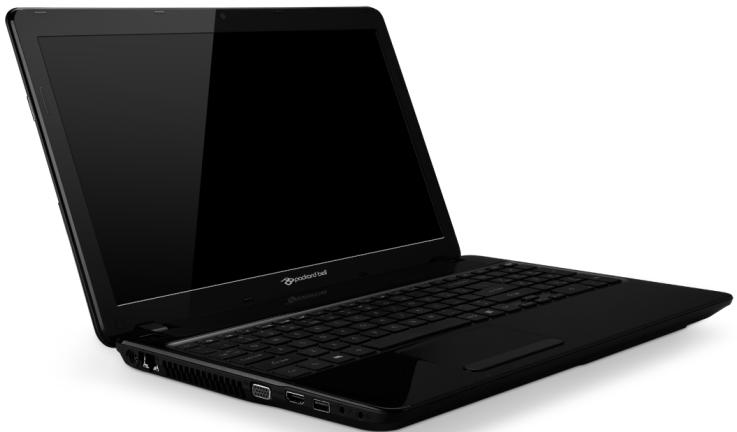
Packard Bell EasyNote TV
I3rpeD OTROPE - Dnscnpei

| # | Икona涨停 | 涨停理由 |
| 1 | Ye6 kaMepa | Ye6 kaMepa 3a виdeo кOMунkaци.С Beetлиен Иndикатор близо до ye6 kaMepa ta noka3ba, чe ye6 kaMepa ta e akTINbHa. |
| 2 | Ди检пел | Hарча се оше "Тechнокрисален ди检пел" (LCD) и e ekpaNBт на komПЮтьра. |
| 3 | Микpoфон | Вгаден микpoфон 3a запис на 3byk. |
N3rneD OTrope - KlaBnaTypa
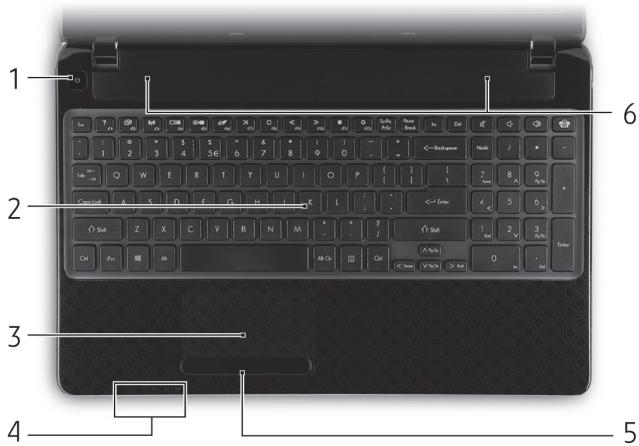
Myc npbct, 3a da n3BbpHInTe 5paKbaHe C MIIkata, KOeTo
Ie n36pe ne nIcTnnpa enemeHT. Bbp3o nobTopeTe haTnCKaHeTO 3a DByKpaTHO HATnCKaHe IJI N DByKpaTHO UpaKaBaHe.

DOnbJIHNTeJIHH Bb3MOxHOCTN
Baunr KOMnIObP Bn npedna MHO OOnu 3a NbIHO KOMIObPHO n3KMBaHe.
Onu 3a Bpb3Ka
IopToBeTe Bn DaBaT Bb3MoXHocT da CbBp3BaTe nepuΦepHn yCTpoiCTBa KbM BaShn YOMNtbp. 3a yKa3aHnO tHOcHo KaK da CbBpxKeTa pa3NJHn BbHnHn YCTPOiCTBa KbM KOMNtBpa Cn, IpOyTeTe CJIeDaBuaHn pa3JeI.
Yemeu3a Kapmu c namem
KapTnte C nameT ce n3nOJ3BaT B pa3NJuH N BuIOBe cIuΦpOvB KAmepn, PDA yctpoiCTBa, MP3 nIeJbprn MO6nIH N TeJIeΦOHi.
Iocma6aHe Ha Kapma c nAmem.
1.Подравне Картata,Taka ue KoHEKTopbT da coUH KbM nopTa,a KOHEKTopuTe da rIeDaT HaIoNy.
2. BHIMATEHNO ПьзHeTe KapTaTа В поТа. Ако снорд Bac e Heo6xOДМОда ИЗПОЛЗВATEсИla, 3a ДА NOCTaBNTe KapTaTа, ONITaIte BHHMATEHNOда пpeOpneHTnIpaTe KapTaTа.
- Hatnche KapTa, DOKaTo He ⅢpaKHe Ha MrcTo. HraKoJIko MmJImMeTp a OT KapTaTa Ⅲca n3BbH cNoTa.
Ako KapTaTa CbIbPka FaaiNoBe, MoKe Da ce nOBn npO3OpEcbT Windows Auto Play (ToBa 3aBncn OT cbIbPkaHneTO Ha KapTaTa) N Ze Bn nonIta, daN JxenaTe Da n3non3BaTe npOrpama, 3a Da BnE3eTe B CbIbPkaHneTo Ha KapTaTa. N3bepeTe onuYr Tk Ako e Heo6xoDmO, B npOTnbEN cnyaH n3bepeTe OTKa3. Ako B KapTaTa Hma faJIOBE iIN mMa HEnO3HaTu FaiNoBe, Ue Ce OTbOpN npO3opeU, KOITo Ue nOKaKe CbIbPkaHneTo Ha KapTaTa.
SD. SDHC u SDXC kapmu
Pa3JIuHnTe BnOBe SD KapTn Imat pa3JIuH e KanaUTe T KaTo DN3aHbT Nm KaTo cIaIO e EINH n CbU. SD KapTne ca c KanaUTe 4 GB, SDHC KapTne - 32 GB, a SDXC KapTne - Do 2048 GB (2 TB). BaunrKOMnHTbp nMa ueTeu, KoITo POnDbPka SDHC nIN SDXC KapTn.
3a6eJekka: SDXC Kapmume c namem Mozam da ce u3noJ3eam camo e yemeu, koUmo noOdbpka SDXC; SD u SDHC kapmume Mozam da ce u3noJ3am c cecku yemeu.
- ΜιρακHeTe Bbpxy CTpeIkaTa ПокаЖи СКрптnte ИКонь ОБлacm 3a yeodomЯBaHe (До чacobнka).
- LpakHeTe Bbpxy IKOHaTa Be30nacHo npemaxBaHe Ha xapdyep.
3.単pakHe Te Bbpxy N3BaxJaHe Ha SD KapTaTa (NJIIN Bbpxy IMeTo Ha yCTpoiCTBOTo).
4.ИЗчakай TeДOKATO He ce NOЯВи cboшцehneTo Xapdyep, KoUMo MÖke da ce npemaxhe 6e3onacHo. - OtctpaHete KapTaTata.
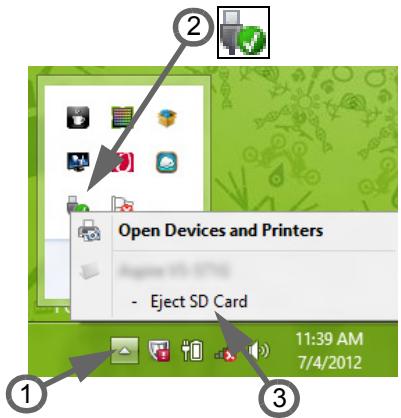
BapadeHuMpexu
BrpadeHaT MpeKa Bn no3BoJBa da CBpKTe KOMnOtbpa cn C Ethernet-6a3npaHa MpeKa.
Cbpxke Ethernet ka6eHa oT Ethernet (RJ45) npTa Ha KOpnyca Ha KOMnIObpa CmpexOB JAK NJI Xb6 Ha BaWata Mpeka.
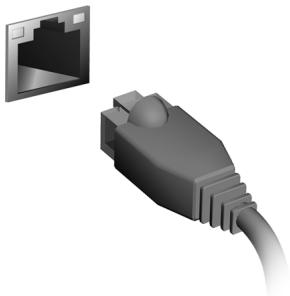
YHueepcaHa cepuHa uHa (USB)
USB npTbT e BnCOKOCKOPOCTHa cepnHa
HnHa, KOrTO Bn PO3BOJRA Da CbP3BaTe
USB nepnΦeepn ycTpoiCTBa 6e Da ce
OTHEmat cNCTeMHn pecypcn.
HЯкои komнгтп може ду IMaT eINH nIIn nobeue USB 3.0 nopTa. Te npinuayat Ha cTaHdapTHN USB nopTOBe c Ta3n pa3nka, ye IMaT dOnbHnTeJHn BbTpewHn Bpb3Kn I ca cHH. Mochete da n3noJ3BaTe USB 3.0 CbBMeCTHMn yCTpoiCTBa C Te3n nopTOBe, 3a da ce Bb3NoJ3BaTe OT no-6bp3aTa CKOpOCT Ha npehoc Ha daHHn.
Budeo npom
Cbpxte KbM MOHToP c VGA nnn DVI nopT (BnIbT ha noIdbpkaHaTa Bpb3ka 3aBnCn OT KOHfnpuraunra Ha KOMNtba). POnxOJaunr Ka6en ObIKHOBeHo E BKJIIOueH B KOMNKeTa Ha MOHToPa.
CneIbAaTe Te3n CbIKN, 3a Da CbPKeTe MOHITOp KbM KOMNHTbpa CN:
- YbepeTe ce, Ye 3axpaHbAHeTo Ha KOMNIObpa I TOBa Ha MOHITopa Ca n3KJIIOUeHN.
2.CbpxTe Bndeo Ka6eNa C npTa 3a MOHtopa Ha KOMNIOrba. 3aKpeIeTe Ka6eHnHaTbPb3Ka C npEdoCTaBeHInTe 6OJTObe. - Cbpxte 3axpaHbaun Ka6e Ha MOHTopa I ro BkIIOye B npaBnHO 3a3eMeH KOHTaKT.
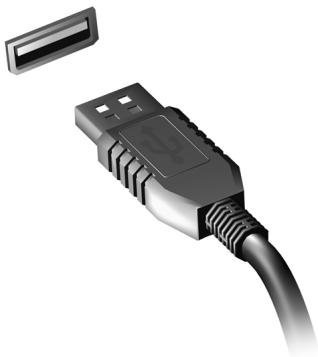
- CπeДВaIte ИНСТРУКЦИТЕ 3a ИНСТАЛПАне В рБКОВОДСТВОТо Ha notpe6nteЯ Ha MOHITOPa.
- BkHouTe nbpBO MOHITopa, a cneT TOBa N KOMNHTbpa.
- YBepete ce, ye Hactoiaata pa3dennTeHa cnoocbOCT nCKopocT Ha oboHBraHe He HADBnBaBat CneuΦnKaunTe Ha MOHtopa. Ako e HeoBXoDnMo, Ipomehe TnactpoiKeHa DnCnIe, N3PON3BaHn OT KOMNIObpa.
3a6eIekka: Ako Be3kuhama Mpeka He e EknUoeha, Hamucheme Windows KnaBua ( ) + W, Hanuueme "Be3kuHa", cnej Koemo upaKheme ebpyx Be3kuHa.
UHmepcbeuc 3a bucokodemaunHa Mylmumedou (cAmo 3a HyaKou Modeu)
HDMI (High-Definition Multimedia Interface) e npomuulnehoIopdIbpxan, HeKOMnpescnapan, n3zIIO znΦpOB ayDIO/BnDeo INHTeppeic. HDM Ipeplara INHTeppeic Mekdy BcEKN CbBMeCTIM ZnΦpOB ayDIO/BnDeo N3TOUHNK, KaTO hAnpImep TB DeKOdep, DVD nIeYbpIIN A/V npEmHK cBc CbBMeCTIM ZnΦpOB ayDIO n/IIIN BnDeO MOHITOP, KaTO znΦpOB TeJIeBV3Op, cTOMOuTa cAmO Ha eDIn KabEJ.
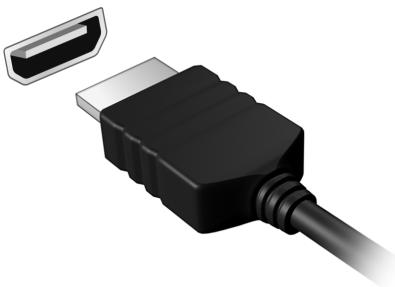
ПлэвайтHDMI nopTa Ha Baшия кOMПИТьр,за Ду ro CBbpжete CBICOKOTexHONIOnuHo aydno И Вдeo obopyДBaHe. CBbp3BaHeto camOЧрз сдн Кбел ПОЗВОЛЯВ leсна Habc troйka И Брза Врзka.
Cnyuuaanku u Mukpofoh
Te3n DBA nopTa Bn DaBAT Bb3MOxHOCCT da CbBp3BaTe ayDNo yCTpoiCTBa. N3noJ3BaIte nopTa 3a CnyuAJIKN, 3a Da BKJIOUHTe CTepeO CnyuAJIKN IIN BVCOKOROBOPiTEN. BkIIOUBAHeTO Ha ayDNo yCTpoiCTBO KbM nopTa 3a CnyuAJIKN DeAKTINBIPA BrpaJeHIne TBeVCOKOROBOPiTEN. N3noJ3BaIte nopTa 3a MmKPOΦOH, 3a Da CbBpxTe BbHSeH MmKPOΦOH 3a MOHO 3aNtC; BkIIOUBAHeTO Ha BbHSeH MmKPOΦOH DeAKTINBIPA BrpaJeHnMaMmKPOΦOH.
CmHa Ha 6aTePnHnnaKaTe
HoytkybI NTnON3Ba JNTnEbn 6aTePN. CMeHeTe 6aTePnra Ta cBc CbUIN Bn KaTO Ta3N, KOYTo E DoWJa C npOdykTa OTHaJNo. AKO n3nON3BaTe dpyra 6aTePnra, CbUeCTByBa pNCK OT NOxap NnN EKcnNo3n.
BHMaHHe: BaTePnHTe MoRat da ekCnIoDnPaT, aKO He 6opabNTe c TRe npABynHo. He rna3rIIO6BaIte n He rN n3XBbPnIte B OOrbN. DpBXTe rN daJeU ot deua. Cb6IIOdaBaIte MeCTHnTe 3aKoHOBn pa3nopeD6n, KORATo n3XBbPnIte N3IOJ3BaHN 6aTePnN.
IocTaBHe n 3BaXdaHe Ha 6aTePnHnMaMOnyI
Baxho! Ppedu da u36adume 6amepuyma om KOMnIombpa, c8bpxeme AC adanmepa, ako kejaeme da npodjnxume da u3noJ38ame KOMnIombpa cu. B npomueen cnyuau nbpoe u3KJIIOyeme KOMnIombpa.
IocTabaHHe Ha 6abepeHn MoDyJI:
1.Подравнeteбаерияа спразmo OTворено OTделене 3aбаерия;Вкарайтпьрв КраяСКлемиTeи ce ybepeTe,угогнataстара на вьериятгледа harope.
2.Пьзhte Бастяв OTделенeto 3a 6atepyи BHMMaTeHnHaTNCHTe,ДOKATO He 3aCTaHe Ha MICTOTO cN.
I3BaJdaHe Ha 6aTepeHMeOMyJI:
1.ПьзHeTe KIIOUeTo 3a OCBO6OxJaBaHe Ha 6aTepeYra, 3a JaocBO6OoNte.
2.ИЗва对接е батерияа OT отденинeto 3a сатерия.
3apekdahe Ha 6aTepeyra
3a da 3apeiTe 6atepTa, npBo ce yBepeTe, ye e noCTaBeHa npabuHNO B OTdeJeHneTo 3a 6atepN. BkIouHe AC aanTepa B KOMnHTbpa n ro CBpXeTe KbM eJIeKtpUeCKn KOtAekt. Moxete da npOdbJnxTe da pa6oTnte C KOMnHTbpa Ha IpomEnJIb TOK, DOKaTO 6atepTa Bn ce 3apExda. BCE naK, aKO 3apexdate npn N3KnIOueH KOMnHTbP, BpeMeTo 3a 3apeXdane ue 6bJe 3NaUYteHNO NO-KpaTKO.
3a6eIekKa: Cbsemame Bu da 3apekdoame bamepuma, npedu da npuknoume paoboma 3a deHra. 3apekdaHemo Ha bamepuma npez Hooima npedu nIbmyBaHe Bu no3eOJIrea da 3anoyHeme cneBauuia deH c HantbnHO 3apedeHa bamepu.
OnTnMn3HpaHe Ha XnBota Ha 6aTepeyraTa
OnTtMn3IpaHTo Ha JxIBota Ha 6aTePnra Ta Bn nomara da noCTnHete Bb3MOxHO Hau-MHOrO npn pa6oTa c 6aTePnra, yDbJXkaba CnKbJa Ha 3apejdaHe/npesapexdane He n noDobpRa eFHKacHocTTa Ha npesapexdaneHo. CbBeTBaMe Bn da cJeDbate npenopbKITE, n36poEHn PO-DoJy:
3akynete donbHnHTeH 6aTepeHmOdyI.
- ɪənənɪs baiTe AC 3axpaɪhBaɪe Bɪnʌrɪ, KɔrɑT O Mɔkete i nɪ na3eTe 6aTepeɪyra 3a paʊbTo, KɔrɑT O CTe B ἀνIxkeHne.
- I3BaTe PC KapTa, KOraTo HeЯ n3NoI3BaTe, TbN KaTo TnpoIbIjXaba Da Yepn 3axpaHbaHe (npn OnpeJeHn MoJEn).
CbxaHraBaTe batepnnnna Moyn Ha cyxo n poxnaIHO MscTo. PpeopbHTeHaTa temepaTpa e ot 10^ (50^) do 30^ (86^) . NocOKte Tempeatypn BOJr Do 6bp3o camopa3pejdahe Ha 6atepyta.
- Ппекомерно пезараздане ськрацава кивота на батугаят.
- Погаайтагрикзда AC зааптера и бастая.
PpeynpexdHne 3a n3ToeHa 6aTepn
Korato pa6oTnte Ha 3axpaHbAne ot 6aTePn, o6pb7aIte BHMaHne Ha HndnKaTopa Ha 3axpaHbAHeTo Ha Windows.
BnMaHHe: CBpXeTe AC aanTepa Bb3MOxHO haN-6bp3o, cNeI KaTO ce IIOBn IpeDynpexKdEHNTo 3a N3TOUeHa 6aTePnI. Ako 6aTePnraCe n3TOUHn HAnbJHO N KOMNtBpBT Ce n3KJIuOuH, ue n3rHy6nte daHH.
Korato ce nOBn npdUnpExKeHneTo 3a n3ToUeHa 6aTepe, npenopbYntEnHnte DeIcTBn 3aBNCrT OT cNTyaCyrTa:
| Ситуаця | Прелорьчтелно Deievstве |
| Имате на\ разимлочени AC\ адаллесу\ eilektprucecki\ KOHTAKT. | 1. Вклочete AC[aan'tepa вkomпюъра, след\ koeto ГSBьржete КьМ[eilektprucecki KOHTAKT. 2. 3ana3ete BCuChkн Heobxodimn Файlorobe. 3. Прдьлжete pa60ta. Ако Искате bateprina за ce пpeзарди\ Бьр30, ИЗлочete komпюъра. |
| Разл对象ATEC наньлно заразец\ pe3ерberн bateprines\ MOdUn. | 1. 3ana3ete BCuChkн Heobxodimn Файlorobe. 2. 3atbopete BCuChkн рпложенry. 3. Излочete onepaционнata систema\ КOMПOTьр. 4. Сmenete bateprinHnia мodyл. 5. Вклочete komпюърαι и прдьлжete pa60ta. |
| Ситуаця | ПрелорьшитELно DeйСТВе |
| НямATE Ha разиюожения AC адаNTер яли еLEКТрически KOHTaKT. HeразиюагATE с peЗервен батерпен MOdун. | 1. Зара三点Е BCИЧКи HeоБхODIMи ФайлоBE. 2. 3aTВОреTe BCИЧКи пriюожения. 3. Изкlioчete onepaционнata сИСТема и КOMПЮТьра. |
Управлике на захсановeto
KOMNHTbpbT mma BrpaDeH 3axpaHbAa, 6JIOK, KOITO CJIeDN aKTNBHOCTTa Ha CNCTeMaT. AKTNBHOCTTa Ha CNCTeMaT Ce OTHACI DO BCJA DeHOCCT, BKIOUbaa eJHO IIN IOBeue OT CJIeHNITE yCTPOJCTBa: KNABnATypa, MIIUKa, TBbpD DnCK, nepupepna, CBbp3aHa C KOMNTObpa N BInDeo NaMeTTa. AKO He 6bJe YCTaHOBEHa DeHOCCT 3a ONPeDEHe NepnoD OT BpeMe, KOMNTObpbT cInpa HЯKOn IIN BCNUKN Te3N yCTPOJCTBa, 3a Da CNECTNe HEPrN.
ИКОHOMЯ Ha eHeprma
3a6paHyaHe Ha 5bp3o 3apeKdaHe
BawnaykOMNIOIb np 3nON3Ba Bbp3o 3apeKdahe, 3a da ce cTaptnpa 6bp30, Ho n npabN IKOHOMN Ha eHepnna pnpOBepka 3a cnHaNN 3a cTaptnpaHe. Te3n npOBepkn 6abHo ige n3ToUyT 6atepnyTa Ha Baunn kOMNIOIbP.
Ako npednoHTaTe da HamaJIte eHeprHnHTe N3NCKBaHnK bM KOMIOTbpa N BnHHeTo Bbpxy OkOJHaTa Cpea, n3KnUoyTe Bbp30 3apexKaHe:
3a6eIeKka: Ako BbP3O 3apexKahe e u3Kn., Ha BaUur KOMnHOBp ue My e Heo6xodumo no8eue epeme 3a cmapupahe om pexum 3acnueahe.
Bawuam komnombp cbto hma da ce cmapupa, ako noyuuhcmpkyuu da ce cmapupa no mpeka (Wake on LAN).
- OToBopeTe pa60THnI pIoT.
2.лракнелу Вьрху Onци Ha 3axpaHbaHeTo B oblactta 3a yBeDOMJIeHnI.
3.ИзберетоОше onци Ha 3axpaHbaHeTo.
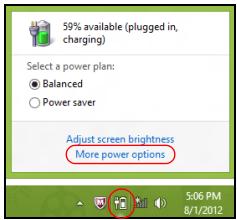
4.Изберете Изберете кабода правг 6утонITEа зхраиBaHHeTo.
5.3a DoCTbN Do HAcTPOkN 3a N3KJIIOUbaHe, N36epeTe PpOMraHa HaHacTPOkN, KOnTO B MOMeHTa He ca Ha pa3nOJoxKeHne.
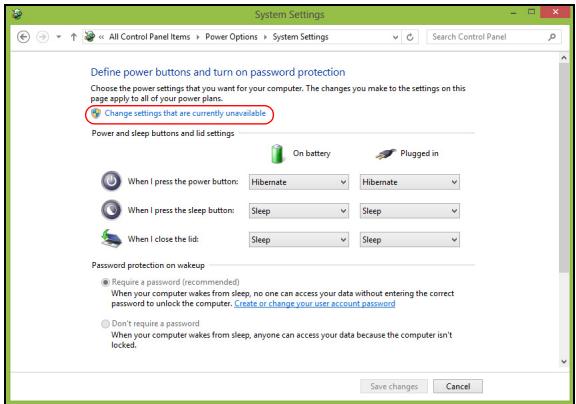
6.ИЗклочвае Или 3абраза Вклочete Бьрз CTapтupahe.
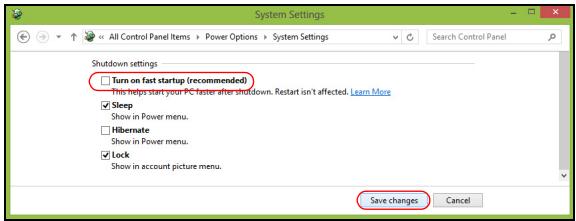
7.ИзберетеЗаиnpomehnte.
Packard Bell Recovery Management
3a Na NODROTBnTE CBOK KOMNIOTp 3a ONUInTe 3a Bb3CTaHOBBaHe Ha CnCTeMaTa, Tp6Ba Da Cb3daTe He HApO OT DnCKOBe 3a Bb3CTaHOBBaHe Bb3MOxHo Hai-CKopo. BnXte cTp. 66 3a NObeue INHΦopMaunr.
3aunTa Ha KOMnHOrbpa
Baxho e da npedna3nte cB08 KOMIObTp O TBnpycn n aTakn no INTEpHET (BnxTe PnpdoXeHue 3a 3aumama uNHmephem Ha ctp. 48 n Cuayphocm Ha ctp.56).Ie npuynte npednoXeHne 3a nporpaMa 3a nblna INTEpHET 3aunta, Korato 3a npbB nbT CTaptnpate KOMIObTa cn. Tpr6Ba da AKTNbupate Ta3n 3aunTa Bb3MOxHO hN-CKOPO, npdN da ce CbbpxKeTe KbM INTEpHET.
I36peTe nHTepHET doCTaYnK

I3noJ3BaHeTo Ha nHTepHET e cTaHaNo eCTeBeHa qactOT exKeJHeBHaTa pa6ota c KOMnIObTp. CaMo HЯKoJIKO npocTn CTbKn MOrat Da Bn CbbpKxat C rOJaMa 6a3a daHHN i NHCtpymEnTH 3a KOMyHnKaun. 3a da I3PbJHnTe Te3n CTbKn, nbpBO Tp86Ba Da n36epTe Uhnemph docmawuk, KOItO ppeOCTabR Bpb3kata Mexdy Ba7nq KOMnIObTp n nHTepHET. Tp86Ba Da
IpouyuHTe INTEpHET DoCTaunuTe BvB Baunr pernOH, KaTO He 3abpaBraTe Da IONiTate PnraTeN n CeMeiCTBOTo Cn 3a TexHnO ONIT nn Da IPOBepuTe KOMeHTapUte N ha6JIHODeHNrTa Ha notpe6nteN. INTEpHET DOCTaUnKbT, KOJTO n3BepeTe, Ue Bn daJe IHcTpyKUnn 3a TOBa KaK da Ce CBpbXeTe C INTEpHET (MOKe Da Bn e Heo6xOdIm DOnbJIHNTeJEn
coΦTyep nIIN cIeIuaIHa „KytIa", KOrTo ce CbByP3Ba KbM BaIaTa TeIeIoHHa IInHna).
Budoe 6pb3ku
B 3aBnCIMoCT OT MoeJa Ha KOMNtBpa Bn, BaSeTo MeCTOnOJIOXeHne N HUkDInTe Bn OT KOMyHnKaZnIg, IMa HRAKoJIKO NaHnHa 3a yCTaHOBraHe Ha Bp3Ka C INHTepHET.
Komymupyema 6pb3ka
HЯков КOMПИОТРИ ИМАКОЕКТOP 3a KOMуTичуЕма ВрьЗкa Урз Teleфон (MOdE)."TOBA MOжTe Да с CBьржTe C INHTepHET KATO N3ПОЛ3ВaTe CBOЯТa TeteФонHa JINHЯ. Пп KOMуTичуЕмаТВрьЗкa He МожTeД a N3ПОЛ3ВaTe MODema N TeteФонe EДНOBрЕмEHNo Ha eDHa TeteФонHa JINHЯ.TOnI TIN BpьЗka СпЕнорьчBa CamO пп ORpaHnueHa yNOTpe6a H a INHTepHET, NOPaДи HnCKaTA CkOpoCT Ha BpьЗкaТa N 3apaДи TOBa, Ye PPOДьЛЖИТeLHOCCTTa Ha BpьЗкaТa OБИKHOBEOHo CE TAKCyBa Ha Yac.
DSL (Harpumep ADSL)
DSL (Digital Subscriber Line) e „nocToHHo BkJIuOHeHa" Bpb3ka npe3 TelefoHHaTa JINHЯ. IOnHexe DSL n TelefoHbT He n3NoI3BaT eHNi NcBzU chCTOTn, MoXeTe Da n3NoI3BaTe TetefoHa, DOKaTO Cte B INHTepHET (TOBa n3NcKBa „MnKpo fInIbP" Ha BCsKa eJHa TetefoHHa po3etKa, 3a da ce n36erHaT cMyueHnra). 3a da MoXe Ta n3NoI3BaTe DSL, Tp8Ba MeToHaxOxJdeHneTo Bn da e 6JIn3o Do DSL-06OpyDbaHa TetefoHHa ZehTpana (ycnyrata noHrkora He e HAnuHa B hAkon CeIckn paioHn). CkopocTt ha Bpb3kata MoXe Da Bapnpa B 3aBNCmOCT OT BaWeTo MeToNOloXeHne, Ho DSL katno ppeInara Mhoro sbp3a i
HaJekDa HHTepHET Bpb3ka. TbI KaTo Bpb3KaTa e "IOCTOHHO BKNUOyeHa", Tg ONpeDeJeHO e C qNKcnpaHa MeceHa TAKca.

3a6eIeKka:DSL ep3kama u3uckea nOxDoxoM,modem. Modemb m obukhoBHeO ce npedocmae om unHmephem docmaeuuka cned kamo ce peuucmpupame. Mhoeo om me3u modemu umam „pymep", KoUmo npedocmae mpexa u wi-fi docmbn.
Kabel
Bpb3kata c ka6en npedoctaba 6bp3a nnoctoHHo BkHIOueHa nHTepHet ycnyra ype3 liHHa Ta Ka6enHata TeJeBn3n. Ta3n ycIyra e hAnuHa npedmHO B rOleMnte rpaIObe. MoKeTe da n3nOJI3BaTe TenefoHa cn n da rIePaTe Ka6eJHa TeJeBn3n, DOkaTO CTE B nHTepHet.
3G (WWAN unu „Бe3ЖуЧа pa3шupeна мрека")
3GВрьзкаТВипЗВОЯВадаиИЗПОЛЗВATEКЛЕТЧИМРЕЖИ(kaToTe3HaMOБИNHITE TepeФОн),3aДа ce CBbp3BaTe C INHTepHET,KOrATOCTeДалачOTДOMa cN.ΓHe3ДOTO 3a SIM KapTa moKe DA e BrpaDEHo B KOMПЮТьрВиИлдИЗСКВаВьншоустpoIcTBO KaTO USB moDemИл dopNi IOxODЯsoOBOpUdBAn TepeФОн.

3a6eIexka: Ako BaUyam KOMnOmbp UMa cIom 3a SIM kapma, uce Bu e Heobxoduma cBMeCmMa SIM kapma u dozOBop c docmauek. Ppedu da zanoHeme da u3noJ3ame 3G fynkuuime, koncymupaume ce c docmaeuuka Ha ycnyama, 3a da pa3bepeme daIu uma donblnmeHn maKcu, ocobeno npu poymune.
MpeXOBn Bp3Kn
Ako ca HeoBXOdIMN HAKoIKO DNCKa, NOCTaBeTe HOB DnCK, KOraTo 6bDeTe NODkaHEni, Cnei KOeTO UpaKHeTe Bbpxy OK. IpoDblJxKeTe, DOKaTO pOueCbT He npNKluOny.
- Ako n3noJ3BaTe USB yctpoiCTBO, n3BaJeTe yctpoiCTBOTO n noctabeteЯceH etnkeT.
Baxho: Hanuwe Te yHnkaJeH, onncateJeH eTnKeT 3a apxNBa, KaTo Hnnpimep "ApxNB Ha dpaBepn n npJIoXeHnra. CbXpaHe apxNBa Ha 6e3oNaCHO n IecHO 3anOMnjo ce MrcTo.
Bb3ctaHOBraBaHe Ha cncTeMaTa
Bb3ctaHOBBaHe Ha CnCTeMaTa:
- HanpaBeTe MaJIkn IOnpabKn.
Ako cmo einn nnn Dba enemeHTa Ha cooTyepa nn xapnyepa He paobotr npabnIHO, npoBneMbT MOKe da 6bJe peweH KaTO npenHCTaIInpate cooTyepa nn dpaBepnte Ha yctpoNCTBOTO.
3a da npenHctaIInpaHe coOpTyep n IpaaiBepn, KOInTo ca 6bnn PhapuH No HCTaIInpaHn, BIXTe "PpenHcTaIInpaHe Ha dpaiBepn npinloXeHna" cTp.74.
3a INHCTpykqnn OTHOCn IpeINHCTaJInpaHe Na COΦTyep n IpaIbepn KOnTO He ca IpeDVBapITeJIHO INHCTaJInpaHI, BIXTe DOKyMeHTaIuTaN H npOdyKTA uIu ye6 caIta 3a NODpBjKka.
Bpbzane KbM no-paHeH cTaTyc
Bb3CTaHOBBAHe Ha CnCTemata Ha Microsoft nepnoDnHOpabN "ChIMKn" Ha BaunTe CnCTeMHn HAcTpoiKn I n 3aIncBa KaTO TOckn 3a Bb3CTaHOBBAHe. B NOBeYeTo CnyuAn Ha TpydHi 3a peWabAhe coFtyePn HpOblm MOnKeTe Da cE BbPHeTe Ha eHa OT Te3N TOckn 3a Bb3CTaHOBBAHe, 3a Da hAkapate BaWata CnCTema Da pa6OT OTHOB.
Windows aBTOMaTnUHc3JaBa DOnbJIHnTeJHa TOnKa 3a Bb3CTaHOBRAHe BCEKn DeH INIIN BCEKn PbT, KOraTO IHCTaIIpaTe CoΦTyep INI INaBepn Ha yCTpOiCTBa.
3a6eKka: 3a dONbJIHnTeJIHa INΦOpMauny OTHOCHO Bb3ctaHOBBAHe Ha cNCTeMaTa Ha Microsoft ot Cmapm, HAnuWeTe POMOu, cIeJ KoETo UpaKHe Te BbpxU POMoU NpOdRpXkBa CnscBka C npINOJKeHn. HanuWeTe "Windows Bb3ctaHOBBAHe Ha cNCTeMaTa" B nOJeTO TbpceHe B "POMOu" u HAtncHeTe Enter.
Bpbuane do mouka Ha 3cmaHO6aHe
- Ot Cmapm, HanuWeTe "KoHTpOJeH nanei" u pakHeTe Bbpxy KoHTpOeH naHeB CnncbKa c npJIOKeHnI.
-
Μιραπe Te Bbpxy CnCTema n cnryphoCt > Pa60Te H cHtbp, cIeI KOeTo UpaKHeTe Bbpxy Bb3ctaHOBRAhe B DoJIHaTa Yact Ha npO3opeu.
3.単pakHe Te Bbpxy OTbOpn Bb3ctaHOBraHe Ha CnCTeMaTa, cNei KoEtO HanpeI. -
IlpakHeTe Bbpy NocJIeHHaTa TOnka Ha Bb3CTaHOBraHe (KOraTO cNCTemata e pa60Tnla KaKTo Tp8Ba), IprakHeTe Bbpy HanpeI, CneI KOeTO Bbpy KpaI.
- Поваява се позорец за потьрждени; уразкete Вьрху Д. Baшата СИСТЕм e Бзостаюва КATO e ИЗПОЛЗВАн TOчКATA 3a Bьзстановаян, кORAТСЕ ПОЧИП. To3I поцес може д отHEME Няковский И вьзмочно КOMПOTьрВ TNДа се рсетаразира.
Bpbuahe Ha 6pHnTe HactpoKn Ha cnCTemata
Ako nma npo6JIemn C Baunr KOMNIObP, KOnto He Morat da 6bdaT Bb3CTaHOBeHn Ype3 Dpyn MeToDn, MoKe Da ce HANOxN Da npenHCTaJInpaTe BCNUKO, 3a Da BbpHeTe abpnuHnTe HaCTpoiKn Ha cnCTeMaTa. MoKeTe Da Bb3CTaHOBnTe CNCTeMaTa KaTO N3NOJ3BaTe IIN TBbpIInaNCK, INI np axINBa 3a Bb3CTaHOBRAHe, KOntO CTe Cb3JaII.
- Ako BCE Oüe MoXeTe Αa PynchTe Windows n He cTe n3TpNJn Dja 3a Bb3CTaHOBBAHe, BIXTe "Bb3CTaHOBBAHe ot Windows" cTp. 80.
- Ako He MokeTe Da CTapTnpaTe Windows, opuHnHaHnIe TBbpI dNcK e 6bn IpeOpopMaTupan NJIIN CTE INCTaHnpaII n Dpyr TBbpI dNcK, BvXkTe "Bb3ctaHOBAVe O T apxNB 3a Bb3CTaHOBAVe" cTp. 84.
Bb3ctaHOBBAhe ot Windows
CTapTupaIe Packard Bell Recovery Management:
- OT Cmapm, habniye "Recovery"и урakhte Вьрху Packard Bell Recovery Management B cnncbka c npnloxeHna.
IoctbHn ca DBe OIcHn, Bb3ctaHOBBAhe Ha a6pnuHn HacTpoKn(Bb3CTaHOBn KOMNTObpa MN) NJI NepcoHaJn3npaHo Bb3CTaHOBBAhe (O6HOBBAhe Ha KOMNTObpa MN).

Customized Restore (Retain User Data)
Bb3ctaHOBAHe Ha 66pHn HAcTpoKn N3TpNa BcNcKo Ha TBbpJn DaCK, CpeKoTo npEnHCTaInpa Windows n BCuKn DpaBepn n CoFtyep, KOnTO ca 6bnPi npEdBaPnteH NoCTaInpaHn Ha BaWata CnCTema. Ako MoKeTe Da OTBOpHTe BaxKn paiNoBe Ha TBbpJn DaNck, apXNBpaIte rncera. BxKTe "Bb3ctaHOBAHe Ha 66pHn HAcTpoKn c Packard Bell Recovery Management" ctp. 81.
Bb3cmaHO6BaHe Ha fba6puHu Hacmpouku c Packard Bell Recovery
Management
1.卍pakHe Te Bbpy B3ctaHOBraHe Ha fa6puHnTe HaCTpoKn.
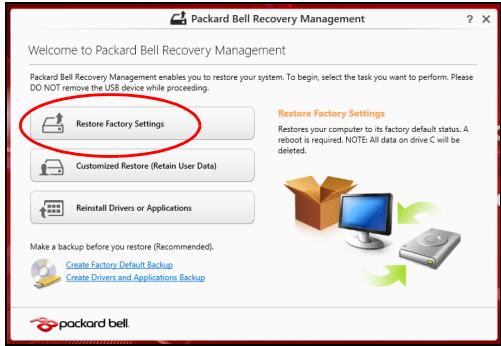
BhImaHHe:"Bb3ctaHOBraBe Ha a6pHuHnte HacTpoKn" ige n3Tpne BCnKNTe aJIObe Ha Baunr TBbpD dNcK.
- O'TbaprCe npo3opeuT HynpaHc Ha Baunn KOMnIOTbP.
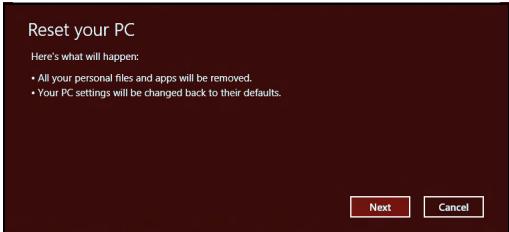
NIOcmpaumme ca camo cnpaKa.
Packard Bell Recovery Management
?×
Welcome to Packard Bell Recovery Management
Packard Bell Recovery Management enables you to restore your system. To begin, select the task you want to perform. Please DO NOT remove the USB device while proceeding.

Customized Restore (Retain User Data)

Reinstall Drivers or Applications
Make a backup before you restore (Recommended).

Create Factory Default Backup
Create Drivers and Applications Backup

packard bell
Restores your computer to its factory default status. A reboot is required. NOTE: All data on drive Cwill be restored.

Here's what will happen:
- Your files and personalization settings won't change.
- Your PC settings will be changed back to their defaults.
- Apps from Windows Store will be kept.
- Apps you installed from discs or websites will be removed.
- A list of removed apps will be saved on your desktop.
Next
Cancel
-
LpakHe Te Bbpy Hanpe, nocne Bbpy O6HOBahe.
-
Праз ecbт Ha Bb3ctaHOBraBaHe 3anOyBa c pecTapTnpaHe Na KOMnHObpa, CpeД KOeTo npOdbJkaBa C KOnIpaHe Ha phaJIIOBe Ha TBbpDnA nck. To3n PpOcE OTHema OKoNo 30 MmHytn.
Bb3ctaHOBAHe OI apXnB 3a Bb3CTaHOBAHe
3a Bb3CTaHOBBAHe OT apxNBa 3a Bb3CTaHOBBAHe Ha USB yCTpoiCTBOTO:
- HamepeTe CBOB apxNB 3a Bb3CTaHOBBAhe.
- BkIIOUeTe USB yCTpOINCTBOTO IN BKIIOUeTe KOMNIOTBpa Cn.
- TpЯбba Да akтubираTe F12 Meню 3a 3apexkaHe, ako To BCE Oоц He e akTubираHo:
a. HatncheTe < F2>, KOrato cTaptnapeKOMNIObpa cn.
b.ИЗПОЛЗВайтЕ ЛЯВаТа Или ДяСHаТа CTpeДКа,зa за ИЗБeрЕТe MeHOTO Main.
c. Hatnche Te CTpeNka HANOly, DOkato He ce MapKupa F12 Boot Menu, HATNCheTe < F5> , 3a Da npOMEHnTe Ta3n HAcTpoNka Ha Enabled.
d.ИЗПОЛЗВайтЕ ЛЯВаТа Или ДяСHаТа CTpeДКа,зa за ИЗБeрЕТe MeHOTO Exit.
e. B 3aBnCmOcT OT Tnla Ha BIOS, KOITo n3NoJ3Ba KOMNHTbpa Bn, n36epTe 3aIIu npomeHnte u n3XoJ uJn N3XoJ cbc 3ana3BaHe Ha npomeHnte u HaTuschete Enter. N36epTe OK uJn Da, 3a da NOTBbPdntE.
f. KomnoTbPbT Bn ue ce pecTapTnpa.
- По Врeme на стапанe, натуchete
, за ра OTВОРпe MeHIOTo 3a зapжданe. МенЮТа зapжданe Ви пзвогЯВа за ИЗБИраTe yCTpoICTBOTO, оТ koeto Дa ce стапа систemaTа, habрIMep USBYCTpoICTBO.
a.Използвайтстpeлкite,3aдаинберетe рета USB yctpoiCTBO, cneД Koeto HATNCHETe Enter.
b. Windows ce CTapTupa O T apxINBa 3a Bb3CTaHOBRAHe BMeCTO Upe3 HOpMaJIHHI pIouec Ha CTapTupaHe.
5.Изберетe вида на Клавиатура.Ta.
6.ИзберетеОтстаяньа themselves Ha HeH3npaBHOCTn n I3bepeTe Tuna Ha Bb3CTaHOBRAHe:
a. UpaKHe T Bbpy Pa3upeHn, cIeJ KoETo Bb3ctaHOBaHe Ha CnCTeaT, 3a Da CTapTpate Bb3cTaHOBAHe Ha CnCTeMaTHa Microsoft: Bb3CTaHOBAHe Ha CnCTeMaTHa Microsoft nepnoDnH npaBn "ChIMKn" Ha Baunte CnCTeMHn HAcTpoKn n rN 3aInCBA KaTO TOKN 3a Bb3CTaHOBAHe. B NOBeTeO CnyauH Ha TpydHn 3a peuBaHe CoPTyePHn Pp6JIemM MoKeTe Da ce BbPHeTe Ha eHa OT Te3N TOKN 3a Bb3CTaHOBAHe, 3a Da Hakapate BaWata CnCTeMa Da pa6OTN OTHBO.
b. UpaKHe T Bpxy HynipaHe Ha Baun KOMnOtbp, 3a Da CTapTnpate npoeca no HynipaHe: HynipaHe Ha Baun KOMnOtbp n3TpINBa BCNUKO Ha TBbpDnI dNCK, cNeI KoETo npEnHCTaIIpa Windows u BCNUKn dpaBepu n coQfTyep, KOInTO ca bNil npedBapnteNo IHCTaIIpaHn Ha BaWata cnCTema.
Ako Mojke Te Da OTBOpTe BaxHn PhaIIOBe Ha TBbPdNr DnCK, apxuBnpaTe r cera. BuxTe "HynpaHe Ha Baunr KomnIoTbp OAPXnBa 3a Bb3CTaHOBRAHe" Ctp. 86.
c. LpakHe Te Bbpy O6HOBaHe Ha BaIa N KOMnHObP, 3a Da cTaptnape npoeca no o6HOBaHe:
06HOBRAHe Ha Baunn KOMNHTbp 1e ce ONTa Da 3aana3n BaunTe fainoBe (notpeBntenckn daHHn), Ho 1e npEnHCTanIPA BCNUK coFtyePH nporpamn uCToPcTBA. CoFtyep, HCTaJInpaCneI KaTO cTe 3akynlnn KOMNHTbpa, 1e 6bJe npemaxHaT (OCBeH coFtyep, INCTaIInpaH OT Windows Store). BxKTe "06HOBAHe Ha Baunn KOMNHTbp ot apxNBa 3a Bb3ctaHOBAhe" Ctp.88.
Hynupahe Ha Bawu KOMnIbOp om apxuea 3a 6b3cmaHO68aHe
BhImaHne: HynpaHe Ha Baunia KOMnIObP ige n3Tpne BnCKI paJIIObe Ha BaWeTo TBbPd InuCK.
- O'TbApCe npo3OpεtHT HynipaHe Ha Baunn KOMnIOTbP.
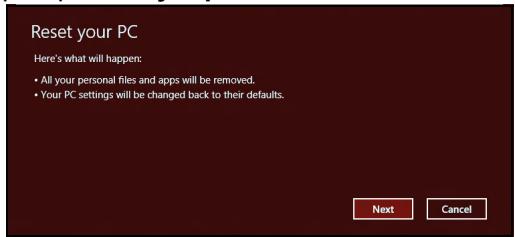
NIOcmpaquume ca camo cnpaKa.
- LpakHeTe Bbpx CyJeBaa.
3.Изберете onepaционната систema,за за вьзсановite (obNKHOBeHIMa NaJIuHa caMo eHa OIIZI).
The FCC with its action in ET Docket 96-8 has adopted a safety standard for human exposure to radio frequency (RF) electromagnetic energy emitted by FCC certified equipment. The wireless adapter meets the Human Exposure limits found in OET Bulletin
65, supplement C, 2001, and ANSI/IEEE C95.1, 1992. Proper operation of this radio according to the instructions found in this manual will result in exposure substantially below the FCC's recommended limits.
- The following safety precautions should be observed:
Do not touch or move antenna while the unit is transmitting or receiving.
- Do not hold any component containing the radio such that the antenna is very close or touching any exposed parts of the body, especially the face or eyes, while transmitting.
- Do not operate the radio or attempt to transmit data unless the antenna is connected; this behavior may cause damage to the radio.
Use in specific environments:
- The use of wireless adapters in hazardous locations is limited by the constraints posed by the safety directors of such environments.
- The use of wireless adapters on airplanes is governed by the Federal Aviation Administration (FAA).
- The use of wireless adapters in hospitals is restricted to the limits set forth by each hospital.
Antenna Use
In order to comply with FCC RF exposure limits, low gain integrated antennas should be located at a minimum distance of 20~cm (8 inches) or more from the body of all persons or at a minimum distance as specified by the FCC module grant conditions. FCC grants can be viewed from the FCC Equipment Authorization website at https://fjallfoss.fcc.gov/oetcf/eas/reports/GenericSearch.cfm by entering the FCC ID printed on the module label.
Explosive Device Proximity Warning
Warning: Do not operate a portable transmitter (including this wireless adapter) near unshielded blasting caps or in an explosive environment unless the transmitter has been modified to be qualified for such use
AntennaWarnings
-
Warning: To comply with the FCC and ANSI C95.1 RF exposure limits, it is recommended that for the wireless adapter installed in a desktop or portable computer, the antenna for this wireless adapter to be installed so as to provide a separation distance of at least 20cm (8 inches) from all persons or at the minimum distance as specified by the module grant conditions. FCC grants can be viewed from the FCC Equipment Authorization website at https://fjallfoss.fcc.gov/oetcf/eas/reports/GenericSearch.cfm by entering the FCC ID printed on the module label.
-
Warning: The wireless adapter is not designed for use with high-gain directional antennas.
Use On Aircraft Caution
- Caution: Regulations of the FCC and FAA prohibit airborne operation of radio-frequency wireless devices (wireless adapters) because their signals could interfere with critical interference with critical aircraft instruments.
Local Restrictions on 802.11a, 802.11b, 802.11g and 802.11n Radio Usage
- Caution: Due to the fact that the frequencies used by 802.11a, 802.11b, 802.11g and 802.11n wireless LAN devices may not yet be harmonized in all countries, 802.11a, 802.11b, 802.11g and 802.11n products are designed for use only in specific countries, and are not allowed to be operated in countries other than those of designated use. As a user of these products, you are responsible for ensuring that the products are used only in the countries for which they were intended and for verifying that they are configured with the correct selection of frequency and channel for the country of use. Any deviation from the permissible power and frequency settings for the country of use is an infringement of national law and may be punished as such.
Wireless Interoperability
The wireless adapter is designed to be interoperable with other wireless LAN products that are based on direct sequence spread spectrum (DSSS) radio technology and to comply with the following standards:
- IEEE Std. 802.11b compliant Standard on Wireless LAN
- IEEE Std. 802.11g compliant Standard on Wireless LAN
- IEEE Std. 802.11a compliant Standard on Wireless LAN (applies to devices supporting 802.11a)
- IEEE Std. 802.11n draft 2.0 compliant on Wireless LAN
- Wireless Fidelity certification, as defined by the Wi-Fi Alliance
The Wireless Adapter and Your Health
The wireless adapter, like other radio devices, emits radio frequency electromagnetic energy. The level of energy emitted by the wireless adapter, however, is less than the electromagnetic energy emitted by other wireless devices such as mobile phones. The wireless adapter operates within the guidelines found in radio frequency safety standards and recommendations. These standards and recommendations reflect the consensus of the scientific community and result from deliberations of panels and committees of scientists who continually review and interpret the extensive research literature. In some situations or environments, the use of the wireless adapter may be restricted by the proprietor of the building or responsible representatives of the applicable organization. Examples of such situations may include:
- Using the wireless adapter on board airplanes, or
- Using the wireless adapter in any other environment where the risk of interference with other devices or services is perceived or identified as being harmful.
If you are uncertain of the policy that applies to the use of wireless adapters in a specific organization or environment (an airport, for example), you are encouraged to ask for authorization to use the adapter before you turn it on.
FCC Radio Frequency Interference Requirements (applies to device supporting 802.11a)
This device is restricted to indoor use due to its operation in the 5.15 to 5.25 GHz and 5.470 to 5.725 GHz frequency ranges. FCC requires this product to be used indoors for the frequency ranges 5.15 to 5.25 GHz and 5.470 to 5.725 GHz to reduce the potential
for harmful interference to co-channel mobile satellite systems. High power radars are allocated as primary users of the 5.25 to 5.35 GHz and 5.65 to 5.85 GHz bands. These radar stations can cause interference with and/or damage this device. No configuration controls are provided for this wireless adapter allowing any change in the frequency of operations outside the FCC grant of authorization for U.S operation according to Part 15.407 of the FCC rules.
USA — Federal Communications Commission (FCC)
This device complies with Part 15 of the FCC Rules. Operation of the device is subject to the following two conditions:
- This device may not cause harmful interference.
- This device must accept any interference that may cause undesired operation.
- Note: The radiated output power of the adapter is far below the FCC radio frequency exposure limits. Nevertheless, the adapter should be used in such a manner that the potential for human contact during normal operation is minimized. To avoid the possibility of exceeding the FCC radio frequency exposure limits, you should keep a distance of at least 20cm between you (or any other person in the vicinity), or the minimum separation distance as specified by the FCC grant conditions, and the antenna that is built into the computer. Details of the authorized configurations can be found at http://www.fcc.gov/oet/ea/ by entering the FCC ID number on the device.
Interference Statement
This wireless adapter has been tested and found to comply with the limits for a Class B digital device, pursuant to Part 15 of the FCC Rules. These limits are designed to provide reasonable protection against harmful interference in a residential installation. This wireless adapter generates, uses, and can radiate radio frequency energy. If the wireless adapter is not installed and used in accordance with the instructions, the wireless adapter may cause harmful interference to radio communications. There is no guarantee, however, that such interference will not occur in a particular installation. If this wireless
adapter does cause harmful interference to radio or television reception (which can be determined by turning the equipment off and on), the user is encouraged to try to correct the interference by taking one or more of the following measures:
- Reorient or relocate the receiving antenna of the equipment experiencing the interference.
- Increase the distance between the wireless adapter and the equipment experiencing the interference.
- Connect the computer with the wireless adapter to an outlet on a circuit different from that to which the equipment experiencing the interference is connected.
- Consult the dealer or an experienced radio/TV technician for help.
- Note: The adapter must be installed and used in strict accordance with the manufacturer's instructions as described in the user documentation that comes with the product. Any other installation or use will violate FCC Part 15 regulations.
Canada - Industry Canada (IC)
This device complies with RSS210 of Industry Canada. Cet apparéil se conforme à RSS210 de Canada d'Industrie.
This Class B digital apparatus complies with Canadian ICES-003.
"To prevent radio interference to the licensed service, this device is intended to be operated indoors and away from windows to provide maximum shielding. Equipment (or its transmit antenna) that is installed outdoors is subject to licensing."
The use of these equipments is regulated by:
1.D.L.gs 1.8.2003, n. 259, article 104 (activity subject to general authorization) for outdoor use and article 105 (free use) for indoor use, in both cases for private use.
2.D.M. 28.5.03, for supply to public of LAN access to networks and telecom services.
Pakistan Telecommunication Authority (PTA) Approved
Morocco
The operation of this product in the radio channel 2 (2417 MHz) is not authorized in the following cities: Agadir, Assa-Zag, Cabo Negro, Chaouen, Goulmima, Oujda, Tan Tan, Taourirt, Taroudant and Taza.
The operation of this product in the radio channels 4, 5, 6 and 7 (2425 - 2442 MHz) is not authorized in the following cities: Aéroport Mohamed V, Agadir, Aguelmous, Anza, Benslimane, Béni Hafida, Cabo Negro, Casablanca, Fès, Lakhab, Marrakech, Merchich, Mohammédia, Rabat, Salé, Tanger, Tan Tan, Taounate, Tit Mellil, Zag.
Japan
5 GHz 带は室内のは使用のと
Korea
PaioeToHa nItepepeHn
Пожибовителгуотroварязанкakba paадиюлл TV nHTeppepehenця,пчненаоТ HepaazheHa MOniФнkaци Ha ToBa yCTpoiCTBO.
Bpb3kn n dNCTaHcNoHHn 3a3eMaBAHn
PELV (Protected Extra Low Voltage)
3a da rapaHTnpaTe cJIIOCTHO HnCKO HnpeXeHne Ha oBOpyDbaHeTo, CBpXeTe oBOpyDbaHeTo c.
PELV (Бeэзэн сбрьхнско habржени)
Bcekn Bxod n 3XoD Ha To3n npOyKT e KlaCnΦuPah KaTo „Be3OnaCHO HnCKO HanpeKeHne".
ДиctaHNoHH3a3eMaBaHn
3a da n36berhepe nCK OT KOKB yap, CBpKte BCnK INokaiHn (B OTdeHen OΦnc) KOMNTOPI N KOMNTObPHO ObOpyDBeAe KbM edHa N cbUa eIeKTPuecka Bepira, Ta3n Ha IHCTanaqraTa Ha crpaData. AKe He cTe ciRpyHn, npOBepe IHCTaJauqraTa Ha crpaData, 3a da n36berhepe nCTaHcNoOHn 3a3emBaHna.
3axpaHbHe Ha crpaData
CbpxTe 606pyDbaHTo KbM 3axpaHbHe Ha crpaTa, KoETo E B CbOTBeTCTBne C TekyuIte pa3npoep6n 3a OkabEnyBaHe B cTpaHaTb. BbB BeNko6pntaHn, TOBa ca pa3npoep6nTE IEE.
EneKtpnuecko 3axpaHbAne n Ka6eIi
EneKtpuuecko 3axpaHbaHe
BxOdbT IN 3XoDbT Ha 3axpaHbHaTo (aKO Ima TaKnBa) Ce KNaCnΦnCuPaT KaTO BnCOKo HanpeKeHne.
Tp6Ba Da n3KnOHTe 3axpaHbAunna Ka6en n da n3BaJnte 6aTePnra, 3a da cnpete 3axpaHbAHeTo Do obOpUdBaHeTo. 3a Ta3n ceN, KOHTaKtBt Tp6Ba Da e 6n3o Do 06opUdBaHeTo n da 6bJe neCHO doCTbneH.
BxOHa MoUHocT: BxKTe etNketa OT DOnHata cTpaHa Ha KOMnIObpa I ce yBepTe, Ye 3axpaHbAaIaT aAdanTp eTRObapra Ha Noka3aHnIaTa.
ПинкakBNOбстгелТВа He TРБВОптБИТЯТа ce onNTBA da pa3rIIO6BA 3axpaHbAHeto. 3axpaHbAHeto He CbIbPkaЧaTи, KOITO MOrAT DA bБДAT CMeHeHn OT notpeBHTeR. BbTpe B 3axpaHbAHeto ИMa BvCOKO HanpexKeHne, KoETO MoKe Д anpeDIn3BnKa cepINO3HN HapahBaHnY.
Ako 3axpaHbAHTo e DepeKTHo, To Tp8Ba da bBte BbPhaTo Ha TbproBeua.
3axpanBaun Ka6eIn n uencen
To3n npOdyKT n3NcKBa 3a3eMeH 3axpaHbaa Kaben I quencen. IeIceNbT nacBa cAmo B 3a3eMeH eEeKtpuYeCKn KOHTaK. YBepeTe ce, ye eEeKtpuYeCKnT KOHTaK t e 3a3eMeH npAByJHo, npEdn Da BkIIOUHte 7eenceJa Ha AC aAnTepa. He BKJIIOUBaYte 7eIeCena B He3a3eMeH eEeKtpuYeCKn KOHTaK. 3a NoBueye eoPpO6HocTn Ce CbbpKeTe Cbc CBOB eEeKTPoTEXNIK.
IbIjxHnata Ha Ka6eNa He Tpr6Ba Da HaBnUaBa 2,5 MeTa. 3a da npedotbpaTne TOKOB ynap, He OCTpaHraBaIte N He DeakTNBpaIte 3a3emBAHeTO Ha 3axpaHbaAua Ka6eN. CmehTe 3axpaHbaAua Ka6e Ako 6bJe NOBpeDen. CbByKeTe Ce c TbProBeu OTHOCHO noXoJusn Bn Ka6eB. B Ebpona, KOHTaKTtne Tpr6Ba Da ca c HAnpeXeHne 250 VAC, Na-Malko 10 amp. Ha 7enCena Tpr6Ba Da nMa MapKnipOBka 3a oOobpeHne ot MekdyHapOJaHa areHcna. Ka6eBbT Tpr6Ba Da e nOxDoxa 3a yNtpe6Ba B CTpaHata Ha KpaHnI NaTpe6BteJL. KoHCyunTpaiNe Tce c TbProBeua nPi MeCTHaT aeneKtpuecka KOMpanHnA aKO He CTE CInpyhN Ka6bT Tn3axpaHbaA u Ka6eJa DA n3noJ3BaTe B CTpaHata CN.
Ka6eJn
OTHOCHO KaBEni, KOInTo He ca npedocTabe c npodyKta B onakOBkata Ha KOMnIObTa:
EJIeKTPomarHHTHaTcCBMecTmOCT Ha CnCTeMaTa Ce rapaHTnpa cMo aKO Ka6eIbT INHTeppeCt mAt eFeKTNBHO ekpaHnpaHe.
I3non3baheTo Ha ekpaHnpan HInTepefeicenc Ka6e e 3aIbJnxItenHo 3a USB, IEEE1394, cepHnU yctpoiCTBa, pInHTepn, nprn, aHaIorOB nIIN cIΦpOB ayDIO/BnDeo ciRHan, PS2, TeENB3Opn IIN FM anTeHN i KATO zIINO 3a BCNUK BnCOKOCKOPocTHN Ka6eHN HInTepefeicn.
I3no3BaTe cmo No. 26AWG nIIN no-roIeMn TeleKOMyHnKaUOnHH Ka6eN, oOobpeHn ot UL.
Camo IblnxnHaTa Ha KaBeIIne Ha Ethernet LAN nIN RTC MoEmTe MoKe da HAdBnAba 3 MeTpa.
Packard Bell npenopbUba da doabuTe KpbIgna cKoBa c fepnTHO JaIO KoBM BcEKN KaBEn, KOITOB CBp3Ba BaAaN KOMNIOTbP C xapDyepHO yCTPOINCTBO, KOeTO He e CBbp3aHO KbM BaAaN KOMNIOTbP.
- Cnpabka 3a Ферита: 28A-2029 ot Steward (Два Крва)
Pn ceptnΦniupaHe Ha npOyKta Packard Bell n3noJ3Ba cneHOTo KaueCTBO Ha Ka6eJInte:
- USB2.0 certnPhiucpaHn Ka6eJn ot Hama 46778
- IEEE1394 ekpanipanu FireWire ot Hama 50011
- RCA-RCA ekpañpañá yándno/BiJeO ka6eN oT Thomson KHC001M, KHC012M, KHC028M
- Ctepeo Jka, ekpaHnpaHn ayDIO KabEn OTo Hama 43330H, 42714H
AkymynpaHe Ha TOnnHa n IpeHocmKOMnIOTpn
AC aanTepbI n doHata cTpaHa Ha KOMnIObpa Moar Da cTaHaT ropeu Cnei npOdbJnxTeHa yNtpe6a. IpoDbJxNteHeh qn3nueckn KOHTAKT c aanTepa NdoHata cTpaHa Ha KOMnIObpa da ce 136yraBa.
OCTpaHЯBaHe n noctabYe Ha kanaZnte Ha shacHTO
IpeDN da OCTpaHNTe KanaunTe Ha 7acnTo 3a 06cnyXbaHe nIN npomraHa
OobopydBaHeto, Tp8bDa n3KJIouHTe nIN OTCTpaHNTe BCNUK 3axpaHbAunn MOnemHN
Ka6eJIn n Da n3BaUnTe 6atePnraTa.
-BHumHe: Hrkou KOMnoHeMu e Komnombpa Moaam da cmaHam oopeu cned npobIxmuHa ynompe6a.
Toraba Tp8bDa Da 3aTBOpHTe WacnTo PpeDn Da CbPjKeTe N BkHOnyTe O60pyDbAHeTo.
3aBHeHne 3a CbOTBeTCTBnE C Na3epHnTe CTaHapTN
Оптунente устовоства сесъани и сергфшицарни като сьвмстимс Сбс CTандагпerte Ha Мжунарогнataе онлайнотхетхонуесka komися IEC60825-1 ИEBponeckte CTандагТN EN60825-1 залазерни рpodkтг ot Клac 1.
Ja3epHnTe npOyKtn ot Klnac 1 He ce cMraT 3a onaChn. OntuHnTe yctpoiCTBa ca npoeKtnpaHn, Taka Ye xopata Da He Moar Ta 6bDaT nIIOKeHN Ha paIinaNHa d Klnac 1 pIn HopMaJIHa pa6oTa I npenOpBuHaHnTe ycNoBn Ha o6cnyXbaHe.
OttuHnTe yctpoCTBa, nHcTaInpaHn Ha KOMTObpa Bn, ca npoeKtnpauHn 3a ynoTpe6a cAmo C KOMNoHEHTn Ha TaKnBa eJeKtpOHn IpOdyKTn i CneIOBaTeENHO He OTRObaprT Ha cbOTBeTHnTe n3NCKBaHnHa FeedePAnHn KoDeKC, p. 1040 n p. 1040.11 3a FOTOBn Ia3epHN npOdykTn.
Ekcn0nuiyraHa naaepno IbyeHne e n3KnIouHTeHNo onaCha. 3aToBa npn HnKaKBN o6cToTeNCTBa He Tp8Ba Da ce ONITBaTe da demOHtnpate Na3epHO YoCTPOCTBO.
Onakobka
Опаковka差别и подукт OTROВАЯ на ИЗСКВанЯта наЕБрoneССКATAДИPEKТИВа 3а okолна差别срета 94/62/EC ot 20 Декемвп 1994 Г. и ЕквиBaJIeHTa в 3akOHODaTeJNTBOTO HaФpaHця сюpeд зakон 98-638 ot 20юл 1998 Г.
CbOTBeTcBa Ha pyckata perylaTopHa ceptnФkaZna.

ME61
Pa6oTHa cpea
Ctapaem ce da ona3BaMe OKoHaTa Cpea
OkoJHaTa Cpea e B OChOBa Ta Ha HauNITE npOdyKTN.
Packard Bell noema anraxmment da orpauuyn Bb3eJcTBneto Ha npodykTnte cn Bbpxy OKoHaTa cpea no BpeMe Ha JxNBoTa Ha npodykTa.
Kato ce 3aonuehe ot fpaata Ha npoeKtnape He ne pnpilara MHO ro ctpnKTHa noHNTka 3a Bb3laaraHe Ha nopbyKn, MaKcImaJIHO BHNMaHne Ce OTdJeHa eJekTPOHHte KOMNoHEHTN, 3a da CE orpAHuN KoINueCTBTO IN3IOIN3BaHN TeKKn MeTaIN KaTO OIOBO, KaDMn, XpOM, JxBAk N dp. DocTabuNtE TpIbBa Da cna3BaT BCNUKN pa3nopeDbN 3a BcRAKa edHa qact OT daen npOdyKT.
IIO OTHOWeHHe Ha n3JIe3JIneTe OYnoTpe6a npOdyKTn Ca B3eTI MePKn, 3a da Ce pIpeBnInu YIeCN HePcIKKnIpaHTo Hb BCNUKn HauN npOdyKTn. C DpyrN dymu, BcUKNIIactMacOBn qactn PO-TeKKn OT 25 rpaMa, I3NoJ3BaHN B npOdyKTnTe Packard BellcaMapknapHn IO ISO 11469.To3n EtNKET no3BOJRA BaBp3o pa3No3HaBAhe Ha MaTePnAnaH IeCHOTo My BaOpN3aUN. CbIo Taka, HacToJHnTE KOMNtprn Ca npOeKTnpAHn Da6bDat IecHO pa3rIIOBaeMn, KaTO BoNTOBeTa ca ZAmEHn C KJIINCS.
N3xBpbnaHe Na npoDyKta
Ди配电нвata 2002/96/EC, ИЗвесна оше Като Ди配电нвata 3a OTпдьци OT eелкгческо и eелкгюнho obopуданe (WEEE), ИЗнckва ИЗплбанITE eелкгчесkn 和 eелкгюнnpolyKTn Da ce ИЗХьрлгТ OTденио OT домakинснite OTпдьци, 3a DA ce NaCbpyn NOBTOpHaTуnotpe6a, peuKЛupaHeto, ДугИ phoPmN Ha ONOлзOTbOPraBaHe, KaKTo IN da CE haMaJIN KOLIчecTBOTO Ha OTпдьци Tc сeп DA ce ORpaHUnI DeNoHupaHeto И nItrapaHeto Ha npolyKTn. Jloroto cbc 3auepkHATA KoFa

3a 6oknyk ceenn da Bn Hanomhn, ye Te3n npodyktn Tp8bda 6bdat coptnpaHn n 1x3xBpIeHN OTdEHNo OT octaHJInte OTnaDbu. Te3n npabina ce OTHacrT 3a BCNUKN npodykTN Ha Packard Bell, kakto n 3a BCNUKN akcecoapn kaTO KNABnatypa, Mmka,
Диctанционну npablene HpyrN. Korato ce haLoxN da n3xBbplnte takBa npodykTN, cBbpxTe ce cbc cBbTBeTHaTa MeCTHa INCTaHcNya, 3a da ce yBepNTe, ye npodykTNte ca peuKnnpaHn npabInHO nn BbPheTe CTapTO obOpyDbaHe na Baunra TbproBcN npedCTaBHTe, aKO Bb3HaMepeRbATE da ro noDmeHnte. 3a noBueye nHfopMaunnoocTe www.packardbell.com/recycling.
N3XBpnaHe Ha 6aTepeu (Korato e npnIOxmo)
Ipei Da I3xbpnte Baawto obopydBahe, ybepe Te ce, ye CTe I3BaDInn BcUKN 6baprrn, konTo moKe da ca MoHTnpaHn B o6OpyDbaHeto. EbponecknT 3akOn rIacn, ye 6bapeHnTe Tpa 6bDat cbipapaHn 3a I3xBpIne H OTeJHo OTomaknHcknTe OTnabu. He XbplIte n3non3BaHnTe 6bepnn B Kofata 3a 60kny. N3XbPnIte n3non3BaHnTe 6bepnn cnope Pa3npoe6bte 3a cbipapHe Ha 6bepnn, KbJeTO mHa tAKIBa IIIN nonItaTe Ba7na I DCtprbyTop IIIN cbOTBeTHaT MeCTHa IHCTAHnK bDe MoKTe Da npdaTe 6bepnTe. BlaoradepHne Ha BaWnte ycIINa CTaBA B3MOxHO 6eONACHTO cbipane, pezikJIpaHne n yHNIooKabHe Ha I3no13BaHnTe 6bepnn KaTO Taka cnOMarate 3a ona3BaHeto Ha OKoHaTa CpeDa n 3a HamajBaHe Ha pNCKOBete 3a 3dpABeto.
-BhumaHue: Ima puck om ekcnnno3a kao u3non3ame apween mun 6amepuu.
I3x8bPneme u3non3eAHume 6amepuu cnped uncmpykuuume.
ENERGY STAR

ENERGY STAR
Пюдктпе Ha Packard Bell, obo3начен c ENERGY STAR, Вспесяват napи, кATO hamalЯВат eheprinHITe pa3xOДи n 3aunTаВAT OKOLHATA cpeDA, be3 TOBA DA e B yuBp6 Ha ФунКцИТe ИппponиЗвODиTeHOCCTTA. Packard Bell c ropdoct npednara Ha cBoNTe Notpe6bnte Пюдктпe с c loTO能源 ENERGY STAR.
KakBo e ENERGY STAR?
Ipoodyktn c IloroTO ENERGY STAR KOhcymnapat no-MaJko eheprn y npedotbpaTBA t emcnn Ha napHKnOB ra3OBe kato OTROBAPrT ha cTpNKTHnTe pa3nope6n 3a eheprnHa efeKtNBHOCT Ha AreHnTa 3a 3aunTa Ha OKoHnTa CpeDa HA CAU. Packard Bell npedlara npodyktn u ycnyr n no ceJnna CByT, KOnTO NOMarAT Ha KNHeHTte da nectT
napи и eheprnaya Na podobpbaT kauecTBOTo Ha okonhaTa cpea. KoNKOTO nobeee eheprma MoXem Da cneTUM Ype3 NO-BICOKA eheprnHa efeKTNBHOCT, TONKOBa nobee MeKem Da HamaJIIM EMUCNTe Ha napHKnOBu razOBe i pNCKOBTe 3a npOMraHa Ha KImata. 3a nobee INΦopMauny BIXTe www.energystar.gov www.energystar.gov/powermanagement.
- 3a6eJekka:Инфорmaцуma в mozu pa3den можеда не се omhacя за Вашю KMПЮмьр.
Пюдукту Ha Packard Bell с Лото ENERGY STAR:
-ПОНЗБЕЖДАТ NO-MAJКО TОПЛИнA И HAМАЛЯВАТ HaTOВAPBAHETO npI OXЛжДаНЕ B NO-TONBJ KINIMAT.
- ABTomatuHOp npemHaBbpeKIM "3acnBaHe Ha MoHTopa" n "3acnBaHe Ha KOMIOToBa" npi Lnnca Ha akTbHOCT B npOdbJxKeHne Ha cbOTBeTHo 10 n 30 MInHyTu.
- Cb6yjdahe Ha KOMNIObpa OT peKIM 3acnBaHe ype3 HaTnckaHe Ha 6yToH Ha KnaBnAtypata NIN DvNxKeHHe Ha MNUkata.
- Komnhotpuite ue cneTAT nobuehe ot 80% eheprnaB pexim "3acnBaHe".
ENERGY STAR i IoroTo ENERGY STAR ca pernctpupaHn amepukaHcN TbproBckn Mapkn.
CocTyepenIuceH3
- 3a6eIexka: Ioeeyemo coqmyepnu npuioxhenca npedeapumenHo uncmanupanu Ha Bawua Packard Bell kOmniomb.p. Te 3a oomoeu 3a ynompbebau unu 3a hacmpouka. Bce nak, harkou 3aanaueu u3uckeaum CD unu DVD ycmpoucmea, 3a da ce cmapumap. lJe hamepume mezu duckoe e onakokama Ha kOmniomba.
Packard Bell Лиценонно споразумене (CD и/nПД DVD подукту). Тoba коча на оригиная e Baшето дokaразелстvo за Лицен. Моля, отскадут ec Hero kaTo c ceнна co6ctbehoct.
Baxho!
Ppooyete BHHMaTeJIHo, IpdeIa IINCTaJInpaTe cofoTyepa.
CneHnTo nIueh3nOHn Cnpa3ymHnne ce OTHacr 3a Bac. Toba e 3akOnHo cnopa3ymHnne Mekdy Buc (fniuuecko nn Iopnduecko nIuce) n Packard Bell. C nHCTaIIpaHeto Ha coQfTyepa Bnce Ce cBflnacBaTe da cna3BaTe ycNoBnraHa ToBa cnopa3ymHnne. Ako He cTe cbTlacn C ycNoBnraTa Ha TOBa cnopa3ymHnne, He3a6abHO BbPHeTe YJIaTata KOMIObTpHa CNTema, HeOTBOpeHnTE COQfTyepn NaKeTu, aKO IMa TaKINBA, KaKTO n CbIbTcBAaHTe ycNoBnRA (BKNIouHTeHNO NmCMeHn DOKyMeHTN INI npYro CbIbPxKaHne) Ha MAcTOTO, OT KbDeTO cTe rN NOUYHIn, 3a da NOUYHnTE ObE3UteHne.
Packard Bell coΦTyepen JnueH3
1.Ппебостаьноллцeн3
Toba Packard Bell Лицензнонс соразуменe ("Лицен3") Ви позьогяba д изплбате щно коиne на ор dedениа верся на Packard Bell иdentицераня по- cope COФТУЕР (Коют ce състон OT наи-mankо щдн CD улп DVD дис) на рожьбоген komнотьр, пи услове, че COФТУЕРьт ce nзллбра на неоваче OT edин komнотьр В даден мочent. Ако Имате множжесво Лиценз за COФТУЕPA, тогава по BCЯКО Вразе можete на nзллбате колково пожелаete Коияна COФТУЕPA, зашито Иматe лиценз. COФТУЕРьт ce „иллбра" на komнотьр, korato e Зареден bвв Вразим�нatura namet (напrimер RAM) улп e унctалпань постаянда namet (напrimер на Тьрд
ДиС, CD n/нлД DVD ДИСК ИЛДpyrTO yCTpoIcTBO 3a cxbxaHEnHe Na KOMNIObTa), OCSBeK KOraTo KOJIneTo, KoETe e INHCTaJInpaHO Ha MPexKOBnBa CbPbBp C eINHCTBeHaT a CEJI d6bJe pa3nPoCtPaHEnO Ha Dpyr KOMNIObTp, He Ce „n3nON3Ba". Ako OuaKaBAnHЯ Tбpoi noTpbeHTeH Na COΦTYEPA HaNxBbPIn δpoj Ha pInnoXkIMITE JInceH3n, Tpr6Ba da pa3nOlaIarate c paunOHaJIeM hexAH3bM IInI npOec, 3a da rapaHTnpaTe, Ye 6poJr Ha JInCuIa, KOnTO n3nON3BaT COΦTYEPA eINHOpeMeHNo, He NaDbNsiBa δpoJr Ha JInSeH3nTE. Ako COΦTYEPbT e INHCTaJInpaHn 3a NOctOaHHo Na TBbPdNJa DNCK IIni Ha yCTpoIcTBO 3a cxbxaHEnHe Na KOMNIObPa (pa3nUHO OT MPexKOBn CbPbBp) i EINH YOBek n3nON3Ba To3n KOMNIObTp nobYe ot 80% OT BpeMeTo, Toraba To3n YOBek MOnKe cbIo Da n3nON3Ba COΦTYEPA Na InpeHocm IInI DomaIeH KOMNIObTp.
2. ABTOPCN npaba
COΦTEPbTe co6ctBeHocT ha Packard Bell nIHa texhnte doCTaBnIu e 3aunTeH ot 3akOHnte 3a abTOPckoTo npabo Ha CAU n OT mekdynapoHN cnopa3ymenra. CneIOBaTeNo, Tp86Ba Da TpeInpate COΦTYEPA KaTO BcEKn Dpyr MaTePNaC aABTOPKn npaba (HaNPIMeK KnRa IIN My3NkAeH 3aNc), C n3KnUeyHe Na TOBA, Ye MOKeTe da npexBpIte DaI ON CD n/Inn DVD dNcKa cbc COΦTYEPA, Ako nMa taKbB, Ha eINTHbPd Nsck, PnI yCIOBHe, Ye 3ana3Ne opuHna eDInHCTBeHO C kato pe3epBa IIN 3a apxNBn ceIi. He moKeTe Da KOInpate JaON t CD n/Inn DVD dNcK cbc COΦTYEPA IIINNCMeHNTe DokumEnTI, pnpduykaBau n COΦTYEPA.
3.Дугуноранчения
He mokeTe da otdaBaTe noI haem IInI IIn3nHr COΦTYEPA, Ho mokeTe da npexBpIne COΦTYEPA u npindpykabaaIte ro nncMeHH mATEpnaI 3a noCToRnHO, npu yCNoBne ye 3ana3BaTe KOINI u ne noLnyateJIe TcBflaceH c ycNOBnraHa HTOBa CnOpa3yMeHne. HmaTe npabo Da npinaraTe o6paTHO INKHepeCTBO, da pa3dJeTae IINI demOHtupate COΦTYEPA. BcAko npexBpIne Ha COΦTYEPA Tpr6Ba Da BKNIOUba IocNeHata aKtyaun3aunI N BCNUKn ppeDnHn Bercnn.
CoΦTyep Ha TpeH CTpaHn HJIn HNΦopMaζη 3a 6e3ΠaTeH coΦTyepen JIiζeH3
IpeBapntenHO 3apeHnT coFtyeep, BrpaHEn IIN npedocTabeH c npOyKTA OT Packard Bell, CbIbpxka 6e3nlatHN coFtyeepn IporpamN IIN coFtyeepn IporpamN Ha TpeTN CTpanH (,Be3nlatEN coFtyeep"), KOnTO ca IInuE3npaHn CbIpaCHO yCIOBnraTa Ha O6unny N6bnueH nUeH3 ha GNU (,O6u IInuE3"). Be3nlatHNrT coFtyeep e MapKnipan KaTo TaKb. KOnIPAHeTO, pa3npocTpaHEHnTo I/IN MoDnΦnIpaHTo Ha 6e3nlatHN coFtyeep ca Obekt Ha yCIOBnraTa Ha O6unna IInceH3.
Be3nnatnTcofTyep ce pa3npocTpanha c HadeKdaTa, ye 6e 6bde nolne3en, Ho BE3 HIKAKBA TAPAHU, dOpn 6e3 KocBehaTa rapaHua 3a IPOJDAEMOCT nnI IOHOCT 3A DAHEA LEE. Pa3npoe6bte Ha o6hna Ny6nueh nIuceH3 Ha GNU BInaru ige Ca b cnla. MoKeTe da OTndete Ha:/www.gnu.org, 3a da noIyute KOneHa o6hna liueH3 nII da nIweTe do fOndaunra 3a 6e3nPaTeH cofTyep n da noNcKaTe CBOeTo kOne. AAdecbT ha Free Software Foundation, Inc e: 59 Temple Place - Suite 330, Boston, MA, 02111-1307, USA.
3a nepnoD OT TpN (3) roDHH, cHTaHO OT nonyUbaHTo HA To3n CoOfTyep, IMATE npABo H a NbIHO MaunHHo YeTINBHO KOJIne Ha CbOTBeTHNc CBOODeH KOd 3a 6e3IIaTHNc COOfTyep, CbrNaCHo yCNOBnAra Ha oBssn IInCeH3 6e3 Da Tp8Ba da 3aIpaTaTe TAKCN, KORATO nopBuAte KOJIne PIMCMeHO, C IN3KNIuHeHne Ha TaKcN 3a MyITmEJNeH HOCiTEn, DOCTaBA n O6pa60Ka.
CbpxeTe ce c hac, ako mATE HkaKBN BbIpcOn. HaanrT aIpec 3a KopecnHdEhucn e 8F, 88, Sec. 1, Hsin Tai Wu Rd., Hsichih, New Taipei City 221, Taiwan.
ИнDEMС
YeTeu 3a KapTn C nAmet. 30 yeTo 3aDaBaHn Bbnpocn 89
U3B. BuxTe ueCTo 3aDaBaHn Bbnpocn
Recovery Management 66
C
3apexkane CD-ROM
npOBepka Ha HnBTo 41 pbUHO n3BaJdaHe 91
3axpaHbAsn Ka6eN 10 otctpaHraBaHe Ha npo6JeMn. 91
3auntha cteha 58 3noHaMepeh coOpTyep. 57
D
DSL 50
E
Ka6eI 10,114 KOMnIOrTpBp
n3rpeBkIIOUeH INDINKaTOp 18
OTDAHO 24 yHKuH 15
OTJBA 23 KomnIObHa cpea 8
otnped. 23 INHTepHeT
n3rpeoTJBO 22 Bpb3ka 49,50
n3rpeoTpe 22 3aunTHa CTeHa 58
I3XbPJIaHe Ha 6aTeepu.. 119 IHTepHET DoCTaBvIK (ISP) 49
Klajnataya IHTeppepeenu 113
6bprn KlaBnui 21 Kypcop 27
KJNaBnAtypa
OTCTpaHbAbeHa npo6nemn. 91
1
Mpeka 32 cTaptnpaHe 89
MpekoBvbp3kn 52 PpO3Opu
IpeDnA3Hn 3dpaBnMepKn 12 I3noI3BaHe Ha Windows 48
IpeynpexkdeHne 3a ennlenncn .14 Mepkn 3a 6e3onacnoct 8
IpeHocIMMyTmEduHH OkoHa cpea 118
yctpoictba 32 noptobe 30
Ipnntep OouncBaHe Ha KOMnIObpa. 11
OTcTpaHraBaHe Ha npo6JIeMn. 91 PoIdpbJka
Ipo6JIeMn 89 IporpamaRecoveryManagement..48
dncnn 90 Ye6caTHa Packard Bell. 55
CD-ROM 91 Recovery Management 66
KlauBaTpa. 91 MoDcM 50, 51
Ipnntep. 91
L
LAN (Jokalmapeka) 52
N
Cnrgpnoct Coptyepe
AkyaI3aI 65 CoFyepen IIueH3 121
ANTINBIPYC 58 Norton Internet Security.. 56, 60
0
yHnBepcaHa cepnHa ⅢHa 33 TbuaI 27
UHIOHcN coOpTyep. 57 3nOJ3BaHe 27
UcTpoIcTbA
YeTeu 3a KapTn C nAmet 30
P
Packard Bell Ye6 caT 55
Ilporpama Recovery Management... 48
W
WiFi 52 Windows
Windows abTomatmHn
aktyaIinaui 65
Y
RpKoCT
6bp3n KnaBn.. 20
Evyειρίδιo Xpήστη
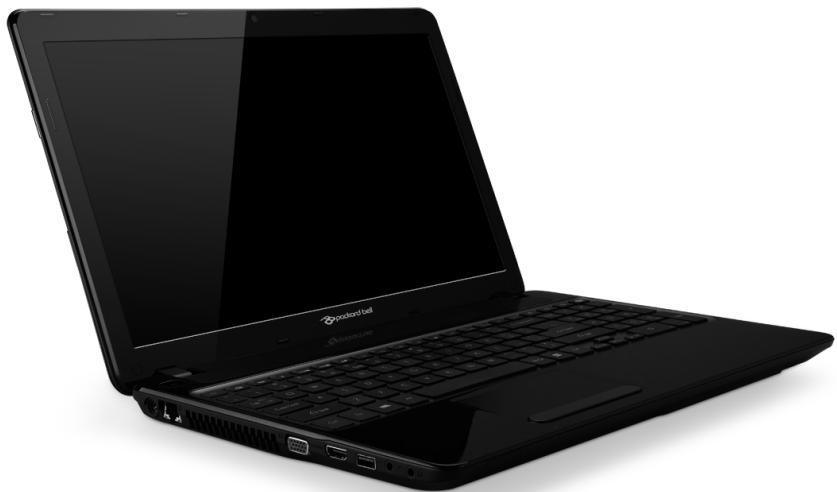
Packard Bell EasyNote TV
περιεχόμενα
EvapgN AetoupyiaCtou UTOLOYIOItn 4
AoupaTn ouvOeon 4
Eyypaqn 5
Eykaotaon loyioikou 6
AToKaTaTaaon 6
AvTlueTomegaicTe TpOa; 7
Etnaveykataaon Tpoypamatw
oynonc kai eapuoyw 77
Etnavopαe npoyouεvo
OTIyMIOTUTo OuaTnmuToC 81
ETIOTpOPhTou ouotnmuToC Oa otNv
EpyoTaiaKn Tou kataoTaon 82
PiwScEeYxW yia evnueepwoeis Windows; 102
Piouw va laaew πepioootepee
Pnpoopie; 102
Kavoviotikéπλnpoφopiεs 103
IIeipIaIauv 121
Aedia xpno5oivioikou 124
Eupεπίριο 127
Packard Bell Recovery Management
Tia va TPOeIOAoeTe Tov UTOLOyOITn Oa C YA EINTPoOoTeC EIIAOyEc
ATOKaTaOtaOng Tou OOTnMuAtos, 0a PPTEI VA DNOUpyNoTe EVA OET
DIAKw ATOKaTaOtaOng To TaxUtePo Duvatov. AvatpeTe OTN OELiDa 68
YIA TEPIOoTepeC PAnpOpopieC.
PpwaBnmuata OTOdelta
PooTaOia tou unIoayIotn oac
Eivai ZwiKns Omaia v TApexTe Tpoataia oTov utlooyiotn aac
aio ouc kai TpoaoBoe cmuow Internet (Bλ. Ppooopopa aopaaia Cnter
oTn oEla48 kai PpOtaia ot n eEla56).Otav theoetevu tlooyiatn
oac oe aeitoupyia yia TpWtn opopa, TpoTeivetai eva oloknnpwévo
TPOpaumaa aqalaeiaCrtttern. Oa TpeTie va EveyoToioeTe autny tvv
TPOaia 0oo to duvatov ouvtomotepa, oiyoupa piv ouvdetheta tO
Internet.
Eπiλoyn Iapóxou YIηpεoiw DiδiktuO

Ti ειναί to spyware;
To Spyware avaapeptai e yevikwac aventihmueta ppoypamata ta otoia 巴 OV TA oTO UTOLOYIOIOT OAC OoO EIOE OUVDBEVEO I TO DIAIKTUO, ouxva xomegaic va to yyomegaizete. Ta ppoypamata auta, apou muovouv To UTOLOAYIOIOT OAC, mTOpEVA TAPATnpouv TIG dpaoTnpiOTNEc OAC kata TIV TEPIynoN OAC OTO DIAIKTUO, VA OUAAEyouv TPOOWTIKEC PAnpopoipcs, va TPOKALOUV TNV EMAPAVION avabuoueuv Wapapthetauw n akopa kai va aALAZOUV TIC PUθmuieis Tou UTOLOYIOIT N OAC. To Spyware katavaawvei TIPOPUC Tou UTOLOYIOIOT OAC. MTopei va ENTBpaDuvEIN OUVDEON OTO DIAIKTUO h OLoknpo To OUsTma Tou UTOLOYIOIT N OAC, Akopa kai va Kavei Tov UTOLOYIOIOT OAC v "koAHOE".
Mepikcs opes, to Spyware xnpaiooieitai aio abiotaktes taipies yia va npapakoouov kai va evtoiizouv tic totoeaeic Toun EIOKETTEOTe 0To diaiktuwo tve va poooiopizouv tic ouvntheic oac otnv Tepinyon 0To diaiktuokai va eupaviocuv otnv oboyn oac avabuoueva napathetapa Toun aTeuohovtai eiko aEos. Oomega,peika eion spyware utepbaivouv tny anl npapakoouon kai kataypapov o,TI nnktpoloyeite, touc kwokouc oac, atoteawntac oobapo kivduvo ia tnva oqalia.
Packard Bell Recovery Management
?X
Welcome to Packard Bell Recovery Management
Packard Bell Recovery Management enables you to restore your system. To begin, select the task you want to perform. Please DO NOT remove the USB device while proceeding.

Customized Restore (Retain User Data)

Reinstall Drivers or Applications
Make a back-up before you restore (Recommended).

Create Factory Default Backup
Create Drivers and Applications Backup
Restores your computer to its factory default status. A system is required. NOTE: All data on drive C will be deleted.

packard bell
- PpaayataoToioTe iikpOoiop0woeic.
Av exouv stapatnoe i va aeitoupyouv oomega ta olaic eva n duo otoixia loyioikou n ulikou, to pobma mtopei evoxoevc vntiultei e ETTAVKATAOtaon tou loyioikou n twpoypaumaw odynanoc oukeuwv.
Tia eTavEYkataoTaon Tou loyioikou kai twv TPOpyaumaw oyynonnc Tou exouv TPOeykataoTahei Epyoostaiaka, avatpeTe OTnv Evotnta "ETAVEYkataoTaon TPOpyaumaw oyynonnc kai epapuyow" 6eLi8a 77.
Tia oyniecs oxetiká e Tny eTavykaTaoan loyioikou kai Tpoypaumaw oynonc Tou dEv nTav TpoeykateoTneva, aVATpEeTc OTNV TEKnpiowon Tou PoiovTOC n OTo bIKTuKO tTO UTOOtNpIgns.
Packard Bell Recovery Management
?X
Welcome to Packard Bell Recovery Management
Packard Bell Recovery Management enables you to restore your system. To begin, select the task you want to perform. Please DO NOT remove the USB device while proceeding.

Restores your computer to its factory default status. A reboot is required. NOTE: All data on drive Cwill be restored.

Customized Restore (Retain User Data)

Reinstall Drivers or Applications
Make a backup before you restore (Recommended).

Create Factory Default Backup
Create Drivers and Applications Backup

packard bell
KavTE KAIk OTO EAnaveyKataoTaon PpoypaMaTov obynoNc n eapouoyv.
EkkivnoTe to Packard Bell Recovery Management:
- ATo Evapx, TAnKtpoAoynote 'AtokataoTaon' kai tKaVte KIAK oTo Packard Bell Recovery Management otN liota evapmuoyv.
Here's what will happen:
- Your files and personalization settings won't change.
- Your PC settings will be changed back to their defaults.
- Apps from Windows Store will be kept.
- Apps you installed from discs or websites will be removed.
- A list of removed apps will be saved on your desktop.
Next
Cancel
The FCC with its action in ET Docket 96-8 has adopted a safety standard for human exposure to radio frequency (RF) electromagnetic energy emitted by FCC certified equipment. The wireless adapter meets the Human Exposure limits found in OET Bulletin
65, supplement C, 2001, and ANSI/IEEE C95.1, 1992. Proper operation of this radio according to the instructions found in this manual will result in exposure substantially below the FCC's recommended limits.
- The following safety precautions should be observed:
Do not touch or move antenna while the unit is transmitting or receiving.
- Do not hold any component containing the radio such that the antenna is very close or touching any exposed parts of the body, especially the face or eyes, while transmitting.
- Do not operate the radio or attempt to transmit data unless the antenna is connected; this behavior may cause damage to the radio.
Use in specific environments:
- The use of wireless adapters in hazardous locations is limited by the constraints posed by the safety directors of such environments.
- The use of wireless adapters on airplanes is governed by the Federal Aviation Administration (FAA).
- The use of wireless adapters in hospitals is restricted to the limits set forth by each hospital.
Antenna Use
In order to comply with FCC RF exposure limits, low gain integrated antennas should be located at a minimum distance of 20~cm (8 inches) or more from the body of all persons or at a minimum distance as specified by the FCC module grant conditions. FCC grants can be viewed from the FCC Equipment Authorization website at https://fjallfoss.fcc.gov/ oetcf/eas/reports/GenericSearch.cfm by entering the FCC ID printed on the module label.
Explosive Device Proximity Warning
Warning: Do not operate a portable transmitter (including this wireless adapter) near unshielded blasting caps or in an explosive environment unless the transmitter has been modified to be qualified for such use
AntennaWarnings
-
Warning: To comply with the FCC and ANSI C95.1 RF exposure limits, it is recommended that for the wireless adapter installed in a desktop or portable computer, the antenna for this wireless adapter to be installed so as to provide a separation distance of at least 20cm (8 inches) from all persons or at the minimum distance as specified by the module grant conditions. FCC grants can be viewed from the FCC Equipment Authorization website at https://fjallfoss.fcc.gov/oetcf/eas/reports/GenericSearch.cfm by entering the FCC ID printed on the module label.
-
Warning: The wireless adapter is not designed for use with high-gain directional antennas.
Use On Aircraft Caution
- Caution: Regulations of the FCC and FAA prohibit airborne operation of radio-frequency wireless devices (wireless adapters) because their signals could interfere with critical interference with critical aircraft instruments.
Local Restrictions on 802.11a, 802.11b, 802.11g and 802.11n Radio Usage
- Caution: Due to the fact that the frequencies used by 802.11a, 802.11b, 802.11g and 802.11n wireless LAN devices may not yet be harmonized in all countries, 802.11a, 802.11b, 802.11g and 802.11n products are designed for use only in specific countries, and are not allowed to be operated in countries other than those of designated use. As a user of these products, you are responsible for ensuring that the products are used only in the countries for which they were intended and for verifying that they are configured with the correct selection of frequency and channel for the country of use. Any deviation from the permissible power and frequency settings for the country of use is an infringement of national law and may be punished as such.
Wireless Interoperability
The wireless adapter is designed to be interoperable with other wireless LAN products that are based on direct sequence spread spectrum (DSSS) radio technology and to comply with the following standards:
- IEEE Std. 802.11b compliant Standard on Wireless LAN
- IEEE Std. 802.11g compliant Standard on Wireless LAN
- IEEE Std. 802.11a compliant Standard on Wireless LAN (applies to devices supporting 802.11a)
- IEEE Std. 802.11n draft 2.0 compliant on Wireless LAN
- Wireless Fidelity certification, as defined by the Wi-Fi Alliance
The Wireless Adapter and Your Health
The wireless adapter, like other radio devices, emits radio frequency electromagnetic energy. The level of energy emitted by the wireless adapter, however, is less than the electromagnetic energy emitted by other wireless devices such as mobile phones. The wireless adapter operates within the guidelines found in radio frequency safety standards and recommendations. These standards and recommendations reflect the consensus of the scientific community and result from deliberations of panels and committees of scientists who continually review and interpret the extensive research literature. In some situations or environments, the use of the wireless adapter may be restricted by the proprietor of the building or responsible representatives of the applicable organization. Examples of such situations may include:
- Using the wireless adapter on board airplanes, or
- Using the wireless adapter in any other environment where the risk of interference with other devices or services is perceived or identified as being harmful.
If you are uncertain of the policy that applies to the use of wireless adapters in a specific organization or environment (an airport, for example), you are encouraged to ask for authorization to use the adapter before you turn it on.
FCC Radio Frequency Interference Requirements (applies to device supporting 802.11a)
This device is restricted to indoor use due to its operation in the 5.15 to 5.25 GHz and 5.470 to 5.725 GHz frequency ranges. FCC requires this product to be used indoors for the frequency ranges 5.15 to 5.25 GHz and 5.470 to 5.725 GHz to reduce the potential
for harmful interference to co-channel mobile satellite systems. High power radars are allocated as primary users of the 5.25 to 5.35 GHz and 5.65 to 5.85 GHz bands. These radar stations can cause interference with and /or damage this device. No configuration controls are provided for this wireless adapter allowing any change in the frequency of operations outside the FCC grant of authorization for U.S operation according to Part 15.407 of the FCC rules.
USA — Federal Communications Commission (FCC)
This device complies with Part 15 of the FCC Rules. Operation of the device is subject to the following two conditions:
- This device may not cause harmful interference.
- This device must accept any interference that may cause undesired operation.
- Note: The radiated output power of the adapter is far below the FCC radio frequency exposure limits. Nevertheless, the adapter should be used in such a manner that the potential for human contact during normal operation is minimized. To avoid the possibility of exceeding the FCC radio frequency exposure limits, you should keep a distance of at least 20cm between you (or any other person in the vicinity), or the minimum separation distance as specified by the FCC grant conditions, and the antenna that is built into the computer. Details of the authorized configurations can be found at http://www.fcc.gov/oet/ea/ by entering the FCC ID number on the device.
Interference Statement
This wireless adapter has been tested and found to comply with the limits for a Class B digital device, pursuant to Part 15 of the FCC Rules. These limits are designed to provide reasonable protection against harmful interference in a residential installation. This wireless adapter generates, uses, and can radiate radio frequency energy. If the wireless adapter is not installed and used in accordance with the instructions, the wireless adapter may cause harmful interference to radio communications. There is no guarantee, however, that such interference will not occur in a particular installation. If this wireless
adapter does cause harmful interference to radio or television reception (which can be determined by turning the equipment off and on), the user is encouraged to try to correct the interference by taking one or more of the following measures:
- Reorient or relocate the receiving antenna of the equipment experiencing the interference.
- Increase the distance between the wireless adapter and the equipment experiencing the interference.
- Connect the computer with the wireless adapter to an outlet on a circuit different from that to which the equipment experiencing the interference is connected.
- Consult the dealer or an experienced radio/TV technician for help.
- Note: The adapter must be installed and used in strict accordance with the manufacturer's instructions as described in the user documentation that comes with the product. Any other installation or use will violate FCC Part 15 regulations.
Canada - Industry Canada (IC)
This device complies with RSS210 of Industry Canada. Cet apparéil se conforme à RSS210 de Canada d'Industrie.
This Class B digital apparatus complies with Canadian ICES-003.
"To prevent radio interference to the licensed service, this device is intended to be operated indoors and away from windows to provide maximum shielding. Equipment (or its transmit antenna) that is installed outdoors is subject to licensing."
KataaoyoEthetaikov Kwokw
O napwv EeonlaooC eTTpeTetai va Aeioupye oic akolouoec xwepc:
The use of these equipments is regulated by:
1.D.L.gs 1.8.2003, n. 259, article 104 (activity subject to general authorization) for outdoor use and article 105 (free use) for indoor use, in both cases for private use.
2.D.M. 28.5.03, for supply to public of LAN access to networks and telecom services.
Pakistan Telecommunication Authority (PTA) Approved
Morocco
The operation of this product in the radio channel 2 (2417 MHz) is not authorized in the following cities: Agadir, Assa-Zag, Cabo Negro, Chaouen, Goulmima, Oujda, Tan Tan, Taourirt, Taroudant and Taza.
The operation of this product in the radio channels 4, 5, 6 and 7 (2425 - 2442 MHz) is not authorized in the following cities: Aéroport Mohamed V, Agadir, Aguelmous, Anza, Benslimane, Béni Hafida, Cabo Negro, Casablanca, Fès, Lakhab, Marrakech, Merchich, Mohammédia, Rabat, Sale, Tanger, Tan Tan, Taounate, Tit Mellil, Zag.
Japan
5 GHz 带是室内用使用のと
Korea
Ti Eival to ENERGY STAR;
Ta TPOIOVTA ME TIOIOTTOINON ENERGY STAR KATAVALWVOU LYOTEPN EVEpyEA KA IATOTPETOUV TIG EKTIOMTIEC AEPIWV TOEPEKNIIOU, EDOMEVOU OTVATOKPVOTAI OTIC AUOTNECS OONYIEC EVEYEIAKNC ATOBOOANS TOU EOTNIOTNKAV ATO TO PAPSEIO PPOOATAIAC NEPiAALOVTOCS TWW H.P.A.H Packard Bell ExE DEAEUETEI VA TPOOAPPEI PAYKOAMIW S TPOIOVTA KAI UTNPEOIECS TPOBONOV TOUS TEATECS OTNV EGOIKOVUMON XPNMATW KAI EVEPEYIAS KAHOCS KAI OTN BELTIOW TNSGTIONTAS TOU TEPiBAALVTOCS MAO TEPIOAOTEPN EVEYEA MTOPOUVE VA EGOIKOVMOUPE MEOW TNS UNPATOEPNS EVEpyIAKNC ATOBOOANS, TOO TEPIOAOTEPO MEIWVOUUE TA AEPIA TOU EEOKNIIOU KAI TOUC KIVDUVOUS KLIATIKW V ALAYW. PEIOAOTEPECS TANPOOPIECS MTOTE IE VA BPeITE OTNV IOTOSAIDA www.energystar.gov n TNY ITOOESIAOA www.energystar.gov/powermanagement.
Recovery Management. 68 aipotepn TlEupa 22
aTropiyn mTataipiw 122 Apoueac 27
Eyyunon 7 Apaipoueves oukeues Tioupeowv ... 32
EKTUTTWTns 32
C
nxEia CD-ROM
Norton Internet Security. 56, 61
0
UToAoyoiTnC
EvOeIKtikn luxvia EvEpyoToinonC.... 18
duvatoTntec 15
YTTOOTnpi
IKTu a o toTioC Packard Bell. 56
Tekunpiomega
IKU KO TToToc Packard Bell. 56
Teixoc πpoσtaiof . 51, 58
ouxvcs epomega(FAQ). 92
OUVoEoiC
δiktuO 32
Recovery Management 68
Zoukeun avaywons kaptov mvnuns.... 30
outoixia pntatapiow
PioeioiOnn xunns optnns
μπαταρίας 43
éλeγxos σαθμns φόptiNs
μπαταρίας 42
XaunlEs OuvOhtkeS 43
XpnoYia Pwtn opa 38
βελτιστοποίηση 42
aipoeon 41
μTαταριων 37
. 38
toiooTeTnO.. 41
Φóptiση 41
φóptiən
ελεγχος σταθμης 42
E O
Packard Bell Recovery Management. 44
internet 45
Packard Bell Recovery Management
Packard Bell Recovery Management
?X
Welcome to Packard Bell Recovery Management
Packard Bell Recovery Management enables you to restore your system. To begin, select the task you want to perform. Please DO NOT remove the USB device while proceeding.

Restores your computer to its factory default status. A system is required. NOTE: All data on drive Cwill be deleted.

Customized Restore (Retain User Data)

Reinstall Drivers or Applications
Make a backup before you restore (Recommended).

Create Factory Default Backup
Create Drivers and Applications Backup

packard bell
Here's what will happen:
- Your files and personalization settings won't change.
- Your PC settings will be changed back to their defaults.
- Apps from Windows Store will be kept.
- Apps you installed from discs or websites will be removed.
A list of removed apps will be saved on your desktop.
Next
Cancel
3. Ileri'yi, ardindan Yenile'yi tiklatin.
Here's what will happen:
- Your files and personalization settings won't change.
- Your PC settings will be changed back to their defaults.
- Apps from Windows Store will be kept.
- Apps you installed from discs or websites will be removed.
A list of removed apps will be saved on your desktop.
Next
Cancel
The FCC with its action in ET Docket 96-8 has adopted a safety standard for human exposure to radio frequency (RF) electromagnetic energy emitted by FCC certified equipment. The wireless adapter meets the Human Exposure limits found in OET Bulletin 65, supplement C, 2001, and ANSI/IEEE C95.1, 1992. Proper operation of this radio according to the instructions found in this manual will result in exposure substantially below the FCC's recommended limits.
- The following safety precautions should be observed:
Do not touch or move antenna while the unit is transmitting or receiving.
- Do not hold any component containing the radio such that the antenna is very close or touching any exposed parts of the body, especially the face or eyes, while transmitting.
- Do not operate the radio or attempt to transmit data unless the antenna is connected; this behavior may cause damage to the radio.
Use in specific environments:
- The use of wireless adapters in hazardous locations is limited by the constraints posed by the safety directors of such environments.
- The use of wireless adapters on airplanes is governed by the Federal Aviation Administration (FAA).
- The use of wireless adapters in hospitals is restricted to the limits set forth by each hospital.
Antenna Use
In order to comply with FCC RF exposure limits, low gain integrated antennas should be located at a minimum distance of 20~cm (8 inches) or more from the body of all persons or at a minimum distance as specified by the FCC module grant conditions. FCC grants can be viewed from the FCC Equipment Authorization website at https://fjallfoss.fcc.gov/oetcf/eas/reports/GenericSearch.cfm by entering the FCC ID printed on the module label.
Explosive Device Proximity Warning
Warning: Do not operate a portable transmitter (including this wireless adapter) near unshielded blasting caps or in an explosive environment unless the transmitter has been modified to be qualified for such use
AntennaWarnings
- Warning: To comply with the FCC and ANSI C95.1 RF exposure limits, it is recommended that for the wireless adapter installed in a desktop or portable computer, the antenna for this wireless adapter to be installed so as to provide a
separation distance of at least 20 cm (8 inches) from all persons or at the minimum distance as specified by the module grant conditions. FCC grants can be viewed from the FCC Equipment Authorization website at https://fjallfoss.fcc.gov/oetcf/eas/reports/GenericSearch.cfm by entering the FCC ID printed on the module label.
- Warning: The wireless adapter is not designed for use with high-gain directional antennas.
Use On Aircraft Caution
- Caution: Regulations of the FCC and FAA prohibit airborne operation of radio-frequency wireless devices (wireless adapters) because their signals could interfere with critical interference with critical aircraft instruments.
Local Restrictions on 802.11a, 802.11b, 802.11g and 802.11n Radio Usage
- Caution: Due to the fact that the frequencies used by 802.11a, 802.11b, 802.11g and 802.11n wireless LAN devices may not yet be harmonized in all countries, 802.11a, 802.11b, 802.11g and 802.11n products are designed for use only in specific countries, and are not allowed to be operated in countries other than those of designated use. As a user of these products, you are responsible for ensuring that the products are used only in the countries for which they were intended and for verifying that they are configured with the correct selection of frequency and channel for the country of use. Any deviation from the permissible power and frequency settings for the country of use is an infringement of national law and may be punished as such.
Wireless Interoperability
The wireless adapter is designed to be interoperable with other wireless LAN products that are based on direct sequence spread spectrum (DSSS) radio technology and to comply with the following standards:
- IEEE Std. 802.11b compliant Standard on Wireless LAN
- IEEE Std. 802.11g compliant Standard on Wireless LAN
-
IEEE Std. 802.11a compliant Standard on Wireless LAN (applies to devices supporting 802.11a)
-
IEEE Std. 802.11n draft 2.0 compliant on Wireless LAN
- Wireless Fidelity certification, as defined by the Wi-Fi Alliance
The Wireless Adapter and Your Health
The wireless adapter, like other radio devices, emits radio frequency electromagnetic energy. The level of energy emitted by the wireless adapter, however, is less than the electromagnetic energy emitted by other wireless devices such as mobile phones. The wireless adapter operates within the guidelines found in radio frequency safety standards and recommendations. These standards and recommendations reflect the consensus of the scientific community and result from deliberations of panels and committees of scientists who continually review and interpret the extensive research literature. In some situations or environments, the use of the wireless adapter may be restricted by the proprietor of the building or responsible representatives of the applicable organization. Examples of such situations may include:
- Using the wireless adapter on board airplanes, or
- Using the wireless adapter in any other environment where the risk of interference with other devices or services is perceived or identified as being harmful.
If you are uncertain of the policy that applies to the use of wireless adapters in a specific organization or environment (an airport, for example), you are encouraged to ask for authorization to use the adapter before you turn it on.
FCC Radio Frequency Interference Requirements (applies to device supporting 802.11a)
This device is restricted to indoor use due to its operation in the 5.15 to 5.25 GHz and 5.470 to 5.725 GHz frequency ranges. FCC requires this product to be used indoors for the frequency ranges 5.15 to 5.25 GHz and 5.470 to 5.725 GHz to reduce the potential for harmful interference to co-channel mobile satellite systems. High power radars are allocated as primary users of the 5.25 to 5.35 GHz and 5.65 to 5.85 GHz bands. These radar stations can cause interference with and /or damage this device. No configuration
controls are provided for this wireless adapter allowing any change in the frequency of operations outside the FCC grant of authorization for U.S operation according to Part 15.407 of the FCC rules.
USA - Federal Communications Commission (FCC)
This device complies with Part 15 of the FCC Rules. Operation of the device is subject to the following two conditions:
- This device may not cause harmful interference.
- This device must accept any interference that may cause undesired operation.
- Note: The radiated output power of the adapter is far below the FCC radio frequency exposure limits. Nevertheless, the adapter should be used in such a manner that the potential for human contact during normal operation is minimized. To avoid the possibility of exceeding the FCC radio frequency exposure limits, you should keep a distance of at least 20cm between you (or any other person in the vicinity), or the minimum separation distance as specified by the FCC grant conditions, and the antenna that is built into the computer. Details of the authorized configurations can be found at http://www.fcc.gov/oet/ea/ by entering the FCC ID number on the device.
Interference Statement
This wireless adapter has been tested and found to comply with the limits for a Class B digital device, pursuant to Part 15 of the FCC Rules. These limits are designed to provide reasonable protection against harmful interference in a residential installation. This wireless adapter generates, uses, and can radiate radio frequency energy. If the wireless adapter is not installed and used in accordance with the instructions, the wireless adapter may cause harmful interference to radio communications. There is no guarantee, however, that such interference will not occur in a particular installation. If this wireless adapter does cause harmful interference to radio or television reception (which can be determined by turning the equipment off and on), the user is encouraged to try to correct the interference by taking one or more of the following measures:
-
Reorient or relocate the receiving antenna of the equipment experiencing the interference.
-
Increase the distance between the wireless adapter and the equipment experiencing the interference.
- Connect the computer with the wireless adapter to an outlet on a circuit different from that to which the equipment experiencing the interference is connected.
- Consult the dealer or an experienced radio/TV technician for help.
- Note: The adapter must be installed and used in strict accordance with the manufacturer's instructions as described in the user documentation that comes with the product. Any other installation or use will violate FCC Part 15 regulations.
Canada - Industry Canada (IC)
This device complies with RSS210 of Industry Canada. Cet apparéil se conforme à RSS210 de Canada d'Industrie.
-
Caution: When machine supports and using IEEE 802.11a wireless LAN, this product is restricted to indoor use due to its operation in the 5.15- to 5.25 GHz frequency range. Industry Canada requires this product to be used indoors for the frequency range of 5.15 GHz to 5.25 GHz to reduce the potential for harmful interference to co-channel mobile satellite systems. High power radar is allocated as the primary user of the 5.25 to 5.35 GHz and 5.65 to 5.85 GHz bands. These radar stations can cause interference with and/or damage to this device. The maximum allowed antenna gain for use with this device is 6dBi in order to comply with the E.I.R.P limit for the 5.25 to 5.35 and 5.725 to 5.85 GHz frequency range in point-to-point operation. To comply with RF exposure requirements all antennas should be located at a minimum distance of 20~cm , or the minimum separation distance allowed by the module approval, from the body of all persons.
-
Attention: l'utilisation d'un réseau sans fil IEEE802.11a est restreinte à une utilisation en interieur à cause du fonctionement dans la bande de fréquence 5,15 - 5,25 GHz. Industry Canada requiert que ce produit soit utilisé à l'intérieur desBATIMENTS pour la bande de fréquence 5,15 - 5,25 GHz afin de réduire les possibiltés d'interférences nuisibles aux canaux co-existants des systèmes de transmission satellites. Les radars de puissances ont fait l'objet d'une allocation primaire de
This Class B digital apparatus complies with Canadian ICES-003.
"To prevent radio interference to the licensed service, this device is intended to be operated indoors and away from windows to provide maximum shielding. Equipment (or its transmit antenna) that is installed outdoors is subject to licensing."
The use of these equipments is regulated by:
1.D.L.gs 1.8.2003, n. 259, article 104 (activity subject to general authorization) for outdoor use and article 105 (free use) for indoor use, in both cases for private use.
2.D.M. 28.5.03, for supply to public of LAN access to networks and telecom services.
Pakistan Telecommunication Authority (PTA) Approved
Morocco
The operation of this product in the radio channel 2 (2417 MHz) is not authorized in the following cities: Agadir, Assa-Zag, Cabo Negro, Chaouen, Goulmima, Oujda, Tan Tan, Taourirt, Taroudant and Taza.
The operation of this product in the radio channels 4, 5, 6 and 7 (2425 - 2442 MHz) is not authorized in the following cities: Aéroport Mohamed V, Agadir, Aguelmous, Anza, Benslimane, Béni Hafida, Cabo Negro, Casablanca, Fès, Lakhab, Marrakech, Merchich, Mohammédia, Rabat, Salé, Tanger, Tan Tan, Taunate, Tit Mellil, Zag.
Japan
5 GHz 带是室内の用使用的ご上
Korea
当用末端比是的,用完中,前加在能生
Taiwan
第十二条
Packard Bell Recovery Management. 44
Internet 45
Esimesed sammud vorgus 45
Arvuti kaitsmine 45
Valige internetteenuse pakkuja 45
Vorguhendused 47
Surfakervorgus! 50
Turvalisus 51
Taaste 61
Packard Bell Recovery Management
Packard Bell Recovery Management
?X
Welcome to Packard Bell Recovery Management
Packard Bell Recovery Management enables you to restore your system. To begin, select the task you want to perform. Please DO NOT remove the USB device while proceeding.

Customized Restore (Retain User Data)

Reinstall Drivers or Applications
Make a backup before you restore (Recommended).

Create Factory Default Backup
Create Drivers and Applications Backup

packard bell
Restores your computer to its factory default status. A system is required. NOTE: All data on drive C will be deleted.
Here's what will happen:
- Your files and personalization settings won't change.
- Your PC settings will be changed back to their defaults.
- Apps from Windows Store will be kept.
- Apps you installed from discs or websites will be removed.
- A list of removed apps will be saved on your desktop.
Next
Cancel
Here's what will happen:
- Your files and personalization settings won't change.
- Your PC settings will be changed back to their defaults.
- Apps from Windows Store will be kept.
- Apps you installed from discs or websites will be removed.
A list of removed apps will be saved on your desktop.
Next
Cancel
Pakistan Telecommunication Authority (PTA) Approved
Maroko
Selle toote kasutamine raadiokanalil 2 (2417 MHz) pole lubatud jargmistes linnades: Agadir, Assa-Zag, Cabo Negro, Chaouen, Goulmima, Oujda, Tan Tan, Taourirt, Taroudant ja Taza.
Selle toote kasutamine raadiokanalitel 4, 5, 6 ja 7 (2425-2442 MHz) pole lubatud jargmistes linnades: Aéroport Mohamed V, Agadir, Aguelmous, Anza, Benslimane, Béni Hafida, Cabo Negro, Casablanca, Fcs, Lakbab, Marrakech, Merchich, Mohammédia, Rabat, Sale, Tanger, Tan Tan, Taounate, Tit Mellil, Zag.
Jaapan
5 GHz 带は室内ごの使用のと
Korea
当用,
Taiwan
第十二条
Recovery Management. 61
Tarkvara Turvalisus
Tarkvaralitsents. 113
Packard Bell Recovery Management. 46
Internets 47
Pirmie soj timekl 47
Packard Bell Recovery Management
Lai sagatavotu savu datoru sistemas atkopšanas opcjjam, ir ieteicams tuvakajla laikiazveidot atkopšanas disku komplektu. Skatit 64 lpp, lai uzzinatu vairak.
Internets
Pirmie soli timekli
Packard Bell Recovery Management
?X
Welcome to Packard Bell Recovery Management
Packard Bell Recovery Management enables you to restore your system. To begin, select the task you want to perform. Please DO NOT remove the USB device while proceeding.

Customized Restore (Retain User Data)

Reinstall Drivers or Applications
Make a back-up before you restore (Recommended).

Create Factory Default Backup
Create Drivers and Applications Backup
Restores your computer to its factory default status. A system is required. NOTE: All data on drive Cwill be deleted.

packard bell
- Noklikskinet uz Izveidot rupnicas noklusejumu dubljumu. Tiek atverts logs Atkopsanas disks.
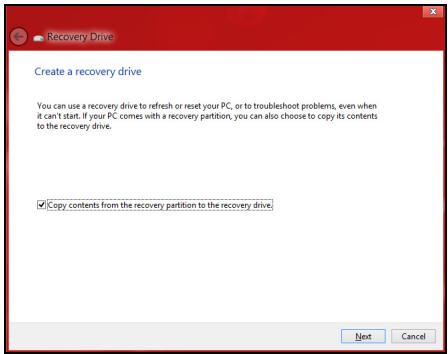
Packard Bell Recovery Management
?X
Welcome to Packard Bell Recovery Management
Packard Bell Recovery Management enables you to restore your system. To begin, select the task you want to perform. Please DO NOT remove the USB device while proceeding.

Customized Restore (Retain User Data)

Reinstall Drivers or Applications
Make a backup before you restore (Recommended).

Create Factory Default Backup
Create Drivers and Applications Backup

packard bell
Restores your computer to its factory default status. A reboot is required. NOTE: All data on drive Cwill be restored.
Here's what will happen:
- Your files and personalization settings won't change.
- Your PC settings will be changed back to their defaults.
- Apps from Windows Store will be kept.
- Apps you installed from discs or websites will be removed.
A list of removed apps will be saved on your desktop.
Next
Cancel
Here's what will happen:
- Your files and personalization settings won't change.
- Your PC settings will be changed back to their defaults.
- Apps from Windows Store will be kept.
- Apps you installed from discs or websites will be removed.
A list of removed apps will be saved on your desktop.
Next
Cancel
ASV - Federal Communications Commission (FCC)
Pakistan Telecommunication Authority (PTA) Approved
Maroka
Št izstradajuma darbība radiokanalā 2 (2417 MHz) nav atlauta šajās pilsetās: Agadir, Assa-Zag, Cabo Negro, Chaouen, Goulmima, Oujda, Tan Tan, Taourirt, Taroudant un Taza.
Št izstradajuma darbība radiokanālos 4, 5, 6 un 7 (2425-2442 MHz) nav atlauta šajās pilsetās: Aéroport Mohamed V, Agadir, Aguelmous, Anza, Benslimane, Béni Hafida, Cabo Negro, Casablanca, Fcs, Lakbab, Marrakech, Merchich, Mohammédia, Rabat, Sale, Tanger, Tan Tan, Taounate, Tit Mellil, Zag.
Japana
5GHz 带是室内の使用のと
Korea
当用,
Taivana
第十二条
"Windows" atnaujinimai
Packard Bell Recovery Management
?X
Welcome to Packard Bell Recovery Management
Packard Bell Recovery Management enables you to restore your system. To begin, select the task you want to perform. Please DO NOT remove the USB device while proceeding.

Customized Restore (Retain User Data)

Reinstall Drivers or Applications
Make a back-up before you restore (recommended).

Create Factory Default Backup
Create Drivers and Applications Backup
Restores your computer to its factory default status. A system is required. NOTE: All data on drive C will be deleted.

packard bell
- Spustelékite Sukurti pirminiu gamykliniu nustatymu atsarginé kopija. Atsidarys langas Atkurimo diskas.
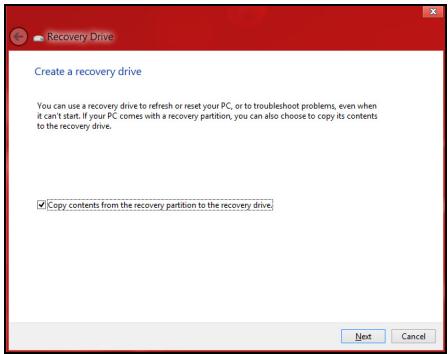
Paleiskite Packard Bell Recovery Management:
- Srityje Pradžia jveskite „Recovery" ir programu sąaste spustelékite Packard Bell Recovery Management.
Packard Bell Recovery Management
?X
Welcome to Packard Bell Recovery Management
Packard Bell Recovery Management enables you to restore your system. To begin, select the task you want to perform. Please DO NOT remove the USB device while proceeding.

Restores your computer to its factory default status. A reboot is required. NOTE: All data on drive Cwill be restored.

Customized Restore (Retain User Data)

Reinstall Drivers or Applications
Make a backup before you restore (Recommended).

Create Factory Default Backup
Create Drivers and Applications Backup

packard bell
- Atidaromas langasKompiuterio atnaujinimas.
Refresh your PC
Here's what will happen:
- Your files and personalization settings won't change.
- Your PC settings will be changed back to their defaults.
- Apps from Windows Store will be kept.
- Apps you installed from discs or websites will be removed.
A list of removed apps will be saved on your desktop.
Next
Cancel
Here's what will happen:
- Your files and personalization settings won't change.
- Your PC settings will be changed back to their defaults.
- Apps from Windows Store will be kept.
- Apps you installed from discs or websites will be removed.
- A list of removed apps will be saved on your desktop.
Next
Cancel
"Recovery Management" 63