KOM0701.1 - Tablet Quer - Free user manual and instructions
Find the device manual for free KOM0701.1 Quer in PDF.


User questions about KOM0701.1 Quer
0 question about this device. Answer the ones you know or ask your own.
Ask a new question about this device
Download the instructions for your Tablet in PDF format for free! Find your manual KOM0701.1 - Quer and take your electronic device back in hand. On this page are published all the documents necessary for the use of your device. KOM0701.1 by Quer.
USER MANUAL KOM0701.1 Quer
text_image
Settings WIRELESS & NETWORKS Wi-Fi ON Data usage More... DEVICE Sound Display Storage Battery Apps PERSONAL Location access Security GIEC_MID Secured with WPA/WPA2 (WPS available) CMCC CMCC-AUTO Secured with 602.1x GIEC-6M Secured with WPA2 TP-LINK_71 Secured with WPA2 (WPS available) 123 Secured with WPA/WPA2 (WPS available) MSI-SZ Secured with WEP GIEC-12M Secured with WPA/WPA2 GIEC-4MDE
text_image
Settings Apps PERSONAL Location access Security Language & input Backup & reset ACCOUNTS Add account SYSTEM Date & time Accessibility Developer options About tablet Automatic date & time Use network-provided time Automatic time zone Use network-provided time zone Set date 02/28/2014 Set time 07:39 Select time zone GMT+00:00, GMT Use 24-hour format 13:00 Choose date format 12/31/2014Product appearance 15
I. Getting started 16
1.1 Turn on/off 16
1.1.1 Turn on 16
1.1.2 Turn off 16
1.2 Lock/unlock the screen (sleep mode) 16
1.3 Connect to computer 16
II. Your Home Screen 17
2.1 Change wallpaper for home screen 17
III. Network Connection 18
3.1 Wi-Fi 18
3.1.1 Turn on Wi-Fi 18
3.1.2 Turn off Wi-Fi 18
IV. Settings 19
V. Battery 20
VI. Troubleshooting 20
VII. Specification 21
EN
Welcome
Thank you for purchasing this tablet.
It brings you much convenience for your business (supports Word, Excel, send & receive e-mails...) and entertainment (supports 3D game, chatting, movie playback.....).
Running on Android 4.4, with a 1.5GHz Quad-Core A33 (Cortex-A7) processor and highly responsive capacitive touch screen, it brings you wonderful user experience.
Before beginning, please refer to this user manual carefully.
Important Notices
- The new battery will be in its best condition after 2-3 times full charge and discharge.
- While using the earphone, if the volume is excessively high it may cause hearing damage. So please adjust the volume of the player to a moderate level and balance the time of using.
- Do not disconnect the tablet suddenly when formatting or uploading and downloading, which can lead to program errors.
- Do not dismantle the tablet by yourself, and do not use alcohol, thinner or benzene to clean its surface.
- Do not use the tablet while driving or walking.
- The tablet is not moisture and water resistant. Please do not use it in a damp environment.
- Do not drop or hit it to hard surface, or the screen may get damaged.
- Do not upgrade the firmware by yourself. This would cause damage to your tablet.
EN
Product appearance
text_image
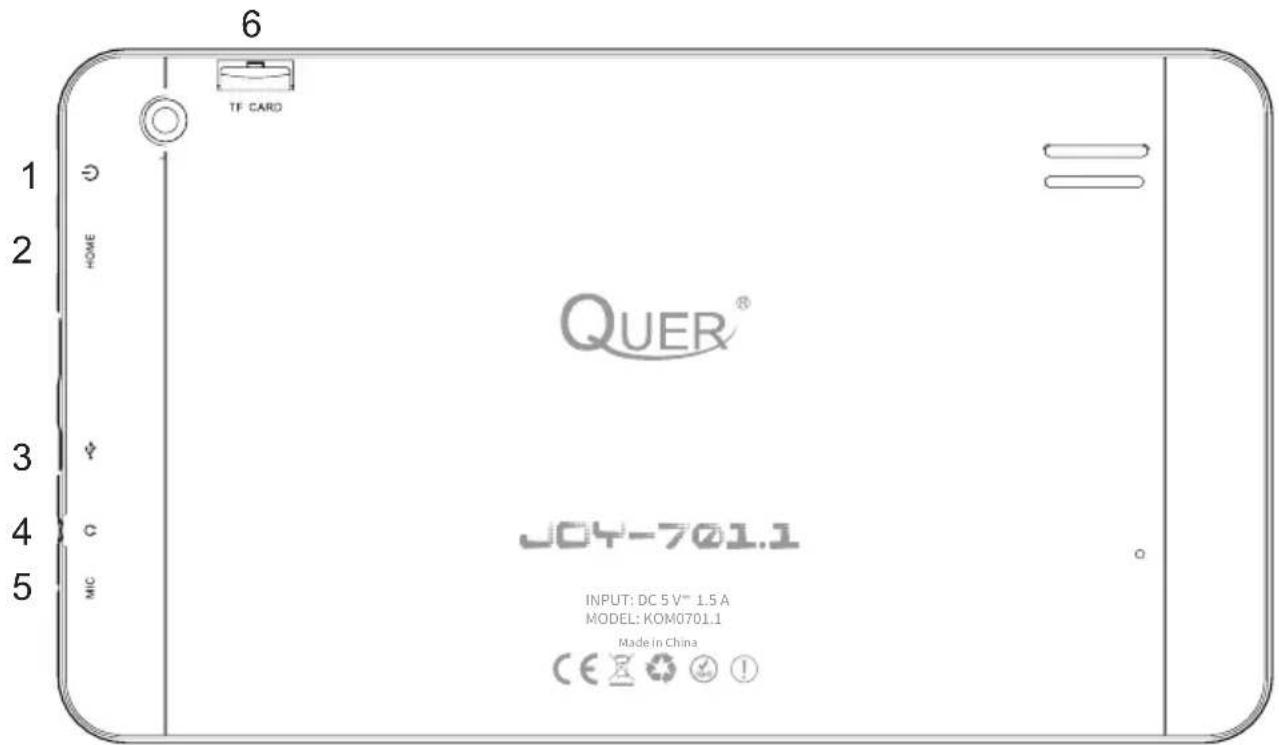
6 TF CARD 1 2 HOME QUER® JOY-701.1 INPUT: DC 5 V™ 1.5 A MODEL: KOM0701.1 Made in China CE X ✕️ ✓ !| 1. Power and lock key Hold and press to turn on or turn off this unit.Briefly press to turn on or turn off the screen. |
| 2. Home key Press this button to return to the main screen |
| 3. Micro-USB slot / Power Connect to a computer via a USB cable to transfer data (e.g., music, videos, photos, and other files).Connect to a 5V output adaptor as included in the accessories |
| 4. Earphone jack To connect your earphone |
| 5. Mic Microphone |
| 6. TFcard slot To insert your TF card |
EN
I. Getting Started
1.1 Turn on/off
1.1.1 Turn on
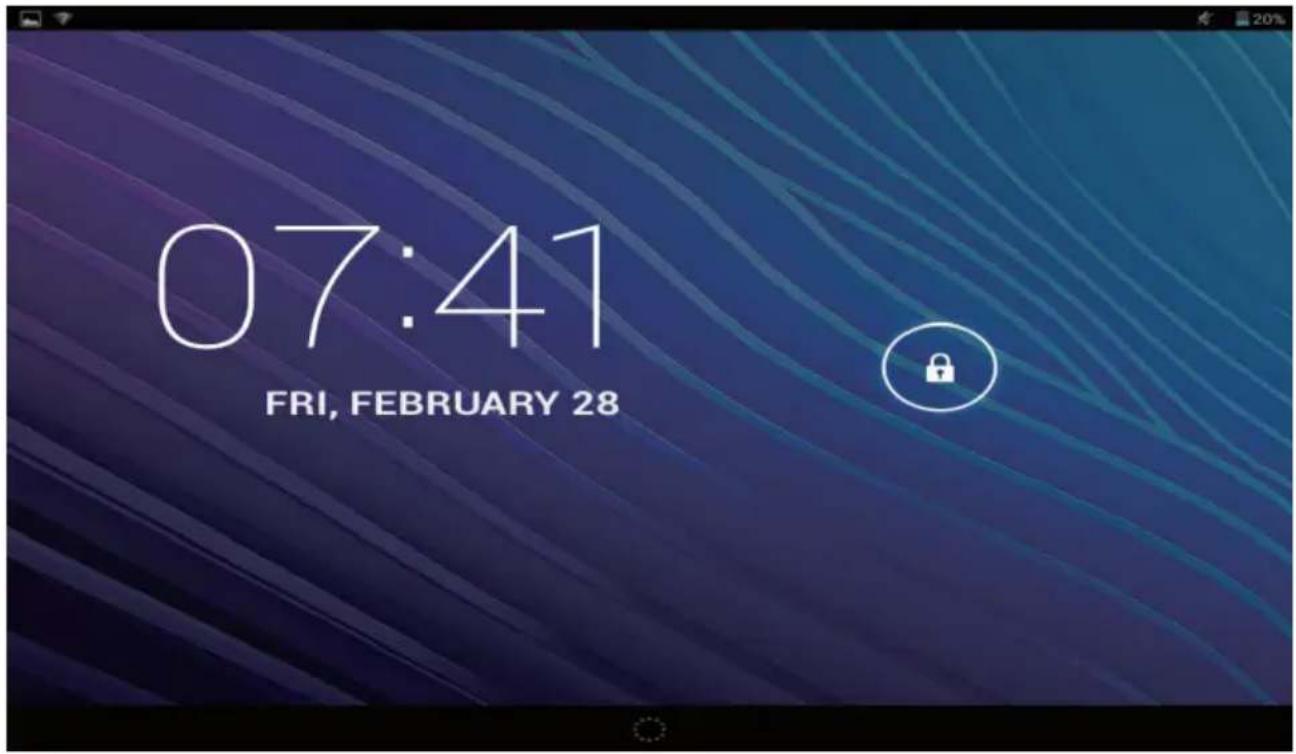
To start your tablet, press and hold the power key for a while. Tab and drag the lock out of the circle to unlock.
Tab and drag the lock out of the circle to unlock. Drag the lock to right: you will go to the home screen. Drag the lock to left: you will go to camera directly.
1.1.2 Turn off
After pressing the power key for a long time, the shutdown option will pop up.
1.2 Lock/unlock the screen (sleep mode)
To save battery, you should put your tablet in sleep mode by turning off the LCD display. To do this, shortly press the power key. Press it again to wake up the screen.
1.3 Connect to computer
You can connect your tablet to your computer with the supplied USB cable so you can transfer media files.
II. Your Home Screen
text_image
07:41 FRI, FEBRUARY 282.1 Change wallpaper for home screen
Tab and hold your finger in any blank space of the home screen, you will see a pop-up options; you can choose wallpaper from Gallery, live Wallpapers or Wallpapers.
EN
III. Network Connection
3.1 Wi-Fi
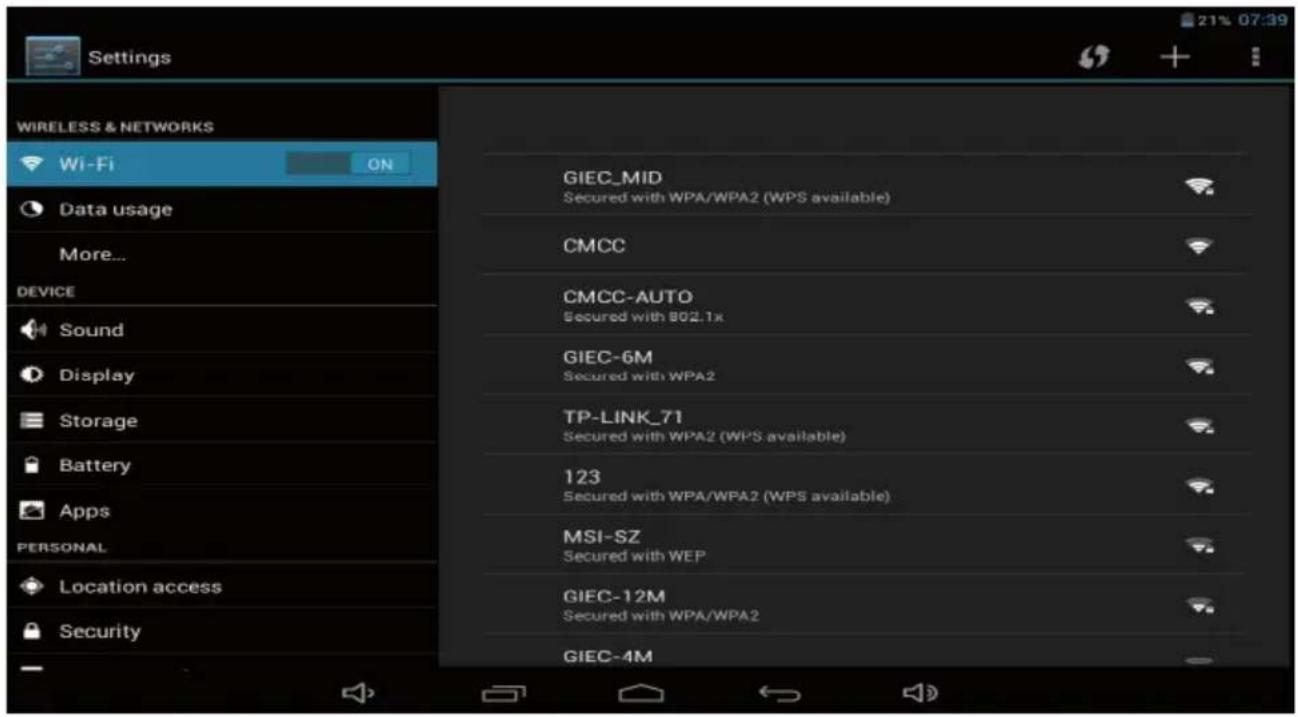
Wi-Fi can only be used when it connects with home Wi-Fi Access Point (AP) or a free unsecured Wi-Fi hotpot. Under "Wireless & networks", tap "Wi-Fi" to turn it on. After a moment, your Wi-Fi networks list should populate. If you need to rescan for available networks, tap "scan".
3.1.1 Turn on Wi-Fi
Within the App Panel, tap "Settings" → then "Wireless & networks" → "Wi-Fi" to turn on wifi.
text_image
Settings WIRELESS & NETWORKS Wi-Fi ON Data usage More... DEVICE Sound Display Storage Battery Apps PERSONAL Location access Security GIEC_MID Secured with WPA/WPA2 (WPS available) CMCC CMCC-AUTO Secured with 802.1x GIEC-6M Secured with WPA2 TP-LINK_71 Secured with WPA2 (WPS available) 123 Secured with WPA/WPA2 (WPS available) MSI-SZ Secured with WEP GIEC-12M Secured with WPA/WPA2 GIEC-4MEN
Your tablet lists the networks it finds within range. Tap a network to connect. If necessary, enter Network SSID, Security, and Wireless password, and tap "Connect".
When your tablet is connected to the network, the wireless indicator appears in the status bar. Waves indicate connection strength.
3.1.2 Turn off Wi-Fi
Please turn off Wi-Fi if you're not using it to save the battery. To turn off Wi-Fi, Tab it again.
IV. Settings
Tap the "Settings" icon to go to settings.
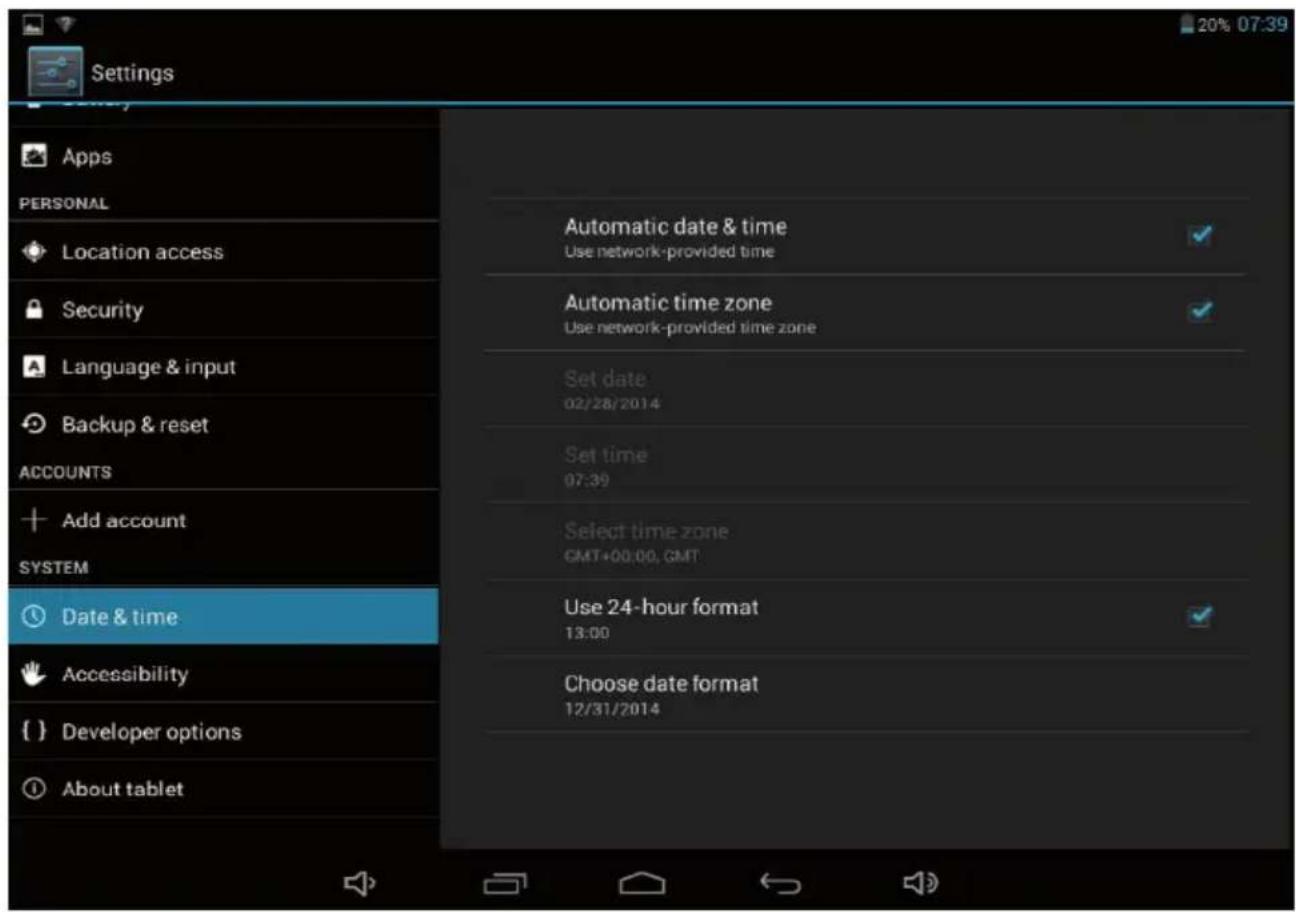
you can check and set wireless&networks, sound, display, storage, Battery, Accounts, security, language, date&time, about tablet, etc.
text_image
Settings Apps PERSONAL Location access Security Language & input Backup & reset ACCOUNTS Add account SYSTEM Date & time Accessibility Developer options About tablet Automatic date & time Use network-provided time Automatic time zone Use network-provided time zone Set date 02/28/2014 Set time 07:39 Select time zone GMT+00:00, GMT Use 24-hour format 13:00 Choose date format 12/31/2014Wi-Fi: tap "Settings" → "Wireless & networks" to turn on wifi and scan. It will show a list of Wi-Fi networks scanned in range. Choose a strong Wi-Fi network to connect. (You may need to input the password).
Storage: Check internal storage here. If you insert an Micro SD card, or USB disk, you can check the total and available space for your Micro SD card or USB disk. Please unmount it to safely remove it.
Battery: Check the Battery status here.
Display: Tab "Settings" → "Display" to set brightness, screen time-out, etc.
Language & input: to set language and keyboard input.
Backup & reset: to go to submenu „back up my data” and „Factory data reset”. If you choose factory data reset, all data from your tablet's internal storage will be erased.
Choose this option carefully.
About Tablet: To check information about your tablet, such as Model number, android version, etc.
V. Battery
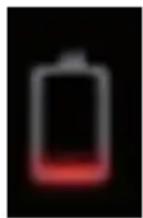
Very Low Battery

Full Battery
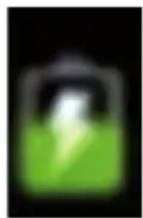
Charging Battery
Indicates that the power of Battery is full. When the battery level becomes too low, a prompt comes up to note you to charge your tablet.
VI. Troubleshooting
- Can not turn on the tablet
Check the tablet's power level, please charge it before starting it. In case your tablet still cannot be turned on, you may try to reset it
- No sound from earphone
Check if volume is set to '0'. Or earphone may be broken, please change for another one.
- Big noise
Check if there is dust in the earphone or speaker. Check if the file is broken.
- Frozen to any operation
Please use a pin to reset and then restart your tablet.
- Application not workable
Possible reasons may be that this app is not compatible with your OS or the downloaded .apk file is broken so you may need to download a full version.
- How delete a Google account?
If an account is added, the account is shown in "Accounts" of "Settings", where you may also add another account. To delete an undesired account, go to "Settings" →
"Personal" → „Backup&reset" → "Factory data reset". Your tablet's internal storage, downloaded apps, etc. will also be deleted, except the info in your flash memory. Be careful before you carry out this operation.
VII. Specification
| Display 7" (1024x600, 1) | 6:9), Capacitive touch panel, multitouch |
| Operation System Android 4.4 | |
| CPU 1.5 GHz - Quad-Core A33 (Cortex-A7) | |
| GPU Mali-400MP2 | |
| DDR RAM 512 MB DDR3 | |
| Interior storage 4 GB | |
| Camera Front 0.3 Mpx | |
| G-Sensor Yes | |
| Speaker Yes | |
| Microphone Yes | |
| WiFi IEEE 802.11 b/g/n | |
| Interfaces microUSB, microSD, 3.5 mm Earphone Jack | |
| Power Supply (AC Adapter) | 5.0 V, 1.5 A |
| Battery Capacity | 2500 mAh |
Specifications are subject to change without notice.
The Lechpol company declares that product KOM0701.1 is consistent with the essential requirements and other relevant provisions of directive 1999/5/EC. The proper declaration for download from www.lechpol.eu
EN
English
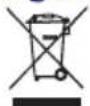
Correct Disposal of This Product (Waste Electrical & Electronic Equipment)
(Applicable in the European Union and other European countries with separate collection systems)
This marking shown on the product or Its literature, indicates that It should not be disposed with other household wastes at the end of its working life. To prevent possible harm to the environment or human health from uncontrolled waste disposal, please separate this from other types of wastes and recycle it responsibly to promote the sustainable reuse of material resources.
Household users should contact either the retailer where they purchased this product, or their local government office, for details of where and how they can take this item for environmentally safe recycling. Business users should contact their supplier and check the terms and conditions of the purchase contract. This product should not be mixed with other commercial wastes for disposal
Made in China for LECHPOL Zbigniew Leszek, Miętne, 1 Garwolińska Street, 08-400 Garwolin.


EN