
SPK5019 - Loudspeaker Manta - Free user manual and instructions
Find the device manual for free SPK5019 Manta in PDF.


| Product Type | Portable Bluetooth Speaker with Karaoke |
| Model | SPK5019 |
| Brand | Manta |
| Power Supply | AC 100-240V, 50/60Hz; DC 13.5V input |
| USB Charging Output | 5V, 1A for mobile devices |
| Input Modes | Bluetooth, USB, Line In, FM Radio, Microphone, Guitar |
| Bluetooth Version | Standard Bluetooth (compatible with Discolor DJ app) |
| Remote Control | Included with standby, volume, menu, mute, repeat, prev/next buttons |
| App Control | Discolor DJ app for music, light, USB, equalizer, radio control |
| LED Light Modes | 12 preset light flash modes, adjustable color and brightness |
| Equalizer Modes | Pop, Classical, Jazz, Rock, plus graphic equalizer |
| Karaoke Features | Microphone and guitar inputs with independent volume, echo, delay |
| Radio Frequency Range | 87.5-108.0 MHz (FM) |
| Playback Control | Play/Pause, Next/Previous, Repeat, Mute |
| Charging Indicator | Red LED (charging), Green LED (fully charged) |
| Safety Features | Automatic standby after prolonged inactivity; do not dismantle casing; keep away from liquids |
| Ventilation Requirements | Place at least 10 cm from walls; avoid covering; do not place on soft surfaces |
| Accessories Included | Remote control, user manual (may vary by region) |
Frequently Asked Questions - SPK5019 Manta
User questions about SPK5019 Manta
0 question about this device. Answer the ones you know or ask your own.
Ask a new question about this device
Download the instructions for your Loudspeaker in PDF format for free! Find your manual SPK5019 - Manta and take your electronic device back in hand. On this page are published all the documents necessary for the use of your device. SPK5019 by Manta.
USER MANUAL SPK5019 Manta
natural_image
Black cylindrical electronic device with ventilation grilles and control buttons (no visible text or symbols)Instrukcja obsługi
User's Manual
Bedienungsanleitung
Manual de usuario
Istruzioni d'uso
Návod k obsluze
(1)


(3)

natural_image
Symbol of a trash bin with crossed lines indicating no waste or discharge (no text or labels)IMPORTANT SAFETY MEASURES
Before using this machine, please read all the safety and operaon instrucons. Meanwhile, please observe all the instrucons about safe operaon. These safety and operaon instrucons should be kept for reference.
natural_image
Simple line drawing of three cartoon characters interacting with a wall (no text or symbols)(1)

natural_image
Cartoon illustration of a person running away from an open box with a closed book on top (no text or symbols)(3)

natural_image
Cartoon illustration of a box with a smiling face and a small animal, no text or symbols present(2)

natural_image
Illustration of a person pulling a device connected to a wall (no text or symbols)(4)
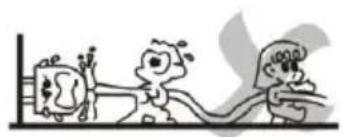
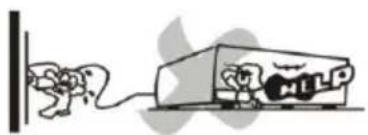
- Protecon of power supply wire: Make sure that the power supply wire is not tramped and pressed by heavy objects. Pay special attenon to the power plug, supply wire and the outlet on the machine .DO NOT pull or drag the power supply wire.
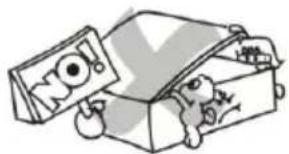
- Venlaon: This set must be put in venlated place. DO NOT put disk on it or cloth to cover it. The distance away from the wall should not be less than 10 cenmetres. DO NOT put this set on the bed, sofa, carpet or other objects with similar surface for the sake of good venlaon.
- Casing Dismantling: DO NOT dismantle the casing. If one touches the inner components, he or she will probably get serious electric shock.
- Unusual smell: When you discover unusual smell or smoke, cut the power supply immediately and pull out the plug from the outlet on the wall. Contact the vendor or the near repairing centre.
- Attenon: This set applies to AC100-240V/50-60Hz power supply.
- It is forbidden to put arcs full with liquid on the unit, and avoid liquid into the unit to lead to trouble, e.g. vase.
REMOTE CONTROL DESCRIPTIONS

- Standby
- Master volume +/-
- Menu selecng -/+ button
4.Mute buon - Previous/VOL-
6.Play/ Pause - Signal input buon
- Menu selecng button
9.Repeat button
10.Next/VOL+
Operaon range of the remote control

Noce:
There should be no big obstacle between the remote control and the main unit.
PANEL DESCRIPTIONS
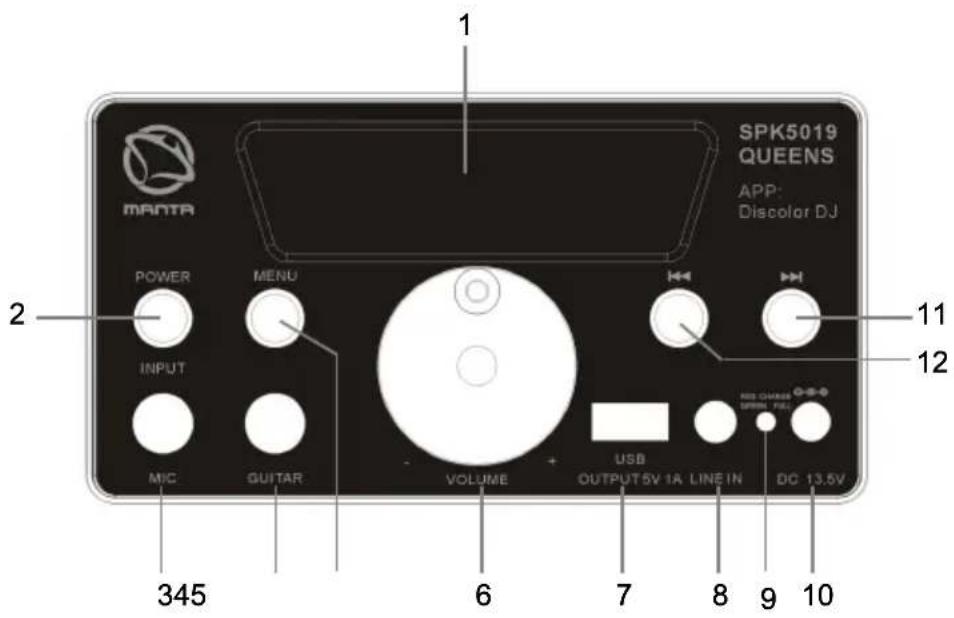
- LED display
- POWRE/INPUT: POWER/USB/LINE IN/BLUETOOTH/FM input switch button.
- MIC: Microphone signal input.
- GUITAR: Guitar input
- Menu selecng button
6.VOLUME-/+:Master volume adjustment. - USB: USB card input, please pay attenon to the direcon when.
Inserng the card, USB charge 5V 1A.
8.Line input
9.LED light
RED Charging indicator light.
GREEN Fully charged indicator light.
10.DC 13.5V electrocize interface - Next song
12.Previous song
BASIC OPERATION
- Switching the unit ON
Hold the STANDBY button on the panel/remote control down for a few seconds and the unit will turn on, illuminating the LED light. If the unit has been in STANDBY
mode for a long time, it will turn off automatically. To switch the unit on again, just press the STANDBY button on the panel/remote control.
2. Input mode selecon
You can select the input mode by pressing the input mode selecon button on the remote control or you can press the signal input selecon button on the front panel.
3. Mute
To mute the unit, press the mute button once on the remote control. To cancel the mute opon, press the mute button again.
- Volume adjustment on the remote control Press the VOL +/- button on the remote control to adjust the volume.
- Volume adjustment on the unit
Turn the dial anticlockwise to decrease the volume and clockwise to increase the volume.
- Menu selecon
Press the MENU button on the panel or remote control to choose TB,1U,2U,DL, EC,BO,BA (total 7 options) and then turn VOLUME +/- to select your option. (tb- Treble,1U- Mic volume, 2U - Guitar volume, dl -Delay, EC- Echo, bO - Light modes, BA- Bass).
- Repeat
During playing status, press the repeat button on the remote control once to repeat playing the current track. To cancel the repeat option press the repeat button again.
- PREV/NEXT
By pressing PREV/NEXT you can select a specific song from the play list.
- USB Charge
USB charge power out 5V 1A for mobile phones.
Radio Operaon
A. Long press MENU button on the front panel to enter into radio program automatic scan mode.
B. Hold the PLAY/PAUSE button on the remote control for a few seconds, the device will enter into automatic scan. Short press it for PLAY and PAUSE. When scanning the radio program, you can adjust the antenna direcon to get the best receiving effect.
Bluetooth:
Press the INPUT button on the panel/remote control to select Bluetooth mode. Simultaneously open the Bluetooth setting on your phone, tablet or any other Bluetooth enabled audio device and select "SPK5019". The unit and device will
then connect via Bluetooth. To control the device via your phone, tablet etc. please download the app "Discolor DJ".
Once the unit and device are connected via Bluetooth, open the "Discolor DJ" app on your phone, tablet etc. and press the Bluetooth button. This will enable you to control the following five modes on the device from your phone: Music, Light, USB/SD Card, Bluetooth and Equalizer. To cancel the app, press the exit buon.
To control the device via your phone, please nd and click the app "Discolor DJ". Open the APP "Discolor DJ" in your phone, there have 7 funcon block on main page:
- Bluetooth Music play
- Light control colours, brightness and light flash mode
- USB card play
- Control Bluetooth connect
- Equalizer, volume adjustment for music, Microphone and guitar.
6.Line In input - mute
7.FM Radio

(1) Control Bluetooth connect :
Press

enter into Control Bluetooth connect page, then click "Discolor
DJ BLE" to connect with the speaker.
(2) Bluetooth Music play

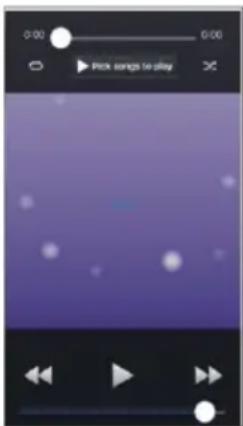
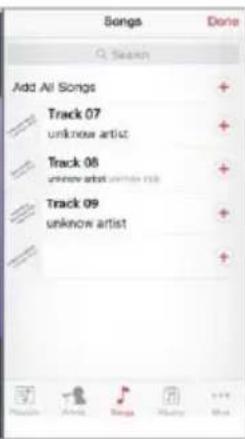
Press and enter into Bluetooth Music play page, Press "Pick songs to play" to Pick Song page to choose the song you want to play, press "Done" to back to Bluetooth Music play page, also you can operate pause, play, backward, forward, volume adjustment, repeat, random play. Press "Back" to main page.
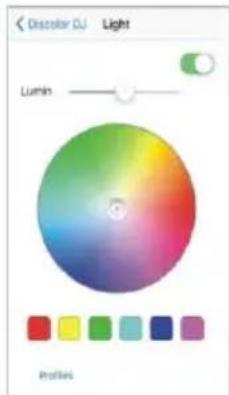
(3) Light control colours, brightness and colour change mode
Press

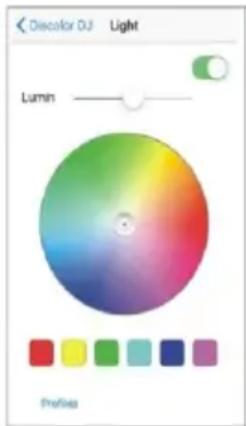
enter into Light control page, you can select any colour to show the light colour on the speaker, as well as adjust the brightness of the light. To go back to main page, press "Discolor DJ" on the left corner.
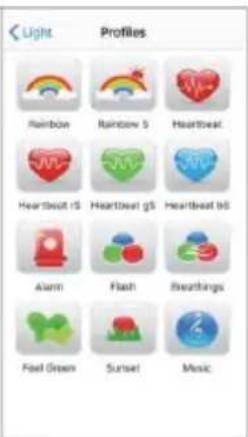
Press "Profiles" to enter into Light Flash mode page, you can choose total 12 well set-up light flash modes. To back to Light Control page, press "Light" on the left corner.

(1)

(2)


(3)
(4) USB card play
When inserng USB card on the speaker, press enter into USB Card play page, you can choose the song and play music in USB card, press "Play" to enter into play control page, you can operate pause, play, backward, forward, volume adjustment. Press "List" to back to USB list page, press "Back" to main page.

(5) Equalizer, volume adjustment for music, Microphone and guitar

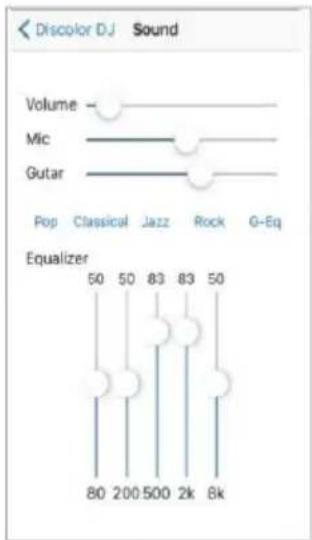
Press enter into Sound Set page to adjust volume for Music, Microphone and Guitar, it also have 4 well set-up EQ modes: Pop, Classical, Jazz and Rock for choose, you also can press G-Eq to graphic equalizer to set up your preference equalize specificaon.
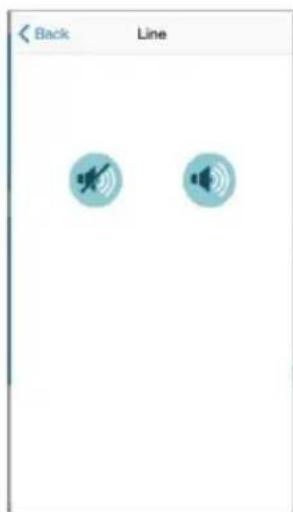
(6)Line In input - mute

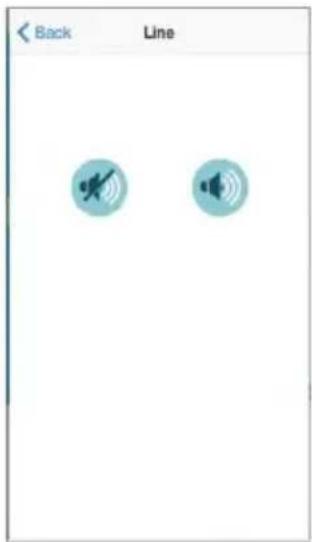
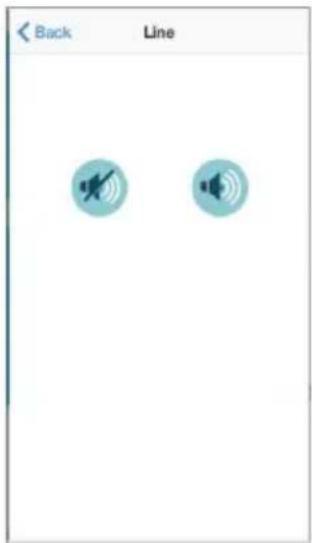
Press enter into Line IN input page, press to connue play. Press "Back" to main page.

to mute music, press


(4)

(5)

(6)
(7) FM Radio
Press enter into FM radio mode, press SCAN to enter into radio program automatic scan. Press for radio program manual scan, slide around to adjust radio frequency between 87.5MHz\~108.0MHz.

(7)

natural_image
Symbol of a trash bin with crossed lines indicating no waste or discharge (no text or labels)Correct Disposal of this product.
This marking indicates that this product should not be disposed with other household wastes throughout the EU. To prevent possible harm to the environment or human health from uncontrolled waste disposal, recycle it responsibly to promote the sustainable reuse of material resources. To return your used device, please use the return and collecon systems or contact the retailer where the product was purchased. They can take this product for environmental safe recycling.
Note!
Product design and Technical parameters may be change without noce. This mainly concerns parameters technical, soware and user manual present. User's Manual is a general orientation on service product. Manufacturer and distributor do not assume any responsibility as compensation for any inaccuracies errors in the descripons appearing in this user manual.
natural_image
Simple line drawing of three cartoon characters interacting with a wall (no text or symbols)(1)

natural_image
Cartoon illustration of a person running away from an open box with a closed book on top (no text or symbols)(3)
natural_image
Cartoon illustration of a box with a smiling face and a small animal, no text or symbols present(2)

natural_image
Illustration of a person pulling a device connected to a wall, with no visible text or symbols(4)
(1)
(2)


(3)
(4)

(5)

(6)
(7) FM-Radio
(1)

(2)


(3)
(4)

(5)
(6)
(7) Radio FM
(7)
natural_image
Illustration of three cartoon characters interacting with a horizontal bar, no text or symbols present
natural_image
Illustration of a paper airplane with a closed book and a small figure, no text or symbols present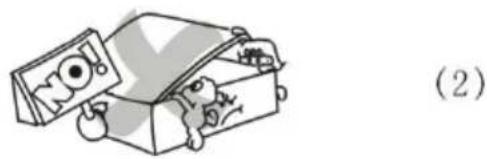
natural_image
Cartoon illustration of a box with a large 'NO!' sign and a small animal inside, labeled (2) (no text or symbols on the diagram itself)
natural_image
Illustration of a person pulling a device connected to a battery (no text or symbols)(1)

(2)


(3)
(4)

(5)
(6)
(7)Radio FM
(7)
NEJDÜLEŽITĚJŠÍ INFORMACE TÝKAJÍCÍ SE BEZPEČNOSTI
natural_image
Simple line drawing of three cartoon characters interacting with a wall (no text or symbols)(1)

natural_image
Cartoon illustration of a person running away from an open box with a closed book on top (no text or symbols)(3)

natural_image
Cartoon illustration of a box with a smiling face and a small animal, no text or symbols present(2)
natural_image
Illustration of a person pulling a device connected to a wall (no text or symbols)(4)
(1)

(2)


(3)
(4)
(5)

(6)
(7)FM rádio
(7)
(1)

(2)


(3)
(4)

(5)
(6)
(7)Радио FM
(7)
NOTES

natural_image
Abstract black-and-white circular logo design with interlocking curved shapes (no text or symbols)MANTA
INFOLINIA SERWISOWA
from Monday to Friday. 9.00-17.00
The manufacturer reserves the right to make changes to product specificaons without noce.
Home: www.manta.com.pl
Home support: www.manta.info.pl


Made in P.R.C.
FOR MANTA EUROPE
- IMPORTANT SAFETY MEASURES
- REMOTE CONTROL DESCRIPTIONS
- Operaon range of the remote control
- Noce:
- PANEL DESCRIPTIONS
- BASIC OPERATION
- Input mode selecon
- Mute
- Radio Operaon
- Bluetooth:
- FM Radio
- Correct Disposal of this product.
- Note!
- FM-Radio
- Radio FM
- NEJDÜLEŽITĚJŠÍ INFORMACE TÝKAJÍCÍ SE BEZPEČNOSTI
- NOTES
- MANTA
- INFOLINIA SERWISOWA
Brand : Manta
Model : SPK5019
Category : Loudspeaker