Titan P 2003 - Tablet Pentagram - Free user manual and instructions
Find the device manual for free Titan P 2003 Pentagram in PDF.


| Product Type | Graphics Tablet |
| Brand | Pentagram |
| Model | Titan P 2003 |
| Working Area | Not specified in manual (typically A5 or similar) |
| Dimensions (Tablet) | Not specified |
| Weight (Tablet) | Not specified |
| Power Supply (Tablet) | USB bus-powered |
| Power Supply (Pen) | 1 x AAA battery (1.5V) |
| Connectivity | USB (USB 1.1/2.0 compatible) |
| Operating Systems | Windows 2000/XP/Vista/7, Mac OS X 10.4.11+ |
| Included Accessories | Wireless pen, pen stand, 1x AAA battery, 2 installation CDs, user manual |
| Stylus Tip | Replaceable; 2 extra tips included |
| Pen Buttons | 2 programmable side buttons |
| Function Fields (Hot Cells) | Multiple programmable keys above working area |
| Pressure Sensitivity | Configurable via the Pressure tab in Control Panel |
| Tablet Inclination | Adjustable using two plastic stands (2 additional angles) |
| Signal LED | Indicates power/pen proximity/button press |
| Safety Precautions | Avoid dust, high humidity, extreme temperatures, wet hands, and chemicals |
| Maintenance | Clean with a soft, dry cloth; disconnect before cleaning |
| Disposal | Recycle as electronic waste per local regulations |
Frequently Asked Questions - Titan P 2003 Pentagram
User questions about Titan P 2003 Pentagram
0 question about this device. Answer the ones you know or ask your own.
Ask a new question about this device
Download the instructions for your Tablet in PDF format for free! Find your manual Titan P 2003 - Pentagram and take your electronic device back in hand. On this page are published all the documents necessary for the use of your device. Titan P 2003 by Pentagram.
USER MANUAL Titan P 2003 Pentagram
Installation and Operation Manual
EN
APLIKACJA KONFIGURACYJNA PEN TABLET....12
Zakładka Info....12
natural_image
Simple line drawing of a trash bin with two crossed lines indicating no text or symbols (no text or labels)
natural_image
Close-up of a white and gray electronic device with two arrows pointing to its ends (no text or symbols visible)natural_image
Close-up of a white cylindrical electronic device with metallic and orange internal components (no visible text or symbols)natural_image
Close-up of a white cylindrical object with metallic bands, possibly a medical or cosmetic tool (no visible text or symbols)Wymiana rysika
natural_image
Close-up of a white and gray electric shaver tool inserting into a small socket (no text or symbols visible)natural_image
Close-up of a hand holding a small electronic device with a white tip, next to a gray pen (no visible text or symbols)PENTAGRAM Titan (P 2003)
natural_image
Close-up of a hand holding a small white object with a blue pen tip, against a plain background (no text or symbols visible)natural_image
Close-up of a hand holding a pen tip, focusing on white powder (no text or symbols visible)PL
natural_image
White balance scale with a circular base, no text or symbols visible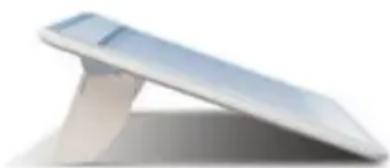
natural_image
White electronic device with a flat top and stand, no visible text or symbolsInstalacja tabletu
PL
- Zakładka Internet
PENTAGRAM Titan (P 2003)
Zaktadka Pressure (Nacisk)
Installation and Operation Manual
EN
EN
PENTAGRAM Titan (P 2003)
PENTAGRAM Titan (P 2003)
EN
Table of contents
IMPORTANT INFORMATION......4
SAFETY PRECAUTIONS......4
INFORMATION CONCERNING WASTE ELECTRONIC EQUIPMENT......4
INTRODUCTION....5
BOX CONTENTS....5
MINIMUM SYSTEM REQUIREMENTS......5
TABLET COMPONENTS....5
Function fields....6
BATTERY REPLACEMENT....6
STYLUS REPLACEMENT....7
TABLET INCLINATION ADJUSTMENT....8
TABLET INSTALLATION....9
WINDOWS....9
USING THE TABLET....10
TABLET CONFIGURATION....11
WINDOWS VISTA/7....11
WINDOWS 2000/XP....11
PEN TABLET CONTROL PANEL....12
Info tab....12
Button tab....12
Scope tab....13
Hot Cells tab....13
Pressure tab....16
Important information
Safety precautions
- Do not use or store the device in dusty places, where the humidity is high or in extreme temperatures.
- Do not operate the device with wet hands to avoid the risk of device damage or electric shock.
- Do not clean the device with chemicals, such as benzine or detergents – always clean the device with a soft, dry cloth.
- Disconnect the device from the computer prior to cleaning.
- Do not modify or fix the device yourself in any way, it might void the guarantee.
- Do not drop or shake the device.
- Do not put heavy items on the tablet surface and the pen.
- Make sure there is sufficient distance between the tablet and a CRT monitor and other strong electromagnetic field sources, which might interfere with the tablet operation.
Information concerning waste electronic equipment
EN
The markings on the device and in the attached documentation indicate that it cannot be disposed of along with unsegregated general black bag waste when withdrawn from use. The device must be recycled or processed in another way to recover reusable materials and neutralize hazardous components.
The users should contact recycling/recovery authorities to determine how the device is to be disposed of in an environment-friendly manner.

natural_image
Simple line drawing of a trash bin with two crossed lines indicating no waste or prohibition (no text or symbols)
NOTE: All information and technical data is subject to change without previous notice and/or indication in this manual.
Copyright ©2010 PENTAGRAM
All rights reserved; copying and reproduction is strictly forbidden.
Introduction
Thank you for purchasing the PENTAGRAM Titan tablet. Using the tablet, you can perform much better than earlier with a mouse. The tablet has been designed for graphics professionals, however, Pentagram tablets, thanks to affordable price and great capabilities, are also suitable for home applications.
Box contents
- PENTAGRAM Titan P 2003 tablet
- Wireless pen
- Pen stand
- LR-03 (AAA) battery - 1 piece
- 2 CDs with drivers and software
- Installation and operation manual
Minimum system requirements
• PC - Windows 2000 / XP / Vista / 7 operating system
• Mac - MacOS X 10.4.11 or higher operating system
- Free USB port
• Optical drive(s) for playing CDs and DVDs in order to install drivers and software
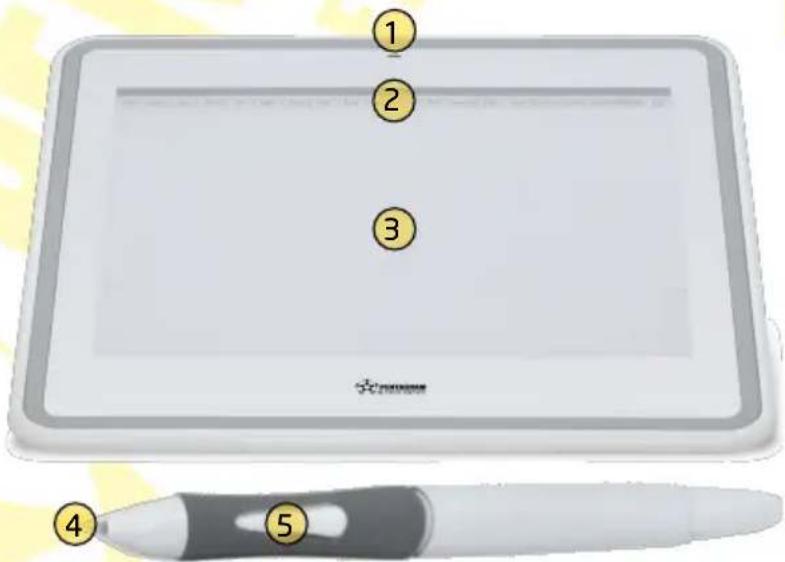
Tablet components
- Signal LED
- Function fields
- Working area
- Pen stylus (tip)
- Pen side buttons
EN
The signal LED status depends on the tablet and pen status:
- off, when the tablet is not connected to the computer or the pen is out of the tablet position reading reach;
- lights momentarily, after the tablet is connected to the computer;
- flashes slowly, when the pen is within the tablet position reading reach;
- lights, when a pen button is pressed.
PENTAGRAM Titan (P 2003)
Function fields
The function fields are located directly above the tablet working area and marked depending on their default function. When you install the tablet drivers, you can use the tablet control panel to assign various functions, e.g. keyboard shortcuts, to those fields. You operate the function fields with the pen. Tapping a field with the pen will run the assigned action.
Battery replacement
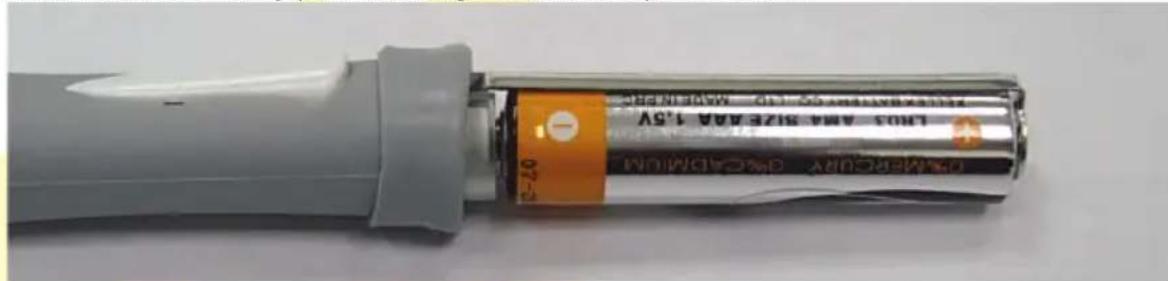
After the tablet is used for a certain period, it can lose accuracy or stop responding to the pen movement. It most probably means the battery is low. The pen is powered with an AAA 1.5 V battery.
Perform the following steps to replace the battery:
- Hold the pen ends and gently pull the two parts apart.

natural_image
Close-up of a white pen with black tip and gray handle, showing two directional arrows indicating movement or change (no text or symbols visible)- Take out the old battery and replace it with a new AAA 1.5 V battery.
EN

natural_image
Close-up of a white cylindrical electronic device with metallic and orange internal components (no visible text or symbols)- Make sure the battery poles are aligned as in the photo below.
PENTAGRAM Titan (P 2003)
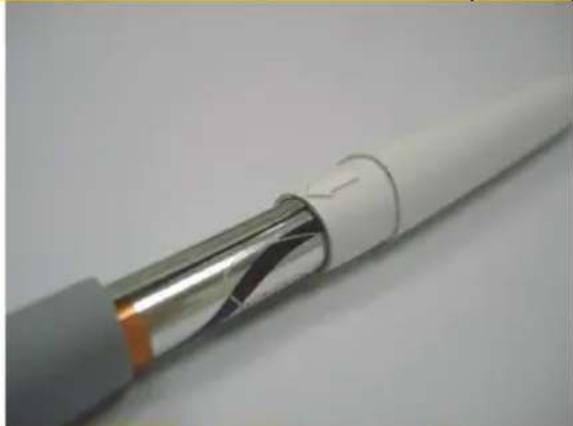
- Put the cap back applying moderate force. Make sure the arrow on the cap is aligned with the battery support bar and with the pen side buttons.
natural_image
Close-up of a white cylindrical electronic device with metallic leads, showing internal structure and metallic contacts (no text or symbols visible)Stylus replacement
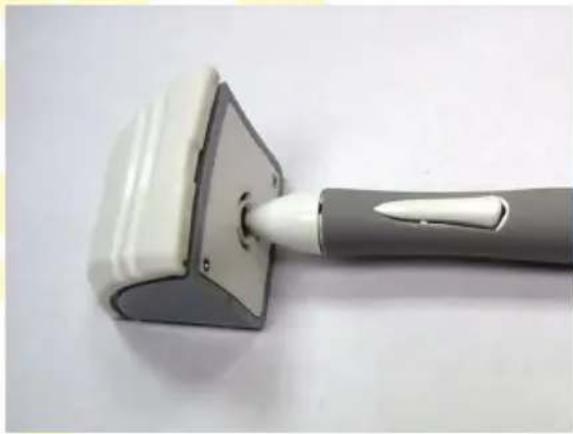
When the pen is used for a longer period, its tip (stylus) will shorten because of rubbing off against the tablet surface. The blunt tip does not precisely reflect the position and pressure level, so you should replace it. The tablet is supplied with two additional tips. To replace the stylus, perform the following steps:
- Turn the pen stand to the side. Insert the tip in the opening in the stand bottom.
natural_image
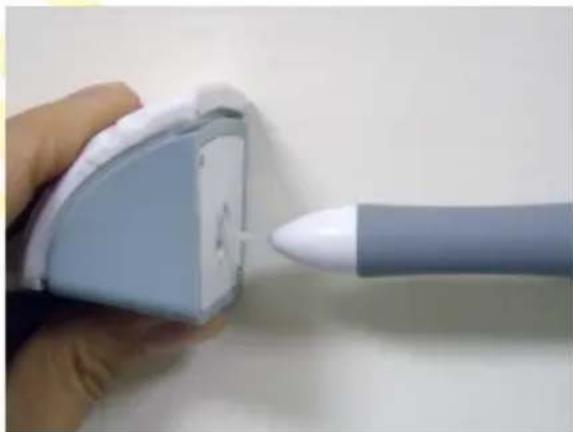
Close-up of a handheld tool with a white tip inserted into a square base, placed on a plain surface (no text or symbols visible)- Gently pull the pen away from the stand. The tip should stay in the holder.
natural_image
Close-up of a hand holding a small electronic device with a pen tip, next to a gray cylindrical device (no visible text or symbols)EN
PENTAGRAM Titan (P 2003)
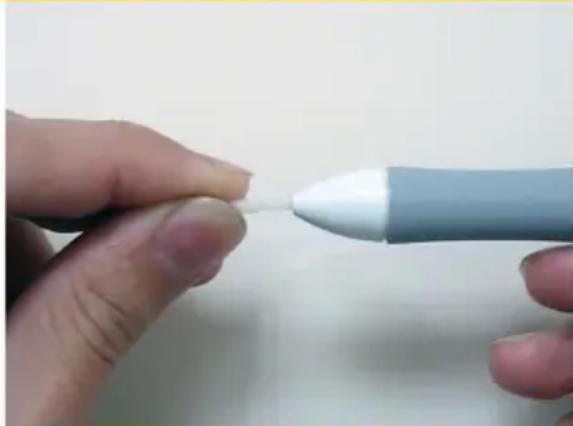
- After taking out the old tip, insert the new one in its place.
natural_image
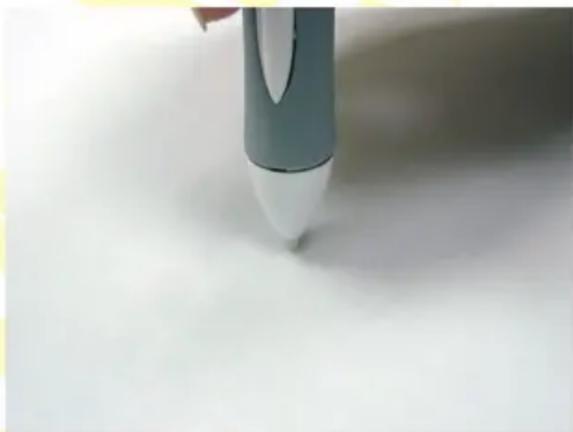
Close-up of a hand holding a pen tip, no visible text or symbols- Carefully press the new tip in, holding the pen vertically. If after the replacement the pen does not operate correctly, remove and reinsert the tip.
natural_image
Close-up of a hand holding a pen tip, poised to write on paper (no text or symbols visible)EN
Tablet inclination adjustment
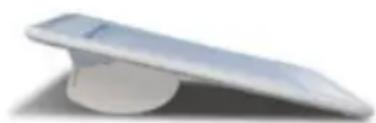
At the tablet bottom, there are two plastic stands. With them you can change the angle at which the tablet surface is inclined against the base. Depending on the way the stands are fixed in the guides, two additional inclination angles are available. Below find a graphic representation of individual angles, depending on the stands' installation.

3^13^22^
natural_image
White electronic device with a circular base and flat top, no visible text or symbols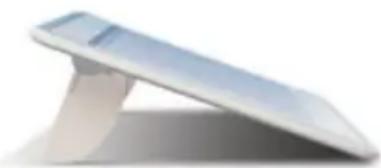
natural_image
Exterior view of a modern office building (no signage)Tablet installation
The tablet drivers are designed for Windows 2000, XP, Vista and 7, as well as for Mac OS X 10.4.11 operating systems. It is recommended to install the drivers prior to connecting the tablet to the computer. To install the tablet properly, perform the following steps.
Windows
- Insert the supplied DVD/CD into the optical drive in the computer.
- The DVD/CD start menu will display (in Windows Vista and 7 systems, you may have to additionally click the Run: setup.exe button in the Autoplay window).
- If the menu window does not start automatically, select menu Start > Run (in Windows Vista and 7 systems: Start > All programs > Accessories > Run). In the Open field of the Run window, enter X:\setup (where X is the optical drive letter) and press Enter.
- In the menu window click Driver Setup to launch the driver installer.
- Follow the on-screen instructions to install the drivers. When the installer displays the appropriate message, connect the USB cable to the free USB port in the computer.
- After the installation, if the dialog window displays asking you to reboot the computer, close all open applications and click OK.
- When the computer reboots, check if all the tablet functions operate properly. Moving the pen above the tablet surface should cause the cursor movement on the screen.
EN
Using the tablet
Working with the tablet is very intuitive and comfortable once you get used to it. The key to success when working with the tablet is holding the pen a little bit more vertically than when writing with a ball pen. You should also keep looking at the cursor on the screen instead of looking at the pen.
Moving the pen to appropriate distance from the tablet surface will make it track the pen movement and move the cursor accordingly. Touching the tablet surface with the pen is recognized as a mouse left click. Mouse right click is performed by pressing the top side button on the pen. To double-click (double left mouse button click), tap the same point of the tablet surface with the pen twice very quickly (make sure not to move the pen sideways). Press the bottom side pen button to perform the middle mouse button click. You can assign different functions to the pen side buttons using the tablet driver.
When you connect the tablet to a computer with Windows Vista and 7, the system tablet support will be activated. If you did not install the drivers prior to connecting the tablet to the computer, or in some cases after installing the drivers with the tablet already connected, some additional system support functions may become active. In such a case, to perform a right click, you can tap and hold the pen on the tablet surface for a while and wait for the visual effect. Activation of some system support functions might cause pen side buttons to work incorrectly. You can find the description of the system tablet support and its individual functions in its documentation (also electronic) included.
EN
If you are not going to use the pen for a longer time, place it in the included stand or lay flat in a place, in which neither the tip nor the pen side buttons are pressed. The tablet might not react to the pen proximity if it has not been used for a longer time. If that happens, just tap the tablet surface with the pen.
Tablet configuration
Windows Vista/7
Tablet support is included with Windows Vista and 7 systems. If the drivers have not been installed, basic pen option (switching on/off and pen button functions) can be operated in the Pen and Input Devices (Vista) or Pen and Touch (7), visible in the classic view (large/small icons) of the system control panel. After installing the drivers, use the Pen Tablet driver Control Panel. The configuration is described in details in the Pen Tablet Control Panel section. To make the tablet driver icon visible in the system control panel, you may have to switch to the control panel classic view (small/large icons). When you launch the Pen Tablet Configuration Panel, you may have to click the Allow button (Windows Vista) or Yes (Windows 7) in the User account control window, and enter the name and password of the user with administrative privileges, if the current user does not have them.
Windows 2000/XP
You can access the tablet driver configuration with the Tablet Settings icon of the system control panel or by clicking the Pen Tablet Control Panel icon in the system tray (next to the clock). The configuration is described in details below in the Pen Tablet Control Panel section.
EN
Pen Tablet Control Panel
Some functions of the Pen Tablet Control Panel are only available in certain operating systems - in other systems those functions are greyed out or hidden.
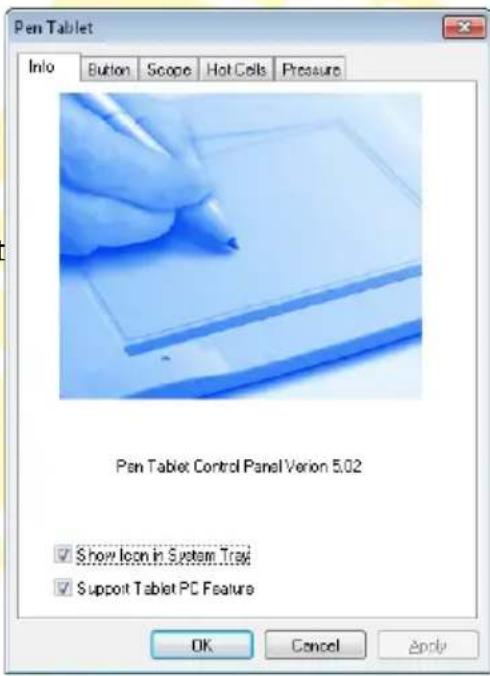
Info tab
This tab contains information on the driver and control panel version. You can also integrate the tablet driver with the operating system here.
Pen Tablet Control Panel Version - driver and tablet control panel version.
Show Icon in System Tray - display/hide the tablet control panel icon in the system tray.
Support Tablet PC Feature - enable/disable system tablet support.
EN
Button tab
You can configure the tablet pen settings here.
Button Command - you can assign mouse button functions to the stylus and pen side buttons here. The button selected on the Button Name list is highlighted with blue in the preview. Select from the following functions:
- No Action
- Left Click
- Left Double Click
- Right Click
- Right Double Click
- Middle Click
- Middle Double Click
Double Click Time - change the time between two taps of the pen tip against the tablet surface which registered as a double click.
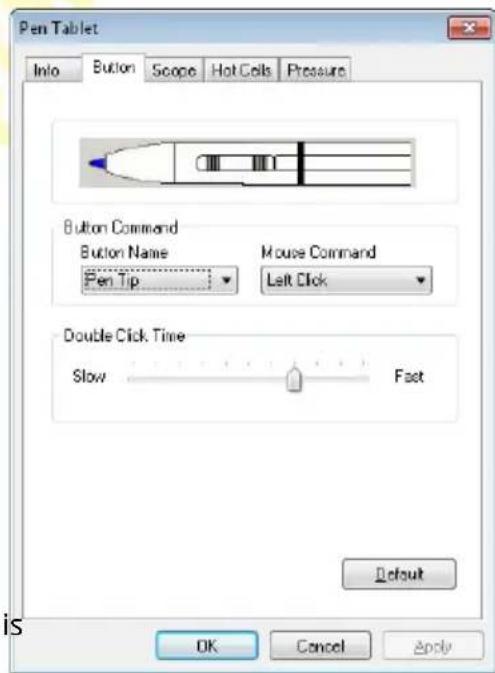
Default - reset the values to their default settings.
Scope tab
You can configure the tablet working area settings here.
Pen Area - this field represents the tablet working area. The hatched part represents the active working area part. Click inside the hatched area and draw to move it. Draw one of the points on the edge of the hatched area to change it.
Full Area - sets the whole tablet working area as active. Screen Ratio - reduces the current active working area so that it corresponds to the image size ratio.
Reserve Edges - sets the whole tablet working area as active, with the exception for margins set in the field below.
Pen Area Dimensions - enables setting the Width and Height of the active working area.
Pen Area Offset - distance of the active working area from the top (Offset (X)) and left (Offset (Y)) working area edge.
![Pen Tablet Info Button Scope Hot Cells Pressure Pen Area Full Area Screen Ratio Reserve Edges 0.16 Inch Pen Area Dimensions: Width [X] 11.62 Inch Height [Y] 8.35 Inch Pen Area Offset: Offset [X] 0.16 Inch Offset [Y] 0.16 Inch OK Cancel Apply](/content/2026/05/777514/images/886c20f7426e3e07b051847ab937fba1e3b1589a58fe6128aca1d3da1965cc1c.jpg)
Hot Cells tab
On this tab, you can assign various functions to the tablet hot cells (function fields). By default, the common key shortcuts are configured.
Hot Pad Layout - preview of the function fields. The currently selected field is highlighted with light blue. To select the field for edition, click it in the preview.
Hot Edges - unmark the Upper option to disable the function fields.
List of buttons - click the arrow button on the right side of the list field to select a function field to change. On this list, the names given to these fields are displayed. To change the name of a selected field, enter it in the list field.
Action field - displays the action which will be performed after tapping this field with the pen stylus. Define - opens the window in which you can configure the action performed after tapping the field with the
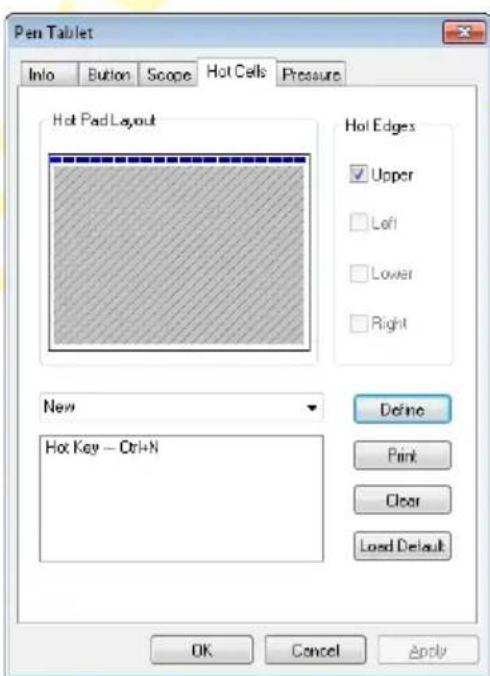
pen stylus. Detailed configuration information can be found below, in the Field configuration section.
Print - prints the current configuration of fields. You can put the printout under the tablet protective film.
Clear - deletes the currently configured action for the selected field.
Load Default - returns the default settings of all the function fields.
PENTAGRAM Titan (P 2003)
Field configuration
Depending on your needs, you can assign one of many actions to each tablet function field. To facilitate the assignment of appropriate actions, they have been grouped in the field configuration window, depending on the application, into five tabs:
Run - runs or opens a file.
Internet - options for the Internet browser and e-mail client.
Hot Key - assignment of a keyboard shortcut to the field.
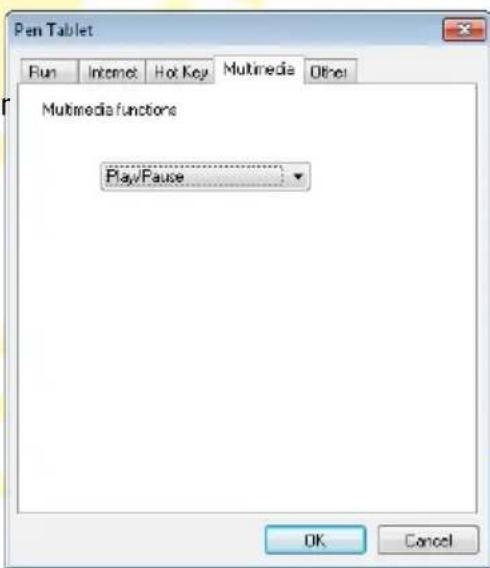
Multimedia - assignment of the multimedia key function to the field.
Other - additional functions.
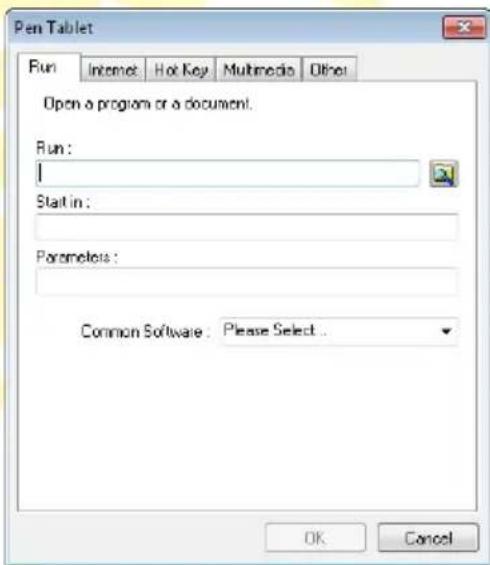
- Run tab
Run - field to enter the path and file name to be run or opened when the function field is used.
Start In - some applications need a directory in which they will start operation (it is usually the directory containing the application). In this field, enter the path to this directory.
Parameters - if the application needs additional parameters to be launched with, enter them in this field.
Common Software - this list contains commonly used applications. After selecting an application from the list, the fields will be filled in automatically.
EN
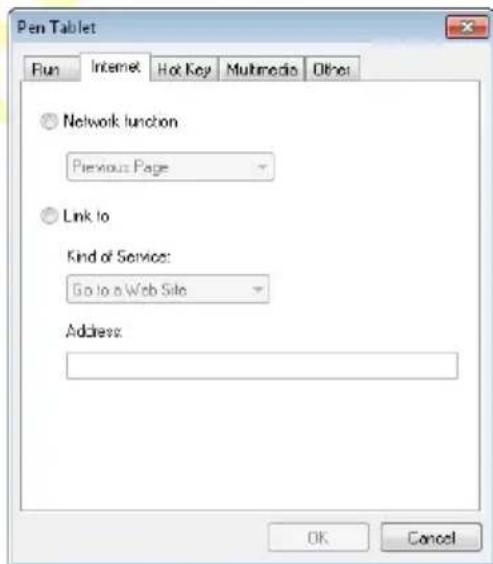
- Internet tab
Network function - assign a standard Web browser function to a field:
Previous Page
Next Page
Refresh
Stop
My Favorite
IE - launches the Internet Explorer Web browser.
E-Mail – launches the default system e-mail client.
Link to - launches the service selected from the Kind of Service list: Go to a Web Site or Send an e-Mail using the address entered in the Address field.
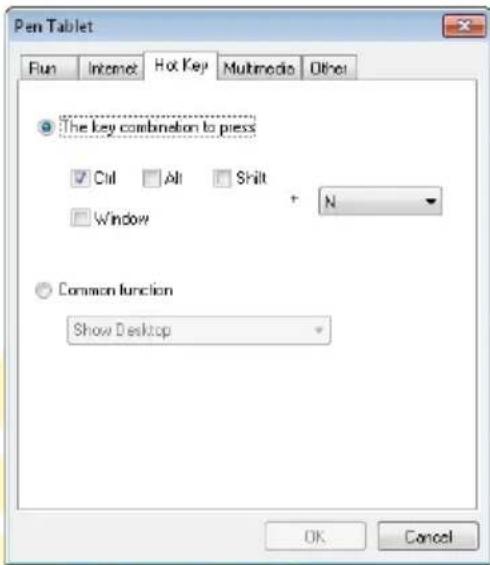
- Hot Key tab
The key combination to press - tick one or more modifiers (Ctrl, Alt, Shift or Windows) and select the main key from the list. On the screenshot, you can see the selection of Ctrl+N.
Common function - on the list, select one of frequently used keyboard shortcuts:
- Show Desktop
- Switch Application
• 3D Switch Application (Vista) - Hand Tool (PhotoShop)
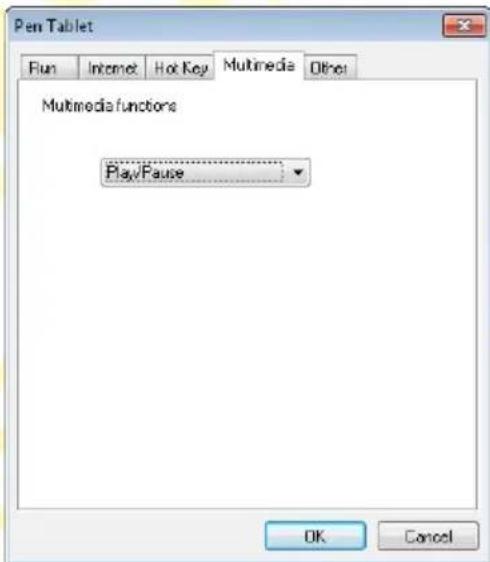
- Multimedia tab
Multimedia functions - on the list, select the function of a multimedia key:
- Play/Pause
- Stop
- Previous
- Next
- Mute
• Volume Up - Volume Down
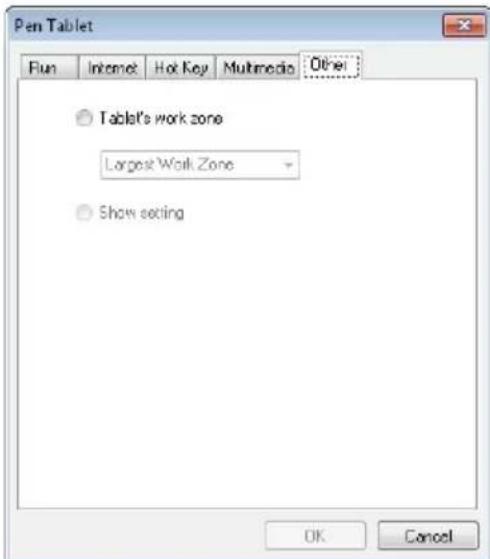
- Other tab
Tablet's work zone - on the list, select the tablet working area setting:
- Largest Work Zone
- Screen Ratio
Show Setting - opens the Pen Tablet Control Panel.
PENTAGRAM Titan (P 2003)
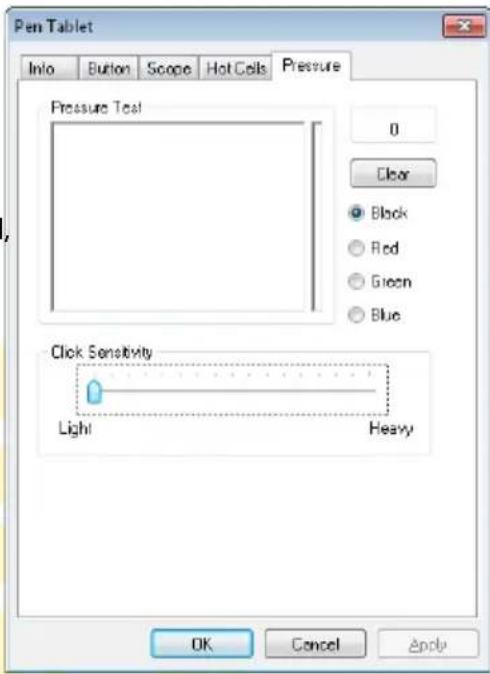
Pressure tab
On this tab, you can configure and test the tablet pen pressure level settings.
Pressure Test - in this field, you can check the current pressure level settings. Next to the main test field, there is a small graphical field reflecting the current pen pressure. The current pressure numerical value is visible next to the Pressure Test frame.
Clear - clear the test field.
Colour - select the colour used in the test field.
Click Sensitivity - change the pressure strength of the pen against the tablet surface, which is required by the tablet to register a click.
EN
MINDESTSYSTEMANFORDERUNGEN....5
AUFBAU DES TABLETTS....5
BATTERIEWECHSEL....6
Registerkarte Pressure (Druck)....16
natural_image
Simple line drawing of a trash bin with two crossed lines indicating no waste or prohibition (no text or symbols)
DE
natural_image
Two white electric shaver tools with black arrows pointing to their ends (no text or symbols visible)natural_image
Close-up of a white cylindrical tool with metallic components and orange highlight, no visible text or symbolsnatural_image
Close-up of a white cylindrical electronic device with metallic leads and internal structure (no visible text or symbols)natural_image
Close-up of a cleaning brush applying adhesive to a white plastic sheet (no text or symbols visible)DE
natural_image
Close-up of a hand holding a small electronic device with a pen tip, next to a smooth, gray tool (no visible text or symbols)PENTAGRAM Titan (P 2003)
natural_image
Close-up of a hand holding a pen tip, no visible text or symbolsnatural_image
Close-up of a hand holding a pen tip, focusing on white powder (no text or symbols visible)natural_image
Three modern white electronic devices with adjustable footprints, shown from different angles (no text or symbols visible)3^13^22^
Installation des Tabletts
Registerkarte Button (Taste)
- Registerkarte Internet
• Registerkarte Other (Andere)
PENTAGRAM Titan (P 2003)
Registerkarte Pressure (Druck)
CE
DEKLARACJA ZGODNOŚCI
Importer: PENTAGRAM Europe Sp. z o.o.
- Wymiana rysika
- PENTAGRAM Titan (P 2003)
- PL
- Instalacja tabletu
- - Zakładka Internet
- Zaktadka Pressure (Nacisk)
- Installation and Operation Manual
- EN
- Table of contents
- Important information
- Safety precautions
- Information concerning waste electronic equipment
- Introduction
- Box contents
- Minimum system requirements
- Tablet components
- Function fields
- Battery replacement
- Stylus replacement
- Tablet inclination adjustment
- Tablet installation
- Windows
- Using the tablet
- Tablet configuration
- Windows Vista/7
- Windows 2000/XP
- Pen Tablet Control Panel
- Info tab
- Button tab
- Scope tab
- Hot Cells tab
- Field configuration
- - Run tab
- - Internet tab
- - Hot Key tab
- - Multimedia tab
- - Other tab
- Pressure tab
- Installation des Tabletts
- Registerkarte Button (Taste)
- - Registerkarte Internet
- • Registerkarte Other (Andere)
- Registerkarte Pressure (Druck)
- CE
- DEKLARACJA ZGODNOŚCI
Brand : Pentagram
Model : Titan P 2003
Category : Tablet