
USB-BT600 - Network card / adapter ASUS - Free user manual and instructions
Find the device manual for free USB-BT600 ASUS in PDF.
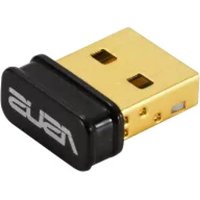


| Product Type | USB Bluetooth Adapter |
| Brand | ASUS |
| Model | USB-BT600 |
| Interface | USB Type-A |
| Bluetooth Version | Bluetooth 5.0 |
| Max Data Rate | 3 Mbit/s (BR/EDR) / 2 Mbit/s (LE) |
| Range | Up to 10 meters (indoor) |
| Supported Operating Systems | Windows 11, 10, 8.1 (64-bit) |
| Power Supply | USB bus (5 V, 500 mA max) |
| Dimensions (L × W × H) | 25 × 14 × 6 mm |
| Weight | 3 g |
| Operating Temperature | 0 °C to 40 °C |
| Operating Humidity | 20% to 80% (non-condensing) |
| Certifications | CE, FCC, ISED, CAN ICES-3 (B)/NMB-3 (B) |
| Package Contents | USB-BT600 adapter, quick start guide |
| Care and Cleaning | Disconnect the device before cleaning. Use a dry, soft cloth. Do not use abrasive products or solvents. |
| Safety | Do not expose to moisture, extreme temperatures or shocks. Observe RF exposure distances (20 cm from body). |
| Repairability and Spare Parts | Device not user-repairable. Contact ASUS support in case of malfunction. No spare parts available. |
Frequently Asked Questions - USB-BT600 ASUS
User questions about USB-BT600 ASUS
0 question about this device. Answer the ones you know or ask your own.
Ask a new question about this device
Download the instructions for your Network card / adapter in PDF format for free! Find your manual USB-BT600 - ASUS and take your electronic device back in hand. On this page are published all the documents necessary for the use of your device. USB-BT600 by ASUS.
USER MANUAL USB-BT600 ASUS
Quick Start Guide
Q27429 / First Edition / November 2025
Contents
Hardware Installation.... 3
Driver Installation 4
Ensure that you have turned on Bluetooth in Windows® ...... 5
Notices....9
This QSG contains these languages:
English
French Canadian
Spanish
1. Hardware Installation
Insert USB-BT600 into the USB Type A port of your device.
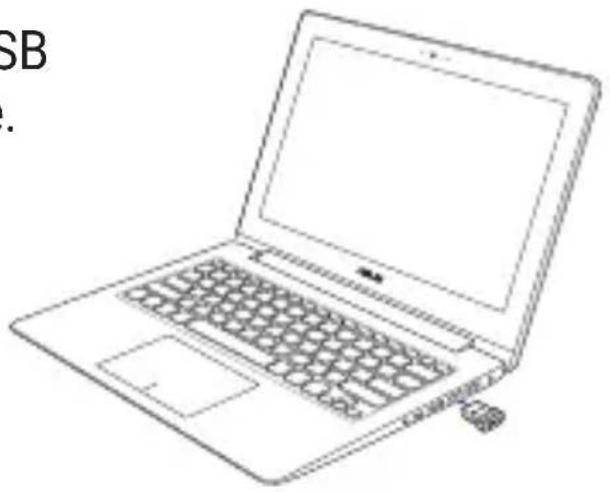
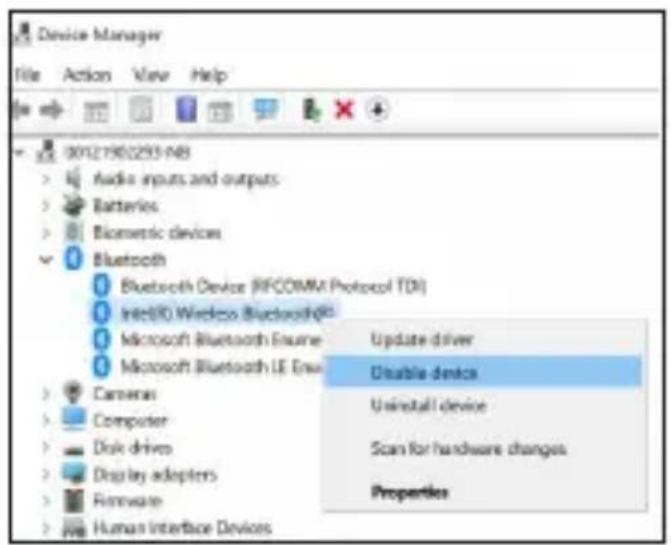
NOTE: In order to successfully install USB-BT600 on a laptop or desktop which has a built-in Bluetooth module, ensure to go to Windows Device Manager and disable the built-in Bluetooth before installing USB-BT600.
2. Driver Installation
Download and install the latest driver from the ASUS official website at https://www.asus.com/Networking/USB-BT600/HelpDesk_Download/
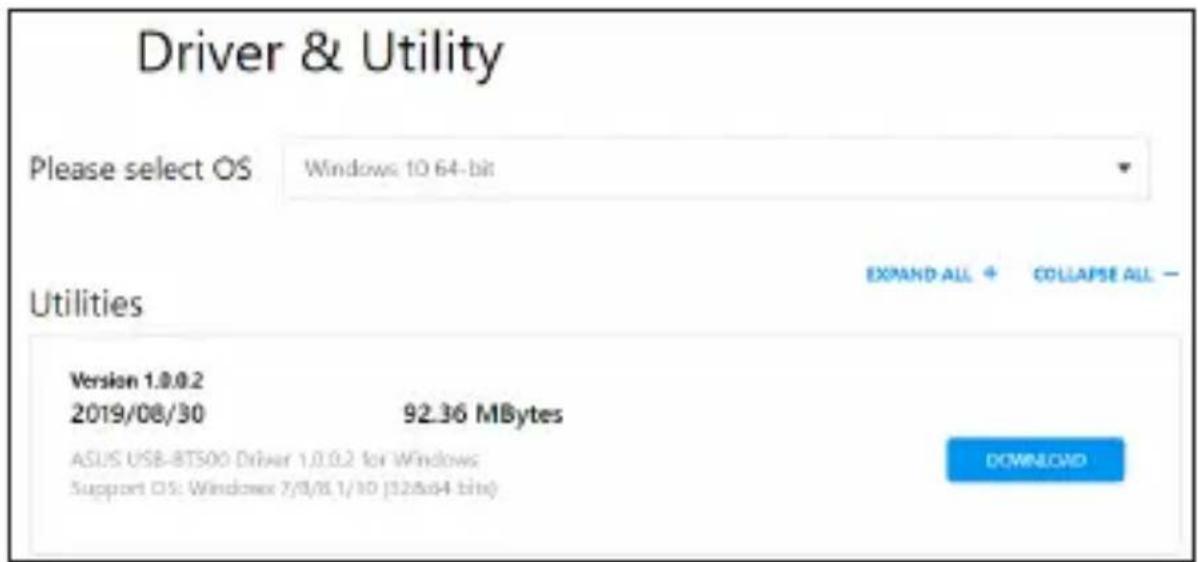
NOTE: If you are using Windows® 11 and connected to the internet, the system will detect the driver automatically. Follow the instructions to download and install the latest driver.
3. Ensure that you have turned on Bluetooth in Windows®
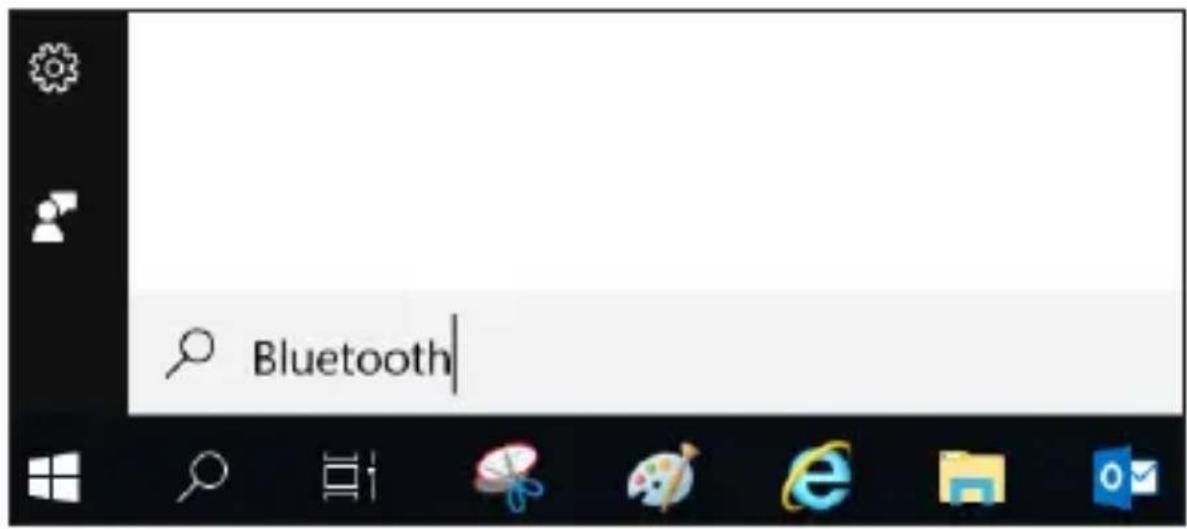
Search for "Bluetooth" in the Windows® Search box to open the Bluetooth settings panel. Ensure that you have turned on Bluetooth and applied adequate settings.
ASUS recycling and takeback programs come from our commitment to the highest standards for protecting our environment. We believe in providing solutions for you to be able to responsibly recycle our products, batteries, other components, as well as the packaging materials. Please go to https://esg.asus.com/en/Takeback.htm for detailed recycling information in different regions.
REACH
Complying with the REACH (Registration, Evaluation, Authorisation, and Restriction of Chemicals) regulatory framework, we published the chemical substances in our products at the ASUS REACH website at https://esg.asus.com/Compliance.htm.
Federal Communications Commission Statement
This device complies with Part 15 of the FCC Rules. Operation is subject to the following two conditions:
- This device may not cause harmful interference.
- This device must accept any interference received, including interference that may cause undesired operation.
This equipment has been tested and found to comply with the limits for a Class B digital device, pursuant to Part 15 of the FCC Rules. These limits are designed to provide reasonable protection against harmful interference in a residential installation.
This equipment generates, uses, and can radiate radio frequency energy and, if not installed and used in accordance with the instructions, may cause harmful interference to radio communications. However, there is no guarantee that interference will not occur in a particular installation. If this equipment does cause harmful interference to radio or television reception, which can be determined by turning the equipment off and on, the user is encouraged to try to correct the interference by one or more of the following measures:
- Reorient or relocate the receiving antenna.
- Increase the separation between the equipment and receiver.
- Connect the equipment into an outlet on a circuit different from that to which the receiver is connected.
- Consult the dealer or an experienced radio/TV technician for help.

CAUTION: Any changes or modifications not expressly approved by the party responsible for compliance could void the user's authority to operate the equipment.
Prohibition of Co-location
This transmitter must not be co-located or operating in conjunction with any other antenna or transmitter.
FCC Radiation Exposure Statement
This equipment complies with FCC radiation exposure limits set forth for an uncontrolled environment. End users must follow the specific operating instructions for satisfying RF exposure compliance. To maintain compliance with FCC exposure compliance requirement, please follow operation instruction as documented in this manual.

WARNING! This equipment must be installed and operated in accordance with provided instructions and the antenna(s) used for this transmitter must be installed to provide a separation distance of at least 20 cm from all persons and must not be co-located or operating in conjunction with any other antenna or transmitter.
Compliance Statement of Innovation, Science and Economic Development Canada (ISED)
This device complies with Innovation, Science and Economic Development Canada licence exempt RSS standard(s). Operation is subject to the following two conditions: (1) this device may not cause interference, and (2) this device must accept any interference, including interference that may cause undesired operation of the device.
CAN ICES (B)/NMB (B)
Radiation Exposure Statement:
The product comply with the Canada portable RF exposure limit set forth for an uncontrolled environment and are safe for intended operation as described in this manual. The further RF exposure reduction can be achieved if the product can be kept as far as possible from the user body or set the device to lower output power if such function is available.
Radio Frequency (RF) Exposure Information
The radiated output power of the ASUS Wireless Device is below the Innovation, Science and Economic Development Canada radio frequency exposure limits. The ASUS Wireless Device should be used in such a manner such that the potential for human contact during normal operation is minimized.
This equipment should be installed and operated with a minimum distance of 20 cm between the radiator and any part of your body.
This device has been certified for use in Canada. Status of the listing in the Innovation, Science and Economic Development Canada's REL (Radio Equipment List) can be found at the following web address: http://www.ic.gc.ca/eic/site/ceb-bhst.nsf/eng/h_tt00020.html
Additional Canadian information on RF exposure also can be found at the following web: https://www.ic.gc.ca/eic/site/smt-gst.nsf/eng/sf08792.html
Rating: 5 Vdc, 0.5 A
[English] CE statement
Simplified EU Declaration of Conformity
ASUSTek Computer Inc. hereby declares that this device is in compliance with the essential requirements and other relevant provisions of Directive 2014/53/EU. Full text of EU declaration of conformity is available at https://www.asus.com/Networking/USB-BT600/HelpDesk_Declaration/.
The frequency, mode and the maximum transmitted power in EU are listed below:
2402-2480MHz (BT EDR): 9.90dBm
2402-2480MHz (BT LE): 9.70dBm
Safety Notices
- Use this product in environments with ambient temperatures between 0°C (32°F) and 40°C (104°F).
- DO NOT expose to or use near liquids, rain, or moisture.
Service and Support
https://www.asus.com/support


- QUICK START GUIDE
- CONTENTS
- HARDWARE INSTALLATION
- DRIVER INSTALLATION
- ENSURE THAT YOU HAVE TURNED ON BLUETOOTH IN WINDOWS®
- REACH
- FEDERAL COMMUNICATIONS COMMISSION STATEMENT
- PROHIBITION OF CO-LOCATION
- FCC RADIATION EXPOSURE STATEMENT
- COMPLIANCE STATEMENT OF INNOVATION, SCIENCE AND ECONOMIC DEVELOPMENT CANADA (ISED)
- RADIATION EXPOSURE STATEMENT
- RADIO FREQUENCY (RF) EXPOSURE INFORMATION
- [ENGLISH] CE STATEMENT
- SIMPLIFIED EU DECLARATION OF CONFORMITY
- SAFETY NOTICES
Brand : ASUS
Model : USB-BT600
Category : Network card / adapter