
USB-AC51 - Network card / adapter ASUS - Free user manual and instructions
Find the device manual for free USB-AC51 ASUS in PDF.


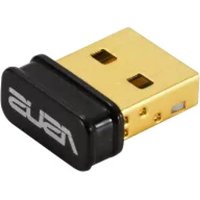
| Product Type | Dual-band Wireless-AC600 USB Adapter |
| Model | USB-AC51 |
| Brand | ASUS |
| Wireless Standards | IEEE 802.11a/b/g/n/ac |
| Frequency Bands | 2.4 GHz and 5 GHz |
| Maximum Data Rate | Up to 600 Mbps (2.4 GHz: 150 Mbps, 5 GHz: 433 Mbps) |
| Interface | USB 2.0 |
| Security Features | WEP, WPA-PSK, WPA2-PSK, WPA-Enterprise, 802.1X |
| WPS Support | Yes (Push Button and PIN) |
| Operating Systems Supported | Windows XP/Vista/7/8, Mac OS X, Linux |
| Antenna Type | Internal PCB antenna |
| LED Indicators | Link (Wireless connection status) |
| Power Source | Powered via USB port |
| Operating Temperature | 0°C to 40°C |
| Storage Temperature | -10°C to 70°C |
| Humidity | 5% to 90% (non-condensing) |
| Minimum System Memory | 512 MB |
| Package Contents | USB-AC51 adapter, Quick Start Guide, Support CD, Warranty card |
| Certifications | FCC Part 15 Class B, CE, IC, DGT |
Frequently Asked Questions - USB-AC51 ASUS
User questions about USB-AC51 ASUS
0 question about this device. Answer the ones you know or ask your own.
Ask a new question about this device
Download the instructions for your Network card / adapter in PDF format for free! Find your manual USB-AC51 - ASUS and take your electronic device back in hand. On this page are published all the documents necessary for the use of your device. USB-AC51 by ASUS.
USER MANUAL USB-AC51 ASUS
Dual-band Wireless-AC600 USB Adapter

User Manual
Copyright © 2013 ASUSTeK Computer Inc. All Rights Reserved.
No part of this manual, including the products and software described in it, may be reproduced, transmitted, transcribed, stored in a retrieval system, or translated into any language in any form or by any means, except documentation kept by the purchaser for backup purposes, without the express written permission of ASUSTeK Computer Inc. ("ASUS").
Product warranty or service will not be extended if: (1) the product is repaired, modified or altered, unless such repair, modification of alteration is authorized in writing by ASUS; or (2) the serial number of the product is defaced or missing.
ASUS PROVIDES THIS MANUAL "AS IS" WITHOUT WARRANTY OF ANY KIND, EITHER EXPRESS OR IMPLIED, INCLUDING BUT NOT LIMITED TO THE IMPLIED WARRANTIES OR CONDITIONS OF MERCHANTABILITY OR FITNESS FOR A PARTICULAR PURPOSE. IN NO EVENT SHALL ASUS, ITS DIRECTORS, OFFICERS, EMPLOYEES OR AGENTS BE LIABLE FOR ANY INDIRECT, SPECIAL, INCIDENTAL, OR CONSEQUENTIAL DAMAGES (INCLUDING DAMAGES FOR LOSS OF PROFITS, LOSS OF BUSINESS, LOSS OF USE OR DATA, INTERRUPTION OF BUSINESS AND THE LIKE), EVEN IF ASUS HAS BEEN ADVISED OF THE POSSIBILITY OF SUCH DAMAGES ARISING FROM ANY DEFECT OR ERROR IN THIS MANUAL OR PRODUCT.
SPECIFICATIONS AND INFORMATION CONTAINED IN THIS MANUAL ARE FURNISHED FOR INFORMATIONAL USE ONLY, AND ARE SUBJECT TO CHANGE AT ANY TIME WITHOUT NOTICE, AND SHOULD NOT BE CONSTRUED AS A COMMITMENT BY ASUS. ASUS ASSUMES NO RESPONSIBILITY OR LIABILITY FOR ANY ERRORS OR INACCURACIES THAT MAY APPEAR IN THIS MANUAL, INCLUDING THE PRODUCTS AND SOFTWARE DESCRIBED IN IT.
Products and corporate names appearing in this manual may or may not be registered trademarks or copyrights of their respective companies, and are used only for identification or explanation and to the owners' benefit, without intent to infringe.
Table of contents
1. Introduction ......4
Package contents 4
System requirements 4
Status indicator .... 4
2. Installing the USB-AC51 driver and utilities ....5
3. Connecting to a wireless network ....8
Connecting to a wireless network using WPS 9
4. ASUS WLAN Control Center ....11
ASUS WLAN Adapter Setting Utility 11
Survey 12
Configuration 13
Setting up a Preset Wireless Connection .... 14
Setting up Encryption for a Wireless Connection .... 15
5. Using Windows® Network Manager ....18
6. Troubleshooting ....19
7. Glossary....20
Notices 30
1. Introduction
Package contents
☑ ASUS USB-AC51 Adapter x1 Quick Start Guide x1 √ Support CD x1 √ Warranty card x1

If any of the above items is damaged or missing, contact your retailer immediately.
System requirements
Before using the USB-AC51 Adapter, check if your system meets the following requirements:
• Windows * XP / Vista / 7 / 8 / Mac OSX / Linux • 512MB system memory or larger - USB 2.0 port - Optical disk drive
Operating and storage environment
- Operating temperature: ambient temperature between 0°C 40°C
- Storage temperature: ambient temperature between -10°C 70°C
- Humidity: 5% \~ 90% (non-condensing)
Status indicator
| LED Status Description | |
| Link On | USB-AC51 has connected to a wireless network successfully. |
| Off USB-AC51 is not connected. | |
Using Wi-Fi Protected Setup (for Windows® OS only)
To enable Wi-Fi Protected Setup (WPS), click WPS on the Wireless Utility window and select Use the WPS button.
2. Installing the USB-AC51 driver and utilities

Install the driver and utilities from the bundled Support CD before inserting the USB-AC51 into your computer.
To install the driver and utilities for your ASUS USB-AC51:
- Place the bundled Support CD in the optical drive. An Autorun screen appears if the Autorun function is enabled on your computer.

If the Autorun function is not enabled on your computer, double-click SETUP.EXE from the root directory to run the Support CD.
- From the Autorun screen, select your language and click Install ASUS WLAN Card Utilities/Driver.

- An InstallShield Wizard screen appears. Click Next to continue.

- Select Use ASUS WLAN Utilities.

- Select Next to install drivers and utilities to default destination folder.

- Once prompted, insert the ASUS USB-AC51 Wireless adapter into an available USB port.

- Click Finish to complete installation.

A message will appear in the Windows® notification area indicating that device drivers have successfully been installed.

3. Connecting to a wireless network
To connect the USB-AC51 Wireless adapter to a station or Access Point:
- Right-click the ASUS WLAN Adapter Setting Utility icon in the Windows® notification area, then select Wireless Setting.

- In the WLAN Control Center window, click Survey > Search to search for available wireless networks. Select an Access Point (AP) from the list and click Connect.

- If Security is enabled on the AP or station, provide the required password or passkey. Click Save.

- Setup is complete. Click the Status page on the main window to display network information including signal strength and network traffic.

Connecting to a wireless network using WPS
The ASUS USB-AC51 supports Wi-Fi Protected Setup (WPS) for Windows® operating systems for securing wireless connections.

Ensure that the AP you are trying to connect to supports the WPS feature.
To connect the USB-AC51 Wireless adapter to a WPS-enabled AP using the WPS button:
- Click WPS on the main utility window.

- Select Use the WPS button, then click Next.

- Press the WPS button on the AP or station to establish a secure connection.

- Click Finish.

To connect USB-AC51 to a WPS-enabled AP or station using the PIN code:
- Select Use PIN code.
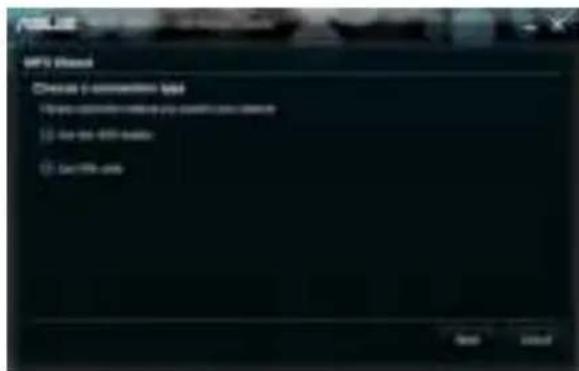
- Key in the AP's eight-digit PIN code and click Next.

- Click Finish.

4. ASUS WLAN Control Center
ASUS WLAN Control Center manages your wireless connections using ASUS USB-AC51.
To launch the ASUS USB-AC51 WLAN Control Center, click Start > All Programs > ASUS Utility > USB-AC51 WLAN Card Utilities > ASUS USB-AC51 WLAN Control Center
ASUS WLAN Adapter Setting Utility
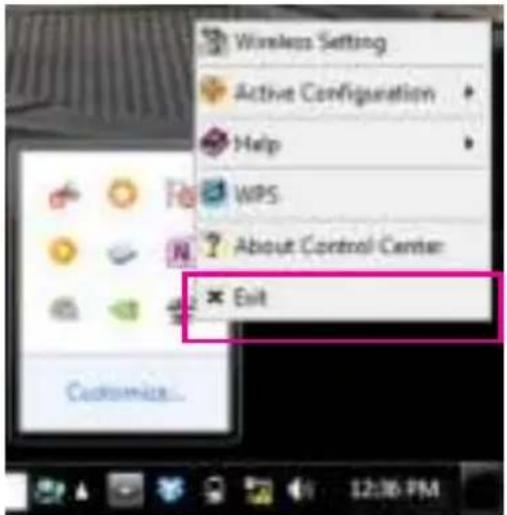
Right-click the ASUS WLAN Adapter Setting Utility icon on the Windows® notification area to display the following options:
- Wireless Setting - Launches the ASUS WLAN Control Center.
• Active Configuration - Disable or enable a preset profile. By default, the profile Auto Roaming is enabled.
- Help - Launches the help file.
• WPS - Launches the WPS setup window.
- About Control Center - Displays the version of your Control Center.
- Exit - Closes the ASUS WLAN Control Center.

Left-click the ASUS WLAN Adapter Setting Utility icon to display the following options:
- Wireless Radio On - Turns the wireless radio ON.
- Wireless Radio Off - Turns the wireless radio OFF.
- Search & Connect - Launches the ASUS WLAN Control Center Survey window and displays available wireless networks.

Double-click the icon to launch the ASUS WLAN Control Center.
Survey
The Survey window displays a list of available wireless networks and associated network information.

• SSID - Service Set Identifier (SSID) for available wireless networks.
- MAC Address - The Media Access Control (MAC) Address is displayed for each detected network device. A MAC address is a unique identifier assigned to networking devices. It consists of six groups of two hexadecimal digits (0 through 9 and A through F) separated by colons, e.g. 00:E0:18:F0:05:C0.
- Channel - Displays the channel of the wireless network.
- Current Data Rate - Displays the current data transmission rate.
- Network Type - Displays the wireless mode of the network device.
- Security - Displays the wireless encryption method for the wireless network.
- Search - Instructs the wireless adapter to search for available wireless networks and refresh the list of network devices.
Configuration
The Configuration window displays user-defined wireless network connections.

- New Config - Click this button to create a new preset wireless connection.
- Move up / Move down - Click to move a preset up / down the list.
- Delete - Remove a preset wireless configuration.
- Edit Config - Edit a preset wireless configuration.
- Connect - Establish a connection with a selected wireless network.
Setting up a Preset Wireless Connection
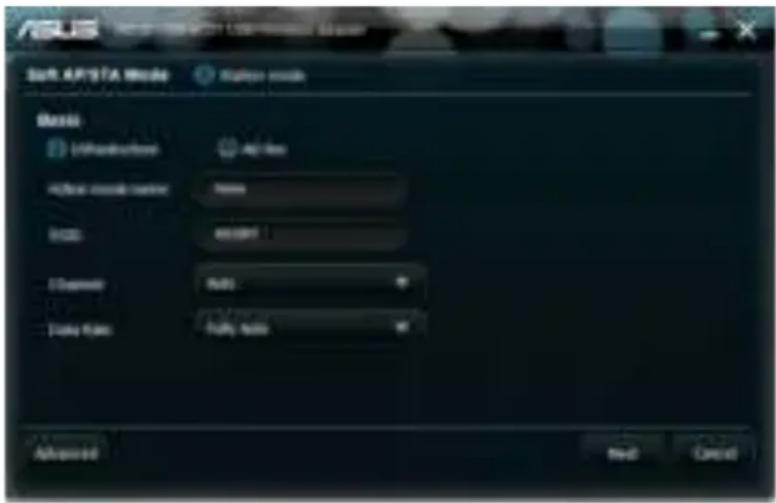
To set up a preset wireless connection manually:
Click the New Config button in the Configuration window. Provide the following information for your wireless network:
- Network Type:
- Infrastructure - Select Infrastructure to establish a connection with an Access Point or Router.
- Ad Hoc - Select Ad Hoc to establish a peer-to-peer connection with another wireless device.
- SSID - Assign a wireless network name.
- Channel - Select a radio channel for your ASUS WLAN adapter.
In Infrastructure mode, your WLAN adapter automatically selects the correct channel required to communicate with an AP.
In Ad Hoc mode, you are allowed to select a channel for your WLAN adapter. WLAN cards in the same network can communicate with each other if they have the same channel setting.

- For the 2.4GHz band, the radio channels you can use depend on the regulations in your country. In the United States (FCC) and Canada (IC), channels 1 to 11 are supported. In Europe (ETSI), channels 1 to 13 are supported. In Japan (MKK), channels 1 to 14 are supported.
- For the 5GHz band, the radio channels you can use vary in different regions. Refer to your local regulations for details.
- Data Rate - The Fully Auto setting adjusts wireless data rate transmission automatically.
- Advanced - Default values in the Advanced page are recommended.
- Next - Displays the Encryption settings.
- Cancel - Cancels preset.
Setting up Encryption for a Wireless Connection
The Encryption page allows you to set up the encryption settings for a wireless connection.

- Network Authentication - Select an authentication method from the list:
- Open - Open System mode disables authentication or uses WEP (Wired Equivalent Privacy) for wireless security.
- Shared - Shared Key mode uses WEP encryption for your network.
- WPA-PSK/WPA2-PSK - Wi-Fi Protected Access (WPA) uses a Pre-Shared Key (PSK) for wireless network authentication.
- WPA/WPA2-Enterprise/WEP 802.1X - WPA/WPA2-Enterprise requires a RADIUS server for assigning encryption codes for all wireless devices on the network.
- Data Encryption - Encrypts the data before it is transmitted over the network.
In the Open and Shared authentication modes, options are Disabled and WEP.
- Disabled - Disables the encryption protection for your WLAN adapter.
- WEP - When you select this option, the cursor appears in the field for Key 1. Key in 10 hexadecimal digits (0~9, a~f, and A~F) for the 64-bit encryption.
In the WPA-PSK/WPA2-PSK and WPA/WPA2-Enterprise/WEP 802.1X authentication modes, available options are: Temporal Key Integrity Protocol (TKIP) and Advanced Encryption Standard (AES).
- TKIP - Dynamically generates unique keys to encrypt data packets.
- AES - Offers stronger protection and increases the complexity of wireless encryption. It is a symmetric 128-bit block encryption method that works simultaneously on multiple network layers.
- Wireless Network Key - This option becomes available when you select the WPA-Personal authentication mode. Key in 8 to 63 characters in this field.

The characters can also consist of 64 hexadecimal digits.
- Wireless Network Key (WEP) - This option becomes available when you select WEP in the Data encryption field. 64-bit WEP key uses 5 ASCII characters (10 hexadecimal digits). 128-bit WEP key uses 13 ASCII (26 hexadecimal digits).
- Key Format - Allows you to select the key format.
- Passphrase - This field generates the WEP keys (Key 1 - Key 4). The passphrase can consist of a sentence, a phrase, or a sequence of alpha-numeric characters.
- Key Length - Allows you to select the key length. For 64-bit encryption, each key consists of 10 hexadecimal digits or 5 ASCII characters. For 128-bit encryption, each key consists of 26 hexadecimal digits or 13 ASCII characters.
- Select one as your Default Key - Allows you to select one of the four WEP Keys as the default key.
- Advanced - The Advanced page is intended for experienced users to set up additional parameters for the WLAN adapter. Default values are recommended.
- RTS Threshold (0-2347) - The Request to Send/Clear to Send (RTS/CTS) feature is used to minimize collisions between wireless stations. When RTS/CTS is enabled, the router refrains from sending a data frame until another RTS/CTS handshake is completed. To enable RTS/CTS, set a specific packet size threshold. The default value (2347) is recommended.
- Fragmentation Threshold (256-2346) - Fragmentation is used to divide 802.11 frames into smaller pieces (fragments) that are sent separately to the destination. To enable fragmentation, set a specific packet size threshold. If there is an excessive number of collisions on the WLAN, experiment with different fragmentation values to increase the reliability of frame transmissions. The default value (2346) is recommended for normal use.
- Preamble Mode - Select the preamble mode as Auto (default), Long or Short.

5. Using Windows® Network Manager
To use Windows Network Manager to manage wireless connections:
- Right-click the ASUS WLAN Adapter Setting Utility icon on the Windows® notification area.
- Click Exit.
- Click the Windows Network icon on the Windows® notification area.

6. Troubleshooting
This chapter provides solutions to problems which you may encounter when installing or using ASUS USB-AC51. Contact a qualified service technician for assistance if the problem still persists after you have performed the troubleshooting solutions.
How do I verify that my WLAN adapter is installed properly?
- Right-click My Computer from the Start menu, then select Properties.
- Select the Hardware tab, then click Device Manager.
- Double-click Network adapters.
- Double-click ASUS USB-AC51 USB Wireless Adapter. An ASUS USB-AC51 USB Wireless Adapter window appears.
- Check Device status to see if the WLAN adapter is working properly.
My WLAN adapter cannot connect to any Access Point.
- Check if Network Type is set to Infrastructure mode.
- Check if the SSID of your WLAN adapter is the same as that of the Access Point you want to connect to.
- Check if the Encryption settings of your WLAN adapter are the same as the Access Point you want to connect to.
My WLAN adapter cannot connect to a station or WLAN adapter.
- Check if Network Type is set to Ad Hoc mode.
- Check if the SSID of your WLAN adapter is the same as that of the station or the WLAN adapter you want to connect to.
- Check if the Channel of your WLAN adapter is the same as that of the station or the WLAN adapter you want to connect to.
- Check if the Encryption settings of your WLAN adapter are the same as those of the station or the WLAN adapter you want to connect to.
The connection quality is bad and the signal strength is weak.
- Keep your WLAN adapter away from microwave ovens and large metal objects to avoid radio interference.
- Move your WLAN adapter closer to the access point, station, or WLAN adapter you want to connect to.
7. Glossary
Access Point (AP)
A networking device that seamlessly connects wired and wireless networks. Access Points combined with a distributed system support the creation of multiple radio cells that enable roaming throughout a facility.
Ad Hoc
A wireless network composed solely of stations within mutual communication range of each other (no Access Point).
Basic Rate Set
This option allows you to specify the data transmission rate.
Basic Service Area (BSS)
A set of stations controlled by a single coordination function.
Broadband
A type of data transmission in which a single medium (such as cable) carries several data at once.
Channel
An instance of medium use for the purpose of passing protocol data units that may be used simultaneously, in the same volume of space, with other instances of medium use (on other channels) by other instances of the same physical layer, with an acceptably low frame error ratio due to mutual interference.
Client
A client is the desktop or mobile PC that is connected to your network.
COFDM (for 802.11a or 802.11g)
Signal power alone is not enough to maintain 802.11b-like distances in an 802.11a/g environment. To compensate, a new physical-layer encoding technology was designed that departs from the traditional direct-sequence technology being deployed today. This technology is called COFDM (coded OFDM). COFDM was developed specifically for indoor wireless use and offers performance much superior to that of spread-spectrum solutions. COFDM works by breaking one high-speed data carrier into several lower-speed subcarriers, which are then transmitted in parallel. Each high-speed carrier is 20MHz wide and is broken up into 52 subchannels, each approximately 300KHz wide. COFDM uses 48 of these subchannels for data, while the remaining four are used for error correction. COFDM delivers higher data rates and a high degree of multipath reflection recovery, thanks to its encoding scheme and error correction.
Each subchannel in the COFDM implementation is about 300 kHz wide. At the low end of the speed gradient, BPSK (binary phase shift keying) is used to encode 125 kbps of data per channel, resulting in a 6,000 kbps, or 6 Mbps, data rate. Using quadrature phase shift keying, you can double the amount of data encoded to 250 kbps per channel, yielding a 12 Mbps data rate. And by using 16-level quadrature amplitude modulation encoding 4 bits per hertz, you can achieve a data rate of 24 Mbps. The 802.11a/g standard specifies that all 802.11a/g-compliant products must support these basic data rates. The standard also lets the vendor extend the modulation scheme beyond 24 Mbps. Remember, the more bits per cycle (hertz) that are encoded, the more susceptible the signal will be to interference and fading, and ultimately, the shorter the range, unless power output is increased.
Default Key
This option allows you to select the default WEP key. This option allows you to use WEP keys without having to remember or write them down. The WEP keys generated using the Pass Phrase are compatible with other WLAN products. The Pass Phrase option is not as secure as manual assignment.
Device Name
Also known as DHCP client ID or network name. Sometimes provided by an ISP when using DHCP to assign addresses.
DHCP (Dynamic Host Configuration Protocol)
This protocol allows a computer (or many computers on your network) to be automatically assigned a single IP address from a DHCP server.
DNS Server Address (Domain Name System)
DNS allows Internet host computers to have a domain name and one or more IP addresses. A DNS server keeps a database of host computers and their respective domain names and IP addresses, so that when a user enters a domain name into the Internet browser, the user is sent to the proper IP address. The DNS server address used by the computers on your home network is the location of the DNS server your ISP has assigned.
DSL Modem (Digital Subscriber Line)
A DSL modem uses your existing phone lines to transmit data at high speeds.
Direct-Sequence Spread Spectrum (for 802.11b)
Spread spectrum (broadband) uses a narrowband signal to spread the transmission over a segment of the radio frequency band or spectrum. Direct-sequence is a spread spectrum technique where the transmitted signal is spread over a particular frequency range.
Direct-sequence systems communicate by continuously transmitting a redundant pattern of bits called a chipping sequence. Each bit of transmitted data is mapped into chips and rearranged into a pseudorandom spreading code to form the chipping sequence. The chipping sequence is combined with a transmitted data stream to produce the output signal.
Wireless mobile clients receiving a direct-sequence transmission use the spreading code to map the chips within the chipping sequence back into bits to recreate the original data transmitted by the wireless device. Intercepting and decoding a direct-sequence transmission requires a predefined algorithm to associate the spreading code used by the transmitting wireless device to the receiving wireless mobile client.
This algorithm is established by IEEE 802.11b specifications. The bit redundancy within the chipping sequence enables the receiving wireless mobile client to recreate the original data pattern, even if bits in the chipping sequence are corrupted by interference. The ratio of chips per bit is called the spreading ratio. A high spreading ratio increases the resistance of the signal to interference. A low spreading ratio increases the bandwidth available to the user. The wireless device uses a constant chip rate of 11Mchips/s for all data rates, but uses different modulation schemes to encode more bits per chip at the higher data rates. The wireless device is capable of an 11 Mbps data transmission rate, but the coverage area is less than a 1 or 2 Mbps wireless device since coverage area decreases as bandwidth increases.
Encryption
This provides wireless data transmissions with a level of security. This option allows you to specify a 64-bit or a 128-bit WEP key. A 64-bit encryption contains 10 hexadecimal digits or 5 ASCII characters. A 128-bit encryption contains 26 hexadecimal digits or 13 ASCII characters.
64-bit and 40-bit WEP keys use the same encryption method and can interoperate on wireless networks. This lower level of WEP encryption uses a 40-bit (10 hexadecimal digits assigned by the user) secret key and a 24-bit Initialization Vector assigned by the device. 104-bit and 128-bit WEP keys use the same encryption method.
All wireless clients in a network must have identical WEP keys with the access point to establish connection. Keep a record of the WEP encryption keys.
Extended Service Set (ESS)
A set of one or more interconnected basic service set (BSSs) and integrated local area networks (LANs) can be configured as an Extended Service Set.
ESSID (Extended Service Set Identifier)
You must have the same ESSID entered into the gateway and each of its wireless clients. The ESSID is a unique identifier for your wireless network.
Ethernet
The most widely used LAN access method, which is defined by the IEEE 802.3 standard. Ethernet is normally a shared media LAN meaning all devices on the network segment share total bandwidth. Ethernet networks operate at 10Mbps using CSMA/CD to run over 10-BaseT cables.
Firewall
A firewall determines which information passes in and out of a network. NAT can create a natural firewall by hiding a local network's IP addresses from the Internet. A Firewall prevents anyone outside of your network from accessing your computer and possibly damaging or viewing your files.
Gateway
A network point that manages all the data traffic of your network, as well as to the Internet and connects one network to another.
ICS
ICS is used to share one computer's Internet connection with the rest of the computers on your network. When this computer is connected to the Internet, all the communications to and from the Internet on your network are sent through this computer which is called the host computer. The rest of the computers can send and receive e-mail messages and access the web as if it were connected directly to the Internet.
IEEE
The Institute of Electrical and Electronics Engineers. The IEEE sets standards for networking, including Ethernet LANs. IEEE standards ensure interoperability between systems of the same type.
IEEE 802.11
IEEE 802.xx is a set of specifications for LANs from the Institute of Electrical and Electronic Engineers (IEEE). Most wired networks conform to 802.3, the specification for CSMA/CD based Ethernet networks or 802.5, the specification for token ring networks. 802.11 defines the standard for wireless LANs encompassing three incompatible (non-interoperable) technologies: Frequency Hopping Spread Spectrum (FHSS), Direct Sequence Spread Spectrum (DSSS), and Infrared. 802.11 specifies a carrier sense media access control and physical layer specifications for 1 and 2 Mbps wireless LANs.
IEEE 802.11a (54Mbits/sec)
Compared with 802.11b: The 802.11b standard was designed to operate in the 2.4GHz ISM (Industrial, Scientific and Medical) band using direct-sequence spread-spectrum technology. The 802.11a standard, on the other hand, was designed to operate in the more recently allocated 5-GHz UNII (Unlicensed National Information Infrastructure) band. And unlike 802.11b, the 802.11a standard departs from the traditional spread-spectrum technology, instead using a frequency division multiplexing scheme that's intended to be friendlier to office environments.
The 802.11a standard, which supports data rates of up to 54 Mbps, is the Fast Ethernet analog to 802.11b, which supports data rates of up to 11 Mbps. Like Ethernet and Fast Ethernet, 802.11b and 802.11a use an identical MAC (Media Access Control). However, while Fast Ethernet uses the same physical-layer encoding scheme as Ethernet (only faster), 802.11a uses an entirely different encoding scheme, called OFDM (orthogonal frequency division multiplexing). The 802.11b spectrum is plagued by saturation from wireless phones, microwave ovens and other emerging wireless technologies, such as Bluetooth. In contrast, 802.11a spectrum is relatively free of interference.
The 802.11a standard gains some of its performance from the higher frequencies at which it operates. The laws of information theory tie frequency, radiated power and distance together in an inverse relationship. Thus, moving up to the 5GHz spectrum from 2.4GHz will lead to shorter distances, given the same radiated power and encoding scheme.
Compared with 802.11g
802.11a is a standard for access points and radio NICs that is ahead of 802.11g in the market by about six months. 802.11a operates in the 5GHz frequency band with twelve separate non-overlapping channels. As a result, you can have up to twelve access points set to different channels in the same area without them interfering with each other. This makes access point channel assignment much easier and significantly increases the throughput the wireless LAN can deliver within a given area. In addition, RF interference is much less likely because of the less-crowded 5GHz band.
IEEE 802.11b (11Mbits/sec)
In 1997, the Institute of Electrical and Electronics Engineers (IEEE) adopted the 802.11 standard for wireless devices operating in the 2.4 GHz frequency band. This standard includes provisions for three radio technologies: direct sequence spread spectrum, frequency hopping spread spectrum, and infrared. Devices that comply with the 802.11 standard operate at a data rate of either 1 or 2 Mbps.
In 1999, the IEEE created the 802.11b standard. 802.11b is essentially identical to the 802.11 standard except 802.11b provides for data rates of up to 11Mbps for direct sequence spread spectrum devices. Under 802.11b, direct sequence devices can operate at 11Mbps, 5.5Mbps, 2Mbps, or 1Mbps. This provides interoperability with existing 802.11 direct sequence devices that operate only at 2Mbps.
Direct sequence spread spectrum devices spread a radio signal over a range of frequencies. The IEEE 802.11b specification allocates the 2.4GHz frequency band into 14 overlapping operating Channels. Each Channel corresponds to a different set of frequencies.
IEEE 802.11g
802.11g is a new extension to 802.11b (used in majority of wireless LANs today) that broadens 802.11b's data rates to 54 Mbps within the 2.4 GHz band using OFDM (orthogonal frequency division multiplexing) technology. 802.11g allows backward compatibility with 802.11b devices but only at 11 Mbps or lower, depending on the range and presence of obstructions.
Infrastructure
A wireless network centered about an access point. In this environment, the access point not only provides communication with the wired network but also mediates wireless network traffic in the immediate neighborhood.
IP (Internet Protocol)
The TCP/IP standard protocol that defines the IP datagram as the unit of information passed across an Internet and provides the basis for connectionless packet delivery service. IP includes the ICMP control and error message protocol as an integral part. It provides the functional equivalent of ISO OSI Network Services.
IP Address
An IP address is a 32-bit number that identifies each sender or receiver of information that is sent across the Internet. An IP address has two parts: the identifier of a particular network on the Internet and an identifier of the particular device (which can be a server or a workstation) within that network.
ISM Bands (Industrial, Scientific, and Medicine Bands)
Radio frequency bands that the Federal Communications Commission (FCC) authorized for wireless LANs. The ISM bands are located at 902MHz, 2.400GHz, and 5.7GHz.
ISP (Internet Service Provider)
An organization that provides access to the Internet. Small ISPs provide service via modem and ISDN while the larger ones also offer private line hookups (T1, fractional T1, etc.).
LAN (Local Area Network)
A communications network that serves users within a defined geographical area. The benefits include the sharing of Internet access, files and equipment like printers and storage devices. Special network cabling (10 Base-T) is often used to connect the PCs together.
MAC Address (Media Access Control)
A MAC address is the hardware address of a device connected to a network.
NAT (Network Address Translation)
NAT masks a local network's group of IP addresses from the external network, allowing a local network of computers to share a single ISP account. This process allows all of the computers on your home network to use one IP address. This enables access to the Internet from any computer on your home network without having to purchase more IP addresses from your ISP.
NIC (Network Interface Card)
A network adapter inserted into a computer so that the computer can be connected to a network. It is responsible for converting data stored in the computer to the form transmitted or received.
Packet
A basic message unit for communication across a network. A packet usually includes routing information, data, and sometimes error detection information.
Pass Phrase
The Wireless Settings utility uses an algorithm to generate four WEP keys based on the typed combination.
PCMCIA (Personal Computer Memory Card International Association)
The Personal Computer Memory Card International Association (PCMCIA) develops standards for PC cards, formerly known as PCMCIA cards. These cards are available in three types and are about the same length and width as credit cards. However, the thickness of the cards ranges from 3.3 mm (Type I) to 5.0 mm (Type II) to 10.5 mm (Type III). These cards can be used for various functions, including memory storage, landline modems, and wireless modems.
PPP (Point-to-Point Protocol)
PPP is a protocol for communication between computers using a serial interface, typically a personal computer connected by phone line to a server. PPPoE (Point-to-Point Protocol over Ethernet)
Point-to-Point Protocol is a method of secure data transmission. PPP uses Ethernet to connect to an ISP.
Preamble
Allows you to set the preamble mode for a network to Long, Short, or Auto. The default preamble mode is Long.
Radio Frequency (RF) Terms: GHz, MHz, Hz
The international unit for measuring frequency is Hertz (Hz), equivalent to the older unit of cycles per second. One megahertz (MHz) is one million Hertz. One gigahertz (GHz) is one billion Hertz. The standard US electrical power frequency is 60Hz, the AM broadcast radio frequency band is 0.55-1.6MHz, the FM broadcast radio frequency band is 88-108MHz, and wireless 802.11 LANs operate at 2.4GHz.
SSID (Service Set Identifier)
SSID is a group name shared by every member of a wireless network. Only client PCs with the same SSID are allowed to establish a connection. Enabling the Response to Broadcast SSID requests option allows the device to broadcast its SSID in a wireless network. This allows other wireless devices to scan and establish communication with the device. Unchecking this option hides the SSID to prevent other wireless devices from recognizing and connecting to the device.
Station
Any device containing IEEE 802.11 wireless medium access conformity.
Subnet Mask
A subnet mask is a set of four numbers configured like an IP address. It is used to create IP address numbers used only within a particular network.
TCP (Transmission Control Protocol)
The standard transport level protocol that provides the full duplex, stream service on which many application protocols depend. TCP allows a process on one machine to send a stream of data to a process on another. Software implementing TCP usually resides in the operating system and uses the IP to transmit information across the network.
WAN (Wide Area Network)
A system of LANs, connected together. A network that connects computers located in separate areas (i.e., different buildings, cities, countries). The Internet is a wide area network.
WECA (Wireless Ethernet Compatibility Alliance)
An industry group that certifies cross-vendor interoperability and compatibility of IEEE 802.11b wireless networking products.
WPA (Wi-Fi Protected Access)
Wi-Fi Protected Access (WPA) is an improved security system for 802.11. It is part of the 802.11i draft security standard. WPA encompasses TKIP (Temporal Key Integrity Protocol) along with MIC (Message Integrity Check) and other fixes to WEP such as Weak IV (Initialization Vector) filtering and Random IV generation. TKIP uses 802.1x to deploy and change temporary keys as opposed to static WEP keys once used in the past. It is a significant improvement over WEP. WPA is part of a complete security solution. WPA also requires authentication servers in enterprise security solutions.
Requirements
(1) A WPA compatible Access Point or Wireless router, (2) Operating system updates that support WPA. In XP, an updated Windows Zero Config service is needed. Users can download the Windows XP WPA patch here: http://microsoft.com/downloads/details.aspx?FamilyId=009D8425-CE2B-47A4-ABEC-274845DC9E91&displaylang=en Please note that this patch requires the installation of Windows XP Service Pack 1, which is available here: http://www.microsoft.com/WindowsXP/pro/downloads/servicepacks/sp1/default.asp For earlier Windows Operating systems, a WPA capable supplicant is required such as Funk Software's Odyssey Client.
WLAN (Wireless Local Area Network)
This is a group of computers and other devices connected wirelessly in a small area. A wireless network is referred to as LAN or WLAN.
Notices
Federal Communications Commission
This device complies with FCC Rules Part 15. Operation is subject to the following two conditions:
• This device may not cause harmful interference, and - This device must accept any interference received, including interference that may cause undesired operation.
This equipment has been tested and found to comply with the limits for a Class B digital device, pursuant to Part 15 of the FCC Rules. These limits are designed to provide reasonable protection against harmful interference in a residential installation. This equipment generates, uses, and can radiate radio frequency energy and, if not installed and used in accordance with the instructions, may cause harmful interference to radio communications. However, there is no guarantee that interference will not occur in a particular installation. If this equipment does cause harmful interference to radio or television reception, which can be determined by turning the equipment off and on, the user is encouraged to try to correct the interference by one or more of the following measures:
- Reorient or relocate the receiving antenna.
- Increase the separation between the equipment and receiver.
- Connect the equipment into an outlet on a circuit different from that to which the receiver is connected.
- Consult the dealer or an experienced radio/TV technician for help.

WARNING: Any changes or modifications not expressly approved by the party responsible for compliance could void the user's authority to operate the equipment.
Operate the device in the 5150-5250 MHz frequency band for indoor use only.
Prohibition of Co-location
This device and its antenna(s) must not be co-located or operating in conjunction with any other antenna or transmitter.
FCC Radiation Exposure Statement
This equipment complies with FCC radiation exposure limits set forth for an uncontrolled environment.
This equipment should be installed and operated with a minimum distance of 20 cm between the radiator and your body.
CE Mark Warning
This is a Class B product. In a domestic environment, this product may cause radio interference, in which case the user may be required to take adequate measures.
Operation Channels: Ch1~11 for N. America, Ch1~14 Japan, Ch1~13 Europe (ETSI)
DGT Warning Statement
Article 12
Without permission, any company, firm or user shall not alter the frequency, increase the power, or change the characteristics and functions of the original design of the certified lower power frequency electric machinery.
Article 14
The application of low power frequency electric machineries shall not affect the navigation safety nor interfere a legal communication, if an interference is found, the service will be suspended until improvement is made and the interference no longer exists.
Low Power Radio Wave Radiating Electric Machinery Management Regulations
Under Industry Canada regulations, this radio transmitter may only operate using an antenna of a type and maximum (or lesser) gain approved for the transmitter by Industry Canada. To reduce potential radio interference to other users, the antenna type and its gain should be so chosen that the equivalent isotropically radiated power (e.i.r.p.) is not more than that necessary for successful communication.
This radio transmitter (IC: 3568A-USBAC51) has been approved by Industry Canada to operate with the antenna types listed below with the maximum permissible gain and required antenna impedance for each antenna type indicated. Antenna types not included in this list, having a gain greater than the maximum gain indicated for that type, are strictly prohibited for use with this device.
This Class [B] digital apparatus complies with Canadian ICES-003.
Cet appareil numérique de la classe [B] est conforme à la norme NMB-003 du Canada. For product available in the USA/Canada market, only channel 1~11 can be operated. Selection of other channels is not possible.
IC Radiation Exposure Statement:
This equipment complies with IC RSS-102 radiation exposure limits set forth for an uncontrolled environment. This equipment should be installed and operated with minimum distance 20cm between the radiator & your body.
Operation is subject to the following two conditions: (1) this device may not cause interference, and (2) this device must accept any interference, including interference that may cause undesired operation of the device.
Canada, Industry Canada (IC) Notice
http://www.ic.gc.ca/app/sitt/reltel/srch/nwRdSrch.do?lang=eng
ASUS recycling and takeback programs come from our commitment to the highest standards for protecting our environment. We believe in providing solutions for you to be able to responsibly recycle our products, batteries, other components as well as the packaging materials. Please go to http://csr.asus.com/english/Takeback.htm for the detailed recycling information in different regions.
REACH
Complying with the REACH (Registration, Evaluation, Authorisation, and Restriction of Chemicals) regulatory framework, we published the chemical substances in our products at ASUS REACH website at http://csr.asus.com/english/REACH.htm.
ASUS Contact Information
ASUSTeK COMPUTER INC. (Asia Pacific)
Address: 15 Li-Te Road, Peitou, Taipei, Taiwan 11259
Online support: support.asus.com
ASUS COMPUTER INTERNATIONAL (America)
Address: 800 Corporate Way, Fremont, CA 94539, USA
Telephone: +1 509 550 883
Fax: +1 509 338 713
Website: usa.asus.com
Online support: support.asus.com
ASUS COMPUTER GmbH (Germany and Austria)
Address: Harkort Str. 21-23, D-40880 Ratingen,
Germany
Fax: +49 2102 9599 11
Website: www.asus.de
Online support: support.asus.com
* EUR 0.14/minute from a German fixed landline; EUR 0.42/minute from a mobile phone.
| Manufacturer ASUSTeK Computer Inc.Tel: +886-2-2894-3447Address: 4F., No. 150, LI-TE RD., PEITOU, TAIPEI 112, TAIWAN | |
| Authorised representative in Europe | ASUS Computer GmbHAddress: HARKORT STR. 21-23, 40880 RATINGEN, GERMANY |
| Authorised distributors in Turkey | BOGAZICI BIL GISAYAR SAN. VE TIC. A.S.Tel: +90 212 3311000Address: AYAZAGA MAH. KEMERBURGAZ CAD. NO.10 AYAZAGA/ISTANBUL |
| CIZGI Elektronik San. Tic. Ltd. Sti.Tel: +90 212 3567070Address: CEMAL SURURI CD. HALIM MERIC IS MERKEZINo: 15/C D:5-6 34394 MECIDIYEKOY/ ISTANBUL | |
| KOYUNCU ELEKTRONiK BiLGi iSLEM SiST. SAN. VE DIS TIC. A.S.Tel: +90 216 5288888Address: EMEK MAH.ORDU CAD. NO:18, SARIGAZi, SANCAKTEPEISTANBUL | |


- DUAL-BAND WIRELESS-AC600 USB ADAPTER
- USER MANUAL
- COPYRIGHT © 2013 ASUSTEK COMPUTER INC. ALL RIGHTS RESERVED
- TABLE OF CONTENTS
- INTRODUCTION
- INSTALLING THE USB-AC51 DRIVER AND UTILITIES
- CONNECTING TO A WIRELESS NETWORK
- ASUS WLAN CONTROL CENTER
- USING WINDOWS® NETWORK MANAGER
- TROUBLESHOOTING
- GLOSSARY
- NOTICES
- PACKAGE CONTENTS
- SYSTEM REQUIREMENTS
- OPERATING AND STORAGE ENVIRONMENT
- STATUS INDICATOR
- USING WI-FI PROTECTED SETUP (FOR WINDOWS® OS ONLY)
- TO INSTALL THE DRIVER AND UTILITIES FOR YOUR ASUS USB-AC
- TO CONNECT THE USB-AC51 WIRELESS ADAPTER TO A STATION OR ACCESS POINT
- CONNECTING TO A WIRELESS NETWORK USING WPS
- TO CONNECT THE USB-AC51 WIRELESS ADAPTER TO A WPS-ENABLED AP USING THE WPS BUTTON
- TO CONNECT USB-AC51 TO A WPS-ENABLED AP OR STATION USING THE PIN CODE
- ASUS WLAN ADAPTER SETTING UTILITY
- SURVEY
- CONFIGURATION
- SETTING UP A PRESET WIRELESS CONNECTION
- TO SET UP A PRESET WIRELESS CONNECTION MANUALLY
- NETWORK TYPE
- SETTING UP ENCRYPTION FOR A WIRELESS CONNECTION
- TO USE WINDOWS NETWORK MANAGER TO MANAGE WIRELESS CONNECTIONS
- HOW DO I VERIFY THAT MY WLAN ADAPTER IS INSTALLED PROPERLY
- MY WLAN ADAPTER CANNOT CONNECT TO ANY ACCESS POINT
- MY WLAN ADAPTER CANNOT CONNECT TO A STATION OR WLAN ADAPTER
- THE CONNECTION QUALITY IS BAD AND THE SIGNAL STRENGTH IS WEAK
- ACCESS POINT (AP)
- AD HOC
- BASIC RATE SET
- BASIC SERVICE AREA (BSS)
- BROADBAND
- CHANNEL
- CLIENT
- COFDM (FOR 802.11A OR 802.11G)
- DEFAULT KEY
- DEVICE NAME
- DHCP (DYNAMIC HOST CONFIGURATION PROTOCOL)
- DNS SERVER ADDRESS (DOMAIN NAME SYSTEM)
- DSL MODEM (DIGITAL SUBSCRIBER LINE)
- DIRECT-SEQUENCE SPREAD SPECTRUM (FOR 802.11B)
- ENCRYPTION
- EXTENDED SERVICE SET (ESS)
- ESSID (EXTENDED SERVICE SET IDENTIFIER)
- ETHERNET
- FIREWALL
- GATEWAY
- ICS
- IEEE
- IEEE 802.11A (54MBITS/SEC)
- COMPARED WITH 802.11G
- IEEE 802.11B (11MBITS/SEC)
- IEEE 802.11G
- INFRASTRUCTURE
- IP (INTERNET PROTOCOL)
- IP ADDRESS
- ISM BANDS (INDUSTRIAL, SCIENTIFIC, AND MEDICINE BANDS)
- ISP (INTERNET SERVICE PROVIDER)
- LAN (LOCAL AREA NETWORK)
- MAC ADDRESS (MEDIA ACCESS CONTROL)
- NAT (NETWORK ADDRESS TRANSLATION)
- NIC (NETWORK INTERFACE CARD)
- PACKET
- PASS PHRASE
- PCMCIA (PERSONAL COMPUTER MEMORY CARD INTERNATIONAL ASSOCIATION)
- PPP (POINT-TO-POINT PROTOCOL)
- PREAMBLE
- RADIO FREQUENCY (RF) TERMS: GHZ, MHZ, HZ
- SSID (SERVICE SET IDENTIFIER)
- STATION
- SUBNET MASK
- TCP (TRANSMISSION CONTROL PROTOCOL)
- WAN (WIDE AREA NETWORK)
- WECA (WIRELESS ETHERNET COMPATIBILITY ALLIANCE)
- WPA (WI-FI PROTECTED ACCESS)
- REQUIREMENTS
- WLAN (WIRELESS LOCAL AREA NETWORK)
- FEDERAL COMMUNICATIONS COMMISSION
- PROHIBITION OF CO-LOCATION
- FCC RADIATION EXPOSURE STATEMENT
- CE MARK WARNING
- DGT WARNING STATEMENT
- ARTICLE
- LOW POWER RADIO WAVE RADIATING ELECTRIC MACHINERY MANAGEMENT REGULATIONS
- IC RADIATION EXPOSURE STATEMENT
- CANADA, INDUSTRY CANADA (IC) NOTICE
- REACH
- ASUS CONTACT INFORMATION
- ASUSTEK COMPUTER INC. (ASIA PACIFIC)
- ASUS COMPUTER INTERNATIONAL (AMERICA)
- ASUS COMPUTER GMBH (GERMANY AND AUSTRIA)
Brand : ASUS
Model : USB-AC51
Category : Network card / adapter