
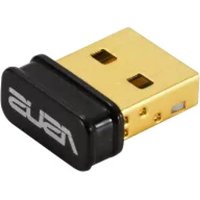
WL-130N - Network card / adapter ASUS - Free user manual and instructions
Find the device manual for free WL-130N ASUS in PDF.


| Product Type | Wireless Network Adapter |
| Brand | ASUS |
| Model | WL-130N |
| Interface | USB 2.0 |
| Wireless Standard | IEEE 802.11b/g/n |
| Frequency Band | 2.4 GHz |
| Maximum Data Rate | 150 Mbps |
| Antenna Type | Built-in omnidirectional |
| Security Features | WEP 64/128-bit, WPA, WPA2, WPS |
| Dimensions (W x D x H) | Approx. 25 x 60 x 9 mm |
| Weight | Approx. 20 g |
| Power Supply | USB bus powered |
| LED Indicators | Power, Link/Activity |
| Operating Temperature | 0°C to 40°C (32°F to 104°F) |
| Operating Humidity | 10% to 90% (non-condensing) |
| Compatibility | Windows XP/Vista/7/8/10, Linux, Mac OS X |
| Package Contents | WL-130N adapter, CD driver, Quick Start Guide |
| Maintenance | Keep dry and clean; wipe gently with a soft dry cloth |
| Repairability | No user-serviceable parts; consult professional for repairs |
Frequently Asked Questions - WL-130N ASUS
User questions about WL-130N ASUS
0 question about this device. Answer the ones you know or ask your own.
Ask a new question about this device
Download the instructions for your Network card / adapter in PDF format for free! Find your manual WL-130N - ASUS and take your electronic device back in hand. On this page are published all the documents necessary for the use of your device. WL-130N by ASUS.
USER MANUAL WL-130N ASUS
Wireless Local Area Network Adapter
WL-130N
(For 802.11n draft, 802.11g & 802.11b Networks)
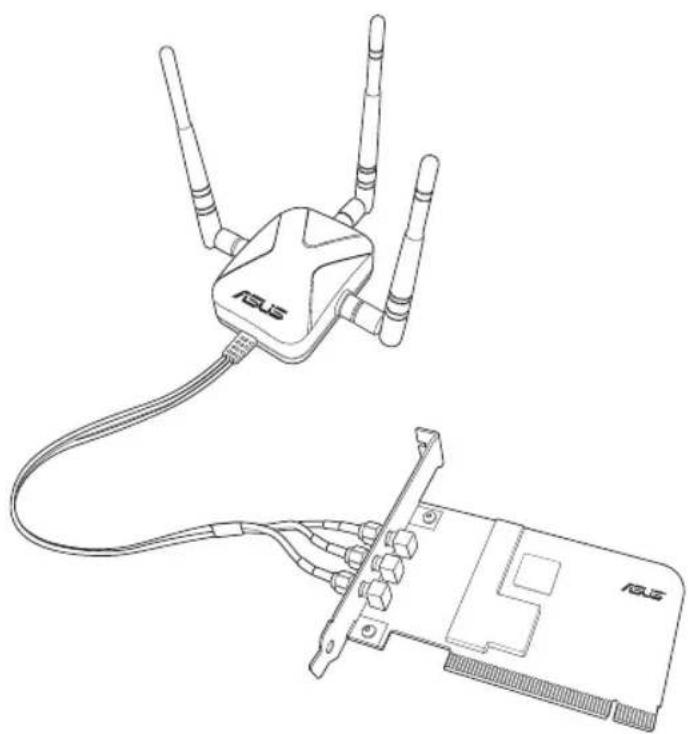
User Manual
E3123/ April 2007
Copyright Information
No part of this manual, including the products and software described in it, may be reproduced, transmitted, transcribed, stored in a retrieval system, or translated into any language in any form or by any means, except documentation kept by the purchaser for backup purposes, without the express written permission of ASUSTeK COMPUTER INC. ("ASUS").
ASUS PROVIDES THIS MANUAL "AS IS" WITHOUT WARRANTY OF ANY KIND, EITHER EXPRESS OR IMPLIED, INCLUDING BUT NOT LIMITED TO THE IMPLIED WARRANTIES OR CONDITIONS OF MERCHANTABILITY OR FITNESS FOR A PARTICULAR PURPOSE. IN NO EVENT SHALL ASUS, ITS DIRECTORS, OFFICERS, EMPLOYEES OR AGENTS BE LIABLE FOR ANY INDIRECT, SPECIAL, INCIDENTAL, OR CONSEQUENTIAL DAMAGES (INCLUDING DAMAGES FOR LOSS OF PROFITS, LOSS OF BUSINESS, LOSS OF USE OR DATA, INTERRUPTION OF BUSINESS AND THE LIKE), EVEN IF ASUS HAS BEEN ADVISED OF THE POSSIBILITY OF SUCH DAMAGES ARISING FROM ANY DEFECT OR ERROR IN THIS MANUAL OR PRODUCT.
Product warranty or service will not be extended if: (1) the product is repaired, modified or altered, unless such repair, modification of alteration is authorized in writing by ASUS; or (2) the serial number of the product is defaced or missing.
Products and corporate names appearing in this manual may or may not be registered trademarks or copyrights of their respective companies, and are used only for identification or explanation and to the owners' benefit, without intent to infringe.
SPECIFICATIONS AND INFORMATION CONTAINED IN THIS MANUAL ARE FURNISHED FOR INFORMATIONAL USE ONLY, AND ARE SUBJECT TO CHANGE AT ANY TIME WITHOUT NOTICE, AND SHOULD NOT BE CONSTRUED AS A COMMITMENT BY ASUS. ASUS ASSUMES NO RESPONSIBILITY OR LIABILITY FOR ANY ERRORS OR INACCURACIES THAT MAY APPEAR IN THIS MANUAL, INCLUDING THE PRODUCTS AND SOFTWARE DESCRIBED IN IT.
Copyright © 2007 ASUSTeK COMPUTER INC. All Rights Reserved.
Contact Information
ASUSTeK COMPUTER INC.
Company address: 15 Li-Te Road, Beitou, Taipei 11259
General (tel): +886-2-2894-3447
Web site address: www.asus.com.tw
General (fax): +886-2-2894-7798
General email: info@asus.com.tw
Technical support
General support (tel): +886-2-2894-3447
Online support: http://support.asus.com
ASUS COMPUTER INTERNATIONAL (America)
Company address: 44370 Nobel Drive, Fremont, CA 94538, USA
General (fax): +1-510-608-4555
Web site address: usa.asus.com
Technical support
General support (tel): +1-502-995-0883
Online support: http://support.asus.com
Notebook (tel): +1-510-739-3777 x5110
Support (fax): +1-502-933-8713
ASUS COMPUTER GmbH (Germany & Austria)
Company address: Harkort Str. 25, D-40880 Ratingen, Germany
General (tel): +49-2102-95990
Web site address: www.asus.com.de
General (fax): +49-2102-959911
Online contact: www.asus.com.de/sales
Technical support
Component support: +49-2102-95990
Online support: http://support.asus.com
Notebook support: +49-2102-959910
Support (fax): +49-2102-959911
Table of Contents
1. Introduction ....5
Package contents ....5
Features ....5
2. Installation ......6
System Requirements ....6
Installation Procedures 6
Installing ASUS WLAN utilities and driver ....6
Reading the WLAN Status Indicators 7
ASUS One Touch Wizard....8
Configuring with ASUS WLAN Settings utility (Infrastructure) 9
Configuring with ASUS WLAN Settings utility (Ad Hoc) ......10
3. Software Reference ....11
ASUS WLAN Control Center 11
ASUS Wireless Settings Utility ....13
Status - Status ....13
Status - Connection ....15
Status - IP Config ....16
Status - Ping 16
Config - Basic....17
Config - Advanced....18
Config - Encryption....19
Config - Authentication 22
Exit Wireless Settings ....24
Windows XP/2003 Wireless Options 25
4. Troubleshooting ......27
5. Glossary ......29
6. Appendix ......37
4 ASUS WLAN Adapter
Chapter 1 - Introduction
Package contents
Check the following items in your ASUS Wireless LAN Adapter package. Contact your retailer if any item is damaged or missing.
1 x ASUS Wireless LAN Adapter (WL-130N) 1 x Extension Cable Antenna 1 x Support CD 1 x Quick Start Guide
Features
Draft 802.11n compliant, fully compatible with 802.11b/g
Suitable for seamless multimedia streaming
Supports WEP, WPA, and WPA2 for enhanced security
Windows® Vista OS support
Chapter 2 - Installation
2. Installation
System Requirements
To begin using the WLAN Adapter, you must meet the following minimum requirements:
- Windows® XP/2000/2003/Vista (driver support only) • PCI slot for personal computer • 128MB system memory or larger • 750MHz processor or higher

Important: Install the WLAN Adapter utilities before inserting the WLAN Adapter into your computer.
Installing ASUS WLAN utilities and driver

NOTE: The ASUS WLAN utilities are only for Windows® 2000/2003/XP.
Follow these instructions to install the WLAN Adapter utilities and driver. Insert the support CD into your optical drive. If autorun is enabled in your computer, the CD automatically displays the utility menu. Click Install ASUS WLAN Card Utilities/Driver. If autorun is disabled, double-click SETUP.EXE in the root directory of the CD.
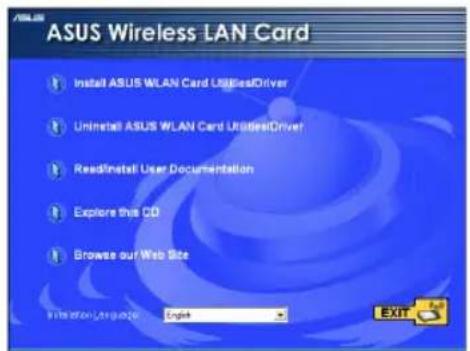
Install
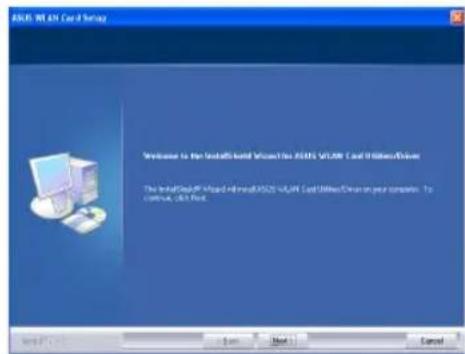
- Click Next on the Welcome screen. 1. Select your language
ASUS WLAN Card Utilities/Driver.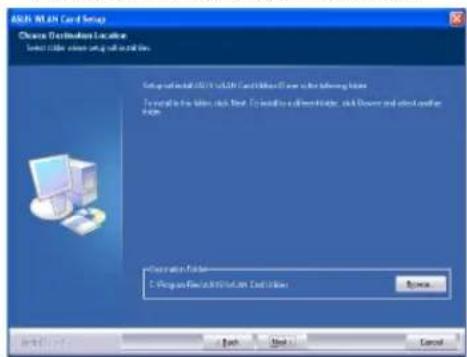
- Click Next to use the default Destination Folder or click Browse to select another folder.
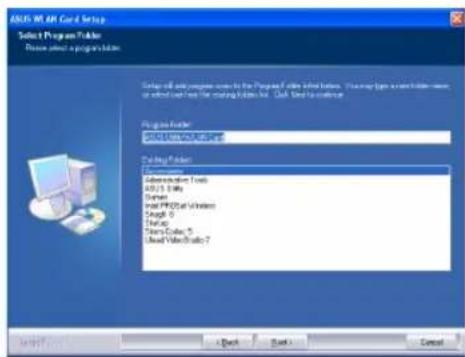
- Click Next to create shortcut.
6 ASUS WLAN Adapter
Chapter 2 - Installation
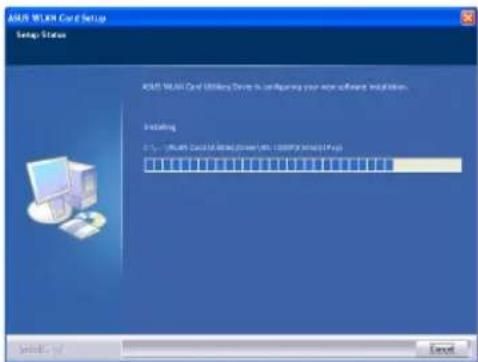
- The installation process takes several seconds.
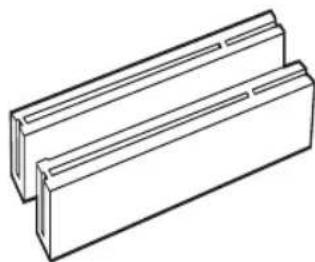
- Carefully insert the WLAN Adapter into your computer's PCI slot. Windows will automatically detect and configure the WLAN Adapter using the utilities and drivers installed in the previous steps.
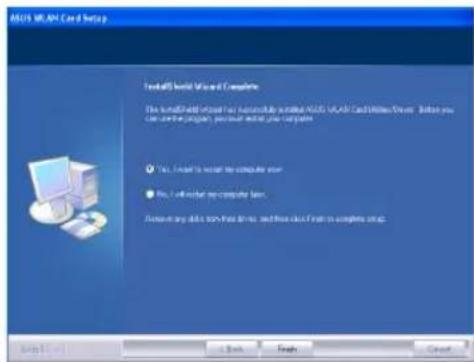
- When Setup is complete, click Finish to exit the installation wizard and restart the computer.
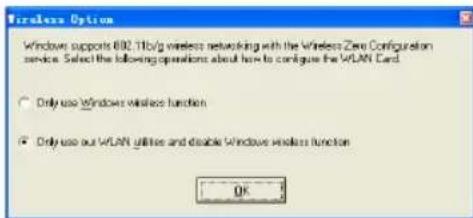
- Windows XP/2003 users: When the program is launched for the first time (during Windows restart), you are asked to choose one utility to configure the WLAN Adapter. Select "Only use our WLAN utilities and disable Windows wireless function".
Reading the WLAN status indicator
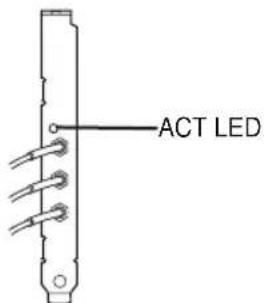
The device comes with one LED that indicates the status of the WLAN Adapter.
ACT LED
Blinking: Transmitting data; the blinking speed indicates the link speed.
OFF: Radio off or Adapter is disabled.
Chapter 2 - Installation
ASUS One Touch Wizard
Use ASUS One Touch Wizard to set up your wireless connection with an existing wireless LAN.
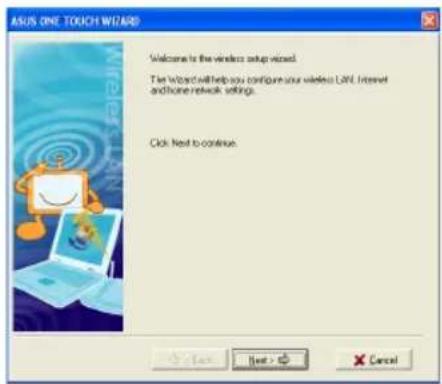
- Launch ASUS One Touch Wizard from the Start menu and click Next to set up your wireless network.
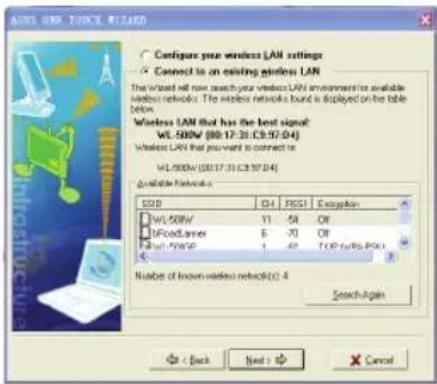
- Select an AP from the Available Networks field, then click Next.
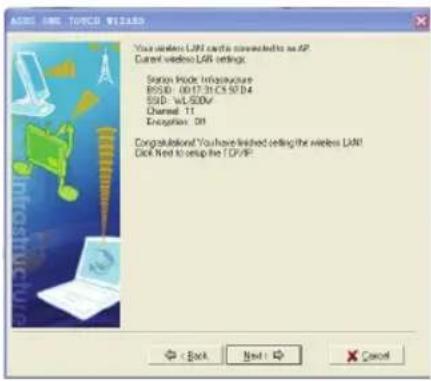
- Connection is complete. Click Next to set up the IP address for the WLAN Adapter.
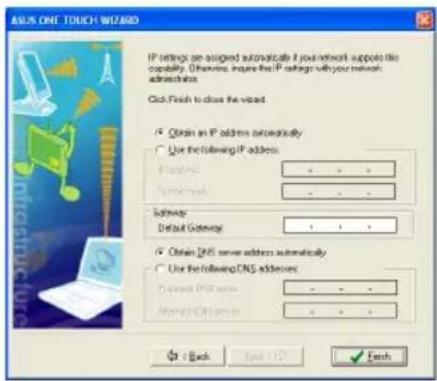
- Choose to obtain an IP address automatically or assign a static address manually for your WLAN Adapter. When IP setting is complete, click Finish to exit ASUS One Touch Wizard.

Note: If the access point you want to connect to has set up encryption policies, you must configure the same encryption on your WLAN Adapter. Select the "Configure your wireless LAN settings" radio button in step 2 and make the settings accordingly. When the encryption settings are complete, you can launch ASUS One Touch Wizard once again from the Start menu to set up the connection with your AP.

We suggest that the WL-130N works with the WL-500W Super Speed N wireless router for maximum performance. Make sure the router firmware is updated. Check the ASUS website for the latest updated firmware for the router.
8 ASUS WLAN Adapter
Chapter 2 - Installation
Configuring with ASUS WLAN Settings utility (Infrastructure)
Use the ASUS WLAN Settings utility to connect to an existing wireless network.
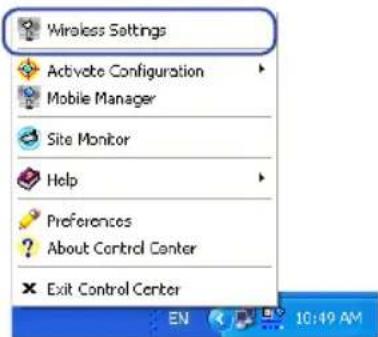
- Right-click the wireless connection icon and select Wireless Settings.
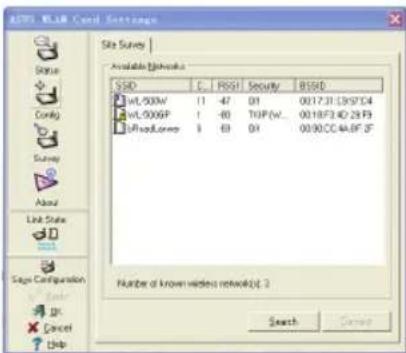
- Use Site Survey if you don't know the SSID of your access point(s).
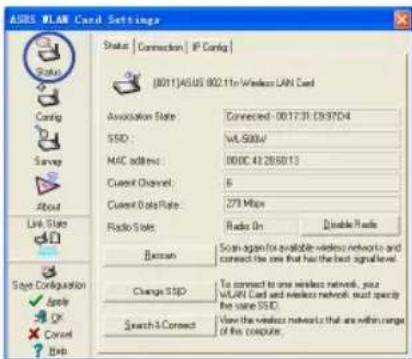
- Check the Status page to see the association state. If connection is established, the box shows "Connected - xx:xx:xx:xx:xx:xx".
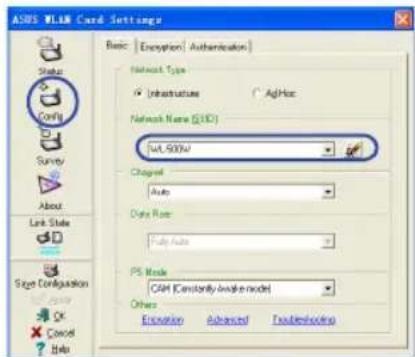
- Check the Config page to set the SSID (network name) to that of your wireless AP.
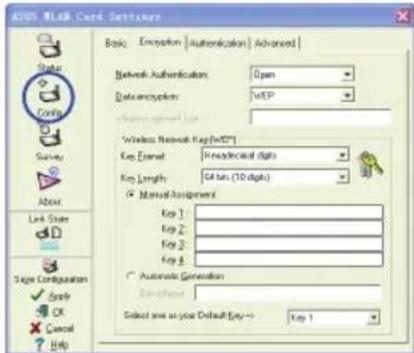
- Encryption settings must match those at the access point. Ask your network administrator about settings if necessary. Click Apply to activate the settings.
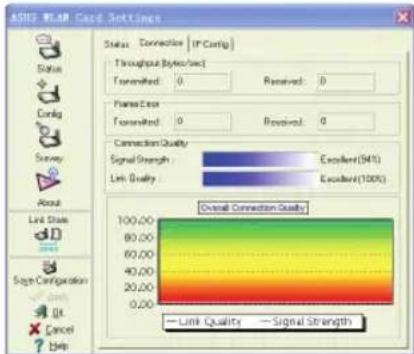
- Check the Connection tab to see the signal strength. Click OK to exit the utility.
Chapter 2 - Installation
Configuring with ASUS WLAN Settings utility (Ad Hoc)
The WLAN Adapter supports Ad Hoc mode which allows communication
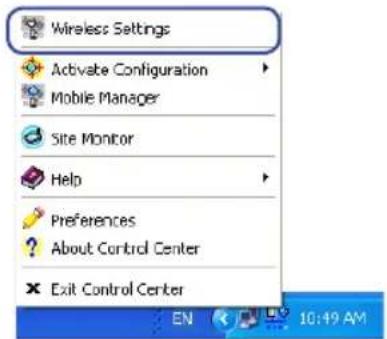
- Right-click the wireless connection icon and select Wireless Settings.
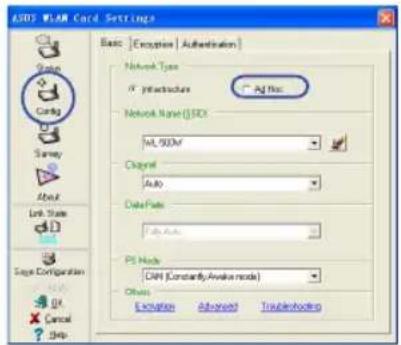
- Click the Config button and set the WLAN Adapter to Ad Hoc connection mode.
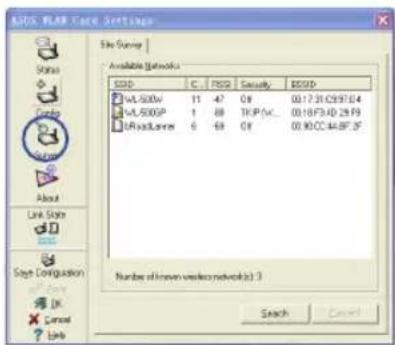
- Click the Survey button to scan for Ad Hoc nodes. Select the node you want to communicate with and press Connect.
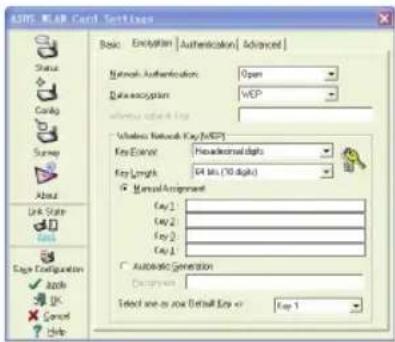
- If the encryption settings of your WLAN Adapter are different from those of the other Ad Hoc nodes, you are prompted to make the encryption of the two nodes identical. Click Apply to activate the settings.
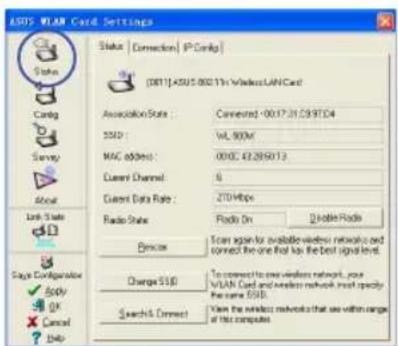
- Check the Status page to see the association state. If connection is established, the box shows "Connected - xx:xx:xx:xx:xx:xx".
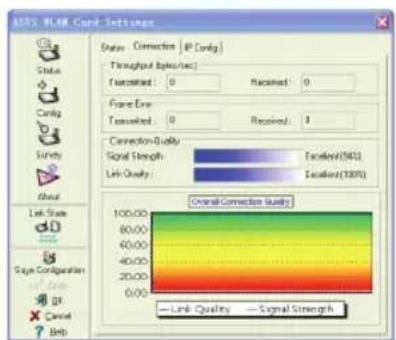
- Check the Connection tab to see the signal strength. Click OK to exit the utility.
10 ASUS WLAN Adapter
Chapter 3 - Software Reference
3. Software Reference
ASUS WLAN Control Center
ASUS WLAN Control Center is an application that makes it easier to launch WLAN applications and activate network location settings. The WLAN Control Center starts automatically when the system boots. When the WLAN Control Center is running, you can see a Control Center icon on the Windows taskbar.
Starting the Control Center
- Select ASUS WLAN Control Center in the Windows Start menu, or
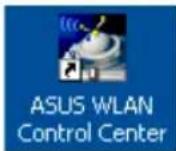
- Double-click the ASUS WLAN Control Center icon on the desktop. Using the Control Center
The Control Center taskbar icon displays the following information:
- Link quality of the WLAN Adapter (Excellent, Good, Fair, Poor, Not Linked)
- Whether the WLAN Adapter is connected to a network (Blue: Connected, Gray: Not Connected)
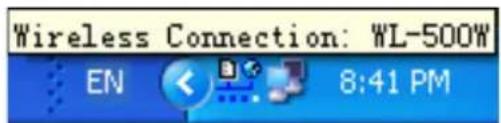
Taskbar Icon and Status
Wireless Status Icons (on the taskbar)
Excellent link quality and connected to Internet (Infrastructure) Good link quality and connected to Internet (Infrastructure) Fair link quality and connected to Internet (Infrastructure) Poor link quality and connected to Internet (Infrastructure) Excellent link quality but not connected to Internet (Infrastructure) Good link quality but not connected to Internet (Infrastructure) Fair link quality but not connected to Internet (Infrastructure) Poor link quality but not connected to Internet (Infrastructure) Not linked and not connected to Internet (Infrastructure)

Chapter 3 - Software Reference
Taskbar icon - Right-click menu
Right-click the taskbar icon to show the following menu items:
- Wireless Settings – Click to launch the Wireless Settings application.
- Activate Configuration – Click to choose a preset profile.
- Mobile Manager – Click to launch the Mobile Manager application.
- Site Monitor – Click to launch the Site Monitor application.
- Preferences – Click to customize the Control Center program. You can create a Control Center shortcut on the desktop and decide whether to start Control Center when the system boots.
- About Control Center – Shows the version of Control Center.
- Exit – Click to close the Control Center program.
Taskbar icon - Left-click menu
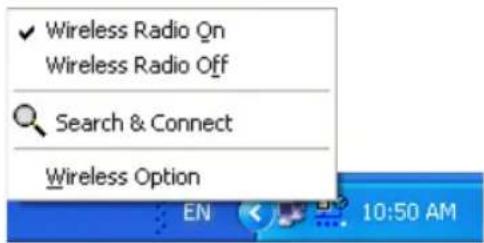
Left-click the taskbar icon to show the following menu items:
- Wireless Radio On – Click to turn the wireless radio ON.
- Wireless Radio Off – Click to turn the wireless radio OFF.
- Search & Connect – Click to view the properties of available access points.
- Wireless Option (Windows® XP/2003) – Click to choose Windows® Wireless Zero Configuration (WZC) service or ASUS utilities to configure your WLAN Adapter.
Taskbar Icon - Launch Wireless Settings
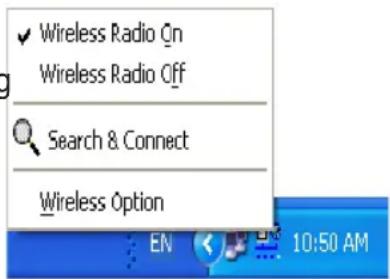
Taskbar Left-Click Menu
Double-click the taskbar icon to launch the ASUS Wireless Settings utility.
Chapter 3 - Software Reference
ASUS Wireless Settings Utility
ASUS Wireless Settings utility is an application for managing the WLAN Adapter. Use Wireless Settings to view or modify the configuration settings, or to monitor the operational status of your WLAN Adapter. When Wireless Settings is launched, you can see the tabbed property sheets which categorize the configuration options into groups.
Starting Wireless Settings
- Open the Windows Control Panel, then double-click the ASUS WLAN Adapter Settings icon.
or
- Click the Windows Start button, select Programs | ASUS Utility | WLAN Adapter | Wireless Settings.
or
- Right-click the Control Center icon on the Windows taskbar and select Wireless Settings.
NOTE: If you have more than one ASUS WLAN device installed on your computer, you may see a device selection window when you launch the "Wireless Settings" utility. Select the device you want when such situation occurs.
Chapter 3
Software Reference
Status - Status
You can view the information about the WLAN Adapter from the Status menu. The status fields are blank if the WLAN Adapter is not installed. You can turn off the WLAN Adapter by clicking the "Disable Radio" button.
Association State
Displays the connection status as follows:
![ASUS WLAN Cord Settings Status | Connection | IP Config | [0011]ASUS 802.11n Wireless LAN Card Association State : Connected - 0817.31 CB97D4 SSID : WL000W MAC address : 00 CC 43.28 6013 Current Channel : 6 Current Data Rate : 270 Mbps Radio State : Radio On Double Radio Reason: Scan again for avail…](/content/2026/05/1026791/images/6946bdb170842a0f285e8d010c3029f9589c5054b6b69d69a917e44eed02aa76.jpg)
Connected - The adapter is now associated with one wireless LAN device. When operating in Infrastructure mode, this field shows the MAC address of the access point with which the WLAN Adapter is communicating. When operating in Ad Hoc mode, this field shows the virtual MAC address used by computers participating in the Ad Hoc network.
Chapter 3 - Software Reference
Scanning... : The station is trying to authenticate and associate with an access point or Ad Hoc node.
Disconnected: The WLAN Adapter is installed to the system, but not yet connected to a wireless device.
SSID: Displays the Service Set Identifier (SSID) of the device that the adapter is either associated or intending to join.
MAC address: Shows the hardware address of the WLAN Adapter. MAC address is a unique identifier for networking devices (typically written as twelve hexadecimal digits from 0 through 9 and A through F separated by colons, i.e. 00:E0:18:F0:05:C0).
Current Channel: Displays the radio channel to which the adapter is currently tuned. This number changes as the radio scans the available channels. When data transmission is in processing, this number displays the radio channel which the adapter is currently using.
Current Data Rate: Display the data rate that the adapter support. When data transmission is in processing, this number displays the current data rate in megabits per second (Mbps).
Radio State: Shows the wireless radio status: ON or OFF.
Radio On - When the wireless radio is turned ON, the icon on the right appears in the upper left of the Status page.
Radio Off - When the wireless radio is turned OFF, the icon on the right appears in the upper left of the Status page.

Buttons
Rescan – Make the WLAN Adapter rescan all available devices. If the current link quality or signal strength is poor, rescanning can be used to push the radio off a weak access point and search for a better link with another access point. This function usually takes several seconds.
Change SSID— Click this button to set the SSID to that of the AP you want to connect.
Search & Connect- Click this button to connect to an available wireless AP.
Chapter 3 - Software Reference
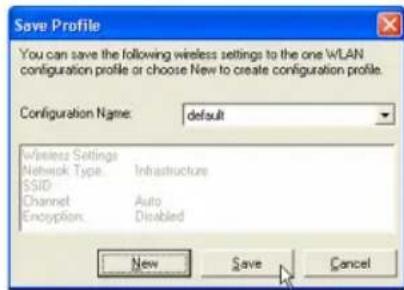
Save Configuration
When you make settings for a certain working environment, you may need to save your settings to a profile so that you can easily switch to the settings without repeating the configurations. For example, you can set profiles for work, home and other situations. When you travel from home to work, choose the "office" profile that contains all your settings for office use. When you travel back home, choose the "home" profile.
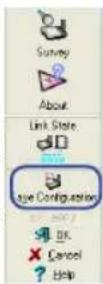
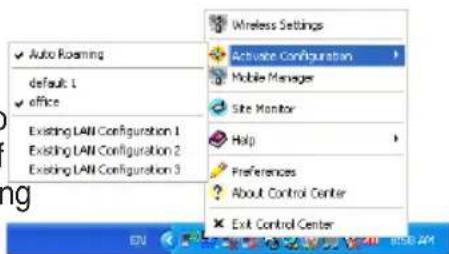
Activate Configuration
Auto roaming is enabled by default and makes the adapter automatically switch to APs of better signal. You can uncheck it if you want to connect to a specified AP using a particular profile.
Status - Connection
You can view the current link statistics about the WLAN Adapter. These statistics are updated once per second and are valid if the WLAN Adapter is correctly installed.
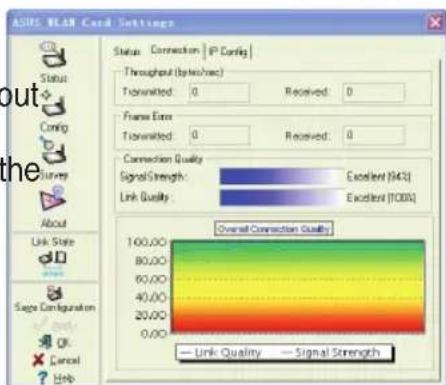
Frame Sent/Received
Transmitted- The number of frames that were transmitted.
Received- The number of frames that were received.
Frame Error
Transmitted- The number of frames that were not successfully transmitted. Received- The number of frames that were not successfully received.
Connection Quality
Signal Strength - Shows the link quality of the access point or Ad Hoc node the WLAN Adapter is currently connected to. Ratings are: Excellent, Good, Fair, and Poor.
Overall Connection Quality
The overall connection quality is derived from the current signal strength. A graphic chart uses percentage to show signal quality.
Chapter 3 - Software Reference
Status - IP Config
IP Config tab shows all the current host and WLAN Adapter information including Host Name, DNS Servers, IP Address, Subnet Mask and Default Gateway.
Button
IP Release - If you want to remove the current IP address, click this button to release the IP address from DHCP server.
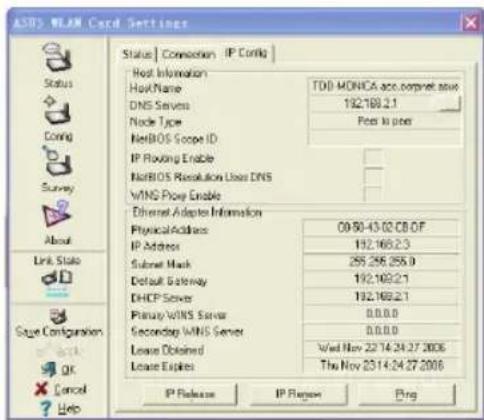
IP Renew - If you want to obtain a new IP address from DHCP server, click this button to renew the IP address.
Ping - Click this button to open "Ping" tab which is used to ping the devices in your network.
NOTE: The IP Release and IP Renew buttons can only be used on the WLAN Adapter which gets IP address from DHCP server.
Status - Ping
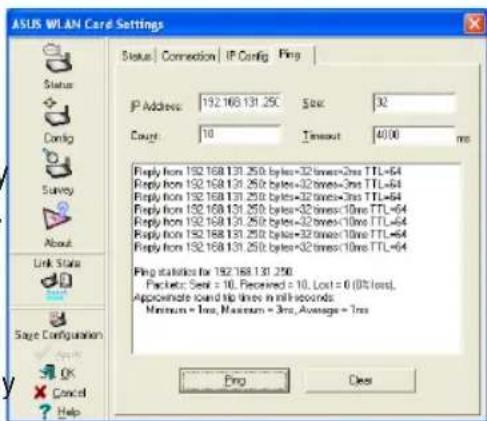
Click the "Ping" button in Status-IP Config tab to open this page. The Ping tab allows you to verify the accessibility of other computers or network devices. To ping a connection:
- Type the IP address of the device you want to verify in the IP Address field.
- Configure the ping session by assigning the ping packet size and number of packets to send, and the timed
- Click the "Ping" button.
During the ping session, the Ping button changes into a Stop button. To cancel the ping session, click the "Stop" button.
The session field displays information on the verified connection including the roundtrip time (minimum, maximum, and average) and packets sent, received, and lost after a ping session.
Click the "Clear" button to clear the session field.
16 ASUS WLAN Adapter
Chapter 3 - Software Reference
Config - Basic
This page enables you to change the WLAN Adapter configurations.
Network Type
Infrastructure— Infrastructure means to establish a connection with an access point. Once connected, the access point allows you to access wireless LAN and wired LAN (Ethernet). The Channel field turns to Auto if the connection is based on Infrastructure.
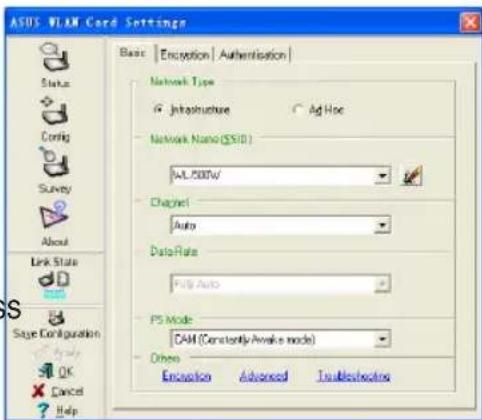
Ad Hoc – Ad Hoc means to communicate directly with other wireless clients without using an access point. An "Ad Hoc" network can be set up quickly and easily without pre-planning, for example, sharing meeting notes between attendants in a meeting room.
Network Name (SSID)
SSID stands for "Service Set Identifier", which is a string used to identify a wireless LAN. Use the SSID to connect with a known access point. You can enter a new SSID or select one from the drop-down list box. If you get connected by designating the SSID, you are only to connect to the AP with the SSID you assigned. If the AP is removed from the network, your WLAN Adapter does not roam automatically to other APs. SSIDs must all be printable characters and have a maximum of 32 case-sensitive characters, such as "Wireless".

NOTE: Set the SSID to a null string if you wish to allow your station to connect to any access point it can find. But you cannot use a null string in Ad Hoc mode.
Channel
The Channel field is for setting the radio channel. Your WLAN Adapter can automatically select the correct channel to communicate with a wireless device, and the parameter is fixed to "Auto" in both Infrastructure and Ad Hoc modes.
The available radio channels depend on the regulations in your country. For the United States (FCC) and Canada (IC), channels 1 to 11 are supported. For Europe (ETSI), channels 1 to 13 are supported.

Click Apply to save and activate the new configurations.
Chapter 3 - Software Reference
Encryption – Click this link to show the "Encryption" tab.
Advanced – Click this link to show the "Advanced" tab. In most cases, the default values do not have to be changed.
Troubleshooting – Click on this to show the Troubleshooting utility.
Config - Advanced
Click the Advanced link on the Config-Basic page to show this tab. This tab allows you to set up additional parameters for the wireless Adapter. We recommend using the default values for all items in this window.
RTS Threshold (0-2347)
The RTS/CTS (Request to Send/Clear to Send) function is used to minimize collisions among wireless stations. When RTS/CTS is enabled, the router refrains from sending a data frame until another RTS/CTS handshake is completed. Enable RTS/CTS by setting a specific packet size threshold. The default value (2347) is recommended.
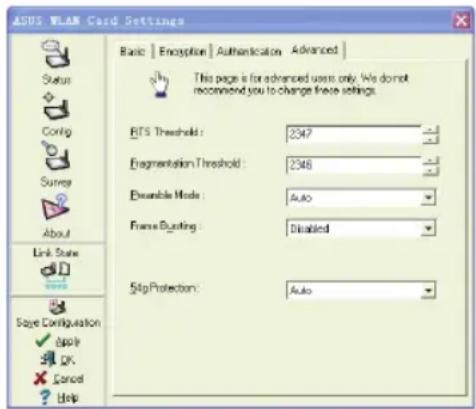
Fragmentation Threshold (256-2346)
Fragmentation is used to divide 802.11 frames into smaller pieces (fragments) that are sent separately to the destination. Enable fragmentation by setting a specific packet size threshold. If there is an excessive number of collisions on the WLAN, experiment with different fragmentation values to increase the reliability of frame transmissions. The default value (2000) is recommended for normal use.
Chapter 3 - Software Reference
Config - Encryption
This page enables you to configure the Wireless LAN Adapter encryption settings. For data confidentiality in a wireless environment, IEEE 802.11 specifies a Wired Equivalent Privacy (WEP) algorithm to offer transmission privacy. The WEP uses keys to encrypt and decrypt data packets. The encryption process can scramble frame bits to avoid disclosure to others. The WPA/WPA2 is an improved security system for 802.11, developed to overcome the weakness of the WEP protocol.
Network Authentication
Since there is no precise bound in wireless LANs, the WLAN users need to implement certain mechanisms to provide security solutions. The Authentication policies in this tab provide protection of different levels such as Open, Shared, WPA-Personal, WPA2-Personal, WPA-Enterprise, and WPA2-Enterprise.
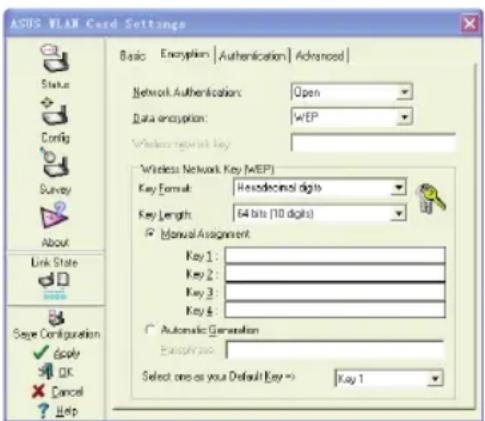
Open - Select this option to make the network operate on Open System mode, which uses no authentication algorithm. Open stations and APs can authenticate with each other without checking any WEP Key, even if there is one.
Shared - Select this option to make the network operate on Shared key mode. In a Shared Key Authentication system, a four-step exchange of frames is required to validate that the station is using the same WEP Key as the access point.
WPA-Personal/WPA2-Personal - Select this option to enable WPA Pre-Shared Key under Infrastructure mode. It enables communication between your client and APs using WPA-Personal/WPA2-Personal encryption mode.
WPA-Enterprise/WPA2-Enterprise - The network is operating in IEEE 802.1x authentication mode. This mode is for environments with RADIUS (Remote Access Dial-in User Service). In a RADIUS environment, three Extensible Authentication Protocol (EAP) types are supported, including PEAP, EAP-TLS, and LEAP.

Chapter 3 - Software Reference
Data Encryption
For Open and Shared authentication modes, the configuration options for encryption type are Disabled and WEP. For WPA-Enterprise, WPA-Personal, WPA2-Enterprise, and WPA2-Personal authentication modes, Temporal Key Integrity Protocol (TKIP) encryption and Advanced Encryption Standard (AES) encryption are supported.
Disabled - Disable the encryption function.
WEP - WEP Key is used to encrypt your data before it is transmitted over the air. You can only connect and communicate with wireless devices that use the same WEP keys.
TKIP - TKIP uses an encryption algorithm that is more stringent than the WEP algorithm. It also uses existing WLAN calculation facilities to perform encryption. TKIP verifies the security configuration after the encryption keys are determined.
AES - AES is a symmetric 128-bit block encryption technique that works simultaneously on multiple network layers.
Wireless Network Key
This option is enabled only if you select WPA-Personal or WPA2-Personal authentication mode. Note: 8 to 63 characters or 64 hexadecimal digits are required in this field.
Wireless Network Key (WEP)
This option is configurable only if you enable WEP in the Network Authentication field. The WEP Key is a 64-bit (5 byte) or 128-bit (13 byte) hexadecimal value used to encrypt and decrypt data packets.
Key Format
You can select to enter hexadecimal digits (0~9, a~f, and A~F) or ASCII characters to set up keys by defining the Key Format.
Key Length
For 64-bit encryption, each key contains 10 hex digits or 5 ASCII characters. For 128-bit encryption, each key contains 26 hex digits or 13 ASCII characters.
Two ways to assign WEP keys
- Manual Assignment - When you select this option, the cursor appears in the field for Key 1. For 64-bit encryption, you are required to enter four WEP Keys. Each key contains exactly 10 hex digits (0~9, a~f, and A~F). For 128-bit encryption, you are required to enter four WEP Keys. Each key contains exactly 26 hex digits (0~9, a~f, and A~F).
- Automatic Generation - Type a combination of up to 64 letters, numbers, or symbols in the Passphrase box, and the Wireless Settings Utility automatically uses an algorithm to generate four WEP Keys.
Select one as your Default Key
The Default Key field allows you to specify which of the four encryption keys is to be used for transmitting data over the wireless LAN. You can change the default key by clicking on the downward arrow, selecting the number of the key you want to use, and clicking the "Apply" button. If the access point or station with which you are communicating uses the identical key in the same sequence, you can use any of the keys as the default on your WLAN Adapter.
Click the "Apply" button after you have created the encryption keys. The Wireless Settings Utility uses asterisks to mask your keys.
64/128 bits versus 40/104 bits
There are two levels of WEP encryption: 64 bits and 128 bits.
First, 64-bit WEP and 40-bit WEP are the same encryption method and can interoperate in the wireless network. This lower level of WEP encryption uses a 40-bit (10 hex character) "secret key" (set by the user) and a 24-bit "Initialization Vector" (not under user control). Together, this makes 64 bits (40 + 24). Some vendors refer to this level of WEP as 40 bits, while others refer to it as 64 bits. Our Wireless LAN products use the term 64 bits when referring to this lower level of encryption.
Second, 104-bit WEP and 128-bit WEP are the same encryption method and can interoperate in the wireless network. This higher level of WEP encryption uses a 104-bit (26 hex character) "secret key" (set by the user) and a 24-bit "Initialization Vector" (not under user control). Together, this makes 128 bits (104 + 24). Some vendors refer to this level of WEP as 104 bits, while others refer to it as 128 bits. Our Wireless LAN products use the term 128 bits when referring to this higher level of encryption.
Chapter 3 - Software Reference
Config - Authentication
This tab allows you to set the security settings to match those of your AP. It is configurable only if you have set Network Authentication to WPA-Enterprise or WPA2-Enterprise in the Config-Encryption tab.
Authentication Type
The authentication type methods include:
PEAP: PEAP (Protected Extensible Authentication Protocol) authentication is a version of Extensible Authentication Protocol (EAP). EAP ensures mutual authentication between a wireless client and a server that resides at the network operations center.
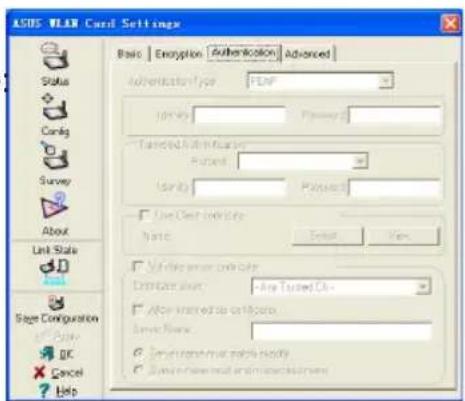
EAP/TLS: EAP/TLS (Extensible Authentication Protocol - Transport Layer Security) is a follow-on to Secure Socket Layer (SSL). It provides strong security, but relies on client certificates for user authentication.
EAP/TLS: EAP/TLS (Extensible Authentication Protocol - Transport Layer Security) is a follow-on to Secure Socket Layer (SSL). It provides strong security, but relies on client certificates for user authentication.
LEAP: LEAP (Light Extensible Authentication Protocol) authentication is a version of Extensible Authentication Protocol (EAP). EAP ensures mutual authentication between a wireless client and a server that resides at the network operations center.
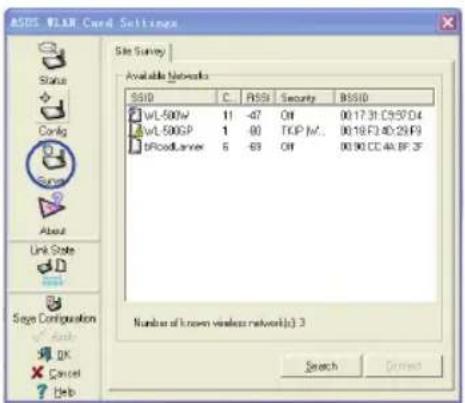
Use the Site Survey tab to view statistics on the wireless networks available to the WLAN Adapter and their parameters.
• SSID: The SSID of the available networks. - Channel: The channel used by each network.
Chapter 3 - Software Reference
- RSSI: The Received Signal Strength Indication (RSSI) transmitted by each network. This information is helpful in determining which network to connect to. The value is then normalized to a dBm value. • Security: Wireless network encryption information. All devices in the network should use the same encryption method to ensure the communication.
- BSSID: The media access control (MAC) address of the access point or the Basic Service Set ID of the Ad Hoc node.

NOTE: Some access points may disable SSID broadcast and hide themselves from "Site Survey" or "Site Monitor", however, you can connect such AP if you know their SSID.
Buttons
Search- To scan all available wireless networks and show the scan result in the "Available Network" list.
Connect – To associate with a network, select the network from the "Available Network" list and click this button.
Chapter 3
Software Reference

About - Version Info
Use the Version Info tab to view program and WLAN Adapter version information. The program version information field includes the Copyright and utility version. The version information includes the Ndis version, Driver, Driver Version and EEPROM Version.
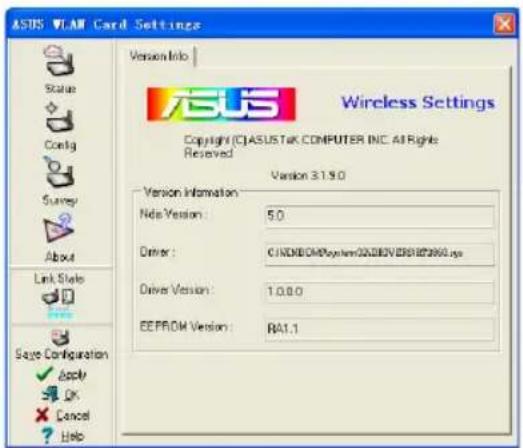
This screen is an example only. Your version numbers will be different from what are shown here.
Chapter 3 - Software Reference
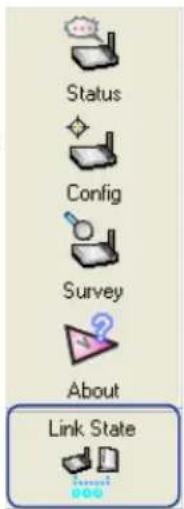
Link State
WLAN Adapter "Link State" icon appears on the left side of the WLAN Adapter Settings. Use the icon to view the current signal status.
Excellent Link Quality (Infrastructure) Good Link Quality (Infrastructure) Fair Link Quality (Infrastructure) Poor Link Quality (Infrastructure) Not linked (Infrastructure)
Exit Wireless Settings
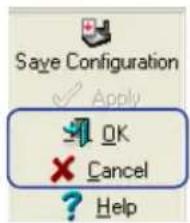
To exit Wireless Settings, you can click OK or Cancel.
Chapter 3 - Software Reference
Windows® XP/2003 Wireless Options
The wireless options window shown below is only available for Windows XP/2003. It appears when you run the Control Center utility at the first time. Select the utility you want to use for configuring your WLAN Adapter.
Only use Windows wireless function - Only use Windows 20 0 3/XP Wireless Zero Configuration service to configure the WLAN Adapter.
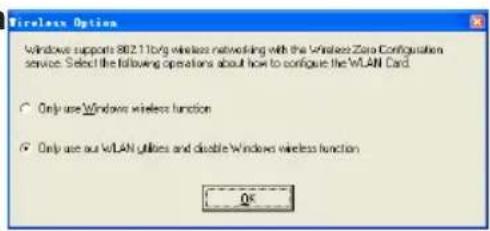
Only use our WLAN utilities and disable wireless function
- Only use ASUS WLAN utilities to configure the WLAN Adapter. (recommended)
You can open the Wireless Option setting window at any time by left-clicking the control center icon and choosing Wireless Option
Taskbar Left-Click Menu
Configuring with Windows® XP SP2 Wireless Zero Configuration service
If you want to configure your WLAN Adapter via Windows®XP/2003 Wireless Zero Configuration (WZC) service, follow the instruction below to make the settings.
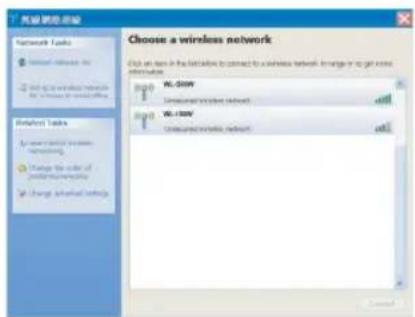
- Double-click the wireless network icon on the task bar to view available networks. Select the AP and click Connect
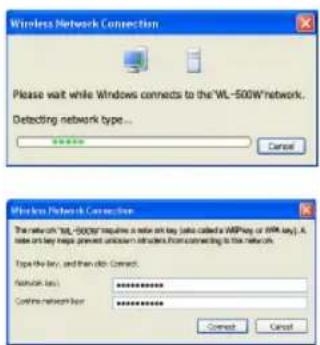
- A window prompts you for the key if you have set up encryption on your wireless router. Input the key and click Connect. The connection is complete.
Chapter 3 - Software Reference
To set up the wireless connection properties, right-click the wireless icon on the taskbar and select Open Network Connection. Then right-click the network connection icon and select Properties to open the Wireless Network Connection Status page.
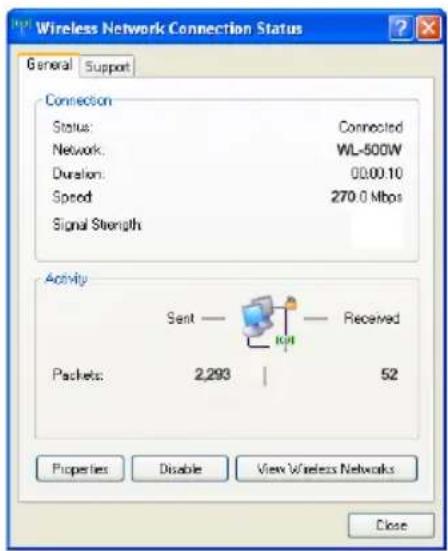
- The General page shows status, duration, speed, and signal strength. Signal strength is represented by green bars, with 5 bars indicating excellent signal and 1 bar meaning poor signal.
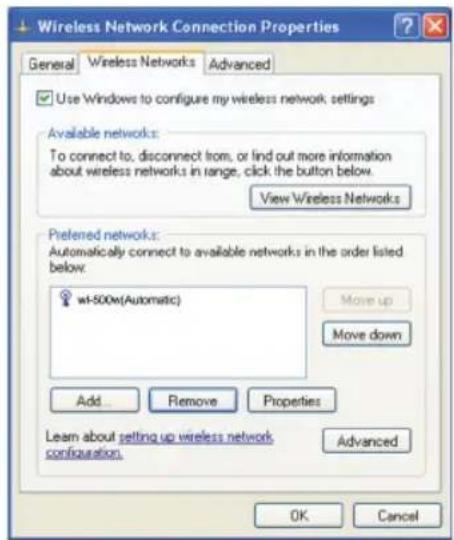
- Select the "Wireless Networks" tab to show Preferred networks. Use the Add button to add the "SSID" of available networks and set the connection preference order with the Move up and Move down buttons. The radio tower with a signal icon identifies the currently connected access point. Click Properties to set the authentication of the wireless connection.
Chapter 4 - Troubleshooting
4. Troubleshooting
The following troubleshooting guides provide answers to some of the more common problems you may encounter while installing or using WLAN Adapter products. If you encounter difficulties that are not mentioned in this section, please contact the Wireless LAN Technical Support.
Verify if the WLAN Adapter is installed correctly.
When the WLAN Adapter setup is complete, you can verify if the driver has been set up properly. Right-click My Computer, select Properties, and click the Device Manager tab. Then double-click the Network adapters icon; you should see "802.11n Wireless LAN Card" with an icon of an expansion adapter. There should not be a "!" or "?" (problem) or "x" (disabled) symbol over this icon.
There is a yellow exclamation mark or a yellow question mark in Device Manager in front of my WLAN Adapter.
To resolve the problem, you should update/reinstall the WLAN Adapter driver. In "Device Manager", right-click 802.11n Wireless LAN Card, select Properties, and select the Driver tab. Click on Update Driver button, then follow the "Update Device Driver Wizard" to complete the driver installation.
Cannot connect to any access points
Follow the procedure below to configure your WLAN Adapter.
a. Verify that the "Network Type" is in "Infrastructure" mode. b. Verify that the "SSID" of your WLAN Adapter is set to the same "SSID" of an access point. c. Verify that the "Encryption" type is the same as that of an access point. If you enabled "WEP" encryption, you must also set the same WEP Keys on both sides.
Chapter 4 - Troubleshooting
Cannot connect to a Station (WLAN Adapter)
Follow the procedure below to configure your WLAN Adapter.
a. Verify that the "Network Type" is in "Ad Hoc" mode. b. Verify that the "SSID" of your WLAN Adapter is set to the same "SSID" of the other station (or another WLAN Adapter). c. Verify that the "Channel" of the WLAN Adapter is "Auto" or set to the same "channel" of the other station (or another WLAN Adapter). d. Verify that the "Encryption" type is the same as the other station (or another WLAN Adapter). If "WEP" encryption is enabled, you must set the same "WEP" keys on both stations.
Bad link quality or bad signal strength
There are two possible reasons. First is radio interference, keep the environment around the WLAN Adapter away from microwave ovens and large metal objects. Then try to reorient the WLAN Adapter antenna. Second is the distance, decrease the distance between your WLAN Adapter and the access point or station (or another WLAN Adapter).
Chapter 5 - Glossary
5. Glossary
Access Point (AP)
A networking device that seamlessly connects wired and wireless networks. Access points combined with a distributed system support the creation of multiple radio cells that enable roaming throughout a facility.
Ad Hoc
A wireless network composed solely of stations within mutual communication range of each other (no access point).
Basic Rate Set
This option allows you to specify the data transmission rate.
Basic Service Area (BSS)
A set of stations controlled by a single coordination function.
Broadband
A type of data transmission in which a single medium (such as cable) carries several channels of data at once.
Channel
An instance of medium use for the purpose of passing protocol data units that may be used simultaneously, in the same volume of space, with other instances of medium use (on other channels) by other instances of the same physical layer, with an acceptably low frame error ratio due to mutual interference.
Client
A client is the desktop or mobile PC that is connected to your network.
COFDM (for 802.11a or 802.11g)
Signal power alone is not enough to maintain 802.11b-like distances in an 802.11a/g environment. To compensate, a new physical-layer encoding technology was designed that departs from the traditional direct-sequence technology being deployed today. This technology is called COFDM (coded OFDM). COFDM was developed specifically for indoor wireless use and offers performance much superior to that of spread-spectrum solutions. COFDM works by breaking one high-speed data carrier into several lower-speed subcarriers, which are then transmitted in parallel. Each high-speed carrier is 20 MHz wide and is broken up into 52 subchannels, each approximately 300 KHz wide. COFDM uses 48 of these subchannels for data, while the remaining four are used for error correction. COFDM delivers higher data rates and a high degree of multipath reflection recovery, thanks to its encoding scheme and error correction.
Chapter 5 - Glossary
Each subchannel in the COFDM implementation is about 300 KHz wide. At the low end of the speed gradient, BPSK (binary phase shift keying) is used to encode 125 Kbps of data per channel, resulting in a 6,000-Kbps, or 6 Mbps, data rate. Using quadrature phase shift keying, you can double the amount of data encoded to 250 Kbps per channel, yielding a 12-Mbps data rate. And by using 16-level quadrature amplitude modulation encoding 4 bits per hertz, you can achieve a data rate of 24 Mbps. The 802.11a/g standard specifies that all 802.11a/g-compliant products must support these basic data rates. The standard also lets the vendor extend the modulation scheme beyond 24 Mbps. Remember, the more bits per cycle (hertz) that are encoded, the more susceptible the signal will be to interference and fading, and ultimately, the shorter the range, unless power output is increased.
Default Key
This option allows you to select the default WEP key. This option allows you to use WEP keys without having to remember or write them down. The WEP keys generated using the Pass Phrase is compatible with other WLAN products. The Pass Phrase option is not as secure as manual assignment.
Device Name
Also known as DHCP client ID or network name. Sometimes provided by an ISP when using DHCP to assign addresses.
DHCP (Dynamic Host Configuration Protocol)
This protocol allows a computer (or many computers on your network) to be automatically assigned a single IP address from a DHCP server.
DNS Server Address (Domain Name System)
DNS allows Internet host computers to have a domain name and one or more IP addresses. A DNS server keeps a database of host computers and their respective domain names and IP addresses, so that when a user enters a domain name into the Internet browser, the user is sent to the proper IP address. The DNS server address used by the computers on your home network is the location of the DNS server your ISP has assigned.
DSL Modem (Digital Subscriber Line)
A DSL modem uses your existing phone lines to transmit data at high speeds.
Direct-Sequence Spread Spectrum (for 802.11b)
Spread spectrum (broadband) uses a narrowband signal to spread the transmission over a segment of the radio frequency band or spectrum. Direct-sequence is a spread spectrum technique where the transmitted signal is spread over a particular frequency range.
Chapter 5 - Glossary
Direct-sequence systems communicate by continuously transmitting a redundant pattern of bits called a chipping sequence. Each bit of transmitted data is mapped into chips and rearranged into a pseudorandom spreading code to form the chipping sequence. The chipping sequence is combined with a transmitted data stream to produce the output signal.
Wireless mobile clients receiving a direct-sequence transmission use the spreading code to map the chips within the chipping sequence back into bits to recreate the original data transmitted by the wireless device. Intercepting and decoding a direct-sequence transmission requires a predefined algorithm to associate the spreading code used by the transmitting wireless device to the receiving wireless mobile client.
This algorithm is established by IEEE 802.11b specifications. The bit redundancy within the chipping sequence enables the receiving wireless mobile client to recreate the original data pattern, even if bits in the chipping sequence are corrupted by interference. The ratio of chips per bit is called the spreading ratio. A high spreading ratio increases the resistance of the signal to interference. A low spreading ratio increases the bandwidth available to the user. The wireless device uses a constant chip rate of 11Mchips/s for all data rates, but uses different modulation schemes to encode more bits per chip at the higher data rates. The wireless device is capable of an 11 Mbps data transmission rate, but the coverage area is less than a 1 or 2 Mbps wireless device since coverage area decreases as bandwidth increases.
Encryption
This provides wireless data transmissions with a level of security. This option allows you to specify a 64-bits or a 128-bits WEP key. A 64-bits encryption contains 10 hexadecimal digits or 5 ASCII characters. A 128-bits encryption contains 26 hexadecimal digits or 13 ASCII characters.
64-bit and 40-bit WEP keys use the same encryption method and can interoperate on wireless networks. This lower level of WEP encryption uses a 40-bit (10 hexadecimal digits assigned by the user) secret key and a 24-bit Initialization Vector assigned by the device. 104-bit and 128-bit WEP keys use the same encryption method.
All wireless clients in a network must have identical WEP keys with the access point to establish connection. Keep a record of the WEP encryption keys.
Extended Service Set (ESS)
A set of one or more interconnected basic service sets (BSSs) and integrated local area networks (LANs) can be configured as an Extended Service Set.
ESSID (Extended Service Set Identifier)
You must have the same ESSID entered into the gateway and each of its wireless clients. The ESSID is a unique identifier for your wireless network.
Chapter 5 - Glossary
Ethernet
The most widely used LAN access method, which is defined by the IEEE 802.3 standard. Ethernet is normally a shared media LAN meaning all devices on the network segment share total bandwidth. Ethernet networks operate at 10Mbps using CSMA/CD to run over 10-BaseT cables.
Firewall
A firewall determines which information passes in and out of a network. NAT can create a natural firewall by hiding a local network's IP addresses from the Internet. A Firewall prevents anyone outside of your network from accessing your computer and possibly damaging or viewing your files.
Gateway
A network point that manages all the data traffic of your network, as well as to the Internet and connects one network to another.
IEEE
The Institute of Electrical and Electronics Engineers. The IEEE sets standards for networking, including Ethernet LANs. IEEE standards ensure interoperability between systems of the same type.
IEEE 802.11
IEEE 802.xx is a set of specifications for LANs from the Institute of Electrical and Electronic Engineers (IEEE). Most wired networks conform to 802.3, the specification for CSMA/CD based Ethernet networks or 802.5, the specification for token ring networks. 802.11 defines the standard for wireless LANs encompassing three incompatible (non-interoperable) technologies: Frequency Hopping Spread Spectrum (FHSS), Direct Sequence Spread Spectrum (DSSS), and Infrared. 802.11 specifies a carrier sense media access control and physical layer specifications for 1 and 2 Mbps wireless LANs.
IEEE 802.11a (54Mbits/sec)
Compared with 802.11b: The 802.11b standard was designed to operate in the 2.4-GHz ISM (Industrial, Scientific and Medical) band using direct-sequence spread-spectrum technology. The 802.11a standard, on the other hand, was designed to operate in the more recently allocated 5-GHz UNII (Unlicensed National Information Infrastructure) band. And unlike 802.11b, the 802.11a standard departs from the traditional spread-spectrum technology, instead using a frequency division multiplexing scheme that's intended to be friendlier to office environments.
The 802.11a standard, which supports data rates of up to 54 Mbps, is the Fast Ethernet analog to 802.11b, which supports data rates of up to 11 Mbps. Like Ethernet and Fast Ethernet, 802.11b and 802.11a use an identical MAC (Media Access Control). However, while Fast Ethernet uses the same physical-layer encoding scheme as Ethernet (only faster), 802.11a uses an entirely different encoding scheme, called OFDM (orthogonal frequency division multiplexing).
Chapter 5 - Glossary
The 802.11b spectrum is plagued by saturation from wireless phones, microwave ovens and other emerging wireless technologies, such as Bluetooth. In contrast, 802.11a spectrum is relatively free of interference.
The 802.11a standard gains some of its performance from the higher frequencies at which it operates. The laws of information theory tie frequency, radiated power and distance together in an inverse relationship. Thus, moving up to the 5-GHz spectrum from 2.4 GHz will lead to shorter distances, given the same radiated power and encoding scheme.
Compared with 802.11g: 802.11a is a standard for access points and radio NICs that is ahead of 802.11g in the market by about six months. 802.11a operates in the 5GHz frequency band with twelve separate non-overlapping channels. As a result, you can have up to twelve access points set to different channels in the same area without them interfering with each other. This makes access point channel assignment much easier and significantly increases the throughput the wireless LAN can deliver within a given area. In addition, RF interference is much less likely because of the less-crowded 5 GHz band.
IEEE 802.11b (11Mbits/sec)
In 1997, the Institute of Electrical and Electronics Engineers (IEEE) adopted the 802.11 standard for wireless devices operating in the 2.4 GHz frequency band. This standard includes provisions for three radio technologies: direct sequence spread spectrum, frequency hopping spread spectrum, and infrared. Devices that comply with the 802.11 standard operate at a data rate of either 1 or 2 Mbps.
In 1999, the IEEE created the 802.11b standard. 802.11b is essentially identical to the 802.11 standard except 802.11b provides for data rates of up to 11 Mbps for direct sequence spread spectrum devices. Under 802.11b, direct sequence devices can operate at 11 Mbps, 5.5 Mbps, 2 Mbps, or 1 Mbps. This provides interoperability with existing 802.11 direct sequence devices that operate only at 2 Mbps.
Direct sequence spread spectrum devices spread a radio signal over a range of frequencies. The IEEE 802.11b specification allocates the 2.4 GHz frequency band into 14 overlapping operating Channels. Each Channel corresponds to a different set of frequencies.
IEEE 802.11g
802.11g is a new extension to 802.11b (used in majority of wireless LANs today) that broadens 802.11b's data rates to 54 Mbps within the 2.4 GHz band using OFDM (orthogonal frequency division multiplexing) technology. 802.11g allows backward compatibility with 802.11b devices but only at 11 Mbps or lower, depending on the range and presence of obstructions.
IEEE 802.11n
802.11n builds upon previous 802.11 standards by adding MIMO (multiple-input multiple-output). MIMO uses multiple transmitter and receiver antennas to allow for increased data throughput via spatial multiplexing and increased range by exploiting the spatial diversity. The real data throughput is estimated to reach a theoretical 300 Mbps, and should be up to 30 times faster than 802.11b, and up to 6 times faster than 802.11g.
Chapter 5 - Glossary
Infrastructure
A wireless network centered about an access point. In this environment, the access point not only provides communication with the wired network but also mediates wireless network traffic in the immediate neighborhood.
IP (Internet Protocol)
The TCP/IP standard protocol that defines the IP datagram as the unit of information passed across an Internet and provides the basis for connectionless packet delivery service. IP includes the ICMP control and error message protocol as an integral part. It provides the functional equivalent of ISO OSI Network Services.
IP Address
An IP address is a 32-bit number that identifies each sender or receiver of information that is sent across the Internet. An IP address has two parts: the identifier of a particular network on the Internet and an identifier of the particular device (which can be a server or a workstation) within that network.
ISM Bands (Industrial, Scientific, and Medicine Bands)
Radio frequency bands that the Federal Communications Commission (FCC) authorized for wireless LANs. The ISM bands are located at 902 MHz, 2.400 GHz, and 5.7 GHz.
ISP (Internet Service Provider)
An organization that provides access to the Internet. Small ISPs provide service via modem and ISDN while the larger ones also offer private line hookups (T1, fractional T1, etc.).
LAN (Local Area Network)
A communications network that serves users within a defined geographical area. The benefits include the sharing of Internet access, files and equipment like printers and storage devices. Special network cabling (10 Base-T) is often used to connect the PCs together.
MAC Address (Media Access Control)
A MAC address is the hardware address of a device connected to a network.
NAT (Network Address Translation)
NAT masks a local network's group of IP addresses from the external network, allowing a local network of computers to share a single ISP account. This process allows all of the computers on your home network to use one IP address. This enables access to the Internet from any computer on your home network without having to purchase more IP addresses from your ISP.
Chapter 5 - Glossary
NIC (Network Interface Card)
A network adapter inserted into a computer so that the computer can be connected to a network. It is responsible for converting data from stored in the computer to the form transmitted or received.
Packet
A basic message unit for communication across a network. A packet usually includes routing information, data, and sometimes error detection information.
Pass Phrase
The Wireless Settings utility uses an algorithm to generate four WEP keys based on the typed combination.
PPP (Point-to-Point Protocol)
PPP is a protocol for communication between computers using a serial interface, typically a personal computer connected by phone line to a server.
PPPoE (Point-to-Point Protocol over Ethernet)
Point-to-Point Protocol is a method of secure data transmission. PPP uses Ethernet to connect to an ISP.
Preamble
Allows you to set the preamble mode for a network to Long, Short, or Auto. The default preamble mode is Long.
Radio Frequency (RF) Terms: GHz, MHz, Hz
The international unit for measuring frequency is Hertz (Hz), equivalent to the older unit of cycles per second. One megahertz (MHz) is one million Hertz. One gigahertz (GHz) is one billion Hertz. The standard US electrical power frequency is 60 Hz, the AM broadcast radio frequency band is 0.55-1.6 MHz, the FM broadcast radio frequency band is 88-108 MHz, and wireless 802.11 LANs operate at 2.4 GHz.
SSID (Service Set Identifier)
SSID is a group name shared by every member of a wireless network. Only client PCs with the same SSID are allowed to establish a connection. Enabling the Response to Broadcast SSID requests option allows the device to broadcast its SSID in a wireless network. This allows other wireless devices to scan and establish communication with the device. Unchecking this option hides the SSID to prevent other wireless devices from recognizing and connecting to the device.
Station
Any device containing IEEE 802.11 wireless medium access conformity.
Chapter 5 - Glossary
Subnet Mask
A subnet mask is a set of four numbers configured like an IP address. It is used to create IP address numbers used only within a particular network.
TCP (Transmission Control Protocol)
The standard transport level protocol that provides the full duplex, stream service on which many application protocols depend. TCP allows a process or one machine to send a stream of data to a process on another. Software implementing TCP usually resides in the operating system and uses the IP to transmit information across the network.
WAN (Wide Area Network)
A system of LANs, connected together. A network that connects computers located in separate areas, (i.e., different buildings, cities, countries). The Internet is a wide area network.
WECA (Wireless Ethernet Compatibility Alliance)
An industry group that certifies cross-vender interoperability and compatibility of IEEE 802.11b wireless networking products and to promote that standard for enterprise, small business, and home environments.
WPA (Wi-Fi Protected Access)
Wi-Fi Protected Access (WPA) is an improved security system for 802.11. It is part of the 802.11i draft security standard. WPA encompasses TKIP (Temporal Key Integrity Protocol) along with MIC (Message Integrity Check) and other fixes to WEP such as Weak IV (Initialization Vector) filtering and Random IV generation. TKIP uses 802.1x to deploy and change temporary keys as opposed to static WEP keys once used in the past. It is a significant improvement over WEP. WPA is part of a complete security solution. WPA also requires authentication servers in enterprise security solutions.
Requirements
(1) A WPA compatible access point or Wireless router, (2) Operating system updates that support WPA. In Windows XP, an updated Windows Zero Configuration service is needed. Users can download the Windows XP WPA patch here:
http://www.microsoft.com/downloads/details.aspx?displaylang=en&FamilyID=2726F32F-D52B-4F84-ACE8-F7FC20195769
Please note that this patch requires the installation of Windows XP Service Pack 1, which is available here: http://www.microsoft.com/WindowsXP/pro/downloads/servicepacks/sp1/default.asp
For earlier Windows Operating systems, a WPA capable supplicant is required such as Funk Software's Odyssey Client.
WLAN (Wireless Local Area Network)
This is a group of computers and other devices connected wirelessly in a small area. A wireless network is referred to as LAN or WLAN.
36 ASUS WLAN Adapter
Chapter 6 - Appendix
6. Appendix

FCC Warning Statement
This device complies with Part 15 of the FCC Rules. Operation is subject to the following two conditions:
(1) this device may not cause harmful interference, and (2) this device must accept any interference received, including interference that may cause undesired operation.
This equipment has been tested and found to comply with the limits for a class B digital device, pursuant to part 15 of the FCC Rules. These limits are designed to provide reasonable protection against harmful interference in a residential installation.
This equipment generates, uses and can radiate radio frequency energy and, if not installed and used in accordance with the instructions, may cause harmful interference to radio communications. However, there is no guarantee that interference will not occur in a particular installation. If this equipment does cause harmful interference to radio or television reception, which can be determined by turning the equipment off and on, the user is encouraged to try to correct the interference by one or more of the following measures:
- Reorient or relocate the receiving antenna.
- Increase the separation between the equipment and receiver.
- Connect the equipment into an outlet on a circuit different from that to which the receiver is connected.
- Consult the dealer or an experienced radio/TV technician for help.

CAUTION:
Any changes or modifications not expressly approved by the party responsible for compliance could void the user's authority to operate the equipment.
Prohibition of Co-location
This device and its antenna(s) must not be co-located or operating in conjunction with any other antenna or transmitter
Safety Information
To maintain compliance with FCC's RF exposure guidelines, this equipment should be installed and operated with minimum distance 20cm between the radiator and your body. Use on the supplied antenna.
Chapter 6 - Appendix
Declaration of Conformity for R&TTE directive 1999/5/EC
Essential requirements – Article 3
Protection requirements for health and safety – Article 3.1a
Testing for electric safety according to EN 60950-1 has been conducted. These are considered relevant and sufficient.
Protection requirements for electromagnetic compatibility – Article 3.1b
Testing for electromagnetic compatibility according to EN 301 489-1 and EN 301 489-17 has been conducted. These are considered relevant and sufficient.
Effective use of the radio spectrum – Article 3.2
Testing for radio test suites according to EN 300 328-2 has been conducted. These are considered relevant and sufficient.

CE Mark Warning

This is a Class B product, in a domestic environment, this product may cause radio interference, in which case the user may be required to take adequate measures.


- WIRELESS LOCAL AREA NETWORK ADAPTER
- WL-130N
- COPYRIGHT INFORMATION
- CONTACT INFORMATION
- ASUSTEK COMPUTER INC
- TECHNICAL SUPPORT
- ASUS COMPUTER INTERNATIONAL (AMERICA)
- ASUS COMPUTER GMBH (GERMANY & AUSTRIA)
- TABLE OF CONTENTS
- INTRODUCTION
- INSTALLATION
- SOFTWARE REFERENCE
- TROUBLESHOOTING
- GLOSSARY
- APPENDIX
- ASUS WLAN ADAPTER
- CHAPTER 1 - INTRODUCTION
- PACKAGE CONTENTS
- FEATURES
- CHAPTER 2 - INSTALLATION
- SYSTEM REQUIREMENTS
- INSTALLING ASUS WLAN UTILITIES AND DRIVER
- READING THE WLAN STATUS INDICATOR
- ACT LED
- ASUS ONE TOUCH WIZARD
- CONFIGURING WITH ASUS WLAN SETTINGS UTILITY (INFRASTRUCTURE)
- CONFIGURING WITH ASUS WLAN SETTINGS UTILITY (AD HOC)
- CHAPTER 3 - SOFTWARE REFERENCE
- ASUS WLAN CONTROL CENTER
- STARTING THE CONTROL CENTER
- WIRELESS STATUS ICONS (ON THE TASKBAR)
- TASKBAR ICON - RIGHT-CLICK MENU
- TASKBAR ICON - LEFT-CLICK MENU
- TASKBAR ICON - LAUNCH WIRELESS SETTINGS
- ASUS WIRELESS SETTINGS UTILITY
- STARTING WIRELESS SETTINGS
- STATUS - STATUS
- ASSOCIATION STATE
- BUTTONS
- SAVE CONFIGURATION
- ACTIVATE CONFIGURATION
- STATUS - CONNECTION
- FRAME SENT/RECEIVED
- FRAME ERROR
- CONNECTION QUALITY
- OVERALL CONNECTION QUALITY
- STATUS - IP CONFIG
- BUTTON
- STATUS - PING
- CONFIG - BASIC
- NETWORK TYPE
- NETWORK NAME (SSID)
- CHANNEL
- CONFIG - ADVANCED
- RTS THRESHOLD (0-2347)
- FRAGMENTATION THRESHOLD (256-2346)
- CONFIG - ENCRYPTION
- NETWORK AUTHENTICATION
- DATA ENCRYPTION
- WIRELESS NETWORK KEY
- WIRELESS NETWORK KEY (WEP)
- KEY FORMAT
- KEY LENGTH
- TWO WAYS TO ASSIGN WEP KEYS
- SELECT ONE AS YOUR DEFAULT KEY
- BITS VERSUS 40/104 BITS
- CONFIG - AUTHENTICATION
- AUTHENTICATION TYPE
- CHAPTER
- ABOUT - VERSION INFO
- LINK STATE
- EXIT WIRELESS SETTINGS
- WINDOWS® XP/2003 WIRELESS OPTIONS
- ONLY USE OUR WLAN UTILITIES AND DISABLE WIRELESS FUNCTION
- CONFIGURING WITH WINDOWS® XP SP2 WIRELESS ZERO CONFIGURATION SERVICE
- CHAPTER 4 - TROUBLESHOOTING
- VERIFY IF THE WLAN ADAPTER IS INSTALLED CORRECTLY
- THERE IS A YELLOW EXCLAMATION MARK OR A YELLOW QUESTION MARK IN DEVICE MANAGER IN FRONT OF MY WLAN ADAPTER
- CANNOT CONNECT TO ANY ACCESS POINTS
- CANNOT CONNECT TO A STATION (WLAN ADAPTER)
- BAD LINK QUALITY OR BAD SIGNAL STRENGTH
- CHAPTER 5 - GLOSSARY
- ACCESS POINT (AP)
- AD HOC
- BASIC RATE SET
- BASIC SERVICE AREA (BSS)
- BROADBAND
- CLIENT
- COFDM (FOR 802.11A OR 802.11G)
- DEFAULT KEY
- DEVICE NAME
- DHCP (DYNAMIC HOST CONFIGURATION PROTOCOL)
- DNS SERVER ADDRESS (DOMAIN NAME SYSTEM)
- DSL MODEM (DIGITAL SUBSCRIBER LINE)
- DIRECT-SEQUENCE SPREAD SPECTRUM (FOR 802.11B)
- ENCRYPTION
- EXTENDED SERVICE SET (ESS)
- ESSID (EXTENDED SERVICE SET IDENTIFIER)
- ETHERNET
- FIREWALL
- GATEWAY
- IEEE
- IEEE 802.11A (54MBITS/SEC)
- IEEE 802.11B (11MBITS/SEC)
- IEEE 802.11G
- IEEE 802.11N
- INFRASTRUCTURE
- IP (INTERNET PROTOCOL)
- IP ADDRESS
- ISM BANDS (INDUSTRIAL, SCIENTIFIC, AND MEDICINE BANDS)
- ISP (INTERNET SERVICE PROVIDER)
- LAN (LOCAL AREA NETWORK)
- MAC ADDRESS (MEDIA ACCESS CONTROL)
- NAT (NETWORK ADDRESS TRANSLATION)
- NIC (NETWORK INTERFACE CARD)
- PACKET
- PASS PHRASE
- PPP (POINT-TO-POINT PROTOCOL)
- PPPOE (POINT-TO-POINT PROTOCOL OVER ETHERNET)
- PREAMBLE
- RADIO FREQUENCY (RF) TERMS: GHZ, MHZ, HZ
- SSID (SERVICE SET IDENTIFIER)
- STATION
- SUBNET MASK
- TCP (TRANSMISSION CONTROL PROTOCOL)
- WAN (WIDE AREA NETWORK)
- WECA (WIRELESS ETHERNET COMPATIBILITY ALLIANCE)
- WPA (WI-FI PROTECTED ACCESS)
- REQUIREMENTS
- WLAN (WIRELESS LOCAL AREA NETWORK)
- CHAPTER 6 - APPENDIX
- FCC WARNING STATEMENT
- CAUTION
- PROHIBITION OF CO-LOCATION
- SAFETY INFORMATION
- DECLARATION OF CONFORMITY FOR R&TTE DIRECTIVE 1999/5/EC
- CE MARK WARNING
Brand : ASUS
Model : WL-130N
Category : Network card / adapter