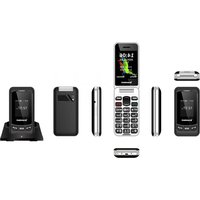
USER MANUAL CELT25 Sunstech
natural_image
Abstract illustration of a stylized white sphere above a gray book with partial circular elements, set against a dark background (no text or symbols)
CELT25
SENIOR PHONE
USER GUIDE
TABLE OF CONTENTS
- SAFETY & PRECAUTIONS.... 1
- PHONE DESCRIPTION....3
2.1. General View 3
2.2. Description of the phone keys ....4
- FIRST USE OF YOUR NEW CELT25 PHONE ....5
3.1. Insert SIM Card....5
3.2. Insert TF Card....6
3.3 Install Battery 6
- MENU DESCRIPTION....7
4.1. Contacts.... 7
4.1.1. Add new contacts 7
4.1.2. Options on each contact ....7
4.1.3. Advanced settings.... 7
4.2. Messages.... 7
4.2.1. Write message....7
4.2.2. Inbox....8
4.2.3. Outbox.... 8
4.2.4. Drafts 8
4.2.5. Sentbox....8
4.2.6. Security inbox....8
4.2.7. Message settings.... 8
4.2.8. Message capacity....8
4.3. Call logs 9
4.3.1. All calls 9
4.3.2. Missed calls....9
4.3.3. Dialed calls....9
4.3.4. Received calls 9
4.3.5. Rejected calls....9
4.3.6. Delete all 9
4.4. Multimedia....9
4.4.1. Camera....9
4.4.2. Image.... 9
4.4.3. DV 10
ENGLISH
User guide
CELT25
4.4.4. Video 10
4.4.5. Audio....10
4.4.6. Recorder....10
4.4.7. FM radio 11
4.4.8. My files 12
4.5. Application.... 12
4.5.1. Clock....12
4.5.2. Bluetooth.... 12
4.5.3. Torch....13
4.5.4. Calculator....13
4.5.5. Calendar....13
4.5.6. Memo.... 13
4.5.7. Ebook.... 13
4.5.8. Speed dial ....13
4.6. Settings.... 13
4.6.1. Phone settings....13
4.6.2. Display....14
4.6.3. Profiles....14
4.6.4. Security....15
4.6.5. Call settings 16
4.6.6. SOS settings.... 17
4.6.7. Network settings.....18
4.6.8. LED settings 18
4.6.9. Dial Voice.... 18
4.7. Smart Functions....18
4.7.1. Smart volume....19
4.7.2. Smart events 19
4.7.3. Remote SMS 19
-
Troubleshooting section 20
-
CELT25 TECHNICAL SPECIFICATIONS.... 20
-
POWER ADAPTER INFORMATION ....21
-
WARNINGS.... 22
1. SAFETY & PRECAUTIONS
WARNING
To prevent fire or shock hazard, do not use this plug with an extension cord, receptacle, or other outlet unless the blades can be fully inserted to prevent blade exposure. To prevent fire or shock hazard, do not expose this appliance to rain or moisture.

To reduce the risk of electric shock, do not remove cover (or back). No user serviceable parts inside, refer servicing to qualified service personnel.
READ INSTRUCTIONS - All the safety and operating instructions should be read before the product is operated.
RETAIN INSTRUCTIONS -The safety and operating instructions should be retained for future reference.
HEED WARNINGS - All warnings on the product and in the operating instructions should be adhered to.
FOLLOW INSTRUCTIONS - All operating and use instructions should be followed.
CLEANING - Unplug this product from the wall outlet before cleaning. Do not use liquid cleaners or aerosol cleaners. Use a damp cloth for cleaning.
ATTACHMENTS - Do not use attachments not recommended by the product manufacturer as they may cause hazards.
WATER AND MOISTURE - Do not use this product near water - for example, near a bathtub, wash bowl, kitchen sink, or laundry tub; in a wet basement; or near a swimming pool; and the like. This appliance shall not be exposed to dripping or splashing water and no object filled with liquids such as vases shall be placed on the apparatus.
Do not place this product on an unstable cart, stand, tripod, bracket, or table. The product may fall, causing serious injury to a child or adult and serious damage to the product. Use only with a cart, stand, tripod, bracket, or table recommended by the manufacturer, or sold with the product. Any mounting of the product should follow the manufacturer instructions and should use a mounting accessory recommended by the manufacturer.
SAFETY CHECK - Upon completion of any service or repair to this product, ask the service technician to perform safety checks to determine that the product is in proper operating condition.
HEAT -The product should be situated away from heat sources such as radiators, heat registers, stoves, or other products (including amplifiers) that produce heat.
Changes or modification not expressly approved by the party responsible for compliance could void the user's authority to operate the equipment.
Changes or modifications made without written approval may void the user's authority to operate this equipment.
Only use attachments/accessories specified or provided by the manufacturer (such as the exclusive supply adapter, battery etc).
To reduce the risk of fire or electric shock, do not expose this apparatus to rain or moisture. The apparatus shall not be exposed to dripping or splashing and that objects filled with liquids, such as vases, shall not be placed on apparatus.
The batteries shall not be exposed to excessive heat such as sunshine or fire.
The direct plug-in adapter/ power cord is used as disconnect device, the disconnect device shall remain readily operable.
Do not open. No user replaceable parts inside, refer servicing to qualified technician.
Hazardous laser radiation when open. Avoid exposure to beam.
Waste electrical and electronic products must not be disposed of with household waste. Please refer to the retailer from whom you purchased this item for disposal instructions. Batteries and packaging materials can be recycled using your local collection facilities. All electrical and electronic products including batteries should be disposed of separately from the municipal waste stream via designated collection facilities appointed by the government or the local authorities.
ENGLISH
User guide
CELT25
2. PHONE DESCRIPTION
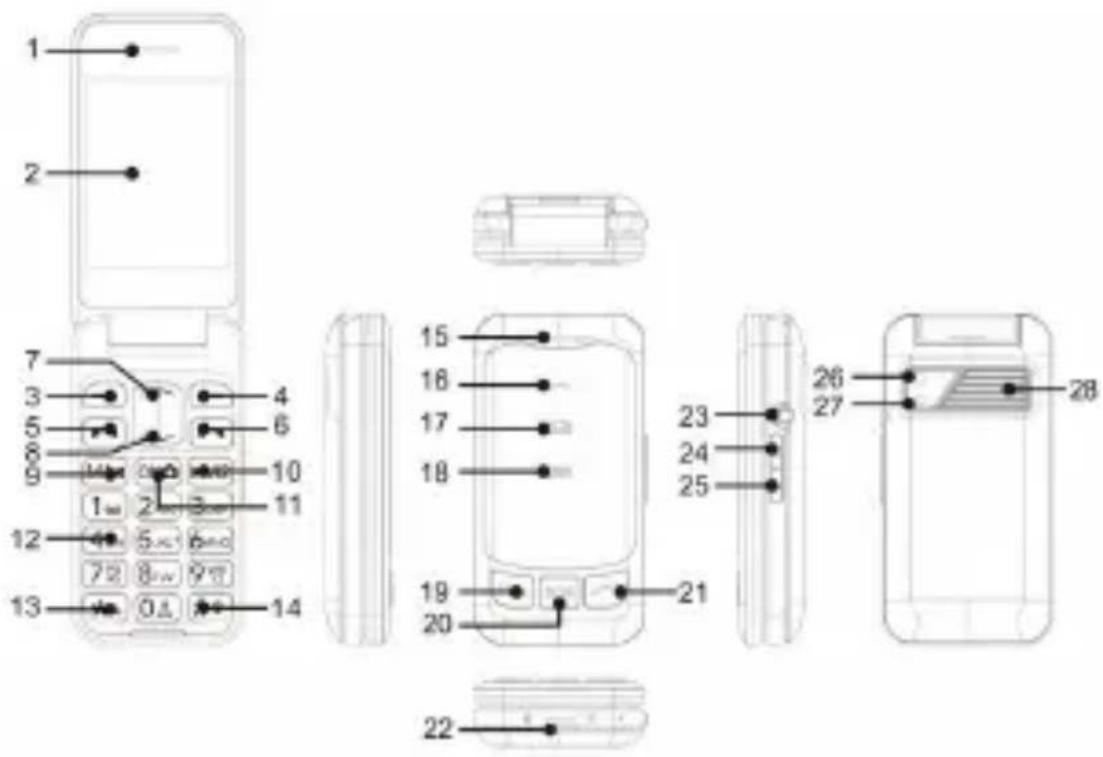
The following illustration shows details of the mobile phone. Familiarize yourself with all operating elements before using the mobile phone.
2.1. General View
ENGLISH
User guide
CELT25
1) Receiver for incoming & Missed call
2) 2.8" (7.112 cm) Display 17) Notification light
3) Left soft key for new & unread SMS
4) Right soft key
18) Notification light
5) Call key
for device charging
6) End call key; Power ON/OFF 19) Call key
7) Navigation Up 20) SOS key
8) Navigation Down 21) End call key
9) M1; Navigation Left 22) USB Type-C charging port
10) M2; Navigation Right 23) Earphone connection port
11) OK Key; Camera Key 24) Volume + key
12) 0-9 number keys 25) Volume - key
13) * key 26) Camera
14) # key 27) Flashlight
15) Receiver 28) Speaker
16) Notification light
2.2. Description of the phone keys
- Left soft key: Enter to general menu or to the different sub-menus of the phone; Activate the chosen function.
• Right soft key: Enter Contacts; Get back to previous menu.
- Call key: Make a phone call when the phone number has been marked; Answer an incoming call; Enter call history under standby mode.
- End call; Power ON / OFF key: End a call; Go back to standby mode; Power ON / OFF the phone by doing a long press.
- Navigation Up key: Use it to scroll through the different options when browsing a menu list; Use it as a shortcut for Audio player function under standby mode.
- Navigation Down key: Use it to scroll through the different options when browsing a menu list; Use it as a shortcut for Call logs function under standby mode.
- M1; Navigation Left: Set a phone number for it, then it can be used as speed dial, long press it, the number will be dialed in idle screen; Use it as a left orientation key in the general menu or in any sub-menu when needed; Use it as a shortcut for Message function under standby mode.
ENGLISH
User guide
CELT25
- M2; Navigation Right: Set a phone number for it, then it can be used as speed dial, long press it, the number will be dialed in idle screen; Use it as a right orientation key in the general menu or in any sub-menu when needed. Use it as a shortcut for Profiles function under standby mode.
- 0-9 number keys: Dial numbers under standby mode and enter numbers and characters in editing mode, when writing any note or message, for example.
- * key: Press twice to get "+" to call international phone numbers; Press once to choose punctuation under wiring SMS mode.
- # key: Long press to switch General/Silent/Vibration mode under standby mode; Press once to switch input method under writing SMS mode.
- Volume +/-: Use Volume + to turn up the volume, while Volume - will turn down the volume.
- SOS key: Long press it when you're in emergency and need help. The phone will wait 5 seconds (preset, this time can be adjusted) and then call to the emergency contact numbers you have previously set.
3. FIRST USE OF YOUR NEW CELT25 PHONE
3.1. Insert SIM Card

Before using the phone, please insert your SIM card (not included).
Only use SIM cards at correct size:
SIM 1 slot: Nano SIM
SIM 2 slot: Nano SIM
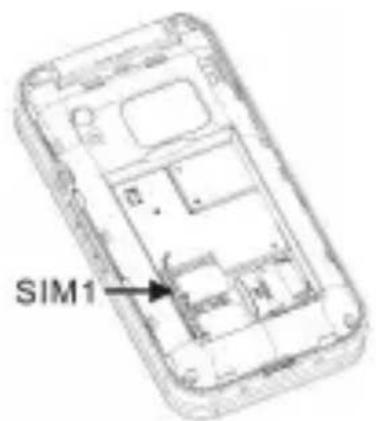
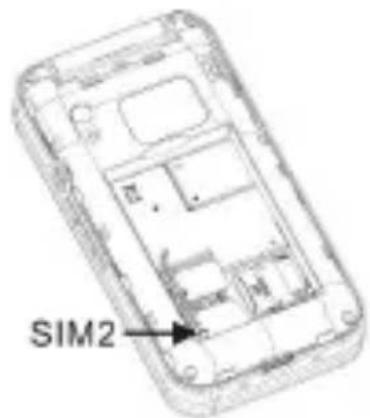
ENGLISH
User guide
CELT25
1) Open the battery compartment cover and remove the battery.
2) Insert the SIM card (or SIM cards) in the proper slot.
3) Ensure that the SIM card (or SIM cards) is aligned correctly.
3.2. Insert TF Card
You can insert a micro SD memory card (not included) with memory of up to 32 GB to increase the memory capacity of the mobile phone. A micro SD memory card would be necessary in the case you want to use the camera or add more contacts to the phone Agenda.
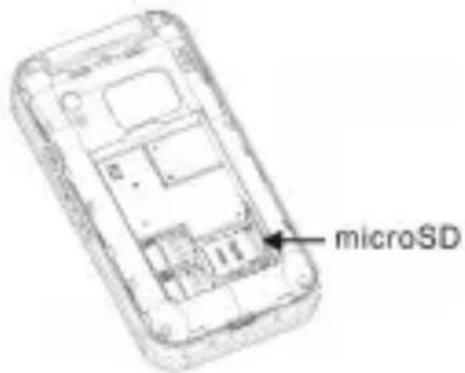
1) Insert the micro SD memory card in the slot.
2) Ensure that the micro SD memory card is aligned correctly.
3.3 Install Battery
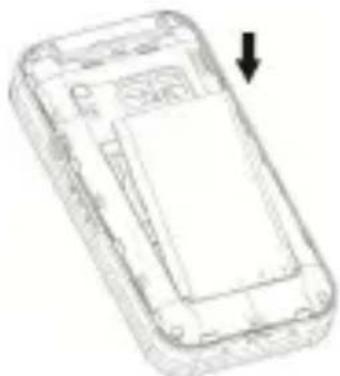
Before using your mobile phone, please insert the rechargeable battery.
natural_image
Line drawing of a smartphone with a downward arrow indicating compression or disassembly (no text or symbols)
Insert the battery as explained:
1) Remove the plastic cover on the battery.
2) Insert the battery on its slot.
3) Ensure that the battery is aligned correctly.
4) Your phone will be ready to use!
ENGLISH
User guide
CELT25
The phone can store up to 300 phone numbers. The number of telephone numbers that a SIM card can store depends on the storage capacity of the SIM card.
You can save contacts to SIM1/SIM2 or Phone as per your preference.
First, you can input a name and a number as desired. Then, press options and select "Save" to store the number.
You can do following operations by selecting "Options":
- Write message: To send a text message to the selected contact
- Call: To dial the contact
- Delete: To delete the contact
- Delete multiple: To delete multiple contacts you have selected
- Copy: To copy contact to the SIM or to the phone memory
- Import/Export: To import the contacts from Memory card or export the contacts to Memory card.
- Send vCard: To Send vCard by Bluetooth
- Add to whitelist: To add the selected contact in whitelist
4.1.3. Advanced settings
- Memory status: Here you can see how many contacts you have saved in the SIM or the phone memory.
4.2. Messages
4.2.1. Write message
Firstly, in the SMS recipient column, please use the "OK" key to enter contacts menu, and then press "OK" key again to select the contact you want, next, you need click "Option" to select "OK" option to add the recipient. Another way, you can enter the Recipient's phone number
ENGLISH
User guide
CELT25
directly. Secondly, enter editing interface to write your message. To insert punctuation, press the “*” button. To choose different input methods, Press “#” button. After finishing editing, press “Option” to “Send” the message out.
4.2.2. Inbox
Here you can read all your received massages. After reading, you can reply, forward, delete the message and call the sender.
4.2.3. Outbox
Messages here are ones that have not been sent out successfully.
4.2.4. Drafts
You can store messages as draft message and send them when you want to send.
4.2.5. Sentbox
Messages here are ones that have been sent out successfully.
4.2.6. Security inbox
You can move some SMS and draft messages to this Security inbox.
When you want to view, you need to enter a password 1234.
Note: The password can also be changed, please remember it.
4.2.7. Message settings
- SIM 1/2: CAUTION! Information in this menu isn't suggested to be changed.
- Save sent message: With this function turned "On", all messages you send out will be stored automatically. You can check them in "Sentbox".
- Preferred storage: Here you can choose to save messages in SIM or phone memory.
4.2.8. Message capacity
Here you can see how many messages you have saved in the SIM or the
ENGLISH
User guide
CELT25
phone. The phone can store 200 messages. The message quantity that a SIM card can store depends on the storage capacity of the SIM card.
4.3. Call logs
4.3.1. All calls
All missed calls, dialed calls and received calls are listed here.
4.3.2. Missed calls
Incoming calls that you didn't answer are listed here.
4.3.3. Dialed calls
Outgoing calls you made are listed here.
4.3.4. Received calls
Incoming calls that you answered are listed here.
4.3.5. Rejected calls
Incoming calls that you rejected are listed here.
4.3.6. Delete all
CAUTION! All call history will be deleted together with this function.
4.4.1. Camera
The photos are taken in .jpg format.
A memory card is necessary to store all taken photos and use the Camera function.
Press "OK" key to capture a photo and then press "Left soft key" to save.
4.4.2. Image
Here you can see all pictures saved in the phone or in the memory card. Pictures only in .jpg and .gif format can be viewed in this phone.
ENGLISH
User guide
CELT25
Choose the photo, and through "Options" menu, you will be able to do the following:
- To set the picture as your phone wallpaper, power on/off display, or set as contact icon
• To send the picture via Bluetooth
- To edit image, such as Rotate, Adjustment, Effect, Text and Clip.
- To check information of pictures: its name, size, etc.
4.4.3. DV
The audio is recorded in .avi format.
- Press "OK" key to start video recording.
- Press "OK" key again to pause the recording.
- Press "Left soft key" to save the recording.
4.4.4. Video
Supported video formats are .3gp, .avi and .mp4.
- Press "OK" to play the video.
- Press "OK" again to stop playing the video.
4.4.5. Audio
Supported audio formats are .mp3, .wav and .amr.
- Press "OK" key to play the audio.
- Press "OK" key again to pause the audio playing.
- Press "M1" key to play previous audio, while "M2" key to play the following audio.
- Press "*" key or Volume - key to turn audio down, while "#" key or Volume + key to turn it up.
- Press "Options" and you can get the list of audios from Music list. You will be able to choose the one you want to play by navigation up & down key.
4.4.6. Recorder
The audio is recorded in .wav format.
- Press "Options" and then select "Recording started" or "OK" key to start recording.
- Press "Left soft key (Pause)" to pause the recording.
ENGLISH
User guide
CELT25
- Press "Left soft key (Continue)" again to continue the recording.
- Press "Right soft key (Stop)" to save the recording.
- Press "OK" key, you'll get audio played.
4.4.7. FM radio
There's no need for the use of earphones as an antenna to listen to the FM radio.
- Press "OK" key to play the FM radio.
- Press "OK" key again to stop playing the FM radio.
- Press "M1" key to switch to previously available channel while "M2" key to next available channel.
- Press "Navigation up" key can increase the frequency, while pressing "Navigation down" key will decrease the frequency.
- Press "*" key or Volume - key to turn radio down while "#" or Volume + key to turn it up.
- Press "Options" menu and you will get the following:
- Auto search and save: Available radio channels can be searched and saved automatically. Please do this in an area where the FM signal strength is good for best results.
- Channel list: You will see the saved channel list here. Maximally 40 channels can be stored in CELT25 memory.
- Save: You can manually add the desired channel.
- Manual search: To manually input the channels, use the * key for the decimal. For example: with 93*5, you will get 93.5 radio station.
- Open speaker: When you insert earphone to listen to FM, you can turn on/off the open speaker.
- Background play: Here you'll get the background FM radio playback setting. With it turned on, the FM radio will keep playing once you exit FM Radio function and go back to general menu. So, you will be able to listen to the radio while you are doing other thinks such as viewing your saved photos or writing a message to your beloved ones.
- Record: You can record your favorite FM content.
- Storage: The record file will be saved by default in MemoryCard.
4.4.8. My files
This shows memory status of the phone and of the external memory card.
You can view/rename/delete the stored files from here.
You can use the file manager to conveniently manage various directories and files on the phone and on the memory card. In this menu, you can manage pictures, music, video, E-book, among other files.
4.5. Application
4.5.1. Clock
There are 3 alarm clocks. You can activate one, more than one or all of them as needed. For each of the alarm clock, you can have
customization settings by pressing "OK key" (Edit):
- Status: Press "Left soft key" to activate or deactivate the desired alarm.
- Time: Set alarm time as you like. Please note that time is in 24 hours format. For instance: for 3.30 pm, please input time as 15:30.
- Ringtone: Press "OK key" to select the alarm ringtone you like.
- Repeat mode: Press "OK key" to select Once, Daily or Working days.
After finishing customization, press the left option "OK" to activate the alarm.
4.5.2. Wireless Connection
With Bluetooth, you can send or receive files wireless with other Bluetooth devices.
- Bluetooth (Power On/Off): Press "Left soft key" to switch it On/Off.
- Bluetooth Visibility: Press" Left soft key" to switch it On/Off. When it's ON, your device can be searched by other Bluetooth devices. When it's Off, your device cannot be searched.
- Paired device: All devices paired with your device are listed here. If your device hasn't been paired yet, choose "Add new device" and then the phone will search other Bluetooth devices. Select the one you need, and then press "Pair" button and input password "0000" or "1234" to get paired. Once you input the password, the device
ENGLISH
User guide
CELT25
you are going to pair will be required to input the same password.
- Device name: It's set "CELT25" by default. You can rename it.
- Bluetooth file storage: Default storage on memory card.
4.5.3. Torch
- On: The light will switch on showing a solid and continuous light.
- Off: The light will switch off.
4.5.4. Calculator
This function provides the different calculator services, including addition, subtraction, multiplication and division.
4.5.5. Calendar
You'll be taken to monthly view with current date highlighted in color.
4.5.6. Memo
You can create memos, view and modify them.
4.5.7. Ebook
You can view e-books stored on the memory card.
4.5.8. Speed dial
10 contacts can be set for keypad 2-9 (8 contacts) and M1/M2 keys (2 contacts). With this function activated, the number can be dialed in idle screen conveniently by long pressing the specific key that corresponds to desired contact.
4.6. Settings
4.6.1. Phone settings
- Time and Date: The default format is 24 hrs for time and dd/mm/yy for date. You can also change them to different formats.
- Language: The default language is Spanish. It can also be changed to English, French or Portuguese.
- Shortcut settings: Mainly used to provide shortcut operations and
ENGLISH
User guide
CELT25
menu navigation functions. Users can quickly access and operate various functions of their phone through these keys.
- Auto power on/off: Users can customize the power on/off time.
- Power management: Users can check the remaining battery level.
- Restore factory settings: Enter password (1234) to revert to original factory settings.
CAUTION! Please, note that after you do restore factory settings, your phonebook, photo contacts, SOS settings, and all other setting will be erased permanently from your device.
4.6.2. Display
- Animation effect: Users can customize their favorite power on/off animation.
- Wallpaper settings: Pictures from memory card can also be used as wallpaper.
- Idle display setting: You can customize the display content of the screen during idle time, such as whether to display Audio player or FM radio.
- Contrast: You can adjust the brightness by using the "M1" and "M2" keys.
- Keypad backlight time: 10 secs is set as default.
- Font size: Three font sizes, Big, Normal and Small, can be freely switchable.
- Auto keypad lock: 30 secs is set as default. When no operation is made on the phone and after 30 secs countdown, the keypad will be locked automatically. But keypad will be locked only when being in idle screen (standby mode). When being in menu, only LCD backlight will turn off, the keypad won't be locked.
4.6.3. Profiles
There are multiple profiles, so you can customize settings to adapt to specific events or environments. Available options are:
- Normal
- Rename: You can change the name of the profiles mode.
- Ring settings: You can set call ring and message ring, from
ENGLISH
User guide
CELT25
Ring #1 to Ring #2, or select any tone from a stored file in your CELT25 memory.
- Volume: You can set the volume of caller ringtone, message ringtone, Alarm&calendar ringtone, call volume, key tone and Power ringtone. Press Up & Down arrow key to adjust.
- Ring type: Ringtone; Vibrate; Silent; Ring and vibrate. There is an additional way to call alert: Vibrate then ring.
- Other alert rings: You can activate or off the key tone, battery low alert, Power ringtone, Cover open and Cover close.
Note: The Key tone option controls the key tone of the Navigation keypad buttons. That is, all keys except for the numeric keypad, * key and # key.
- Silent: When it is activated, there will be no sound.
- Meeting: Same settings as Normal mode.
- Indoor: Same settings as Normal mode.
- Outdoor: Same settings as Normal mode.
4.6.4. Security
With this feature, you can prevent other people from using your phone by putting a phone or SIM lock.
- PIN: SIM 1/2 security. You need to input the correct PIN code to activate PIN lock. If you set PIN lock ON, you need to input the PIN code each time when you power in the mobile phone. In case you input a wrong PIN for three consecutive times, you need to input the PIN Unblocking Key (PUK). The PUK is used to unlock and change the locked PIN. To obtain the PUK, please contact your SIM card providers.
Modify PIN2: SIM 1/2 security. You need to input the correct PIN2 code, and then input the new PIN2 code twice to confirm.
- Phone locked: This function enables you to lock/unlock the phone. If you activate it on, each time when you switch on your phone, you need to input the password which is 1234 by default.
- Modify the cellphone password: You can input the original phone password 1234, and then input the new password twice to confirm. Once you modify it, the phone locked and the Privacy password will be changed accordingly. Please remember it.
ENGLISH
User guide
CELT25
- Privacy: This function enables you to lock/unlock some phone menus, such as Call logs, Message, Camera and etc. If you activate it on, each time when you enter these phone menus, you need to input the password which is 1234 by default.
- Lock screen by end-key: You can quickly lock the screen.
- Fixed dialing number: It is a security feature of mobile phones, used to restrict the phone from only dialing predetermined specific numbers and prevent unauthorized use. PIN2 is required when enabling (disabling) this feature and adding (changing, deleting) FDN numbers.
4.6.5. Call settings
- Dual SIM
- Standby mode:
SIM1: You can choose to deactivate it or use.
SIM2: You can choose to deactivate it or use.
Flight mode: Switch it on when you are inside an airplane flying.
Select when power on: When you open your phone, it will prompt you to choose whether to turn on Flight mode or not.
- Reply by original SIM:
Reply call: Once activated, you can directly call back with the original SIM card.
Reply SMS: Once enabled, you can directly reply to text messages with the original SIM card.
- Call forwarding: This re-routes your calls to another specified number when your number is busy, not reachable etc.
- Call waiting: This alerts you and puts an incoming call on wait when you are talking to someone.
- Call barred: Restrict the numbers which you will dial or receive.
- Hide ID: You can hide ID, display own ID or display ID by network.
- Advanced settings:
- Call time minute reminder: For the single mode, the reminder will appear for one time. You can set time from 1-3000 seconds. For example: if you set 10 seconds, after 10 seconds you’ll hear a beep during the call. If the Periodic mode is selected, the reminder will appear periodically. You can set
ENGLISH
User guide
CELT25
the reminder every 30-60 seconds. For example: if you set 30 seconds, after 30 seconds you'll hear a beep during the call.
- Auto redial: With it “On”, when your calling isn't answered by the callee, the phone will redial the callee again automatically.
- Vibration when connected: When the phone is connected, it will vibrate slightly.
- Answer mode: This function allows you configure your phone to pick up calls by pressing any key. Moreover, it allows you to get the calls automatically answered when the phone detects that you are wearing a headset, such as earphones.
- Auto record voice: After the call is connected, it will automatically start recording and complete the recording after ending the call.
- Blacklist: With this feature “On”, you will have the capability to blacklist (block) a number and prevent it from calling you.
- Whitelist: This feature allows incoming calls only from the numbers (maximum of 50) which have been put in the Whitelist. This feature is particularly useful for seniors who want incoming calls only from a select close group of people and avoid pesky telemarketing calls.
- Call time display: Only with it "On", the call time will be displayed in the screen.
- Call time reminder: For the single mode, the reminder will appear for one time. You can set time from 1-3000 seconds. For example: if you set 10 seconds, after 10 seconds you'll hear a beep during the call. If the Periodic mode is selected, the reminder will appear periodically. You can set the reminder every 30-60 seconds. For example: if you set 30 seconds, after 30 seconds you'll hear a beep during the call.
4.6.6. SOS settings
This device comes with a dedicated SOS key which enables you to seek help from families & friends in case of any emergency. When the SOS key is pressed continuously for 3 seconds, the phone will enter in SOS mode and do the following:
- Raise alarm by playing siren sound to alert people near you. (You
ENGLISH
User guide
CELT25
will see a reverse countdown of 5 secs on your handset screen, during which you can stop the SOS process by pressing cancel in case the SOS key is pressed by mistake).
- Send SOS message to your emergency contacts one by one.
- Call emergency contacts one by one. There will be 3 cycles of dialing if nobody answers. If a SOS call is answered, the phone will go to hands free mode and stop calling to next contact.

Please operate following settings before using SOS function!
- SOS status: Press "Left soft key" to activate SOS. SOS will not get triggered if it stays deactivated.
- SOS numbers: You can add up to 5 emergency contact numbers.
- SOS message: The message is editable; you can edit it as you like.
4.6.7. Network settings
This function helps you select the operator's network through automatic or manual mode. The default setting for this is "Automatic".
4.6.8. LED settings
- Incoming call: With it "On", when there's incoming call, the corresponding notification light on the clamshell will be turned on.
- New SMS: With it “On”, when there’s new SMS, the corresponding notification light on the clamshell will be turned on.
- Charging Light: With it “On”, when charging, the corresponding notification light on the clamshell will be turned on.
4.6.9. Dial Voice
This function controls the key tone of the numeric keypad(0-9 number keys), * key and # key. It has two styles, dial tone and dial voice. When you turn on dial voice, and then press one of the numeric keypad, you will hear a human voice tone.
4.7. Smart Functions
4.7.1. Smart volume
Default setting "OFF". If status "ON", when the same caller call this phone twice, and the call is not answered by the 3rd incoming call from that same number, then this function activates and push the volume to max. It will keep the volume at max until the call is answered. But if the call is not answered by the 5th time the volume returns to previous level.
4.7.2. Smart events
4.7.2.1. A missed call is logged
Default setting "OFF". If status "ON", when the phone has missed call, the phone will automatically send SMS to the 1^st & 3^rd SOS number and content will be "A missed call is logged."
4.7.2.2. Battery capacity
Default setting "OFF". If status "ON", when the phone battery lower than 15%, the phone will automatically send SMS to the & 3 ^rd SOS number and content will be"The battery is below 15%". When it is below 10% and 5%, SMS will also be sent.
4.7.2.3. Activity detection
Default setting "OFF". If status "ON", when the phone owner has no any operations for the phone over 24 hours, the phone will send SMS to & 3 ^rd SOS number and content will be "No activity has been detected on the phone in the last 24 hours."
4.7.3. Remote SMS
Default setting "OFF". If status "ON", when the SOS number sends a SMS with content "MAX VOLUME" to this phone, the phone will automatically set the ringtone, earpiece and hands-free volume up to maximum.
In addition, when the SOS number sends a SMS format "ADD#name*phone number" to this phone, the phone will add the new contacts to the phonebook.
For example: ADD#Tony*12345678901
It will store new contact Tony with the phone number 12345678901 to phonebook (save in phone memory).
5. Troubleshooting section
The phone does not turn on: make sure the battery is not completely discharged. Connect your phone to a charger for at least an hour and try turning it on again.
No service: If you are in an area without network coverage or if there are physical obstacles, such as walls or buildings, your phone may display the message "No service". Move to an area with greater network coverage.
Cannot receive calls: problems receiving calls: Check if call forwarding is active and check the network signal. Turn off Airplane mode. If the problem persists, contact your network operator.
SIM registration failed: Check that the SIM is inserted correctly into the phone. If your SIM is blocked or has an error, contact your carrier for assistance. If you have entered the PIN code incorrectly three consecutive times, you will need to enter the PUK code to unlock the SIM provided by your operator.
Emergency calls only: If you are out of your network operator's coverage, but within another network, you can only make emergency calls. Reconnect to your operator or look for an area with better network coverage.
6. CELT25 TECHNICAL SPECIFICATIONS
Display: 2.8" - 7.112 cm color LCD screen, resolution 240x320 px.
CPU: SC UNISOC T107
Internal memory: 48MB+128MB (up to 32GB via microSD)
Battery: 1100mAh Li-ion rechargeable battery
Rear camera: 0.3MP
SIM slot: Dual SIM (two NANO SIM)
Network frequency: 2G GSM 850/900/1800/1900MHz;
3G WCDMA 900/2100MHz; 4G LTE-FDD: B1/B3/B7/B8/B20
Integrates: SOS button, Bluetooth, flashlight, FM, alarm, ...
Accessories: battery, charger, headphone and charging base
Manufacturer: Guangxi Rong County GuangYuanSheng Electronic Equipment Co., Ltd.
Address: 1-4 Floors, No. 24, industrial Avenue, South of Rong-Cen First Class
Road, Rongzhou Town, Rong County, Guangxi
Average active efficiency: 68%
Efficiency at low load (10%): 65%
No-load power consumption: 0.1W
Declaration of Conformity
Hereby, Afex Suns S.A. declares that this device complies with the essential requirements and other relevant provisions of the Radio Equipment Directive 2014/53/EU (RED).
The full Declaration of Conformity is provided in printed form together with the product and the user manual.
ENGLISH
User guide
CELT25
8. WARNINGS
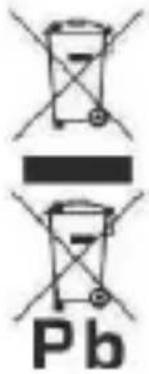 | Correct disposal of this Product(Waste Electrical & Electronic Equipment) (WEEE)Your product is designed and manufactured with high quality materials and components which can be recycled and reused.This symbol means that electrical and electronic equipment, at their end of-life should be disposed of separately from your household waste.Please dispose of this equipment at your local community waste collection/recycling centre. In the European Union there are separate collection systems for used electrical and electronic products. Please help us to conserve the environment we live in |
 | DO NOT place objects on top of the device, as objects may scratch the device. |
 | DO NOT expose the device to dirty or dusty environments. |
 | DO NOT place the device on an uneven or unstable surface. |
 | DO NOT insert any foreign objects into thedevice. |
 | DO NOT expose the device to strong magnetic or electrical fiel |
 | DO NOT expose the device to direct sunlight as it can damage device. Keep it away from heat sources. |
 | DO NOT store your device in temperatures higher than 40°C(104°F). The internal operating temperature for this device from 20°C(68°F) to 60°C(140°F). |
ENGLISH
User guide
CELT25
 | DO NOT use the device in the rain. |
 | Please check with your Local Authority or retailer for proper disposal of electronic products. |
 | The device and adaptor may product some heat during normal operation of charging. To prevent discomfort or injury from heat exposure, DO NOT leave the device on your lap. |
 | POWER INPUT RATING: Refer to the rating label on the device and be sure that the power adaptor complies with the rating. Only use accessories specified by the manufacturer. |
 | Clean the device with a soft cloth. If needed, dampen the cloth slightly before cleaning. Never use abrasives or cleaning solutions. |
 | Always power off the device to install or remove external devices that do not support hot-plug. |
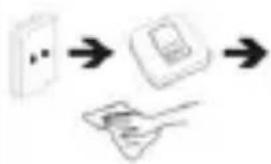 | Disconnect the device from an electrical outlet and power off before cleaning the device. |
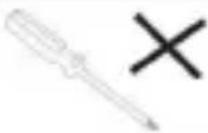 | DO NOT disassemble the device. Only a certified service technician should perform repair. |
 | The device has apertures to disperse heat. DO NOT block the device ventilation, the device may become hot and malfunction as a result. |
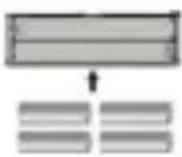 | Risk of explosion if battery replaced by an incorrect type. Dispose of used batteries according to the instruction. |
ENGLISH
User guide
CELT25
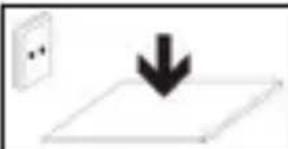 | PLUGGABLE EQUIPMENT: the socket-outlet shall be installed near the equipment and shall be easily accessible. |
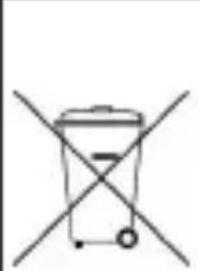 | European Union: Disposal Information.This symbol means that according to local laws and regulations your product and/or its battery shall be disposed of separately from household waste. When this product reaches its end of life, take it to a collection point designated by local authorities. The separate collection and recycling of your product and/or its battery at the time of disposal will help conserve natural resources and ensure that it is recycled in a manner that protects human health and the environment. |
| MADE IN CHINA |
natural_image
Abstract illustration of a stylized figure with a book and two small circles against a dark background (no text or symbols)
CELT25
TELÉFONO MÓVIL
GUÍA DEL USUARIO
TABLA DE CONTENIDOS
natural_image
Line drawing of a smartphone with a downward arrow indicating compression or disassembly (no text or symbols)
Fabricante: Guangxi Rong County GuangYuanSheng Electronic Equipment
Co., Ltd.
natural_image
Abstract illustration of a stylized figure with a book and two small circles against a dark background (no text or symbols)
CELT25
TÉLÉPHONE MOBILE
GUIDE DE L'UTILISATEUR
TABLE DES MATIÈRES
- SÉCURITÉ ET PRÉCAUTIONS.... 1
- DESCRIPTION DU TÉLÉPHONE....3
natural_image
Line drawing of a smartphone with a black arrow pointing to the side panel (no text or symbols)
Fabricante : Guangxi Rong County GuangYuanSheng Electronic Equipment Co., Ltd.
natural_image
Abstract illustration of a stylized figure with a book and two small circles against a dark background (no text or symbols)
CELT25
TELEMÓVEL
GUIA DO UTILIZADOR
Guia do Utilizador
CELT25
ÍNDICE
- SEGURANÇA E PRECAUÇÕES......1
- DESCRÊNCIA DO TELEFONE.... 3
natural_image
Line drawing of a smartphone case with an arrow pointing to the side panel (no text or symbols)
Insira a bateria conforme explicado:
1) Remova a tampa plástica da bateria.
2) Insira a bateria na ranhura.
4.3.1. Todas as chamadas
Fabricante: Guangxi Rong County GuangYuanSheng Electronic Equipment Co., Ltd.
Endereço: 1-4 andares, No. 24, Avenida Industrial, Sul de Rong-Cen First Class
Road, Rongzhou Town, Rong County, Guangxi
ID do modelo: 866C-8005UMX (CELT25)
For you. For everyone.