Essentiel B Easy WiFi 1200 - Wifi repeater

Easy WiFi 1200 - Wifi repeater Essentiel B - Free user manual and instructions

Find the device manual for free Easy WiFi 1200 Essentiel B in PDF.

📄 77 pages English EN Download 💬 AI Question
Notice Essentiel B Easy WiFi 1200 - page 17
View the manual : Français FR Deutsch DE English EN Español ES Nederlands NL
Pick your language and provide your email: we'll send you a specifically translated version.

User questions about Easy WiFi 1200 Essentiel B

0 question about this device. Answer the ones you know or ask your own.

Ask a new question about this device

The email remains private: it is only used to notify you if someone responds to your question.

No questions yet. Be the first to ask one.

Download the instructions for your Wifi repeater in PDF format for free! Find your manual Easy WiFi 1200 - Essentiel B and take your electronic device back in hand. On this page are published all the documents necessary for the use of your device. Easy WiFi 1200 by Essentiel B.

USER MANUAL Easy WiFi 1200 Essentiel B

text_image SYS RE 2.4G 5G LAN

Notice d'utilisation / User guide / Instrucciones de uso / Bedienungsanleitung / Gebruiksaanwijzing

natural_image Diagram showing a power outlet connected to a wireless router and a desktop computer (no text or symbols present)

Fonctionnement

natural_image White wireless router with three outlets and two cables, no visible text or symbols
text_image New: New security Secure Secure Security: New Secure Secure Portfolio: 50/100, 2.1 C4.2 Secure Microsoft Azure Security Sequence Parameters: default & selected! Modify the parameters, your own and to access these keys. R W-L Mode Answer TP Defaulted by any if any.
text_image Configuration distanets What are to define: Default your computer will use your own functions in your tool. You should not use any available options. Object or other further details? your name is the default configuration used to create a new file. It is required to use your entire file. OK Cancel OK Cancel OK
text_image Configuration & Address Name: 1000000000000000000000000000000000000000000000000000000000000000000000000000000000000 Address: 123456789 Email: 123456789 Email name: 123456789 Email count: 123456789 Email type: Email name: Email count: Email number: Email date: Email time: Email range: Email range: Email range: Email range: Email range: Email range: Email range: Email range: Email range: Email range: Email range: Email range: Email range: Email range: Email range: Email range: Email range: Email range: Email range: Email range: Email range: Email range: Email range: Email range: Email range: Email Range: Email Range: Email Range: Email Range: Email Range: Email Range: Email Range: Email Range: Email Range: Email Range: Email Range: Email Range: Email Range: Email Range: Email Range: Email Range: Email Range: Email Range: Email Range: Email Range: Email Range: Email Range: Email Range: Email Range: Email Range: Email Region 123456789 Email Region 123456789 Email Region 123456789 Email Region 123456789 Email Region 123456789 Email Region 123456789 Email Region 123456789 Email Region 123456789 Email Region 12345712345671234567 Email Region 12345712345671234567 Email Region 12345712345671234567 Email Region 12345712345671234567 Email Region 12345712345671234567 Email Region -12345712345671234567 Email Region -12345712345671234567 Email Region -12345712345671234567 Email Region -12345712345671234567 Email Region -123518888888888888888888888888888888888888888888888888888888888888888888888888888888888888888888888888888 email region 123456789 email region 123456789 email region 123456789 email region 123456789 email region 123456789 email region 123456789 email region 123456789 email region 123456789 email region 1234612345671234567 email region 1234612345671234567 email region 1234612345671234567 email region 1234612345671234567 email region 1234612345671234567 email region 123519999999999999999999999999999999999999999999999999999999999999999999999999999999999999999999999999999 email region 123456789 email region 123456789 email region 123456789 email region 123456789 email region 123456789 email region 123456789 email region 123456789 email region 123519999 email region 123456789 email region 123456789 email region 123456789 email region 123456789 email region 123456789 email region 123456789 email region 123456789 email region 2 email region 2 email region 2 email region 2 email region 2 email region 2 email region 2 email region 2 email region 2 email region 2 email region 2 email region 2 email region 2 email region 2 email region 2 email region 2 email region 2 email region 2 email region 2 email region 2 email region 1
text_image Configuration key Configuration key: Windows 8.0 (Windows 8.0) Network ID: 1924 Address: Windows 8.0 (Windows 8.0) Connection: Windows 8.0 (Windows 8.0) Network ID: 1924 Connection: Windows 8.0 (Windows 8.0) Network ID: 1924 Connection: Windows 8.0 (Windows 8.0) Network ID: 1924 Connection: Windows 8.0 (Windows 8.0) Network ID: 1924 Connection: Windows 8.0 (Windows 8.0) Network ID: 1924 Connection: Windows 8.0 Network ID: 1924 Connection: Windows 8.0 Network ID: 1924 Connection: Windows 8.0 Network ID: 1924 Connection: Windows 8.0 Network ID: 1924 Connection: Windows 8.0 Network ID: 1924 Connection: Windows 8.0 Network ID: 1924 Connection: Windows 8. Connection: Windows 8. Connection: Windows 8. Connection: Windows 8. Connection: Windows 8. Connection: Windows 8. Connection: Windows 8. Connection: Windows 8. Connection: Windows 8. Connection: Windows 8. Connection: Windows 8. Connection: Windows 8. Connection: Windows 8. Connection: Windows 8. Connection: Windows 8. Connection: Windows 8. Connection: Windows 8. Connection: Windows Connection: Windows Connection: Windows Connection: Windows Connection: Windows Connection: Windows Connection: Windows Connection: Windows Connection: Windows Connection: Windows Connection: Windows Connection: Windows Connection: Windows Connection: Windows Connection: Windows Connection: Windows Connection: Windows Connection: Windows Connection: Windows Connection: Windows Connection: Windows Connection: Windows Connection: Windows Connection: Windows Connection: Windows Connection: Windows
text_image Fistications 1 You should be satisfied with your function or some Note port foods. If you confirm the parameters, you must change your reference version to deliver a configuration. Status: [ ]
text_image Screenshot of an iOS home screen displaying app icons with a red circular overlay highlighting a feature.
text_image Add to home: Not Fogue for much do place Not do place
natural_image TrnP beach scene with palm fronds and blue sky, no visible text or symbols on the main image area
text_image Package to the Theme File Edit Options 2014-07-2023 Search terms: Web://www.elsevier.com/ (https://www.elsevier.com) Search result: 100% search result: Web search Search result: 100% search result: Web search Search result: 100% search result: Web search Search result: 100% search result: Web search Search result: 100% search result: Web search Search result: 100% search result: Web search Search result: 100% search result: Web search Search result: 100% search result: Web search Search results: 100% search result: Web search Search results: 100% search result: Web search Search results: 100% search result: Web search Search results: 100% search result: Web search Search results: 100% search result: Web search Search results: 100% search result: Web search Search results: 100% search result: Web search Search results: Search results: Search results: Search results: Search results: Search results: Search results: Search results: Search results: Search results: Search results: Search results: Search results: Search results: Search results: Search results: Search results: Search results: Search results: Search results: Search results: Search results: Search results: Search results: Search results: Search results: Name Data may be stored in a Windows system or any other OSOS services, but not available for any additional OSOS services. The OSOS is not available for any other OSOS services. The OSOS is available for any additional OSOS services. The OSOS is available for any additional OSOS services. The OSOS is available for any additional OSOS services. The OSOS is available for any additional OSOS services. The OSOS is available for any additional OSOS services. The OSOS is available for any additional OSOS services. The OSOS is available for any additional OSOS services. The OSOS is available for any additional OSOS services. The OSOS is available for any additional OSOS services.

Thank you for purchasing an Essentiel b brand product.

We pay special attention to the RELIABILITY, EASE OF USE and

DESIGN of our products.

We hope that you will be fully satisfied with this Wi-Fi repeater.

contents

user guide 35

Safety instructions 35

General instructions 36

Device layout 36

Cleaning the device 37

your product 38

Contents of the box 38

Technical features 38

System configuration required 38

Device description 39

where to connect your repeater? 40

Location 40

Important recommendations 41

time 42

Automatic Installation In repeater mode (WPS function) 42

Automatic Installation from a computer 43

Manual installation from a computer 45

MANUAL INSTALLATION IN REPEATER MODE 47

INSTALLING THE ACCESS POINT MODE 50

CHANGING THE NETWORK PASSWORD AND NAME 52

Connecting a mobile device to the boosted network 53

IOS* EXAMPLE 53

ANDROID ^x EXAMPLE 54

Connecting a new computer to the boosted network 55

Reset 56

Changing the network to be boosted 56

Advanced configuration 56

WEB INTERFACE CONFIGURATION 57

Frequently asked questions 59

troubleshooting 60

Factory settings 61

simplified EU declaration of conformity 61

user guide

READ THESE INSTRUCTIONS CAREFULLY BEFORE USING YOUR EQUIPMENT AND SAVE THEM TO REFER TO THEM LATER ON.

Safety instructions

Essentiel B Easy WiFi 1200 - Safety instructions - 1

WARNING

RISK OF ELECTRIC SHOCK DO NOT OPEN

Essentiel B Easy WiFi 1200 - Safety instructions - 2

WARNING: TO REDUCE THE RISK OF FIRE OR

ELECTRIC SHOCK, DO NOT OPEN THE COVER.

Users should not attempt to repair or replace any part of this device. Repairs and maintenance must be carried out by qualified personnel only. Any disassembly of the device will void the warranty.

Essentiel B Easy WiFi 1200 - Safety instructions - 3

A lightning symbol inside an equilateral triangle warns users about the presence of uninsulated high voltages inside the device with a sufficiently high current to present an electrical discharge risk to individuals.

Essentiel B Easy WiFi 1200 - Safety instructions - 4

An exclamation mark inside an equilateral triangle informs users of important operational or maintenance safety instructions (routine maintenance) in the instructions for use provided with the product.

WARNING: DO NOT DISASSEMBLE OR TRY TO OPEN THE DEVICE AS DOING SO COULD EXPOSE YOU TO DANGEROUS VOLTAGES AND OTHER HAZARDS. CONTACT YOUR CUSTOMER SERVICE DEPARTMENT FOR ANY PART REPLACEMENT OR REPAIR REQUEST.

WARNING: TO PREVENT ELECTRIC SHOCK, INSERT THE PLUG CORRECTLY INTO THE WALL SOCKET.

BEFORE CONNECTING THE DEVICE, MAKE SURE THAT THE VOLTAGE IN YOUR HOME IS THE SAME AS THE VOLTAGE INDICATED ON THE DEVICE'S DATA PLATE.

  • Plug the device into an easily accessible power outlet.
  • Unplug the device from the mains socket during storms or if it is not used for an extended period.
  • If your device malfunctions, in particular if it makes sounds or smells that seem abnormal, stop using it immediately and take it to an authorised repair centre.

General instructions

  • This product is intended for domestic, indoor use only. Only use the device as specified in the instruction manual.
  • Maintenance is needed in the following cases:

- when liquid has been spilled or objects have been inserted into the device,

- if the devices have been exposed to rain or humidity,

- if the device doesn't work normally,

- if the device has been dropped or damaged in any way.

• This device must not be used by children unless supervised.
- Never use sharp objects to access the inside of the device.

Device layout

  • Do not expose the device to direct sunlight and keep it away from sources of heat such as radiators, heating appliances, ovens and other heat producing appliances.
  • Do not place anything that produces a naked flame, such as lighted candles, on the device.
  • Do not expose this device to splashing or dripping water. Do not place objects filled with water, such as vases, on the device.
  • Never use this device near water, for example near a bath, sink, washtub, in a damp basement, near a swimming pool or any other source of humidity.
  • Do not place any object on top of the device.
  • Do not use this device in an excessively hot, cold, dusty, mouldy or damp place.
    • Always leave a ventilation gap of at least 10 cm around the device.
    • The device must be kept in a place and a position that does not interfere with its ventilation.
    • Make sure no object falls and no liquid spills inside the devices through the openings.
  • Do not place your equipment in the vicinity of devices likely to cause electromagnetic interference (e.g. speakers or mobile phones). This could interfere with their operation and cause signal deterioration.
  • This equipment generates, uses and can radiate radio frequency energy. If it is not installed and used in accordance with the manufacturer's instructions, it may cause interference which will affect radio and television reception. There is however no guarantee that interference will not occur in a particular installation.
  • Your device transmits and receives radio electric frequencies in the 2.4 GHz range. In environments where the risk of interference with other systems or services, e.g. in airports, hospitals and atmospheres containing oxygen and flammable gases, is deemed or perceived as harmful, the use of a wireless device may be restricted or prohibited. Request permission before using or switching on the wireless device.
    • If you have a pacemaker or other prosthesis, ask your doctor for advice.

• This device is for indoor use only on 5,150 to 5,250 MHz frequencies in the following member States: Austria, Belgium, Bulgaria, Cyprus, Denmark, Spain, Estonia, Finland, France, Germany, Greece, Hungary, Ireland, Italy, Latvia, Lithuania, Luxembourg, Malta, Netherlands, Poland, Portugal, Czech Republic, Romania, UK, Slovenia, Slovakia and Sweden.
• The use of the ETSI version of this device is also permitted in EFTA member states: Iceland, Liechtenstein, Norway and Switzerland.
• EU countries where use is not permitted: none.

Essentiel B Easy WiFi 1200 - Device layout - 1

This logo means that the product is for indoor use only.

Cleaning the device

• Always unplug the transmitters from the mains socket before cleaning.
• Clean with a soft, dry cloth only.
- Do not use aerosols around Wi-Fi boosters.

your product

Contents of the box

Before you start using this Wi-Fi signal repeater, make sure none of the parts listed below are missing:

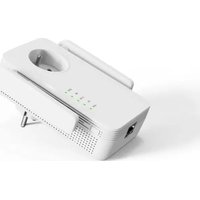
• 1 AC 1200 Wi-Fi Dual Band repeater
• 1 RJ45 cable
• 1 Quick installation guide

Technical features

• WiFi 802.11 b/g/n/ac standard
• Wi-Fi speed 300 Mbps (n) and 866 Mbps (ac) (theoretical speed)
• Wi-Fi 2.4 GHz
- Wi-Fi frequencies: 2,412 Mhz to 2,472 Mhz
- Emitted power: 100 mW
• Wi-Fi 5 GHz
- Wi-Fi frequency: 5150 MHz to 5240 MHz
- Transmitted power: 100 mW
- Ambient operating temperature 0-40°C
- Software version: US_BOULANGER_RE1201V02D20200812_EN_B1145
• 1 x 10/100:1,000 Mbps RJ45 port
- 2 external antennas
• WPS function
• Data encryption WPA2-AES and WPA-WPA2 (TKIP and AES)
- Compatible with every version of Windows* from XP and Mac* OS
• Ambient temperature during use: 0 \~ 40°C

This device is for indoor use only on 5,150 to 5,350 MHz frequencies in the following member States: AT, BE, BG, OZ, DK, EE, FR, DE, IE, IT, EL, ES, CY, LV, LT, LU, HU, MT, NL, PL, PT, RC, SI, SK, FI, SE, UK, HR.

System configuration required

  • Wireless network card compatible with 802.11 b/g/n/ac wireless network standards
  • Windows' XP, Vista, Windows' 7, Windows' 8, Windows 10", Mac" OS X operating systems
  • Internet Explorer 8 minimum, Firefox, Google+ Chrome

*This Essential is product is compatible with the brands listed (belonging to third parties with no links to Sourcing & Creation).

Device description
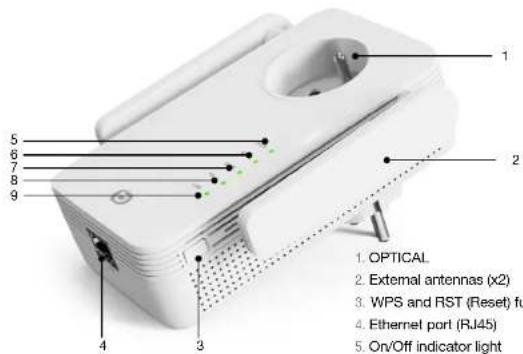
Essentiel B Easy WiFi 1200 - System configuration required - 1

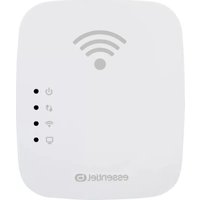
text_image 1. OPTICAL 2. External antennas (x2) 3. WPS and RST (Reset) fui 4. Ethernet port (RJ45) 5. On/Off indicator light

DESCRIPTION OF INDICATOR LIGHTS

  1. OPTICAL
  2. External antennas (x2)
  3. WPS and RST (Reset) function
  4. Ethernet port (RJ45)
  5. On/Off indicator light
  6. Transfer/WPS indicator light
  7. Wi-Fi 2.4 GHz indicator light
  8. Wi-Fi 5 GHz indicator light
  9. Ethernet indicator light
SYS
Green On contnuously The Wi-Fi repeateris switched on
- Off The Wi-Firepeater is switched off
RE
GreenBlinks rapidlyThe device is performing a pairing procedure using the WPS function
Blinks slowlyThe repeater has established a secure connection and the signal received is strong enough for Internet browsing.
- Off No transfer or WPS connection
2.4G / 5G
Green Blinks Tthe device can boost the existing network
- Off The wireless function is disabled or not available
LAN
Green OnAn Ethernet cable (RJ45) connects the repeater to a network access point
- OffNo cable is connected to the Ethernet port (RJ45) on the repeater

where to connect your repeater?

Location

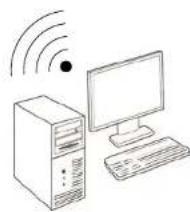
To fulfil its role, the Wi-Fi repeater must be placed in the transmission zone of your modem, as shown in the diagram below:
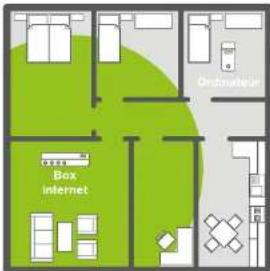
Essentiel B Easy WiFi 1200 - Location - 1

text_image Ordinatelier Box internet

Before installing the Wi-Fi repeater;

The Wi-Fi signal is too weak to reach every room in the house.

After installing the Wi-Fi repeater;

The repeater has boosted the Wi-Fi signal so you can enjoy it throughout your home.
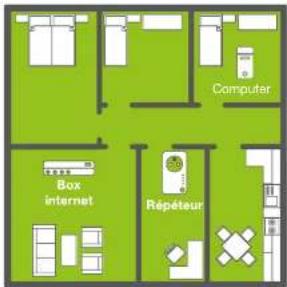
Essentiel B Easy WiFi 1200 - Location - 2

For best Wi-Fi signal reception, we recommend that you install your repeater in the coverage area of your modem (50% reception max). If the Wi-Fi signal received by the repeater is weak, the signal emitted by the repeater will also be weak.

Important recommendations

Installation conditions may affect the quality of the Wi-Fi signal emitted by the repeater;

  • Place your Wi-Fi repeater preferably in a room free of obstacles.
  • Avoid wave interference from other devices (microwaves, Bluetooth' devices, etc.).
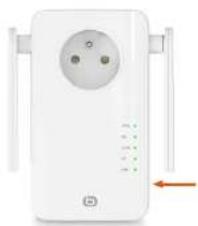
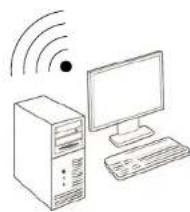
  • Do not connect the repeater to a power strip. Connect it directly to a wall socket as shown in the diagram below:
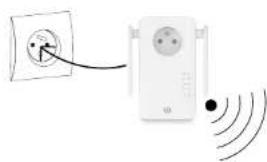
Essentiel B Easy WiFi 1200 - Important recommendations - 1

natural_image Diagram showing a wall-mounted power outlet connected to a wireless network device (no text or symbols present)
Essentiel B Easy WiFi 1200 - Important recommendations - 2

natural_image Line drawing of a desktop computer setup with tower, monitor, and wireless signal icon (no text or symbols)

time

The Wi-Fi repeater has two operating modes:

• The Repeater mode allows you to boost an existing Wi-Fi signal.
- The Access point mode allows you to broadcast an existing Wi-Fi signal from a wired Internet connection.

Please refer to the relevant section to install and configure the repeater depending on the selected mode.

Automatic installation in repeater mode (WPS function)

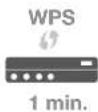
1) After connecting the repeater, wait 1 minute, until the SYS light is steady, then press the RE button on the side of the device. The "RE" and "5G" LEDs flash.
Essentiel B Easy WiFi 1200 - Automatic installation in repeater mode (WPS function) - 1

natural_image White wireless router with three pins and a power cord, shown without any text or symbols.
Essentiel B Easy WiFi 1200 - Automatic installation in repeater mode (WPS function) - 2

2) Press the WPS button on your modem. You have one minute to do so.
3) All the lights will go out and then come back on steady: the connection between your modem and the repeater has been established. If this does not happen, please refer to the manual installation instructions below.
4) Connect to the repeater's Wi-Fi network Wi-Fi network name: the repeater copies the name of the repeated network and adds the "ext" extension.

Password: same as the network password.

Automatic installation from a computer

The window display below may differ depending on the version of your operating system or the browser you are using.

  1. Connect the Wi-Fi repeater to an electrical socket. The SYS light and the Wi-Fi lights come on and emit a steady green light.
    If the Wi-Fi lights do not come on, disconnect and reconnect the repeater; you can also refer to the Reset step.
  2. Switch on your computer or mobile device.
  3. Click on the connection icon in the toolbar at the bottom right of your desktop:

Essentiel B Easy WiFi 1200 - Automatic installation from a computer - 1

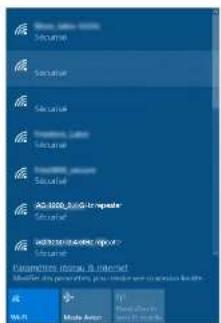
  1. Click on the network name AC1200_2.4 GHz repeater or AC1200_5 GHz repeater, then click on Connect:
Essentiel B Easy WiFi 1200 - Automatic installation from a computer - 2

text_image Security Securial Securial Securial Security_Layer Securial Security_Payer Securial ACD 2020 - No. 10 - Register Securial HKEYWORKUP - INFO? Securial Parameters: data & interest Model for the generation of, you must have new configuration details. W-L Mode Action Play Action Next Page
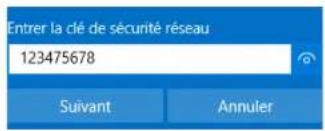
  1. If the window below appears. Enter security key 12345678 and click on Next,
Essentiel B Easy WiFi 1200 - Automatic installation from a computer - 3

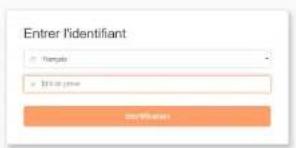
FOR THE FIRST CONNECTION ONLY, the configuration window appears automatically once you have selected the AC1200_2.4 GHz repeater or AC1200_5 GHz repeater networks. If not, initiate the connection manually.

  1. Select French (default language), then enter the admin password. Click on Identification.
Essentiel B Easy WiFi 1200 - Automatic installation from a computer - 4

text_image Entrer l'identifiant Templates 105 en june
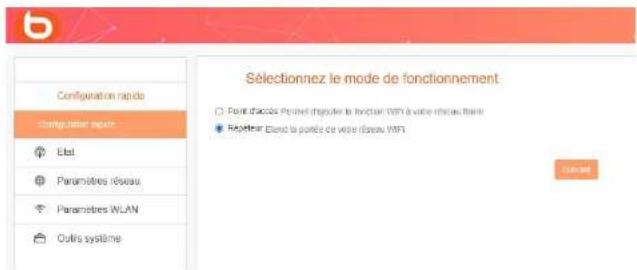
  1. Select the operating mode and press Next.
Essentiel B Easy WiFi 1200 - Automatic installation from a computer - 5

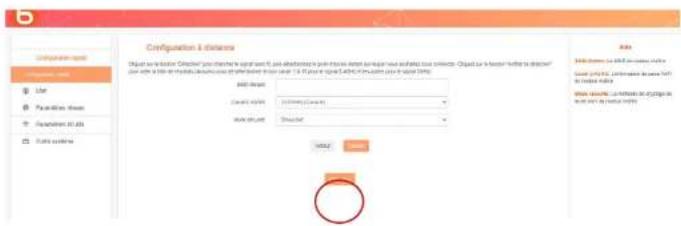
After pressing Next, a new page appears, listing the available networks. Click on the Detection button.
Essentiel B Easy WiFi 1200 - Automatic installation from a computer - 6

text_image Configuration & distances Input: 0.0000000000000000000000000000000000000000000000000000000000000000000000000000000000000000000000000000 Add data: Data source: (123487/2694) Data output: (123487/2694) Add location: Add location name: (123487/2694) Add location type: (123487/2694) Add location size: (123487/2694) Add location range: (123487/2694) Add location count: (123487/2694) Add location number: (123487/2694) Add location type: (123487/2694) Add location size: (123487/2694) Add location range: (123487/2694) Add location type: (123487/2694) Add location size: (123487/2694) Add location range: (123487/2694) Add location size: (123487/2694) Add location range: (123487/2694) Add location size: (123487/2694) Add location range: (123487/2694) Add location size: (123487/2694) + Add location name: (123487/2694) + Add location size: (123487/2694) + Add location range: (123487/2694) + Add location type: (123487/2694) + Add location size: (123487/2694) + Add location range: (123487/2694) + Add location size: (123487/2694) + Add location range: (123487/2694) + Add location size: (123487/2694) + Add location range: (123487/2694) + Add location size: (123487/

The SSID identifier and the security key are usually found on the network's original modem. If not, please contact your ISP to obtain this information

A list of available networks is displayed. Select the network you wish to extend using the Wi-Fi repeater, then enter the security key for the selected Wi-Fi network.
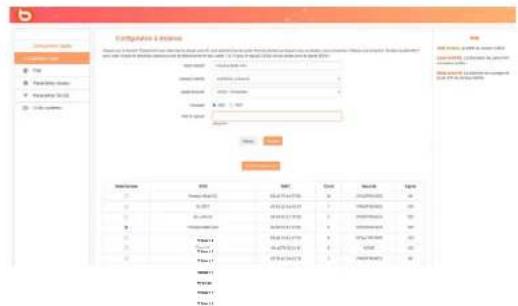
Essentiel B Easy WiFi 1200 - Automatic installation from a computer - 7

text_image Configuration & Settings Name: 100 Address: 100 Email: 100 Email Address: 100 Email Address: 100 Email Address: 100 Email Address: 100 Email Address: 100 Email Address: 100 Email Address: 100 Email Address: 100 Email Address: 100 Email Address: 100 Email Address: 100 Email Address: 100 Email Address: 1547326787 Email Address: 1547326787 Email Address: 1547326787 Email Address: 1547326787 Email Address: 1547326787 Email Address: 1547326787 Email Address: 1547326787 Email Address: 1547299999 Email Address: 1547299999 Email Address: 1547299999 Email Address: 1547299999 Email Address: 1547299999 Email Address: 1547299999 Email Address: 1547299999 Email Address: 1547326787 Email Address: 1547326787 Email Address: 1547326787 Email Address: 1547326787 Email Address: 1547326787 Email Address: 1547326787 Email Address: 1547426787 Email Address: 1547426787 Email Address: 1547426787 Email Address: 1547426787 Email Address: 1547426787 Email Address: 1547426787 Email Address: 1547426787 Email Address: N/A Email Address: N/A Email Address: N/A Email Address: N/A Email Address: N/A Email Address: N/A Email Address: N/A Email Address: N/A Email Address: N/A Email Address: N/A Email Address: N/A Email Address: N/A Email Address: N/A Email Address: N/A Email Address: N/A Email Address: N/A Email Address: N/A Email Address : N/A

Click on Next to define the wireless settings for your local network. You can choose to configure the network for 2.4G or 5G. By default, the network name is AC1200_2.4 GHz Repeater and the password is "12345678" (we recommend changing the password to increase security.
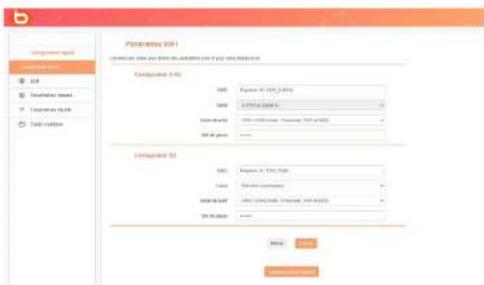
Essentiel B Easy WiFi 1200 - Automatic installation from a computer - 8

text_image P r o n t e r i n c t (F1) C:\Program Files\2019\2018\2017\2016\2015\2014\2013\2012\2011\2010 P r o n t e r i n c t (F2) SMD: 4.00% (100% free) Syst: 0.00% (0% free) Standard: 100% (100% free) (100% free) Syst: 0% free P r o n t e r i n c t (F3) SMD: 4.00% (100% free) Syst: 0.00% (0% free) SMD: 100% (100% free) (100% free) Syst: 0% free Syst: 0% free Syst: 0% free Syst: 0% free Syst: 0% free Syst: 0% free Syst: 0% free Syst: 0% free Syst: 0% free Syst: 0% free Syst: 0% free Syst: 0% free Syst: 0% free Syst: Syst: Syst: Syst: Syst: Syst: Syst: Syst: Syst: Syst: Syst: Syst: Syst: Syst: Syst: Syst: Syst: Syst: Syst: Syst: Syst: Syst: Syst: Syst: Syst: Syst: Syst: Syst: Syst: Syst: Syst: Syst: Syst: Syst: S cysts Syst: 1.00% Syst: 1.50% Syst: 2.00% Syst: 2.50% Syst: 3.00% Syst: 3.50% Syst: 4.00% Syst: 4.50% Syst: 5.00% Syst: 5.50% Syst: 6.00% Syst: 6.50% Syst: 7.00% Syst: 7.50% Syst: 8.00% Syst: 8.50% Syst: 9.00% Syst: 9.50% Syst: 10.00% Syst: 11.00% Syst: 12.00% Syst: 13.00% Syst: 14.00% Syst: 15.00% Syst: 16.00% Syst: 17.00% Syst: 18.00% Syst: 19.00% Syst: 20.00% Syst: 21.00% Syst: 22.00% Syst: 23.00% Syst: 24.00% Syst: 25.00% Syst: 26.00% Syst: 27.00% Syst: 28.00% Syst: 29.00% Syst: 30.00% Syst: 31.00% Syst: 32.00% Syst: 33.00% Syst: 34.00% Syst: 35.00% Syst: 36.00% Syst: 37.00% Syst: 38.00% Syst: 39.00% Syst: 40.00% Syst: 41.00% Syst: 42.00% Syst: 43.00% Syst: 44.00% Syst: 45.00% Syst: 46.00% Syst: 47.00% Syst: 48.00% Syst: 49.00% Syst: 50.00% Syst: 51.00% Syst: 52.00% Syst: 53.00% Syst: 54.00% Syst: 55.00% Syst: 56.00% Syst: 57.00% Syst: 58.00% Syst: 59.00% Syst: 60.00% Syst: 61.00% Syst: 62.00% Syst: 63.00% Syst: 64.00% Syst: 65.00% Syst: 66.00% Syst: 67.00% Syst: 68.00% Syst: 69.00% Syst: 70.00% Syst: 71.00% Syst: 72.00% Syst: 73.00% Syst: 74.00% Syst: 75.00% Syst: 76.00% Syst: 77.00% Syst: 78.00% Syst: 79.00% Syst: 80.00% Syst: 81.00% Syst: 82.00% Syst: 83.00% Syst: 84.00% Syst: 85.00% Syst: 86.00% Syst: 87.00% Syst: 88.00% Syst: 89.0

Note: While 5 Ghz Wi-Fi is generally more powerful than 2.4, not all devices are compatible with it. The 5 Ghz frequency is higher but its range is shorter as it struggles to cope with obstacles.

Next, click on Next to save and apply the selected configuration. The repeater reboots and connects to the chosen network.

Essentiel B Easy WiFi 1200 - Automatic installation from a computer - 9

text_image Pakifidations! Your party is to participate your bodycase power Repitour. It's your party on parties, except our Company your bodycase required or applies to participation PAP12 Complications

To complete installation, connect to your new Wi-Fi network by clicking on the connection icon in the toolbar at the bottom right of your desktop:

Essentiel B Easy WiFi 1200 - Automatic installation from a computer - 10

The RE indicator light starts blinking.

Manual installation from a computer

  1. Open your Internet browser. In the address bar, type the following address: http://easywifi.config (or http://192.168.1.100) and press Enter to confirm

Essentiel B Easy WiFi 1200 - Manual installation from a computer - 1

  1. This takes you to the main repeater configuration page. Under Enter ID:

  2. Select French (default language),

  3. Enter the admin password and click on Identification.
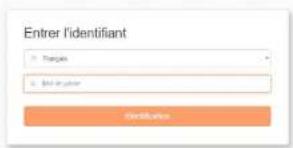
Essentiel B Easy WiFi 1200 - Manual installation from a computer - 2

MANUAL INSTALLATION IN REPEATER MODE

When you connect for the first time, or after resetting your device, you will be taken to the main configuration page. Select Repeater, then press Next.
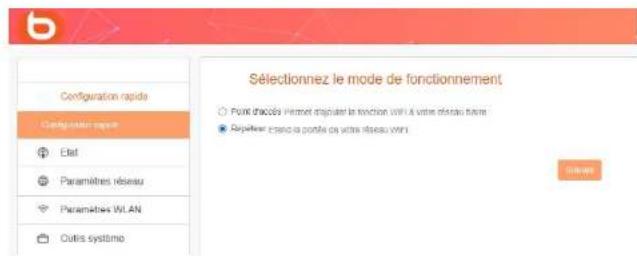
Essentiel B Easy WiFi 1200 - MANUAL INSTALLATION IN REPEATER MODE - 1

After pressing Next, a new page appears, listing the available networks. Click on the Detection button.
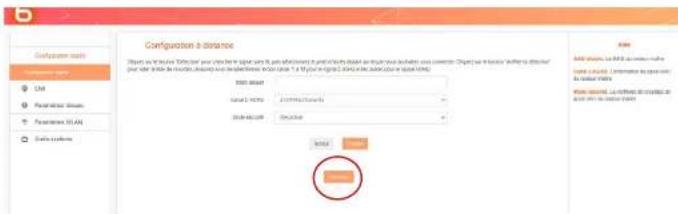
Essentiel B Easy WiFi 1200 - MANUAL INSTALLATION IN REPEATER MODE - 2

The SSID identifier and the security key are usually found on the network's original modem. If not, please contact your ISP to obtain this information

A list of available networks is displayed. Select the network you wish to extend using the Wi-Fi repeater, then enter the security key for the selected Wi-Fi network.
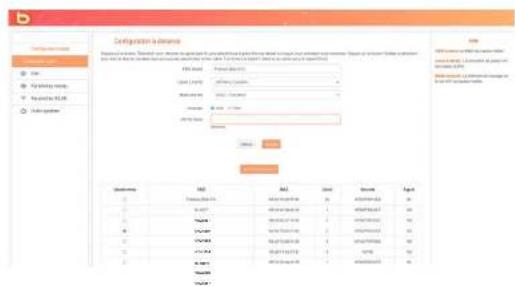
Essentiel B Easy WiFi 1200 - MANUAL INSTALLATION IN REPEATER MODE - 3

text_image Configuration to address File Path: Normal Format: Normal Format: Normal Format: Normal Format: Normal Format: Normal Format: Normal Format: Normal Format: Normal Format: Normal Format: Normal Format: Normal Format: Normal Format: Normal Format: Normal Format: Normal Format: Normal Format: Normal Format: Normal Format: Normal Format: Normal Format: Normal Format: Normal Format: Normal Format: Normal Format: Normal Folder: Folder: Folder: Folder: Folder: Folder: Folder: Folder: Folder: Folder: Folder: Folder: Folder: Folder: Folder: Folder: Folder: Folder: Folder: Folder: Folder: Folder: Folder: Folder: Folder: Folder: Folder: Folder: Folder: Folder: Folder: Folder: Folder: Folder: Folder: Folder: Folder: Folder: Folder: Folder: Folder: Folder: Folder: Folder: Folder: Folder: Folder: Folder: Folder: Folder: Folder:

Click on Next to define the wireless settings for your local network. You can choose to configure the network for 2.4G or 5G. By default, the network name is "AC 1200 Repeater" and the password is "12345678" (we recommend changing the password to increase the security of your network).
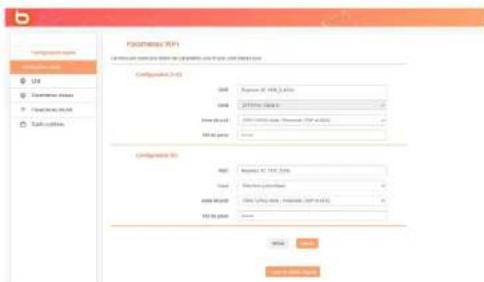
Essentiel B Easy WiFi 1200 - MANUAL INSTALLATION IN REPEATER MODE - 4

text_image Pisomius R/W Configuration name: Pisomius R/W Configuration ID: 000 Size: 2500 mm x 1.54 Size (x) of 100 mm x 1.54 (x = 0.01) Size (x) of 100 mm x 1.54 (x = 0.01) Size (x) of 100 mm x 1.54 (x = 0.01) Configuration No: Size: 2500 mm x 1.54 (x = 0.01) Size (x) of 100 mm x 1.54 (x = 0.01) Size (x) of 100 mm x 1.54 (x = 0.01) Size (x) of 100 mm x 1.54 (x = 0.01) OK Cancel

Note: While 5 Ghz Wi-Fi is generally more powerful than 2.4, not all devices are compatible with it. The 5 Ghz frequency is higher but its range is shorter as it struggles to cope with obstacles.

Next, click on Next to save and apply the selected configuration. The repeater reboots and connects to the chosen network.

Essentiel B Easy WiFi 1200 - MANUAL INSTALLATION IN REPEATER MODE - 5

To complete installation, connect to your new Wi-Fi network by clicking on the connection icon in the toolbar at the bottom right of your desktop:

Essentiel B Easy WiFi 1200 - MANUAL INSTALLATION IN REPEATER MODE - 6

The RE indicator light starts blinking.

INSTALLING THE ACCESS POINT MODE

Before configuring the Access point mode, make sure your repeater is connected to your modem or router via a wired connection (RJ45 cable) and that you have an Internet connection on your modem/router.

When you connect for the first time, or after resetting your device, you will be taken to the main configuration page. Select Access point and press Next.
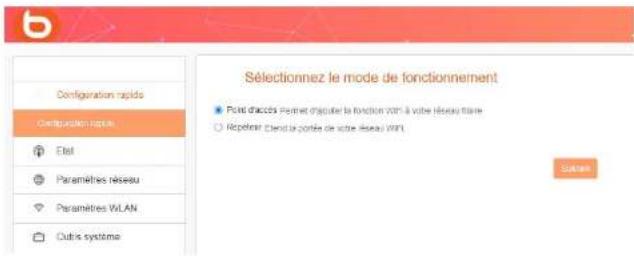
Essentiel B Easy WiFi 1200 - INSTALLING THE ACCESS POINT MODE - 1

Click on Next to define the wireless settings for your local network. You can choose to configure the network for 2.4G or 5G. By default, the network name is "AC 1200 Repeater" and the password is "12345678".
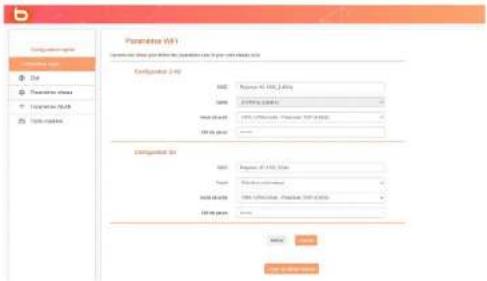
Essentiel B Easy WiFi 1200 - INSTALLING THE ACCESS POINT MODE - 2

text_image Parameter 4.0 Parameters: 100% of the parameter in the configuration list. Configuration (2-4) Size: Size = 100% / 100% Size = 250% / 100% Model size: 100% of the parameter in the configuration list 100% per unit: Configuration (3) Size: Size = 100% / 100% Size = 50% / 100% Model size: 100% of the parameter in the configuration list 100% per unit: Name Next Step Next Step

Note: While 5 Ghz Wi-Fi is generally more powerful than 2.4, not all devices are compatible with it. The 5 Ghz frequency is higher but its range is shorter as it struggles to cope with obstacles.

Next, click on Next to save and apply the selected configuration. The repeater reboots and connects to the chosen network.

Essentiel B Easy WiFi 1200 - INSTALLING THE ACCESS POINT MODE - 3

text_image Fidications! This will compare the information you notice your website: http://www.fidications.com. For your website's preferences, you can recognize your website page or access to a website. Status http://www.fidications.com

Once you have configured the various settings (in Repeater or Access pointmode), information on your connection will be displayed when you access the configuration interface. This information is read-only mode and cannot be modified from this page.
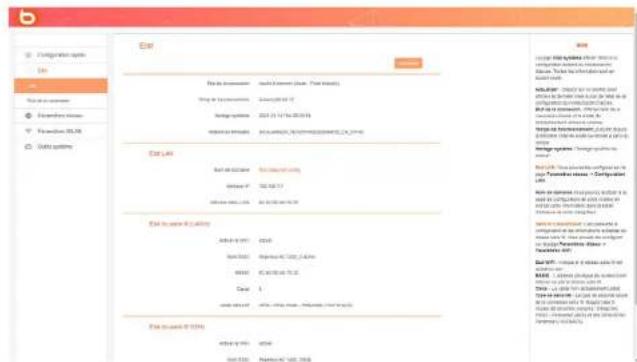
Essentiel B Easy WiFi 1200 - INSTALLING THE ACCESS POINT MODE - 4

text_image Configuration pages File Name: 10.0000 File path: 10.0000 Formal system: Formal system: Edit system: Edit Path Edit Path: Edit Path: Edit Path: Edit Path: Edit Path: Edit Path: Edit Path: Edit Path: Edit Path: Edit Path: Edit Path: Edit Path: Edit Path: Edit Path: Edit Path: Edit Path: Edit Path: Edit Path: Edit Path: Edit Path: Edit Path: Edit Path: Edit Path: Edit Path: Edit Path: Edit Path: File path (10.0000) File path (10.0000) File path (10.0000) File path (10.0000) File path (10.0000) File path (10.0000) File path (10.0000) File path (10.0000) File path (10.0000) File path (10.0000) Edit Path: Edit Path: Edit Path: Edit Path: Edit Path: Edit Path: Edit Path: Edit Path: Edit Path: Edit Path: Edit Path: Edit Path: Edit Path: Edit Path: Edit Path: Edit Path: Edit Path: Edit Path: Edit Path: Edit Path: Edit Path: Edit Path: Edit Path: Edit Path: Edit Path: Edit Path: Edit Path: Edit Path: Edit Path: Edit Path: Edit Path: Edit Path: Edit Path: Edit Path: Update Update Update Update Update Update Update Update Update Update Update Update Update Update Update Update Update Update Update Update Update Update Update Update Update Update Update Update Update Update Update Update Update Update Update Update Update Update Update Update Update Update Update Update Update Update Update Update Update Update Update

CHANGING THE NETWORK PASSWORD AND NAME

We recommend changing the name of the network and the corresponding password.

• To do this, go to the Network parameters tab of the Configuration interface:

- Change the network name by modifying the SSID and change the password as shown below:

- Lastly, remember to change your Windows password.
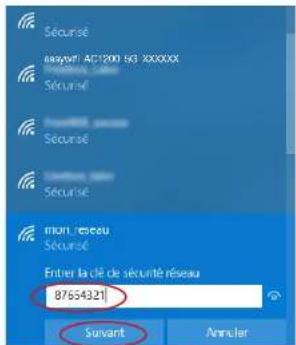
Essentiel B Easy WiFi 1200 - CHANGING THE NETWORK PASSWORD AND NAME - 1

Connecting a mobile device to the boosted network

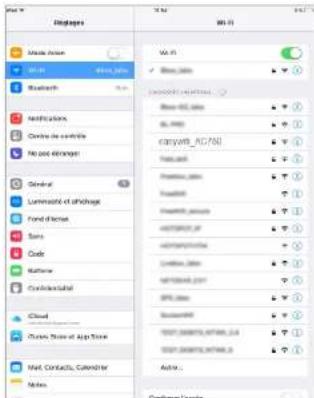
You can make the most of the repeater's performance to connect a mobile device (tablet or smartphone). You can install the repeater using your smartphone or tablet. Please refer to "Installing the repeater mode".

Next, connect to the boosted network:

  1. Access the list of networks available on your mobile device.
  2. Select the boosted network and start the connection.
  3. Enter the security key for the boosted network and complete the connection procedure.

IOS ^* EXAMPLE
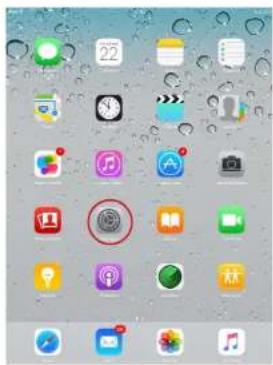
Essentiel B Easy WiFi 1200 - Connecting a mobile device to the boosted network - 1

text_image Screenshot of an iPad home screen displaying app icons with a red circular button highlighting a feature.
  1. Press the Settings icon.

Essentiel B Easy WiFi 1200 - Connecting a mobile device to the boosted network - 2

text_image File 7 Dispages MIL 11 MIL 12 MIL 13 MIL 14 MIL 15 MIL 16 MIL 17 MIL 18 MIL 19 MIL 20 MIL 21 MIL 22 MIL 23 MIL 24 MIL 25 MIL 26 MIL 27 MIL 28 MIL 29 MIL 30 MIL 31 MIL 32 MIL 33 MIL 34 MIL 35 MIL 36 MIL 37 MIL 38 MIL 39 MIL 40 MIL 41 MIL 42 MIL 43 MIL 44 MIL 45 MIL 46 MIL 47 MIL 48 MIL 49 MIL 50 MIL 51 MIL 52 MIL 53 MIL 54 MIL 55 MIL 56 MIL 57 MIL 58 MIL 59 MIL 60 MIL 61 MIL 62 MIL 63 MIL 64 MIL 65 MIL 66 MIL 67 MIL 68 MIL 69 MIL 70 MIL 71 MIL 72 MIL 73 MIL 74 MIL 75 MIL 76 MIL 77 MIL 78 MIL 79 MIL 80 MIL 81 MIL 82 MIL 83 MIL 84 MIL 85 MIL 86 MIL 87 MIL 88 MIL 89 MIL 90 MIL 91 MIL 92 MIL 93 MIL 94 MIL 95 MIL 96 MIL 97 MIL 98 MIL 99 MIL 100
  1. In the Wi-Fi tab, press easyWi-Fi_AC1200 or the name of the network you defined during installation, in the list of available wireless networks.
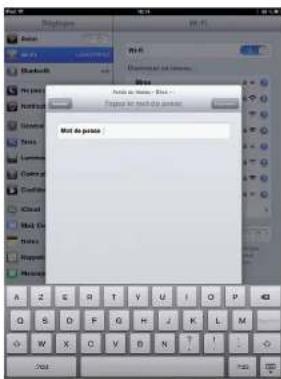
Essentiel B Easy WiFi 1200 - Connecting a mobile device to the boosted network - 3

text_image Add to home: Bbs Fages for much do paces Not do paces
  1. Enter the network security key defined during installation (12345678 by default).

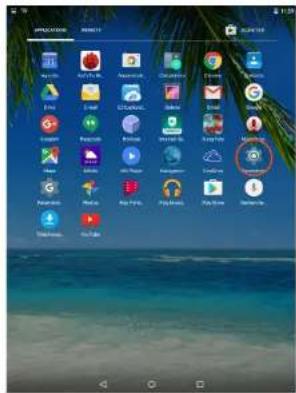
ANDROID* EXAMPLE
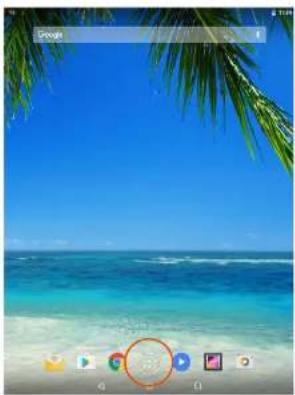
Essentiel B Easy WiFi 1200 - Connecting a mobile device to the boosted network - 4

natural_image TrnP beach scene with turquoise water, palm fronds, and a play button overlay (no readable text or symbols)
  1. Press the applications icon.

Essentiel B Easy WiFi 1200 - Connecting a mobile device to the boosted network - 5

text_image Smart TV Smart TV Smart TV Smart TV Smart TV Smart TV Smart TV Smart TV Smart TV Smart TV Smart TV Smart TV Smart TV Smart TV Smart TV Smart TV Smart TV Smart TV Smart TV Smart TV Smart TV Smart TV Smart TV Smart TV Smart TV Smart TV Smart TV Smart TV Smart TV Smart TV Smart TV Smart TV Smart TV Smart TV SPTC Play Music Play Music Play Music Play Music Play Music Play Music Play Music Play Music Play Music Play Music Play Music Play Music Play Music Play Music Play Music Play Music Play Music Play Music Play Music Play Music
  1. Press the Parameters icon.

Essentiel B Easy WiFi 1200 - Connecting a mobile device to the boosted network - 6

text_image SalesAPI, ACTSS Active Tian 2000000000000000 Tian 1999 Tian 1998 Tian 1997 Tian 1996 Tian 1995 Tian 1994 Tian 1993 Tian 1992 Tian 1991 Tian 1990 Tian 1989 Tian 1988 Tian 1987 Tian 1986 Tian 1985 Tian 1984 Tian 1983 Tian 1982 Tian 1981 Tian 1980 Tian 1979 Tian 1978 Tian 1977 Tian 1976 Tian 1975 Tian 1974 Tian 1973 Tian 1972 Tian 1971 Tian 1970 Tian 1969 Tian 1968 Tian 1967 Tian 1966 Tian 1965 Tian 1964 Tian 1963 Tian 1962 Tian 1961 Tian 1960 Tian 1959 Tian 1958 Tian 1957 Tian 1956 Tian 1955 Tian 1954 Tian 1953 Tian 1952 Tian 1951 Tian 1950 Tian 1949 Tian 1948 Tian 1947 Tian 1946 Tian 1945 Tian 1944 Tian 1943 Tian 1942 Tian 1941 Tian 1940 Tian 1939 Tian 1938 Tian 1937 Tian 1936 Tian 1935 Tian 1934 Tian 1933 Tian 1932 Tian 1931 Tian 1930 Tian 1929 Tian 1928 Tian 1927 Tian 1926 Tian 1925 Tian 1924 Tian 1923 Tian 1922 Tian 1921 Tian 1920 Tian 1919 Tian 1918 Tian 1917 Tian 1916 Tian 1915 Tian 1914 Tian 1913 Tian 1912 Tian 1911 Tian 1910 Tian 1909 Tian 1908 Tian 1907 Tian 1906 Tian 1905 Tian 1904 Tian 1903 Tian 1902 Tian 1901
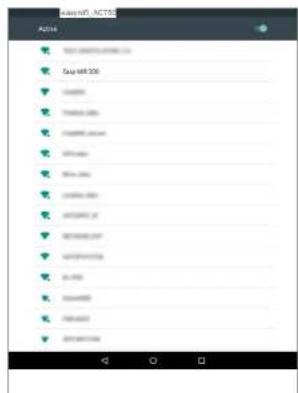
  1. In the WI-FI tab, press the easyWi-Fi_AC1200 network or the name of the network you defined during installation, in the list of available wireless networks.
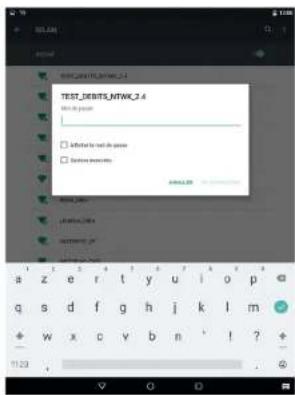
Essentiel B Easy WiFi 1200 - Connecting a mobile device to the boosted network - 7

text_image TEST_DEBITS_NTWK_2.4 Test in person □ Additional to test in person □ Summary errors AVERAGE a z e r t y u i o p q s d f g h j k l m + w x c v b n ' ! ? + 11:20
  1. Enter the network security key defined during installation (12345678 by default).

Connecting a new computer to the boosted network

  1. Click on the connection icon in the toolbar at the bottom right of your desktop.

Essentiel B Easy WiFi 1200 - Connecting a new computer to the boosted network - 1

  1. Connect to the new Wi-Fi network created during installation (easyWi-Fi_AC1200 by default).
  2. Enter the access code you defined during installation (12345678 by default).
  3. You can now open your Internet browser and start browsing.

Reset

Essentiel B Easy WiFi 1200 - Reset - 1

This procedure deletes all the information saved during the installation of the Wi-Fi repeater.

  1. To start the procedure, press the RE/RST button on the side of the repeater for 10 seconds.
    THE INDICATOR LIGHTS GO OUT, EXCEPT FOR SYS.
  2. The repeater restores the default settings. This operation may take a few minutes.
  3. The restoration process is complete when the Wi-Fi light is steady again. If the light does not come on after a few minutes, disconnect and reconnect the repeater.

Changing the network to be boosted

If you wish to change the network to be boosted, we recommend:

  1. Carrying out the restore procedure (see section on the Reset function).
  2. Repeating the installation steps (see Installation part in the section on Repeater mode or Access point mode).

Advanced configuration

Essentiel B Easy WiFi 1200 - Advanced configuration - 1

The advanced configuration steps are only suitable for people with some knowledge of configuring network devices, such as a Wi-Fi repeater. We strongly advise you to leave the default configuration.

To configure the Wi-Fi repeater once installation is complete:

  1. Make sure you are connected to the Wi-Fi network you created during installation.
  2. Open your Internet browser and type the http://easywifi.config address or type 192.168.1.100 directly.

http://easywifi.config

WEB CONFIGURATION INTERFACE

The configuration interface consists of 4 sections: Quick set-up, Status, Network settings, WLAN Settings and System tools.

A help section is displayed to the right of the software window.
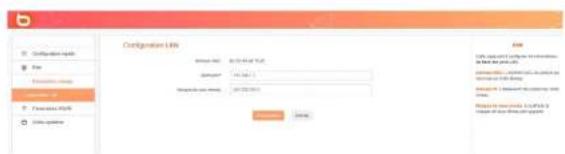
Essentiel B Easy WiFi 1200 - WEB CONFIGURATION INTERFACE - 1

text_image Configuration Link File Path: C:\Users\My Documents Description: Describe you next: 2018-03-01 Browse... Save... Help Use your own website (http://www.cbs.com) Import your own website or your http://www.cbs.com

Essentiel B Easy WiFi 1200 - WEB CONFIGURATION INTERFACE - 2

QUICK SET-UP

The Quick set-up menu allows you to quickly configure the desired installation mode(Repeater or Access point).

STATUS

Click on the Status menu to display the sub-menus. You can access the following:

  • Status: IP address, SSID network name, IP address, operating time, security mode.
    • Connection status: logon history.

NETWORK SETTINGS

Click on the Network settings menu to display the sub-menus. You can set the following network interface parameters:

• LAN configuration: to change the device address.
- WLAN settings:

  • WI-FI settings: bandwidth, SSID, connection status.
  • Security: change SSID and password.
    Filtering: security and connected devices.

WPS: WPS, WPS reset.

SYSTEM TOOLS

Essentiel B Easy WiFi 1200 - WEB CONFIGURATION INTERFACE - 3

text_image Background Data Data Source: 2014-07-2015 Description: [User] - [User] - [User] Description: [User] - [User] Description: [User] - [User]

Click on the System Tools menu to display the sub-menus. You can access the following:

• Time settings: to change the time, date or time zone corresponding with your location,
- Backup/Restore: to back up or restore the system,
- Parameter reset: to reset the configuration and restore the original network.
Warning: this procedure deletes all the information saved during the installation of the Wi-Fi repeater;
- Restart: to switch the repeater off and on again (e.g. if a change or update has not been taken into account),
- Firmware update: to update the configuration software,
- Change password: to change the default password for the configuration interface,
• System log: to view and/or refresh system information.

Frequently asked questions

• What is the IEEE 802. 11 n standard?
This is one of the 802. 11 standards applied to wireless networks. The IEEE 802. 11n standard enables network devices from different brands to communicate with each other.
• What is the IEEE 802. 11g standard?
This is one of the 802, 11 standards applied to wireless networks. The IEEE 802, 11 g standard enables network devices from different brands to communicate with each other.
• What is the IEEE 802. 11 b standard?
This is one of the 802.11 standards applied to wireless networks. The IEEE 802.11 b standard enables network devices from different manufacturers to communicate with each other.
• What is WEP?
WEP (Wired Equivalent Privacy) is a data protection system based on a 40-bit, 64-bit or 128-bit shared key algorithm.
• What is WPA (Wi-Fi Protected Access)?
It is a protection system for securing wireless networks. It uses the TKIP (Temporal Key Integrity) encryption protocol.
• What is AES?
The Advanced Encryption Standard (AES) ensures the highest level of data security.
- Can information be intercepted during transmission?
A wireless network offers twofold security protection. On the hardware side, it features encryption using DSSS (Direct Sequence Spread Spectrum) technology. On the software side, it features a WEP encryption function for enhanced security and access control.
- What is WPS?
The WPS (Wi-Fi Protected Setup) function automatically establishes encrypted or unencrypted connections between Wi-Fi equipped computers and an access point. The user presses the WPS button on the device or clicks on the WPS button in the software to activate the function. The connection is automatic. There are two types of WPS: PBC (Push-Button Configuration) and PIN code.
• What is SSID (Service Set IDentification)?
It is the alphanumeric key of up to thirty-two characters that identifies a wireless local network. All wireless devices must be configured with the same SSID to communicate with each other in the same network.
• What is WLAN (Wireless Local Area Network)?
It is a local network enabling computers and associated devices to communicate with each other wirelessly.

troubleshooting

Before contacting the service department, please carry out the checks listed below.

Symptoms Solution
No powerThe device is not plugged in. Plug the appliance into a mains socket.
There is no power at the mains plug.Connect another device to the same power outlet to cross-check the outlet.
No wireless network is detectedThe wireless access point is too far from your repeater.Move closer to the access point of your wireless network.
Radio waves are disrupted when they encounter obstacles.Avoid any major obstacles such as reinforced concrete walls.
Some equipment interferes with the radio signal.Keep away from any equipment that may transmit or receive a radio signal (wireless keyboard or mouse, wireless headphones, image transmission device, remote control, etc.).
No connection possible with some wireless networksThe login credentials are incorrect.Enter the correct password and security key to connect to an encrypted wireless network.
The password has been changed on the wireless access point since the repeater was last configured.Also change the password in the Wi-Fi repeater settings menus.
No connection due to incorrect settingsReset the repeater's factory settings.Press and hold the Reset key for 10 seconds.
No Ethernet connectionOne end of the Ethernet cable (RJ-45) is not connected properly.Reinsert both ends of the RJ45 Ethernet cable into the corresponding port on your repeater and computer.
The repeater is not configured correctly.Please refer to the Installing the access point mode section of the manual.

factory settings

The table below shows information on factory settings:

IdentifiersIP address 192.168.1.100
Password admin
LAN settingsIP address 192.168.1.100
Subnet mask 255.255.255.0
DHCP server Enabled
Address pool 192.168.1.100-192.168.1.200
WiFiWiFi Enabled
SSIDAC 1200, 2.4GHz_XXXXXX repeater (or AC 1200, 5GHz_XXXXXX repeater corresponds with the last 6 digit of the device's MAC address)The MAC address can be found on a label on the back of the device
Network mode 11 b/g/n/ac
Frequency bands 2412 ~ 2472 MHz
Emitted power2.4 GHz: 2412 MHz - 2472 MHz5 GHz: 5180 MHz - 5240 MHz
2.4 GHz: 100 mW5 GHz: 100 mW
Broadcast SSID Enabled
Channel AutoSelect
Channel bandwidth 20/40
Channel extension AutoSelect
Wi-Fi securityDisabled
Wi-Fi access controlDisabled

simplified EU declaration of conformity

The undersigned, Sourcing & Creation, hereby declares that the essentielb AC 1200 WI-FI Dual Band repeater radio electric device complies with directives RED 2014/53/EU, LVD 2014/35/EU & EMC 2014/30/EU.

The full text of the EU declaration of conformity is available from the following Internet address: https://www.boulanger.com/info/assistance

natural_image Diagram showing a wall-mounted power outlet connected to a white wall-mounted device with signal waves (no text or symbols)
Essentiel B Easy WiFi 1200 - simplified EU declaration of conformity - 1

natural_image Line drawing of a desktop computer setup with tower, monitor, and wireless signal icon (no text or symbols)

Funcionamiento

natural_image White wireless router with three pins and a power cord, shown without any text or symbols.
Essentiel B Easy WiFi 1200 - Funcionamiento - 1

text_image New, new, new Security Security Security Properties: Lower Security Properties: Lower Security Properties: Lower Security Properties: Lower Security Properties: Lower Security Properties: Lower Security Properties: Lower Security Properties: Lower Security Properties: Lower Security Properties: Lower Security Properties: Lower Security Properties: Lower Security Properties: Lower Security Properties: Lower Security Properties: Lower Security Properties: Lower Security Properties: Lower Security Property types: Property types: Property types: Property types: Property types: Property types: Property types: Property types: Property types: Property types: Property types: Property types: Property types: Property types: Property types: Property types: Property types: Property types: Property types: Property types: Property types: Property types: Property types: Property types: Property types: Property types: Property types: Property types: Property types: Property types: Property types: Property types: Property types: Property types: Inventory type: Inventory type: Inventory type: Inventory type: Inventory type: Inventory type: Inventory type: Inventory type: Inventory type: Inventory type: Inventory type: Inventory type: Inventory type: Inventory type: Inventory type: Inventory type: Inventory type: Inventory type: Inventory type: Inventory type: Inventory type: Inventory type: Inventory type: Inventory type: Inventory type: Inventory type: Inventory type: Inventory type: Inventory type: Inventory type: Inventory type: Inventory type: Inventory type: Inventory type:
text_image Configuration a distance Please note that the location is defined by your name, if you are connected to your details. If you are available, you can access your website or any other site. Except from the website's location in your site, you can access your website or any other site. If you are available, you can access your website or any other site. If you are available, you can access your website or any other site. If you are available, you can access your website or any other site. If you are available, you can access your website or any other site. If you are available, you can access your website or any other site. If you are available, you can access your website or any other site. If you are available, you can access your website or any other sites. If you are available, you can access your website or any other sites. If you are available, you can access your website or any other sites. If you are available, you can access your website or any other sites. If you are available, you can access your website or any other sites. If you are available, you can access your website or any other sites. If you are available, you can access your website or any other sites. If you are available, you can access你的 website or any other sites. If you are available, you can access你的 website or any other sites. If you are available, you can access你的 website or any other sites. If you are available, you can access你的 website or any other sites. If you are available, you can access你的 website or any other sites. If you are available, you can access你的 website or any other sites. If you are available, you can access你的 website or any other sites. If you areavailable, you can access你的 website or any other sites. If you are available, you can access你的 website or any other sites. If you are available, you can access你的 website or any other sites. If you are available, you can access你的 website or any other sites. If you are available, you can access你的 website or any other sites. If you are available, you can access你的 website or any other sites. If you are available, you can access你的 website or any othersites. If you are available, you can access你的 website or any other sites. If you are available, you can access你的 website or any other sites. If you are available, you can access你的 website or any other sites. If you are available, you can access你的 website or any other sites. If you are available, you can access你的 website or any other sites. If you are available, you can access你的 website or any other sites. If you are available, you can accessyour website or any other sites. If you are available, you can accessyour website or any other sites. If you are available, you can accessyour website or any other sites. If you are available, you can accessyour website or any other sites. If you are available, you can accessyour website or any other sites. If you are available, you can accessyour website or any other sites. If you are available, you can accessyour website or any other sites. If you areavailable, you can accessyour website or any other sites. If you are available, you can accessyour website or any other sites. If you are available, you can accessyour website or any other sites. If you are available, you can accessyour website or any other sites. If you are available, you can accessyour website or any other sites. If you are available, you can accessyour website or any other sites. If you are available, you can accessyour website or any othersites. If you are available, you can accessyour website or any other sites. If you are available, you can accessyour website or any other sites. If you are available, you can accessyour website or any other sites. If you are available, you can accessyour website or any other sites. If you are available, you can accessyour website or any other sites. If you are available, you can accessyour website or any othersites. If you are available, you can access your website or any other sites. If you are available, you can accessyour website or any other sites. If you are available, you can accessyour website or any other sites. If you are available, you can accessyour website or any othersites. If you are available, you can accessyour website or any other sites. If you are available, you can accessyour website or any othersites. If you are available, you can accessyour website or any othersites. If you are available, you can accessyour website or any othersites. If you are available, you can accessyour website or any othersites. If you are available, you can accessyour website or any othersites. If you are available, you can accessyour website or any othersites. If you are available, you can accessyour website or any othersites. If you are available, you can access your website or anyothersites. Ifyou are available,you can see your website or any other sites. Ifyou are available,you can see your website or any other sites. Ifyou are available,you can see your website or any other sites. Ifyou are available,you can see your website or any other sites. Ifyou are available,you can see your website or any othersites. Ifyou are available,you can see your website or any other sites. Ifyou are available,you can see your website or any other sites. Ifyou are available,you can see your website or any othersites. Ifyou are available,you can see your website or any othersites. Ifyou are available,you can see your website or any othersites. Ifyou are available,you can see your website or anyothersites. Ifyou are available,you can see your website or any othersites. Ifyou are available,you can see your website or any othersites. Ifyou are available,you can see your website or anyothersites. Ifyou are available,you can see your website or anyothersites. Ifyou are available,you can see your website or anyothersites. Ifyou are available,you can see your website oranyothersites. Ifyou are available,you can see your website oranyothersites. Ifyou are available,you can see your website oranyothersites. Ifyou are available,you can see your website oranyothersites. Ifyou are available,you can see your website oranyothersites. Ifyou are available,you can see your website oranyothersites. Ifyou are available,you can see your website oranyothersites. Ifyou are available,youcan see your website oranyothersites. Ifyou are available,youcan see your website oranyothersites. Ifyou are available,youcan see your website oranyothersites. Ifyou are available,youcan see your website oranyothersites. Ifyou are available,youcan see your website oranyothersites. Ifyou are available,youcan see your website oranyothersites. Ifyou are available,youcan see your website oranyothersites. If You are Available on the page of this software.
text_image Configuration: WiFi Configuration: 400 MHz SNPs SNPs: 400 MHz (400 MHz) Peak bandwidth: 100 MHz (400 MHz, Peak Band: 50 MHz) 300 MHz (400 MHz) Configuration: 400 MHz SNPs: 400 MHz (400 MHz) Peak bandwidth: 100 MHz (400 MHz, Peak Band: 50 MHz) 300 MHz (400 MHz) SNPs: 400 MHz (400 MHz)
text_image Screenshot of an iPad home screen displaying app icons with a red circular overlay highlighting a key or feature.
text_image Mac File Edit Help Sharebook Mac Add to mouse - Blue Tags for much the phones Not to choose
natural_image Trinity beach scene with palm fronds and blue sky, no visible text or symbols
text_image TEST_DEBITS_NTWK_2.4 Test in person □ Infected to test in person □ Summary security a z e r t y u i o p q s d f g h j k l m + w x c v b n ' ! ? + 11:20
text_image Package for the Theme File Path: 2014-07-03 19:56:27 Name: C#e-01-01 (C#e-01-01) [My Documents, Book 1, Book 2] Copyright: C#e-01-01 (C#e-01-01) [My Documents, Book 1, Book 2] Copyright: C#e-01-01 (C#e-01-01) [My Documents, Book 1, Book 2]
natural_image Diagram showing a power outlet connected to a wireless router and a desktop computer (no text or symbols present)

zeit

natural_image White wireless router with three leads and a green indicator lights, shown without any text or symbols.

Essentiel B Easy WiFi 1200 - zeit - 1
1 min.

text_image Bioses Lane Securals Securals Securals Property Lane Securals Property Lane Reliability AD 1000_21462 Property Lane Reliability AD 1000_21462 Table & Settings Securals Parameters: bndar & bndar Configuration: Properties, Properties are considered limits. OK Help Help Help Help Help Help Help Help Help Help Help Help Help Help Help Help Help Help Help Help Help Help Help Help Help Help Help Help Help Help Help Help Help Help Help Help Help Help Help Help Help Help Help Help Help Help Help Help Help Help Help
text_image Configuration & distance <|vision_start|> Dominant Network: 100% of the network has been used to access the network. The network is designed to be suitable for configuration. Options can be selected if the network is required, or not available for any other network. The network will be installed (OR) Network: 100% of the network has been used to access the network. The network will be installed (OR) Network: 100% of the network has been used to access the network. The network will be installed (OR) Sub-Service Sub-Service Sub-Service
text_image Configuration Help Form: C:\Program Files\Program Files\Program Files\Program Files\C#100000001 C:\Program Files\C# File Path: C:\Program Files\C# Format: 100% (Budget) - Format (100%+) DIN: 96.00000001 C:\Program Files\C# File Path: C:\Program Files\C# Format: 100% (Budget) - Format (100%+) DIN: 96.00000001 ADD: ADD: ADD: ADD: ADD: ADD: ADD: ADD: ADD: ADD: ADD: ADD: ADD: ADD: ADD: ADD: ADD: ADD: ADD: ADD: ADD: ADD: ADD: ADD: ADD: ADD: ADD: ADD: ADD: ADD: ADD: ADD: ADD: ADD: Add to Add to Add to Add to Add to Add to Add to Add to Add to Add to Add to Add to Add to Add to Add to Add to Add to Add to Add to Add to Add to Add to Add to Add to Add to Add to Add to Add to Add to Add to Add to Add to Add to Add to End Subsidiaries End Subsidiaries End Subsidiaries End Subsidiaries End Subsidiaries

MANUELLE INSTALLATION IM REPEATER-MODUS

text_image Configuration Help Configuration 2.0.1 Name: Size: 2500 x 1000 x 2500 Size: 2500 x 1000 x 2500 Size range: 1000 x 1000 x 2500 Configuration ID: Name: Size: 2500 x 1000 x 2500 Size range: 1000 x 1000 x 2500 Size range: 1000 x 1000 x 2500 OK Cancel OK/Cancel
text_image Get Get User 3.001 Get to account Accessories Functions: 96.00 Data streams Get User 3.001 Get to account Accessories Functions: 96.00 Data streams Get to account Accessories Functions: 96.00 Data streams Get to account Accessories Functions: 96.00 Data streams Get to account Accessories Functions: 96.00 Data streams Get to account Accessories Functions: 96.00 Data streams Get to account Accessories Functions: 96.00 Data streams Get to account

ÄNDERN DES NETZWERKPASSWORTS UND NETZWERKNAMENS

text_image Screenshot of an iOS home screen displaying app icons with a red circular overlay highlighting a feature.
text_image File 7 Dispages MIL-1 MIL-2 MIL-3 MIL-4 MIL-5 MIL-6 MIL-7 MIL-8 MIL-9 MIL-10 MIL-11 MIL-12 MIL-13 MIL-14 MIL-15 MIL-16 MIL-17 MIL-18 MIL-19 MIL-20 MIL-21 MIL-22 MIL-23 MIL-24 MIL-25 MIL-26 MIL-27 MIL-28 MIL-29 MIL-30 MIL-31 MIL-32 MIL-33 MIL-34 MIL-35 MIL-36 MIL-37 MIL-38 MIL-39 MIL-40 MIL-41 MIL-42 MIL-43 MIL-44 MIL-45 MIL-46 MIL-47 MIL-48 MIL-49 MIL-50 MIL-51 MIL-52 MIL-53 MIL-54 MIL-55 MIL-56 MIL-57 MIL-58 MIL-59 MIL-60 MIL-61 MIL-62 MIL-63 MIL-64 MIL-65 MIL-66 MIL-67 MIL-68 MIL-69 MIL-70 MIL-71 MIL-72 MIL-73 MIL-74 MIL-75 MIL-76 MIL-77 MIL-78 MIL-79 MIL-80 MIL-81 MIL-82 MIL-83 MIL-84 MIL-85 MIL-86 MIL-87 MIL-88 MIL-89 MIL-90 MIL-91 MIL-92 MIL-93 MIL-94 MIL-95 MIL-96 MIL-97 MIL-98 MIL-99 MIL-100
natural_image TrnP beach scene with turquoise water, palm fronds, and a play button overlay (no readable text or symbols)
text_image Screenshot of a mobile app home screen showing calendar icons and status bar with Chinese text
text_image TEST_DEBITS_NTWK_2.4 Test to power ✓ Additional test to power ✓ Summary security AVERAGE: 0.0000 a z e r t y u i o p q s d f g h j k l m + w x c v b n ' ! ? + T123
natural_image Diagram showing a power outlet connected to a wireless router and a desktop computer (no text or symbols present)

werking

natural_image White wireless router with two outlets and a pull-up cable, showing no text or symbols on the device itself.

Essentiel B Easy WiFi 1200 - werking - 1

text_image Security Data Transfer Data Transfer Data Transfer Data Transfer Data Transfer Network 60.1000.2.4 CA Data Transfer Network 60.1000.2.4 CA Data Transfer Parameters release & filtered Model Data generation, your mode and to access the link. R M Mode Answer F1 Model Options Model ID: 10-03-07-08
text_image Configuration 3 distances Please use a local .Tobacco\you.cashline or package to use appropriate files in your instructions to print this document to ensure available access. Please use a local .together to print your website or the local .together to use appropriate files in your website or the local .together to print your website or the local .together to print your website or the local .together to print your website or the local .together to print your website or the local .together to print your website or the local .together to print your website or the local .together to print your website or the local .together to print your website or the local .together to print your website or the local .together to print your website or the local .together to Print Your Website BASIC ORDER C:\Users\2000\15779\164-11 C:\Users\461200\2000001 SUPPORT SUPPORT SUPPORT
text_image Component File File Tobacco Paste Book Prepaid Book Sub-Commerce Component File Name: 1000000000000000000000000000000000000000000000000000000000000000000000000000000000000000000000000 Description: DTC Date: March 27, 2014 Time: 9:31:31:31:31 Date: March 27, 2014 Time: 9:31:31:31:31 Date: March 27, 2014 Date: March 27, 2014 Date: March 27, 2014 Date: March 27, 2014 Date: March 27, 2014 Date: March 27, 2014 Date: March 27, 2014 Date: March 27, 2014 Date: March 27,
text_image Proprietor (W1) Design: you are your best parameters to your computer tool. Proprietor (S-40) Model Size 200 mm x 500 mm Model size 300 mm x 500 mm Model size 300 mm x 500 mm Model size 300 mm x 500 mm Model size 300 mm x 500 mm Model size 300 mm x 500 mm Model size 300 mm x 500 mm Model size 300 mm x 500 mm Model size 30.0 mm x 50.0 mm Model size 30.0 mm x 50.0 mm Model size 30.0 mm x 50.0 mm Model size 30.0 mm x 50.0 mm Model size 30.0 mm x 50.0 mm Model size 30.0 mm x 50.0 mm Model size 30.0 mm x 50.0 mm Method: Name: Edit: Edit name: Edit size: Edit length: Edit position: Edit distance: Edit distance: Edit radius: Edit height: Edit width: Edit height: Edit width: Edit height: Edit height: Edit height: Edit height: Edit height: Edit height: Edit height: Edit height: Edit height: Edit height: Edit height: Edit height: Edit height: Edit height: Edit height: Edit height: Edit height: Edit height: Edit height: Edit height: Edit height: Edit height: Edit height: Edit height: Edit height: Edit heights: Edit heights: Edit heights: Edit heights: Edit heights: Edit heights: Edit heights: Edit heights: Edit heights: Edit heights: Edit heights: Edit heights: Edit heights: Edit heights: Edit heights: Edit heights: Edit heights: Edit heights: Edit heights: Edit heights: Edit heights: Edit heights: Edit heights: Edit heights: Edit heights: Edit height: Edit height: Edit height: Edit height: Edit height: Edit height: Edit height: Edit height: Edit height: Edit height: Edit height: Edit height: Edit height: Edit height: Edit height: Edit height: Edit height: Edit height: Edit height: Edit height: Edit height: Edit height: Edit height: Edit height: Edit hedges: Edit hedges: Edit hedges: Edit hedges: Edit hedges: Edit hedges: Edit hedges: Edit hedges: Edit hedges: Edit hedges: Edit hedges: Edit hedges: Edit hedges: Edit hedges: Edit hedges: Edit hedges: Edit hedges: Edit hedges: Edit hedges: Edit hedges: Edit hedges: Edit hedges: Edit hedges: Edit hedges: Edit hedges: Edit hedges:
text_image Screenshot of an iOS home screen displaying app icons with a red circular overlay highlighting a feature.
text_image Add to home: Add Fogue for much do pence Not do pence
natural_image Trinity beach scene with palm fronds and blue sky, no visible text or symbols
text_image Configuration Link File Description Parameters: 10.0000 Parameters: 10.0000 Description to your website: 10.0000 OK Cancel Help Cancel Options: Cancel Options: Cancel Options: Cancel Options: Cancel Options: Cancel Options: Cancel Options: Cancel Options: Cancel Options: Cancel Options: Cancel Options: Cancel Options: Cancel Options: Cancel Options: Cancel Options: Cancel Options: Cancel Options: Cancel Options: Cancel Options: Cancel Options: Cancel Options: Cancel Options: Cancel Options: Cancel Options: Cancel Options: Cancel Options: Cancel Options: Cancel Options: Cancel Options: Cancel Options: Cancel Options: Cancel Options: Cancel Options: Cancel Options: Control Control Control Control Control Control Control Control Control Control Control Control Control Control Control Control Control Control Control Control Control Control Control Control Control Control Control Control Control Control Control Control Control Control Control Control Control Control Control Control Control Control Control Control Control Control Control Control Control Control Control

SNELLE CONFIGURATIE

All information, designs, drawings and pictures in this document are the property of SOURCING & CREATION. SOURCING & CREATION reserves all rights to its brands, designs and information. Any copy and reproduction through any means shall be deemed and considered as counterfeiting.

Protection of the environment

This symbol attached to the product means that it is an appliance whose disposal is subject to the directive on waste from electrical and electronic equipment (WEEE). This appliance may not in any way be treated as household waste

and must be subject to a specific type of removal for this type of waste. Recycling and recovery systems are available in your area (waste removal) and by distributors. By taking your appliance at its end of life to a recycling facility, you will contribute to environmental conservation and prevent any harm to your health.

Essentiel B Easy WiFi 1200 - Protection of the environment - 1

\* Tested in our laboratories

Warranty valid from the date of purchase (receipt as proof of purchase). This warranty does not cover defects or damage caused by improper set up, incorrect use, or normal wear and tear of this product.

Ref. AC 1200 WiFi Dual Band

SERVICE RELATION CLIENTS /

Customer Relations Department / Servicio de Atención al Cliente / Kundenservice / Klantenafdeling

Avenue de la Motte

CS 80137

59811 Lesquin cedex
Manual assistant
Powered by Anthropic
Waiting for your message
Product information

Brand : Essentiel B

Model : Easy WiFi 1200

Category : Wifi repeater