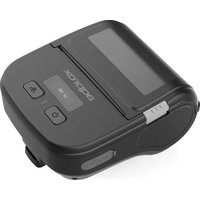
appPOS80PORTABLE - Printer Approx - Free user manual and instructions
Find the device manual for free appPOS80PORTABLE Approx in PDF.


| Product Type | Portable Thermal Printer |
| Brand | Approx |
| Model | appPOS80PORTABLE |
| Print Method | Thermal line printing |
| Print Width | 22-80 mm |
| Print Speed | Up to 100 mm/s |
| Resolution | 203 dpi |
| Paper Roll Diameter | ≤ 50 mm |
| Thermal Head Life | ≥ 50 km |
| Command Set | CPCL/ESC |
| Paper Types | Continuous thermal paper, labels, labels with black mark |
| Supported Barcodes | Code 39, 128, EAN-13, UPC-A, QR Code, PDF417 (optional) |
| Input Power | AC 100-240V, 50/60 Hz |
| Adapter Output | DC 5V, 2A |
| Battery | Lithium-ion 7.4V, 2000 mAh |
| Charge Time | Approximately 3 hours |
| Wireless Communication | Bluetooth 5.0 |
| Wired Communication | USB Type-C |
| Operating Temperature | -10°C to 50°C |
| Storage Temperature | -20°C to 60°C |
| Safety | Do not disassemble, use provided adapter, avoid heat and moisture |
| Maintenance | Clean print head and roller with alcohol, exterior with soft cloth |
| Package Contents | Printer, USB cable, power adapter, guide, battery, paper roll, belt loop |
Frequently Asked Questions - appPOS80PORTABLE Approx
User questions about appPOS80PORTABLE Approx
0 question about this device. Answer the ones you know or ask your own.
Ask a new question about this device
Download the instructions for your Printer in PDF format for free! Find your manual appPOS80PORTABLE - Approx and take your electronic device back in hand. On this page are published all the documents necessary for the use of your device. appPOS80PORTABLE by Approx.
USER MANUAL appPOS80PORTABLE Approx
natural_image
Line drawing of a device with an arrow pointing to a component (no text or symbols)Figura 1
Clip de la batería
natural_image
Line drawing of a device with a label pointing to a screen (no text or symbols present)Figura 2
Carga de la batería
natural_image
Line drawing of a device interior with a hand inserting a button (no text or symbols)Figura 1
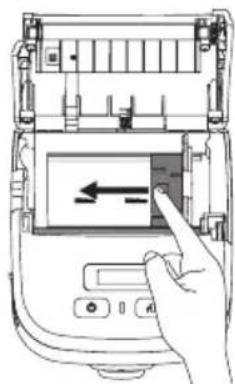
Figura 2
natural_image
Line drawing of a portable electronic device with a scroll and ventilation grille (no text or symbols)natural_image
Line drawing of a portable electronic device with a cactus and ventilation slots (no text or symbols)②
natural_image
Line drawing of a portable electronic device with a speaker grille and control panel (no text or symbols)INSTRUCCIONES BÁSICAS DE FUNCIONAMIENTO
natural_image
Line drawing of a desktop computer connected to an electronic device via cable (no text or symbols)ESPAÑOL
natural_image
Line drawing of a portable electronic device with ventilation slots and a lid (no text or symbols)natural_image
Line drawing of a portable electronic device with ventilation slots and a lid (no text or symbols)Thank you for purchasing our appPOS80PORTABLE Approx mobile printer.
This manual can help you easily learn to use this product. Please read this manual carefully before using the printer and keep it properly so that everyone who uses this product can ready it.
SAFETY INSTRUCTION
Please follow the following precautions when using the printer:
- Do not disassemble the printer by yourself. Please read this manual carefully before use.
- Please turn off the power immediately in case of failure. When you notice smoke or odor coming from the printer or power adapter, please unplug the power adapter and remove the battery immediately. Please be careful not to get burnt.
- Please do not use the printer near gas stations, fuel warehouses and other flammable materials.
- During charging, the printer and power adapter must be placed in a ventilated place with the ambient temperatura of 0^ C - 45^ C, and be sure to use the power adapter provided by the company. The use of unapproved power adapters may be hazardous and also violates our warranty policy.
- When the printer is printing, please do not open the cover of the paper bin; otherwise, unpredictable conditions my occur and the printer may even be damaged.
- After printing, the print head is still at a high temperatura. Do not touch it to avoid burns.
- Please do not use dissolved matter (such as benzene thinner) to wipe the printer shell, and please keep the printer away from corrosive chemicals. You can only gently wipe the printer with a clean soft cloth.
- The print head is a hot part. Do not touch the print head and its surroundings parts during or just after printing. Children must use it under adult supervision.
- Do not touch thermal printhead surfaces and connectors. Avoid electrostatic damage to the print head. If the printer is to be stored for a long time, be sure to remove the battery from the printer and store it separately; otherwise, the battery may fail or even have leakage, which may damage the printer.
- Make sure the printer is turned off before replacing the battery. If a power adapter is used, make sure the
power is cut off before replacing the battery.
- The printer can work stably at an ambient temperature of 0^ C - 40^ C. Too high or too low ambient temperature will lead to low printing quality.
- The time that the printer text can be kept on the thermal printing paper is related to the paper quality. To print documents that need to be kept for a long time, please use long-lasting thermal printing paper.
- The tear blade has a sharp edge, please be careful not to touch to prevent cuts.
Please follow the following precautions when using the battery:
- Please carefully read this manual and symbols on the battery surface before use.
- Please charge the battery in a cool ventilated room. The high ambient temperature during charging will cause the battery to heat up, emit smoke, burn, deform, or even explode.
- There are special protective circuits and devices inside the battery. Please do not disassemble the battery by yourself, or it will cause a short circuit or electrolyte leakage.
- There is a risk of blindness if the electrolyte gets into the eye. In case of eye contact, rinse immediately with water and seek doctor's advice immediately.
- Do not squeeze, mechanically vibrate or shake the battery, and short circuit of the battery is strictly forbidden.
- Please do not put the battery into water; otherwise, it may result in internal short circuit, which may cause the battery to heat up, emit smoke, deform, damage or even explode.
- Do not expose the battery to direct sunlight or put it in a place with excessive smoke and dust. Do not use the battery in a high humidity environment, such as a bathroom.
- Please replace the battery if it cannot meet the performance requirements.
- Keep the battery out of reach of children to prevent danger.
- If you notice any discoloration or deformation of the battery, stop using it immediately.
Please carefully read this manual and symbols on the surface of power adapter before use:
ENGLISH
- Do not disassemble or modify the power adapter. Do not use the power adapter if the power line is damaged; otherwise, it may cause electric shock, fire and damage to the power adapter.
- Do not touch the power adapter with wet hands. If the power adapter comes into contact with water or other liquids, cut off the power supply immediately.
- Please avoid short circuit, vibration or shaking of the power adapter.
- Do not use the power adapter in a high humidity environment, such as bathroom. The equipment is not waterproof and must not be exposed to rain or moisture.
- Hold the power adapter body when unplugging. Simply pulling the power line will damage the wires.
- Keep the power adapter out of reach of children to prevent danger.
PRODUCT INTRODUCTION
Note: This product information parameters are subject to change without prior notice, subject to the actual.
Printer Parameters
| Printing method Thermal line printing | |
| Print width 22-80mm. | |
| Paper roll diameter ≤50mm. | |
| Print speed 100mm/s max. | |
| Resolution | 203dpi |
| Thermal head lifespan ≥50km. (label paper) | |
| Command set CPCL/ESC | |
| Support paper types Thermal continuous paper, label papter, black label paper | |
| Print content One-dimensional code: Code 39, 39C, I25, Code 93, ITF25, EAN128, Code 128,Codabar, EAN-8, EAN8+2, EAN8+5, EAN-13, EAN13+2, EAN13+5, UPC-A,UPCA+2,UPCA+5,UPC-E,UPCE+2,UPCE+5 MSIC, ITF14, EAN14, CODE11, | |
| POST | |
| QR code: QRCODE, PDF417 (optional) | |
| Extended character list CP437, CP850, CP852, CP860, CP865, CP866, WPC1250, WPC1251, WPC1252, WPC1253, WPC1254 | |
| Input power supply Input AC 100-240V, output DC 5V 2A --- | |
| Battery specification 7.4V 2000mAh lithium-ion battery | |
| Charging time 3 hours | |
| Wireless communication Bluetooth 5.0 | |
| Wire communication Type-C USB | |
| Working environment Temperature: -10°C~50°C. Humidity: 5%~95% (no condensation) | |
| Storage environment Temperature: -20°C~60°C. Humidity: 5%~90% (no condensation) | |
ENGLISH
UNPACKING LIST
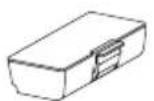
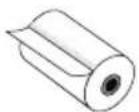
| Printer | USB cable | Power adapter | User guide | Battery | |
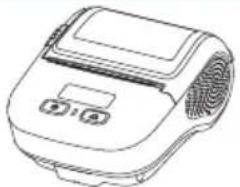 | 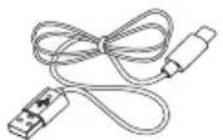 | 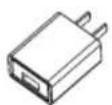 |  |  | |
| Roll | Belt buckle | ||||
 | [4WBX] | ||||
Note: The pictures are for reference only, please subject to practicality.
APPEARANCE AND COMPONENTS
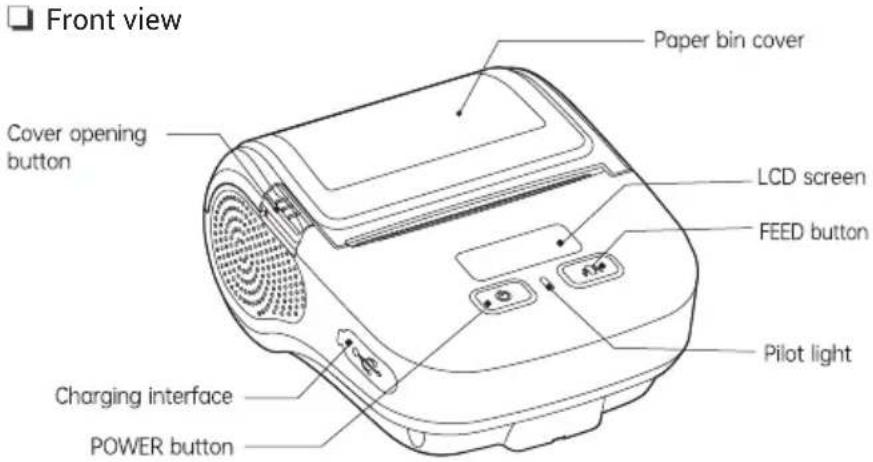
Rear view
□
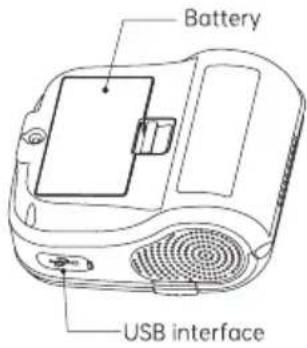
ENGLISH
INSTALLATION INSTRUCTIONS
Battery installation
- When installing or removing the battery, make sure the printer is powered off.
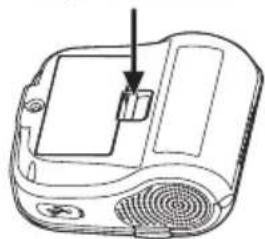
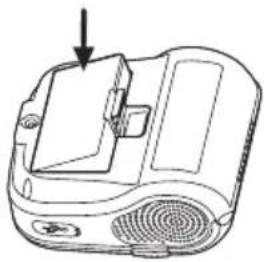
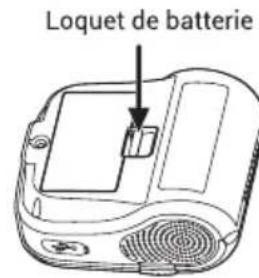
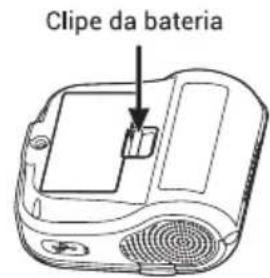
- As shown in Figure 1 below, insert the battery into the battery slot behind the printer in the direction of the arrow. Press down on the battery until the card snaps into place, as shown in Figure 2.
- As shown in Figure 2, when removing the battery, open the battery latch, using the opposite steps to install the battery.
natural_image
Line drawing of a device with an arrow pointing to a component (no text or symbols)Figure 1
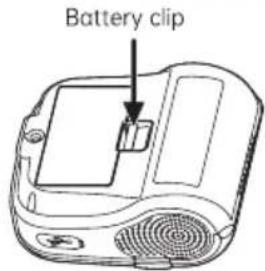
Figure 2
Battery charge
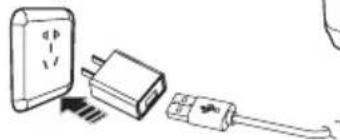
- Standby charging: Insert the power adapter plug into the power socket, and the USB interface into the printer charging port (AC: 100V\~240V (50/60Hz)). Charging: Battery indication icon 📄 scroll display of battery indication slot.
End of charging battery indication icon shows full battery.
The buzzer will alert with a "beep" sound.
natural_image
Simple line drawing of a plug and cable assembly (no text or symbols)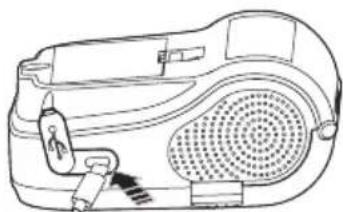
natural_image
Line drawing of a portable washing machine with speaker and control panel (no text or symbols)If you use a power adapter not provided or approved by us, the printer may be damaged.
Note: It can be printed while charging. The device supports the fast charge function, which can continue to print after a short charge.
Do not remove the battery while charging.
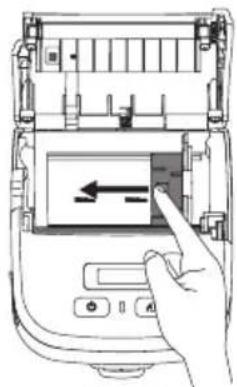
Paper width adjustment for use
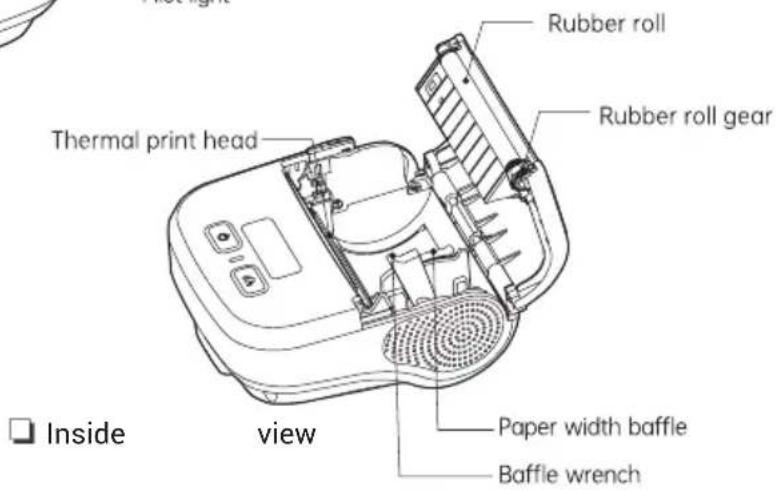
Baffle wrench upward: lock paper width adjustment.
Baffle wrench down: unlock the paper width adjustment.
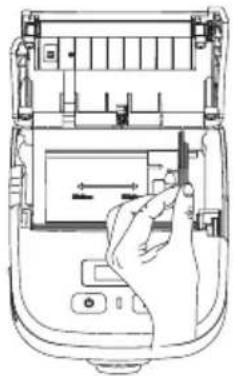
Unlocking the paper width adjuster can adjust the paper widths as follows:
-
Adjust the paper width according to the paper width, hold the top of the paper width baffle and move it to the right (as shown in Figure 1).
-
Place the paper roll by hand and move the bottom part of the paper width adjustment block to the left
(Figure 2).
natural_image
Line drawing of a device interior with a hand inserting a component (no text or symbols)Figure 1

Figure 2
Printing paper roll installation
- Remove the seal of the paper roll.
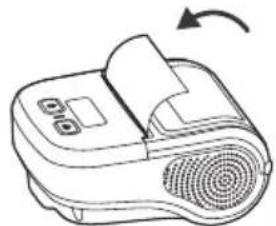
- Press the open button to open the paper compartment, turn the baffle wrench to unlock, and adjust the paper width baffle to the paper width.
- Put the paper roll into the paper bin, fine-tune the paper width baffle to lean against the paper roll, turn
ENGLISH
the paper width baffle wrench to fix it.
- Pull out a port of the paper along the exit and close the paper bin cover.
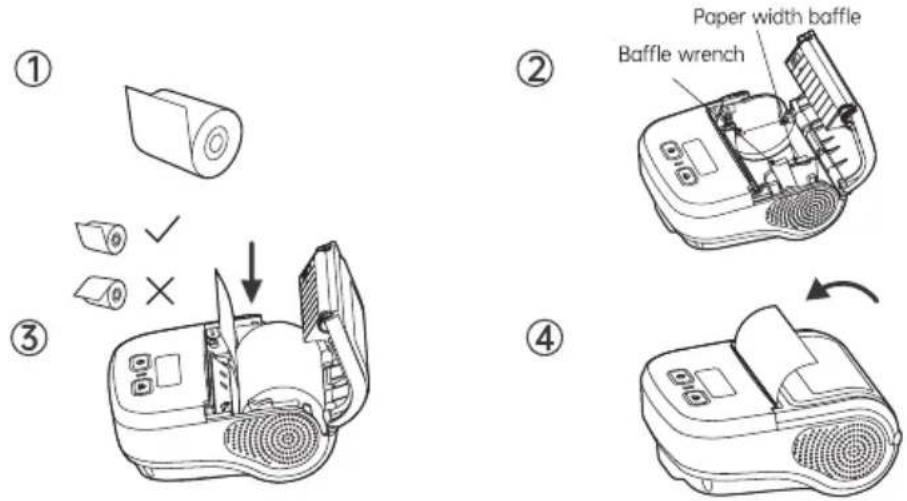
Note: Printer use paper specifications, paper width: 20\~80mm (adjustable on one side), paper roll diameter: 50mm. Pay attention to the direction of the paper roll. If it is placed in the wrong direction, it will lead to blank printing.
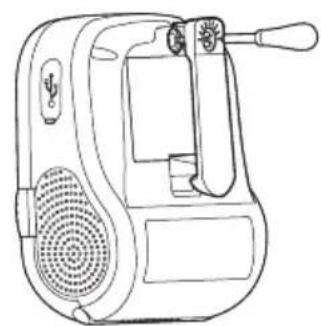
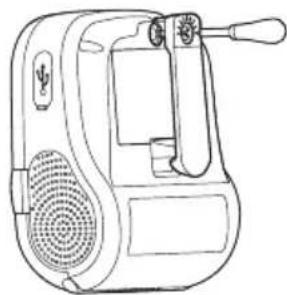
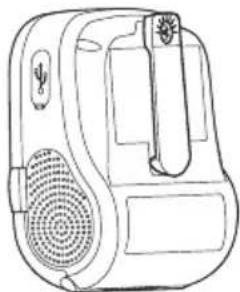
Belt buckle installation
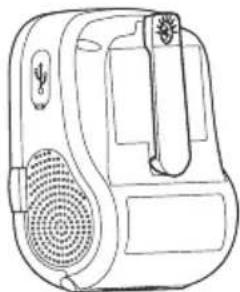
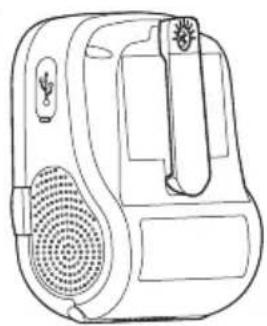
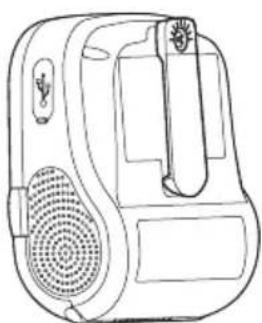
- Remove the belt buckle
- Tighten the belt buckle screws as shown in the following figure.
①
natural_image
Line drawing of a portable electronic device with speaker and control knob (no text or symbols)②
natural_image
Line drawing of a handheld electronic device with speaker grille and control panel (no text or symbols)BASIC FUNCTION INSTRUCTIONS
Function description of buttons
- Power on: Long press Power button for 3 seconds.
- Power off: When the printer is turned on, long press Power button for 3 seconds.
- Feed: Short press FEED button in continuous paper mode, the paper moving is about 10mm. In label/back label mode, press the FEED button to move the paper to the seam mark or to the black mark.
- Auto sleep/wake:
Auto sleep: When the printer is turned on, there is no key operation or data transmission within 10 seconds, the printer will automatically enter the sleep state, press the power button or the paper key to wake up the printer.
Auto wake: The printer will wake up automatically when the data is received.
ENGLISH
Icons description
Paper shortage state

When paper shortage occurs or the paper roll is not properly loaded
Cover opening state
When the paper bin cover is not closed or not properly closed
Battery indication
When charging, the icon will scroll to indicate the charging status
Bluetooth indicaton
Indicates successful Bluetooth connection
WiFi indicator
Indicates successful WiFi connection
Enter setting screen
In the startup state, press Power button and Feed button at the same time to enter the main menu of the system.
Presss Power button to select a function menu item.
Short press Feed button: change the function parameters.
Long press Feed button: confirm the setting and exit.
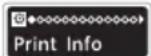
Print self-test page Press the Feed button to start printing the self-test page and exit the menu
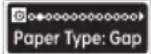
Mark/None/Gap Set paper type
| Paper Learn | Label learning For current paper learning |
| Darkness: 2 | 0-4 Set a small range of clarity |
| Print Quality: 2 | 0-4 Set a wide range of clarity |
| Speed: 4 | 0-5 Set print speed |
| Buzzer Set: Open | Open/Close Set wether to enable the buzzer |
| Power Feed: Close | Open/Close Set wether to turn on the boot paper |
| Cover Feed: Close | Open/Close Set wether to open and close the cover paper |
| ScreenSaver10 | Screensaver time Set the screensaver time10s/30s/60s/99s |
| AutoShutdown- | Automatic shutdown Set automatic shutdown-/1-5 hours |
| Language:English | English Set language |
| Cmd Mode:CPCL | CPCL/ESC Instruction mode setting |
| Paper Size: 80 | 58/80 Set paper size (for ESC instruction only) |
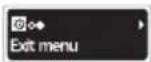
Return to main screen
ENGLISH
USB Communication
The printer provides USB port, which is used to connect the printer to a PC as shown in the figure to charge the printer, set parameters, and transmit data, etc.
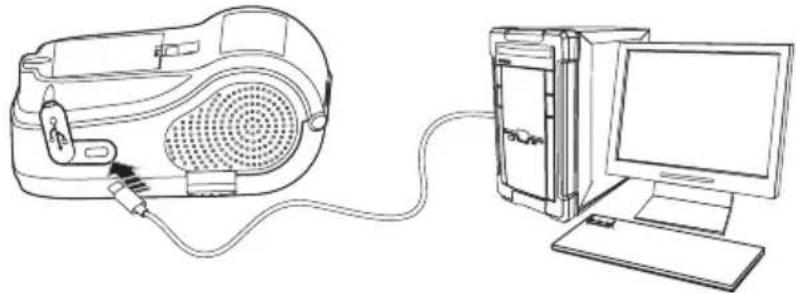
natural_image
Line drawing of a device connected to a desktop computer via cable (no text or symbols)Bluetooth communication
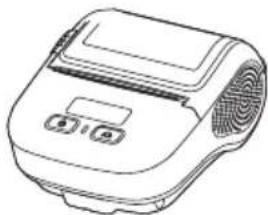
Bluetooth name: APPPOS80PORTA+BLE-XXXX (last four digits of Bluetooth address).
Bluetooth password: Default 0000
Android phone first find the device in the Bluetooth list of the phone, click connect, and then connect with the APP.
natural_image
Line drawing of a portable electronic device with ventilation slots and control buttons (no text or symbols)WiFi communication (alternative)
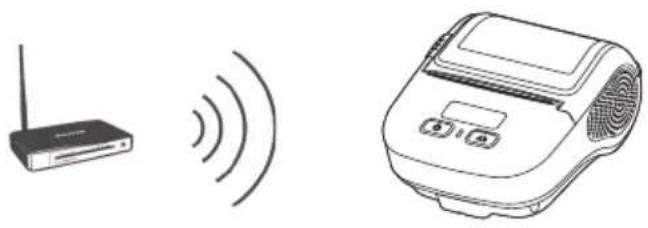
The mobile label printer can provide WiFi communication, and support STA mode and TPIK/AES encryption. Its effective communication distance is no more than 20m.
Note: WiFi information can be changed through the setting tool.
REPAIR AND MAINTENANCE
Daily maintenance of printer
- Print head, roller must be cleaned regularly, especially when the print blur quality decreases.
The steps to clean the print head are as follows:
- Turn off the power of the printer, open the cover, if there is paper, remove the paper.
- If you have just finished printing, wait for the printhead to cool completely.
- Wipe the dust and stains on the surface of the print head with a soft cotton cloth dipped in alcohol.
- Wait until the alcohol is completely volatilized, close the upper cover, and re-test the printing machine.
natural_image
Illustration of a wireless router with signal waves and a digital scanner (no text or symbols)
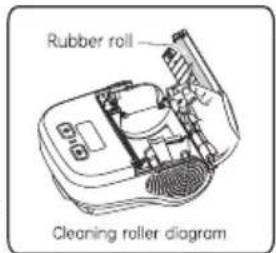
The steps to clean the roller are as follows:
- Turn off the power of the printer and open the top cover.
- Wipe the printing roller with a soft cotton cloth dipped in neutral alcohol. Dust and stains on the surface.
- After the alcohol is completely volatilized, close the top cover.
- If you find water inside the printer, please immediately shut down and take out the battery, and the printer naturally dry.
ENGLISH
- If you do not use the printer for a long time, please take out the battery and store it separately.
- The printer outside and paper bin cleaning: Please use a dry wet cloth gently wipe the printer surface and paper bin inside, pay attention to the wet cloth must be completely wrung out.
Use and storage of printing paper
- Please keep newly purchased printing paper in intact package and prevent it from direct sunlight and high temperature.
- Please keep printed documents in a dark place at room temperature (about 20^ C), so as to effectively extend the storage life of the documents.
- If the documents need to be kept for a long time, please use long lasting thermal printing paper.
RECYCLING
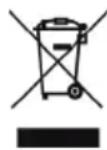
WEEE. This product contains substances that can damage the environment and human health if not disposed of properly. We therefore provide you with the following information in order to prevent the release of these substances and optimise the use of natural resources. Electrical and electronic products should not be disposed of as normal household waste, but should be properly collected and properly treated. The crossed-out bin symbol on the product and on this page is a reminder to dispose of the product properly at the end of its useful life. In this way, you can prevent non-specific treatment of the substances contained in these products, or inappropriate use of parts of it, from leading to harmful consequences for the environment and human health. Furthermore, you can contribute to the recovery, recycling and reuse of many of the materials that make up these products. This is why manufacturers and distributors of electrical and electronic equipment organize proper collection and disposal. At the end of the product's useful life, please contact your dealer for disposal instructions. Disposal of the product in any other manner will be subject to the penalties prescribed by law and in force in the country where the product is disposed of. In addition, we recommend the following measures to protect the environment: recycling of the inner and outer
packaging supplied with the product and proper disposal of used batteries (if contained in the product). With your help, we can reduce the amount of natural resources used in the production of electrical and electronic equipment, minimize the use of landfill and improve the quality of life by preventing the release of potentially hazardous substances into the environment.
PACKAGING
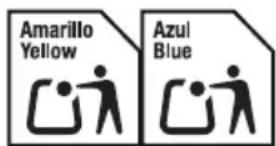
In Spain, in compliance with Royal Decree 1055/2022, of December 27, on packaging and packaging waste, please deposit the main cardboard packaging of the product in the blue container (cardboard), the internal protections and internal plastic bags in the yellow container (plastic). For other countries, follow local ordinances to deposit the packaging, internal protections and plastic bags.
This product complies with the RoHS Directive 2011/65/EU - 2015/863/EU. The Product is CE-marked and therefore complies with the safety standards set by the European Union.
Approx Iberia S.L. declares that the product complies with Directive 2014/53/EU.
The full text of the EU declaration of conformity is available at the following internet address:
https://www.approxtpv.es/certificados/APPPOS80PORTABLE_DECLARATION.pdf
FRANÇAIS
Merci d'avoir choisi notre imprimante mobile appPOS80PORTABLE Approx.
natural_image
Line drawing of a device with an arrow pointing to a component (no text or symbols)Figure 1
natural_image
Line drawing of a device interior with a hand inserting a button (no text or symbols)Figure 1
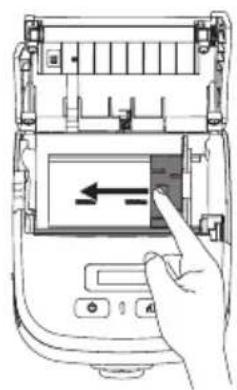
Figure 2
FRANÇAIS
④
natural_image
Line drawing of a portable electronic device with a scroll and ventilation grille (no text or symbols)natural_image
Line drawing of a portable electronic device with ventilation grille and handle (no text or symbols)②
natural_image
Line drawing of a handheld electronic device with speaker grille and control knob (no text or symbols)INSTRUCTIONS DE FONCTIONNEMENT DE BASE
natural_image
Line drawing of a portable electronic device connected to a desktop computer via cable (no text or symbols)Communication Bluetooth
Nom Bluetooth : APPPOS80PORTA+BLE-XXXX (quatre derniers chiffres de l'adresse Bluetooth).
Mot de passe Bluetooth : 0000 par défaut.1. Android phone first find the device in the Bluetooth list of the phone, click connect, and then connect with the APP.
natural_image
Line drawing of a portable electronic device with ventilation slots and buttons (no text or symbols)Communication Wi-Fi (alternative)
natural_image
Line drawing of a device with an arrow pointing to a component (no text or symbols)Figura 1
natural_image
Line drawing of a device interior with a hand inserting a component (no text or symbols)Figura 1
natural_image
Hand inserting a device into a device with an arrow indicating left-side motion (no text or symbols present)Figura 2
Instalar o Rolo de Papel
natural_image
Line drawing of a portable electronic device with a scroll and ventilation grille (no text or symbols)①
natural_image
Line drawing of a portable electronic device with a speaker and ventilation slots (no text or symbols)②
natural_image
Line drawing of a handheld electronic device with speaker grille and control panel (no text or symbols)Instalar o clipe de engate
natural_image
Line drawing of a desktop computer connected to an electronic device via cable (no text or symbols)PORTUGUÊS
natural_image
Line drawing of a portable electronic device with ventilation slots and control buttons (no text or symbols)natural_image
Line drawing of a portable electronic device with ventilation slots and control buttons (no text or symbols)The content of this guide is subject to typographical errors
www.approxtpv.es

- INSTRUCCIONES BÁSICAS DE FUNCIONAMIENTO
- ESPAÑOL
- SAFETY INSTRUCTION
- ENGLISH
- PRODUCT INTRODUCTION
- UNPACKING LIST
- INSTALLATION INSTRUCTIONS
- Battery installation
- Battery charge
- Printing paper roll installation
- Belt buckle installation
- BASIC FUNCTION INSTRUCTIONS
- USB Communication
- Bluetooth communication
- WiFi communication (alternative)
- REPAIR AND MAINTENANCE
- Daily maintenance of printer
- Use and storage of printing paper
- RECYCLING
- PACKAGING
- FRANÇAIS
- INSTRUCTIONS DE FONCTIONNEMENT DE BASE
- Communication Bluetooth
- Instalar o Rolo de Papel
- PORTUGUÊS
Brand : Approx
Model : appPOS80PORTABLE
Category : Printer