
F01H - Clock Vevor - Free user manual and instructions
Find the device manual for free F01H Vevor in PDF.
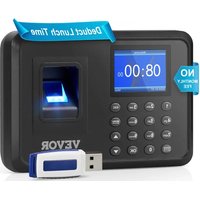


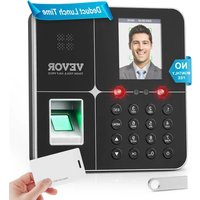
| Product Type | Time Clock (Punch Clock) |
| Brand | Vevor |
| Model | F01H |
| Dimensions | 170 × 120 × 36 mm |
| Power Supply | DC 5V, 1A (5W) |
| Power Consumption | 5W |
| Supported Languages | 12 languages (English, German, French, Spanish, Italian, Russian, Dutch, Polish, Swedish, Turkish, Portuguese, Brazilian Portuguese) |
| Identification Methods | Fingerprint, card, password |
| Display Type | LCD Screen |
| Main Functions | Attendance recording, shift management, department management, data export via USB |
| Installation | Wall-mounted (fixing with screws and wall plugs provided) |
| Package Contents | Power adapter, USB flash drive, 3 self-tapping screws, 3 wall plugs |
| Operating Temperature | 0 °C to 45 °C |
| Recommended Environment | Indoor, dry, clean, away from dust, water, and fire |
| Maintenance and Cleaning | Clean with a soft, dry cloth; do not use solvents |
| Safety | Do not open the device; contact customer service if a problem occurs; regularly back up data |
| Compliance | FCC Part 15, European WEEE directive (2012/19/EU) |
| Warranty | Technical support and electronic warranty certificate at www.vevor.com/support |
| Repairability | Not user-serviceable; contact the dealer or customer service |
| Manufacturer | Shanghai Muxin Muye Youxiangongsi, Shuangcheng Road 803 Lane 11, Room 1602A-1609, Baoshan District, Shanghai 200000, China |
| Australia Importer | SIHAO PTY LTD, 1 ROKEVA STREETASTWC NSW 2122 |
| USA Importer | Sanven Technology Ltd, Suite 250, 9166 Anaheim Place, Rancho Cucamonga, CA 91730 |
| EU Representative | E-CrossStu GmbH, Mainzer Landstr.69, 60329 Frankfurt am Main |
| UK Representative | YH CONSULTING LIMITED |
Frequently Asked Questions - F01H Vevor
User questions about F01H Vevor
0 question about this device. Answer the ones you know or ask your own.
Ask a new question about this device
Download the instructions for your Clock in PDF format for free! Find your manual F01H - Vevor and take your electronic device back in hand. On this page are published all the documents necessary for the use of your device. F01H by Vevor.
USER MANUAL F01H Vevor
Technical Support and E-Warranty Certificate
www.vevor.com/support
TIME CLOCK
USER MANUAL
MODEL:F01H
We continue to be committed to provide you tools with competitive price. "Save Half", "Half Price" or any other similar expressions used by us only represents an estimate of savings you might benefit from buying certain tools with us compared to the major top brands and does not necessarily mean to cover all categories of tools offered by us. You are kindly reminded to verify carefully when you are placing an order with us if you are actually saving half in comparison with the top major brands.
VEVOR®
TOUGH TOOLS, HALF PRICE
TIME CLOCK
MODEL:F01H
NEED HELP? CONTACT US!
Have product questions? Need technical support? Please feel free to contact us:
Technical Support and E-Warranty Certificate www.vevor.com/support
This is the original instruction, please read all manual instructions carefully before operating. VEVOR reserves a clear interpretation of the user manual. The appearance of the product shall be subject to the product you received. Please forgive us that we won't inform you again if there are any technology or software updates on our product.
 | Warning-To reduce the risk of injury, user must read instructions manual carefully. |
 | This device complies with Part 15 of the FCC Rules. Operat subject to the following two conditions:(1)This device may not harmful interference, and (2)this device must accept any inter received, including interference that may cause undesired oper |
 | This product is subject to the provision of European Directive 2012/19/EC. The symbol showing a wheelie bin crossed through indicates that the product requires separate refuse collection in European Union. This applies to the product and all accessor marked with this symbol. Products marked as such may not discarded with normal domestic waste, but must be taken to collection point for recycling electrical and electronic devices |
INSTALLATION CAUTIONS
- Do not install the machine in an extremely bad temperature environment. Please keep the device working at a temperature of 0°C to 45°C.
- Do not install the machine in a dirty or humid place. Please keep the device in a dry and clean environment for a longer lifetime.
- Keep the device away from dust, water, and fire. All elements may short circuit and cause mainboard damage.
- Do not try to repair the machine at the user's end; just contact the retailer or wholesaler for after-sales service under warranty.
- Do not install the machine outdoors. The machine is suggested to be installed in a place for data and device safety.
- Do data backup regularly to avoid unexpected situations of data loss.
- Use the matched stable voltage power adapter in the default package unit; the machine may be damaged because of current difference from other types of power adapters.
TECHNICAL PARAMETERS
| Model | F01H |
| Working Power | DC5V 1A 5W |
| Language Selection | Supports 12 languages(English, German, French, Spanish, Italian, Russian, Dutch, Polish, Swedish, Turkish, Portuguese, Brazilian Portuguese) |
| Product Size | 170*120*36mm |
PARTS LIST
| 1 | Adapter | 1 |
| 2 | Flash Drive | 1 |
| 3 | Self-tapping Screw | 3 |
| 4 | Plastic Expansion Sleeve | 3 |
STEP 1
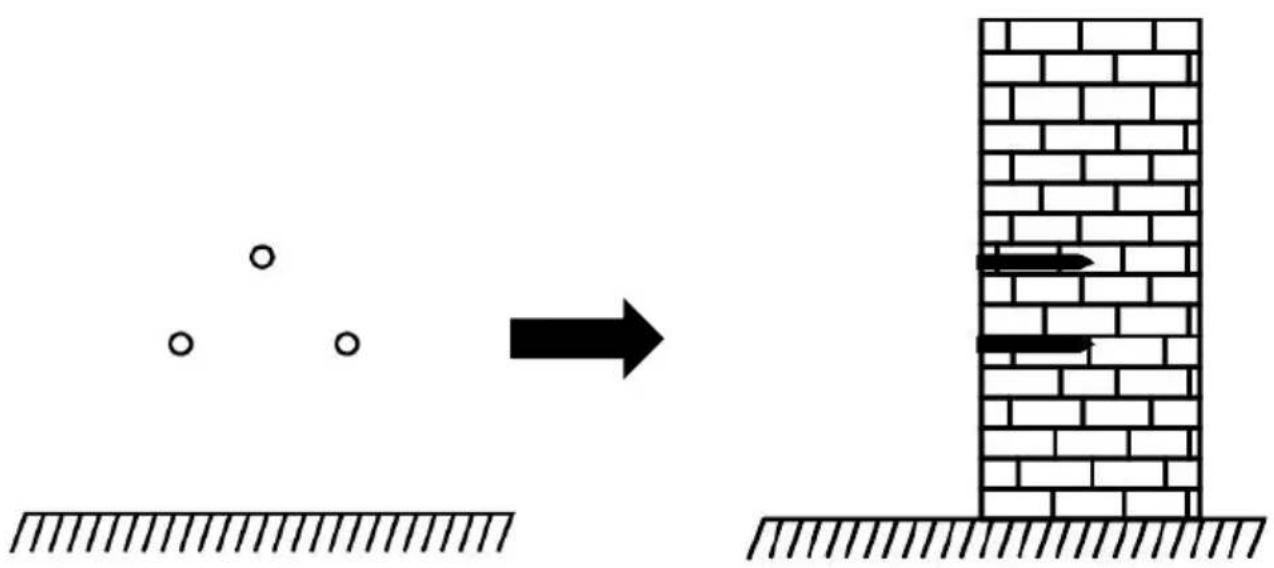
Disassemble the rear hanging plate and attach it to the wall to select the suitable installation position, and then make a mark.
Drill holes on the wall according to the marked position.
STEP 2

Fix the self-tapping screws on the wall.
STEP 3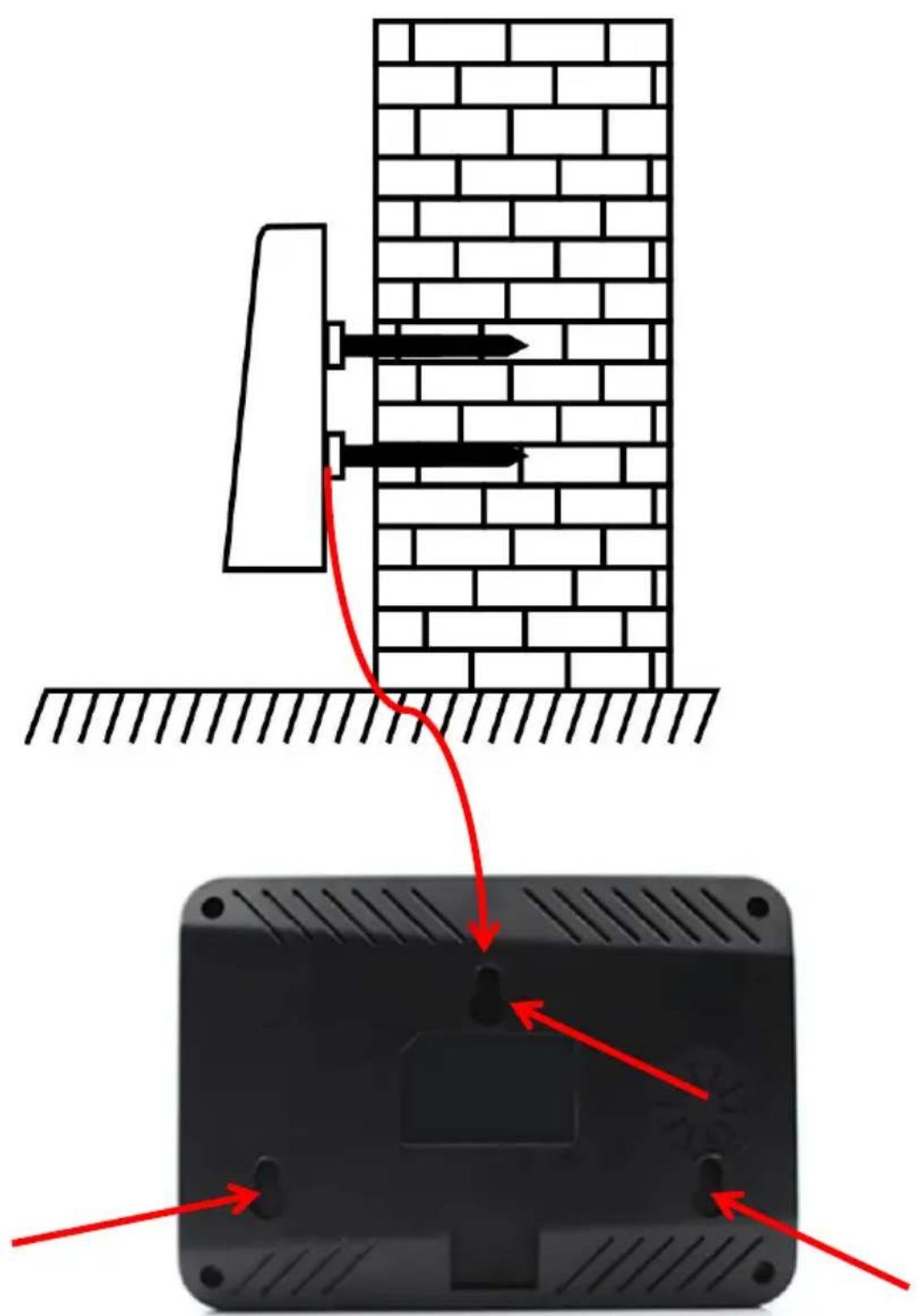
Install the device on the Self-tapping Screw and fix it, then power it
Shift Setting → Department Setting → Employee Enroll → Attendance Rules → Employee Attendance → View Attendance Report
KEYPAD INSTRUCTIONS
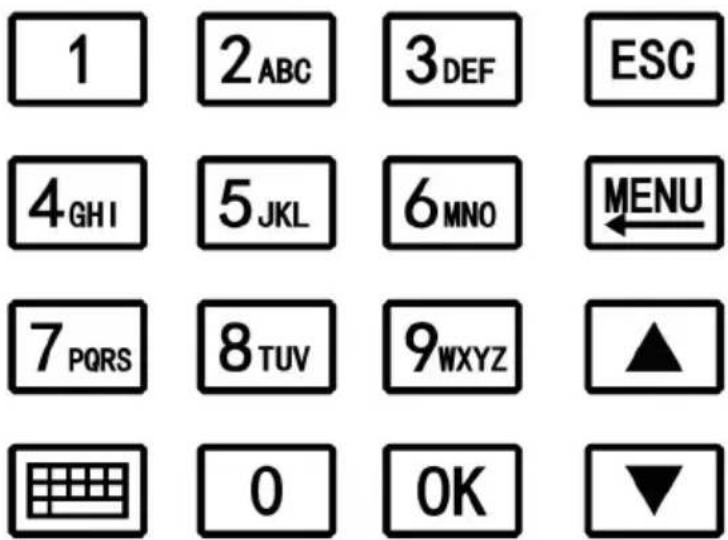
MENU
Enter the menu (Functions as the 'Delete' key during editing)
ESC
Cancel or exit the current settings.
OK
Confirm the current settings.

Move the cursor up.

Move the cursor down.
0-9
Input numbers, English letters or symbols.

Switch input method.
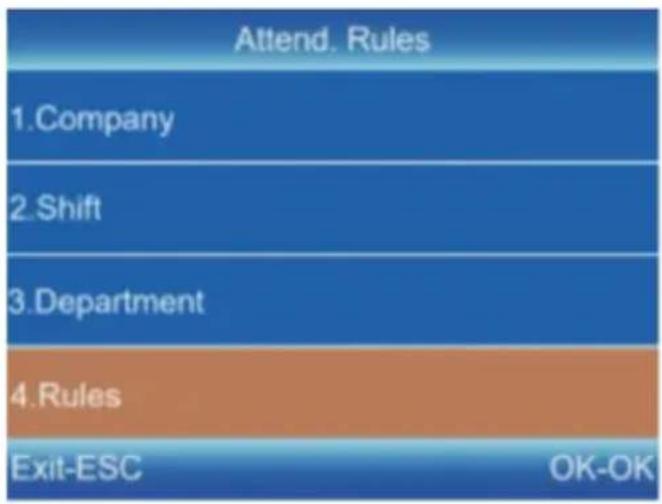
SHIFT SETTING
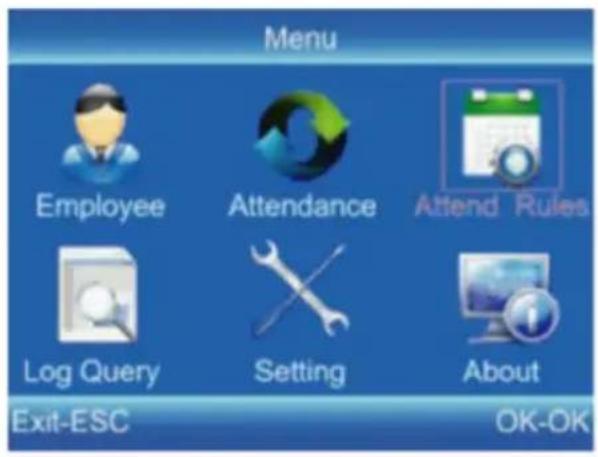
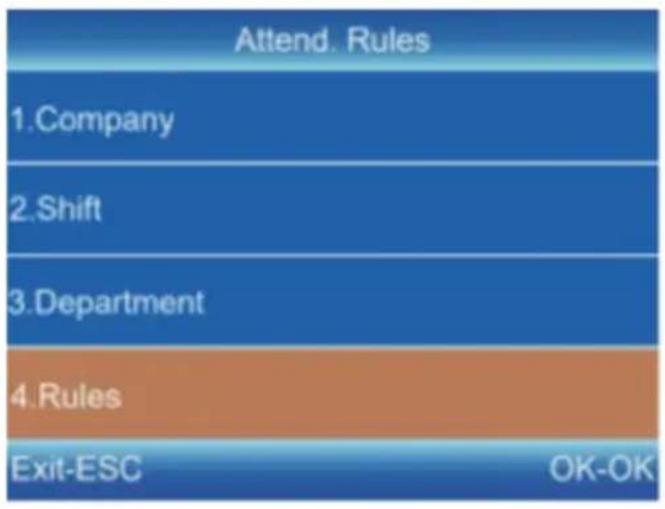
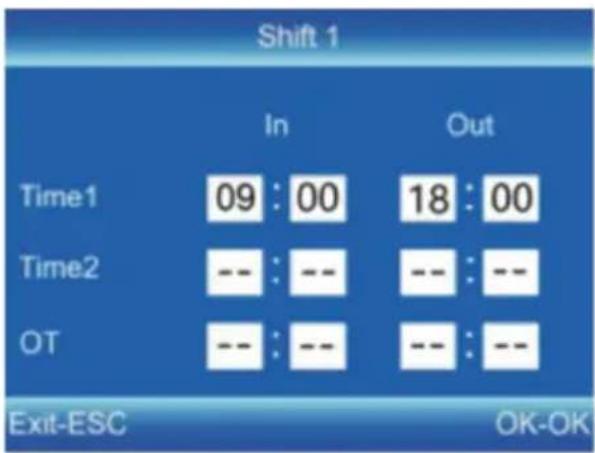
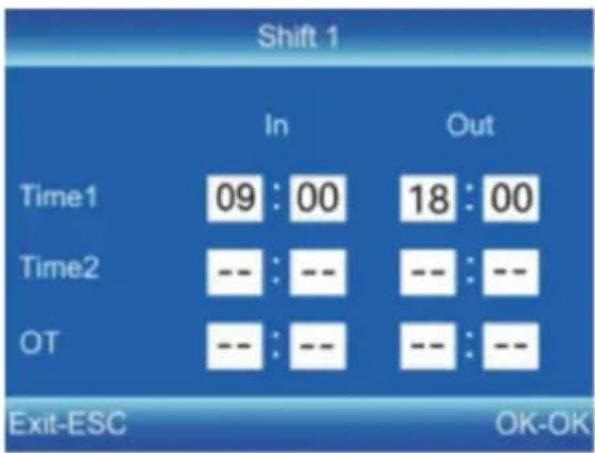
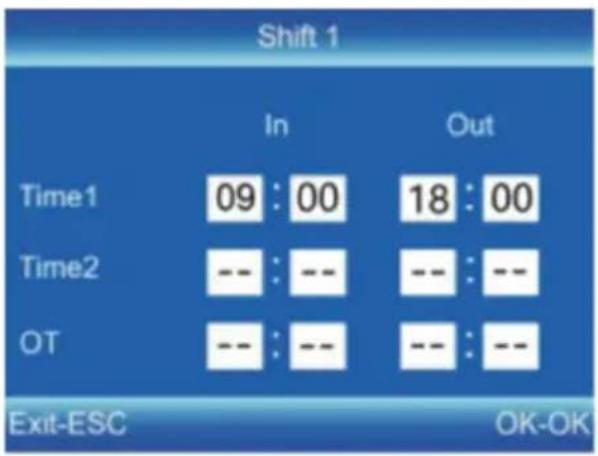
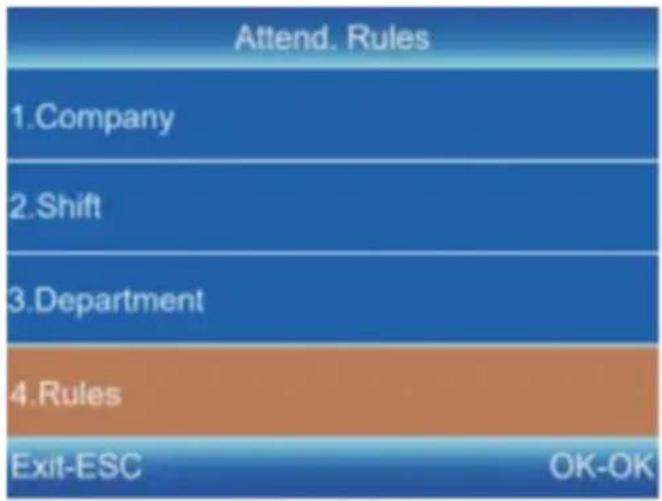
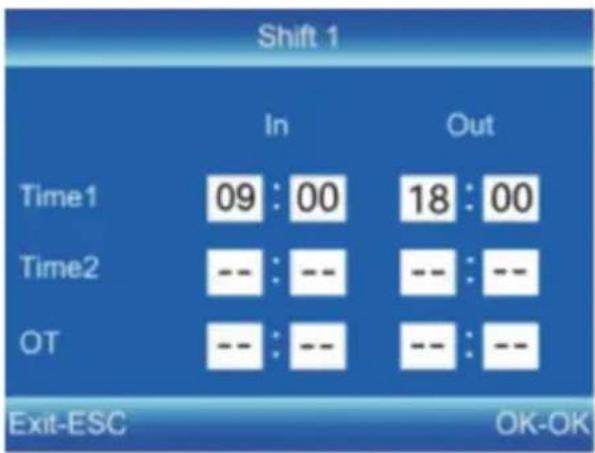
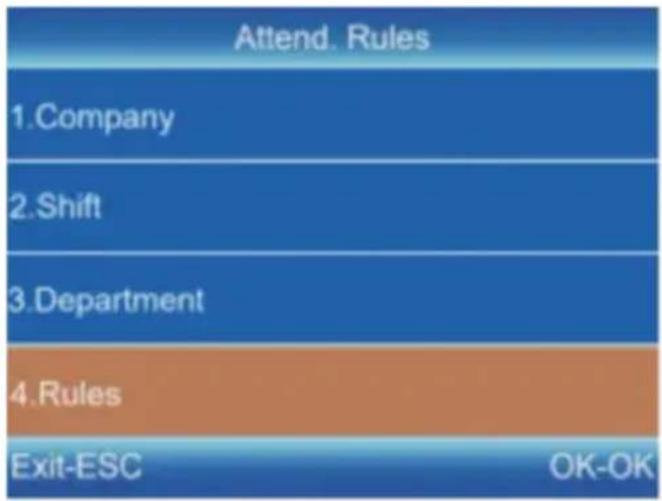
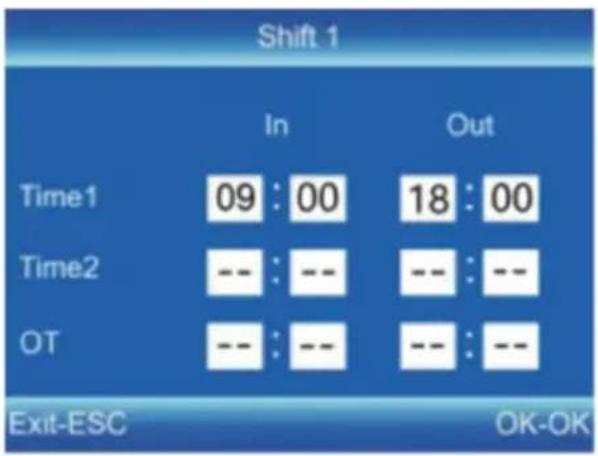
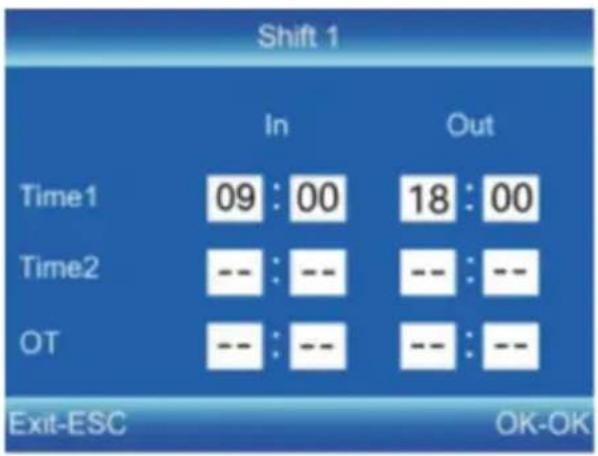
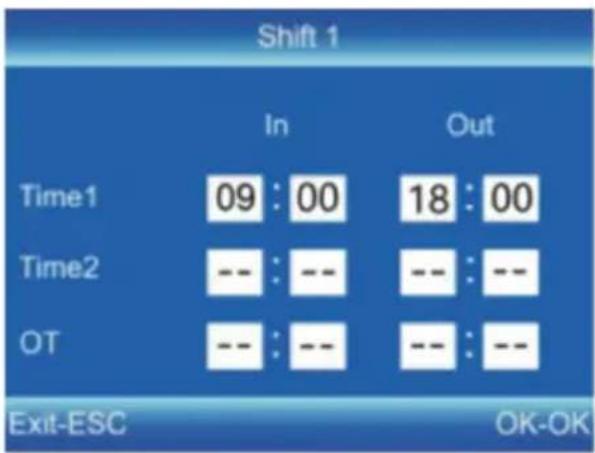
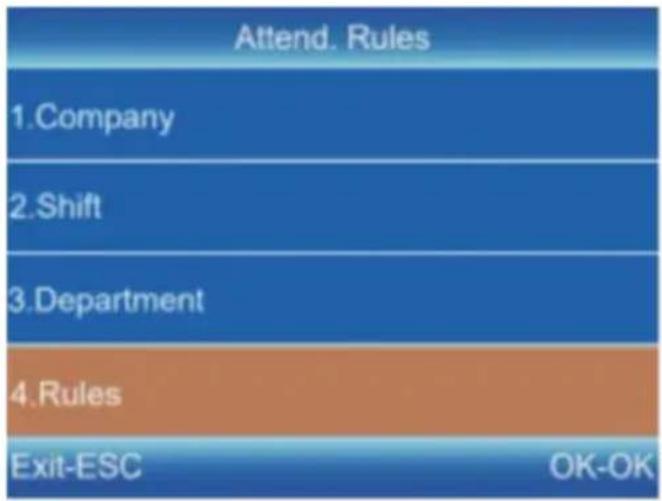
1) Press [MENU] to enter the main menu, press [ ] to select "Attendance Rules" → "Shift". 2) Press [▼] to select the shift and press [OK] to enter the modification interface. 3) Press [▲/▼] to move the cursor to a desired option and enter commute time.
![graph TD A["Attend. Rules"] --> B["1. Company"] B --> C["2. Shift"] C --> D["3. Department"] D --> E["4. Rules"] E --> F["Exit-ESC OK-OK"]](/content/2026/04/735316/images/a282c1fe39727c40ef01708c428d14c4c605605c9517fc6fd1d2f52b9e0869fc.jpg)
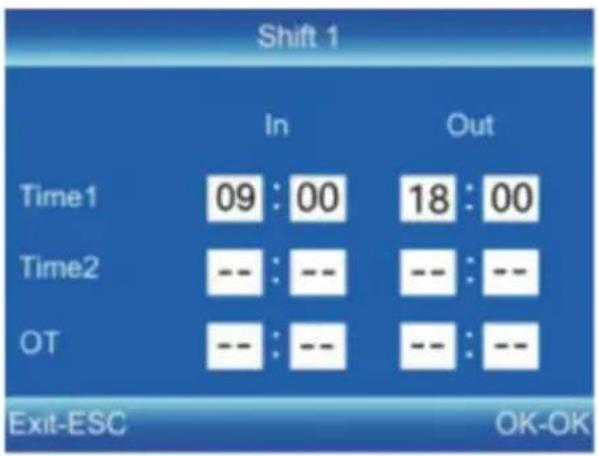
Tips: After deleting everything in the entry box, it shows "--". All shifts support the cross-day setting. The default setting is shift.
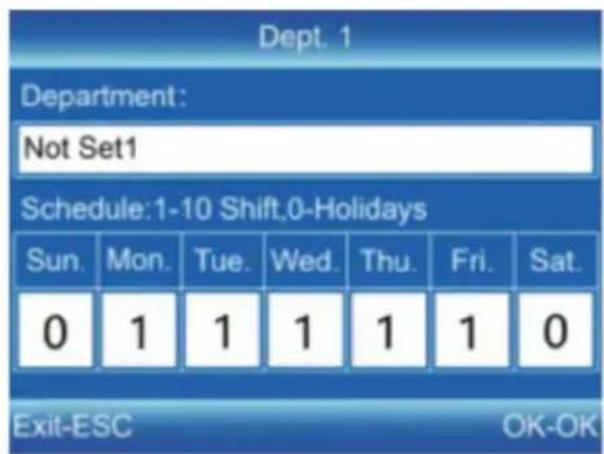
DEPARTMENT SETTING
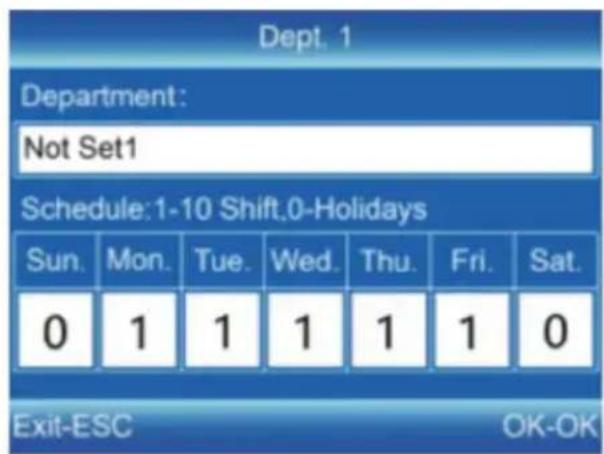
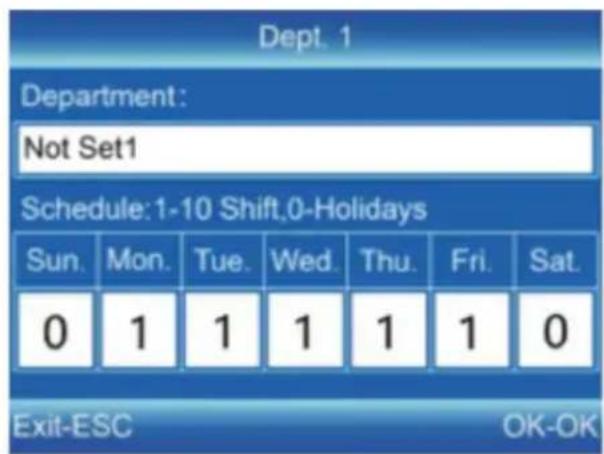
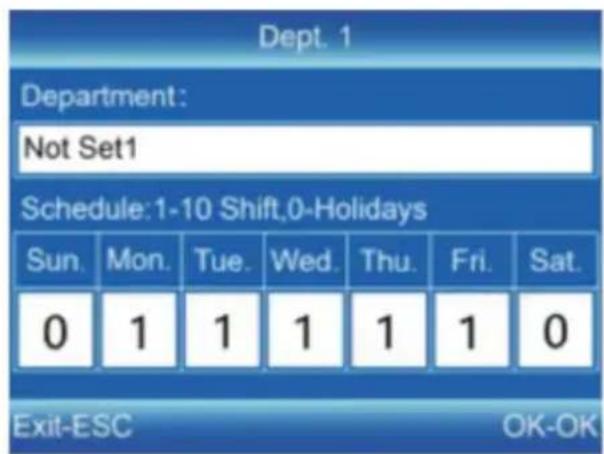
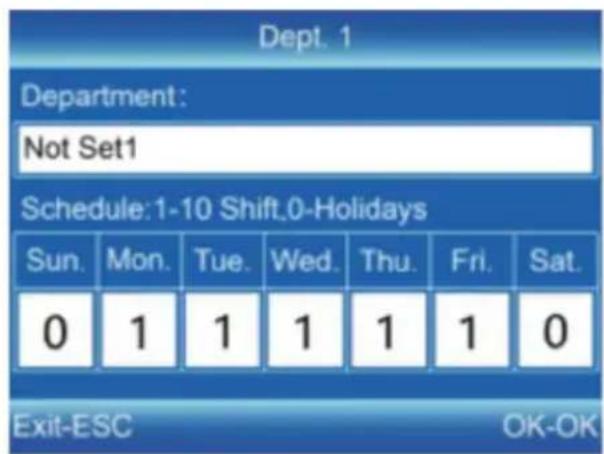
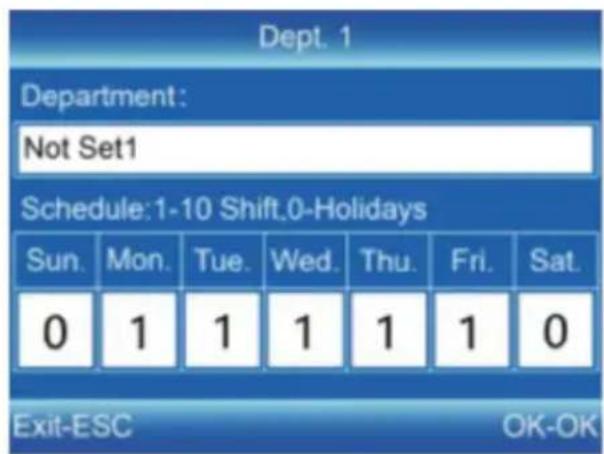
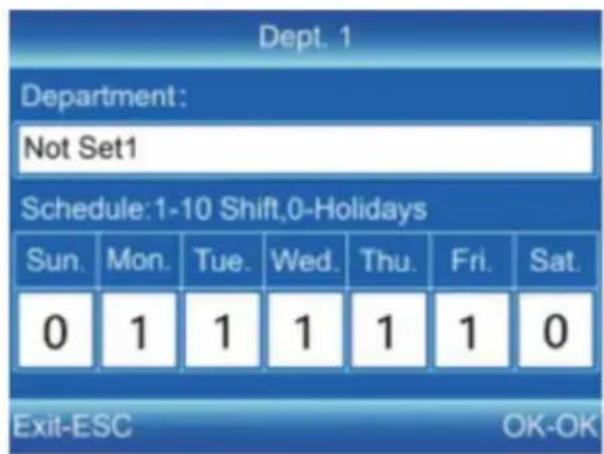
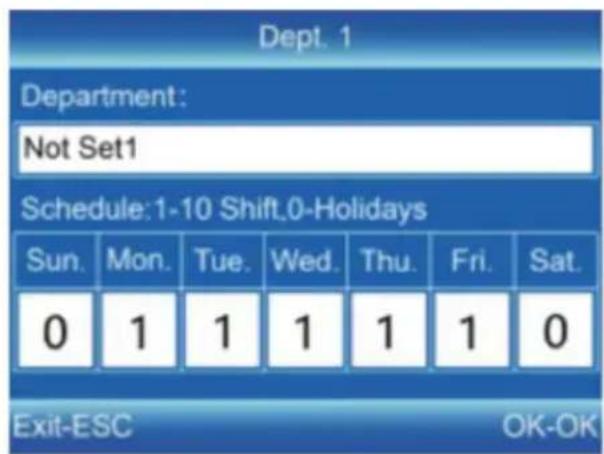
Users can edit the department names (up to 16 departments can be set).
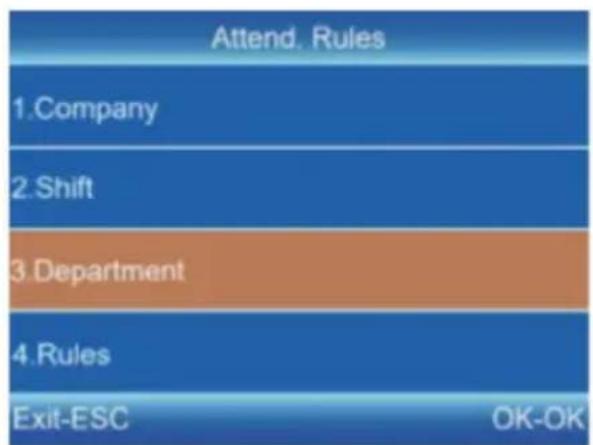
1) Press [MENU] to enter the main menu. Press [ ] to select "Attendance Rules" → "Department". 2) Press [▼] to select the department and press [OK] to enter the modification interface. 3) Enter the department name in the entry box. Press [OK] to save the name. 4) Press [▼] to move the cursor to a desired option and enter 1 shift number.
| Department | |
| 1. Dept. 1 | Not Set1 |
| 2. Dept. 2 | Not Set2 |
| 3. Dept. 3 | Not Set3 |
| 4. Dept. 4 | Not Set4 |
| Exit-ESC | OK-OK |
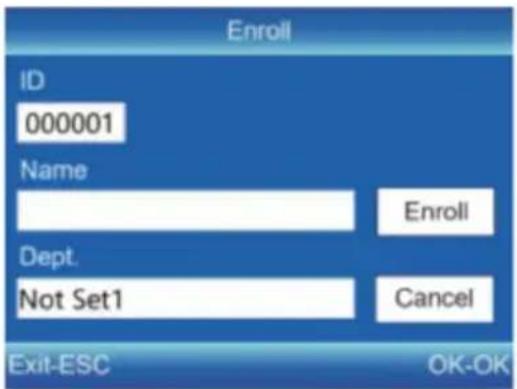
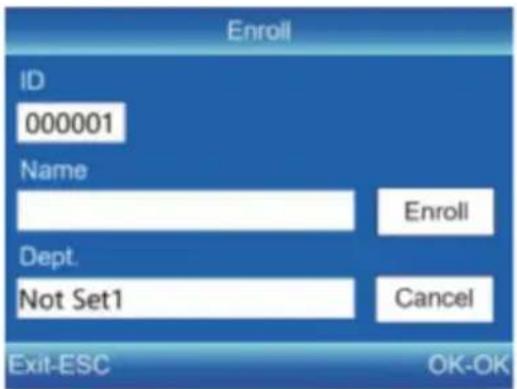
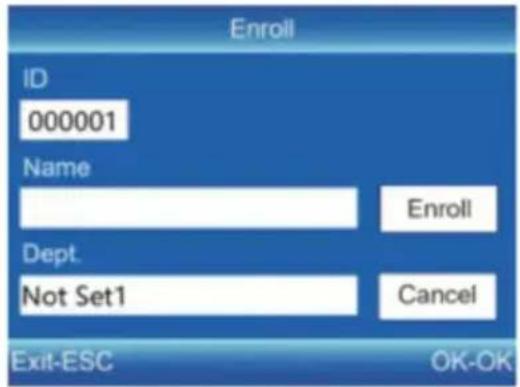
EMPLOYEE ENROLL
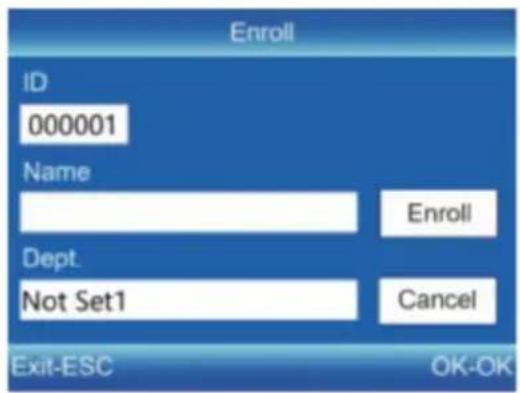
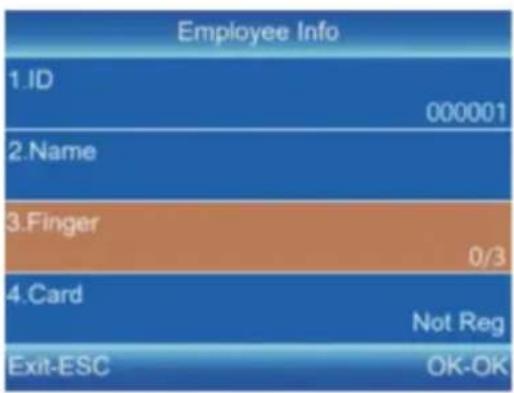
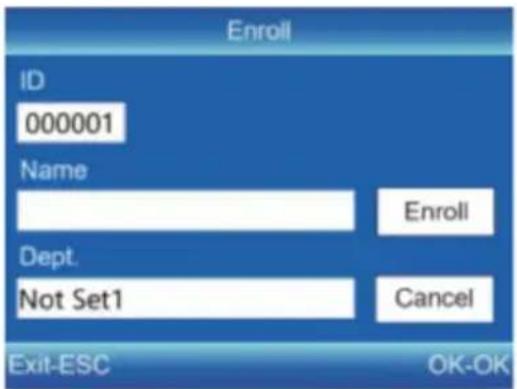
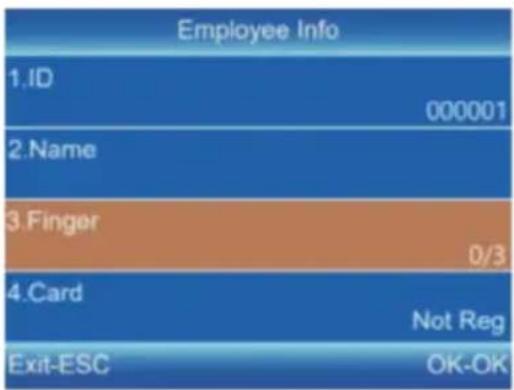
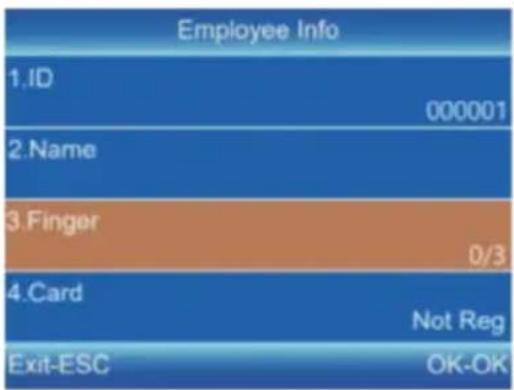
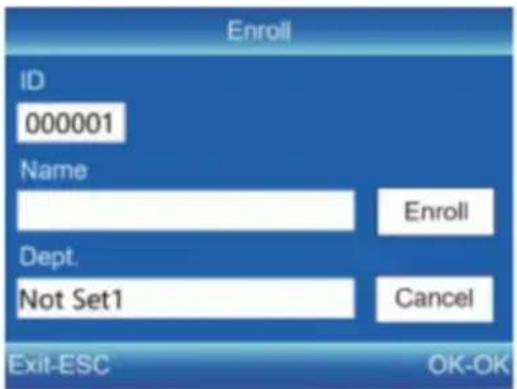
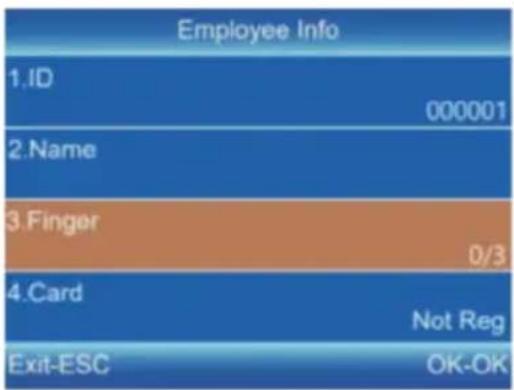
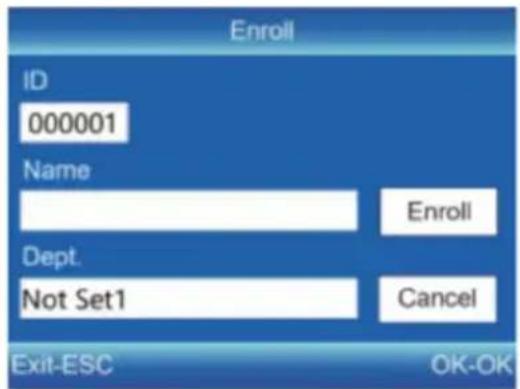
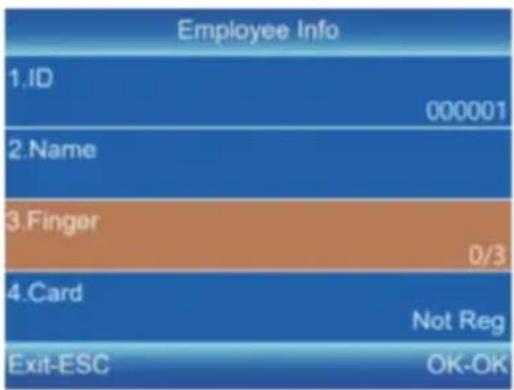
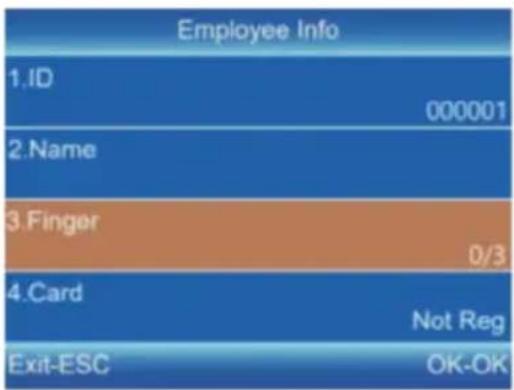
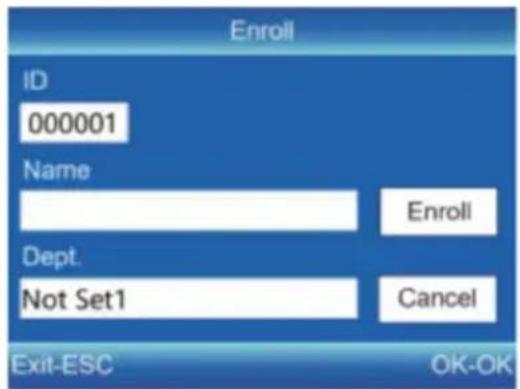
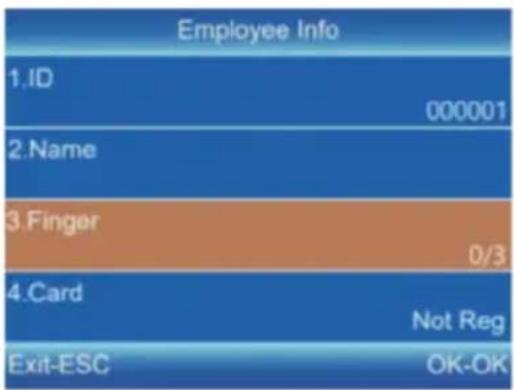
1) Press [MENU] to enter the main menu, press [▼] to select "Employee" → "Enroll", and press [OK] to enter the interface of "Enroll". 2) Input the ID, name and department, and select "Enroll" to enter the interface of "Employee Info". 3) Press [ESC] to save after setting the fingerprint, card number, password and authority as required.

ID:
Enter an employee ID. It supports numbers or letters.
Name:
Enter a name. It supports a mix of numbers, letters, and symbols.
Finger:
Enroll a fingerprint by pressing the sensor three times with the same finger.
Card (Optional):
Enroll an ID Card by swiping the card in the reading area.
Password:
Enroll the password; it supports 1-6 digits of numbers.
Department:
Press [OK] to select a department from the list.
Authority:
Press [OK] to select the authority between Employee and Admin.
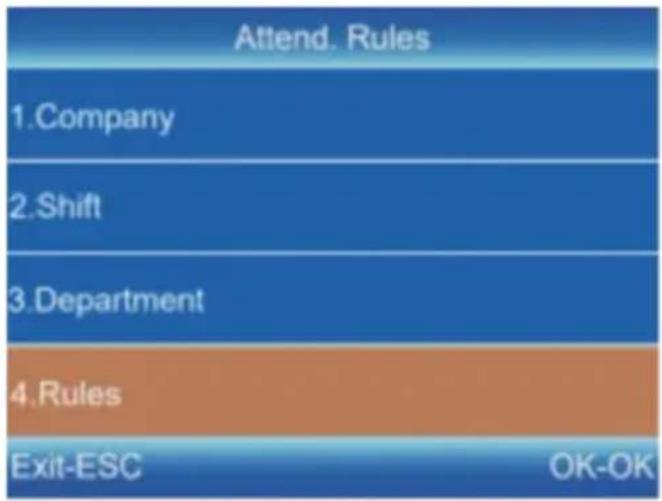
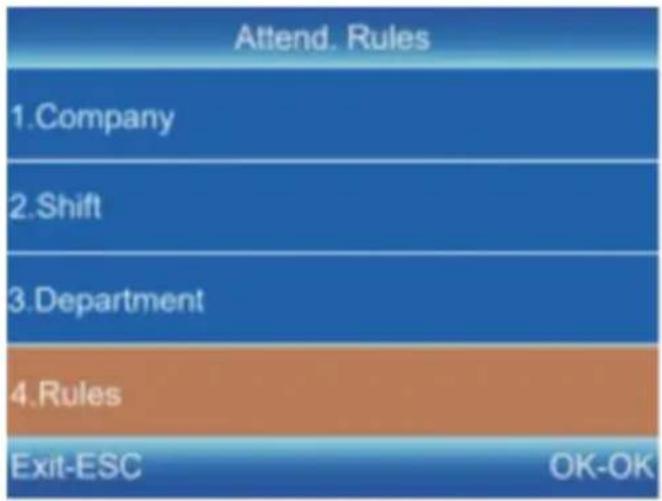
ATTENDANCE RULES
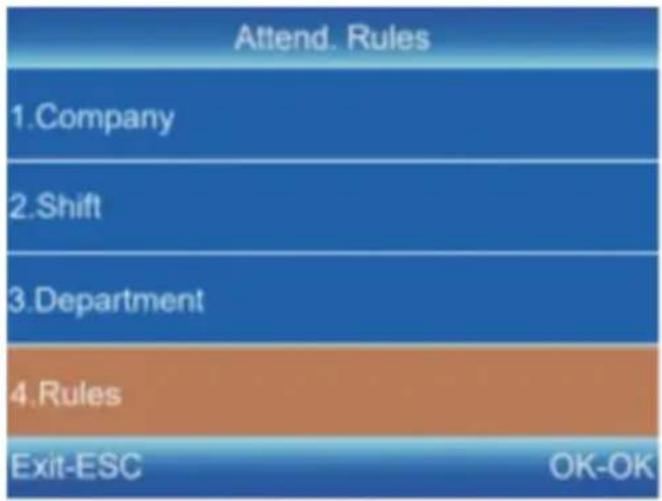
1) Press [MENU] to enter the main menu, press [ ] to select "A Rules" → "Rules", and press [OK] to enter the interface of "Rules". 2) Press [OK] to save the settings after setting the rules.

| Rules | |
| 1.Late Allowance | 0 min |
| 2.Early Allowance | 0 min |
| 3.Repeated Verification | 3 min |
| 4.Scheduling | Department |
| Exit-ESC | OK-OK |
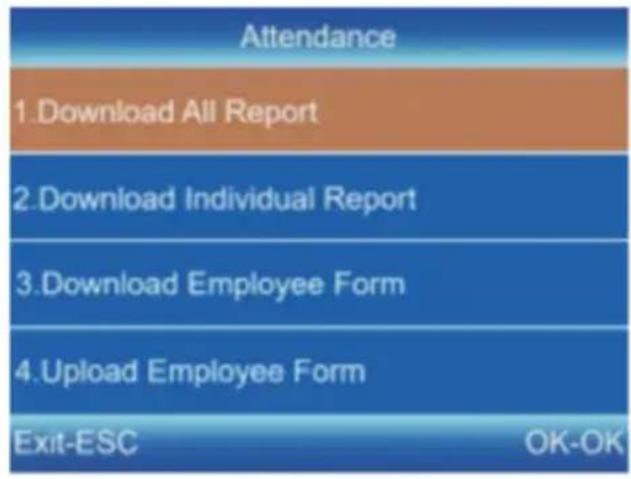
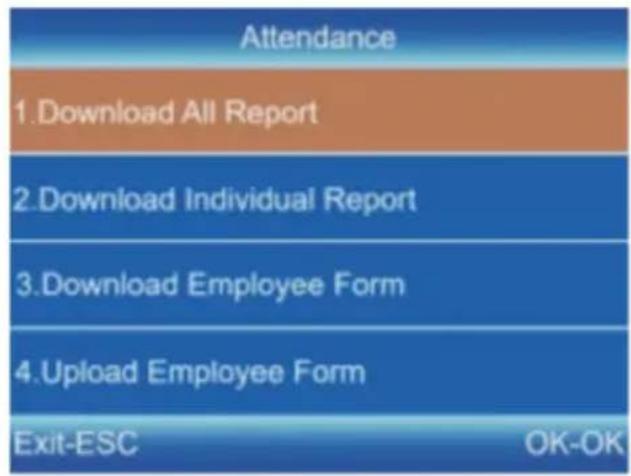
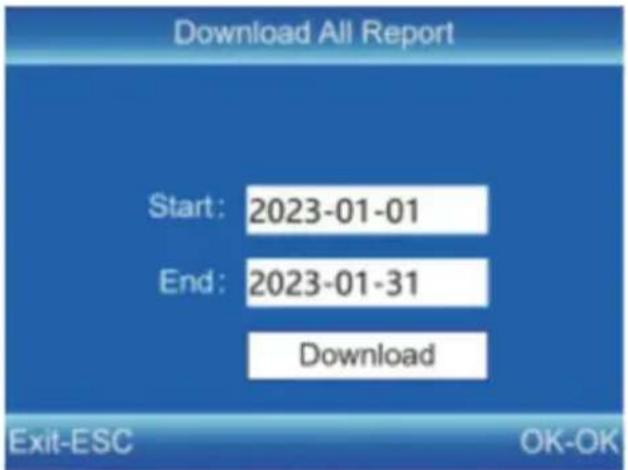
DOWNLOAD AND VIEW REPORTS
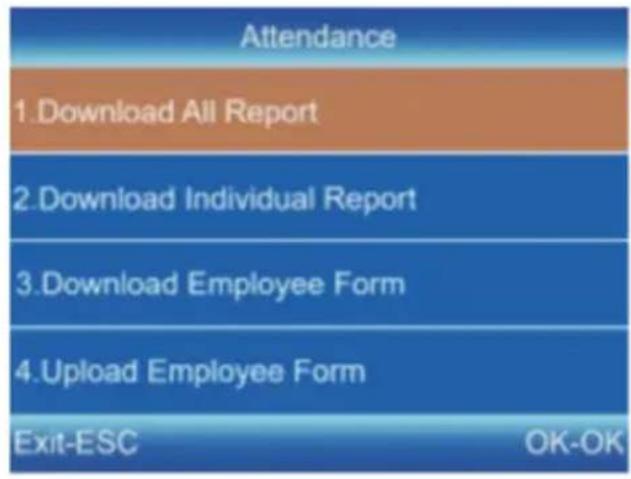
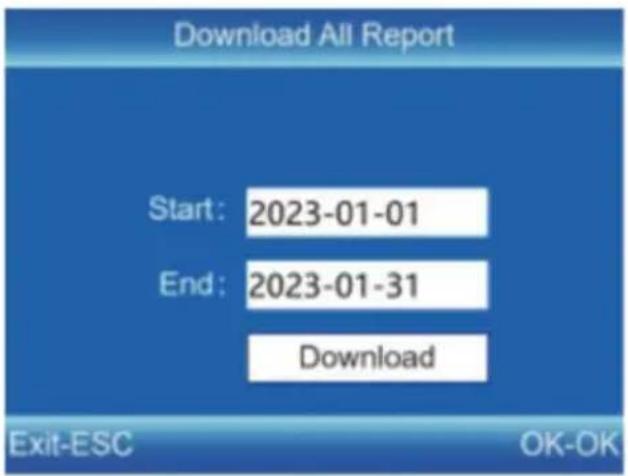
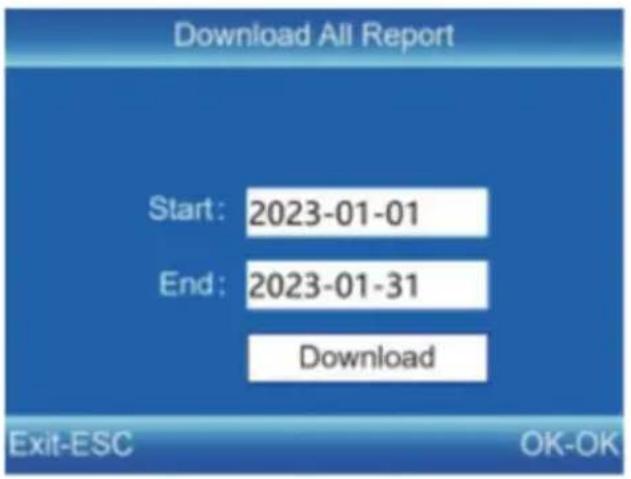
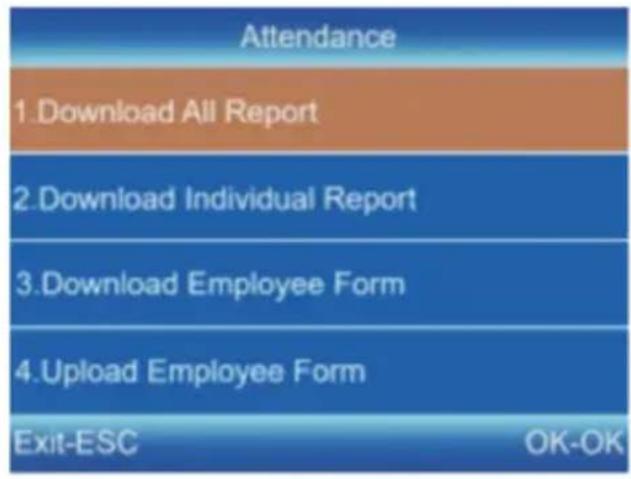
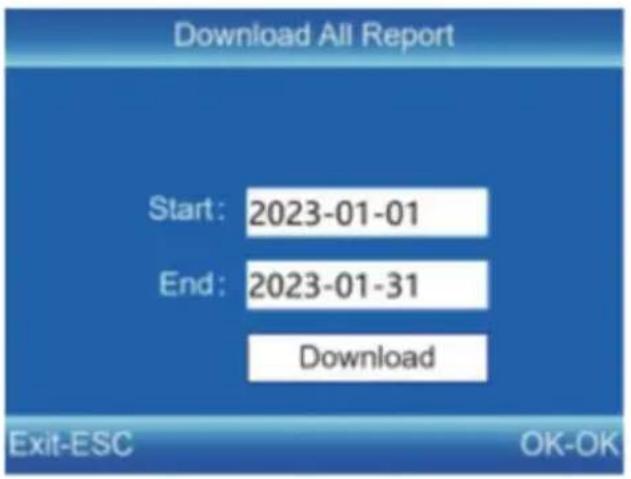
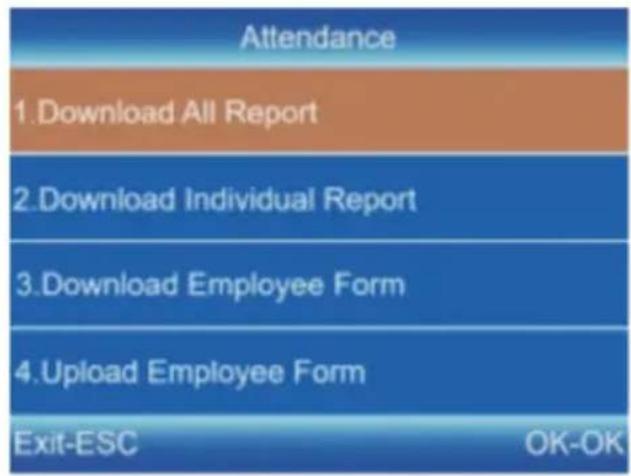
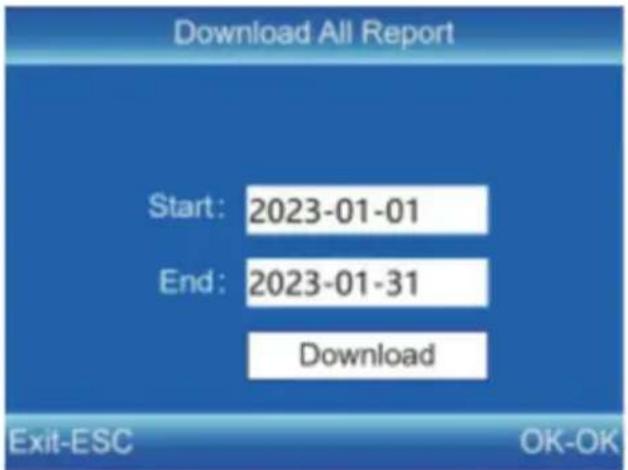
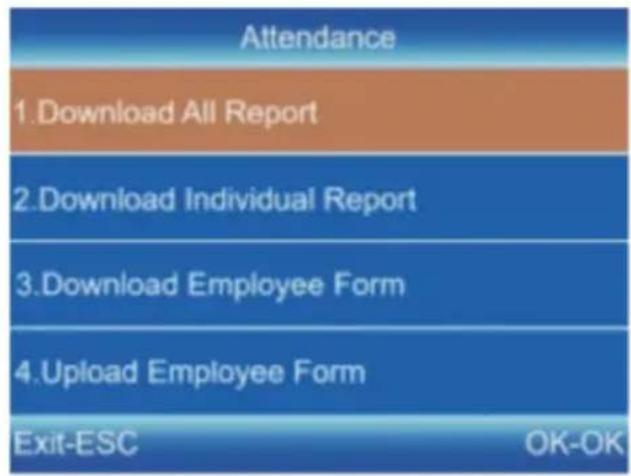
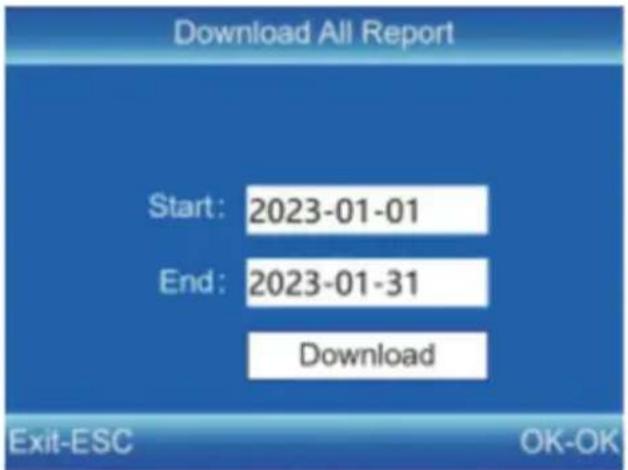
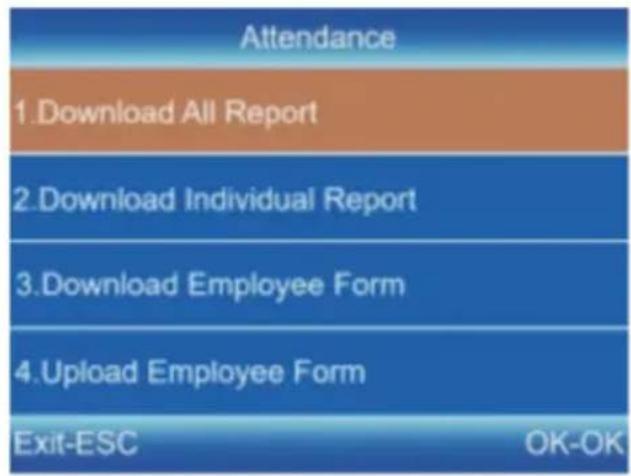
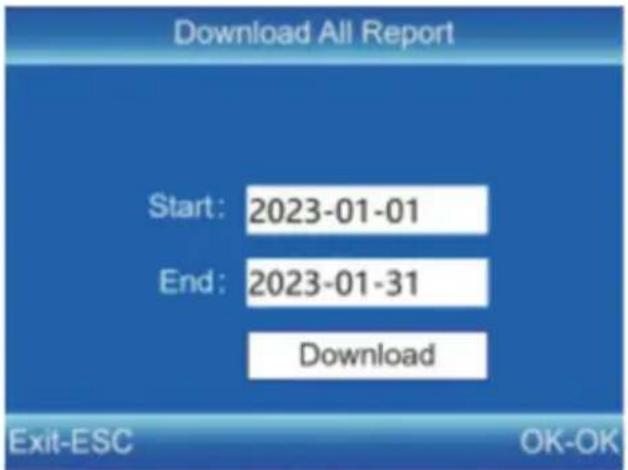
1) Insert the U disk into the USB interface of the device. 2) Press [MENU] to enter the main menu, and press [ ] 3) Press [▼] and [OK] to select the item to be downloaded. 7) to select "Attendance". 4) Enter the start and end dates then press [OK] to download.
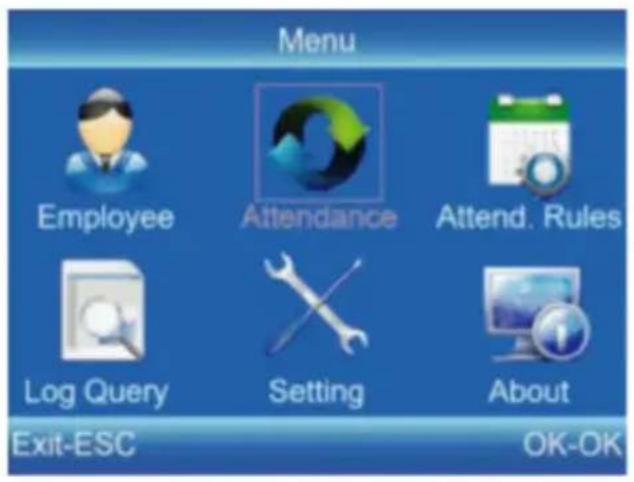
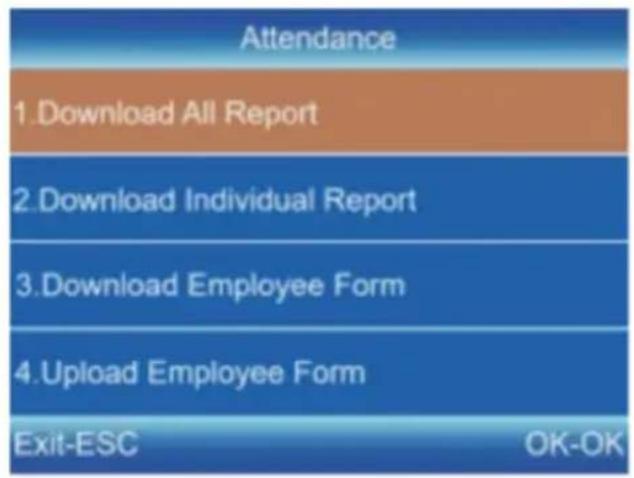
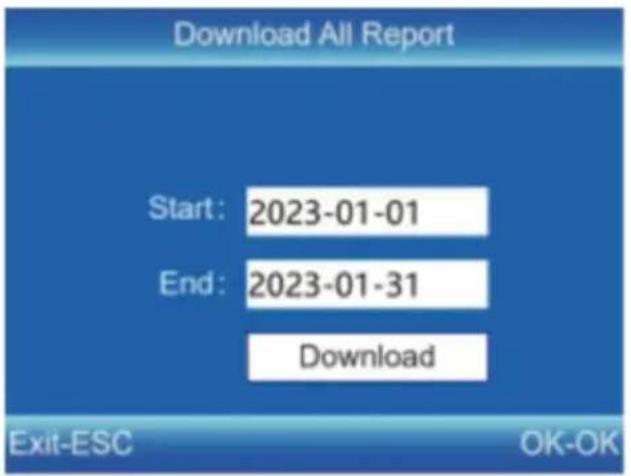
Tips: The "Employee Form" enables the registration of employee information, shift settings, and assigning shifts to employees. After setup, it can be uploaded to the device via USB. Please use a U disk in FAT32 format.
Manufacturer: Shanghai Muxin Muye Youxian Gongsi
Address: Shuangchenglu 803nong11hao1602A-1609shi, Baoshanqu, Shanghai 200000 CN.
Imported to AUS: SIHAO PTY LTD. 1 ROKEVA STREET EASTWOOD NSW 2122 Australia
Imported to USA: Sanven Technology Ltd. Suite 250, 9166 Anaheim Place, Rancho Cucamonga, CA 91730
| EC | REP |
E-CrossStu GmbH
Mainzer Landstr.69, 60329 Frankfurt am Main
| UK | REP |
YH CONSULTING LIMITED.
C/O YH Consulting Limited Office 147, Centurion House, London Road, Staines-upon-Thames, Surrey TW18 4AX
VEVOR®
TOUGH TOOLS, HALF PRICE
Technical Support and E-Warranty Certificate
www.vevor.com/support
VEVOR®
TOUGH TOOLS, HALF PRICE
Enter the menu (Functions a the 'Delete' key during editin
ESC
Cancel or exit the current settings.
OK
Confirm the current settings.

Move the cursor up.

Move the cursor down.
0-9
Input numbers, English letters or symbols.

Switch input method.
SHIFT SETTING
![graph TD A["Attend. Rules"] --> B["1. Company"] B --> C["2. Shift"] C --> D["3. Department"] D --> E["4. Rules"] E --> F["Exit-ESC OK-OK"]](/content/2026/04/735316/images/55248b6515f7804a38888c0ea3e3605f584cb1d60523da024fb11198b6daf321.jpg)
| Department | |
| 1. Dept. 1 | Not Set1 |
| 2. Dept. 2 | Not Set2 |
| 3. Dept. 3 | Not Set3 |
| 4. Dept. 4 | Not Set4 |
| Exit-ESC | OK-OK |
EMPLOYEE ENROLL
ID:
Enter an employee ID. It supports numbers.
Name:
Enter a name. It supports a mix of numbers, letters, and symbols.
Finger:
Enroll a fingerprint by pressing the same finger three times.
Card (Optional):
Enroll an ID card by swiping the card in the reading area.
Password:
Enroll the password; it supports 1-6 digits of numbers.
Department:
Press [OK] to select a department from the list.
Authority:
Press [OK] to select the authority between Employee and Admin.
ATTENDANCE RULES
| Rules | |
| 1.Late Allowance | 0 min |
| 2.Early Allowance | 0 min |
| 3.Repeated Verification | 3 min |
| 4.Scheduling | Department |
| Exit-ESC | OK-OK |
DOWNLOAD AND VIEW REPORTS
C/O YH Consulting Limited Office 147, Centurion House, London Road, Staines-upon-Thames, Surrey TW18 4AX
VEVOR®
TOUGH TOOLS, HALF PRICE
www.vevor.com/support
ZEIT UHR
BENUTZERHANDBUCH
MODELL:F01H
www.vevor.com/support
Enter the menu (Functions a the 'Delete' key during editin
ESC
Cancel or exit the current settings.
OK
Confirm the current settings.

Move the cursor up.

Move the cursor down.
0-9
Input numbers, English letters or symbols.

Switch input method.
SHIFT SETTING
![graph TD A["Attend. Rules"] --> B["1. Company"] B --> C["2. Shift"] C --> D["3. Department"] D --> E["4. Rules"] E --> F["Exit-ESC"] F --> G["OK-OK"]](/content/2026/04/735316/images/3791e477d1a2c0e32d1f782346d2ccf55570d2cacb93ec66f2399f27ab2c497d.jpg)
EMPLOYEE ENROLL
ID:
Enter an employee ID. It supports or numbers.
Name:
Enter a name. It supports a mix of numbers, letters, and symbols.
Finger:
Enroll a fingerprint by pressing the colle three times with the same finger.
Card (Optional):
Enroll an ID Card by swiping the card in the reading area.
Password:
Enroll the password; it supports 1-6 digits of numbers.
Department:
Press [OK] to select a department from the list.
Authority:
Press [OK] to select the authority between Employee and Admin.
ATTENDANCE RULES
| Rules | |
| 1.Late Allowance | 0 min |
| 2.Early Allowance | 0 min |
| 3.Repeated Verification | 3 min |
| 4.Scheduling | Department |
| Exit-ESC | OK-OK |
DOWNLOAD AND VIEW REPORTS
C/O YH Consulting Limited Office 147, Centurion
House, London Road, Staines-upon-Thames, Surrey,
TW18 4AX
VEVOR®
TOUGH TOOLS, HALF PRICE
www.vevor.com/support
VEVOR®
TOUGH TOOLS, HALF PRICE
www.vevor.com/support
CLOCK
USER MANUAL
MODEL: F01H
Enter the menu (Functions) or the 'Delete' key during editing.
ESC
Cancel or exit the current settings.
OK
Confirm the current settings.

Move the cursor up.

Move the cursor down.
0-9
Input numbers, English letters or symbols.

Switch input method.
SHIFT SETTING
![graph TD A["Attend. Rules"] --> B["1. Company"] B --> C["2. Shift"] C --> D["3. Department"] D --> E["4. Rules"] E --> F["Exit-ESC"] F --> G["OK-OK"]](/content/2026/04/735316/images/e0f6b524b322f202235f6b6dd487debf0a17e2db4d4a4f3f62436b3396a874c7.jpg)
| Department | |
| 1. Dept. 1 | Not Set1 |
| 2. Dept. 2 | Not Set2 |
| 3. Dept. 3 | Not Set3 |
| 4. Dept. 4 | Not Set4 |
| Exit-ESC | OK-OK |
EMPLOYEE ENROLL
ID:
Enter an employee ID. It supports numbers.
Name:
Enter a name. It supports a mix of numbers, letters, and symbols.
Finger:
Enroll a fingerprint by pressing the same finger three times.
Card (Optional):
Enroll an ID card by swiping the card through the reading area.
Password:
Enroll the password; it supports 1-6 digit numbers.
Department:
Press [OK] to select a department from the list.
Authority:
Press [OK] to select the authority between Employee and Admin.
ATTENDANCE RULES
| Rules | |
| 1.Late Allowance | 0 min |
| 2.Early Allowance | 0 min |
| 3.Repeated Verification | 3 min |
| 4.Scheduling | Department |
| Exit-ESC | OK-OK |
DOWNLOAD AND VIEW REPORTS
VEVOR®
TOUGH TOOLS, HALF PRICE
www.vevor.com/support
VEVOR®
TOUGH TOOLS, HALF PRICE
www.vevor.com/support
TIME CLOCK
USER MANUAL
MODEL: F01H
Enter the menu (Functions a the 'Delete' key during editin
ESC
Cancel or exit the current settings.
OK
Confirm the current settings.

Move the cursor up.

Move the cursor down.
0-9
Input numbers, English letters or symbols.

Switch input method.
SHIFT SETTING
![graph TD A["Attend. Rules"] --> B["1. Company"] B --> C["2. Shift"] C --> D["3. Department"] D --> E["4. Rules"] E --> F["Exit-ESC"] F --> G["OK-OK"]](/content/2026/04/735316/images/6a3a90db54be6b5c1dffafeee5a52a80630fe27e72b8a76cbd1cea50030a3200.jpg)
EMPLOYEE ENROLL
ID:
Enter an employee ID. It supports numbers.
Name:
Enter a name. It supports a mix of numbers, letters, and symbols.
Finger:
Enroll a fingerprint by pressing the sensor three times with the same finger.
Card (Optional):
Enroll an ID card by swiping the card through the reading area.
Password:
Enroll the password; it supports 1-6 digits.
Department:
Press [OK] to select a department from the list.
Authority:
Press [OK] to select the authority between Employee and Admin.
ATTENDANCE RULES
| Rules | |
| 1.Late Allowance | 0 min |
| 2.Early Allowance | 0 min |
| 3.Repeated Verification | 3 min |
| 4.Scheduling | Department |
| Exit-ESC | OK-OK |
DOWNLOAD AND VIEW REPORTS
C/O YH Consulting Limited Office 147, Centurion House, London Road, Staines-upon-Thames, Surrey TW18 4AX
VEVOR®
TOUGH TOOLS, HALF PRICE
www.vevor.com/support
VEVOR®
TOUGH TOOLS, HALF PRICE
www.vevor.com/support
CLOCK
INSTRUCTION MANUAL
MODEL: F01H
www.vevor.com/support
Enter the menu (Functions) or use the 'Delete' key during editing.
ESC
Cancel or exit the current settings.
OK
Confirm the current settings.

Move the cursor up.

Move the cursor down.
0-9
Input numbers, English letters or symbols.

Switch input method.
SHIFT SETTING
![graph TD A["Attend. Rules"] --> B["1. Company"] B --> C["2. Shift"] C --> D["3. Department"] D --> E["4. Rules"] E --> F["Exit-ESC OK-OK"]](/content/2026/04/735316/images/1c4f6990d53d361059396475d2f02369ae332ec672bb6d50b3012173a56ed22b.jpg)
EMPLOYEE ENROLL
ID:
Enter an employee ID. It supports numbers.
Name:
Enter a name. It supports a mix of numbers, letters, and symbols.
Finger:
Enroll a fingerprint by pressing the finger three times with the same finger.
Card (Optional):
Enroll an ID Card by swiping the card through the reading area.
Password:
Enroll the password; it supports 1-6 digits of numbers.
Department:
Press [OK] to select a department from the list.
Authority:
Press [OK] to select the authority between Employee and Admin.
ATTENDANCE RULES
| Rules | |
| 1.Late Allowance | 0 min |
| 2.Early Allowance | 0 min |
| 3.Repeated Verification | 3 min |
| 4.Scheduling | Department |
| Exit-ESC | OK-OK |
DOWNLOAD AND VIEW REPORTS
C/O YH Consulting Limited Office 147, Centurion House, London Road, Staines-upon-Thames, Surrey TW18 4AX
VEVOR®
TOUGH TOOLS, HALF PRICE
www.vevor.com/support
VEVOR®
TOUGH TOOLS, HALF PRICE
www.vevor.com/support
TIME CLOCK
USER MANUAL
MODEL: F01H
NEED HELP? CONTACT US!
Enter the menu (Functions as the 'Delete' key during editing).
ESC
Cancel or exit the current settings.
OK
Confirm the current settings.

Move the cursor up.

Move the cursor down.
0-9
Input numbers, English letters or symbols.

Switch input method.
SHIFT SETTING
![graph TD A["Attend. Rules"] --> B["1. Company"] B --> C["2. Shift"] C --> D["3. Department"] D --> E["4. Rules"] E --> F["Exit-ESC OK-OK"]](/content/2026/04/735316/images/0c39b1330c090a0b9a437859fcd16db9ee8b8f359c74a63cba07ae5a5ff8d495.jpg)
EMPLOYEE ENROLL
ID:
Enter an employee ID. It supports numbers.
Name:
Enter a name. It supports a mix of numbers, letters, and symbols.
Finger:
Enroll a fingerprint by pressing the same finger three times.
Card (Optional):
Enroll an ID Card by swiping the card in the reading area.
Password:
Enroll the password; it supports 1-6 digits.
Department:
Press [OK] to select a department from the list.
Authority:
Press [OK] to select the authority between Employee and Admin.
| Employee Info | |
| 1.ID | 000001 |
| 2.Name | |
| 3.Finger | 0/3 |
| 4.Card | Not Reg |
| Exit-ESC | OK-OK |
ATTENDANCE RULES
| Rules | |
| 1.Late Allowance | 0 min |
| 2.Early Allowance | 0 min |
| 3.Repeated Verification | 3 min |
| 4.Scheduling | Department |
| Exit-ESC | OK-OK |
DOWNLOAD AND VIEW REPORTS
C/O YH Consulting Limited Office 147, Centurion House, London Road, Staines-upon-Thames, Surrey TW18 4AX
VEVOR®
TOUGH TOOLS, HALF PRICE
www.vevor.com/support
VEVOR®
TOUGH TOOLS, HALF PRICE
www.vevor.com/support
TID KLOCKA
ANVÄNDARMANUAL
MODEL: F01H
Enter the menu (Functions) or use the 'Delete' key during editing.
ESC
Cancel or exit the current settings.
OK
Confirm the current settings.

Move the cursor up.

Move the cursor down.
0-9
Input numbers, English letters or symbols.

Switch input method.
SHIFT SETTING
![graph TD A["Attend. Rules"] --> B["1. Company"] B --> C["2. Shift"] C --> D["3. Department"] D --> E["4. Rules"] E --> F["Exit-ESC OK-OK"]](/content/2026/04/735316/images/a97b9e2edd3e306c7e5b61e6eec574bca2f241fc514a47bad4cc685c3d6892da.jpg)
EMPLOYEE ENROLL
ID:
Enter an employee ID. It supports letters or numbers.
Name:
Enter a name. It supports a mix of numbers, letters, and symbols.
Finger:
Enroll a fingerprint by pressing the colle three times with the same finger.
Card (Optional):
Enroll an ID Card by swiping the card in the reading area.
Password:
Enroll the password; it supports 1-6 digits of numbers.
Department:
Press [OK] to select a department from the list.
Authority:
Press [OK] to select the authority between Employee and Admin.
ATTENDANCE RULES
| Rules | |
| 1.Late Allowance | 0 min |
| 2.Early Allowance | 0 min |
| 3.Repeated Verification | 3 min |
| 4.Scheduling | Department |
| Exit-ESC | OK-OK |
DOWNLOAD AND VIEW REPORTS
C/O YH Consulting Limited Office 147, Centurion House, London Road, Staines-upon-Thames, Surrey TW18 4AX
VEVOR®
TOUGH TOOLS, HALF PRICE
www.vevor.com/support

- TIME CLOCK
- USER MANUAL
- VEVOR®
- NEED HELP? CONTACT US
- INSTALLATION CAUTIONS
- TECHNICAL PARAMETERS
- PARTS LIST
- STEP
- KEYPAD INSTRUCTIONS
- MENU
- ESC
- OK
- SHIFT SETTING
- DEPARTMENT SETTING
- EMPLOYEE ENROLL
- ID
- NAME
- FINGER
- CARD (OPTIONAL)
- PASSWORD
- DEPARTMENT
- AUTHORITY
- ATTENDANCE RULES
- DOWNLOAD AND VIEW REPORTS
- TOUGH TOOLS, HALF PRICE
- ZEIT UHR
- BENUTZERHANDBUCH
- CLOCK
- INSTRUCTION MANUAL
- TID KLOCKA
- ANVÄNDARMANUAL
Brand : Vevor
Model : F01H
Category : Clock