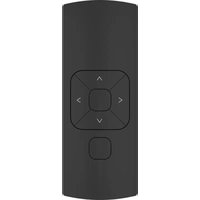
CM-12 - Switch MOTION - Free user manual and instructions
Find the device manual for free CM-12 MOTION in PDF.


User questions about CM-12 MOTION
0 question about this device. Answer the ones you know or ask your own.
Ask a new question about this device
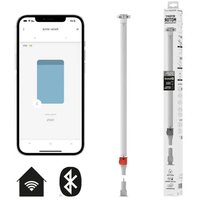
Download the instructions for your Switch in PDF format for free! Find your manual CM-12 - MOTION and take your electronic device back in hand. On this page are published all the documents necessary for the use of your device. CM-12 by MOTION.
USER MANUAL CM-12 MOTION
Hand-held remote 5 channel
natural_image
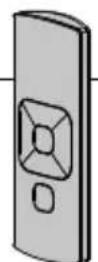
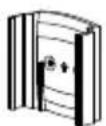
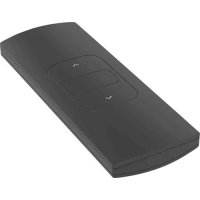
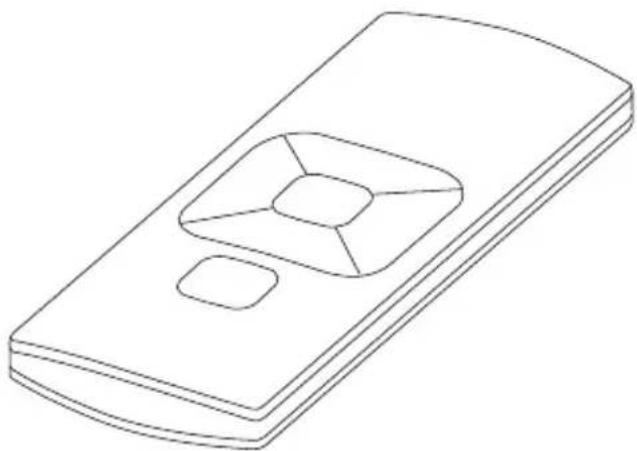
Line drawing of a rectangular device with a central square and two rounded square buttons (no text or symbols)CM-12 is a hand-held remote with 5 channels for operating and programming blinds at the push of a button. Blinds can be moved to any desired position or to a preset favourite position. The wall mounting clip for this remote control is included by default.
text_image
Image containing five symbols: a crossed-out box, a house with an arrow, an open book labeled 'i', and a large 'CE' symbol.For the latest information and updated manuals, visit rtube.nl/cm-12
| Channels Max. blinds | Frequency Range | Power supply Length | Width | Height Certificates |
| 5 unlimited 433 MHz | 30 m with 1 concrete wall | CR2430 | 3.0V | 120 mm 45 mm 14 mm |
Safety
WARNING: Important safety instructions. Follow all instructions, since incorrect installation can lead to severe injury.
■ Do not let children play with the blind and/or remote control.
■ Take care that the blind can move freely and is not blocked by any objects.
■ Do not paint the device.
- Keep the device dry.
- Do not drop, knock, or shake the device. Rough handling can break internal circuit boards.
Cleaning
Follow these general rules when cleaning the outside of the device and its components:
■ Use a damp, soft, lint-free cloth. Avoid getting moisture in openings.
■ Do not use aerosol sprays, solvents, alcohol, or abrasives.
Service & Support
Do not perform repairs yourself. Do not attempt to open the device or disassemble it. You run the risk of electric shock and voiding the limited warranty. No user-serviceable parts are inside.
Warranty Service
First follow the advice in this manual. If the product appears to be damaged or does not function properly, go to your local dealer for instructions on how to obtain warranty service.
FCC Manual | FCC ID: ZY4CM12
Regulatory Information
1 FCC Information for User
This product does not contain any user-serviceable components and is to be used with approved antennas only. Any product changes or modifications will invalidate all applicable regulatory certifications and approvals.
2 FCC Electronic Emission Notices
This device complies with part 15 of the FCC Rules.
Operation is subject to the following two conditions:
-
This device may not cause harmful interference
-
This device must accept any interference received, including interference that may cause undesired operation.
3 FCC Radio Frequency Interference Statement
This equipment has been tested and found to comply with the limits for a class B digital device, pursuant to Part 15 of the FCC Rules. These limits are designed to provide
reasonable protection against harmful interference when the equipment is operated in a commercial environment. This equipment generates, uses and can radiate radio-frequency energy and, if not installed and used in accordance with the instructions, may cause harmful interference to radio communications.
Operation of this equipment in a residential area may cause harmful interference, in which case the user will be required to correct the interference at their own expense. If this equipment does cause harmful interference to radio or television reception, which can be determined by turning the equipment off and on, the user is encouraged to try to correct the interference by one or more of the following measures:
■ Reorient or relocate the receiving antenna
■ Increase the distance separating the equipment and receiver
■ Connect the equipment to an outlet on a circuit different from that to which the receiver is connected
■ Consult the dealer or an experienced radio/TV technician for help
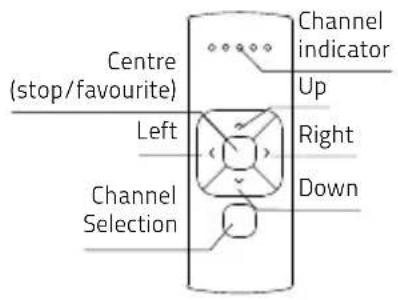
The center button has two functions: press to stop the blind, hold to move the blind to its favorite position.
text_image
Centre (stop/favourite) Left Channel Selection Channel indicator Up Right Down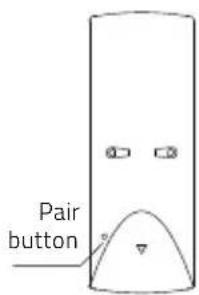
text_image
Pair button- BUTTONS
2 Changing the battery
When the channel indicator is flashing at a high frequency, the battery needs to be replaced.
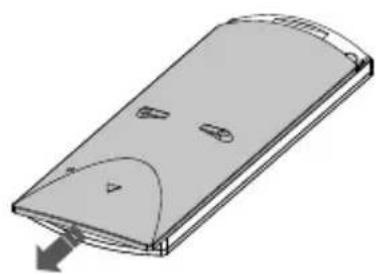
natural_image
3D diagram of a rectangular electronic device with internal components and an arrow indicating direction (no text or symbols)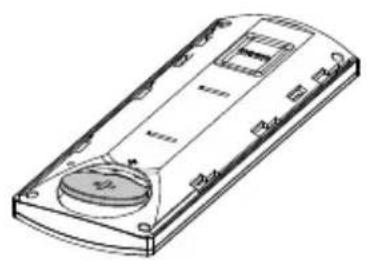
natural_image
Line drawing of a handheld electronic device casing with buttons and a central circular component (no text or symbols)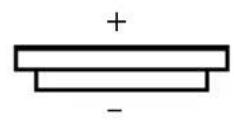
CR2430 3,0V
- CHANGING THE BATTERY
3
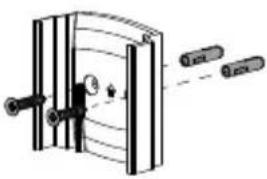
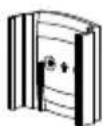
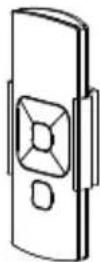
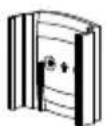
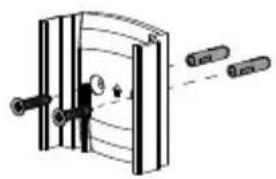
Remote holder
natural_image
Diagram of a mechanical assembly with pulleys and a curved component (no text or symbols)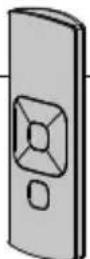

i
Different materials require different types of fittings. Always choose screws and plugs that are specially suited to the material.
- REMOTE HOLDER

Pair a remote
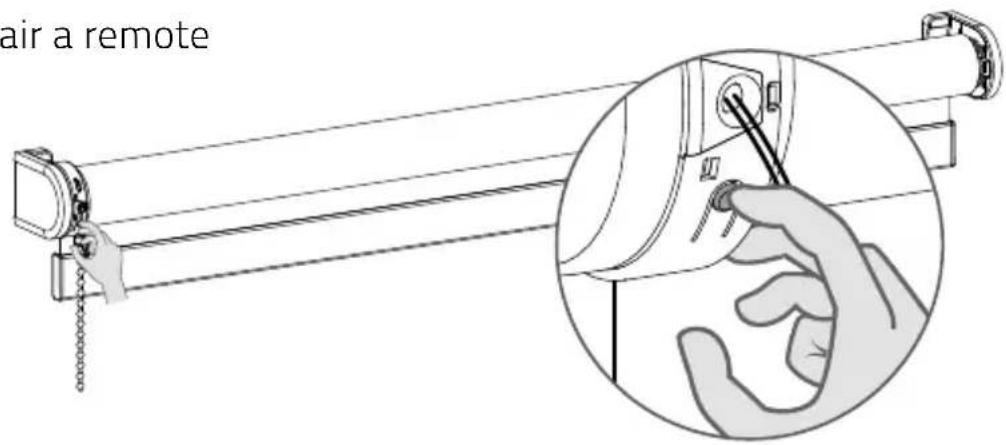
text_image
air a remote- PAIR A REMOTE
4.1 Shortly press the program button on the motor. The blind will start stepping, indicating that program mode has been activated.
(The blind keeps stepping until the program mode is deactivated)
4.2 Select a desired channel for the blind using the channel selection button on the remote control.
4.3 Press the pair button on the back of the remote control to pair the blind with the selected channel. The blind will shortly stop stepping, indicating that the remote has been paired with the blind.
i Repeat steps 4.1 - 4.3 to remove a blind from a channel.
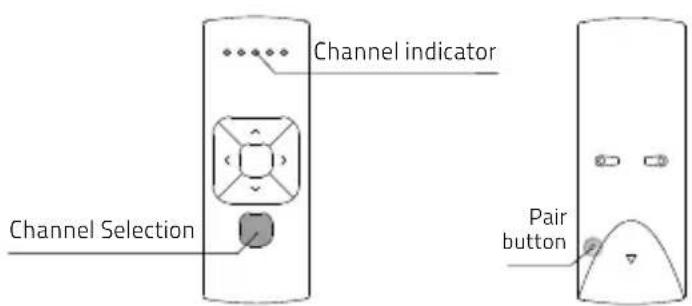
text_image
Channel selection Channel indicator Pair button- PAIR A REMOTE
5
Single select 5 channel remote
i
Single select makes it possible to activate program mode on a single blind through a remote control, without having to physically press the program button on the blind.
5.1 5.
To activate Single select, simultaneously hold the centre button and press the pair button.
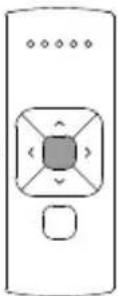
+
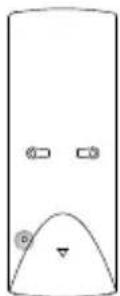
□
The remote starts searching for blinds (search mode). This is indicated by the LEDs flashing from left to right.
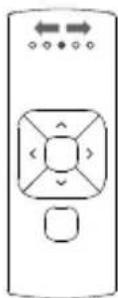
□
Once a blind is found, the channel LED will flash and the blind starts stepping, indicating that program mode has been activated. The blind can now be (un)paired with the remote and/or programmed.
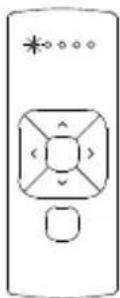
- SINGLE SELECT 5 CHANNEL REMOTE
5.4 \$5 To search for the next blind, press the right button. Search mode will be activated. To find the previous blind, press the left button.
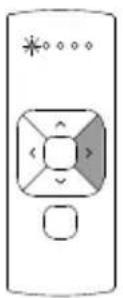
To exit Single select, press the right button during search mode.
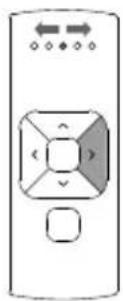
- SINGLE SELECT 5 CHANNEL REMOTE
6
Channel select 5 channel remote
i
Channel select makes it possible to copy blinds in between channels/remotes without having to physically press the program button on the motors.
6.1 6.
Select the 2 channel from which the blinds must be copied.
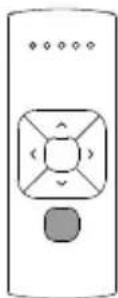

To activate channel select, simultaneously hold the channel selection button and press the pair button.
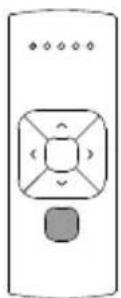
+
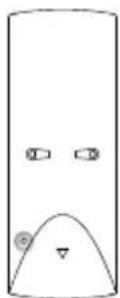
- CHANNEL SELECT 5 CHANNEL REMOTE

All blinds in the selected channel will start stepping, indicating program mode has been activated. All blinds can be copied to a new channel on the same remote or other remote. Select a new channel on the (new) remote.
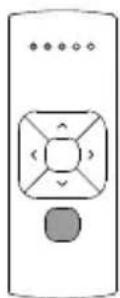

Press the pair button on the (new) remote to pair the blinds with the new channel.
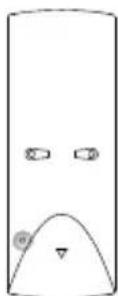

To exit channel select, go back to the channel selected at step 6.1 and repeat step 6.2
- CHANNEL SELECT 5 CHANNEL REMOTE
All rights reserved. No part of this publication may be reproduced, stored in a retrieval system, or transmitted, in any form, by any means, electronic, mechanical, photocopying, recording, digital or otherwise without the written permission of the publisher. Although this manual has been composed with the utmost care, Coulisse b.v. does not accept any responsibility for damage due to mistakes and/or faults in this manual. Coulisse b.v. reserves the right to revise the manual and to revise and/or change its content at any time, without obligation to notify any person or entity of such revisions or changes.
MOTION
HANDBUCH CM-12
natural_image
Line drawing of a rectangular device with a central square cutout (no text or symbols)text_image
Image containing five symbols: a trash bin, a house with an arrow, an open book labeled 'i', and a large 'CE' symbol.FCC Handbuch I FCC ID: ZY4CM12
natural_image
3D diagram of a rectangular electronic device with internal components and a curved top surface, showing no text or symbols.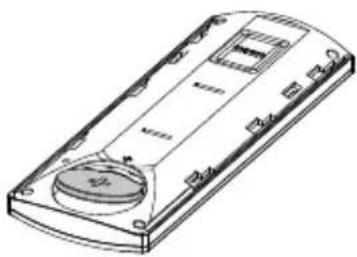
natural_image
Line drawing of a rectangular electronic device with a circular button and mounting holes (no text or symbols)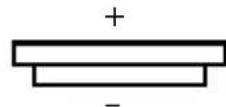
CR2430 3,0V
- DIE BATTERIE WECHSELN
natural_image
Diagram of a mechanical device with internal components and two external shafts (no text or symbols)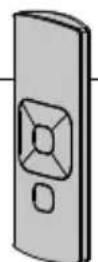

All rights reserved. No part of this publication may be reproduced, stored in a retrieval system, or transmitted, in any form, by any means, electronic, mechanical, photocopying, recording, digital or otherwise without the written permission of the publisher. Although this manual has been composed with the utmost care, Coulisse b.v. does not accept any responsibility for damage due to mistakes and/or faults in this manual. Coulisse b.v. reserves the right to revise the manual and to revise and/or change its content at any time, without obligation to notify any person or entity of such revisions or changes.
MOTION
MANUEL CM-12
natural_image
Line drawing of a rectangular device with a central square cutout (no text or symbols)text_image
Image containing symbolic icons including a trash bin, house, open book, and CE textService & Assistance
Manuel FCC I FCC ID: ZY4CM12
natural_image
3D diagram of a rectangular electronic device with internal components and a curved arrow indicating direction (no text or symbols)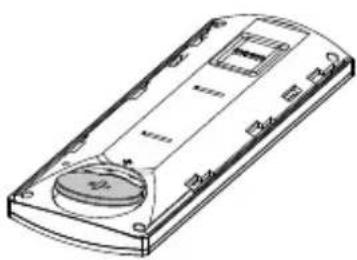
natural_image
Line drawing of a rectangular electronic device with a circular base and internal components (no text or symbols)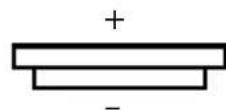
CR2430 3,0V
- CHANGEMENT DE LA PILE
3
natural_image
Pure mechanical diagram showing a bracket with internal components and two labeled parts (no text or symbols)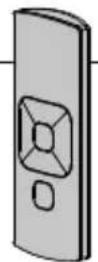

natural_image
Line drawing of a rectangular device with a central square cutout (no text or symbols)text_image
Image containing symbolic icons including a trash bin, house, open book with 'i', and CEnatural_image
3D diagram of a rectangular electronic device with internal components and a curved arrow indicating rotation (no text or symbols)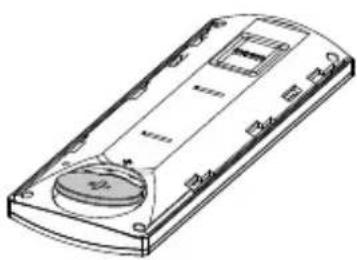
natural_image
Line drawing of a rectangular electronic device with a circular base and internal components (no text or symbols)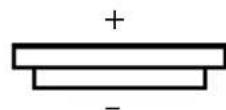
CR2430 3,0V
- DE BATTERIJ VERVANGEN
3
natural_image
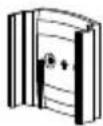
Pure mechanical diagram showing a bracket with internal components and two labeled parts (no text or symbols)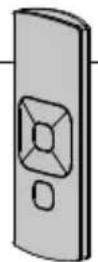
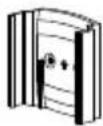

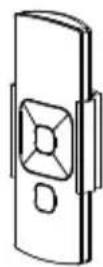
- HOUDER VOOR DE AFSTANDSBEDIENING
natural_image
Line drawing of a rectangular electronic device with a central square cutout (no text or symbols)text_image
Image containing symbolic icons including a trash bin, house, open book, and CE textnatural_image
3D diagram of a rectangular electronic device with internal components and a curved arrow indicating rotation (no text or symbols)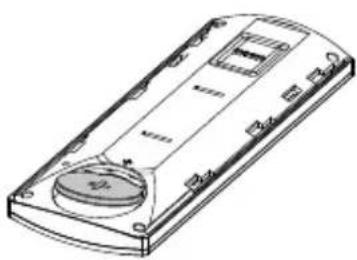
natural_image
Line drawing of a remote control device casing with buttons and a central circular component (no text or symbols)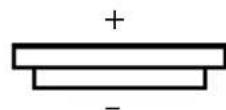
CR2430 3,0V
- CAMBIAR LA PILA
3 Soporte del mando
natural_image
Diagram of a mechanical device with internal components and two external shafts (no text or symbols)