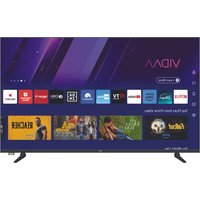
K430FVD - Television EKO - Free user manual and instructions
Find the device manual for free K430FVD EKO in PDF.


| Product Type | LED Television |
| Brand | EKO |
| Model | K430FVD |
| Screen Size | 43 inches (109 cm) |
| Resolution | 1920 x 1080 (Full HD) |
| Operating System | VIDAA TV |
| VESA Mounting Pattern | 200 x 200 mm |
| Connectivity | HDMI, USB, Bluetooth, Wi-Fi, Ethernet |
| Key Features | Smart TV, app access (Netflix, YouTube, Prime Video, Disney+), voice assistant, screen mirroring, content sharing, TV guide, teletext, subtitles, parental controls |
| Power Supply | 100-240 V AC, 50/60 Hz |
| Power Consumption | Approximately 70 W (typical), standby < 0.5 W |
| Weight (approx.) | 8 kg |
| Dimensions with stand (W x H x D) | 967 x 618 x 200 mm |
| Dimensions without stand (W x H x D) | 967 x 568 x 77 mm |
| Included Accessories | Remote control, stand supports, screws, user manual |
| Remote Control Type | Infrared, AAA batteries (not included) |
| Maintenance and Cleaning | Unplug before cleaning, use a dry, lint-free cloth, avoid harsh chemicals |
| Safety | Auto shut-off in case of overheating, surge protection (recommended), wall mounting recommended to prevent falls |
| Spare Parts and Repairability | Contact an authorized service center, do not open the casing, parts available on request |
| General Information | Distributed by Ayonz Central Ltd, manufactured in China, compliant with EU Directive 2014/53/EU |
Frequently Asked Questions - K430FVD EKO
User questions about K430FVD EKO
0 question about this device. Answer the ones you know or ask your own.
Ask a new question about this device
Download the instructions for your Television in PDF format for free! Find your manual K430FVD - EKO and take your electronic device back in hand. On this page are published all the documents necessary for the use of your device. K430FVD by EKO.
USER MANUAL K430FVD EKO
43" FULL HD SMART TV
K430FVD
CONTENTS
| General | Safety | 4 | |||
| Technical | schedule | 16 | |||
| Specification | 17 | ||||
| Installation | 18 | ||||
| Controls | and | Connections | |||
| Remote | Control | 22 | |||
| Initial | Setup | 25 | |||
| VIDAA | TV | - | Home | Screen | |
| Setting | |||||
| Picture | 31 | ||||
| Sound | 3 | ||||
| Connection | 35 | ||||
| Channel | 37 | ||||
| Accessibility | 40 | ||||
| System | 41 | ||||
| Support | 43 | ||||
| Multi-Screen | 45 | ||||
| USB | Device | 46 | |||
| FAQs | 47 |
GENERAL SAFETY INSTRUCTIONS
Read this instruction manual carefully as it contains important information on the safety, use and maintenance of the appliance. Keep the manual for future reference.
- Disconnect the plug from the wall socket in case of a long period of disuse. Disconnect the plug and antenna cable even in severe thunderstorms.
- Do not pull the cable to pull the plug out of the socket
- Do not rest heavy objects on the cables
- Do not bend or knot the cables
- The TV screen is made of a fragile material, therefore, it should not be subjected to impact or pressure to avoid damage. If it is damaged, remove the plug from the socket and contact a service center. If liquid comes out of the panel, be careful and do not let it come into contact with your eyes and mouth, contact a doctor if necessary.
- Switch off and unplug from the mains before cleaning and maintenance. For cleaning, use only a clean dry cloth. Do not use aggressive detergents such as thinners, alcohol, petrol.
- Place the device on a stable surface that can withstand its weight. If you are using a mobile, it must be strong and large enough to prevent the TV from protruding beyond
edges of the cabinet. If it is fixed to the wall, follow the instructions for correct fixing to avoid danger. Do not place the TV in high positions (furniture, shelves, shelves) unless they are properly fixed to the wall. Do not place any textile or similar product between the TV and the furniture. It is necessary to inform children about the dangers so as to prevent them from climbing on the furniture to reach the TV and its accessories. - Leave adequate space on the sides of the TV to ensure proper ventilation
- Do not expose the TV to direct sunlight, heat sources or naked flame sources (candles)
GENERAL SAFETY INSTRUCTIONS (Cont.)
-
No objects containing liquids, such as vases, should be placed on the TV. Avoid exposure to drops and splashes of water.
-
Connect only to a mains socket that complies with the regulations in force and in accordance with the rating plate data of the TV. The mains socket must be close and easily accessible to disconnect the TV in case of danger. If the TV does not have a specific shutdown switch, to turn off the TV, disconnect the mains plug.
-
Do not insert objects of any kind into the slots of the TV due to the danger of electric shock. If the TV does not have a specific shutdown switch, to turn off the TV, disconnect the mains plug.
-
Do not insert objects of any kind into the slots of the TV due to the danger of electric shock.
-
Read this manual carefully before using the TV.
-
Keep this manual, the complete warranty card, receipt, and product packaging. The safety precautions instructions reduce the risk of fire, electric shock and injury when followed correctly. Please follow all instructions and take note of all warnings.
GENERAL SAFETY INSTRUCTIONS (Cont.)

WARNING: TO REDUCE THE RISK OF ELECTRIC SHOCK, DO NOT REMOVE THE COVER. IT DOES NOT CONTAIN USEFUL PARTS FOR THE USER. FOR ASSISTANCE REFER TO QUALIFIED STAFF.
The cover (or back) of the unit should not be removed to prevent risk of electric shock.
This unit must be serviced by a qualified service personnel only.
natural_image
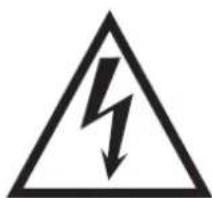
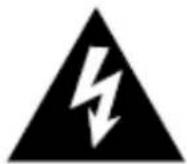
Warning symbol of a lightning bolt inside a triangle (no text or numbers)The lightning flash with symbol within the triangle is intended to warn you of a non-insulated dangerous voltage in the product's enclosure that could be of sufficient magnitude to generate a risk of electric shock to persons.

The exclamation point within the triangle is intended to warn you to the presence of important operating and maintenance instructions in the documents included with the product.
natural_image
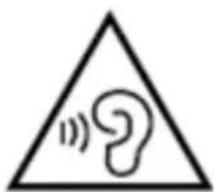
Warning symbol with a triangle containing an ear and sound waves (no text or numbers)To avoid possible hearing damage, limit the listening time to high volumes.
GENERAL SAFETY INSTRUCTIONS (Cont.)
WARNING
- Use furniture or stands recommended by the manufacturer.
- The product must be installed on a surface that correctly supports its weight.
- Make sure that the product rests completely on the surface on which it is installed.
- Do not place the product on a tall cabinet without fixing neither the cabinet nor the product stably.
- This will prevent the TV from falling.
- Do not place the product on top of conductive or flammable fabrics or other materials.
- Make sure that children do not climb onto the furniture or support where the TV is installed, with the intention of getting close to it, thus avoiding any risk of falling of the support or product;
any operation on the TV must be carried out by an adult.
WARNING
- Do not expose this appliance to rain or moisture as it may cause a fire or an electric shock hazard.
- Do not tamper with or modify the product in any way.
- Use only accessories described and recommended by the manufacturer.
- Please do not expose the product to direct contact with water.
- Do not place any objects on top of the product, including liquid containers such as glasses.
- Be careful when replacing the remote controller battery; incorrect installation can lead to explosion risks. Replace with the same or equivalent type of battery.
GENERAL SAFETY INSTRUCTIONS (Cont.)
Installation
- To install the TV, please follow the instructions in this manual. This product must be placed on a sufficiently stable surface; incorrect installation is potentially dangerous as the TV could fall and cause injury. Be extremely careful around children.
- Before installing the product, make sure that the output voltage corresponds to that indicated on the rear label of the TV where the electrical specifications are shown.
- Do not use a damaged power cord or plug, or a power outlet with a loose connection. This could cause an electric shock.
- Do not connect multiple devices to the same socket. This could cause the outlet to overheat and cause a fire. Make sure that the socket is easily accessible when operating the TV.
- Do not bend, wrap or twist the power cord excessively.
- Do not let anything rest on the power cord and antenna cable. This could cause a fire or electric shock.
- Do not use the power cord near appliances that produce heat such as radiators, stoves, or irons. Excessive heat could melt the insulation and expose live wires, causing fire or electric shock.
- Unplug this TV during lightning storms or when unused for long periods of time. Otherwise, it could result in fire or electric shock.
- Do not block the ventilation openings of the product with items such as newspapers, tablecloths, curtains. Do not insert objects into the slots available on the sides and rear of the TV. This could cause the temperature inside the TV to rise and cause a fire.
- If you notice any unusual smells or smoke coming from the TV, unplug the power cord from the outlet immediately and contact the service center. Otherwise, it could result in fire or electric shock.
- When not using the TV for long periods of time or when it needs to be moved, be sure to disconnect the power cord from the wall outlet.
GENERAL SAFETY INSTRUCTIONS (Cont.)
-
The TV should be cleaned periodically. Otherwise, the dust could accumulate over time and cause the temperature inside the TV to increase and / or the insulation of the connections to deteriorate, which in turn could cause an electrical fire.
-
The product is not intended for use by people (including children) with reduced physical, sensory or mental abilities, or small children of any age, unless supervised by an adult responsible for their safety.
-
The remote controller batteries should only be removed by an adult, making sure to keep them out of the reach of infants and children. Seek immediate medical attention if a child has swallowed a battery.
-
Batteries should not be exposed to direct sunlight or heat.
-
To clean the TV, do not use chemicals, detergents, or wet cloths, be sure to use a dry cloth to clean it of marks or dust and only after unplugging the product from the power outlet.
-
Contact a qualified service center for any repair or other service required.
WARNING!
- We strongly recommend that you lock the TV to the stand on which it is installed.
- In this way, accidents caused by the furniture or TV overturning can be prevented.
- To avoid any risk of serious injury, we strongly recommend that this product be permanently attached to the wall or another suitable surface.
- Fasteners are not included as surfaces made of different materials require different fixtures. Please contact qualified personnel.
- If a TV is not placed stably enough, it can be potentially dangerous due to accidental fall. Many injuries, particularly for children, can be avoided by taking simple precautions such as:
- Use furniture or stands recommended by the manufacturer.
- The product must be installed on a stand that can support the weight and size of the TV.
- Make sure that the product rests completely on the surface on which it is installed.
- Teaching children about the dangers that can arise from climbing on furniture with the aim of reaching.
Be sure to position the product according to the following considerations:
- Prefer dry surfaces in well ventilated areas.
- Do not expose to sunlight and other heat sources.
- Do not expose to contact with water or other liquids.
- Protect from dust and pollutants.
- Do not install the TV on furniture with limited space, such as bookcases.
- Do not install the TV near heat sources such as radiators, stoves or other appliances that produce heat.
GENERAL SAFETY INSTRUCTIONS (Cont.)
-
Do not place containers with liquids next to the TV; if the liquid were to fall and penetrate inside the casing, it could cause short circuits, fires or electric shocks.
-
Do not place small metal objects on top of the unit; if such objects penetrate the TV casing, this could cause short circuits, fire or electric shock.
-
Do not use or store flammable or combustible materials near the unit. This could cause fire or explosion. Do not place open flames, such as lighted candles, cigarettes, or incense sticks on top of the TV.
-
It is advisable that the antenna is installed away from the power outlet; Please contact a professional antenna technician to install the antenna, to avoid incorrect installation which could cause fire, electric shock, or serious injury.
-
Install the unit at a reasonable distance from the wall to ensure sufficient ventilation.
-
Connect the power supply of your TV to an easily accessible and easy to disconnect socket.
-
Do not use this apparatus near water. For example, do not use near a laundry tub, in a wet cellar, near a swimming pool or the like.
-
Clean the appliance only with dry cloths.
-
Do not block the ventilation openings. Install in accordance with the manufacturer's instructions. The slots and openings on the back or bottom are for ventilation, to ensure reliable operation of the TV and to protect it from overheating. Do not block or cover these openings. Do not block the openings by placing the TV on a bed. a sofa or similar surfaces.
-
Do not install this unit near heat sources such as radiators, heating vents, stoves or other apparatus (including amplifiers) that produce heat.
GENERAL SAFETY INSTRUCTIONS (Cont.)
-
Do not alter the safety purpose of the polarized or grounding-type plug. A polarized plug has two blades with one wider than the other. A grounding plug has two blades and a third grounding prong. The largest lamella or the third pole perform a protective function. If the provided plug does not fit into your outlet, consult an electrician for replacement of the obsolete outlet.
-
Protect the power cord from being walked on or pinched particularly at plugs, convenience receptacles, and the point where the cord exits the apparatus.
natural_image
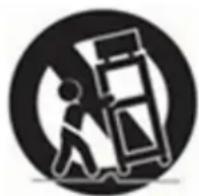
Symbolic icon of a person pushing a ladder inside a circle (no text or symbols)- Use only accessories specified by the manufacturer.
-
Use only with the cart, stand, tripod, bracket, or table specified by the manufacturer, or sold with the apparatus. When using a cart, be careful when moving the cart and the appliance together to avoid injury from overturning. The TV / cart assembly must be moved with care. Quick stops, excessive force, and uneven surfaces could cause the cart and TV to tip over.
-
Unplug this apparatus from the power supply during lightning storms or when it will not be used for a long time. For added protection of the TV receiver during a lightning storm or when it is not used for an extended period, unplug it from the wall outlet and disconnect the antenna or cables. This will prevent damage to the TV caused by lightning or power surges.
-
Have repairs carried out by qualified service personnel only. Maintenance is required if the appliance has been damaged in any way, such as damage to the power cord or plug, if liquid has been spilled or objects have fallen into the appliance, appliance has been exposed to rain or moisture, if it does not operate normally or has been dropped.
-
This TV should only be operated with the type of power source indicated on the rating plate. If you are unsure of the type of power supply in your home, consult your dealer or local power supplier. For battery power supply of the TV remote control, refer to the operating instructions.
GENERAL SAFETY INSTRUCTIONS (Cont.)
- The television should not be exposed to dripping or splashing water. Do not place objects filled with liquids, such as vases, on the TV.
- Never push objects of any kind into the TV through openings as they may touch dangerous voltage points or other electrical components which could result in fire or electric shock. Do not spill liquids of any kind on the TV.
- Unplug the TV from the wall socket before cleaning. Do not use liquid or aggressive detergents. Use a damp cloth for cleaning.
- Do not place the television near or on top of radiators or other heat sources. Do not place the TV in recessed places such as bookcases or shelves unless adequate ventilation is provided or the manufacturer's instructions are followed.
- Do not place the TV on an unstable cart, stand, tripod, bracket or table. The TV may fall, causing serious injury or damage to the set.
- Do not try to repair the TV yourself. as opening or removing covers may expose the user to dangerous voltage or other hazards. Have repairs carried out by qualified service personnel only.
- WARNING: To avoid injury, the appliance must be securely fastened to the floor or wall according to the installation instructions.
GENERAL SAFETY INSTRUCTIONS (Cont.)
TREATMENT AND DISPOSAL OF BATTERIES
- ATTENTION: incorrect replacement of the batteries or the use of batteries of different types non-equivalent can cause explosions.
- The battery should not be exposed to excessive heat such as that from the sun, fire or similar sources.
- Do not mix different types of batteries, or new batteries with old ones.
- The battery must be positioned according to the correct polarity.
- If the battery is low it must be removed from the product.
- The battery must be disposed of safely. To protect the environment, always use the appropriate collection containers (consult your dealer).
- Keep batteries away from children and pets. Only adults are allowed to take care of the batteries.
- Never throw batteries into fire or expose them to flames or other heat sources.
- Follow the safety and use instructions for the battery.

HIGH-DEFINITION MULTIMEDIA INTERFACE
The terms HDMI, HDMI High-Definition Multimedia Interface, and the HDMI Logo are trademarks or registered trademarks of HDMI Licensing Administrator, Inc.

GENERAL SAFETY INSTRUCTIONS (Cont.)
CLEANING AND MAINTENANCE
- Unplug the unit from the electrical outlet before cleaning.
- To remove dust, wipe gently with a soft, lint-free cloth.
- If necessary, use a slightly damp cloth.
- Clean the plug with a dry cloth at regular intervals.
- CAUTION: Moisture and dust can lead to fire or electric shock.
- Be careful not to use liquids or detergents that can get inside the TV. (Liquid inside the TV may cause product failure, fire or electric shock.)
- Do not clean with abrasive cloths and aggressive products such as insect repellents, solvents, thinners or other substances that may deteriorate the surface and finish of the TV cabinet.
Dear Customer
Herewith the manufacturer Ayonz Central Ltd declares that this device complies with the 2014/53 / EU Directives.
The full text of the EU declaration of conformity is available at the following internet address: www.ekosystems.it
TECHNICAL SCHEDULE
| Information Value and precision Unit | ||||
| Supplier's name or trade mark | EKO -- | |||
| Supplier's model identifier | K430FVD | -- | ||
| Energy efficiency class for standard Dynamic Range (SDR) | E | -- | ||
| On mode power demand for Standard Dynamic Range (SDR) | 42 | W | ||
| Energy efficiency class (HDR) | - | -- | ||
| On mode power demand in High Dynamic Range (HDR) mode | - W | |||
| Off mode, power demand | - | W | ||
| Standby mode, power demand | ≤0.5 W | |||
| Networked Standby mode, power demand | ≤ 2 W | |||
| Electronic display category | television | -- | ||
| Size ratio | 16 : 9 integer | |||
| Screen resolution (pixels) | 1920 x 1080 | pixels | ||
| Screen diagonal | 108 | cm | ||
| Screen diagonal | 43 | inches | ||
| Visible screen area | 4978 | cm2 | ||
| Panel technology used | LED LCD | -- | ||
| Automatic Brightness Control (ABC) available | NO | -- | ||
| Voice recognition sensor available | NO | -- | ||
| Room presence sensor available | NO | -- | ||
| Image refresh frequency rate | 60 | Hz | ||
| Minimum guaranteed availability of software and firmware updates (until): | 8 years | -- | ||
| Minimum guaranteed availability of spare parts (until): | 7 years | -- | ||
| Minimum guaranteed product support (until): | 04/30/2026 | -- | ||
| Power supply type: | Internal | -- | ||
SPECIFICATIONS
| Display Device 43” FULL HD Smart TV | |
| Resolution 1920 x 1080 | |
| Display Colours 16.7 Million | |
| Contrast ratio: 4000 : 1 | |
| Aspect Ratio 16 : 9 | |
| Software of Version S0432.V020 | 2.FF2.00.08.52N.P0307 |
| WIFI Working frequency 2.4GHz | |
| Maximum transmission power of WIFI | IEEE 802.11b 17±2 dBm at 11MbpsIEEE 802.11g 14±2 dBm at 54MbpsIEEE 802.11n -2.4GHz Band/HT20: 14±2 dBm at MCS72.4GHz Band/HT40: 14±2 dBm at MCS7 |
| Input / Output | Tuner: DVB-T2 H.265 HEVC MAIN 10, DVB-S2HDMI x3, USB x2, OPTICAL Out x1, RF IN x2, RJ45 x1, AV IN x1,EARPHONE x1, CI+ x1 |
| Multimedia Playback Format under USB Mode | Movie: MP4, MOV, MKV, TS, AVI, FLV |
| Music: WAV, MP3, WMA, FLAC | |
| Photo: JPEG, PNG, BMP, GIF | |
| Power Source 100-240V ~ 50/60Hz | |
| Power Consumption 80 W | |
| Dimensions | With stand: 955 x 206 x 603 mm ( w x d x h) |
| Without stand: 955 x 84 x 555 mm ( w x d x h) | |
| Weight | Net: 5.8 kg |
| Gross: 7.4 kg | |
NOTE: This document is for reference only, the operation interface is subject to the TV software.
INSTALLATION
Install the stand as described below, or if you want to mount it to a wall, please contact a professional installer.
Please ensure the TV is not plugged into the wall socket and furthermore we recommend to get another person to assist in the following task.
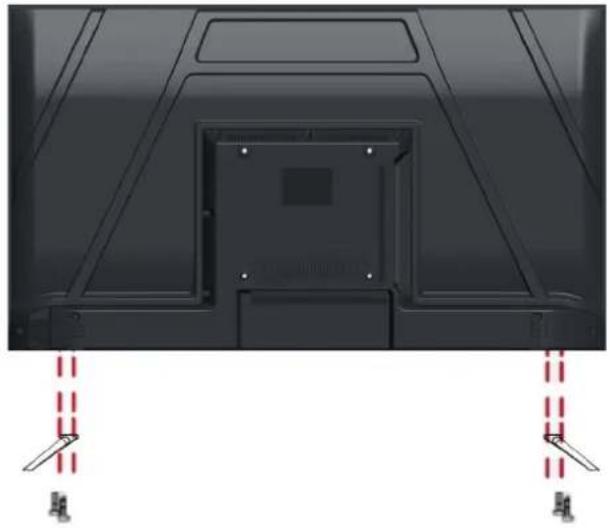
Attaching the stand
Step 1
Place a soft cushioned material on top of a flat surface to prevent damaging the screen panel. Then place the TV screen flat on top, with the screen side facing down, as illustrated on the right.
Step 2
Align the stand leg to the installation point, as illustrated below
natural_image
Back view of a black electronic device with red dashed alignment lines indicating mounting points (no text or symbols)Step 3
Tighten the screws (supplied) with a screwdriver to affix the stand to the panel, as illustrated on the right.
CAUTION!
Do not apply excessive force as this may damage the screw holes.
INSTALLATION (Cont.)
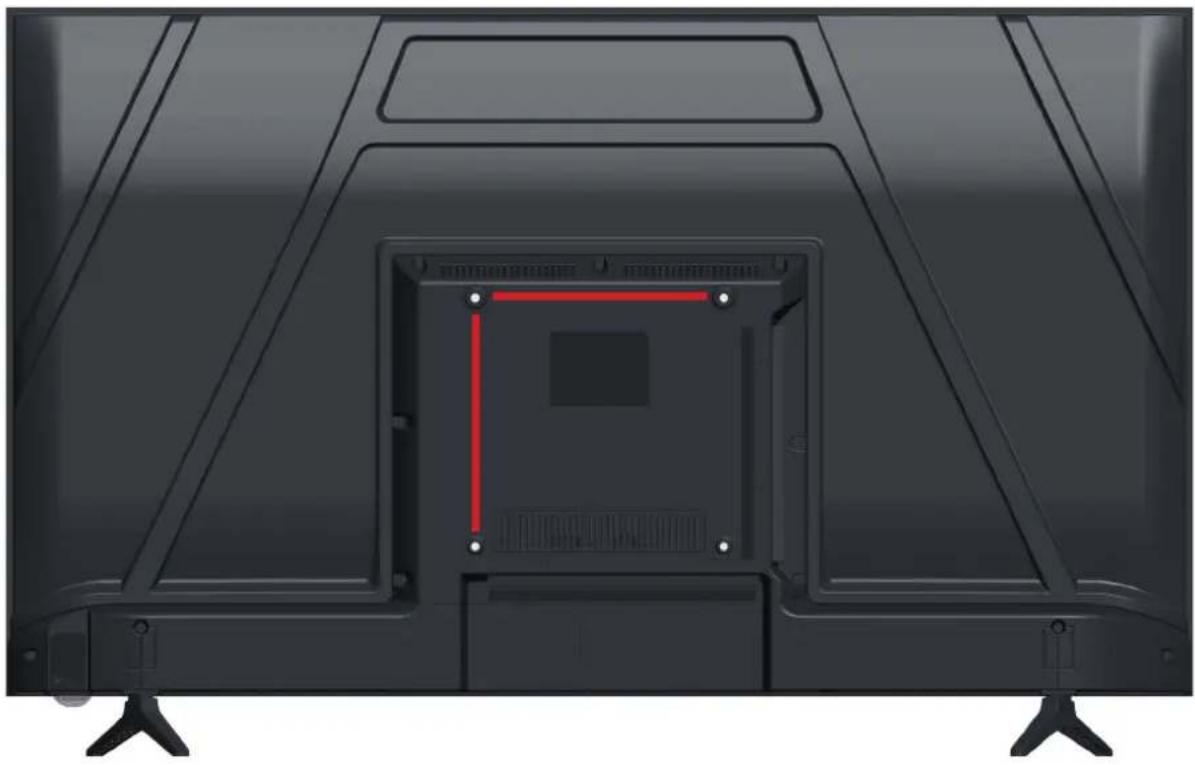
Wall-Mounting Instructions
Please ensure the TV is not plugged into the wall socket and furthermore we recommend to get another person to assist in the following task.
• We recommend you use a professional installer as we assume no liability for any eventual damage to the product or injury to yourself if you mount the TV on your own.
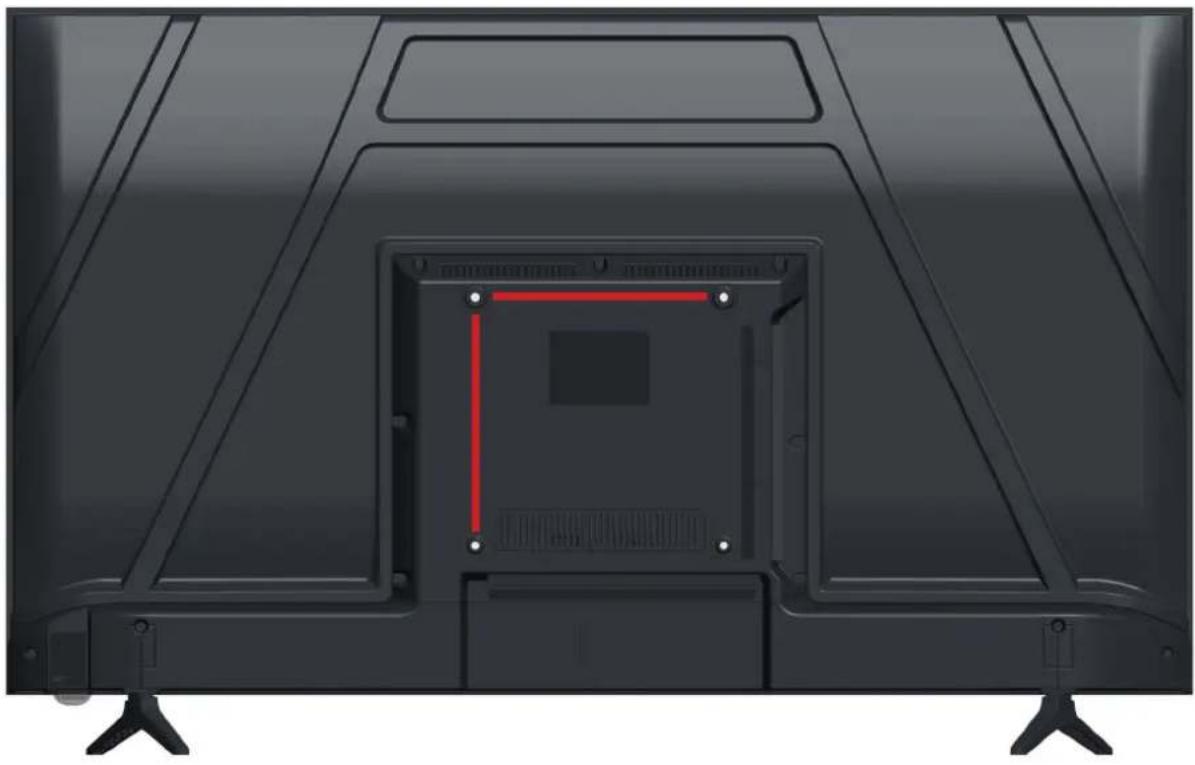
BACK OF TV
VESA PATTERN: 200 x 200mm
Screw: 6*8mm (4pcs)
natural_image
Back view of a black electronic device with visible internal components and mounting feet (no text or symbols)NOTE: If you are wall-mounting the TV, this should be done by a qualified installer.
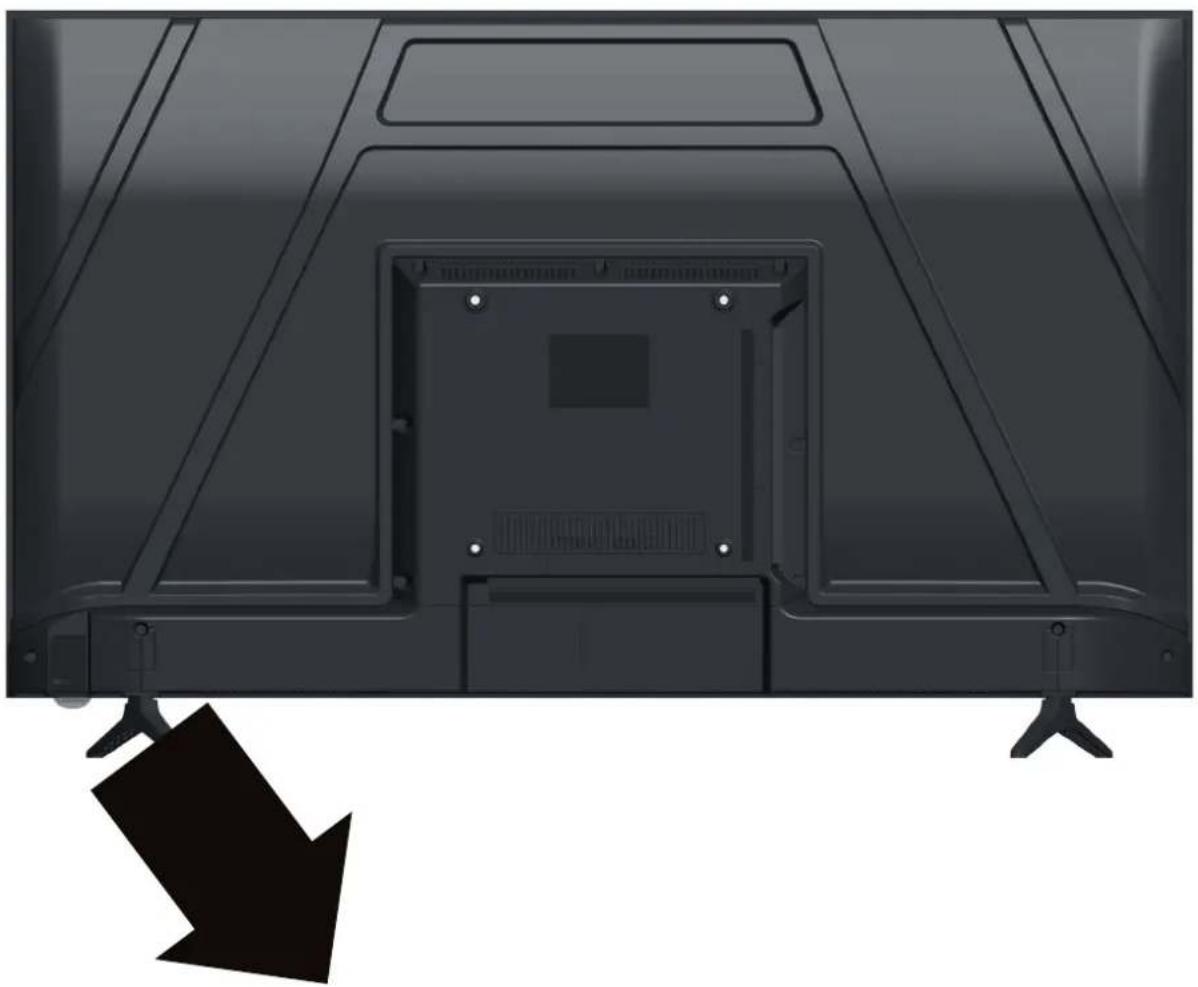
CONTROLS AND CONNECTIONS
natural_image
Back view of a black electronic device with a visible internal panel and arrow indicating direction (no text or symbols)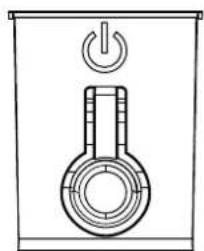
natural_image
Simple line drawing of a thermometer inside a container with an electrical switch symbol (no text or labels)POWER ON/OFF
CONTROLS AND CONNECTIONS


- ETHERNET INPUT (RJ45)
- OPTICAL
- AV INPUT
- RF1 (S2)
- RF2 (T2)
- HDMI 3 / ARC
- HDMI 2
- HDMI 1
- USB 1 & 2
- EARPHONE
- Cl+
REMOTE CONTROL
- INPUT: Select the input source.
- STANDBY(POWER): Set the unit in standby mode; press it again to switch it on.
- Number buttons (0-9): Select a TV channel.
- GUIDE: Launch the Program Guide.
- CH.LIST: Channel list.
- : Corresponds to various colour functions in the menu or teletext.
- MENU: Display the main menu.
- ▶: Press to operate start/pause playing; Move fast forward; Move fast backward.
- DIRECTION: navigate the on-screen menu. OK: Select current option thats highlighted.
- Return: Ruture to the previous interface or menu.
- EXIT: Exit the current interface or menu.
- HOME: Press to enter home page.
- VOL +/-: Turn the volume up/down.
- CH +/-: Play the next/previous program.
- ☐ Press to use the voice assistant.
- SUBTITLE: Enable/disable subtitles.
- MUTE: Mute the sound.
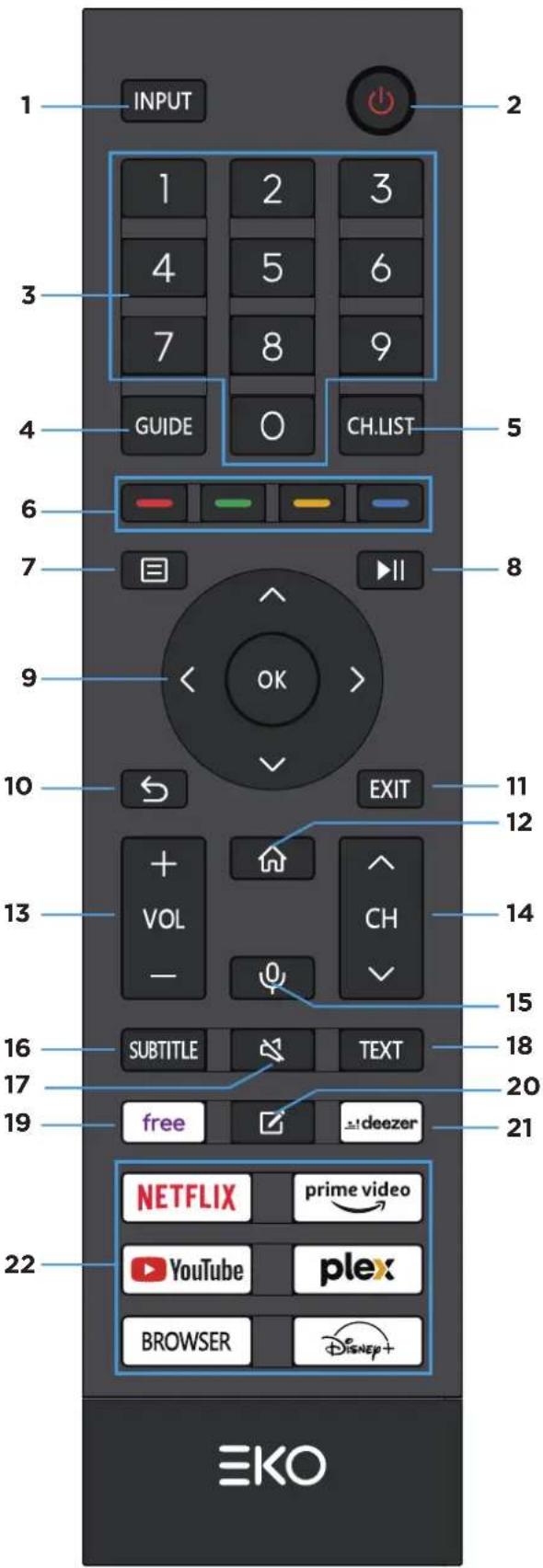
REMOTE CONTROL (CONT.)
- TEXT: Turn on/off the Teletext.
- FREE: Enter to the free video.
- Set up APP shortcut key.
- DEEZER: Enter to the deezer directly.
- APPs: Open application.
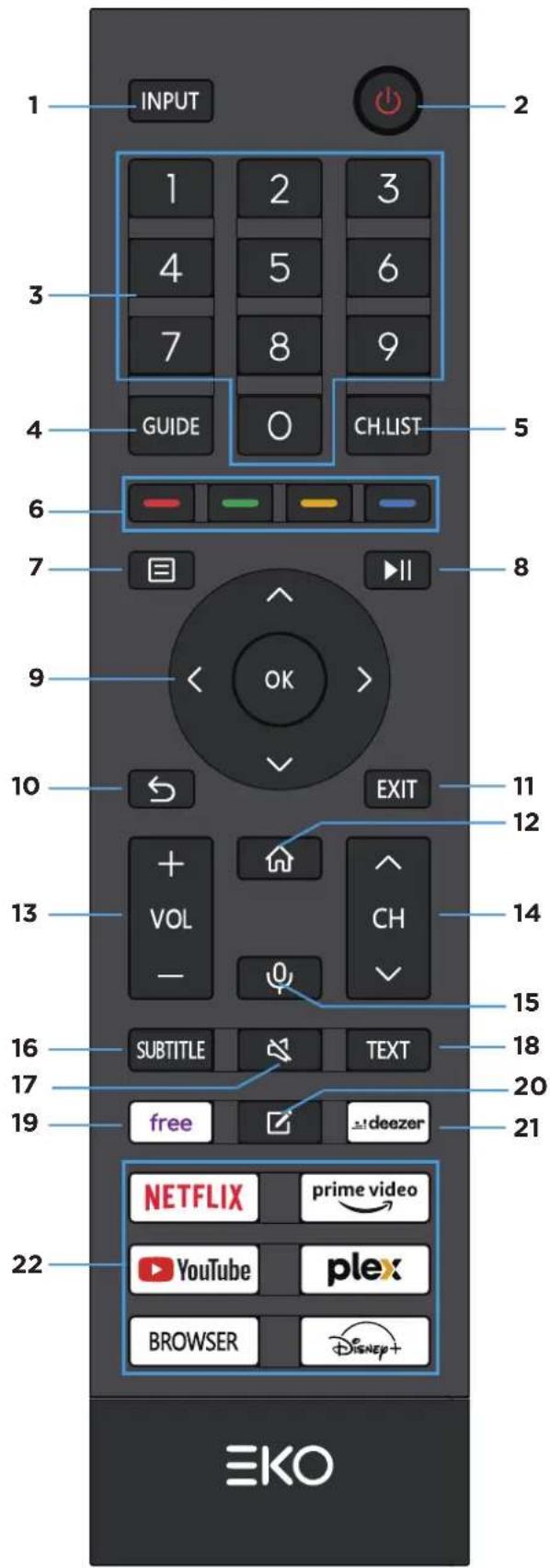
REMOTE CONTROL (CONT.)
REMOTE CONTROL BATTERY INSTALLATION AND WARNINGS
- Open the battery compartment cover on the back of the remote control
- Insert 2 x 1.5V type AAA batteries (not included) placing them according to the correct polarity.
- Open the battery compartment cover on the back of the remote control
- Insert the batteries (check the number of batteries and the type in the remote control compartment) with the correct polarity
- Close the battery compartment cover.
- Batteries once installed should not be exposed to excessive heat such as sunshine, fire or the like.
- Do not use old and new batteries in the remote control.
- Do not use different types of battery.
- If it is not used for a long time, it is recommended to remove the batteries from the remote control.
- Keep batteries away from children and pets.
- Never throw batteries into fire.
- Accidental dropping of the remote control, resulting in breakage, will immediately invalidate the warranty.
- The remote control works effectively when used up to about 5m away from the TV.
- Do not expose the remote controller sensor to strong light
INITIAL SETUP
For the first initial setup, on screen setup wizard will guide you through setting up your TV. Please follow according to onscreen guide to setup your TV correctly.
Press to select system language, then press OK/SELECT to confirm.
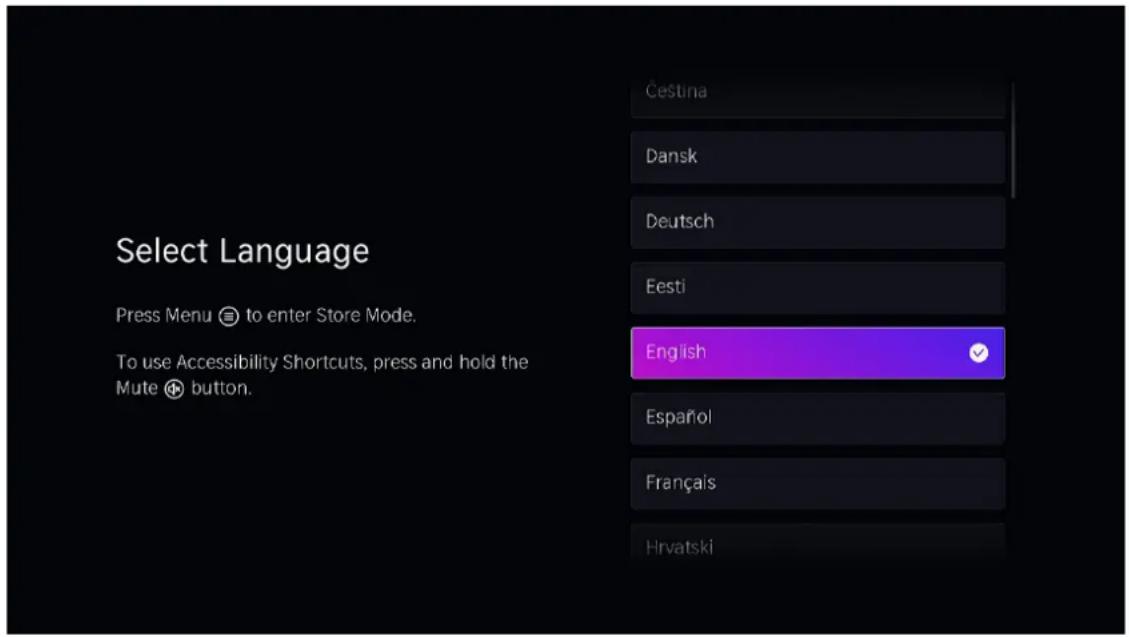
INITIAL SETUP (CONT.)
Press to select location, then press OK/SELECT to confirm.
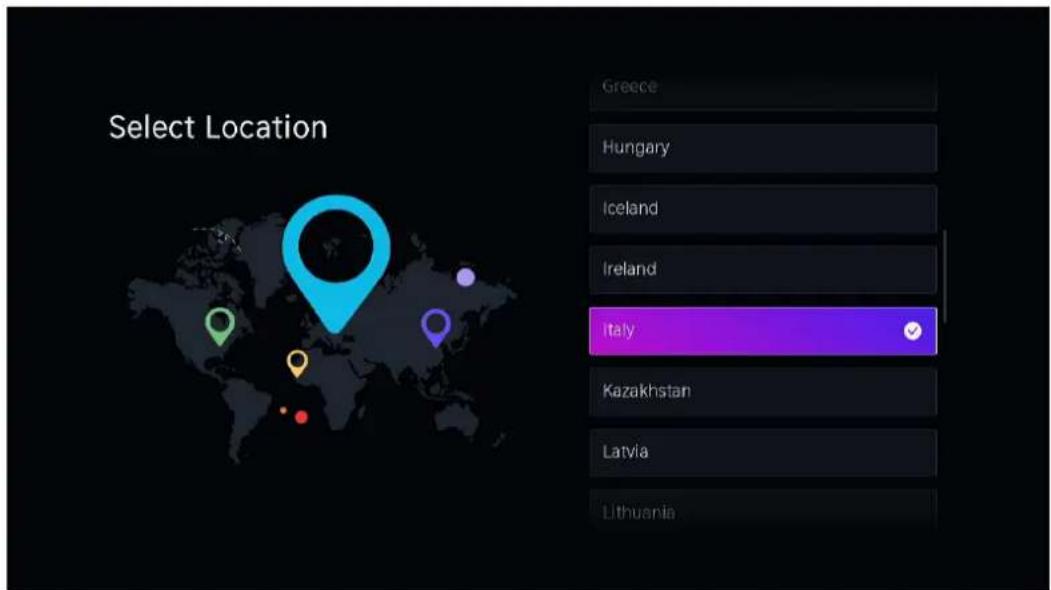
Press to select channel scan, or skip to continue TV setup.
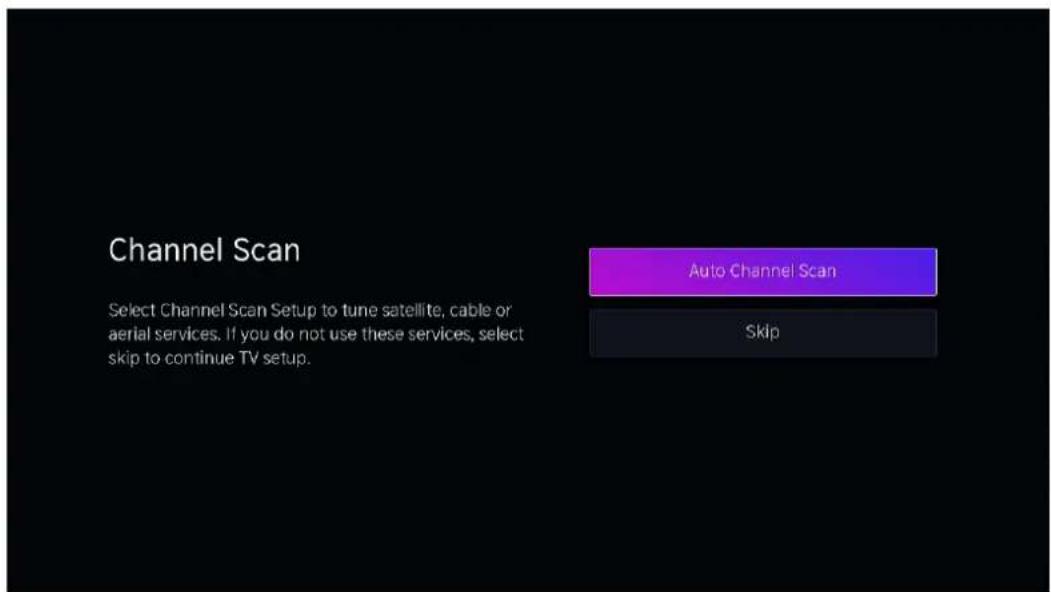
INITIAL SETUP (CONT.)
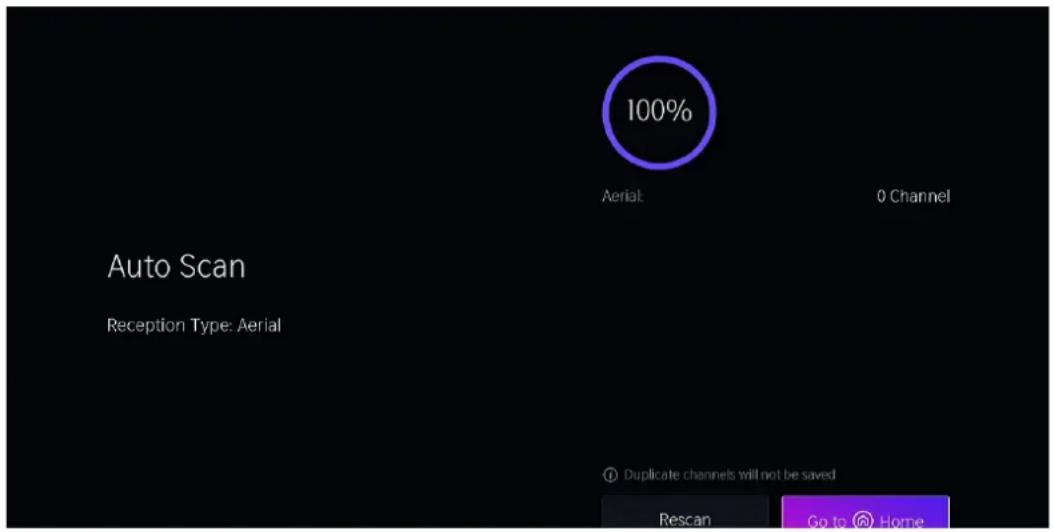
If select Auto Channel Scan, Press OK button to enter Channel Scan Setup.
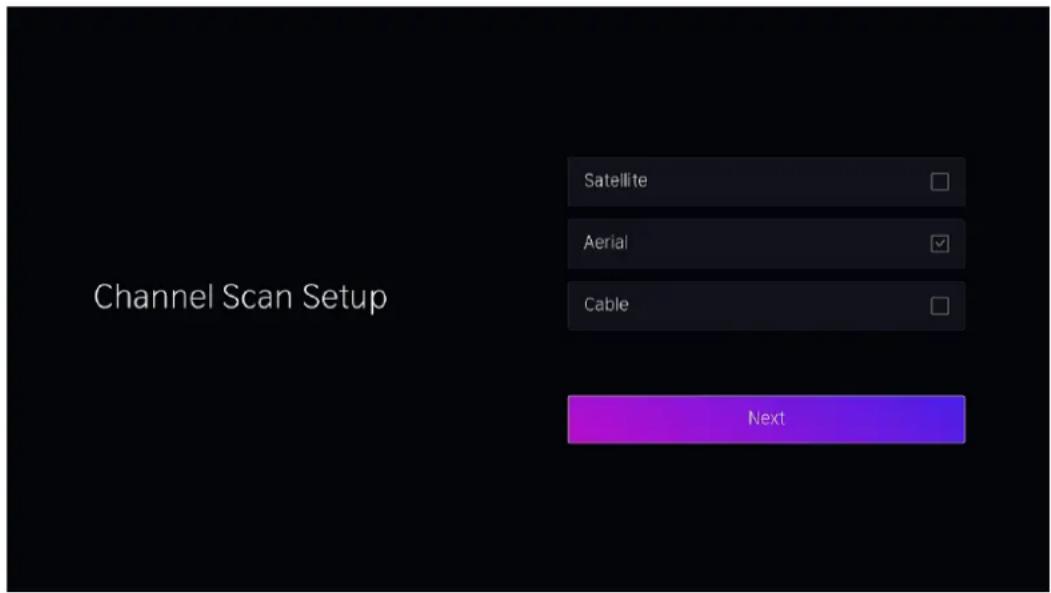
INITIAL SETUP (CONT.)
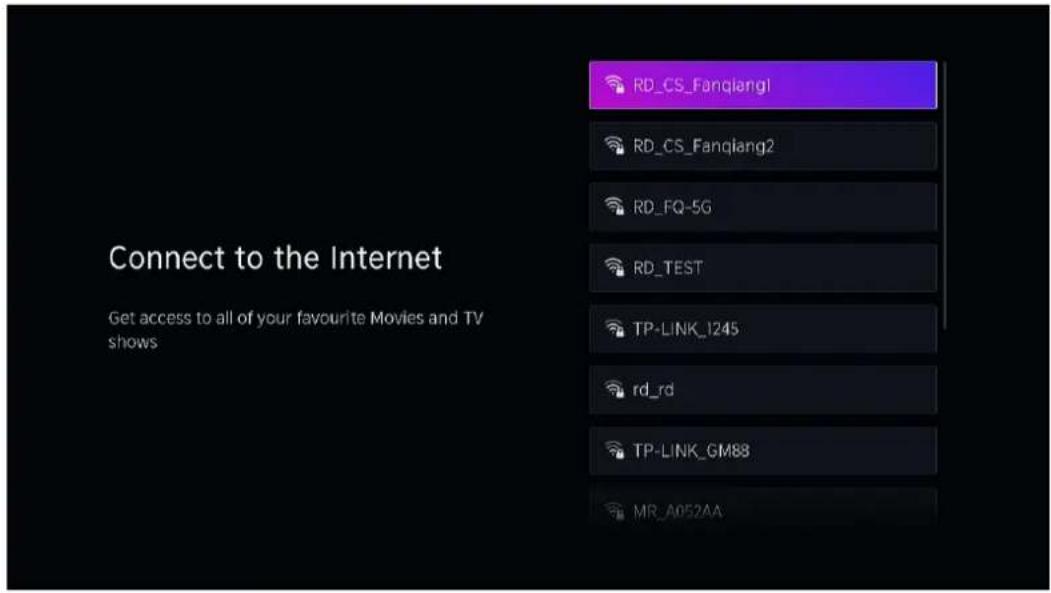
Press to select your Wi-Fi you wish to connect to, enter the password and then confirm to connect.
Press Up/Down button to highlight Select All, and press OK button to confirm the selection; then the cursor automatically jumps to OK & Go Next, and press OK to the next step.
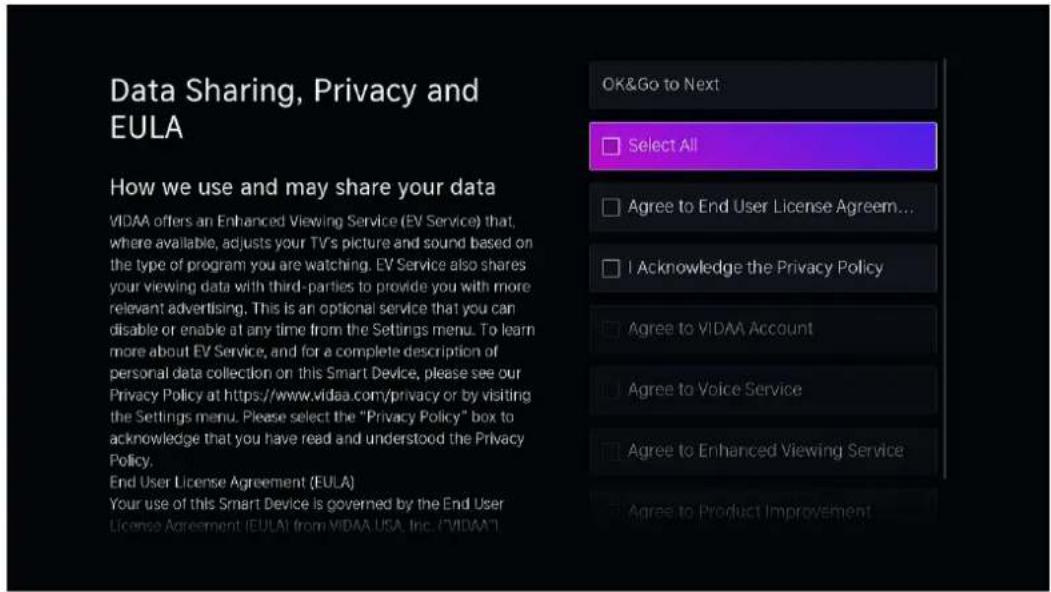
INITIAL SETUP (CONT.)
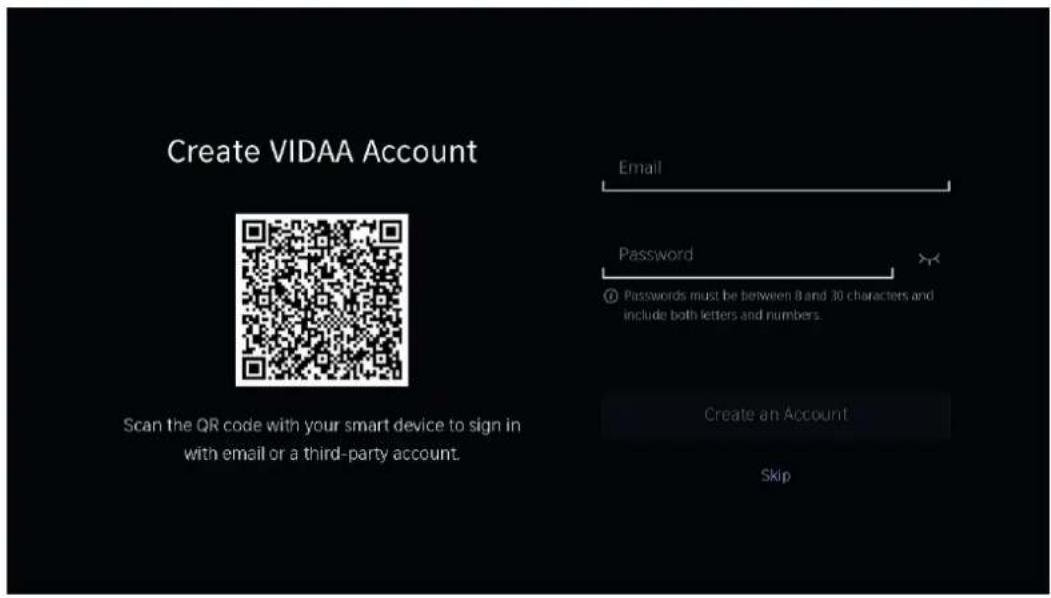
Create your VIDDA account: Create an account or skip to the next step.
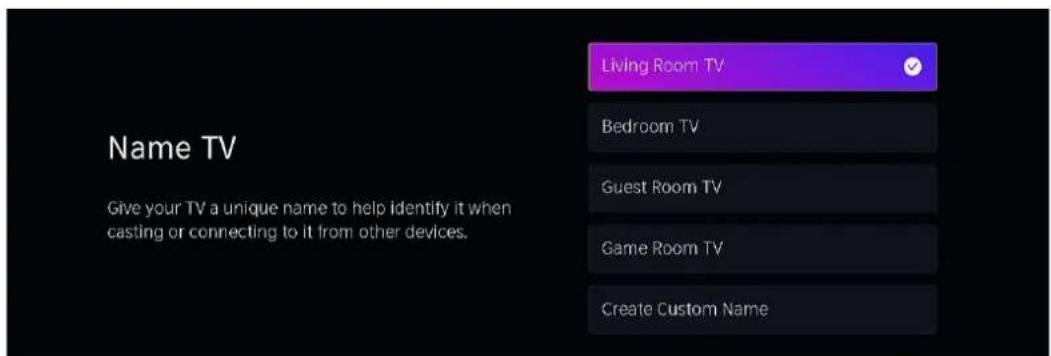
Press Up/Down button to select a unique name for your TV, to help identify it when casting or connecting to it from other devices; Press OK button to confirm.
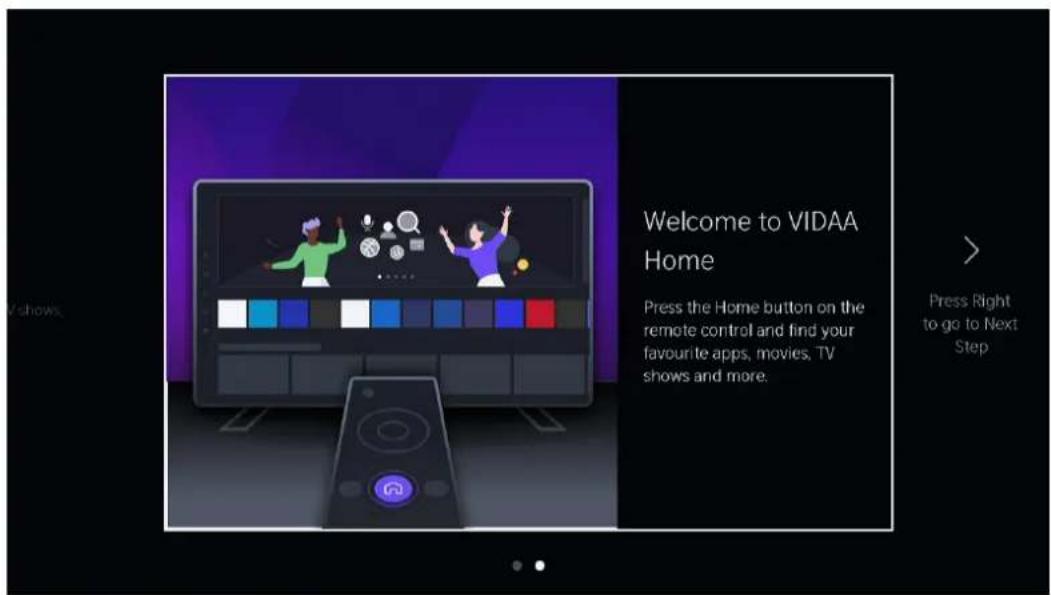
VIDAA TV - HOME SCREEN
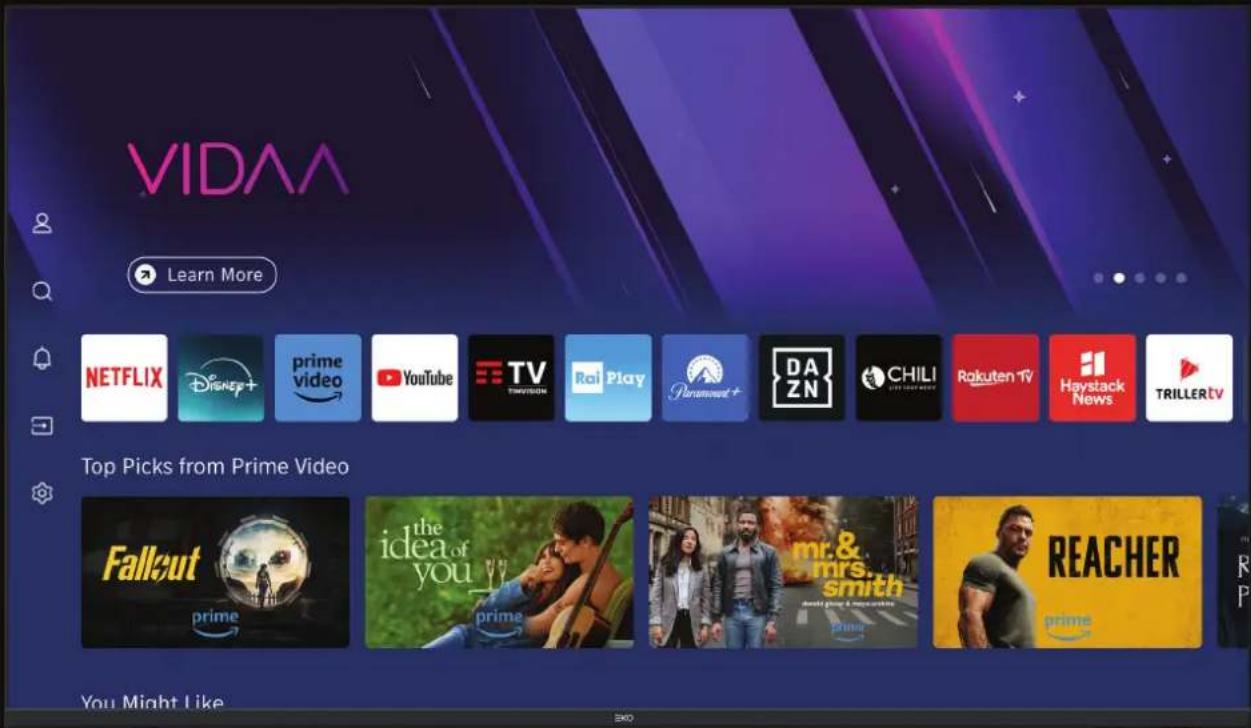
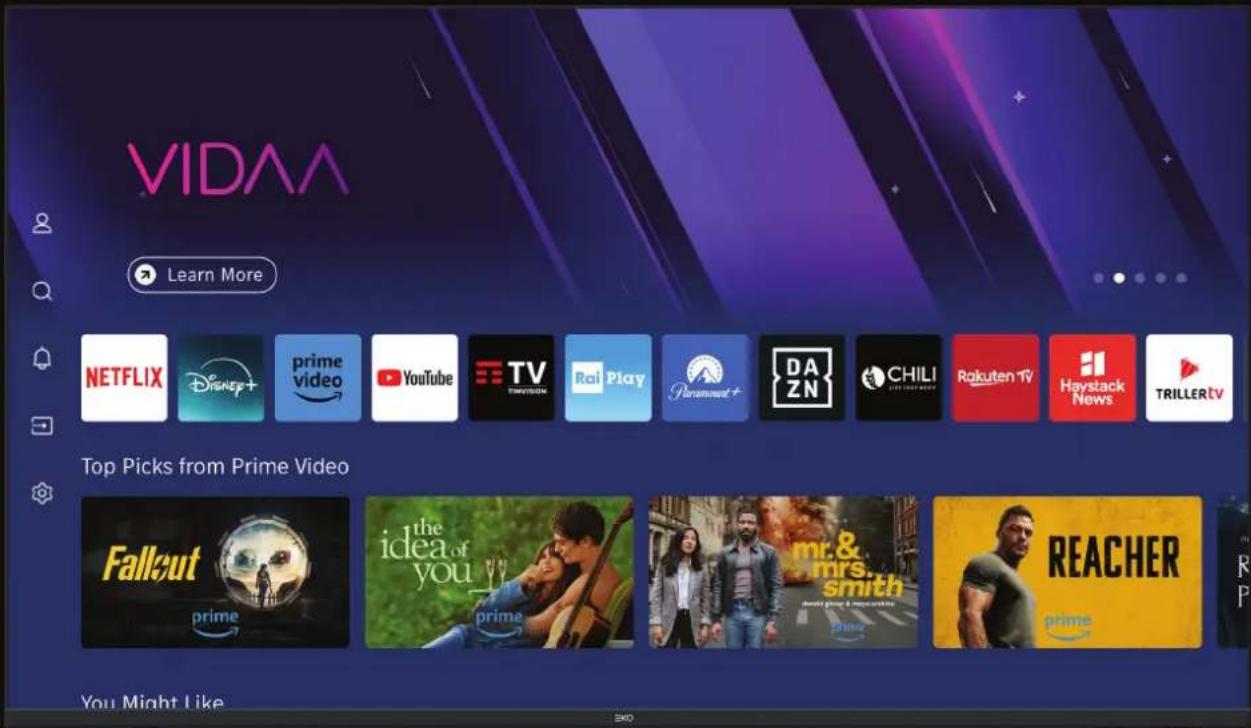
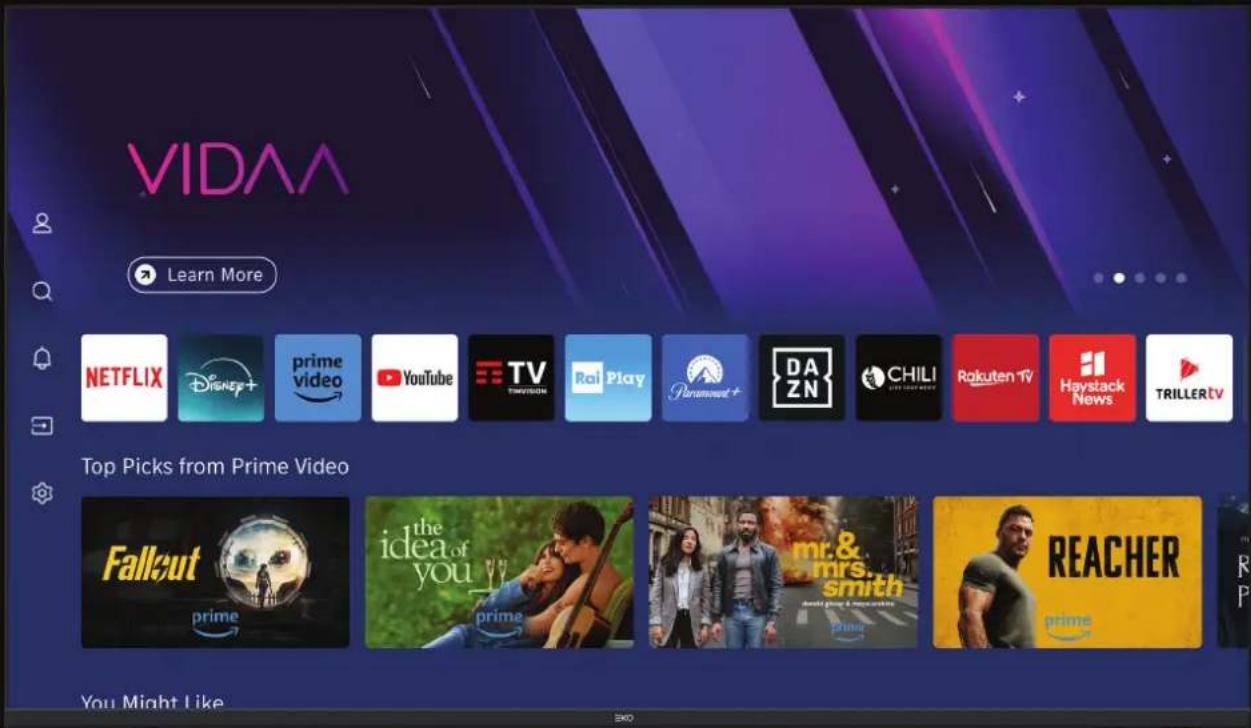
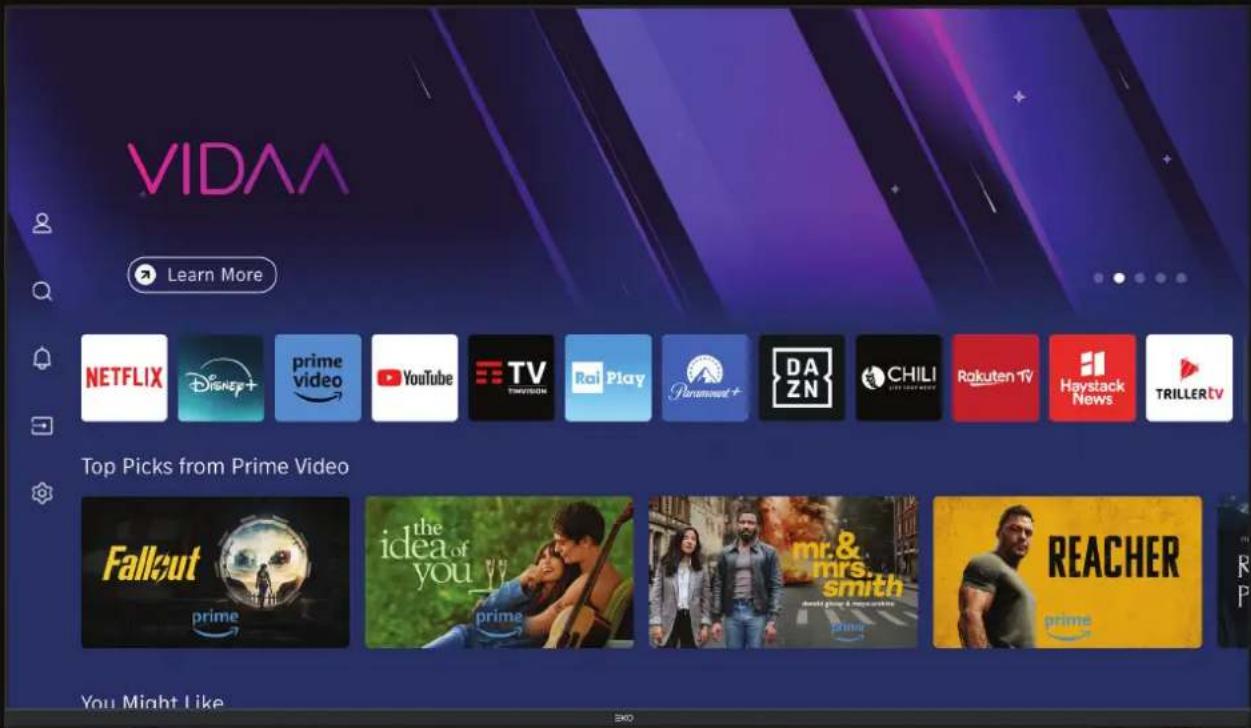
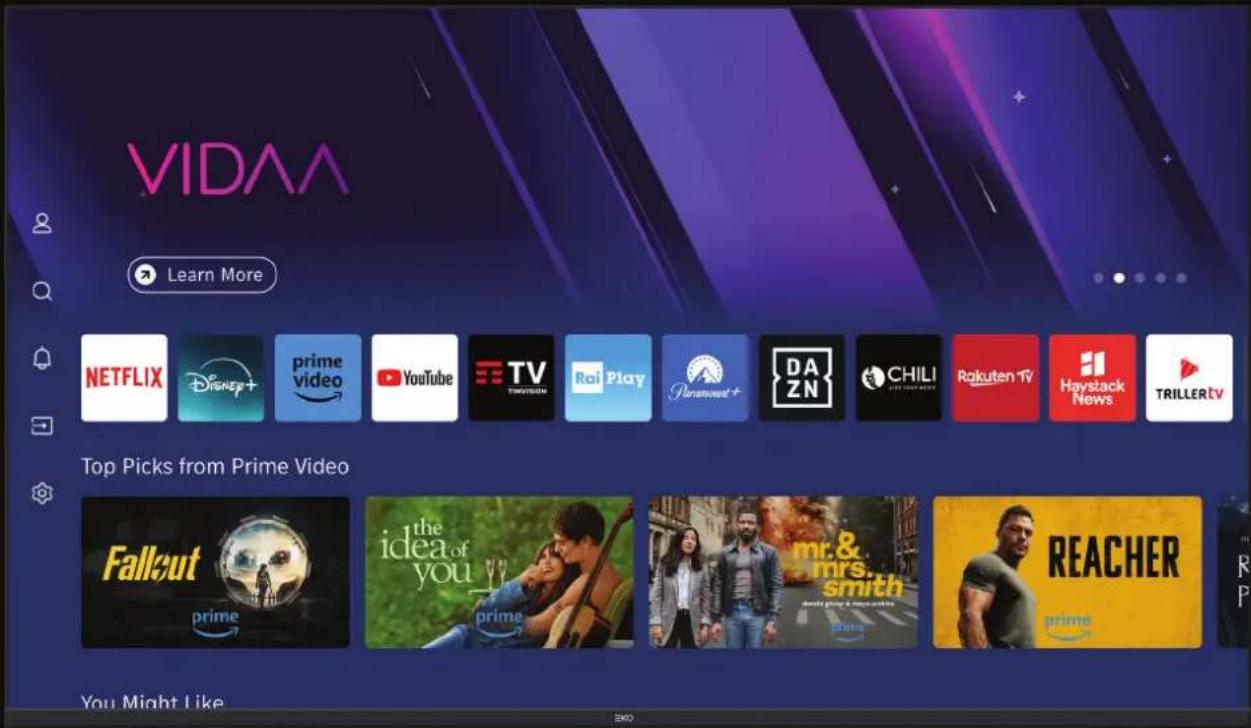
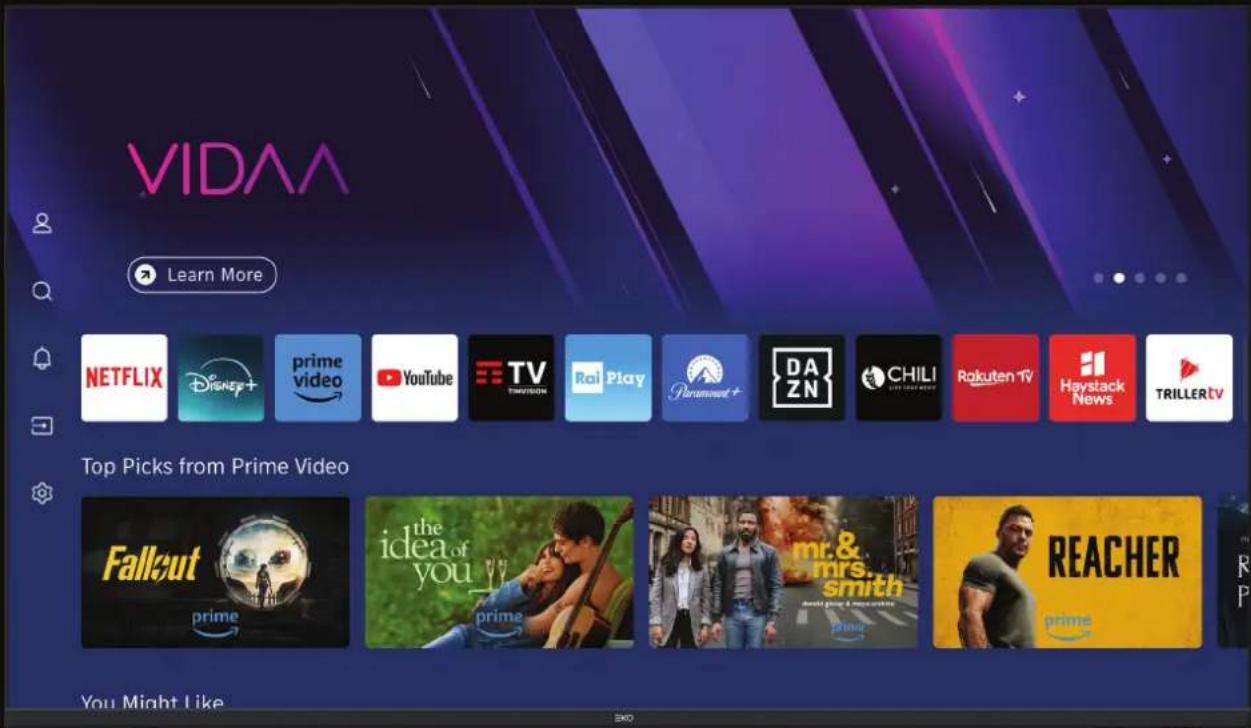
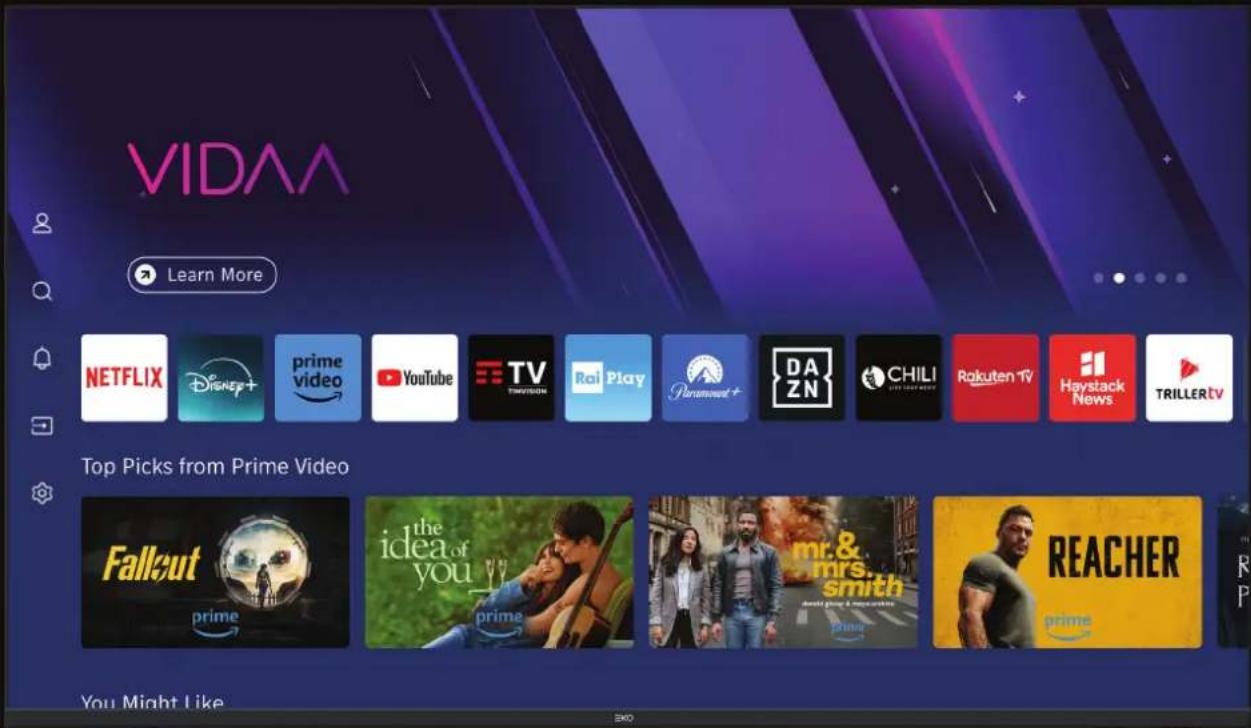
Once you have completed initial setup, you will now enter the VIDAA TV home screen.
Press 🏠 on remote control to enter Home Page.
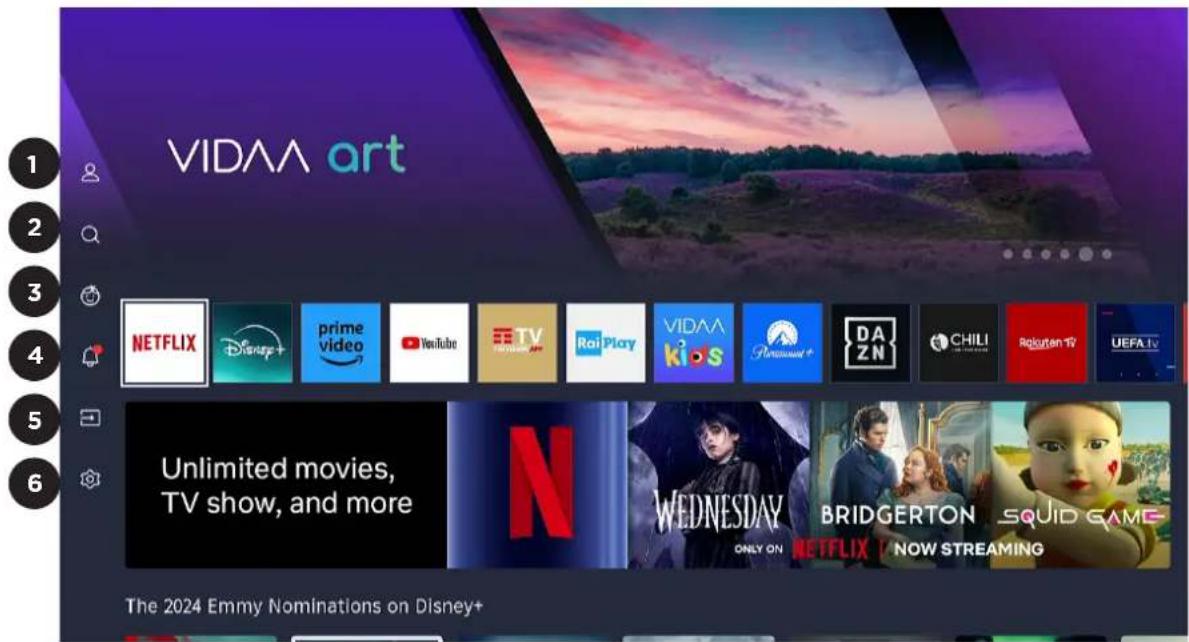
Manage apps: Select the item you want to move, and long press OK button to move or uninstall app.
- VIDAA account - Sign in your VIDAA account.
A VIDAA account gives you all the best feature of your smart TV and always keeps it up to date
-
Search - Search the app you want.
-
Kids - You can set up child viewing mode in this menu.
-
Notifications - Allow pop-up notifications to appear for useful information and events that occur with your TV.
Select Notifications on the Home screen, and select Settings then display Advertising, New Arrivals, Warnings And Legal Statements, System Message, from which you can choose the types of notifications you would like to receive.
- Input - Select the input source.
- SETTINGS - Select this if you want to access TV settings.
SETTING - PICTURE
To access SETTINGS menu, select SETTINGS (#6 on page 30) via the HOME screen.
To access Picture menu, select Setting (#6 on page 30) menu and go down and select Picture.
| Picture | |
| Picture | Picture ModeEnergy Saving |
| Sound | Picture Mode Settings |
| Connection | Game Settings |
| Channel | Intelligent Mode Settings |
| Accessibility | Aspect Ratio16:9 |
| System | |
| Support |
Picture Settings information on next page
SETTING - PICTURE
Picture Mode
You can select the Picture Mode that provides the best viewing experience.
- Standard: Use Standard mode for watching normal content, such as News, Drama or Documentaries.
- Cinema: Use Cinema for watching movies in a bright environment.
• Energy saving: Energy conservation. - Sports: This mode is more suitable for watching sport video.
Picture Mode Settings
Adjust display setting for each Picture Mode
- Apply Picture Settings: Adjust current picture mode to apply to all sources or just current source.
- Backlight: Adjust image backlight. (Optional: Off/Low/High).
- Brightness Adjust image brightness.
- Contrast: Adjust image contrast.
• Color Saturation: Adjust image color density. - Sharpness: Adjust the image edge sharpness.
- Advanced Settings: Adjust advanced picture settings based on your viewing preference.
- Reset Current Mode: Restore all the picture settings in the current picture mode to the factory default values.
Game Setting
Choosing the Game Mode under ON/OFF
Optimised for PC or Games consoles. Reduces Input Lag and improves responsiveness.
Intelligent Mode Settings
Choosing the AI Picture Optimisation under ON/OFF.
Set to On to enable the TV to recognise the scene content currently being watched to enhance the picture quality on all input sources.
Aspect Ratio
You can adjust the Aspect Ratio to stretch or zoom the picture.
• Auto, 16:9, 4:3, Movie Zoom
SETTING - SOUND
To access SOUND menu, select Setting (#6 on page 30) menu and go down and select SOUND.
| Sound | |
| Picture | Sound ModeStandard |
| Sound | Sound Mode Settings |
| Connection | Audio OutputTV Speaker |
| Channel | Audio Output Settings |
| Accessibility | |
| System | |
| Support |
SOUND Settings information on next page
SETTING - SOUND
You can select a favorite sound mode suitable for the content type or the listening environment.
- Standard: Produced a balanced sound in all environment.
- Theater: Increased the surround sound effect and provides a more prominent bass response.
- Music: Preserves the original sound. Good for musical programs.
- Speech: Low and high frequencies are attenuated to improve the reproduction and clarity of the human voice.
- Late Night: Improve the reproduction and clarity of the human voice with a low volume level.
- Sports: Optimised sound for watching Sports events.
Sound Mode Settings
Adjust the audio settings of the TV: Apply Audio Settings/Equalizer/Wall Mount Setup/Auto Volume Control/Reset Current Mode.
Audio Output
Select the audio connection method.
Audio Output Settings
Select the digital audio output format that best suits the audio device type.
SETTING - CONNECTION
To access CONNECTION menu, select Setting (#6 on page 30) menu and go down and select CONNECTION.
| Connection | |
| Picture | TV Name |
| Living Room TV | |
| Sound | Network |
| Connection | Mobile Device Connection |
| Channel | HDMI & CEC |
| Accessibility | Bluetooth |
| System | Device Management |
| Support | Mobile App Download |
NETWORK Settings information on next page
SETTING - CONNECTION
Network Configuration
You set the TV network by selecting Configuration and press the OK button to enter the submenu.
Automatically obtain an IP address
- If you connect to the wired network, the TV will automatically obtain an IP address and connect to the network.
- If the connection fails, disconnected message will display for the Ethernet status. Retry or enter the IP settings, and select Manual to input the information again.
Manually enter the IP address
- Enter the IP settings to select Manual.
- Enter the IP Address, Netmask, Gateway, DNS Server 1 and DNS Server 2 in the menu.
Note:
• This section is only for 4K models.
- You get access to the Internet through your TV.
- The default option of IP Settings Mode is DHCP.
HDMI & CEC
You can use your TV remote to control the external devices that are connected to the TV by HDMI cable. The external devices need to support HDMI & CEC Function (HDMI-CEC).
- Set HDMI Control to On.
- Connect an HDMI-CEC-compliant device to the TV.
- Turn on the connected external device. The device is automatically connected to the TV.
- After connection is finished, you can access the menu of the connected device on your TV screen using your TV remote and control the device.
Note:
- HDMI cables must be used to connect HDMI CEC-compatible devices to your TV.
- The HDMI CEC feature of the connected device must be turned on.
- If you connect an HDMI device that is not HDMI CEC-compatible, all the HDMI-CEC control features do not work.
- Depending on the connected HDMI device, the HDMI-CEC Control feature may not work.
SETTING - CHANNEL
To access CHANNEL menu, select Setting (#6 on page 30) menu and go down and select CHANNEL.
| Channel | |
| Picture | Auto Scan |
| Sound | Channel Edit |
| Connection | HbbTV |
| Channel | Advanced Settings |
| Accessibility | |
| System | |
| Support |
CHANNEL Settings information on next page
SETTING - CHANNEL
Auto Scan
Press OK button into the submenu, select Change Setup and press OK button to select Satellite, Antenna or Cable.
Channel List
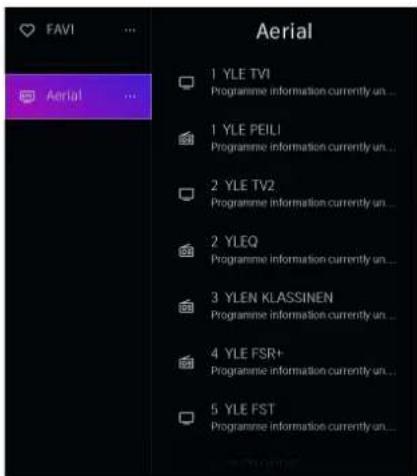
- Manually edit the channel list or favourite channel list to your preference.
Edit Channel List
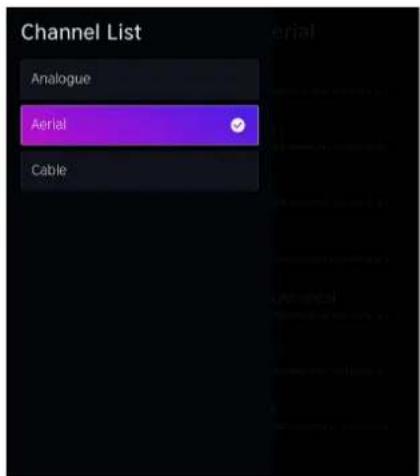
- Before you can edit the channel list, Channel Scan must be completed first. In Live TV, press button on your remote control and select Edit Channels. Alternatively, in Live TV, press button on your remote control and select All Settings > Channel > Channel Edit, then select a Live TV channel category such as Aerial or Cable.
Manage the channels
- Press OK button on the selected channel, then a checkbox will appear. You can select multiple channels at the same time to move or delete.
- Press < button to move the selected channel.
Moving the channels could be restricted by the operator. If you want to be able to move channels, it is not recommended to choose an operator during channel scan, also LCN should be set to OFF.
- Press ➤ button to delete the selected channel.
Edit Favourite Channel List
- Before you can edit the favourite list, Channel Scan must be completed first.
- In Live TV, press OK button on your remote control to display the channel list. Select the channel you want to add to the favourite list, press and hold button, the channel will be added to last visited favourite list automatically, and a heart-shape icon will appear next to the added channel.
- In Live TV, press OK button on your remote control. Select the channel you want to remove from the favourite list, press and hold OK button, the channel will be removed.
- In Live TV, press 📄 button on your remote control and select All Settings > Channel > Channel Edit, then select FAV1-FAV4. You can add, move, or remove favourite channels.
SETTING - CHANNEL
TV Guide
• In Live TV, display the TV Guide.
- Press GUIDE button on remote control, or press 📄 > Guide, to call out the Guide
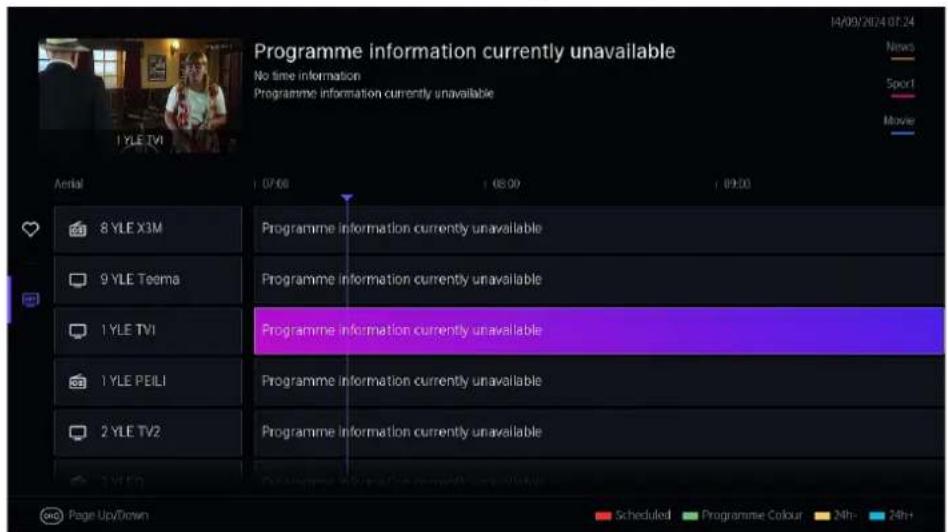
- Press Up/Down navigation button to select preferred channel.
- Press Left/Right navigation button to select preferred programme of some channel.
- Press the RED button to display a list of scheduled reminders.
- Press the GREEN button to display the colour menu and select GREEN, use the colors to indicate different genres in the GUIDE for quick and easy viewing.
- Press the YELLOW button to display the program guide of the previous day.
- Press the BLUE button to display the program guide of the following day.
Advance Settings
Advanced channel settings.
Note
In Live TV, press OK/ CH.LIST button on your remote control to display the Channel List menu. Press < button and select Aerial, press and hold OK button 3 seconds to display Live TV channel categories, such as Analogue, Cable, Satellite or Aerial.
SETTING - ACCESSIBILITY
To access ACCESSIBILITY menu, select Setting (#6 on page 30) menu and go down and select ACCESSIBILITY.
| Accessibility | |
| Picture | Subtitle Settings |
| Sound | Voice Guide |
| Connection | Audio Type |
| Channel | Dialogue Enhancement |
| Accessibility | High Contrast Menu |
| System | Menu TransparencyMedium |
| Support | Accessible GuideOffScreen Magnification |
- Subtitle Settings: Adjust Subtitle Settings for digital broadcast content.
• Voice Guide: Voice Guide setup.
• Audio Type: Accessibility audio settings. - Dialogue Enhancement: Enable or disable dialogue enhancement.
• High Contrast Menu: Turn High Contrast Menu On or Off. - Menu Transparency: Set the transparency of menu. (Optional: Off/Medium/High)
- Screen Magnification: Allow visually impaired/partially sighted viewers to magnify an area of the screen.
SETTING - SYSTEM
To access SYSTEM menu, select Setting (#6 on page 30) menu and go down and select SYSTEM.
| System | |
| Picture | Time |
| Sound | Timer Settings |
| Connection | Language and Location |
| Channel | Voice Service |
| Accessibility | Parental Control |
| System | Application Settings |
| Support | Advanced Settings |
SYSTEM Settings information on next page
SETTING - SYSTEM
Time:
Set the current time based on your location.
- Time Format: Set the time to display in a 12 or 24-hour format.
- Date/Time: Set the date and time.
• Time Zone: Set the time zone. - Daylight Savings: Select whether to apply Daylight Savings Time to the TV.
Timer Settings
Adjust the timer settings to suit your preference.
- Sleep Timer: Set the sleep timer to automatically turn the TV Off within a specified time: Off, 15 Minutes, 30 Minutes, 60 Minutes, 90 Minutes, 120 Minutes, User Defined.
- Power On Timer: Set the clock for the time you want the TV to turn on automatically. You can set the time only once or set the time in specified date weekly.
- Power Off Timer: Set the clock for the time you want the TV to turn off automatically. You can set the time only once or set the time in specified date weekly.
- Menu Timeout: Set the amount of time that you would like for the menu to display: Off, 10s, 20s, 30s, 60s.
- Auto Sleep: Set the amount of time that you would like the TV to auto power off after a period of no activity : Off, 3H, 4H.
- Auto Standby with No Signal: TV will go to standby if there is no signal after the set time: Off, 15min.
Language and Location
Choose the language of the TV and your location.
Voice Service
Use your voice to control the TV, other smart home devices and more.
Parental Control
Turn on Parental Controls to prevent children from being able to view certain content.
Application Settings
Set up Application preferences.
Advanced Settings
Access the Advanced Settings menu.
SETTING - SUPPORT
To access SUPPORT menu, select Setting (#6 on page 30) menu and go down and select SUPPORT.
| Support | |
| Picture | About |
| Sound | System Update |
| Connection | E-Manual |
| Channel | Self Diagnosis |
| Accessibility | Disclaimer and Privacy |
| System | Reset to Factory Default |
| Support | |
SYSTEM Settings information on next page
SETTING - SUPPORT
About
View the TV's software version and hardware version.
System Upgrade
Set your TV to receive the latest firmware.
- Auto Upgrade: Set your TV to automatically receive the latest firmware.
- Check Upgrade: Check to ensure that your TV has received the latest firmware.
Please ensure your TV is connected to the internet. - Upgrade From USB: Upgrade TV software from USB device.
Note:
- Please ensure the USB flash drive insert to USB2.0 port of the TV.
- The updating files must be available in root directory.
- The format of the USB must be FAT32 and the partition table type must be MBR.
E-Manual
Launch the E-Manual and get to know more about your TV: First-Time Use, Enjoy Live TV, Benefits of Smart TV, Connecting to External Devices, Settings Overview, Entertainment, Accessibility Features, Troubleshooting.
Self Diagnosis
Perform self diagnosis to test sound, picture and connections.
Disclaimer and Privacy
Click to read the Disclaimer details.
Reset to Factory Default
Restore your TV to the factory default.
MULTI-SCREEN
Screen Sharing
Mirror content from your device to the TV.
Press INPUT enter Screen Sharing.
-
Turn on the casting function of your Android/Windows10 device.
-
Find the TV name in the searching list of your device and select it. Wait for the connection progress to complete and the content on your device will be displayed on the TV.
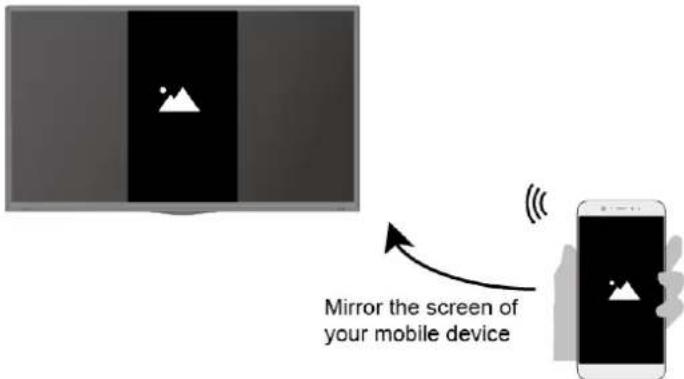
NOTE: some Android devices may not support casting.
Content Sharing
Share media content, like videos, music or photos, from your device to the TV screen.
Before you use this function, turn on Content Sharing at ⓗ > Settings > System > Mobile
Device Connection > Content Sharing.
- Establishing Content Sharing connection between the TV and your device
-
Turn on the content sharing function of your device.
-
Find the TV name in the searching list of your device and select it.
-
Wait for the connection progress to complete, and select the content you want to share.
• Viewing media content of your device
Press INPUT button on your remote, and select a media content on the screen.

Note:
• Make sure your device and the TV are connected to the same network
- Some devices may not support content sharing. If your device doesn't support content sharing, you can download an app that supports the function.
- If you want to mirror content from your device, go to INPUT > Screen Sharing.
USB DEVICE
Connect the USB devices such as hard drives, USB sticks and digital cameras for browsing photos, listening to music.
Media
Playing Media contents

> Media
By default, there are Content Sharing displayed on the Media screen. If your mobile device is connected to the TV, its name also appears on the Media screen.
Note: For more information about Content Sharing, refer to its detailed introduction.

> Media > connected device
Select the content you want to play on the screen, like pictures, videos and music.
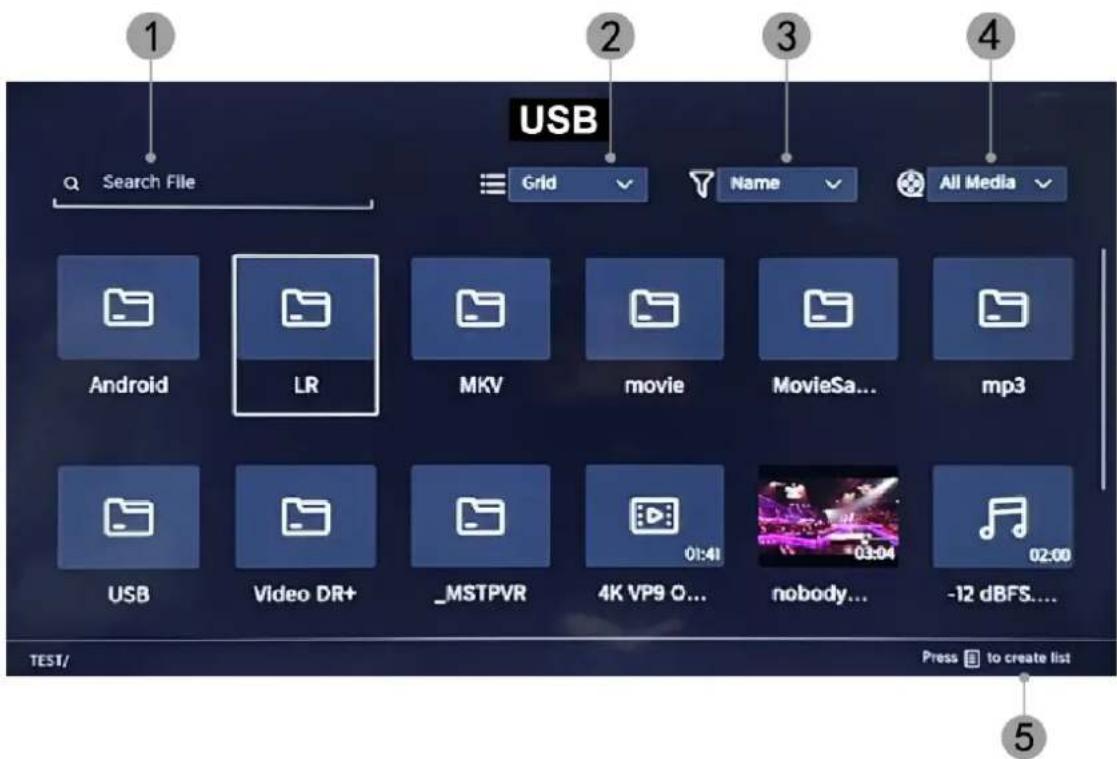
- Input the content name you want to play.
- Arrange the content list by Grid, List.
- Arrange the content list by Name, Date Modified, Size.
- Filter the content list by All Media, Photo, Video, Music.
- Create a photo, music, or video playlist.
GENERAL PROBLEMS WITH TV SET
| Symptoms Items to check and actions to follow | |
| “ghost” or double image | This may be caused by obstruction to antenna due to high rise buildings or hills. Using a highly directional antenna may improve the picture. |
| No power | ·Check if the TV's AC power cord is plugged into the outlet. ·Unplug the TV, wait for 60 seconds. Then reinsert plug into the outlet and turn on the TV again. |
| No picture | ·Check antenna connections at the rear of the TV to see if it is properly connected to the TV. ·Possible broadcast station trouble. Try another channel. ·Adjust the contrast and brightness setting. ·Check the Closed Captions control. Some TEXT modes could block the screen. |
| Good picture but no sound | ·Increase the volume level by pressing the VOL+ button on the remote control or on the TV side control panel. ·Press the MUTE button on the remote control to ensure mute is off. |
| Good sound but poor color | Adjust the contrast, color and brightness settings |
| Snowy picture and noise | Check the antenna connection |
| Horizontal dotted line | This may be caused by electrical interference (e.g. hair dryer, nearby neon lights, etc.) Turn off the equipment. |
| Television not responding to remote control | ·Check whether the batteries are working. Replace if necessary. ·Clean the remote control sensor lens on the TV. ·You can still use the buttons on the side of your TV. |
| Pixels (dots) that are always dark or always lit | Your TV is precision-manufactured using an extremely high level of technology. However, sometimes pixels may not display correctly. These types of occurrences are inherent to this type of product and do not constitute a defective product. |
EKO
DISTRIBUTED BY:
Ayonz Central Ltd
EKO
VIDAA
43" FULL HD SMART TV
K430FVD
CONTENUTI
natural_image
Warning symbol of a lightning bolt inside a triangle (no text or numbers)natural_image
Warning symbol of an ear inside a triangle (no text or numbers)natural_image
Symbolic icon of a person pushing a large object, enclosed in a circle (no text or symbols)ISTRUZIONI GENERALI DI SICUREZZA (Cont.)
natural_image
Top-down view of a black plastic enclosure with red dashed alignment lines and Chinese character '陆' (no other text or symbols)Passo 3
ATTACCO VESA: 200 x 200mm
Viti M6*8mm (4 pcs)
natural_image
Top-down view of a black electronic device rear panel with visible mounting feet and a red indicator light on the front panel (no text or symbols)natural_image
Back view of a black electronic device with a visible internal panel and arrow indicating downward motion (no text or symbols)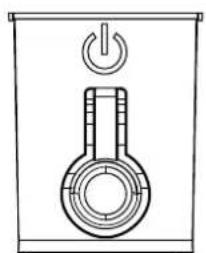
natural_image
Simple line drawing of a thermometer inside a container with an electrical switch above (no text or symbols)POWER ON/OFF
CONNESSIONI E CONTROLLI


- INGRESSO ETHERNET (RJ45)
- OPTICAL
- INGRESSO AV
- RF1 (S2)
- RF2 (T2)
- HDMI 3 / ARC
- HDMI 2
- HDMI 1
- INGRESSO USB 1 & 2
- CUFFIE
- Cl+
Connessione USB
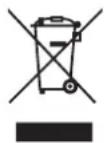
Disposal of old electrical & electronic equipment (Applicable in the European Union and other European countries with separate collection systems)
This symbol on the product or in its packaging indicates that this product shall not be treated as household waste. Instead it shall be handed over to the applicable collection point for the recycling of electrical and electronic equipment. By ensuring this product is disposed of correctly, you will help prevent potential negative consequences for the environment and human health, which could otherwise be caused by inappropriate waste handling of this product. The recycling of materials will help to conserve natural resources. For more detailed information about recycling of this product, please contact your local city office, your household waste disposal service or the shop where you purchased the product.
Français
43" FULL HD SMART TV
K430FVD
INHALT
natural_image
Warning symbol of a lightning bolt inside a triangle (no text or numbers)natural_image
Warning symbol with a triangle containing an ear and sound waves (no text or numbers)natural_image
Symbolic icon of a person pushing a ladder inside a circle (no text or symbols)natural_image
Top-down view of a black plastic enclosure with red dashed lines indicating mounting points (no text or symbols)Schritt 3
natural_image
Top-down view of a black electronic device rear panel with visible mounting feet and a red indicator light on the front panel (no text or symbols)natural_image
Back view of a black electronic device with a visible internal panel and mounting feet, marked with a downward arrow (no text or symbols)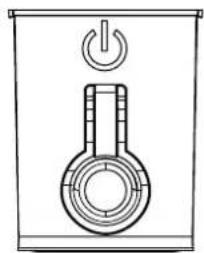
natural_image
Simple line drawing of a thermometer inside a container with a power button (no text or symbols)POWER ON/OFF
To access SOUND menu, select Setting (#6 on page 30) menu and go down and select SOUND.

Select the digital audio output format that best suits the audio device type.
SYSTEM Settings information on next page
SYSTEM Settings information on next page
SETTING - SUPPORT
Geräteinformationen
43" FULL HD SMART TV
K430FVD
natural_image
Warning symbol of a lightning bolt inside a triangle (no text or numbers)natural_image
Warning symbol with a triangle containing an ear and sound waves (no text or numbers)| Information Value and precision Unit | ||||
| Supplier's name or trade mark | EKO -- | |||
| Supplier's model identifier | K430FVD | -- | ||
| Energy efficiency class for standard Dynamic Range (SDR) | E | -- | ||
| On mode power demand for Standard Dynamic Range (SDR) | 42 | W | ||
| Energy efficiency class (HDR) | - | -- | ||
| On mode power demand in High Dynamic Range (HDR) mode | - W | |||
| Off mode, power demand | - | W | ||
| Standby mode, power demand | ≤0.5 W | |||
| Networked Standby mode, power demand | ≤ 2 W | |||
| Electronic display category | television | -- | ||
| Size ratio | 16 : 9 integer | |||
| Screen resolution (pixels) | 1920 x 1080 | pixels | ||
| Screen diagonal | 108 | cm | ||
| Screen diagonal | 43 | inches | ||
| Visible screen area | 4978 | cm2 | ||
| Panel technology used | LED LCD | -- | ||
| Automatic Brightness Control (ABC) available | NO | -- | ||
| Voice recognition sensor available | NO | -- | ||
| Room presence sensor available | NO | -- | ||
| Image refresh frequency rate | 60 | Hz | ||
| Minimum guaranteed availability of software and firmware updates (until): | 8 years | -- | ||
| Minimum guaranteed availability of spare parts (until): | 7 years | -- | ||
| Minimum guaranteed product support (until): | 04/30/2026 | -- | ||
| Power supply type: | Internal | -- | ||
SPÉCIFICATIONS
| Équipement d'affichage 43” FULL HD Smart TV | |
| Résolution 1920 x 1080 | |
| Couleur du moniteur 16.7 Million | |
| Le contraste 4000 : 1 | |
| Ratio d'aspect 16 : 9 | |
| Version du logiciel S0432.V0202 | FF2.00.08.52N.P0307 |
| Fréquence de fonctionnement WiFi | 2.4GHz |
| Puissance de transmission maximale du WiFi | IEEE 802.11b 17±2 dBm at 11MbpsIEEE 802.11g 14±2 dBm at 54MbpsIEEE 802.11n -2.4GHz Band/HT20: 14±2 dBm at MCS72.4GHz Band/HT40: 14±2 dBm at MCS7 |
| Entrée / sortie | Tuner: DVB-T2 H.265 HEVC MAIN 10, DVB-S2HDMI x3, USB x2, OPTICAL Out x1, RF IN x2, RJ45 x1, AV IN x1, EARPHONE x1, CI+ x1 |
| Format de lecture multimédia en mode USB | Movie: MP4, MOV, MKV, TS, AVI, FLV |
| Music: WAV, MP3, WMA, FLAC | |
| Photo: JPEG, PNG, BMP, GIF | |
| Puissance 100-240V ~ 50/60Hz | |
| Consommation électrique 80 W | |
| Dimensions | Avec support: 955 x 206 x 603 mm (w x d x h) |
| Sans support: 955 x 84 x 555 mm (w x d x h) | |
| Poids | Réseau: 5.8 kg |
| Brut: 7.4 kg | |
natural_image
Top-down view of a black plastic enclosure with red dashed lines indicating mounting points (no text or symbols)Étape 3
natural_image
Top-down view of a black rectangular electronic device with internal components and mounting feet (no visible text or symbols)natural_image
Back view of a black electronic device with a visible internal panel and arrow indicator (no text or symbols)
natural_image
Simple line drawing of a thermometer inside a container with an electrical switch above (no text or symbols)POWER ON/OFF
CONTRÔLE ET CONNEXION


- ETHERNET INPUT (RJ45)
- OPTICAL
- AV INPUT
- RF1 (S2)
- RF2 (T2)
- HDMI 3 / ARC
- HDMI 2
- HDMI 1
- USB 1 & 2
- EARPHONE
- Cl+
Connexion USB
43" FULL HD SMART TV
K430FVD
INSTRUCCIONES DE USO
Lea cuidadosamente este manual antes de usarlo y guardarlo para referencia.
CATÁLOGO
natural_image
Warning symbol of a lightning bolt inside a triangle (no text or numbers)natural_image
Warning symbol with a triangle containing an ear and sound waves (no text)natural_image
Symbolic icon of a person pushing a cart inside a circle (no text or symbols)| Information Value and precision Unit | ||||
| Supplier's name or trade mark | EKO -- | |||
| Supplier's model identifier | K430FVD | -- | ||
| Energy efficiency class for standard Dynamic Range (SDR) | E | -- | ||
| On mode power demand for Standard Dynamic Range (SDR) | 42 | W | ||
| Energy efficiency class (HDR) | - | -- | ||
| On mode power demand in High Dynamic Range (HDR) mode | - W | |||
| Off mode, power demand | - | W | ||
| Standby mode, power demand | ≤0.5 W | |||
| Networked Standby mode, power demand | ≤2 W | |||
| Electronic display category | television | -- | ||
| Size ratio | 16 : 9 integer | |||
| Screen resolution (pixels) | 1920 x 1080 | pixels | ||
| Screen diagonal | 108 | cm | ||
| Screen diagonal | 43 | inches | ||
| Visible screen area | 4978 | cm2 | ||
| Panel technology used | LED LCD | -- | ||
| Automatic Brightness Control (ABC) available | NO | -- | ||
| Voice recognition sensor available | NO | -- | ||
| Room presence sensor available | NO | -- | ||
| Image refresh frequency rate | 60 | Hz | ||
| Minimum guaranteed availability of software and firmware updates (until): | 8 years | -- | ||
| Minimum guaranteed availability of spare parts (until): | 7 years | -- | ||
| Minimum guaranteed product support (until): | 04/30/2026 | -- | ||
| Power supply type: | Internal | -- | ||
ESPECIFICACIONES
natural_image
Interior view of a black plastic enclosure with red dashed alignment markers indicating mounting points (no text or symbols)Cuidado!
natural_image
Top-down view of a black electronic device rear panel with visible internal components and mounting feet (no text or symbols)natural_image
Back view of a black electronic device with a visible internal panel and arrow indicating downward motion (no text or symbols)
natural_image
Simple line drawing of a thermometer inside a container with an electrical switch (no text or symbols)POWER ON/OFF
CONTROL Y CONEXIÓN


- ETHERNET INPUT (RJ45)
- OPTICAL
- AV INPUT
- RF1 (S2)
- RF2 (T2)
- HDMI 3 / ARC
- HDMI 2
- HDMI 1
- USB 1 & 2
- EARPHONE
- Cl+
Conexión USB
natural_image
Simple graphic with a white mountain icon on a black vertical bar, no text or symbols present.43" FULL HD SMART TV
K430FVD
MANUAL DE INSTRUÇÕES
natural_image
Warning symbol of a lightning bolt inside a triangle (no text or numbers)natural_image
Warning symbol with a triangle containing an ear and sound waves (no text or numbers)natural_image
Symbolic icon of a person pushing a ladder inside a circle (no text or symbols)| Information Value and precision Unit | ||||
| Supplier's name or trade mark | EKO -- | |||
| Supplier's model identifier | K430FVD | -- | ||
| Energy efficiency class for standard Dynamic Range (SDR) | E | -- | ||
| On mode power demand for Standard Dynamic Range (SDR) | 42 | W | ||
| Energy efficiency class (HDR) | - | -- | ||
| On mode power demand in High Dynamic Range (HDR) mode | - W | |||
| Off mode, power demand | - | W | ||
| Standby mode, power demand | ≤0.5 W | |||
| Networked Standby mode, power demand | ≤ 2 W | |||
| Electronic display category | television | -- | ||
| Size ratio | 16 : 9 integer | |||
| Screen resolution (pixels) | 1920 x 1080 | pixels | ||
| Screen diagonal | 108 | cm | ||
| Screen diagonal | 43 | inches | ||
| Visible screen area | 4978 | cm2 | ||
| Panel technology used | LED LCD | -- | ||
| Automatic Brightness Control (ABC) available | NO | -- | ||
| Voice recognition sensor available | NO | -- | ||
| Room presence sensor available | NO | -- | ||
| Image refresh frequency rate | 60 | Hz | ||
| Minimum guaranteed availability of software and firmware updates (until): | 8 years | -- | ||
| Minimum guaranteed availability of spare parts (until): | 7 years | -- | ||
| Minimum guaranteed product support (until): | 04/30/2026 | -- | ||
| Power supply type: | Internal | -- | ||
ESPECIFICAÇÃO
natural_image
Top-down view of a black plastic panel with red dashed alignment markers indicating mounting points (no text or symbols)Passo 3
natural_image
Top-down view of a black electronic device rear panel showing internal components and mounting feet (no text or symbols visible)natural_image
Back view of a black electronic device with a white panel and mounting feet, showing a downward arrow indicating compression or disassembly (no text or symbols present)
natural_image
Simple line drawing of a thermometer inside a container with an open power button (no text or symbols)POWER ON/OFF
Pressione INPUT enter Screen Sharing.
43" FULL HD SMART TV
K430FVD
INSTRUKCJA OBSŁUGI
Read this instruction manual carefully as it contains important information on the safety, use and maintenance of the appliance. Keep the manual for future reference.
- Disconnect the plug from the wall socket in case of a long period of disuse. Disconnect the plug and antenna cable even in severe thunderstorms.
- Do not pull the cable to pull the plug out of the socket
- Do not rest heavy objects on the cables
- Do not bend or knot the cables
- The TV screen is made of a fragile material, therefore, it should not be subjected to impact or pressure to avoid damage. If it is damaged, remove the plug from the socket and contact a service center. If liquid comes out of the panel, be careful and do not let it come into contact with your eyes and mouth, contact a doctor if necessary.
- Switch off and unplug from the mains before cleaning and maintenance. For cleaning, use only a clean dry cloth.
Do not use aggressive detergents such as thinners, alcohol, petrol. - Place the device on a stable surface that can withstand its weight. If you are using a
mobile, it must be strong and large enough to prevent the TV from protruding beyond
edges of the cabinet. If it is fixed to the wall, follow the instructions for correct fixing to avoid danger. Do not place the TV in high positions (furniture, shelves, shelves) unless they are properly fixed to the wall. Do not place any textile or similar product between the TV and the furniture.
It is necessary to inform children about the dangers so as to prevent them from climbing on the furniture to reach the TV and its accessories. - Leave adequate space on the sides of the TV to ensure proper ventilation
- Do not expose the TV to direct sunlight, heat sources or naked flame sources (candles)
OGÓLNE INSTRUKCJE BEZPIECZEŃSTWA
-
No objects containing liquids, such as vases, should be placed on the TV. Avoid exposure to drops and splashes of water.
-
Connect only to a mains socket that complies with the regulations in force and in accordance with the rating plate data of the TV. The mains socket must be close and easily accessible to disconnect the TV in case of danger. If the TV does not have a specific shutdown switch, to turn off the TV, disconnect the mains plug.
-
Do not insert objects of any kind into the slots of the TV due to the danger of electric shock. If the TV does not have a specific shutdown switch, to turn off the TV, disconnect the mains plug.
-
Do not insert objects of any kind into the slots of the TV due to the danger of electric shock.
-
Read this manual carefully before using the TV.
-
Keep this manual, the complete warranty card, receipt, and product packaging. The safety precautions instructions reduce the risk of fire, electric shock and injury when followed correctly. Please follow all instructions and take note of all warnings.
OGÓLNE INSTRUKCJE BEZPIECZEŃSTWA

natural_image
Warning symbol of a lightning bolt inside a triangle (no text or numbers)natural_image
Warning symbol with a triangle containing a stylized ear and sound waves (no text or numbers)natural_image
Interior view of a black plastic enclosure with red dashed lines indicating mounting points (no text or symbols)Krok 3
natural_image
Back view of a black electronic device with internal components and mounting feet (no visible text or symbols)natural_image
Back view of a black electronic device with a circular vent and mounting feet, showing a downward arrow indicating compression or disassembly (no text or symbols present)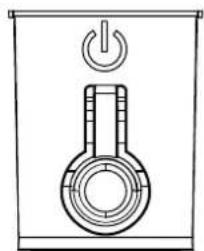
natural_image
Simple line drawing of a thermometer inside a container with an open power button (no text or symbols)POWER ON/OFF
URZĄDZENIA STERUJĄCE I POŁĄCZENIA


- ETHERNET INPUT (RJ45)
- OPTICAL
- AV INPUT
- RF1 (S2)
- RF2 (T2)
- HDMI 3 / ARC
- HDMI 2
- HDMI 1
- USB 1 & 2
- EARPHONE
- Cl+
Połączenie USB


- 43" FULL HD SMART TV
- CONTENTS
- GENERAL SAFETY INSTRUCTIONS
- Read this instruction manual carefully as it contains important information on the safety, use and maintenance of the appliance. Keep the manual for future reference.
- GENERAL SAFETY INSTRUCTIONS (Cont.)
- WARNING
- Installation
- WARNING!
- Be sure to position the product according to the following considerations:
- TREATMENT AND DISPOSAL OF BATTERIES
- CLEANING AND MAINTENANCE
- Dear Customer
- Attaching the stand
- Step 1
- Step 2
- Step 3
- CAUTION!
- INSTALLATION (Cont.)
- Wall-Mounting Instructions
- BACK OF TV
- CONTROLS AND CONNECTIONS
- REMOTE CONTROL
- REMOTE CONTROL (CONT.)
- REMOTE CONTROL BATTERY INSTALLATION AND WARNINGS
- INITIAL SETUP
- INITIAL SETUP (CONT.)
- VIDAA TV - HOME SCREEN
- SETTING - PICTURE
- Picture Mode
- Picture Mode Settings
- Game Setting
- Intelligent Mode Settings
- Aspect Ratio
- SETTING - SOUND
- You can select a favorite sound mode suitable for the content type or the listening environment.
- Sound Mode Settings
- Audio Output
- Audio Output Settings
- SETTING - CONNECTION
- Network Configuration
- HDMI & CEC
- Note:
- SETTING - CHANNEL
- Auto Scan
- Channel List
- Edit Channel List
- Manage the channels
- Edit Favourite Channel List
- TV Guide
- Advance Settings
- Note
- SETTING - ACCESSIBILITY
- SETTING - SYSTEM
- Time:
- Timer Settings
- Language and Location
- Voice Service
- Parental Control
- Application Settings
- Advanced Settings
- SETTING - SUPPORT
- About
- System Upgrade
- E-Manual
- Self Diagnosis
- Disclaimer and Privacy
- Reset to Factory Default
- MULTI-SCREEN
- Screen Sharing
- Content Sharing
- Device Connection > Content Sharing.
- USB DEVICE
- Media
- > Media
- > Media > connected device
- GENERAL PROBLEMS WITH TV SET
- EKO
- VIDAA
- CONTENUTI
- ISTRUZIONI GENERALI DI SICUREZZA (Cont.)
- Passo 3
- CONNESSIONI E CONTROLLI
- Connessione USB
- Français
- INHALT
- Schritt 3
- Geräteinformationen
- Étape 3
- CONTRÔLE ET CONNEXION
- Connexion USB
- CATÁLOGO
- Cuidado!
- CONTROL Y CONEXIÓN
- Conexión USB
- INSTRUKCJA OBSŁUGI
- OGÓLNE INSTRUKCJE BEZPIECZEŃSTWA
- Krok 3
- URZĄDZENIA STERUJĄCE I POŁĄCZENIA
- Połączenie USB
Brand : EKO
Model : K430FVD
Category : Television