ViewBoard IFP5551 - Monitor VIEWSONIC - Free user manual and instructions
Find the device manual for free ViewBoard IFP5551 VIEWSONIC in PDF.


User questions about ViewBoard IFP5551 VIEWSONIC
0 question about this device. Answer the ones you know or ask your own.
Ask a new question about this device
Download the instructions for your Monitor in PDF format for free! Find your manual ViewBoard IFP5551 - VIEWSONIC and take your electronic device back in hand. On this page are published all the documents necessary for the use of your device. ViewBoard IFP5551 by VIEWSONIC.
USER MANUAL ViewBoard IFP5551 VIEWSONIC
text_image
Technical diagram showing a cross-section with a labeled component and a red X mark indicating failure or failure.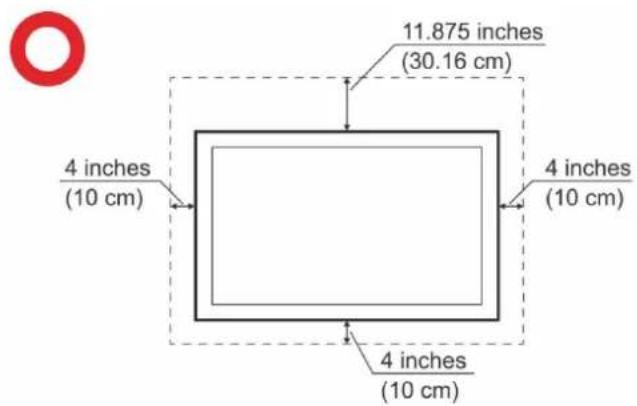
text_image
11.875 inches (30.16 cm) 4 inches (10 cm) 4 inches (10 cm) 4 inches (10 cm)myViewBoard Whiteboard....166
Protocole RS-232....169
Description 169
RS-232 Hardware Specification 169
LAN Hardware Specification.... 170
RS-232 Communication Setting.... 170
LAN Communication Setting 170
Command Message Reference.... 170
Protocol 171
Set-Function Listing.... 171
Get-Function Listing 179
Remote Control Pass-through Mode 187
Annexe....190
text_image
Two blank rectangular boxes with red 'X' and green checkmark indicators, likely for checklist or confirmation.Aperçu du produit
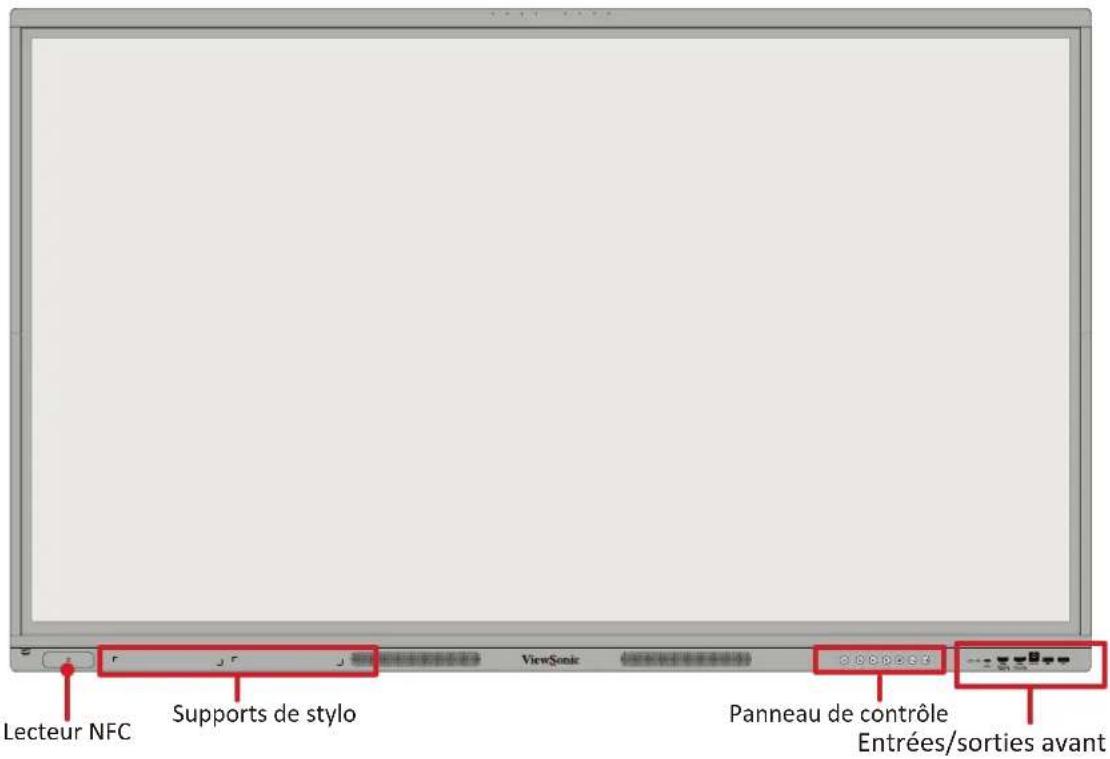
IFP5551
Panneau avant
natural_image
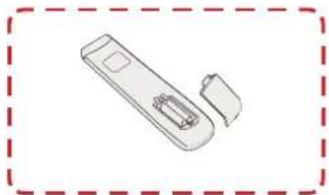
Illustration of hands holding a handheld device with a small object inside (no text or symbols)(1)
natural_image
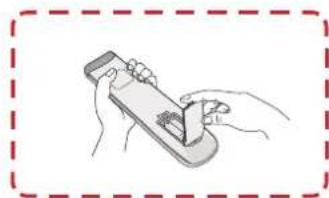
Simple line drawing of a remote control device with a handle and socket (no text or symbols)(2)
natural_image
Illustration of hands using a handheld device to interact with a device (no text or symbols visible)(3)
natural_image
Simple line drawing of a pointing hand with a red outline (no text or symbols)natural_image
Simple line drawing of a hand pointing upward (no text or symbols)Double-clic
natural_image
Simple line drawing of a hand pointing with a red arrow (no text or symbols)text_image
Diagram showing a hand with bidirectional arrows indicating left and right motion, labeled 'Vermilion' in the corner.natural_image
Hand pointing upward with a red arrow, displayed in a software interface (no text or symbols on the hand or background)text_image
Diagram showing installation of a device panel with labeled components and wiring connectionstext_image
RS-232 Computertext_image
LAN Router / Other Network Signal Outputtext_image
Media Sourcetext_image
AUDIO IN Computertext_image
AUDIO OUT Speakernatural_image
Top-down schematic of a computer monitor chassis showing internal components and ventilation ducts (no text or labels)text_image
Technical diagram showing device panel assembly with red arrows indicating component alignment and assembly direction.text_image
Technical diagram showing a device rear panel with red directional arrows indicating rotation or movement, and a cable connector labeled '2.5V'.natural_image
Technical diagram of a computer chassis showing internal components and a zoomed-in view with red arrows indicating movement (no text or symbols present)natural_image
Diagram showing a hand interacting with a device panel, no text or symbols presentEnglish (United States)
Vision settings

Choose your language
Suggested
English (United States)
text_image
Vision Settings You can customize this device to fit your needs. These accessibility features can be changed later in Settings. Display size and text Magnification Zoom in on screen Select to Speak Tap items on your screen to hear them read aloud TalkBack Screen reader primarily for people with blindness and low vision Donetext_image
Connect to Wi-Fi Select a network Searching for Wi-Fi networks_ ✓ See all Wi-Fi networks + Add new network Set up offlinetext_image
Date & time Adjust if needed. GMT+01:00 London Date Wed, Sep 13, 2023 Time 02:48 Nexttext_image
Copy apps & data You can choose to transfer your apps, photos, contacts, Google Account, and more Don't copy Nexttext_image
Use another device You need another Android device, or an iPhone or iPad. Turn it on, and keep it unlocked. Can't use other devices? OK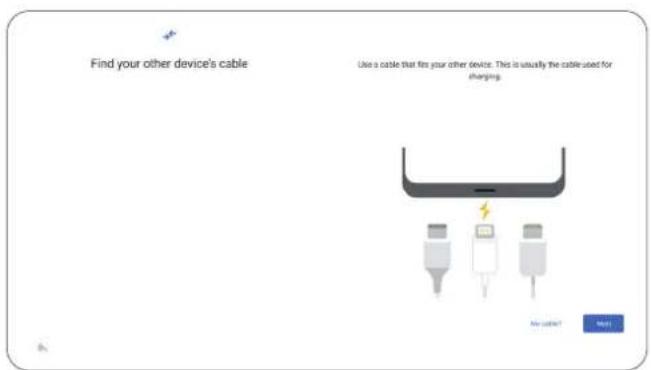
text_image
Find your other device's cable Use a cable that fits your other device. This is usually the cable used for charging. No cable?text_image
Google Sign in Use your Google Account. The account will be added to this device and available to other Google apps. Learn more about using your account Email or phone Forget email? Create account Skip Nexttext_image
Google services Tap to learn more about each service, such as how to turn it on or off later. Data will be used according to Google's Privacy Policy. Location Use location Allow apps and services with location permission to use your device's location. Location Accuracy uses information about wireless signals, such as Wi-Fi access points, cellular network towers, and GPS, along with device sensor data, such as accelerometer and gyroscope, to estimate more accurate device location, which apps and services use to provide location-based features. To do this, Google periodically processes information about device sensors and wireless signals near you to contribute to crowdsourced wireless signal locations. Allow scanning Allow apps and services to scan for Wi-Fi networks and nearby devices at any time, even when Wi-Fi or Bluetooth is off. Device maintenance Send usage and diagnostic data Help improve your Android device experience by automatically sending diagnostic device, and app usage data to Google. This will help battery life, system and app stability, and other improvements. Accepttext_image
Set a PIN PIN must be at least 4 digits, but a 6-digit PIN is recommended for added security Screen lock options 1 2 ABC 3 DEF 4 GH 5 JL 6 MND 7 FORS 8 TUV 9 WXY2 × 0 → ▼ —— Nexttext_image
Manager Permission Enable Device Owner Permissions Selecting this option provides access to Advanced features within Manager All Devices Groups System Model Status: A Load Name Expedition-03 XP001.45 2015/02/07 8:30:25 Expedition-05 DC0636275 NS00007 8:31:04 Vestiburn-PTB XP04 2015/02/07 8:30:25 Vestiburn-PTB XP0632 NS00007 8:31:25text_image
Boot mode & Advanced settings Normal mode Start platform agent services, launch startup programs, and load embedded hardware drivers normally Secure mode Services embedded system sharing apps such as iCast, Airbnb, and Chontecord Disable embedded OS The embedded OS will be changed after nexttext_image
Privacy and Copyright Protection Enable ViewBoard Launcher Welcome to ViewBoard ViewSont's Privacy Policy outlines how we handle your personal data and tallequity your privacy when you use a Vornadoad software (the "Software"). do installing or using the Software, you agree that I can collect, use, and prevent your focus to deliver. We will handle your data in accordance with use Privacy Policy and these Terms of Use. Selective objects the following categories of personal data from you use the Software: 1. Show identifiers, such as IP addresses and MHC addresses. 2. Show behavior while using the Software, including the Functiones accessed, app-configurations, drive and times of use, and other related activities. 3. You choose not to provide information regarding Privacy and Copyright Protection, we can still offer the Software and required to your queries, but we will not be able to collect any personal data. Decline Accepttext_image
Privacy and Copyright Protection Please read and execute or update the Terms below. Enable ViewBoard Launcher Last modified March 12, 2003 Welcome to ViewBoard ViewSonic's Privacy Policy outlines how we handle your personal data and safeguard your privacy where accurate our ViewBoard software (the "Software"). By interacting or using the Software you agree then it can collect, use, and inherit your data to ViewSonic. We will handle your data it accordingly with our Privacy Policy and these Terms of Use. ViewSonic collects the following categories of personal data from you via the Software: 1. Device information, such as IP addresses and MAC addresses; 2. User behavior while using the Software, including the functions accessed, app configurations, dates and times of use, and other related annotations. 3. If you decide not provide information regarding Privacy and Copyright Protection, we can add after the Software and respond to your injuries, but we will not be able to collect any personal data. Decline AcceptÉcran d'accueil
text_image
ViewSonic Start using ViewBoard I already have a myViewBoard account Sign In I don't have a myViewBoard account Use as Guest Don't have a myViewBoard account? How to Sign Up sign in with NFC by finding the NPC symbol below and near the next userComment s'inscrire
text_image
How to Sign Up Scan this QR code and follow the instructions to complete the sign-up. To confirm account details, please check with your IT admin first.text_image
Sign In Sign in with Email Email: App# Password: Forgot Password? Sign in with SSO Back Companion Sign-in Download Instructions G1 M2 S3 Apple S4text_image
Edit Home Screen Message Title ViewBoard Set Up Password Confirmtext_image
Row of app icons including refresh, home, image editing, and directional arrows, likely representing UI functions or workflow controls.text_image
Display Input Display Auto Brightness Energy Saving Eye Care Picture Mode Brightness 50text_image
Tuesday 04-22-2025 2:13 PM ViewBoard my Artlyx Managernatural_image
Simple diagram with a horizontal line and two sun icons on either side (no text or symbols)natural_image
User interface control bar with speaker, playback, and sound waves (no text or symbols)text_image
Display Input Display Auto Brightness Energy Saving Eye Care Picture mask diameter Brightness 50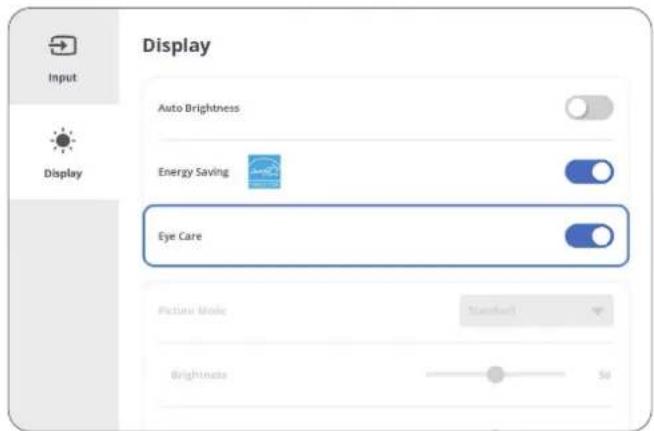
text_image
Display Input Display Auto Brightness Energy Saving Eye Care Picture Mode Standard Brightness 50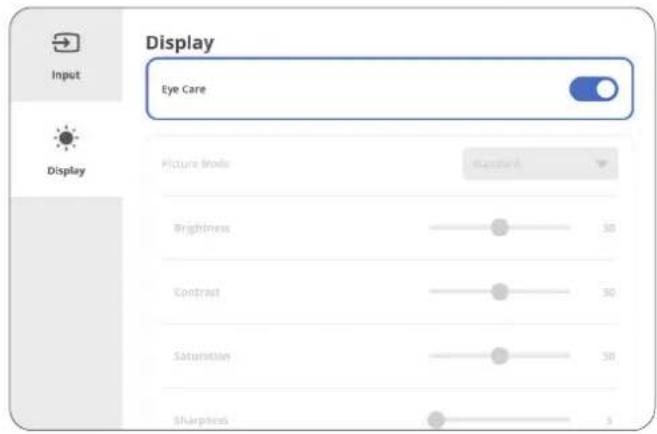
text_image
Display Input Eye Care Display Picture Mode Standard Brightness 30 Contrast 30 Saturation 30 Sharpness 5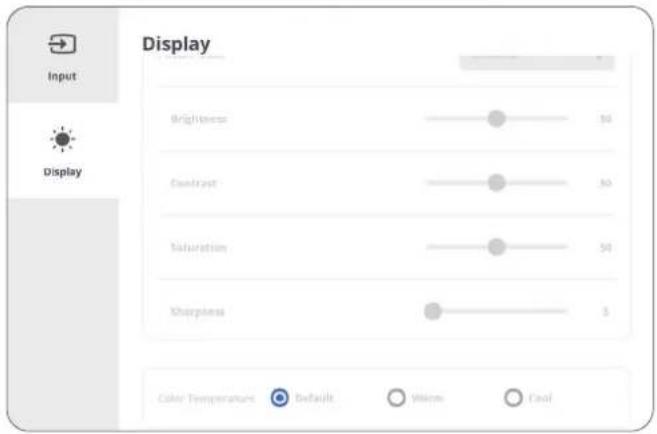
text_image
Display Input Display Brightness 30 Contrast 30 Saturation 54 Sharpness 3 Color Temperature Default Window Colortext_image
Display Input Display Auto Brightness Energy Saving Eye Care Picture Mode Standard Brightness 50Calcul des pauses
natural_image
Diagram showing eye anatomy with two curved shapes and a double-headed arrow indicating rotation (no text or labels)natural_image
Diagram showing eye anatomy with two curved shapes and a double-headed arrow indicating rotation (no text or symbols)natural_image
Diagram showing two eye shapes with a double-headed arrow indicating rotation or alignment (no text or symbols)text_image
ViewBoard Settings Network & Internet Display Preferences Input source Apps System Wi-Fi Set up & manage wireless access points. Ethernet Set the local network and proxy. Bluetooth Manage connections and set device name. VPN Set up & manage Virtual Private Networks.REMARQUE :
text_image
Network & Internet Wi-Fi Status: Off Turn on Wi-Fi to see available networks. Saved network > Add network | Advanced >text_image
Wi-Fi More settings Network notification Notify whenever a public network is available Network card info MAC address 5e.06:d9:82:a9:8e IP address 172.21.12.158text_image
Wireless hotspot Status: On Device: IFP5551 Set uptext_image
Set up hotspot Network name IFP5551 Security wifi_security_wpa2 Password The password must have at least 8 characters. Cancel SaveEthernet
text_image
Network & Internet Ethernet Status: Connected Local network DHCP Static IP DHCP OFF Network 205.233.255.0 DNS1 172.21.1.27text_image
Network & Internet Bluetooth Status: On Received files > Device: IFP5551 Rename IFP5551 is visible to nearby devices while Bluetooth settings is opened. Available devices VI614329-21 0102000000 VO10000125VPN
text_image
Network & Internet VPN Always On VPN "All network traffic will go through this VPN - if the VPN is not available, there will be no connection." Add VPNtext_image
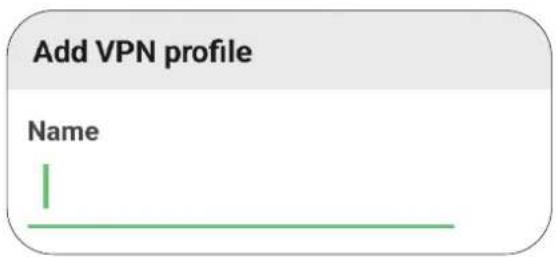
VPN ✓ Always On VPN "All network traffic will go through this VPN - if the VPN is not available, there will be no connection." Add VPN- Saisissez le Nom.
text_image
Add VPN profile Name Itext_image
Set Wallpaper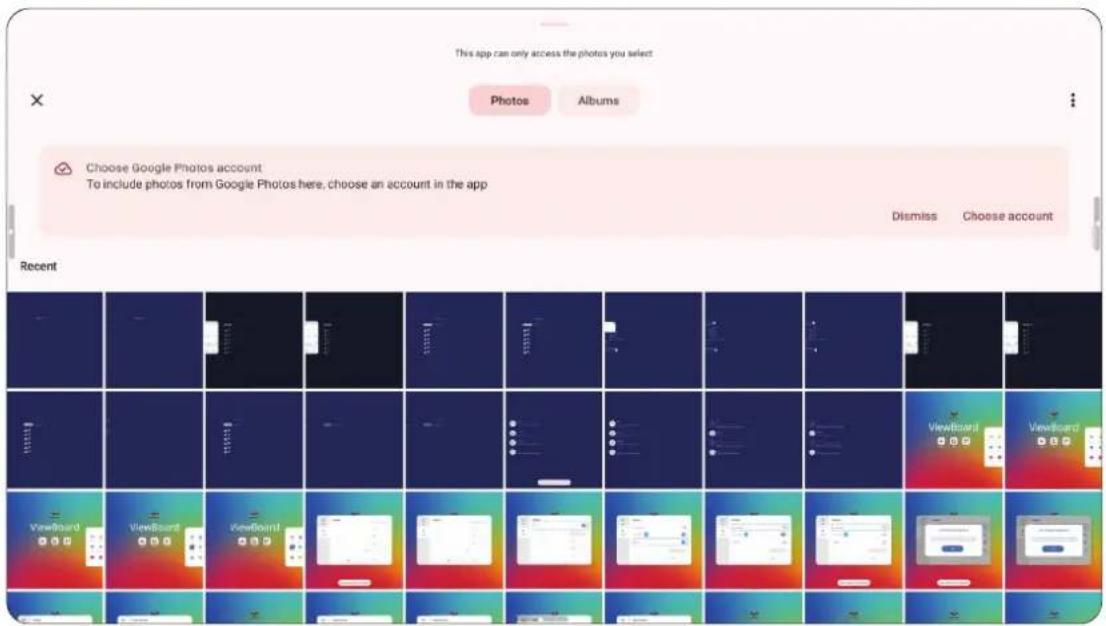
text_image
This app can only access the photos you select Photos Albums Choose Google Photos account To include photos from Google Photos here, choose an account in the app Dismiss Choose account RecentProtection
text_image
Display Protection HDCP & Copyright *HDCP is a secure protocol for protecting transmission of audio and video signals.Sortie HDMI
HDMI-out resolution setting

3840*2160@60HZ

1920*1080@60HZ

720*480@60HZ

AUTO
HDMI IN OUT

It is necessary to plug and unplug the HDMI interface once to take effect.

Disable ViewBoard speakers when using HDMI out
Préférence
text_image
ViewBoard Settings Network & Internet Marker WriteAway Display Touch Touch sounds and Windows Ink. Preferences Language Select your preferred language. Input source Keyboard & input method Virtual and current keyboard. Apps Date & time Set time zone and format System Boot mode & Advanced settings Set the Boot mode, password for viewsBoard settings, and local file protection policy. Startup & shutdown Select input, standby mode and boot schedule. Toolbar settingsMarqueur
text_image
< Preferences Marker WriteAway Marker Marker myViewBoard whiteboardTouche
text_image
Preferences Touch Touch sounds Windows InkLangue
text_image
< Preferences Keyboard & input method Current keyboard Gboard English (US) Google Voice Typing AutomaticDate & Heure
text_image
Preferences Boot mode & Advanced settings Normal mode Launch startup programs, begin all services configured to start, and loads the hardware drivers you have installed as normal. Secure mode Removes embedded screen sharing apps such as V-Cast, E-Airplay, and Chrome Cast. Disable embedded OS The embedded OS will be disabled after reboot. Enable password for ViewBoard settings If enabled users will have to enter a password to open ViewBoard settings Boot mode and advanced settings password Reset password Local File Protections Policy To protect personal files, the local storage file in Folder app will be deleted automatically at the time of your choice. Do not clear file(s) Delete after 1 Day Delete after 1 Hour Delete immediately Color correction Monochromacy Deuteranomaly (red-green) Protanomaly (red-green) Tritanomaly (blue-yellow) Non-ViewBoard OS mode side toolbar settings Set side toolbar on/off for non-ViewBoard OS mode Reset ViewBoardtext_image
Preferences Startup & shutdown Startup input Last shutdown input Select input PC Startup application N/A Automatically launch a specific application upon startup. Standby mode Hibernate Hibernate Mode turns off the entire device including the display. To wake up, use the power button on the ViewBoard, the remote control, or use a compatible device via RS232. Sleep Sleep Mode turns off the display and major functions of the device. The operating system will remain running. Wake up the ViewBoard using the power button on the ViewBoard or the remote control, or use a compatible device connected via RS232. Energy Star "After no action for one hour, device will enter standby mode as selected by the user (hibernate or sleep)." Black screen after startup To conserve power, screen backlight will not turn on after startup. Sign-in page launched upon system startup Allows user to bypass the Sign-In page in Hibernate mode after the system is initiated. Time switch Power off reminder Toggle Power off reminder Schedule ADD SCHEDULE Boot time Off timetext_image
< Preferences Toolbar settings Side toolbar settings ● Show side toolbar ● Hide side toolbar ● Disable in all input port sourcesParamètre de son
text_image
< Preferences Sound setting Sound Output Speaker Line out MixedSource d'entrée
text_image
Input source Source Wake up by active HDMI input A new signal via HDMI cable will wake up the screen. Auto search signal Scan for signal automatically after a cable is inserted. Auto switch input ports Plugging in a display cable will automatically change the display to that source. On Off Manual selection HDMI Version 2.0 Energy saving If no signal is received after the specified time, the power will be turned off. 5 min HDMI CEC Control devices connected through HDMI using only one remote control. HDRtext_image
< ViewBoard Settings Network & Internet Display Preferences Input source Apps System Apps Permissions, default apps.REMARQUE :
text_image
App Apps Running All Downloaded Device memory 23 GB of 128 GB ROM storage used App (app data & media content) System 844 MB 29 GB App RAM usage Sort by name OFF/ON Google Play services 2 process and 35 service 311.6 MB 08:00:28 Android System Intelligence 1 process and 5 service 145.0 MB 08:59:44 Gboard 1 process and 1 service 81.2 MB 08:00:28 Google 2 process and 2 service 13.0 MB 08:00:20 Media picker 2 process and 1 service 12.1 MB 08:59:44 Photos 1 process and 0 service 4.8 MB 08:59:44 YouTube 1 process and 0 service 2.7 MB 08:59:44 YouTube Music 1 process and 1 service 1.3 MB 08:59:44text_image
< Apps Apps Running All Downloaded Reset app preferences Sort by name OFF/ON Google Play services 311.6 MB Android System Intelligence 146.0 MB Google Play Store 132.1 MB Gboard 81.9 MB Android Switch 26.8 MB Speech Recognition and Synthes 21.2 MB Google 13.0 MBtext_image
< Apps Apps Running All Downloaded Reset app preferences Sort by name OFF/ON Google Play services 311.6 MB Google Play Store 132.1 MB Android Switch 26.8 MBtext_image
Settings App info Manager Version 2.0.9 Disable Force stop Notifications Turning off notifications may cause you to miss important alerts and updates. Storage Total 1.1 MB Clear data App 0 KB USB storage app 0 KB Data 0.4 MB USB storage data 0 KB Cache Cached data 0.6 MB Clear Cache Launch by default No defaults set. Clear default Permissions No permissions requestedSystème
Clone OSD/Settings/debug menu to USB

Display ID
Set a number for this device when using RS232 remote control.

Security
Set Certificate and unknown source security.

System update
Firmware update information.

About device
Schéma de lancement
text_image
< System Storage Internal storage 23 GB of 128 GB ROM storage used App (app data & media content) System 844 MB 23 GB CLEAR CACHED DATA This will clear cached data for all apps.Cloner sur USB
text_image
Select the settings to copy Launcher Scheme Copy from USB1 Storage 18.4% used, 104 GB free. Preference Copy to USB1 Clone to USB Clone OSD/Settings/debug menu to USB Input so Cancel Ok Display IDAfficher l'ID
text_image
< System Display ID Assign a number for this device, for using the RS232 remote control function. Display ID: 1 EDIT IDtext_image
System Display ID Assign a number for this device, for using the RS232 remote control function. Display ID: 1 Number from 1 to 16. SAVE GANCEL 1 2 3 - 4 5 6 - 7 8 9 × , 0 . ✓text_image
System Security Certificate CA certificate user certificate Wi-Fi certificate Clear credentials Trusted credential Unknown source security Allow installation of apps from unknown sources Privacy and Copyright Protection Enable to allow the ViewBoard to collect user behavior data.text_image
Documents IFPS1 > Documents Large files This week Files in Documents Name ↑ Type Size Modified GRCA.cer CER file 1.40 kB 3:41 PMtext_image
Security Certificate CA certifi VPN & app us Wi-Fi certif Clear crede Unknown source Clear credentials This action will remove all credentials which are manually installed. Continue? Cancel OK Trusted credential > Allow installation of apps from unknown sourcestext_image
System Security Cleared credentials successfully Certificate CA certificate Trust credbar
Trusted credential | System | Manually installed | |---|---| | ACCV- Security info ACCVRAIZ1 | ● | | Actalis S.p.A./03358520967- Security info Actalis Authentication Root CA | ● | | AffirmTrust- Security info AffirmTrust Commercial | ● | | AffirmTrust- Security info AffirmTrust Networking | ● | | AffirmTrust- Security info AffirmTrust Premium | ● | | AffirmTrust- Security info AffirmTrust Premium ECC | ● | | Agence Nationale de Certification Electronique- Security info TunTrust Root CA | ● | | Amazon- Security info Amazon Root CA 1 | ● | | Amazon- Security info | ● |text_image
Security certificate ACCVRAIZ1 Issued to: Common name:ACCVRAIZ1 Organization:ACCV Organizational unit:PKIACCV Serial number:5E:C3:B7:A6:43.7F:A4:E0 Issued by: Common name:ACCVRAIZ1 Organization:ACCV Organizational unit:PKIACCV Validity: Issued on:May 5, 2011 Expires on:Dec 31, 2030 OK Disabletext_image
Unknown source security Allow installation of apps from unknown sourcestext_image
System update Online Update Check Schedule Check for your own system update Check Scheduletext_image
System About device Asset tagging: Edit Legal information > Serial number Y1S2503A3001 Model Number IFP5551 Android version 14 Build Number 20250408101501text_image
System About device Asset tagging: Save Cancel Serial number Y1S2503A3001 Model Number IFP5551 Android version 14 Build Number 20250408101501 Legal informtext_image
< About device Legal information Open source licenses > Open source licenses2 >Lanceur Android
Réseau et Internet
text_image
Search Network & internet Wi-Fi, hotspot Connected devices Bluetooth, pairing Apps Recent apps, default apps Notifications Notification history, conversations Storage 19% used - 104 GB free Sound Volume, Do Not Disturb Display Network & internet Ethernet Internet To switch networks, disconnect ethernet Hotspot & tethering Off Data Saver Off VPN None Share Network Allow the IFP to share network with USB connected devicestext_image
Search Network & internet Wi-Fi, hotspot Connected devices Bluetooth, pairing Apps Recent apps, default apps Notifications Notification history, conversations Storage 19% used - 104 GB free Sound Volume, Do Not Disturb Display Connected devices + Pair new device Saved devices > See all Connection preferences Bluetooth, NFC Audio & Video devices i Visible as "IFP5551" to other devicestext_image
Search Network & internet Wi-Fi, hotspot Connected devices Bluetooth, pairing Apps Recent apps, default apps Notifications Notification history, conversations Storage 19% used - 104 GB free Sound Volume, Do Not Disturb Display Don't have a foot size brightness Notifications Manage App notifications Control notifications from individual apps Notification history Show recent and snoozed notifications Conversation Conversations No priority conversations Bubbles On / Conversations can appear as floating icons Privacytext_image
Search Network & internet Wi-Fi, hotspot Connected devices Bluetooth, pairing Apps Recent apps, default apps Notifications Notification history, conversations Storage 19% used - 104 GB free Sound Volume, Do Not Disturb Display Dark theme, font size, brightness Storage This device 24 GB used 128 GB total Storage manager Free up space Go to Files app to manage and free up space Trash 0 B System 23 GBtext_image
Search Network & internet Wi-Fi, hotspot Connected devices Bluetooth, pairing Apps Recent apps, default apps Notifications Notification history, conversations Storage 19% used · 104 GB free Sound Volume, Do Not Disturb Display Dark theme, font size, brightness Sound Media volume Do Not Disturb Off Live Caption Automatically caption speech Media Show player Default notification sound None Default alarm soundtext_image
Search Network & internet Wi-Fi, hotspot Connected devices Bluetooth, pairing Apps Recent apps, default apps Notifications Notification history, conversations Storage 19% used - 104 GB free Sound Volume, Do Not Disturb Display Dark theme, font size, brightness Display Lock display Lock screen Don't show notifications at all Screen timeout Not set Appearance Dark theme Will never turn on automatically Display size and text Other display controlstext_image
Search Storage 19% used - 104 GB free Sound Volume, Do Not Disturb Display Dark theme, font size, brightness Wallpaper Home, lock screen Accessibility Display, interaction, audio Security & privacy App security, device lock, permissions Location On - 1 app has access to location Wallpaper & style 04 23 04:23 Change wallpaper Dark theme Themed icons Betatext_image
Search 19% used - 104 GB free Sound Volume, Do Not Disturb Display Dark theme, font size, brightness Wallpaper Home, lock screen Accessibility Display, interaction, audio Security & privacy App security, device lock, permissions Location On - 1 app has access to location Accessibility Downloaded apps Select to Speak Off / Hear selected text Switch Access Off / Control device with switches or front camera TalkBack Off / Speak items on screen Display Display size and text Color and motiontext_image
Search 19% used - 104 GB free Sound Volume, Do Not Disturb Display Dark theme, font size, brightness Wallpaper Home, lock screen Accessibility Display, interaction, audio Security & privacy App security, device lock, permissions Location On - 1 app has access to location Security & privacy Device may be at risk Checking device settings... Account security Add Google Account Some settings, such as Find My Device and system updates, won't work until you add a Google Account Add Google Account Settings App security Play Protect scanning is ontext_image
Search Volume, Do Not Disturb Display Dark theme, font size, brightness Wallpaper Home, lock screen Accessibility Display, interaction, audio Security & privacy App security, device lock, permissions Location On - 1 app has access to location Passwords & accounts Saved passwords, autofill, synced accounts Location Use location Recent access No apps recently accessed location > See all App location permissions 1 of 14 apps has access to location Location servicestext_image
Search Volume, Do Not Disturb Display Dark theme, font size, brightness Wallpaper Home, lock screen Accessibility Display, interaction, audio Security & privacy App security, device lock, permissions Location On - 1 app has access to location Passwords & accounts Saved passwords, autofill, synced accounts Passwords & accounts Passwords Google - Autofill service Google Accounts for Owner GUEST My ViewBoard + Add account Automatically sync app data Let apps refresh data automaticallytext_image
Search Location On - 1 app has access to location Passwords & accounts Saved passwords, autofill, synced accounts Digital Wellbeing Screen time, app timers, night shift schedules Google Services & preferences Advanced Startup, input source, advanced settings System Languages, gestures, time, backup About Digital Wellbeing Your Digital Wellbeing tools TODAY 1 hr, 12 min Settings 1 Unlock 3 Notifications Ways to disconnecttext_image
Search Location On - 1 app has access to location Passwords & accounts Saved passwords, autofill, synced accounts Digital Wellbeing Screen time, app timers, night shift schedules Google Services & preferences Advanced Startup, input source, advanced settings System Languages, gestures, time, backup About Google services Recommended All services G Sign in Sign in to your Google Account to get helpful service recommendations Sign in Give feedbackAvancé
text_image
Search Location On - 1 app has access to location Passwords & accounts Saved passwords, autofill, synced accounts Digital Wellbeing Screen time, app timers, night shift schedules Google Services & preferences Advanced Startup, input source, advanced settings System Languages, gestures, time, backup About Advanced Startup & shutdown Input source Security settings Pen Detection Pen Detection App Marker HDMI OUT format 1920*1080@60Hztext_image
Search Location On - 1 app has access to location Passwords & accounts Saved passwords, autofill, synced accounts Digital Wellbeing Screen time, app timers, night shift schedules Google Services & preferences Advanced Startup, input source, advanced settings System Languages, gestures, time, backup About System Languages System languages, app languages, regional preferences, speech Launcher Scheme Sidebar Keyboard On-screen keyboard, tools Gestures Date & time GMT+08:00 Taipei Standard Time Windows Inktext_image
Search Location On - 1 app has access to location Passwords & accounts Saved passwords, autofill, synced accounts Digital Wellbeing Screen time, app timers, night shift schedules Google Services & preferences Advanced Startup, input source, advanced settings System Languages, gestures, time, backup About About Basic info Device name IFP51 Owner Legal & regulatory Legal information Device details Modeltext_image
Search Passwords & accounts Saved passwords, autofill, synced accounts Digital Wellbeing Screen time, app timers, night shift schedules Google Services & preferences Advanced Startup, input source, advanced settings System Languages, gestures, time, backup About IFP51 Tip & support New Features & Tips Tip & support Tips myViewBoard Whiteboard myViewBoard Display myViewBoard Manager Support New Features| Menu Sous-menu Option de menu | ||||
| Network & Internet | Ethernet | DHCP | ||
| Static IP | ||||
| IP Address | ||||
| Default gateway | ||||
| Netmask | ||||
| DNS | ||||
| Proxy | ||||
| Mac address | ||||
| Internet | Wi-Fi | Wi-Fi list | ||
| Add network | ||||
| Network Preferences | Turn on Wi-Fi automatically | |||
| Notify for public networks | ||||
| Share Wi-Fi only via a QR code | ||||
| Install certificates | Recent | |||
| Wi-Fi direct | ||||
| Saved Networks O | ther networks | |||
| Non-carrier data usage | ||||
| Network & Internet | Hotspot & tethering | Wi-Fi hotspot | Use Wi-Fi hotspot | |
| Hotspot name | ||||
| Security WPA2-Personal | ||||
| Turn off hotspot automatically | ||||
| Extend compatibility | ||||
| USB tethering | ||||
| Bluetooth tethering | ||||
| Data Saver Unrestricted data | ||||
| VPN | VPN+ | |||
| VPN list | ||||
| Shared network | ||||
| Private DNS | Off | |||
| Automatically | ||||
| Private DNS provider hostname | ||||
| Enter hostname of DNS provider | ||||
| Connected Devices | USB | Connected device | ||
| This device | ||||
| File transfer | ||||
| USB tethering | ||||
| PTP | ||||
| No data transfer | ||||
| Convert video to AVC | ||||
| Charge connected device | ||||
| Pair new device | Device name | |||
| Available devices | ||||
| See all Saved devices | ||||
| Connection preferences | Bluetooth | Use NFC Bluetooth | ||
| Device name | ||||
| Pair new device | ||||
| NFC | Use NFC | |||
| Contactless payments | Default payment app | |||
| Use default payment app | ||||
| Cast Cast list | ||||
| Printing | Default print Service | |||
| Add service | ||||
| Quick share | Account | |||
| Device name | ||||
| Who can share with you | ||||
| Connected Devices | Audio & video devices | Camera | ||
| Mic | Auto | |||
| Off | ||||
| USB-audio touch device | ||||
| Mic | Auto | |||
| Speaker | ||||
| HDMI out | ||||
| Speaker | ||||
| Apps | Recently opened apps | App list | App info | |
| Notifications | ||||
| Permissions | Location | |||
| Phone | ||||
| Camera | ||||
| Pause app activity is unused | ||||
| Storage & cache | Clear storage/cache | |||
| App size | ||||
| User data | ||||
| Cache | ||||
| Total | ||||
| Mobile data & Wi-Fi | Total | |||
| Foreground | ||||
| Background | ||||
| Screen time | App timer | |||
| Manage notifications | ||||
| App used in the background | ||||
| Apps | Recently opened apps | App list | App battery usage | Unrestricted |
| Optimized | ||||
| Restricted | ||||
| Open by default | Open supported links | |||
| Pause app activity if unused | ||||
| Display over other apps | ||||
| Allow display over other apps | ||||
| Modify system settings | Allow modifying system settings | |||
| Version | ||||
| Default apps | Browser app | Default browser app | ||
| Digital assistant app | Use text from screen | |||
| Use screenshot | ||||
| Flash screen | ||||
| Home app | Default home app | |||
| SMS app Default SMS app | ||||
| Opening links | Instant apps | |||
| Instant apps preferences | ||||
| Screen time Activity details | ||||
| Cloud media app | ||||
| Unused apps | ||||
| Menu Sous-menu Option de menu | |||
| Apps | Special app access | All files access | |
| Device admin apps | |||
| Display over other apps | |||
| Do not disturb access | |||
| Media management apps | |||
| Modify system settings | |||
| Device & app notification | |||
| Picture-In-Picture | |||
| Premium SMS access | |||
| Unrestricted data | |||
| Install unknown apps | |||
| Alarms & reminders | |||
| Usage access | |||
| VR helper services | |||
| Wi-Fi control | |||
| Turn screen on | |||
| Full screen notification | |||
| Menu Sous-menu Option de menu | ||||
| Notifications | App notifications | App list | Screen lock | |
| Google Play store | All Google Play store notification | |||
| All "Alerts" notifications | ||||
| Account | ||||
| App auto open | ||||
| Open app reminders | ||||
| Payments, Deals, and Recommendations | ||||
| Updates available | ||||
| Updates completed | ||||
| All "Essentials" notifications | ||||
| Maintenance | ||||
| Play Protect | ||||
| required | ||||
| Security and errors | ||||
| Setup | ||||
| All notification dot | ||||
| Notification history | Use notification history | |||
| Conversations | ||||
| Bubbles | Allow apps to show bubbles | |||
| Device & app notifications | Allowed | |||
| Not allowed | ||||
| Notifications | Notifications on lock screen | Show conversations, default, and silent | ||
| Hide silent conversations and notification | ||||
| Don't show any notifications | ||||
| Sensitive notifications | ||||
| Do not disturb | Turn on now | |||
| People | Messages | Starred contact | ||
| Contacts | ||||
| Priority conversations | ||||
| Anyone | ||||
| None | ||||
| Calls | Starred contact | |||
| Contacts | ||||
| Anyone | ||||
| None | ||||
| Allow repeat callers | ||||
| Apps | Apps | |||
| Add apps | ||||
| Alarms & other interruptions | Alarms | |||
| Media sounds | ||||
| Touch sounds | ||||
| Reminders | ||||
| Calendar events | ||||
| Notifications | Do not disturb | Schedules | Sleeping | User schedule |
| Days | ||||
| Start time | ||||
| End time | ||||
| Alarm can override end time | ||||
| Do Not Disturb behavior | ||||
| Event | User schedule | |||
| During events for | ||||
| Where reply is | ||||
| Do not disturb behavior | ||||
| Add more | ||||
| Duration for quick settings | Until you turn off | |||
| For 1 hour | ||||
| Ask every time | ||||
| Display options for hidden notification | No sound from notification | |||
| No visuals or sound from notification | ||||
| Custom | Don't turn on screen | |||
| Don't wake for notifications | ||||
| Hide notification dots on app icons | ||||
| Hide status bar icons at top of screen | ||||
| Don't pop notifications on screen | ||||
| Hide from pull-down shade | ||||
| Notifications | Flash notifications | Screen flash | ||
| Preview | ||||
| Wireless Emergency Alerts | ||||
| Hide Silent Notifications in Status Bar | ||||
| Allow Notification Snoozing | ||||
| Notification Dot on App Icon | ||||
| Enhanced Notifications | ||||
| Storage | Storage manager | User storage manager | ||
| Remove photos & videos | Over 30 days old | |||
| Over 60 days old | ||||
| Over 90 days old | ||||
| Trash | ||||
| System | ||||
| Apps | ||||
| Documents & other | ||||
| Games | ||||
| Apps | ||||
| Audio | ||||
| Videos | ||||
| Images | ||||
| Sound | Media volume | |||
| Do not disturb | People | Messages | Starred contacts | |
| Contacts | ||||
| Priority conversations | ||||
| Anyone | ||||
| None | ||||
| Calls | Starred contacts | |||
| Contacts | ||||
| Anyone | ||||
| None | ||||
| Apps | Apps | |||
| Add apps | ||||
| Alarms & other interruptions | Alarms | |||
| Media sounds | ||||
| Touch sounds | ||||
| Reminders | ||||
| Calendar events | ||||
| Sound | Do not disturb | Schedules | Sleeping | User schedule |
| Days | ||||
| Start time | ||||
| End time | ||||
| Alarm can override end time | ||||
| Do Not Disturb behavior | ||||
| Event | User schedule | |||
| During events for | ||||
| Where reply is | ||||
| Do not disturb behavior | ||||
| Add more | ||||
| Duration for quick settings | Until you turn off | |||
| For 1 hour | ||||
| Ask every time | ||||
| Display options for hidden notification | No sound from notification | |||
| No visuals or sound from notification | ||||
| Custom | Don't turn on screen | |||
| Don't wake for notifications | ||||
| Hide notification dots on app icons | ||||
| Hide status bar icons at top of screen | ||||
| Don't pop notifications on screen | ||||
| Hide from pull-down shade | ||||
| Sound | Live caption | Use Live Cation | ||
| Language (English only) | ||||
| Hide profanity | ||||
| Show sound labels | ||||
| Live Caption in volume control | ||||
| Help | ||||
| Media | Pin media player | |||
| Show media on lock screen | ||||
| Show media recommendations | ||||
| Default notification sound | None | |||
| Adara/Aldebaran/Selenium/... | ||||
| Add notification | ||||
| Menu Sous-menu Option de menu | |||
| Sound | Default alarm sound | None | |
| Argon | |||
| Barium | |||
| Bee-Beep alarm | |||
| Beep-Beep-Beep alarm | |||
| Buzzer alarm | |||
| Cabon | |||
| Cesium | |||
| Heium | |||
| Krypton | |||
| Neon | |||
| Neptunium | |||
| Osmium | |||
| Oxygen | |||
| Piezo alarm | |||
| Platinum | |||
| Platinum | |||
| Rooster alarm | |||
| Scandium | |||
| Add alarm | |||
| Tap & click sounds | |||
| Menu Sous-menu Option de menu | ||||
| Display | Lock screen | Privacy | Show all notification content | |
| Show sensitive content only when unlocked | ||||
| Don't show notifications at all | ||||
| Add users from lock screen | ||||
| Add text on lock screen | ||||
| Show device controls | ||||
| Use device controls | ||||
| Dynamic clock | ||||
| Wake screen for notifications | ||||
| Double-line clock | ||||
| Screen timeout | 15 seconds | |||
| 30 seconds | ||||
| 1 minute | ||||
| 2 minutes | ||||
| 5 minutes | ||||
| 10 minutes | ||||
| 30 minutes | ||||
| Display | Dark theme | Use dark theme | ||
| Schedule | None | |||
| Turns on at custom time | ||||
| Turns on from sunset to sunrise | ||||
| Turns on bedtime | ||||
| Display size and text | Font size | |||
| Display size | ||||
| Bold text | ||||
| High contrast text | ||||
| Reset settings | ||||
| Screen saver | Use Screen Saver | |||
| Screen saver | Never | |||
| 15 min | ||||
| 30 min | ||||
| 60 min | ||||
| 90 min | ||||
| Choose a screen saver | Clock | |||
| Colors | ||||
| Photos frame | ||||
| Photo table | ||||
| Photo | ||||
| Wallpaper & Style | Wallpaper | Home screen | ||
| Lock screen | ||||
| Change wallpaper | My Photos Select a photo | |||
| On-device wallpapers | Preview | |||
| Cityscapes | ||||
| Life | ||||
| Textures | ||||
| Landscapes | ||||
| Art | ||||
| Earth | ||||
| Solid colors | ||||
| Geometric shapes | ||||
| Seascape | ||||
| Wallpapers | ||||
| Dark theme | ||||
| Themed icons | ||||
| Accessibility | Select to speak | Select to speak shortcut | ||
| Settings | Text to speech settings | Preferred engine | ||
| Language | ||||
| Speech rate | ||||
| Pitch | ||||
| Change reading voice | ||||
| Read in background | ||||
| Read text on images | ||||
| Help & feedback | Popular help resources | |||
| Developer settings | Enable taking snapshot | |||
| Allow snapshot to take detail information | ||||
| Switch access | Use Switch Access | Choose a switch type | ||
| Switch Access shortcut | ||||
| Accessibility | Switch access Settings | Help & feedback | Popular help resources | |
| Open setup guide | Choose a switch type | |||
| Camera switch settings | Use camera switches | |||
| Open mouth | ||||
| Smile | ||||
| Raise eyebrows | ||||
| Look left | ||||
| Look right | ||||
| Look up | ||||
| Enhanced visual feedback | ||||
| Enhanced audio feedback | ||||
| Keep screen on | ||||
| Ignore repeated camera switch triggers | ||||
| Assign switches for scanning | Pause camera Switch | |||
| Auto-scan | ||||
| Reverse auto-scan | ||||
| Select | ||||
| Next | ||||
| Previous | ||||
| Touch & hold | ||||
| Scroll forward | ||||
| Scroll backward | ||||
| Assign switches to shortcuts | New shortcuts | |||
| Accessibility | Switch access Settings | Enable menu customization | ||
| Revert to Default Menu | Restore default menu | |||
| Auto-scan | Auto-scan time | |||
| Delay on first item | ||||
| Number of scans | ||||
| Scanning method | Linear scanning | |||
| Row-column scanning | ||||
| Group selection | ||||
| Point scan | Line speed | |||
| Delay on first item | ||||
| Number of scans | ||||
| Vertical scans | ||||
| Horizontal scans | ||||
| Automatically start scanning | ||||
| Auto-select | ||||
| Scanning highlight style | Highlight color | |||
| Highlight line style | ||||
| Accessibility | Switch access Settings | Speech, sound & vibration | Spoken feedback | |
| Speak descriptive text | ||||
| Verbosity | ||||
| TTS settings | ||||
| Finish speech before moving | ||||
| Maximum spoken time per item | ||||
| Vibration feedback | ||||
| Sound feedback | ||||
| Sound volume | ||||
| Audio ducking | ||||
| Ignore repeated presses | ||||
| Release to perform action | ||||
| Privacy policy | ||||
| Developer settings | Version | |||
| Display speech output | ||||
| Delete all shortcuts | ||||
| Log output level | ||||
| Accessibility | TalkBack | Use TalkBack | ||
| TalkBack shortcut | ||||
| New features in TalkBack | ||||
| Text-to-speech settings | Preferred engine | |||
| Language | ||||
| Speech rate | ||||
| Pitch | ||||
| Play/Reset | ||||
| Verbosity | Choose a preset | |||
| Speak usage hints | ||||
| Speak list and grid info | ||||
| Always speak number of list items | ||||
| Speak element type | ||||
| Speak window names | ||||
| Speak notifications when screen is off | ||||
| Use pitch changes | ||||
| Speak letters with examples | ||||
| Keyboard echo: On-screen keyboard | ||||
| Keyboard echo: Physical keyboard | ||||
| Capital letters | ||||
| Speak all progress updates | ||||
| Speak element IDs | ||||
| Speak punctuation and symbols | ||||
| Accessibility | TalkBack Settings | Sound | Accessibility volume | |
| TalkBack speech rate | ||||
| Sound feedback | ||||
| Sound feedback volume | ||||
| Audio ducking | ||||
| Customize focus | Thick borders | |||
| Color default | ||||
| Red | ||||
| Orange | ||||
| Yellow | ||||
| Green | ||||
| Blue | ||||
| Grey | ||||
| Customize Gestures | Practice gestures | |||
| Reset gesture setting | ||||
| Swipe up/Swipe down/Swipe left/... | ||||
| Customize menus | Customized TalkBack menu | |||
| Customized reading controls | ||||
| Image & icon descriptions | Detailed image descriptions | |||
| Automatic image descriptions | ||||
| Automatic icon descriptions | ||||
| Automatic descriptions for text in image | ||||
| Accessibility | TalkBack Settings | Braille keyboard | Set up braille keyboard | |
| Review all gestures | ||||
| Languages | ||||
| Preferred typing language | ||||
| Preferred braille grade | ||||
| Layout | ||||
| Include all pressed dots | ||||
| Reverse dots | ||||
| Braille display | Use braille display | |||
| Look for new device | ||||
| Languages | ||||
| Preferred reading language | ||||
| Preferred typing language | ||||
| Preferred braille grade | ||||
| Braille display commands | ||||
| Braille elements | ||||
| Auto-connect | ||||
| Auto-scroll | ||||
| Accessibility | TalkBack Settings | Advanced settings | Speak passwords | |
| Custom labels | ||||
| Single-tap to activate | ||||
| Element description order | ||||
| Time format | ||||
| Reduce window announcement delay | ||||
| Typing preference | ||||
| Touch and hold delay when typing | ||||
| Keyboard shortcut | ||||
| Developer settings | ||||
| Privacy policy | ||||
| Terms of service | ||||
| Open Talkback at the Play Store | ||||
| TalkBack tutorial | ||||
| Help & feedback | ||||
| Contact Google disability support | ||||
| Display size and text | Font size | |||
| Display size | ||||
| Bold text | ||||
| High contrast text | ||||
| Reset settings | ||||
| Accessibility | Color and motion | Color correction | Use color correction | |
| Red-green | ||||
| Red-green | ||||
| Blue-yellow | ||||
| Grayscale | ||||
| Color correction shortcut | ||||
| Color inversion | Use color inversion | |||
| Color inversion shortcut | ||||
| Dark theme | Use dark theme | |||
| Schedule | None | |||
| Turns on a custom time | ||||
| Turns on from sunset or sunrise | ||||
| Turns on at bedtime | ||||
| Large mouse pointer | ||||
| Extra dim | Make scree extra dim | |||
| Intensity | ||||
| Keep on after device restarts | ||||
| Extra dim shortcut | ||||
| Accessibility | Magnification | Magnification shortcut | ||
| Magnification type | Magnify full screen | |||
| Magnify part of screen | ||||
| Magnify typing | ||||
| Keep on while switching apps | ||||
| Accessibility menu | Accessibility Menu shortcut | |||
| Settings | Large button | |||
| Help & feedback | ||||
| Time controls | Touch & hold delay | Short | ||
| Medium | ||||
| Long | ||||
| Time to take action | Default | |||
| 10 seconds | ||||
| 30 seconds | ||||
| 1 minute | ||||
| 2 minutes | ||||
| Autoclick | Autoclick off | |||
| Short | ||||
| Medium | ||||
| Long | ||||
| Custom | ||||
| Accessibility | System controls | Navigation mode | Gesture navigation | Swipe to invoke assistant |
| Left edge | ||||
| Right edge | ||||
| Hold Home for Assistant | ||||
| 3-button navigation | ||||
| Side toolbar navigation | ||||
| Live caption | Use live caption | |||
| Languages | ||||
| Hide profanity | ||||
| Show sound labels | ||||
| Live caption in volume control | ||||
| Help | ||||
| Caption preferences | Show captions | |||
| Caption size and style | Text size | Very small | ||
| Small | ||||
| Medium | ||||
| Large | ||||
| Very large | ||||
| Cation style | Set by app | |||
| White on black | ||||
| Black on white | ||||
| Yellow on black | ||||
| Yellow on blue | ||||
| Custom | ||||
| More options Languages | ||||
| Accessibility | Audio description | |||
| Flash notifications | Screen flash | |||
| Preview | ||||
| Audio adjustment | Mono audio | |||
| Accessibility shortcuts | Accessibility button | Location | Floating over other apps | |
| Navigation bar | ||||
| Size | Small | |||
| Large | ||||
| Fade when not in use | ||||
| Transparency when not in use | ||||
| Shortcut from lock screen | ||||
| Text-to-speech output | Preferred engine | |||
| Language | ||||
| Speech rate | ||||
| Pitch | ||||
| Play/Reset | ||||
| Security & Privacy | Device may be at risk | |||
| Add Google Account | ||||
| Check for security updates | ||||
| Check for system updates | ||||
| App security | Google Play protect | |||
| Device unlock Screen lock PIN | Enhanced PIN privacy | |||
| Lock after screen timeout | Immediately | |||
| 5 seconds | ||||
| 15 seconds | ||||
| 30 seconds | ||||
| 1 minute | ||||
| 2 minute | ||||
| 5 minute | ||||
| 10 minute | ||||
| 30 minute | ||||
| Never | ||||
| Account security | Google security Checkup | |||
| Password checkup | ||||
| Device finders | Find my device | Use find my device | ||
| Unknown tracker alerts | ||||
| Security & Privacy | System & updates | Check for security updates | ||
| Check for system updates | ||||
| Security update | ||||
| Google Play system update | ||||
| Backup | ||||
| Privacy | Permission manager | |||
| Privacy dashboard | ||||
| Ads | Ad privacy | Ad topics | ||
| App-suggested ads | ||||
| Ad measurement | ||||
| Reset advertising ID | ||||
| Delete advertising ID | ||||
| Enable debug logging for ads | ||||
| Health connect | ||||
| Data sharing updates for location | ||||
| Camera access | ||||
| Microphone access | ||||
| Show clipboard access | ||||
| Show passwords | ||||
| Security & Privacy | Privacy | Location access | Use location | |
| No apps recently accessed location | ||||
| App location permissions | ||||
| Location services | ||||
| Activity controls | ||||
| More security settings | Accessibility usage | |||
| Notifications on lock screen | Show all notification content | |||
| Show sensitive content only when unlocked | ||||
| Don't show notifications at all | ||||
| Show media on lock screen | ||||
| App content | ||||
| Android system Intelligence | Device learning | |||
| Keyboard | ||||
| On-device recognition | ||||
| Clear data | Last hour | |||
| Last 24 hours | ||||
| All time | ||||
| Security & Privacy | More security settings | Encryption & credentials | Encrypt device | |
| Trusted credentials | ||||
| User credentials | ||||
| Install a certificate | CA certificate | |||
| VPN & app user certificate | ||||
| Wi-Fi certificate | ||||
| Clear credentials | ||||
| Certificate management app | ||||
| Trust agents Extend unlock | ||||
| App pinning | Use app pinning | |||
| Lock device when unpinning | ||||
| Location | Use location | |||
| Recent access | ||||
| App location permissions | App list | |||
| Location services | Earthquake alerts | |||
| Emergency location Service | ||||
| Google location History | ||||
| Google location Sharing | ||||
| Location accuracy | ||||
| Trusted places | ||||
| Wi-Fi scanning | ||||
| Bluetooth scanning | ||||
| Passwords & accounts | Passwords | |||
| Autofill service | ||||
| Accounts for owner | ||||
| Add account | ||||
| Automatically sync app data | ||||
| Digital Wellbeing | Your Digital Wellbeing tools | Unlocks | ||
| Notifications | ||||
| View activity details | ||||
| App limits | ||||
| Night shift | Do not disturb for night shift mode | |||
| Focus | ||||
| Screen time reminders | ||||
| Manage notifications | App notifications | |||
| Do Not Disturb | People | Messages | Starred contacts | |
| Contacts | ||||
| Priority conversations | ||||
| Anyone | ||||
| None | ||||
| Calls | Starred contacts | |||
| Contacts | ||||
| Anyone | ||||
| None | ||||
| Apps | Apps | |||
| Add apps | ||||
| Digital Wellbeing | Do not disturb | Alarms & other interruptions | Alarms | |
| Media sound | ||||
| Touch sounds | ||||
| Reminders | ||||
| Calendar events | ||||
| Schedule | Sleeping | User schedule | ||
| Days | ||||
| Start time | ||||
| End time | ||||
| Alarm can override end time | ||||
| Do not disturb behavior | ||||
| Event | User schedule | |||
| During events for | ||||
| Where reply is | ||||
| Do not disturb behavior | ||||
| Add more | ||||
| Duration for quick settings | Until you turn off | |||
| For 1 hour | ||||
| Ask every time | ||||
| Digital Wellbeing | Do not disturb | Display options for hidden notifications | No sound from notifications | |
| No visuals or sound from notifications | ||||
| Custom | Don't turn on screen | |||
| Don't wake for notifications | ||||
| Hide notification dots on app icons | ||||
| Hide status bar icons at top of screen | ||||
| Don't pop notifications on screen | ||||
| Hide from pull-down shade | ||||
| Heads up | ||||
| Show icon in the app list | ||||
| Parental controls | ||||
| Google services | ||||
| Backup is off for photos & videos | Account storage | |||
| Backup by Google One | ||||
| Backup details | ||||
| Apps | ||||
| Photo & videos | ||||
| Device settings | ||||
| Google account data | Calendar | |||
| Contacts | ||||
| Drive | ||||
| Gmail | ||||
| Google Calendar | ||||
| Google TV | ||||
| Tasks in Calendar | ||||
| Back up using meter Wi-Fi data | ||||
| Find my device | Use find my devices | |||
| Find your offline devices | Off | |||
| Without network | ||||
| With network in high-traffic areas only | ||||
| With network in all areas | ||||
| Find my device app | ||||
| Find my device web | ||||
| Autofill | Use autofill with Google | |||
| Google Account | ||||
| Personal info | ||||
| Google Password Manager | ||||
| Google Pay | ||||
| Preferences | ||||
| Google Wallet | ||||
| Cross-device services | Account | |||
| Device name | ||||
| Who can share with you | Your devices | |||
| Contacts | ||||
| Everyone | ||||
| Family group | Create a family group | |||
| What's new | ||||
| Give feedback | ||||
| Parental Controls | ||||
| Advanced | Startup & shutdown | Boot mode | Normal mode | |
| Secure mode | ||||
| Disable embedded OS | ||||
| Startup input | Last shutdown channel | |||
| ViewBoard | ||||
| HDMI 1 | ||||
| HDMI 2 | ||||
| HDMI 3 | ||||
| HDMI 4 | ||||
| DP | ||||
| VGA | ||||
| TYPE C 1 | ||||
| TYPE C 2 | ||||
| Standby Mode | Hibernate | |||
| Sleep | ||||
| Energy Star mode | ||||
| Add startup/ shutdown task | Startup task/ Shutdown task | |||
| Schedule settings | ||||
| Advanced | Input source | Label input Source | Allow input alias | |
| ViewBoard | ||||
| HDMI 1 | ||||
| HDMI 2 | ||||
| HDMI 3 | ||||
| HDMI 4 | ||||
| DP | ||||
| VGA | ||||
| Type-C 1 | ||||
| Type-C 2 | ||||
| Wake up by active HDMI input | ||||
| Auto search signal | ||||
| Auto switch input ports | ||||
| Manual selection | ||||
| Energy saving | 1 min | |||
| 3 mins | ||||
| 5 mins | ||||
| 10 mins | ||||
| 15 mins | ||||
| 30 mins | ||||
| 45 mins | ||||
| 60 mins | ||||
| Off | ||||
| HDMI CEC | ||||
| HDR | ||||
| Advanced | Security settings | Unknown source security | ||
| Enable password for ViewBoard settings | ||||
| Reset Advanced Settings Password | ||||
| Pen detection | ||||
| Pen detection app | Marker | |||
| myViewBoard whiteboard | ||||
| HDMI OUT format | 3840 x 2160 @ 60 Hz | |||
| 1920 x 1080 @ 60 Hz | ||||
| 720 x 480 @ 60 Hz | ||||
| Auto | ||||
| System | System languages | |||
| App Languages | ||||
| Regional preferences | Regional preferences | |||
| Temperature | Use default | |||
| Celsius (°C) | ||||
| Fahrenheit (°F) | ||||
| First day of week | Use default | |||
| Sunday | ||||
| Monday | ||||
| Tuesday | ||||
| Wednesday | ||||
| Thursday | ||||
| Friday | ||||
| Saturday | ||||
| Voice input | ||||
| System | On-device recognition | Add language | ||
| Auto update languages | ||||
| Advanced | ||||
| Text-to-speech output | Preferred engine | |||
| Languages | ||||
| Speech rate | ||||
| Pitch | ||||
| Play/Reset | ||||
| Launcher Scheme | Scheme A | |||
| Scheme B | ||||
| Sidebar On/Off | ||||
| Keyboard | Gboard | |||
| Google Voice Typing | ||||
| Remoting | ||||
| Use on-screen keyboard | ||||
| Keyboard shortcuts | Caps lock | |||
| Ctrl | ||||
| Action key | ||||
| Alt | ||||
| Reset all | ||||
| Spell checker | Use spell checker | |||
| Languages | ||||
| Default spell checker | ||||
| Personal dictionary | ||||
| Pointer speed | ||||
| System | Gestures | Navigation mode | Gesture navigation | |
| 3-button navigation | ||||
| Side toolbar navigation | ||||
| Press & hold power button | Power menu | |||
| Digital assistant | ||||
| Date & time | Set time automatically | |||
| Date | ||||
| Time | ||||
| Set automatically | ||||
| Time zone | Region | |||
| Time zone | ||||
| Use locale default | ||||
| Use 24-hour format | ||||
| Windows Ink | ||||
| Display ID | ||||
| Backup | ||||
| System Update | ||||
| Multiple Users | Allow multiple users | |||
| User | ||||
| Add user | ||||
| Add guest | ||||
| Delete guest activity | ||||
| Add users from lock screen | ||||
| Menu Sous-menu Option de menu | |||
| System | Reset options | Reset Wi-Fi & Bluetooth | |
| Reset app preferences | |||
| Erase all data (factory reset) | |||
| About Device | Device name | ||
| Legal information | Third-party license | ||
| Google legal | |||
| Google Play system update license | |||
| System Webview license | |||
| Wallpaper credits | |||
| Open source licenses | |||
| Model | Model | ||
| Serial number | |||
| Asset Tagging | |||
| Android version | Android version | ||
| Android security update | |||
| Kernel version | |||
| Build number | |||
| Menu Sous-menu Option de menu | ||
| About Device | IP address | |
| Ethernet address | ||
| Wi-Fi MAC address | ||
| Device Wi-Fi MAC address | ||
| Bluetooth address | ||
| Up time | ||
| Build number | ||
| Tips & Support | myViewBoard Whiteboard | |
| myViewBoard Display | ||
| myViewBoard Manager | ||
| New features | ||
text_image
AirSync Cast-3189 2:35PM Share Your Screens 1 Visit airsync.net or open the sender app 2 Enter display code 8124 5793 21 3 Enter one-time password 3452 Participants 6/6 Participant 1 Share × Participant 2 Share × Participant 3 Share × Participant 4 Share × Participant 5 Share × Participant 6 Share × Moderator mode Supports sharing via AirPlay, Google Cast or Miracast ViewSonictext_image
Device Management Manage this device from myViewBoard.com Learn more Entity: Jason_Testing3 Device Name: qqq Pairing Successfully ! Dismiss Version: 1.38-1-s Copyright © ViewSonic Corporation 2020-2023. All rights reserved. Show Intl Party Open Source Library LicensesThis document describes the hardware interface and software protocols of RS-232 interface communication between the ViewSonic LED Display and computers or other control units with RS-232 protocol.
The protocol contains three command sections:
- Set-Function
- Get-Function
- Remote control pass-through mode
REMARQUE: Below, "PC" represents all the control units that can send or receive the RS-232 protocol command.
Description
RS-232 Hardware Specification
ViewSonic LFD communication port on the rear side:
- Connector type: DSUB 9-Pin Male (female or 3.5 mm barrel connector)
- Use of crossover (null modem) cable for connection
- Pin Assignment:
Male DSUB 9-Pin (preferred)
12345
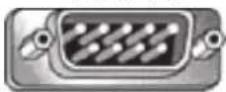
6789
Female DSUB 9-Pin
54321
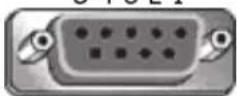
9876
3.5 mm barrel connector (alternative for limited
space)
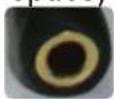
Pin # Signal Remark
| 1 NC | |
| 2 RXD Input to Display | |
| 3 TXD Output from Display | |
| 4 NC | |
| 5 GND | |
| 6 NC | |
| 7 NC | |
| 8 NC | |
| 9 NC | |
| frame GND | |
| Item | Signal | Remark |
| Tip | TXD | Output from Display |
| Ring | RXD Input to Display | |
| Sleeve | GND | |
LAN Hardware Specification
ViewSonic LFD communication port on the rear side:
-
Connector type: 8P8C RJ45
-
Pin Assignment:
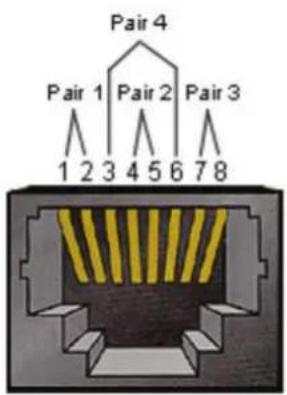
text_image
Pair 4 Pair 1 Pair 2 Pair 3 1 2 3 4 5 6 7 8| Pin # Signal Remark | ||
| 1 TX+ Output from Display | ||
| 2 TX- Output from Display | ||
| 3 RX+ Input to Display | ||
| 4 BI_D3+ For 1G case | ||
| 5 BI_D3- For 1G case | ||
| 6 RX- Input to Display | ||
| 7 BI_D4+ For 1G case | ||
| 8 BI_D4- For 1G case | ||
| frame | GND | |
RS-232 Communication Setting
• Baud Rate Select: 9600bps (fixed)
• Data bits: 8 bits (fixed)
- Parity: None (fixed)
- Stop Bits: 1 (fixed)
LAN Communication Setting
| Type: | Ethernet |
| Protocol: | TCP/IP |
| Port: | 5000 (fixed) |
| WOL Port: | 9 (fixed) for UDP _3.2.0 |
| Cross subnet: | No |
| Logon Credentials: | No |
Command Message Reference
PC sends to LFD command packet followed by "CR". Every time PC sends control command to Display, the Display shall respond as follows:
- If the message is received correctly it will send “+” (02Bh) followed by “CR” (00Dh)
- If the message is received incorrectly it will send “-” (02Dh) followed by “CR” (00Dh)
Protocol
Set-Function Listing
The PC can control the Display for specific actions. The Set-Function command allows you to control the Display behavior at a remote site through the RS-232 port. The Set-Function packet format consists of 9 bytes.
Set-Function Description:
Length: Total Byte of Message excluding "CR"
LFD ID Identification for each Display (01\~98; default is 01)
ID "99" means to apply the set command for all connected displays. Under such circumstances, only ID#1 display has to reply.
The LFD ID can be set via the OSD menu for each Display.
Command Type Identify command type,
"s" (0x73h): Set Command
“+” (0x2Bh): Valid command Reply
“-” (0x2Dh): Invalid command Reply
Command: Function command code: One byte ASCII code.
Value[1\~3]: Three bytes ASCII that defines the value.
CR 0x0D
Set-Function Format
Send: (Command Type="s")
Reply: (Command Type="+" or "-" )
REMARQUE : When PC applies command to all displays (ID=99), only the #1 set needs to reply by the name of ID=1.
Example 1: Set Brightness at 76 for Display (#02) and this command is valid Send (Hex Format)
| Name | Length | ID | Command | Type | Command | Value1 | Value2 | Value3 | CR | |
| Hex | 0x38 | 0x300x32 | 0x73 | 0x24 | 0x30 | 0x37 | 0x36 | 0x0D |
Reply (Hex Format)
| Name | Length ID | Command Type | CR | |
| Hex | 0x34 | 0x300x32 | 0x2B | 0x0D |
Example 2: Set Brightness at 75 for Display (#02) and this command is NOT valid Send (Hex Format)
| Name | Length | ID | Command Type | Command | Value1 | Value2 | Value3 | CR |
| Hex | 0x38 | 0x300x32 | 0x73 | 0x24 | 0x30 | 0x37 | 0x35 | 0x0D |
Reply (Hex Format)
| Name | Length ID | Command Type | CR | |
| Hex | 0x34 | 0x300x32 | 0x2D | 0x0D |
A. Basic Function
| Set Function | Length | ID | Command | Command | Value Range | Comments | |
| Type (ASCII) | Code(ASCII) | Code(Hex) | (Three ASCII bytes) | ||||
| Power ON *3.2.1/OFF (standby) | 8 s ! 21 | 000: STBY001: ON | 1. The Power-on via LAN control may work only under specific modes. See display UG for details. *3.1.12. “WOL by MAC address” maybe available as an alternative.*3.2.1 | ||||
| Input Select 8 s ^ | 22 | 000: TV001: AV002: S-Video003: YPbPr004: HDMI1014: HDMI2024: HDMI3034: HDMI4005: DVI006: VGA1016: VGA2026: VGA3007: Slot-in PC (OPS/SDM)/HDBT008: Internal memory009: DP1 *3.2.4023: DP2019: Type-C 1 *3.3.2039: Type-C 200A: Embedded/Main (Android) | 1. No need for USB2. For the case of two or more same sources, the 2nd digital is used to indicate the extension.3. The HEX of 00A is 30 30 41.4. 00Z is reserved for cycle mode *3.3.15. Using 2nd digi to identify DP or Type C. 0 and even numbers stand for DP; odd numbers stand for Type C *3.3.2 | ||||
| Brightness 8 s | $ 24 | 000 ~ 100900: Bright down (-1)901: Bright up (+1)*3.1.1 | |||||
| Backlight *3.2.0 | 8 | A | B | 42 | 000 ~ 100 | 1. For Android platform whose main mode is controlled by backlight and the other sources are controlled by brightness.2. Derived from Color calibration. *3.2.0 | |
| Power lock | 8 s | 4 34 | 000: Unlock001: Lock | *See note in details | |||
| Volume | 8 s | 5 35 | 000 ~ 100900: Volume down(-1)901:Volume up(+1) | ||||
| Mute | 8 s | 6 36 | 000: OFF001: ON (mute) | ||||
| Button lock 8 s | 8 38 | 000: Unlock001: Lock | *See note in details | ||||
| Menu lock 8 s | > 3E | 000: Unlock001: Lock | *See note in details |
| Set Function | Length ID | Command | Command | Value Range | Comments | |
| Number *3.1.1 8 s | @ 40 000~009 | |||||
| Key Pad *3.1.1 8 s A 41 | 000: UP001: DOWN002: LEFT003: RIGHT004: ENTER005: INPUT006: MENU/(EXIT)007: EXIT | |||||
| Remote Control | 8 s B 42 | 000: Disable001: Enable002: Pass through | Disable: RCU will have no functionEnabled: RCU controls normallyPass through: Display will bypass the RC code to connected device via the RS-232 port, but not react itself. | |||
| Restore default | 8 s | ~ 7E 000 | Recover to factory settings |
REMARQUE :
1. Behavior at Lock Modes
| Lock Mode Behavior | |
| Button Lock | 1. Lock all buttons on the front panel and RCU, except for “Power”2. All the SET functions should be workable via RS-232, even the ones with according hot key in RCU like Mute,...etc. |
| MENU Lock | 1. Lock the “MENU” key of front panel and RCU2. The Factory and Hospitality modes should not be blocked for the model using MENU-combined key to enter these two modes. Alternative approach will be indicated separately if any limitation by model. |
| POWER Lock | 1. Lock the “POWER” key on the front and RCU.2. The SET_POWER ON/OFF should be workable via RS-232, but does not mean the POWER lock will be released under this case.3. Can not be unlocked by reset in OSD setting4. Will auto AC power-on in power-lock5. Under power-lock, the set will not enter power saving when no PC signal and neither turn off when no other video signals after 15 minutes. |
| Remote Control Disable | Lock the RCU keys, but keep the front panel buttons workable. |
2. Wake-on-LAN by MAC address as alternative for SET Power on
(Length=126 Bytes)
| 6 Bytes | 6 Bytes (#1) | 6 Bytes (#2) | ... | 6 Bytes (#16) | 24 Bytes |
| 0xFF FF ... FF | MAC address M | AC address ... M | MAC address | 0x00 00 ... 00 |
B. Optional Function
| Set Function Length ID Command Command Value Range Comments | |||||||
| Type (ASCII) | Code (ASCII) | Code (Hex) | Three ASCII bytes) | ||||
| Contrast 8 s # | 23 000 ~ 100 | ||||||
| Sharpness 8 s | % 25 000 ~ 100 | ||||||
| Color 8 s & | 26 000 ~ 100 | ||||||
| Tint 8 s | ' | 27 000 ~ 100 | |||||
| Backlight On_Off | 8 s | ( | 29 | 000: OFF001: ON | |||
| Color mode | 8 s | ) | 29 | 000: Normal001: Warm002: Cold003: Personal | |||
| Surround sound | 8 s | - | 2D | 000: OFF001: ON | |||
| Bass 8 s | . | 2E 000 ~ 100 | |||||
| Treble | 8 s | / | 2F 000 ~ 100 | ||||
| Balance | 8 | s | 0 | 30 | 000 ~ 100 | 050 is central | |
| Picture Size 8 s | 1 | 31 | 000: FULL (16:9)001: NORMAL (4:3)002: REAL (1:1)*3.1.0 | ||||
| OSD language | 8 s 2 | 32 | 000: English001: French002: Spanish | Could be extended for more supported languages by model | |||
| PIP-Mode | 8 s 9 | 39 | 000: OFF001: PIP(POP)002: PBP | ||||
| PIP-Sound select | 8 s | : | 3A | 000: Main001: Sub | |||
| PIP-Position | 8 s | ; | 3B | 000: Up001: Down002: Left003: Right | |||
| PIP-InputTiling-Mode 8 s | 8 s 7P 50 | 37 | *2.9 | 000: TV001: AV002: S-Video003: YPbPr004: HDMI1014: HDMI2024: HDMI3034: HDMI4005: DVI006: VGA1016: VGA2026: VGA3007: Slot-in PC (OPS/SDM)/HDBT008: Internal memory009: DP/Type-C*3.2.400A: Embedded/Main (Android)000: OFF001: ON (for video wall) | Value range is same as SET-Input select | ||
| Tiling-Compensation | 8 s Q 51 | 000: OFF001: ON | (for video wall)Bezel width compensation | ||||
| Tiling-H by V Monitors | 8 s R 52 | 01x~09x: H0x1~0x9: V | (for video wall)1. 2nd digital for H monitors2. 3rd digital for V monitors | ||||
| Tiling-Position 8 s | S 53 001~025 | (for Video wall)Copy the screen of Position# to identified display | |||||
| Date: Year 8 s | V 56 Y17~Y99 | Last 2 digits(20)17~(20)99 | |||||
| Date: Month | 8 s V 56 M01~M12 | 2 digits | |||||
| Date: Day 8 s | V 56 D01~D31 | 2 digits | |||||
| Time: Hour | 8 s | W 57 H00~H23 | 24-hr format.2 digits. | ||||
| Time: Min 8 s | W | 57 M00~M59 | 2 digits | ||||
| Time: Sec | 8 | s | W | 57 | S00~S59 | 2 digits | |
REMARQUE :
3. Tiling definition of H Monitors, V Monitors, and Position
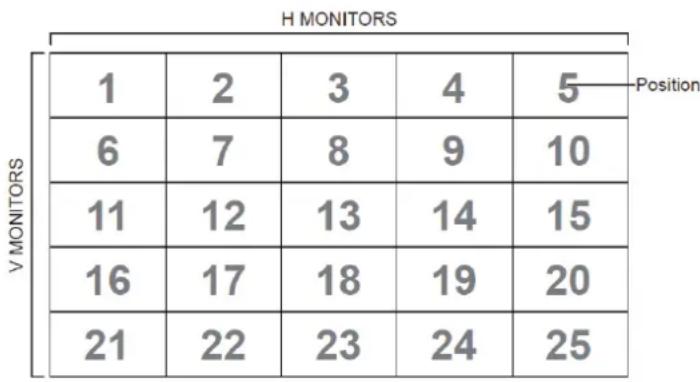
heatmap
H MONITORS | Position | 1 | 2 | 3 | 4 | 5 | | :--- | :--- | :--- | :--- | :--- | :--- | | V MONITORS | 6 | 7 | 8 | 9 | 10 | | V MONITORS | 11 | 12 | 13 | 14 | 15 | | V MONITORS | 16 | 17 | 18 | 19 | 20 | | V MONITORS | 21 | 22 | 23 | 24 | 25 |4. Set Date example
Date: 2017-3/15
Send: 0x 38 30 31 73 56 59 31 37 0D ("Y17")
Send: 0x 38 30 31 73 56 4D 30 33 0D ("M03")
Send: 0x 38 30 31 73 56 44 31 35 0D ("D15")
5. Set Time example
Time: 16:27:59
Send: 0x 38 30 31 73 57 48 31 36 0D ("H16")
Send: 0x 38 30 31 73 57 4D 32 37 0D ("M27")
Send: 0x 38 30 31 73 57 53 35 39 0D ("S59")
Get-Function Listing
The PC can interrogate the LFD for specific information. The Get-Function packet format consists of 9 bytes which is similar to the Set-Function packet structure. Note that the "Value" byte is always = 000.
Get-Function Description:
Length: Total Byte of Message excluding "CR".
TV/DS ID Identification for each of TV/DS (01\~98; default is 01).
Command Type Identify command type, "g" (0x67h) : Get Command "r" (0x72h) : Valid command Reply "-" (0x2Dh) : Invalid command Reply
Command: Function command code: One byte ASCII code.
Value[1\~3]: Three bytes ASCII that defines the value.
CR 0x0D
Get-Function Format
Send: (Command Type="g")
Reply: (Command Type="r" or "-"
If the Command is valid, Command Type = "r"
If the Command is NOT valid, Command Type = “-”
Example 1: Get Brightness from TV-05 and this command is valid. The Brightness value is 67.
Send (Hex Format)
| Name | Length ID | Command Type | Command Value1 | Value2 | Value3 | CR | |
| Hex | 0x38 | 0x300x35 | 0x67 0x62 | 0x30 0x30 0x30 | 0x0D |
Reply (Hex Format)
| Name | Length ID | Command Type | Command Value1 | Value2 | Value3 | CR | |
| Hex | 0x38 | 0x300x35 | 0x72 0x62 | 0x30 0x36 | 0x37 0x0D |
Example 2: Get Color from Display (#05), but the Color command is not supported by this model.
Send (Hex Format)
| Name | Length | ID | Command Type | Command | Value1 | Value2 | Value3 | CR |
| Hex | 0x38 | 0x300x35 | 0x67 | 0x26 | 0x30 0x30 | 0x30 0x0D | ||
Reply (Hex Format)
| Name | Length | ID | Command Type | CR |
| Hex | 0x34 | 0x300x35 | 0x2D | 0x0D |
Get-Function Table
A. Basic Function
| Get Function | Length ID | Command Command | Response Range | Comments | |||
| Type (ASCII) | Code (ASCII) | Code (Hex) | (Three ASCII bytes) | ||||
| Get-Brightness 8 | g b 62 000 | ~ 100 | |||||
| Get-Backlight *3.2.0 | 8 a B | 42 000 | ~ 100 | 1. For Android platform whose main mode is controlled by backlight and the other sources are controlled by brightness.2. Derived from Color calibration. *3.2.0 | |||
| Get-Volume 8 g | f 66 000 | ~ 100 | |||||
| Get-Mute | 8 g g | 67 | 000: OFF001: ON (muted) | ||||
| Get-Input select | 8 g | j 6A | 000~100~ | 1. 1st digit for signal detection: 0 means “no signal”; 1 means “signal detected”2. 2nd & 3rd digit: See Set-function table | |||
| Get-Power status: ON/ STBY | 8 g | I 6C | 001: ON000: STBY | ||||
| Get-Remote control | S | g n 6E | 000: Disable001: Enable002: Pass through | Get RCU mode status | |||
| Get-Power lock | 8 g o | 6F | 000: Unlock001: Lock | ||||
| Get-Button lock | 8 g p | 70 | 000: Unlock001: Lock | ||||
| Get-Menu lock | 8 g | I 6C | 000: Unlock001: Lock | ||||
| Get-ACK | 8 g | z 7A 000 | This command is used to test the communication link | ||||
| Get-Thermal | 8 g 0 | 30 | 000~100:0~+100 deg C-01~-99:-1~-99 deg C | ||||
| Get-Operation hour *3.2.0 | 8 g 1 | 31 000 | 1. Accumulated hours in 6-digit integer (000,001~ 999,999)*3.2.02. Can not be reset when FW update and Factory initiation *3.2.23. Reply in new 32-byte format *3.2.0 | ||||
| Get-Device name | 8 g 4 | 34 000 | Reply in new 32-byte format *3.2.0 | ||||
| Get Function | Length ID | Command Command | Response Range | Comments | ||
| Get-MAC address | 8 g 5 35 000 | (for the models with LAN)Reply in new 32-byte format *3.2.0 | ||||
| Get-IP address *3.2.0 | 8 g 6 36 000 | (for the models with LAN)Reply in new 32-byte format *3.2.0 | ||||
| Get-Serial number *3.2.0 | 8 g 7 37 000 | Reply in new 32-byte format *3.2.0 | ||||
| Get-FW version *3.2.0 | 8 g 8 38 000 | Reply in new 32-byte format *3.2.0 | ||||
REMARQUE :
1. Get Operation Hour example
Assumed the accumulated operation hour is 123,456 hrs
Send: 0x 38 30 31 67 31 30 30 30 0D (Get Operation hour)
Reply: 0x 32 30 31 72 31 31 32 33 34 35 36 00 00 ... 00 00 0D
2. Get Device Name example
Assumed the device name is CDE-5500
Send: 0x 38 30 31 67 34 30 30 30 0D (Get Device Name)
Reply: 0x 32 30 31 72 34 43 44 45 2D 35 35 30 30 00 00 ... 00 00 0D
Assumed the device name is "NMP-302#1"
Send: 0x 38 30 31 67 34 30 30 30 0D (Get Device Name)
Reply: 0x 32 30 31 72 34 4E 4D 50 2D 33 30 32 23 31 00 00 ...00 00 0D
3. Get MAC address example
Assumed the MAC address is 00:11:22:aa:bb:cc
Send: 0x 38 30 31 67 35 30 30 30 0D (Get MAC add)
Reply: 0x 32 30 31 72 35 30 30 31 31 32 32 61 61 62 62 63 63 00 00...00 00 0D
4. Get IP address example
Assumed the IP address is 192.168.100.2
Send: 0x 38 30 31 67 36 30 30 30 0D (Get IP address)
Reply: 0x 32 30 31 72 36 31 39 32 2E 31 36 38 2E 31 30 30 2E 32 00 00...00 00 0D
5. Get Serial number example
Assumed the Serial number is ABC180212345
Send: 0x 38 30 31 67 37 30 30 30 0D (Get Serial number)
Reply: 0x 32 30 31 72 37 41 42 43 31 38 30 32 31 32 33 34 35 00 00...00 00 0D
6. Get FW version example
Assumed the FW version is 3.02.001
Send: 0x 38 30 31 67 38 30 30 30 0D (Get FW version)
Reply: 0x 32 30 31 72 38 33 2E 30 32 2E 30 30 31 00 00...00 00 0D
B. Optional Function
| Get Function | Length | ID | Command Command | Response Range | Comments | ||
| Type (ASCII) | Code (ASCII) | Code (Hex) | Three ASCII bytes) | ||||
| Get-Contrast 8 g a 61 000 ~ 100 | |||||||
| Get-Sharpness 8 g c 63 000 ~ 100 | |||||||
| Get-Color 8 g d 64 000 ~ 100 | |||||||
| Get-Tint 8 g e 65 000 ~ 100 | |||||||
| Get-Backlight On_Off | 8 g h 68 | 000: OFF001: ON | |||||
| Get-PIP mode 8 g t | 74 | 000: OFF001: PIP (POP)002: PBP | |||||
| Get-PIP input | 8 | g | u | 75 | 000 ~ | See Set-input select | |
| Get-Tiling Mode | 8 g v 76 | 000: OFF001: ON | (for Video wall) | ||||
| Get-Tiling Compensation | 8 g | w | 77 | 000: OFF001: ON | (for Video wall)Bezel width compensation | ||
| Get-Tiling H by V monitors | 8 g x 78 | 01x~09x: H monitors0x1~0x9: V monitors | (for Video wall)1. 2nd digital for H monitors2. 3rd digital for V monitors | ||||
| Get-Tiling position | 8 g y 79 | 000: OFF001~025 | (for Video wall)Copy the screen of Position# to identified display | ||||
| Get-Date: Year | 8 g 2 32 Y00~Y00 | Last 2 digits(20)17~(20)99 | |||||
| Get-Date: Month | 8 g 2 32 M00~M00 | 2 digits | |||||
| Get-Date: Day | 8 g 2 32 D00~M00 | 2 digits | |||||
| Get-Time: Hour | 8 g 3 33 H00~H00 | 24-hr format.2 digits | |||||
| Get-Time: Min 8 g 3 33 M00~M00 | 2 digits | ||||||
| Get-Time: Sec | 8 g 3 33 S00~S00 | 2 digits | |||||
REMARQUE :
1. Get Date example
Assumed the current date of display#01 as below:
Date: 2017-3/15
Send: 0x 38 30 31 67 32 59 30 30 0D (Get Date:Year)
Reply: 0x 38 30 31 72 32 59 31 37 0D ("Y17")
Send: 0x 38 30 31 67 32 4D 30 30 0D (Get Date:Month)
Reply: 0x 38 30 31 72 32 4D 30 33 0D ("M03")
Send: 0x 38 30 31 67 32 44 30 30 0D (Get Date:Day)
Reply: 0x 38 30 31 72 32 44 31 35 0D ("D15")
2. Get Time example
Assumed the current time of display#01 as below:
Time: 16:27:59
Send: 0x 38 30 31 67 33 48 30 30 0D (Get Time:Hour)
Reply: 0x 38 30 31 72 33 48 31 36 0D ("H16")
Send: 0x 38 30 31 67 33 4D 30 30 0D (Get Time:Min)
Reply: 0x 38 30 31 72 33 4D 32 37 0D ("M27")
Send: 0x 38 30 31 67 33 53 30 30 0D (Get Time:Sec)
Reply: 0x 38 30 31 72 33 53 35 39 0D ("S59")
3. Get RS232 version example
Assumed the version is 3.0.1
Send: 0x 38 30 31 67 36 30 30 30 0D (Get RS232 version)
Reply: 0x 38 30 31 72 36 33 30 31 0D ("301")
C. Auto Reply \*3.2.1
The display will send out the updated data/status automatically without GET query from the host whenever the following data/status is changed by the user through any of the available ways like: remote control unit, front control panel keys, or touch screen.
- PowerOn/Off
- InputSelect
- Brightness
- Backlight
• Volume - MuteOn/Off
Remote Control Pass-through Mode
When the PC sets the Display to Remote Control Pass through mode, the Display will send a 7-byte packet (followed by "CR") in response to remote control unit (RCU) button activation.
In this mode the RCU will have no effect on the Display function. For example: "Volume+" will not change the volume of the Display, but instead only send the "Volume+" code to the PC over the RS-232 port.
IR Pass Through-Function format
Reply: (Command Type="p")
Example 1: Remote Control Pass-through when "VOL+" key is pressed for Display (#5)
Send (Hex Format)
| Name | Length | ID | Command Type | RCU Code1 (MSB) | RCU Code2 (LSB) | CR |
| Hex | 0x36 | 0x300x35 | 0x70 | 0x31 | 0x30 | 0x0D |
| Key | Code (HEX) | Basic *3.1.1 | Optional *3.1.1 |
| 1 01 V | |||
| 2 02 V | |||
| 3 03 V | |||
| 4 04 V | |||
| 5 05 V | |||
| 6 06 V | |||
| 7 07 V | |||
| 8 08 V | |||
| 9 09 V | |||
| 0 0A V | |||
| - 0B V | |||
| RECALL (LAST) 0C V | |||
| INFO (DISPLAY) 0D V | |||
| 0E | |||
| ASPECT (ZOOM, SIZE) 0F V | |||
| VOLUME UP (+) | 10 V | ||
| VOLUME DOWN (-) | 11 V | ||
| MUTE | 12 V | ||
| CHANNEL/PAGE UP (+)/ BRIGHTNESS+ | 13 V | ||
| CHANNEL/PAGE DOWN (-)/ BRIGHTNESS- | 14 V | ||
| POWER | 15 V | ||
| SOURCES (INPUTS) | 16 V | ||
| 17 | |||
| 18 | |||
| SLEEP | 19 V | ||
| MENU | 1A V | ||
| UP | 1B V | ||
| DOWN | 1C V | ||
| LEFT (-) | 1D V | ||
| RIGHT (+) | 1E V | ||
| OK (ENTER, SET) | 1F | V | |
| EXIT | 20 V | ||
| 21 | |||
| 22 | |||
| 23 | |||
| 24 | |||
| 25 | |||
| 26 | |||
| 27 | |||
| 28 | |||
| 29 | |||
| 2A | |||
| 2B | |||
| RED □ (F1) 2C V | |||
| GREEN □ (F2) 2D V | |||
| YELLOW □ (F3) 2E V | |||
| BLUE □ (F4) 2F V |
REMARQUE :
- This IR-pass-through code is different from the RCU key code.
- Special control sequence for POWER key under IR-pass through mode.
2-1. When Display is OFF and receives the IR POWER code: Display will turn itself ON, then forward the POWER code to the host via RS-232.
2-2. When Display is ON and receives the IR POWER code: Display will forward the POWER code to the host via RS-232, then turn OFF itself.
2-3. When SET-POWER LOCK is enabled, the Display will not respond to POWER key pressing.
- The VOLUME UP and VOLUME DOWN code will repeatedly output when you press and hold the keys.
Annexe
Modes d'affichage
DisplayPort
| Resolution Taux de rafraîchissement (@) | |
| 640 x 480 60, 67, | 72 Hz |
| 800 x 600 56, 60, | 72, 75 Hz |
| 832 x 624 75 Hz | |
| 1024 x 768 60, 70, | 75 Hz |
| 1152 x 864 75 Hz | |
| 1152 x 870 75 Hz | |
| 1280 x 720 60 Hz | |
| 1280 x 960 60 Hz | |
| 1280 x 1024 60, 75 | Hz |
| 1360 x 768 60, 85 | Hz |
| 1366 x 768 60 Hz | |
| 1440 x 900 60 Hz | |
| 1600 x 1200 60 Hz | |
| 1680 x 1050 60 Hz | |
| 1920 x 1080 60 Hz | |
| 1920 x 1200 60 Hz | |
| 3840 x 2160 25, 30, | 50, 60 Hz |
HDMI
| Resolution Taux de rafraîchissement (@) | |
| 640 x 480 60, 67, | 72, 75 Hz |
| 800 x 600 56, 60, | 72, 75 Hz |
| 832 x 624 75 Hz | |
| 1024 x 768 60, 70, | 75 Hz |
| 1152 x 864 75 Hz | |
| 1152 x 870 75 Hz | |
| 1280 x 720 60 Hz | |
| 1280 x 960 60 Hz | |
| 1280 x 1024 60, 75 | Hz |
| 1360 x 768 60, 85 | Hz |
| 1366 x 768 60 Hz | |
| 1440 x 900 60 Hz | |
| 1600 x 1200 60 Hz | |
| 1680 x 1050 60 Hz | |
| 1920 x 1080 60 Hz | |
| 1920 x 1200 60 Hz | |
| 3840 x 2160 25, 30, | 50, 60 Hz |
USB Type C
| Resolution Taux de rafraîchissement (@) | |
| 640 x 480 60, 67, | 72 Hz |
| 800 x 600 56, 60, | 72, 75 Hz |
| 832 x 624 75 Hz | |
| 1024 x 768 60, 70, | 75 Hz |
| 1152 x 864 75 Hz | |
| 1152 x 870 75 Hz | |
| 1280 x 720 60 Hz | |
| 1280 x 960 60 Hz | |
| 1280 x 1024 60, 75 | Hz |
| 1360 x 768 60, 85 | Hz |
| 1366 x 768 60 Hz | |
| 1440 x 900 60 Hz | |
| 1600 x 1200 60 Hz | |
| 1680 x 1050 60 Hz | |
| 1920 x 1080 60 Hz | |
| 1920 x 1200 60 Hz | |
| 3840 x 2160 25, 30, | 50, 60 Hz |
VGA
| Resolution Taux de rafraîchissement (@) | |
| 640 x 480 60, 67, | 72 Hz |
| 800 x 600 56, 60, | 72, 75 Hz |
| 832 x 624 75 Hz | |
| 1024 x 768 60, 70, | 75 Hz |
| 1152 x 864 75 Hz | |
| 1152 x 870 75 Hz | |
| 1280 x 720 60 Hz | |
| 1280 x 960 60 Hz | |
| 1280 x 1024 60, 75 | Hz |
| 1360 x 768 60, 85 | Hz |
| 1366 x 768 60 Hz | |
| 1440 x 900 60 Hz | |
| 1600 x 1200 60 Hz | |
| 1680 x 1050 60 Hz | |
| 1920 x 1080 60 Hz | |
| 1920 x 1200 60 Hz | |
Sortie HDMI
| Resolution Taux de rafraîchissement (@) | |
| 720 x 480 60 Hz | |
| 1920 x 1080 60 Hz | |
| 3840 x 2160 60 Hz | |
Dépannage
- https://www.viewsonicglobal.com/public/products_download/safety_compliance/IFP/VS20432_CE_DoC.pdf
- https://www.viewsonicglobal.com/public/products_download/safety_compliance/IFP/VS20640_CE_DoC.pdf
- https://www.viewsonicglobal.com/public/products_download/safety_compliance/IFP/VS20641_CE_DoC.pdf
- https://www.viewsonicglobal.com/public/products_download/safety_compliance/IFP/VS20434_CE_DoC.pdf
- https://www.viewsonicglobal.com/public/products_download/safety_compliance/IFP/VS20435_CE_DoC.pdf
https://www.viewsonic.com/us/go-green-with-viewsonic
Europe :
https://www.viewsonic.com/eu/environmental-social-governance/recycle
Taiwan :
https://recycle.moenv.gov.tw/
https://www.viewsonic.com/eu/