JN-IPS245G320F-HSP - Monitor Japannext - Free user manual and instructions
Find the device manual for free JN-IPS245G320F-HSP Japannext in PDF.


User questions about JN-IPS245G320F-HSP Japannext
0 question about this device. Answer the ones you know or ask your own.
Ask a new question about this device
Download the instructions for your Monitor in PDF format for free! Find your manual JN-IPS245G320F-HSP - Japannext and take your electronic device back in hand. On this page are published all the documents necessary for the use of your device. JN-IPS245G320F-HSP by Japannext.
USER MANUAL JN-IPS245G320F-HSP Japannext
text_image
JANHEC ENERG+ A B C D E F G 18 x100x100h HOR 25 x100x100h ENERG+Important :
Cleaning and maintaining the monitor 16
How to maintain the monitor 16
The symptoms listed 16
Welcome 17
Quick Start Guide 18
Assembling the Monitor Base 18
Connection with a computer 19
Accessories 19
Interface / Connectivity 20
Description of the display button 2 1
When the On-Screen Menu (OSD) is not open 2 1
When the on-screen menu (OSD) is displayed 2 1
On-Screen Menu (OSD) 2 2
Dysfunction 23
Customer Support 24
natural_image
Technical line drawing of a mechanical component with a red arrow indicating a specific part (no text or symbols present)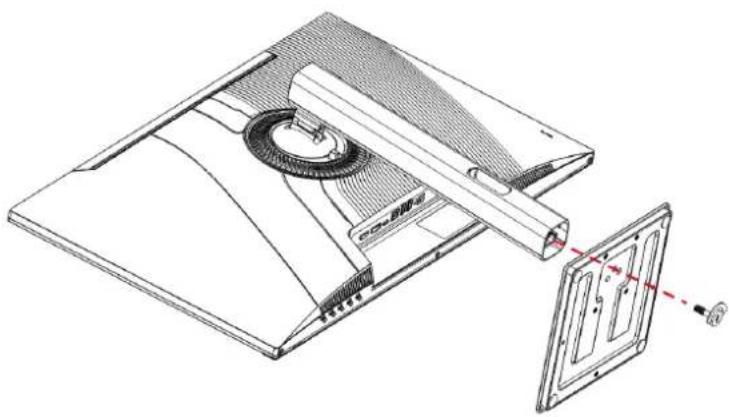
natural_image
Technical line drawing of a mechanical device with internal components and a separate view showing a component (no text or symbols present)natural_image
Technical line drawing of a mechanical assembly with a central rotating component and support structure (no text or symbols)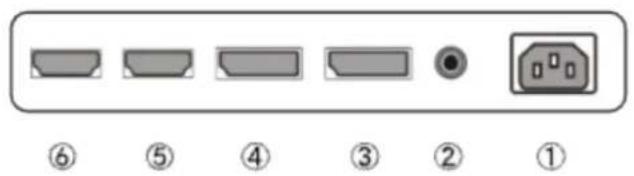
text_image
⑥ ⑤ ④ ③ ② ①Please make sure to read this instruction manual before use.
Please use it correctly for your safety.
Once you have read it, make sure to keep it.
Please read all included instruction manuals carefully before use.
- Place the monitor on a flat, stable surface. To avoid the risk of fire or electric shock, avoid high temperatures, low temperatures, high humidity and accumulation of dust.
Do not use the monitor where it may become wet or exposed to water. - Do not open and never cover the monitor case because it contains high voltage parts inside which could cause serious injury or fire if you come into contact with them.
- If the power supply is damaged, please contact our customer service or your dealer. Never attempt to inspect or repair the product yourself.
- Before use, please ensure that all cables are properly connected and the power cord is not damaged. If you discover any damage or blurred areas, please contact your dealer immediately.
- The slots and openings on the top or back of the monitor are required ventilation holes for this product. Do not cover these holes. Do not place this product near or above a heat source such as a radiator without adequate ventilation.
- Do not insert foreign objects or spill liquids into any openings in the monitor case. This could cause damage or malfunction.
• Always operate the monitor using the type of power source indicated on the product label.
If you are unsure of the type of power supply you have, please contact your local power company. - Do not apply excessive current to sockets or extension cords. Use caution as excessive current can cause electric shock and is very dangerous.
- To protect your monitor from damage caused by power surges, turn off power to the device during long periods of inactivity or during lightning storms.
- To ensure satisfactory operation of the monitor, the computer must be equipped with a properly configured outlet marked in the AC100-240V range.
-
If you experience technical problems or concerns with your monitor, please contact our customer service or authorized reseller.
-
To work safely, make sure to establish the ground connection before connecting the power plug to the power source. Also, when disconnecting the ground connection, make sure to unplug the power plug first.
- This product is not intended for continuous use for 24 hours. Please unplug the power plug when you do not use the product for a long time.
- The included AC adapter and cord are intended for this product only. Do not use it for other equipment.
- Do not use cleaners or detergents containing alcohol or acetone to clean your monitor. Make sure to use a cleaner specifically designed for LCD monitors. Do not spray liquid cleaner directly on the screen. Please note that if the cleaning fluid drips and gets inside the monitor, it is very dangerous as it may cause electric shock or fire. LCD panels are easily damaged, so do not rub it with hard objects.
- Before lifting or moving the monitor, turn off the power switch and unplug all cables and power cords. When installing the monitor, lift it using the appropriate method. When lifting or carrying the monitor, make sure to grip it by the edges. Never lift the monitor by its stand or cord.
Precaution
- Using the monitor in a dark room, or using it continuously for long periods of time, may cause eye fatigue.
• Take a break of 5 to 10 minutes every hour and use the monitor in a reasonably bright room.
Before cleaning the monitor, turn off the power and unplug all cables and cords.
How to maintain the monitor:
- LCD panel area: Do not use tissue paper, etc., instead use a clean, soft cloth specially designed for LCD panels. Please wipe the monitor gently. For difficult-to-remove stains, use a neutral cleaner specifically designed for LCD panels.
- Monitor frame: Wipe with a soft cloth dampened with a mild cleaner.
The symptoms listed below are normal conditions for the monitor
- When first used, the screen may flicker due to the nature of the backlight. If this symptom appears, please turn off the monitor and then turn it on again.
- Depending on your desktop setup, displayed colors, and brightness, brightness may appear uneven.
- Several pixels may or may not always be lit.
- If you display the same image for a long time, an afterimage from the previous image may persist even after switching to a different image.
In this case, the screen will recover slowly. Otherwise, turn off the power for a few hours and the problem will be fixed.
Instead of trying to repair the monitor yourself, contact customer service or the dealer.
Thank you for purchasing the 24.5 inch LCD monitor JAPANNEXT .
The installed panel supports FHD (1920 x 1080) resolution. We recommend using FHD resolution for best performance. If the resolution is lower than FHD, the original performance cannot be achieved.
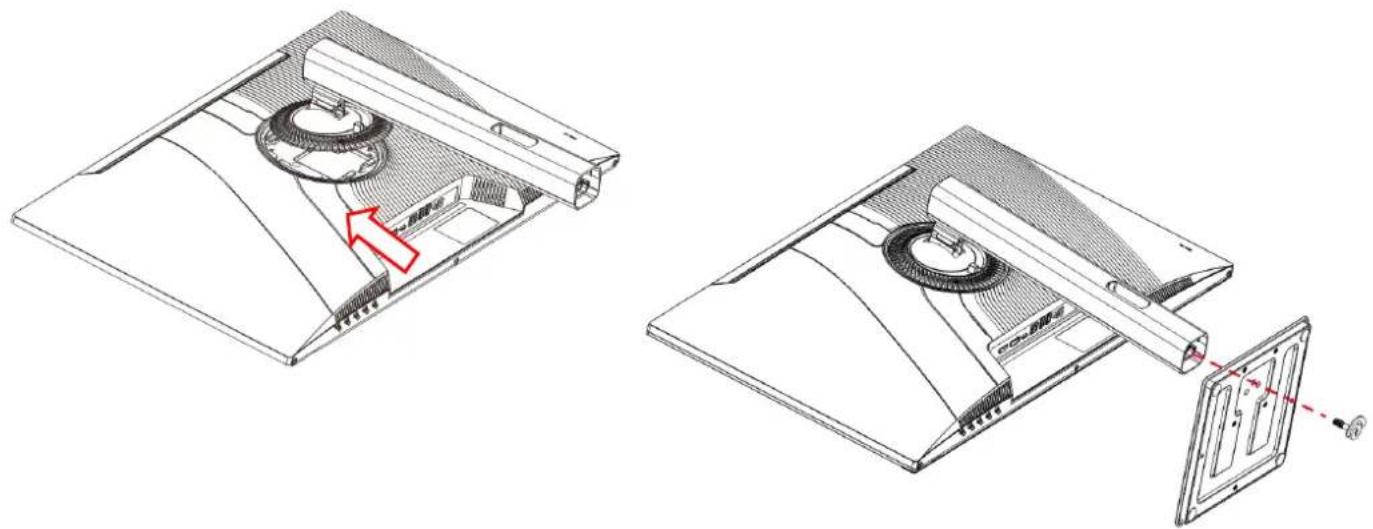
Assembling the Monitor Base
- Spread a soft cloth on a flat, stable surface and place the device screen side down on it.
- Insert the hook on top of the stand into the stand attachment part on the back of the monitor.
- Secure the foot and the base using the screw supplied with the base.
natural_image
Technical line drawing of a device's internal structure showing two views with a red arrow indicating a component (no text or symbols present)- Make sure the monitor and stand are securely attached, then slowly raise the monitor.
Connection with a computer
- Make sure the monitor and computer are turned off before connecting the cable.
- Connect the power cable and compatible cables (HDMI, DP) to the monitor.
Also connect the cable (HDMI, DP) to the computer. - Turn on the monitor and computer.
Notice : Since problems may occur, do not connect HDMI and DP cables at the same time.
Please connect only one to a computer.
Accessories
Manual
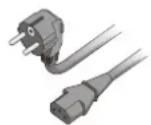
Power cable
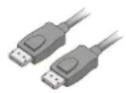
DP cable
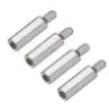
VESA spacer*1
natural_image
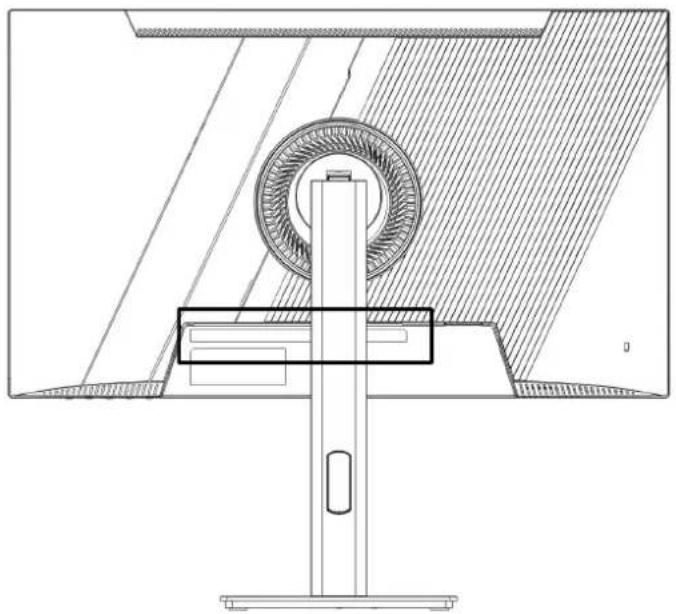
Technical line drawing of a mechanical assembly with a central rotating component and support structure (no text or symbols)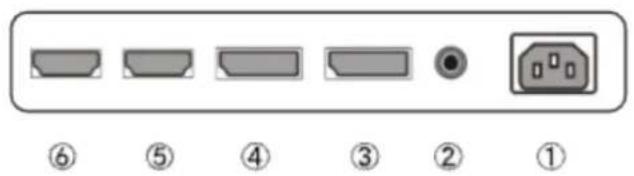
text_image
⑥ ⑤ ④ ③ ② ①1: Power supply: Used when connecting the power cable.
2: Audio output port: Possibility to connect headphones or speakers.
3: Port DP 1 : Port compatible DP.
4: Port DP2: Port compatible DP.
5: Port HDMI 1: HDMI-compatible port (up to 240 Hz).
6: Port HDMI 2: HDMI-compatible port (up to 240 Hz).
Description of the display button
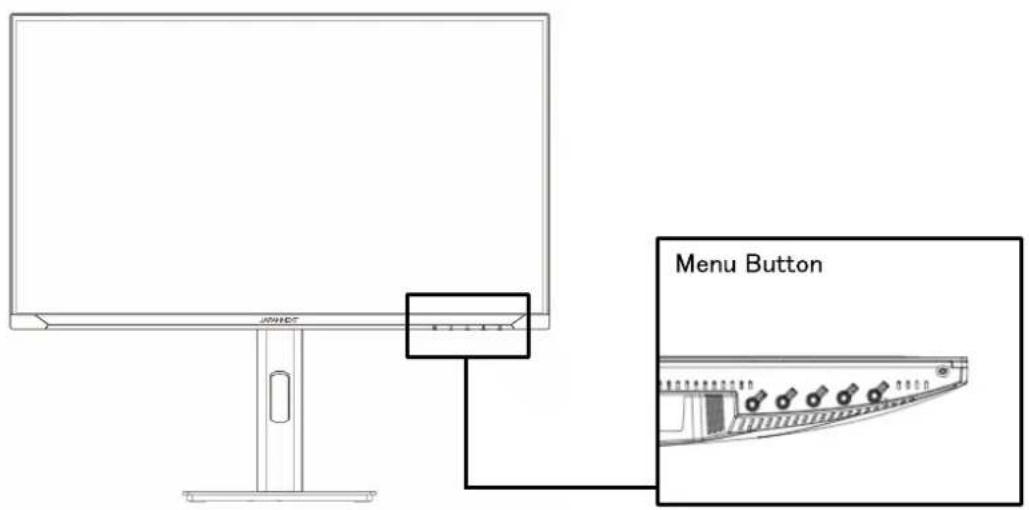
text_image
JINHET Menu Button- When the On-Screen Menu (OSD) is not open
| M | Show OSD menu |
| ▼ | Target display (reticle) * |
| ▲ | Show volume settings |
| E | Show input source |
| ⏻ | Turn on/off |
*The display disappears with the M and E buttons.
- When the on-screen menu (OSD) is displayed
| M | Select and confirm the menu item |
| ▼ | Go down the menu or reduce the number of selected items |
| ▲ | Move up a menu or increase the value of a selected item |
| E | Go back or close the menu |
| ⏻ | Turn on/off |
On-Screen Menu (OSD)
| Menu | Features | Setting value | Comment |
| Adjusting image quality | brightness | 0-100 | Adjust the brightness |
| contrast | 0-100 | Adjust contrast | |
| BLACK LEVEL | 0-20 | Adjust BLACK LEVEL in the range from 0 to 20 | |
| Image mode | Standard/Game/Movie /text/FPS/RTS | Select picture mode *1 | |
| RCD | ON/OFF | DCR Settings *1 | |
| Mode HDR | AUTOMATIC/ON/OFF | HDR mode setting *1 | |
| Image Adjustment | saturation | 0-100 | Adjust saturation |
| blue light reduction | 0-100 | Adjust blue light reduction in the range of 0 to 100 | |
| Sharpness | 0-4 | Adjust sharpness from 0 to 4 | |
| aspect ratio | Large/4:3 | Select the aspect ratio | |
| energy saving | ON/OFF | Power saving settings *1 | |
| Color parameters | color temperature | User Settings/Cool Colors/Warm Colors /normal | Select color temperature |
| Red | 0-100 | Adjust when using user settings | |
| Green | 0-100 | ||
| Green | 0-100 | ||
| OSD Settings | Language | French/English | Select OSD language |
| Horizontale position OSD | 0-100 | Adjust the horizontal position of the OSD | |
| Vertical position OSD | 0-100 | Adjust the vertical position of the OSD | |
| OSD time setting | 5-60 | Adjust OSD display time | |
| OSD transparency | 0/20/40/60/80/100 | Adjust OSD transparency | |
| Reset | reset | Factory Reset Settings | |
| volume | 0-100 | Adjust the volume in the range of 0 to 100 | |
| mute | ON/OFF | Mute on/off | |
| RGB light | ON/OFF | Rear RGB light ON/OFF | |
| Other | input source | AUTO/DP1/DP2/HDMI1 /HDMI2 | Select the input source |
| FreeSync | ON/OFF | Set FreeSync *1 | |
| overdrive | OFF/weak/medium/strong | Overdrive Settings | |
| MPRT | ON/OFF | MPRT enabled/disabled *1 |
*1 When a function is enabled on the OSD (in the case of picture mode, when set to anything other than standard), some functions on the OSD cannot be changed.
*2 The MPRT function can be used when the refresh rate is set to 100 Hz or higher. Cannot be used at the same time as FreeSync. When the MPRT function is activated, the screen brightness becomes slightly darker.
*To enable HDR, the connected device and content must support HDR.
*Please note that product design, specifications and appearance are subject to change without notice due to product improvement. If the information listed differs from the actual item, priority will be given to the actual item.
| Symptoms | Checkpoint |
| Power LED does not light up | • Is the device turned on by pressing the power button?• Make sure the power cord is securely connected to the monitor and the outlet. |
| No image appears even though the power indicator is on | • Is the blank screensaver running? Please move your mouse or keyboard• Make sure the brightness and contrast are not set to minimum.• Please make sure the signal cable is properly connected to your monitor and computer.• Check if the signal cable pins are bent or the cable is damaged.• Is your computer turned on? If you have another monitor, try connecting it to see if the works properly.• Does the computer signal timing match the monitor specifications? |
| The image is distorted or ripp appear in the image. | • Please make sure the signal cable is well connected to your monitor and computer.• Keep electrical devices that may cause electrical interference away from the monitor.• Does the computer signal timing match the monitor specifications? |
| The image position is off-center.Image size is incorrect | • Is your computer resolution correct?• Does the computer signal timing match the monitor specifications? |
| The screen is too bright/too dark | • Screen (OSD): Adjust brightness and contrast settings from the menu. |
| The image is blurry or unclear | • Set the display resolution on your PC to the same as the recommended native screen re of the monitor.• Does the computer signal timing match the monitor specifications?• Check if the signal cable pins are bent or the cable is damaged. |
| The color of the image is incorrect | • Check if the signal cable pins are bent or the cable is damaged.• Screen (OSD): Please adjust the red/blue/green color settings in the menu (color temperature).• Screen (OSD): Please reset the settings from the menu.• Does the computer signal timing match the monitor specifications? |
| Unable to display FHD | • This product supports resolutions up to 1920 x 1080 (FHD), including HDMI and DP. Ho some graphics cards may not support 1920 x 1080 resolution. Please check with your local distributor or manufacturer for the hardware limitations of your computer. |
| Unable to set 320 Hz | • Even if your computer or graphics card supports a resolution of 1920 x 1080, it may not 320 Hz. If you cannot display 1920 x 1080 at 320 Hz, please check with from your computer manufacturer or graphics card manufacturer |
| Abnormal image noise | • Are the cables correctly connected? |
Customer Support

JAPANNEXT
TEL: 09 70 70 80 90
Hours 9:00 a.m. to 5:00 p.m. (Closed Saturdays, Sundays and public holidays)
Contact form
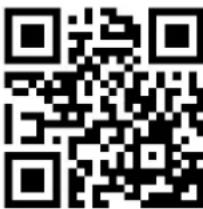
You can easily access the application form by scanning the QR code.
text_image
QR code image containing encoded data, no visible human-readable textJAPANNEXT Co., Ltd. CS Department
Chiba-Ken Isumi-Shi Namegawa 506-5