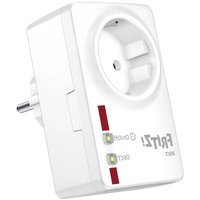
FRITZ!DECT 200 - Smart plug AVM - Free user manual and instructions
Find the device manual for free FRITZ!DECT 200 AVM in PDF.


| Product type | Connected electrical outlet |
| Brand | AVM |
| Model | FRITZ!DECT 200 |
| Dimensions (L x W x H) | 93 x 59 x 41 mm |
| Weight | 135 g |
| Power supply | 230 V~, 50 Hz |
| Max. supported power | 2300 W / 10 A (resistive load) |
| Own power consumption | Max 1.1 W; standby 0.5 W |
| Communication standard | DECT |
| Radio frequency | 1880 – 1900 MHz |
| Range (indoor) | Up to 40 m |
| Range (outdoor) | Up to 300 m |
| Consumption measurement accuracy | ±100 mW (<5 W); ±2% (>5 W) |
| Operating temperature | 0 °C to 40 °C |
| Operating humidity | 10% to 90% non-condensing |
| Connection to the box | Via DECT button on the plug and the FRITZ!Box |
| Control functions | Manual on/off, automatic, timer, consumption and temperature measurement |
| Mobile app | FRITZ!App Smart Home (iOS/Android) |
| Manufacturer warranty | 2 years |
| Recycling | Do not dispose of with household waste, take to a recycling center |
| Certification | CE |
Frequently Asked Questions - FRITZ!DECT 200 AVM
User questions about FRITZ!DECT 200 AVM
0 question about this device. Answer the ones you know or ask your own.
Ask a new question about this device
Download the instructions for your Smart plug in PDF format for free! Find your manual FRITZ!DECT 200 - AVM and take your electronic device back in hand. On this page are published all the documents necessary for the use of your device. FRITZ!DECT 200 by AVM.
USER MANUAL FRITZ!DECT 200 AVM
Installation and Operation
ENGLISH 3
DEUTSCH 17
ESPANOL 31
FRANÇAIS 45
ITALIANO 59
NEDERLANDS 73
Package Contents
Part Illustration
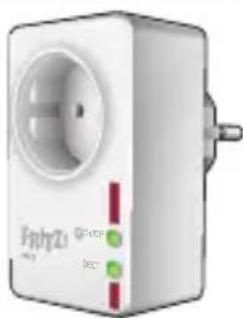
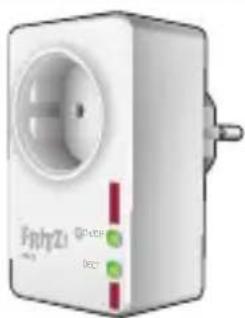
1 FRITZ!DECT 200
natural_image
White industrial electrical switch device with a circular vent and red indicator lights (no visible text or symbols)AIN
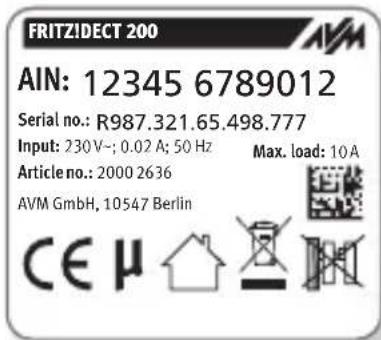
All FRITZ!DECT devices have an AIN (actuator ID). Each AIN is unique. The AIN is displayed in the user interface of the FRITZ!Box and on the type label on the back of the device.
Security

Do not subject FRITZ!DECT 200 to a load higher than its limit of 2300 W/10 A (ohmic load). Overloading can damage FRITZ!DECT 200, or cause malfunctions or an electrical accident.
•Only use FRITZ!DECT 200 indoors.
- Operate FRITZ!DECT 200 only in a dry location that is free of dust, protected from direct sunlight, and well ventilated.
- Insert FRITZ!DECT 200 into an electrical outlet that is easy to reach.
- Do not insert FRITZ!DECT 200 into another FRITZ!DECT 200.
- Do not operate any devices that present a risk of fire (for instance, electric irons, radiant heaters) on FRITZ!DECT 200.
- Never let liquids get inside FRITZ!DECT 200.
- Do not modify FRITZ!DECT 200. FRITZ!DECT 200 may not be opened, converted, modified or repaired except by a qualified technician.
- Configure automatic switching for FRITZ!DECT 200 only if the connected devices are designed for such operation. Frequent switching can shorten the service life of electrical devices. No liability will be accepted for attendant damage to corresponding devices.
Technical Specifications
- DECT wireless standard
- DECT frequency range: 1880 MHz – 1900 MHz
•Maximum DECT transmitter power: 250 mW - Range: up to 40 m indoors, up to 300 m outdoors
•Maximum power consumption: - maximum: approx. 1.1 W
- on standby: approx. 0.5 W
- 230 V, 50 Hz A/C
•Measurement accuracy:
+/- 100 mW (up to 5 W);
+/- 2% (5 W or higher)
•Dimensions (without plug): 93 mm x 59 mm x 41 mm
•Weight: approx. 135 g
- For connected devices up to 2300 W/10 A
- Ambient conditions:
- operating temperature: 0 °C–40 °C
- relative humidity: 10% – 90%, no condensation
Online Help
In addition to this quick guide, the online help contains a description of all features and instructions for operating FRITZ!DECT 200.
The online help is opened by clicking the question mark button in the user interface of the FRITZ!Box (http://fritz.box) ?
Registering with a FRITZ!Box
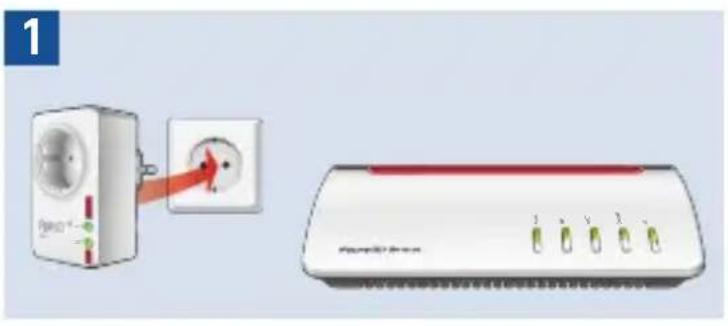
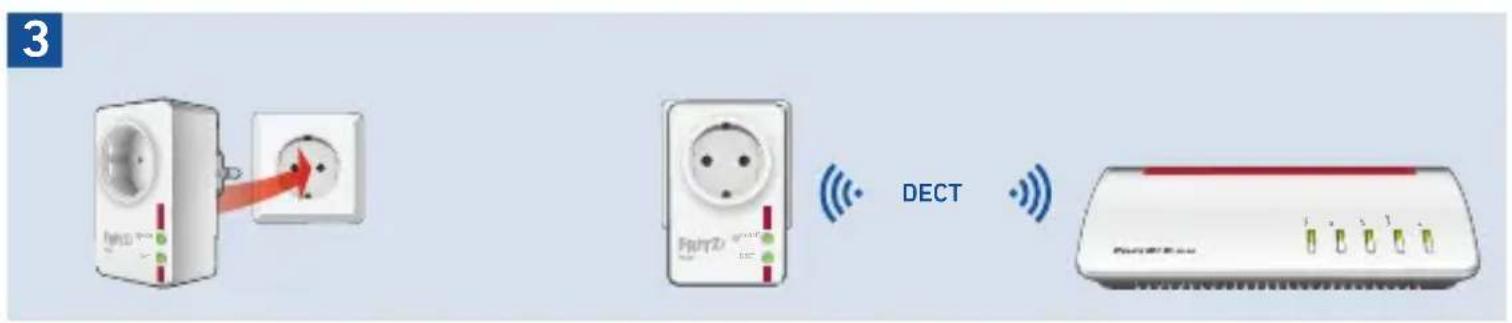
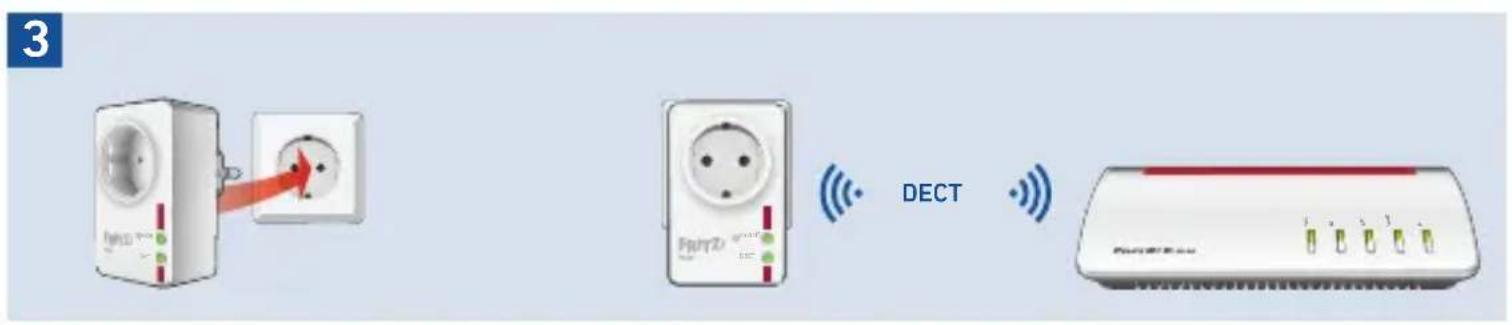
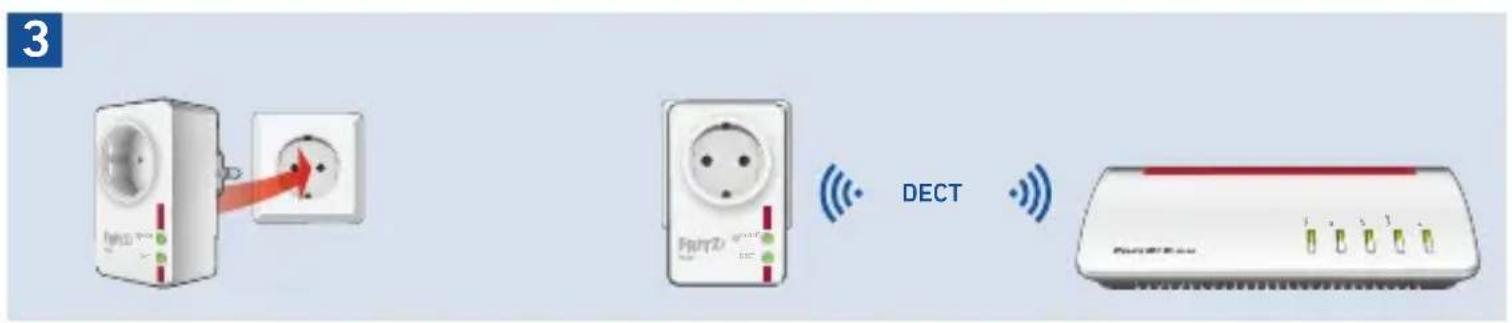
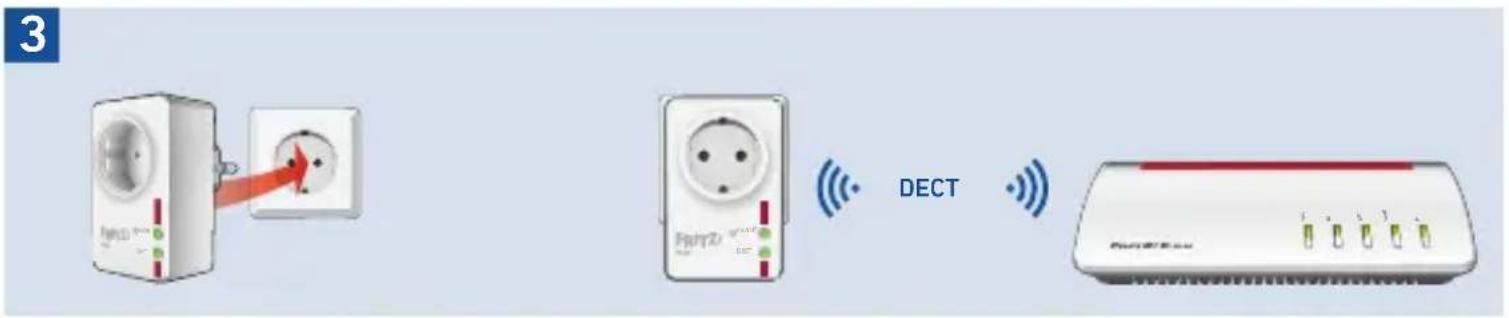
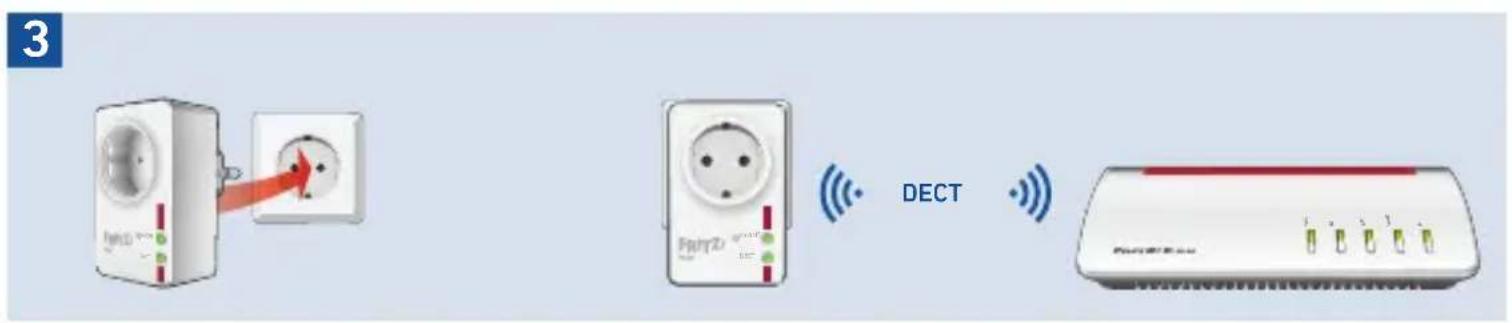
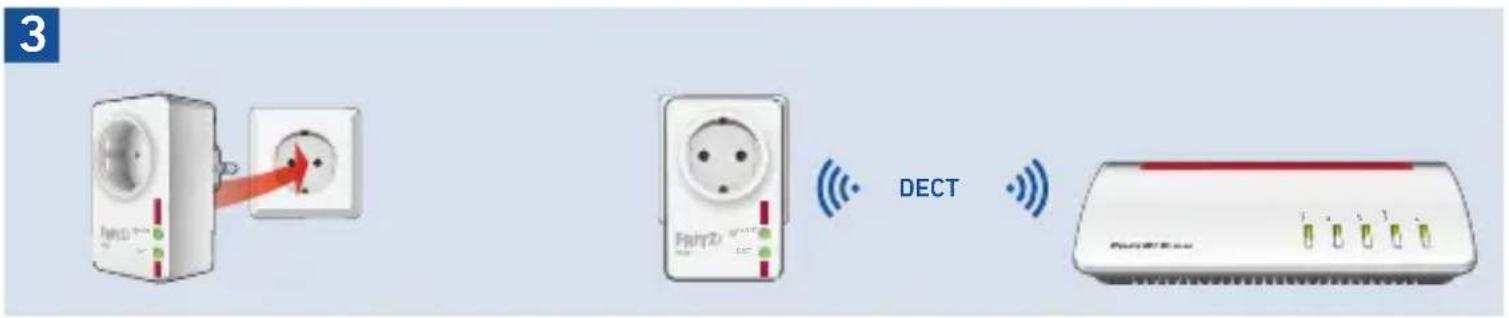
- Insert FRITZ!DECT 200 into an outlet near your FRITZ!Box.
The DECT LED flashes regularly.
- Within 2 minutes, press the DECT button on your FRITZ!Box, until the Info or DECT LED starts flashing.
FRITZ!DECT 200 is registered with the FRITZ!Box. The wireless connection has been established when the DECT LED on the FRITZ!DECT 200 lights up.

If the DECT LED continues to flash, registration was not successful. Remove FRITZ!DECT 200 from the power outlet and repeat the registration process.
- Now insert FRITZ!DECT 200 into the socket where you would like to use the device.
FRITZ!DECT automatically reregisters with the FRITZ!Box. When the connection has been established, the DECT LED lights up.

If the DECT LED keeps flashing, try to register from a different outlet closer to the FRITZ!Box. The outlet must be located within the range of the DECT radio network of the FRITZ!Box.

natural_image
Illustration of a power adapter connected to a network switch (no text or symbols visible)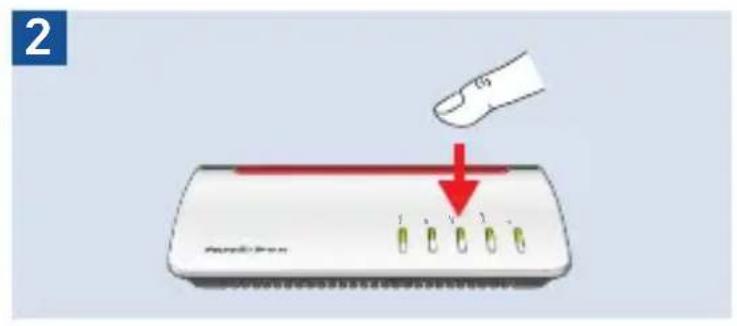
Configuring on the Computer
FRITZ!DECT 200 can be configured with a Smart Home profile in the user interface of the FRITZ!Box:
- Open a web browser.
- Enter http://fritz.box in the address field.
- Open the Smart Home / Device Management menu.
- Click on behind your FRITZ!DECT 200.
The Smart Home profile of FRITZ!DECT 200 appears.
Smart Home Profile
- A Smart Home profile combines features like LED display, automatic switching (for instance, by schedule), switch status, and push service.
- Manual changes remain intact until the next switching point configured in the Smart Home profile is reached. The Smart Home profile is not affected by manual settings.
- For detailed descriptions of the features and settings options included in Smart Home profiles, see the online help for the FRITZ!Box.
Switch the Socket On/Off
• with the On/Off button on FRITZ!DECT 200
- with a computer via the FRITZ!Box user interface in the Smart Home / Operation menu
•with a FRITZ!Fon; see page 10
- with a FRITZ!DECT 400 switch; see page 10
• with the FRITZ!App Smart Home; see page 11
In addition, you can configure automatic switching and control the FRITZ!DECT 200 with a weekly calendar or Google calendar.

Even when automatic switching is enabled, you can turn FRITZ!DECT 200 on and off by hand, on a computer, with a FRITZ!Fon, FRITZ!DECT 400 or with FRITZ!App Smart Home.
Configuring Automatic Switching
- Open a web browser.
- Enter http://fritz.box in the address field.
- Open the Smart Home / Device Management menu.
- Click on √ behind your FRITZ!DECT 200.
- Click on the Switch Automatically tab.
- Enable the Automatic switching enabled option.
- Select the kind of switching and configure the automatic switching.

The types of switching are described in the online help for the FRITZ!Box. Click on 🔒 in the FRITZ!Box user interface.
- Click on OK to save the settings.
Operation with FRITZ! Devices
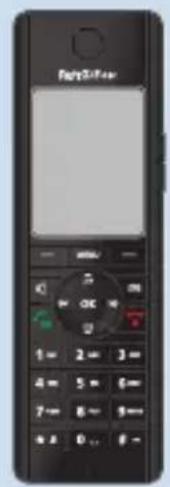
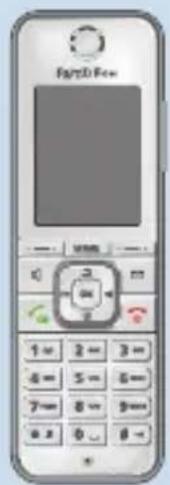
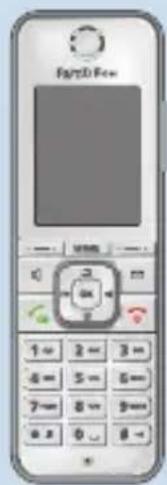
FRITZ!Fon
With the Smart Home start screen you can control FRITZ!DECT 200 and other Smart Home devices.
FRITZ!DECT 400
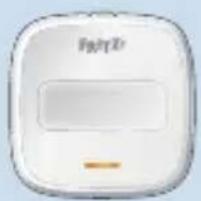
With the FRITZ!DECT 400 switch you can control the FRITZ!DECT 200. How to configure your FRITZ!DECT 400 for this is described in the Knowledge Base under en.avm.de/service/fritzdect-400.
natural_image
White square electronic device with a black label and orange button, no visible text or symbols on the device itself.Switching with FRITZ!App Smart Home
You can switch FRITZ!DECT 200 with the FRITZ!App Smart Home. For this the app must be installed on your smartphone and connected to the FRITZ!Box directly or via remote access.
In the app you can display the switch status, the current power, and the measured temperature.
The FRITZ!App Smart Home can be downloaded for free from the App Store and from Google Play.
Deregistering
If you would like to register FRITZ!DECT 200 with another FRITZ!Box, deregister it from the current FRITZ!Box first:
- Hold the DECT button down for at least 6 seconds.
- FRITZ!DECT 200 is deregistered from the FRITZ!Box.
- After a brief delay the DECT LED begins flashing.
Now you can register FRITZ!DECT with another FRITZ!Box; see page 6.
Removing FRITZ!DECT 200 from the power outlet does not deregister it from the FRITZ!Box.
App StoreGoogle Play Store
LEDs and Buttons
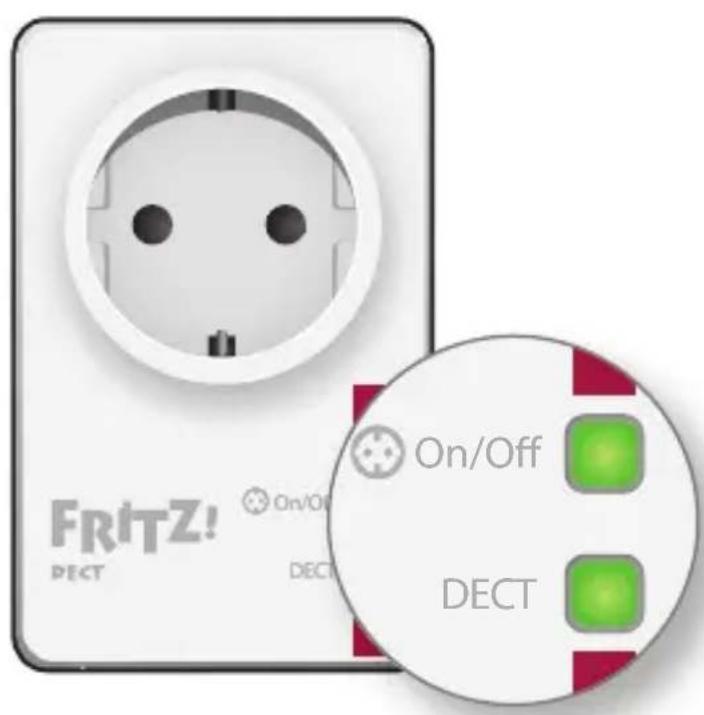
| Display/Operation | |
| Press the button | |
| off | |
| on | |
| flashing | |
| flashes briefly at regular intervals | |
| DECT | Hold the button down for at least six seconds |
| on | |
| flashing | |
| flashes briefly at regular intervals |
Condition
| tch the socket on and off |
| off |
| on |
| date |
| Socket is switched off because the power limit was exceeded; see page 14 |
| Deregister; see page 11 |
| RITZ!Box |
| stered with FRITZ!Box, or firmware update |
| No connection to the FRITZ!BoxFRITZ!DECT 200 is not registered, or is outside the range of the FRITZ!Box. |
Help in Case of Errors
No Connection to FRITZ!Box
The DECT LED flashes briefly at regular intervals.
- Insert FRITZ!DECT into an outlet near your FRITZ!Box.
- When the DECT LED lights up, the previous outlet is located outside the range of the FRITZ!Box, or the wireless connection is faulty.
Typical sources of interference include closed doors and zones with high humidity (damp walls, clothes drying racks).

If the outlet is outside the range of the FRITZ!Box and needed there, use a FRITZ!DECT Repeater.
If the DECT LED continues flashing, FRITZ!DECT 200 is not registered with the FRITZ!Box. Register FRITZ!DECT 200 again.
Socket Switched Off
The On/Off LED flashes briefly at regular intervals and the connected electrical device does not work. The socket is switched off.
- Remove the electrical device from the FRITZ!DECT 200 socket.
- Press the On/Off button. The socket is switched back on.
The On/Off LED lights up. - Insert the electrical device back into FRITZ!DECT 200.

Disposal
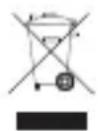
In accordance with the Waste of Electrical and Electronic Equipment Directive, FRITZ!DECT 200 may not be disposed with household waste.
Please bring the device to a local collection point for disposal after use.
Declaration of Conformity
CE Declaration of Conformity AVM hereby declares that the device is compliant with the Directive 2014/53 / EU.
UKCA Declaration of Conformity AVM hereby declares that the device is compliant with the Radio Equipment Regulations 2017 (S.I. 2017/1206).
The full text of the declarations of conformity is available at https://en.avm.de/service/declarations.


Manufacturer's Warranty
We offer a manufacturer's warranty of 2 years for this original product. The warranty period begins with the date of purchase by the first end user. Compliance with the warranty period can be proven by submission of the original invoice or comparable documents. This warranty does not restrict your warranty rights based on the contract of sale or other statutory rights.
Within the warranty period, we will remove defects to the product which are demonstrably due to faults in materials or manufacturing. Our warranty does not cover defects which occur due to incorrect installation, improper use, non-observance of instructions in the user manual, normal wear and tear or defects in the environment of the system (third-party hardware or software). We may, at our discretion, repair or replace the defective product. Claims other than the right to the removal of defects which is mentioned in these terms of warranty are not constituted.
We guarantee that the software conforms with general specifications, not, however, that the software meets your individual requirements. Delivery costs will not be reimbursed. Products which have been replaced revert to our ownership. Claims recognized under warranty entail neither an extension or recommencement of the warranty period. If we reject a warranty claim, this claim lapses no later than six months after being rejected by us.
This warranty shall be governed by German substantive law, to the exclusion of the United Nations Convention on Contracts for the International Sale of Goods (CISG).
Lieferumfang
Teil Abbildung
1 FRITZ!DECT 200
natural_image
White industrial electrical outlet with ventilation unit and indicator lights (no readable text or symbols)AIN
natural_image
Illustration of a power adapter connected to a network switch (no text or symbols visible)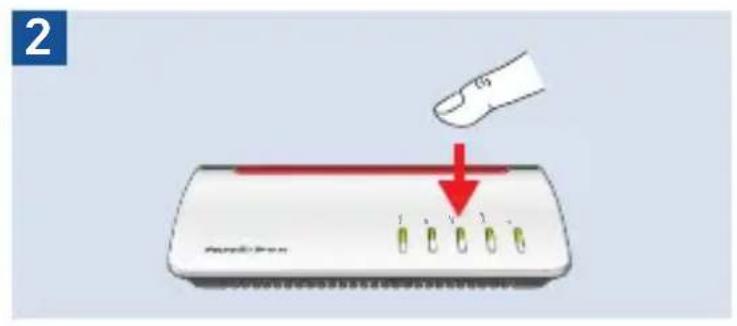
FRITZ!DECT 400
Abmelden
natural_image
White electrical outlet device with ventilation slots and indicator lights (no readable text or symbols)AIN
natural_image
Illustration of a power adapter connected to a network switch (no text or symbols visible)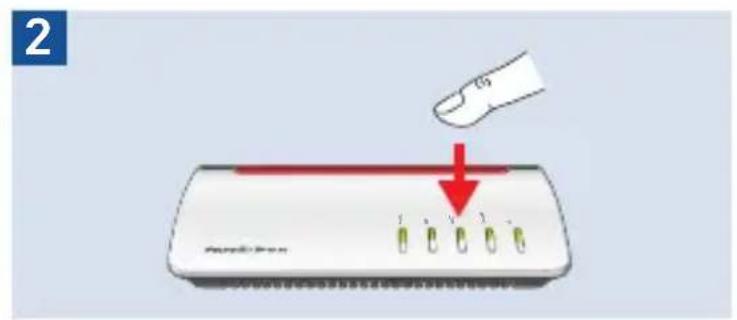
FRITZ!DECT 400
natural_image
White square electronic device with a black label and orange button, no visible text or symbols on the device itself.
Desconexión
natural_image
White industrial power outlet device with green indicator lights and 'Firnyz' branding (no readable text beyond branding)AIN
natural_image
Illustration of a WiFi power adapter connected to a network switch (no text or symbols visible)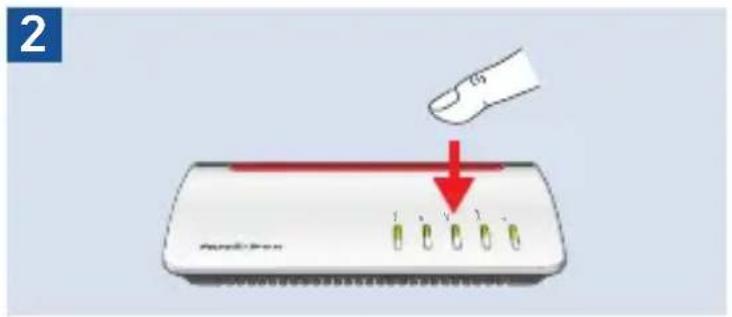
Déconnexion
natural_image
White industrial electrical switch device with ventilation vial and indicator lights (no readable text or symbols)AIN
natural_image
Illustration of a power adapter connected to a network switch (no text or symbols visible)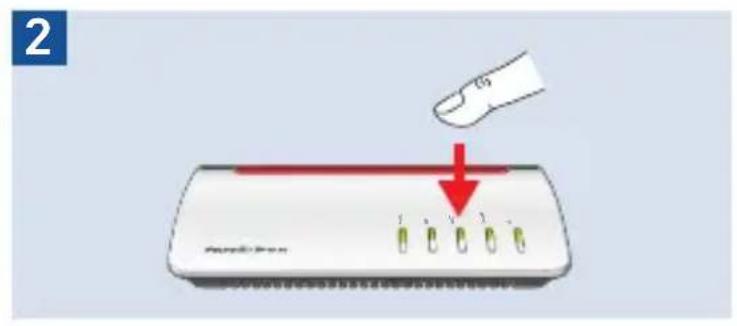
natural_image
White square electronic device with a black indicator button and 'F9/F1' label (no readable text or symbols beyond the label)
Disconnessione
natural_image
White portable electrical outlet device with a circular vent and two green indicator lights (no visible text or symbols)AIN
natural_image
Illustration of a WiFi power adapter connected to a network switch (no text or symbols visible)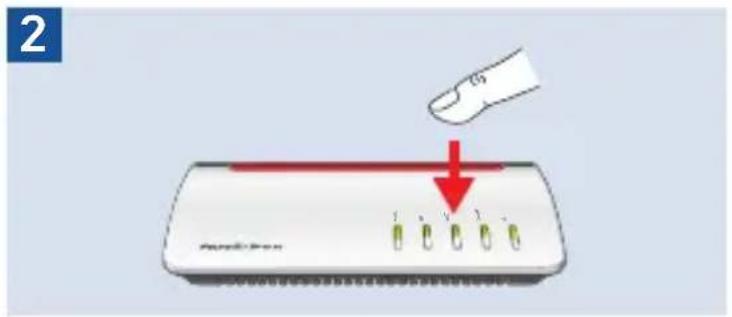
Op de computer instellen
natural_image
White square electronic device with a black label and orange button, no visible text or symbols on the device itself.
Afmelden
Service information and help can be found on our website and in the social networks:
| Service en.avm.de/service | |
| Manual en.avm.de/service/manuals | |
| Guide en.avm.de/guide | |
| Downloads en.avm.de/nc/service/downloads | |
| Support request | en.avm.de/service/support-request/your-support-request |
| Social networks |  |
en.avm.de
AVM GmbH, Alt-Moabit 95, 10559 Berlin, Germany • info@avm.de