
BT-ZX1 - Loudspeaker QFX - Free user manual and instructions
Find the device manual for free BT-ZX1 QFX in PDF.


| Product Type | Bluetooth wireless speaker |
| Brand | QFX |
| Model | BT-ZX1 |
| Dimensions | 175 mm × 50 mm × 67 mm |
| Weight | 360 ± 20 g |
| Output power | 2 × 5 W |
| Battery type | Rechargeable Li-ion 2200 mAh |
| Charging time | Approximately 3 hours |
| Battery life | Up to 24 hours |
| Bluetooth technology | A2DP V1.3, AVRCP V1.6, HFP V1.7, HID V1.1, SPP V1.2 |
| Frequency response | 80 Hz - 20 kHz |
| Signal-to-noise ratio | ≥ 65 dB |
| Power input | DC 5 V |
| Wireless range | Up to 10 m (33 ft) |
| Main functions | Play/pause, track switching, volume control, hands-free calling, TWS mode |
| Auxiliary input | 3.5 mm audio jack |
| LED indicator | Solid red while charging, turns off when charged |
| Maintenance and cleaning | Keep away from extreme heat and strong magnetic fields. Clean with a soft, dry cloth. |
| Safety | Do not use at high volume for extended periods to avoid hearing damage. |
| Box contents | Speaker, USB-A to USB-C cable, 3.5 mm audio cable, user manual, warranty card |
Frequently Asked Questions - BT-ZX1 QFX
User questions about BT-ZX1 QFX
0 question about this device. Answer the ones you know or ask your own.
Ask a new question about this device
Download the instructions for your Loudspeaker in PDF format for free! Find your manual BT-ZX1 - QFX and take your electronic device back in hand. On this page are published all the documents necessary for the use of your device. BT-ZX1 by QFX.
USER MANUAL BT-ZX1 QFX
Thank you for purchasing the BT-ZX1 Wireless Speaker. Please read this user manual carefully and keep it for future reference.
Package Contents
Wireless Speaker
USB-A to Type-C Cable
3.5mm Audio Cable
User Manual
Warranty Card
Product Diagram
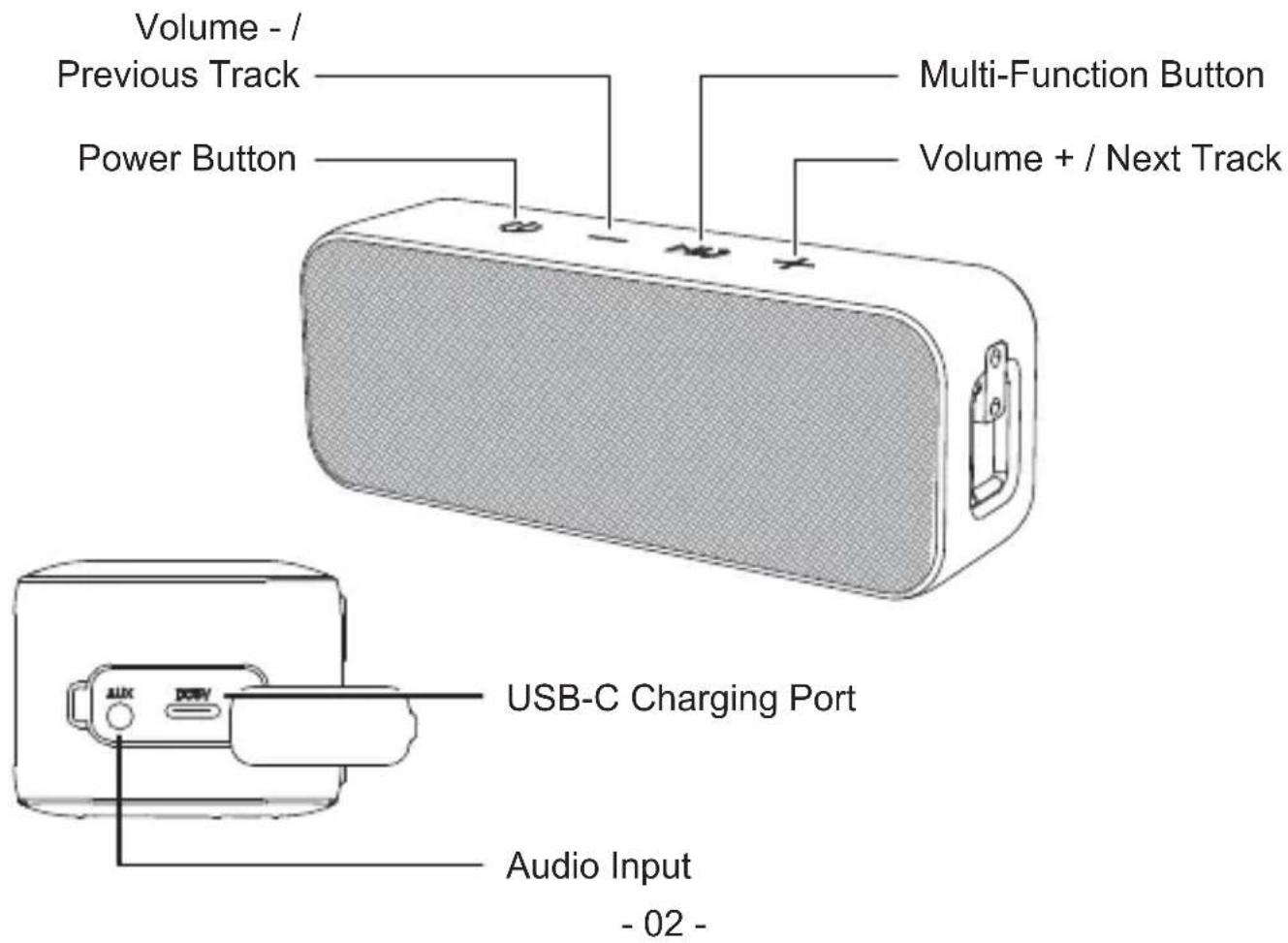
Specifications
| Model | BT-ZX1 |
| Technology | A2DP V1.3, AVRCP V1.6, GAVDP V1.3, HFP V1.7, HID V1.1, IOPT, SPP V1.2 |
| Audio Output Power | 2 × 5W |
| Frequency Response | 80Hz - 20KHz |
| Signal-to-Noise Ratio | ≥ 65dB |
| Input | DC 5V |
| Charging Time | 3 hours |
| Battery Life | Up to 24 hours |
| Battery Type | Li-ion Rechargeable (2200mAh) |
| Operating Range | Up to 33ft / 10m |
| Dimensions | L 175mm × W 50mm × H 67mm |
| Weight | 360±20g |
Getting Started
Charging the Speaker
Fully charge the speaker before the first use. Supply the BT-ZX1 with power using the provided USB-type C cable. The LED indicator will turn solid red while charging and turn off when fully charged. A full charge takes about 3 hours.
Controls & LED Indicator
AUX Mode
| Functions | Instructions |
| Turn speaker on / off | Press and hold the power button for 2 seconds |
| Adjust volume | Short-press volume + / - (synchronized with the volume of the iPhone, not Android) |
| Play or pause | Press the multi-function button |
BT Mode
| Functions | Instructions |
| Turn speaker on / off | Press and hold the power button for 2 seconds |
| Switch mode | Short-press the power button (between BT and AUX mode) |
| Enter or exit TWS mode | Double-click the power button |
| Play or pause | Short-press the multi-function button |
| Adjust volume | Short-press volume + / - (synchronized with the volume of the iPhone, not Android) |
| Skip to next/previous track | Press and hold volume + / - for 2 seconds |
| Answer or end the call | Short-press the multi-function button |
| Reject an incoming call | Press and hold the multi-function button for 2 seconds |
| Redial last-outgo-ing-called number | Double-click the multi-function button in stand-by |
| Disconnect BT | Long-press the multi-function button |
TWS Mode
| Functions | Instructions |
| Turn speaker on | Press and hold the power button of both speakers for 2 seconds |
| Turn speaker off | Press and hold the power button of any speaker for 2 seconds |
| Enter or exit TWS mode | Double-click the power button of the home speaker |
| Play or pause | Short-press the multi-function button of any of the two speakers |
| Adjust volume | Short-press the volume + / - of any of the two speakers (synchronized with the volume of the iPhone, not Android) |
| Skip to next/previous track | Press and hold volume + / - of any of the two speakers |
| Answer or end the call | Short-press the multi-function button of the home speaker |
| Reject an incoming call | Press and hold the multi-function button of the home speaker for 2 seconds |
| Redial last-outgoing-called number | Double-click the multi-function button of the home speaker in stand-by |
| Disconnect BT | Press and hold the multi-function button of any of the two speakers for 2 seconds |
Power On / Off
- Press and hold the power button for 2 seconds to turn on/off the speaker
Pairing
- When you turn on the speaker, it will automatically enter pairing mode.
- Activate the pairing function on your phone and select "QFX BT-ZX1".
- If a code or pin is required for pairing, enter "0000" as the default code.
- When successfully paired, you will hear a beep.
Note
- If you want to use another device to connect to the BT-ZX1, please press and hold the multi-function button “Play/Pause” for 2 seconds to disconnect BT-ZX1 from the current device. Then repeat the “pairing” steps.
- When you turn the speaker on, it will automatically reconnect to the last-paired device. You can also enter pairing mode if no device is found.
- When the speaker is paused, or there is no Bluetooth connection, the speaker will automatically shut down after 10 minutes
- If the speaker or connected device exceeds the operating range, the speaker will disconnect. The connection to the last successfully connected device will be re-established once you re-enter the wireless range within 10 minutes.
Playing Audio via Audio Input Connection
Connect the BT-ZX1 to your PC, laptop, or other devices with the audio output port using the included 3.5mm audio cable.
Note
- The speaker will disconnect from your phone or other paired devices when an audio cable is plugged into the audio input jack. Press the power button to switch back to BT mode
- When playing audio using the audio input jack, press the volume + / - to adjust the volume and short-press the multi-function “Play/Pause” button to pause or resume. Next/previous track control on the speaker is disabled in audio input mode
- For some computers, you may need to access the audio control panel to manually set the speaker as the default audio device
TWS Mode
- Turn on two BT-ZX1 speakers at the same time, double-click the power button of one of the speakers to automatically enter the TWS pairing mode, a tone will be heard every three seconds.
- During the TWS pairing process, double-click the power button to cancel the TWS pairing. If the TWS pairing exceeds 60 seconds and the TWS pairing is not successful, it will automatically return to the normal BT mode.
-
After the TWS pairing is successful, one of the speakers LED light will turn on (this is the satellite) and the other will begin flashing (this is the home). You will hear the BT beep sound after.
-
Activate the pairing function on your phone or other compatible device and select "BT-ZX1"
- If a code or pin is required for pairing, enter "0000"
- When successfully paired, you will hear a beep.
Note
- When the phone is connected to the Bluetooth of one of the speakers first, you need to double-click the power button of the speaker connected to the phone to enter the TWS pairing mode
- After the TWS pairing is successful, double-click the power button on one of the speakers to automatically exit the TWS pairing mode. The BT connection between the home speaker and phone will not disconnect.
Follow Us




QFXUSA.COM

1-800-864-CLUB (2582) Mon-Fri 9AM - 5PM (PST)

support@qfxusa.com Mon-Fri 9AM - 5PM (PST)

WHERE THE PARTY BEGINS™
Product Care & Use
- Keep away from extreme heat and strong magnetic fields
- Do not use this speaker at high volume for extended periods, as this may cause permanent hearing damage or hearing loss
FCC ID: 2ATIH-SK-A2
BT-ZX1
QFX®
WHERE THE PARTY BEGINS™
INSTRUCTION MANUAL
natural_image
Facebook logo icon, red circle with white lowercase 'f' in center (no additional text or symbols)


QFXUSA.COM

1-800-864-CLUB (2582)
Mon-Fri 9AM - 5PM (PST)

support@qfxusa.com
Mon-Fri 9AM - 5PM (PST)
QFX®
WHERE THE PARTY BEGINS™
natural_image
Facebook logo icon, red circle with white lowercase 'f' in center (no text or symbols beyond the graphic)


QFXUSA.COM

1-800-864-CLUB (2582) Mon-Fri 9AM - 5PM (PST)

support@qfxusa.com Mon-Fri 9AM - 5PM (PST)
QFX®
WHERE THE PARTY BEGINS™
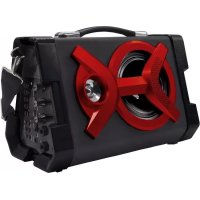
Brand : QFX
Model : BT-ZX1
Category : Loudspeaker