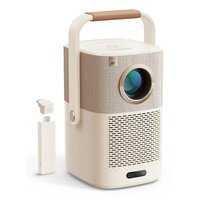
T2 Plus - Projector Yaber - Free user manual and instructions
Find the device manual for free T2 Plus Yaber in PDF.


| Product Type | Projector |
| Brand | Yaber |
| Model | T2 Plus |
| Native resolution | 1920 × 1080 pixels |
| Light source | LED |
| Image format | 16:9 / 4:3 |
| Focus | Automatic and electric |
| Keystone correction | Automatic and electric (max ±15°) |
| Screen alignment | Automatic |
| Obstacle avoidance | Automatic |
| Battery (video playback) | 2.5 hours |
| Battery (music playback) | 18 hours |
| Ports | USB 2.0 ×1, HDMI 1.4 ×1, Audio Out ×1, LAN (RJ45) ×1 |
| Wireless connectivity | Wi‑Fi, Bluetooth, NFC |
| Dimensions (L × H × D) | 165 × 140 × 290 mm |
| Weight | 2.5 kg |
| Power supply | 100‑240 V ~ 50/60 Hz, 110 W |
| Projection methods | Front/Rear on table, Front/Rear on ceiling |
| Supported video formats | MP4, MKV, WMV, 3GP, MPG, VOB, TP, TS, DAT, MOV, FLV |
| Supported audio formats | MP3, AAC, LPCM, APE, FLAC, OGG, AMR |
| USB formats | FAT32, NTFS (exFAT not supported) |
| Supported documents | txt, pdf, docx, xlsx, pptx |
| Included accessories | HDMI cable, power cord, quick guide, cleaning cloth, remote control (batteries not included) |
| Warranty | 3 years |
| Quiet mode | Yes (gradual noise reduction in 5 min) |
Frequently Asked Questions - T2 Plus Yaber
User questions about T2 Plus Yaber
0 question about this device. Answer the ones you know or ask your own.
Ask a new question about this device
Download the instructions for your Projector in PDF format for free! Find your manual T2 Plus - Yaber and take your electronic device back in hand. On this page are published all the documents necessary for the use of your device. T2 Plus by Yaber.
USER MANUAL T2 Plus Yaber
natural_image
Line drawing of a portable electronic device with a circular top and ventilation grille (no text or symbols)User Manual
Smart Projector T2
EN
Contents
English 1
Deutsch 20
Français 41
Italiano 62
español 83
日本語 104
Catalog
- Yaber Lifetime Professional Support 1
- Warranty 2
- Important Precautions 2
- What's included 3
- Specification 5
- About Battery 6
- Installation 7
- Projection Settings 8
- Picture Settings 12
- Connectivity 13
- T2 Dongle 16
- Bluetooth Settings 18
- System Upgrade 19
- Quiet Mode 19
1. Yaber Lifetime Professional Support
Dear Valued Customer,
Thank you for choosing Yaber T2 projector.
This manual will help you navigate through all the features.
We understand that there may be many questions and concerns that arise during the use of the projector. We are also eager to hear your feedback. However, leaving a review on the product page does not get the fastest solution. Many common problems, such as inability to auto focus or keystone, sound issues, WiFi or Bluetooth connection issues, can usually be resolved with appropriate settings adjustments.
If you encounter any issues, feel free to send your order number and the problems to us at service@yaber.com (e.g. US+T2+000-0000000-0000000+Issues) Rest assured, our service team will offer a solution to you within 24 hours.
Your satisfaction is our top priority. If you encounter any issues, we sincerely hope you can give us an opportunity to make things right.
We wish you have an outstanding experience with the T2 projector.
Yaber Consumer Service Team
2. Warranty
Thank you so much for your purchase and support. We provide 3-year warranty for Yaber T2 projector.
If you have any questions, please feel free to contact us.
For T2 Projector: service@yaber.com
3. Important Precautions
Please use the device correctly:
- Do not face the lens into eyes because the strong projector light may cause injury to the eyes.
- Do not block the air inlet/outlet of the device in order to avoid damage to internal electronic devices arising from normal heat dissipation failure.
- Do not wipe the lens directly with cleaning tools including paper and cloth to avoid damage to the lens, Please clean up the dust on the lens through clean air blowing.
- Do not wash the device with chemicals, detergents, or any liquid to prevent the circuit board from being corroded by rainwater, or moisture mineral-containing liquids.
- Keep the device and its components and accessories out of reach of children.
- Make sure that the device is used in a dry and ventilated environment.
- Do not store the device in excessively hot or cold places, because extreme temperatures will shorten the life of electronic devices. Place and use the device in an environment of 0^ - 40^
- Do not put the device into any heating equipment (such as a dryer and microwave oven) for drying.
- Do not firmly extrude the device or place barriers on it or its back to avoid damage to the device.
- Do not throw, strike, or sharply vibrate the device to avoid damage to the internal circuit board
- Do not try to disassemble and assemble the device yourself. If any issue occurs, please contact the after-sales service of Yaber.
4. What's included
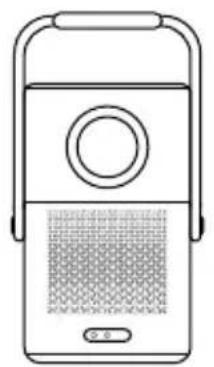
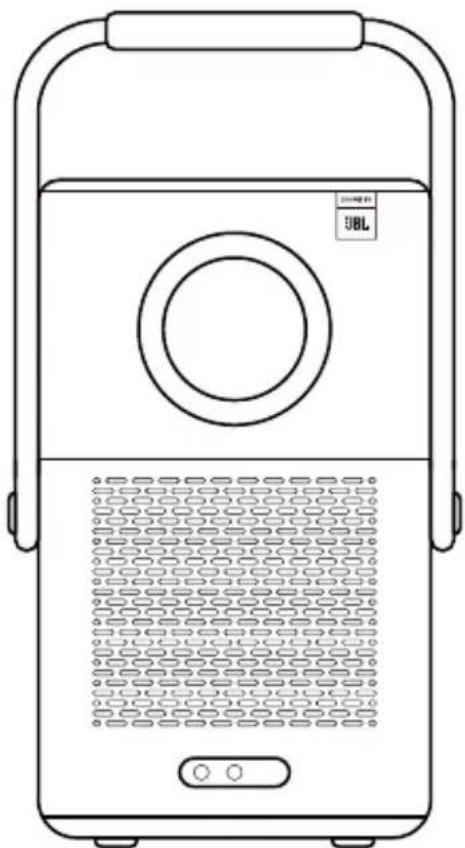
natural_image
Line drawing of a portable electronic device with a circular top and mesh grille (no text or symbols)Projector
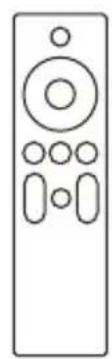
natural_image
Line drawing of a remote control with buttons and dials (no text or symbols)(For T2)
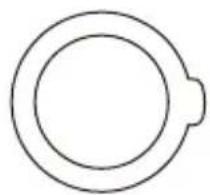
natural_image
Simple circular diagram with a small protrusion on the top right (no text or symbols)Lens CoverRemote Contro
natural_image
Simple line drawing of two overlapping documents with horizontal lines (no text or symbols)QSG & FAQ
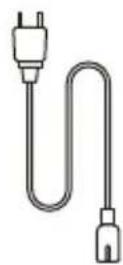
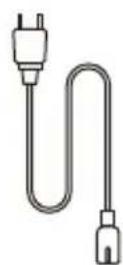
HDMI Cable Power Cord


natural_image
Simple decorative border with scalloped edges and no text or symbolsCleaning Cloth

Brand Card AAA Batteries
If you don't have batteries for the remote control, please contact service@yaber.com.
4.1 Projector Interface
Notice: Press power button 2s-5s to boot the projector
Notice: Please ensure that the area in front of the [Focus receiver] is not blocked, otherwise the focus function will be affected.
4.2 Remote Contol
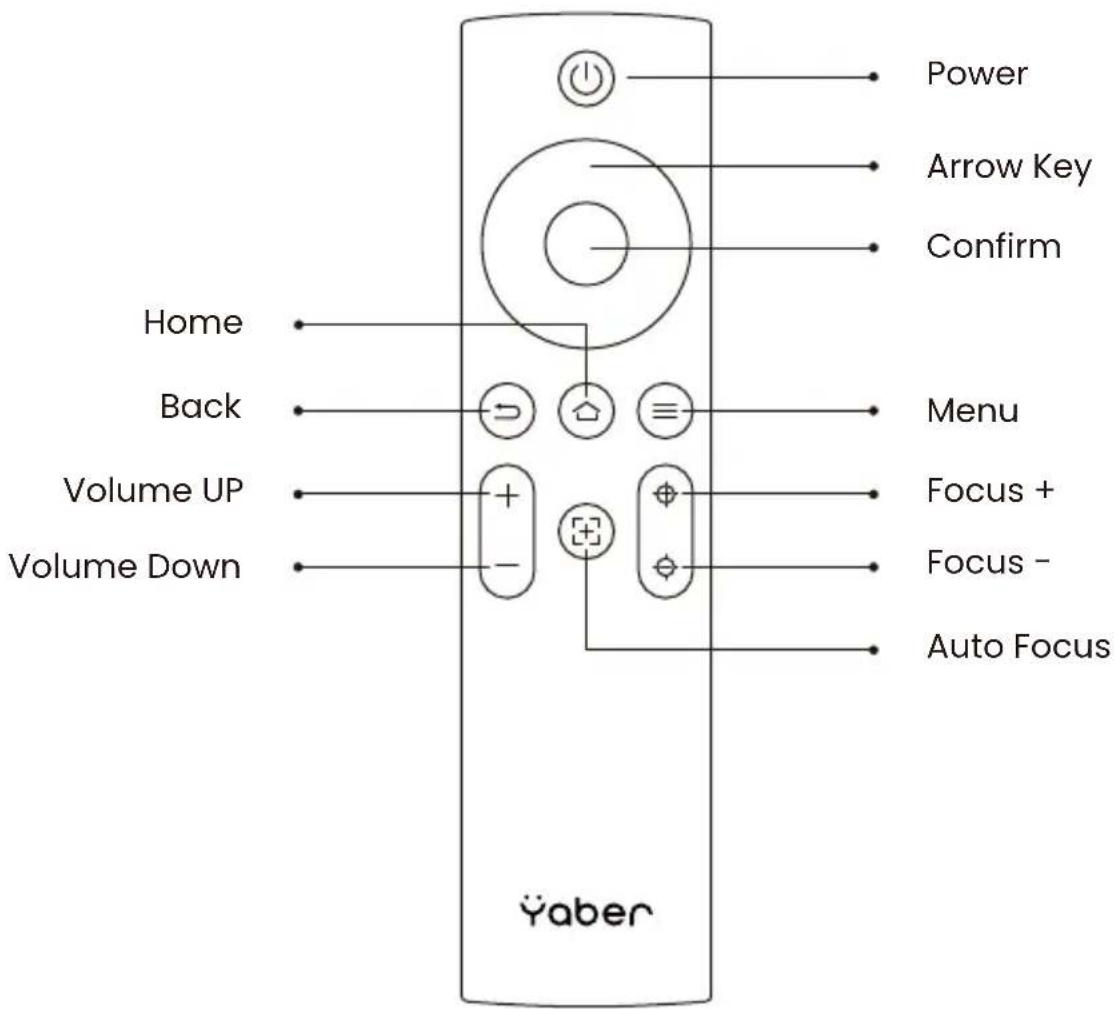
- Specification
| Native Resolution | 1920*1080 | Light Source | LED |
| Battery Lifespan | Video Playtime 2.5hMusic Playtime 18h | Aspect Ratio | 16:9/4:3 |
| Focus | Auto/Eletric | Keystone Correction | Auto/Eletric |
| Screen Alignment | Auto | Obstacle Avoidance | Auto |
| Interface | USB 2.0×1HDMI 1.4×1Audio Out×1Lan×1 | Unit Dimension | 165×140×290 mm6.4×5.5×11.4 inches |
| Projection Ratio | 1.25:1 | Projection Distance | Min1.1m~ Max3.3 mMin43.3~Max129.9inches |
| Power Voltage | 100-240V~/50-60Hz | Power Consumption | 110W |
| Projector Weight | 2.5 kg5.5 lbs | Projection Method | Front/Rear on DeskFront/Rear on Ceiling |
| Picture Format | JPG、PNG、BMP、JPEG | ||
| Audio Format | MP3, AAC, LPCM, APE, FLAC, OGG, AMR | ||
| Video Format | MP4、MKV、WMV、3GP、MPG、VOB、TP、TS、DAT、MOV、FLV | ||
| USB Format | FAT 32, NTFSUnsupported format: ExfatAttention: If the projector cannot recognize the contents of the USB flash drive, please check whether your USB flash drive is formatted correctly. | ||
| WPS Documents | txt, pdf, docx, xlsx. pptx | ||
6. About Battery
The Yaber T2 is equipped with a battery that will give you 2.5 hours of use in battery mode (Brightness in 60).
In battery mode, the brightness of the screen will be reduced, thus extending a longer battery life.
You can also adjust the settings to increase the brightness of the screen, but the duration will be shortened.
Tips: (As the number of times the machine is used increases, the battery life may be affected.)
6.1 About Battery
Tips: For the health of the battery and your experience, we recommend that you charge your machine while it is turned off.
Tips: For first-time use, we recommend you fully charge your projector using the provided power cord.
When the machine is turned off, the charging time from 0 to 100 is 3.5 hours.
When the machine is turned on, the charging time from 0 to 100 is 5.5 hours.
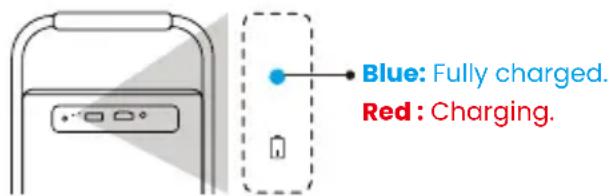
When the Power light is Blue, it means the battery is completely charged.
When the Power light is Red, the battery is charging.
| From 0% ~ 100% | |
| Projector turned off | 3.5 Hours |
| Projector turned on | 5.5 Hours |
Low Power Notification
When the battery power is lower than 20% , the system will pop up a window to prompt you to charge the Projector. The battery icon on the projector screen will change to:
If the battery is about to run out, the system will push a shutdown countdown pop-up.
The projector is running out of power
and will shut down in 60s

Please plug it in.
Dismiss
7. Installation
7.1 Handle to Stand
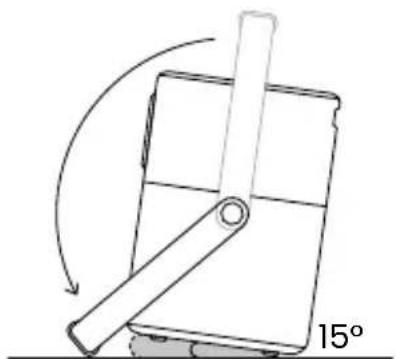
For a better image, please try to place the projector on a stable, flat surface. If you need to adjust the screen at a larger angle, you can rotate the carrying handle to the bottom and it will provide you with support at certain angles (15%).
Notice: Please ensure that the area in front of the focus receiver is not blocked, otherwise the focus function will be affected.
natural_image
Diagram of a mechanical device with a lever and 15° angle label (no text or symbols beyond the angle marker)7.2 Ceiling Mounting
Note: T2 does not support four-corner mount installation.
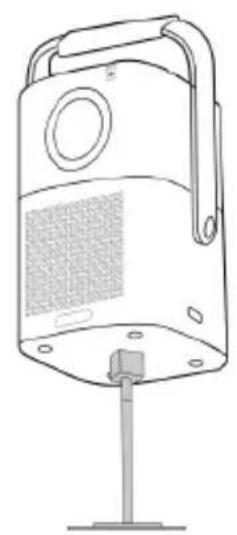
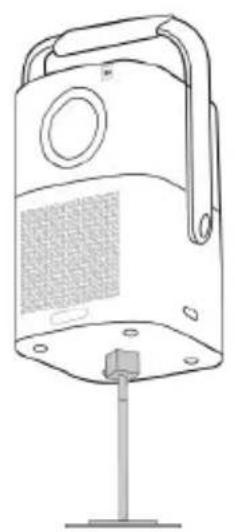
Step 1: Make sure you have a universal mounting bracket that can fit the projector.
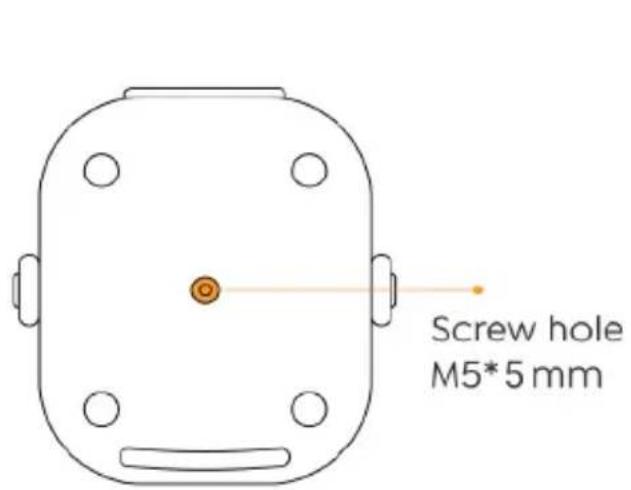
Step 2: Use the stand with M5*5mm screw to fix the projector on the bracket to complete the installation.
natural_image
Line drawing of a portable electronic device with a speaker grille and stand (no text or symbols)8. Projection Settings
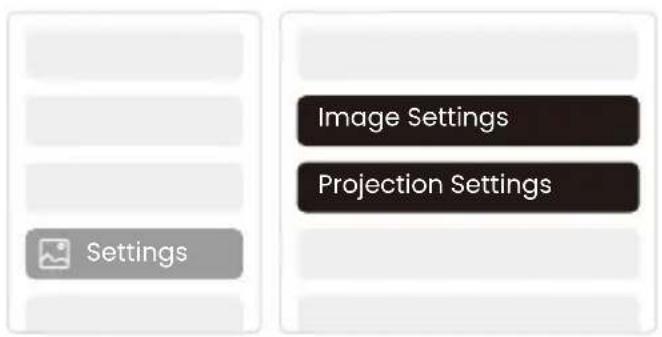
You can select [Settings]– [Image Settings] or [Projection Settings] in to adjust the projector image.
8.1 Projection Distance
bar
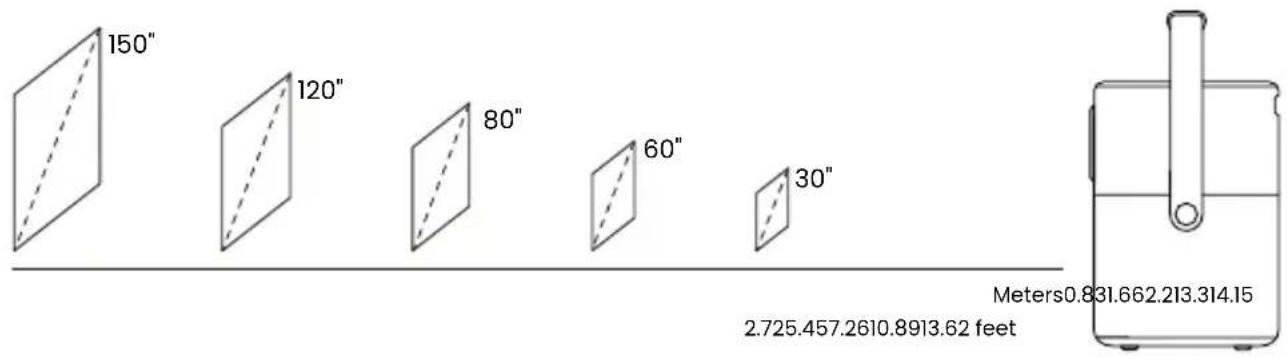
| Distance (meters) | Label | |---|---| | 150 | 150 | | 120 | 120 | | 80 | 80 | | 60 | 60 | | 30 | 30 | | 2.725 | Meters: 0.831 | | 2.610 | 10.89 | | 3.14 | 13.31 | | 14.15 | 14.15 |Tips: The recommended Screen size is 80 inches.
Tips: Actual projection size and distance may deviate slightly from laboratory data.
8.2 Auto Focus
Auto focus will be activated after each shift.
You can also turn off the auto focus function through [Settings] - [Projection Settings] - [Auto Focus].
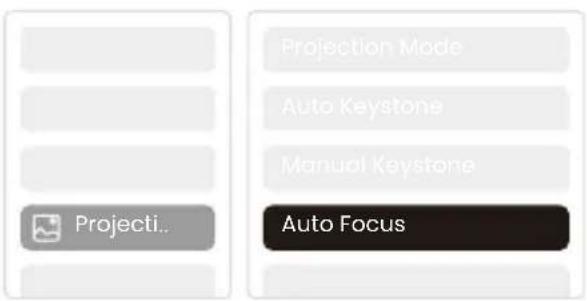
! Attention: If you have already determined the location of the projector, it is recommended that you turn off autofocus in the settings to get a better viewing experience.
8.3 Auto Keystone Correction
As you move the machine, the T2 automatically performs trapezoidal correction, depending on the target wall.
Attention: The angle of the auto keystone cannot exceed 15 degrees up, down, left, and right.
8.4 Auto Screen Alignment and Auto Obstacle Avoidance
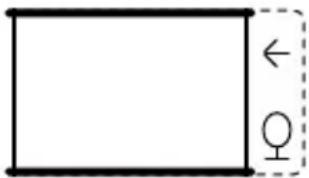
Note: When using the Auto Screen Alignment and or Auto Obstacle Avoidance functions, make sure the Auto Keystone and Auto Focus functions are turned on.
1. Obstacle avoidance may not work when there are white or other light-colored objects in the target screen.
natural_image
Simple geometric diagram showing a rectangle with a dashed side and a female symbol (no text or labels)
natural_image
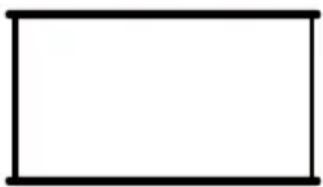
Simple geometric diagram with a rectangle and dashed border (no text or symbols)- The backdrop should have a distinct black or other colored border, except for anti-light screens which do not require a border.
natural_image
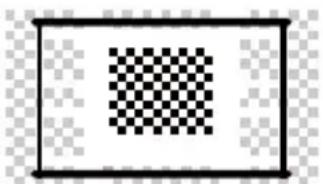
Empty rectangular frame with black border (no text or symbols)- Before using the auto screen alignment function:
Please ensure the projection screen is larger than the screen area, and do not block the area within the central square frame of the screen.
natural_image
Simple black-and-white pixelated pattern inside a rectangular frame (no text or symbols)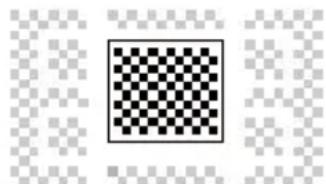
natural_image
Black and white checkerboard pattern inside a square frame, surrounded by faint pixelated background (no text or symbols)8.5 Electric Focus
You can also adjust the focus by clicking on the buttons on the remote control to get your desired picture.

Auto Focus
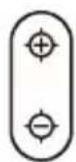
Manual Focus
8.6 Manual Keystone Correction
If you need to adjust the screen further, you can adjust the screen by dragging the arrows by selecting "Manual Keystone" in the settings.


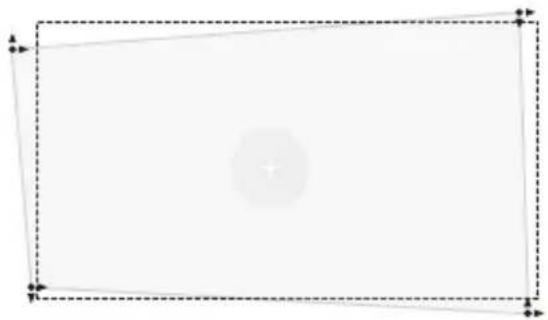
natural_image
Empty rectangular frame with dashed border and corner markers (no text or symbols)8.7 Projection Zoom
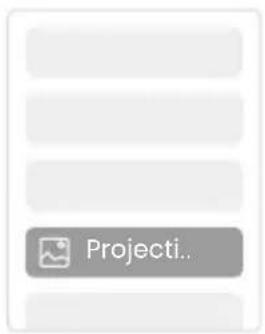
After auto-focusing, the zoom effect will be reset. If you want to save the zoom, please try to turn off the auto focus when the picture is clear.

9. Picture Settings
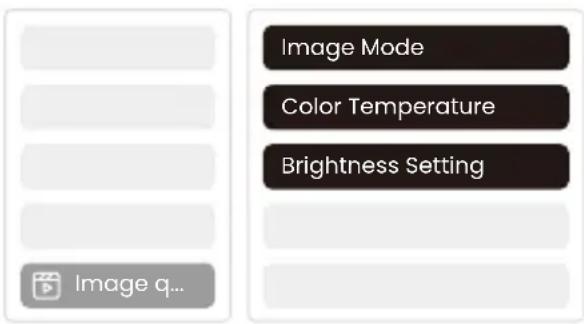
You can select [Image Settings] or [Projection Settings] in [Settings] to adjust the projector image.
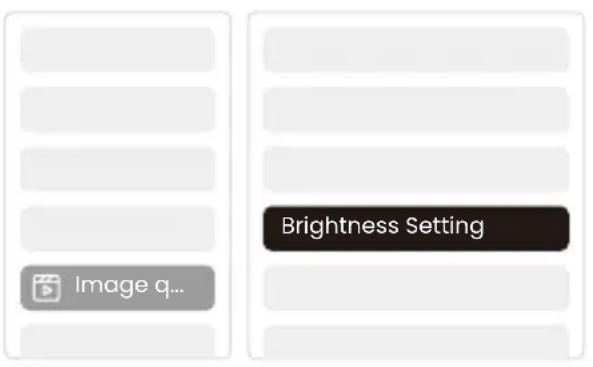
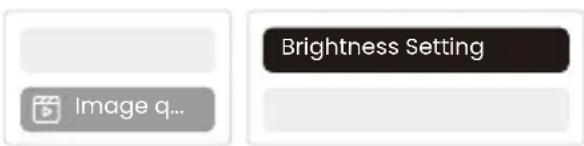
9.1 Brightness Settings
You can also adjust the brightness by adjusting the settings; However, battery life time will change as well.
9.2 Image Color Settings
Ajust the image color through [Home] - [Settings] - [Image Quality] - [Picture Mode]. You can set the [Brightness], [Contract], [Sharpness], [Color] of the screen in this [User Mode].
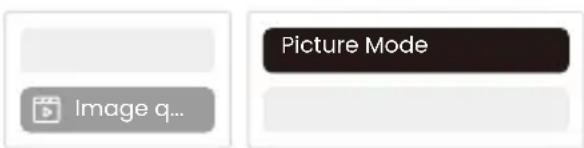
Attention: The Image color setting will only take effect when playing pictures or videos.
10. Connectivity
10.1 HDMI, USB, Lan Port
The T2 has an HDMI 1.4 port and a USB 2.0 port. Before using these ports, make sure your external devices are compatible with this format.

10.1.1 USB
Notice: T2 currently only supports reading FAT32 and NTFS USB flash drives, and currently does not support reading exFAT formatted USB flash drives.
10.1.2 HDMI
If you're meet some troubles while using HDMI, please try these solutions below:
Method 1. Switch HDMI EDID version to 1.4 in your external device settings.
Method 2. Try changing the HDMI cable.
Method 3. Try to replace other external devices with HDMI function and check whether the HDMI interface of external device is working.

natural_image
Pure diagram of a U-shaped cable or connector with two connectors, no text or symbols present.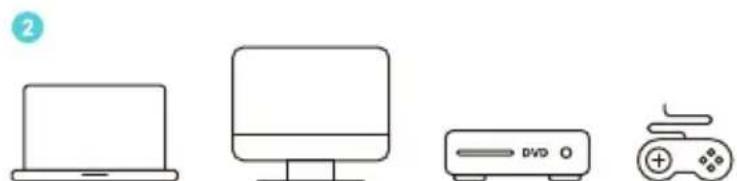
natural_image
Illustration of four electronic devices: a laptop, a monitor, a DVD unit, and a game controller (no text or symbols)10.1.3 Lan
The Lan interface of T2 is an RJ45 interface. If you encounter lag when using the same screen with your phone, you can try to use this interface to connect to the network and use the same screen.
10.2 Wireless Connections
Wi-Fi Screen Mirroring
Notice: If you need to mirror Netflix, Prime Video, etc. to the projector, please connect a TV Dongle/Stick or other products with these streaming media via HDMI.
10.3 Yaber App
You can download the Yaber App from the Google Play Store or Apple App store for better screen casting!
Notice: Scan the QR code below to download the Yaber App.

10.3.1 Screen Share
Tip: To enhance your experience during screen sharing, download the [Yaber] app from the Apple App Store or Google Play Store.
1 Ensure your phone and the projector are connected to the same Wi-Fi network.
2 In the Yaber app, tap [Connect Device] and select the device named [Yaber_T2_xxxx] to connect.
Once connected, select the screen mirroring option in the Yaber app to share your phone screen with the projector.
4 To end the screen share, go to your phone's control center, select the device, and stop sharing.
! Attention: If you need to share the screen from streaming apps like Netflix, Disney, or Prime Video, enter the Dongle system to share.
Tips: If you prefer not to use the Yaber APP, please follow these steps: (Only the step 2 is different)
1 Ensure your phone and the projector are connected to the same Wi-Fi network.
2 In the screen mirroring settings on your smartphone, select the device named [Yaber_T2_xxxx] to connect.
3 To end the screen share, go to your phone's control center, select the device, and stop sharing.
10.4 Phone Control
Attention: Yaber App cannot control TV Dongle.
Attention: The phone and projector need to be connected in the same Wi-Fi environment.
The [remote control] function of Yaber App can help you control the projector without a physical remote control.
10.5 NFC Settings
Tip: If you need to use NFC for screen mirroring, download the [Yaber] app from the Apple App Store or Google Play Store to synchronize your screen.
When using NFC, ensure your phone and the projector are connected to the same Wi-Fi network.
2 Use an NFC-enabled phone and lightly tap the NFC area on top of the device to use this feature.
Attention: Ensure NFC is turned on in your phone's settings.
![JiaQIA [xt] [NFC]](/content/2026/04/722678/images/4a7e67247a65f5403d2ac22c52bacf0a069a1dddf0f1115b8024ea3a4adde646.jpg)
11. T2 Dongle (Special for T2 Plus or Purchase separately Online)
If you want to use and browse streaming content such as Netflix, YouTube, Prime Video, please contact the support team at service@yaber.com to purchase the corresponding Dongle.
11.1 Dongle Overview
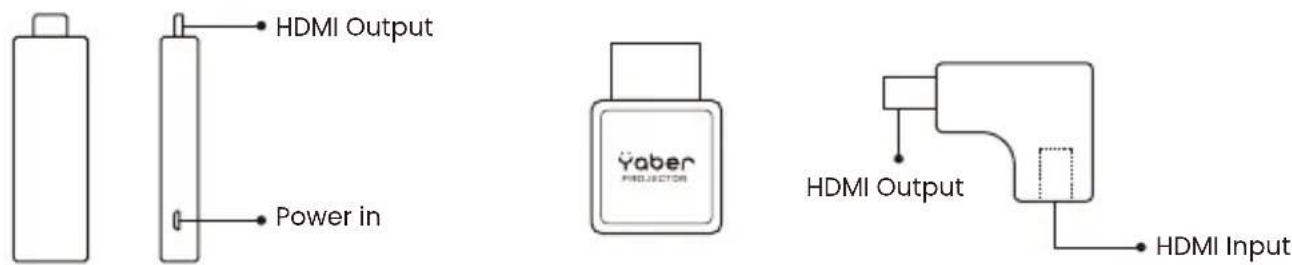
TV Dongle Adapter(Power in + Video Source)
Remote Contol
! Attention: When using Google TV for the first time, follow the screen prompts for remote control pairing and other settings.
To pair, hold down the pairing button ⓗ and ⬇.

Dongle Installation
! Notice: When using Dongle on the T2/T2 Plus, it must be connected via the Yaber Adapter. The Yaber adapter combines power and video source function.
Step1: Connect the dongle with the adapter
Step2: Connect the adapter with the HDMI port of the projector

How to Use TV Dongle
After connect TV Dongle to the HDMI Port on T2, Click [HDMI] on the Homepage to Entry TV
! Notice: When you turn on the device, it will take about 30s to wait before the Dongle screen appears.
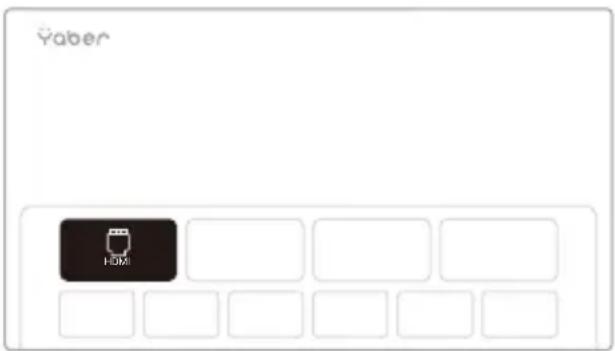
12. Bluetooth Settings
You can connect your phone to the projector via Bluetooth and enter Bluetooth speaker mode anytime after confirmation. Please pair the device named [Yaber_T2series_xxxx].
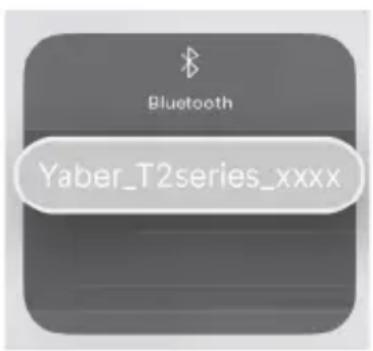
In Bluetooth Speaker mode, you can also turn off the screen and use the T2 as an outdoor stereo.

natural_image
Four gray circular icons with white play and audio control symbols: megaphone, play button, video player icon, and rectangular frame (no text or numbers)13. System Upgrade
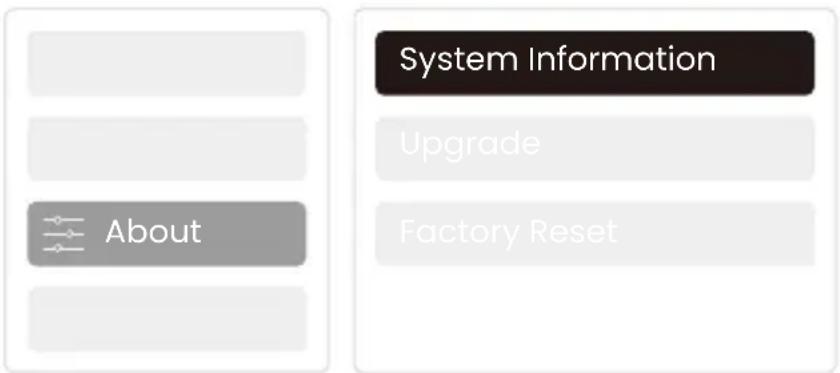
Tips: You can check the system status of your device in [Settings]-[About]-[Upgrade]
If you need to upgrade the software, please go to [Settings]–[About]–[System information] and select the corresponding [MAC address] and send it to the support team at service@yaber.com.
14. Quiet Mode
Notice: After turning on Quiet Mode, the noise of the machine will slowly decrease within 5 minutes.
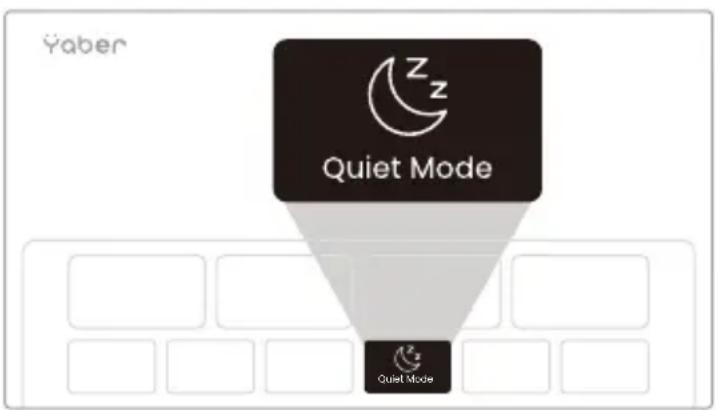
You can turn on Quiet Mode from the main page, which will provide you with a quieter and more subdued picture by reducing brightness and fan speed.
Äaber
PROJECTOR
natural_image
Line drawing of a portable electronic device with a circular top and ventilation grille (no text or symbols)Benutzerhandbuch
Smart Projektor T2
DE
Katalog
natural_image
Line drawing of a portable electronic device with a circular top and textured front panel (no text or symbols)
natural_image
Line drawing of a remote control with buttons and dials (no text or symbols)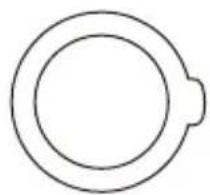
natural_image
Simple circular diagram with a small protrusion at the top center (no text or symbols)natural_image
Simple line drawing of two overlapping documents with horizontal lines (no text or symbols)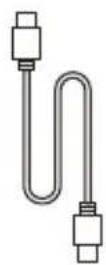
HDMI Kabel StromkabelQSG & FAQ
natural_image
Simple decorative border with scalloped edges and no text or symbols
natural_image
Simple line drawing of a mechanical device with a lever and 15° angle annotation (no text or symbols on the diagram itself)7.2 Deckenmontage
natural_image
Line drawing of a portable electronic device with a handle and ventilation grille, mounted on a stand (no text or symbols)natural_image
Simple geometric diagram with a rectangle and a dashed line, no text or symbols present.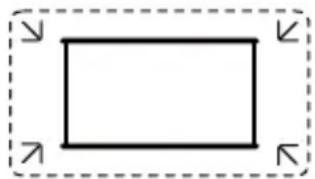
natural_image
Simple rectangular outline with dashed border and corner arrows (no text or symbols)natural_image
Empty rectangular frame with black border (no text or symbols)natural_image
Simple black-and-white pixelated pattern inside a rectangular frame (no text or symbols)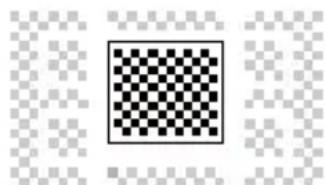
natural_image
Black-and-white checkerboard pattern within a square frame, surrounded by faint pixelated background (no text or symbols)natural_image
Empty rectangular frame with dashed border and corner markers (no text or symbols)8.7 Projektionszoom
natural_image
Pure diagram of a U-shaped cable or connector with two connectors, no text or symbols present.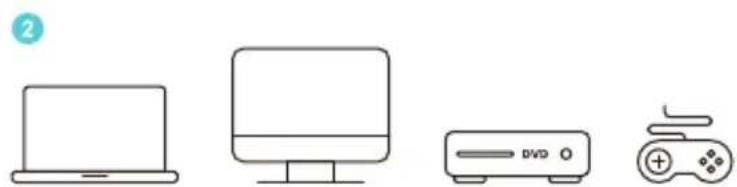
natural_image
Line drawings of four electronic devices: a laptop, a monitor, a DVD unit, and a game controller (no text or symbols)10.1.3 Lan
![[NFC]](/content/2026/04/722678/images/a4b9979a5205e1f3c5b39d583405b23d633c428a1bea19b6fe7fb3ad590295e1.jpg)
natural_image
Four gray circular icons with white play and audio playback controls, no text or symbols present.13. System-Upgrade
natural_image
Line drawing of a portable electronic device with a circular top and ventilation grille (no text or symbols)natural_image
Diagram of a mechanical device with a lever and 15° angle annotation (no readable text or symbols)natural_image
Simple geometric diagram with a rectangle and dashed line, no text or symbols present
natural_image
Simple rectangular outline with dashed border and corner arrows (no text or symbols)natural_image
Empty rectangular frame with black border (no text or symbols)natural_image
Simple black-and-white pixelated pattern inside a rectangular frame (no text or symbols)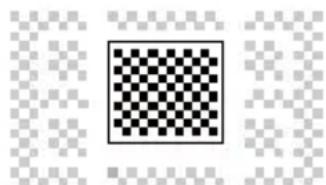
natural_image
Black and white checkerboard pattern inside a square frame, surrounded by faint pixelated squares (no text or symbols)natural_image
Empty rectangular frame with dashed border and a central circular element (no text or symbols)8.7 Zoom de Projection
natural_image
Simple line drawing of a U-shaped cable or connector with two connectors (no text or symbols)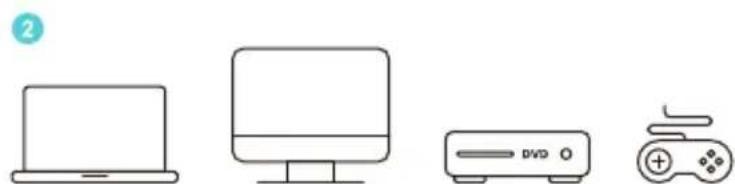
natural_image
Simple line drawings of four devices: a laptop, a monitor, a DVD unit, and a game controller (no text or symbols)10.1.3 Lan
natural_image
Four gray circular icons with white play and audio play symbols: megaphone, play button, video player icon, and rectangular frame (no text or numbers)natural_image
Line drawing of a portable electronic device with a circular top and ventilation grille (no text or symbols)Manuale Utente
natural_image
Diagram of a mechanical device with a lever and rotating arrow, labeled 15° (no text or symbols on the diagram itself)natural_image
Simple geometric diagram showing a rectangle with a dashed side and a gender symbol (no text or labels)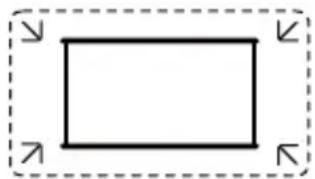
natural_image
Simple rectangular outline with dashed border and corner arrows (no text or symbols)natural_image
Empty rectangular frame with black border (no text or symbols)natural_image
Simple black-and-white pixelated pattern inside a rectangular frame (no text or symbols)
natural_image
Black and white checkerboard pattern inside a square frame, surrounded by faint pixelated background (no text or symbols)natural_image
Empty rectangular frame with dashed border and corner markers (no text or symbols)natural_image
Simple line drawing of a U-shaped cable or connector with two connectors (no text or symbols)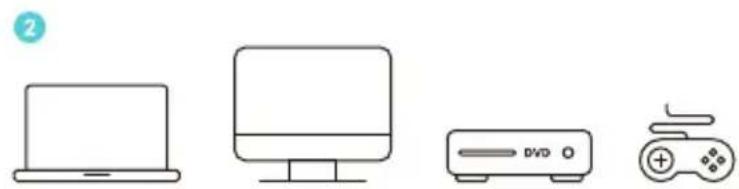
natural_image
Line drawings of four electronic devices: a laptop, a monitor, a DVD unit, and a game controller (no text or symbols)10.1.3 Lan
![[NFC]](/content/2026/04/722678/images/945e334ba0c85dcbe2b527b928eb615dfce7c982aaadc54f40cc2f187154568b.jpg)
natural_image
Four gray circular icons with white play and audio control symbols: megaphone, play button, video player icon, and rectangular frame (no text or labels)natural_image
Line drawing of a portable electronic device with a circular top and ventilation grille (no text or symbols)Manual de Usuario
natural_image
Line drawing of a portable radio with a speaker grille and antenna (no text or symbols)Proyector

natural_image
Simple line drawing of a remote control with no text or symbols(Para T2)
natural_image
Simple circular diagram with a small protrusion on the top edge (no text or symbols)Cubierta de LenteControl Ren
natural_image
Simple line drawing of two overlapping documents with horizontal lines (no text or symbols)
Cable HDMI
natural_image
Simple decorative border with scalloped edges and no text or symbolsPaño de Limpieza
natural_image
Diagram of a mechanical device with a lever and 15° angle annotation (no readable text or symbols)natural_image
Line drawing of a portable electronic device with a handle and ventilation grille, mounted on a stand (no text or symbols)natural_image
Simple geometric diagram with a rectangle and a dashed line, no text or symbols present.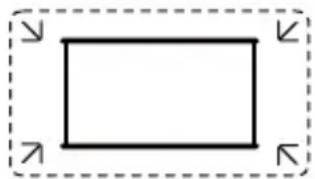
natural_image
Simple rectangular outline with dashed border and corner arrows (no text or symbols)natural_image
Empty rectangular frame with black border (no text or symbols)natural_image
Simple black-and-white pixelated pattern inside a rectangular frame (no text or symbols)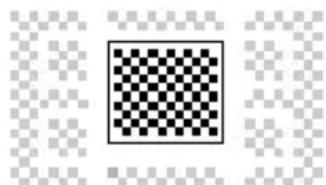
natural_image
Black and white checkerboard pattern inside a square frame, surrounded by faint pixelated background (no text or symbols)natural_image
Empty rectangular frame with dashed border and a central circular symbol (no text or labels)natural_image
Simple line drawing of a U-shaped tube with connectors (no text or symbols)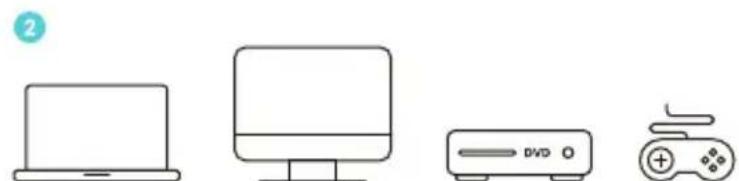
natural_image
Simple line drawings of four devices: a laptop, a monitor, a DVD unit, and a game controller (no text or symbols)10.1.3 Lan
10.3.1 Compartir Pantalla
![[NFC]](/content/2026/04/722678/images/e6cee118620f184fb521164b3ecda6d94670ed0b2cf717f84e04dd3d28028012.jpg)
natural_image
Four gray circular icons with white play and audio play symbols: megaphone, play button, video player icon, and rectangular frame (no text or labels)natural_image
Line drawing of a portable electronic device with a circular top and ventilation grille (no text or symbols)ユーザーマニュアル
スマートプロジェクトターT2
JP
目次
natural_image
Line drawing of a portable electronic device with a circular top and mesh grille (no text or symbols)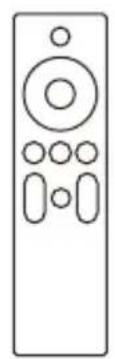
natural_image
Line drawing of a remote control with buttons and dials (no text or symbols)
natural_image
Simple circular diagram with a small protrusion on the top edge (no text or symbols)natural_image
Simple line drawing of two overlapping documents with horizontal lines (no text or symbols)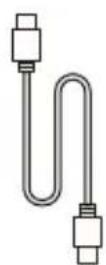
HDMIケーブル
電源コードクイックスタート

natural_image
Simple decorative border with scalloped edges and no text or symbols

クリーニングクロス
ブランドカード AAA形電池
natural_image
Simple line drawing of a mechanical lever with a 15° angle indicator (no text or symbols on the diagram itself)7.2 天井取り付け
natural_image
Line drawing of a portable electronic device with a handle and ventilation grille, mounted on a stand (no text or symbols)8. 投影設定
natural_image
Simple geometric diagram showing a rectangle with a dashed side and gender symbols (no text or labels)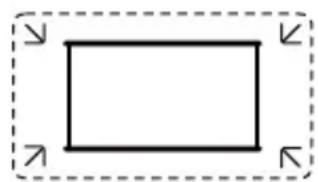
natural_image
Simple rectangular outline with dashed border and corner arrows (no text or symbols)natural_image
Empty rectangular frame with black border (no text or symbols)natural_image
Simple black-and-white pixelated pattern inside a rectangular frame (no text or symbols)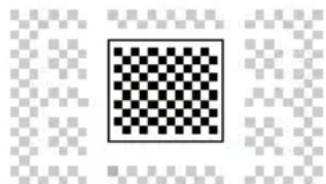
natural_image
A black-and-white checkerboard pattern centered within a square frame, surrounded by faint pixelated squares (no text or symbols)8.5 電動フォーカス
natural_image
Empty rectangular frame with dashed border and central circular element (no text or symbols)8.7 投影ズーム
10.3.1 スクリーンミラーリング
TVドングルの使用方法
natural_image
Four gray circular icons with white play and audio control symbols, no text or numbers present.13. システムアップグレード
natural_image
Simple black-and-white smiley face icon (no text or symbols)
- User Manual
- Smart Projector T2
- Contents
- Catalog
- Yaber Lifetime Professional Support
- Warranty
- Important Precautions
- Please use the device correctly:
- What's included
- Projector Interface
- Remote Contol
- About Battery
- About Battery
- Low Power Notification
- The projector is running out of power
- Dismiss
- Installation
- Handle to Stand
- Ceiling Mounting
- Projection Settings
- Projection Distance
- Auto Focus
- Auto Keystone Correction
- Auto Screen Alignment and Auto Obstacle Avoidance
- Electric Focus
- Manual Keystone Correction
- Projection Zoom
- Picture Settings
- Brightness Settings
- Image Color Settings
- Connectivity
- HDMI, USB, Lan Port
- USB
- HDMI
- Lan
- Wireless Connections
- Wi-Fi Screen Mirroring
- Yaber App
- Screen Share
- Phone Control
- NFC Settings
- T2 Dongle (Special for T2 Plus or Purchase separately Online)
- Dongle Overview
- Remote Contol
- Dongle Installation
- How to Use TV Dongle
- Bluetooth Settings
- System Upgrade
- Quiet Mode
- Äaber
- PROJECTOR
- Benutzerhandbuch
- Smart Projektor T2
- Katalog
- Deckenmontage
- Projektionszoom
- System-Upgrade
- Zoom de Projection
- Manuale Utente
- Manual de Usuario
- Compartir Pantalla
- ユーザーマニュアル
- スマートプロジェクトターT2
- 目次
- 天井取り付け
- 投影設定
- 電動フォーカス
- 投影ズーム
- スクリーンミラーリング
- TVドングルの使用方法
- システムアップグレード
Brand : Yaber
Model : T2 Plus
Category : Projector